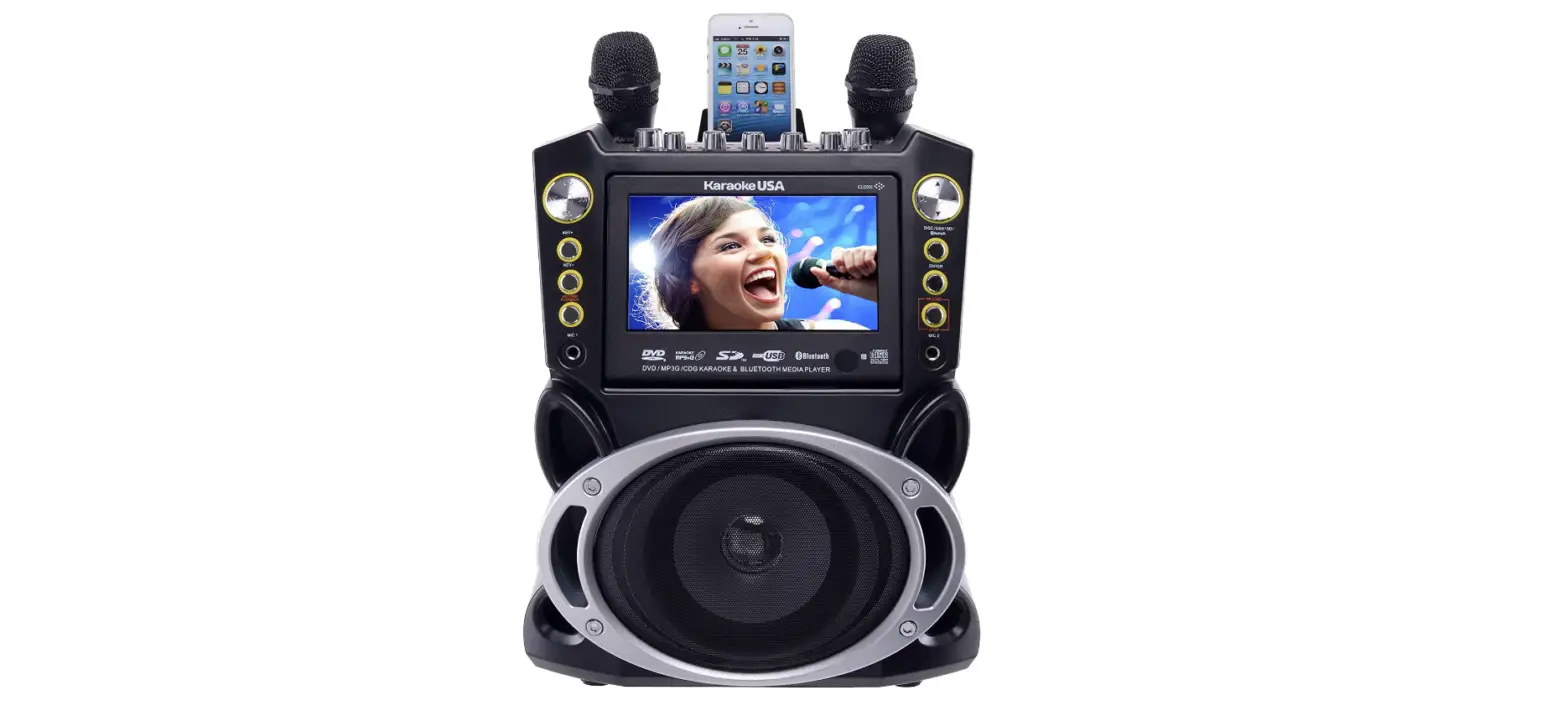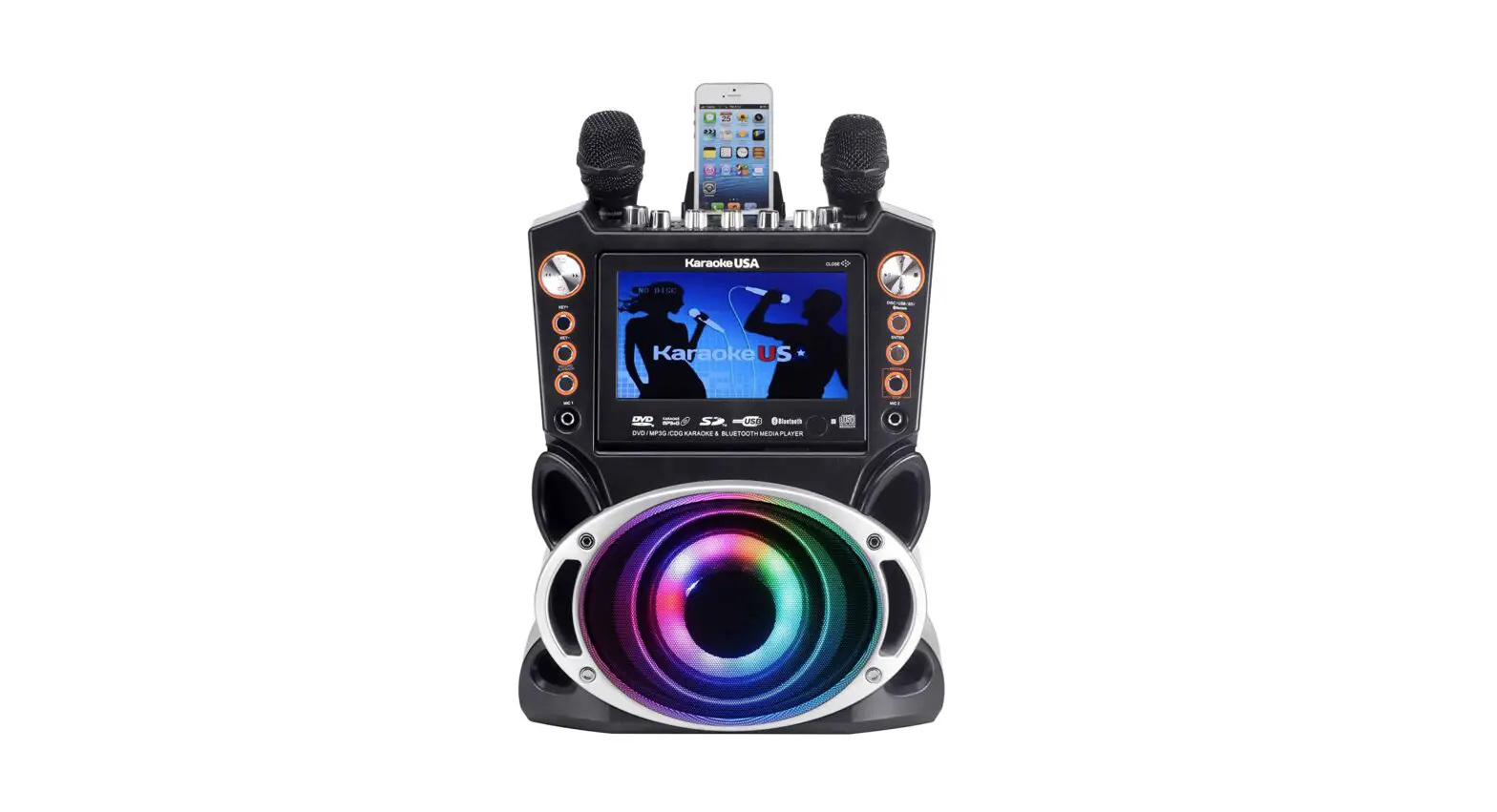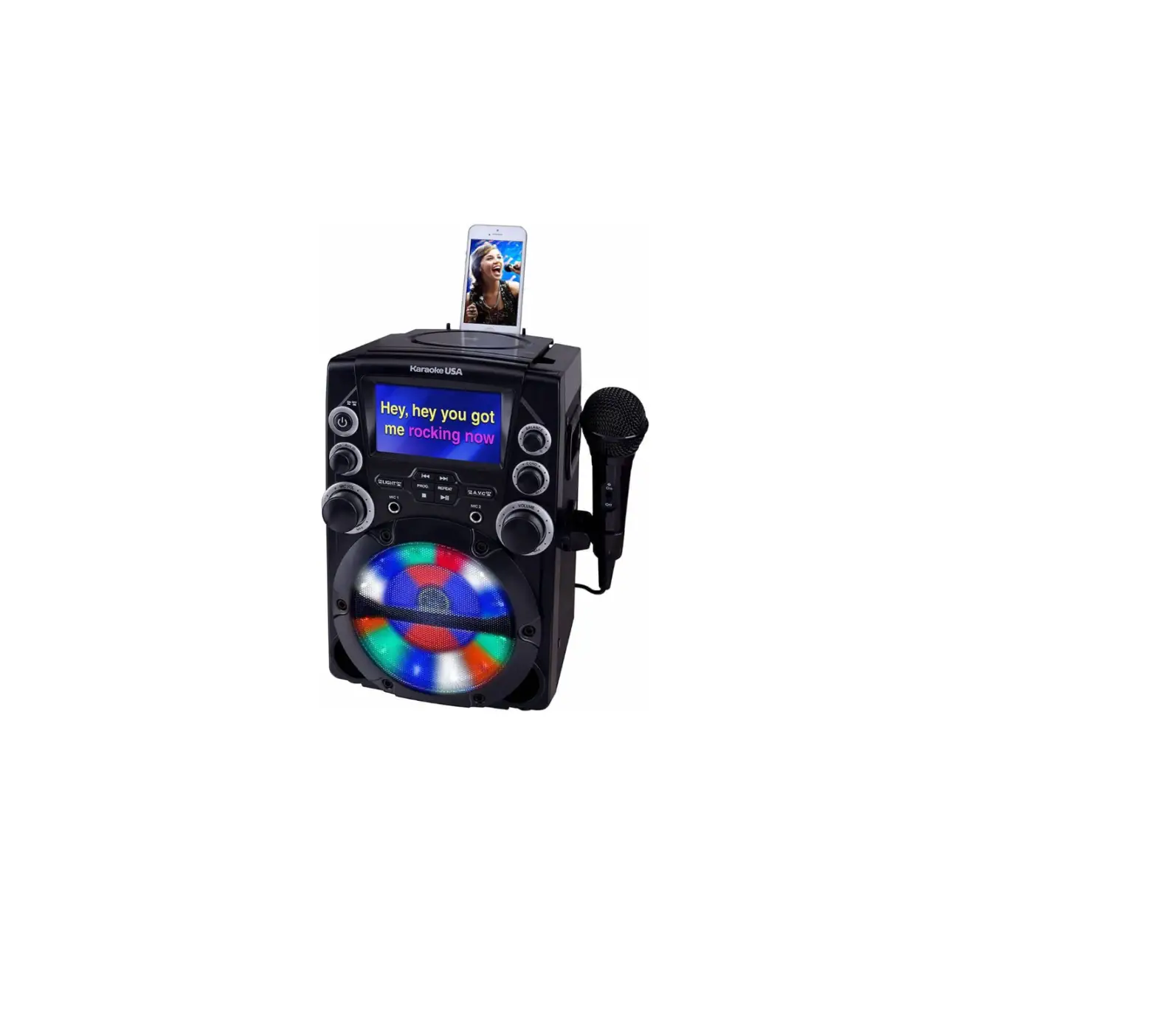

Karaoke USA GQ740 Karaoke
Introduction
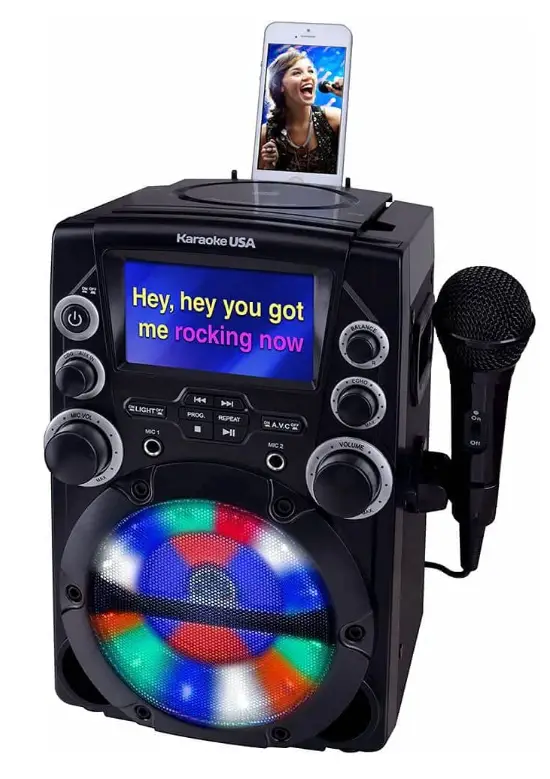
Are you looking for a cheap karaoke player that still has some flair, like the more expensive models? With this 4.3 in. Color TFT Screen CD+G Karaoke System from Karaoke USA, you’ve met your match! Use your personal smart device or karaoke discs to rock the room. Regardless of which direction you face, the speaker comes to life with a flash of vibrant lights to create an engaging occasion. As you—the singing star—sing louder, this device’s AVC (Auto Voice Control) automatically lowers the karaoke lead vocal volume. It’s a fantastic technique to pick up the song gradually.
FEATURE
- CD player: CD+G, CD, CD-R/RW
- Mic Volume Controls
- Echo Control
- AVC Control
- Balance Control
- TFT display
- Microphone Jacks, 6.3mm x2
- RCA audio output
- Line in jack 3.5mm (Aux input / Audio input)
- Disco Lights
- Built-in speakers
- AC power: Requires AC power adapter
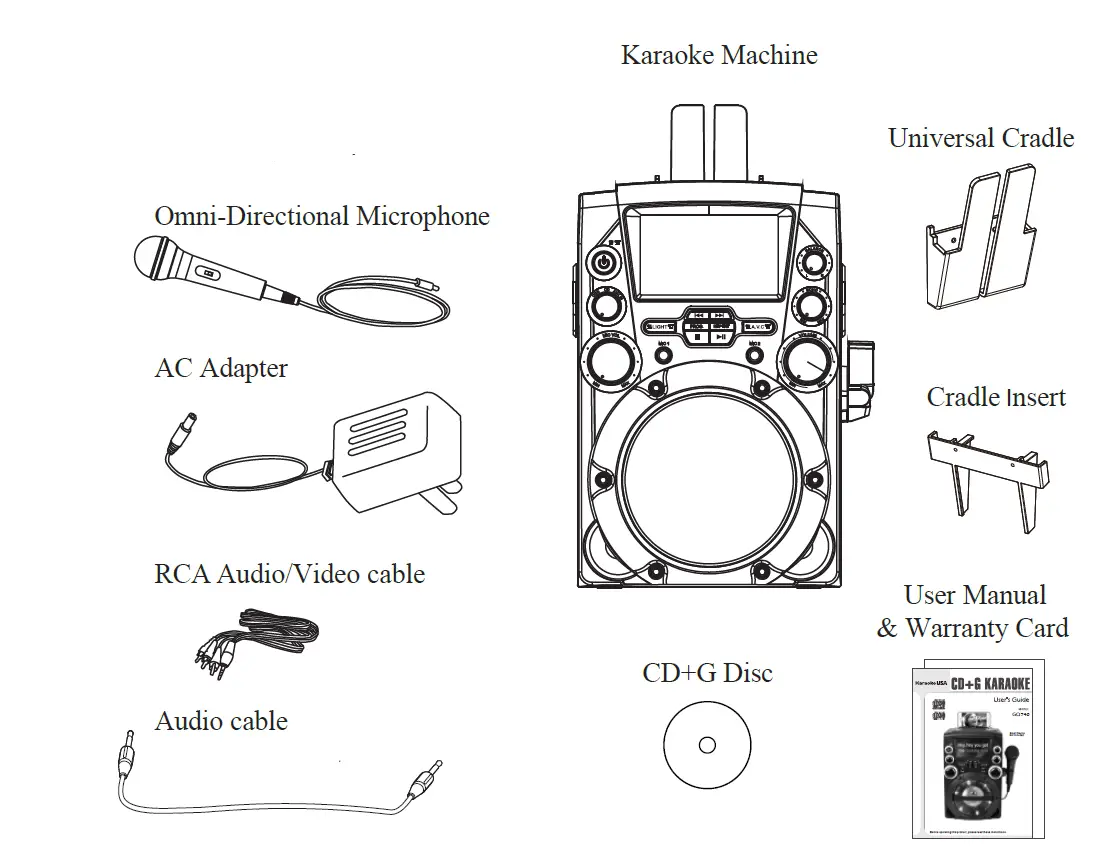
INCLUDED
- Karaoke System
- Microphone
- RCA Audio/Video cable
- AC power adapter
- User Manual & Warranty Card
- Audio cable
- CD+G Disc
- Universal cradle & insert
FRONT VIEW
REARVIEW
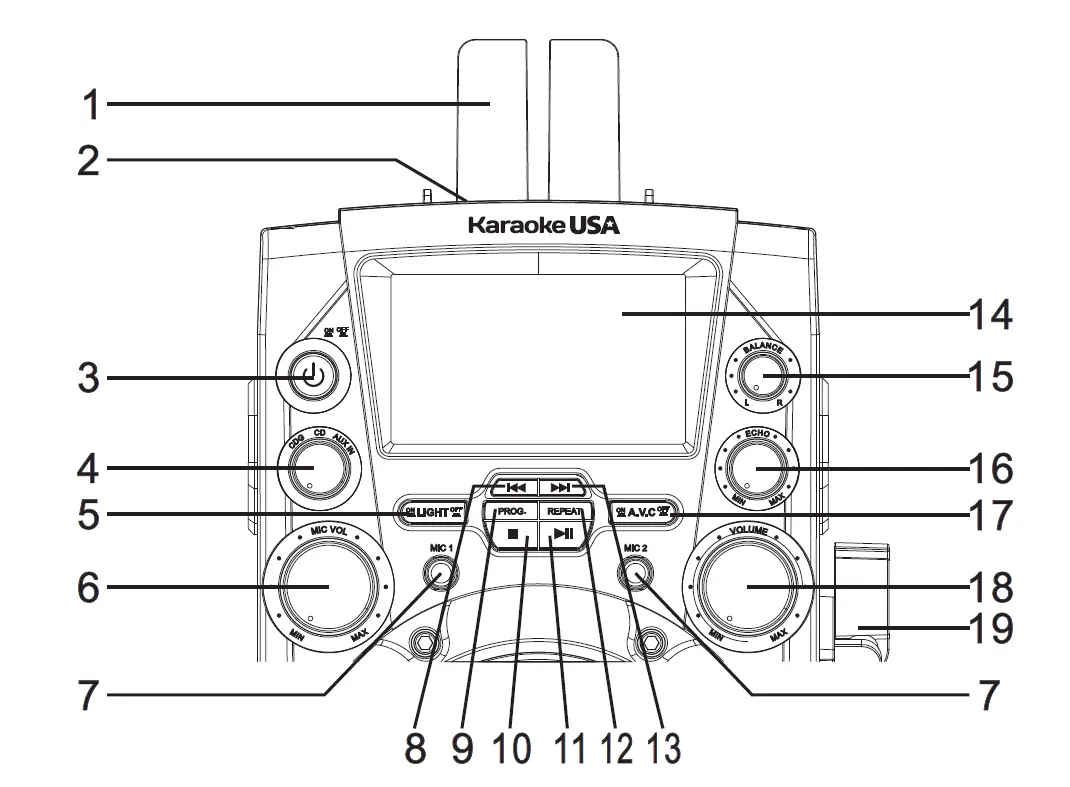
LOCATION CONTROLS
- DETACHABLE CRADLE: Place your mobile / tablet on the cradle.
- CD Door : Open the door to install disc.
- ON/OFF Button: Press this button to turn on / off unit.
- FUNCTION: Rotate to select CDG (DISC) mode / AUX IN mode.
- LIGHT Button: Press this button to turn on / off Disco Lights
- MIC VOLUME Dial: Rotate to adjust the volume from the MIC input.
- MIC Inputs : Mic 1 and Mic 2 input jack
- SKIP/SEARCH(Back): Press to skip previous tracks on loader disc. Press and hold to fast-rewind the current track on a loaded disc (not applied for CD+G disc).
- PROGRAM Button: Press to program a loaded disc to play tracks in specified order.
- STOP Button : Press to stop a disc playing
- PLAY / PAUSE Button: Press to play or pause a loaded disc.
- REPEAT Button: Press repeatedly to set the current track or entire disc to repeat
- SKIP/SEARCH(Forward): Press to skip next tracks on loaded disc. Press and hold to fast-forward the current track on a loaded disc (not applied for CD+G disc).
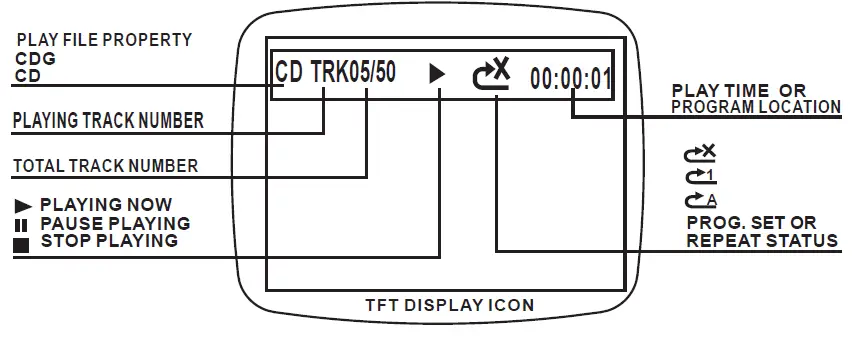
- TFT DISPLAY: Show disc tracks number & CDG graphic.
- BALANCE Dial: Rotate the dial to select vocals or music only or a standard balance function.
- ECHO Dial: Rotate to adjust echo sound effect.
- V.C Button: Press to Auto Voice Control on / off.
- VOLUME Dial: Rotate to adjust the main volume sound level.
- MIC Holder: Place the microphone on the holder
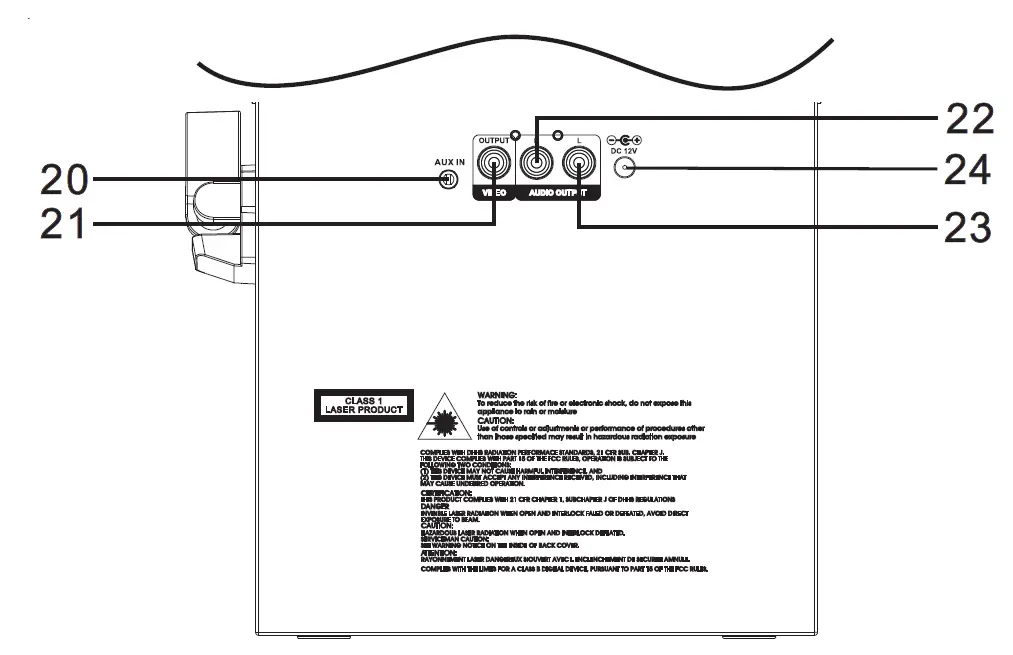
- AUX IN (Line in / Audio in) : Connect to external device audio output.
- VIDEO OUT Jack: Connect to TV video input.
- AUDIO OUT R (Line out / Aux out) Jack: Connect to external device audio input R.
- AUDIO OUT L (Line out / Aux out) Jack: Connect to external device audio input L.
- DC INPUT Jack: Connect power adapter for AC power.
MONITOR MESSAGE
SETUP CRADLE
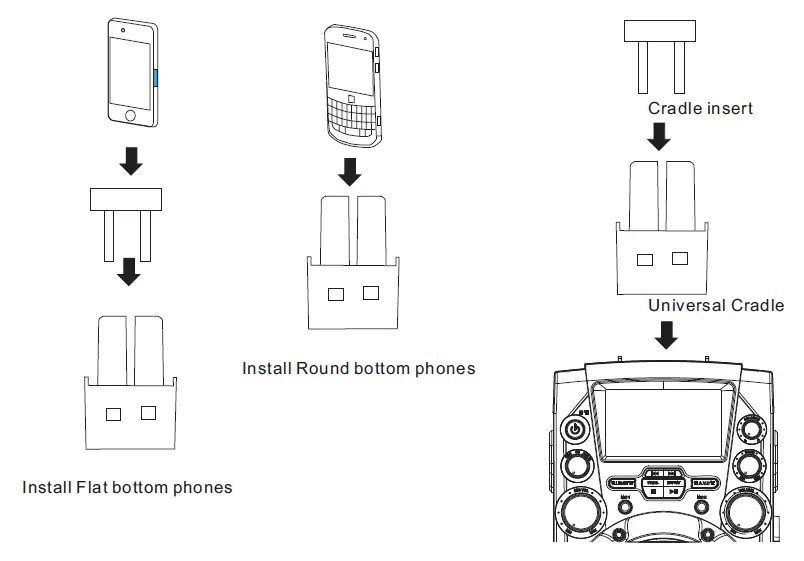
INSTALL CRADLE INTO THE UNIT
Install the cradle (included) to hold the Mobile & Tablet onto unit.
PLACE EXTERNAL DEVICE
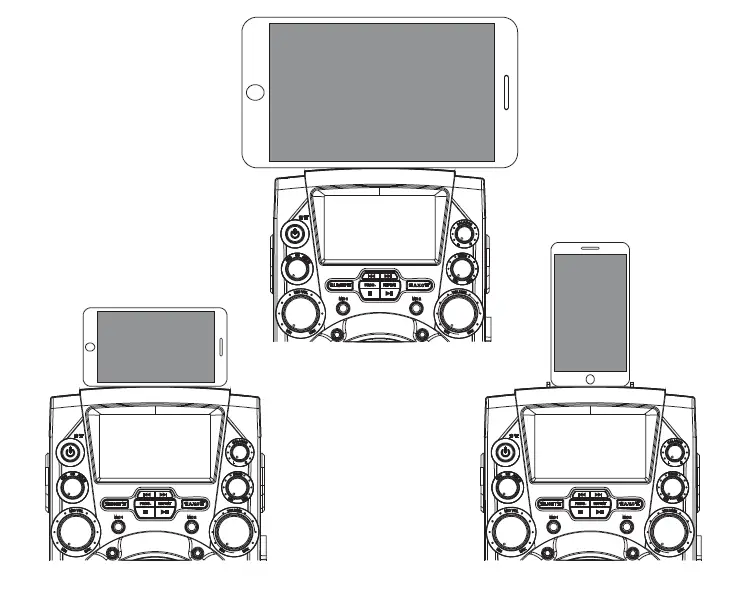
Insert Personal Player / Mobile Phone / Tablet with cradle onto the unit.
SETUP POWER
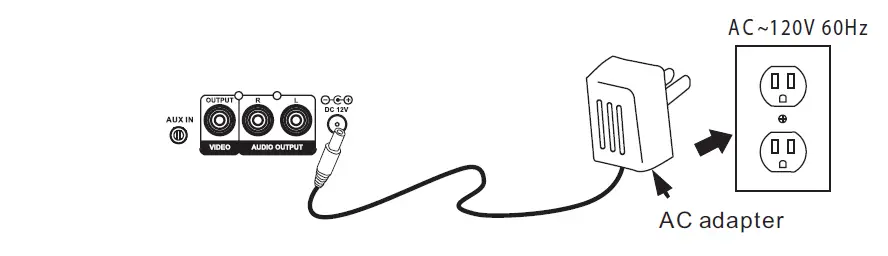
CONNECT POWER ADAPTER
Plug the included AC adapter into the standard AC power outlet to power the KARAOKE SYSTEM. Connect small end to DC INPUT jack of main unit. After adapter connection, Press the ON/OFF button to turn on / off the Karaoke System.
REAR SIDE OF THE MAIN UNIT
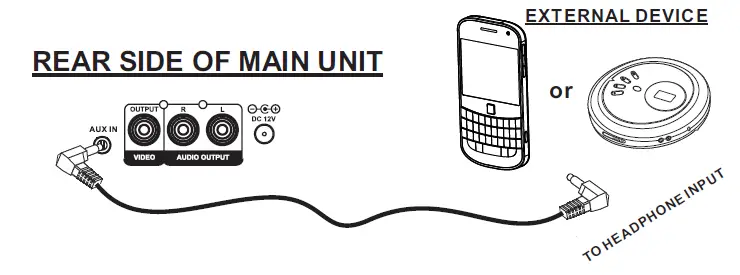
Connect Ext. Device & Sound From Main Unit Speaker
AUX IN (LINE In / AUDIO In )
To connect a MP3 Player or other Audio Device you will need a 3.5mm Auxiliary Cable.
- Connect a 3.5mm Auxiliary Cable to the AUX IN jack at the rear side of unit and to the Audio Output or Phones on the audio device you wish to play.
- Rotate the FUNCTION selector of Karaoke System to AUX IN position.
- Turn on both units and AUX indicator will light.
- After the connection, the external device will sound from speakers of your unit.
PLEASE NOTE: If not use this function, please unplug it.
Using CD+G, CDs
LOADING A DISC
- Connect power (follow SETUP POWER page) .
- Pull the CD DOOR OPEN AREA to open the CD DOOR.
- Place a CD+G or CD into the CD compartment.
- Close the CD DOOR. Press the POWER button to turn on unit.
- Rotate FUNCTION selector to CDG (DISC) position.
PLAYING A DISC
- Follow the instructions for Loading a Disc.
- Press the PLAY/PAUSE button to begin playing the loaded disc.
- Rotate the MASTER VOLUME dial to select the sound level.
- To temporarily stop playing, press the PLAY/PAUSE button once. To resume play, press the PLAY/PAUSE button one more.
- Press REWIND/FORWARD buttons to skip between next or previous tracks.
- Hold the REWIND/FORWARD buttons to fast search through the track. Please note:-The fast-forward / fast-rewind functions will not work for CDG discs.
- Connect the VIDEO OUT jack to TV, the lyrics text will show on TV.
- Press the STOP button to stop playing.
REPEAT FUNCTION
- Follow the instructions for Loading a Disc and Playing a Disc.
- Press the REPEAT button once and
 indicator light. The unit will play the current track repeatedly.
 - Press the REPEAT button twice and
 indicator light. The unit will play the entire disc repeatedly.
 - To cancel the repeat function: press the REPEAT button repeatedly on
 the indicator light or press the STOP button twice to stop.
 indicator light. The unit will play the current track repeatedly.
 indicator light. The unit will play the entire disc repeatedly.
 the indicator light or press the STOP button twice to stop.
PROGRAMMING A DISC UP TO 20 TRACKS
- When disc playing, press the STOP button to stop mode.
- Press the PROGRAM button and the program ( PROG. SET ) (see on the top right screen).
- Press the REWIND/FORWARD buttons to select the track from the loaded disc you wish to play first.
- Press the PROGRAM button to confirm.
- Repeat steps 3 and 4 to select more tracks.
- Press the PLAY button to start the program playing.
- Press the STOP button twice to cancel a program.
CONNECTING TO A TELEVISION / DVD / EXT. DEVICE
COMPOSITE VIDEO OUTPUT
Require an RCA video cable.
- Plug the included RCA audio/video cable into the VIDEO OUT and a composite video input on a television.
- Adjust the television to the correct input setting.
- When playing CDG discs, the Karaoke System will output written lyrics to the connected television
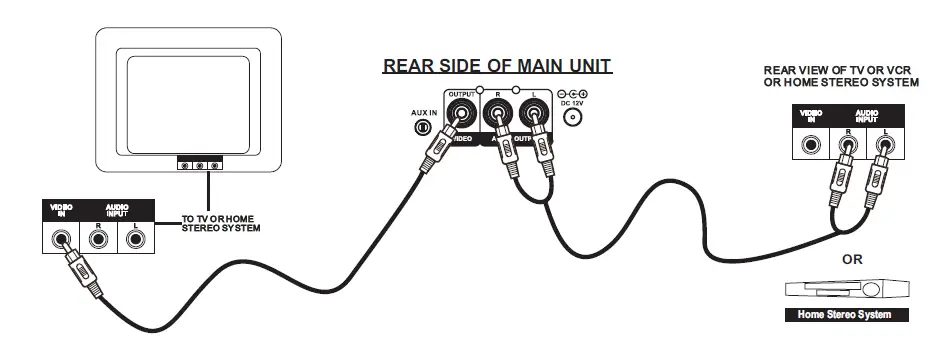
RCA AUDIO OUTPUT
Requires an RCA audio cable.
- Plug the included RCA audio/video cable into the AUDIO OUT and an RCA audio input on a television or stereo system.
- Adjust the television or stereo system to the correct input setting.
- When playing the disc, the Karaoke System will output audio to the connected television or stereo system. Use the external device to control the output sound level.
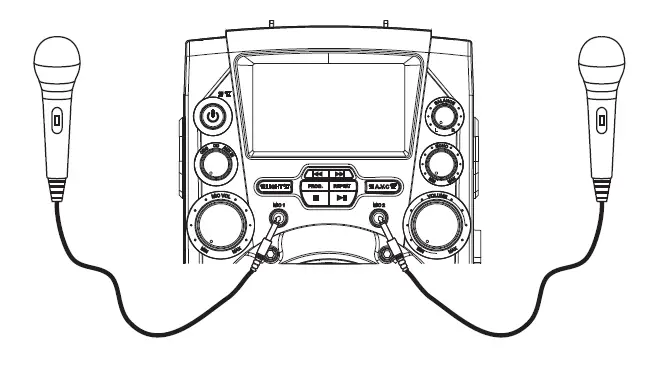
USING MICROPHONE
Requires a microphone (included one)
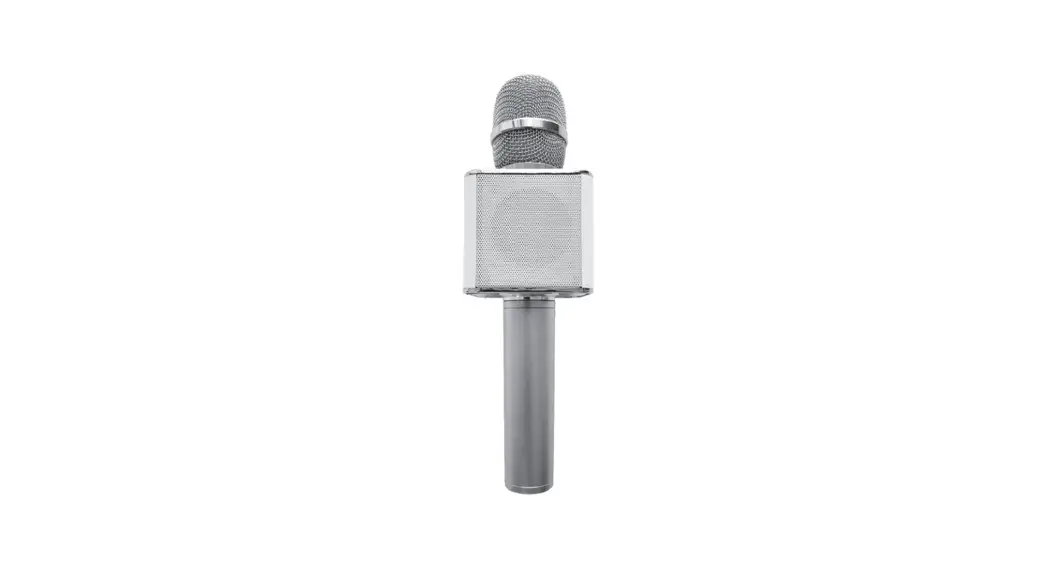
- Plug the microphone (see below figure) into the MIC 1 INPUT or MIC 2 INPUT.
- Slide the ON /OFF switch of MICROPHONE,
- Use the MIC VOLUME dial of Karaoke System to adjust the volume of audio sound from the microphone.
USING AVC / ECHO / BALANCE
AVC
The AVC (Automatic Voice Control) can be activated by the A.V.C button. The vocals on the multiplex recording will be muted when the singer starts to sing through the microphone. When the singer stops singing the vocals will resume to normal.
ECHO
Adjust the ECHO dial of Karaoke System to enhance your voice for a concert hall effect.
BALANCE
Rotate the BALANCE dial of Karaoke System to hear the music and vocals or to hear the music only.
NOTES: To use the BALANCE dial, a CD+G disc must be used. Otherwise it will operate as a standard BALANCE control.
SPECIFICATION
| AC Power
Adapter Connect DC Jack | Use included adapter
AC~ Input 120 / 60 Hz , DC Output 5V , 1.S$ |
|
CD Player | Support
CDs and CDG disc 4.75 / 3.25 inch GRAPHICS |
| Master Power Output | 4.5W x 1 RMS |
| Loud Speakers Spec | 3.5 Inch,8 Watt , 2 Ohm |
Specifications are typical, individual units might vary. They are subject to continuous improvement without notice and without incurring any obligation.
FAQs
it has connectors for tv and for aux but only the cd player worked on mine. Either it was broke or the user was broke, I sent it back anyway.
Extremely old music.
You have to buy CD+G discs. They have music and lyrics that you can read on the screen.
Yes it does come with a microphone and the cable it’s a good length.
Not that I know of.
no batteries needed, plugs into wall.
I’m not sure.
Yes you can. My wife plugs her iPhone and can read the words right off her screen. Just puck music from YouTube.
From the picture provided since I intend to buy it there are 2 jacks in the front looks like they’re 1/4 inch.
You need the iPhone adapter.
Yes you can.
We didn’t try. We recorded each other with smart phones.
No sure.
Not sure but it uses Bluetooth.
Yes in your package a small wire is included to plug up your phone and this karaoke machine. My kids love it only down side is this machine should have had a second microphone port not just one can’t do a duet only solos. Machine is desk top and light weight so be careful not to accidentally pull it down other than that excellent machine kids love it! Sounds great and lights awesome.