
SENNHEISER Control Cockpit VR 6.0.0 Software
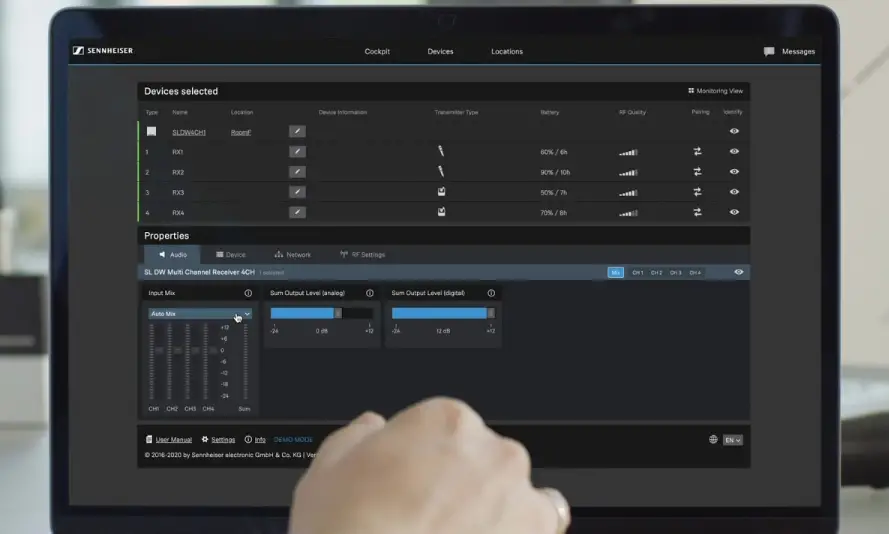
Sennheiser Control Cockpit: EW-DX control, monitoring and firmware updates
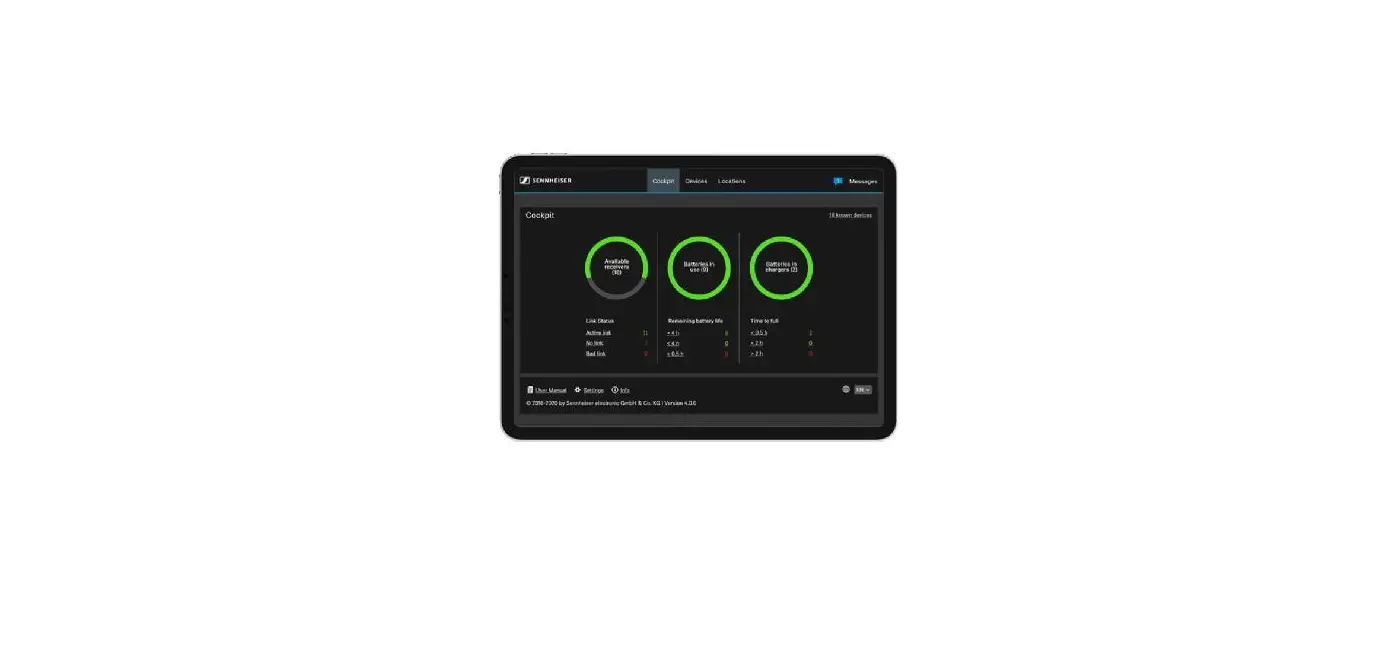
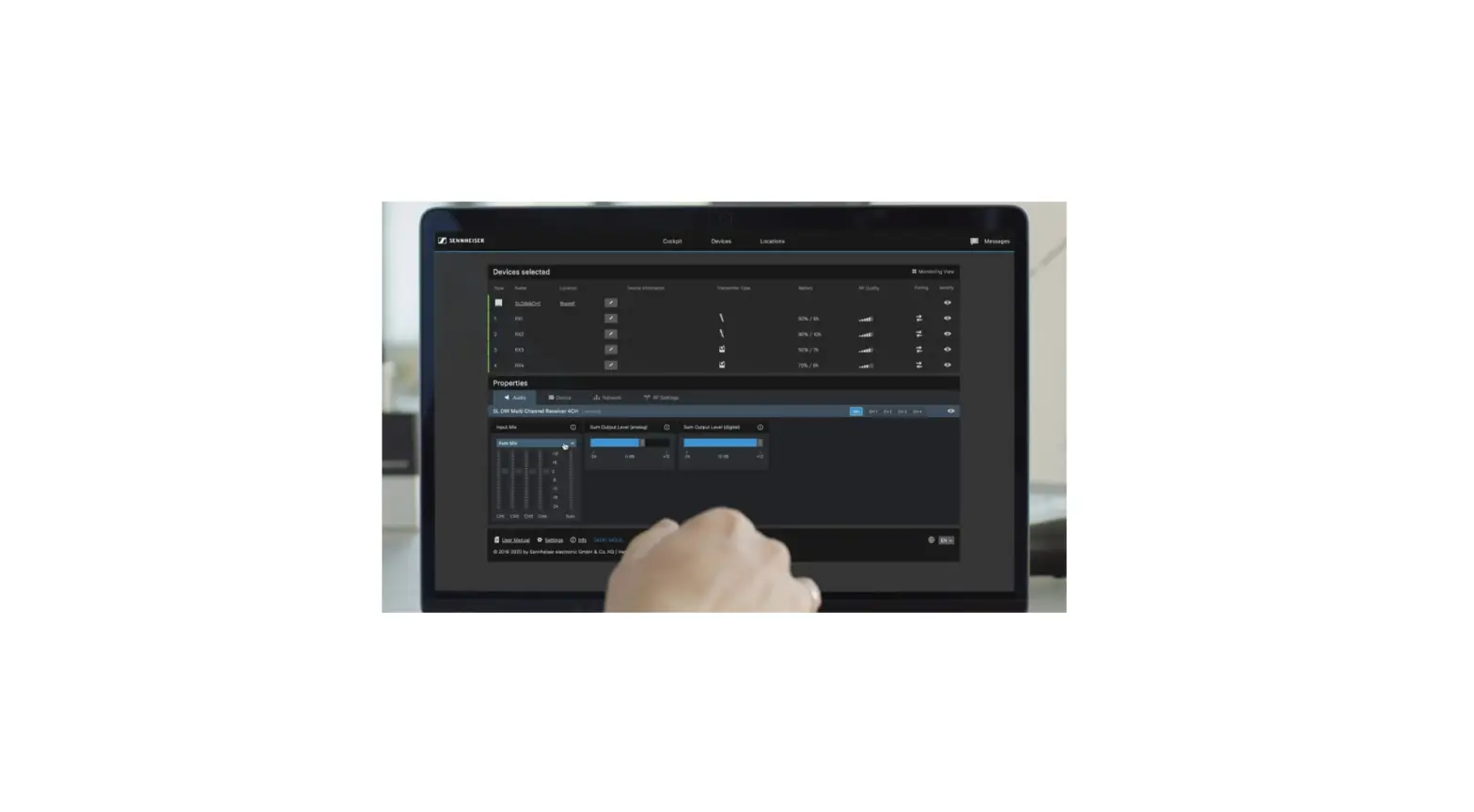
To control, monitor and perform firmware updates for EW-DX you will need our Sennheiser Control Cockpit software. This document outlines how to install and configure Control Cockpit and update your EW-DX products.
Installing Control Cockpit
The installation file of the Sennheiser Control Cockpit software can be downloaded from the Sennheiser Control Cockpit product page: Control Cockpit audio software | Sennheiser
Follow these simple steps to have the software installed:
- Save the downloaded installation file SennheiserControlCockpitInstaller.exe on the host PC
- Start the installation process
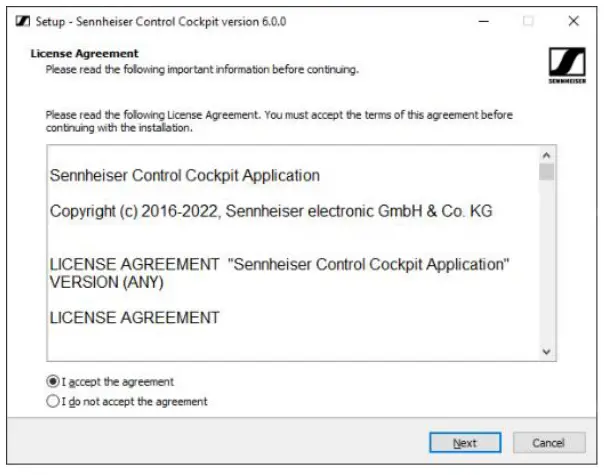
- Agree to the license terms and conditions
- Click Next

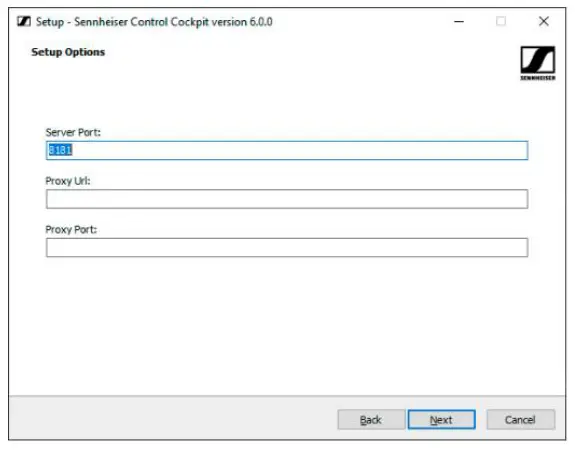
- Adjust the settings as desired and click Next

- Please remember to include https:// for the proxy URL (if used).
- If you want to use Sennheiser Control Cockpit in parallel with Sennheiser Wireless Systems Manager or any other application on the same machine already using port 8181, please type in another port (e.g. 8080 or 8282).
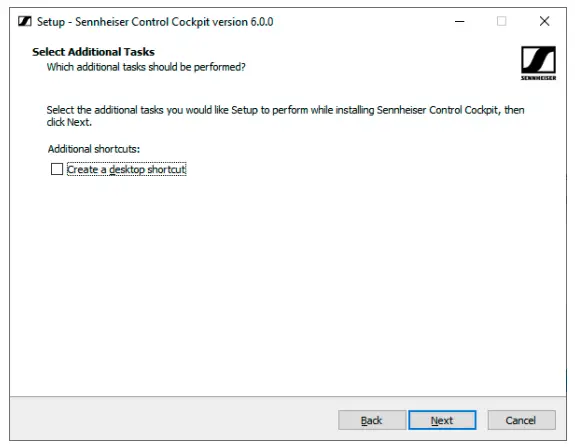
- Choose whether you want to create a desktop shortcut and click Next.

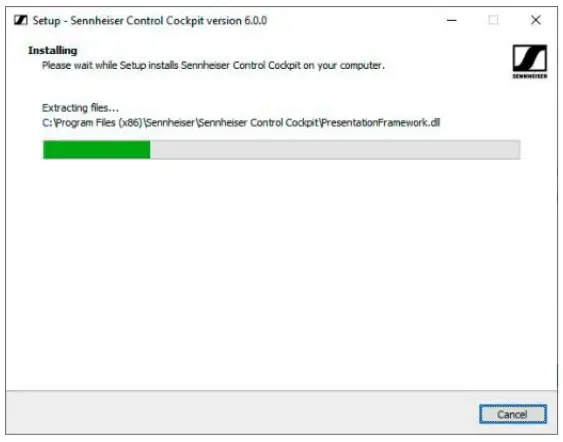
- Click Install to start the installation process.

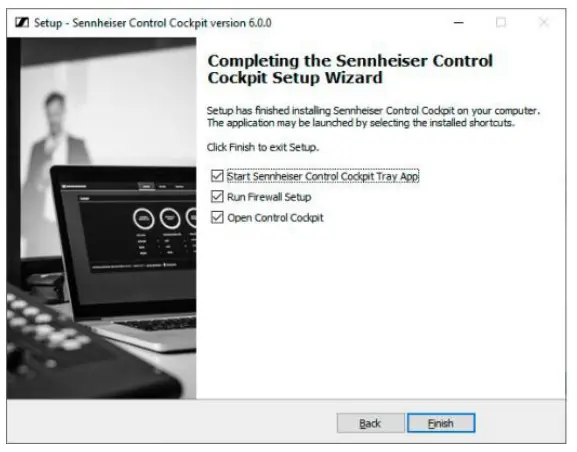
- The Sennheiser Control Cockpit is now installed. Afterwards, the following dialog is displayed.

- Click Finish to complete the installation.
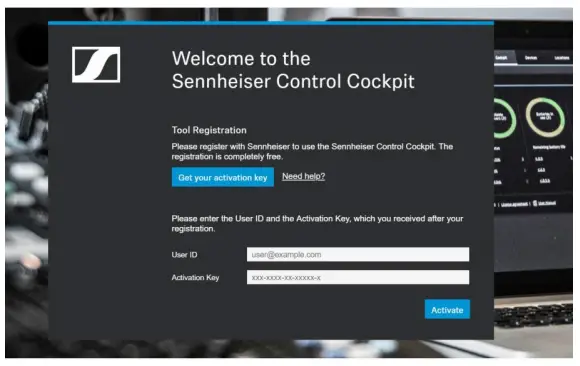
- Before using Control Cockpit for the first time you need to enter your Activation Key
- Click on Get your activation key to open the following address: www.sennheiser.com/control-cockpit-registration

- Click on Activate after you have received your activation key
- For further instructions on how to use Sennheiser Control Cockpit, please refer to the following manual: Sennheiser Control Cockpit – Software Manual
Updating EW-DX
Once Sennheiser Control Cockpit software is installed and activated, you can proceed to updating EW-DX devices.
Please follow these simple steps:
- Connect EW-DX to the same network as your PC

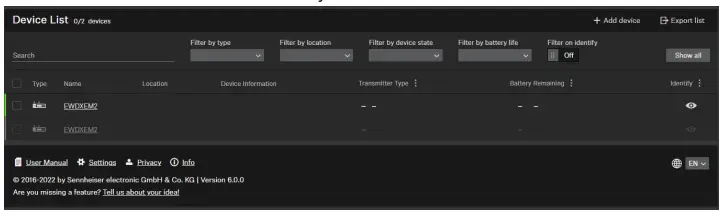
- EW-DX will be automatically discovered by Control Cockpit
- In case your EW-DX device is not populating automatically in the Device List, please use the link “Add device” to add the device manually using the device’s IP address
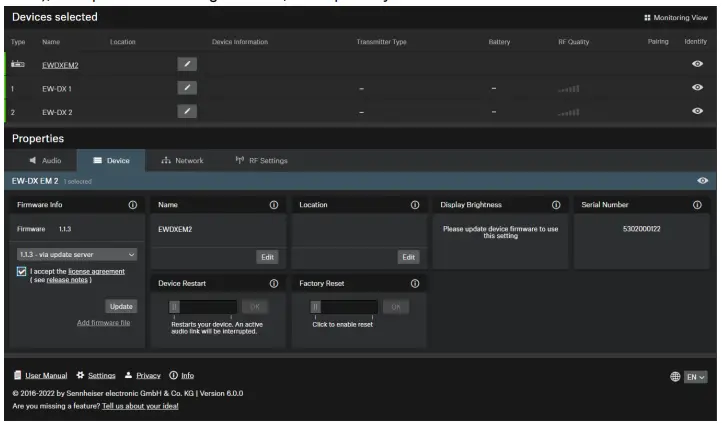
- Go to the device page and select the latest available firmware (firmware 1.1.3 as of November 2022), accept the license agreement, and update your receiver

- Your EW-DX has been successfully updated
For conformity, consistency and compatibility reasons, we strongly recommend always upgrading the system to the new release.