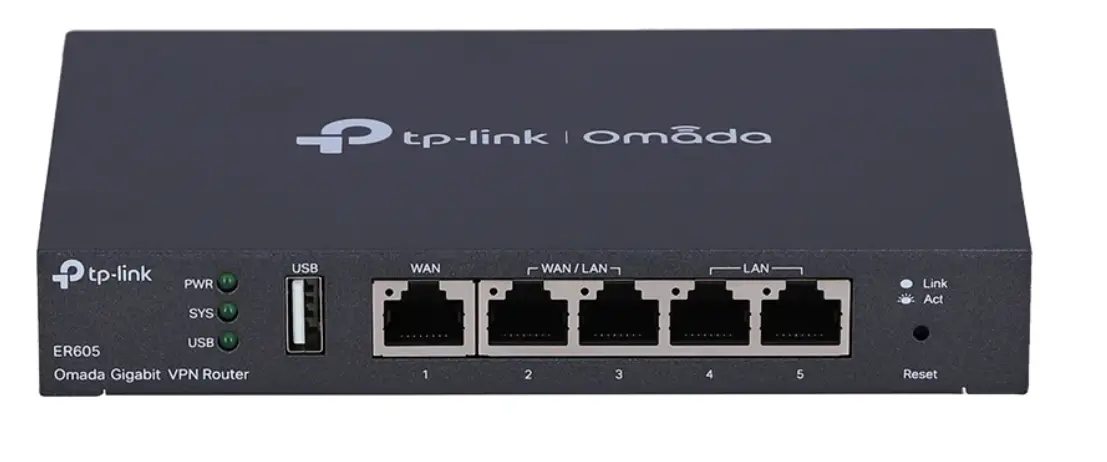
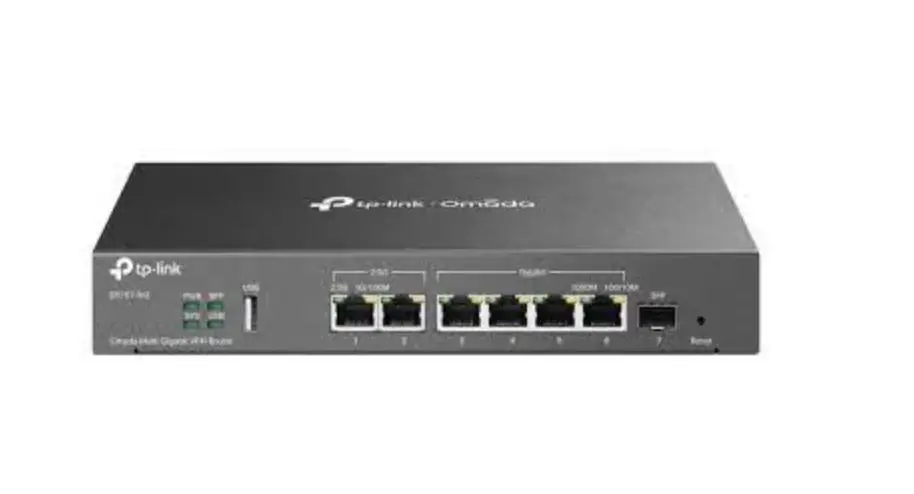
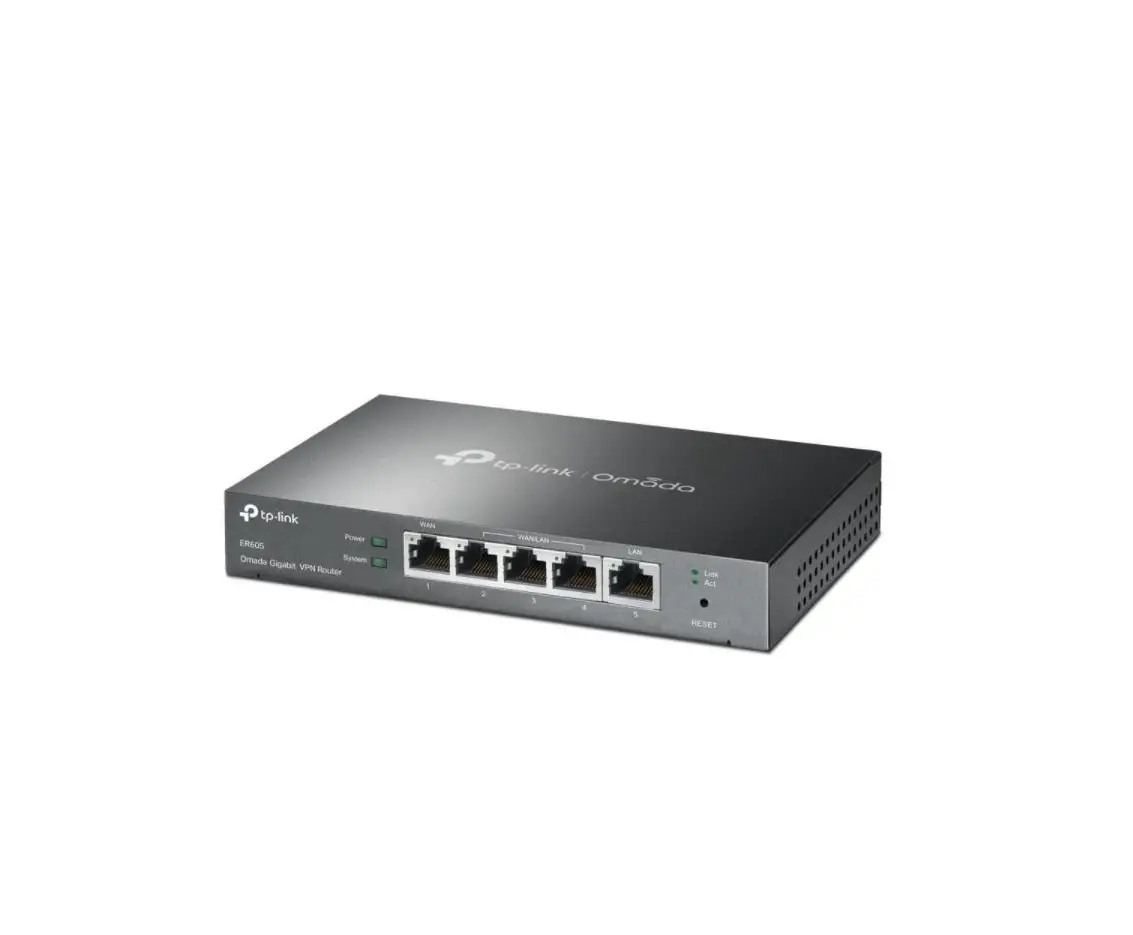
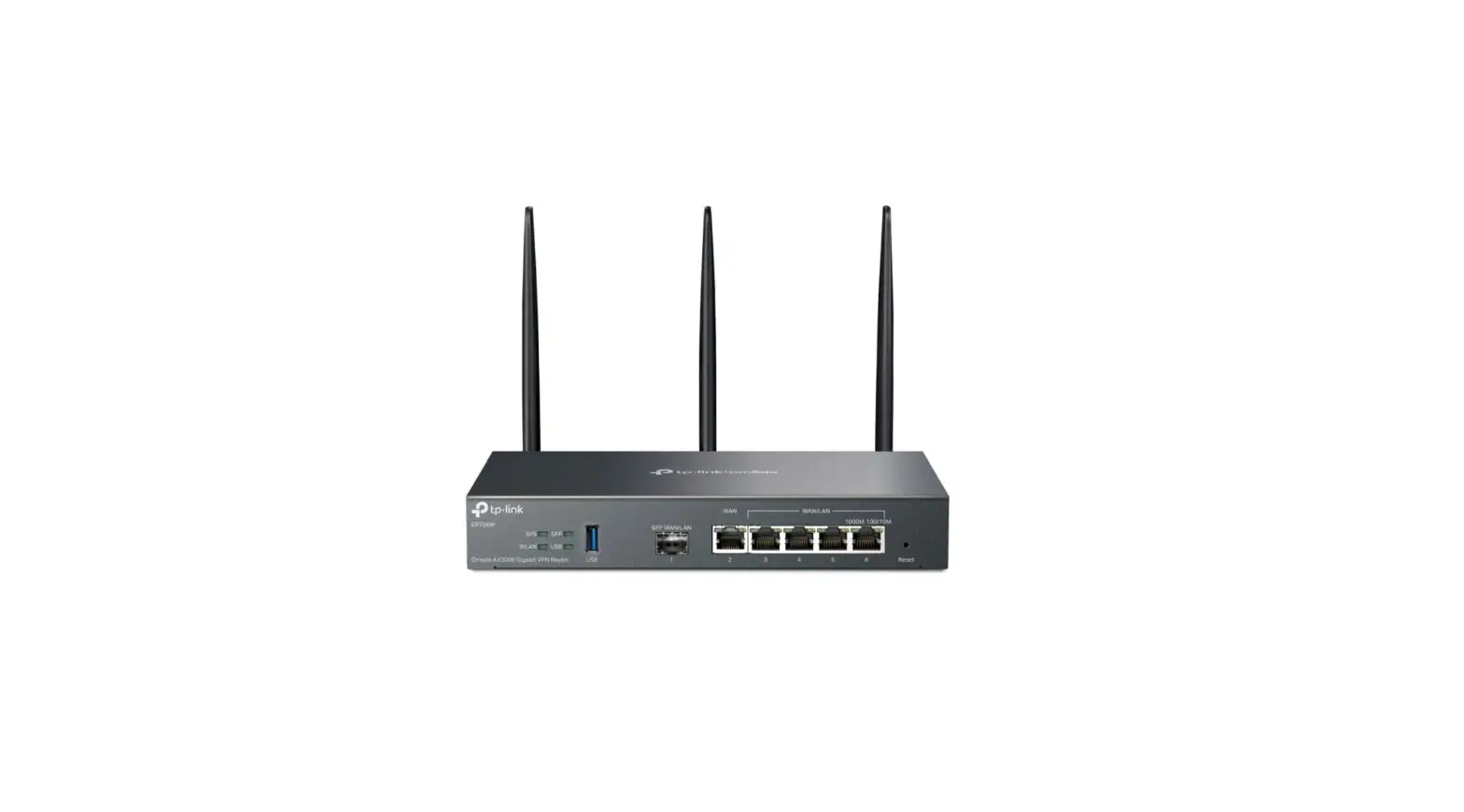
ER706W Omada VPN Client
Product Information: Omada VPN Client
The Omada VPN Client is a free VPN client designed specifically
for Omada routers. It allows users to establish secure VPN
connections to VPN servers. The client supports various VPN modes,
including IPsec VPN, SSL VPN, OpenVPN, and WireGuard VPN.
Chapter 1: Install Omada VPN Client
To install the Omada VPN Client, follow these steps:
- Ensure that your PC meets the system requirements.
- Download the installation file of the Omada VPN Client from the
official website. - Run the InstallShield Wizard and follow the on-screen
instructions to install the client. - Once the installation is complete, a shortcut icon will be
created on your desktop. - Double-click the shortcut icon to launch the Omada VPN Client
and begin configuring your VPN connections.
Chapter 2: Set Up VPN Connections
This chapter explains how to set up the router as a VPN server,
configure different VPN modes, and establish VPN connections.
2.1 Set Up IPsec VPN Connection
To set up an IPsec VPN connection, follow these steps:
- Set up the Omada router as an IPsec VPN server:
- Specify the name of the IPSec Policy.
- Configure the Network Mode (select “Client-to-LAN” when a host
is connected to the network). - Enter the IP address of the remote host (use “0.0.0.0” to
represent any IP address). - Specify the WAN port on which the IPSec tunnel will be
established. - Specify the local network (IP address range of the LAN on the
local side of the VPN tunnel). - Set a unique pre-shared key for authentication.
- Choose to enable the IPSec policy and click OK.
- Select the proposal for IKE negotiation phase 1 to specify
encryption algorithm, authentication algorithm, and DH group. - Choose the IKE Exchange Mode as Main Mode or Aggressive
Mode. - Select the IKE Negotiation Mode (Initiator Mode or Responder
Mode).
Note: The above instructions provide a brief overview of setting
up an IPsec VPN connection. For detailed configuration steps and
additional VPN modes, please refer to the user manual.
Chapter 3: System Settings
This chapter covers how to configure system display settings and
check logs. For detailed instructions, please refer to the user
manual.
Configuration Guide Omada VPN Client
Free VPN client for Omada routers. Home
Check VPN connection details, quickly active connections. Profiles
Create VPN profiles, import or export profile settings, establish VPN connections. Settings
Configure the system display settings, check the logs. This guide will introduce how to install the Omada VPN Client and how to use the VPN client to connect to the VPN servers.
© 2023 TP-Link 1910013464 REV1.0.0
CONTENTS
Chapter 1 Install Omada VPN Client
Chapter 2 Set Up VPN Connections
2. 1 Set Up IPsec VPN Connection . . . . . . . . . . . . . . . . . . . . . . . . . . . . . . . . . . . . . . . . . . . . . . . . . . . . . . . . . . . . . . . .2 2.1.1 Set up the Omada router as an IPsec VPN server.. . . . . . . . . . . . . . . . . . . . . . . . . . . . . . . . . . . . . . . . . . . . . . .2 2.1.2 Set up IPsec VPN client.. . . . . . . . . . . . . . . . . . . . . . . . . . . . . . . . . . . . . . . . . . . . . . . . . . . . . . . . . . . . . . . . . . . . . . . . .9 2.1.3 Active the IPsec VPN connection.. . . . . . . . . . . . . . . . . . . . . . . . . . . . . . . . . . . . . . . . . . . . . . . . . . . . . . . . . . . . . 10
2. 2 Set Up SSL VPN Connection . . . . . . . . . . . . . . . . . . . . . . . . . . . . . . . . . . . . . . . . . . . . . . . . . . . . . . . . . . . . . . . . 11 2.2.1 Set up the Omada router as an SSL VPN server. . . . . . . . . . . . . . . . . . . . . . . . . . . . . . . . . . . . . . . . . . . . . . . 11 2.2.2 Set up SSL VPN client. . . . . . . . . . . . . . . . . . . . . . . . . . . . . . . . . . . . . . . . . . . . . . . . . . . . . . . . . . . . . . . . . . . . . . . . . 15 2.2.3 Active the SSL VPN connection. . . . . . . . . . . . . . . . . . . . . . . . . . . . . . . . . . . . . . . . . . . . . . . . . . . . . . . . . . . . . . . 16
2. 3 Set Up OpenVPN Connection . . . . . . . . . . . . . . . . . . . . . . . . . . . . . . . . . . . . . . . . . . . . . . . . . . . . . . . . . . . . . . . 16 2.3.1 Set up the Omada router as an OpenVPN server. . . . . . . . . . . . . . . . . . . . . . . . . . . . . . . . . . . . . . . . . . . . . . 16 2.3.2 Set up OpenVPN client. . . . . . . . . . . . . . . . . . . . . . . . . . . . . . . . . . . . . . . . . . . . . . . . . . . . . . . . . . . . . . . . . . . . . . . . 19 2.3.3 Active the OpenVPN connection. . . . . . . . . . . . . . . . . . . . . . . . . . . . . . . . . . . . . . . . . . . . . . . . . . . . . . . . . . . . . . 20
2. 4 Set Up WireGard VPN Connection . . . . . . . . . . . . . . . . . . . . . . . . . . . . . . . . . . . . . . . . . . . . . . . . . . . . . . . . . . 20 2.4.1 Set up the Omada router as a WireGuard VPN server.. . . . . . . . . . . . . . . . . . . . . . . . . . . . . . . . . . . . . . . . . 20 2.4.2 Set up WireGuard VPN client. . . . . . . . . . . . . . . . . . . . . . . . . . . . . . . . . . . . . . . . . . . . . . . . . . . . . . . . . . . . . . . . . . 24 2.4.3 Active the WireGuard VPN connection. . . . . . . . . . . . . . . . . . . . . . . . . . . . . . . . . . . . . . . . . . . . . . . . . . . . . . . . 25
Chapter 3 System Settings
Chapter 1 Install Omada VPN Client
Omada VPN client is provided only for Windows 10 and above. Make sure your PC’s system meet the system requirements, then properly install the Omada VPN Client. 1. Download the installation file of Omada VPN Client from the website. 2. Follow the InstallShield Wizard to install the Omada VPN Client.
3. After a successful installation, a shortcut icon of the Omada VPN Client will be created on your desktop.
4. Double-click the shortcut icon to launch Omada VPN Client to start configuring the connection to VPN servers.
1
Chapter 2 Set Up VPN Connections
This chapter introduces how to set up the router as a VPN server, set up VPN Client in different VPN mode, and how to start the VPN connection. IPsec VPN, SSL VPN, OpenVPN, and WireGuard VPN are supported.
2. 1 Set Up IPsec VPN Connection
2.1.1 Set up the Omada router as an IPsec VPN server.
For Standalone Mode · For both ends of the VPN tunnel, the Pre-shared key, Proposal, Exchange Mode, and Encapsulation Mode should be identical. · For both ends of the VPN tunnel, the Remote Gateway, Local/Remote Subnet, Local/Remote ID Type should be matched. To complete the IPSec VPN configuration, follow these steps: 1 ) Choose the menu VPN > IPSec > IPSec Policy and click Add to load the following page.
Follow these steps to configure the basic parameters: a. Specify the name of the IPSec Policy. b. Configure the Network Mode. Select Client-to-LAN when a host is connected to the network.
2
Remote Host
Enter the IP address of the remote host. 0.0.0.0 represents any IP address.
WAN
Specify the WAN port on which the IPSec tunnel is established.
Local Subnet
Specify the local network. (This is the IP address range of the LAN on the local side of the VPN tunnel.) It’s formed from the IP address and subnet mask.
Pre-shared Key Specify the unique pre-shared key for both peers’ authentication.
Status
Choose to enable the IPSec policy.
c. Click OK. 2 ) Configuring the Advanced Parameters a. Choose the menu VPN > IPSec > IPSec Policy and click Advanced Settings to load the following
page.
b. In the Phase-1 Settings section, configure the IKE phase-1 parameters and click OK.
Proposal
Select the proposal for IKE negotiation phase 1 to specify the encryption algorithm, authentication algorithm and DH group. Up to four proposals can be selected.
3
Exchange Mode
Negotiation Mode
Local ID Type
Local ID Remote ID Type
Remote ID SA Lifetime DPD
Specify the IKE Exchange Mode as Main Mode or Aggressive Mode. By default, it is Main Mode.
Main Mode: Main mode provides identity protection and exchanges more information, which applies to scenarios with higher requirements for identity protection.
Aggressive Mode: Aggressive Mode establishes a faster connection but with lower security, which applies to scenarios with lower requirements for identity protection.
Specify the IKE Negotiation Mode Responder Mode.
Initiator Mode: This mode means that the local device initiates a connection to the peer.
Responder Mode: This mode means that the local device waits for the connection request initiated by the peer.
Specify the local ID type for IKE negotiation.
IP Address: Use an IP address as the ID in IKE negotiation. It is the default type.
NAME: Use a name as the ID in IKE negotiation. It refers to FQDN (Fully Qualified Domain Name).
When the Local ID Type is configured as NAME, enter a name for the local device as the ID in IKE negotiation.
Specify the remote ID type for IKE negotiation.
IP Address: Use an IP address as the ID in IKE negotiation. It is the default type.
NAME: Use a name as the ID in IKE negotiation. It refers to FQDN (Fully Qualified Domain Name).
When the Remote ID Type is configured as NAME, enter a name of the remote peer as the ID in IKE negotiation .
Specify ISAKMP SA (Security Association) Lifetime in IKE negotiation. If the SA lifetime expired, the related ISAKMP SA will be deleted.
Check the box to enable or disable DPD (Dead Peer Detect) function. If enabled, the IKE endpoint can send a DPD request to the peer to inspect whether the IKE peer is alive.
4
DPD Interval
If DPD is triggered, specify the interval between sending DPD requests. If the IKE endpoint receives a response from the peer during this interval, it considers the peer alive. If the IKE endpoint does not receive a response during the interval, it considers the peer dead and deletes the SA.
For Controller Mode
a. Select a site from the drop-down list of Organization. Go to Settings > VPN. Click to load the following page.
b. Enter a name to identify the VPN policy and select the purpose as Client-to-Site VPN. Refer to the following table to configure the basic parameters and click Create.
Name
Enter a name to identify the VPN policy.
Status
Click the checkbox to enable the VPN policy.
Purpose
Select the purpose for the VPN as Client-to-Site VPN.
VPN Type
Select the VPN type as VPN Server – IPsec.
Remote Host
Enter an IP address or a domain name of the host on the remote peer of the VPN tunnel. 0.0.0.0 represents any IP address.
Local Network Type
Specify whether to apply the VPN policy to specific local networks or IP addresses.
Network: Specify the local networks of the VPN tunnel. The VPN policy will be only applied to the selected local networks.
Custom IP: Specify the IP addresses of the VPN tunnel. The VPN policy will be only applied to the specified IP addresses.
5
Pre-Shared Key
Enter the pre-shared key(PSK). Both peer gateways must use the same pre-shared secret key for authentication.
A pre-shared key is a string of characters that is used as an authentication key. Both VPN peers create a hash value based on the same pre-shared key and other information. The hash values are then exchanged and verified to authenticate the other party.
The pre-shared keys should be long and random for security. Short or predictable pre-shared keys can be easily broken in brute-force attacks. To maintain a high level of security, administrators are recommended to update the pre-shared key periodically.
WAN
Select the WAN port on which the IPsec VPN tunnel is established.
IP Pool
Enter the IP address and subnet mask to decide the range of the VPN IP pool. The VPN server will assign IP address to the remote host when the tunnel is established. You can specify any reasonable IP address that will not cause overlap with the IP address of the LAN on the local peer router.
Primary DNS Server
Enter the IP address of the primary DNS server provided by your ISP.
Secondary DNS Server
(Optional) Enter the IP address of the secondary DNS server, which provides redundancy in case the primary DNS server goes down.
6
c. Click Advanced Settings to load the following page.
Refer to the following table to complete the Phase-1 settings according to your actual needs and click Create.
7
Phase-1 Settings
The IKE version you select determines the available Phase-1 settings and defines the negotiation process . Both VPN gateways must be configured to use the same IKE version and Phase-1 settings.
Internet Key Exchange Version
Select the version of Internet Key Exchange (IKE) protocol which is used to set up security associations for IPsec. Both IKEv1 and IKEv2 are supported with gateways, but IKEv1 is available only when the VPN policy is applied to a single Remote Subnet and a single Local Network.
Note that both VPN peers must be configured to use the same IKE version.
Proposal
Specify the proposal for IKE negotiation phase-1. An IKE proposal lists the encryption algorithm, authentication algorithm and Diffie-Hellman (DH) groups to be negotiated with the remote IPsec peer.
Authentication algorithms verify the data integrity and authenticity of a message.
Encryption algorithms protect the data from being read by a third-party.
Diffie-Hellman (DH) groups determine the strength of the key used in the key exchange process.
Note that both VPN peers must be configured to use the same Proposal.
Exchange Mode
Specify the IKE Exchange Mode when IKEv1 is selected.
Main Mode: This mode provides identity protection and exchanges more information, which applies to scenarios with higher requirements for identity protection.
Aggressive Mode: This mode establishes a faster connection but with lower security, which applies to scenarios with lower requirements for identity protection.
Negotiation Mode
Specify the IKE Negotiation Mode as Responder Mode.
Initiator Mode: This mode means that the local device initiates a connection to the peer.
Responder Mode: This mode means that the local device waits for the connection request initiated by the peer.
Local ID Type
Specify the type of Local ID which indicates the authentication identifier sent to the peer for IKE negotiation.
IP Address: Select IP Address to use the IP address for authentication.
Name: Select Name, and then enter the name in the Local ID field to use the name as the ID for authentication.
Note that the type and value of Local ID should be the same as Remote ID given for the remote peer of the VPN tunnel.
Local ID
When the Local ID Type is configured as Name, enter a name for the local device as the ID in IKE negotiation. The name should be in the format of FQDN (Fully Qualified Domain Name).
8
Remote ID Type
Remote ID SA Lifetime DPD DPD Interval
Specify the type of Remote ID which indicates the authentication identifier received from the peer for IKE negotiation.
IP Address: Select IP Address to use the IP address for authentication.
Name: Select Name, and then enter the name in the Remote ID field to use the name as the ID for authentication.
Note that the type and value of Remote ID should be the same as Local ID given for the remote peer of the VPN tunnel.
When the Remote ID Type is configured as Name, enter a name of the remote peer as the ID in IKE negotiation. The name should be in the format of FQDN (Fully Qualified Domain Name).
Specify ISAKMP SA (Security Association) Lifetime in IKE negotiation. If the SA lifetime expired, the related ISAKMP SA will be deleted.
Check the box to enable DPD (Dead Peer Detect) function. If enabled, the IKE endpoint can send a DPD request to the peer to inspect whether the IKE peer is alive.
Specify the interval between sending DPD requests with DPD enabled. If the IKE endpoint receives a response from the peer during this interval, it considers the peer alive. If the IKE endpoint does not receive a response during the interval, it considers the peer dead and deletes the SA.
2.1.2 Set up IPsec VPN client.
1. Double-click the shortcut icon to launch Omada VPN Client. Go to Profiles, click Add, and select IPsec VPN type.
9
2. Specify the name of the profile. 3. Enter the WAN IP address of the IPsec VPN server. 4. Enter the LAN IP address of the IPsec VPN server. 5. In the Advanced Options section, enter the parameters specified in the IPsec VPN server.
6. Click Confirm.
2.1.3 Active the IPsec VPN connection.
1. Select the profile we created on the Home or Profiles page. Click Connect to active the connection.
10
2. 2 Set Up SSL VPN Connection
2.2.1 Set up the Omada router as an SSL VPN server.
For Standalone Mode 1. Choose the menu SSL VPN > SSL VPN Server > SSL VPN Server to load the following page.
Check the box to enable the feature, then configure the corrresponding parameters
Service Port
Select the port for the SSL VPN server to listen on, and the VPN tunnel will take effect on the port.
Virtual IP Pool
Select a virtual IP Pool, and the SSL VPN server will assign an IP address to a connected client within the pool. To create an IP Pool, go to Preferences > VPN IP Pool > VPN IP Pool.
The number of IP addresses in the IP pool should not be less than 4.
Primary DNS
Specify the IP address of the DNS server. Please assign the LAN IP to the SSLVPN DNS server.
Secondary DNS
Specify the IP address of the DNS server. Please assign the LAN IP to the SSLVPN DNS server.
Listen on Port
Specify the port for the SSL VPN server to listen on. By default, it is 1194.
Authentication Type
Select the authentication for the clients. For RADIUS Authentication, go to SSL VPN > Authentication to configure.
11
Username Lockout
IP Lockout
Idle Timeout Full Mode
Block a client with the specific login username.
Max. Login Attempts: Specify the maximum failed login attempts for a username. After the maximum attempt is reached, the username will be locked out.
Lock Duration: Specify how long the username will be locked out.
Block a client of the specific login IP.
Max. Login Attempts: Specify the maximum failed login attempts for a username. After the maximum attempt is reached, the username will be locked out.
Lock Duration: Specify how long the username will be locked out.
Enable the feature and the VPN tunnel will close automatically if there is no traffic for the specified amount of time.
Enable the feature and all traffic will go through the SSL VPN tunnel. When the feature is disabled, only the resource-related traffic will go through the tunnel.
For Controller Mode
1. Select a site from the drop-down list of Organization. Go to Settings > VPN > SSL VPN > SSL VPN Server. Enable SSL VPN Server.
12
2. Configure the parameters according to your needs. Click Apply.
WAN
Select the port for the SSL VPN server to listen on, and the VPN tunnel will take effect on the port.
Virtual IP Pool
Set a virtual IP Pool, and the SSL VPN server will assign an IP address to a connected client within the pool.
P r i m a r y / S e c o n d a r y Specify the IP address of the DNS server. The clients will be informed of the DNS
DNS
server, and it can help the clients resolve the domain name.
Listen on Port Authentication Type
Username Lockout
Specify the port for the SSL VPN server to listen on. By default, it is 1194.
Select the authentication for the clients: Local Authentication or RADIUS Authentication. If you selected RADIUS Authentication, configure the following parameters: RADIUS Server: Select a RADIUS server profile. Authentication Type: Select the authentication protocol for the RADIUS server. Max Requests: Specify the maximum number of requests sent when no response is received. Request Timeout: Specify the maximum interval for request timeout. After timeout, the request will be sent again. NAS IP: Specify the IP address for the router to communicate with the RADIUS server.
When enabled, you can lock out a username in case of excessive login attempts. Max Login Attempts: Specify the maximum failed login attempts for a username. If the number of attempts reaches this amount, the username will be locked out. Lockout Duration: Specify how long the username will be locked out.
IP Lockout
When enabled, you can lock out an IP address in case of excessive login attempts.
Max Login Attempts: Specify the maximum failed login attempts for a login IP. If the number of attempts reaches this amount, the login IP will be locked out.
Lockout Duration: Specify how long the login IP will be locked out.
Idle Timeout Full Mode
When enabled, the VPN tunnel will close automatically if there is no traffic for the specified amount of time.
When enable, all traffic will go through the SSL VPN tunnel. When disabled, only the resource-related traffic will go through the tunnel.
13
3. Click Export Certificate, enter the WAN IP/Domain Name to access the VPN, then click Export. The VPN configuration file will be exported for clients to access the VPN.
14
2.2.2 Set up SSL VPN client.
1. Double-click the shortcut icon to launch Omada VPN Client. Go to Profiles, click Add, and select SSL VPN type.
2. Specify the name of the profile. 3. Enter the WAN IP address of the SSL VPN server or click Import to import the configuration file of
the SSL VPN server exported when establishing the SSL VPN server. 4. Click Confirm.
15
2.2.3 Active the SSL VPN connection.
1. Select the profile we created on the Home or Profiles page. Click Connect to active the connection.
2. 3 Set Up OpenVPN Connection
2.3.1 Set up the Omada router as an OpenVPN server.
For Standalone Mode 1. Choose the menu VPN > OpenVPN > OpenVPN Server and click Add to load the following page.
2. Specify the name of the OpenVPN server, configure other relevant parameters according to your actual network environment, and click OK.
Server Name Status
Enter a name to identify the VPN server. Check the box to enable the OpenVPN server.
16
Protocol Service Port
Select the communication protocol for the gateway which works as an OpenVPN Server. Two communication protocols are available: TCP and UDP.
Enter a VPN service port to which a VPN device connects. The default port is 1194.
Local Network
Select the network on the local side of the VPN tunnel. The VPN policy will be only applied to the selected local network.
WAN
Select the WAN port on which the VPN tunnel is established. Each WAN port supports only one OpenVPN tunnel when the gateway works as a OpenVPN server.
IP Pool
Enter the IP address and subnet mask to decide the range of the VPN IP pool. The VPN server will assign IP address to the remote host when the tunnel is established. You can specify any reasonable IP address that will not cause overlap with the IP address of the LAN on the local peer router.
Note: After saving the settings, export the OpenVPN file that ends in .ovpn which is to be used by the remote client.
The exported OpenVPN file contains the certificate and configuration information. It may take about 2 minutes to export the certificate.
For Controller Mode
1. Select a site from the drop-down list of Organization. Go to Settings > VPN. Click to load the following page.
17
2. Enter a name to identify the VPN policy and select the purpose as Client-to-Site VPN. Refer to the following table to configure the required parameters and click Create.
Name
Enter a name to identify the VPN policy.
Status
Click the checkbox to enable the VPN policy.
Purpose
Select the purpose for the VPN as Client-to-Site VPN.
VPN Type
Select the VPN type as VPN Server – OpenVPN.
Account Password
Specify whether VPN clients need to enter a user account to access the VPN tunnel. When enabled, you need to create accounts on the VPN User page.
Tunnel Mode
Select the tunnel mode: Split or Full.
Full tunneling uses the VPN for all your traffic, whereas split tunneling sends part of your traffic through a VPN and part of it through the open network. Full tunneling is more secure than split tunneling.
Protocol
Select the communication protocol for the gateway which works as an OpenVPN Server. Two communication protocols are available: TCP and UDP.
Service Port
Enter a VPN service port to which a VPN device connects.
Authentication Mode
Select the authentication mode: Local or LDAP. LDAP is used for SSO (single signon), which enables users to use the same password in multiple services.
Local Network Type
Specify whether to apply the VPN policy to specific local networks or IP addresses.
Network: Specify the local networks of the VPN tunnel. The VPN policy will be only applied to the selected local networks.
Custom IP: Specify the IP addresses of the VPN tunnel. The VPN policy will be only applied to the specified IP addresses.
WAN
Select the WAN port on which the VPN tunnel is established. Each WAN port supports only one OpenVPN tunnel when the gateway works as a OpenVPN server.
IP Pool
Enter the IP address and subnet mask to decide the range of the VPN IP pool. The VPN server will assign IP address to the remote host when the tunnel is established. You can specify any reasonable IP address that will not cause overlap with the IP address of the LAN on the local peer router.
Primary DNS Server
Enter the IP address of the primary DNS server provided by your ISP.
Secondary DNS Server
(Optional) Enter the IP address of the secondary DNS server, which provides redundancy in case the primary DNS server goes down.
18
3. After clicking Create to save the VPN policy, go to VPN Policy List and click in the Action column to export the OpenVPN file that ends in .ovpn which is to be used by the remote client. The exported OpenVPN file contains the certificate and configuration information.
2.3.2 Set up OpenVPN client.
1. Double-click the shortcut icon to launch Omada VPN Client. Go to Profiles, click Add, and select OpenVPN type.
2. Specify the name of the profile. 3. Enter the WAN IP address of the OpenVPN server or click Import to import the configuration file of
the OpenVPN server exported when establishing the OpenVPN server. 4. Click Confirm.
19
2.3.3 Active the OpenVPN connection.
1. Select the profile we created on the Home or Profiles page. Click Connect to active the connection.
2. 4 Set Up WireGard VPN Connection
2.4.1 Set up the Omada router as a WireGuard VPN server.
For Standalone Mode 1. Choose the menu VPN > WireGuard > WireGuard and click Add to load the following page.
Name MTU
Listen Port
Specify the name that identifies the Wireguard interface.
Specify the MTU value of the Wireguard interface. The default value 1420 is recommended.
Specify the port number that the Wireguard interface listens to.
20
Service Port
Enter a VPN service port to which a VPN device connects. The default port is 1194.
Private Key
Public Key
Local IP Address Status
Specify the private key of the Wireguard interface. The value will be automatically generated on the device, and you can also modify it manually.
Specify the public key of the Wireguard interface. This field will be automatically generated based on the private key.
Specify the IP address of the WireGuard interface. Please select a reserved address to avoid IP conflicts.
Specify whether to enable the Wireguard interface.
2. Choose the menu VPN > WireGuard > Peers and click Add to load the following page.
Interface Public key Endpoint
Specify the Wireguard interface to which the peer belongs. Specify the public key of the peer. Specify the IP address of the peer.
Endpoint Port
Specify the port number of the peer.
Allowed Address
Specify the address segment that allows traffic to pass through. Generally, you can fill in the subnet address of the peer.
21
Persistent Keepalive
Comment
Specify the tunnel keepalive packet interval. Enter the description of the peer.
Status
Specify whether to enable the peer.
For Controller Mode 1. Select a site from the drop-down list of Organization. Go to Settings > VPN > WireGuard. 2. Click Create New WireGuard. Configure the parameters and click Apply.
Name Status MTU
Listen Port Local IP Address Private Key
Specify the name that identifies the WireGuard interface.
Specify whether to enable the WireGuard interface.
Specify the MTU value of the WireGuard interface. The default value 1420 is recommended.
Specify the port number that the WireGuard interface listens to.
Specify the IP address of the WireGuard interface.
Specify the private key of the WireGuard interface. The value will be automatically generated on the device, and you can also modify it manually.
Peers 1. Select a site from the drop-down list of Organization. Go to Settings > VPN > WireGuard > Peers.
22
2. Click Create New Peer. Configure the parameters and click Apply.
Name Status Interface Endpoint
Endpoint Port
Allowed Address
Persistent Keepalive Comment Public Key Preshared Key
Specify the name that identifies the peer.
Specify whether to enable the peer.
Specify the WireGuard interface to which the peer belongs.
Specify the IP address of the peer. This parameters is required when the Router actively connects to other WireGurad Server.
Specify the port number of the peer. This parameters is required when the Router actively connects to other WireGurad Server.
Specify the address segment that allows traffic to pass through. Generally, it is the same as the WireGuard VPN interface IP configured on the remote device.
Specify the tunnel keepalive packet interval.
Enter the description of the peer.
Fill in the public key information exported from the remote device.
Specify an optional shared key.
23
2.4.2 Set up WireGuard VPN client.
1. Double-click the shortcut icon to launch Omada VPN Client. Go to Profiles, click Add, and select WireGuard VPN type.
2. Specify the name of the profile. 3. Enter the WAN IP address of the WireGuard VPN server and the PublicKey of the WireGuard VPN
server.
4. Enter the IP address of the clients that are allowed to access the VPN server, then click Generate. A private key and public key will be generated. Fill the key in the Peers settings of the server.
5. Click Confirm. 24
2.4.3 Active the WireGuard VPN connection.
1. Select the profile we created on the Home or Profiles page. Click Connect to active the connection.
Chapter 3 System Settings
On the Settings page, you can configure when to run the VPN client, display languages and check the logs. Double-click the shortcut icon to launch Omada VPN Client. Go to Settings.
Run at Windows Startup When enabled, the Omada Client will run when the PC starts up.
Automatic Reconnection
When enabled, the configured VPN connection will be automatically active.
Support NAT Traversal Whether to enable the NAT traversal feature for VPN connection.
Language
Set the display language. You can choose to follow your system language or choose one specific language.
25
Mode
Set the display mode. You can choose to follow your system mode, or choose normal mode or dark mode.
26