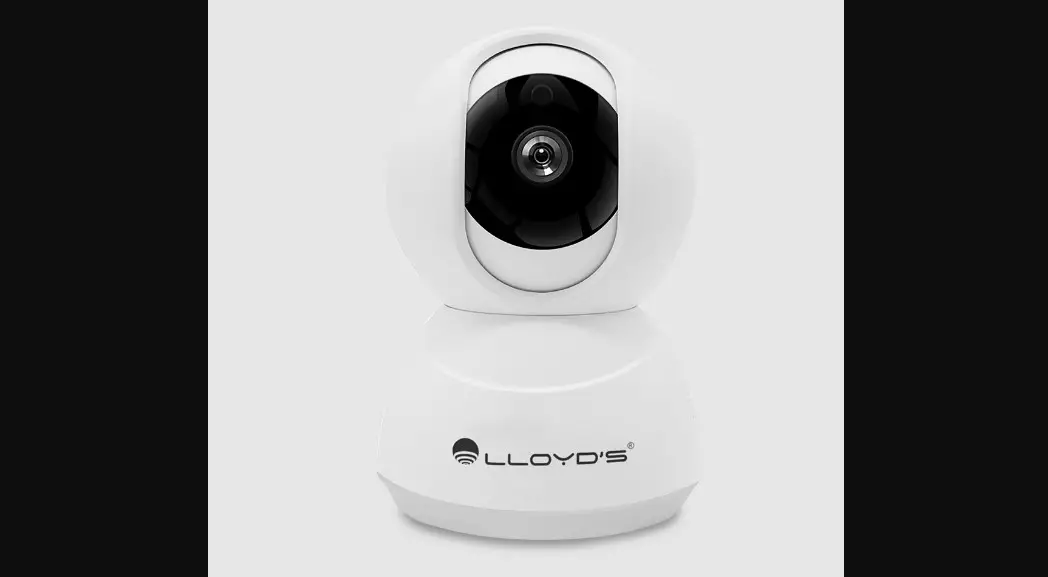
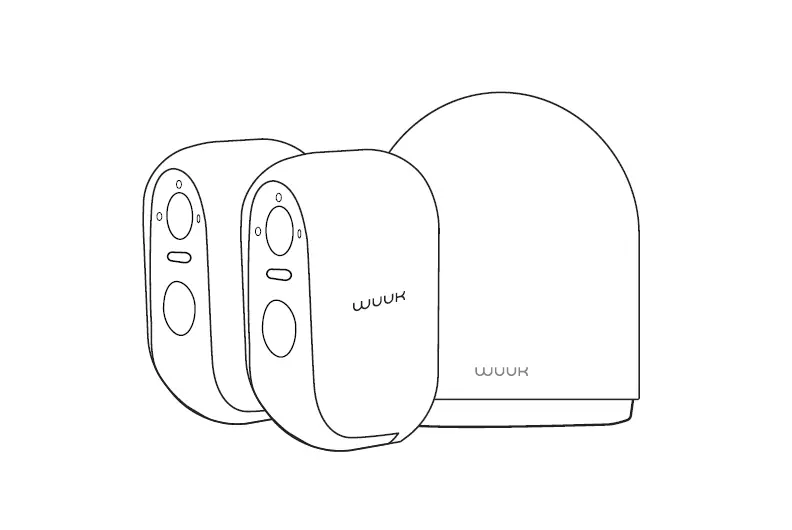
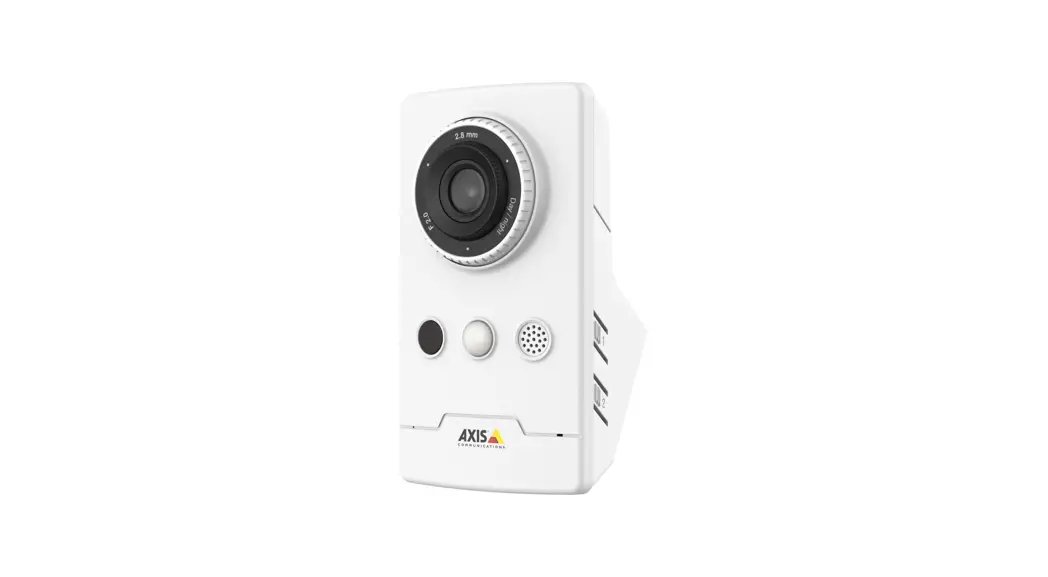
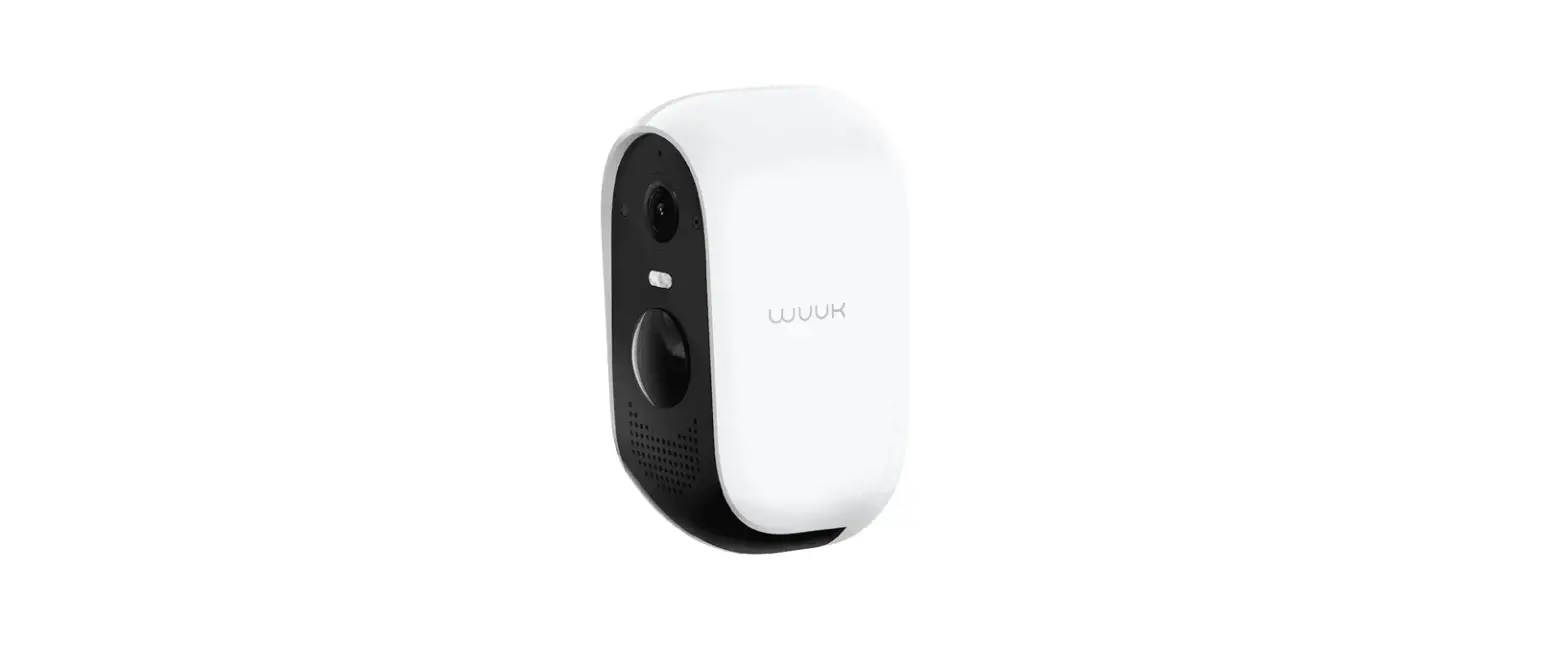
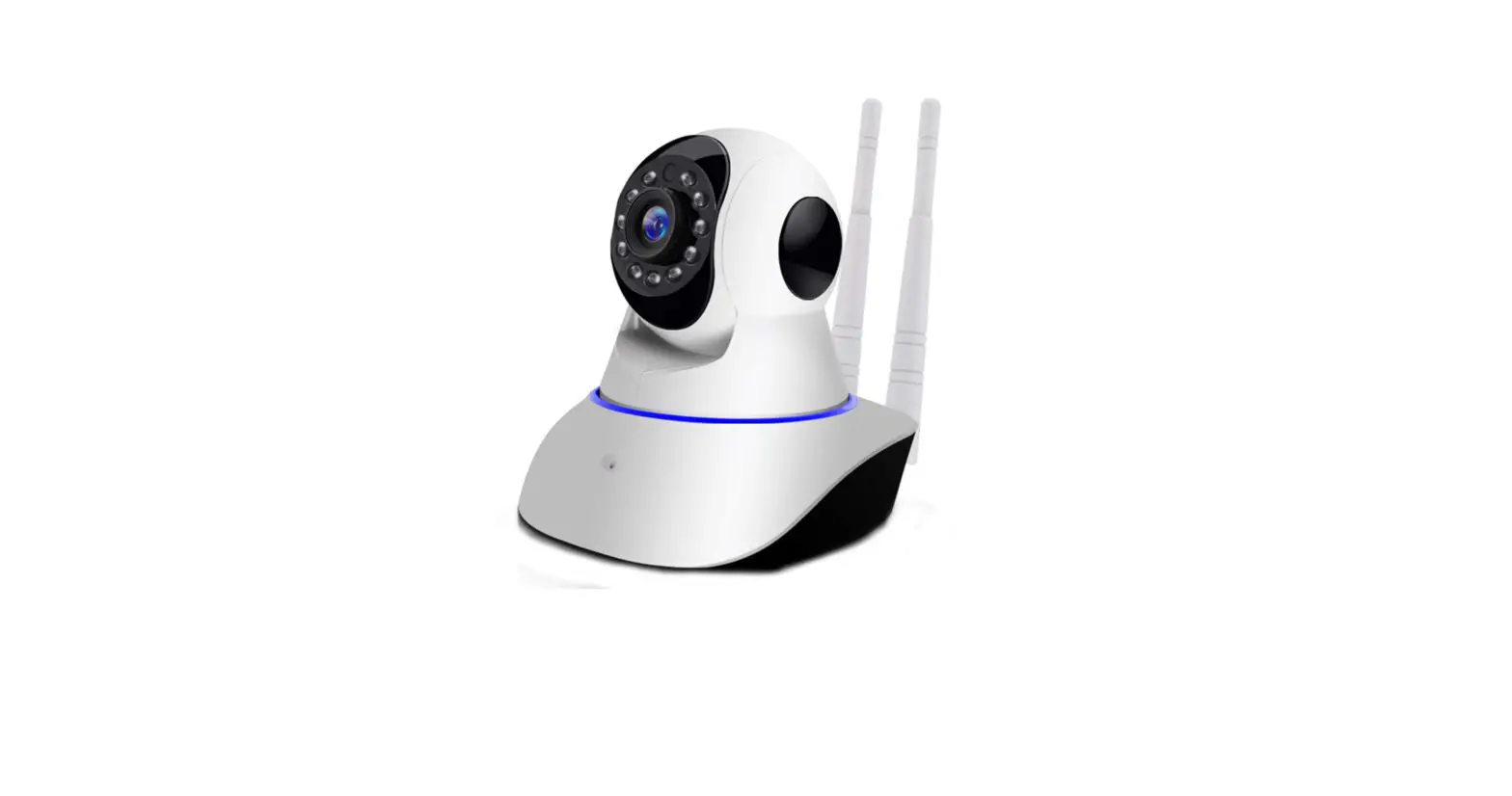
LC-1363 Wireless Camera
Product Information
Brand: Lloyd’s
Model: LC-1363
Size: 8.5 x 12 cm
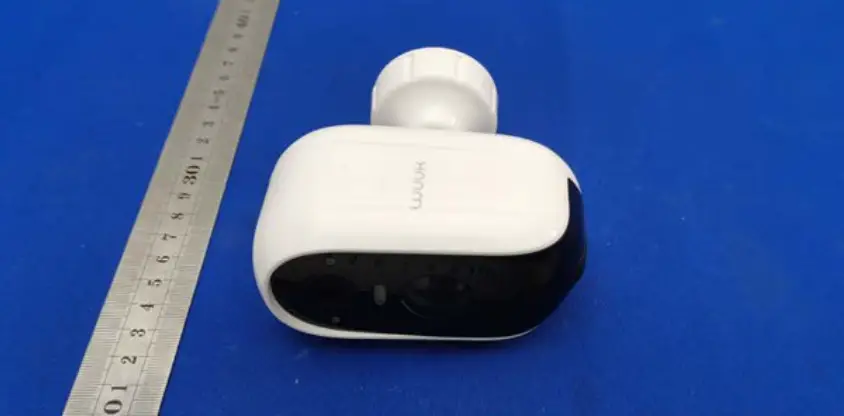
Type: Wireless camera
Description: Take control from one single app and transform your
spaces into safe, efficient, comfortable, and fun places.
Characteristics
- LED indicator
- Light sensor
- Reset button
- Speaker
- Memory card slot
- AC/DC adapter input
Contents
- Screws and wall plugs
- Quick guide
- Power cable and AC/DC adapter
- Mounting bracket and reset key
Diagram

Camera Installation
- Mark on the surface the position where the camera will be
placed, using the holes located in the mounting bracket as a
reference. - Drill over the marks, place the anchors, and secure the bracket
with the screws. - Finally, place the camera on the bracket and rotate to secure
it.
Image Inversion
In case you need to invert the image, follow these steps:
- Enter the app.
- In the main interface, click on the More functions icon.
- Click on Basic function settings.
- Enable or disable the Flip screen option as required.
Tamaño: 8.5 x 12 cm Español
Cámara Inalámbrica
Marca: Lloyd’s Modelo: LC-1363 Lloyd’s® te ayuda a hacer tu casa inteligente Toma el control desde una sola app y convierte tus espacios en
lugares seguros, eficientes, cómodos y divertidos.
1. Características
· Monitoreo y control desde su Smartphone · Almacenamiento en la nube por detección de movimiento (requiere suscripción) · Soporta una tarjeta de memoria de hasta 128 GB (no incluida) · Conexión inalámbrica Wi Fi de 2,4 GHz / 5 GHz · Soporta vista múltiple desde la app (hasta 4, 9 y 16 vistas simultáneas) · Alerta por detección de movimiento · Programación de horarios para recibir alertas por detección de movimiento · Programación de horarios para grabación (continua o por detección de movimiento) · Cuenta con modo de privacidad que permite apagar o encender la cámara · Resolución: 3MP (2304*1296) · Ángulo de visión: 120° · Movimiento horizontal de 355° y vertical de 150° · Función de rastreo horizontal por detección de movimiento · Uso para interiores · Visión nocturna de 5 metros · Audio de dos vías · Material: plástico ABS · Multiusuario · No requiere HUB · Compatible con protocolo ONVIF · Compatible con asistentes virtuales de Amazon Echo Show y Google Nest HUB · Visualización en TV a través de los dispositivos Google Chromecast y Alexa
Fire TV Stick con control remoto por voz · Visualiza desde la web · Permite la creación de rutinas que desencadenan acciones en otros productos
inteligentes Lloyd’s
2. Contenido
GUÍA RÁPIDA DE INSTALACIÓN
FAVOR DE LEER LA PRESENTE GUÍA DE INSTALACIÓN ANTES DE OPERAR SU PRODUCTO
“La operación de este equipo está sujeta a las siguientes dos condiciones: (1) es posible que este equipo o dispositivo no cause interferencia perjudicial (2) este equipo o dispositivo debe aceptar cualquier interferencia, incluyendo la que pueda
causar su operación no deseada”.
Cámara
Taquetes y tornillos
Guía rápida
Cable USB y Adaptador de ca/cc
2
Soporte para montaje y llave de reinico
3. Diagrama
Movimiento vertical de 150°
LED indicador
Sensor de luminosidad
Nota: Gire el lente hacia arriba para ubicar el botón de reinicio y la ranura de la tarjeta de memoria.
Micrófono
Lente y sensor de movimiento
LEDs infrarrojos (x6)
Movimiento horizontal de 355º
Reset TF
Bocina
Botón de reinicio
Ranura para tarjeta de memoria
Entrada de adaptador ca/cc
NOTA: · No deben situarse sobre el aparato fuentes de flama viva, tales como velas
encendidas. · El aparato no debe exponerse a goteo o el ingreso de agua y no deben situarse
objetos llenos de líquidos, como vasos, sobre el aparato. · El dispositivo de desconexión debe permanecer fácilmente operativo.
3
ADVERTENCIA: Para evitar daños, este aparato tiene que estar firmemente anclado al suelo / pared según las instrucciones de instalación.
4. Instalación de la cámara
Marque en la superficie la posición en la que colocará la cámara, usando como referencia los orificios localizados en el soporte para montaje. Perfore sobre las marcas, coloque los taquetes y fije el soporte con los tornillos. Finalmente coloque la cámara sobre el soporte y gire para fijarla.
Taquetes
Soporte para montaje
Tornillos de fijación
Base para montaje
Techo
En caso de que requiera invertir la imagen, puede hacerlo de la siguiente manera: ingrese a la app, luego en la interfaz principal haga clic en el ícono “Más funciones”, posteriormente clic en “Ajustes de funciones básicas”. Luego active o desactive la opción de “Vuelta o inversión de imagen” según lo requiera.
NOTA: Para fijar la cámara en superficie plana, puede hacerlo de 2 formas, ya sea con la base de montaje o utilizando cinta doble cara (no incluida).
4
5. Antes de comenzar Asegúrese de que su Smartphone tenga iOS 11.0 o superior o AndroidTM 5.0 o superior. Verifique su red y asegúrese de estar conectado a un canal Wi Fi de 2.4 / 5 GHz. Descargue la app Lloyds Smart desde la App Store o en Google Play o escanee el siguiente código QR con su Smartphone.
6. Registro y acceso Inicie la app Lloyds Smart, a continuación haga clic en “De acuerdo”. Para registrarse, haga clic en “Crear cuenta nueva” (1), elija su país e ingrese una dirección de correo electrónico, luego haga clic en “Enviar código” (2).
2 1
5
Ingrese el código enviado a su correo (consulte la bandeja de entrada o spam) (3), establezca una contraseña y haga clic en “Finalizado” (4). O inicie sesión directamente si ya tiene una cuenta.
4 3
7. Añadir dispositivo Abra la app Lloyds Smart, seleccione “+” en la esquina superior derecha (1). Elija el tipo de dispositivo que desea añadir, en este caso vaya a “Seguridad” (2), luego seleccione “Cámara inalámbrica (Wi-Fi)” (3).
1 3
2
6
Conecte la cámara a la corriente y espere un momento, presione el botón de reinicio por 5 segundos, escuchará “restore factory settings” seguido de “camera start”. El dispositivo emitirá un tono, posteriormente escuchará “please config network”, confirme en la app (4), haga clic en “Siguiente” (5). Introduzca la información de su red Wi Fi y la contraseña de la misma, luego haga clic en “Siguiente” (6).
4
5 56
Coloque la cámara entre 15 y 20 cm frente a su Smartphone para escanear el código QR y haga clic en “Oír el tono de aviso” (7) cuando haya escuchado el mismo.
Espere a que el dispositivo termine de configurarse
7 7
Una vez configurado el dispositivo, si lo desea, puede modificar el nombre (8), por último, haga clic en “Finalizado” (9).
9
NOTA:
8
Asegúrese de que la contraseña Wi Fi que
ingrese sea la correcta y de que el dispositivo
esté cerca del módem durante el proceso.
Al concluir la configuración, busque y seleccione la cámara en la lista de dispositivos (10) para poder monitorearla y controlarla a través de la app desde donde se encuentre, sólo se requiere conexión a internet.
10 8
8. Control del dispositivo
1
2
3
4
5
7 8
9 10
11
12 1 Cambio de resolución
13 2 Pantalla completa
3 Captura de imágenes 14 4 Hablar
5 Grabación de videos
6 Desplegar/Ocultar menú
7 Consulta de fotos y videos
guardados en el Smartphone
8 Reproducción de videos
desde la tarjeta de memoria
9 Activar/Desactivar función de seguimiento
10 Visión nocturna
6
11 Más funciones
12 Sonido
13 Ampliar/Reducir pantalla
14 Calidad de la señal (SQ)
15 15 Selección del tema de la interfaz (modo claro/modo
16
oscuro)
16 Activar/Desactivar cámara
17 Activar/Desactivar alarma por
detección de movimiento 17 18 Edición del panel
19 Historial de mensajes de
18
alarma
20 Movimiento de la cámara
21 Acceso al servicio de
almacenamiento en la nube
22 Características
19
20
21
22
En la opción “Más funciones” (parte superior derecha de la interfaz) podrá cambiar el nombre del dispositivo, compartir el control del mismo con familiares y conocidos, acceder a la información, activar/desactivar la función Onvif, actualizar el firmware o eliminar el dispositivo.
9
Funciones de reproducción 9. de video en la app
1
Para utilizar esta función, es necesario
instalar una tarjeta de memoria o
2
adquirir una suscripción en la nube.
3 1 Velocidad de reproducción
4 2 Reproducir / Pausar
3 Esta función le permite descargar
segmentos de video
5
(mínimo 1 min. – máximo 10 min.)
4 Presione para borrar toda la grabación de un día
5 Consulta de grabación por fecha
6
6 Línea de tiempo
NOTA: El nombre que asigne al dispositivo es el que utilizará para hacer funcionar los comandos de voz con el Asistente de Google y/o Amazon Alexa.
10. Compatible con protocolo ONVIF
Puede integrar esta cámara de 3MP a diferentes equipos de videovigilancia como NVR´s y DVR´s híbridos de forma sencilla: Para activar/desactivar esta función, desde la app vaya a “Más funciones”, luego haga clic en Onvif y habilite o deshabilite el interruptor según lo requiera.
Puerto: 10000
NOTA: En caso de requerir una contraseña puede usar el usuario: admin y la contraseña: admin
10
11. Función WebRTC Para visualizar las cámaras desde la web, ingrese al siguiente link: https://ipc-us.ismartlife.me/login Obtendrá un código QR que deberá escanear con la cámara de su Smartphone desde la app Lloyds Smart y confirme el inicio de sesión.
12. Cómo configurar con Siri Shortcuts
Los productos inteligentes Lloyd’s son compatibles con Siri Shortcuts mediante rutinas creadas desde la app. Para obtener detalles de la configuración, escanee el siguiente código QR con su Smartphone: Asegúrese de que su Smartphone tenga iOS 12 o superior.
11
13. Asistente de Google y Amazon Alexa
Cómo conectar al Asistente de Google 1. Descargue e ingrese a la app Google Home previamente configurada con su cuenta
de correo electrónico Gmail y su asistente virtual.
2. Haga clic en el ícono “+”, clic en “Configurar dispositivo”. Luego, en la sección “Funciona con Google”, haga clic en la barra de búsqueda y escriba Lloyds Smart. Cuando obtenga el ícono, haga clic en el mismo. Ingrese su cuenta de Lloyds Smart y haga clic en “Vincular ahora”. Posteriormente, presione el botón “Autorizar” y espere unos segundos.
3. Una vez que haya vinculado Lloyds Smart, se desplegarán los dispositivos añadidos en su cuenta, haga clic en “X” (esquina superior izquierda) y regrese a la pantalla principal. Ahora puede controlar sus dispositivos inteligentes Lloyd’s usando sólo su voz con Google. NOTA: Si lo desea, puede renombrar los dispositivos desde Lloyds Smart para controlarlos con comandos de voz. Cada vez que renombre los dispositivos, solicite a su asistente lo siguiente: “Hey Google, sincroniza dispositivos” o actualice desde la app Google Home.
Pruebe diciendo “Hey Google” seguido de uno de los siguientes comandos:
“Hey Google, muéstrame la cámara de la sala”* “Hey Google, muéstrame la cámara del dormitorio”*
* Visualiza en TV (se requiere Google Chromecast) o en el asistente Google Nest Hub “Google y Chromecast son marcas de Google LLC. Requiere un televisor compatible con un puerto HDMI y un dispositivo móvil compatible. Obtén más información en g.co/cast/req”.
12
Cómo conectar a Amazon Alexa 1. Descargue e ingrese a la app Amazon Alexa, previamente configurada con su cuenta
de correo electrónico y su asistente virtual.
2. Haga clic en la opción “Skills y juegos”, luego, en la barra de búsqueda escriba Lloyds Smart. Cuando obtenga el ícono, haga clic en el mismo. Posteriormente, presione el botón “Activar para usar”.
3. Ingrese su cuenta de Lloyds Smart, luego haga clic en “Vincular ahora” y por último en “Autorizar”. Obtendrá el mensaje “Enlazó correctamente”, haga clic en “Cerrar” y espere unos segundos.
4. Haga clic en “Detectar dispositivos” para encontrar los dispositivos inteligentes. Ahora ya puede solicitar a su asistente controlarlos mediante comandos de voz. NOTA: Si lo desea, puede renombrar los dispositivos desde Lloyds Smart para controlarlos con comandos de voz. Cada vez que renombre los dispositivos, solicite a su asistente lo siguiente: “Alexa, sincroniza dispositivos” o actualice desde la app Amazon Alexa.
Estos son algunos ejemplos de comandos de voz que puede utilizar:
“Alexa, Muestra cámara sala.”* “Alexa, Muestra recámara niños.”*
* Visualiza en TV (se requiere Alexa Fire TV Stick con control remoto por voz) o en el asistente Amazon Echo Show NOTA: Las apps Google Home y Amazon Alexa están constantemente actualizándose, para mayor información consulte los manuales de usuario de sus asistentes.
14. Preguntas frecuentes
13
P: ¿Añadir dispositivos repetidamente puede causarles fallas? R: Si en algún momento un dispositivo presenta problemas de conexión, es
recomendable reiniciarlo e intentar añadirlo de nuevo.
P: El dispositivo no muestra imágenes correctamente. R: Verifique que la red Wi Fi funcione. Si esto no soluciona el problema, reinicie
el dispositivo y añádalo nuevamente.
P: ¿Cómo puedo cambiar el dispositivo a otro módem? R: Primero reinicie el dispositivo y a continuación bórrelo desde la app.
Posteriormente configúrelo nuevamente desde la app.
P: ¿Por qué no obtengo notificaciones en mi Smartphone? R: Asegúrese de que la función de recordatorios esté activa en su Smartphone.
P: ¿Por qué el dispositivo no reconoce la tarjeta de memoria? R: Si ocurrió un corto en el suministro de energía, se recomienda reinsertar la
tarjeta de memoria. Observe que la tarjeta tenga formato FAT32.
Advertencias de uso: Procure mantener la cámara fuera de espacios metálicos o bloqueados por muebles u hornos de microondas que obstruyan las señales de sonido, video y datos. Procure instalar en los sitios más cercanos a la cobertura Wi Fi de su hogar u oficina.
15. Especificaciones eléctricas
Cámara inalámbrica X 2: 5 Vcc 1 000 mA Adaptador de ca/cc X 2: Entrada: 100-240 V~ 50/60 Hz 0,25 A Max. Salida: 5 Vcc 1 000 mA
IMPORTADOR: ZUTTO TECHNOLOGIES, S. A. DE C. V. Av. Ejército Nacional No. 505 Interior 1602, Col. Granada Miguel Hidalgo,
Ciudad de México, México C.P. 11520 Teléfono: 55 68447575 R.F.C.: ZTE161017KT6
lloydscorp.com
14
Size: 8.5 x 12 cm English
Wireless camera
Brand: Lloyd’s Model: LC-1363
Lloyd’s® helps you make your home a smart home
Take control from one single app and transform your spaces into safe, efficient, comfortable and fun places.
1. Characteristics
· Monitoring and control from your smartphone · Cloud storage by motion detection (subscription required) · Supports a memory card up to 128 GB (not included) · 2.4 GHz / 5 GHz Wi Fi connectivity · Supports multiple views from the app (up to 4, 9 and 16 simultaneous views) · Alerts when motion is detected · Setup schedules to receive alerts when motion is detected · Setup recording schedules (continuous recording or when motion is detected) · Features privacy mode that allows you to turn on or off the camera · 3MP resolution (2304*1296) · Viewing angle: 120° · Horizontal movement of 355° and vertical of 150° · Features horizontal tracking function when motion is detected · Indoor use · Night vision of 5 meters · Two-way audio · Material: ABS plastic · Multi-user · No HUB required · Compatible with ONVIF protocol · Compatible with Amazon Echo Show and Google Nest HUB virtual assistants · Watch on TV through Google Chromecast and Alexa Fire TV Stick devices with voice
remote control · Watch from the web · Allows the creation of routines that trigger actions on other Lloyd’s smart products
2. Contents
INSTALLATION GUIDE
PLEASE READ THE INSTALLATION GUIDE BEFORE OPERATING THE PRODUCT
“Operation is subject to two conditions: 1. this device may not cause harmful interference. 2. This device must accept any interference, including interference that may be caused
by undesired operation.”
Camera
Screws and wall plugs
Quick guide
Power cable and AC/DC adapter
2
Mounting bracket and reset key
3. Diagram
150º Vertical movement
LED indicator
Light sensor
Note: Turn the lens up to locate the reset button and memory card slot.
Reset TF
Microphone Camera lens and motion sensor Infrared LEDs (x6) 355º horizontal movement
Speaker
WARNING: To avoid damage, this appliance must be firmly anchored to the floor / wall according to the installation instructions.
4. Camera installation
Mark on the surface the position where the camera will be placed, using the holes located in the mounting bracket as a reference. Drill over the marks, place the anchors and secure the bracket with the screws. Finally, place the camera on the bracket and rotate to secure it.
Wall plugs
Mounting bracket Mounting screws
Mounting base
Ceiling
Reset button
Memory card slot
AC/DC adapter input
NOTE: · No open flame sources, such as lighted candles, should be placed on the
appliance. · The appliance should not be exposed to dripping or splashing water and no
objects filled with liquids, such as glasses, should be placed on top of it. · The appliance must be connected in a convenient location for easy operation and
disconnection.
3
In case that you need to invert the image, you can do it as follows: enter the app, in the main interface click on the “More functions” icon and click on “Basic function settings”. Then enable or disable the “Flip screen” option as required.
NOTE: To fix the camera on a flat surface, you can do it in 2 ways, either with the mounting base or using double-sided tape (not included).
4
5. Before getting started Make sure your smartphone has iOS 11.0 or higher or AndroidTM 5.0 or higher. Check your network and make sure you are connected to a 2.4 / 5 GHz Wi Fi channel. Download the Lloyds Smart app from the App Store or on Google Play or scan the following QR code with your smartphone.
6. Registration and access Open the Lloyds Smart app. To register, click on “Sign Up” (1), to continue, click “Agree,” choose your country and enter an email address, then click “Get Verification Code” (2).
2 1
5
Enter the code sent to your email (check inbox or spam) (3), set a password, and click “Done” (4). Or log in directly if you already have an account.
4 3
7. Add device Start the Lloyds Smart app on your smartphone, select “+” (upper right corner) (1), choose the type of device that you want to add, in this case, go to “Security” (2), then select “Wireless camera (Wi-Fi)” (3).
1 3
2
6
Connect the camera to a power outlet and wait for a moment, then press the reset button for 5 seconds, you will hear “restore factory settings” followed by “camera start.” The device will make a sound, then you will hear “please config network.” Confirm in the app (4) and click on “Next” (5). Enter your Wi Fi network information and password, then click “Next” (6).
4
6 5
5
Place the camera between 15 and 20 cm in front of your smartphone to scan the QR code and click on “I Heard a Prompt” (7) once you hear it.
Wait for the device to configure.
7 7
Once the device is configured, you can change the name (8). Finally, click on “Done” (9).
9
NOTE:
8
Make sure that the Wi Fi password you enter
is correct and that the device is close to the
modem during the process.
After completing the setup, find and select the camera in the device list (10) to monitor and control it through the app from wherever you are. Only internet connection is required.
10 8
8. Device control 1
2
3
4
5
7 8
9 10
11
12 1 Change resolution 13 2 Full screen
3 Image capture 14 4 Talk
5 Video recording
6 Drop down/Hide menu
7 Photos and videos saved on
the smartphone
8 Video playback from the
memory card
9 Enable/Disable tracking
function
10 Enable/Disable night vision
mode
6
11 More functions
12 Sound
13 Enlarge/Reduce screen size
15 14 Signal quality (SQ) 15 Interface theme selection
16
(light mode/dark mode)
16 Enable/Disable camera
17 Enable/Disable alarm by
motion detection 17 18 Edit panel
18 19 Alarm message history 20 Camera movement
21 Cloud storage
22 Characteristics
19
20
21
22
In “More functions” (interface upper right corner), you will be able to rename the device, share control of it with family and acquaintances, access information, enable/disable Onvif function, update the firmware or delete the device.
9
Video playback functions in 9. the app
1
To use this function, it is necessary to
install a memory card or acquire a
2
Cloud subscription.
3 1 Playback speed
4 2 Play / Pause
3 This function allows you download
video segments.
5
(minimum 1 min. – max. 10 min.)
4 Press to erase the whole recording for one day
5 Recordings query by date
6
6 Timeline
NOTE: The name that you assign to the device will be the one that you use with your Alexa or Google Assistant-enabled device for voice control.
10. Compatible with ONVIF protocol
You can easily link this 3MP camera to different surveillance equipments such as hybrid NVRs or DVRs: To enable/disable this function, from the app go to “More functions”, then click on Onvif and enable/disable the switch according the needs.
Port: 10000
NOTE: If a password is required, you can use the user: admin and password: admin.
10
11. WebRTC function To monitor the cameras from the web, access the following link: https://ipc-us.ismartlife.me/login You will get a QR code that you will have to scan with your smartphone’s camera from the Lloyds Smart app and confirm the login.
12. How to configure with Siri Shortcuts
Lloyd’s smart products are compatible with Siri Shortcuts through routines created from the app. For configuration details, scan the following QR code with your smartphone: Make sure your smartphone has iOS 12 or higher.
11
13. Google Assistant and Amazon Alexa
How to connect to Google Assistant
1. Download and open the Google Home app, previously configured with your Gmail account and your Google Assistant-enabled device.
2. Click on the “+” icon, choose “Set up Device,” then in the “Works with Google” section, click on the search bar and type in Lloyds Smart. When you get the icon, click on it. Enter your Lloyds Smart account and click on “Link now”. Then press on “Authorize” and wait a few seconds.
3. Once you have linked Lloyds Smart, the devices added to your account will be displayed, click on “X” (top left corner) and return to the main screen. Now you can control your Lloyd’s Smart devices using just your voice with Google.
NOTE: You can rename the devices from the Lloyds Smart app to control them with voice commands. Every time you rename the devices, say: “Hey Google, sync devices” or update from the Google Home app.
Try saying “Hey Google” followed by one of the following commands:
“Hey Google, show me the living room camera”* “Hey Google, show me the bedroom camera”*
* Watch on TV (Google Chromecast required) or Google Nest HUB assistant “Google and Chromecast are trademarks of Google LLC. Requires a compatible TV with an HDMI port and a compatible mobile device. Learn more at g.co/cast/req.”
How to connect to Amazon Alexa 1. Download and access the Amazon Alexa app, previously configured with your email
account and your virtual assistant. 2. Click on the option “Skills & games”, then in the search bar type Lloyds Smart.
When you get the icon, click on it. Then press the “Activate to use” button.
12
3. Enter your Lloyds Smart account and click on “Link Now” and finally “Authorize”. You will get the message “Linked successfully”, click on “Close” and wait a few seconds.
4. Click “Detect devices” to find the smart devices. Now you can ask your assistant to control them by voice commands.
NOTE: You can rename the devices from the Lloyds Smart app to control them with voice commands. Every time you rename the devices, say: “Alexa, sync devices” or update from the Amazon Alexa app.
Voice command examples:
“Alexa, show me the living room camera”* “Alexa, show me the bedroom camera”*
* Watch on TV (Alexa Fire TV Stick with voice remote control required) or on Amazon Echo Show assistant
NOTE: The Google Home and Amazon Alexa apps are constantly being updated, for more information consult their assistant manuals.
14. Frequently asked questions
Q: Can adding devices repeatedly cause them to fail? A: If a device has connection problems, it is recommended to reboot it and try adding
it again.
Q: The device does not display images correctly. A: Verify that your Wi Fi network is working. If this does not solve the problem, restart
the device, and add it again.
13
Q: How can I change the device to another modem? A: First, reboot the device and then delete it from the app. Then configure it again from the app. Q: Why don’t I get notifications on my smartphone? A: Make sure the notification function is active on your smartphone. Q: Why does the device not recognize the memory card? A: If a power failure occurred, it is recommended to reinsert the memory card. Please consider that the memory card should be formatted in FAT32.
Usage warnings: Please keep the camera out of metal spaces or blocked by furniture or microwave ovens that obstruct sound, video, and data signals. Try to install it close to the Wi Fi coverage area of your home or office.
15. Electrical specifications
Wireless camera X 2: 5 Vdc 1 000 mA AC/DC adapter: X 2: Input: 100-240 V~ 50/60 Hz 0,25 A Max. Output: 5 Vdc 1 000 mA
IMPORTED BY: ZUTTO TECHNOLOGIES, S. A. DE C. V. Av. Ejército Nacional No. 505 Interior 1602, Col. Granada Miguel Hidalgo, Ciudad de México, México C.P. 11520 Phone: 55 68447575 R.F.C.: ZTE161017KT6
lloydscorp.com
14
 Lloyd’s ® – Productos de automatización y seguridad para su hogar
 ipc-us.ismartlife.me/login