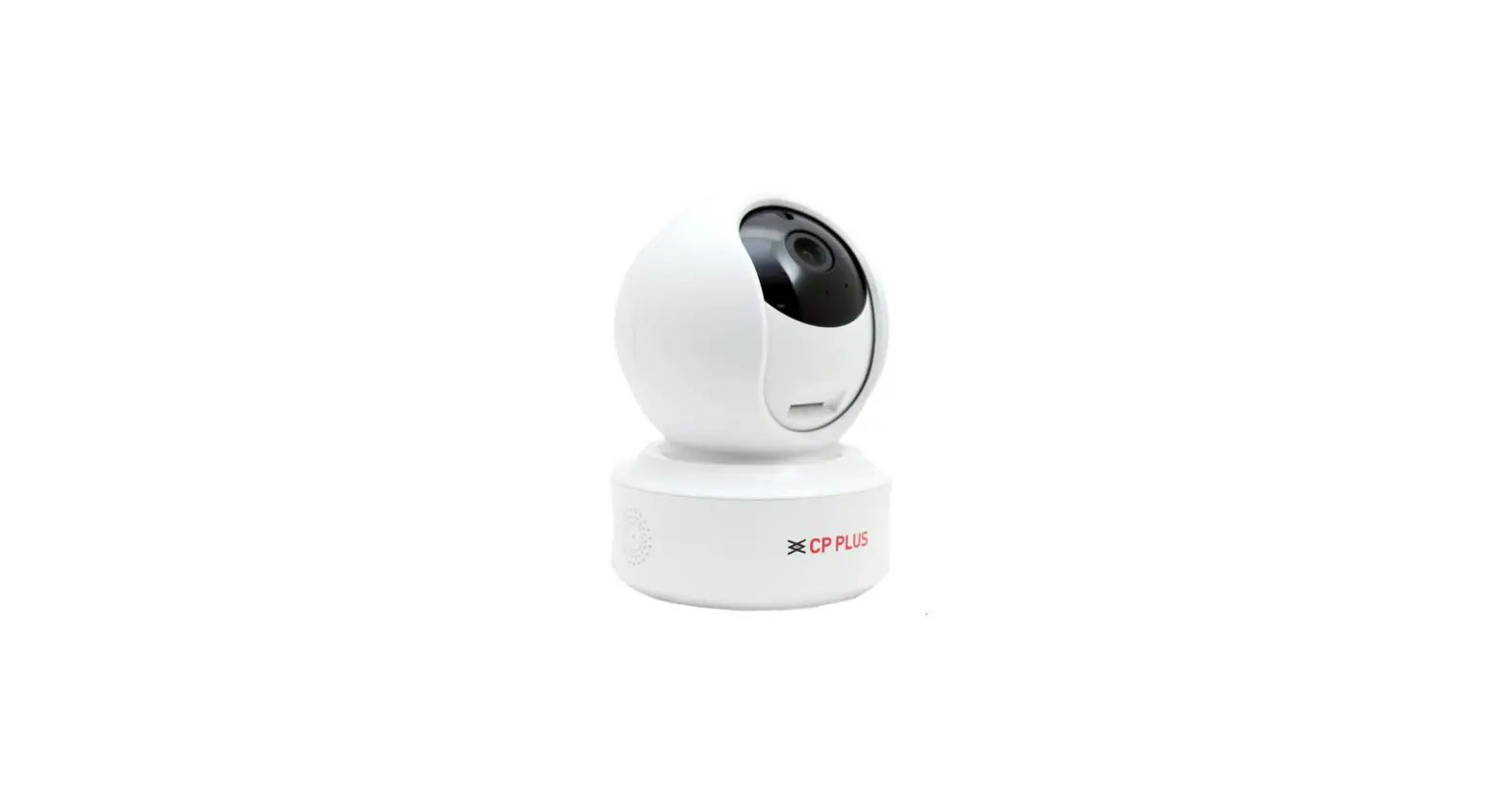
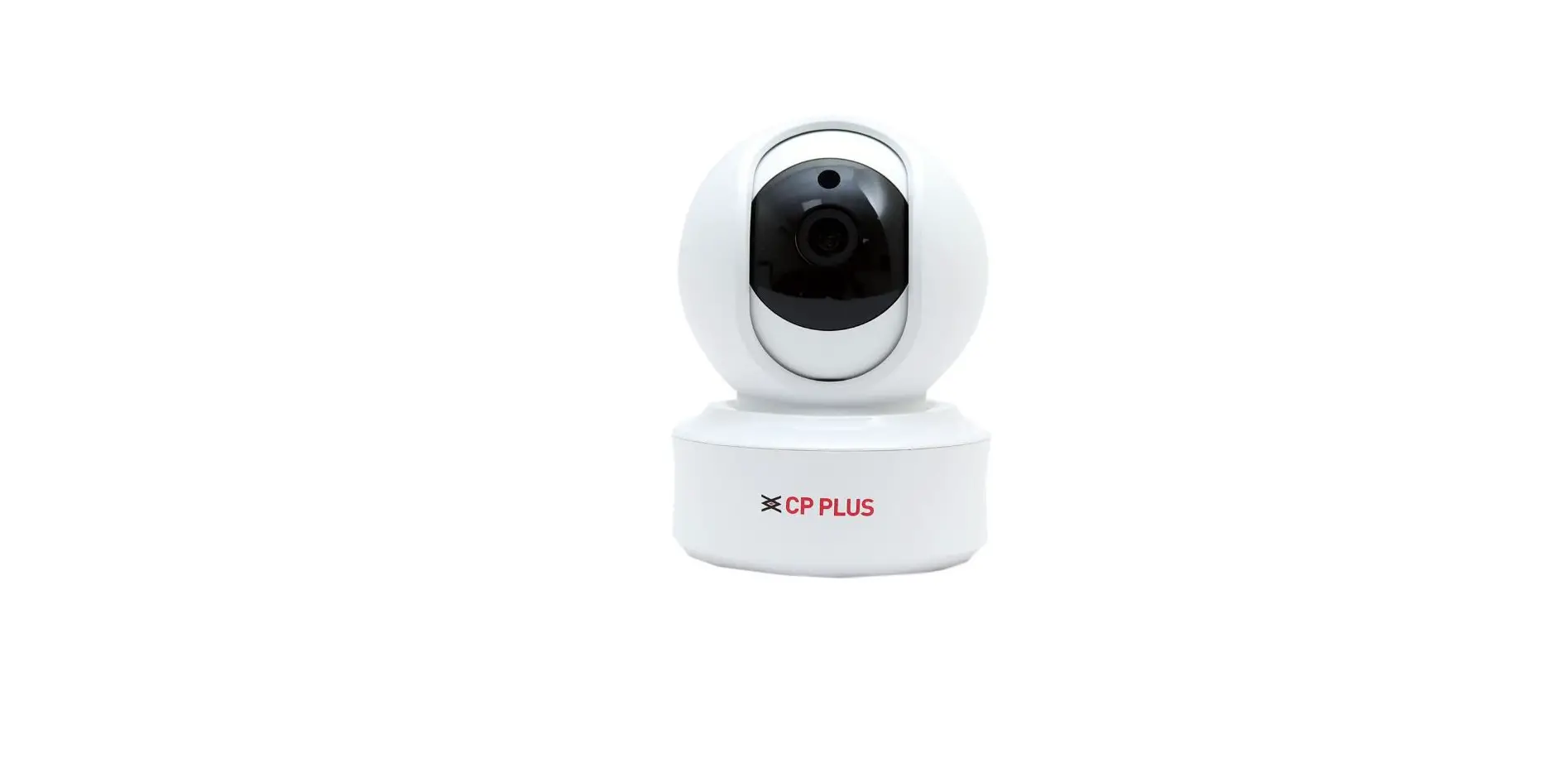
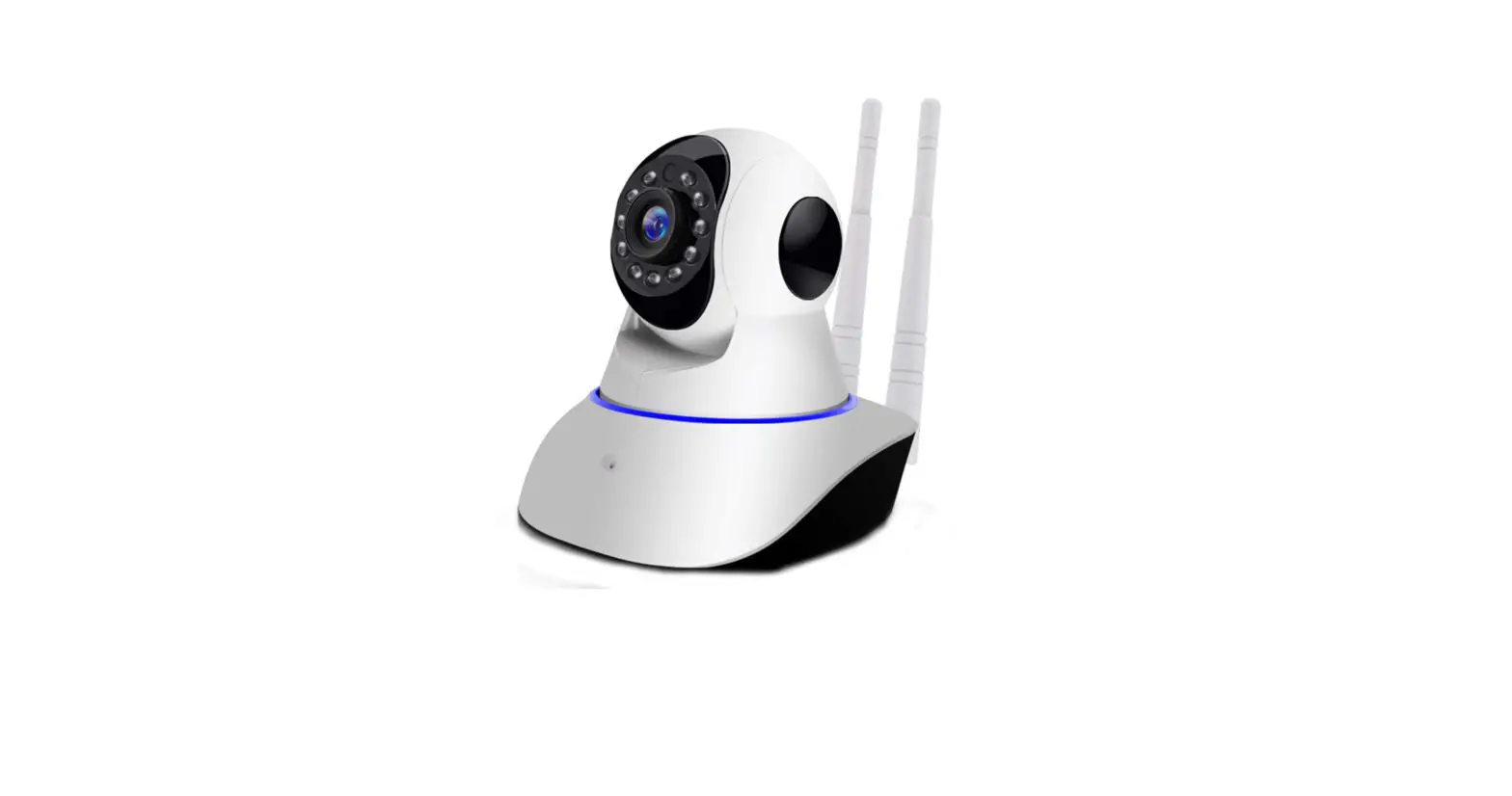
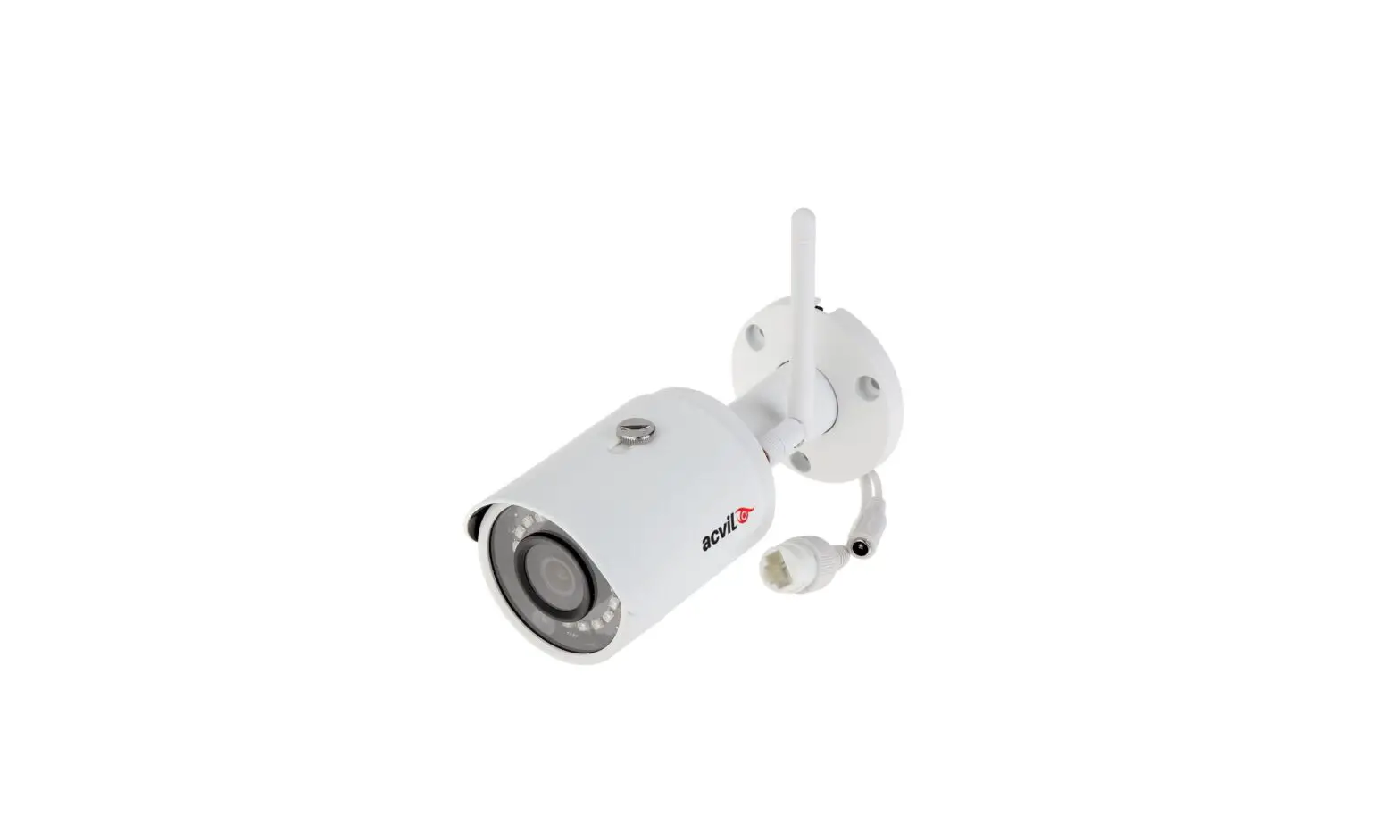
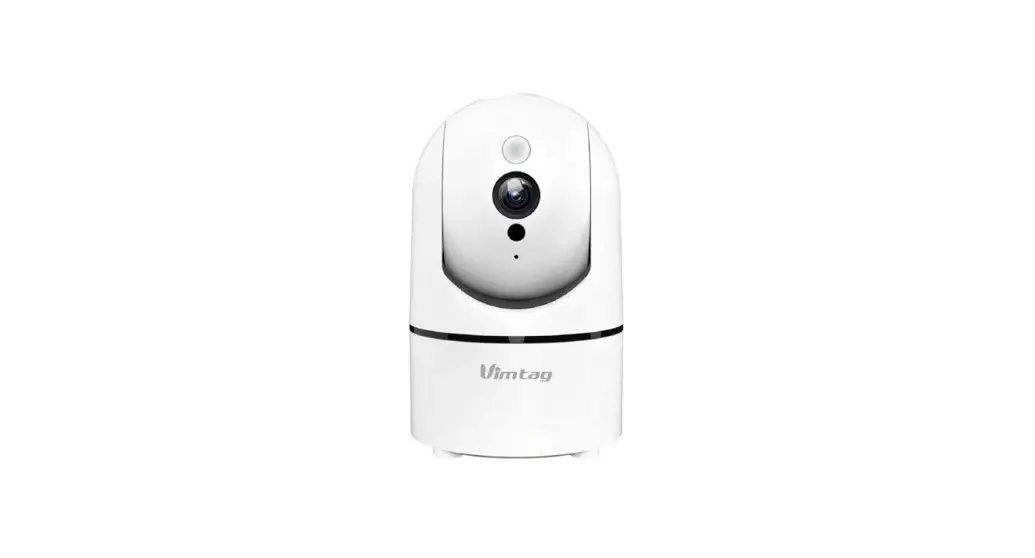
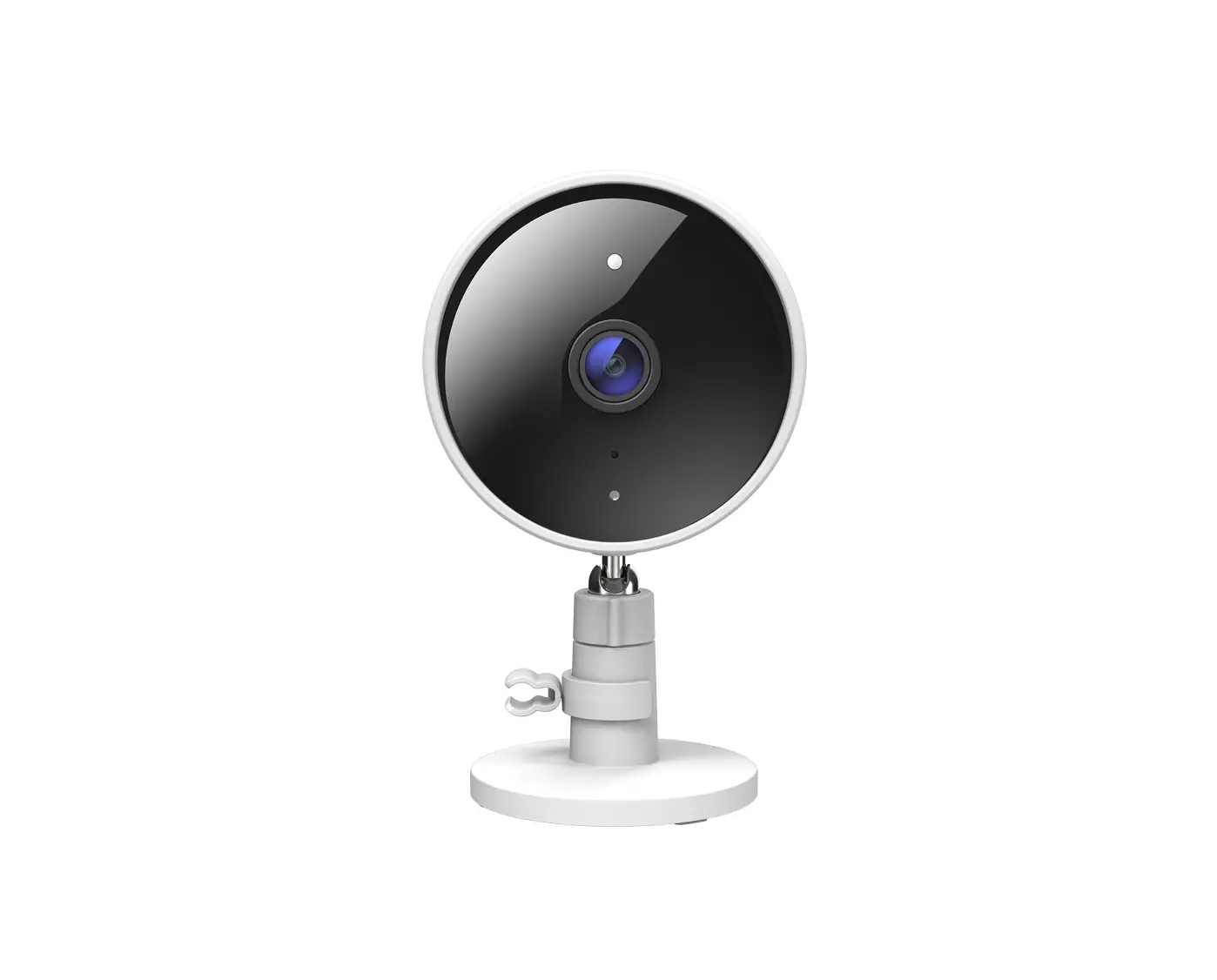
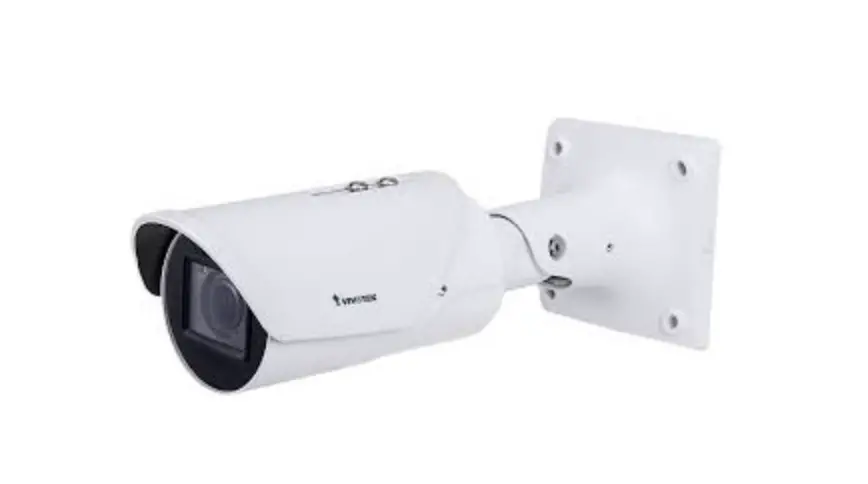
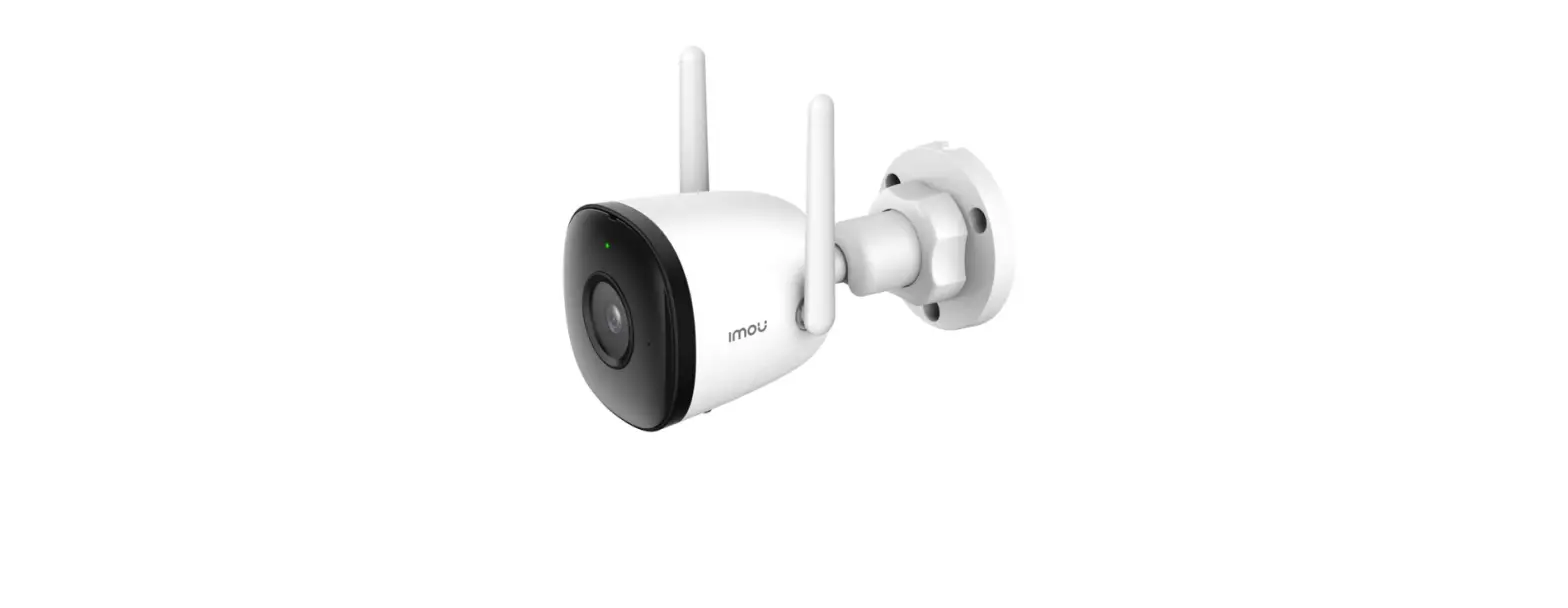
F41A ezykam Wi-Fi Camera
Product Information
The ezykam Wi-Fi Camera can be controlled using voice commands
through Alexa or Google Assistant. It comes with mounting brackets
and screws for easy installation. The camera supports H.265
encoding and can be managed through the ezykam+ app, which can be
downloaded on both iOS and Android devices.
System Requirements
- iOS 9.0 or higher or AndroidTM 5.0 or higher
- Home Wi-Fi network
Technical Specifications
- H.265 encoding
- Compatible with Alexa and Google Assistant
Product Usage Instructions
- Connect the power cord to the camera according to the power
cord connection diagram. The black wire is for live wire, white
wire for zero wire, and yellow and green wire for ground wire. - Attach the dustproof pad to the bottom of the camera and
tighten the screw. - Use the mounting brackets and screws to install the camera on a
junction box on the wall. - Download and install the ezykam+ app on your iOS or Android
device and register an account. - Add the camera to your ezykam+ app by following the
instructions in the app. Make sure to enter the correct Wi-Fi
password during setup. - You can now control your camera using the app or through voice
commands with Alexa or Google Assistant. - You can share your camera with family and friends by giving
them access to view the camera through the ezykam+ app. - If you encounter any issues with connecting to your Wi-Fi
network, make sure to check the Wi-Fi password and signal strength.
You can also reset your Wi-Fi router and try again.
Voice control works with Alexa or Google Assistant
You can control your camera using just your voice with Alexa or Google Assistant-enabled devices.
Bracket installation
1
There is a junction box on the wall
2 Mounting brackets
*Alexa capability only include streaming video and not controlling the light.
Installation Instruction
Power cord connection diagram
5
Nut + power cord (rotate and tighten)
3
Tighten the two wires 2
Firewire + Firewire connection
1
For further assistance, you can reach us via [email protected]
** Please read the instruc on carefully before using the product **
Power cord colors respectively
1. Black: live wire (L) 2. White: zero wire (N) 3. Yellow + Green:
ground wire (E)
The dustproof pad is attached to the bottom of the product
3
bottom position of the product
Tighten the screw
4
Ground wire
6
Mounting screws
Rubber cap
System Requirements
5.0 or higher · Existing Wi-Fi Network with internet connection
Technical Speci cations
H.265 encoding
· Audio: Internal Speaker and Microphone included)
Quick Operation Guide F41A
using your new devices by downloading ezykam+ app, one convenient app that manages everything straight from your smart phone. Easily connect to your home Wi-Fi and control multiple devices from the touch of your ngertips
Get Ready
· Know your Wi-Fi network and password.
higher or AndroidTM 5.0 or higher.
1. Download the ezykam+ app from App Store or on Google Play.
2. Register an account on your ezykam+ app.
· Select the country. · Enter the email address.
· Enter the veri cation code and create a password
ezykam Wi-Fi Camera
Quick Operation Guide
Bracket / screw
3. Plug in
How do I reset my camera? · Use the reset pin to press the Reset Button for several seconds until the camera starts to beep.
Screw accessories
Rubber cap
Screw terminal
Dust pad
Reset
4. Add Camera
· Open ezykam+ app, click “+” on the top right corner of
voice prompt is audible.
4.0 Add Camera
and click “Continue”. a voice prompt, click “Heard the beep”
Frequently Asked Questions
1. Can I share camera with family and friends?
Yes, you can share your cameras with family and friends who will have access to view the camera.
2. What’s the Wireless Range?
The range of your home Wi-Fi is heavily dependent on your home router and the conditions of the room. Check with your router speci cations for exact range data.
· Enter your “Wi-Fi network and password”,
4.1 Add Camera
When the indicator light on the device turn to steady blue light, the network con guration is complete.
there are any difference.
3. The camera appears offline or unreachable?
Make sure you entered the correct Wi-Fi password during the Wi-Fi setup. Check whether there is any Internet connection problem. If the Wi-Fi signal is too weak, reset your Wi-Fi router and try again.
4. Cannot connect to your Wi-Fi network.
Make sure you entered the correct Wi-Fi password during the Wi-Fi setup. Check whether there are any Internet connection problems. If the Wi-Fi signal is too weak, reset your Wi-Fi router and try again.
5. How many cameras can I control?
cameras in unlimited amount of locations. Your router may have a limit of how many cameras can be connected to one router.