
 Quick Start Guide
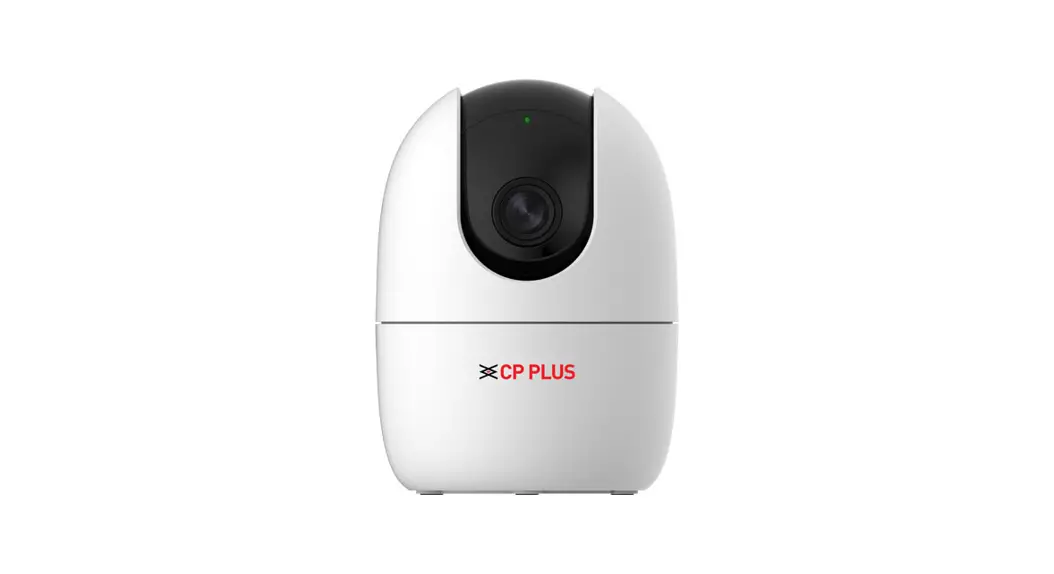
CT21
Version 1.0.0
About the Guide
- This manual is for reference only. The operation of the actual product shall prevail if there is any inconsistency.
- All the designs and software are subject to change without prior written notice.
- All trademarks and registered trademarks mentioned are the properties of their respective owners.
- Please visit our website or contact customer service if there is any problem when using the device.
- If there is any uncertainty or controversy, we reserve the right of final explanation.
Package Content
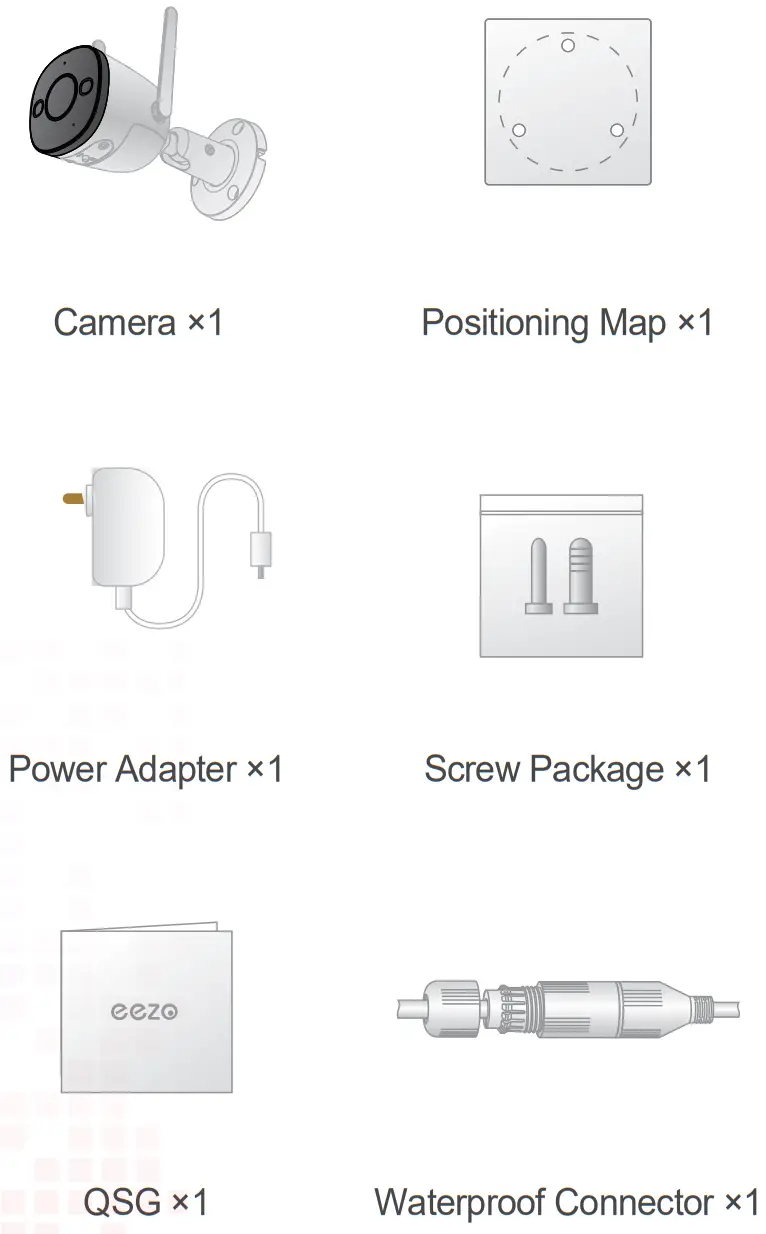
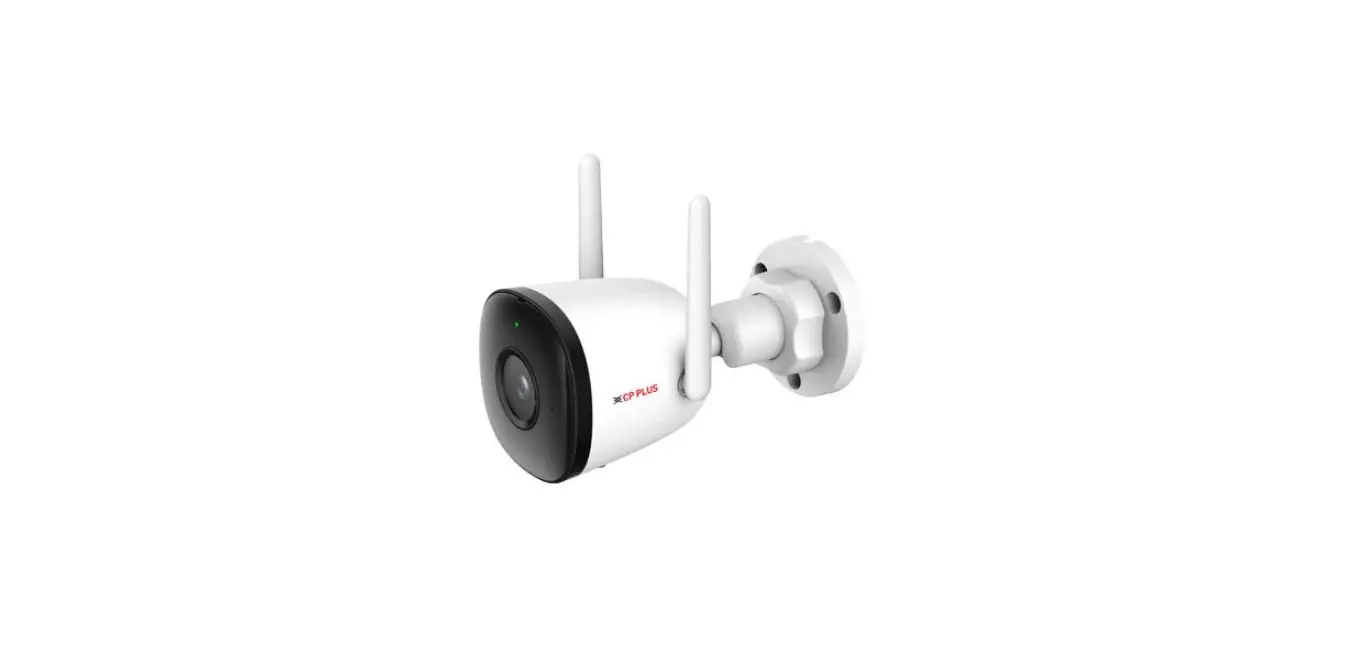
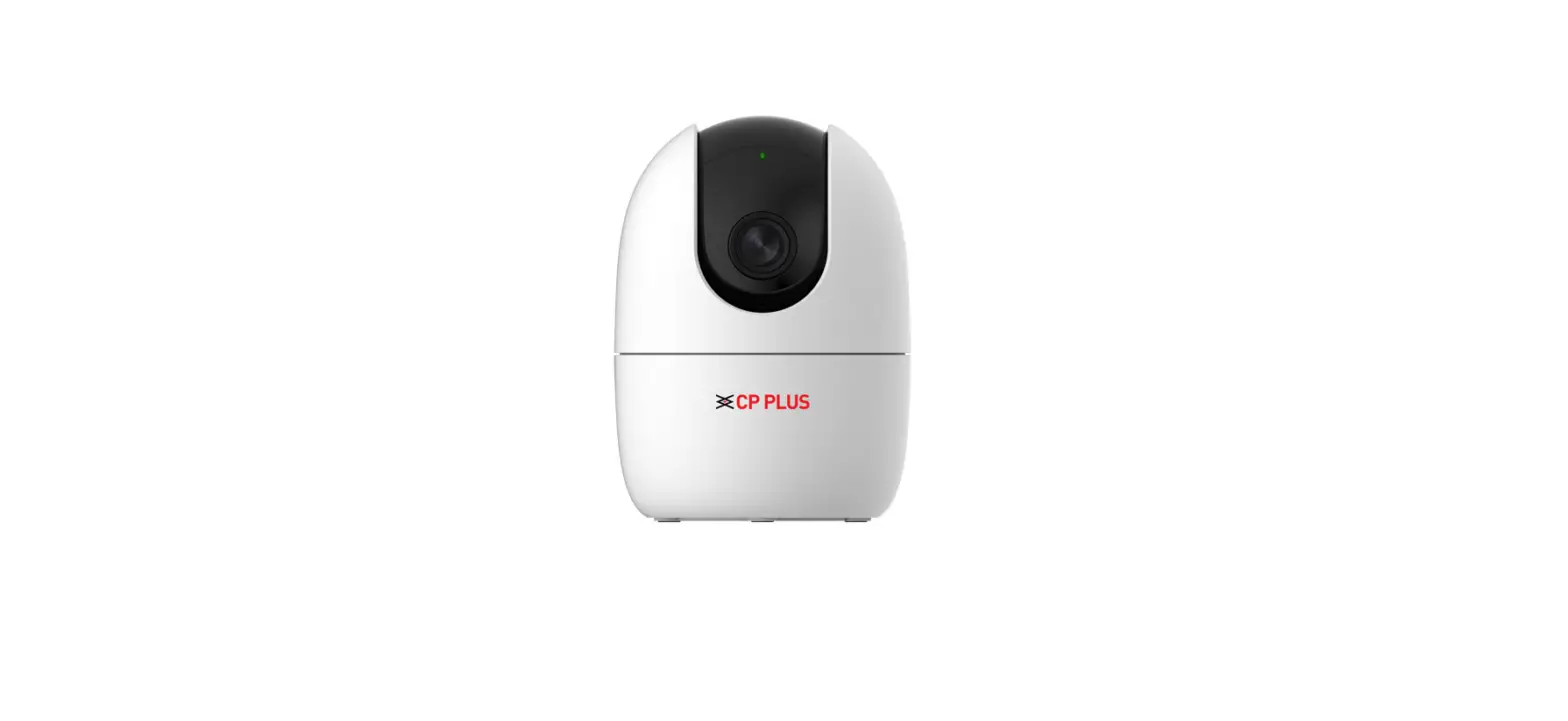
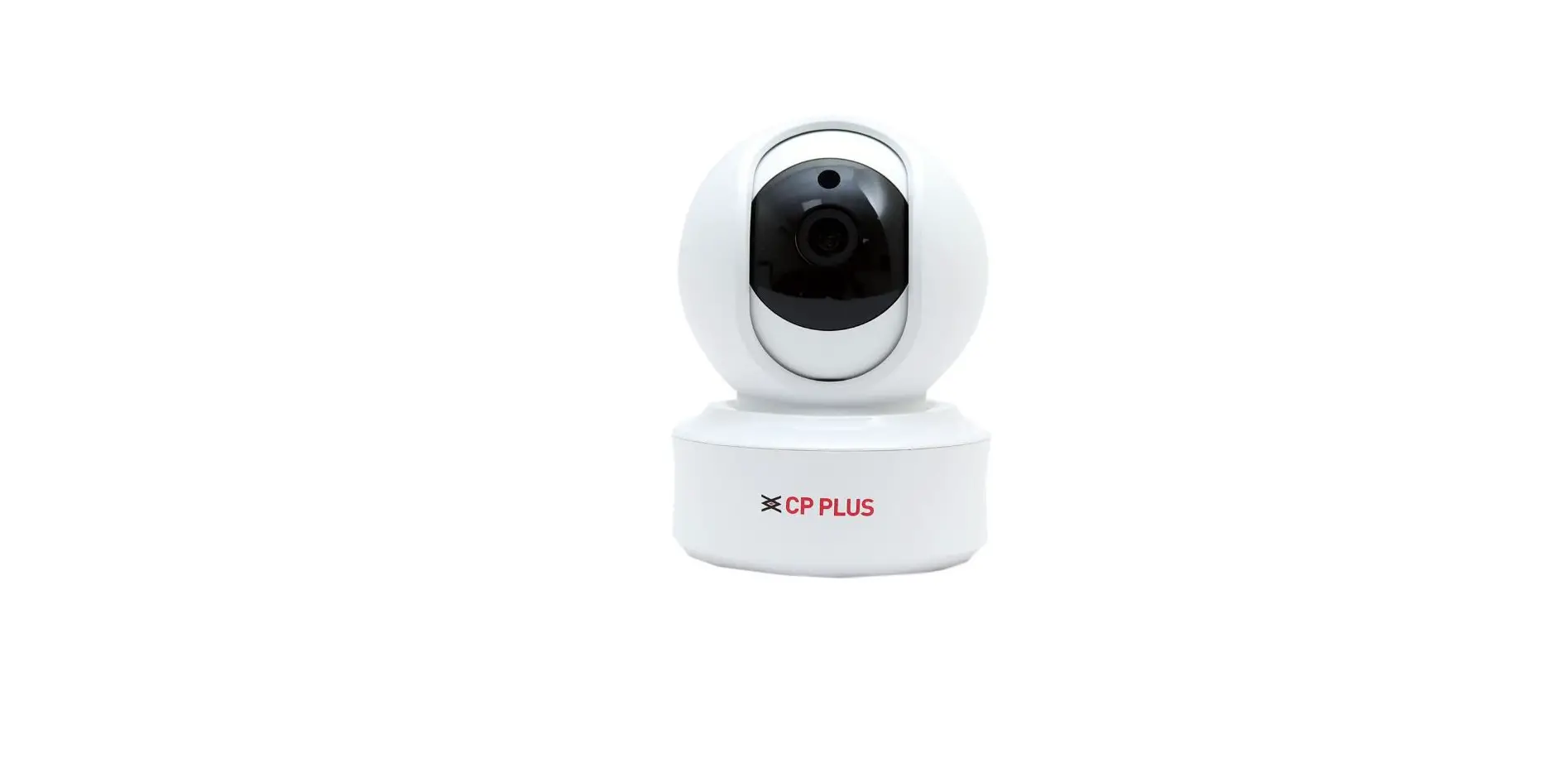
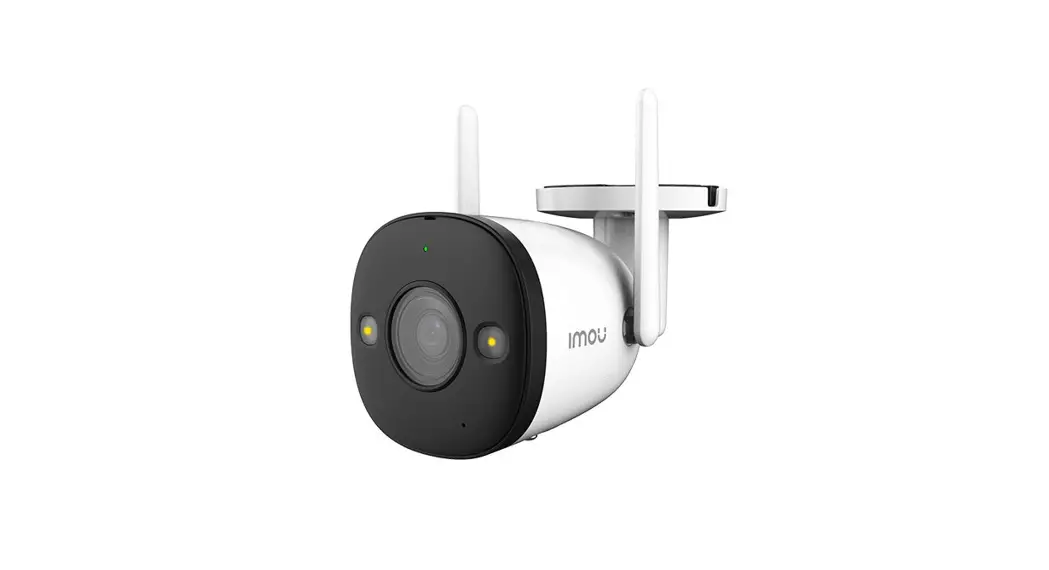
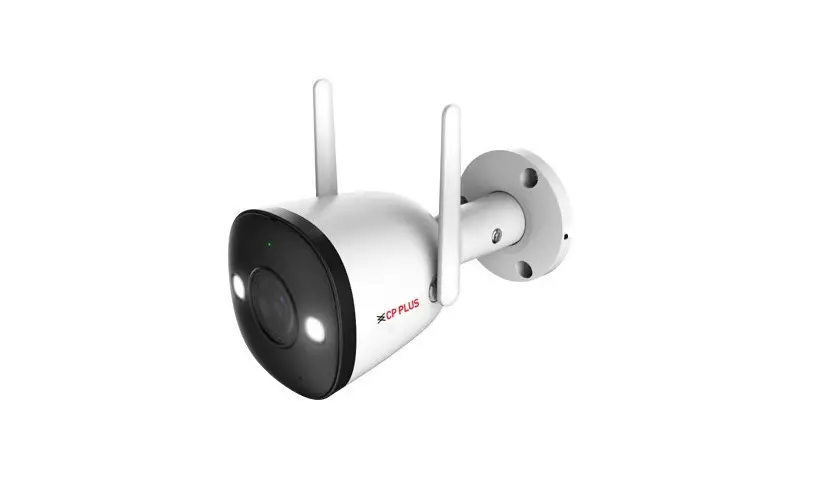
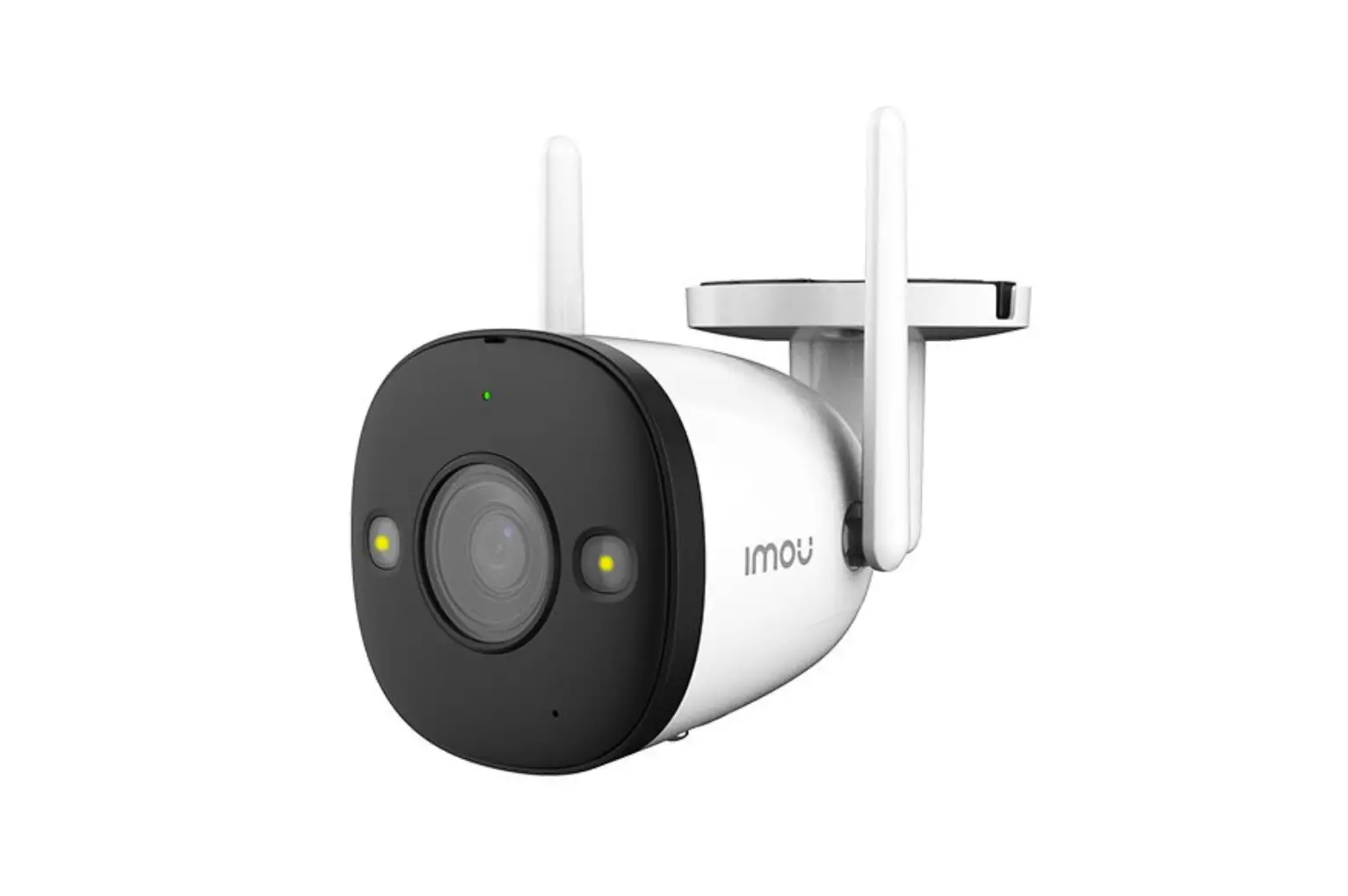
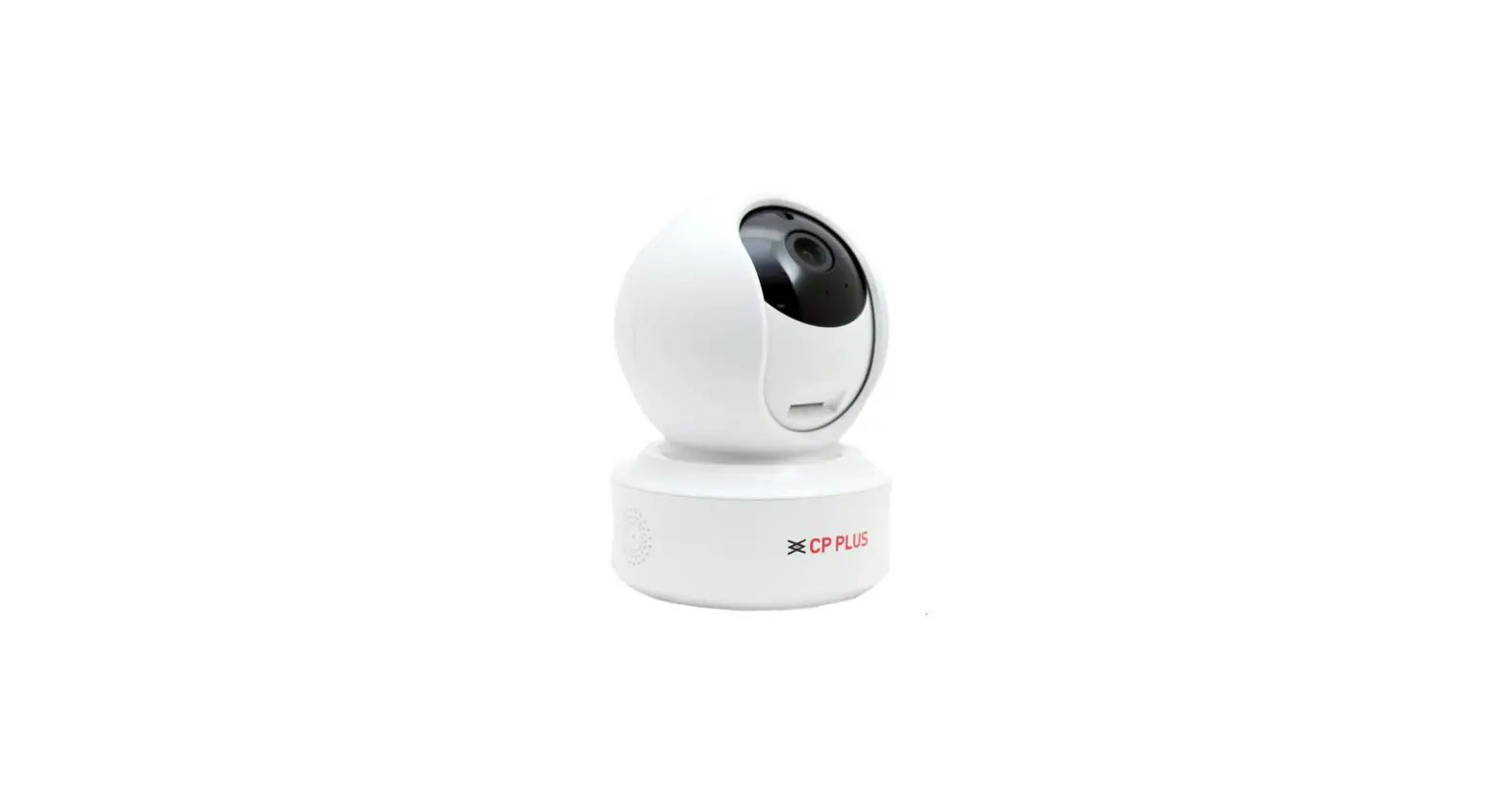
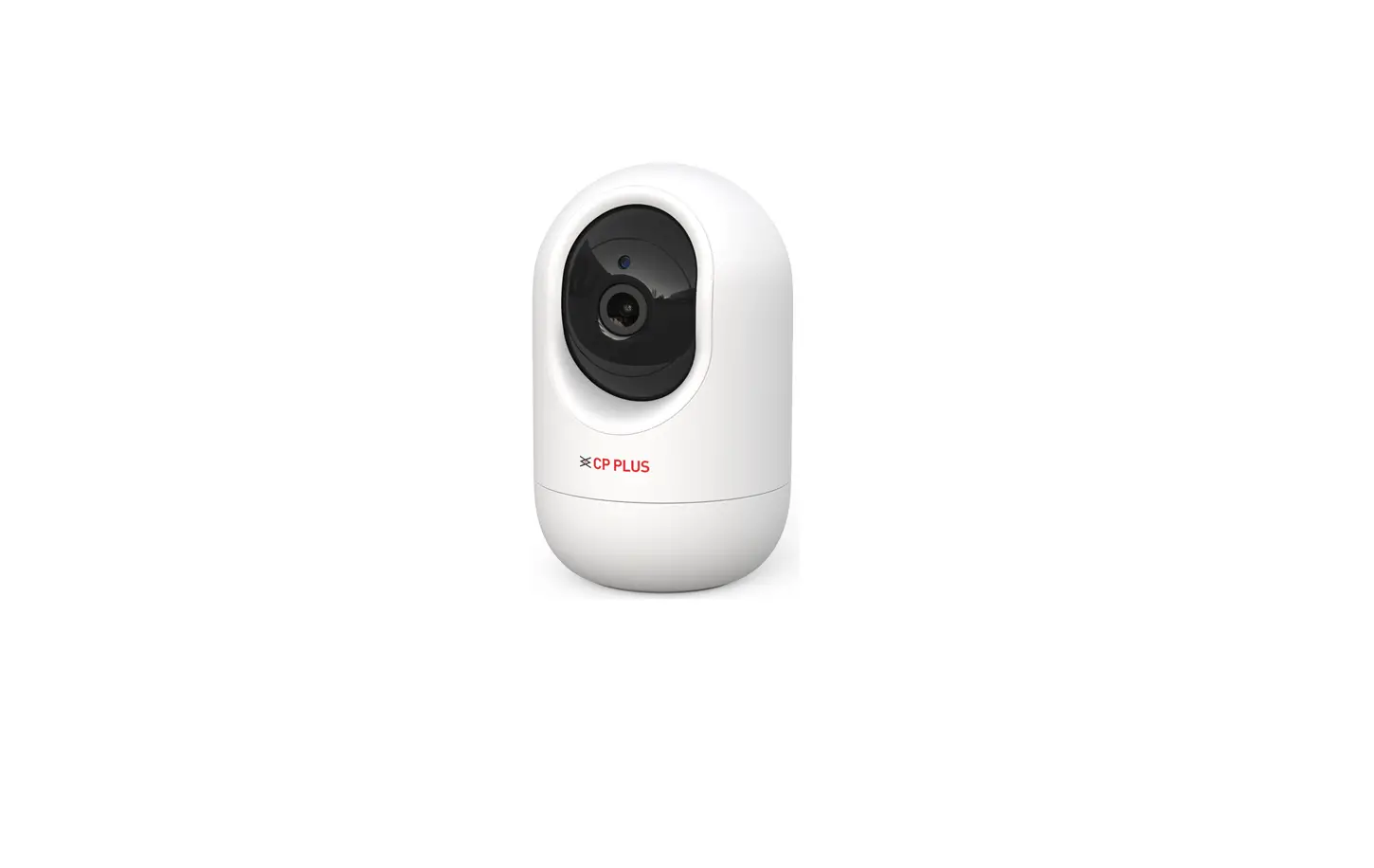
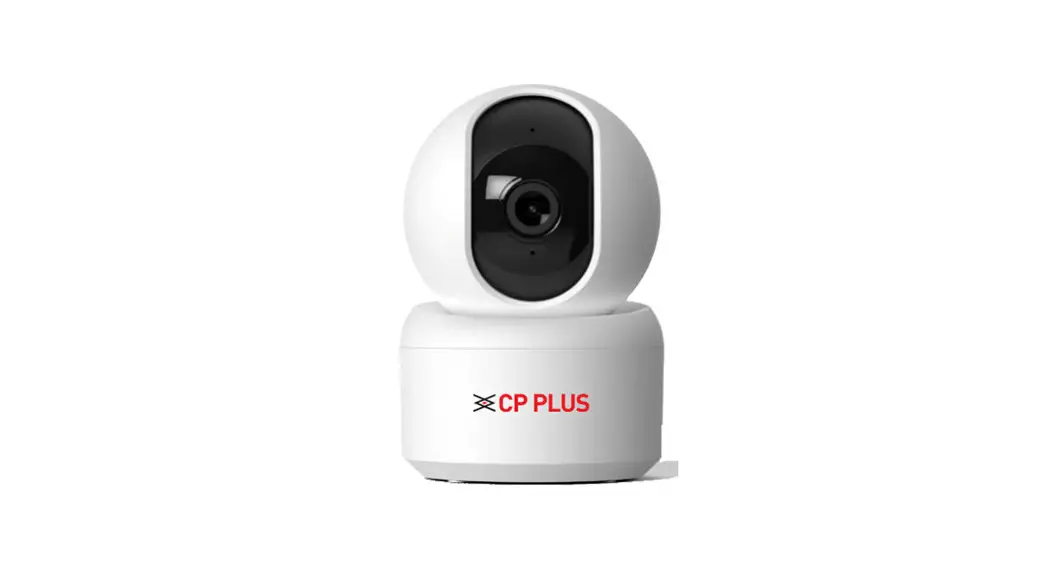
Camera Introduction
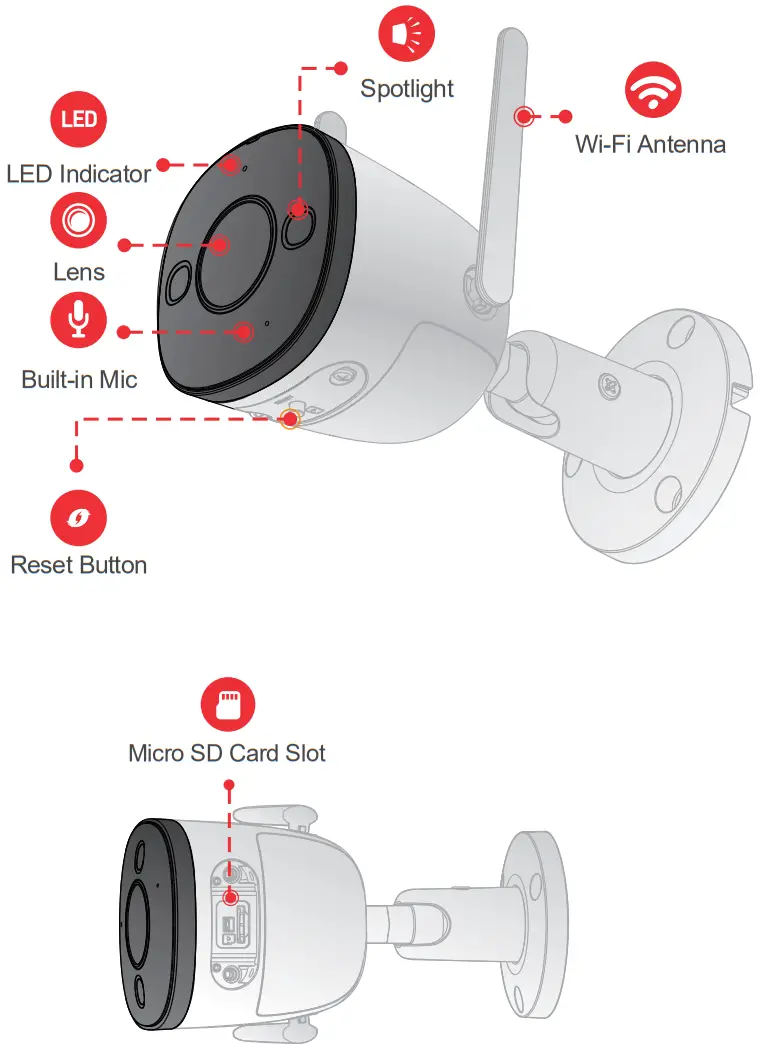
The pattern of the LED indicator is included in the following table.
| LED Status | Device Status |
| – Powered off/LED turned off – Rebooting after reset | |
| Red light on | – Booting – Device malfunction |
| Green light flashing | – Waiting for network |
| Green light on | – Operating properly |
| Red light flashing | – Network connection failed |
| Green and red light flashing alternately | – Firmware updating |
Voice control works with Alexa or Google Assistant
- You can control your camera using just your voice with Alexa or Google Assistant-enabled devices.

Operating with eezo APP
Step 1
Scan the following QR code or search “eezo” in Google Play or App Store to download and install the app.
Note: If you have installed the app, update it to the latest version.
 http://mobapp.cppluscloud.com/store/eezoapp
Step 2
Run eezo App, and then register an account for the first use.
Step 3
Connect the camera to power source with the power adapter.
Step 4
Wait for booting to be finished, and then the camera indicator flashes with green light.
Step 5
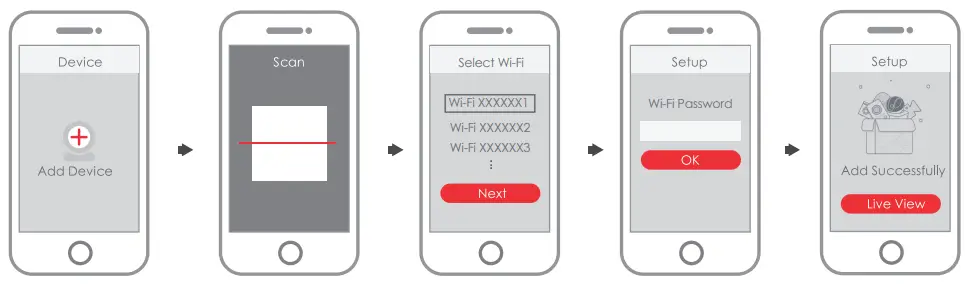
Do the following operations to finish adding camera.
Note:
- If you have more than one camera, do step 5 to add them one by one.
- If the Wi-Fi network has changed or the indicator status goes wrong, reset the camera, and then do step 5 to add it again.
Installing Camera
Note:
Make sure that the mounting surface is strong enough to hold at least three times of the device weight.
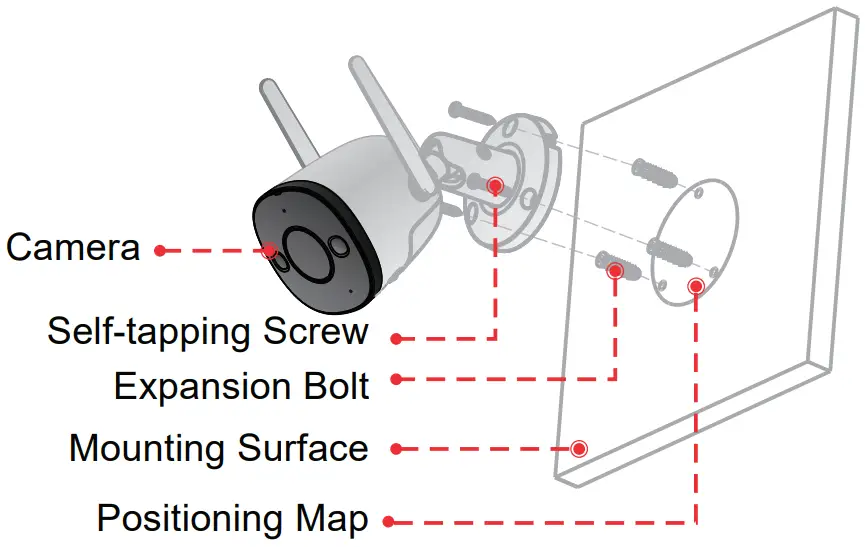
Step 1
Drill screw holes on the mounting surface as the positioning map shows, and then put in the expansion bolts.
Step 2
Attach the pedestal to the mounting surface with the self-tapping screws.
Step 3
Power up the camera, and then adjust the lens to the ideal angle.
FAQ
▶ Q: The device cannot boot up or work as expected?
Check the LED indicator status. If the light is not in green, press and hold the reset button for 10 s to reset the camera.
▶ Q: How to connect the camera to another Wi-Fi network?
– lf the camera is online, select camera> settings>Device Setting> WLAN>Network Config to change the Wi-Fi connection on the app.
– If the camera is offline, reset the camera, and then configure the camera again.
▶ Q: Connection takes too long?
– Check if the distance between the camera and the router, and that between the camera and the smart phone is both within 5 m (16.4 ft) during the connection.
– Check the Wi-Fi configuration of the router: Select the channel to auto, and the mode to 11bgn mixed.
▶ Q: When the micro SD card is full, how is the recorded video saved?
– When the micro SD card is full, the system will overwrite the previous recorded videos. Save the important information in time.
Troubleshooting
| Problem | Solution |
| Cannot configure the camera | •Make sure that your smart phone and the camera are within range of your Wi-Fi router. • Make sure that the LED indicator on the camera is flashing green . |
| How to find the camera Wi-Fi password | It is the safety code on the device label. |
| No picture or device is offline | • Make sure that the LED indicator on the camera is flashing green. See “LED Status” section for details if otherwise. • Make sure that the camera is properly connected to power using the included USB power adapter. • Reposition the camera, router, or both to improve signal strength. |
| Picture is not clear | • Check the camera lens for dirt, dust, and spider webs. Clean the lens with a soft, clean cloth. • Remove the vinyl cover on the camera lens. |
| No audio | • Make sure that audio function on camera is turned on. • Make sure that audio is turned up on viewing device. |
| Human detection does not work | Make sure that you have enabled Human Detection in the Device Settings interface of eezo App. |
| Camera stuck downwards | Check Privacy Mode setting on eezo App. |
| Fail to scan QR code | • Clean the camera lens of your smart phone. • Make sure that there is enough light on the QR code. • Do not hold the QR code too close to the camera. |
Thank you for choosing eezo
Google, Google Play and Google Home are trademarks of Google LLC.
Amazon, Alexa and all related logos are trademarks of Amazon.com, Inc. or its affiliates.
 Amazon.com. Spend less. Smile more.