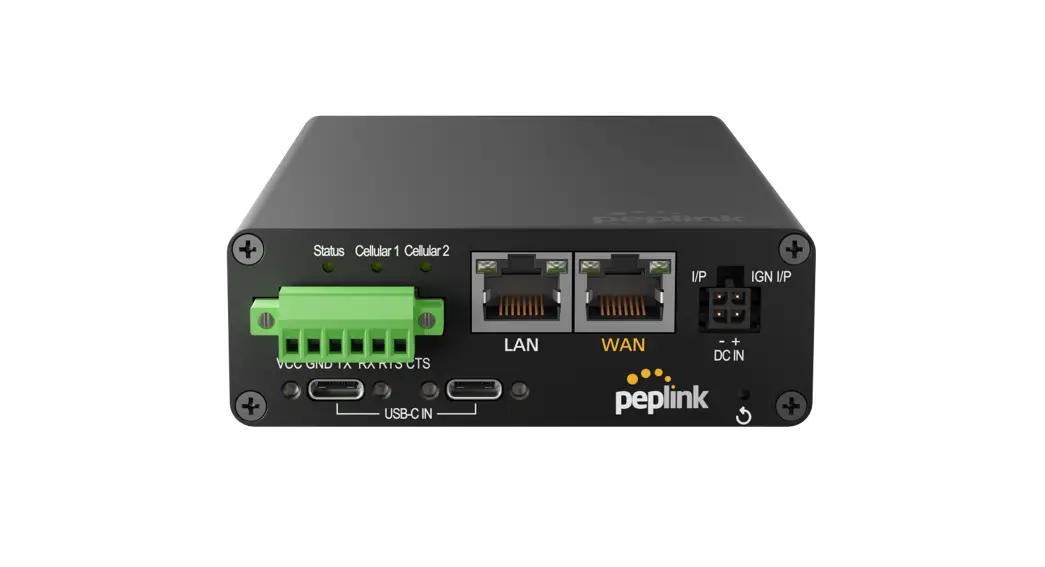
MAX Transit Pro E Router



























































































































































































 C
C 





































































































 ⇔
⇔






































 .
.














































 0
0









































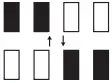




























































































































































































| Indicator lamps | Remaining capacity | ||
| Lighted | Off | Blinking | |
| 75% – 100% | ||
| 50% – 75% | ||
| 25% – 50% | ||
| 0% – 25% | ||
| Charge the battery | ||
| The battery may have malfunctioned | ||
| Symbol | Description | Symbol | Description |
| Warning |  | Upward |
| Avoid rain |  | Avoid sunlight |
 | Type BF application part |  | Fragile |
 | Sequence number | | Production date |
 | Temperature limit |  | Humidity limit |
 | Disposal instructions for electronic devices | | Consult the instruction manual |
 | Validity | 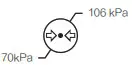 | Atmospheric pressure |
| Manufacturer | ||
 | lamp lights up |  | right, good |  | beep/sound on |
 | lamp flashes |  | wrong, not good |  | silent/sound off |
 | lamp off – battery fully charged |  | allowed |  | slow |
 | Battery empty / battery power low |  | not allowed |  | fast |
 | the battery is being charged | | Note |  | Left-hander |
 | battery fully charged |  | recording functions |  | Right-hander |
 | date and time |  | playback of the functions |  | Pressing |
 | all done/finished |  | saving the functions | 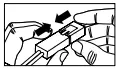 | Connecting |
 | radio frequency |  | demonstration model | 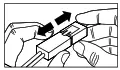 | Disconnect |
 | no range or radio signal |  | horn |  | Pay attention to polarity |
 | Switching on |  | Uncontrolled model/rolling vehicle |  | Use different frequencies |
 | Switching off |  | Wind | ||
 | Troubleshooting/fault tracing |  | automatic deactivate | ||
| Headless–function | For flying beginners: “Left/right” steering direction maintained when rotated |  | Function with water contact only |
MAX Series
User Manual
Pepwave Products: Transit Pro E Pepwave Firmware 8.2.1 July 2022
COPYRIGHT & TRADEMARKS Specifications are subject to change without notice. Copyright © 2021 Peplink Pepwave Ltd. All Rights Reserved. Pepwave and the Pepwave logo are trademarks of Peplink International Ltd. Other brands or products mentioned may be trademarks or registered trademarks of their respective owners.
Table of Contents
Introduction and Scope
Glossary
Product Features Supported Network Features Other Supported Features
MAX Transit Pro E Overview
Advanced Feature Summary Drop-in Mode and LAN Bypass: Transparent Deployment QoS: Clearer VoIP Per-User Bandwidth Control High Availability via VRRP USB Modem and Android Tethering Built-In Remote User VPN Support SIM-card USSD support KVM Virtualization DPI Engine NetFlow Wi-Fi Air Monitoring SP Default Configuration SpeedFusion Cloud Relay DNS over HTTPS (DoH)
Installation Preparation Constructing the Network Configuring the Network Environment
Mounting the Unit Wall Mount Car Mount IP67 Installation Guide PDX Accessory Kit Installation Guide
Connecting to the Web Admin Interface
2
7
8
9 9 12
13
15 15 15 16 16 17 17 18 18 19 19 19 19 20 20
21 21 21 22
23 23 23 23 24
31
Copyright @ 2021 Peplink
SpeedFusion Cloud Activate SpeedFusion Cloud Service Enable SpeedFusion Cloud Connect Clients to Cloud Link Wi-Fi to Cloud Optimize Cloud Application
Configuring the LAN Interface(s) Basic Settings Port Settings Captive Portal
Configuring the WAN Interface(s) Ethernet WAN Cellular WAN Wi-Fi WAN WAN Connection Settings (Common) WAN Health Check Bandwidth Allowance Monitoring Additional Public IP address Dynamic DNS Settings
Advanced Wi-Fi Settings
MediaFast Configuration Setting Up MediaFast Content Caching Scheduling Content Prefetching Viewing MediaFast Statistics
ContentHub Configuring the ContentHub Configure a website for ContentHub Configure an application for ContentHub
Docker
KVM
Bandwidth Bonding SpeedFusionTM / PepVPN PepVPN The Pepwave Router Behind a NAT Router
3
33 33 36 44 45 47
48 48 60 61
64 67 76 81 84 85 88 89 89
91
95 95 97 99
100 100 100 103
105
105
107 108 116
Copyright @ 2021 Peplink
IPsec VPN IPsec VPN Settings GRE Tunnel
Outbound Policy Outbound Policy Adding Rules for Outbound Policy
Port Forwarding UPnP / NAT-PMP Settings
NAT Mappings
QoS User Groups Bandwidth Control Application
Firewall Outbound and Inbound Firewall Rules Content Blocking
Routing Protocols OSPF & RIPv2 BGP
Remote User Access L2TP with IPsec OpenVPN PPTP Authentication Methods
Miscellaneous Settings High Availability Certificate Manager Service Forwarding Service Passthrough UART GPS Forwarding Ignition Sensing Ignition Sensing installation
4
118 118 122
124 125 126
136 138
139
141 141 142 142
145 146 151
153 153 155
160 160 160 161 161
163 163 166 167 170 172 174 175 175
Copyright @ 2021 Peplink
GPIO Menu NTP Server Grouped Networks Remote SIM Management SIM Toolkit
AP AP Controller Wireless SSID Wireless Mesh Settings
AP Controller Status Info Access Point (Usage) Wireless SSID Mesh / WDS Wireless Client Nearby Device Event Log
Toolbox
System Settings Admin Security Firmware Time Schedule Email Notification Event Log SNMP SMS Control InControl Configuration Feature Add-ons Reboot
Tools Ping Traceroute Test
5
177 178 179 180 182
184 184 184 189 190
196 196 198 200 201 202 204 204
205
206 206 210 212 213 214 217 218 220 221 222 223 223
224 224 225
Copyright @ 2021 Peplink
PepVPN Test
225
Wake-on-LAN
226
CLI (Command Line Interface Support)
226
Status
227
Device
227
GPS Data
229
Active Sessions
230
Client List
232
WINS Client
233
UPnP / NAT-PMP
233
OSPF & RIPv2
234
BGP
235
SpeedFusion Status
235
Event Log
238
WAN Quality
239
Usage Reports
240
Real-Time
240
Hourly
241
Daily
242
Monthly
243
Appendix A: Restoration of Factory Defaults
245
Appendix B: FusionSIM Manual
246
Appendix C: Overview of ports used by Peplink SD-WAN routers and other Peplink
services
258
Appendix D: Declaration
260
6
Copyright @ 2021 Peplink
Introduction and Scope
Pepwave routers provide link aggregation and load balancing across multiple WAN connections, allowing a combination of technologies like 3G HSDPA, EVDO, 4G LTE, Wi-Fi, external WiMAX dongle, and satellite to be utilized to connect to the Internet.
The MAX wireless SD-WAN router series has a wide range of products suitable for many different deployments and markets. Entry level SD-WAN models such as the MAX BR1 are suitable for SMEs or branch offices. High-capacity SD-WAN routers such as the MAX HD2 are suitable for larger organizations and head offices.
This manual covers setting up Pepwave routers and provides an introduction to their features and usage.
Tips Want to know more about Pepwave routers? Visit our YouTube Channel for a video introduction!
7
Copyright @ 2021 Peplink
Glossary
The following terms, acronyms, and abbreviations are frequently used in this manual:
Term
Definition
3G
3rd generation standards for wireless communications (e.g., HSDPA)
4G
4th generation standards for wireless communications (e.g., LTE)
DHCP
Dynamic Host Configuration Protocol
DNS
Domain Name System
EVDO
Evolution-Data Optimized
FQDN
Fully Qualified Domain Name
HSDPA
High-Speed Downlink Packet Access
HTTP
Hyper-Text Transfer Protocol
ICMP
Internet Control Message Protocol
IP
Internet Protocol
LAN
Local Area Network
MAC Address Media Access Control Address
MTU
Maximum Transmission Unit
MSS
Maximum Segment Size
NAT
Network Address Translation
PPPoE
Point to Point Protocol over Ethernet
QoS
Quality of Service
SNMP
Simple Network Management Protocol
TCP
Transmission Control Protocol
UDP
User Datagram Protocol
VPN
Virtual Private Network
VRRP
Virtual Router Redundancy Protocol
WAN
Wide Area Network
WINS
Windows Internet Name Service
WLAN
Wireless Local Area Network
8
Copyright @ 2021 Peplink
1 Product Features
Pepwave routers enable all LAN users to share broadband Internet connections, and they provide advanced features to enhance Internet access. Our Max BR wireless routers support multiple SIM cards. They can be configured to switch from using one SIM card to another SIM card according to different criteria, including wireless network reliability and data usage.
Our MAX HD series wireless routers are embedded with multiple 4G LTE modems, and allow simultaneous wireless Internet connections through multiple wireless networks. The wireless Internet connections can be bonded together using our SpeedFusion technology. This allows better reliability, larger bandwidth, and increased wireless coverage compared to use only one 4G LTE modem.
Below is a list of supported features on Pepwave routers. Features vary by model. For more information, please see peplink.com/products.
1.1 Supported Network Features
1.1.2 WAN Ethernet WAN connection in full/half duplex Static IP support for PPPoE Built-in cellular modems USB mobile connection(s) Wi-Fi WAN connection Network address translation (NAT)/port address translation (PAT) Inbound and outbound NAT mapping IPsec NAT-T and PPTP packet passthrough MAC address clone and passthrough Customizable MTU and MSS values WAN connection health check Dynamic DNS (supported service providers: changeip.com, dyndns.org, no-ip.org,
tzo.com and DNS-O-Matic) Ping, DNS lookup, and HTTP-based health check
1.1.3 LAN Wi-Fi AP Ethernet LAN ports DHCP server on LAN
9
Copyright @ 2021 Peplink
Extended DHCP option support Static routing rules VLAN on LAN support
1.1.4 VPN PepVPN with SpeedFusionTM PepVPN performance analyzer X.509 certificate support VPN load balancing and failover among selected WAN connections Bandwidth bonding and failover among selected WAN connections IPsec VPN for network-to-network connections (works with Cisco and Juniper) Ability to route Internet traffic to a remote VPN peer Optional pre-shared key setting SpeedFusionTM throughput, ping, and traceroute tests PPTP server PPTP and IPsec passthrough
1.1.5 Firewall Outbound (LAN to WAN) firewall rules Inbound (WAN to LAN) firewall rules per WAN connection Intrusion detection and prevention Specification of NAT mappings Outbound firewall rules can be defined by destination domain name
1.1.6 Captive Portal Splash screen of open networks, login page for secure networks Customizable built-in captive portal Supports linking to outside page for captive portal
1.1.7 Outbound Policy Link load distribution per TCP/UDP service Persistent routing for specified source and/or destination IP addresses per TCP/UDP
service Traffic prioritization and DSL optimization Prioritize and route traffic to VPN tunnels with Priority and Enforced algorithms
1.1.8 AP Controller
10
Copyright @ 2021 Peplink
Configure and manage Pepwave AP devices Review the status of connected APs
1.1.9 QoS Quality of service for different applications and custom protocols User group classification for different service levels Bandwidth usage control and monitoring on group- and user-level Application prioritization for custom protocols and DSL/cable optimization
11
Copyright @ 2021 Peplink
1.2 Other Supported Features
User-friendly web-based administration interface HTTP and HTTPS support for web admin interface (default redirection to HTTPS) Configurable web administration port and administrator password Firmware upgrades, configuration backups, ping, and traceroute via web admin interface Remote web-based configuration (via WAN and LAN interfaces) Time server synchronization SNMP Email notification Read-only user access for web admin Shared IP drop-in mode Authentication and accounting by RADIUS server for web admin Built-in WINS servers* Syslog SIP passthrough PPTP packet passthrough Event log Active sessions Client list WINS client list * UPnP / NAT-PMP Real-time, hourly, daily, and monthly bandwidth usage reports and charts IPv6 support Support USB tethering on Android 2.2+ phones
* Not supported on MAX Surf-On-The-Go, and BR1 variants
12
Copyright @ 2021 Peplink
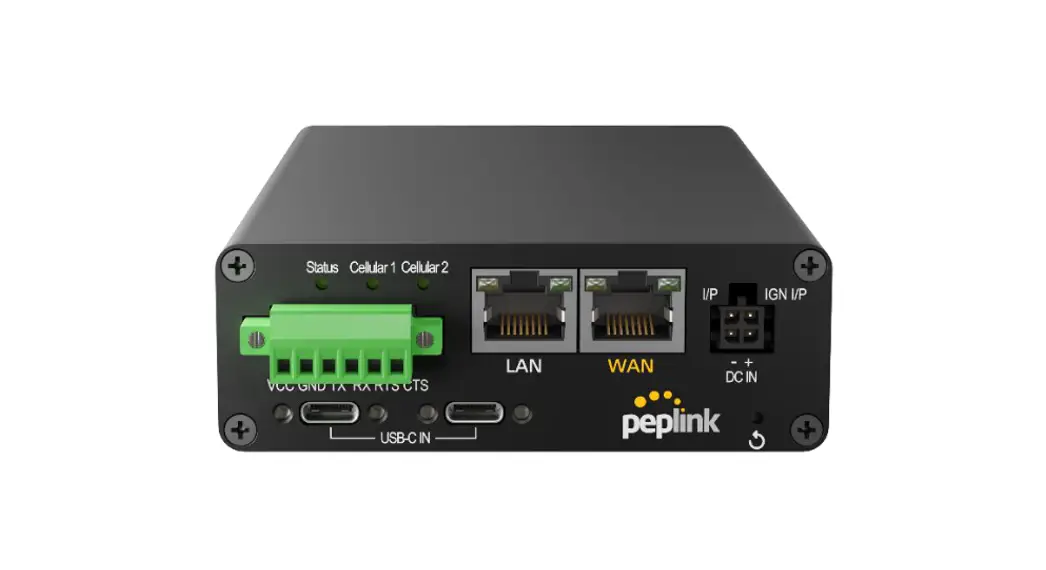
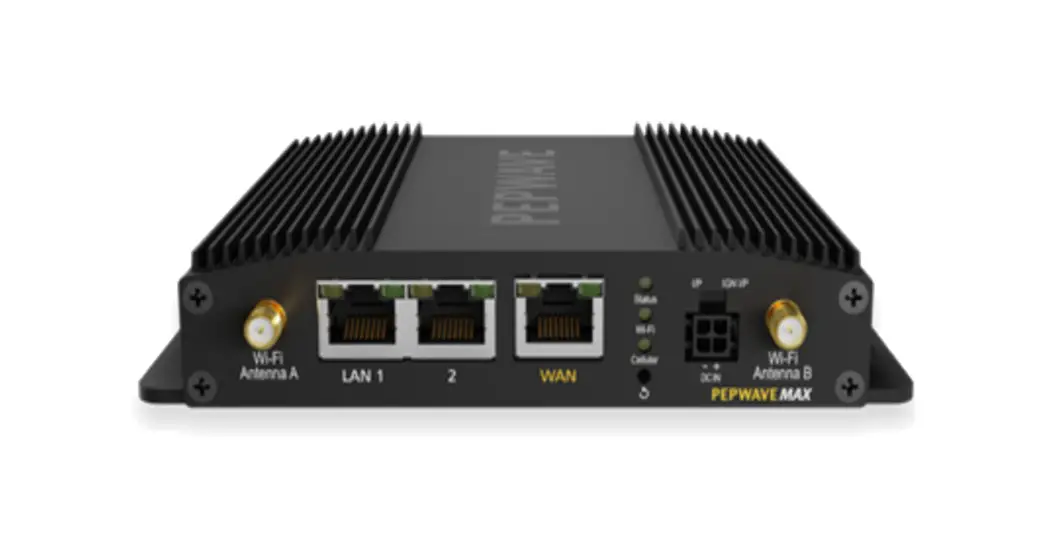
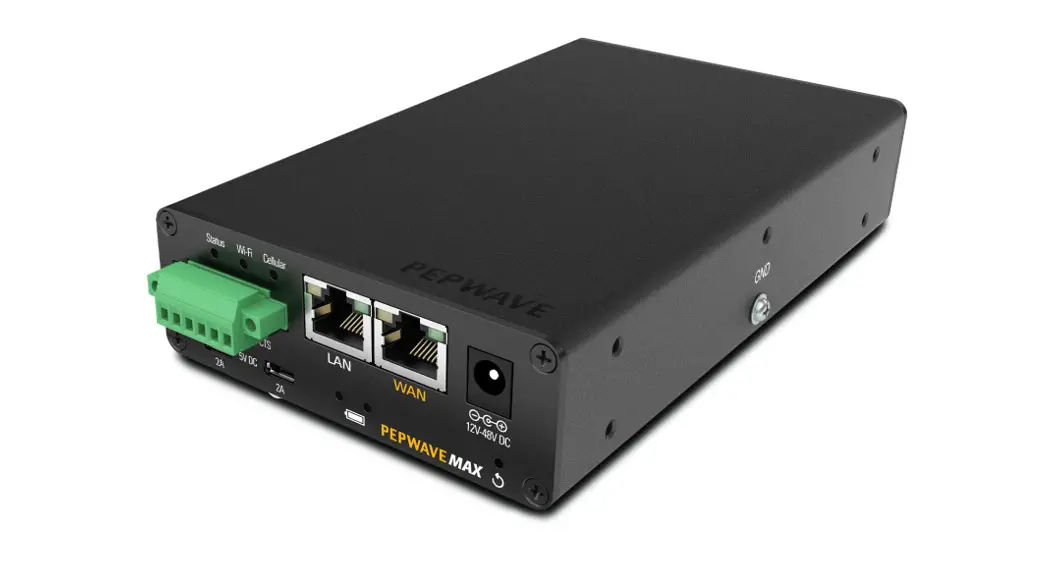
2 MAX Transit Pro E Overview
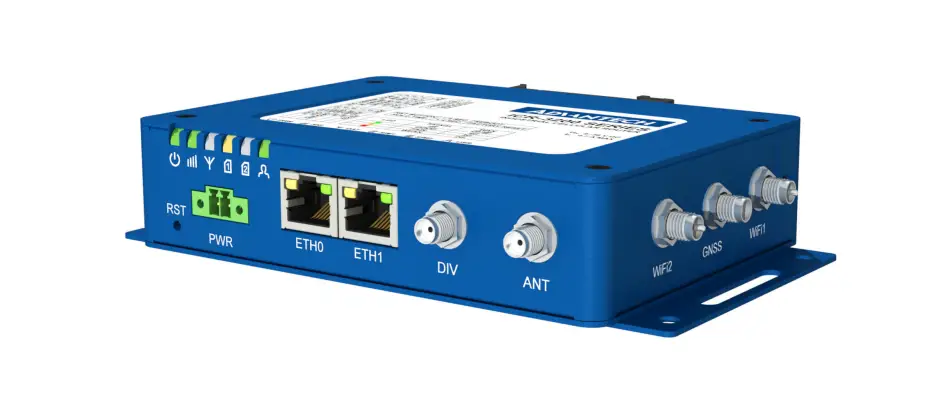
2.1 Panel Appearance
2.2 LED indicators
The statuses indicated by the front panel LEDs are as follows:
Status Indicators
OFF
System initializing
Status
Red Blinking red
Booting up or busy Boot up error
Green
Ready
Green LED Orange LED
Port Type
LAN 1 Port
ON
POE Enabled
OFF
POE Disabled
Blinking
10 / 100 / 1000 Mbps and Data is transferring
OFF
No data is being transferred or port is not connected
Auto MDI/MDI-X ports
Green LED
LAN 2-3 Port and Ethernet WAN Port
ON
1000 Mbps
13
Copyright @ 2021 Peplink
Orange LED Port Type
OFF
10 Mbps / 100 Mbps or port is not connected
ON
Port is connected without traffic
Blinking
Data is transferring
OFF
Port is not connected
Auto MDI/MDI-X ports
Cellular
OFF Blinking slowly Green
Cellular Indicators Disabled or no SIM card inserted Connecting to network(s) Connected to network(s)
14
Copyright @ 2021 Peplink
3 Advanced Feature Summary
3.1 Drop-in Mode and LAN Bypass: Transparent Deployment
As your organization grows, it may require more bandwidth, but modifying your network can be tedious. In Drop-in Mode, you can conveniently install your Peplink router without making any changes to your network. For any reason your Peplink router looses power, the LAN Bypass will safely and automatically bypass the Peplink router to resume your original network connection.
Note: Drop-in mode is compatible for All MAX models except MAX BR1 IP67
3.2 QoS: Clearer VoIP
VoIP and videoconferencing are highly sensitive to latency. With QoS, Peplink routers can detect VoIP traffic and assign it the highest priority, giving you crystal-clear calls.
15
Copyright @ 2021 Peplink
3.3 Per-User Bandwidth Control
With per-user bandwidth control, you can define bandwidth control policies for up to 3 groups of users to prevent network congestion. Define groups by IP address and subnet, and set bandwidth limits for every user in the group.
3.4 High Availability via VRRP
When your organization has a corporate requirement demanding the highest availability with no single point of failure, you can deploy two Peplink routers in High Availability mode. With High Availability mode, the second device will take over when needed.
16
Copyright @ 2021 Peplink
Compatible with: MAX 700, MAX HD2 (All variants), HD4 (All Variants)
3.5 USB Modem and Android Tethering
For increased WAN diversity, plug in a USB LTE modem as a backup. Peplink routers are compatible with over 200 modem types. You can also tether to smartphones running Android 4.1.X and above. Compatible with: MAX 700, HD2 (all variants except IP67), HD4 (All variants)
3.6 Built-In Remote User VPN Support
Use OpenVPN or L2TP with IPsec to safely and conveniently connect remote clients to your private network. L2TP with IPsec is supported by most devices, but legacy devices can also connect using PPTP.
Click here for the full instructions on setting up L2TP with IPsec. Click here for the full instructions on setting up OpenVPN connections
17
Copyright @ 2021 Peplink
3.7 SIM-card USSD support
Cellular-enabled routers can now use USSD to check their SIM card’s balance, process pre-paid cards, and configure carrier-specific services. Click here for full instructions on using USSD
3.8 KVM Virtualization
KVM is a virtualisation module that allows administrators using our routers to host a large range of virtual machines. KVM is now supported on some MediaFast / ContentHub routers.
18
Copyright @ 2021 Peplink
Click here for the full instructions on how to set up KVM Click here for the full instructions on how to set up KVM with USB Storage
3.9 DPI Engine
The DPI report written in the updated KB article will show further information on InControl2 through breaking down application categories into subcategories. https://forum.peplink.com/t/updated-ic2-deep-packet-inspection-dpi-reports-and-everythi ng-you-need-to-know-about-it/29658
3.10 NetFlow
NetFlow protocol is used to track network traffic. Tracking information from NetFlow can be sent to the NetFlow collector, which analyzes data and generates reports for review. Note: To enable this feature, go to https://<Device’s IP>/cgi-bin/MANGA/support.cgi
3.11 Wi-Fi Air Monitoring
Pepwave routers support Wi-Fi “Air Monitoring Mode” which used to troubleshoot remotely and proactively monitor Wi-Fi and WAN performance. The report can be viewed under InControl 2 > Reports > AirProbe Reports after enabling Wi-Fi Air Monitoring. Note: To enable this feature, go to https://<Device’s IP>/cgi-bin/MANGA/support.cgi
3.12 SP Default Configuration
The SP Default Configuration feature written in the updated KB article allows for the provisioning of custom made settings (a.k.a. InControl2 configuration) via the Ethernet LAN port and is ideal for those wanting to do a bulk deployment of many Peplink devices. Note: If you would like to use this feature, please contact your purchase point (Eg.VAD).
19
Copyright @ 2021 Peplink
3.13 SpeedFusion Cloud Relay
Cloud Service Providers often restrict access to certain applications. With SFC Relay, you can route traffic before going out to the Internet, allowing access to previously restricted applications experienced with the public SpeedFusion Cloud nodes. Available as an add-on for your home router or as an upgradable license to your Peplink router, SFC Relay is sure to impress you and any peers you give access to. https://forum.peplink.com/t/configure-speedfusion-cloud-relay-server-and-client/6215ca9 b017e48e0f3ff2479/
3.14 DNS over HTTPS (DoH)
DoH provides the benefits of communicating DNS information over a secure HTTPS connection in an encrypted manner. The protocol offers increased privacy and confidentiality by preventing data interception and man-in-the-middle attacks.
20
Copyright @ 2021 Peplink
4 Installation
The following section details connecting Pepwave routers to your network.
4.1 Preparation
Before installing your Pepwave router, please prepare the following as appropriate for your installation:
At least one Internet/WAN access account and/or Wi-Fi access information
Depending on network connection type(s), one or more of the following:
Ethernet WAN: A 10/100/1000BaseT UTP cable with RJ45 connector
USB: A USB modem
Embedded modem: A SIM card for 5G/4G LTE service
Wi-Fi WAN: Wi-Fi antennas
PC Card/Express Card WAN: A PC Card/ExpressCard for the corresponding card slot
A computer installed with the TCP/IP network protocol and a supported web browser. Supported browsers include Microsoft Internet Explorer 11 or above, Mozilla Firefox 24 or above, Apple Safari 7 or above, and Google Chrome 18 or above.
4.2 Constructing the Network
At a high level, construct the network according to the following steps:
1. With an Ethernet cable, connect a computer to one of the LAN ports on the Pepwave router. Repeat with different cables for up to 4 computers to be connected.
2. With another Ethernet cable or a USB modem/Wi-Fi antenna/PC Card/Express Card, connect to one of the WAN ports on the Pepwave router. Repeat the same procedure for other WAN ports.
3. Connect the power adapter to the power connector on the rear panel of the Pepwave router, and then plug it into a power outlet.
21
Copyright @ 2021 Peplink
4.3 Configuring the Network Environment
To ensure that the Pepwave router works properly in the LAN environment and can access the Internet via WAN connections, please refer to the following setup procedures:
LAN configuration For basic configuration, refer to Section 8, Connecting to the Web Admin Interface. For advanced configuration, go to Section 9, Configuring the LAN Interface(s).
WAN configuration For basic configuration, refer to Section 8, Connecting to the Web Admin Interface. For advanced configuration, go to Section 9.2, Captive Portal.
22
Copyright @ 2021 Peplink
5 Mounting the Unit
5.1 Wall Mount
The Pepwave MAX 700/HD2/On-The-Go can be wall mounted using screws. After adding the screw on the wall, slide the MAX in the screw hole socket as indicated below. Recommended screw specification: M3.5 x 20mm, head diameter 6mm, head thickness 2.4mm. The Pepwave MAX BR1 requires four screws for wall mounting.
5.2 Car Mount
The Pepwave MAX700/HD2 can be mounted in a vehicle using the included mounting brackets. Place the mounting brackets by the two sides and screw them onto the device.
5.3 IP67 Installation Guide
Installation instructions for IP67 devices can be found here: http://download.peplink.com/manual/IP67_Installation_Guide.pdf
23
Copyright @ 2021 Peplink
5.4 PDX Accessory Kit Installation Guide
5.4.2 Battery Set appearance
Step 1: Lock the battery set in the slot with 2 pcs M3 screws.
Step 2: Plug power cable into the socket
24
Copyright @ 2021 Peplink
STEP 3: Lock the slot cover with 4 pcs M3 screws.
5.4.3 SFE-DUO Set appearance
25
Copyright @ 2021 Peplink
STEP 1: Assemble SMA cables to the device
STEP 2: Assemble bracket to the device
26
Copyright @ 2021 Peplink
 DNS, Dynamic DNS, VPS and Web Hosting Provider - ChangeIP
 My Dyn Account
 Free Dynamic DNS - Managed DNS - Managed Email - Domain Registration - No-IP
 Products Archive - Peplink
 Peplink | Pepwave - Forum
 Peplink - Unbreakable Connectivity - Peplink