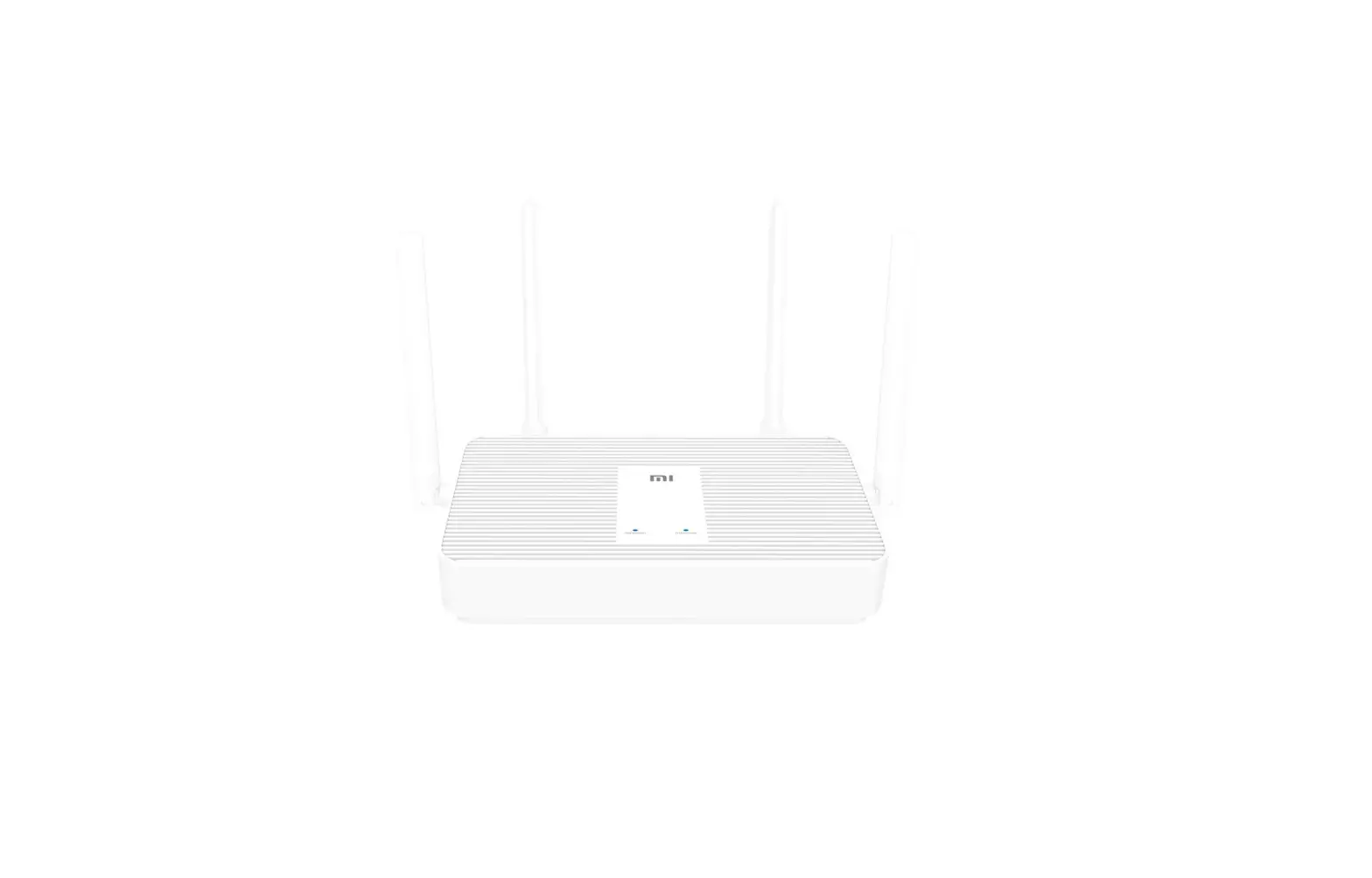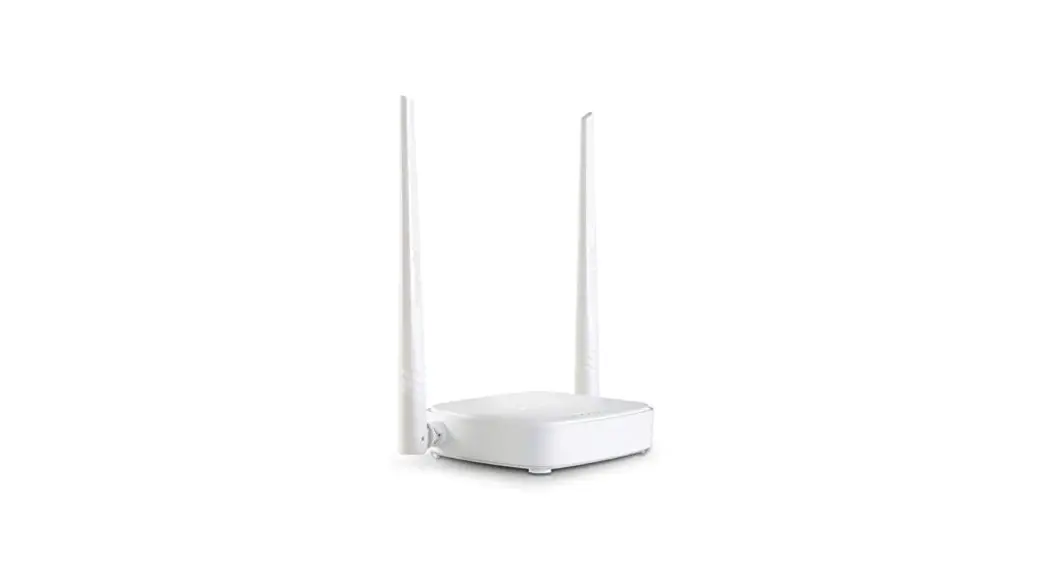
swissonic 544731 Professional Router 2 MKII User Manual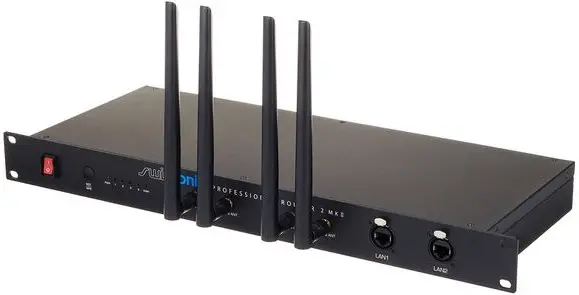
General information
This user manual contains important information on the safe operation of the device. Read and follow all safety notes and all instructions. Save this manual for future reference. Make sure that it is available to all persons using this device. If you sell the device to another user, be sure that they also receive this manual.
Our products and user manuals are subject to a process of continuous development. We there‐ fore reserve the right to make changes without notice. Please refer to the latest version of theuser manual which is ready for download under www.thomann.de.
Further information
On our website (www.thomann.de) you will find lots of further information and details on the following points:
| Download | This manual is also available as PDF file for you to download. |
| Keyword search | Use the search function in the electronic version to find the topics of interest for you quickly. |
| Online guides | Our online guides provide detailed information on technical basics and terms. |
| Personal consultation | For personal consultation please contact our technical hotline. |
| Service | If you have any problems with the device the customer service will gladly assist you. |
Notational conventions
This manual uses the following notational conventions:
- Letterings: The letterings for connectors and controls are marked by square brackets and italics.
Examples: [VOLUME] control, [Mono] button. - Displays: Texts and values displayed on the device are marked by quotation marks and italics.
Examples: ‘24ch’ , ‘OFF’ . - Text input: Text inputs that are carried out on the device are indicated by typewriter font.
Example: 2323 - Instructions: The individual steps of an instruction are numbered consecutively. The result of a step is indented and highlighted by an arrow.
Example:- Switch on the device.
- Press [Auto].
ð Automatic operation is started. - Switch off the device.
Symbols and signal words
In this section you will find an overview of the meaning of symbols and signal words that are used in this manual.
| Signal word | Meaning |
| DANGER! | This combination of symbol and signal word indicates an immediate dangerous situation that will result in death or serious injury if it is not avoided. |
| NOTICE! | This combination of symbol and signal word indicates a pos‐ sible dangerous situation that can result in material and environmental damage if it is not avoided. |
| Warning signs | Type of danger |
 | Warning – high-voltage. |
 | Warning – danger zone. |
Safety instructions
Intended use
This device is used to wirelessly connect Wi-Fi-enabled devices to each other to form a wireless local area network or to connect to the Internet. Use the device only as described in this user manual. Any other use or use under other operating conditions is considered to be improper and may result in personal injury or property damage. No liability will be assumed for damages resulting from improper use.
This device may be used only by persons with sufficient physical, sensorial, and intellectual abilities and having corresponding knowledge and experience. Other persons may use this device only if they are supervised or instructed by a person who is responsible for their safety.
DANGER!
Danger for children
Ensure that plastic bags, packaging, etc. are disposed of properly and are not within reach of babies and young children. Choking hazard! Ensure that children do not detach any small parts (e.g. knobs or the like) from the unit. They could swallow the pieces and choke! Never let children unattended use electrical devices.
DANGER!
Electric shock caused by high voltages inside
Within the device there are areas where high voltages may be present. Never remove any covers. There are no user-serviceable parts inside. Do not use the device if covers, protectors or optical components are missing or damaged.
 NOTICE!
Risk of fire
Do not block areas of ventilation. Do not install the device near any direct heat source. Keep the device away from naked flames.
NOTICE!
External power supply
The device is powered by an external power supply. Before connecting the external power supply, ensure that the input voltage (AC outlet) matches the voltage rating of the device and that the AC outlet is protected by a residual current circuit breaker. Failure to do so could result in damage to the device and possibly the user. Unplug the external power supply before electrical storms occur and when the device is unused for long periods of time to reduce the risk of electric shock or fire.
NOTICE!
Operating conditions
This device has been designed for indoor use only. To prevent damage, never expose the device to any liquid or moisture. Avoid direct sunlight, heavy dirt, and strong vibrations. Only operate the device within the ambient conditions specified in the chapter ‘Technical specifications’ of this user manual. Avoid heavy temperature fluctuations and do not switch the device on immediately after it was exposed to temperature fluctuations (for example after transport at low outside temperatures). Dust and dirt inside can damage the unit. When operated in harmful ambient conditions (dust, smoke, nicotine, fog, etc.), the unit should be maintained by qualified service personnel at regular intervals to prevent overheating and other malfunction.
NOTICE!
Radio interference
This device emits electromagnetic signals. This can cause interference due to overlapping radio waves. Do not use the device in locations where the use of wireless devices is prohibited.
NOTICE!
Locations subject to explosion hazards
This device emits electromagnetic signals. Under unfavourable conditions, radio waves near explosive spots can cause fire or explo‐ sions. Do not use the unit near locations subject to explosion hazards.
Features
- Wireless Dual Band Router (2.4 and 5 GHz)
- Easy Mesh Network
- Data transfer rate Wi-Fi up to 574 Mbps (2.4 GHz) or up to 1201 Mbps (5 GHz)
- 4 operation modes: Router, Repeater (Extender), Access Point, wireless ISP
- 1 WAN port (1000 Mbps)
- 4 LAN ports (1000 Mbps)
- Diversity
- Detachable antennas
- Lockable Neutrik RJ45 plugs on the front panel
- Built-in power supply
- 19″ rack-mountable (1 RU)
- Wi-Fi 6 Standard (IEEE 802.11ax)
- OFDMA procedure
- MU-MIMO technology
- TWT function
- 880 MHz dual core CPU
- 5 PPTP tunnels for VPN
- Broad band functions: DHCP, Static IP, PPPoE PPTP and L2TP
- WPA3 security protocol
Installation and starting up
Unpack and check carefully there is no transportation damage before using the unit. Keep the equipment packaging. To fully protect the product against vibration, dust and moisture during transportation or storage use the original packaging or your own packaging material suitable for transport or storage, respectively.
Create all connections while the device is off. Use the shortest possible high-quality cables for all connections. Take care when running the cables to prevent tripping hazards.
Notes on radio transmission
- This equipment uses a frequency range that is free of charge and registration within the European Union.
For more information, please visit: http://www.thomann.de. - Make sure that no metal objects are located between transmitter and receiver.
- Avoid interference by other radio and in-ear systems
Connecting the router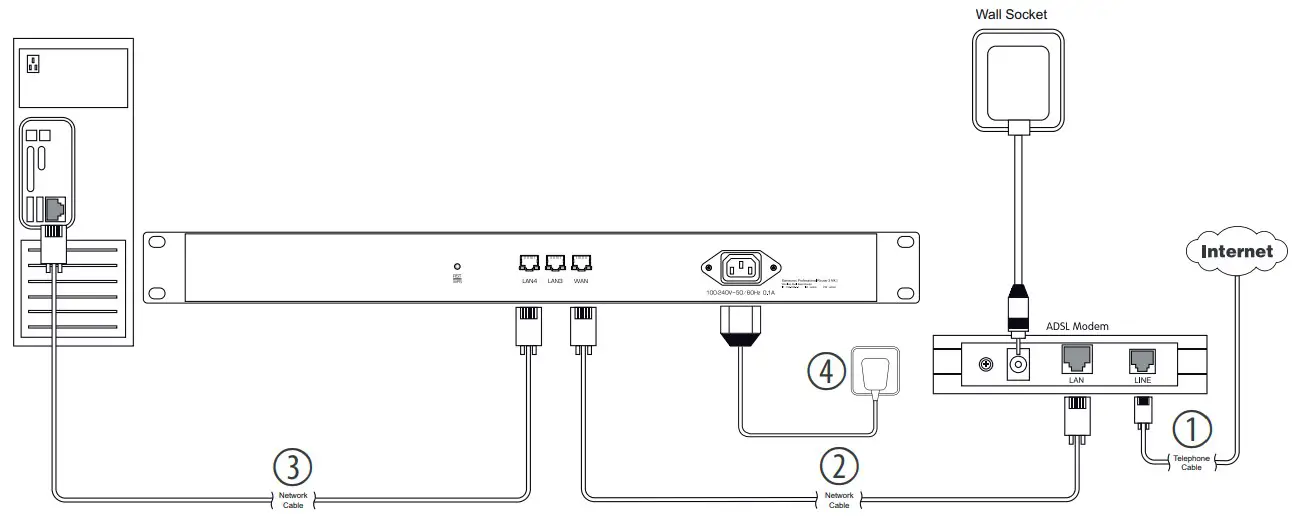
PC setup (Windows® 10 operating system)
Activate WIFI on your PC.
Setting up Wi-Fi on the router
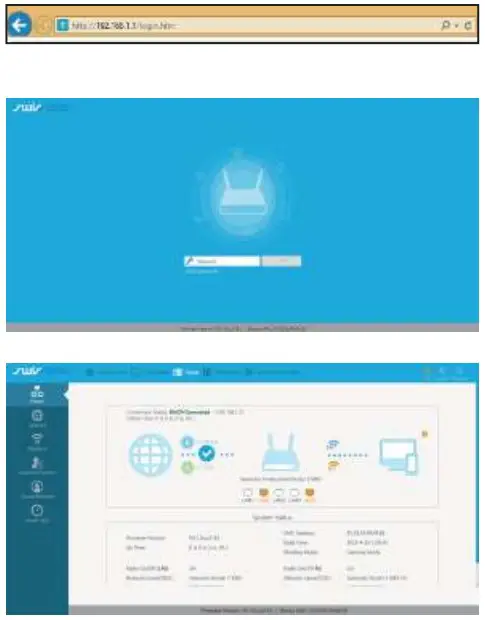
- Start the web browser of your PC.
- Enter http://192.168.1.1 in the address bar of the web browser. Confirm with [ENTER].
- Enter the password and click ‘Login’ . The default password is ‘admin’ .
- The ‘Basic’ page opens up. The connection status is displayed.

- The ‘Basic’ page opens up. The connection status is displayed.
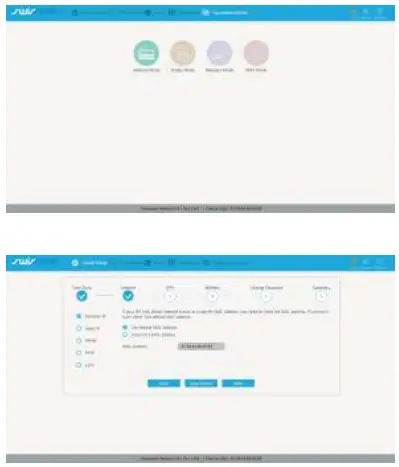
- Under ‘Operation Mode’ , select the ‘Gateway Mode’ of the router.
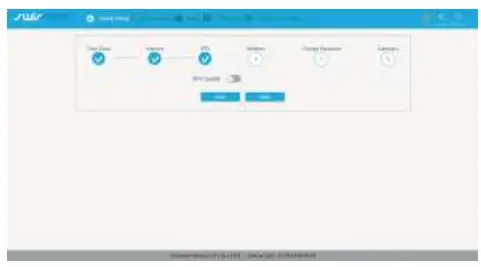
- Under ‘Quick Setup’ , select the type of access to the network.
With ‘Dynamic IP’ , the router is automatically assigned an available dynamic IP address by the ISP’s DHCP server (Dynamic Host Configuration Protocol).
Select ‘Static IP’ if your Internet service provider has provided you with a fixed IP address. The values for ‘IP Address’ , ‘Subnet Mask’ and ‘DNS’ are available from your Internet service provider.
PPPoE (Point-to-Point Protocol over Ethernet) is a virtual, private protocol and enables encapsulated data transport. Select ‘PPPoE’ if your internet service provider offers this option. User name and password are available from your internet service provider.
PPTP (Point-to-Point Tunneling Protocol) is a virtual, private protocol that is used to set up a Virtual Private Network (VPN) in a computer network. Select ‘PPTP’ if your internet service provider offers this option. User name and password are available from your internet service provider.
L2TP (Layer 2 Tunneling Protocol) is a network protocol that tunnels frames of data link layer protocols of the OSI model through routers between two networks over an IP net‐ work. Select ‘L2TP’ if your internet service provider offers this option. User name and password are available from your internet service provider.
- Confirm with ‘Next’.
- Under ‘IPTV’ , you can enable IPTV (Internet Protocol Television) to broadcast TV pro‐ grammes and films.
- Confirm with ‘Next’.

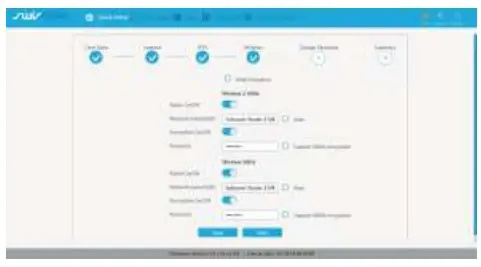
- Under ‘Wireless’ , you can change the default SSID and Encryption parameters for ‘Wireless 2.4GHz’ or ‘Wireless 5GHz’ respectively, if required.
- Confirm with ‘Next’.
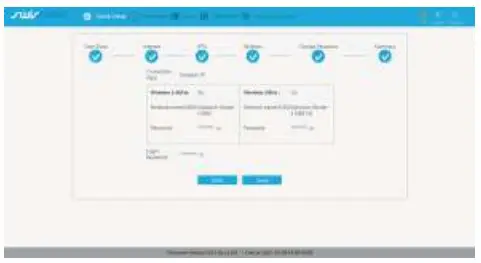
- The settings are now displayed under ‘Summary’. Complete the setup with ‘Done’.

Setting up Wi-Fi connection
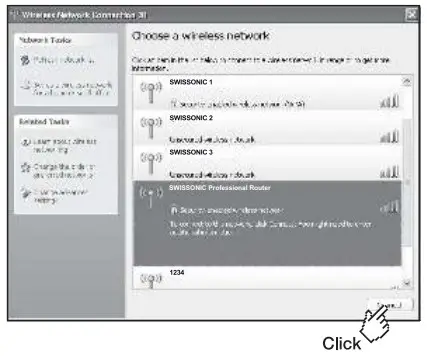
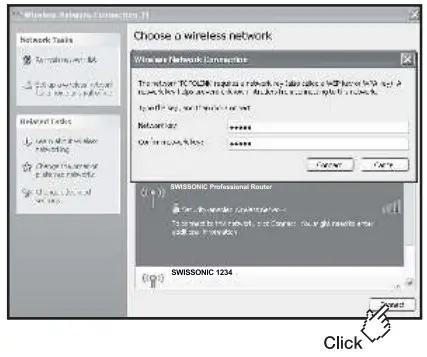
- Click the Networks icon in the taskbar.
- The available networks are displayed.

- The available networks are displayed.
- Select the network you want to connect to. Tick the box next to ‘Connect automatically’ and click ‘Connect’ .
- The Wi-Fi connection is established.
- The Wi-Fi connection is established.
Cell phone setup (Android®)
Setting up Wi-Fi
- Turn on your cell phone.
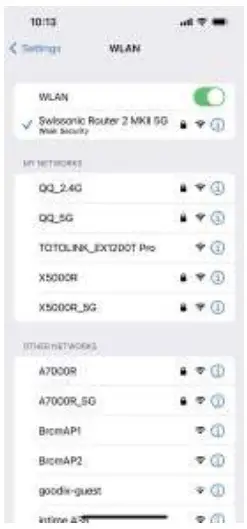
- Activate Wi-Fi and select ‘Swissonic Router 2 MKII 5G’ .
- The Wi-Fi connection with the cell phone is established.

- The Wi-Fi connection with the cell phone is established.
Setting up Wi-Fi on the router
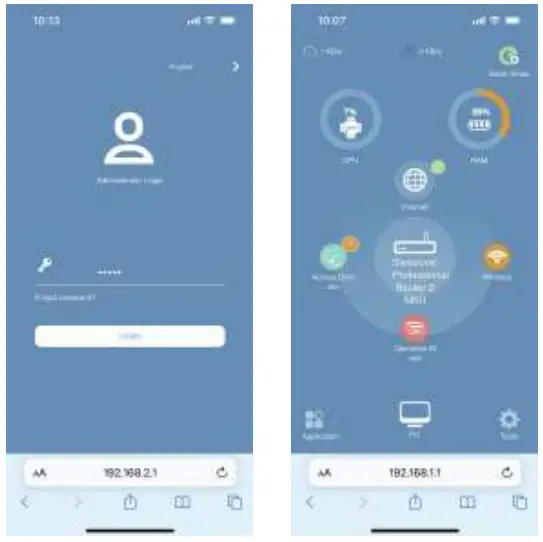
- Start the web browser of your cell phone.
- Enter http://192.168.1.1 in the address bar of the web browser.
- The login mask appears on the display.
- Enter the password and tab ‘Login’ . The default password is ‘admin’ .
- The start screen is displayed.

- The start screen is displayed.
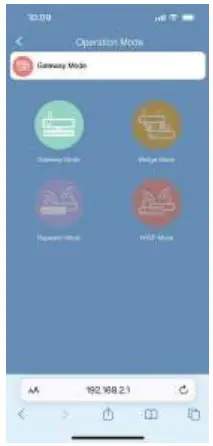
- Under ‘Operation Mode’ , select the ‘Gateway Mode’ of the router.

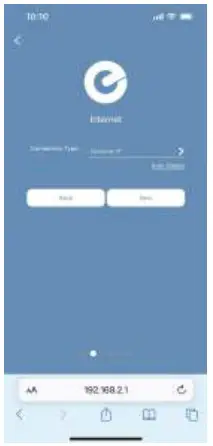
- Under ‘Internet’ , select the type of access to the network.
With ‘Dynamic IP’ , the router is automatically assigned an available dynamic IP address by the ISP’s DHCP server (Dynamic Host Configuration Protocol).
Select ‘Static IP’ if your Internet service provider has provided you with a fixed IP address. The values for ‘IP Address’ , ‘Subnet Mask’ and ‘DNS’ are available from your Internet service provider.
PPPoE (Point-to-Point Protocol over Ethernet) is a virtual, private protocol and enables encapsulated data transport. Select ‘PPPoE’ if your internet service provider offers this option. User name and password are available from your internet service provider.
PPTP (Point-to-Point Tunneling Protocol) is a virtual, private protocol that is used to set up a Virtual Private Network (VPN) in a computer network. Select ‘PPTP’ if your internet service provider offers this option. User name and password are available from your internet service provider.
L2TP (Layer 2 Tunneling Protocol) is a network protocol that tunnels frames of data link layer protocols of the OSI model through routers between two networks over an IP net‐ work. Select ‘L2TP’ if your internet service provider offers this option. User name and password are available from your internet service provider. - Confirm with ‘Next’ .
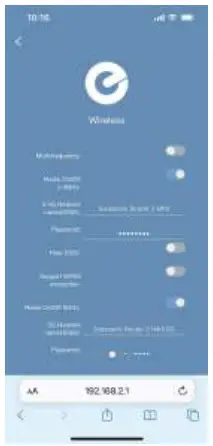
- Under ‘Wireless’ , you can change the default SSID and Encryption parameters for ‘2.4G Network’ or ‘5G Network’ respectively, if required.
- Confirm with ‘Next’ .
- Under ‘IPTV’ , you can enable IPTV (Internet Protocol Television) to broadcast TV pro‐ grammes and films.
- Confirm with ‘Next’ .

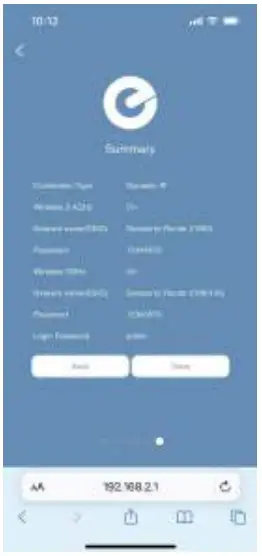
- The settings are now displayed under ‘Summary’ . Complete the setup with ‘Done’ .
Connections and controls
Front panel
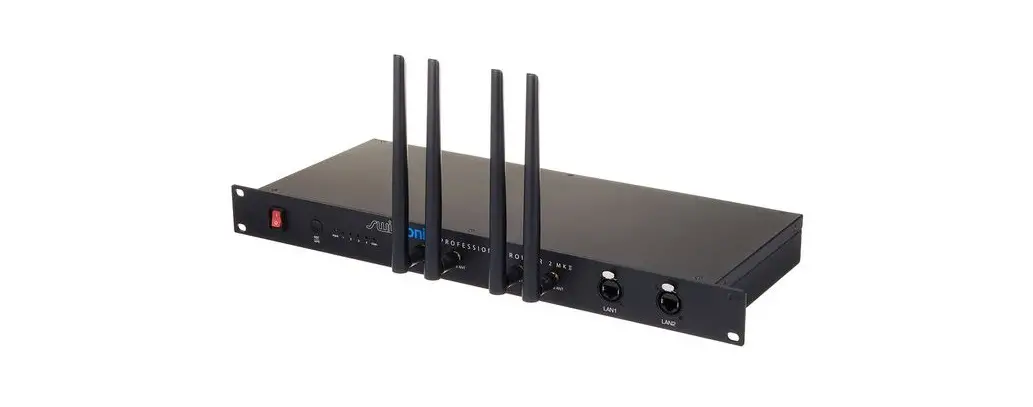
| 1 | Main switch. Turns the device on and off. | |
| 2 | [RST / WPS]Press the button to add a new device to the wireless network.Press and hold the button for more than 5 seconds to reset the device to factory settings. | |
| 3 | LED indicator lights | |
| [PWR] | Illuminates as soon as the router is connected to the mains and operational | |
| [1], [2], [3], [4] | Flashes when data is being transferred via the respective LAN port | |
| [WAN] | Flashes when data is being transferred via the WAN port | |
| 4 | [5GHz ANT]Connection for the 5 GHz omnidirectional antenna | |
| 5 | [2.4GHz ANT]Connection for the 2.4 GHz omnidirectional antenna | |
| 6 | [LAN1], [LAN2]lockable Neutrik RJ45 plugs for connection to local network devices | |
Rear panel
| 7 | [RST / WPS] Flashes when data is being transferred via the port. Lights up while the device is being reset to factory settings |
| 8 | [WAN] WAN port for connecting to the internet |
| 9 | [LAN3], [LAN4] LAN ports for connection to local network devices |
| 10 | Mains cable connection socket |
Technical specifications
| Input connections | Voltage supply | IEC chassis plug C14 |
| Data interface | 1 × WAN port for internet connection | |
| Output connections | Network interfaces | 2 × LAN port for connection to local network devices |
| 2 × lockable Neutrik RJ45 plugs for connection to local network devices | ||
| Frequency range | 2.4 GHz and 5 GHz | |
| Max. transmission power | 100 mW | |
| Range in clear field of vision | up to 100 m indoors, up to 300 m outdoors | |
| Antenna gain | 5 dBi | |
| Operating supply voltage | 100 – 240 V 50/60 Hz | |
| Dimensions (W × H × D), w/o antennas | 483 mm × 44 mm × 180 mm | |
| Weight | 2.1 g (incl. antennas) | |
| Ambient conditions | Temperature range | 0 °C…40 °C |
| relative humidity | 20 %…80 % (non-condensing) | |
| Standard IP address | 192.168.1.1 | |
| Standard user name | admin | |
| Standard password | admin | |
Further information
| Component type | Router |
| Wi-Fi standards | IEEE 802.11a, b, ac, ax, g, n |
| Data transfer rate Wi-Fi | up to 574 Mbps (2.4 GHz), up to 1201 Mbps (5 GHz) |
| PoE Class | no |
Troubleshooting
In the following we list a few common problems that may occur during operation. We give you some suggestions for easy troubleshooting:
| Symptom | Remedy |
| The [PWR] LED is not lit. | Check that the device is connected to the power supply via the mains adapter. |
| Router is not connecting to the local network or the Internet. | Check if there is a DSL connection. |
If the procedures recommended above do not succeed, please contact our Service Center. You can find the contact information at www.thomann.de.
Cleaning
Clean the unit with a dry, soft, lint-free cloth. Stubborn dirt can be removed with a slightly dampened cloth.
Never use cleaners containing alcohol or thinner.
Protecting the environment
Disposal of the packaging material

For the transport and protective packaging, environmentally friendly materials have been chosen that can be supplied to normal recycling.
Ensure that plastic bags, packaging, etc. are properly disposed of.
Do not just dispose of these materials with your normal household waste, but make sure that they are collected for recycling. Please follow the notes and markings on the packaging.
Disposal of your old device

This product is subject to the European Waste Electrical and Electronic Equipment Directive (WEEE) in its currently valid version. Do not dispose with your normal household waste.
Dispose of this device through an approved waste disposal firm or through your local waste facility. When discarding the device, comply with the rules and regulations that apply in your country. If in doubt, consult your local waste disposal facility
Support
Thomann GmbH
Hans-Thomann-Straße 1
96138 Burgebrach
Germany
Telephone: +49 (0) 9546 9223-0
Internet: www.thomann.de

 Welcome – Thomann United States