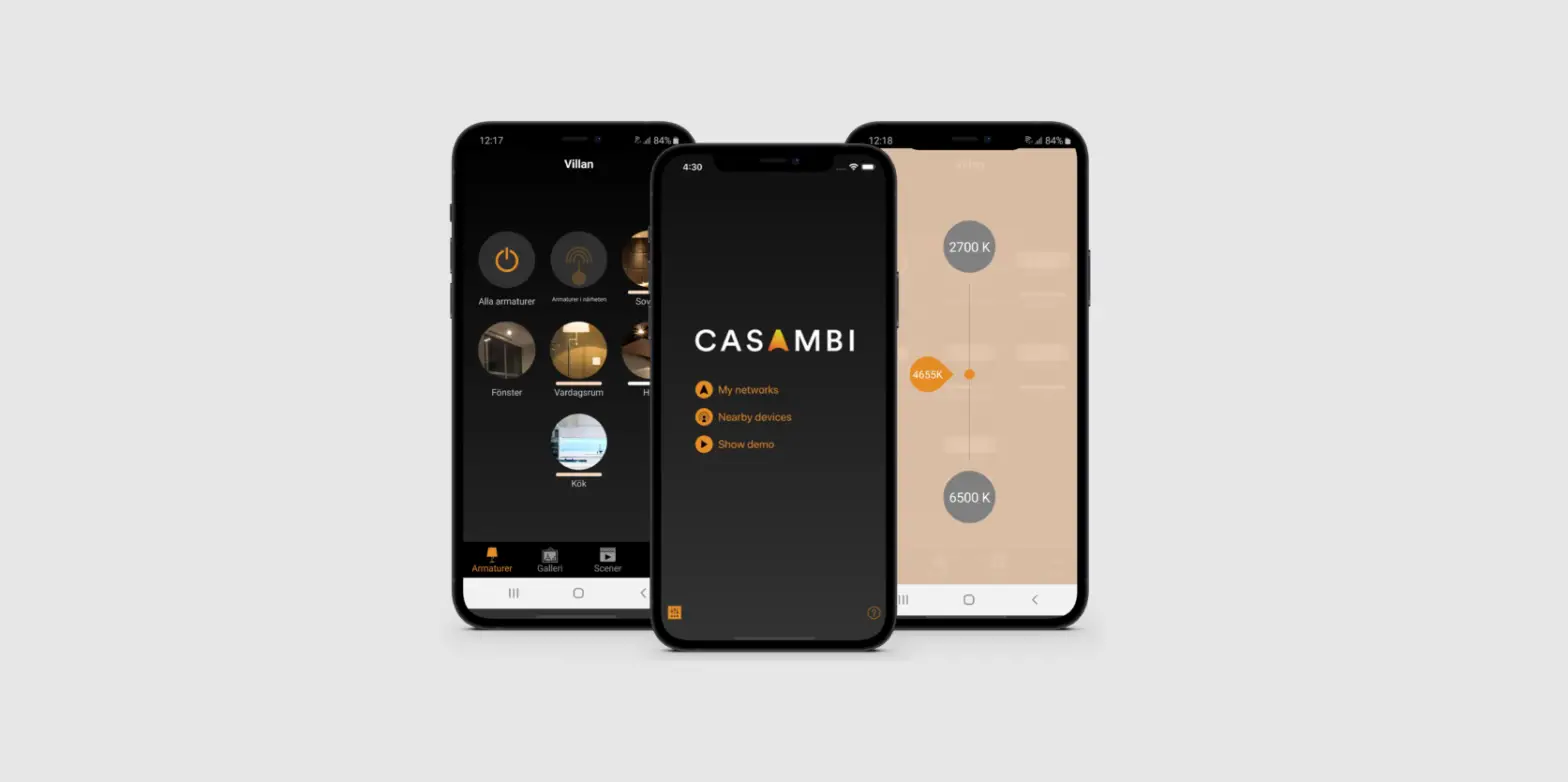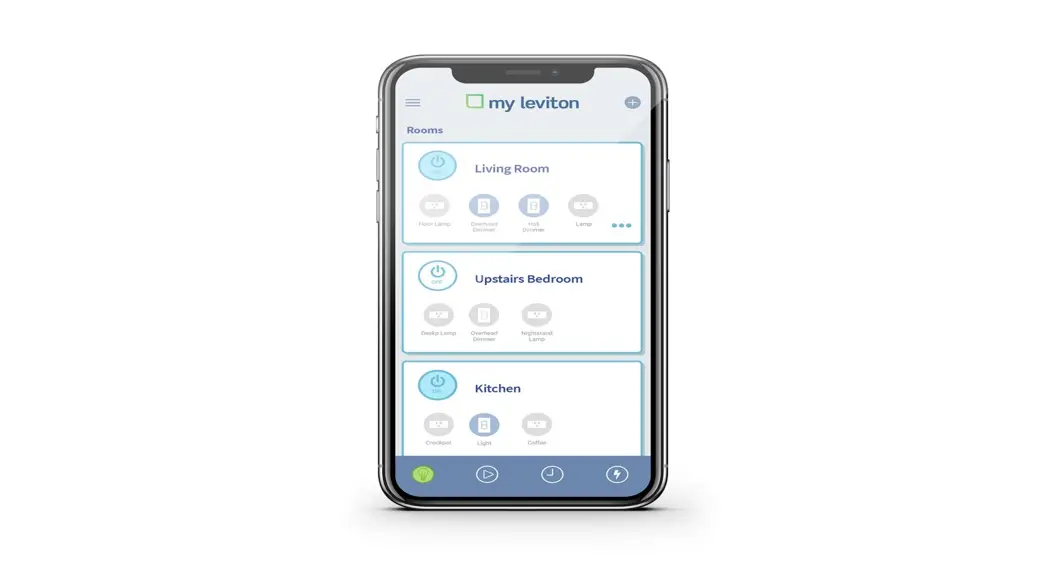
 Casambi App
Document no.: 16264-I1
Version no.: 02
User Guide
Casambi App
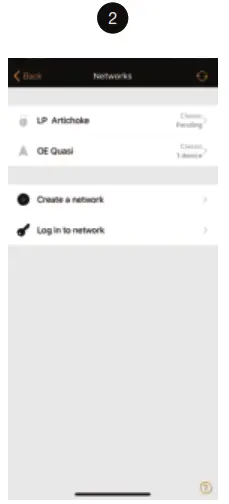
- Press “My networks” to get started on making your own Casambi network

- Press “Create a network”

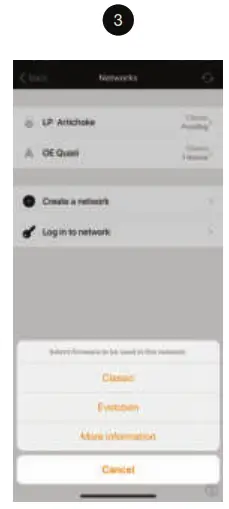
- Select “Evolution” on firmware page

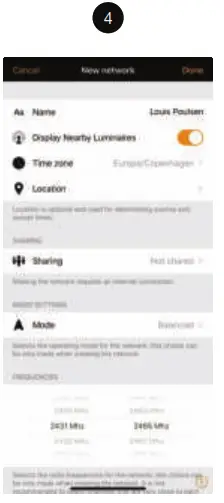
- Now setup your network, start by selecting a name for your network, we have chosen the name “Louis Poulsen”, select an time zone, if you want to control our Casambi
luminaire from multiple devices then you need to select a Sharing option, keep the radio setting on “balanced”.
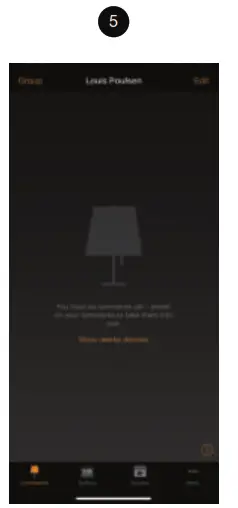
- To add devices to our network, press “Show Nearby Devices” and make sure your luminaire is on.

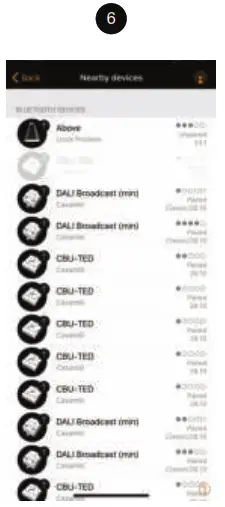
- Find our luminaire on the list of unpaired devices

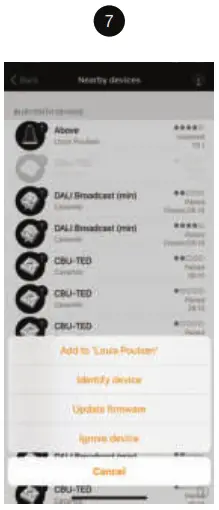
- add it to your network, if you have setup multiple luminaires then you can use the “identify device” feature.
a. if your luminaire is marked as paired, then you need to unpair the device by pressing on the luminaires and follow the “Unpair device” instructions
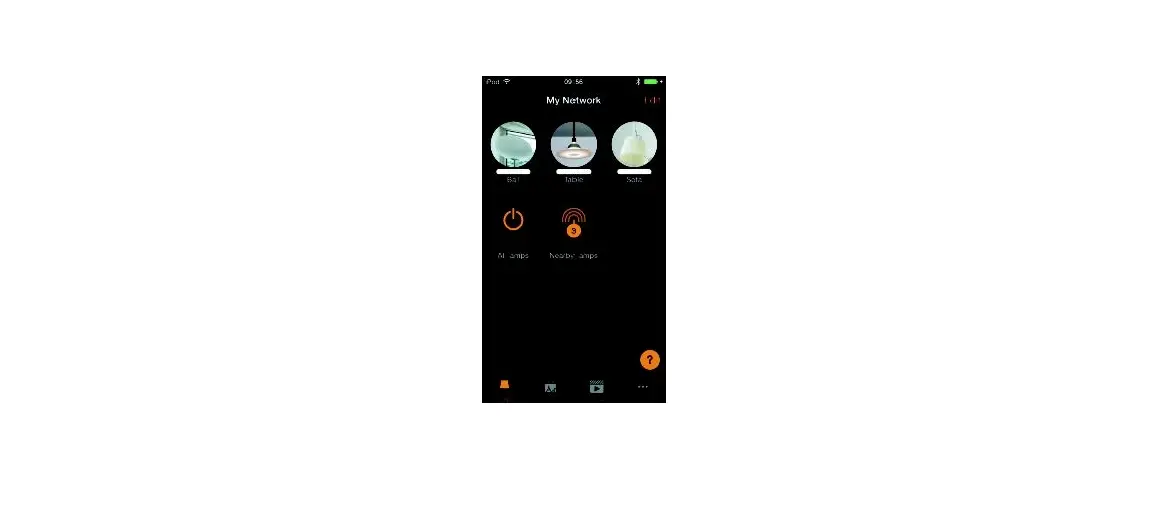
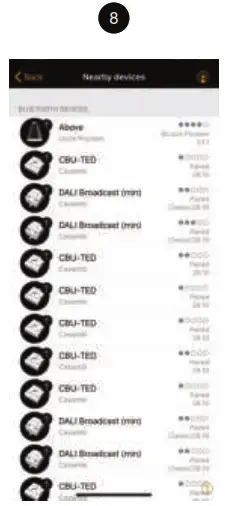
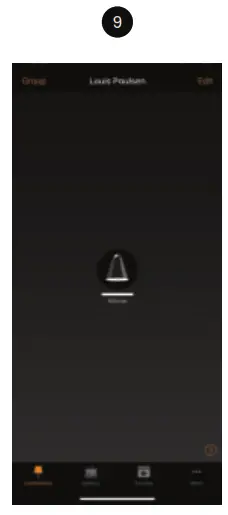
- The luminaire is now visible in the “Luminaries” tab

- Your network is now ready to be used, press the luminaire icon to turn the luminaire on or off, hold the icon and slide left or right to adjust the dimming.
a. If the luminaire icon is the Logo of louis Poulsen, then you can press “Edit” in the far right corner, scroll down to the Icon tap, here you can pick the Louis Poulsen Luminaire that you have brought.
(Relevant to LED Upgrade kits)

 For further information contact customer service
by email: [email protected]
or by phone +45 70 33 14 14