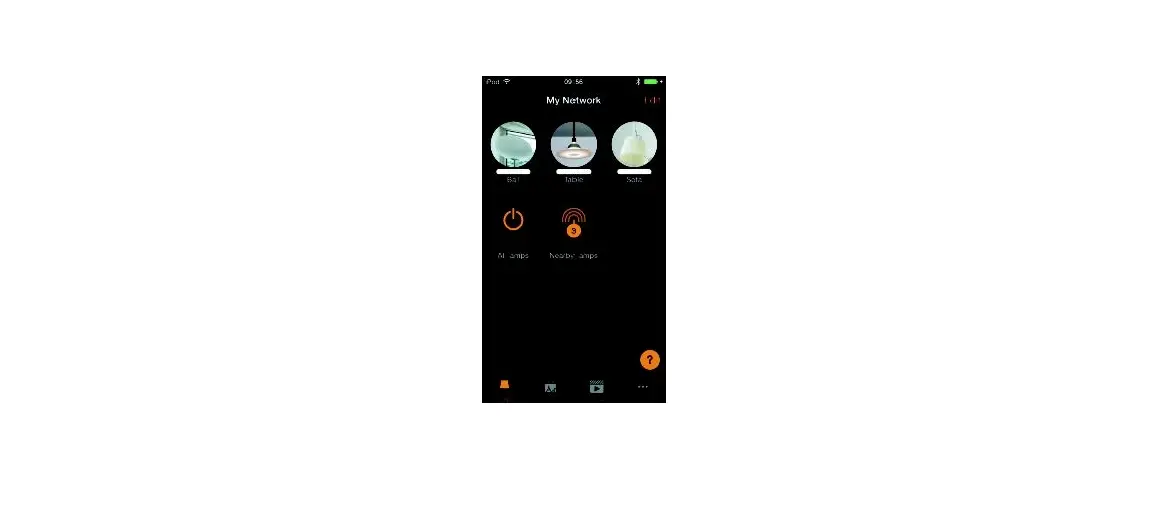

RVP Casambi App
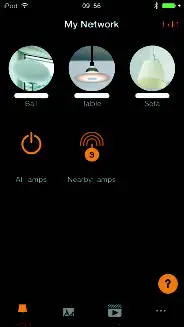
Download & Install der CASAMBI APP
For iOS:
https://itunes.apple.com/app/casambi/id731859317
CASAMBI APP iOS CASAMBI APP Android
For Android-Geräte im Google Playstore:
https://play.google.com/store/apps/details?id=casambi.ambi&hl=en_IE
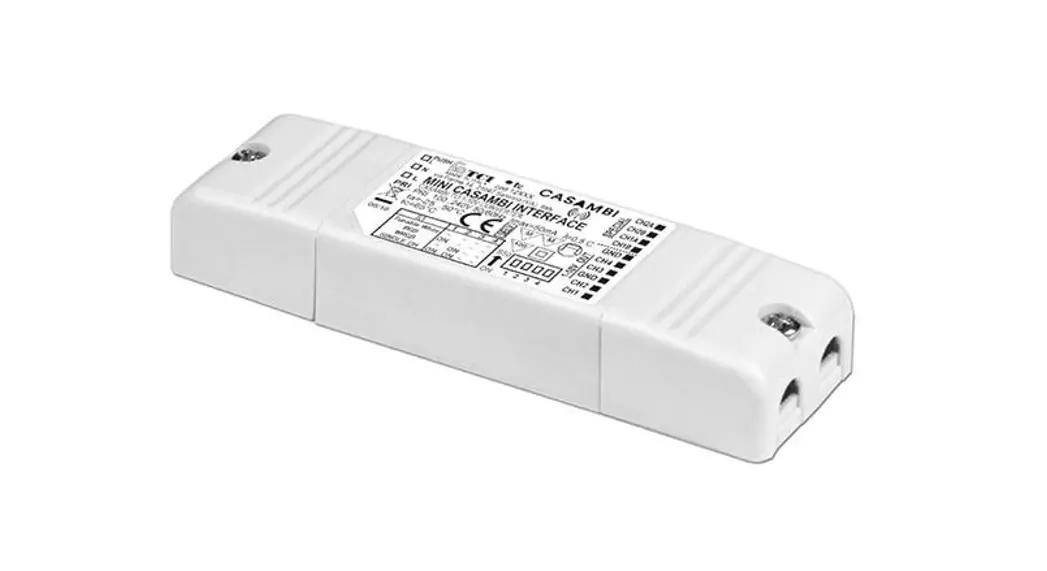
CASAMBI – Integrate lights/devices into the network
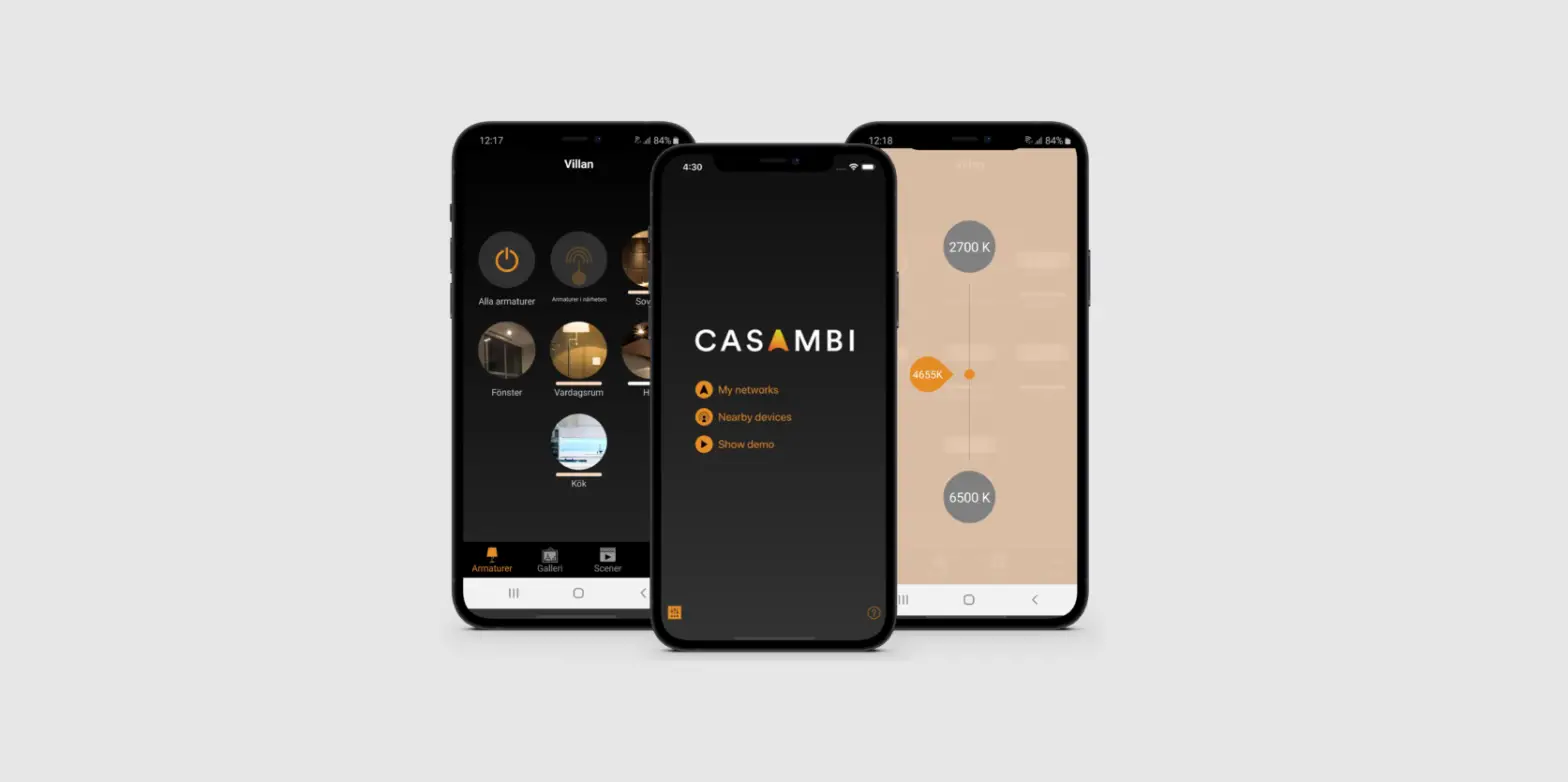
After installation, the app automatically detects all compatible products within the Bluetooth range around them. As soon as you click “Take all luminaires into use”, all these luminaires will be added to a network and a new tab with products will open.Now all lights are available to you, which can be controlled individually or in groups.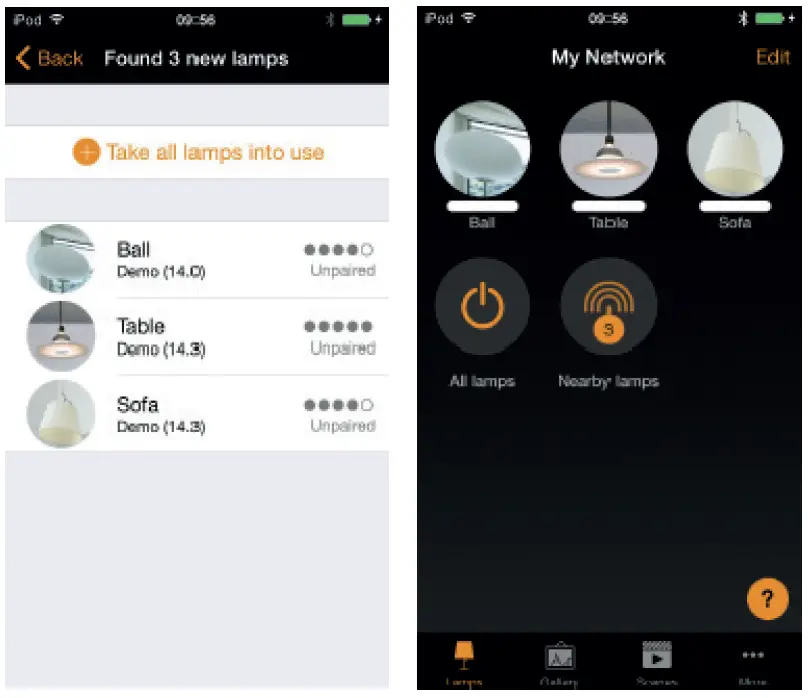
CASAMBI – Control lights / devices via APP
“Scenes”: Adapt light scenes. One click enables multiple lights to be controlled. A luminaire can be used in several scenes.
“Timer function”: Time-based switching of scenes and animations on and off.
“Gallery”: Switch and control lights using a photo of the lighting system.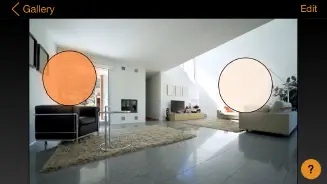
 Tap the symbol to switch the light on or off.
 Swipe horizontally over the symbol to adjust the brightness of the light.
 Swipe vertically over the symbol to adjust the color temperature of the light.
 Hold down the symbol to select the light color and save it on the color palette.
Casambi User Guide:
https://rvp.de/assets/pdf/Bedienungs-/Montageanleitungen/Casambi/Casambi-APP-User-Guide-V3.1.pdf
Technische Leuchten • Rudolf von Prusky GmbH Heidfeld 2
33142 Büren | Germany
[email protected] | www.rvp.de
fon: +49 (0)2951 9900 0 | fax: +49 (0)2951 – 9900 99
Technische Änderungen und Irrtümer vorbehalten.
To disconnect a Casambi device from a network, you must do one of the following steps:
- If the user has change rights for the network, the Casambi unit can be decoupled by tapping the desired unit either on the “Lamps” tab or the “Nearby devices” tab and simply selecting the “Unpairing Lamp” option.
- If the user does not have change rights to the network, he / she must have access to the lamp’s power switch to disconnect it.
After tapping on “Lamp unpairing”, the app opens an “unpaired” screen. Tapping the “Start” button will bring up a timeline. Now the user has to quickly turn the power switch off and then on again to disconnect the lamp.
If the unpairing is successful, a message will appear on the app screen indicating that the lamp has been “unpaired”. - With a Casambi account and the Casambi utility app, it is possible to administratively decouple a facility (Internet access required).
 Wir machen Licht! - RvP Rudolf von Prusky GmbH
 Casambi on the App Store
 Casambi – Apps on Google Play