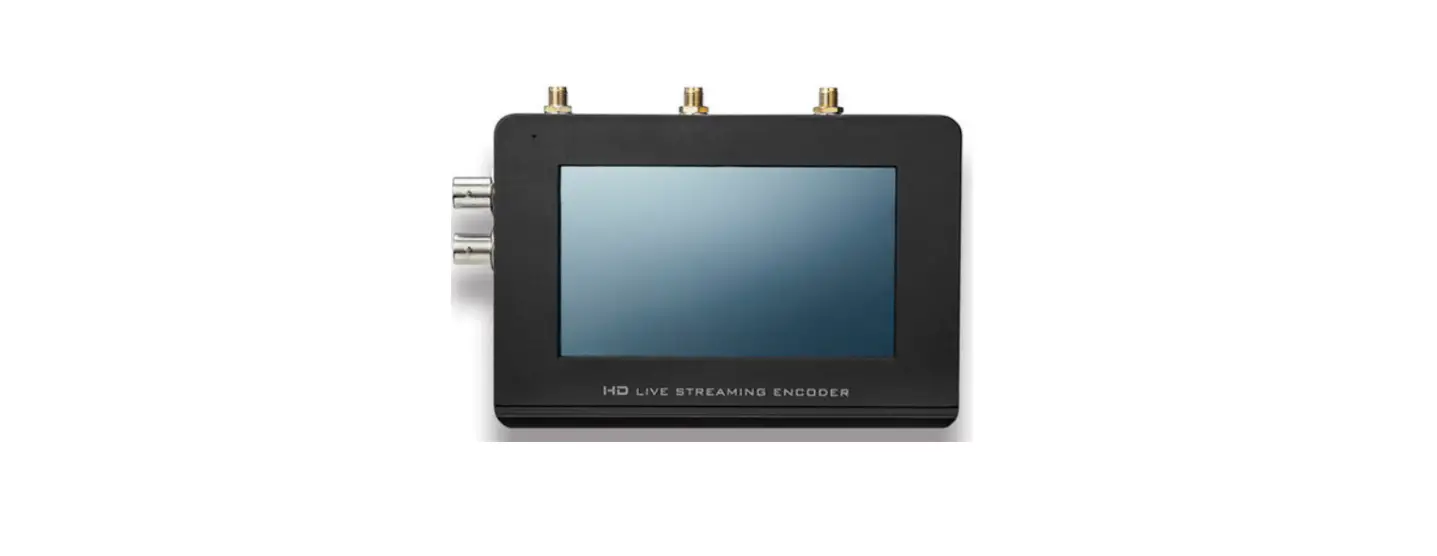
LiveV200 High Definition Bonding Live Streaming Encoder
Product Information
The High Definition Bonding Live Streaming Encoder is a device
manufactured by Zowietek Electronics, Ltd. It is designed to
facilitate high-definition live streaming and bonding of video
signals. The encoder supports various input connections, including
Line In for stereo audio input, SDI Input for connecting SDI
signals, HDMI Input for HDMI and DVI signals, and a 3.5mm Audio
Output for audio confidence monitoring. It also features built-in
4G LTE connectivity, LAN and WIFI connections, and supports TF card
storage.
Connections
| No. | Name | Icon | Description |
|---|---|---|---|
| 1 | Line In |  | Stereo audio input. |
| 2 | SDI Input |  | Connect up to SDI signal. |
| 3 | SDI Loop Out |  | Connect a SDI cable from this connector to a monitor or projector. |
| 4 | SMA Connector |  | Connect to Internal 4G LTE antenna. |
| 5 | DC Power Connector |  | Plug the power supply in here. The port requires a 15V DC power source (center-positive). |
| 6 | SIM card slot |  | Built-in 4G, Plug the NANO SIM card in here. |
| 7 | HDMI Input |  | Connects HDMI and DVI signals (using an adapter). |
| 8 | RJ-45 Ethernet |  | Ethernet network port. |
| 9 | WIFI Connector |  | Connect to WIFI antenna. |
| 10 | USB Connector |  | Connect to USB WIFI Dongle. |
| 11 | 3.5mm Audio Output |  | For audio confidence monitoring. Plays the audio for the currently visible channel. |
| 12 | TF Card Slot |  | Plug the TF card in here. |
| 13 | HDMI Loop Out |  | Connect a HDMI cable from this connector to a monitor or projector. |
| 14 | Hot Shoe |  | Mount LiveV200 to camera. |
| a | RED Power Button |  | Mount LiveV200 to camera. |
| b | Stream LED Button |  | Mount LiveV200 to camera. |
| c | QR Code Gray Button |  | Mount LiveV200 to camera. |
Product Usage Instructions
Please follow the steps below to use the High Definition Bonding
Live Streaming Encoder:
- Make sure the Power Adapter is plugged in.
- Press the RED Power button on the left side of the encoder to
turn on the system. - Turn on your camera or video source and connect the output to
the corresponding connection of the encoder. - Connect the encoder to the network. The encoder supports
multiple connection modes:
- LAN Connection: Connect an Ethernet cable to
the RJ-45 Ethernet port for LAN network streaming. - WIFI Connection: Connect to a WIFI network by
attaching a WIFI antenna to the WIFI Connector. - Built-in 4G Connection: Insert a NANO SIM card
into the SIM card slot for built-in 4G streaming. - External 4G Connection: Connect an external 4G
device using the SMA Connector for streaming via an external 4G
network.
Note: The LiveV200 has an internal rechargeable battery. For the
first use, please keep it turned off and charging until fully
charged. Once the battery is fully charged, the Stream LED Button
will go out.
The encoder’s screen display provides information about the
network connections and streaming status:
| No. | Description |
|---|---|
| 1 | The IP address of the LAN network. |
| 2 | The IP address of the wireless network. |
| 3 | HDMI signal input, Display Resolution, and Frame Rate of HDMI inputs. |
| 4 | SDI signal input. Display “No Signal” when there is no SDI input or SDI connection fails. |
| 5 | Display “LAN” when the LAN connection is successful. Display the uplink speed of LAN when the LiveV200 uses LAN as a streaming network. |
| 6 | Display the WIFI SSID when the WIFI connection is successful. Display “0 kb” when the WIFI is not involved in streaming. |
| 7 | Display the Operator when the Built-in 4G connection is successful. Display “0 kb” when the Built-in 4G is not involved in streaming. |
| 8 | Display the Operator when the External 4G connection is successful. Display “0 kb” when the External 4G is not involved in streaming. |
| 9 | Streaming Mode: Normal (Single) or Bonding. |
| 10 | Streaming Icon and Video streaming bit rate. The Streaming Icon disappears and displays “0 kb” when the streaming is offline. |
| 11 | Battery Level and Battery percentage. |
| 12 | Time. |
| 13 | Power Off. |
| 14 | Hide / Display desktop. Hide / Display text and icons on the LCD screen. |
| 15 | Lock / Unlock screen. |
| 16 | Video Collage. Customize layout, SDI and HDMI dual-channel seamless handover, Picture in picture. |
| 17 |
High Definition Bonding Live Streaming Encoder
Quick Start Guide
Zowietek Electronics, Ltd.
Revision Release Product
K2.0-A2.5x 2020-07-28 30411-XXX
1. Connections
1
2
3 76 a
4
5
LiveV200 TOP
LiveV330/350 TOP Live310 TOP Live210 TOP
No.
Name
1 Line In
Icon
Description
Stereo audio input.
2 SDI Input
Connect up to SDI signal.
3 SDI Loop Out
4 SMA Connector
5 DC Power Connector
6 SIM card slot
Connect a SDI cable from this connector to a monitor or projector. Connect to Internal 4G LTE antenna.
Plug the power supply in here. The port requires a 15V DC power source (center-positive). Built-in 4G, Plug the NANO SIM card in here.
7 HDMI Input
8 RJ-45 Ethernet
9 WIFI Connector
10 USB Connector
11 3.5mm Audio Output
12 TF Card Slot
Connects HDMI and DVI signals (using an adapter). Ethernet network port. Connect to WIFI antenna. Connect to USB WIFI Dongle. For audio confidence monitoring. Plays the audio for the currently visible channel Plug the TF card in here.
13 HDMI Loop Out
14 Hot Shoe
—
Mount
a RED Power Button
b Stream LED Button
c QR Code Gray Button
Connect a HDMI cable from this connector to a monitor or projector.
Mount LiveV200 to camera
Press to turn on encoder. Press and hold more than 5 seconds to turn off. Press to start/stop a streaming. Solid Red – Streaming is live and online. Flashing red No network connection, try to go live. Light Off – Streaming is offline Press to Display/Hide QR Code on LCD Screen
Note:
LiveV200 has an internal rechargeable battery, so please keep it turning off and charging until fully charged when users first use it. This is required only for the first use. When battery is fully charged, Stream Button LED will go out
2. Screen Display
If LAN, WIFI, 4G network are connected, the screen will display all of the network information.
No.
Description
1 The IP address of LAN network
2 The IP address of wireless network
3 HDMI signal input, Display Resolution and Frame Rate of HDMI inputs
4 SDI signal input Display No Signal when the no SDI input or SDI connection fail
5 Display LAN when the LAN connection is successful Display uplink speed of LAN when the LiveV200 using LAN as streaming network
6 Display the WIFI SSID when the WIFI connection is successful Display 0 kb when the WIFI is not involved in streaming
7 Display the Operator when the Built-in 4G connection is successful Display 0 kb when the Built-in 4G is not involved in streaming
8 Display the Operator when the External 4G connection is successful Display 0 kb when the External 4G is not involved in streaming
9 Streaming Mode: Normal (Single) or Bonding 10 Streaming Icon and Video streaming bit rate
The Streaming Icon disappears and display 0 kb when the streaming is offline 11 Battery Level and Battery percentage
12 Time 13 Power Off 14 Hide / Display desktop
Hide / Display text and icons on the LCD screen 15 Lock / Unlock screen 16 Video Collage
Customize layout, SDI and HDMI dual-channel seamless handover, Picture in picture 17 Menu Setting
3. Quick Start Guide
Please follow following steps for quick connection guidance of the encoder. Step 1. Make the Power Adapter plugged. Step 2. Press the RED Power button on the left of encoder to turn on the system. Step 3. Turn on your camera or video source and connect the output to corresponding connection
of the encoder. Step 4. Connect encoder to Network.
Encoder allows you to connect multiple ways. Find brief descriptions of these modes below.
LAN mode
Connect RJ-45 Ethernet cable from the LAN port to the router. The IP address( ) of the encoder will show on the LCD once connected to LAN or WIFI, users can enter the IP address into the address bar of the web browser on PC or phone, and then the encoder Web Control User Interface will be shown as follows. In this example, the IP address is “192.168.1.118”.
Step 5. After clicking the “RTMP Param” option on the left column of the web control UI, please fill in “RTMP Address” and click “Confirm” button to apply the setting.
RTMP Address Step1. Please login your video streaming provider account. Step2. Find rtmp url or server url usually in ingestion area Step3. Find stream key in the same section Step4. Copy, paste and combine rtmp url and stream key to RTMP Address setting section of encoder. NOTE:
Don’t forget click the confirm button to apply and save the setting.
WIFI mode There are four ways to connect WIFI. Make sure that WIFI Antenna is connect to encoder, device will connect to the WIFI automatically. 1. On LCD, please switch the “WIFI” button is “Open”, then the user can press the “Scan” button, find WIFI name and connect it. 2. Or press the “Other” button, then input WIFI SSID and Password to connect a network, and don’t forget to click “” in the top right corner to save and apply it.
3. On Web, click “Network”==>”Built-in WIFI”, after clicking the “scan” button, find WIFI name and connect it. 4. After clicking the “Manual Input” button, please enter WIFI “SSID” and “Password” to connect a network. If connect success, the information about the WIFI will be update after clicked “refresh” button.
Built-in 4G
Plug SIM card and connect antenna to encoder, this page provides users to choose whether to enable built-in 4G network. The default 4G option is selected to be enabled.
APN settingAfter clicking the pen icon in the red mark box on above picture, turn off “APN Auto” and fill in “APN”. Please ask your network operator or search online to find the APN of your 4G LTE network. When the APN setting is changed, don’t forget to restart the device to take effect.
External 4G
Plug USB 4G Dongle into the encoder, device will connect to 4G net automatically. E8372H and MF833V 4G LTE dongles recommend. NOTE: SIM don’t support hot-plugging, so turn off the unit before plug. When WIFI connection setting is complete, don’t need to set up again unless users want to
connect to another WIFI.
Bonding mode
1. On LCD, after clicking “Live”, you can turn on/off network bonding mode.
2. Another way, after clicking the “RTMP Param” option on the left column of the web control UI, the “Model” is selected as “Bonding”, the device will bonding multiple connected networks as stream network. Furthermore, the encoder supports up to 9 RTMP Address streaming simultaneously in this model. Last, please fill in “RTMP Address” and click “Confirm” button to apply the setting.
4. Mobile-Phone Backend Setting
If you are not carrying or inconvenient for using your computer, you can also choose to configure your encoder by using your phone’s backend settings. Please press “QR Code” button on the top of the device to show the QR code at first, in another way, you also can find QR Code in “Menu/Setting–QR Code”.
LiveV210’s QR code is at the back of the encoder. Please scan the QR code with your mobile phone and enter the user interface as shown below. If you don’t have an account yet, please click “Create account” at the bottom of the picture to create your own account.
After logging in to your personal account and entering the interface as shown below, at first, please click on “active now” to bind the device to your account. Next time you can find your device in the list of personal devices.
Once you registered your account, you can also login your account at xx.livevbond.com on PC to set encoder. xx could be in, eu, us, au, cn etc. depends on your encoder country or area. NOTE: Make sure connect a RJ45 network cable to the LAN port of encoder. Make sure the encoder connected to Internet before go ahead at the first time.
Find LAN IP address for LiveV210
LAN IP address of LiveV210 can be found here in red box, then you can visit this IP in browser for advanced feature settings once having it. If LAN [Connected] does not show in this screen, that means the encoder does not connect to LAN or the LAN is not online. Please check connection and Internet.
If you want to know more, you can download the user manual at this link: https://www.zowietek.com/uploads/PortableBondedEncoder/UserManual3.1.pdf
www.zowietek.com
ZOWIETEK ELECTRONICS, LTD. Address: 2218 HuNan Road, West Wing 17F01, Pudong, Shanghai 201204 P.R.China Tel: +86-21-5027 7371; +86-21-5027 7372
Email: Sales: [email protected] Marketing: [email protected] Support: [email protected]
SALES IN USA Security Products International Sales: [email protected]
Global Aggregation Server Website: India: in.livevbond.com Europe: eu.livevbond.com US: us.livevbond.com Australia: au.livevbond.com China: cn.livevbond.com
MADE IN CHINA
 au.livevbond.com
 抱歉,站点已暂停
 eu.livevbond.com
 in.livevbond.com
 us.livevbond.com
 Home - Zowietek Electronics, Ltd.