ECOFLOW Power Kit Console User Manual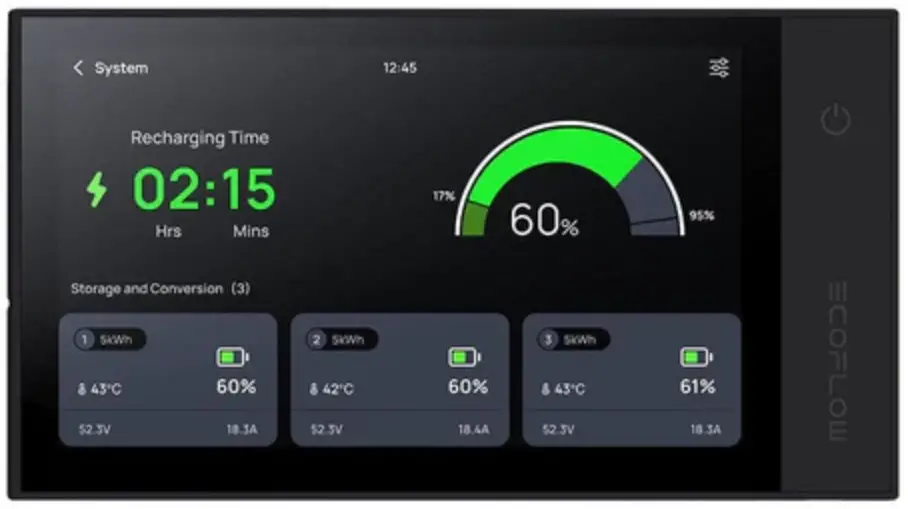
Disclaimer
Read this user manual carefully before using the product to ensure that you completely understand the product and can correctly use it. After reading this user manual, keep it properly for future reference. Improper use of this product may cause serious injury to yourself or others, or cause product damage and property loss. Once you use this product, it is deemed that you understand, approve and accept all the terms and content in this document. EcoFlow is not liable for any loss caused by the user’s failure to use the product in compliance with this user manual.
In compliance with laws and regulations, EcoFlow reserves the right to final interpretation of this document and all documents related to the product. This document is subject to changes (updates, revisions, or termination) without prior notice. Please visit EcoFlow’s official website to obtain the latest product information.
Technical Parameters
| Basic parameters | |
| Net weight | 450 g (1lb) (Bracket included) |
| Dimensions | 204.5 mm × 113.3 mm × 22.3 mm / (8″ × 4.5″ × 0.9″) |
| Screen size | 154.2 mm × 85.9 mm (6″ × 3.4″) |
| Screen resolution | 1024 (H) × 600 (V) |
| Touch control | Supported |
| DC Input / RJ45 DC Input / USB-C DC Output / USB-A | 12V / 1A, 12W Max 5V / 2A, 10W Max 5V / 1A, 5W Max |
| Operating temperature | -20°C to 50°C (-4°F to 122°F) |
Getting Started
Product Overview
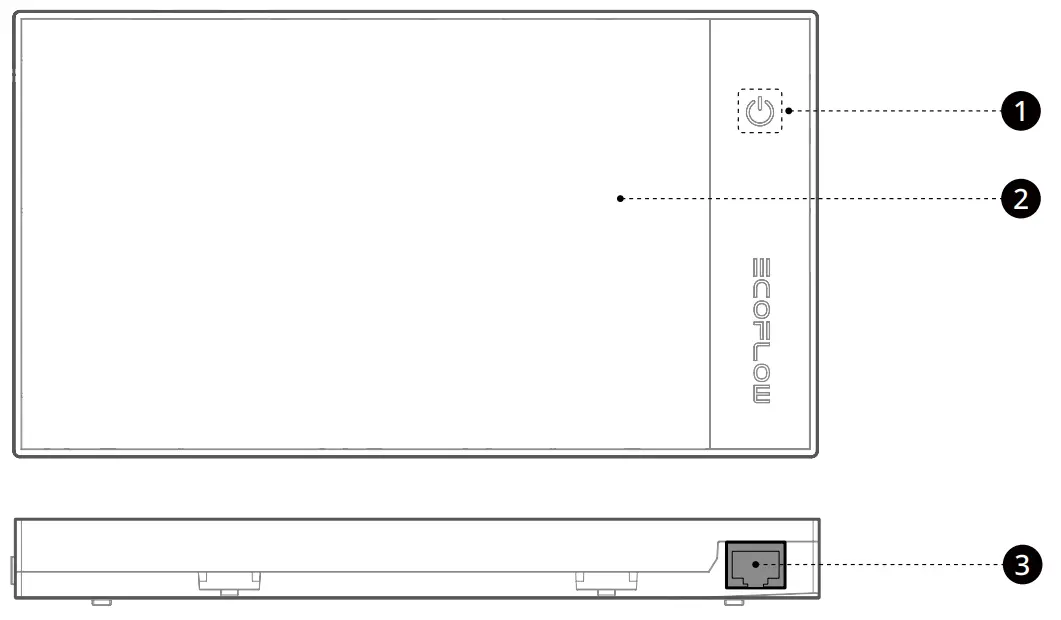
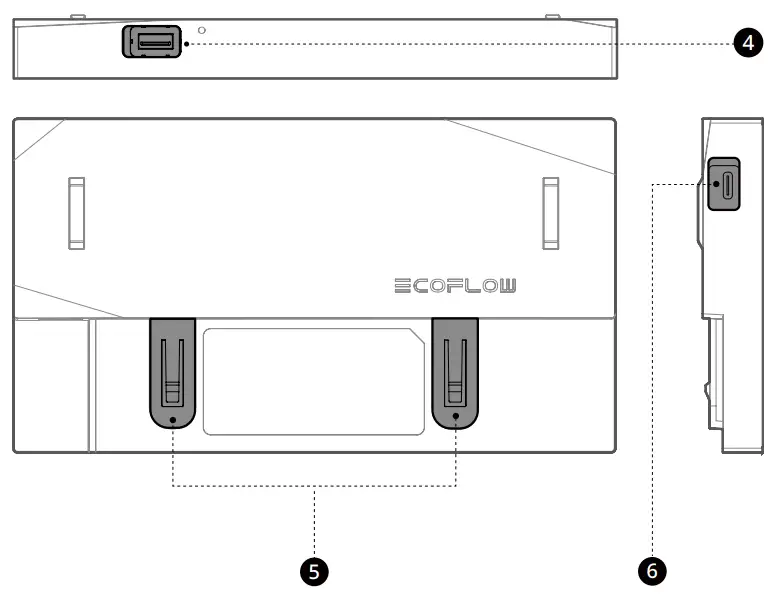
- Power Button
- Touch Screen
- RJ45 CAN Bus Port
- USB-A Port
- Installation Buckles
- USB-C Port
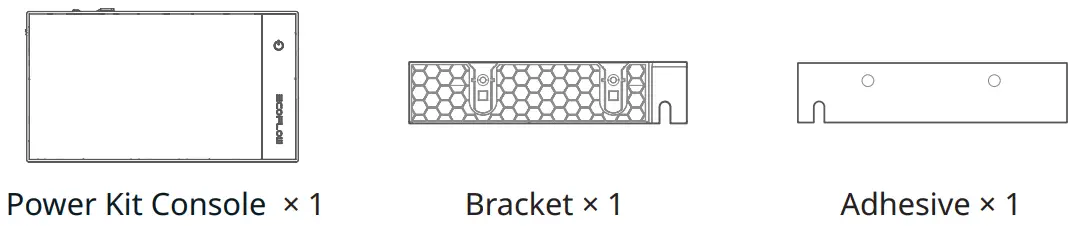
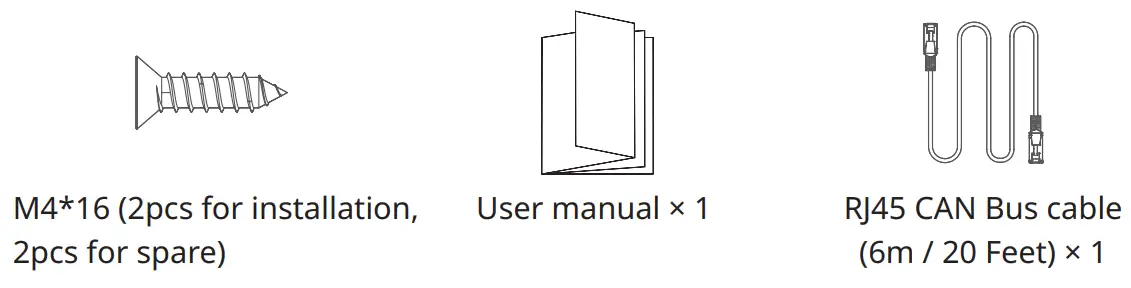
What’s in the box
Product Features
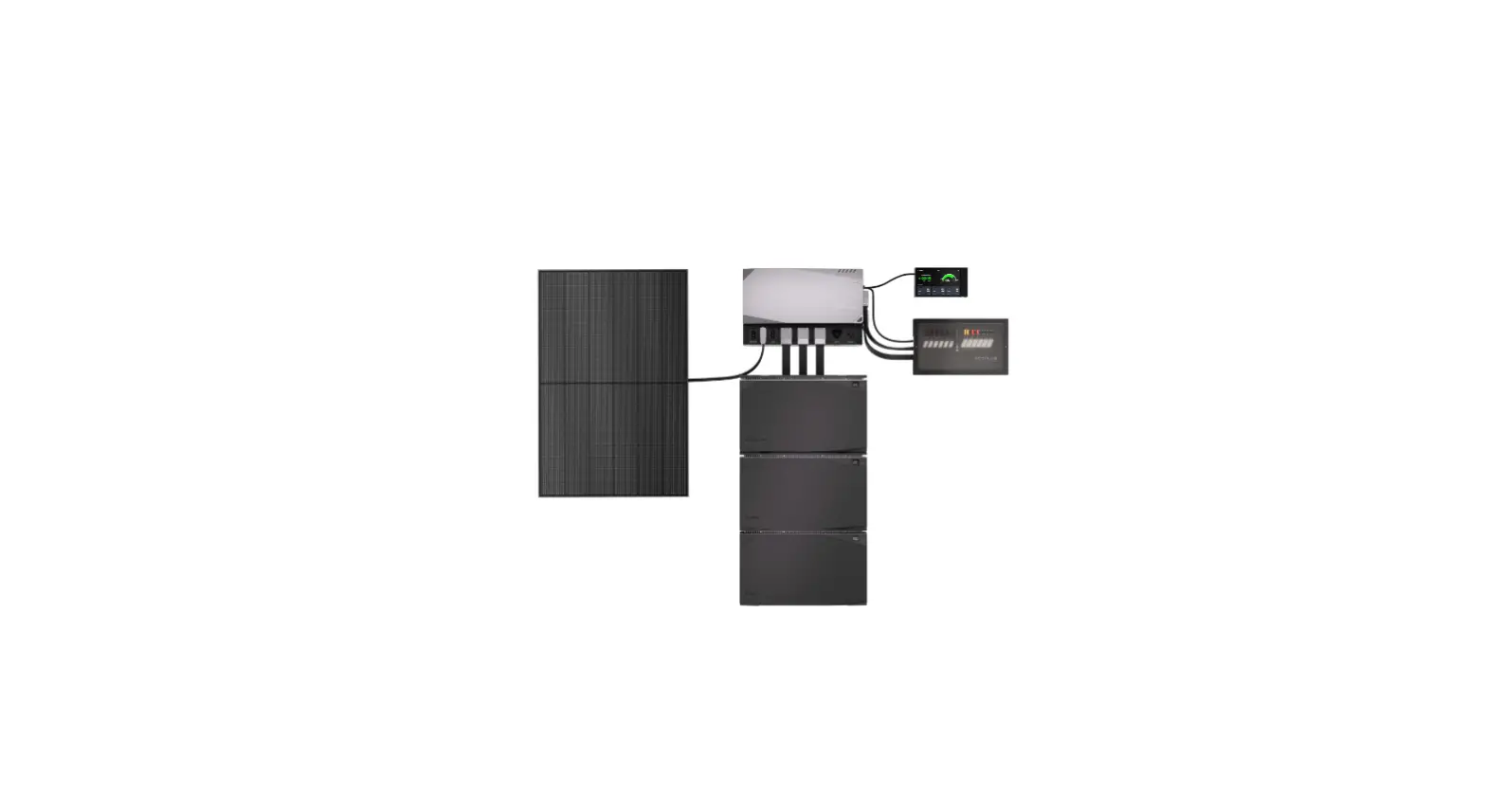
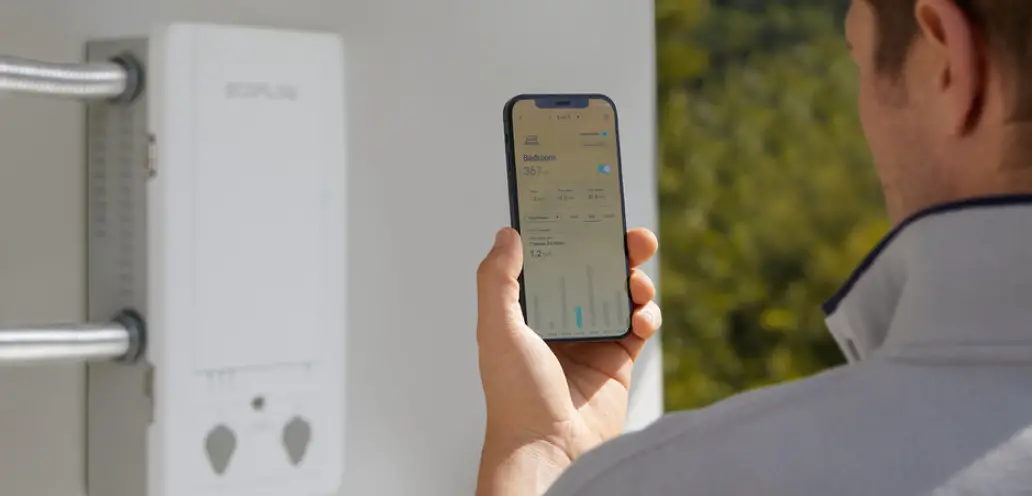
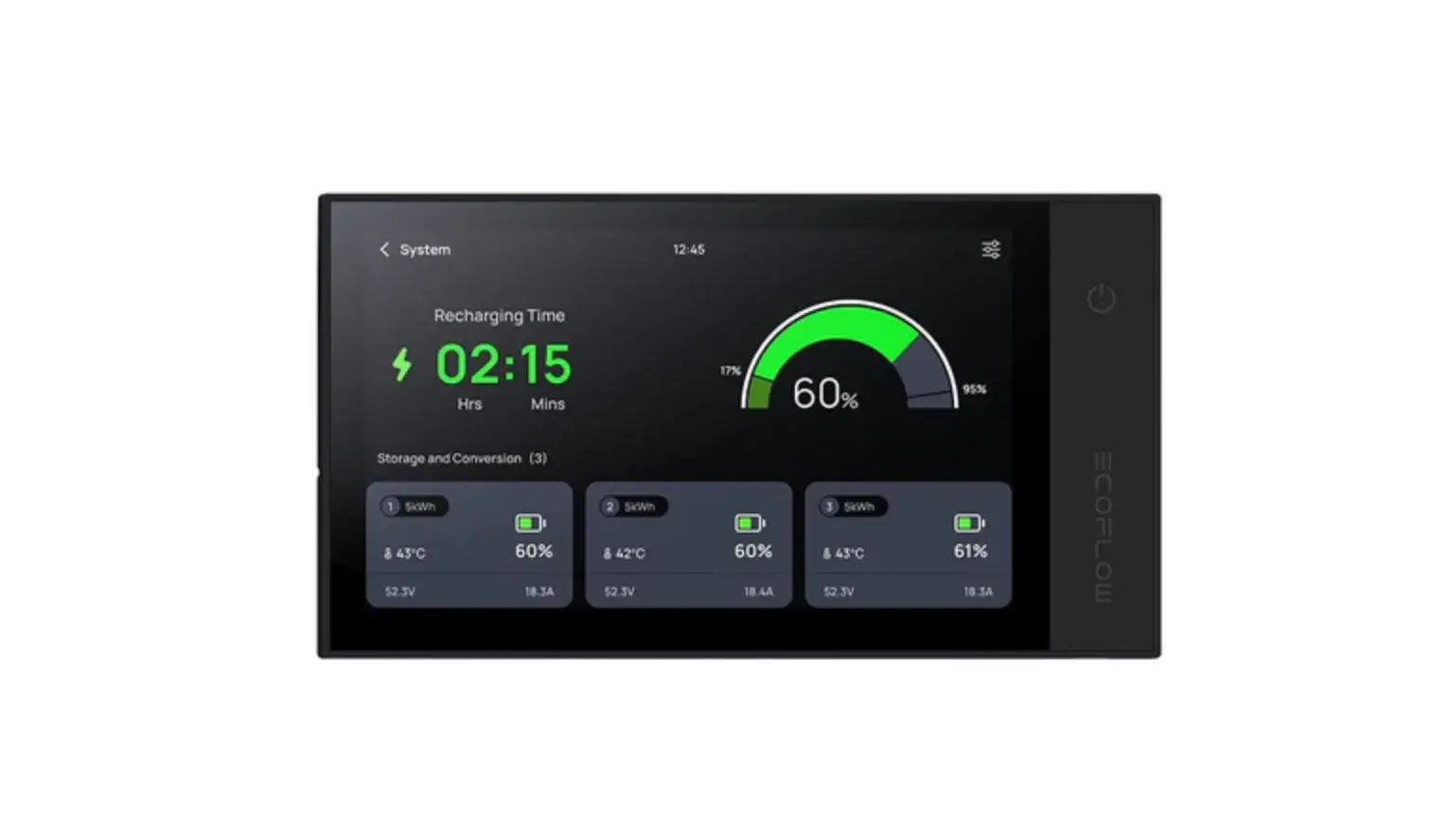
This Power Kit Console is used to monitor the EcoFlow Power Kits in real time.
Through it, you can switch the EcoFlow energy storage on or off, configure parameters, and view usage data.
Safety Instructions
- Do not use this product in environments with high temperature, high humidity, strong magnetic field, or strong static electricity.
- Do not disassemble this product in any way or pierce it with sharp objects.
- Do not use unofficial components or accessories. If components or accessories need to be replaced, purchase them from the EcoFlow official sales channels.
- Do not stack other heavy objects on this product.
- Please avoid impact, falls, or severe vibrations when using the product. In case of a severe external impact, turn off the power supply immediately and stop using the product. Ensure the product is well fastened during transportation and usage to avoid vibrations and impacts.
- If there is dirt on the ports of the product, clean it with a dry cloth.
- Keep this product out of reach of children and pets.
Product Installation
 This product uses a fixed installation method. Use the bracket delivered with this product to install it.
- Install this product in a dry and well-ventilated environment. Power off the product before installation. Do not install with the power on.
- Make sure the bracket is mounted horizontally on the wall.
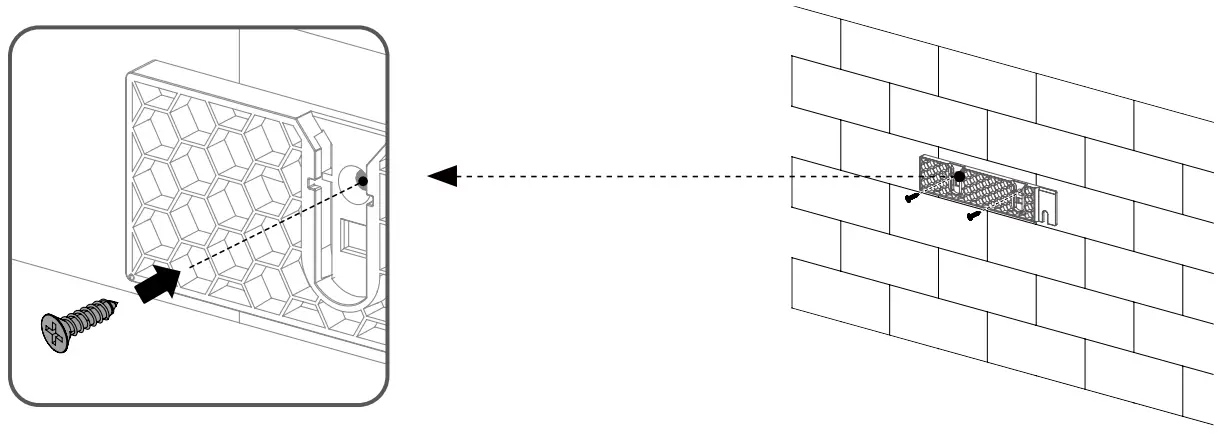
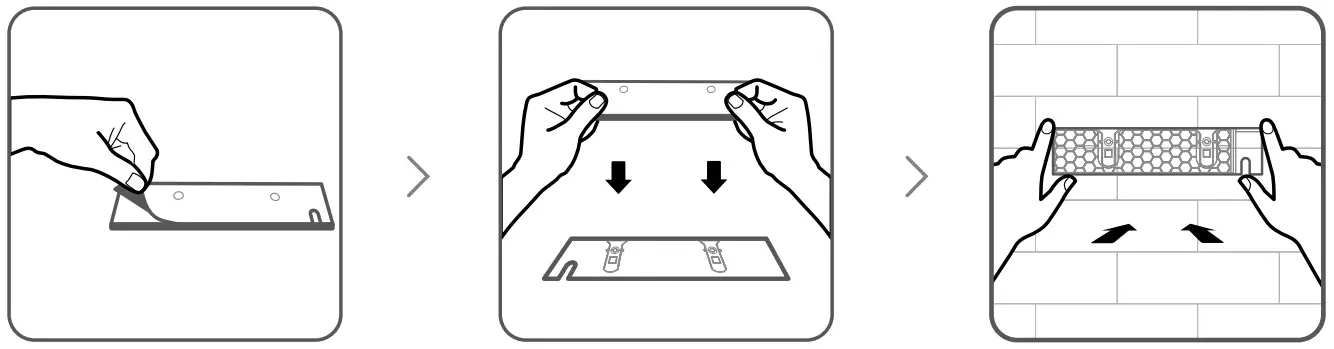
- Mount the matching bracket on the wall using adhesive or screws.
Mounted using screws
Mounted using adhesive
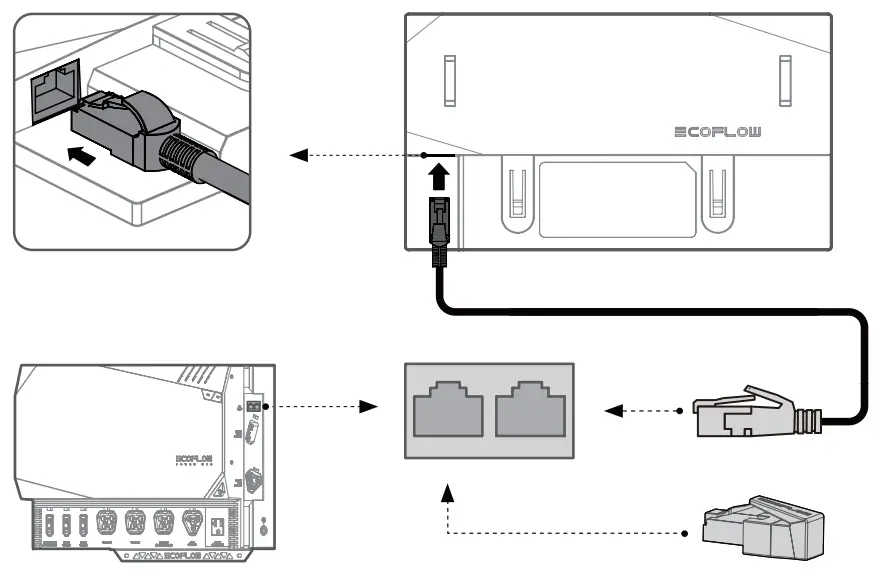
- Insert the communication cable (network cable) of the system to the RJ45 port of this product.

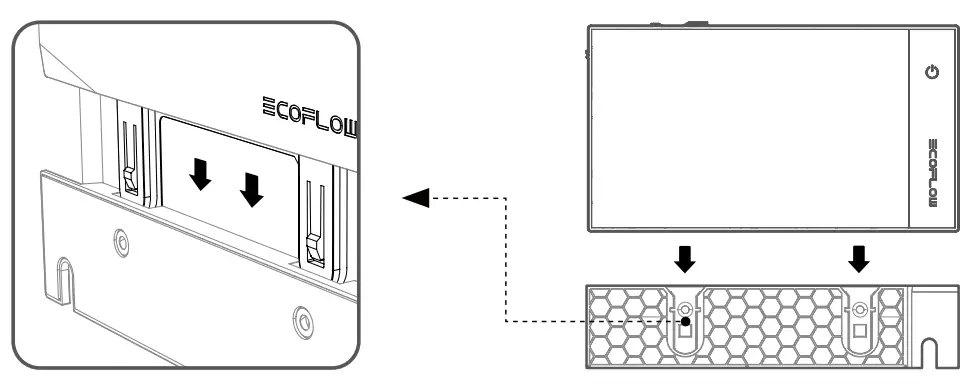
- Align the installation buckles of this product with the slots of the bracket and slide the product into the bracket from the top and down.

Product Usage
Button Functions
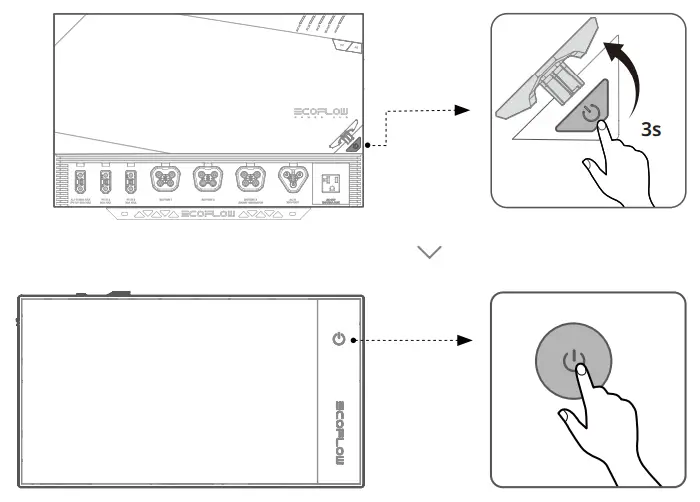
Press (0.5 s): Turn the screen on/off.
Press and hold (3 s): Power the product on or off.
USB Port Functions
USB-C: Used for a backup power supply or softwrae upgrade (not required)
USB-A: 5V/1A power output supported , which can power on some USB peripherals, such as MiFi modules.
Software Functions
- View the battery level, remaining charging and discharging time, input and output power.
- Set the AD/DC output switch.DC output voltage and DC output data.
- Set AC input.
- Set maximum discharge level and minimum charge level.
 (The product software may vary slightly due to function optimization and upgrades. The actual functions prevail.)
Software Upgrade
Tap the Settings icon in the top right corner of the homepage to enter the Settings menu.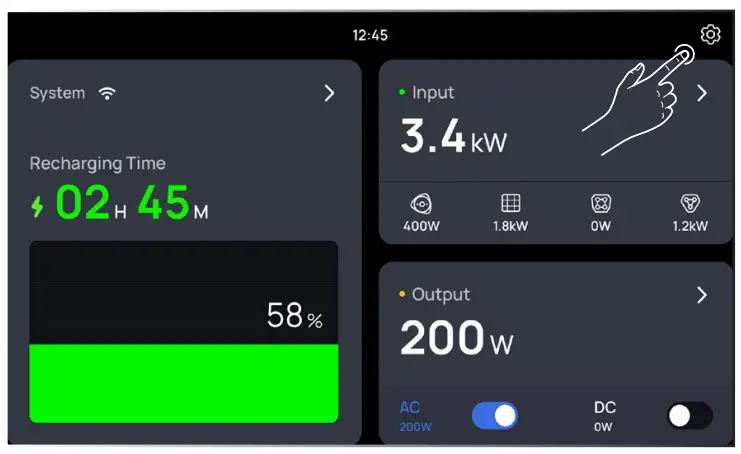
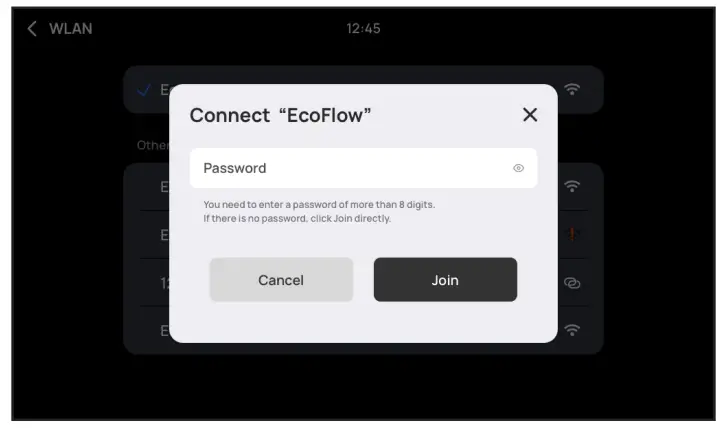
Connect to a Wi-Fi network. Tap the name of the Wi-Fi you want to connect to and enter the password.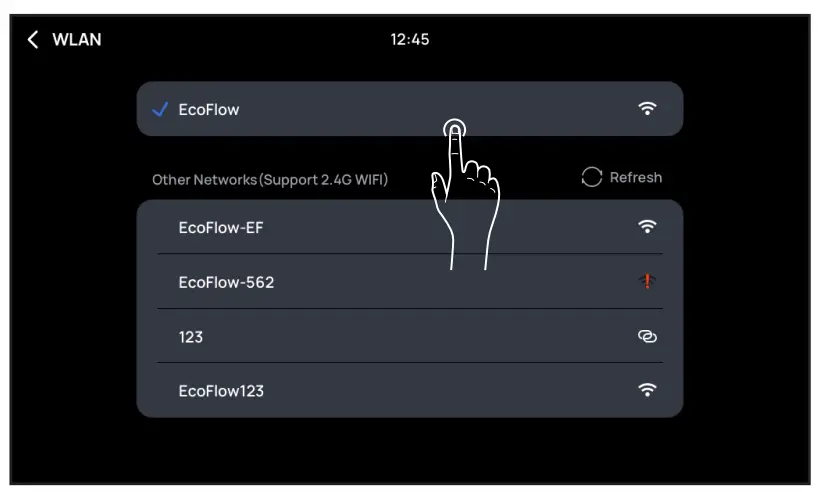
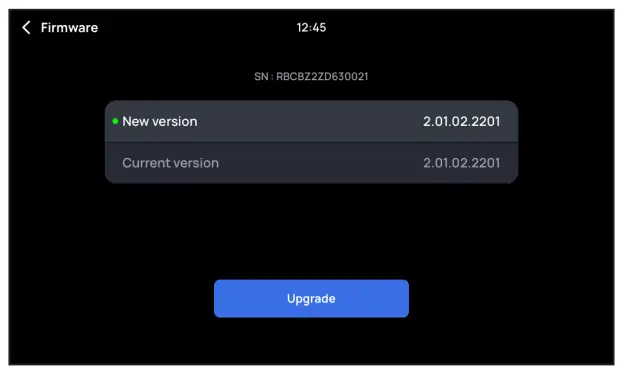
Check for online updates and tap Upgrade.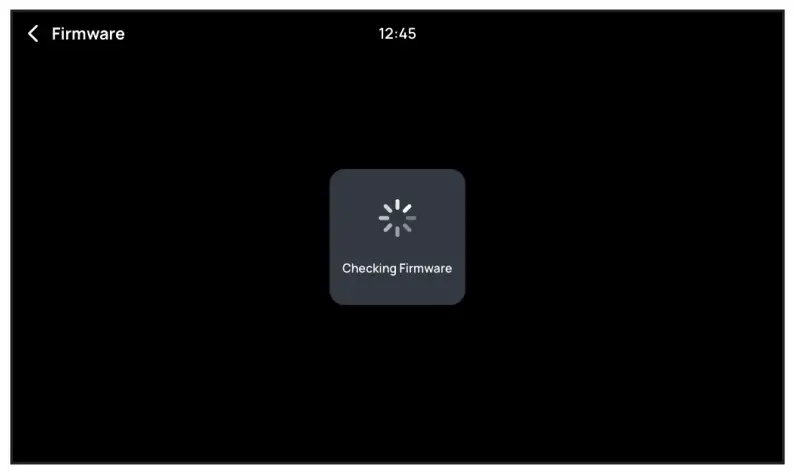
FAQs
Upgrade all system modules to the latest version.
Check whether the network cable is working normally. If not, replace it with a network cable that meets connection standard requirements.
Check whether the network cable is working normally. If not, replace it with a network cable that meets connection standard requirements.
FCC Statement
This equipment complies with Part 15 of the FCC Rules. Operation is subject to the following two conditions:
- This equipment may not cause harmful interference, and
- This equipment must accept any interference received, including interference that may cause undesired operation.
Warning: Changes or modifications not expressly approved by the party responsible for compliance could void the user’s authority to operate the equipment.
NOTE: This equipment has been tested and found to comply with the limits for a Class A digital device, pursuant to part 15 of the FCC Rules. These limits are designed to provide reasonable protection against harmful interference when the equipment is operated in a commercial environment. This equipment generates, uses, and can radiate radio frequency energy and, if not installed and used in accordance with the instruction manual, may cause harmful interference to radio communications. Operation of this equipment in a residential area is likely to cause harmful interference in which case the user will be required to correct the interference at his own expense.
FCC Radiation Exposure Statement:
This equipment complies with FCC radiation exposure limits set forth for an uncontrolled environment. This equipment should be installed and operated with minimum distance 20cm between the radiator & your body.