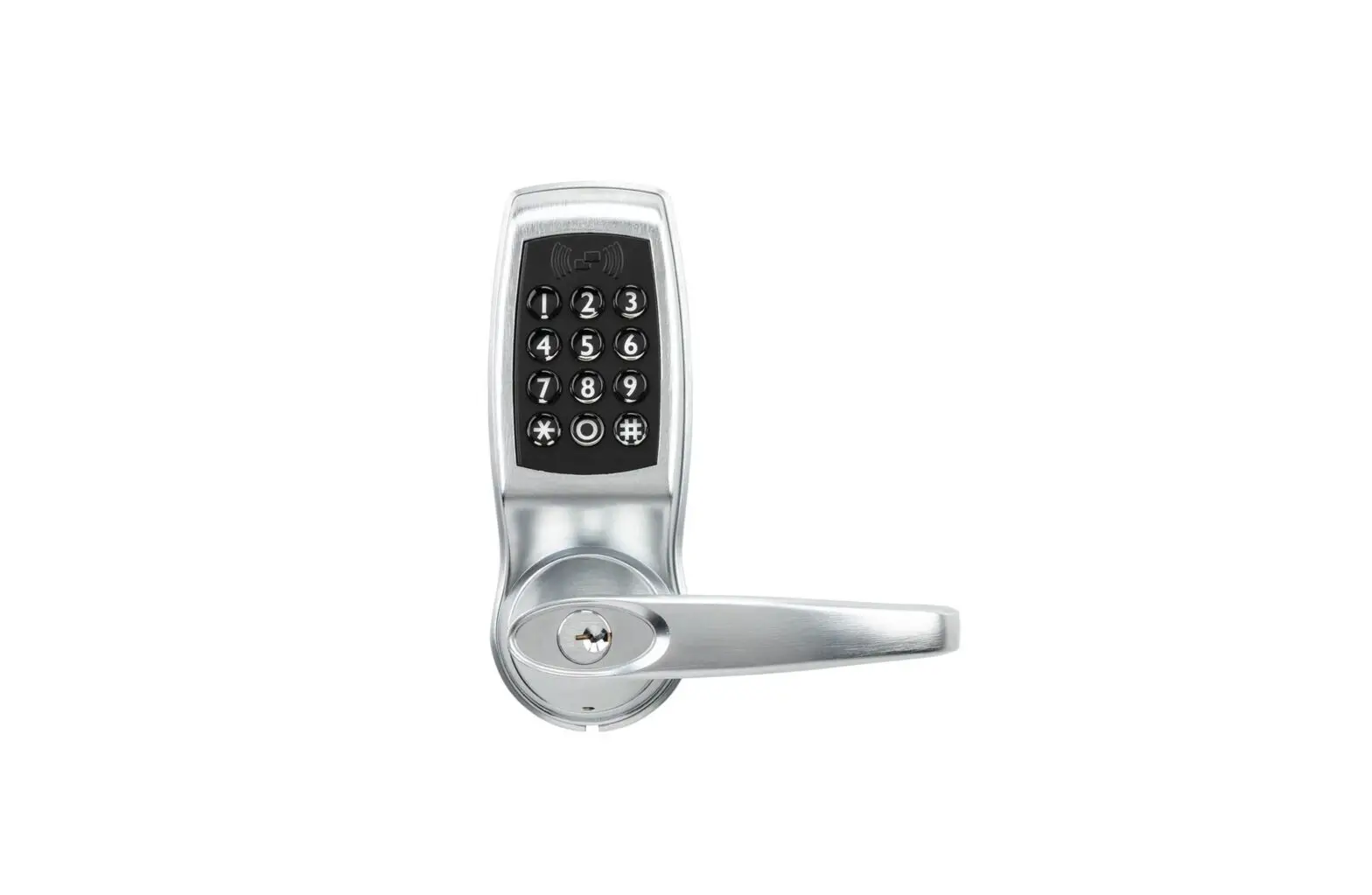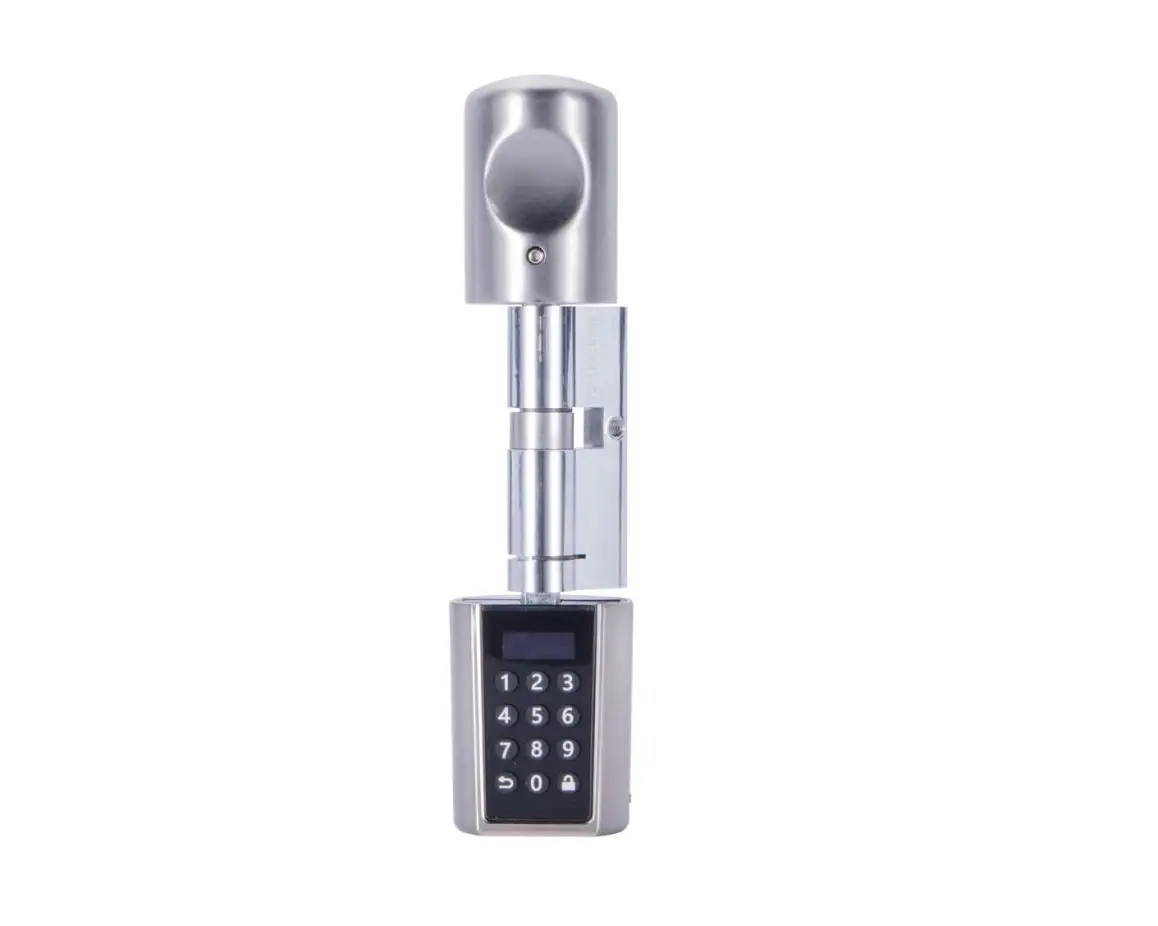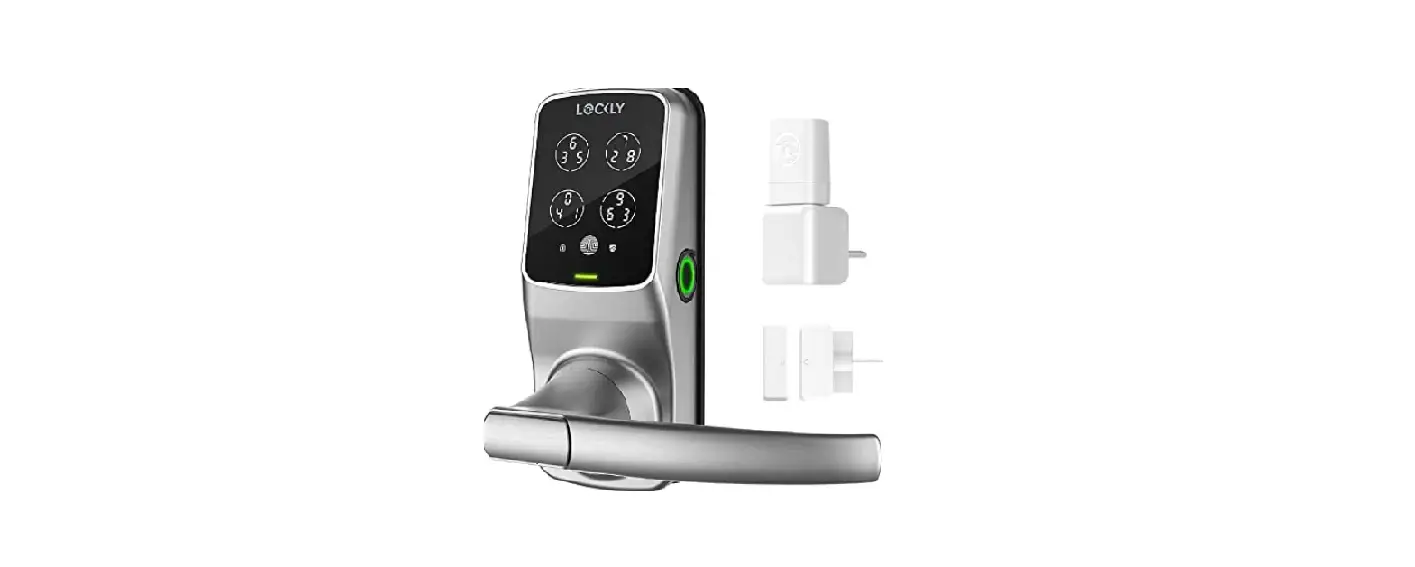

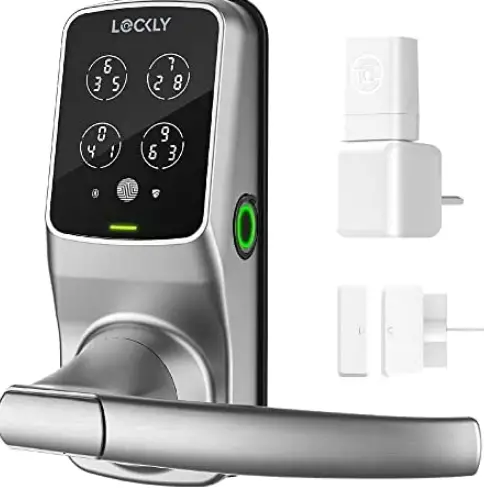
Lockly PGD628WSN Secure Pro Wi-Fi Smart Door Lock
Product Features
Patented Anti-Peep PIN Genie® Keypad
Digits are randomly displayed on the keypad ensuring access codes to be undetectable to intruders after repeated use. Numbers are randomly distributed across 4 buttons, with 3 numbers in each button. Users can press any button showing their number. Location of the numbers are always different every time someone uses the keypad, making it hard for prying eyes to guess the correct code.
Multiple Access Codes & Monitoring
Store up to 18 Access Codes for family, friends and guests, as well as monitor entry and exit records.
Advanced 3D Fingerprint Recogition
Biometric Fingerprint Recognition protocol allows up to 99 registered fingerprints to be used and accepts only actual fingerprints – preventing lifted prints from being used.
Live Monitoring and Voice Control
Through your smartphone, monitor door access from anywhere in the world and securely control who comes and goes. You can also control your LOCKLY® smart lock using your voice with Amazon Alexa or Google Assistant. {Included on Secure Pro models}
Complete Privacy
The exterior displayed keypad can be locked and switched off using the simple ON/OFF toggle from the inside panel. The owner can prevent others trying to input the passcode from the outside and entering the home
Offline Access Code™ (OAC)
The Offline Access Code™ can allow owners to issue access codes, set the allowed access duration, all without LOCKLY ever connecting to the internet, so in case of power outage, you can still magically and remotely issue Access Codes without any connection to the web.
Auto-Lock
Users no longer have to worry about forgetting to lock the door. With Auto Lock enabled, LOCKL Y will automatically auto-lock the door based on your customized time setting.
Backup Keys and 9V Battery Socket
The door can be opened with physical backup keys. There is also a 9V battery connection socket for emergency power backup to access the keypad in case your smart lock runs out of battery.
Product Overview
Outside/ Inside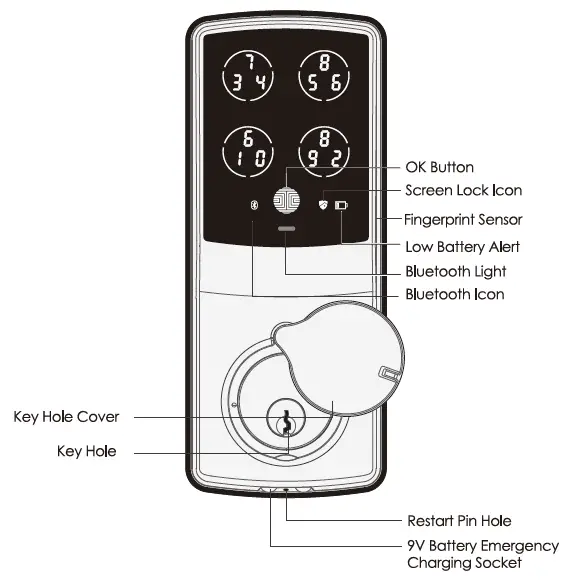
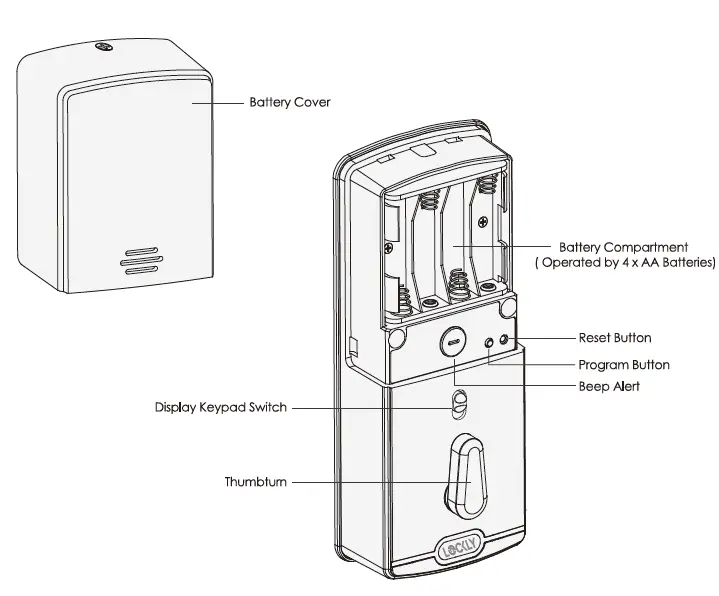
Understanding Your New Lock
After the installation of your new LOCKL understanding some key functions of operating your smart lock is important. The following guides will walk you through resetting a lock, adding Access Codes, deleting Access Codes, adding and deleting fingerprints} and also how to configure your OAC (Offline Access Code™). For any questions, you can always visit http://LOCKLY.com/help for assistance. Don’t forget that LOCKLY Secure works best with our iOS and Android app. Please download the opp by visiting the link below.
Reset Button
In order to setup the LOCKLY® to another smart phone, you must have your “Activation Code” available. The Activation Code can be found on the Activation Code Card (PART U) that came with your smart lock. After you have the Activation Code ready, push the reset button on the back panel of the LOCKLY Secure to perform your reset. See below to see which Reset Process applies for you. Once the smart lock has been reset, all the data previously stored will be deleted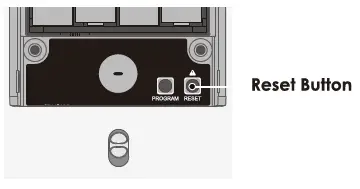
Keypad Display Switch
The exterior keypad screen can be locked and turned off by using the ON/OFF switch at the back panel (interior) of the smart lock. When it is switched off, people who are outside cannot enter any access codes to unlock the door.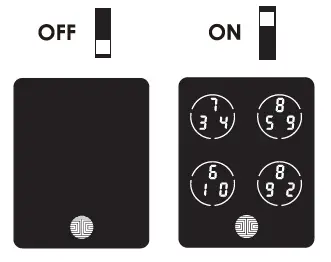
Rebooting Your Lock
Press and release the reboot button when you want to reboot the lock. Your LOCKLY will beep once after reboot. Only reboot when necessary. To reboot, find the reboot button located on the bottom of the exterior side of LOCKLY lock. The reboot button is located in the middle of the two 9V battery backup sockets. You will need something small such as a paperclip, to press the reboot button. Insert the paper clip and press down firmly and let go. Your screen should restart and the lock should reboot automatically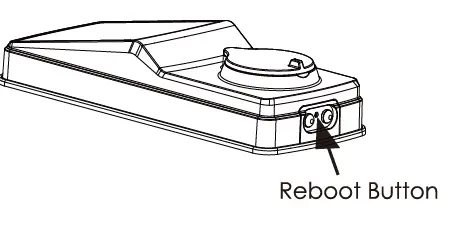
Low Battery
When the battery is in seriously low condition, LOCKLY® will make continuous beeping sounds in addition to the flashing low battery icon on the touch screen. You should replace batteries immediately to avoid your smart lock from shutting down. When your smart lock low-battery warning alert finally dies, you will have 3 chances to unlock your smart lock either by a password, APP or fingerprint. If the unlock was successful, the low-battery warning alert will be on for 1 minute. After which, the smart lock will go to dead-battery mode and will lock auto lock in 5 seconds and the screen will display a low-battery icon.
|
Low Battery
Dead Battery |
Battery Icon on the display keypad will light up to indicate low battery. [[Ji
When there is no display and sounds; and screen is non-functional. | Replace batteries immediately to avoid battery failure. LOCKLY Secure can still operate up to 300 cycles in low battery condition.
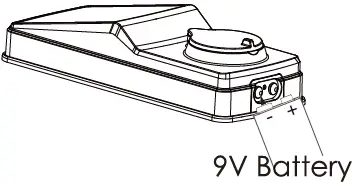
Replace batteries immediately. Supplied physical backup keys can be used to unlock the door. Alternatively, use a 9V battery as shown below to temporarily activate the lock. |
Changing The Battery
Under normal use, the LOCKL Y® battery will last up to a year. Please check battery levels regularly and change your batteries when the low battery notification is issued. For best practice, always use new batteries by a major brand. Open the battery compartment cover and insert four (4) new AA alkaline batteries as shown. Be sure to unscrew the screw located on the top of the cover first by unscrewing counter clockwise before sliding the cover up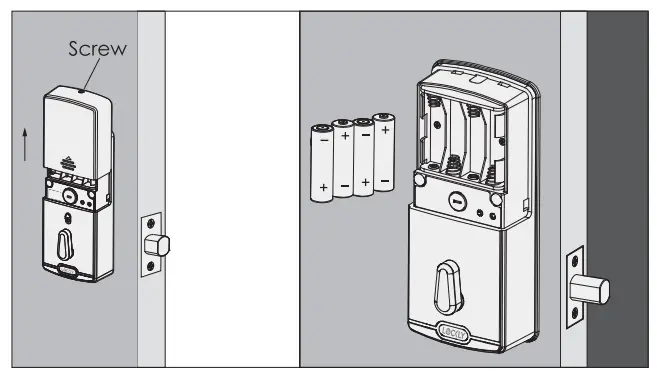
Configuring Access
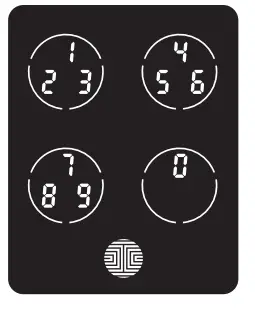
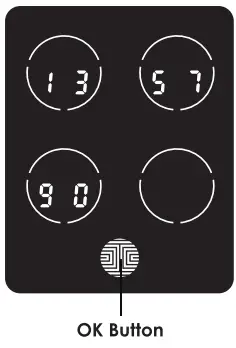
There are a total of five (5) buttons on the keypad as shown in the example image to the left. The numbers in each button may differ than what is shown on your device than what is displayed here. To enter your required digit. just simply press the circle where your number is shown. You do not need to press the actual number as anywhere within the circle will suffice. The button on the bottom is the OK button. You will be pressing this button when you are done entering your Access Code.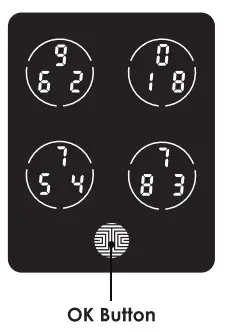
Entering Programming Mode
To enter Programming Mode, remove the battery compartment cover on the interior side of the Secure to expose the Reset and Program buttons (See page 8). Simply press the Program button to enter programming mode.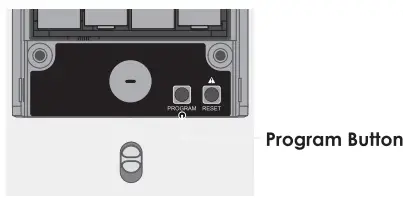
Program Button Program button will be disabled once synced to a smart phone. Configure all settings via synced smart phone. Access Codes previously added by Programming mode will be cleared.
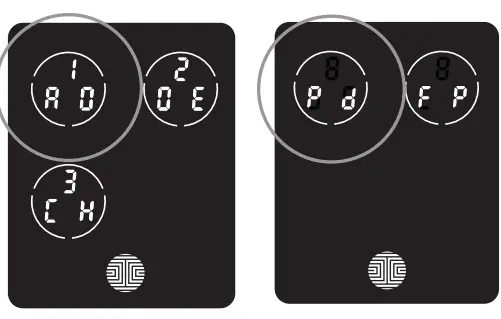
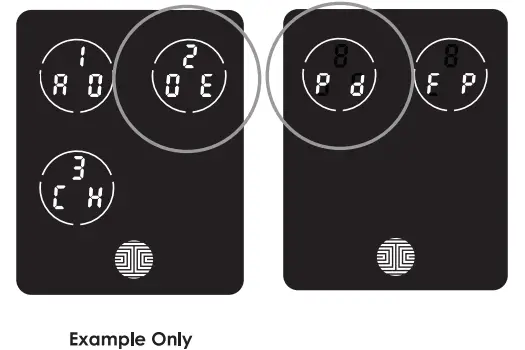
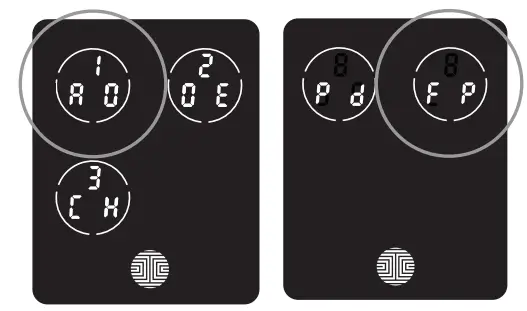
| RO | Add Access Code | |
| 2 | DE | Delete Access Code |
| 3 | [ H | View Access Code |
Adding an Access Code
- While in Programming Mode, select “1 AD” to add an Access Code. If you are not in Programming Mode, please see Section 3.2 to enter Programming Mode. After pressing “lAD” press “Pd” to add an Access Code

- Enter your new 6 – 8 digit Access Code and press i) when you are finished. You will then re-enter the code to confirm your new Access Code.
- Remember, just touch the digit you need within the circle around each 3 numbers. There is no need to touch the exact location of the number. For example, based on the example image to the left, if you need “1 “, you can touch the upper left button. For “6”, you would touch the upper right button

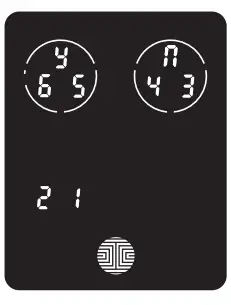
- If you have successfully entered your new Access Code twice, you will see the new code displayed here. In this example, we chose 654321. Press ~ to Confirm or n to cancel. To exit or cancel, you can always

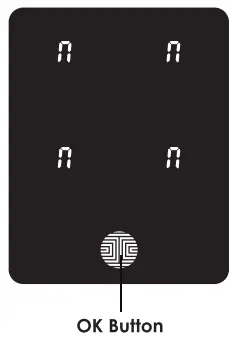
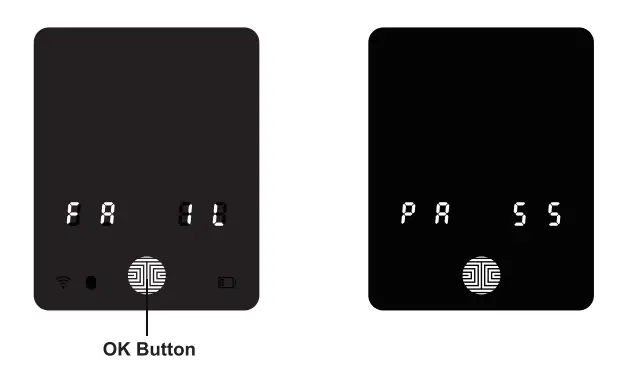
- If the two (2) Access Codes you entered does not match, an error message will appear on the screen (As shown to the left). Press OK Button to return to the Programming Screen and try again. See Section 3.3
Deleting an Access Code
- While in Programming Mode, select “2DE” to delete an Access Code. If you are not in Programming Mode, please see Section 3.2 to enter Programming Mode. After pressing “2DE” press “Pd” to delete an Access Code.

- Active Access Codes will then be displayed on the screen in sequence from left to right, top to bottom. In the example shown on the left, the Access Code displayed is 1 3 5 7 9 0 . Rotate through different Access Codes shown by touching any number on the screen. If you find the Access Code you want to delete, simply hold the OK Button for 3 seconds. (Continue on next page)

- Once you have selected the Access Code you want to delete, LOCKL Y® will ask you to confirm deletion by showing you the Access Code you are deleting, in this example, 1 3 5 7 9 0. Press ~ to delete, or n to cancel

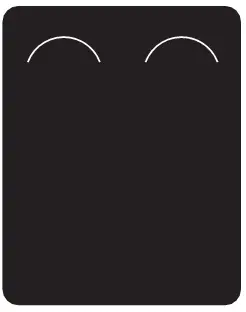
- There is only one ( 1 ) Access Code saved in the smart lock. At least one code must be registered. Please add another Access Code before attempting to delete the existing code.
Checking the Access Codes
- While in Programming Mode, select “3CH” to check registered Access Codes. If you are not in Programming Mode, please see Section 3.2 to enter Programming Mode. Active Access Codes will then be displayed on the screen in sequence from left to right, top to bottom. In the example shown on the left, the Access Code displayed is 1 3 5 7 9 0 .

- If there are no Access Codes registered in your smart lock, Check Access Code mode will be invalid. The default Access Code will not be shown on the display keypad, and you will see the following screen shown to the left instead.


Adding a Fingerprint
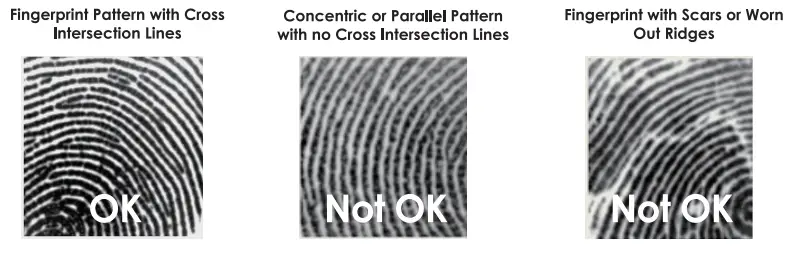
- In this section, yoU will learn how fo registers a fingerprint fo your new smart lock. Fingerprint registration is only available in the LOCKLY° Secure. We are using an advanced biometric sensor, providing the most secure fingerprint authentication. For security reasons, LOCKLY will only accept fingerprint patterns that consist of cross intersection points. Puffins With no cross-intersection points will not be acceptable. Please check your fingers before registration to make sure the finger you want to register will be acceptable by our system. Otherwise, Use an alternative finger fo ensure a successful registration.
- The following examples show which types of fingerprint patterns will be acceptable. It is highly recommended to enroll at least one finger from each hand in case the hand you are using is unavailable, such as, in instances like if you are holding items in that hand or have sustained an injury.

- While in Programming Mode*, select “lAD” to add an Access Code. If you are not in Programming Mode, please see Section 3.2 to enter Programming Mode. After pressing “lAD” press “FP” to register a Fingerprint.

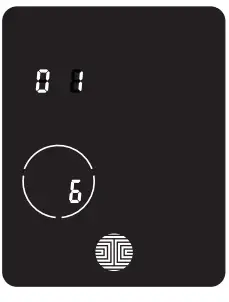
- Once you’re in Fingerprint Registration Mode you will see two numbers displayed on keypad. The top number is your Fingerprint Registration number, in this example to the left, “l “. The bottom number will always start with a “

- Scan your finger by lightly placing your designated finger on the sensor until you hear a beep. Lift your finger and repeat the process slowly until the digit “6” shown on the screen becomes “1 “. If you have successfully scanned and registered your fingerprint, you will hear a long beep, and the Bluetooth icon will flash green.

Fingerprint Scanning Directions
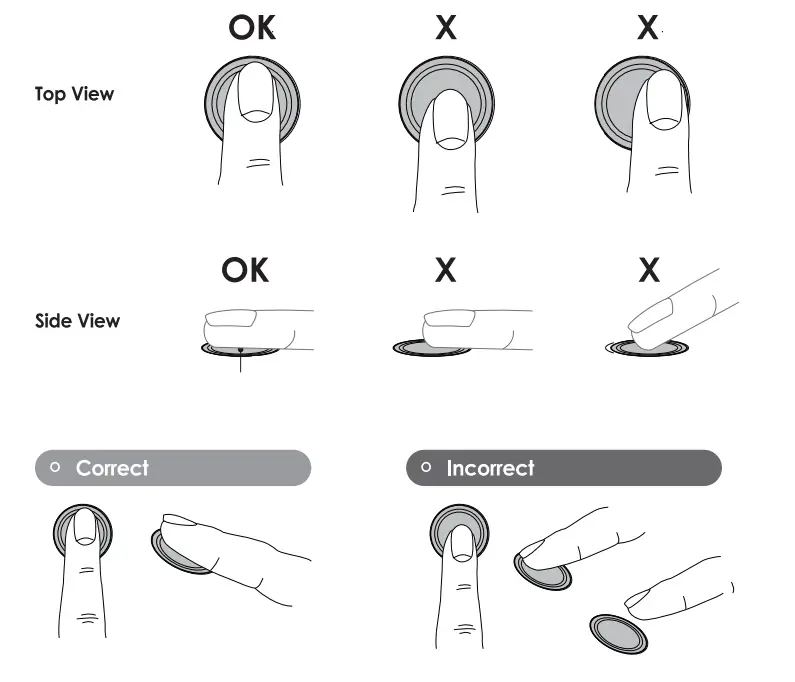
The fingerprint sensor equipped in your smart Ioele is loaded with powerful fingerprint algorithms to extract quality features from fingers, even in poor conditions. Placing your finger on the sensor correctly helps consistency in fingerprint recognition. The following directions and tips will guide you on how to scan an optimal fingerprint image.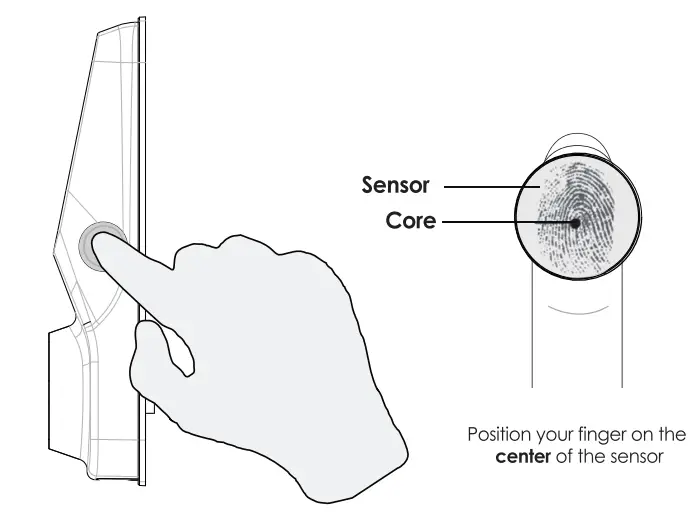
Fingerprint Scanning Tips & Troubleshoot
- Tips for Fingerprint Enrollment and Recognition
- Place your finger to completely cover the sensor with a maximum contact surface.
- Position the center of your finger (core) to the center of the sensor.
- Hold your finger still for more than a second until you hear a beep.
- Scan a finger that is clean and free from dirt. If a finger is cracked and dry, lightly moisten the finger to improve recognition with hand sanitizer or moisturizer.
- Children ages 12 and under are not recommended to use fingerprint access due to the constant changes of their fingers during growth.
- The elderly with fading fingerprints may have difficulty in recognition.
- If your finger has a cut, scar, or cracked skin due to dryness, try another finger.
Troubleshooting Fingerprints
- In case of poor fingerprint conditions
- If wet – wipe excess moisture from finger before scanning
- If dry – moisturize or blow warm breath over finger before scanning
- If dirty – wipe stains and dirt off from finger before scanning
- Make sure the sensor is clean from dirt or smudges – wipe sensor with soft cloth regularly
- For more troubleshooting help, visit http://LOCKLY.com/help
Deleting Stored Fingerprints*
While in Programming Mode, select “2DE” to delete a Fingerprint. If you are not in Programming Mode, please see Section 3.2 to enter Programming Mode.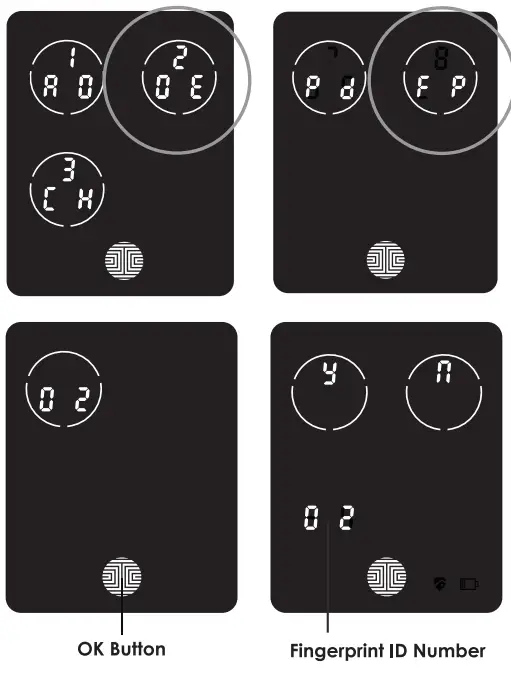
Adding Secure Link
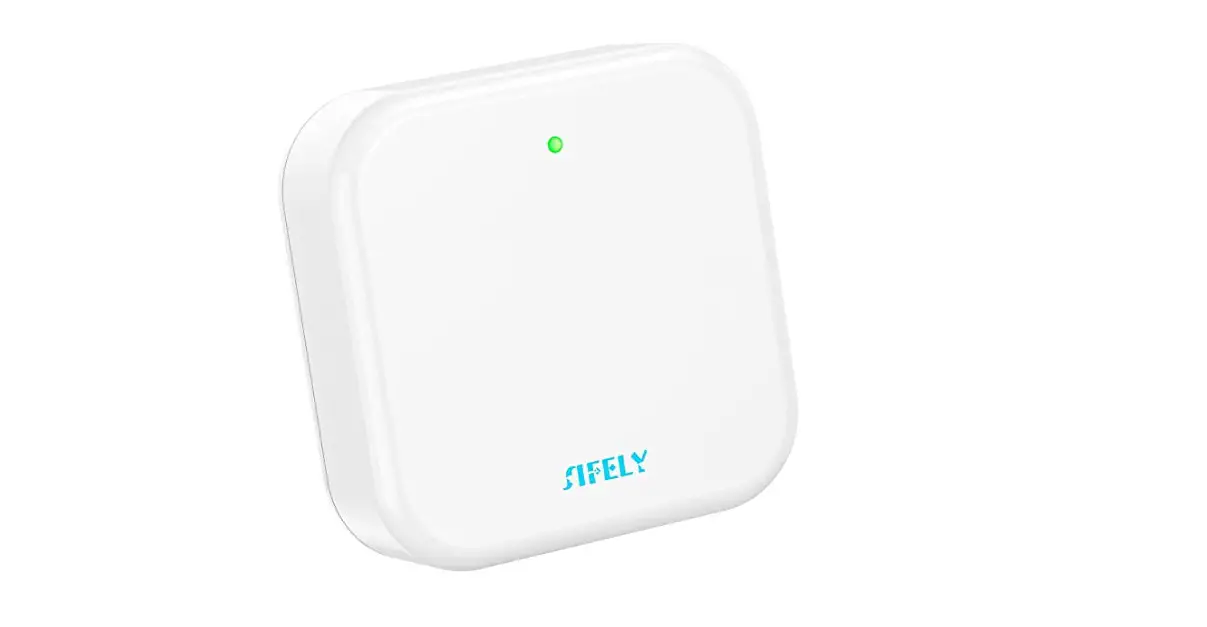
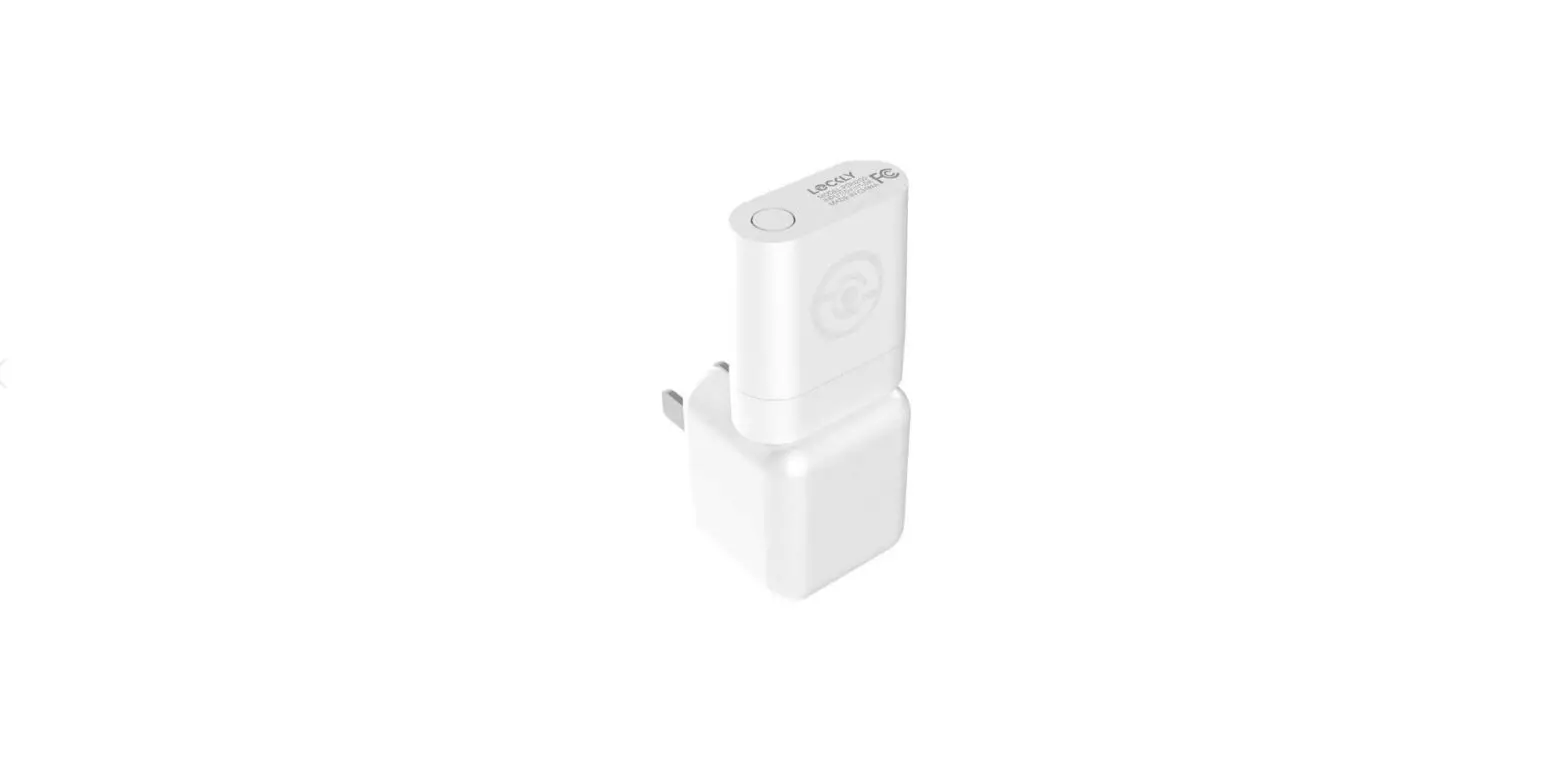
LOCKLY® Secure Link1 adds live status monitoring and voice control capabilities to your LOCKL Y Smart Lock. If you purchased a Secure Pro model, the Secure Link is included in your package. For all other LOCKLY products, the Secure Link can be purchased and added anytime.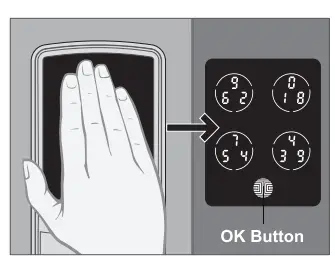
Locking/Unlocking with Access Codes
LOCKL Y® Smart Lock can be unlocked using multiple ways – via your stored Access Code, registered fingerprint, smartphone with Bluetooth, the physical key supplied with your lock, or voice (Secure Pro only or Secure Plus with Secure Link Wi-Fi Hub installed)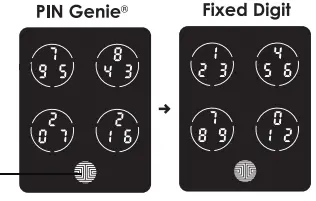
Locking/Unlocking LOCKL Y® with Fingerprints
Unlocking
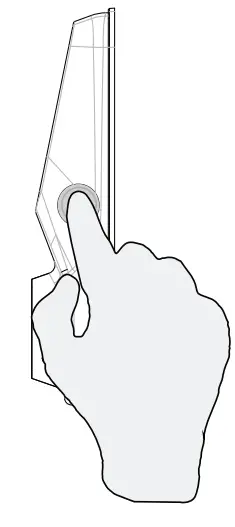
- Place a registered finger to the fingerprint scanner located on the exterior side of the lock to the right.
- To register a fingerprint, please see Section 3.6.
- If your fingerprint is registered and acknowledged, you will hear a “beep” sound and a Green LED will light up on the fingerprint scanner. You can then open the door.
- If you see a Red LED, it means your fingerprint is not recognized. You must wait until the red LED is off to try again.
- For best fingerprint scanning practices, see Section 3.7

Locking
To lock your smart lock, press the OK Button anytime or brush your hand across the screen when the lock is unlocked.
Locking/Unlocking LOCKLY® with App
You must have the LOCKLY iOS or Android app installed in order to lock and unlock with smartphone and connect with voice assistants like Alexa or Google Assistant. Please download the app by visiting the link below or search “LOCKLY” from the correct app store.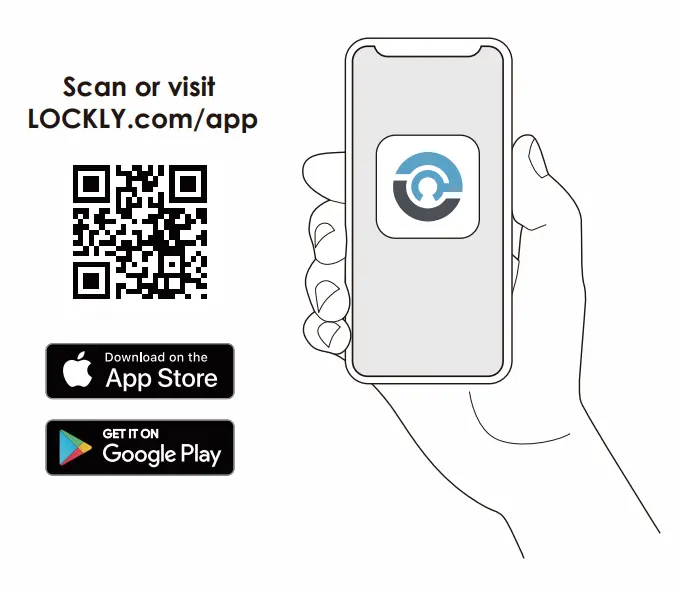
Locking/Unlocking with Physical Key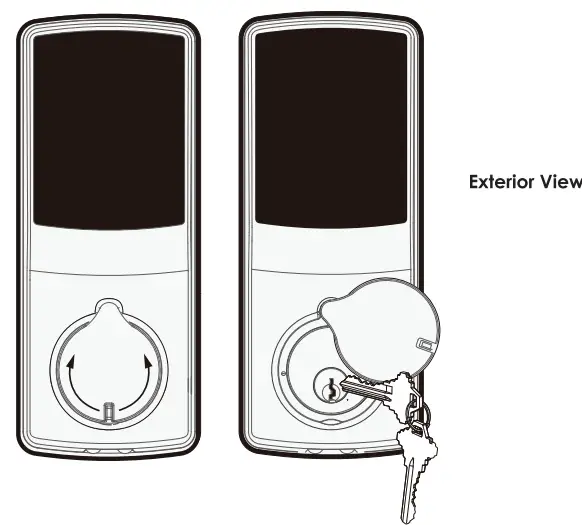
Locking and Unlocking with Voice Assistants
Once your LOCKL Y® Smart Lock and Secure Link1 Wi-Fi Hub has been installed and configured correctly, make sure you enable the LOCKL Y Action for Google Assistant or the Amazon Alexa Skill before you can configure your voice to perform voice commands.You can ask your questions such as door status or request for your door to be locked or unlocked
- “Hey Google, unlock my Back Door”*
- “Hey Google, is my Back Door locked?”
- “Hey Google, lock my Back Door”
- “Hey Google, is my Back Door unlocked?”

- Alexa, unlock my Front Door.*
- Alexa, is my Front Door locked?
- Hi Alexa, lock my Front Door.
- Alexa, is my Front Door unlocked


Safe Mode – Overview
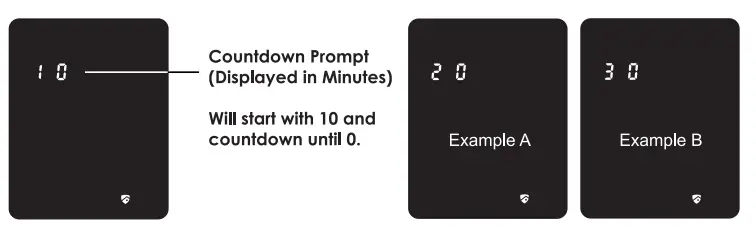
- LOCKL Y® will enter Safe Mode when three (3) consecutive wrong Access Codes are entered within 5 minutes. When in Safe Mode, the lock status icon ‘$ will start to flash.
- To disable Safe Mode, you must unlock the door using the correct fingerprint or enter the_ correct Access Code twice in a row. Activate the keypad by pressing and holding for 3 seconds.
- Once the screen is activated, enter the correct Access Code carefully twice, pressing iil_li after every time.
- If you enter the wrong code, the keypad will then be disabled for 10 minutes

Cleaning
Making sure your LOCKL Y® is clean is best practice to ensure optimal product use. Follow the DOs and DON’Ts below.
Safety Precautions
- Do not attempt to disassemble the smart lock by yourself. It can cause product damage, void warranty, and cause injuries.
- Do not use any inappropriate tools that can cause damages or malfunction to your lock.
- Always make sure your door is securely closed and locked when you leave your house to prevent unwanted entry.
- Please keep your Access Codes safe. Restrict access to the back panel of your smart lock and check your settings regularly to ensure Access Codes have not been changed without your knowledge.
- Always dispose of used batteries according to your local laws. DO NOT BURN.
FCC
This device complies with Part 15 of the FCC Rules. Operation is subject to the following two conditions:
- This device may not cause harmful interference, and
- this device must accept any interference received, including interference that may cause undesired operation
This equipment has been tested and found to comply with the limits for a Class B digital device, pursuant to part 15 of the FCC Rules. These limits are designed to provide reasonable protection against harmful interference in a residential installation. This equipment generates, uses and can radiate radio frequency energy and, if not installed and used in accordance with the instructions, may cause harmful interference to radio communications. However, there is no guarantee that interference will not occur in a particular installation. If this equipment does cause harmful interference to radio or television reception, which can be determined by turning the equipment off and on, the user is encouraged to try to correct the interference by one or more of the following measures:
- Reorient or relocate the receiving antenna.
- Increase the separation between the equipment and receiver.
- Connect the equipment into an outlet on a circuit different from that to which the receiver is connected.
- Consult the dealer or an experienced radio/TV technician for help.
FAQS
Can Lockly smart lock be hacked?
Like any other wireless technology, smart locks are at risk of being hacked. Thieves use different hacking devices depending on the type of connection – Bluetooth, WI-Fi, or Z-wave.
Is Lockly a good lock?
Ultimately, while Lockly’s security is excellent and the addition of Wi-Fi features is a plus
Does Lockly require a subscription?
No, you do not need a monthly subscription.
Why you shouldn’t get a smart lock?
Smart locks can cost significantly more than standard lock-and-key systems and you may need a pro to install the lock and sync it to your Bluetooth and Wi-Fi
Is Wi-Fi door lock worth it?
Yes, smart locks are connected to networks, and anyone with a smart lock should absolutely keep their apps updated, passwords secure and use a PIN for unlocking via voice assistants.
How long do Lockly batteries last?
Under normal to heavy use, LOCKLY smart lock battery will last up to 9 months to a year on average.
Is it worth buying a smart lock?
If we frame the new generation of smart lock as an upgrade instead of a fix, the answer is yes, there is room for improvement
Can I unlock Lockly remotely?
Our Lockly® Secure Pro version comes with a Secure Link WiFi Hub that will allow the Admin user of the lock to control the lock from anywhere once it is connected to the property’s WiFi.
Does Lockly record video?
You can set it to record video whenever someone unlocks the door by fingerprint or code
Is the Lockly app free?
The Lockly™ Smart Lock mobile app is available in both Apple Store and Google Play. Search “Lockly” in either stores and download for free, or visit the links below
Do you need Internet for a smart lock?
Non-WiFi-enabled locks usually incorporate the Bluetooth protocol. This helps connect the lock to your smartphone
What happens if smart lock battery dies?
Your Smart Lock will give you low-battery warnings for multiple weeks before it loses powe
What is the strongest lock for a door?
Deadbolt door locks are the most secure type of key lock and are usually used on a home’s exterior door. Available in single- and double-cylinder styles, deadbolts are rated according to their strength from Grade 1 to Grade 3. A Grade 1 is the highest grade and provides the most security
Is it easy to break into smart locks?
Some smart locks, as well, might be fairly easy to break into if they are poorly made and not sold through a reputable company
Can a locksmith open a smart lock?
These are locks that have not been made using traditional locking mechanisms. Therefore, the locksmith is not going to be able to use the typical set of tools to open these locks