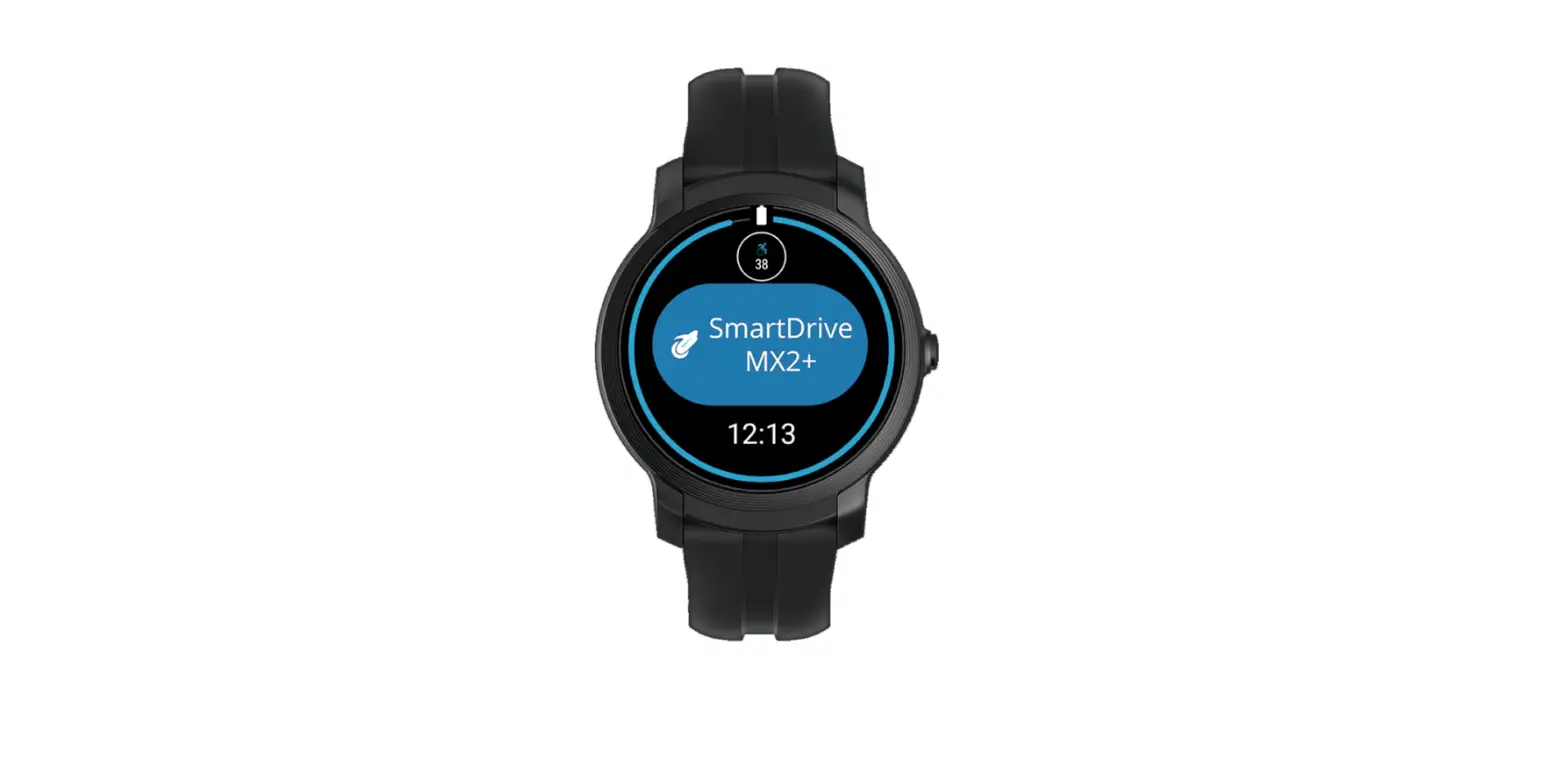

permobil E2 PushTracker
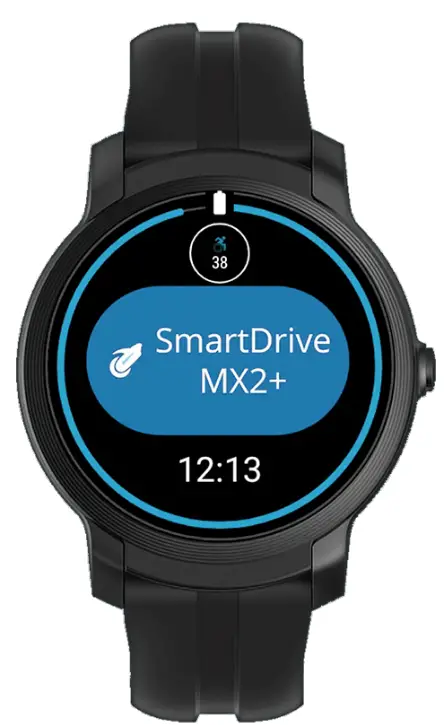
Product Information
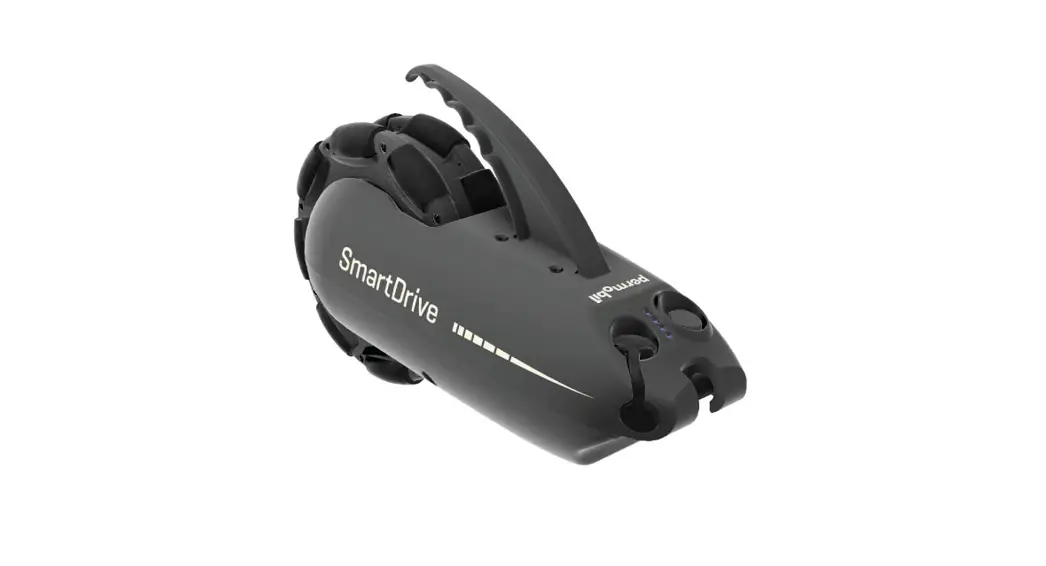
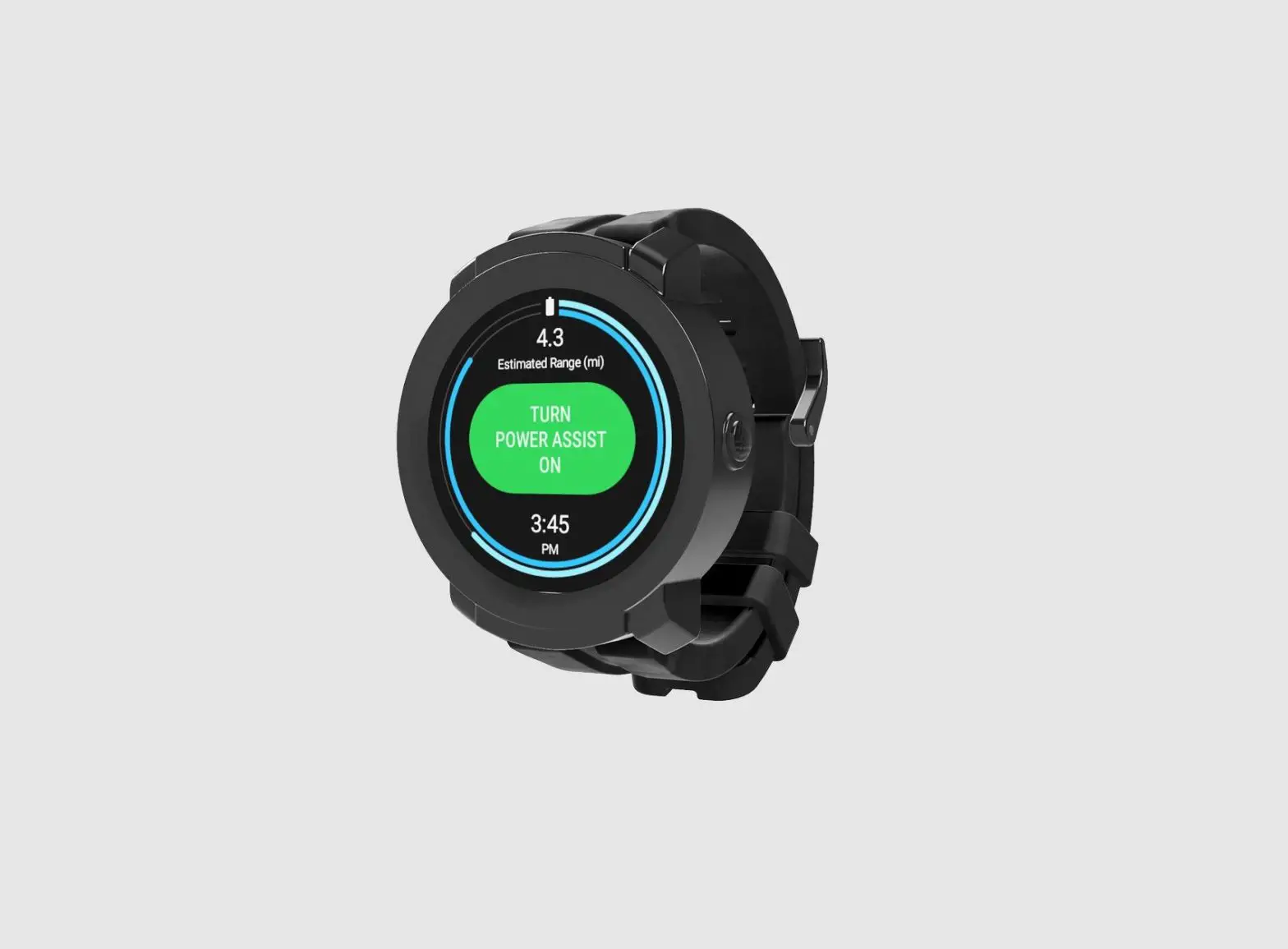
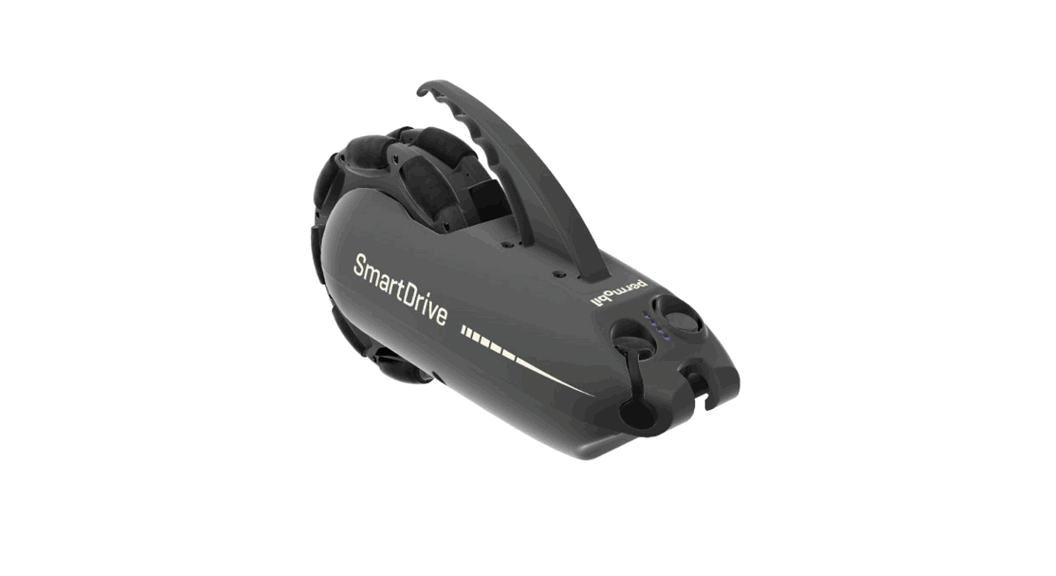
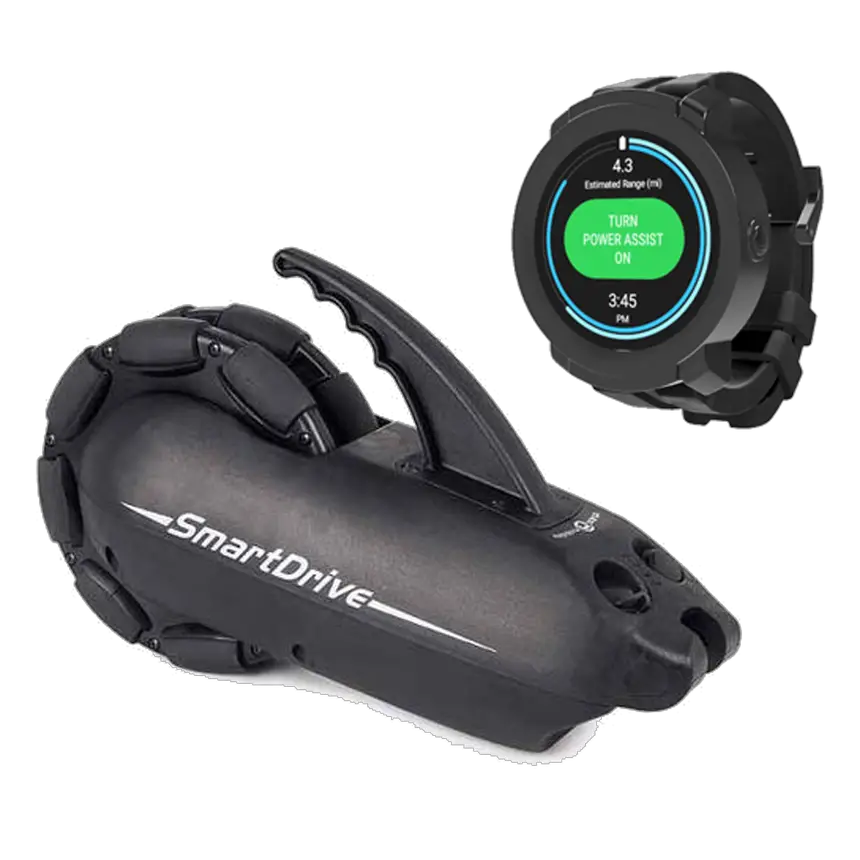
The PushTracker E2/E3 is a device designed to control the SmartDrive MX2+ power assist system. It comes with Wear OS by Google set up and can be connected to Android or Apple smartphones. The device requires Wi-Fi for set-up and usage. The device can be factory reset if required.
Product Usage Instructions
Factory Reset PushTracker E2/E3
Follow these steps to factory reset the PushTracker E2/E3:
- Wake up the screen.
- Tap the side button (top one for E3) to go into the App Menu.
- Tap the Settings icon.
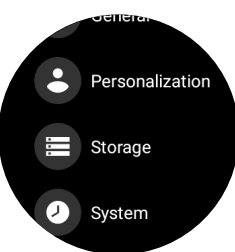
- Select System.
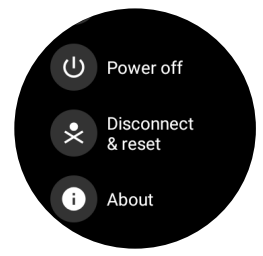
- Tap Disconnect & Reset.
- Scroll down and tap the blue check mark to start the process.
- Wait until the process is complete.
Note: Factory resetting your PushTracker E2 or E3 will delete all data, including the SmartDrive MX2+ app, and you will not be able to use your PushTracker with a SmartDrive until all of the additional steps in this document are completed.
PushTracker E2/E3 & Wear OS by Google set-up
Follow these steps to set up the PushTracker E2/E3 with Wear OS by Google:
- Download Wear OS by Google on your Android or Apple phone.
- Read/accept Mobvoi policy.
- Pair/connect PushTracker E2/E3 to the phone.
- Connect your watch to Wi-Fi.
- Choose/sign in/create a Google account.
- Initialization.
- Wear OS tutorial.
Note: Wi-Fi is required for Wear OS by Google setup. If doing a Wear OS by Google set-up on a PushTracker E2/E3 that was preconfigured by Permobil, you must do a factory reset first.
Download SmartDrive MX2+ app and Pair with SmartDrive MX2+
Follow these steps to download the SmartDrive MX2+ app and pair it with the SmartDrive MX2+ unit:
- Go to Google Play Store on PushTracker E2/E3.
- Search for SmartDrive MX2+.
- Install & launch the SmartDrive MX2+ app.
- With your SmartDrive MX2+ unit turned on, launch the SmartDrive MX2+ app and touch TURN POWER ASSIST ON.
- Pair with SmartDrive MX2+ by selecting the number listed on the screen. You can only pair when one SmartDrive MX2+ is present.
Note: Wi-Fi is required for Wear OS by Google setup. If doing a Wear OS by Google set-up on a PushTracker E2/E3 that was preconfigured by Permobil, you must do a factory reset first.
Factory Reset Instructions for PushTracker E2/E3
NOTE: Wi-Fi is required for Wear OS by Google setup. If doing a Wear OS by Google set-up on a PushTracker E2/E3 that was preconfigured by Permobil, you must do a factory reset first.
Factory Reset PushTracker E2/E3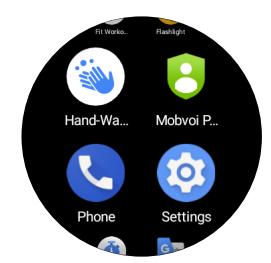
- Wake up the screen.
- Tap the side button (top one for E3) to go into the App Menu.
- Tap the Settings icon.
- Select System

- Tap Disconnect & Reset.

- Scroll down and tap the blue check mark to start the process.
- Wait until the process is complete.
NOTE: Factory resetting your PushTracker E2 or E3 will delete all data, including the SmartDrive MX2+ app, and you will not be able to use your PushTracker with a SmartDrive until all of the additional steps in this document are completed.
PushTracker E2/E3 — Wear OS by Google set-up
NOTE: Wi-Fi is required for Wear OS by Google setup. If doing a Wear OS by Google set-up on a PushTracker E2/E3 that was preconfigured by Permobil, you must do a factory reset first.
PushTracker E2/E3 & Wear OS by Google
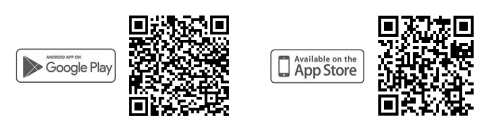
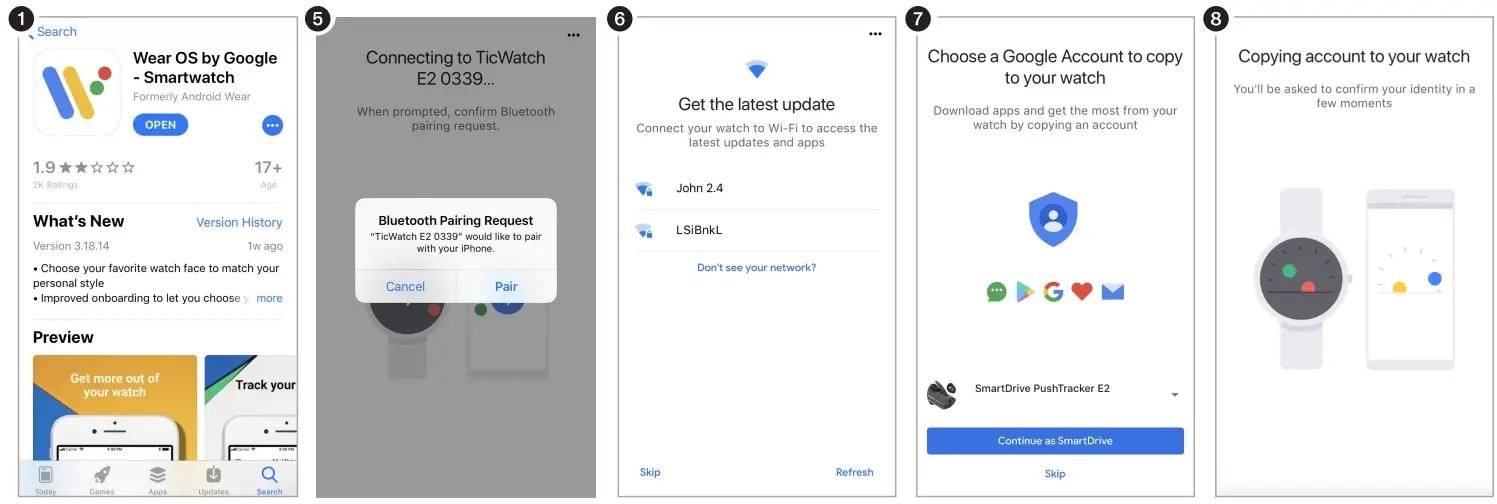
- Download Wear OS by Google on your Android or Apple phone

- Read/accept Google terms of service & enable Bluetooth® sharing
- Turn on watch, select language
- Read/accept Mobvoi policy
- Pair/connect PushTracker E2/E3 to phone
- Connect your watch to Wi-Fi
- Choose/sign in/create a Google account
- Initialization
- Wear OS tutorial


NOTE: Wi-Fi is required for Wear OS by Google setup. If doing a Wear OS by Google set-up on a PushTracker E2/E3 that was preconfigured by Permobil, you must do a factory reset first.
Download SmartDrive MX2+ app
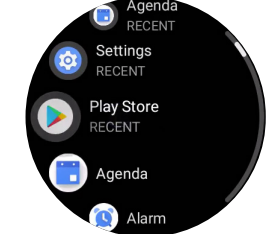
- Go to Google Play Store on PushTracker E2/E3

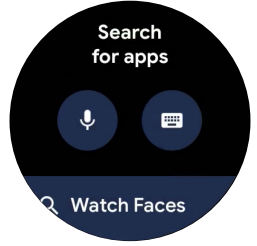
- Search for “SmartDrive MX2+”

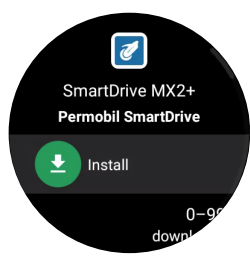
- Install & launch SmartDrive MX2+ app

Pair & go
- With your SmartDrive MX2+ unit turned on, launch the SmartDrive MX2+ app and touch “TURN POWER ASSIST ON”
- Pair with SmartDrive MX2+ by selecting the number listed on the screen. You can only pair when one SmartDrive MX2+ is present

- You are now paired & connected!

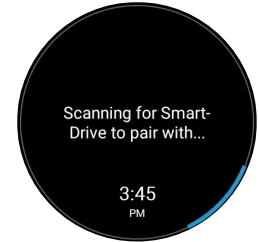
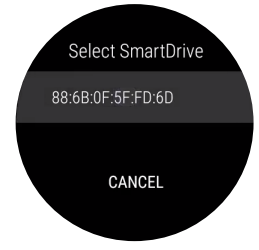
- NOTE: You can also pair to your SmartDrive MX2+ through the settings menu within the app.
- Wear OS by Google, iPhone, Android, Bluetooth and Google Play are trademarks or registered trademarks of their respective owners.
- permobil.com

- For more instructions check out the PushTracker how-to videos at permobilus.com/howtosmartdrive.

 Permobil
 Permobil