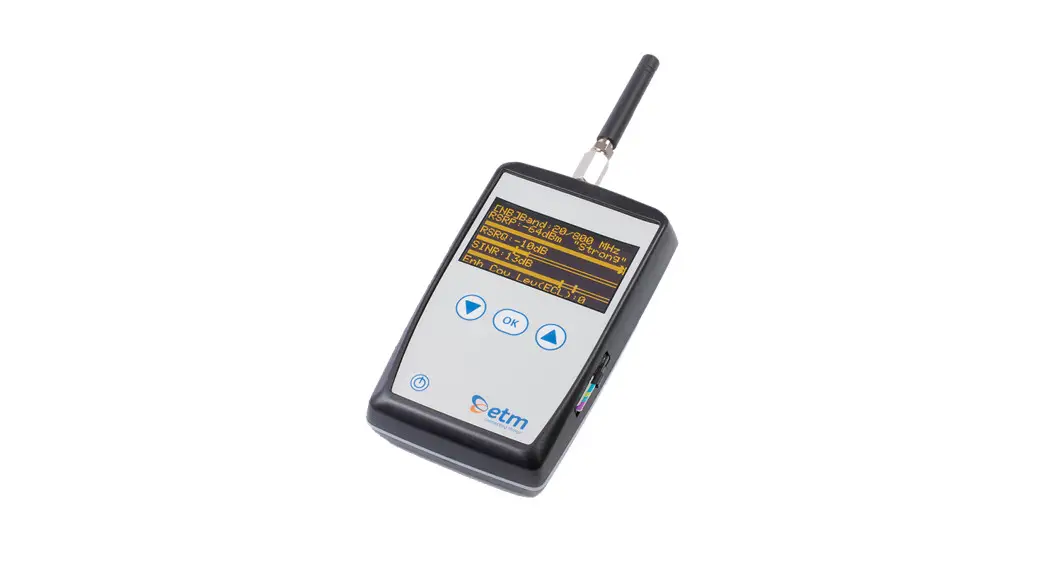
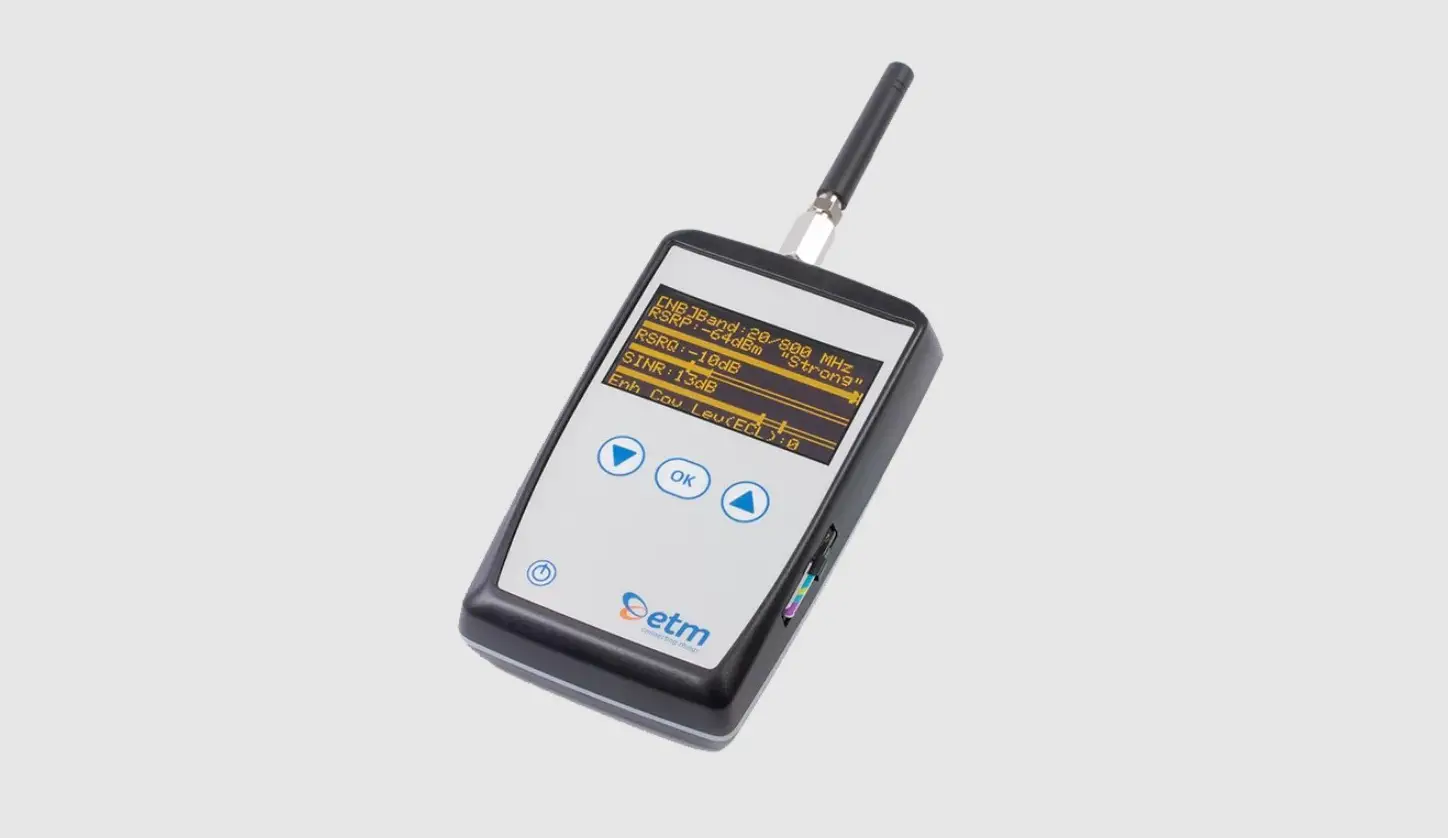
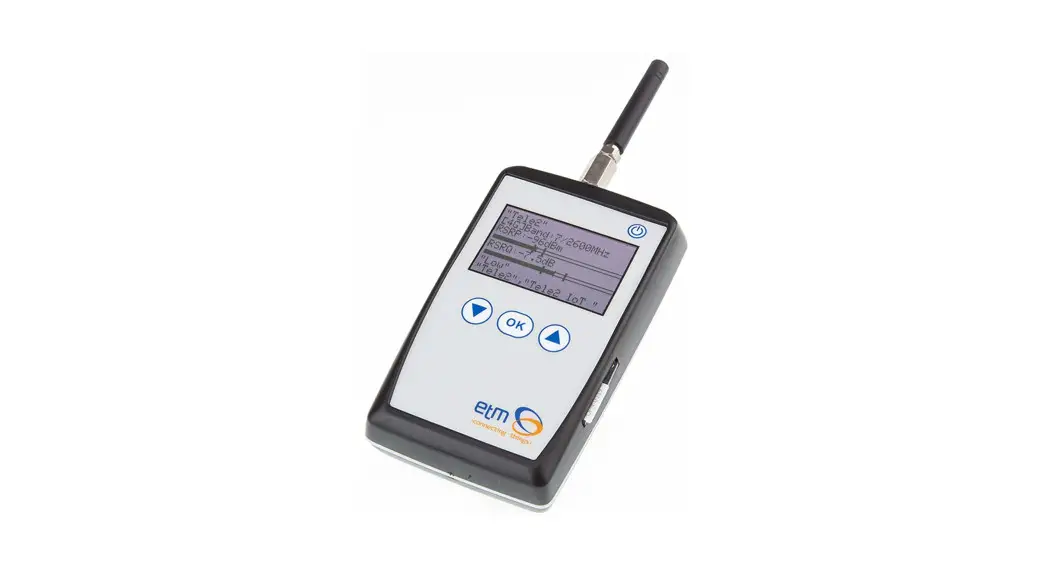
ETM770-PRO Cellular Signal Analyser
Product Information
The ETM770-PRO is a cellular network monitoring tool that
supports Cat M1, Cat NB, NB2, 4G, 3G, and 2G networks. It comes
with a charger and features a firmware version and hardware number
display, IMEI number, date and time, module temperature, supply
voltage, and battery voltage. Additionally, it allows for the
addition of a server to receive data being sent from the device.
The device can connect to the internet to check for firmware
updates.
Product Usage
The device has several buttons that can be used for different
actions:
- To restart the device:
- Alternative 1: Hold Arrow DOWN + Arrow UP (5 seconds)
- Alternative 2: Navigate (System > Restart Device) in the
device menu
- To power off the device, hold the Power button (bottom left
corner) for 3 seconds - To activate sleep mode, hold the Power button for more than 5
seconds - The OK button is used as an action button or forward navigation
in the menu - The Arrow Up button is used for menu navigation or as the
backwards button when at the top of the menu - The Arrow Down button is used for menu navigation
The device can be navigated using the guide provided in the user
manual. It also comes with accessories that can be used to enhance
its functionality.
Device Info & Settings
SMS Commands
The following SMS commands can be used to configure the
device:
- ET-IP1=IP Address:Port – Change the server address (Example:
ET-IP1=54.77.219.177:7162 (EWO server)) - ET-IP3=IP Adress:Port – Change the PING address (Example:
ET-IP3=8.8.8.8:80 (Google)) - ETSAPN=List position, APN name – Change APN list (Example:
ETSAPN=1,m2m.tele2.com) - ETSUP=List position, Username, Password – Change User/Password
(Example: ETSUP=1,username1,password23)
System
The System section provides device data such as firmware
version, hardware number, IMEI number, date and time, module
temperature, supply voltage, battery voltage, and rolling network
information. It also allows for the addition of a server to receive
data being sent from the device.
Scanning Signals
The Scanning Signals section provides information on signal
parameters. It allows users to view, test, and upload signals.
Configuration Tool
The Configuration Tool section provides a tool for configuring
the device. It can be used to add a server to receive data from the
device and to configure other settings.
Appendix
The Appendix provides additional information on the device and
its usage.
For Support Contact +46 8 25 28 75, [email protected] or +61 2 9956 7377, [email protected] 180220220005 Rev PA1, 2022-04-14
USER GUIDE
ETM770-PRO
CELLULAR NETWORK MONITORING TOOL Cat M1/Cat NB/NB2/4G/3G/2G
Features:
· Cat NB, Cat M1 Connectivity
· 4G/3G/2G Connectivity
· GPS Functionality
· Select the most suitable antenna
· OLED display
· Send measured data to EWO server
· Rechargeable battery
· Sleep Mode for super low power consumption
· Includes antenna, hard case and
1
charger
For Support Contact +46 8 25 28 75, [email protected] or +61 2 9956 7377, [email protected]
TABLE OF CONTENTS
1. Buttons, Navigation & Accessories………………………………………………………………………………… 3 1.1 Buttons……………………………………………………………………………………………………………………. 3 1.2 Device Navigation…………………………………………………………………………………………………….. 4 1.3 Accessories …………………………………………………………………………………………………………….. 4
2. Device info & settings ……………………………………………………………………………………………………. 4 2.1 System ……………………………………………………………………………………………………………………. 5 2.2 Settings …………………………………………………………………………………………………………………… 5
3. Scanning signals …………………………………………………………………………………………………………… 6 3.1 Understanding Signal Parameters ……………………………………………………………………………… 6 3.2 View, Test & Upload …………………………………………………………………………………………………. 7
4. Configuration tool …………………………………………………………………………………………………………. 9 Appendix………………………………………………………………………………………………………………………….. 10
2
For Support Contact +46 8 25 28 75, [email protected] or +61 2 9956 7377, [email protected]
1. BUTTONS, NAVIGATION & ACCESSORIES
· Insert SIM card as shown in the images above. IMPORTANT! Make sure the SIM card has PIN code DISABLED!
· To charge the ETM770, insert the charger into the mini USB connector. The battery is charged with 5V.
· Connect the same cable to a computer if you want to configure the ETM770 using the configuration tool.
1.1 Buttons
ACTION/BUTTON EXPLANATION
Restart Device
Alternative 1: Hold Arrow DOWN + Arrow UP (5 seconds)
Alternative 2: Navigate (System > Restart Device) in the device menu
Power OFF
Hold Power button (bottom left corner) 3 seconds
Sleep mode
Hold Power button more than 5 seconds
OK Button
Action button/Forward navigation in menu
Arrow Up
Menu navigation/Backwards button when at the top of the menu
Arrow Down
Menu navigation
3
For Support Contact +46 8 25 28 75, [email protected] or +61 2 9956 7377, [email protected]
1.2 Device Navigation
Use this guide to easily navigate through the device to perform different actions. Basic functionality is described further down the document.
1.3 Accessories
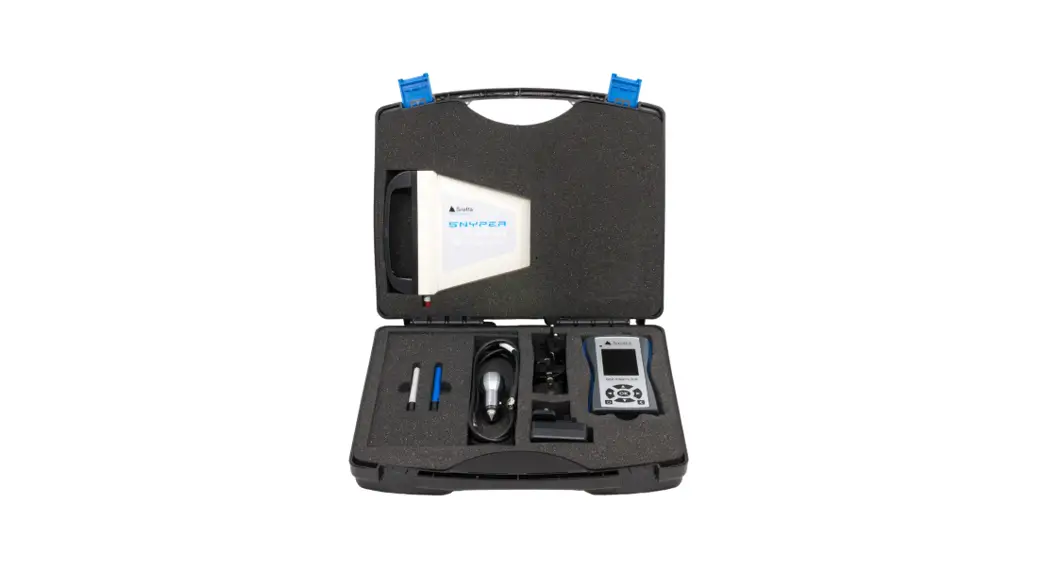
· The ETM770 comes with a carrying case containing USB cable for programming/charging, charging brick, power adapters, car charger and quick start guide.
2. DEVICE INFO & SETTINGS
SMS COMMANDS
ET-IP1=”IP Address”:”Port”
ET-IP3=”IP Adress”:”Port”
ETSAPN=”List position”, “APN name” ETSUP=”List position”, “Username”, “Password”
EXPLANATION AND EXAMPLE
Change the server address Example: ET-IP1=54.77.219.177:7162 (EWO server) Change the PING adress Example: ET-IP3=8.8.8.8:80 (Google) Change APN list Example: ETSAPN=1,m2m.tele2.com Change User/Password Example: ETSUP=1,username1,password23
4
For Support Contact +46 8 25 28 75, [email protected] or +61 2 9956 7377, [email protected]
2.1 System
Device Data
Firmware version (TOP) Hardware number (HW#) IMEI Number Date and Time Module Temperature Supply Volage Battery Voltage Rolling network Information
Server Adress
Add a server to receive data being sent from the device. This can be configured in the configuration tool shown below or via SMS command shown above.
Check for Firmware (FW) Updates
Device will connect to the internet to check if the firmware is up to date.
Restart Device
Restart the device without using the hardware buttons
2.2 Settings
Select APN & Select User/PassW
Select which APN to use. APN can be added using the configuration tool shown below, or via SMS command shown above. The same thing applies to Select User/PassW
Logging
This is where you activate continuous logging and sending as well as GPS. Make sure you have a
server address added for receiving data. Check this by navigating system server address
5
For Support Contact +46 8 25 28 75, [email protected] or +61 2 9956 7377, [email protected]
3. SCANNING SIGNALS
*Use “1.2 Device Navigation” above for help if you need.
Step 1: Select Radio Bands
Broaden or narrow down your network scanning to only the bands you wish to scan
Step 2: Scan for available operators
This might take a few minutes. The device displays all operators it can find in your area together with a network technology (e.g. 4G or M1)
Step 3: Scanning a signal
Explanation · The device is connected to a 4G band. The band is 7 and the frequency is 2600 MHz.
· Reference Signal Received Power (the signal strength without noise and interference) measured in dBm. The signal is visualized in the signal bar below the data.
· Reference Signal Received Quality (how well the signal is coded) measured in dB. The signal is visualized in the signal bar below the data.
· In the bottom shows rolling information about PLMN & Band, Operator, RSSI, Status
3.1 Understanding Signal Parameters
PARAMETER RSSI
SINR
RSRQ RSRP
Technology
LTE & 3G LTE
LTE
LTE
Excellent
> -65
> 12,5
> -5
> -84
Good
-65 to -75 10 to 12.5 -9 to -5 -85 to -102
Fair
-75 to -85 7 to 10
-12 to -9 -103 to -111
Poor
< -85
< 7
< -12
< -111
EC/IO HSPA+ & EVDO > -2 -2 to -5 -5 to -10 <-10
6
For Support Contact +46 8 25 28 75, [email protected] or +61 2 9956 7377, [email protected]
3.2 View, Test & Upload
Explanation · Band 7 / 2600 Mhz · Referenced Signal Received Power (RSRP) is -82 dBm with Min & Max values below · Referenced Signal Received Quality (RSRQ) is -7dB with Min & Max values below · Public Land Mobile Network (PLMN) is 240007: The channel is 2850 · Scanned Network (Operator)
Communication test
Ping to test network communication. Standard is set to Google’s server. This can be change using the configuration tool shown below.
Upload Signal
1. Uploading a signal is made through pushing “Send Data to Server”. Make sure you have IP + Port setup. You can easily add this by sending a SMS command seen above in “2.1 SMS Commands”
2. Uploading signals continuously without pushing can be done through activating logging and sending under settings.
Download Signal
If logging is turned on while sending is turned off, the logged scans will be stored on the device. They can be downloaded using the configuration tool explained further down the manual
7
For Support Contact +46 8 25 28 75, [email protected] or +61 2 9956 7377, [email protected]
Current Network Data (4 pages)
*Press Arrow Down to access next page Basic network data information. Abbreviations described under appendix below Neighboring cells SIM Status, Network Status, Net Provider and APN and LIP (Local IP Adress)
8
For Support Contact +46 8 25 28 75, [email protected] or +61 2 9956 7377, [email protected]
4. CONFIGURATION TOOL
· Another way of configuring your ETM770 is by using the configuration tool. Begin by
downloading the latest configuration tool located under Resources on
https://etmiot.com/. Proceed by connecting the unit to a computer with the provided
USB charging cable.
3.
4.
6.
3.
6.
5.
1. Start the configuration tool and connect the device to a PC running Windows 2. Go to the terminal tab, use “Set COM Port” to choose the right COM port (see device
manager Ports (COM & LPT)) in Windows. When correct port is selected, set baud rate to 115200. 3. Open the port by pressing “COM(X): CLOSED” 4. Click anywhere in the black terminal window until you see a flashing square. Proceed by restarting the unit by either holding down arrow UP and DOWN for 5 seconds, or write “ETESC” in the command window. 5. Make sure that the firmware matches the configuration tool version unlike the picture above (Should be CT0980 on both positions, not like CT0950 in this case)
2.
1.
3.
1. When done configuring the unit, press the red button “WRITE MEMORY” to upload the configuration to the unit
2. To see what configuration is already on the unit, press “READ MEMORY” when having the unit connected to the computer to read it onto the configuration tool.
3. To save your configuration to use for future units, press “File” in the top left corner, then “save” in the dropdown menu, and save the file to an optional location. Your device is now ready to be configured.
9
For Support Contact +46 8 25 28 75, [email protected] or +61 2 9956 7377, [email protected]
Appendix
1. Table below shows a brief explanation of the 3G network abbreviations.
ABBREVIATION FULL NAME
CHANN PSC MCC MNC EC/n0 LAC CELL APN
CHANNEL Primary Synchronization Code Mobile Country Code Mobile Network Code Carrier to Noise Ratio Local Area Code CELL ID Access Point Name
FURTHER EXPLANATIONS Shows the ARFCN (Absolute Frequency Channel Number) of the Radio Band Frequency. Describes start and stop time for the time slot that the device has been allocated. The first part of the PLMN code. The second part of the PLMN code.
Cell identification number This will only be useful information if you have set up an ISP connection.
LIP RSCP SQ SRxL
Local IP
Received Signal Code Power
Signal Quality
This will only be useful information if you have set up an ISP connection. Measured in dBm Quality value for base station selection in dBm RX level value for base station selection indBm
10
For Support Contact +46 8 25 28 75, [email protected] or +61 2 9956 7377, [email protected]
2. Table below shows a brief explanation of the 4G network abbreviations.
ABBREVIATION
FULL NAME
FURTHER EXPLANATIONS
EARFCN
CHANNEL
E-UTRA Absolute Radio Frequency Channel Number
B (Band)
Frequency Band
E-UTRA frequency band
DL
DL bandwidth
DL bandwidth
UL
UL bandwidth
UL bandwidth
Mode
Duplex Mode
TimeDivisionDuplex (TDD) or FrequencyDivisionDuplex (FDD)
MCC
Mobile Country Code
The first part of the PLMN code.
MNC
Mobile Network Code
The second part of the PLMN code.
TAC
Tracking Area Code
GCID
Global Cell ID
Global Cell ID
PhyC ID
Physical Cell ID
Physical Cell ID
SQ
Signal Quality
Quality value for base station selection in dBm
RSRP
Reference Signal Received Power
RSRQ
Reference Signal Received Quality
RSSI
Reference Signal Strength Indication
Note: A PLMN is identified by the Mobile Country Code (MCC) and the Mobile Network Code (MNC)
ETM Mätteknik AB
Ekbacksvägen 32, SE-168 69 Bromma, Sweden
Tel: +46 (0)8 25 28 75
11
Email: [email protected]
Fax: +46 (0)8 80 11 10 Web: www.etm.se
ETM Pacific Pty Ltd
Suite 6, 273 Alfred Street, North Sydney NSW 2060, Australia
Tel: +61 (0)2 9956 7377
Fax: +61 (0)2 9956 5791
Email: [email protected] Web: www.etmiot.com.au
References
 Mobiltelefoner, abonnemang, bredband, tv & play - Tele2
 Industriella IoT-enheter och tjänster för inomhus- och utomhusbruk | ETM
-
Industriella IoT-enheter och tjänster för inomhus- och utomhusbruk | ETM
-
ETM Pacific | Specialist in Cellular and LoRa Connectivity
-
ETM Pacific | Specialist in Cellular and LoRa Connectivity
 Mobile country code - Wikipedia
-
Mobile country code - Wikipedia
-
Industrial IoT Devices & Services for Indoor and Outdoor use | ETM
 Mobiltelefoner, abonnemang, bredband, tv & play - Tele2
 Industriella IoT-enheter och tjänster för inomhus- och utomhusbruk | ETM
 ETM Pacific | Specialist in Cellular and LoRa Connectivity
 Mobile country code - Wikipedia
 Industrial IoT Devices & Services for Indoor and Outdoor use | ETM