ETM 770 Cellular Signal Analyzer
ETM 770 Cellular Signal Analyzer
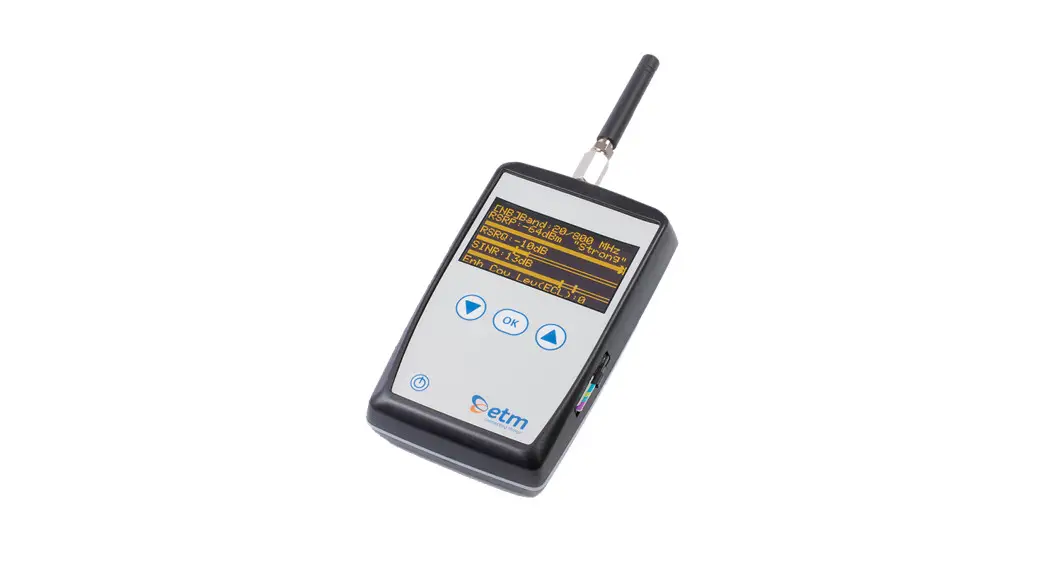
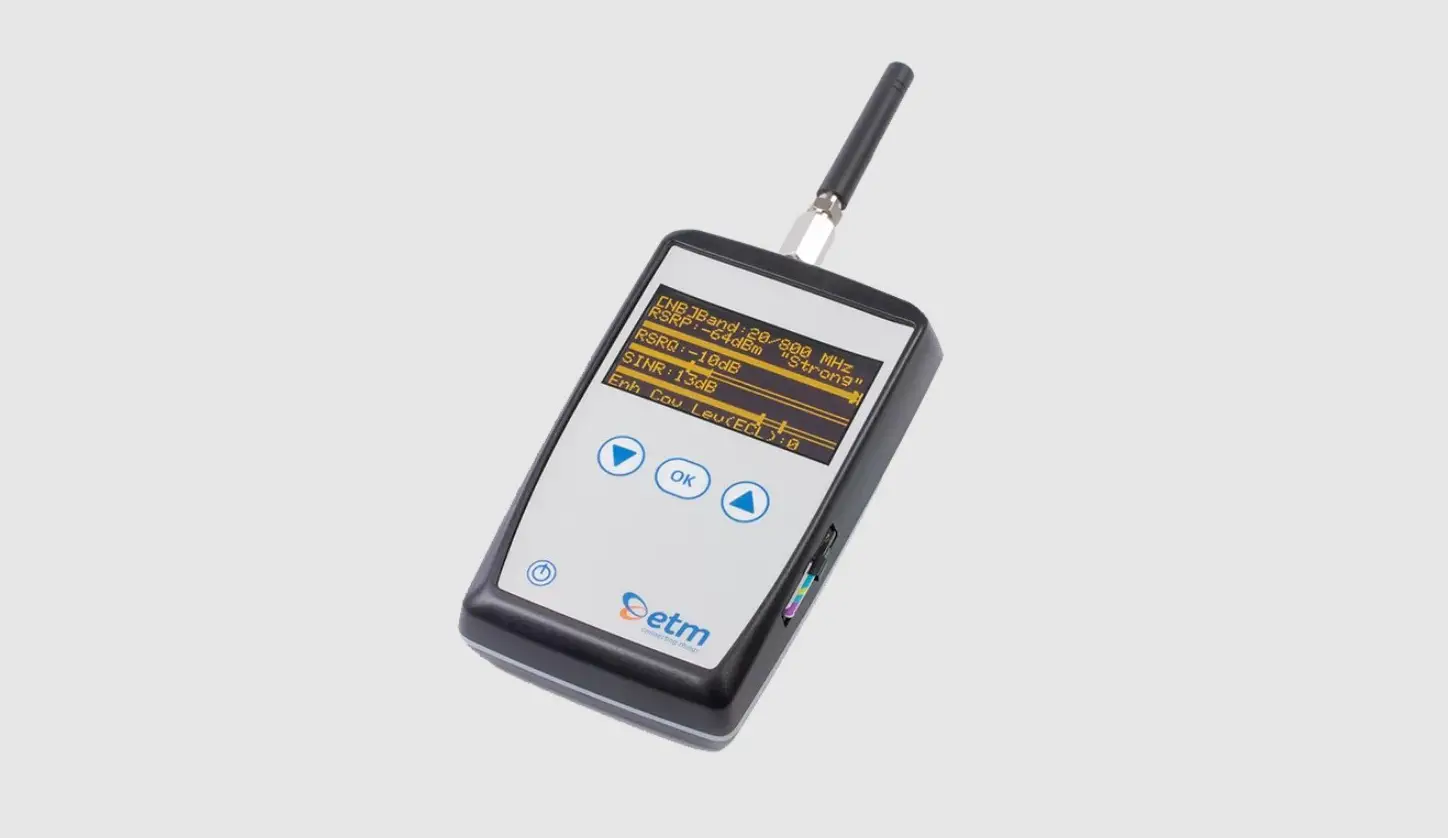
The ETM 770 is a handheld signal analyzer for cellular 2G/3G/4G
or 2G/Cat M1/Cat NB2 network measurements. It is useful for network
coverage analysis and has common applications in various
fields.
Features
- Model: ETM770-LTE or ETM770-IoT
- Module: 20543 Cinterion PLS62-W or 20591 Quectel BG95-M3
- GNSS: None or GPS/GLONASS/BeiDou/Galileo/QZSS
- 2G: 850/900/1800/1900MHz
- 3G: 800/850/900/AWS/1800/1900/2100 Mhz
(B1/B2/B4/B5/B8/B9/B19) - LTE 4G: 700/800/850/900/AWS/1800/1900/2100/2600 MHz
(B1/B2/B3/B4/B5/B7/B8/B12/B18/B19/B20/B28) - Cat M1: None or
B1/B2/B3/B4/B5/B8/B12/B13/B18/B19/B20/B25/B26/B27/B28/B66/B85 - Cat NB2: None or
B1/B2/B3/B4/B5/B8/B12/B13/B18/B19/B20/B25/B28/B66/B71/B85
Accessories
- Antenna
- Power Adapter
- USB to Mini USB Adapter
- Carrying Case
Getting Started
To use the ETM 770, follow these steps:
- Scan for a Signal:
a. Choose the radio band/bands that you wish to scan.
b. Search and select a network operator that is using one or more
of your selected radio bands.
c. When radio bands and network operator is selected, you can
proceed to scan a signal by navigating to Scan Signal. - Additional Functions:
a. Send Data to Server:
i. Navigate main menu > Send Data to Server > Send Last
Scan.
ii. To change the IP-Address for sending, please see Configuring
the ETM770.
b. Communication Test:
i. Navigate main menu > Communication Test > PING
IP-Address.
ii. This will send three tests to the selected server. It shows
success or fail. Ping round trip time in milliseconds.
iii. To change the PING address, please see Configuring the
ETM770.
c. Signal Analysis Explanation:
i. RSSI (dBm) Recieved Signal Strength Indicator
ii. RSRP (dBm) Reference Signal Recieved Power
iii. RSRQ (dB) Reference Signal Recieved Quality
iv. SINR (dB) Signal to Interference plus Noise Ratio - System:
a. Device Data:
i. Page 1: SIM card number, software version, hardware number,
IMEI number.
ii. Page 2: Date/time, internal temperature, supply voltage,
battery voltage.
b. Select APN:
i. Select which APN you wish to use for uploading scanned data to
a server.
c. Select User/PassW:
i. Some APNs require username/password. Add and select the right
user in this tab.
d. Server Address:
i. Displays the added server addresses and ports.
e. Restart Device:
i. Restart the device without using the buttons.
Support
If you need further assistance, please visit etmpacific.com.au or email
[email protected].
If it is urgent, please call ETM Pacific Pty Ltd (APAC) at +61 (0)2
9956 7377.
User Guide
To watch an ETM770 user guide, use this link: https://youtu.be/1PLVtn6GDLs.
Quick Start Guide
ETM 770
CELLULAR SIGNAL ANALYZER
Welcome to your ETM Product
Get started: This guide helps with initial product setup. Need more? Find additional product information by simply scanning the QR code.
Support: ETM offers multiple support options to help you get the most out of your product. You can go onto etmpacific.com.au or e-mail [email protected]. If urgent, please call us using the numbers below
ETM Pacific Pty Ltd (APAC) Suite 20, 273 Alfred Street, North Sydney NSW 2060, Australia Tel: +61 (0)2 9956 7377 E-mail: [email protected] www.etmpacific.com.au
INTRODUCTION
ETM770 is a handheld signal analyzer for cellular 2G/3G/4G or 2G/Cat M1/Cat NB2 network measurements.
Common applications include:
· Determine the best operator · Check signal strength & coverage · Send measured data to server
· Check working IP connection · Select the best antenna · Check parameters like Lac, cell
FEATURES
· 2G/3G/4G or 2G/LTE Cat M1/LTE Cat NB2 coverage · Monochrome OLED display · Rechargeable battery · Mini USB for programming and charging · Includes antenna, hard case and charger
NETWORK COVERAGE
Model ETM770-LTE
ETM770-IoT
Part.no Module
20543 Cinterion PLS62-W
GNSS
–
2G
850/900/1800/1900MHz
3G
800/850/900/
AWS/1800/1900/2100 Mhz
(B1/B2/B4/B5/B8/B9/B19)
20591 Quectel BG95-M3 GPS/GLONASS/BeiDou/ Galileo/QZSS 850/900/1800/1900MHz –
LTE 4G
700/800/850/900/
–
AWS/1800/1900/2100/2600 MHz
(B1/B2/B3/B4/B5/B7/B8/
B12/B18/B19/B20/B28)
Cat M1
–
Cat NB2 –
B1/B2/B3/B4/B5/B8/B12/ B13/B18/B19/B20/B25/ B26/B27/B28/B66/B85
B1/B2/B3/B4/B5/B8/B12/ B13/B18/B19/B20/B25/ B28/B66/B71/B85
ACCESSORIES
Antenna Power Adapter
USB to Mini USB Adapter
Carrying case
WANT A VIDEO USER GUIDE?
There is an ETM770 user guide available on Youtube, use the link or scan the QR code to watch: https://youtu.be/1PLVtn6GDLs
SIM
Mini USB
Primary Antenna
AUX Antenna
Buttons/Navigation
OK Button Arrow Up
Arrow Down
Action button/Forward navigation
Used for navigation Backwards button Used for Navigation
On/Off/Restart
Turn off
Hold power button (3s)
Sleep mode
Hold power button more than (5s)
Restart Device
Option 1: Hold Arrow Up & Arrow Down (5s) Option 2: Navigate System > Restart Device
Getting Started
Using the ETM770
1. SCANNING A SIGNAL
1. Choose the radio band/bands that you wish to scan.
2. Search and select a network operator that is using one or more of your selected radio bands.
3. When radio bands and network operator is selected, you can proceed to scan a signal by navigating to “Scan Signal”
2. ADDITIONAL FUNCTIONS
SEND DATA TO SERVER
1. Navigate main menu > Send Data to Server > Send Last Scan 2. To change the IP-Address for sending, please see “4. Configuring the ETM770”
COMMUNICATION TEST
1. Navigate main menu > Communication Test > PING “IP-Adress” 2. This will send three tests to the selected server. It shows “success” or “fail”. Ping round trip time in milliseconds. 3. To change the PING address, please see “4. Configuring the ETM770″
SIGNAL ANALYSIS EXPLANATION
RSSI (dBm) Recieved Signal Strength Indicator RSRP (dBm) Reference Signal Recieved Power RSRQ (dB) Reference Signal Recieved Quality SINR (dB) Signal to Interference plus Noise Ratio
3. SYSTEM
Device Data Page 1: SIM card number, software version, hardware number, IMEI number Page 2: Date/time, internal temperature, supply voltage, battery voltage Select APN Select which APN you wish to use for uploading scanned data to a server Select User/PassW Some APNs require username/password. Add and select the right user in this tab. Server Address Displays the added server adresses and ports Restart Device Restart the device without using the buttons.
4. CONFIGURING THE ETM770
When it comes to configuring the ETM770 there are two options:
1. Using the Configuration Tool to configure with a computer via the provided USB Cable. Please see ETM770 User Guide available on our website etmpacific.com.au 2. Configuring the unit wirelessly using the SMS commands:
SMS COMMANDS
An easy way to configure the ETM770 unit is by using SMS Commands. Simply send an SMS with the following syntaxes to the device’s cellular number.
Change PING address Example
Change server address Example
Change APN list Example
Change User/password Example
ET-IP3=”IP Address”:”Port” ET-IP3=8.8.8.8:80 (Google’s server)
ET-IP1=”IP Address”:”Port” ET-IP1=54.77.219.177:7162 (EWO server)
ETSAPN=”List position”, “APN name” ETSAPN=1, m2m.tele2.com
ETSUP=”List position”, “Username”, “Password” ETSUP=1,username1,password1
4. CellNET
ETM PRODUCTS
· Log in using the provided login credentials · Manage your account, units and organisation in the settings. · Under settings > configuration choose which data you want to be presented · Enjoy your ETM product
To access the ETM IoT Cloud Dashboard, please visit the website or scan the QR Code.
DeltaBlue Outdoor and battery-powered remote monitoring, alarming & logging solution
ETM-Purple Intelligent cellular 2G/3G/4G with “last gasp”
DeltaBlack Industrial cellular remote monitoring, alarming & logging solution
ETM-770 Cellular Network Monitoring tool Cat M1/Cat NB2 2G/3G/4G
 Mobiltelefoner, abonnemang, bredband, tv & play - Tele2
 part.no