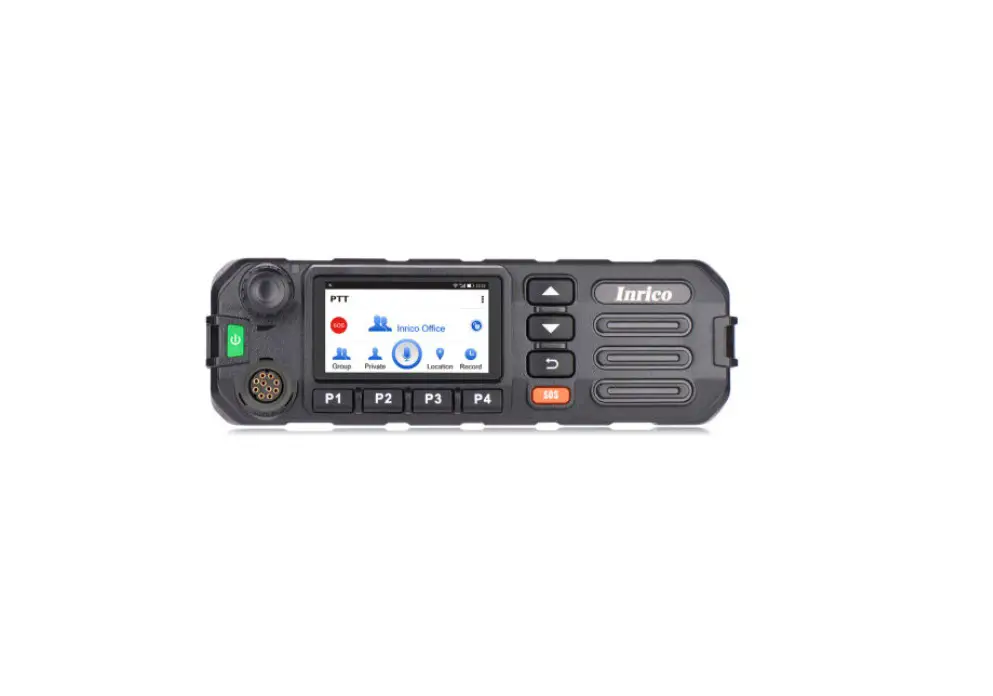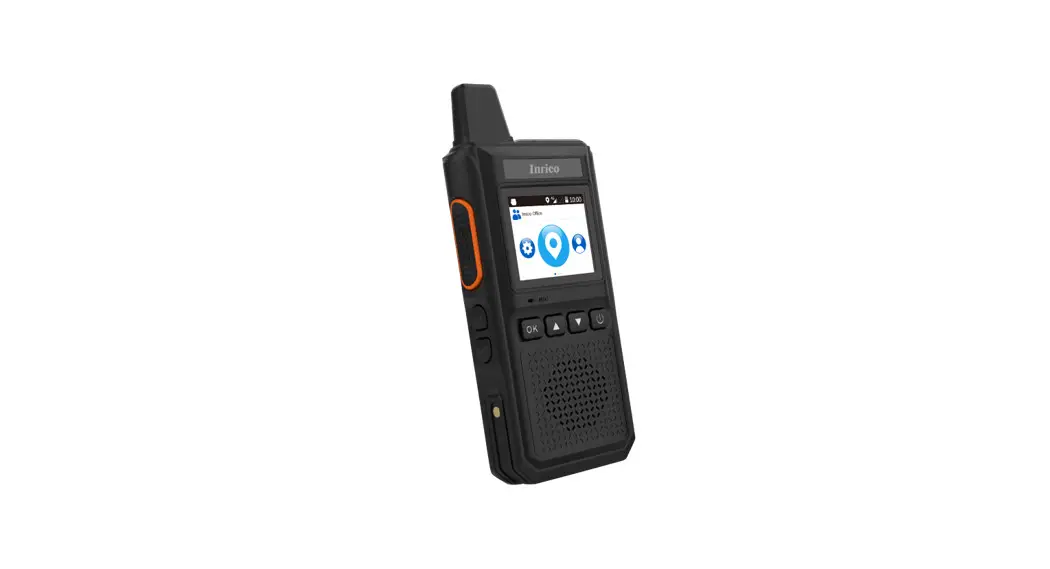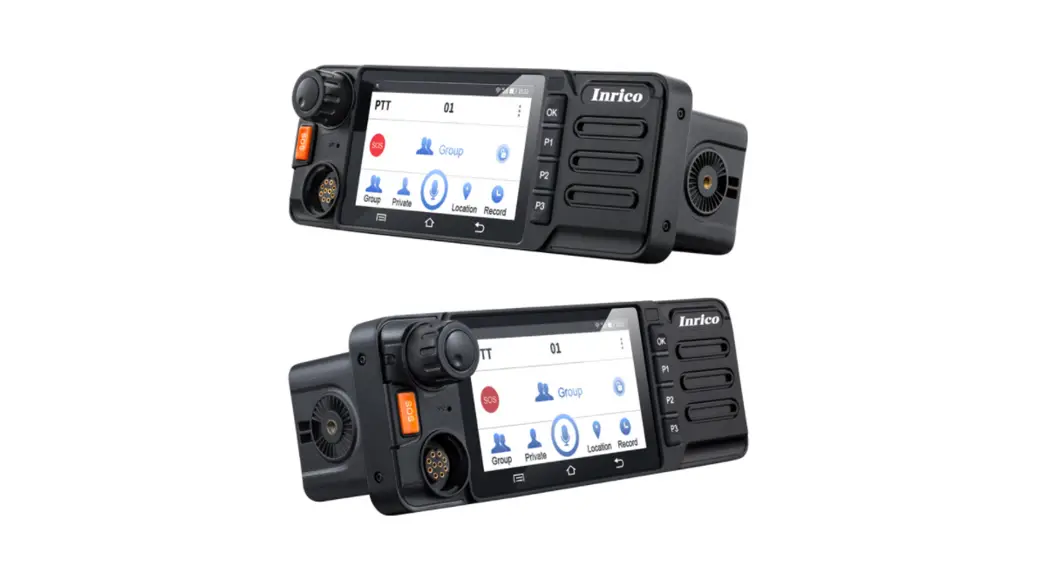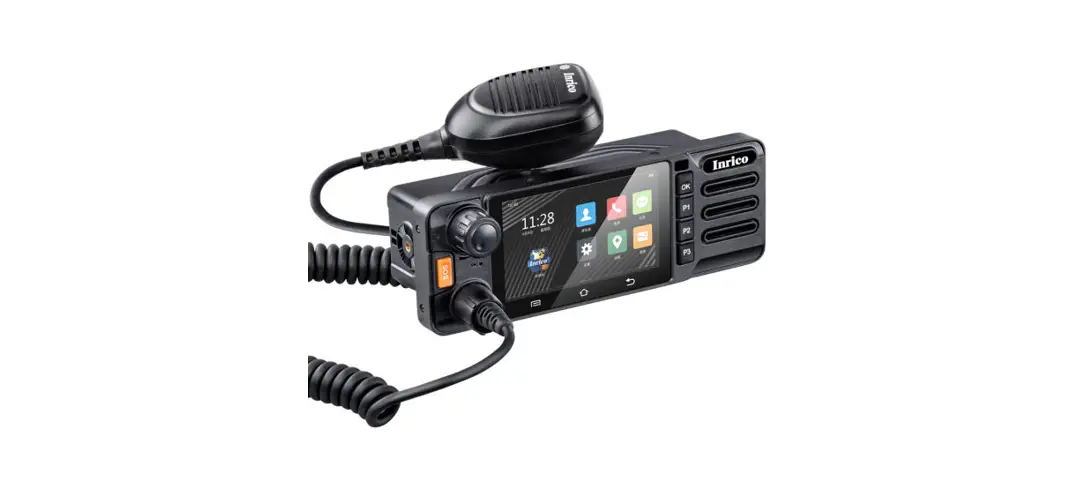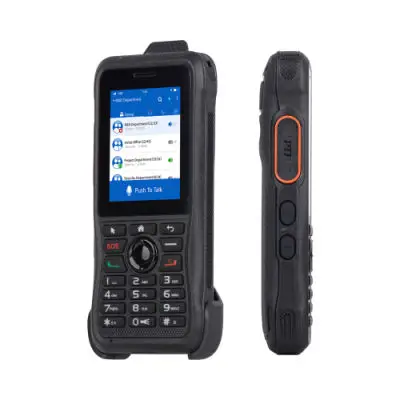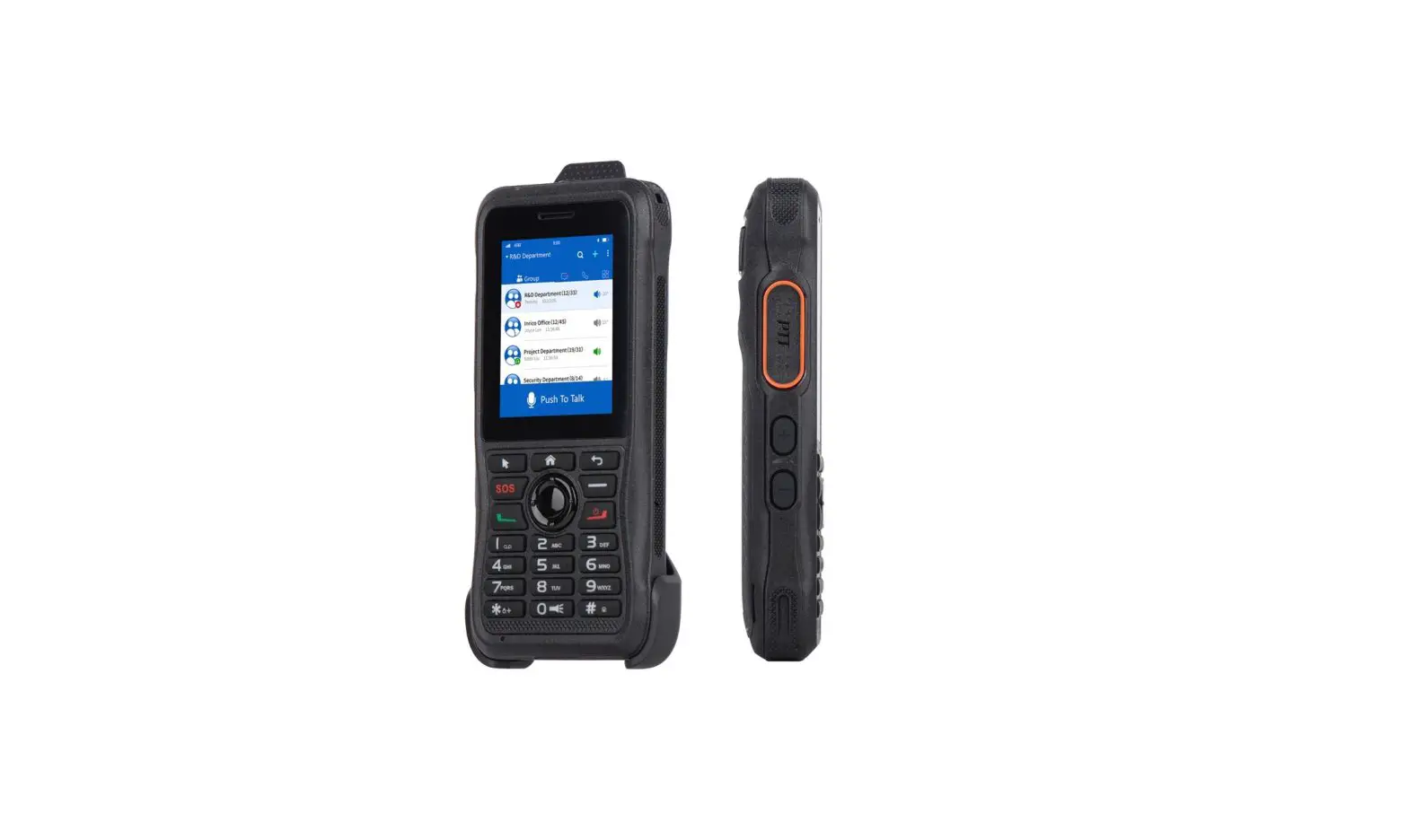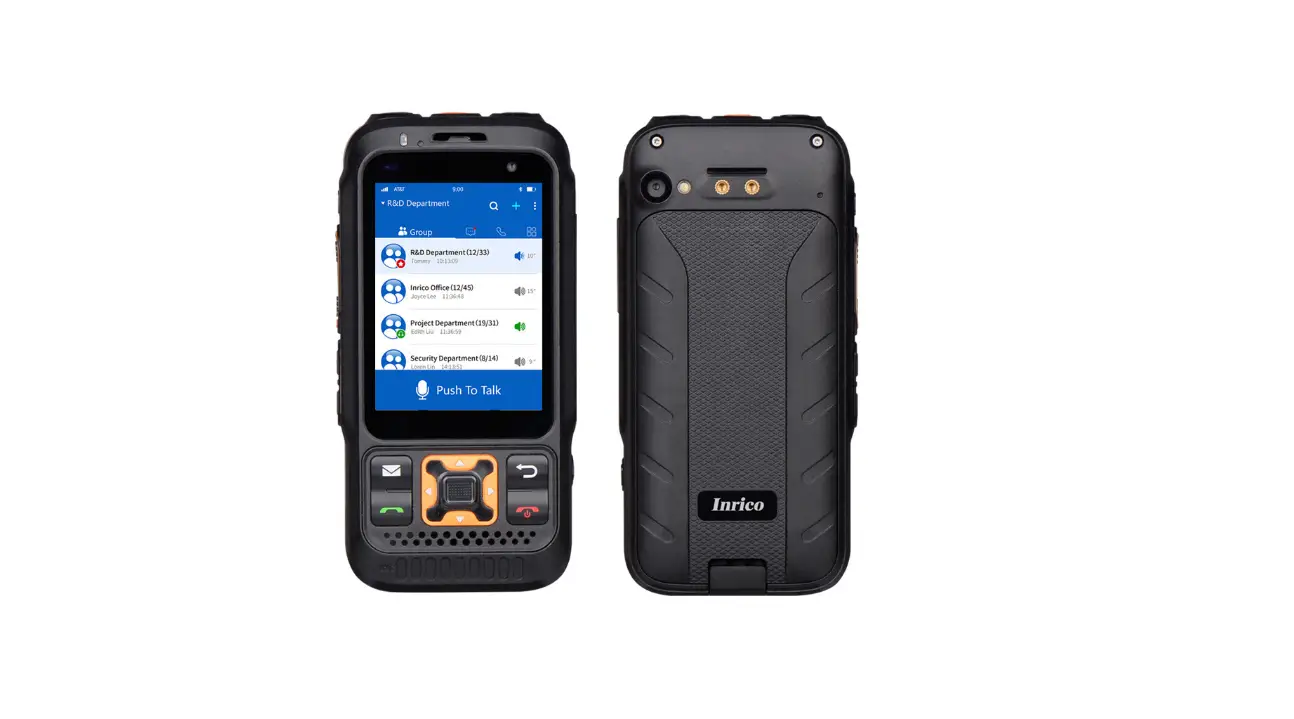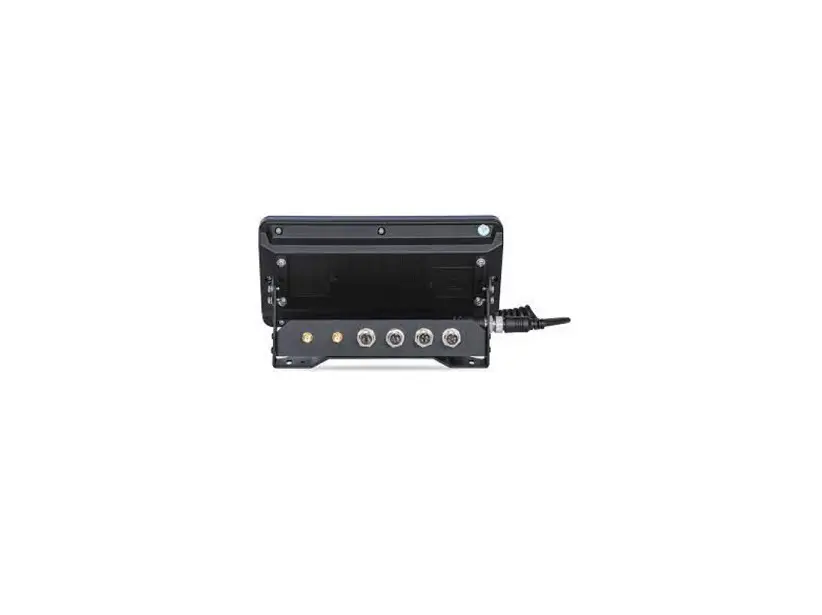

Inrico TM-7Plus 4G/WiFi Mobile Network Radio
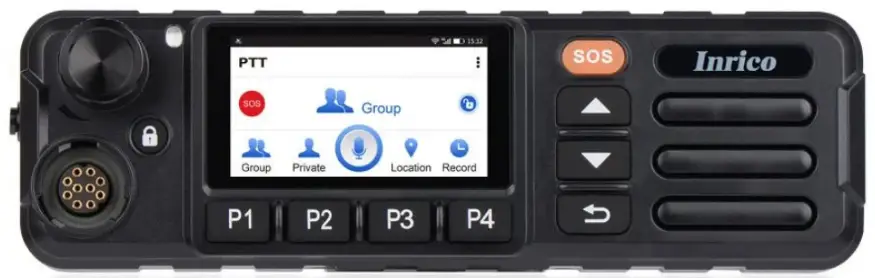
Please read this instruction book carefully before using.
www.inricosolutions.com.
Disclaimer
This guide is for reference only and the information in this document is carefully examined and is believed to be entirely reliable. However, no responsibility is assumed for inaccuracies. Furthermore, Inrico reserves the right to make changes to any products herein to improve readability, function, or design. Inrico does not assume any liability arising out of the applications or use of any product or circuit described herein; nor does it cover any license under its patent rights, nor the rights of others.
Unpacking and Device Checking
Please unbox and take out the device and all accessories carefully, and ensure all lists have been gotten before discarding the cardboard box. If any items are lost or damaged in transit, please contact with our distributors.
| Name | Quantity |
| Mobile Radio | 1 |
| Power Cord | 1 |
| Touchscreen Pen | 1 |
| Main Antenna | 1 |
| GPS Antenna | 1 |
| Fixed Bracket | 1 |
| Bracket | 2 |
| User Manuel | 1 |
| Fixing Screw Pack | 1 |
| Bracket Locking Screw | 1 |
| Screwdriver | 1 |
Handling Precautions
Please read the following content carefully. It is very important for device users to gain general knowledge and risks.
Operating Voltage
Please use within the specified voltage range (12V-24V).
Flammable and Explosive Area
Do not operate the product in a location containing fuels, chemicals, explosive atmospheres and other flammable or explosive materials.
Operating Prohibitions
- Do not use the device in any hazardous areas such as gas, dust, steam, etc.
- Please turn off the device while refueling or parking at the gas station.
- Avoid prolonged time in the sun or placing it near heating appliance.
- Avoid excessive exposure to the extreme dusty, damp and splashing place, or leave it on unstable surface.
- Do not place the device near heat sources or fire sources such as electric heaters, microwave ovens, ovens, water heaters, stoves, candles, or other places that may generate high temperatures.
- Do not use the device during thunderstorms, which may cause equipment failure or electric shock.
- Do not install the radio in a place where human skin can touch the base. High temperature may burn skins.
- When the product is working , do not touch its hot metal shell to avoid burn.
- Do not adjust the product during driving and pay attention to road conditions. Pull off the road and and park properly when necessary.
- Reparation by professional technicians, do not disassemble by yourself.
Accessories Requirement
- Do not use any unapproved, damaged accessories or incompatible power source, which may cause fire, explosion or other hazards.
- Please approved accessories only. It will violate the warranty clause if using other unproved accessories and causing accidental damage.
Maintenance
- Before cleaning and maintaining the device: please stop running, turn off, and disconnect all connections with other equipment.
- When you do not use the mobile radio, please cover the accessories connector.
- When cleaning the dust, please use soft brush and neutral detergent (no strong corrosive chemicals) to wipe it.
- Please keep the equipment and accessories dry.
- Please do not use the microwave oven or hair dryer or other heating devices for dry them.
Product Overview
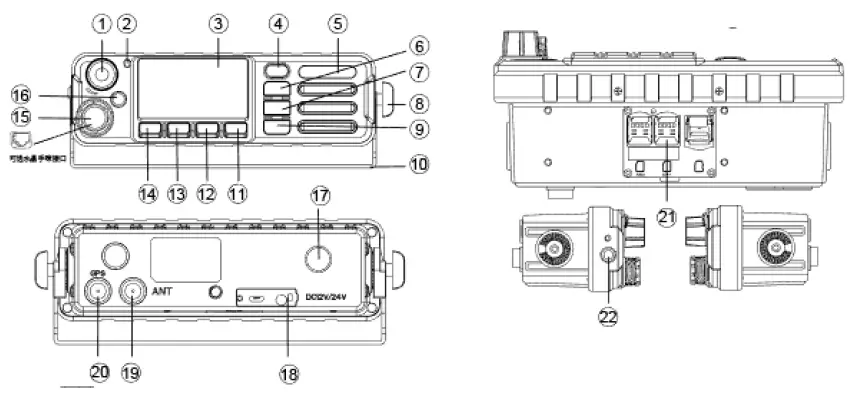
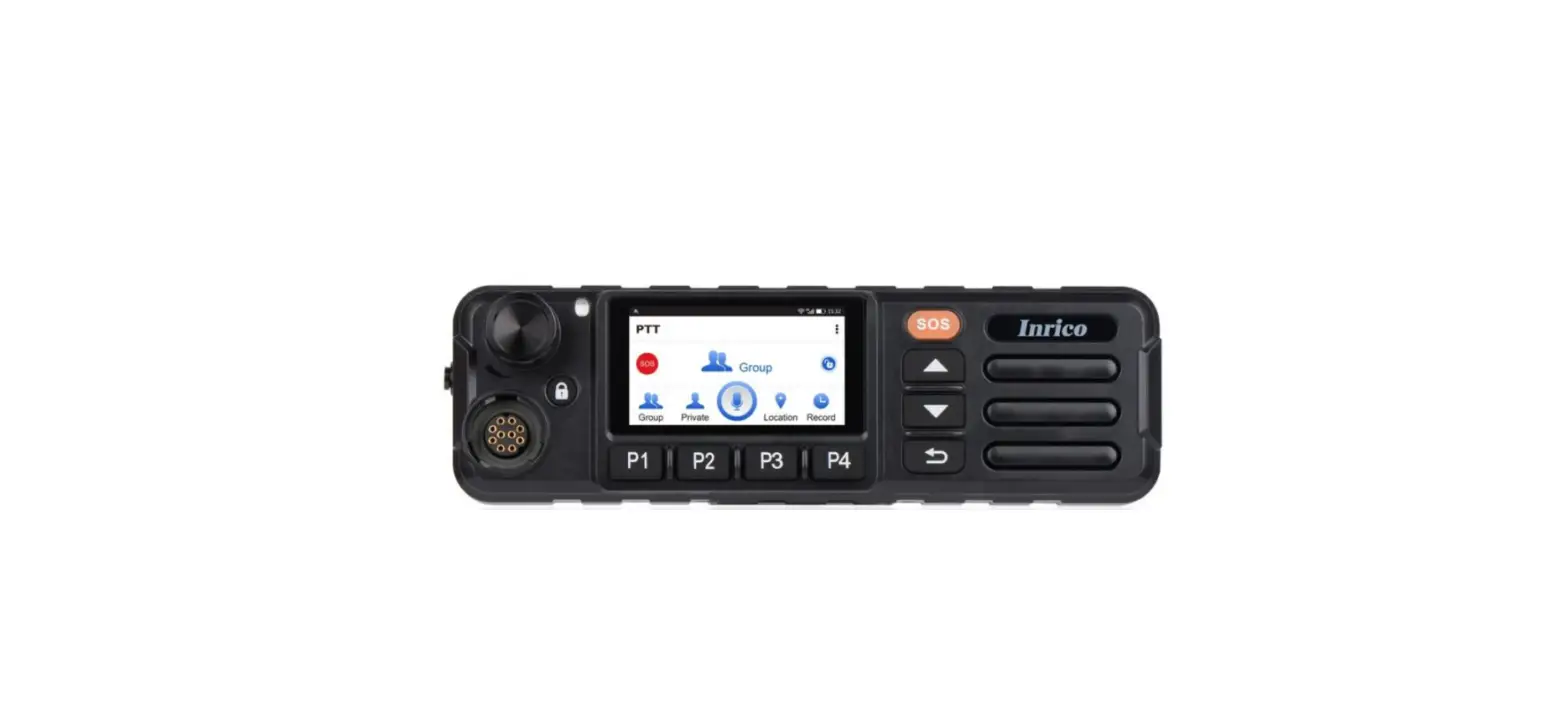
| 1 | Volume Knob | Rotate the Volume Control Knob clockwise or counterclockwise, press to confirm. |
| 2 | LED Indicator | |
| 3 | LCD Display | |
| 4 | SOS | |
| 5 | LOGO | |
| 6 | Scroll Up Button | Move cursor up |
| 7 | Scroll Down Button | Move cursor down |
| 8 | Bracket Fixed Crew | |
| 9 | Return Button | Return to previous menu or interface |
| 10 | Bracket | |
| 11 | P4 Programmable Button | Define shortcut keys or customize |
| 12 | P3 Programmable Button | Define shortcut keys or customize |
| 13 | P2 Programmable Button | Short press: Define shortcut keys or customize Long press: Switch SIM card network |
| 14 | P1 Programmable Button | Short press: Define shortcut keys or customize Long press: Switch SIM card |
| 15 | Palm-MIC | Crystal connector is optional |
| 16 | On/Off Button | Short press: bright screen/ rest screen Long press: restart |
| 17 | DC Power Connector | |
| 18 | Earpiece/USB Connector | |
| 19 | External Main Antenna Connector | Used for external antenna |
| 20 | GPS Antenna Connector |
| 21 | SIM Card Slot | |
| 22 | Power Button | Press to power on/off |
Accessories Installation
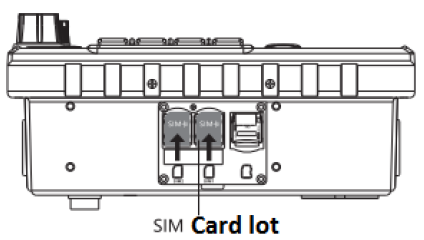
- Insert SIM Card
Insert the SIM card into the SIM card slot, close the cover and tighten the screws.
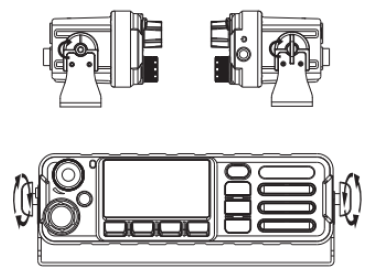
- Attaching the Bracket
- Rotate it clockwise and tighten it.
- Rotate counterclockwise to remove it.

- Plug in DC Power

- Attaching the Antennas

- Attaching the Palm Microphone

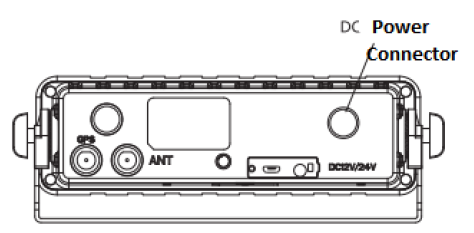
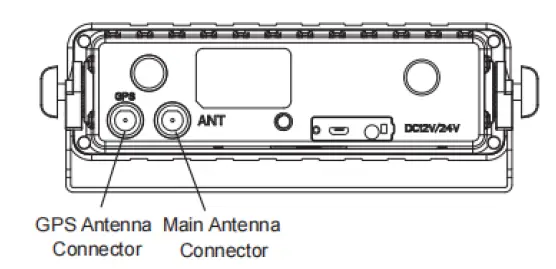
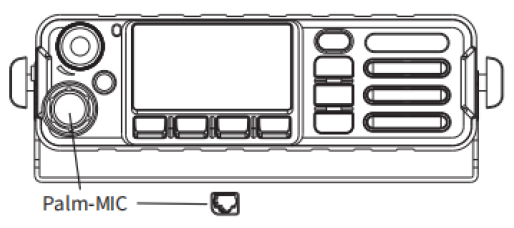
Basic Functions
- Powering Up and Powering Off the Device
- Make sure that the power connector is plugged in properly.
- Power on: Press and hold the power button until the display lighting up.
- Auto Power On/0ff Button: press to turn on or power off.
- Unlock the Screen
Short press the Hang Up button to lock the screen, and click again to wake up. Pay attention not to press antenna. - Message
Click “Message”, received messages will be displayed, and you can edit send, and delete. - Prompt Bar
Press on the top of the screen, select the drop-down menu and drag down to open. The prompt bar displays the operating applications. Click on the running list bar and quickly switch to the corresponding application. Friendly
Note No network in flight mode. In addition, the prompt bar still displays the current notifications (like unread text messages, etc), and running applications. Click the icon to view the list. Click quickly to enable the corresponding function.
 - Setting
Set and view related system functions and status. - Personalization Settings
Long press any blank space of the main screen to access to personalized settings interface. You can set wallpaper, add widgets, and the system.
Icon Removal: Long press the menu in the screen or widget icon, move or delete corresponding icons. - Factory Reset
Select “Backup & Reset” in the settings menu, and then restore factory settings.
 to view the list. Click quickly to enable the corresponding function.
Warning:
Restoring the phone to initial factory state, which means clearing the system, application data and settings, and downloaded applications.
Status Indicators
The indicators could be customized according to the APP. The following is the default indicator status of Inrico APP.
| LED Indicator | Working Status | Remark |
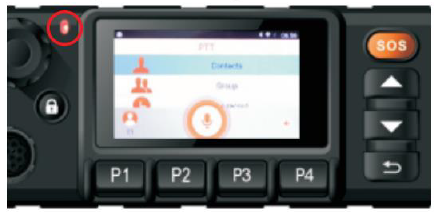
| Solid Red | The device is transmitting. | Flash 3S/time |
| SOS starts | ||
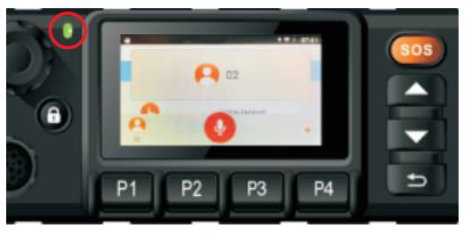
| Solid Green | The device is calling. |
Operation Interface
- Input Account and Password
The user configures the IP address according to the platform server and then login.
- Communication
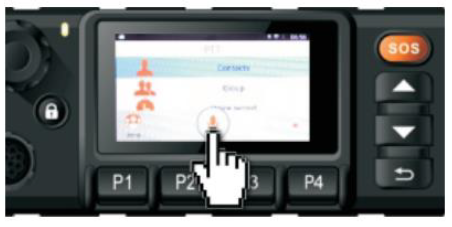
- Select the contact or group, press PPT button of the palm-mic to talk.

- Release PTT to end the call

- Receive Message

- Select the contact or group, press PPT button of the palm-mic to talk.
- Volume Adjustment
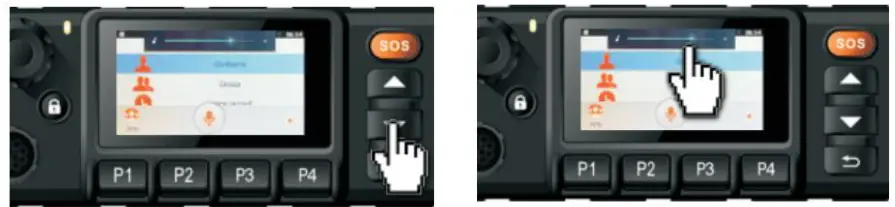
The radio volume can be adjusted by volume knob or the sliding volume bar.
- Emergency Operation
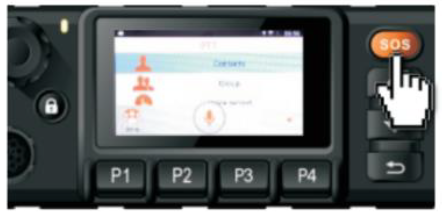
Press SOS button for 2 seconds to alarm automatically (Defined via APP).
- Programmable Buttons
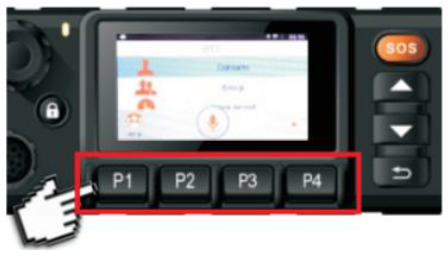
P1/ P2/ P3/ P4 button can be defined as quick contact or group by users.
- Exit
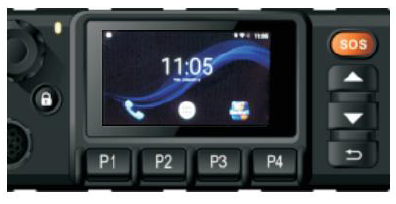
Press return button to exit and be back to the main interface.
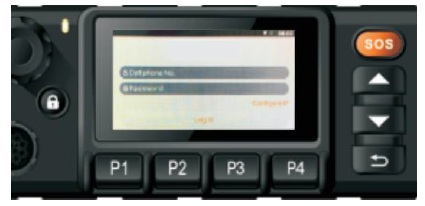
Network Connecting
- WIFI Connecting
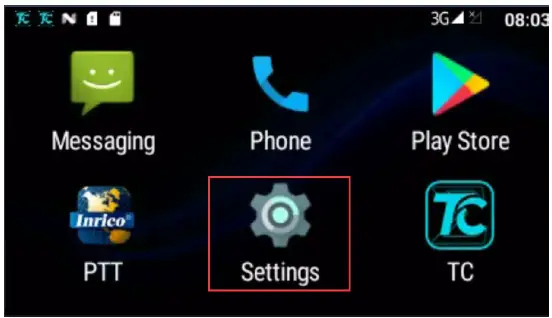
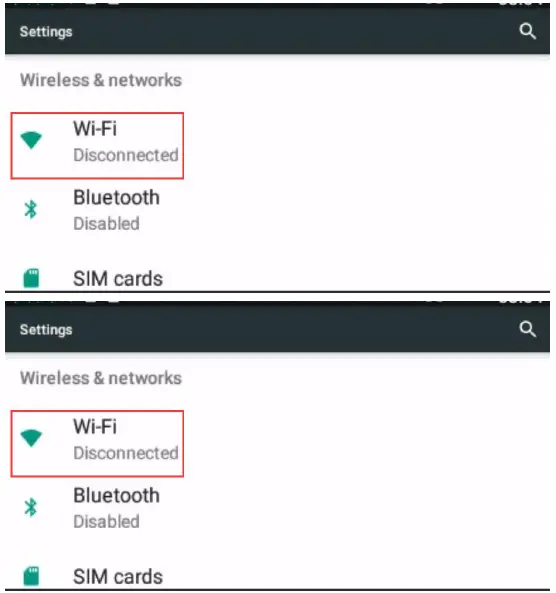
Turn on the device, click “Settings ” → WIFI. Select the wireless network and enter the password to connect.

- Cellular Network Connecting
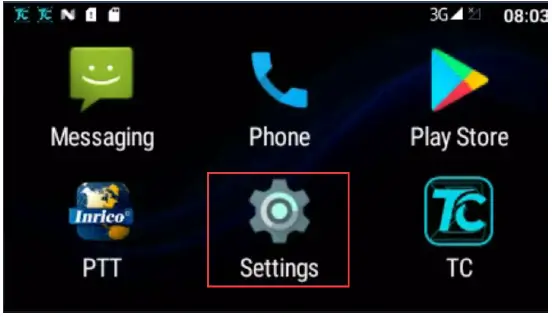
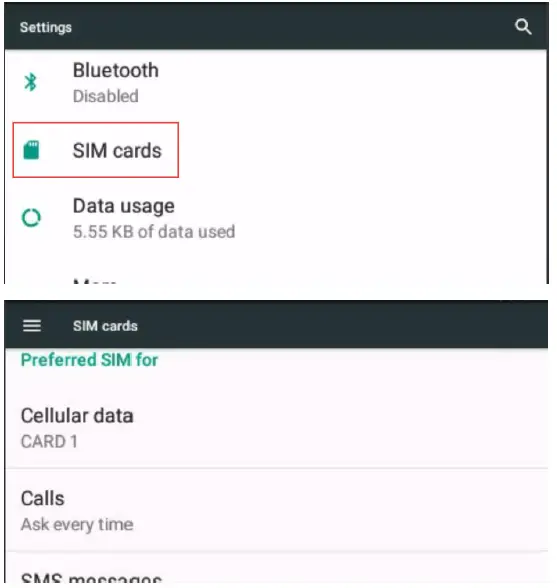
Open “Settings”, tap on ‘SIM Cards’, select the one that you need to connect.

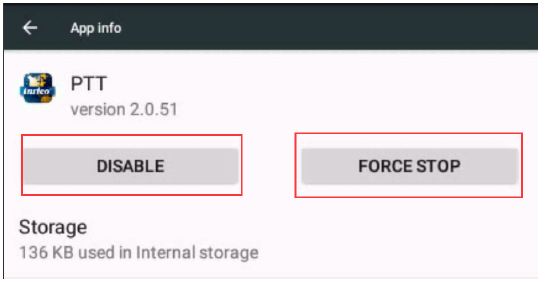
- Stop Running Non-systematic APP
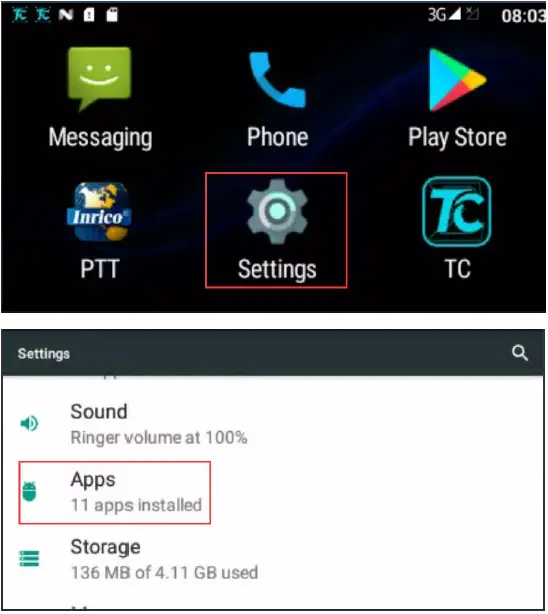
Select “Settings” → Apps → Confirm the APP required→ FORCE STOP

Basic Troubleshooting
If your device shows the following problem during operating, please check the instruction as below. If problems can’t be solved, please contact the local authorized service.
| Problems | Solutions |
| Terminal Crash | Too much APPS on processing. – Force some programs to quit or restart the terminal. |
| Buttons Not Working | The buttons may not work temporarily, restart the terminal. |
| The buttons is broken, contact the dealer or our company. | |
| White Screen Error | Display screen may not work temporarily, restart the device. |
| The display screen is damaged, contact the dealer or our company. | |
| Echo or Noise During Connecting | The signal may be weak, make sure the terminal is within network coverage. – Restart the device and it’ll automatically search for better available network. |
| The speaker may be covered, clean the speaker surface. | |
| Unable to Locate | The signal is weak and the device can’t receive the signal. – Move to open and flat area and try again. |
| Unable to Detect SIM Card | The SIM card may be incorrectly installed. – Remove and re-insert the SIM card. |
| The SIM card may be not working due to dirt or damage. – Clean the electrical contact or replace it. | |
|
Poor Reception | Localized poor coverage due to basement, blocking buildings or destructive interference, and geographical distance from obstacles between your device and the nearest cell tower. – Please move to somewhere with improved signal. |
| Localized network is busy during rush hours. – Please wait for a while before another attempt or try to avoid using in rush hours. | |
|
Unable to Charge | The power adapter plug may be damaged or poor contacting. – Pull out and re-plug the adapter. |
| The charging cable connectors may be damaged or poor contact. – Pull out and re-insert the cable. | |
| Less Duration | The duration mostly depends on network service provider settings. |
|
Shorter Standby Time | The battery life becomes shorter in high-temperature environments. – Replace a new qualified battery. |
| Power consumption increased in areas with weak signal. – Please temporarily turn off the device. | |
|
Can’t Connect to Network | The SIM card cannot work properly or cannot be used. – Make sure the SIM card has a balance instead of arrears. |
| The mobile network not available. – Select SIM card network, and contact the operator to activate the cellular network. | |
| In areas with poor signal, out of network service, or SIM card is not effective. – Remove the SIM cards, and reinsert them properly, or change another one. Move to somewhere with better network signal or go to the window if you are in the building. |
Specification
- OS
- Android 7.0
- GSM: B2/B3/B5/B8
- EU Version
- WCDMA: B1/B2/B5/B8
- TDD-LTE: B38/B40/B41
- Frequency
- FDD-LTE: B1/B3/B5/B7/B8/B20
- GSM: B2/B5
- US Version
- WCDMA: B1/B2/B4/B5
- FDD-LTE: B1/B2/B4/B5/B7/B12/B13/B17/B28A/B28B
- Support WIFI/ BT/ GPS
- CPU MTK6737, 1.2GHz
- Memory 1GB(RAM, DDR3)+ 8GB(ROM)
- Working Voltage 12-24V
- Display 2.45” IPS, 240*432
- Dimension (H*W*D) 188*58*68mm
- Weight ≈450g
- Working Temperature -20°C ~ 60°C
- Storage Temperature -40°C ~ 80°C
 Inrico Two Way Radio Communication|Inrico
 Operation Interface | Microsoft Learn
 Personalization settings in Windows 10