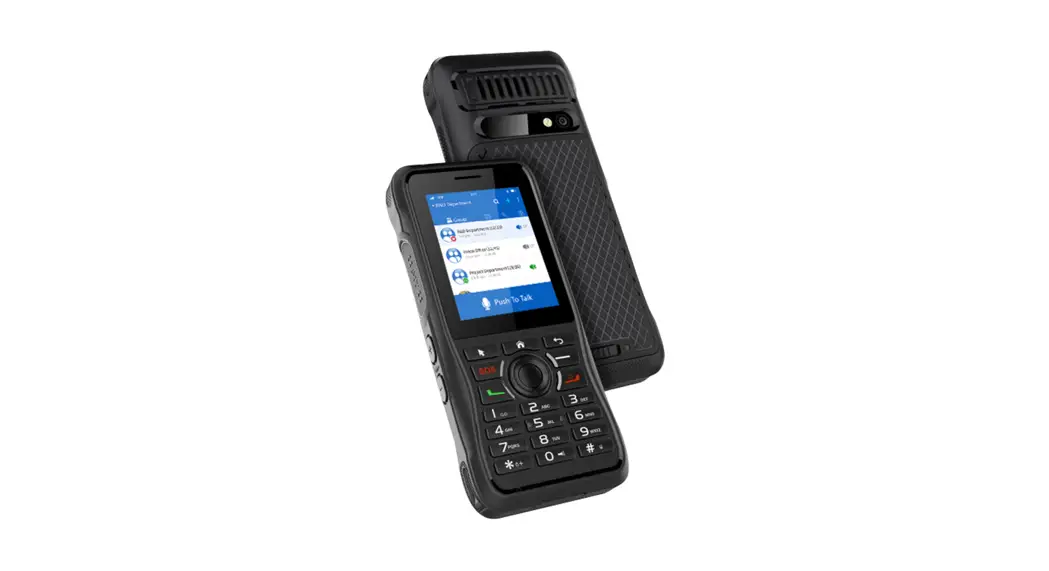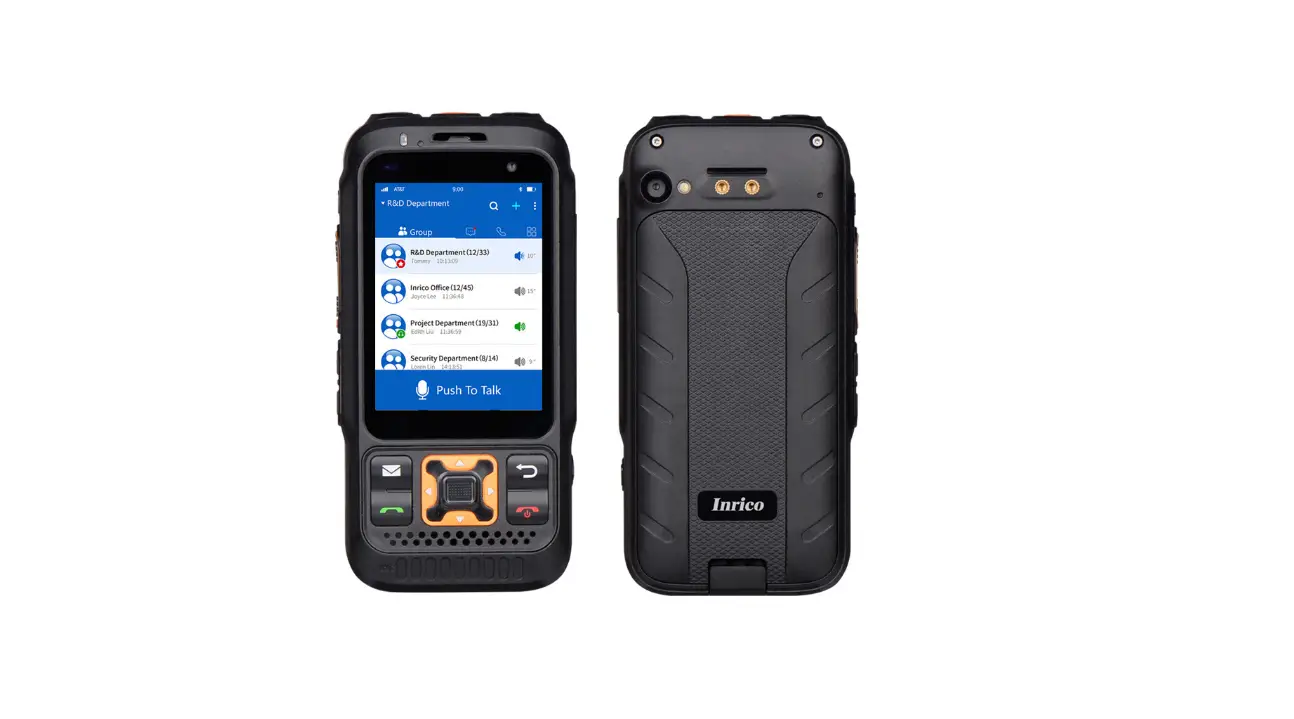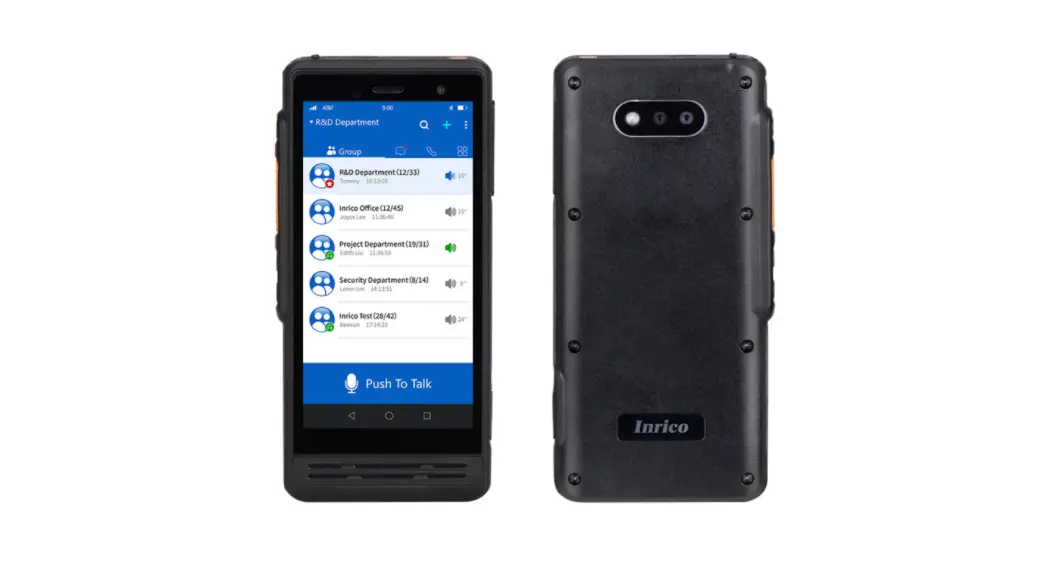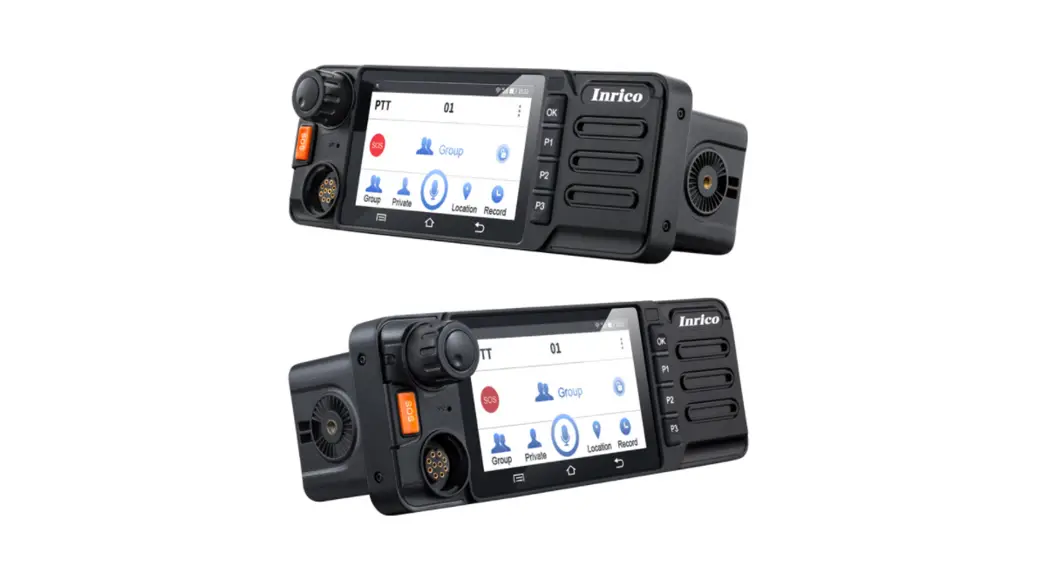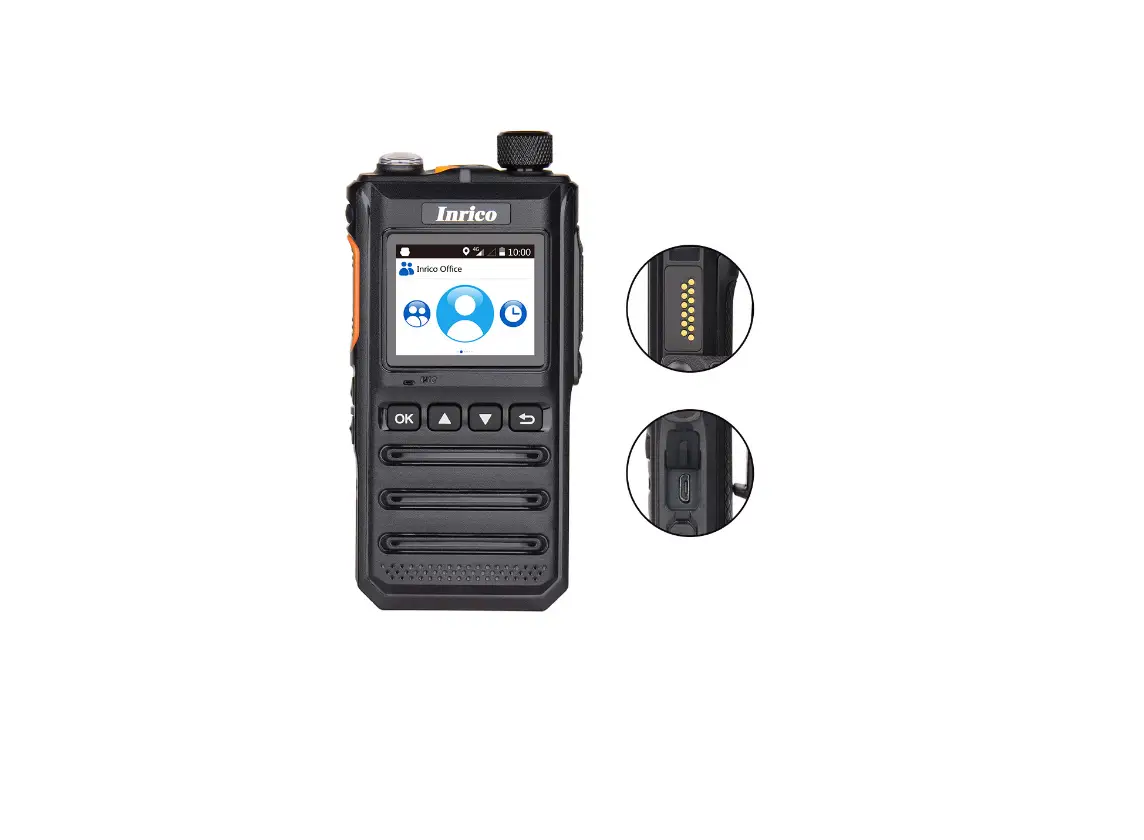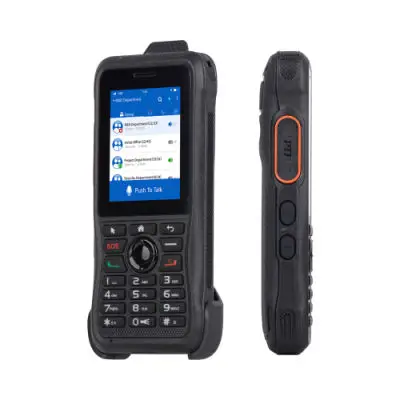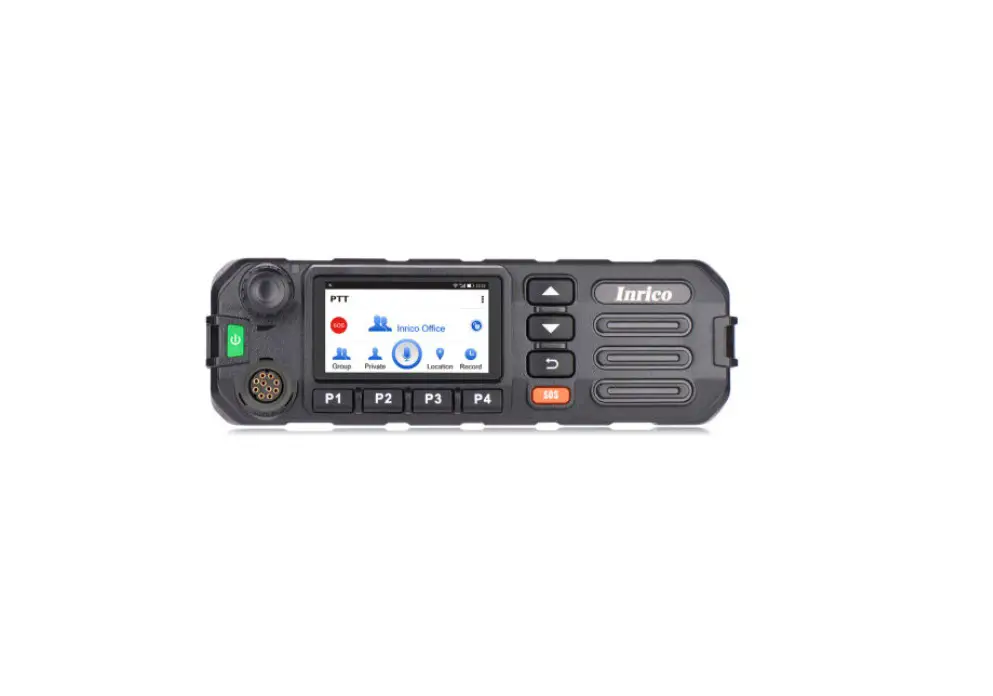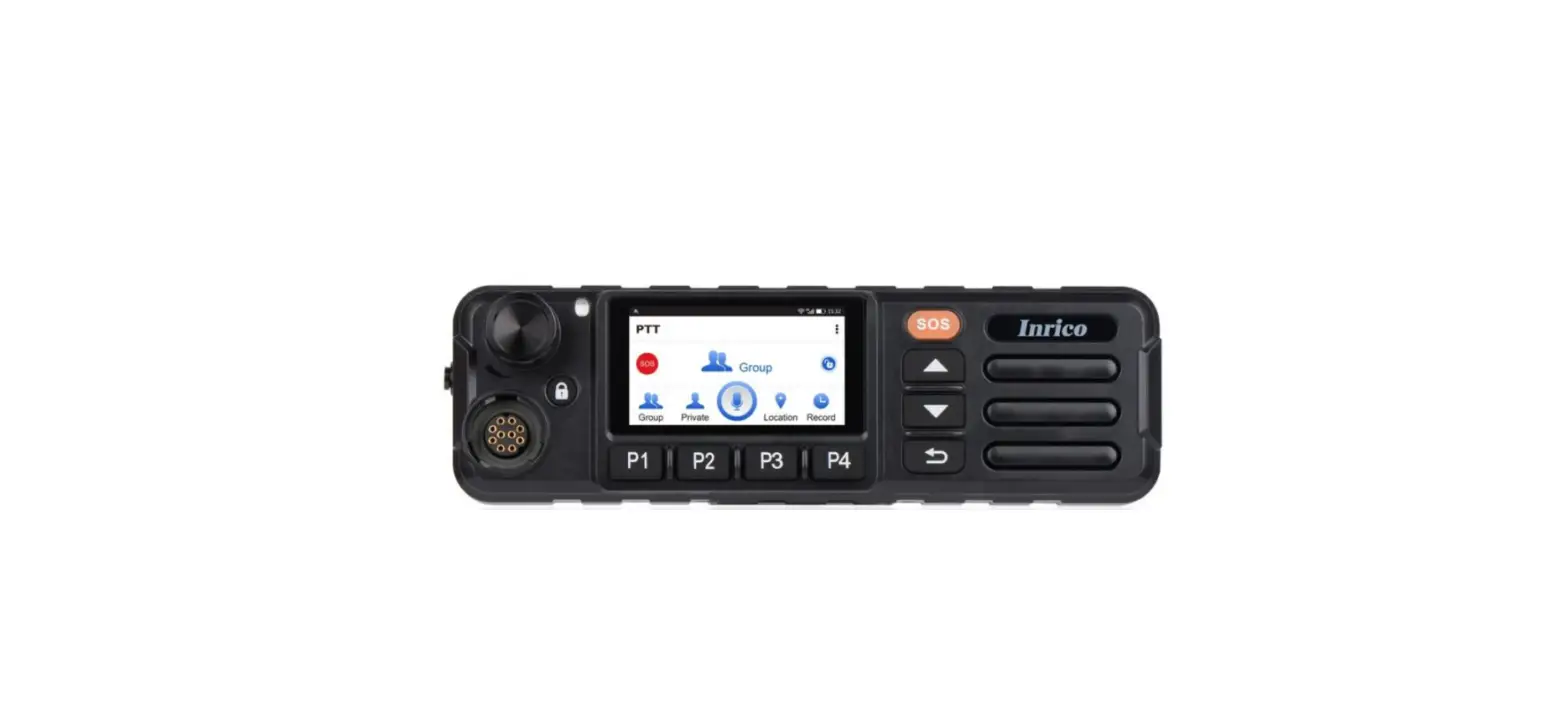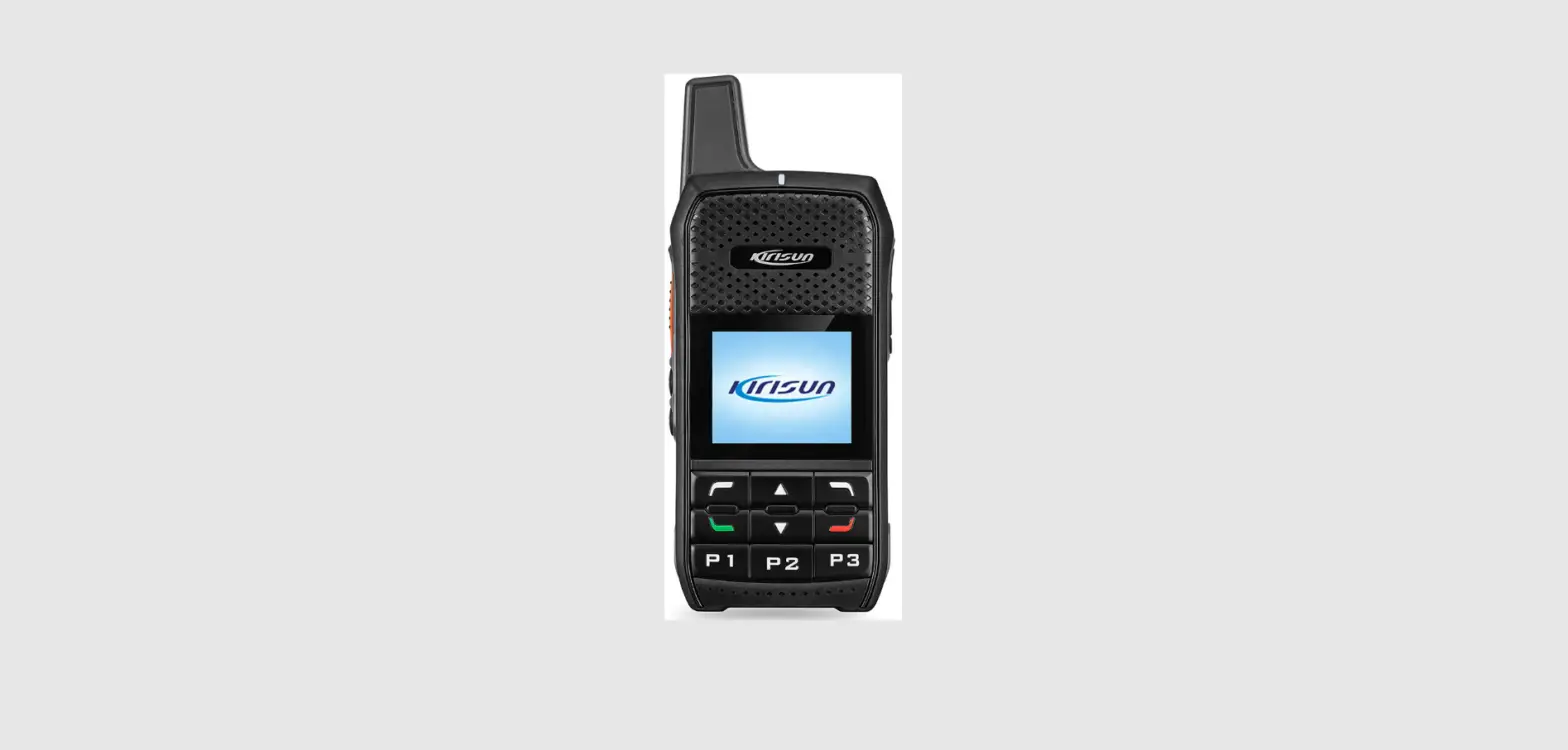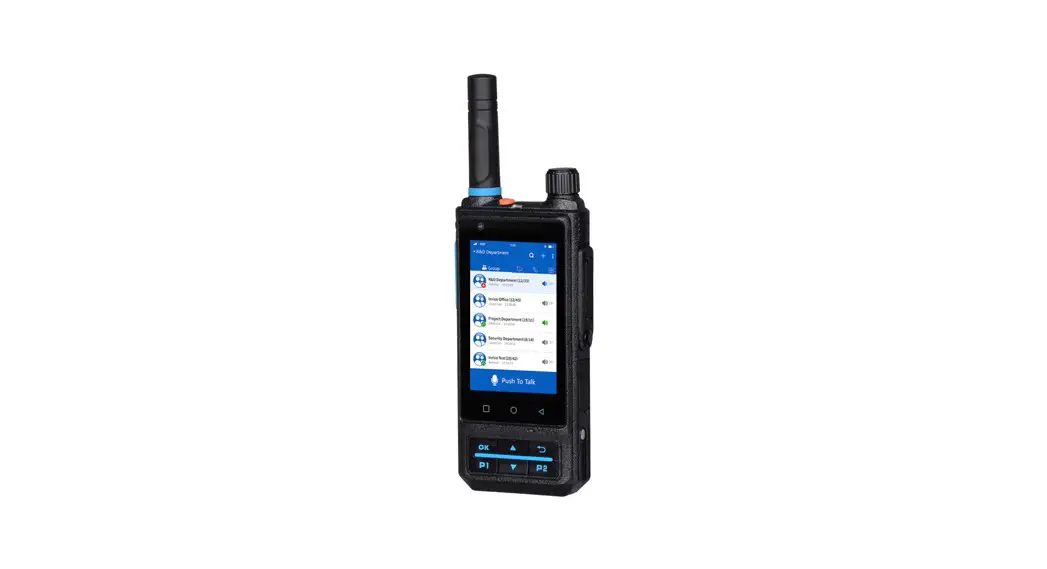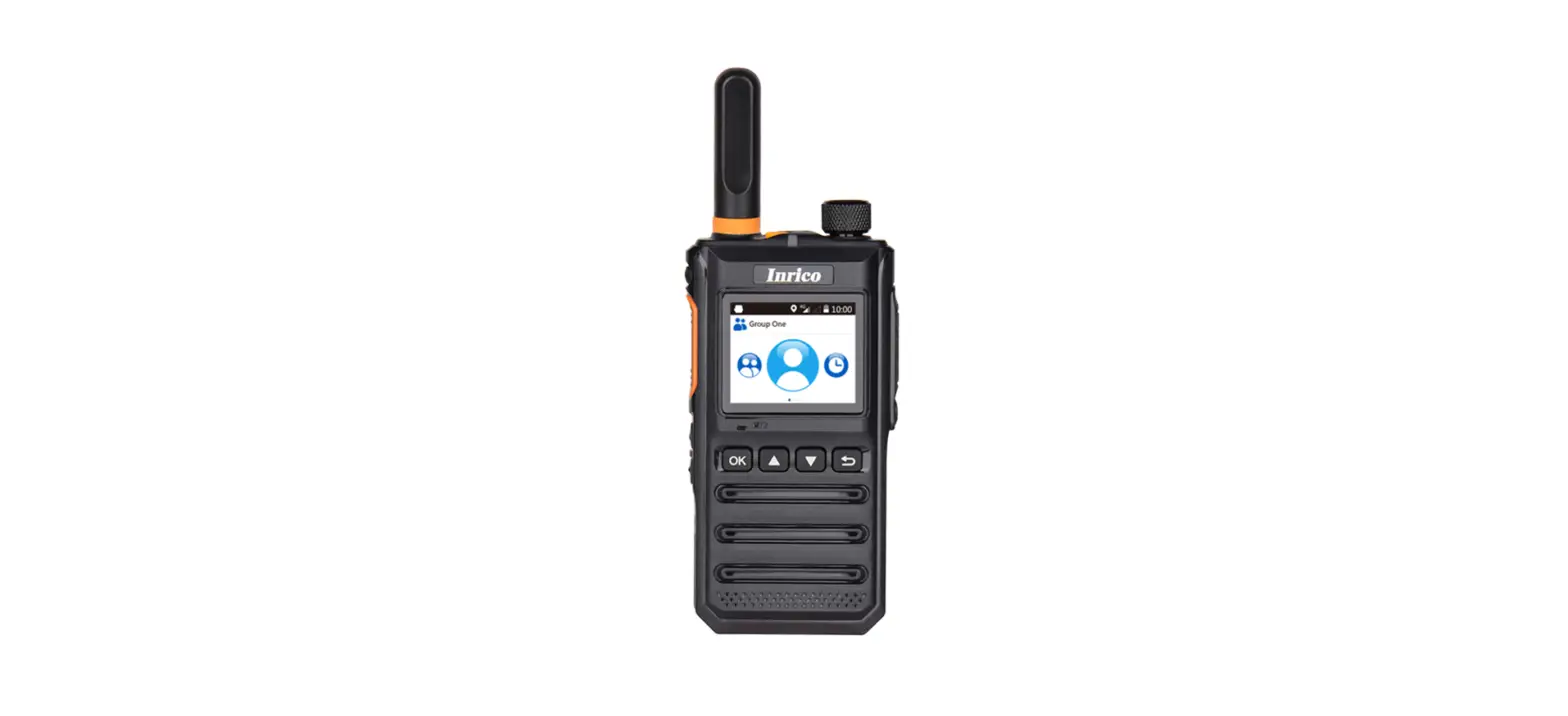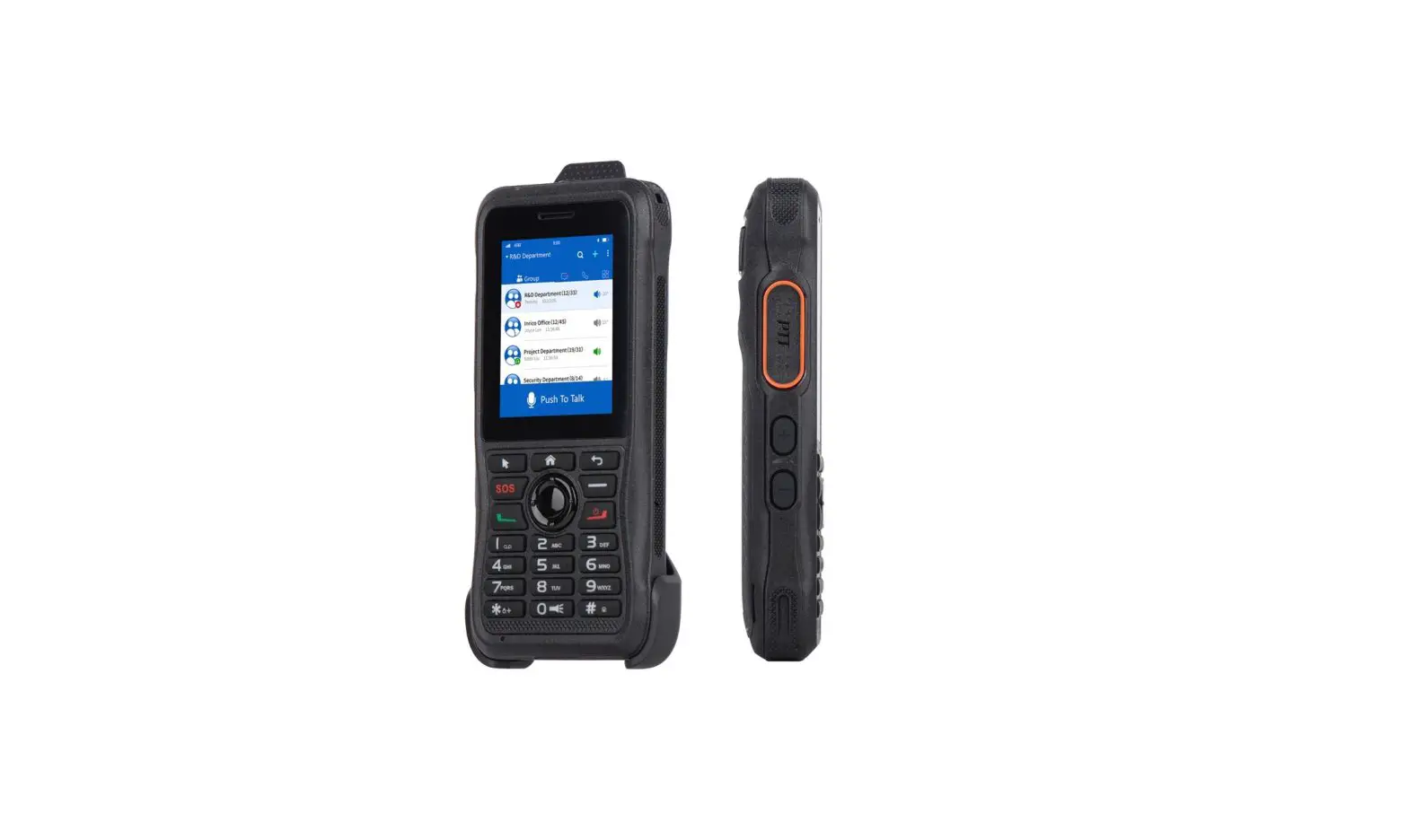
Inrico T310 Dual Band 4G Poc Radio Instructions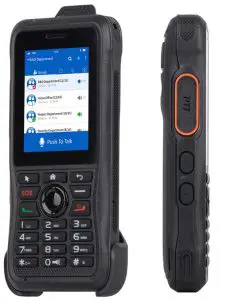
Notes before using
- Do not use the walkie talkie in an explosive environment (such as gas, dust, steam, etc.) or to charge the battery.
- Please turn off the walkie-talkie while refueling or parking at the gas station.
- Do not adapt or modify the machine whether there is any reason.
- Do not let the walkie talkie by prolonged direct sunlight, do not place it near a heating appliance too.
- Do not put the walkie talkie at the extremely dusty, damp and splashing place and do not place it on an unstable surface.
- The repair of the walkie talkie only can be carried out by professional technicians, do not disassemble by yourself.
Note:
Please read above content carefully. It is very important for walkie talkie users to gain general knowledge and understanding of risk about the use of walkie talkie.
This guide is for reference only. Commitment does not constituted any form of ,and products to prevail in kind.
Unpacking and checking the Equipments
Please operate carefully when you do the unboxing, we recommand you to make sure all of the necessary items listed as below are all included before discarding the cardboard box.
If any items are lost or damaged in transit, please check with our distributor.
Accessories
Items | Number |
Handset | 1 |
| Lithium battery | 1 |
Power adaptor | 1 |
| USB charging cable | 1 |
Strap | 1 |
| Belt clip | 1 |
User manual | 1 |
Preparation work
Warning
- Do not overcharge the battery
Please stop charging if it is uncompleted within the required time. The battery probably overheat, smoke, burst or suddenly on fire due to abnormal charging process. - Do not put battery into the microwave or high pressure container
The battery probably overheat, smoke, burst or suddenly on fire. - Do not expose broken battery near any kind of ignition sources.
If the battery is broken or leaking (or with abnormal odor), please remove it from flammable condition immediately. The fluid in battery is really flammable, which may cause smoke and fire. - Do not use abnormal battery
If something abnormal displays, like odd smelly, discolored, deformation etc, stop charging immediately and stop using it.
Using the Lithium Battery
Charge before using
To reduce electrical emission in battery, please remove the battery from device if not in use for a long time. Please keep the battery in cool and dry places.
Store the battery for a long time:
Remove battery from device;
- Charge and discharge the battery to 40%-65% status if it wll NOT be used for 10 days or more. This can greatly extend the battery life.
- The battery automatically discharges to below 65% when it is idle for more than 10 days to prevent it from swelling.
- Store the battery in cool and dry places(with the temperature lower than 25°C)
Feature of the Lithium Battery
- After repeated charging process, the capacity will decrease.
- The battery capacity decay gradually even without being used.
- More charging time required when Lithium battery is being charged in cool condition.
- Charging and storage of Lithium battery in relatively warm condition will jeopardize its service life. Please do not keep them inside the vehicle or near the ignition sources or fire.
- If the battery working time reduce significantly, please replace the battery immediately to prevent fluid leak.
Charging Lithium battery
Connect the device with AC adapter, power on, the indicator light color turns to red. The indicator light color tums green when the charging finished. The indicator light off when exposing under high operating temperature, poor contact or battery damage.
Connect the device and Power adapter by Micro USB cable. the LED indicator light on during charging.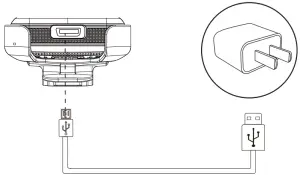
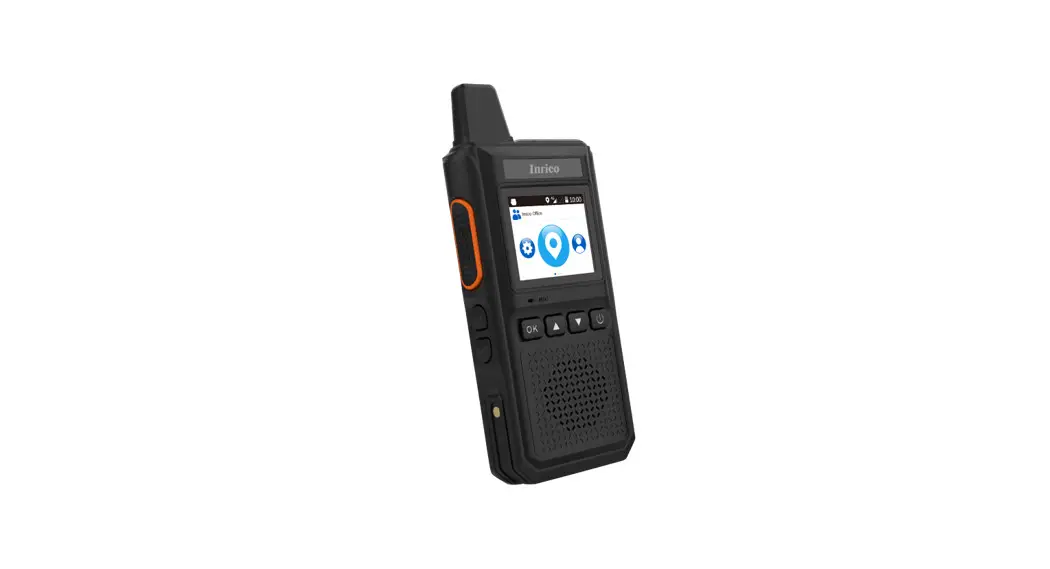
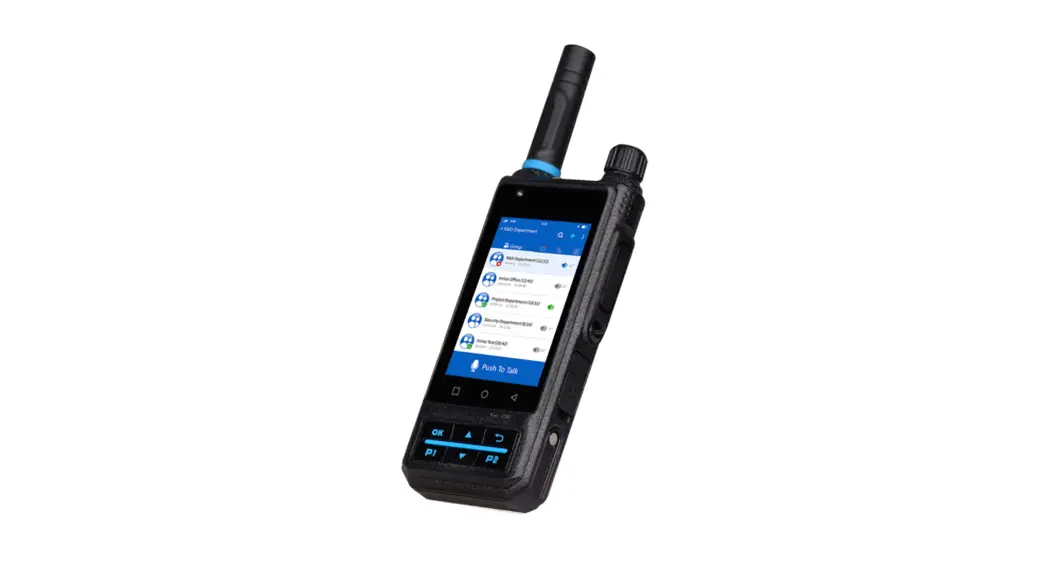
Radio Overview
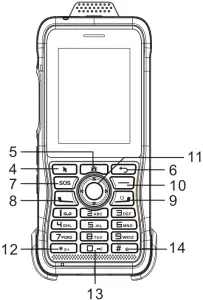
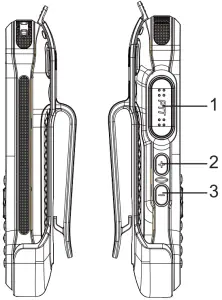
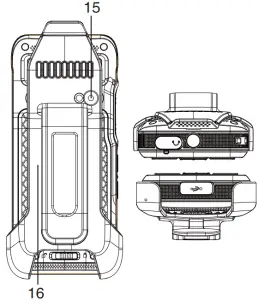
| NO. | Name | Description |
| 1 |  PTT PTT | PUSH TO TALK |
| 2 |  Volume + Volume + | Volume up |
| 3 |  Volume – Volume – | Volume down |
| 4 |  Selection key Selection key | Selection key |
| 5 |  Home Home | Home |
| 6 |  Back Back | Back to previous menu |
| 7 | SOS F2 | User-defined, preset on the console (Default: Long press – SOS; Short press – not configured) |
| 8 |  Dialing Dialing | Make a voice call |
| 9 |  Hangup Hangup | Hangup a voice call; Power on/off |
| 10 | User-defined, preset on the console (Default: short press – voice playback, long press – report account validity) | |
 F3 F3 | ||
| 11 |  OK OK | OK; Left, right, up, down |
| 12 |  | Long press to lock the keyboard board |
| 13 |  | Number 0; Flashlight on /off |
| 14 |  | Long press the vibration mode switch |
| 15 |  Camera (optional) Camera (optional) | 8mp |
| 16 |  NFC ( optional) NFC ( optional) | NFC function can only take effect when the system is unlocked |
Accessories installation
- Insert SIM card

- Insert Micro SD Card

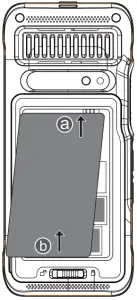
- Install Battery:
- a. Insert the end with metal contacts into the bottom of the battery slot;
- b. Press down on the other end of the battery.
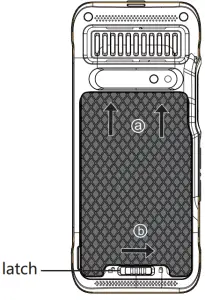
- Close the battery cover:
- a. Push up into the battery cover socket;
- b. Lock the battery batch. Open the battery cover:Flip down the battery button and open the battery cover.

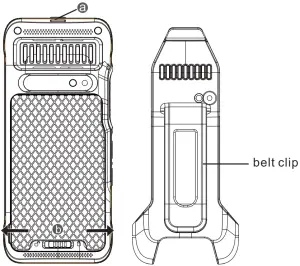
- Install the belt clip:
- a. Align the top of the clip with the slot;
- b. The end of the clip is stuck on both sides of the end of the walkie-talkie;
Uninstall the belt clip:Remove from the bottom, and then the top.
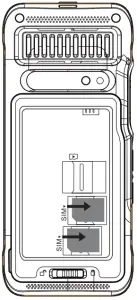
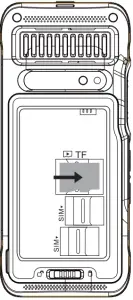
Basic Function
Power ON
Long press the on-hook button to turn on the phone, and wait for starting.
Power OFF
Long press the on-hook key to turn off the phone. If the device is in charging,The LED lights up red and displays the percentage of battery power.
User login
After the use log-in successfully, broadcast the current group name (Need open the broadcast prompt in APP setting).
Use
Press PTT button, you can start to talk.Under transmitting, the led light is always on red; if the device is on receiving, the led light is always on green ; If occupied, which means other person is talking, the PTT button is invalid. The maximum talk time 60s per person each time. If it exceeds 60s, the right to talk will be automatically released.(lt can be set to 1-60s by APP).
Voice playback
Short press the (F3) button, playback the last ten voice records; press the PTT button, automatically return to the last voice record.
Indicator Status Description
| No. | Working status | LED Light | |
| Color | Lasting Time | ||
| 1 | Transmitting | Red | On |
| 2 | Receiving | Green | On |
| 3 | Very low power (less than 15%) | Red | Flash 3s/time |
| 4 | Normal standby state | Green | Flash 5s/time |
| 5 | Charging | Red | On |
| 6 | Fully Charged | Green | On |
Network Connecting
Wi-Fi Connecting
After the device is turned on and the main screen  shows up, click the “Settings ” icon and find the Wi-Fi icon, then click to enter the check box, make sure the right side “On” button been switched on, choose the wireless network you want to connect,enter the password for connecting.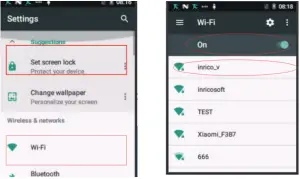
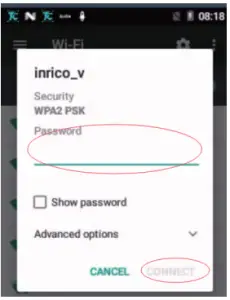
Cellular Network Connecting
Click the “Settings ” icon on the main screen, find the “More”- ” Cellular networks”. Please check the “Access Point Names” information if correct.
Find the “Data usage” in “Settings ” and Click to enter the check box, switch on & Activate the “Cellular data “button, choose the Cellular Network you required.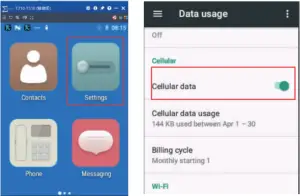
Application Management
Using PC to transfer the APK format file into the device if you want to install the APP at your end, Access Terminal File Manager to select the files to install.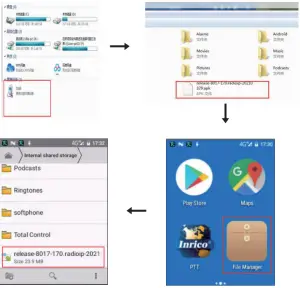
In order to uninstall APP from your device follow the steps listed below: Settings — Apps — Selecting the App — UNINSTALL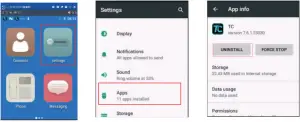
Clear the application data or cache
Settings — Apps — Selecting the App — CLEAR DATA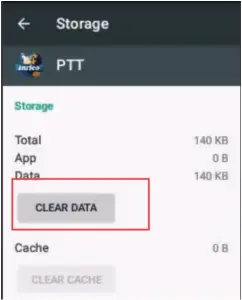
The Non-systematic APP stops running
Settings — Apps — Selecting the App — FORCE STOP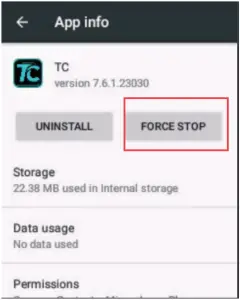
Sample Troubleshooting
| Trouble | Solution |
| Unable to turn on | The battery may be incorrectly installed. Remove and reinstall the battery. |
| The battery might be dead. Charge or replace the battery. | |
| The battery may not in good condition due to dirt or damage | |
| Clean the metal contact point pole or replace it | |
| Terminal crash | Program running too much, force stop some running applications or restart the terminal. |
| Buttons no response | The buttons may not work temporarily, restart the terminal. |
| The buttons is broken. Contact the dealer or our company | |
| White screen display | Display screen may not work temporarily, restart terminal. |
| The display screen is broken, Contact the dealer or our company for Customer service. | |
| Echo or noise during connecting | The communication signal may be weak, make sure the terminal is within network coverage. |
| The speaker may be covered clean the speaker surface. | |
| Unable to identify SIM Card | The SIM card may be incorrectly installed. Remove and reinstall the SIM card. |
| Sim card may not in good condition due to dirt or damage,Clean the metal contact point pole or replace it | |
| Unable to locate | The position signal is weak and the terminal may not be able to receive the signal. Move to an open& flat place and locate it again. |
| Unable to Charge | Power adapter plug may be damaged or poor contacting, pull out and replug the adapter. |
| Charging cable connectors may be damaged or have poor contact. Pull out and re-insert the cable. | |
| Shod standby time | The battery life becomes shorter in high temperature environment. Replaced by new qualified battery. |
| Network Operator problem,Power consumption increasing in areas with weak signal , please temporarily turn off the device | |
| Unable to connect the Network | SIM card cannot work properly or cannot be used. Make sure the SIM card have balance and not overdue. |
| Mobile network is not enabled, Switch on the SIM card network and contact the Network operator to activate the cellular network. |
System Parameter
| Operation System | Android 7.1 | |
| Working Temperature | -20°C— +45°C | |
| Storage Temperature | -20°C— +70°C | |
| Working voltage | 3.7V | |
| CPU | MTK6739 | |
| RAM | 1GB+8GB ( Customizable32G ) | |
| Network Support | WIFI BT GPS/AGPS | |
| Frequency | EU Version | GSM: B3/B8 |
| WCDMA:B1/B8 | ||
| FDD: B1/B3/B7/B8/B20/B28a/B28b | ||
| TDD: B38/B40 | ||
| US Version | GSM:B2/B5 | |
| WCDMA: B5 | ||
| FDD: B2/B4/B12/B17 | ||
| Screen Size | 2.4inch | |
| Screen Resolution | 240*320 | |
| Camera | Rear camera 8.0MP (optional ) | |
Specification
Dimension (H*W*D) | 135*60*20.8mm |
| Weight | ≅210g |
FCC Warning
Any Changes or modifications not expressly approved by the party responsible for compliance could void the users authority to operate the equipment. This device complies with part 15 of the FCC Rules. Operation is subject to the following two conditions:
- This device may not cause harmful interference, and
- this device must accept any interference received, including interference that may cause undesired operation.
Note: This equipment has been tested and found to comply with the limits for a Class B digital device, pursuant to part 15 of the FCC Rules. These limits are designed to provide reasonable protection against harmful interference in a residential installation. This equipment generates, uses and can radiate radio frequency energy and, if not installed and used in accordance with the instructions, may cause harmful interference to radio communications. However, there is no guarantee that interference will not occur in a particular installation. If this equipment does cause harmful interference to radio or television reception, which can be determined by turning the equipment off and on, the user is encouraged to try to correct the interference by one or more of the following measures:
- Reorient or relocate the receiving antenna.
- Increase the separation between the equipment and receiver.
- Connect the equipment into an outlet on a circuit different from that to which the receiver is connected.
- Consult the dealer or an experienced radio/TV technician for help.
SAR tests are conducted using standard operating positions accepted by the FCC with the device transmitting at its highest certified power level in all tested frequency bands, although the SAR is determined at the highest certified power level, the actual SAR level of the device while operating can be well below the maximum value.
Before a new model device is a available for sale to the public, it must be tested and certified to the FCC that it does not exceed the exposure limit established by the FCC, Tests for each device are performed in positions and locations (worn on the body)as required by the FCC.
For body worn operation, this model phone has been tested and meets the FCC RF exposure guidelines when used with an accessory designated for this product or when used with an accessory that Contains no metal and that positions the handset a minimum of 5 mm from the body Non-compliance with the above restrictions may result in violation of RF exposure guidelines.