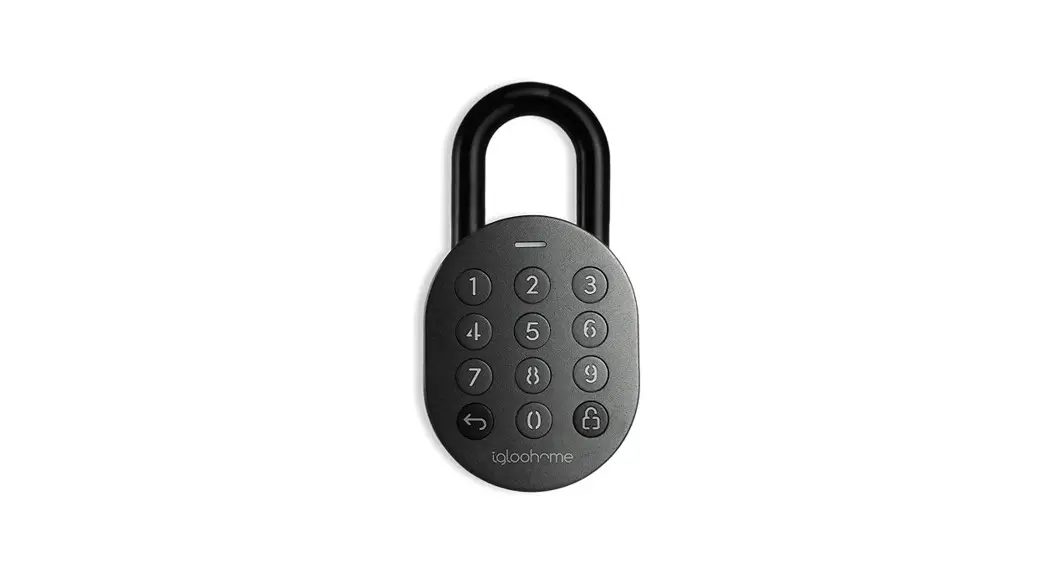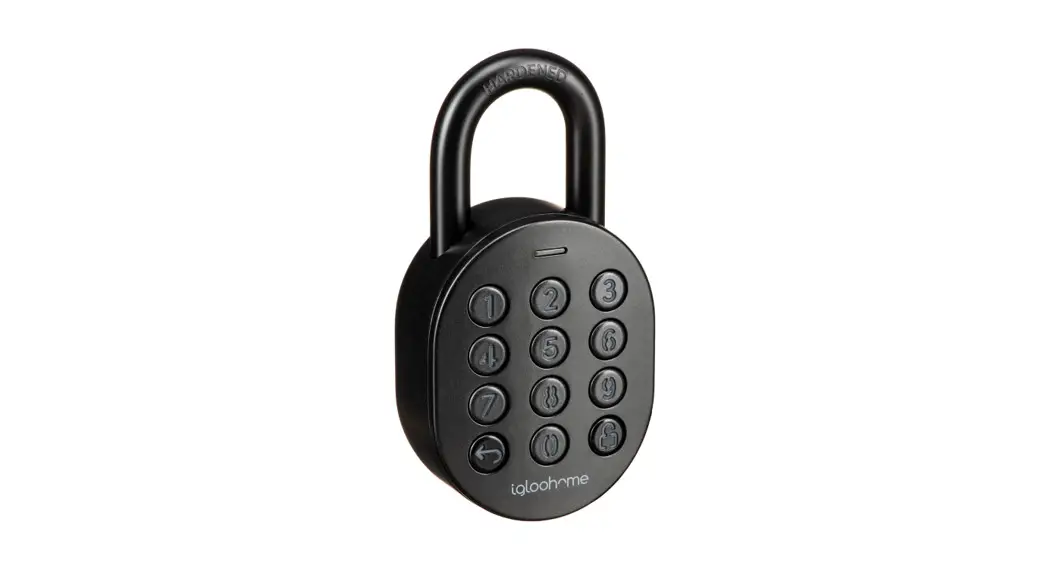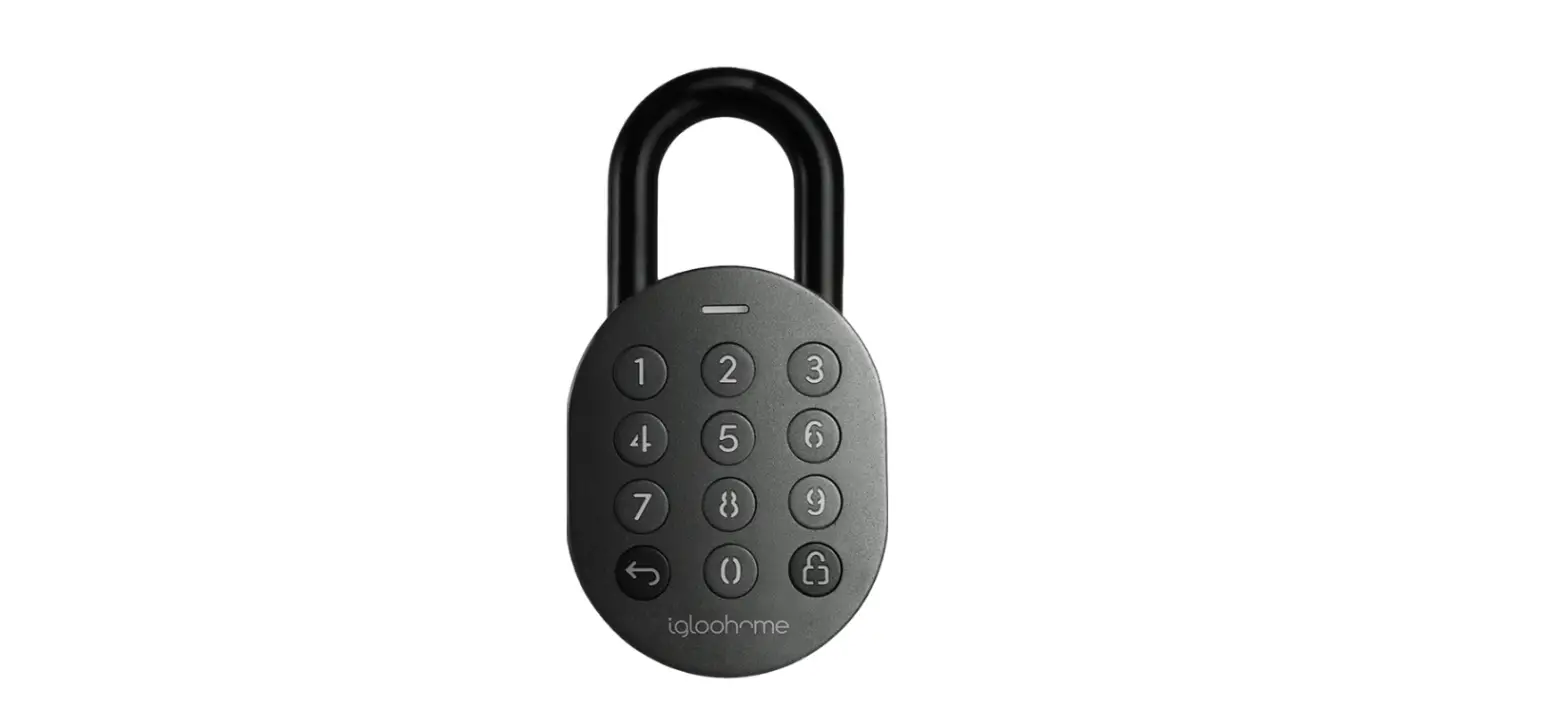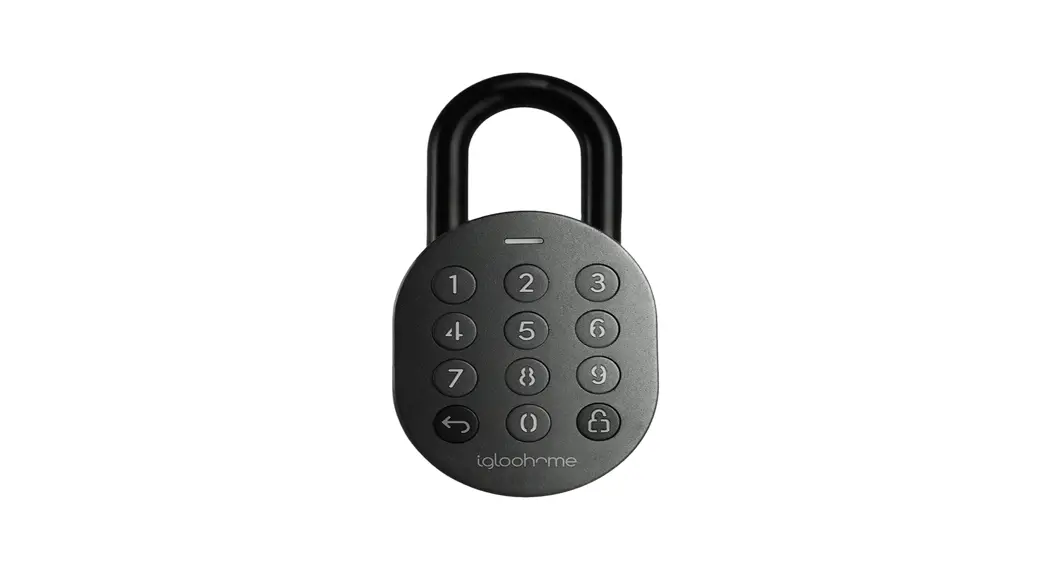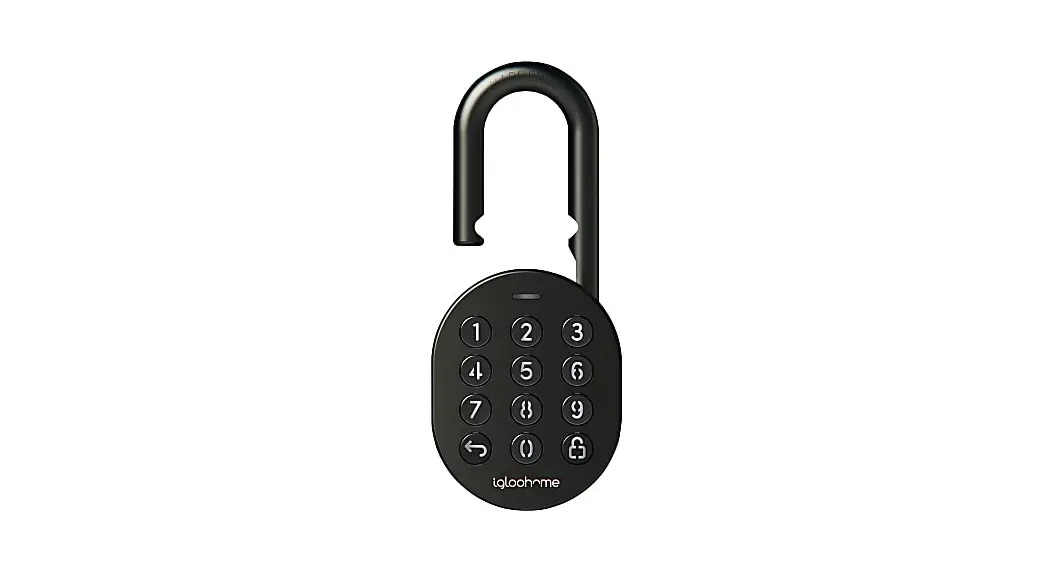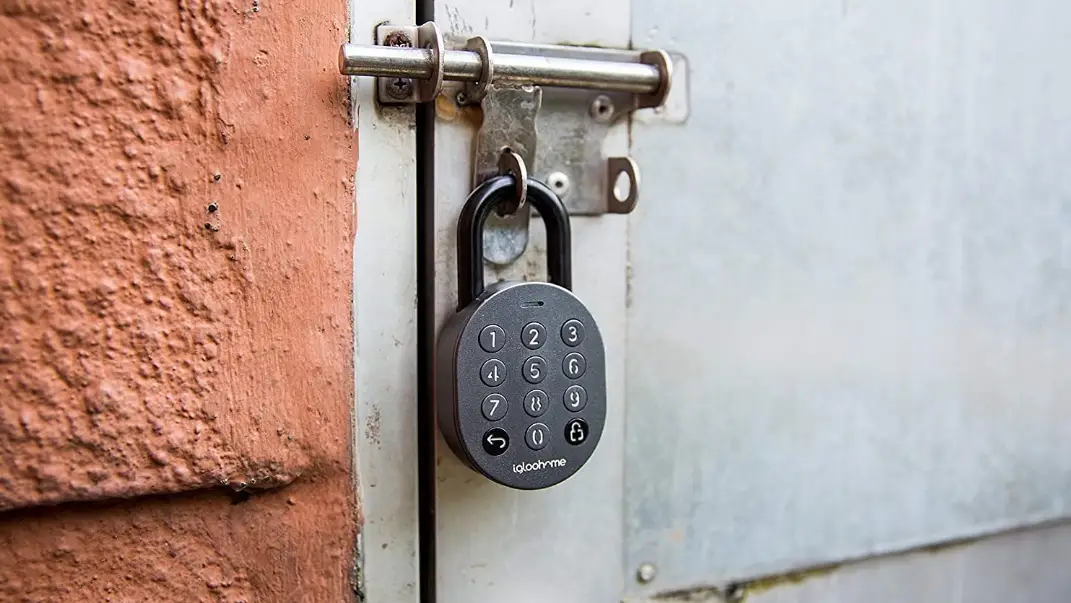

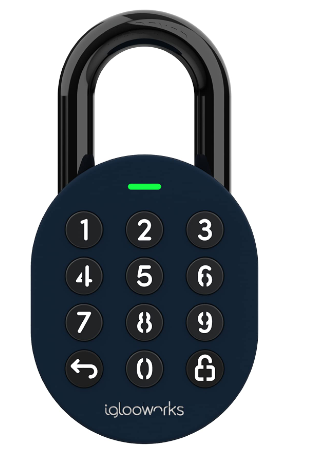
igloohome Padlock E Smart Padlock E with Silicone Cover Kit
Hi there!
We’re so glad you’ve decided to join us on this journey to create a world without keys. In this guide, you’ll find everything you need to get started with your lock.
If you do not find what you’re looking for, reach out to us at [email protected].
We’re here to help.
Support & Help Portal: go.iglooworks.co/support
Let’s stay connected:
[email protected]
Singapore: +65 3129 2464
USA: +1 929 224 0688
What’s Included
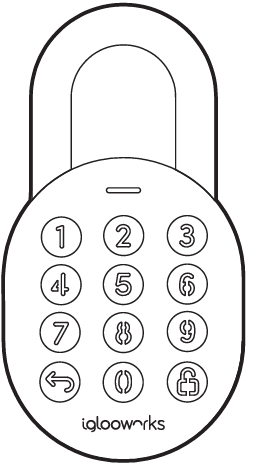
- Padlock E

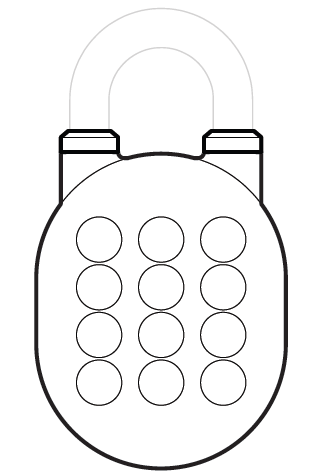
- Protective Silicone Case

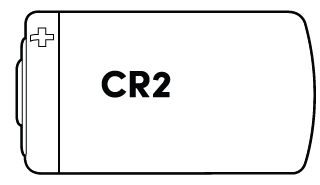
- CR2 Lithium Battery

- QR Code Stickers x3

- Cable

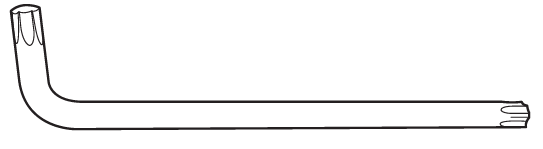
- T27 Torx Security Screwdriver



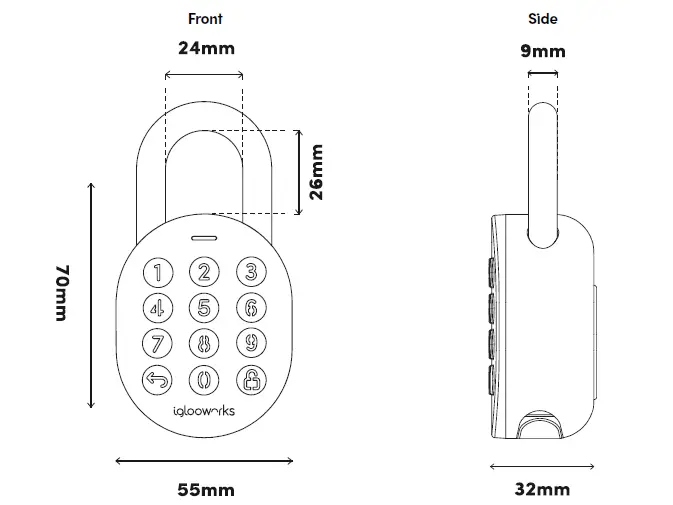
Specifications
- SKU SP1E
- Body Zinc Alloy, Al Alloy
- Shackle Hardened Steel, Rubber
- Gross (with packaging) 0.5 kg / 1.1 lbs
- Net 0.7 kg / 1.55 lbs
- Modes of access (Entry) Pin Code, Bluetooth keys
- Power type CR2 Lithium Battery
- Battery life Up to 12 months
- Emergency power type 9V Alkaline Battery
- Battery operating temperature -20°C to 50°C / -4 °F to 122°F
- Operating temperature -20°C to 50°C / -4°F to 122°F
- Certifications IP66, CE, FCC
- Protocols Bluetooth 5.0, algoPIN™ technology
- Usage Advised to be installed under sheltered areas, not to be exposed to wet weather conditions. Any application of the Product near combustible or explosive environments is at the user’s sole and exclusive risk
For damage resulting from incorrect use of lock, use of lock in potentially explosive environments, or use of lock outside of stipulated specifications, the customer bears sole responsibility. The company bears no liability whatsoever.
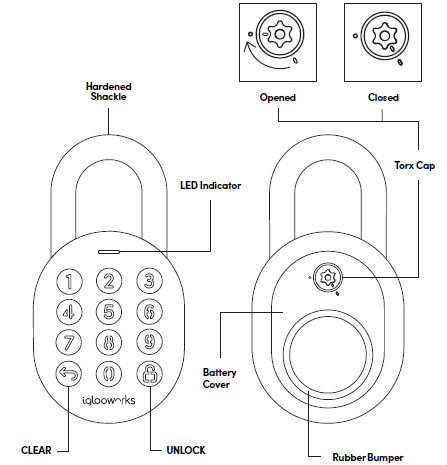
Lock Anatomy
Lock Features
PIN Code/Bluetooth Key
 Master PIN Code
The Padlock 2E unlocks with a permanent Master PIN Code. User PIN Code
The Padlock 2E supports multiple types of User PIN codes, e.g. One-Time, Permanent, Recurring & Duration which can be generated and shared via the app. Master Bluetooth Key
The Padlock 2E unlocks with Bluetooth via the app. User Bluetooth Key
The Padlock 2E supports User Bluetooth keys which can be generated and shared via the app.
 Master PIN Code
 User PIN Code
 Master Bluetooth Key
 User Bluetooth Key
Battery
 Low Battery Alert
Intuitive audio and visual alerts will prompt you to change the batteries when it runs low. Emergency Jumpstart
Easily jumpstart the Padlock with a USB-C cable connected to a power bank if batteries are drained.
 Low Battery Alert
 Emergency Jumpstart
Others
 Security Lockout
Keypad is disabled after several incorrect access attempts. Auto Lock
Padlock automatically locks once shackle is closed. Relock Reminder Alert
Padlock will sound an alert to remind users to fasten the shackle. Obstruction Alarm
The lock will sound an alarm if the shackle cannot lock or unlock to alert the user of any obstructions. Encryption
AES 128-bit Audit Trail
Up to 300 activity logs Decoy PIN Code
Mask actual PIN code by entering decoy digits. Manual Relock
Manually lock the device by holding the ‘Unlock’ icon. Volume Control
Adjust the volume according to your preference. Select from levels 0 (mute) to 5 (loudest).- Keypad LED Toggle
Turn the backlight from the keypad buttons on or off.  Cable
Cable
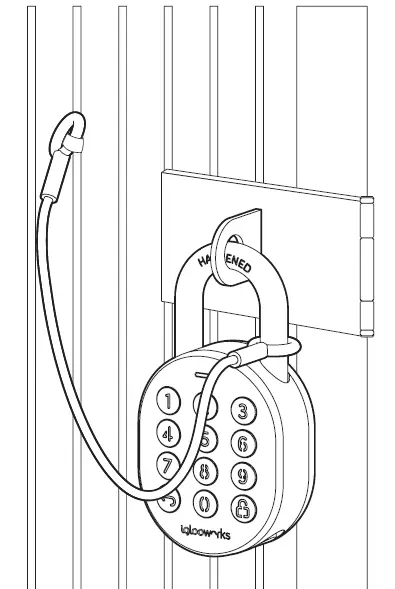
Use the cable provided to secure your padlock to prevent unauthorized removal of the padlock
 Security Lockout
 Auto Lock
 Relock Reminder Alert
 Obstruction Alarm
 Encryption
 Audit Trail
 Decoy PIN Code
 Manual Relock
 Volume Control
 Keypad LED Toggle
 Cable
CableLearn how to access, activate, and deactivate these features from pages 20 – 21.
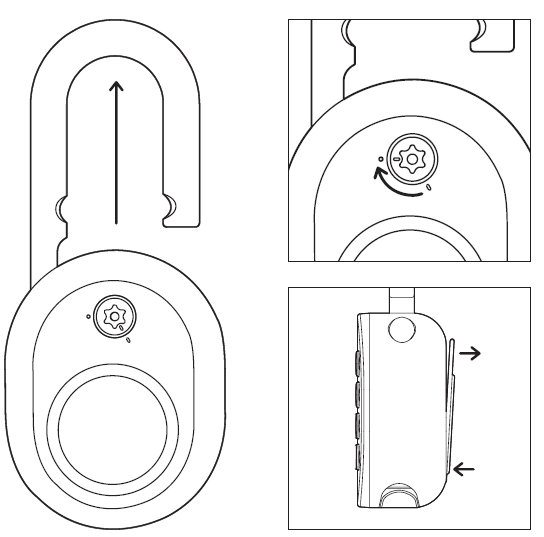
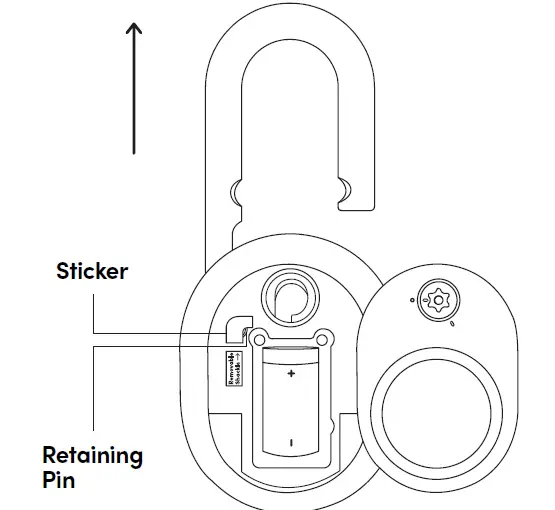
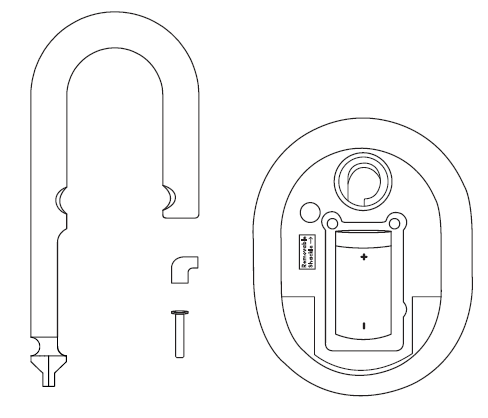
Changing the Shackle
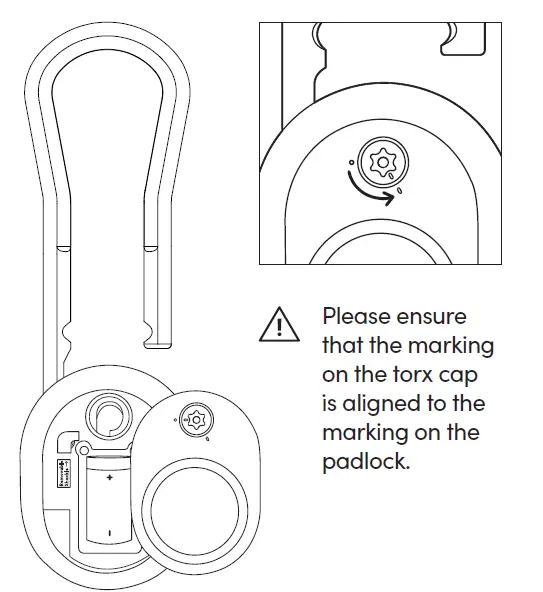
- Unlock the Padlock E and pull the shackle to open position. Turn Torx cap clockwise 120° with the Torx Screwdriver & push battery cover out.

- Remove the battery cover, locate sticker to remove and use a sharp object to remove the retaining pin. The shackle is now removable.

- Replace with the long shackle and place the retaining pin and sticker back in the original position. Ensure that the long shackle remains in the opened position.

- Secure the battery cover by turning the torx cap counter-clockwise 120° with the Torx Screwdriver while the Padlock E is unlocked. Push the shackle in and you’re done!

Managing the Battery
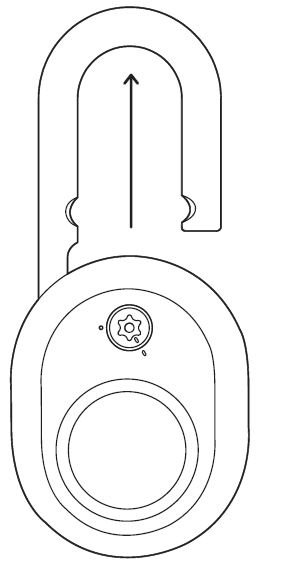
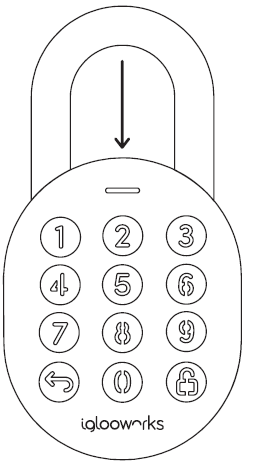
- Unlock the Padlock E and pull the shackle to open position.

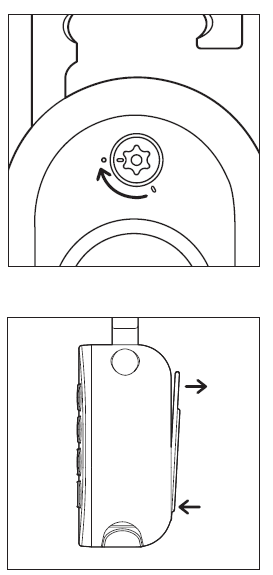
- Turn Torx cap clockwise 120° with the Torx Screwdriver & push battery cover out.

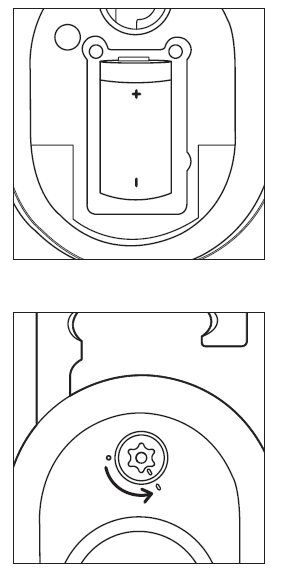
- Replace the CR2 Battery, close battery cover and turn Torx cap counter-clockwise 120°.
Please ensure that the marking on the torx cap is aligned to the marking on the padlock.
- Push the shackle to close position to lock it via Auto Lock or Manual Relock.

Emergency Jumpstart
In case of low power:
9V Jumpstart
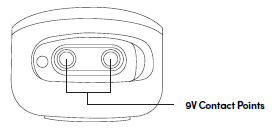
- Touch and hold the battery contacts against the 9V jumpstart pin on the lock.
- While holding the 9V battery to the jumpstart, press in PIN code on the keypad followed by or Bluetooth Key to unlock.
 Please ensure terminals of the 9V battery are in contact with the jumpstart contact points of the Padlock E for 2 seconds to activate the padlock.
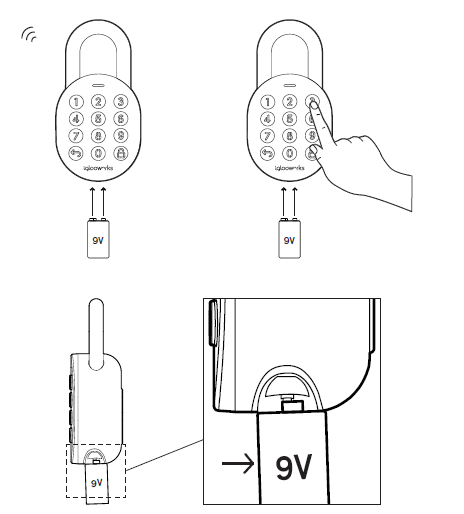 Please ensure terminals of the 9V battery are in contact with the jumpstart contact points of the Padlock E for 2 seconds to activate the padlock.
Getting Started
All access begins with the Dashboard. Speak with your owner or admin to get your accounts set up before you proceed.
Once you receive an invite, you can register for an iglooworks account to start operating the lock on the ground.
The iglooworks mobile app allows for on-the-ground management of your locks. Authorized members can perform operational tasks without fuss.
Getting your iglooworks app account
Your app account is tied to your Dashboard account. If you’re an existing member, you can access the iglooworks app with the same credentials. Otherwise, speak to your account owner to invite you as a member.
- Download the iglooworks app on your smartphone via the App Store or Google Play Store.
- Log in with your iglooworks account and organization ID.
- Tap [Enter].
Pairing the Lock
Test the lock with the Factory PIN code before you begin the pairing process.
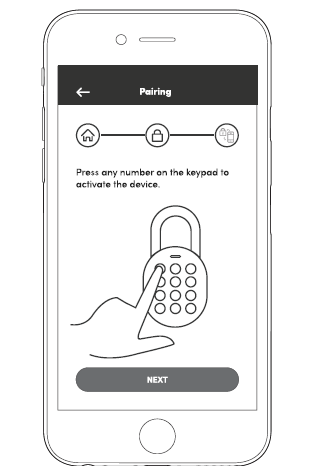
- Wake the lock by pressing any button on the front body.
- Tap
 , then enter 1234567890, followed by
 .
. - The LED indicator on the lock will flash green when it is successfully unlocked. You will also hear four ascending tones.
 , then enter 1234567890, followed by
Once you have tested it, you can now begin to pair the lock to your iglooworks account.
- Select [Locks] from the menu.
- Tap [Pair New Lock].
- Select the property.
- Tap [Next].
- Select the lock model and follow the steps shown on the screen.
Note:
Ensure your Bluetooth and Location services are turned on. You may have to perform a Bluetooth sync after successfully pairing the lock to obtain the initial battery status of the device.
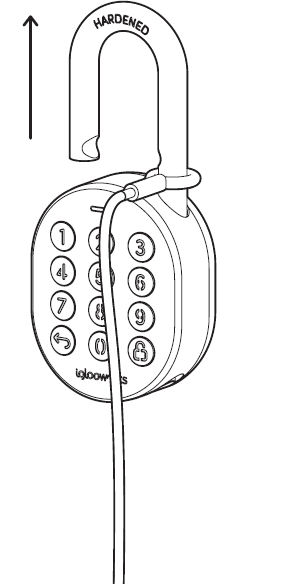
Padlock E Cable Installation
- Unlock padlock and loop the cable through the shackle.

- You may secure the other end of the cable to your desired location.

Modes of Access
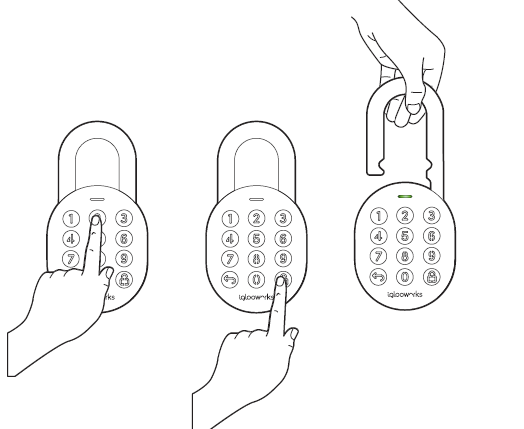
To unlock via PIN code:
- Wake the lock by pressing any button on the front body.
- Enter a valid PIN code, with or without decoy digits, followed by .
- The LED indicator on the lock will flash green when it is successfully unlocked.
You will also hear four ascending tones.
To unlock via Bluetooth:
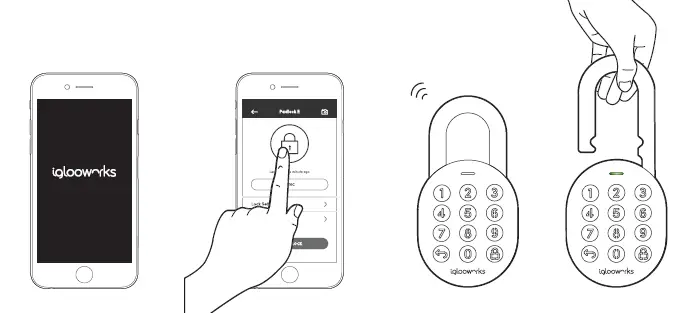
If you are an owner or admin, you will be able unlock the lock via Bluetooth. This is also possible for an authorized manager or lock users once permissions are granted via the Dashboard.
- Select the lock you want to unlock.
- Tap [Sync & Unlock].

Note: Ensure your Bluetooth service is turned on and that you are within range of the lock.
Managing Access
Creating Guest PIN codes
There are 2 ways to create PIN codes for your guests and family members. Choose from several PIN code validity durations to manage access for different users.
- If you are away from your property, generate PIN codes on the go with our unique algoPIN™ technology:
- On the igloohome mobile app, tap on the
 icon.
icon. - Tap on [+Access].
- Select the access type from the list on the screen.
- Fill in the required fields.
- Select [algoPIN™].
- Tap on [Create PIN code].
- On the igloohome mobile app, tap on the
- If you want to create a customised PIN code, you will need to be within Bluetooth range of the lock with your Bluetooth function turned on:
- On the igloohome mobile app, tap on theicon.
- Tap on [+Access].
- Select the access type from the list on the screen.
- Fill in the required fields.
- Select [Bluetooth].
- Tap on [Create PIN code].
- On the igloohome mobile app, tap on the
 icon.
icon.Important:
All PIN codes generated by algoPIN™ technology have activation periods.
If they are not used within the period, the PIN codes will be considered invalid.
One-Time & Permanent PIN Codes – 24hrs of being generated
I.e. Generated at 1900hrs today, must be used by 1900hrs tomorrow to activate.
Duration & Recurring PIN Codes – 24hrs from the start date and time of its validity period I.e. Created for 1900hrs on 1 Jan, must be used from 1900hrs – 2000hrs on 1 Jan to activate.
Create Guest Bluetooth Keys
Allow guests and family members to use their smartphones to unlock the door. When you issue a Bluetooth key, you get real-time updates on who has accessed your property.
- On the igloohome mobile app, tap on the.
- Tap on [+Access].
- Select [Bluetooth Key].
- Fill in the required fields.
- Tap on [Create Bluetooth Key].
- Tap on [Share].
Your guest can either scan the unique QR code shown on your screen, or you may share the link via your preferred communication method (Text, Email, WhatsApp, Facebook Messenger etc.) to claim the Bluetooth key.
Your guest will either need to download the igloohome mobile app and register for an account or claim the Bluetooth key with their existing igloohome account.
Important:
All Bluetooth keys must be claimed within 1 hour of it being generated. If they are unclaimed within the period, the keys will be considered invalid.
I.e. Generated at 1900hrs today, must be claimed by guest by 2000hrs today.
Bluetooth keys can be revoked by lock owner anytime.
Managing Lock Features
| Auto Lock | You can configure the duration before Auto Lock is triggered: *Please ensure you are within Bluetooth range of the lock and your Bluetooth function is turned on
If you choose to never automatically lock, you may wish to perform a manual relock: Hold the | ||||||||||||
| Security Lockout | You can configure the number of attempts before the Security Lockout mode is enabled: *Please ensure you are within Bluetooth range of the lock and your Bluetooth function is turned on.
Once this is set, the lockout will be triggered after you exceed the number of attempts set.
| ||||||||||||
| Relock Reminder Alert | You can enable, disable and configure the duration before the alert sounds off: *Please ensure you are within Bluetooth range of the lock and your Bluetooth function is turned on.
| ||||||||||||
| Emergency Jumpstart |
| ||||||||||||
| Decoy PIN Code | Key in up to 8 random digits before your actual PIN code, followed by  to unlock. to unlock. | ||||||||||||
| Volume Control | To configure the volume of your lock: *Please ensure you are within Bluetooth range of the lock and your Bluetooth function is turned on.
| ||||||||||||
| Keypad LED Toggle | To configure the LED settings: *Please ensure you are within Bluetooth range of the lock and your Bluetooth function is turned on.
|
| What lock settings are there to change and how do we change it via the app? | You have to be an owner to change the lock settings.
|
| Lock Information | You can view the lock information of the lock by:
|
| Firmware Version | You have to be entitled to have the DFU rights in order to see this option:
|
| Replicating a lock | You have to be an owner to replicate a lock.
|
| Deleting a Lock | You have to be an owner to delete a lock.
|
| Delete Lock | To delete a lock from your account, you will need to unpair the device: *Please ensure you are within Bluetooth range of the lock and your Bluetooth function is turned on.
|
|
Delete All PIN Codes | To delete all PIN codes created for a specific lock: *Please ensure you are within Bluetooth range of the lock and your Bluetooth function is turned on.
|
| Hard Reset / Unpair | To perform a hard reset:
|
| Lock Name | To change the name of your lock:
|
| Finding your lock’s Bluetooth ID | Every lock has a unique Bluetooth ID. Should you need the ID for support purposes, find it by:
|
| Sync | We recommend syncing your lock to your account every 3 months for optimal product experience. Syncing the lock to your account helps you stay up-to-date with the lock’s battery levels and activity logs.Note: This may take up to 5 minutes depending on how often you sync the lock with your account. To do this:
|
 .
.Audio and LED Indications
| Actions | Indications |
| Bluetooth Connection | LED Indicator flashes Blue |
| Successfully Unlocked | Ascending 4 fast tones after unlocked and flash Green LED 2 times |
| Successfully Locked | 1 long beep after Padlock is locked and Green LED for 2 seconds |
| Incorrect PIN | 4 short beeps and flash Red 2 times |
| Deleted PIN | 3 sets of 4 short beeps and flash Red 2 times |
| Obstruction Alarm | 6 sets of 4 short beeps |
| Security Lockout Alarm | Low – High siren for 30 / 60 / 90 seconds |
| Security Lockout Deactivated | 2 long beeps |
| Low Battery Alert | Descending 3 fast tones when keypad is woken up and breathing Red LED |
| Hard Reset / Unpair | Descending 4 slow tones |
| Power Start Up | 2 slow beeps then 2 quick beeps |
Other Services
This lock supports iglooconnect and igloodeveloper services.
iglooconnect
iglooconnect is a platform for you to integrate your locks with a myriad of third-party services. Whether it’s managing facility booking, property management or vacation rental hosting, iglooconnect lets you simplify workflows. If you’re a lock owner that’s looking to get more out of your device, connect to our network of service providers’ apps or platforms with a few simple clicks.
For more information, visit https://www.igloocompany.co/iglooconnect.
| Getting your iglooconnect account | Your iglooconnect account is tied to your igloohome account. If you’re an existing lock owner, you can access iglooconnect with the same credentials. Otherwise, sign up for an account via the app. |
| Creating an igloohome account |
|
| Selecting a third-party service provider |
|
| Connecting your locks to the integration slots (Exchange codes) |
|
| Changing your billing information | To change your billing information,
|
| Removing locks from integration slots |
|
| Managing your integrations | Initial slot payment/cancellation
Recurring payment/cancellation
Additional slot(s) payment/cancellation
|
| Resetting your password | If you have forgotten your password,
You will receive an email with a link and instructions on how to reset your password. |
igloodeveloper
igloodeveloper lets you manage access via our software and smart access products through API and SDK documentations.
For more information, visit https://www.igloocompany.co/igloodeveloper.
| Creating an igloodeveloper account |
|
| Logging in to the igloodeveloper portal |
|
| Resetting your password | If you have forgotten your password,
|
iglooworks
iglooworks is the dedicated line of smart access solutions for enterprises. Speak with your owner or admin to get your accounts set up before you proceed.
Once you receive an invite, you can register for an iglooworks account to start operating the lock on the ground.
The iglooworks mobile app allows for on-the-ground management of your locks. Authorized members can perform operational tasks without fuss.
Setting up your iglooworks app account
Your app account is tied to your Dashboard account. If you’re an existing member, you can access the iglooworks app with the same credentials. Otherwise, speak to your account owner to invite you as a member.
- Download the iglooworks app on your smartphone via the App Store or Google Play Store.
- Log in with your iglooworks account and organization ID.
- Tap [Enter].
Troubleshoot
I am unable to close the shackle to lock the padlock.
- Do an unlock via PIN code or Bluetooth and try to close the shackle again.
- Note that you might accidentally lock the padlock manually by holding the UNLOCK button for 2 seconds when the padlock is open.
I am unable to turn the Torx Cap to remove the battery cover.
- Make sure the Padlock E is unlocked before turning the Torx cap to remove the battery cover
- Note that the Torx cap cannot be turned while the Padlock E is locked.
The padlock keypad flashes white and LED indicator flashes red when I activate the keypad.
- Security Lockout is triggered on the Padlock E.
- Please refer to page 20.
I tried to use a 9V Battery to jumpstart the lock but to no avail.
- Please ensure terminals of the 9V battery are in contact with the jumpstart contact points of the Padlock E for 2 seconds to activate the padlock.
- The 9V Battery terminals must be in constant contact with the padlock 9V contact pins while unlocking it with PIN code or Bluetooth.
The lock is not responding at all.
- The Padlock E’s battery is flat.
- Use an Alkaline 9V Battery to jumpstart the lock and unlock the Padlock E to replace the batteries.
- Refer to page 12 for steps on battery replacement.
I closed the shackle but the padlock did not relock automatically.
- Make sure Auto Lock is ON via the iglooworks mobile app.
- If Auto Lock is ON and the padlock is still not working, try to lock the padlock manually by holding the UNLOCK button for 2 seconds.
I tried to unlock the Padlock E but the keypad went off and came back on with 2 slow and 2 quick beeps.
- The Padlock E is low in battery.
- Use an Alkaline 9V Battery to jumpstart the lock and unlock the Padlock E to replace the batteries.
- Refer to page 12 for steps on battery replacement.
I can’t scan the QR sticker as it is worned out.
- Use the spare QR sticker that is provided in the Padlock E box.
I have generated my PIN codes from the app but it cannot work.
- Do a Bluetooth Unlock or sync and try again.
- Ensure that the generated PIN codes are used within the activation period.
For more support articles, go to: iglooworks.co/support
 Igloohome Integration Billing Portal
 igloodeveloper Portal
 Support | Support & Help Portal - Enterprise
 Support | Support & Help Portal - Enterprise
 iglooconnect | igloocompany