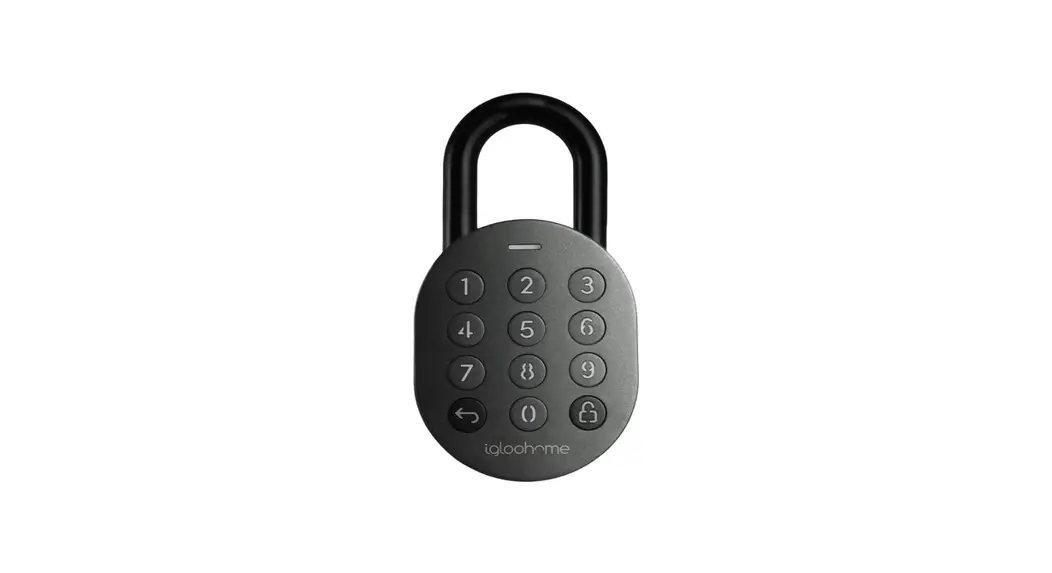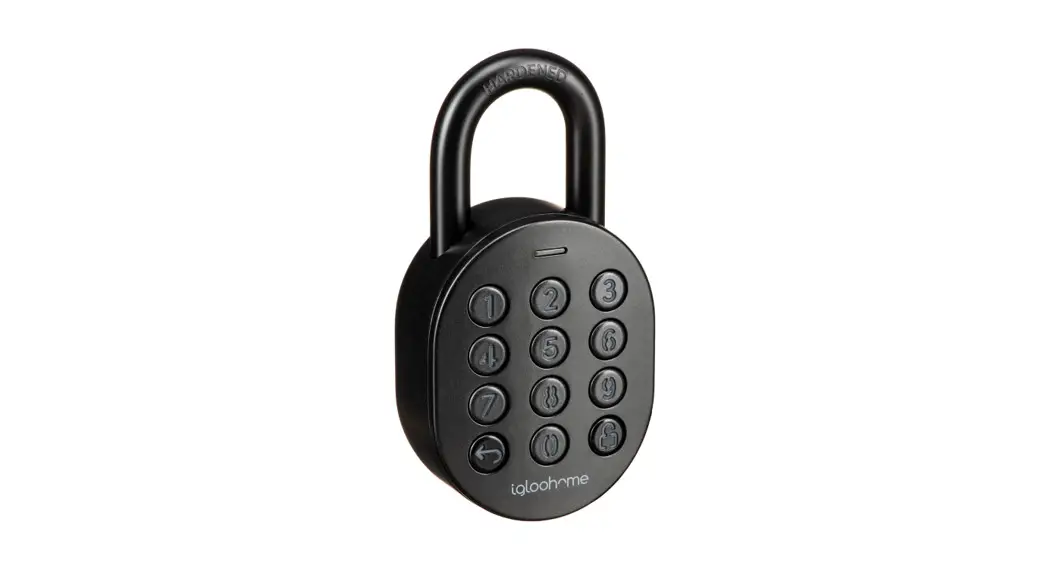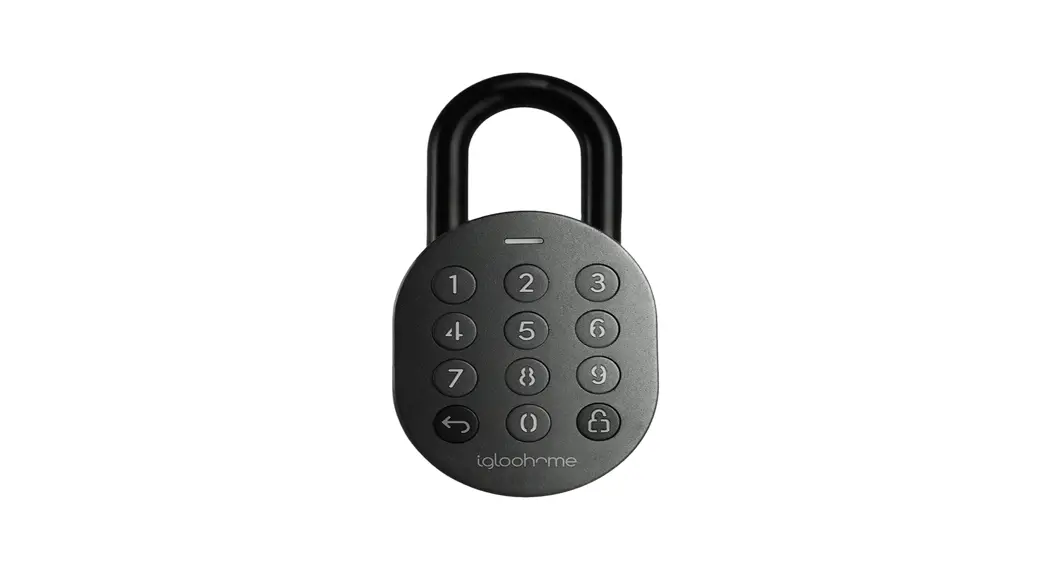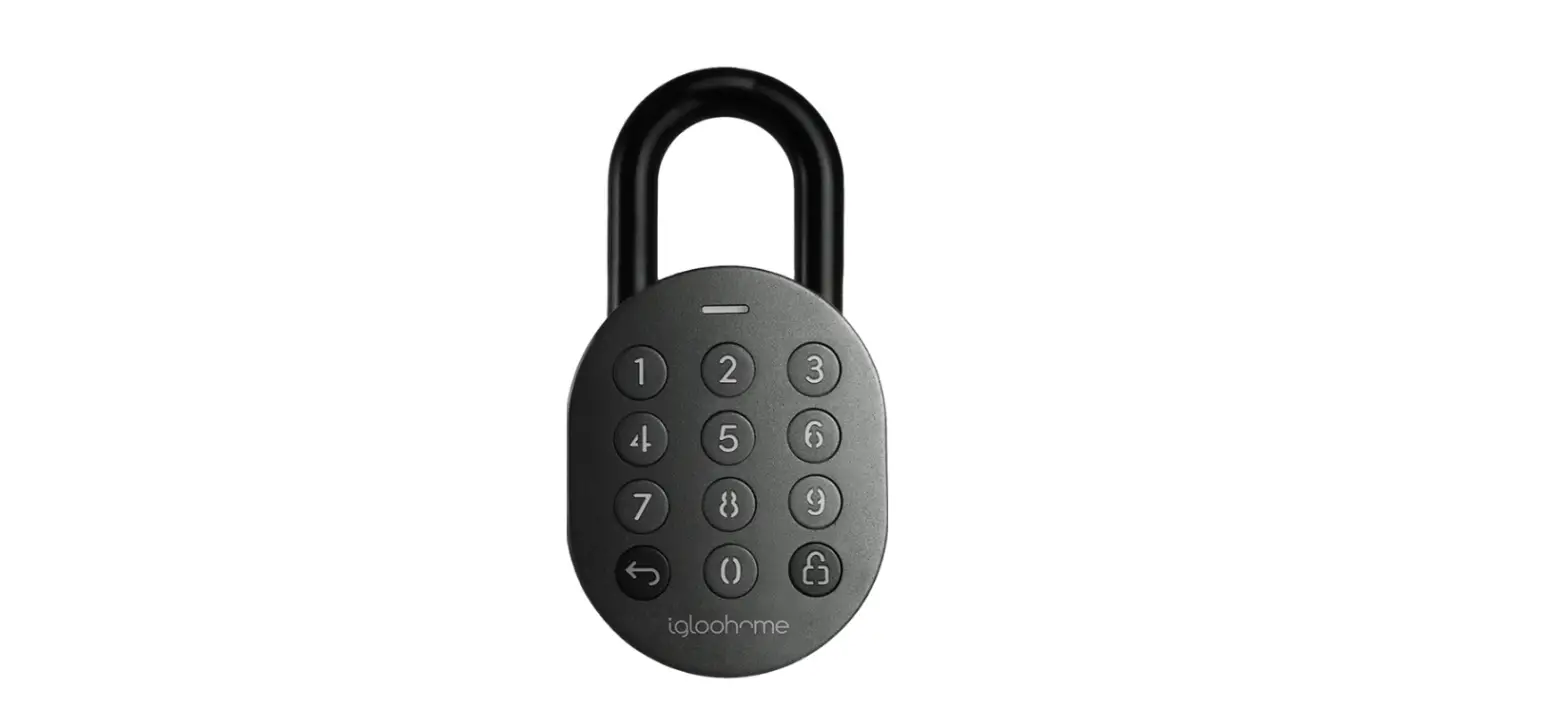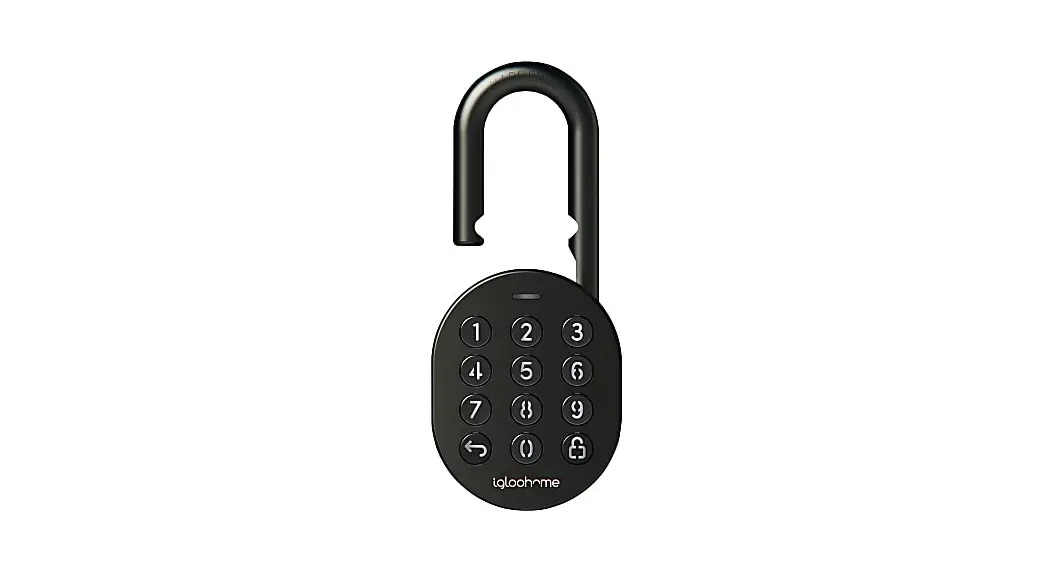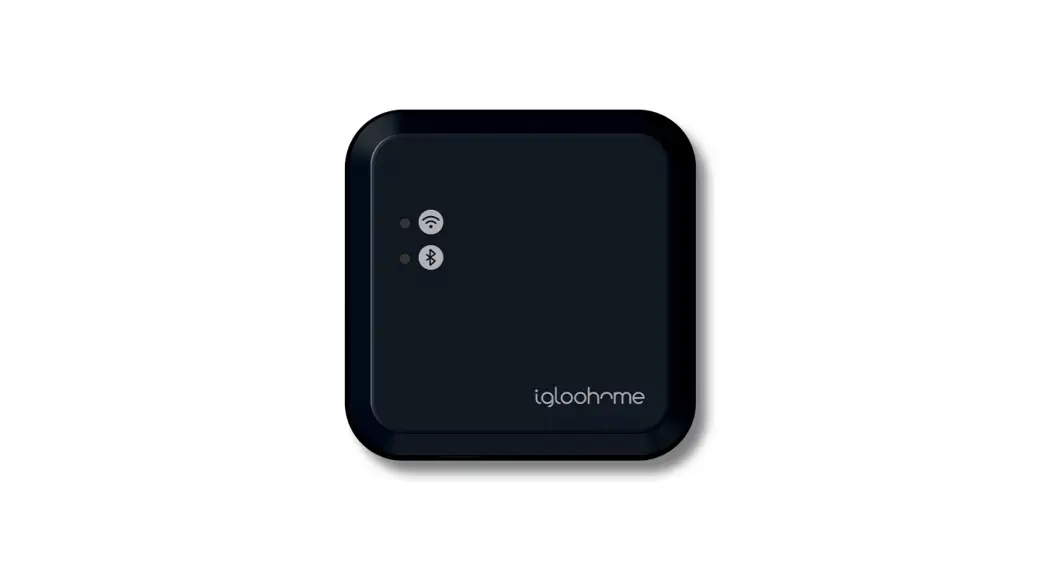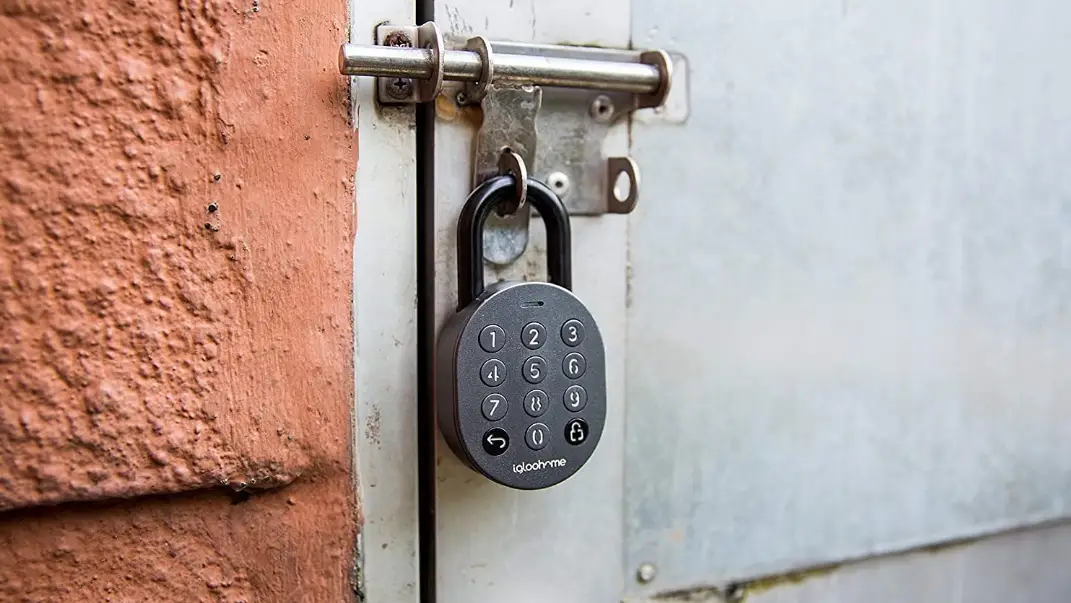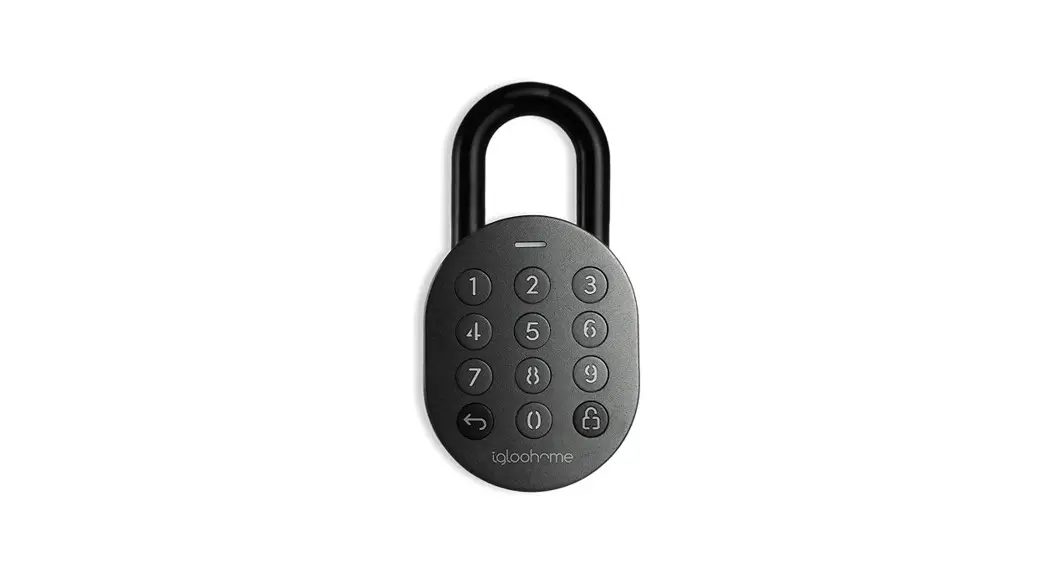
 Padlock 2 Smart Lock
User Guide
Padlock 2 Smart Lock
Hi there!
We’re so glad you’ve decided to join us on this journey to create a world without keys. You’re officially an igloohomie!
In this guide, you’ll find everything you need to get started with your lock. We hope that we’ve been as comprehensive and informative as possible. Afterall, we’re here to make life easier for you (at least when it comes to your home’s access).
If you do not find what you’re looking for, we’re working on updating it. Or… you could reach out to us at [email protected] because we love interacting with you! Speaking of interaction, let’s stay connected regardless. Why don’t you join the community of igloohomies worldwide?
 Follow us on Facebook Follow us on Facebook https://www.facebook.com/igloohomeco/ https://www.facebook.com/igloohomeco/ |  Watch us on YouTube Watch us on YouTube https://www.youtube.com/channel/UCHR5V4tDKZgEykPaz5SQvtQ https://www.youtube.com/channel/UCHR5V4tDKZgEykPaz5SQvtQ |
 Or stalk us on Instagram Or stalk us on Instagram https://www.instagram.com/igloohomesg/ https://www.instagram.com/igloohomesg/ |  Maybe network with us on LinkedIn Maybe network with us on LinkedIn https://www.linkedin.com/company/igloocompany/ https://www.linkedin.com/company/igloocompany/ |
We’re always updating our guides because we want to keep things fresh! You can visit igloohome.co/support periodically to view the latest version, unless, this is the latest
version. Hello you, igloohomie from the future, wow!
What’s Included
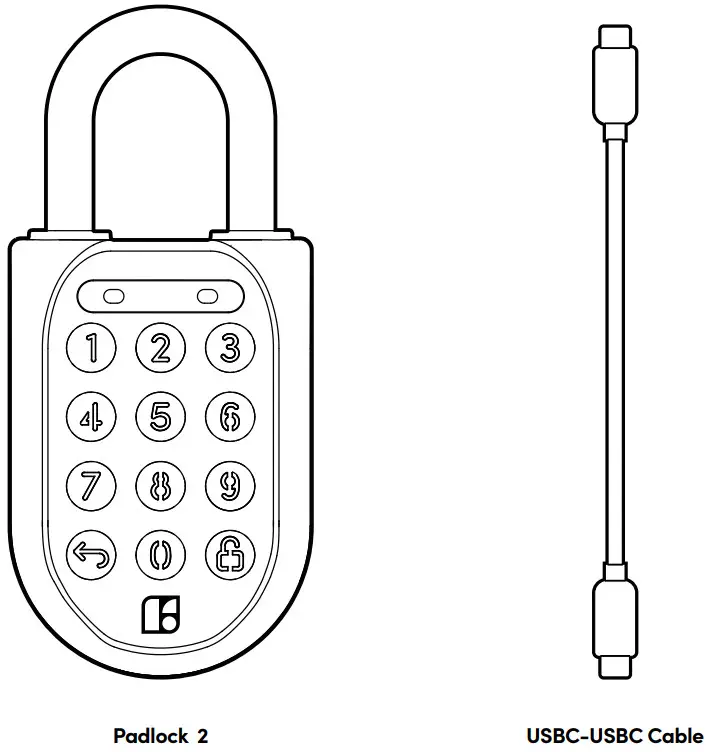
Specifications
| SKU | SP2 |
| Body | Zinc Alloy, Stainless Steel, Rubber |
| Shackle | Hardened Steel |
| Gross (with packaging) | 0.5kg / 1.1 lbs |
| Net | 0.5kg / 1.1 lbs |
| Modes of access (Entry) | Pin Code, Bluetooth |
| Power type | Rechargeable Lithium battery |
| Battery life | Up to 9 months* |
| Emergency power type | USB-C jumpstart |
| Battery operating temperature | -20°C to 50°C / -4°F to 122°F |
| Operating temperature | -20°C to 50°C / -4°F to 122°F |
| Certifications | IPX7, CE, FCC, ISED, UKCA, UN38.3, MIL-STD 810H (7 tests) |
| Protocols | Bluetooth 5.0, algoPIN™ technology |
| Usage | Suitable for both indoor and outdoor usage |
* Battery life may vary at extreme temperatures.
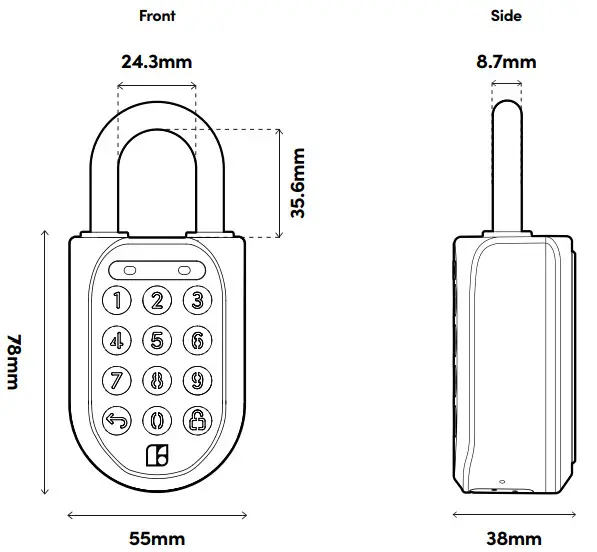
 For damage resulting from incorrect use of lock, use of lock in potentially explosive environments, or use of lock outside of stipulated specifications, the customer bears sole responsibility. igloohome accepts no liability whatsoever.
Lock Anatomy
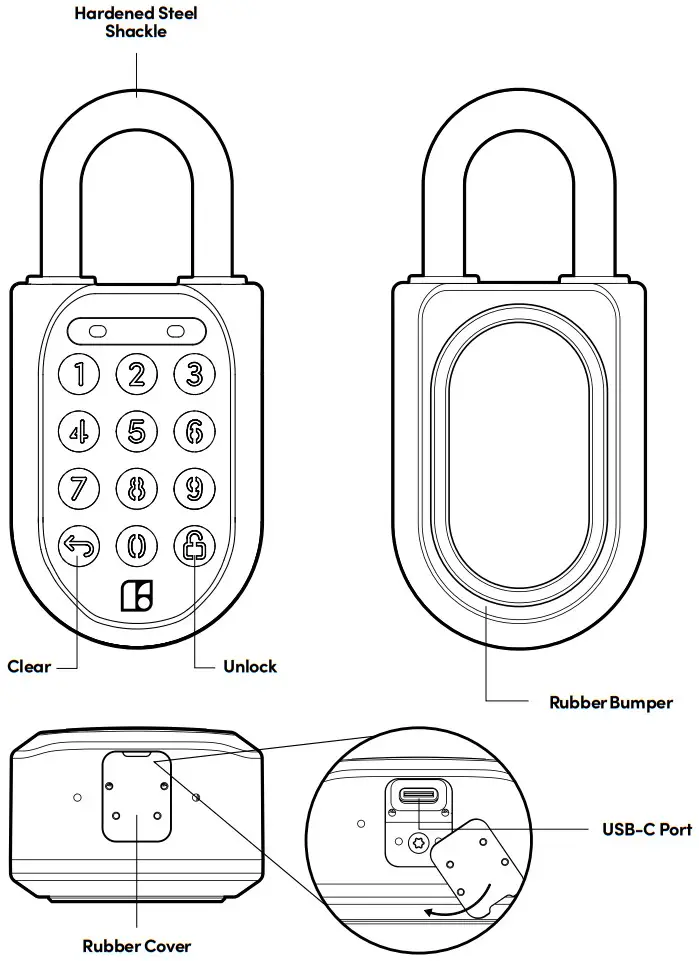
Lock Features
Lock Auto Lock
Automatically locks once the shackle is fastened. Security Lockout
Padlock access is disabled after several incorrect access attempts to ensure your assets are secured. Relock Reminder Alert
Lock will display an LED alert to remind users to fasten the shackle. Volume Control
Adjust the volume according to your preference. Select from levels 0 (mute) to 5 (loudest).
Battery Low Battery Alert
Intuitive audio and visual alerts will prompt you to change the batteries when it runs low. Rechargeable Battery
Simply recharge the lock with a USB-C cable if battery levels run low. 6 months worth of use in less than an hour of charging. Emergency Jumpstart
Easily jumpstart the lock with a USB-C cable connected to a power bank if batteries are drained.
Charging the battery
1. Charging via the USB-C port on the Padlock 2
- Connect the USB cable into the USB-C port on the Padlock 2
- Insert the other end of the cable into a USB-C Power Adapter (not provided) and plug it into a power outlet.
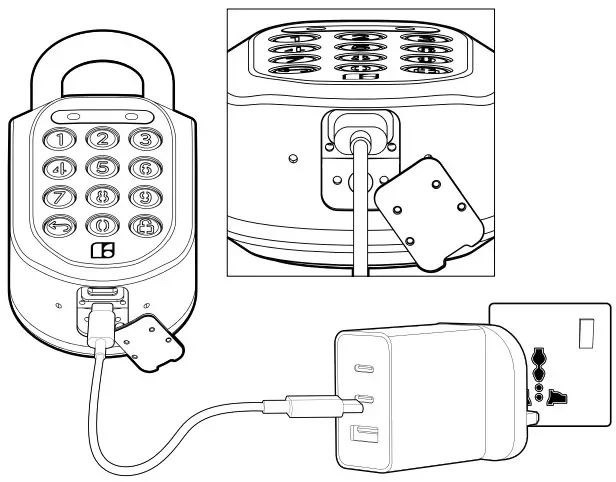
2. LED indications for charging status
- Fully charged – Breathing green LED
- Charging – Breathing red LED
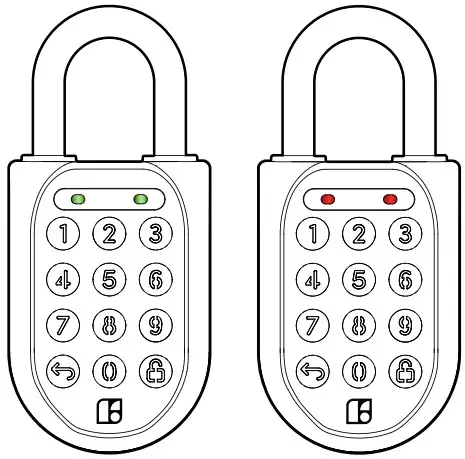
It is recommended that you fully charge the Padlock 2 before usage.
Charging requirements: Prescribed charger is 5V 1A (5W). Charging time to 50% and 100% is 30 minutes and 1 hour respectively.
App Onboarding
1. Download the igloohome app
The mobile app is available for free on the App Store and Google Play Store!
App Store https://go.igloohome.co/ios https://go.igloohome.co/ios | Google Play  https://go.igloohome.co/android https://go.igloohome.co/android |
2. Pairing the lock
a) Test factory PIN unlock:
- Wake the lock by pressing the
 button for 5 seconds OR plug the USB-C cable into the lock to wake it up into pairing mode
 - In the factory mode (before pairing), the PIN to unlock the lock is 1 2 3 4 5 6 7 8 9 0
b) Once you have tested it, you can now begin to pair the lock to your igloohome account.
- On the home page, tap [+]
- Tap [Pair New Lock or Device]
- Select [Padlock 2] and follow the pairing instructions.
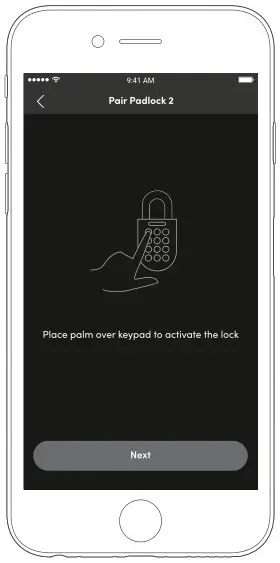
Note:
Ensure your Bluetooth and Location services are turned on. You may have to perform a Bluetooth sync after successfully pairing the lock to obtain the initial battery status of the device.
Modes of Access
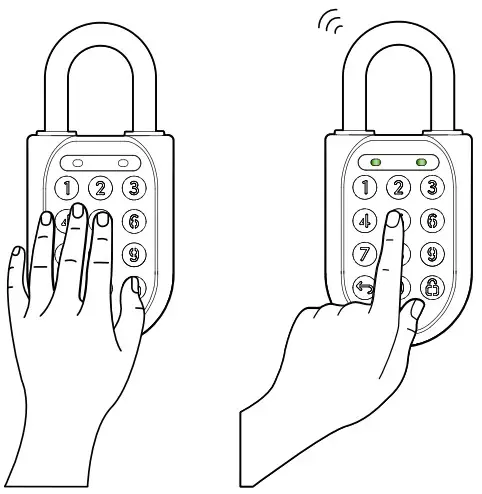
a. To unlock via PIN code:
- Wake the lock by pressing any button on the front body.
- Enter a valid PIN code, with or without decoy digits, followed by.
- The LED indicator on the lock will flash green when it is successfully unlocked.
You will also hear four ascending tones.
b. To unlock via Bluetooth:
- Select the lock you want to unlock.
- Tap []
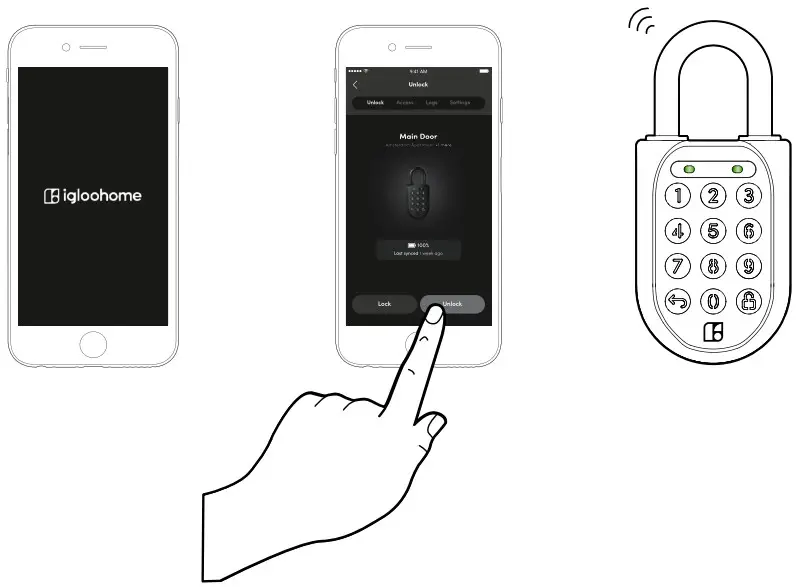
Note: Ensure your Bluetooth service is turned on and that you are within range of the lock.
Manage Lock Features
| Auto Lock | You can configure the duration before Auto Lock is triggered: *Please ensure you are within Bluetooth range of the lock and your Bluetooth function is turned on. 1. On your app, tap [Lock Settings]. 2. Select [Auto Lock Timer] 3. Select from the list of preset durations or choose to never automatically lock. 4.Tap [Apply Changes]. If you choose to never automatically lock, you may wish to perform a manual relock: Hold the  on the keypad for 2 seconds. The LED indicator will flash green and you’ll hear a long beep for successful relocking. on the keypad for 2 seconds. The LED indicator will flash green and you’ll hear a long beep for successful relocking. | ||||||||||||
| Security Lockout | You can configure the number of attempts before the Security Lockout mode is enabled: *Please ensure you are within Bluetooth range of the lock and your Bluetooth function is turned on. 1. On your app, tap [Lock Settings]. 2. Select [Security Lockout]. 3. Select the number of attempts from 1 to 10, or choose to deactivate this function completely. 4. Tap [Apply Changes]. Once this is set, the lockout will be triggered after you exceed the number of attempts set. Your lock will reject any further unlocking attempts via the same mode you used. You can disable it by trying another valid access mode.
| ||||||||||||
| Relock Reminder Alert | You can enable, disable and configure the duration before the alert sounds off: *Please ensure you are within Bluetooth range of the lock and your Bluetooth function is turned on. 1. On your app, tap [Lock Settings]. 2. Select [Relock Reminder Alert]. 3. Configure the duration between 5 seconds to 10 minutes, or disable the alert. 4. Tap [Apply Changes]. |
| Emergency Jumpstart | 1. Connect the USB-C to USB-C cable to a power bank. 2. Plug the USB-C port into the jumpstart port on the lock. 3. Once the lock powers up, enter a valid PIN code within 20 seconds, followed by to unlock. |
| Decoy PIN Code | 1. Key in up to 8 random digits before your actual PIN code, followed by to unlock. |
|
Volume Control | To configure the volume of your lock: *Please ensure you are within Bluetooth range of the lock and your Bluetooth func- tion is turned on. 1. On your app, tap [Lock Settings]. 2. Select [Volume]. 3. Select the volume level from 0 to 5 (softest to loudest). 4. Tap [Apply Changes]. |
|
Keypad LED Toggle | To configure the LED settings: *Please ensure you are within Bluetooth range of the lock and your Bluetooth function is turned on. 1. On your app, tap [Lock Settings]. 2. Select [Keypad LED Toggle]. 3. Turn it on or off. 4. Tap [Apply Changes]. This feature is switched on by default. |
Manage Lock Settings
| Lock Information (View only) | You can view the lock information of the lock by: 1. Select the lock. 2. Tap [Lock Information]. |
| Firmware Version (View only) | You have to be entitled to have the DFU rights in order to see this option: 1. Select the lock. 2. Tap [Firmware Version]. |
|
Delete Lock | You have to be an owner to delete a lock. 1. Select the lock. 2. Tap [Delete Lock]. 3. Tap [Confirm]. |
Audio and LED Indications
| Actions | Indications |
| Bluetooth Connection | LED Indicator flashes Blue |
| Successfully Unlocked | Ascending 4 fast tones after unlocked and flash Green LED 2 times |
| Successfully Locked | 1 long beep after Padlock is locked and Green LED for 2 seconds |
| Incorrect PIN Code | 4 short beeps and flash Red 2 times |
| Deleted PIN Code | 3 sets of 4 short beeps and flash Red 2 times |
| Obstruction Alarm | 6 sets of 4 short beeps and flash Red 2 times |
| Security Lockout Alarm | Low – High siren for 30 / 60 / 90 seconds and flash Red 2 times |
| Security Lockout Deactivated | 2 long beeps |
| Charging in Progress | Breathing red LED flash when USB-C is connected |
| Charging Completed | Breathing green LED flash when USB-C is connected |
| Low Battery Alert | Descending 3 fast tones when keypad is woken up and breathing Red LED |
| Hard Reset / Unpair | Descending 4 slow tones |
| Power Start Up | 1 long beep then 2 quick beeps |
Hard Reset
To Hard Reset your lock:
- Hold the button for 10 seconds,
- At the 10th second, the lock will enter a hard reset state and give out one long beep with red flashing LED for the next 10 seconds.
- The interval of the RED LED flashes should be 0.5 sec ON and 0.5 sec OFF.
- Key in the Master PIN followed by the button in the next 10 seconds, else the lock will exit the hard reset status.
Note: If Master PIN is correct, red flashing LED changes to green LED for 1 second and gives out another long beep for 1 second at the same time. Lock will be successfully hard reset.
* If Master PIN is wrong. Lock will give out the “Incorrect PIN” audio and LED indicator and exit the hard reset state.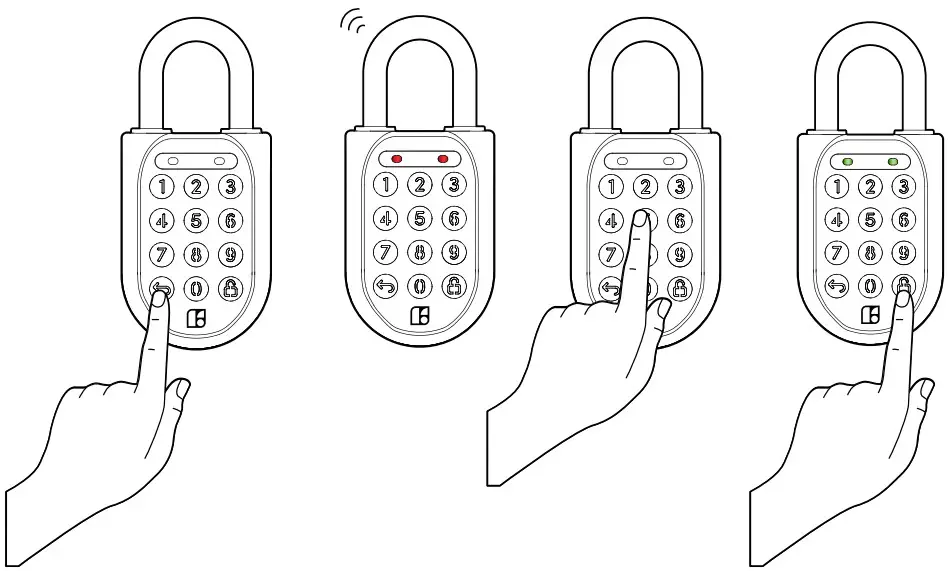
Admin Features
If you’re an owner or admin, the Dashboard is an important aspect of the iglooworks suite of access solutions.
Speak with your BD representative to get your accounts set up before you proceed.
The Dashboard works best with Google Chrome, Safari and Mozilla Firefox.
Quick Start Guide
| Owner & Admin Guide go.igloohome.co/UGOA
|
| https://go.igloohome.co/android | https://go.igloohome.co/android |
Troubleshoot
Hardware Troubleshooting:
I am unable to close the shackle to lock the padlock.
- Do an unlock via PIN code or Bluetooth and try to close the shackle again.
- Note that you might accidentally lock th padlock manually by holding the UNLOCK button for 2 seconds when the padlock is open.
The padlock keypad flashes white and LED indicator flashes red when Iactivate the keypad. - Security Lockout is triggered on the Padlock 2.
- Please refer to page 15.
I tried to use USB-C to jumpstart the lock but unable to.
- Please ensure USB-C connector is connected to the USB-C slot securely while unlocking it with PIN code or Bluetooth.
- Please unlock within 20 seconds.
- Please ensure that the Power Bank has sufficient power.
The lock is not responding at all. - The Padlock 2 battery is flat.
- Use the USB C cable to jumpstart the lock and unlock it.
- Charge the lock to continue using it. Please ensurethat the lock is fully charged before your next deployment.
I closed the shackle but the padlock did not relock automatically. - Make sure Auto Lock is ON via the iglooworks mobile app.
- If Auto Lock is ON and the padlock is still not working, try to lock the padlock manually by holding the UNLOCK button for 2 seconds.
I tried to unlock the Padlock 2 but the keypad went off and came back on with 2 slow and 2 quick beeps. - The Padlock 2 is low in battery.
- Use an USB-C to USB-C cable connected to a power bank to jumpstart the lock and unlock the Padlock 2 to replace the batteries.
- Page 9 for charging of battery.
For more support articles, go to:
igloohome.co/support
 Link not found - Rebrandly
 Support | Support & Help Portal