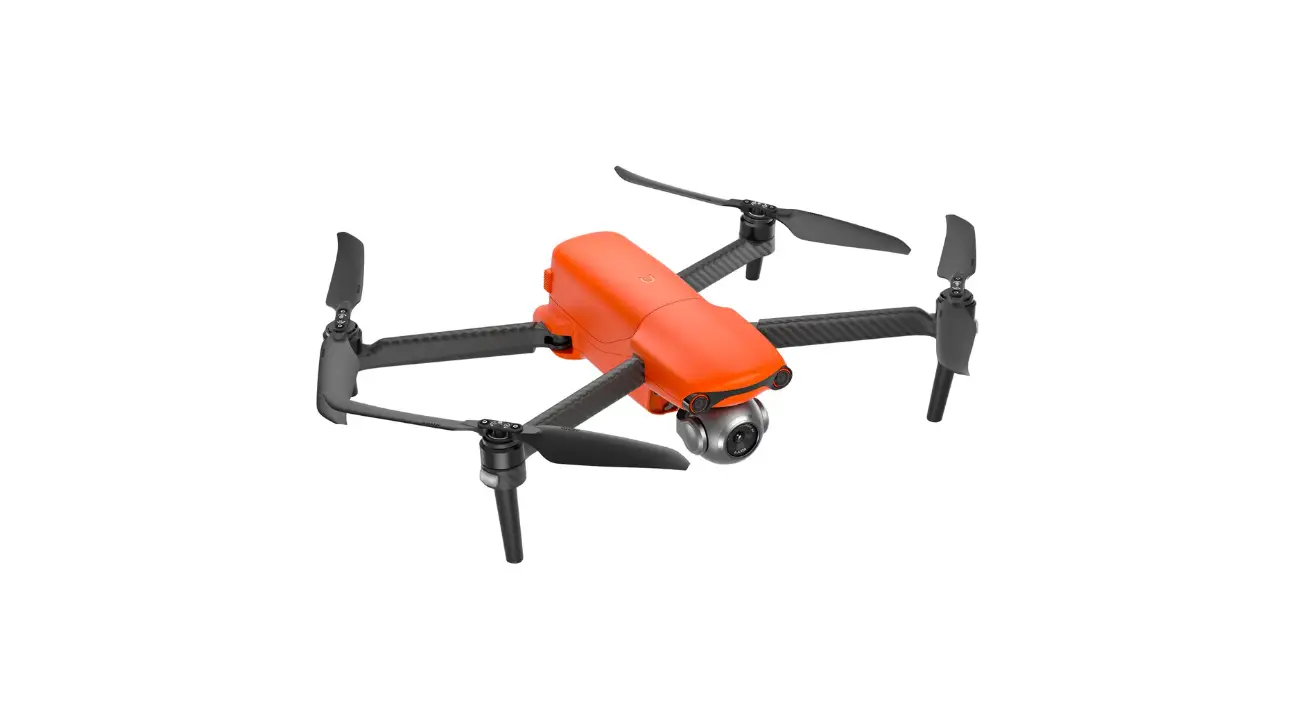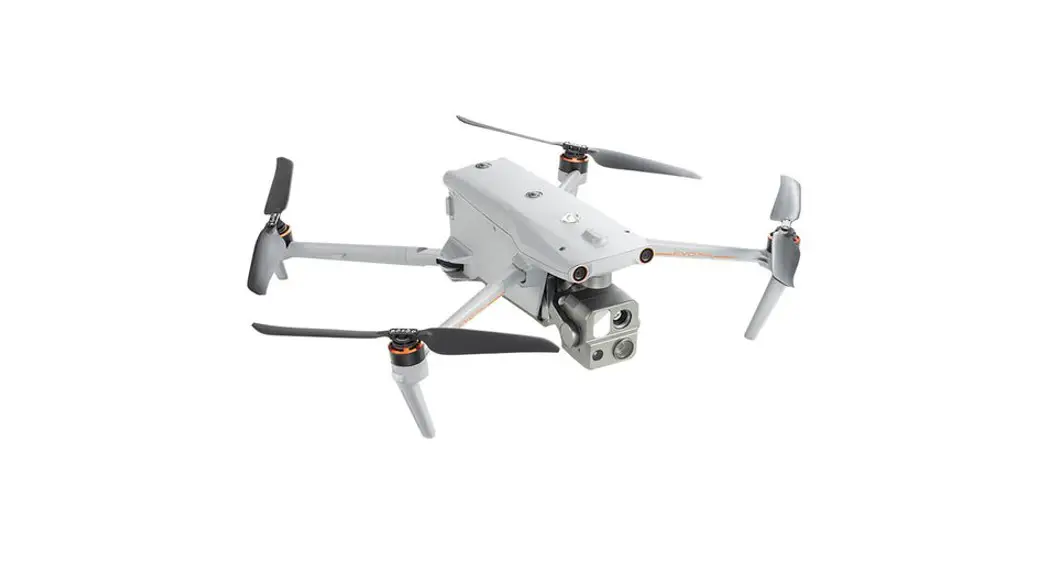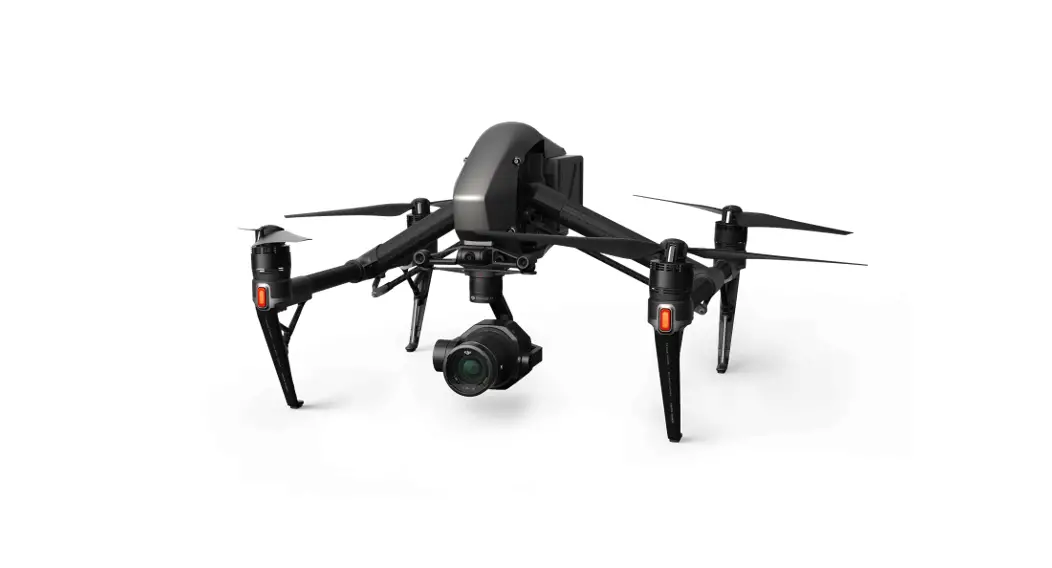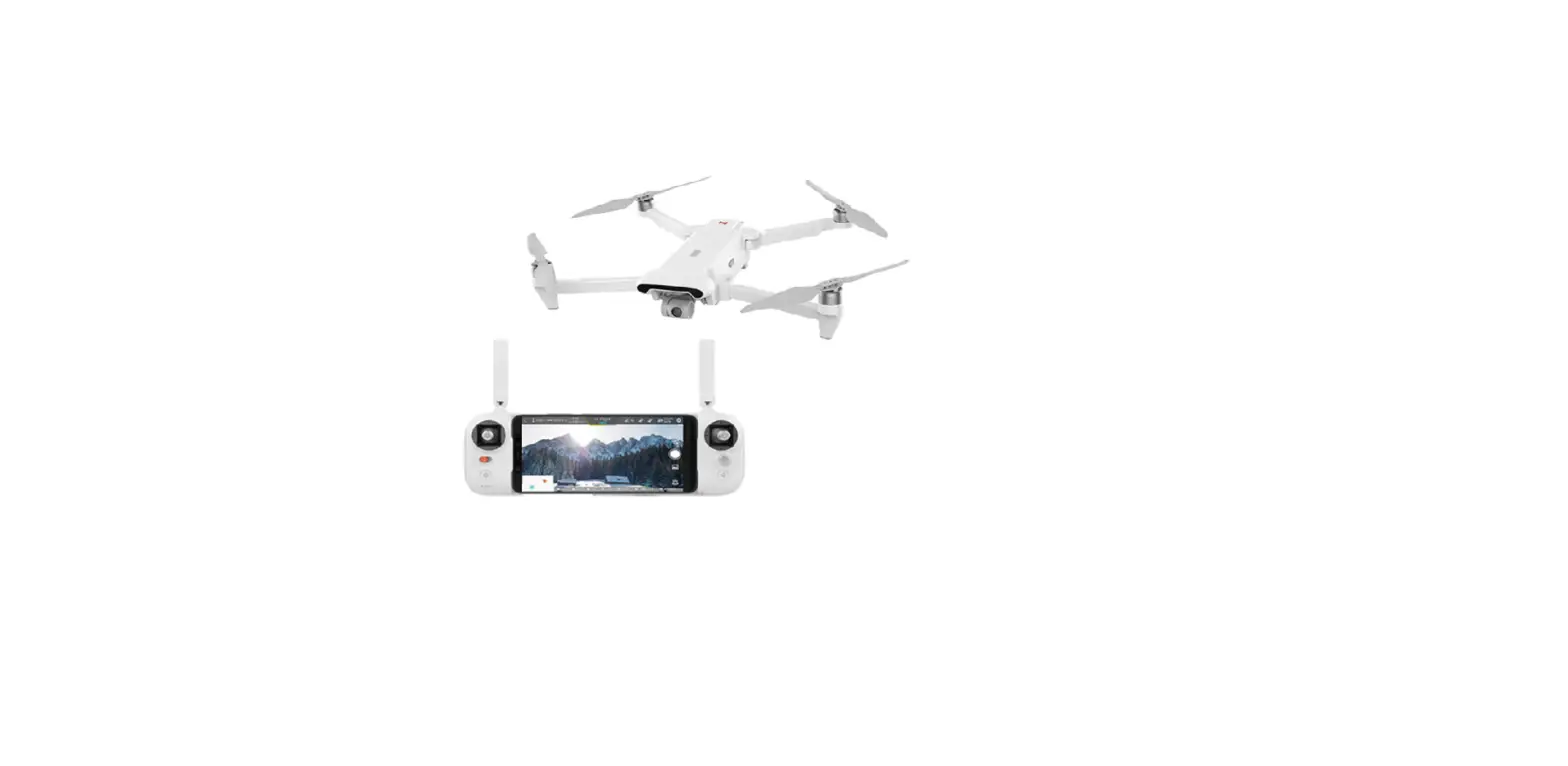
 PowerEgg X 8K Drone with Camera
User Guide
PowerEgg™ X 8K
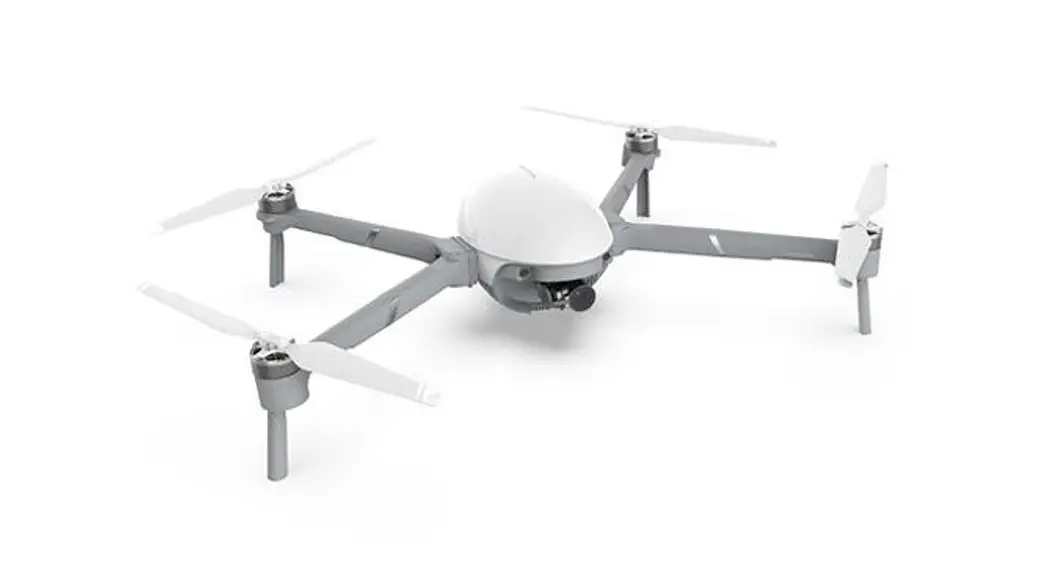
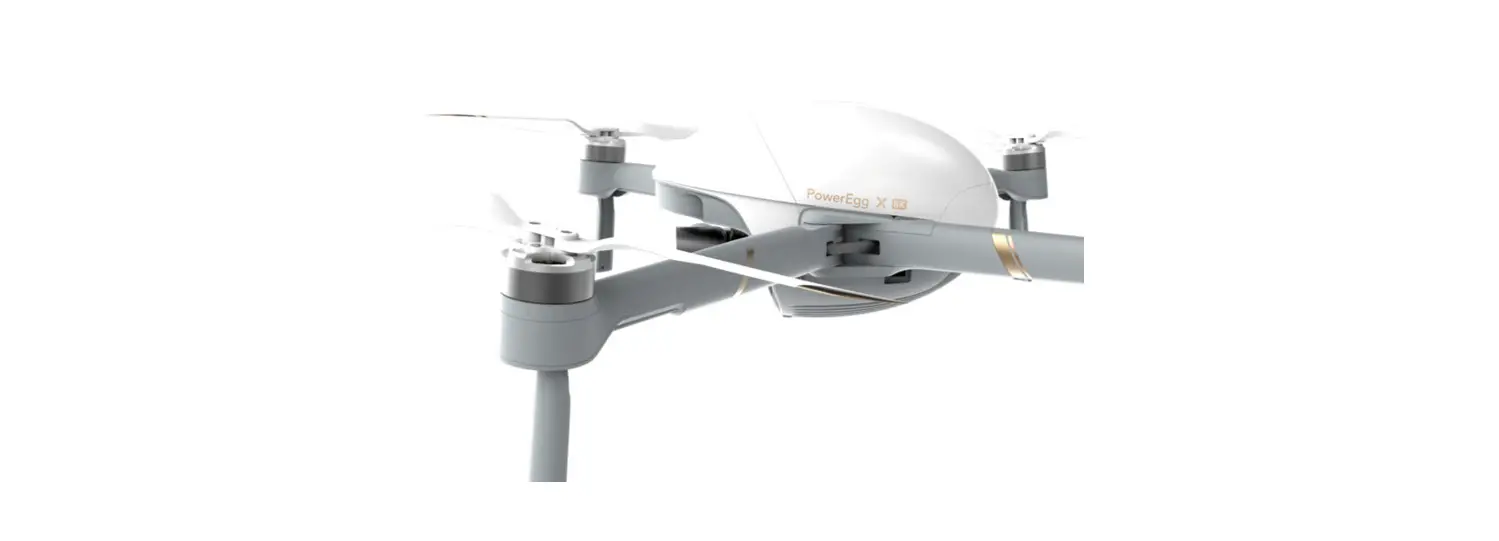
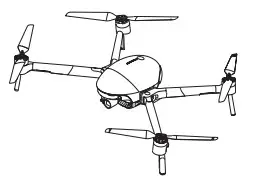
PowerEgg X 8K works in Drone Mode or in AI-Camera Mode.
- In Drone Mode, PowerEgg X 8K is equipped with a visual system both in the front and at the bottom as well as an ultrasonic sensor system*, which enables the drone to hover mid-air stably both indoors and outdoors. The drone also features auto-return, obstacle avoidance, and intelligent flight. Its high-precision, stability augmentation gimbal can record 8K UHD videos at 25 fps.
Its maximum flight time is 34 minutes**. - In AI-Camera Mode, PowerEgg X 8K can work without a remote controller. You can operate the camera and preview images or videos in real-time in the specified App by connecting your phone or other mobile devices to the gimbal over a Wi-Fi network.
Its maximum working time is 4 hours**.
*The visual and ultrasonic sensor systems both work under environmental requirements, for more information please read < Disclaimer and Safety Guidelines > and <User Manual >. Please watch the tutorial videos at App or PowerVision’s official website.
**The maximum flight time and the maximum working time are the test results in the laboratory environment, for reference only.
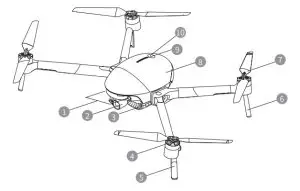
| 1. Front visual system | 6. Rear landing gear |
| 2. Integrated gimbal camera | 7. Propeller |
| 3. Mode indicator (headlight) | 8. Battery cover |
| 4. Motor | 9. Battery level indicator |
| 5. Front landing gear (including antennas) | 10. Power Button |
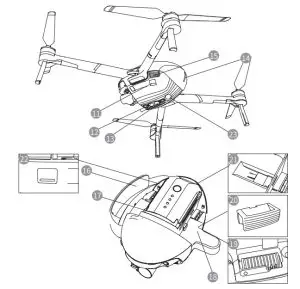
| Extended port (USB-Mini) | Tripod converter |
| Bottom visual system | Aircraft arm installation groove |
| Ultrasonic sensor system | Block for groove |
| Aircraft status indicator (taillight) | Camera micro-SD card slot |
| Battery cover switch button | Data port (USB-C) |
| Wrist strap | Auxillary Light |
| Intelligent battery |
*16/18/20 exclusively use for AI-Camera Mode.
• Protective case and Gimbal protector
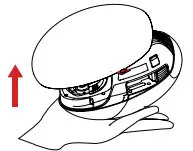
Remove the protective case: Pull the label to remove the protective case.
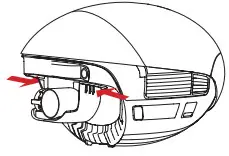
Remove the gimbal protector: Press the elastic buckles on both sides simultaneously and then pull them downwards to remove the protective cover. Note: Install the PowerEgg X 8K’s protective case and the gimbal protector when storing or transporting PowerEgg X 8K.
Remote Controller
PowerEgg X 8K 8K’s remote controller can remotely operate the aircraft and stream HD images and videos on your mobile device via the specified App in real-time. Additionally, the collapsible stand can hold your mobile device stably.
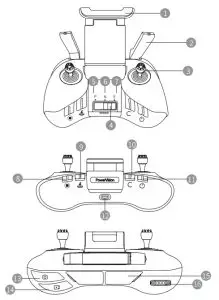
| 1. Mobile device stand | 9. Intelligent return button |
| 2. Antenna | 10. Custom button |
| 3. Control stick | 11. Power button |
| 4. Flight mode switch button | 12. Charging port (micro USB) |
| 5. P mode (Professional) | 13. Photo button |
| 6. N mode (Normal) | 14. Video button |
| 7.E mode (Easy) | 15. Mobile device port (USB) |
| 8. Emergency stop button | 16. Gimbal control thumbwheel |
Charge the Battery and Check the Battery Level
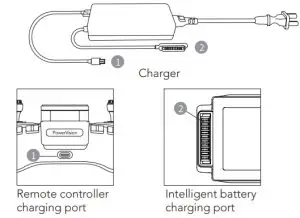
- Charge the Battery
Fully charge the battery to activate it for first-time use. Press the buckles on both sides of the battery cover simultaneously, and the battery cover will automatically spring up. You can then take the battery out.
 - Check the Battery Level and Switch On/ Off
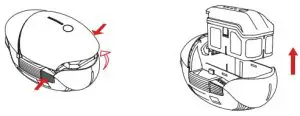 Press the buckles on both sides of the battery cover simultaneously, and the battery cover will automatically spring up. You can then take the battery out.
- Intelligent Battery
 Short press once and then press and hold for 2s to switch the battery on/off.
* For details about the battery and charging, please see Intelligent Battery Safety Guidelines.
Short press once to check the battery level.

- Remote controller
 Remote controller (Battery level LED indicators)
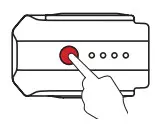 Short press once and then press and hold for 2s to switch the battery on/off.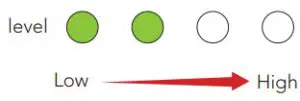
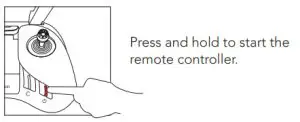 Remote controller (Battery level LED indicators)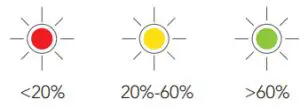
Download the App and Watch PowerEgg™ X 8K Tutorials

Please scan the QR code or go to the App Store to install the Vision+ 2 App and watch tutorials.The Vision+ 2 App requires an OS version of iOS 10.0.2 and later or Android 5.0 and later.
Drone mode
- Prepare PowerEgg X 8K for Drone Mode
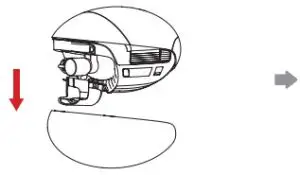 | 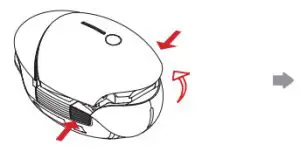 | 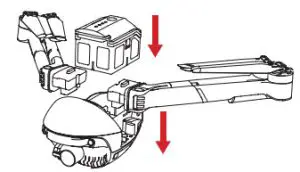 |
| Remove the protective case and the gimbal protector. | Press the buckles on both sides of the battery cover simultaneously and remove the battery cover. | Install the arms and insert the battery into the battery compartment. |
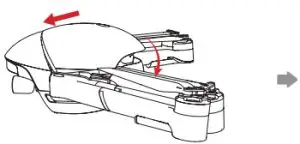 | 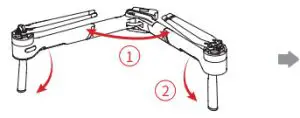 |  |
| Secure the battery cover into place. | Unfold the arms and landing gears. | Complete status. |
Make sure to fully unfold the arms and propellers before starting the drone.
• How to Replace a Propeller
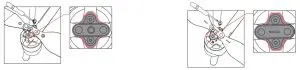
Attention:
- Use T6
 screwdriver and M2.5×3.5 screws coated with Teflon paste.
 - Please install the propeller according to the shape of the propeller’s base.
- Please do not reuse the screws.
 screwdriver and M2.5×3.5 screws coated with Teflon paste.
2. Prepare the Remote Controller
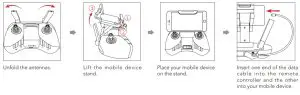
Note: Make sure that the antennas directly face the aircraft to guarantee the strongest communication link.
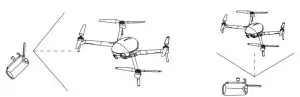 3. Flight Preparations
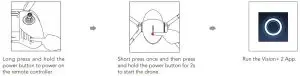
4. Flight
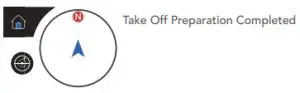
When the App screen indicated take-off preparation completed.
- Automatic take-off/landing
In the App: Automatic takeoff
 Automatic landing.
 - Manual takeoff/ landing
 Control stick operations: Start/Stop the motors.
 Takeoff: Push the throttle stick upwards slowly.
 Landing: Pull the throttle stick downwards till the aircraft lands. Keep the throttle stick at the lowest point for 2s, and the motors will stop.
 - Remote Controller Operations
By default, the remote controller is in mode 2. The left control stick controls the flight altitude and direction, and the right control stick controls the forward, backward, leftward, and rightward movements. The gimbal control thumbwheel controls the camera’s pitch angle.
 Press the
 pause button to make the aircraft hover in case of an emergency.
 - Intelligent Flight Functions

 Automatic takeoff
 Automatic landing.
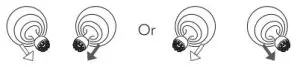 Control stick operations: Start/Stop the motors.
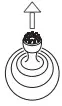 Takeoff: Push the throttle stick upwards slowly.
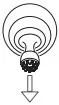 Landing: Pull the throttle stick downwards till the aircraft lands. Keep the throttle stick at the lowest point for 2s, and the motors will stop.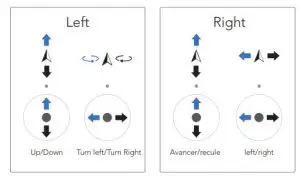
 pause button to make the aircraft hover in case of an emergency.
5. Flight Safety
Properly use PowerEgg X 8K:

 Precautions during a flight:
- Avoid flying over or near crowds, trees, power lines, tall buildings, airports, signal towers, etc.
- Do not fly near strong electromagnetic sources, such as radio transmitting towers, high voltage power lines, transformer substations, and large blocks of magnetic metal, as they may affect the remote signal and compass and thus endanger flight safety.

Do not fly:
Do not fly in adverse weather conditions such as rain, fog, snow, thunder, and high winds (wind speed: 10m/s or higher).
It is recommended to purchase the PowerEgg X 8K waterproof case to fly during a rainy environment and maintain the line of sight on rainy days.

AI-Camera Mode
- Prepare PowerEgg X 8K for AI-Camera Mode
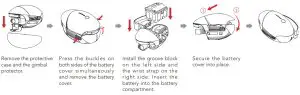
- How to use a tripod
Use tripod convertor, PowerEgg X 8K supports camera tripods.
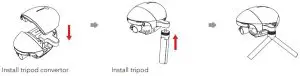
2. Get Ready to Shoot
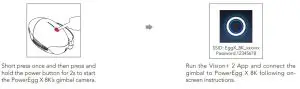
*You can connect your mobile device to the AI-Camera over a Wi-Fi network or an approved data cable. For details, please read on-screen instructions in the App or watch the related tutorials.
3. Shoot with the AI-Camera Functions
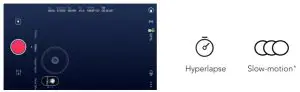
*More functions will become available in the future via updates. For more information, please refer to the instructions contained in the App.
For details, please visit PowerVision’s official website www.powervision.me, and download the user manual. The content is subject to change without further notice.
PowerEgg and PowerVision are Trademarks owned by Powervision Tech Inc. Copyright @ 2021 PowerVision All Rights Reserved.