 CloudAPI Inclusion or Exclusion
Installation Guide
CloudAPI Inclusion or Exclusion
This device is a security enabled Z-Wave Plus™ product that can use encrypted Z-Wave Plus messages to communicate to other security enabled Z-Wave Plus products.
D.1 CloudAPI – Inclusion/Exclusion
Inclusion S0 device:
For inclusion one Z-Wave™ device is in add mode and the other one is in learn mode.
- Include a Z-Wave device (Door lock, Switch, Dimmer…), click
 button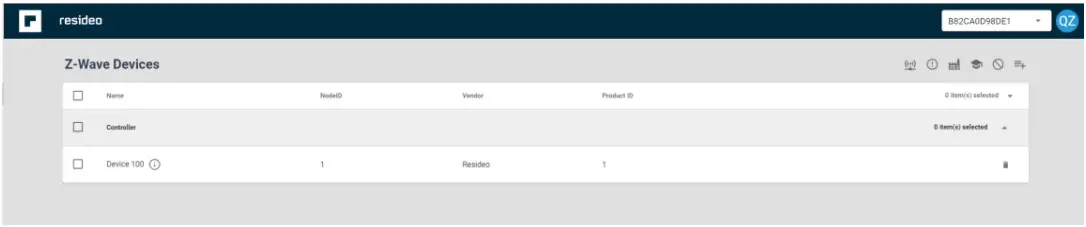
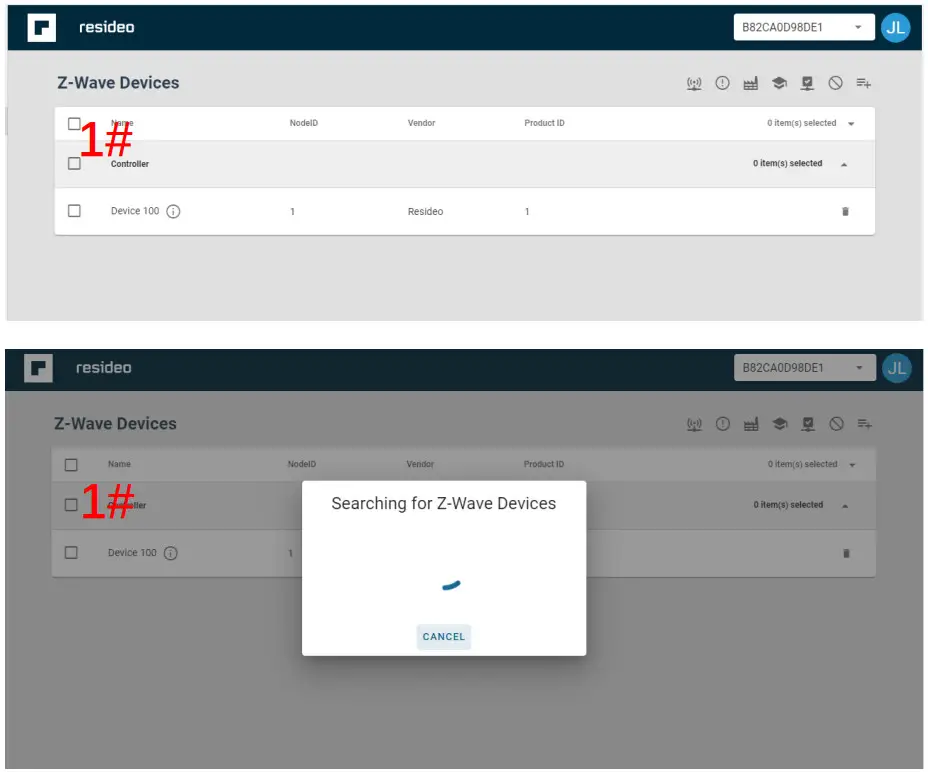
- Then pop up the inclusion mode window, display searching for Z-Wave Device
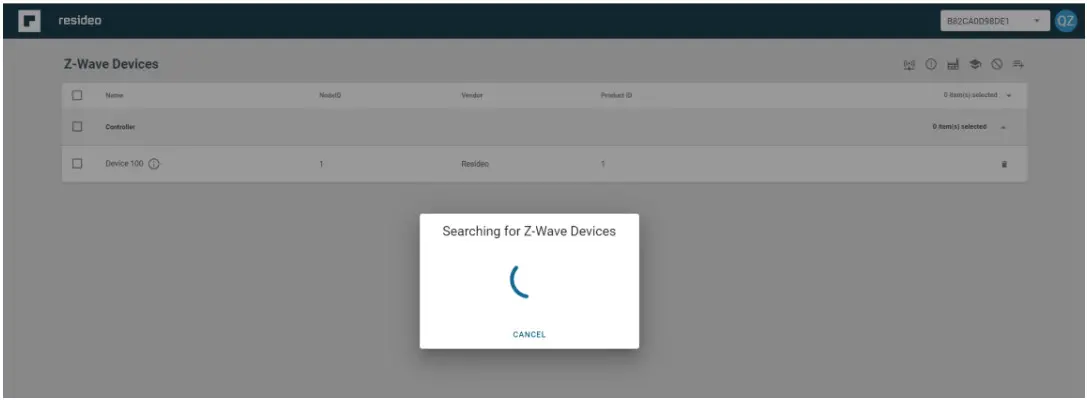
- Press the button on the device which you want to include, wait for the inclusion to end, display device information, click done
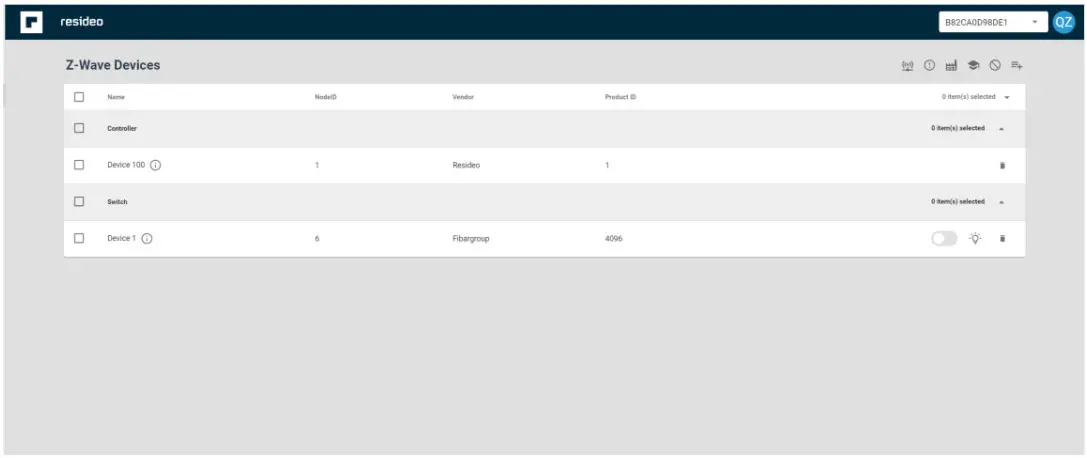
- View Z-Wave device list, the newly registered device should show
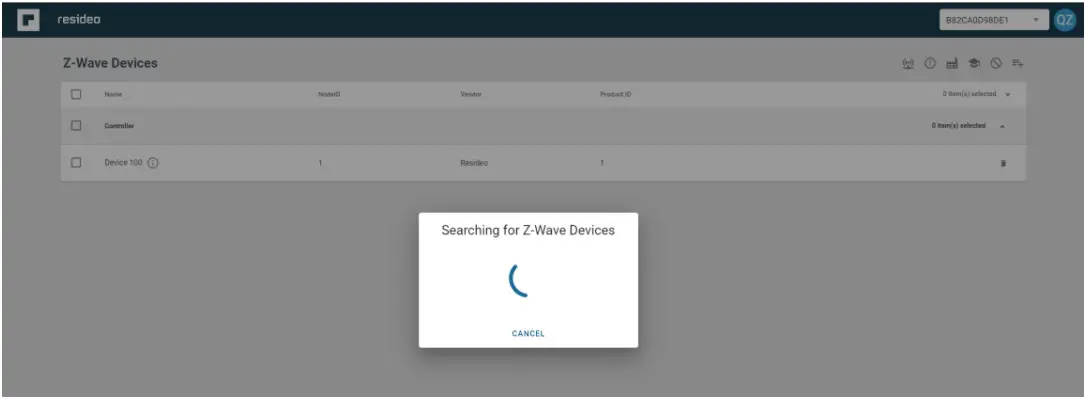
Inclusion S2 device:
- Include a Z-Wave S2 device, click button
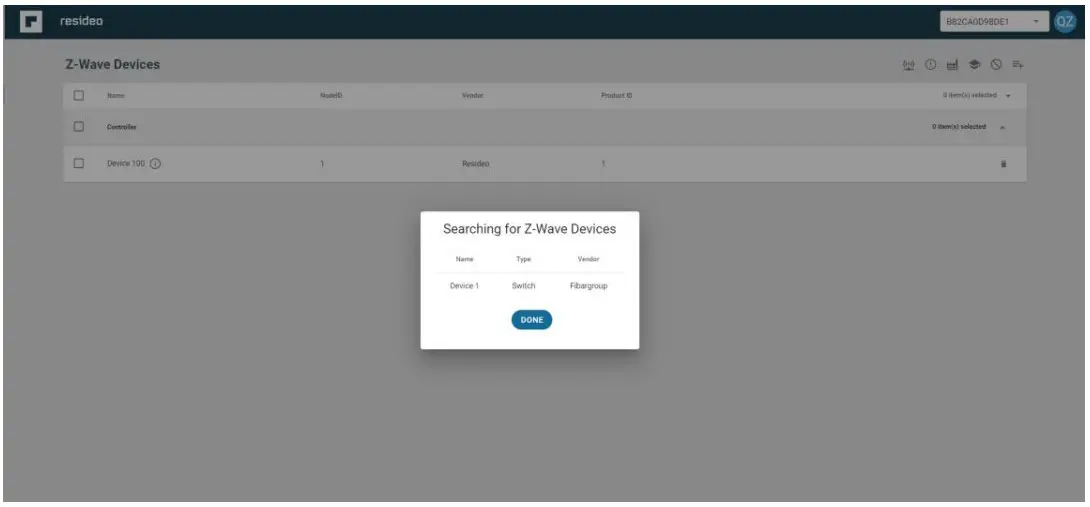
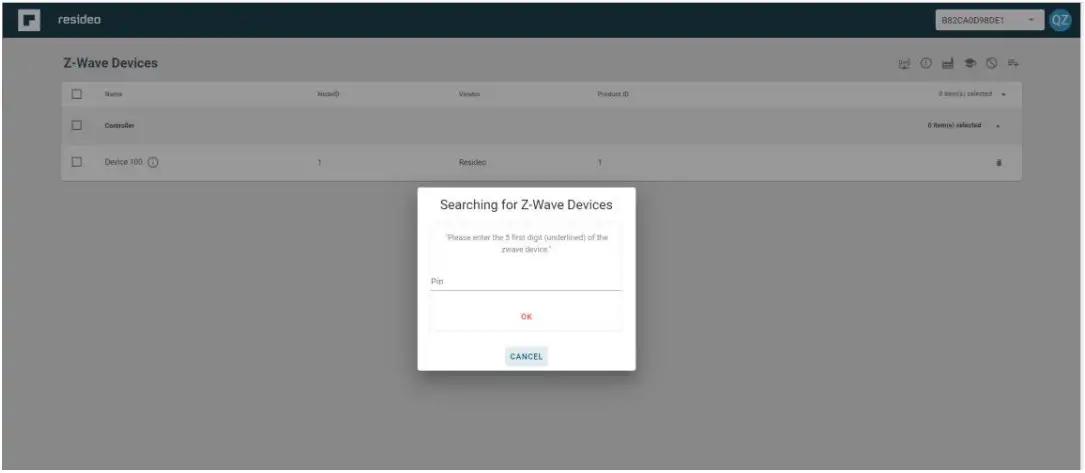
- Press the button on the device which you want to include, wait for a dialog and input first 5 digits DSK, click Ok
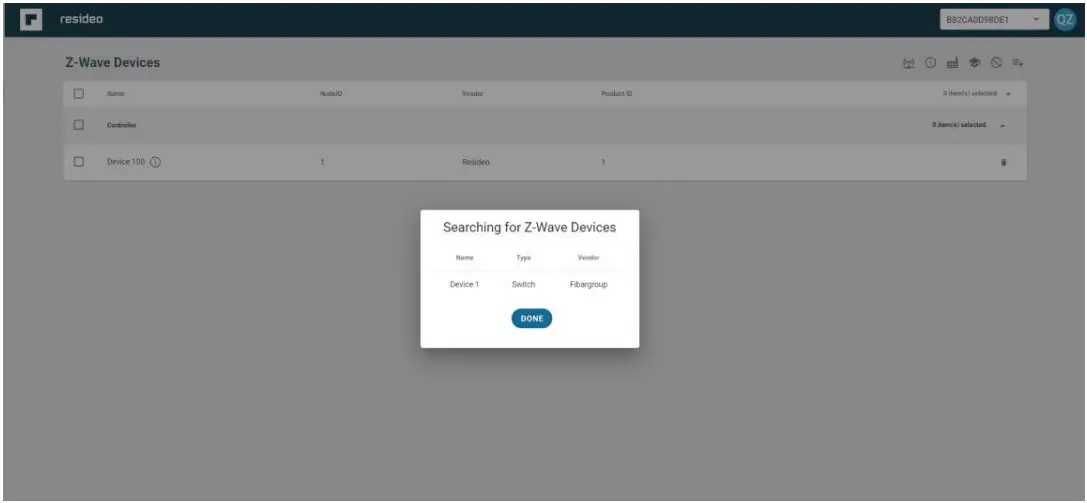
- wait for the inclusion to end, display device information, click done
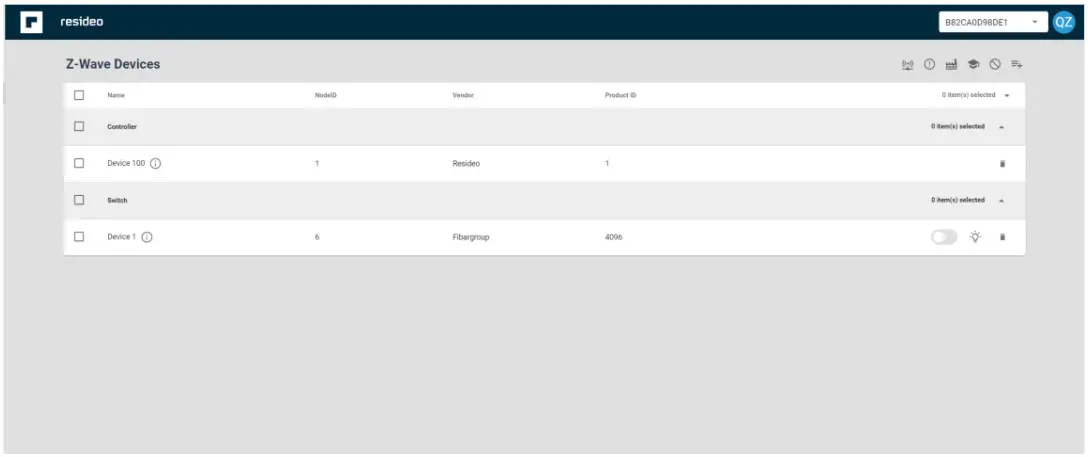
- View Z-Wave device list, the newly registered device should show
Exclusion:
For exclusion one Z-Wave device is in removing mode and the other one is in learn mode.
- Exclude a Z-Wave device (Door lock, Switch, Dimmer…), click
 button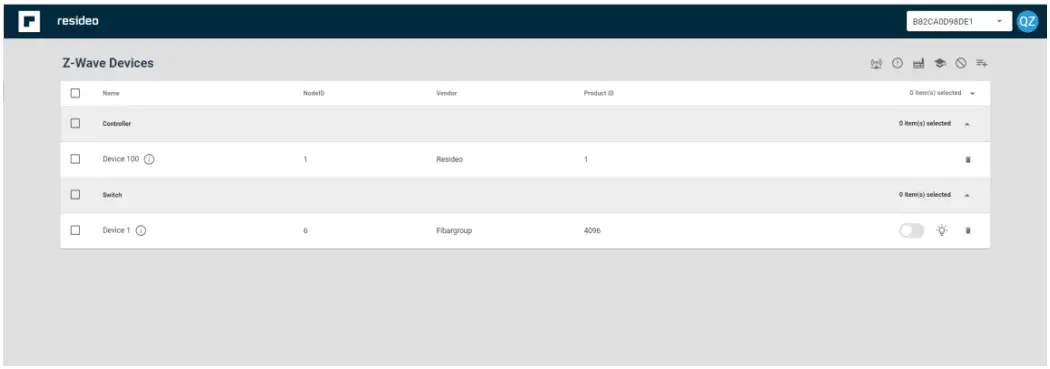
- Then pop up the exclusion mode window, display deleting for Z-Wave Device
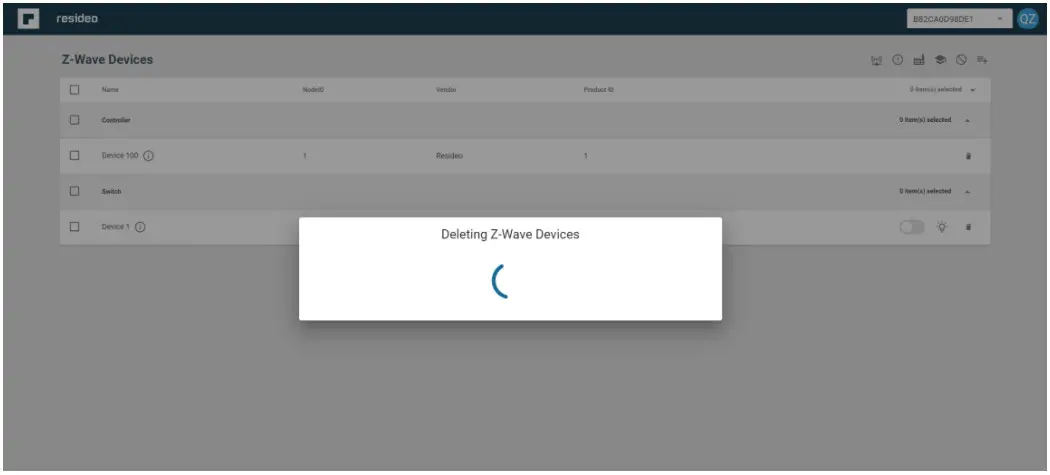
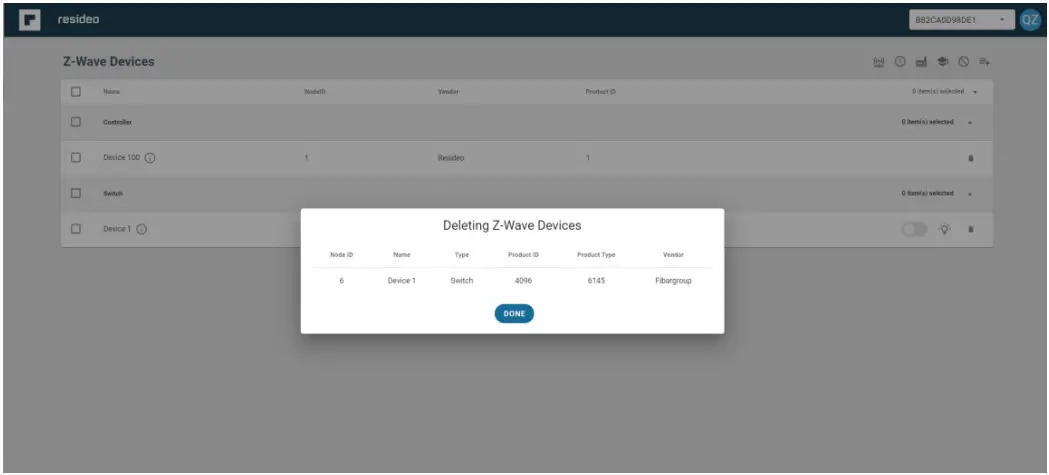
- Press the button on the device which you want to exclude, wait for the exclusion to end, display device information, click done
D.2 CloudAPI – Device information
Device information:
- Click
 button, Device information should display: Device name / Device Type / Node ID / Product ID / Product Type/ Vendor Name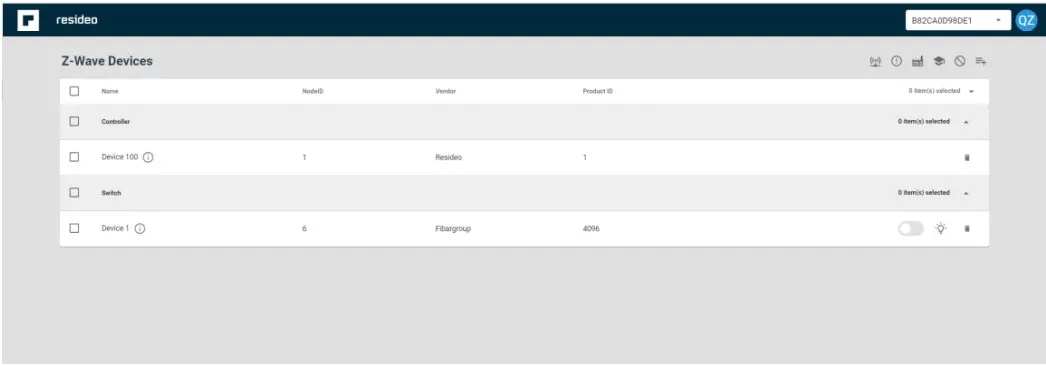
- Display device information
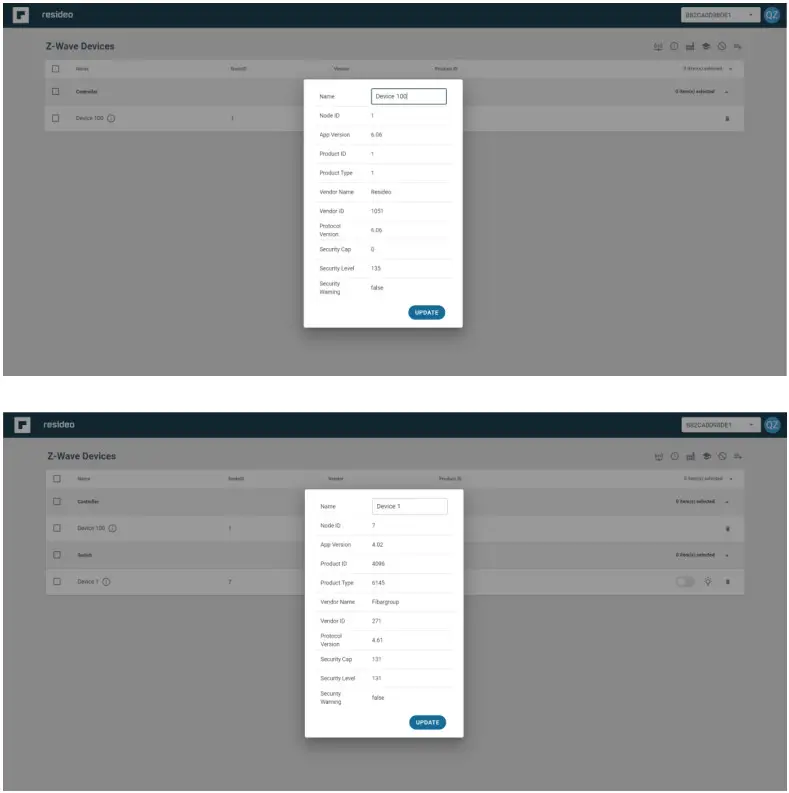
 button, Device information should display: Device name / Device Type / Node ID / Product ID / Product Type/ Vendor Name
D.3 CloudAPI – Basic operation
Basic Z-Wave device operation:
Basic operation of Switch on the Cloud API interface
- Device is already registered(Switch as an example)
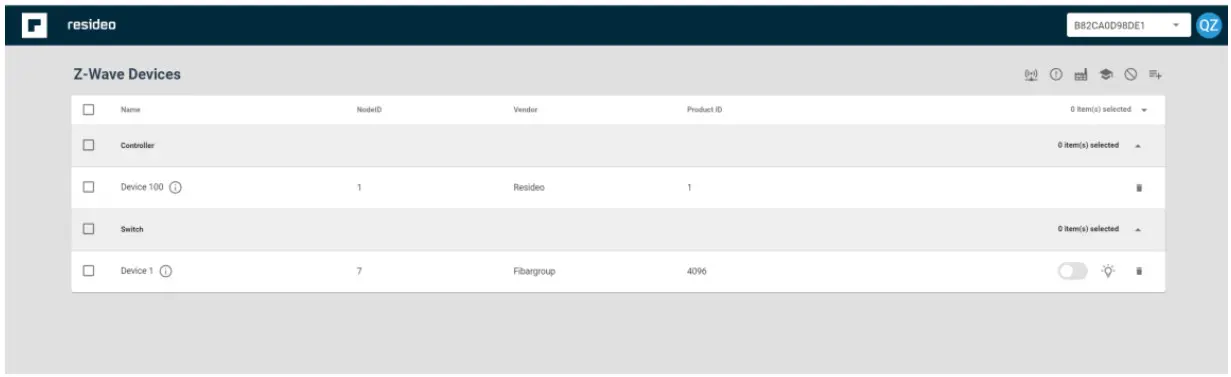
- Click
 button, control switch ON/OFF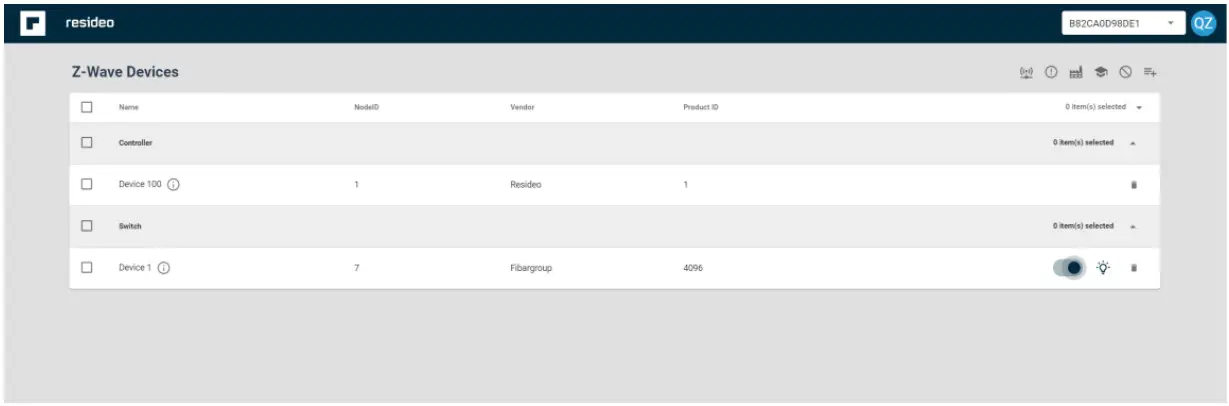
D.4 CloudAPI – Network information
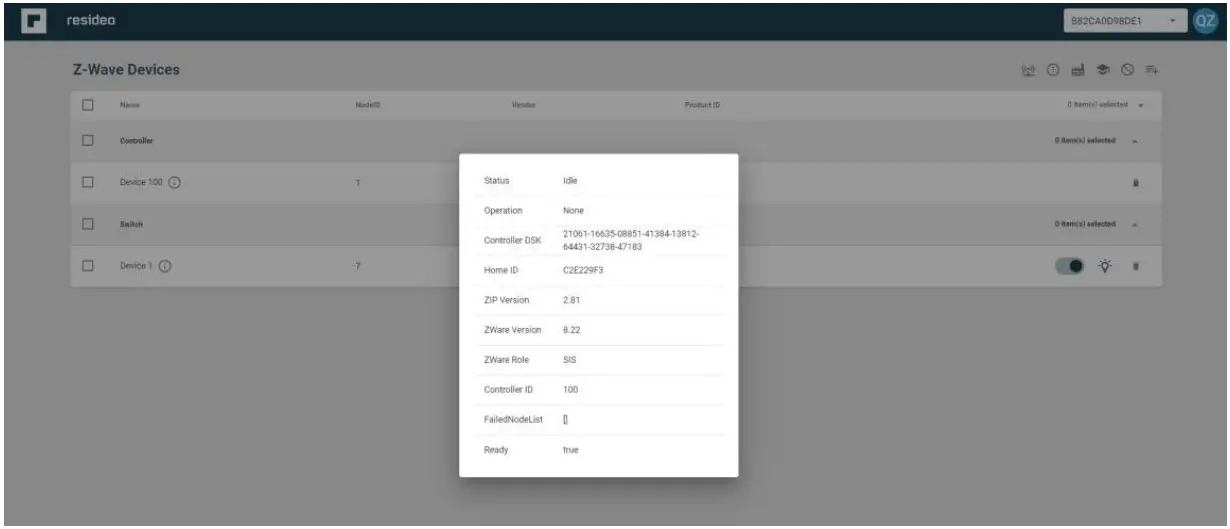
Network information:
- Click
 button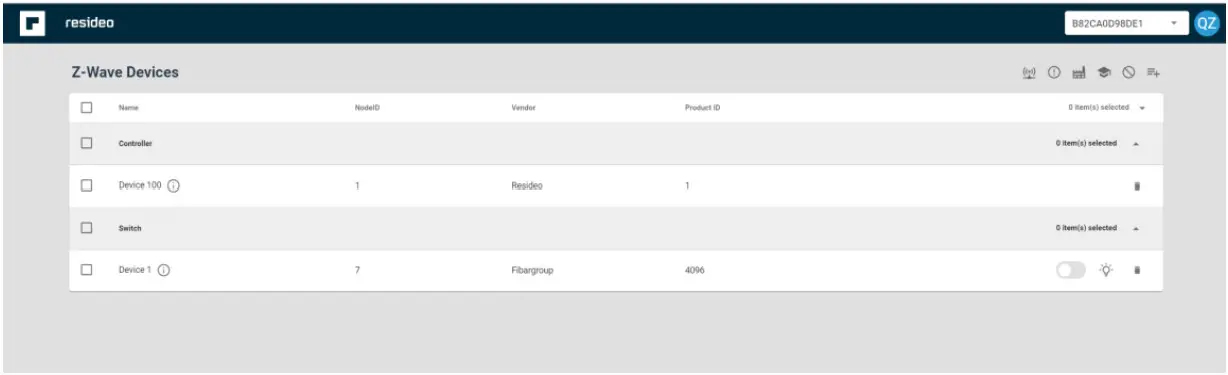
- Display Z-Wave Network information
D.5 Controllers – Replication
Controller replication (Copy) is achieved through Inclusion and Set Learn Mode.
Entering learn mode while in a network will trigger a replication if the primary controller is in add node mode. So, replication and Learn Mode are the same and you just need to do Learn Mode here.
- Prepare two mains powered Z-Wave DUTs and cloud API web shows as below
#2 DUT do factory reset first,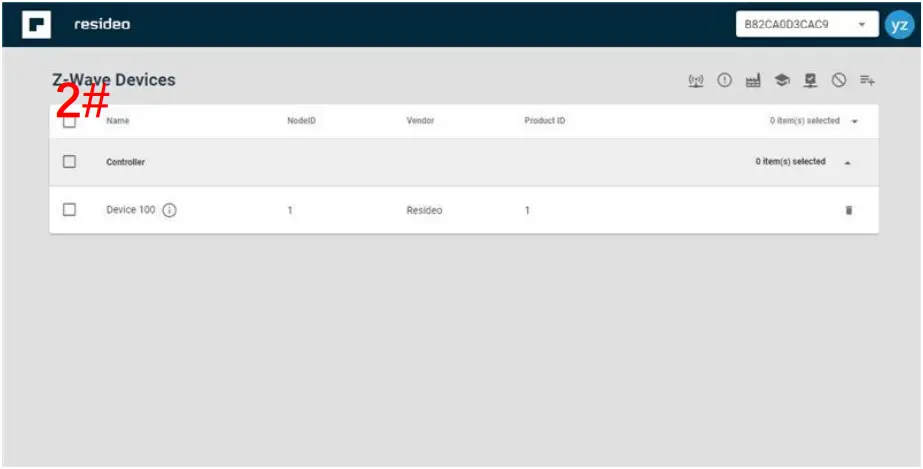
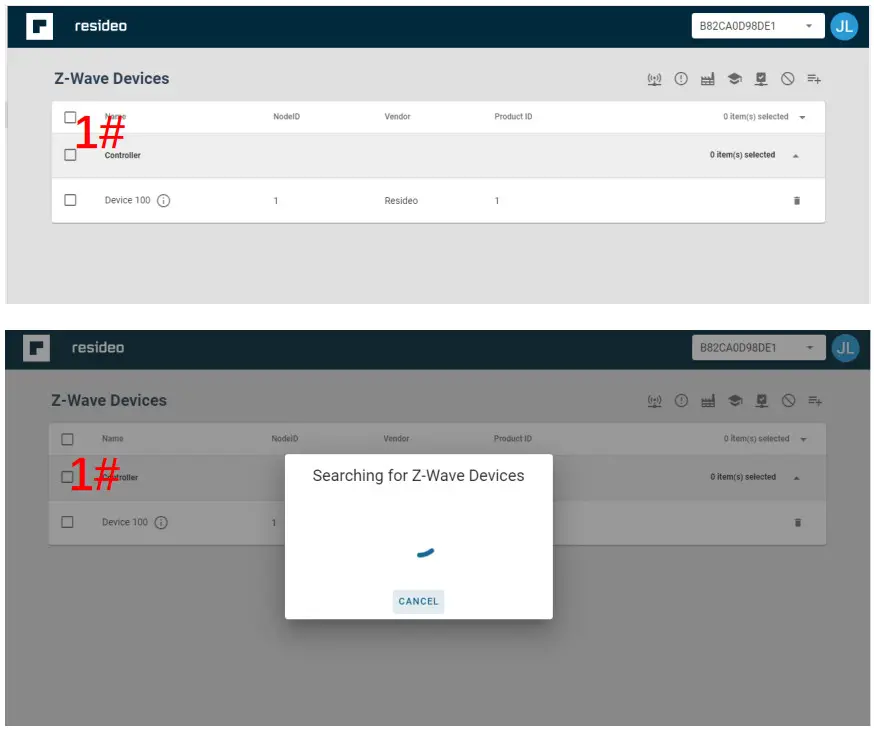
- Click “Inclusion Mode” on the 1#
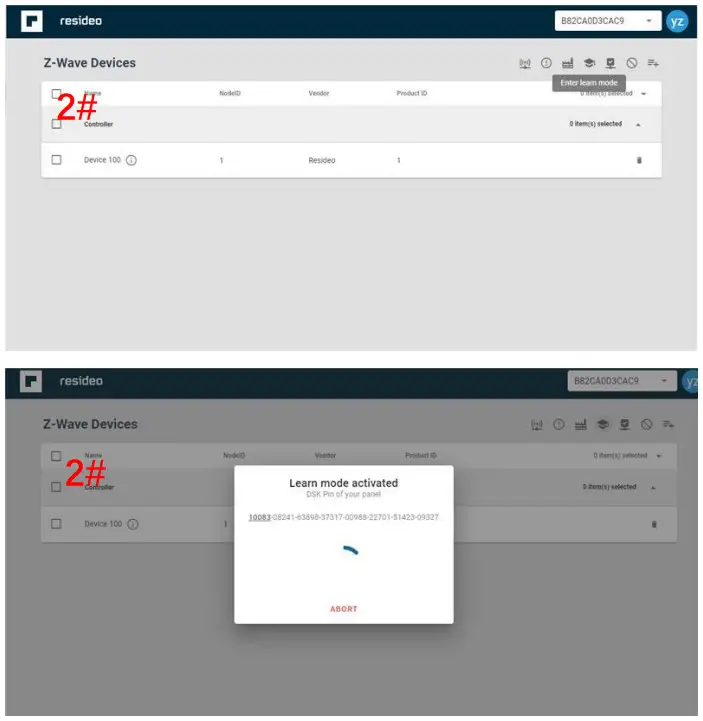
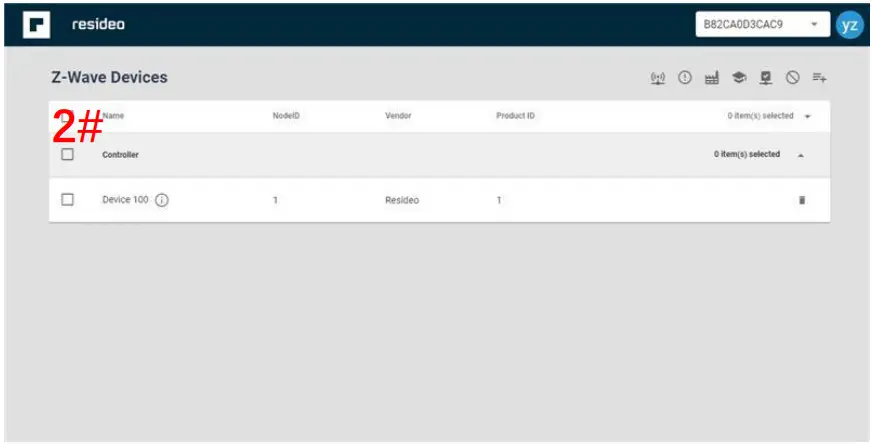
- Click “Enter Learn Mode” on the 2#
D.6 Controllers – Learn Mode
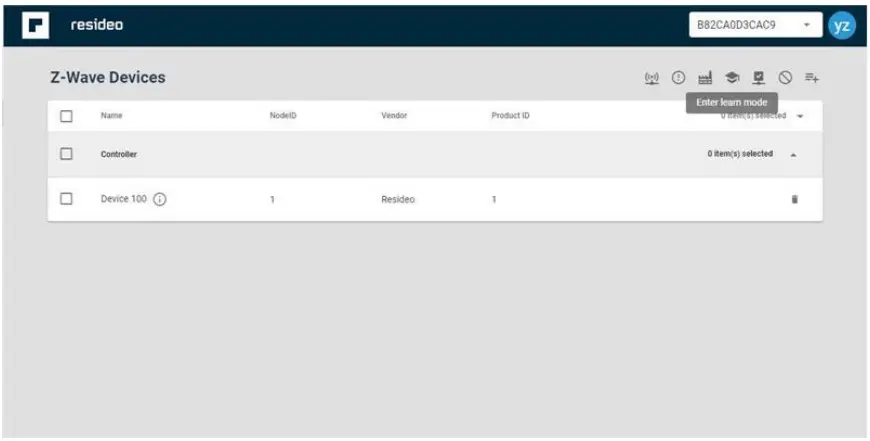
- Click “Enter Learn Mode” on the web
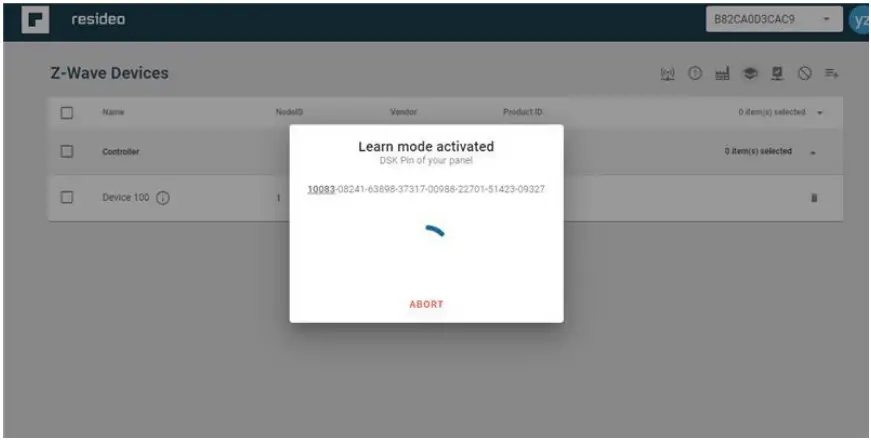
- Then will show this DSK pin information
D.7 Controllers – Including the DUT
- Prepare two mains powered Z-Wave DUTs, #2 DUT do factory reset first.
- Click “Inclusion Mode” on the 1#
- Click “Enter Learn Mode” on the 2#
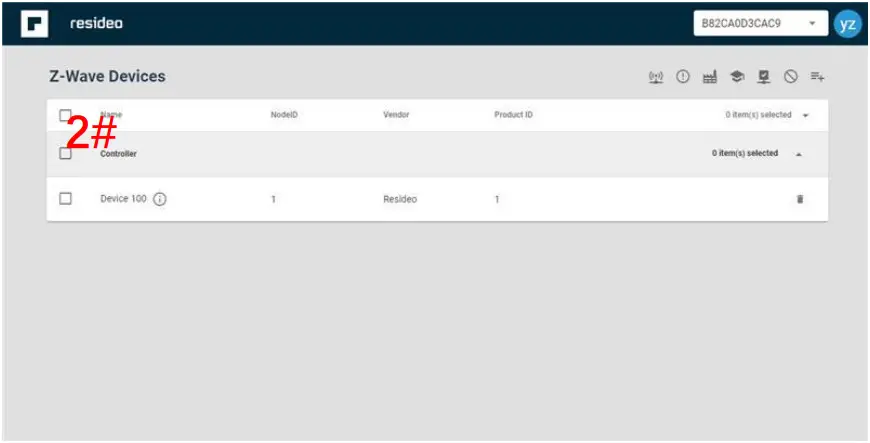
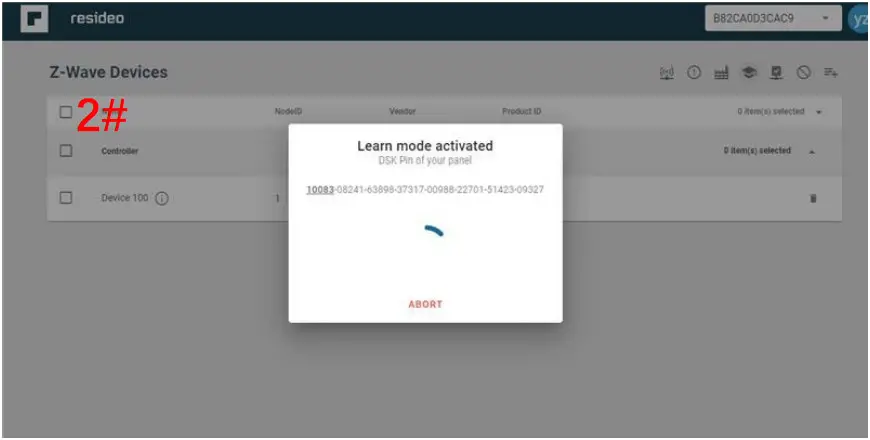
- Then you will see DSK information below, remember the first five numbers underline.
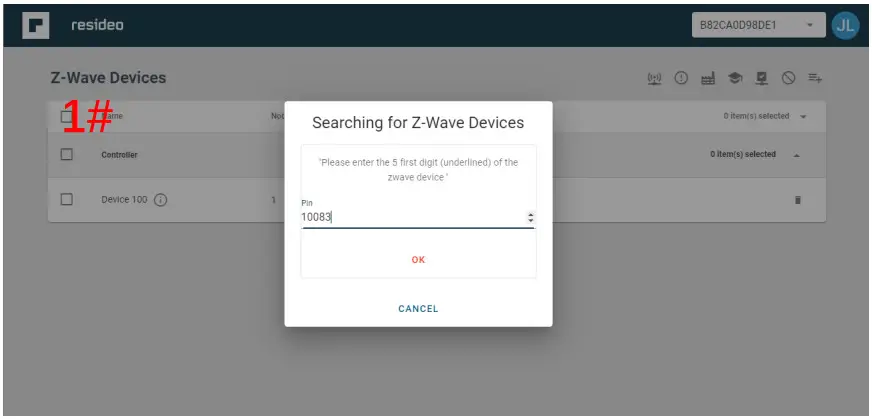
- Soon 1# web will pop out the DSK input box, fill the box with the first five numbers shows in 2#, and then click OK button
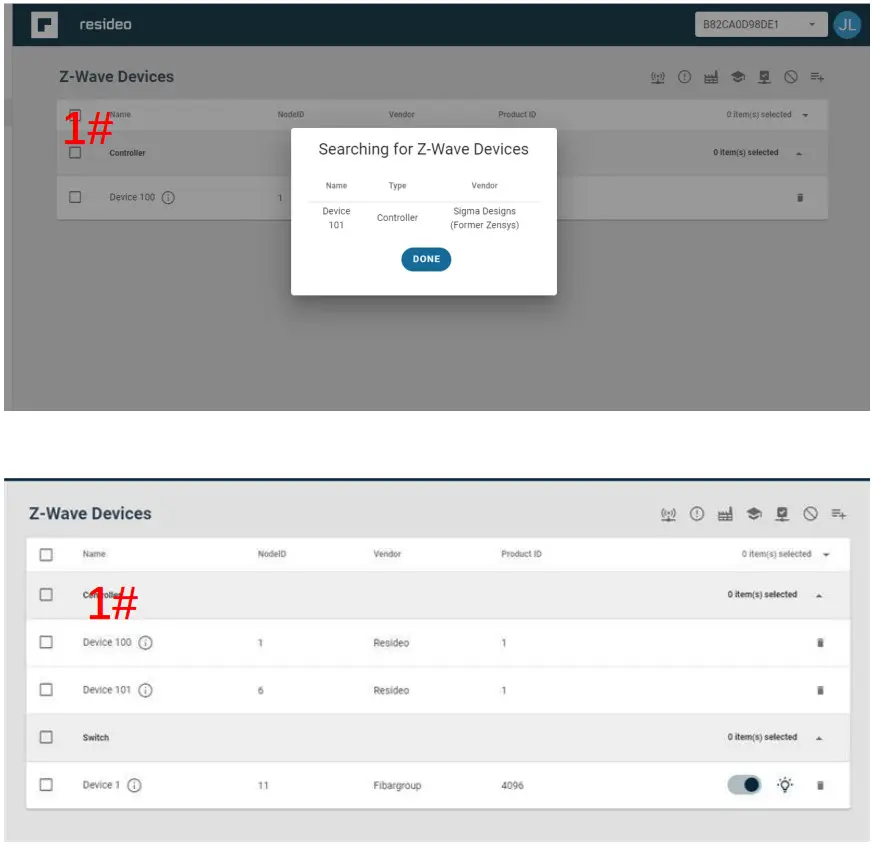
- Later will shows the 2#’s information, then click DONE button, refresh the 1# web, in the Z-Wave list, it will show the new included controller info, it means the operation of including the DUT successfully
D.8 Controllers – Basic Documentation
This product supports Basic Command and can give action if received a Basic Command.
D.9 Terminology
| Z-Wave functionality | Documentation terminology | Example |
| Inclusion | Add | The process of adding a node to the Z-Wave network. |
| Exclusion | Remove | The process of removing a node from the Z- Wave network. |
| Replication | Copy | The process of copying network information from one controller to another. |
D.10 Devices from multiple manufacturers in one network
This product can be operated in any Z-Wave network with other Z-Wave certified devices from other manufacturers. All non-battery-operated nodes within the network will act as repeaters regardless of vendor to increase reliability of the network.
D.11 Documentation for Association CC
The association group available in our product is described as follows.
| Group ID | Maximum Nodes | Description |
| 1 | 1 | Z-Wave PlusTM Lifeline |
The Basic Command Class mapping is listed below. Basic set and basic get commands are described separately.
| Basic Set Command Mapping | Parameter | Value | |
| KEX Set | Selected KEX Scheme | 02 | |
| Selected ECDH Profile | 01 | ||
| Granted Keys | Unauthenticated | 01 | |
| Authenticated | 02 | ||
| Access | 04 | ||
| S0 | 80 | ||
| Association Set | Grouping Identifier | 01 | |
| Node ID | 1 | ||
| Basic Get Command Mapping | Parameter | Value | |
| Z-Wave+ Info Get | None | None | |
| KEX Get | None | None | |
| S2 Network Key Get | Requested Key | Unauthenticated | 00 |
| Authenticated | 01 | ||
| Access | 02 | ||
| S0 | 07 | ||
| S2 Commands Supported Get | None | None | |
| S2 Nounce Get | Sequence Number | Random | |
| Security Nounce Get | None | None | |
| Security Commands Supported Get | None | None | |
| DSK Get | Seq No | 00 | |
| Add Mode | false | ||
| PowerLevel Get | None | None | |
| PowerLevel Test Node Get | None | None | |
| Manufacturer Specific Get | None | None | |
| Version Command Class Get | None | None | |
| Version Get | None | None |
| Version Capabilities Get | None | None |
| Version Z-Wave Software Get | None | None |
| Association Get | Grouping Identifier | 01 |
| Association Groupings Get | None | None |
| Association Specific Group Get | None | None |
| Association Group Name Get | Grouping Identifier | 01 |
| Association Group Info Get | List Mode | true |
| Refresh Cache | false | |
| Grouping Identifier | 01 | |
| Association Group Command List Get | Allow Cache | true |
| Grouping Identifier | 01 | |
| Device Specific Get | None | None |
The following basic commands are used for our product to control some devices.
| Object | Control Command | Value | Behavior of device |
| Door Lock (Entry Control Keypad) | Basic Set | 0xFF | ignore any received basic commands |
| 0x00 | |||
| On/Off Switch | Switch Binary Set | 0xFF | Turn on |
| 0x00 | Turn off | ||
| Power Strip | Switch Binary Set | 0xFF | Turn on |
| 0x00 | Turn off | ||
| Switch Multilevel Set | 0xFF | Turn on | |
| 0x00 | Turn off | ||
| Fan Switch | Switch Multilevel Set | 0xFF | Turn on |
| 0x00 | Turn off | ||
| Light Dimmer Switch | Switch Multilevel Set | 0xFF | Turn on |
| 0x00 | Turn off | ||
| Thermostat, HVAC | Thermostat Mode Set | 0xFF | Comfort Mode |
| 0x00 | Energy Save Mode |
D.14 Documentation for Factory Default Reset
- Prepare two mains powered Z-Wave DUTs and navigate to system UI as below, click
 button
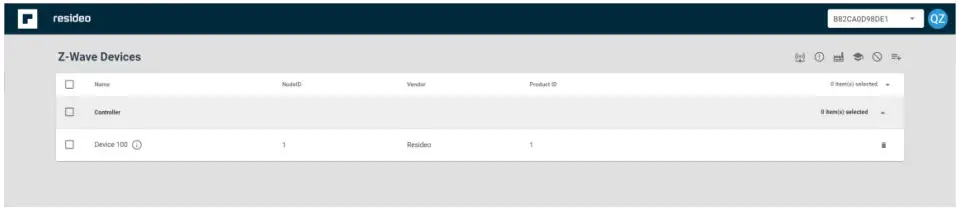 Click “Setting”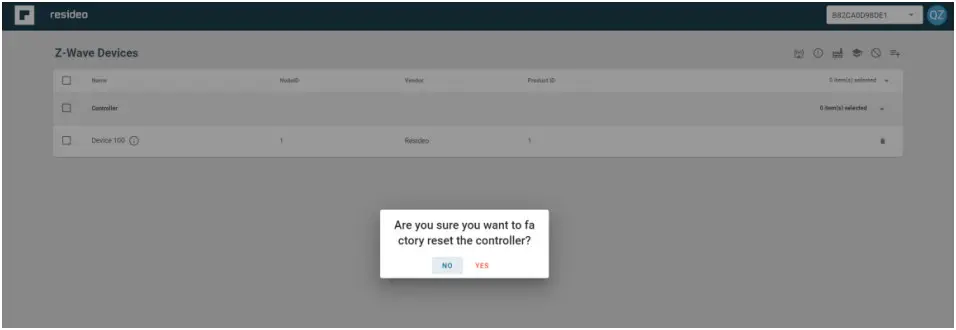
D.19 Documentation for S2 Security CC
| Command Class | Version | Required Security Class |
| Z-Wave Plus Info | 2 | None |
| Transport Service | 2 | None |
| CRC-16 Encapsulation | 1 | None |
| Application Status | 1 | None |
| Security 2 | 1 | None |
| Security 0 | 1 | None |
| Inclusion Controller | 1 | None |
| Supervision | 1 | None |
| Multi Command | 1 | None |
| Network Management inclusion | 3 | Access Control |
| Network management basic | 2 | Access Control |
| Network Management Proxy | 2 | Access Control |
| Association Group Information | 3 | Access Control |
| Device Reset Locally | 1 | Access Control |
| Network Management Installation Maintenance | 2 | Access Control |
| Manufacturer Specific | 2 | Access Control |
| Powerlevel | 1 | Access Control |
| Node Provisioning | 1 | Access Control |
| Firmware Update Meta Data | 5 | Access Control |
| Association | 2 | Access Control |
| Version | 3 | Access Control |
| Basic | 2 | Access Control |
D.21
D.21.1
Documentation about how to activate any functionality available in the device related to Z-Wave behavior is listed below. DRAFT COPY – R800-27957A_PROA7 DRAFT COPY – R800-27956A_PROA7-
D.21.2
None
D.21.3
About how to send any controlled command from the controller PC controller tool is preferred.
- Double click to select the controlled device, you will see the device is in greyed color
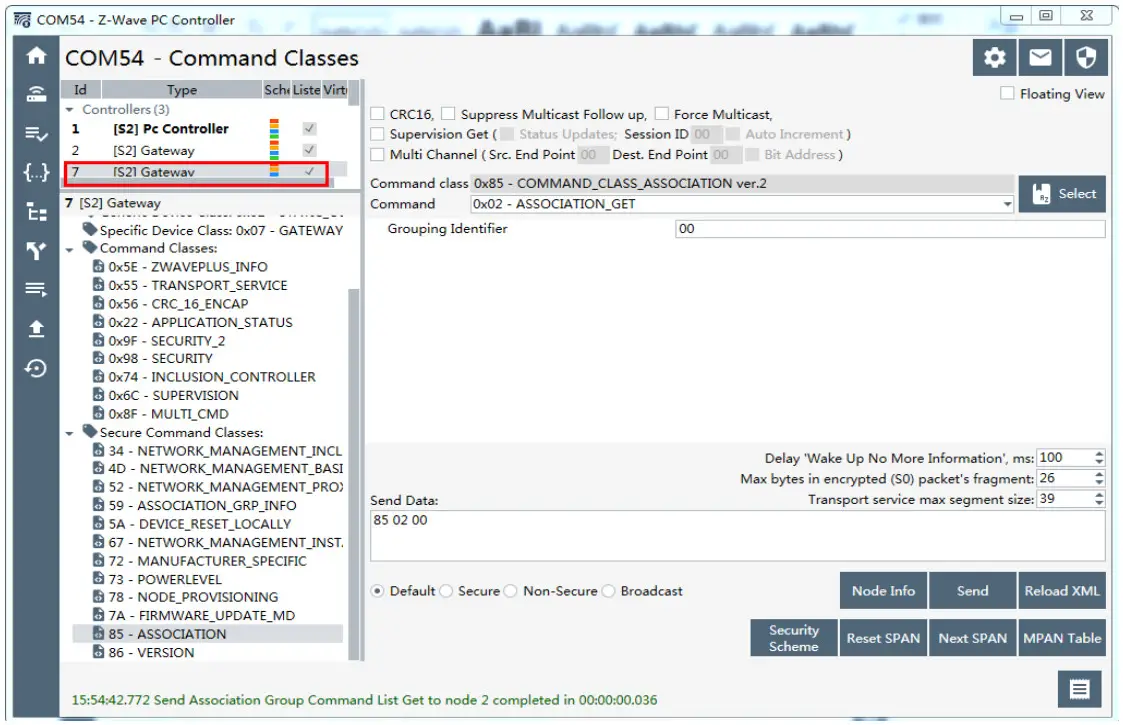
- Double click one command of command classes or secure command classes to choose such as association
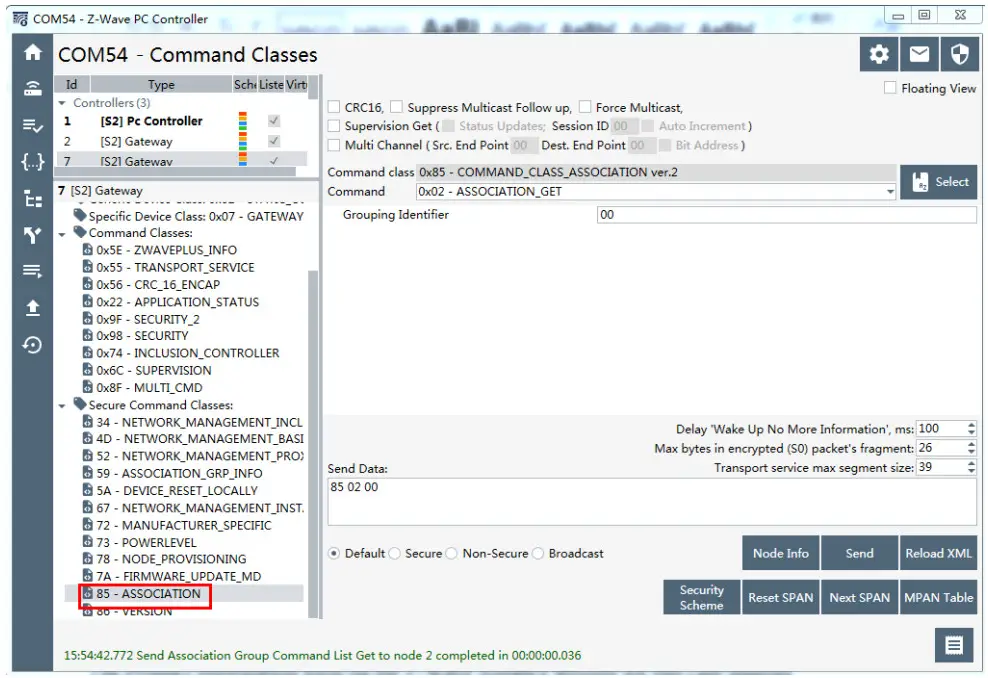
- Choose command in command list and then click send button