 v3
v3
User Guide
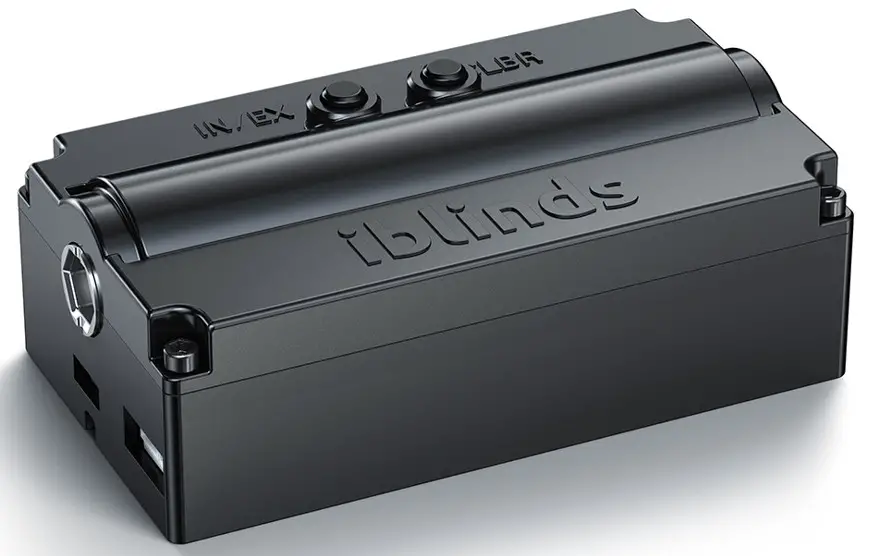
For detailed installation instructions and installation video guides visit our website support.myiblinds.com.
IBLINDS KIT CHECK LIST
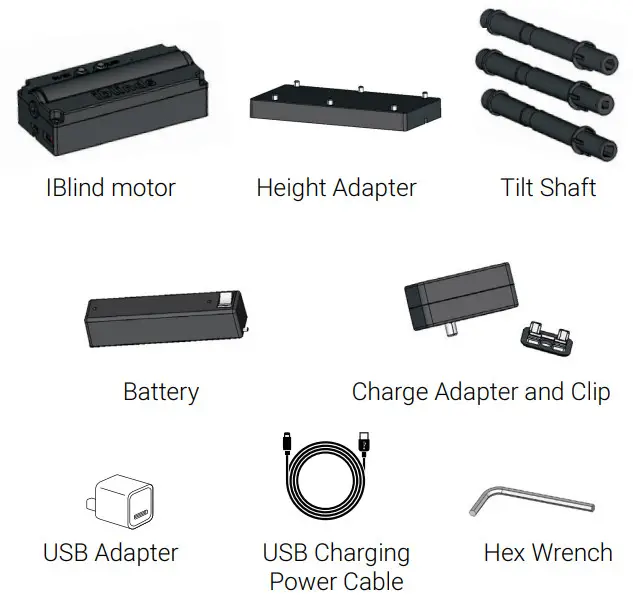
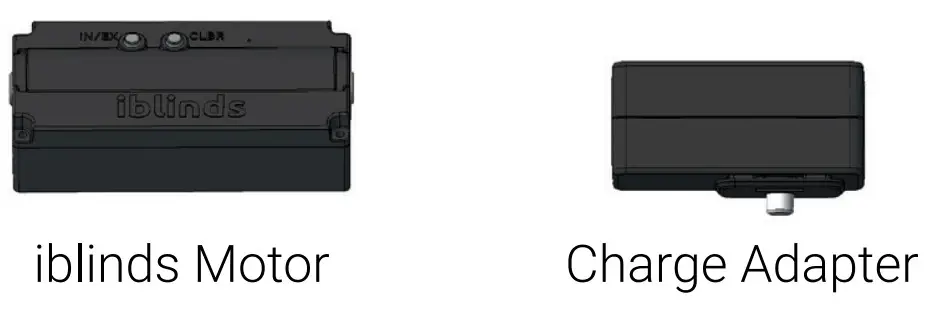
IBLIND MOTOR
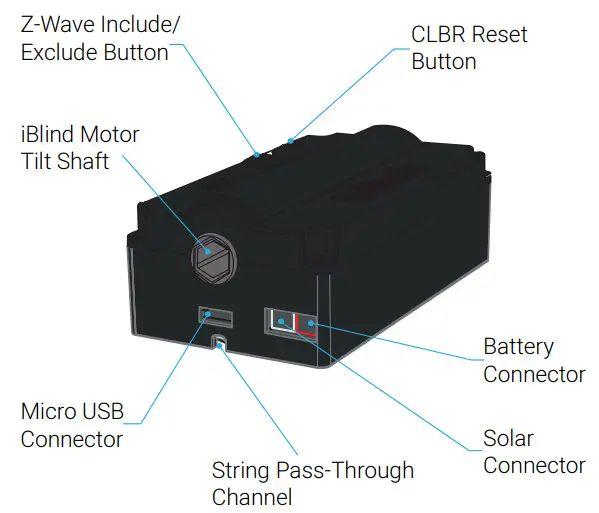
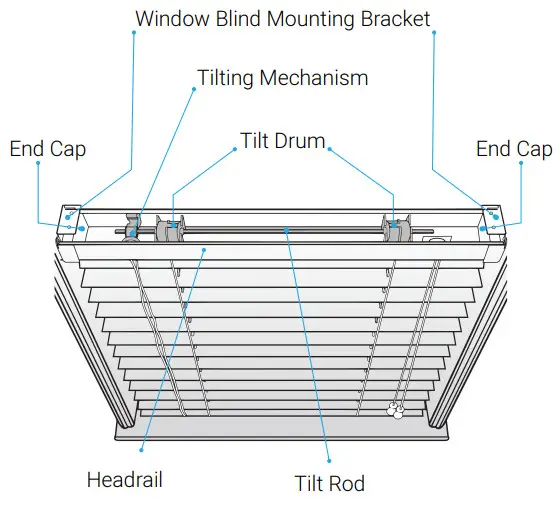
WINDOW BLIND COMPONETS
BUTTON | PRESS | FUNCTION |
| IN /EX | Press 3 times | Z-Wave network include /exclude |
| IN /EX | Press 5 times | Z-Wave Device Reset Locally |
| CLBR | Press 5 times | Reboot |
| CLBR | Press and hold 7-10 seconds | Set All Z-Wave Parameters to Default Values |
| Charge Adapter Push Button | Press 1 time, release, and wait 5 seconds | Toggle blind between closed and last open position |
| Charge Adapter Push Button | Press 3 times | Z-Wave network include /exclude |
| Charge Adapter Push Button | Press and hold 7-10 seconds | Start manual calibration |
CHARGE BATTERY
 IMPORTANT: Charge battery before first use.
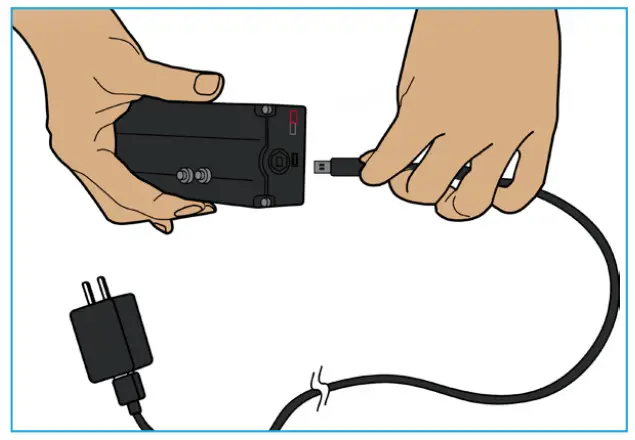
Connect the battery cable to the red battery connector. Connect USB Charging Power Cable to the Micro USB connector. Move the battery switch to the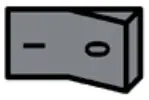 ON [I] position. Plug a USB power adapter into a wall outlet.
The Battery is fully charged when the Green LED is illuminated.
| LED | INDICATION |
| (RED) | 5V USB or Direct Power is connected |
| (YELLOW) | Battery in charging mode |
| (GREEN) | Battery is fully charged |
INSTALLATION
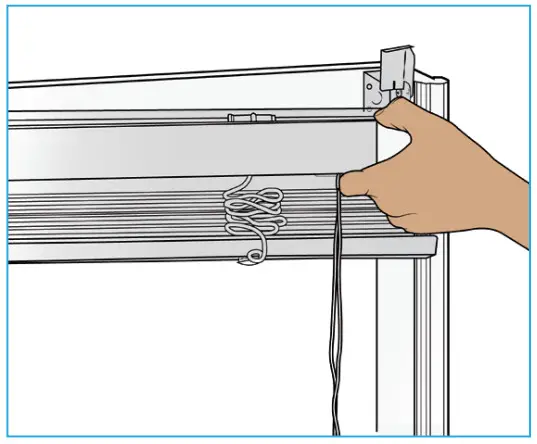
Step 1
Raise the existing blind then remove it from the wall mount.
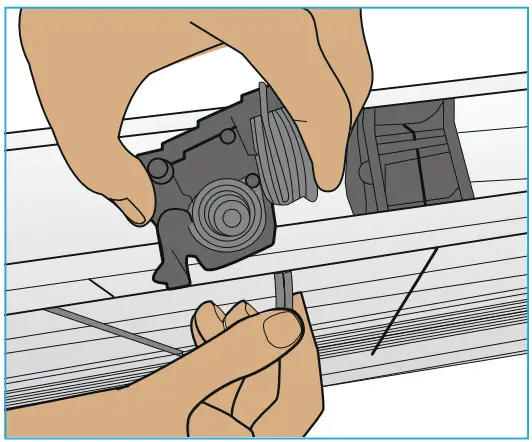
Step 2
Remove existing tilt mechanism.
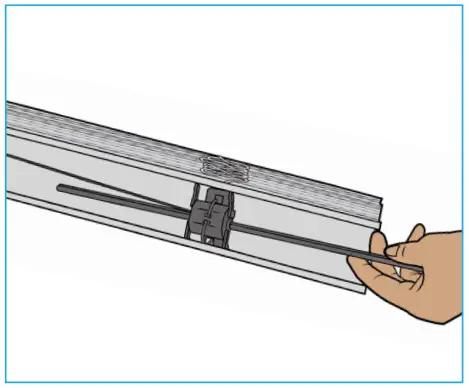
Step 3
Before removing tilt rod, take note of the current tilt position on each tilt drum. Remove tilt rod from headrail.
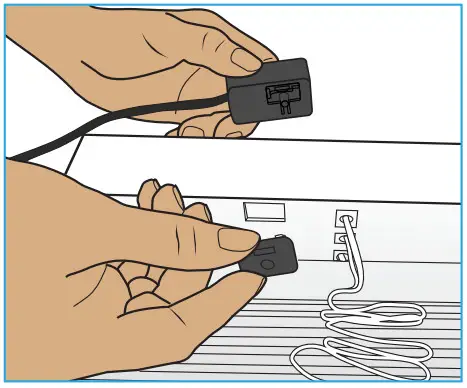
Step 4
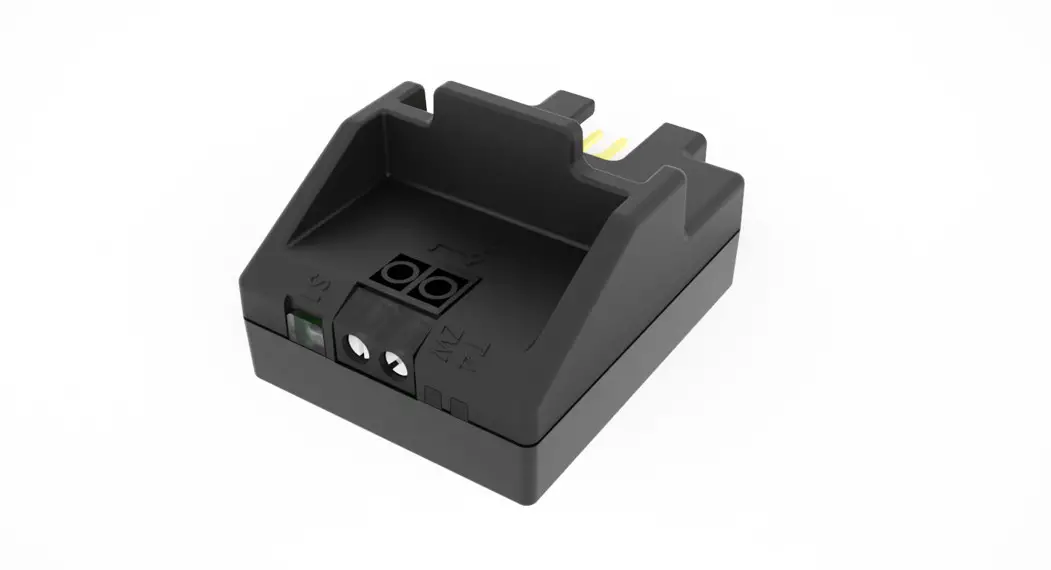
Install charge adapter inside headrail and attach clip from the bottom. Wires should be facing the outer end of the blind, with a micro USB port facing the front.
IMPORTANT: When upgrading your blinds motor from a previous version, it is important to use the charging adapter that is included with the new kit. Using the old charge adapter may cause damage to the electronics
Step 5
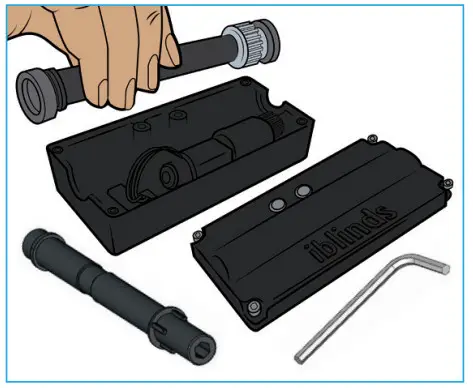
Select tilt shaft to match tilt rod size & shape. If the tilt shaft installed by default fits your tilt rod, continue to step 6. If not, Remove lid using included hex wrench & install the appropriate tilt shaft. Replace lid.
Step 6
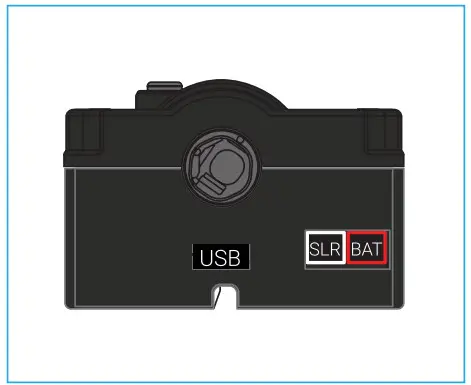
Connect the battery cable to the red BAT port. Connect Charge adapter cable to the USB port. If you have the solar panel, connect the solar adapter cable to the white SLR port. For more about power, options visit our support website – support.myiblinds.com
Step 7
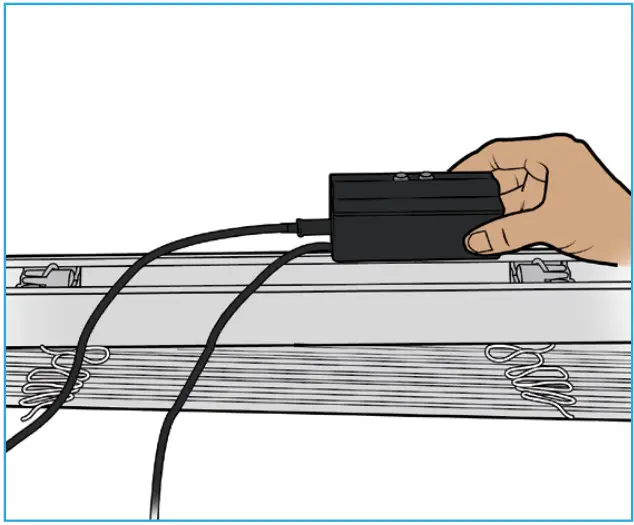
Install iBlind motor in blind head rail with buttons at the back.
IMPORTANT: make sure the tilt shaft is aligned with tilt rod holes in tilt drums. If needed, use included height adapter.
Step 8
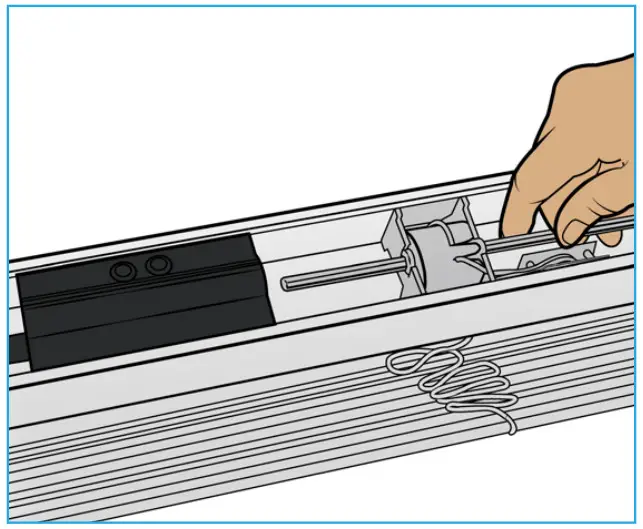
Re-insert the tilt rod, rotating it to pass through the shaft. Be careful to keep all tilt drums in the same orientation. Failure to properly align tilt drums can result in blinds tilting at an angle or damage window blinds.
Step 9
Carefully tuck the cables into the headrail. Take care to route the hidden cables where they won’t interfere with the tilt rod or any of the other moving mechanisms in the headrail.
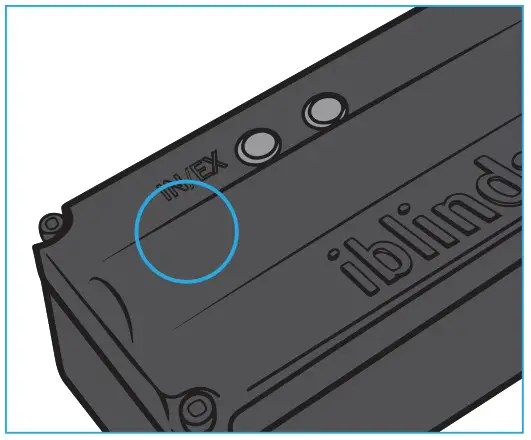
Step 10
Follow your Z-Wave controller’s directions to place it in inclusion mode. Make sure the battery is powered ON [I]. Press the IN/EX button 3 times and wait for the device to be discovered and joined to the Z-Wave Network.
Important: If your Z-Wave Controller supports S2 encryption, enter the first 5 digits of DSK into your Controller’s interface if it is requested. The DSK can be found on the bottom of the blinds motor, the box and, on the back page of this Quick Start Guide.
Step 11
Install blinds into the window mounts and lower the blinds.
CHARGING
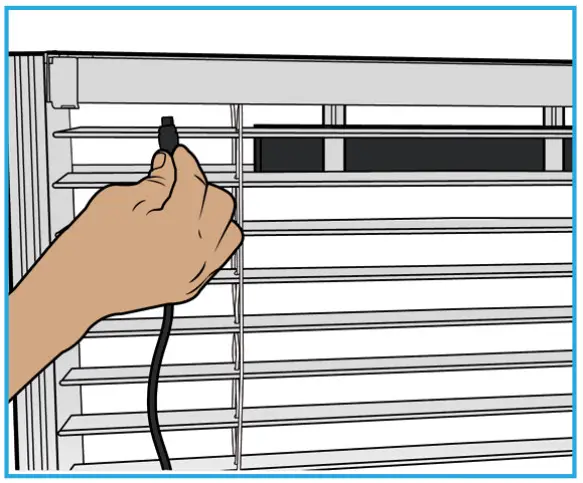
Use the USB Cable and Power Adapter to charge battery approx. every 5-6 months.
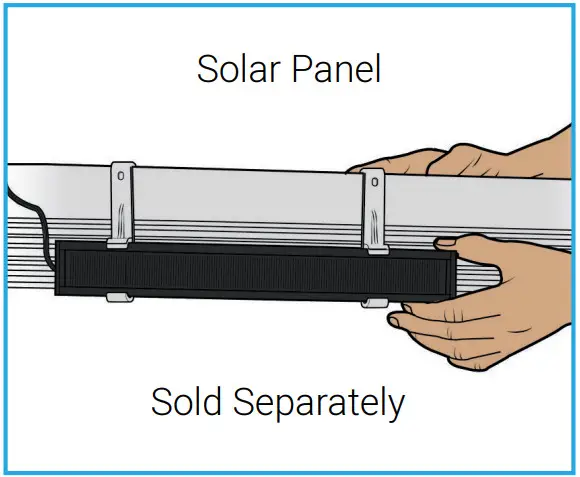
The Solar Panel accessory is an environmentally friendly and worry-free method for keeping the battery charged. Using solar power eliminates the need to manually charge every 5-6 months.
CUSTOMIZATION PARAMETERS
| PARAMETER | PREFERENCE NAME | DESCRIPTION | DEFAULT | VALUES |
| 1 | Close Interval | Used for large blind auto-calibration endpoint detection. A smaller value will make the blinds close tighter. | 0x16 (22) | 0x0F – 0x1E (15-30) |
| 2 | Reverse Direction | Used to reverse the direction of the blinds. | 0 (forward) | 0,1 |
| 3 | Disable Report | Used to disable Z-Wave Report. This is useful for systems that poll blinds immediately after sending a position command. Disable if an immediate Z-Wave GET command is causing blinds motor to function improperly. | 0 (False) | 0,1 |
| 4 | Default ON Value | Used to set the default ON Level -Default value for ON = 50% (0x32). Change this value if you wish to change the Charge Adapter push button ON or the Z-Wave Binary Switch ON default value. | 0X32 (50) | 0x01 -0x63 (1-99) |
| 5 | Reserved | |||
| 6 | Speed | Used to set the default blind speed. 0 = No Delay. The Larger the value the slower the speed. Note: A Z-Wave MultiLevel Switch command sent with a Duration Value,> 0 will always override the speed parameter. | 0 | 0-100 |
SUPPORT
For specific hub support, videos, troubleshooting tips, and a link to our community forum please visit our online support site – support.myiblinds.com
If you have questions or need additional support, please submit a request using our contact form – myiblinds.com/pages/contact
Follow us on our Social Media
 | @myiblinds |
 | @iBlinds |
 | @Myiblinds |
©HAB Home Intelligence, LLC. 09/2020
THANK YOU FOR YOUR PURCHASE

WELCOME TO THE BLINDS FAMILY
Z-WAVE DEVICE SPECIFIC KEY (DSK) IMPORTANT NOTICE
This page contains important Z-Wave S2 Information about your device. You can scan below QR code to connect with any Security 2 (S2) Z-Wave controller directly or enter the first 5 digits of the DSK if prompted. Please keep in a safe place.
Z-Wave Device Specific Key (DSK)
 Contact Us - iblinds
 iblinds Support