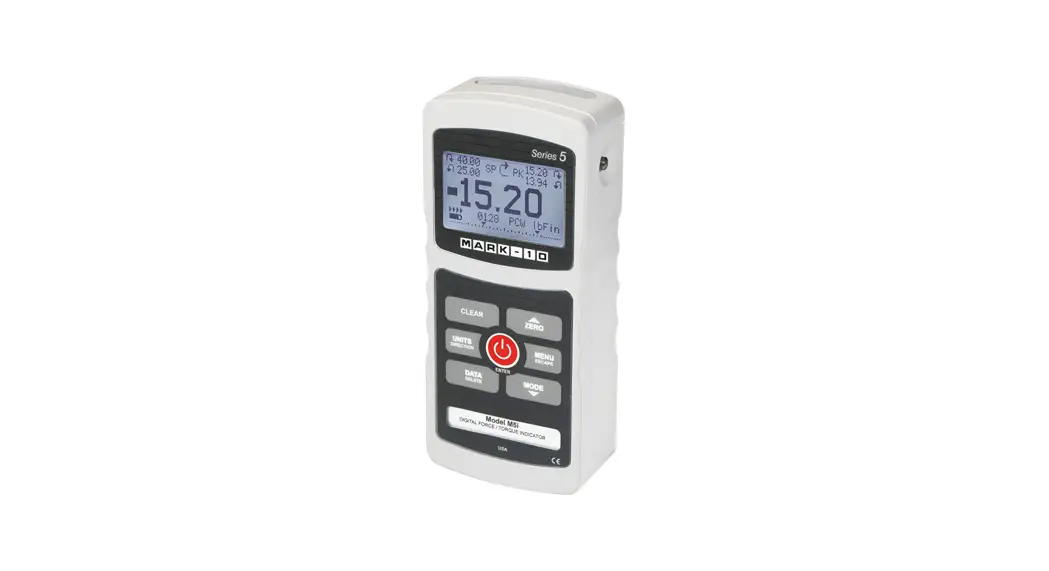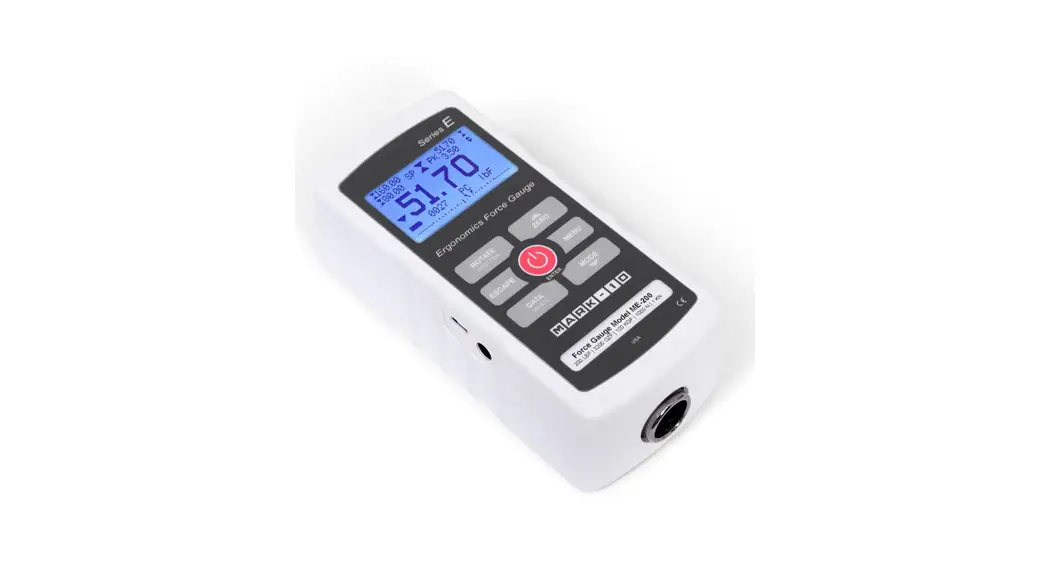
 ME-100 Series E
Ergonomics Force Gauge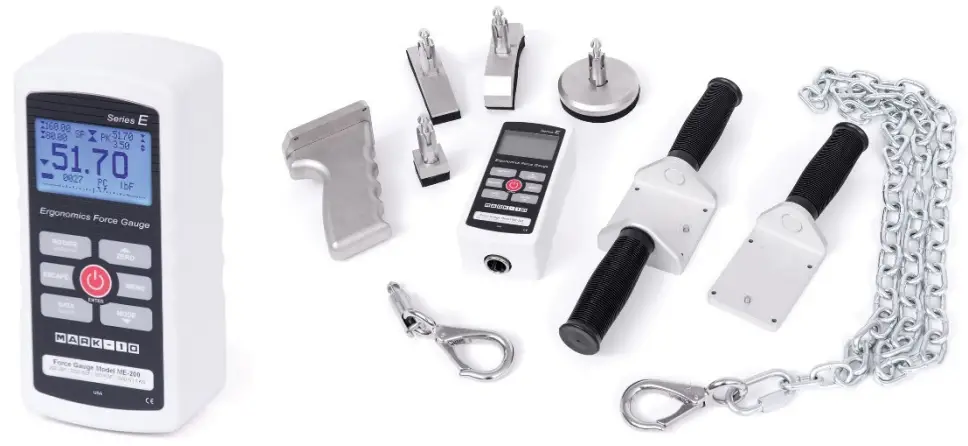 User Guide
Thank you…
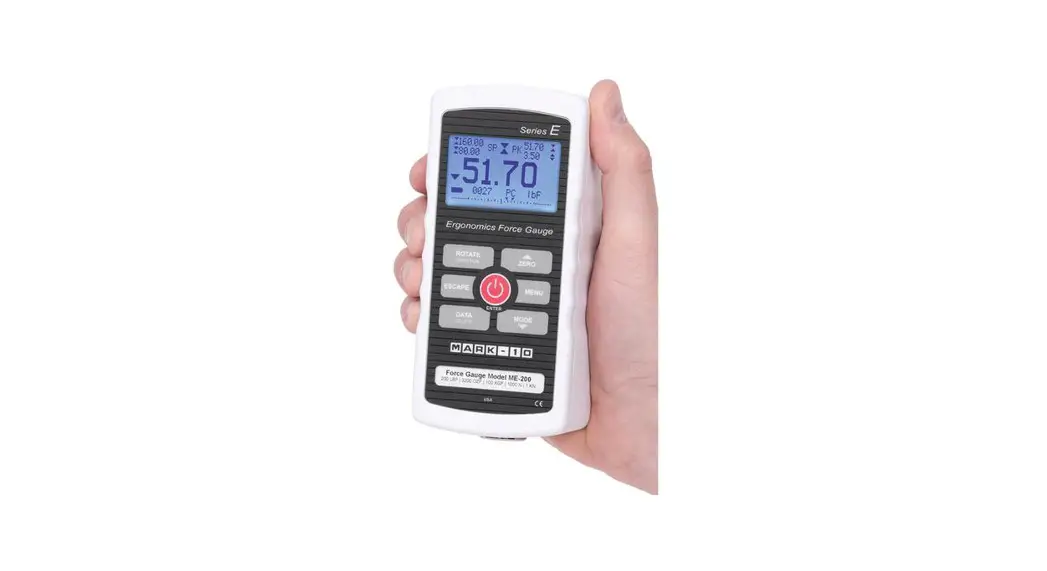
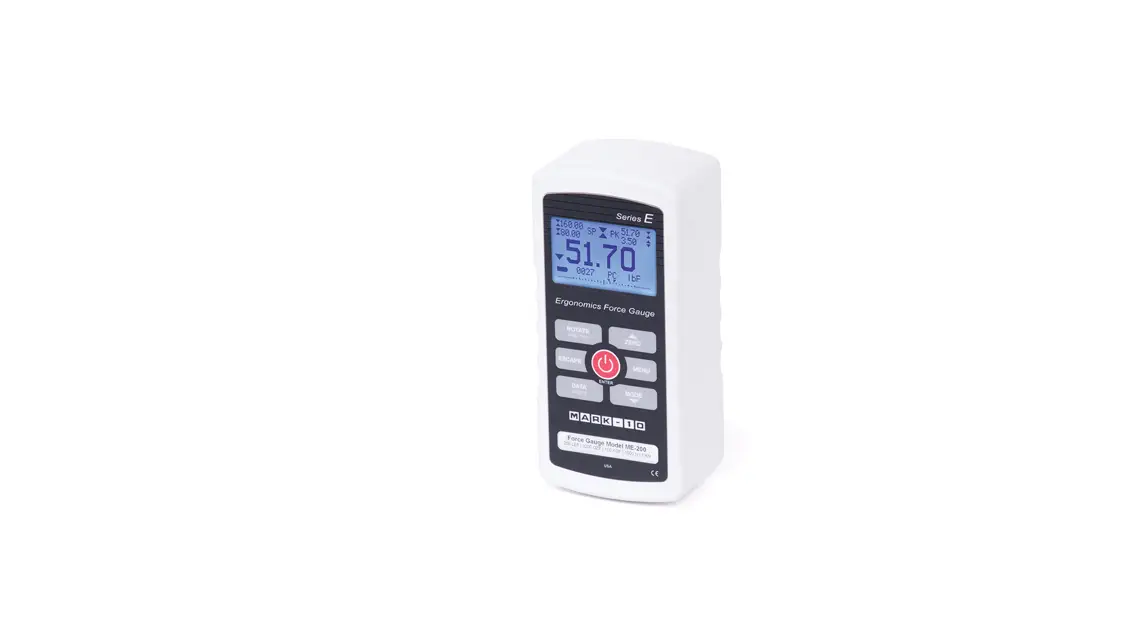
Thank you for purchasing a Mark-10 Series E ergonomics force gauge, designed for tension and compression testing applications with a range of interchangeable accessories. With proper usage, we are confident that you will get many years of great service with this product. Mark10 force gauges are ruggedly built for many years of service in laboratory and industrial environments. This User’s Guide provides setup, safety, and operation instructions. Dimensions and specifications are also provided. For additional information or answers to your questions, please do not hesitate to contact us. Our technical support and engineering teams are eager to assist you. Before use, each person who is to use the Series E force gauge should be fully trained in appropriate operation and safety procedures.
OVERVIEW
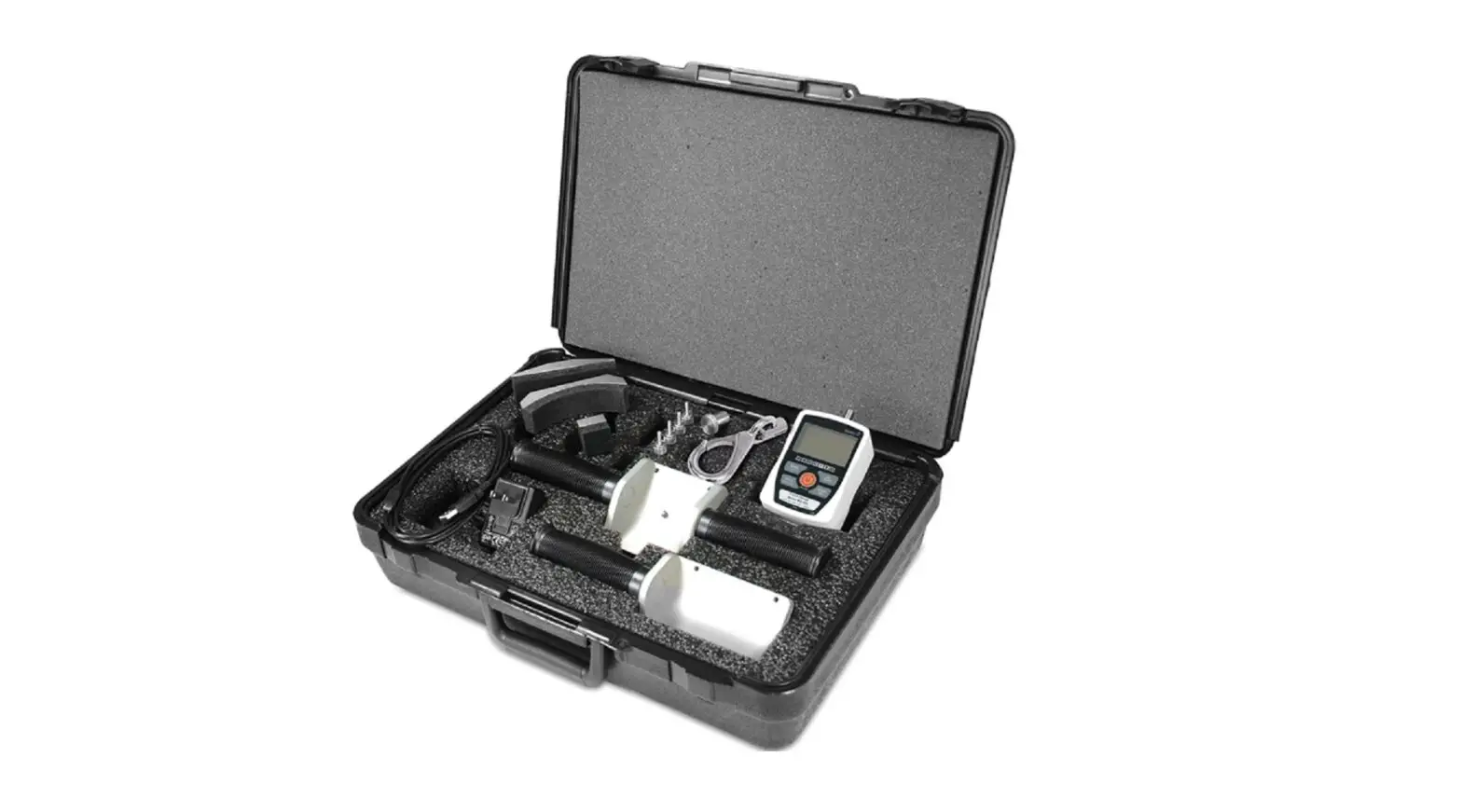
1.1 List of included items – Force Gauge Only – ME-100, ME-200, ME-500
| Qty. | Part No. | Description |
| 1 | 12-1049 | Carrying case |
| 1 | 08-1022 | AC adapter body with US, EU, UK, or AUS prong |
| 1 | AC1118 | Battery (inside the gauge) |
| 1 | AC1111 | USB cable |
| – | USB driver, MESUR® Lite software, MESUR® gauge evaluation software, User’s Guide Download at: www.mark-10.com/resources | |
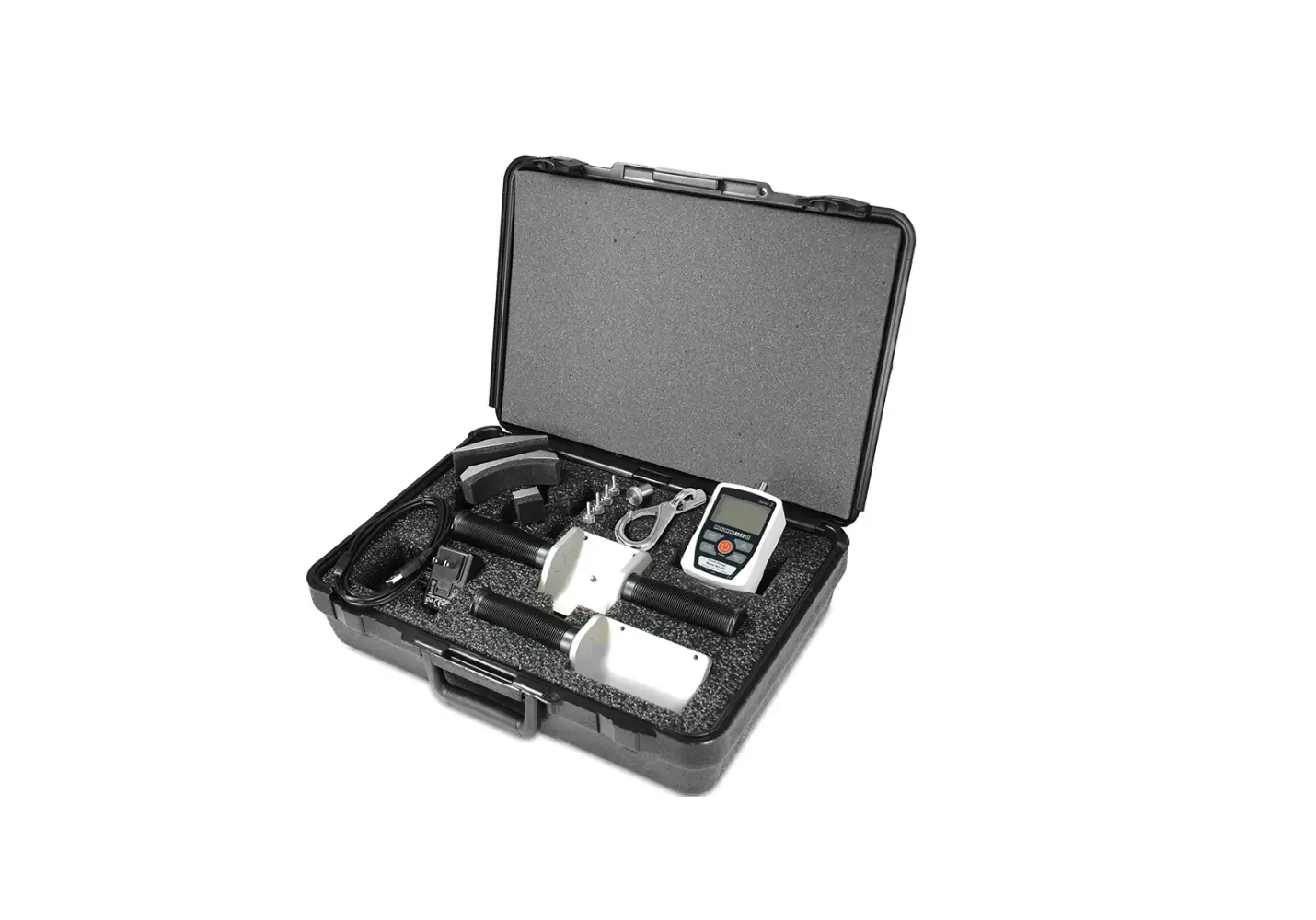
1.2 List of included items – Basic Kits – EKE-100-1, EKE-200-1, EKE-500-1
| Qty. | Model No. | Description |
| 1 | ME-100 / ME-200 / ME-500 | Force gauge |
| 1 | 08-1022 | AC adapter body with US, EU, UK, or AUS prong |
| 1 | AC1118 | Battery (inside the gauge) |
| 1 | AC1111 | USB cable |
| 1 | E1003 | Padded attachment, rectangular |
| 1 | E1004 | Padded attachment, curved |
| 1 | E1006 | Hook |
| 1 | E1009 | Double handle grip |
| 1 | E1000 | Carrying case, small |
| – | USB driver, MESUR® Lite software, MESUR® gauge evaluation software, User’s Guide Download at: www.mark-10.com/resources | |
1.3 List of included items – Advanced Kits – EKE-100-2, EKE-200-2, EKE-500-2
| Qty. | Model No. | Description |
| 1 | ME-100 / ME-200 /ME-500 | Force gauge |
| 1 | 08-1022 | AC adapter body with US, EU, UK, or AUS prong |
| 1 | AC1118 | Battery (inside the gauge) |
| 1 | AC1111 | USB cable |
| 1 | E1002 | Padded attachment, square |
| 1 | E1003 | Padded attachment, rectangular |
| 1 | E1004 | Padded attachment, curved |
| 1 | E1005 | Padded attachment, circular |
| 1 | E1006 | Hook |
| 1 | E1007 | Chain / hook assembly |
| 1 | E1008 | Single handle grip |
| 1 | E1009 | Double handle grip |
| 1 | E1010 | Pistol grip |
| 1 | E1001 | Carrying case, large |
| – | USB driver, MESUR® Lite software, MESUR® gauge evaluation software, User’s Guide Download at: www.mark-10.com/resources | |
1.4 Safety / Proper Usage
Caution!
Note the force gauge’s capacity before use and ensure that the capacity is not exceeded.
Producing a force greater than 200% of the gauge’s capacity can damage the internal load cell. An overload can occur whether the gauge is powered on or off.
The gauge is intended for use in muscle strength measurement, job task analysis, ergonomic assessment, and related applications. Do not use the gauge to engage any potentially flammable substances or products, items that can shatter in an unsafe manner, and any other components that can present an exceedingly hazardous situation when acted upon by a force.
The following safety checks and procedures should be performed before and during operation:
- Never operate the gauge if there is any visible damage to the AC adapter or the gauge itself.
- Ensure that the gauge is kept away from water or any other electrically conductive liquids at all times.
- The gauge should be serviced by a trained technician only. AC power must be disconnected and the gauge must be powered off before the housing is opened.
- Always consider the characteristics of the sample being tested before initiating a test. A risk assessment should be carried out beforehand to ensure that all safety measures have been addressed and implemented.
- Wear eye and face protection when testing, especially when testing brittle samples that have the potential to shatter under force. Be aware of the dangers posed by potential energy that can accumulate in the sample during testing. Extra bodily protection should be worn if a destructive failure of a test sample is possible.
- In certain applications, such as the testing of brittle samples that can shatter, or other applications that could lead to a hazardous situation, it is strongly recommended that a machine guarding system be employed to protect the operator and others in the vicinity from shards or debris.
- When the gauge is not in use, ensure that the power is turned off.
POWER
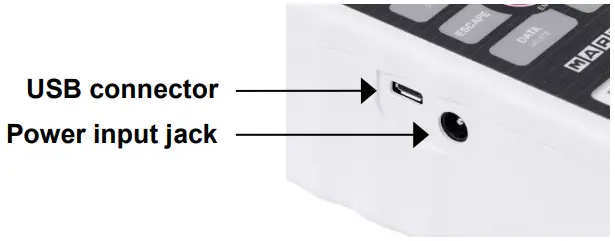
The gauge is powered either by an 8.4V NiMH rechargeable battery or by an AC adapter. Since the batteries are subject to self discharge, it may be necessary to recharge the unit after a prolonged period of storage. Plug the accompanying charger into the AC outlet and insert the charger plug into the receptacle on the gauge (refer to the illustration below). The battery will fully charge in approximately 8 hours.
Caution!
Do not use chargers or batteries other than supplied or instrument damage may occur.
If the AC adapter is plugged in, an icon appears in the lower left corner of the display, as follows:
If the AC adapter is not plugged in, battery power drainage is denoted in a five-step process:
| Battery Life: | >75% | 50 – 75% | 25 – 50% | <25% | <2% |
| Indicator: |  |  |  |  |
|
 (flashing)
At a critically low level, a message appears, “BATTERY VOLTAGE TOO LOW. POWERING OFF”. An audio tone will sound and the gauge will power off.
The gauge can be configured to automatically power off following a period of inactivity. Refer to the Other Settings section for details.
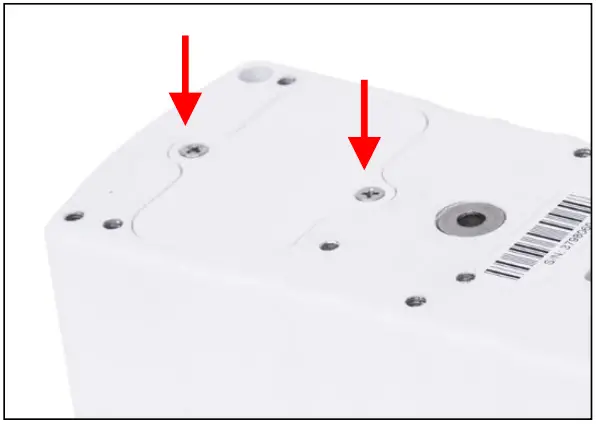
If battery replacement is necessary, it can be accessed by removing the battery cover in the rear of the housing with two screws, as shown below:
SETUP
3.1 Mechanical Setup
3.1.1 Mounting attachments to the gauge
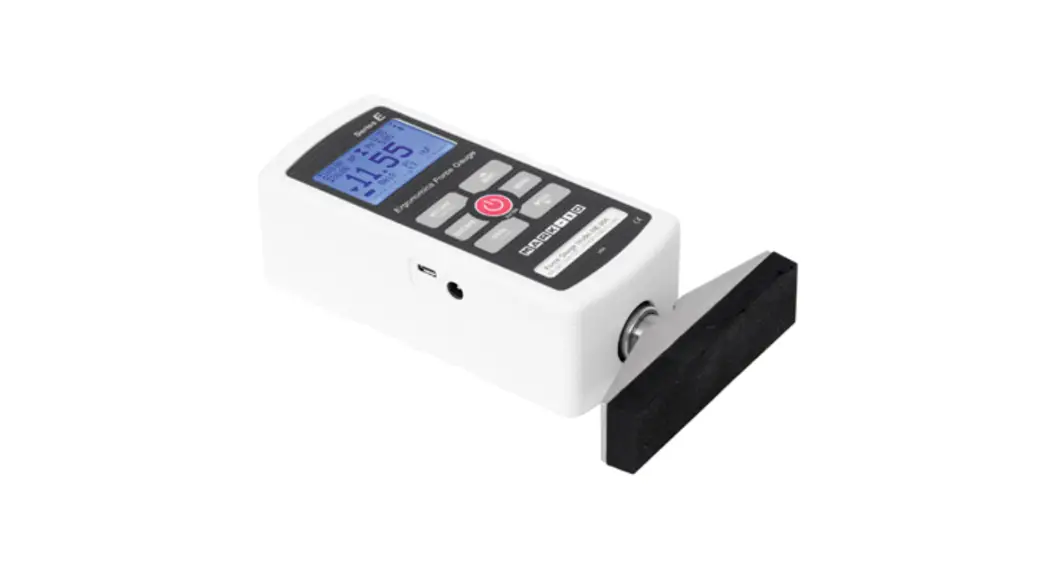
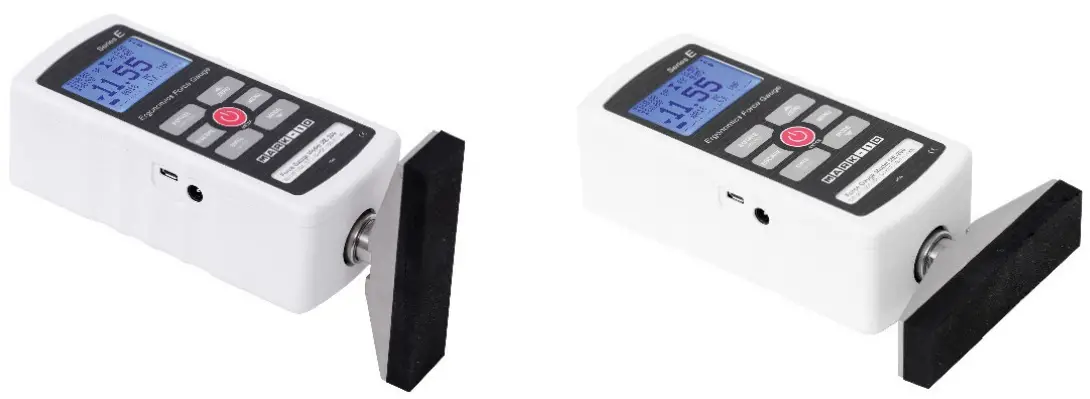
Attachments are mounted to the gauge’s receptacle via the Click-Lock TM mechanism. Line up the attachment with the receptacle, and press in until a click occurs. The attachment may be inserted in 90-or 180- degree orientations, as shown below:
To release the attachment, pull back on the lever in the rear of the housing, as shown below: 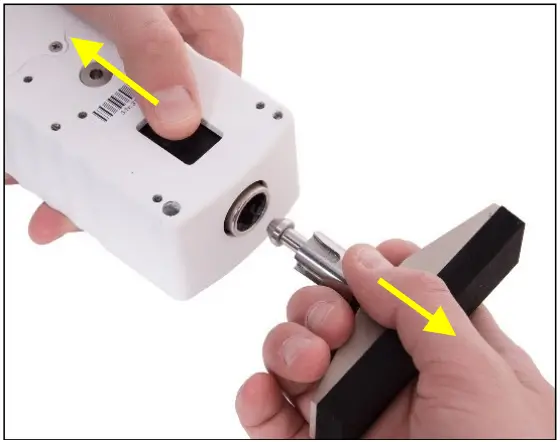
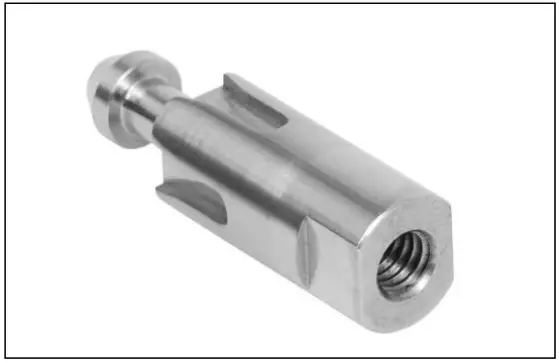
If the E1011 grip adapter (pictured below) is used, common grips and attachments may be mounted via the integrated 5/16-18F thread.
3.1.2 Mounting to a plate
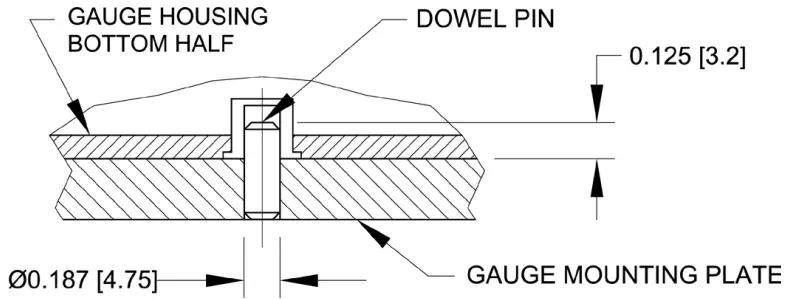
The round steel insert with a hole in the back of the housing is provided to withstand the load during a test. A mating dowel pin should be used (see illustration below). Mark- 10 mounting plates include a dowel pin and clearance holes for the four threaded holes located near the corners of the housing. These holes are designed to accommodate screws in order to hold the gauge in place. The screws must not be used for load bearing purposes. Failure to use a dowel pin properly can result in a hazardous situation.
3.2 Installing the USB driver
If communicating via USB, install the USB driver available at: www.mark-10.com/resources
Caution!
Install the USB driver before physically connecting the gauge to a PC with the USB cable.
Further instructions for configuring and using the gauge’s outputs are provided in the Communications and Outputs section.
HOME SCREEN AND CONTROLS
4.1 Home Screen
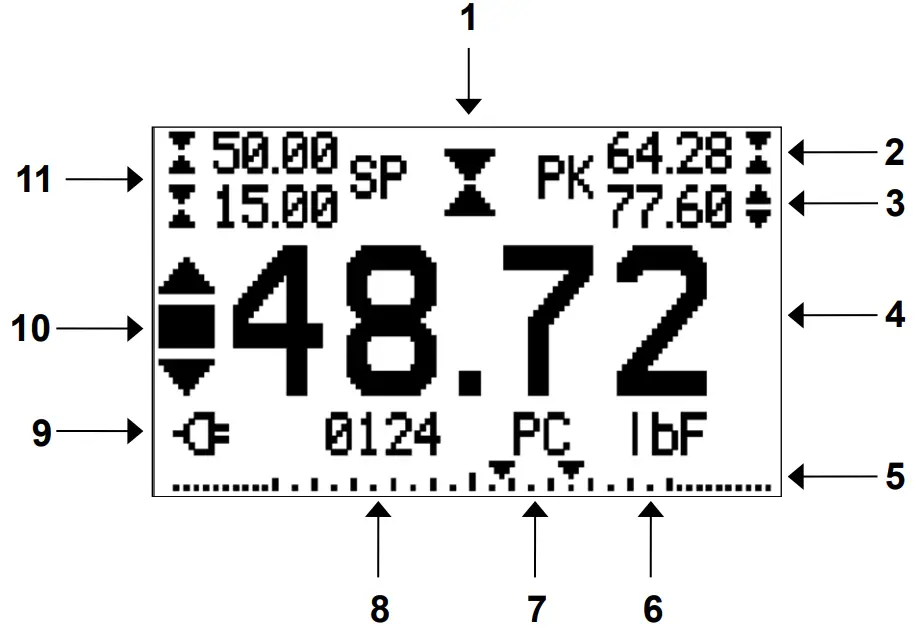
| No. | Name | Description |
| 1 | Tension / compression indicator |   – indicates a compression (push) direction– indicates a tension (pull) direction – indicates a compression (push) direction– indicates a tension (pull) directionThese indicators are used throughout the display and menu. |
| 2 | Compression Peak | The measured compression peak reading. This reading may be reset by pressing ZERO or by powering the gauge off and on. |
| 3 | Tension Peak | The measured tension peak. May be reset by pressing ZERO or by powering the gauge off and on. |
| 4 | Primary reading | The current displayed force reading. |
| 5 | Load bar | Analog indicator to help identify when an overload condition is imminent. The bar increases either to the right or to the left from the midpoint of the graph. Increasing to the right indicates compression load, increasing to the left indicates tension load. If set points are enabled, triangular markers are displayed for visual convenience. This indicator reflects the actual load, which may not correspond to the primary reading (depends on operating mode). The ZERO key does not reset the load bar. See Operating Modes section for details. |
| 6 | Units | The current unit of measurement. Abbreviations are as follows: lf – Pound-force of – Ounce-force kgs – Kilogram-force N – Newton ken – Kilonewton |
| 7 | Mode | The current measurement mode. Abbreviations are as follows: RT – Real Time PC – Peak Compression PT – Peak Tension A – Average |
| CAPT – Data Capture See Operating Modes section for details. | ||
| 8 | Number of stored data points | The number of stored data points in memory, up to 5,000. Displayed only if Memory Storage or Data Capture functions are used. |
| 9 | Battery / AC adapter indicator | Either the AC adapter icon or battery power icon will be shown, depending on power conditions. Refer to the Power section for details. |
| 10 | High / low limit indicators | Correspond to the programmed set points. Indicator definitions are as follows: – the displayed value is greater than the upper force limit – the displayed value is between the limits – the displayed value is less than the lower force limit |
| 11 | Set points | The programmed force limits. Typically used for pass/fail type testing. One, two, or no indicators may be present, depending on the configuration shown in the Set Points menu item. |
4.2 Controls
| Primary Label | Primary Function | Secondary Label | Secondary Function |
 | Powers the gauge on and off. Press briefly to power on, press and hold to power off. Active only when the home screen is displayed. | ENTER | Various uses, as described in the following sections. |
| ROTATE | Reverses the orientation of the display. | DIRECTION | Reverses the display during calibration, and toggles between tension and compression directions while configuring set points and other menu items. |
| ZERO | Zeroes the primary reading and peaks. |  (UP) (UP) | Navigates up through the menu and sub-menus. |
| MENU | Enters the main menu. | N/A | N/A |
| ESCAPE | Reverts one step backwards through the menu hierarchy. | N/A | N/A |
| DATA | Stores a value to memory and/or transmits the current reading to an external device, depending on setup. | DELETE | Enables and disables Delete mode while viewing stored data / shifts cursor to the right for certain functions. |
| MODE | Toggles between measurement modes. |  (DOWN) (DOWN) | Navigates down through the menu and sub-menus. |
4.3 Menu navigation basics
Most of the gauge’s various functions and parameters are configured through the main menu. To access the menu press MENU. Use the and keys to scroll through the items. The current selection is denoted with clear text over a dark background. Press ENTER to select a menu item, then use and again to scroll through the sub-menus. Press ENTER again to select the sub-menu item.
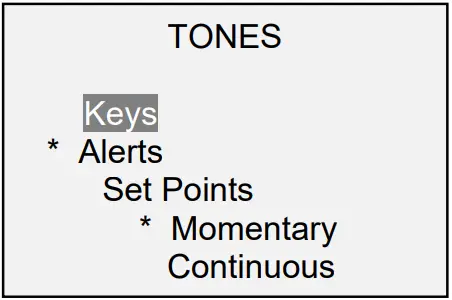
For parameters that may be either selected or deselected, press ENTER to toggle between selecting and deselecting. An asterisk (*) to the left of the parameter label is used to indicate when the parameter has been selected.
For parameters requiring the input of a numerical value, use the and keys to increment or decrement the value. Press and hold either key to auto-increment at a gradually increasing rate. When the desired value has been reached, press ENTER to save the change and revert back to the sub-menu item, or press ESCAPE to revert back to the sub-menu item without saving. Press ESCAPE to revert one step back in the menu hierarchy until back into normal operating mode.
Refer to the following sections for details about setting up particular functions and parameters.
SET POINTS
5.1 General Information
Set points are useful for pass / fail testing. Two limits, high and low, may be specified. The gauge compares the primary reading to these limits, providing “under”, “in range”, and “over” indication.
5.2 Configuration
To configure set points, select Set Points from the menu. The screen appears as follows: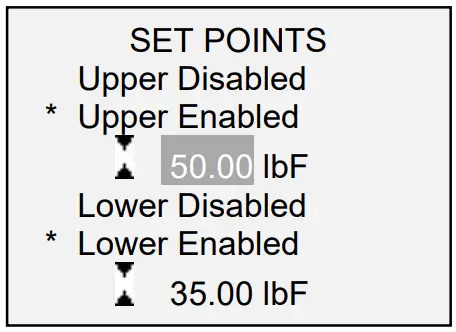
One, two, or none of the set points may be enabled. To toggle between the tension and compression directions, press the DIRECTION key.
If two set points have been enabled, they are displayed in the upper left corner of the display. If only one set point has been enabled, the word “OFF” appears in place of the value. If no set points have been enabled, the upper left corner of the display will be blank.
When set points are enabled, the following indicators are shown to the left of the primary reading:
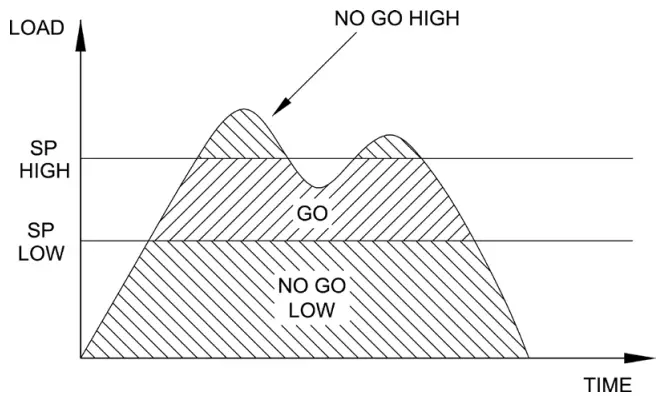
– the displayed value is greater than the upper force limit (NO GO HIGH)
– the displayed value is between the limits (GO)
– the displayed value is less than the lower force limit (NO GO LOW)
Note: Set point indicators and outputs reference the displayed reading, not necessarily the current live load.
OPERATING MODES
Caution!
In any operating mode, if the capacity of the instrument has been exceeded by more than 110%, the display will show “OVER” to indicate an overload. A continuous audible tone will be sounded until the MENU key has been pressed or the load has been reduced to a safe level.
Several operating modes are possible with Series E gauges, as follows:
– Real Time (RT)
– Peak Compression (PC)
– Peak Tension (PT)
– Average Mode (AVG)
– Data Capture (CAPT)
To cycle between the modes, press MODE while in the home screen. Refer to the following sections for details for each mode:
6.1 Real Time (RT)
The primary reading corresponds to the live measured reading.
6.2 Peak Compression (PC)
The primary reading corresponds to the peak compression reading observed. If the actual force decreases from the peak value, the peak will still be retained in the primary reading area of the display.
Pressing ZERO will reset the value.
6.3 Peak Tension (PT)
This is the same as Peak Compression, but for tension readings.
6.4 Average Mode (AVG)
Calculates the average force reading over a period of time. Before the parameters of Average Mode can be configured, it must be enabled. To do so, select Average Mode from the menu, scroll to Enabled and press ENTER. The display appears as follows:
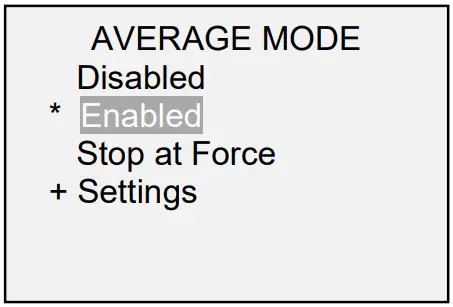
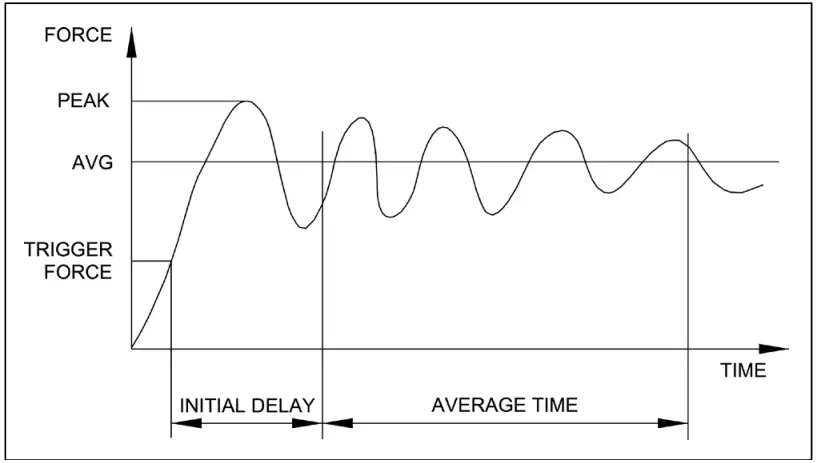
The averaging function operates in one of two ways:
- Averaging occurs between the trigger force and defined time limit, as illustrated below:

- Averaging occurs only while above the trigger force. As the force drops back down to this trigger, averaging stops. To enable this function, scroll to Stop at Force and press ENTER.
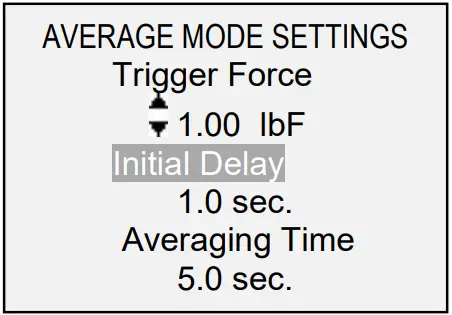
Select Settings to configure Trigger Force, Initial Delay, and Averaging Time:
| Parameter | Description |
| Trigger Force .or Start / Stop Force | The minimum force required to start the averaging sequence. Toggle between compression and tension directions by pressing the DIRECTION key. Initial delay follows the trigger force. If Stop at Force is enabled, this parameter is referred to as Start / Stop Force, denoting the minimum force for which averaging will be active. |
| Initial Delay | The time delay, after the trigger force, before the averaging sequence commences. Available settings: 0.0 – 300.0 sec., in 0.1 sec. increments |
| Averaging Time | The time duration of the averaging sequence. This setting is ignored when Stop at Force is enabled, unless the 300 sec. limit is reached. Available settings: 0.1 – 300.0 sec., in 0.1 sec. increments |
After the parameters have been configured and the menu has been exited, press MODE until AVG is displayed. Then press ZERO. Average mode is now armed, and the averaging sequence will commence when the trigger force has occurred. The current status of the averaging sequence is displayed below the Zprimary reading, as follows:
| c | Status | Description |
| 1 | TRIG WAIT | The trigger force has not yet occurred. |
| 2 | INIT DLY | The initial delay is currently taking place. |
| 3 | AVERAGING | The gauge is collecting readings. The status will be flashing until averaging has been completed. |
| 4 | AVRG DONE | Averaging has been completed. The average force is displayed in the primary reading. |
At the completion of the averaging sequence, the peak values are retained until ZERO is pressed.
Another averaging sequence may be started after ZERO has been pressed. To exit Average mode, press MODE and select the desired measuring mode.
6.5 Data Capture (CAPT)
This mode of operation is used to capture and store continuous data in the gauge’s memory. The capture frequency can be adjusted to accommodate quick-action as well as longer duration tests. Saved data can be downloaded in bulk via USB.
6.5.1 Configuration
After Data Capture has been enabled, it may be selected by pressing the MODE key until CAPT is displayed. The display appears as follows:
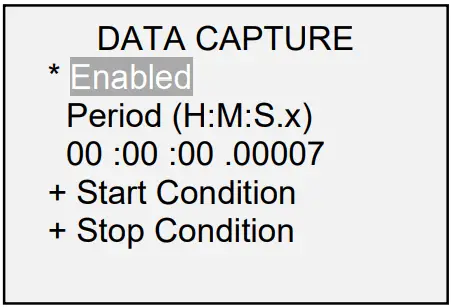
| Function | Description |
| Enabled | If enabled, CAPT appears as one of the operating modes. |
| Period | The capture period may be adjusted by pressing the and keys to change the value of the hours (H), minutes (M), seconds (S), and fractions of seconds (x) fields. Press the DATA key to advance to the next field. Available settings: Hours: 0-24, Minutes: 0-59, Seconds: 0-59, Fraction of Seconds: 0.00007-0.99995, in 0.00007 (70 μS) increments. |
| Start Condition | See following sub-section for details. |
6.5.2 Start Condition
Data capture is initiated when the Start Condition has been triggered. Several triggers are available, as shown below: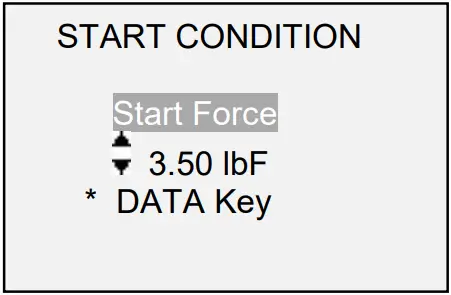
| Function | Data capture is initiated when: |
| Start Force | The desired trigger force is reached. Toggle between compression and tension directions by pressing the DIRECTION key. |
| DATA Key | The DATA key is manually pressed. |
6.5.3 Stop Condition
Data capture is automatically terminated when the Stop Condition has been reached. Several conditions are available, as shown below:
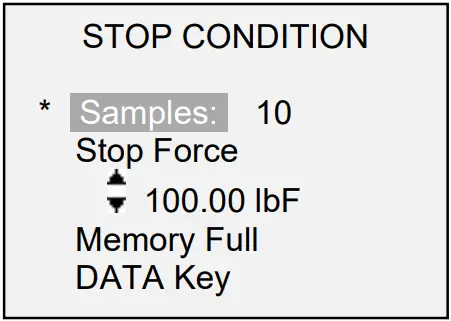
| Function | Data capture terminates when: |
| Samples | The desired number of samples (data points) has been captured. |
| Stop Force | The desired force has been reached. |
| Memory Full | 5,000 data points have been captured. |
| DATA Key | The DATA key is manually pressed. |
Note 1: If the Stop Condition does not occur, data capture stops automatically when the memory is full.
Note 2: Data capture may be manually stopped at any time by pressing the ZERO key. A message will appear at the bottom of the screen: “CAPTURE CANCELLED”.
The first or subsequent Data Capture sequences cannot occur until the ZERO key is pressed to arm data capture, or until the gauge is automatically re-armed (see the following sub-section for details). If another Data Capture sequence is initiated before the memory is cleared, these data points are appended to the existing data stored in memory.
DATA MEMORY AND STATISTICS
Series E gauges have storage capacity of 5,000 data points. Readings may be stored, viewed, and output to an external device. Individual or all data points may be deleted. Statistics are calculated for the data in memory.
To enable memory storage, select DATA Key from the menu, then scroll to Memory Storage and press ENTER. Then exit the menu. In the home screen, the data record number 0000 appears below the primary reading. Press DATA at any time to save the displayed reading. The record number will increment each time DATA is pressed. If DATA is pressed when memory is full the message “MEMORY FULL” will be flashed at the bottom of the display and a double audio tone will be sounded.
To view, edit, and output stored readings and statistics, select Memory from the menu. The screen appears as follows:
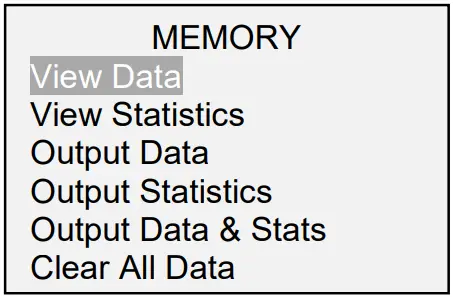
7.1 View Data
All the saved data points may be viewed. The record number is displayed, along with the corresponding value and currently set unit of measurement. Any readings may be deleted individually. To do so, scroll to the desired reading and press DELETE. The letter “D” appears to the left of the record number, indicating that the gauge is in Delete mode, as follows:
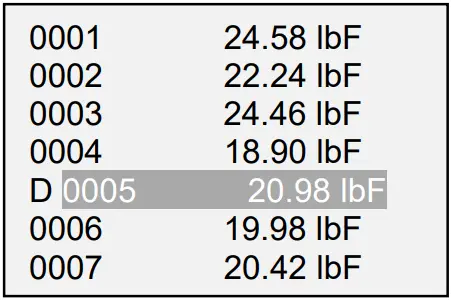
Press ENTER to delete the value. To exit Delete mode, press DELETE again. Any number of readings may be individually deleted, however, all readings may also be cleared simultaneously. Refer to the Clear All Data section for details.
7.2 Statistics
Statistical calculations are performed for the saved values. Calculations include number of readings, minimum, maximum, mean, and standard deviation.
7.3 Output Data *
Press ENTER to output data to an external device. The display will show, “SENDING DATA…”, then “DATA SENT”. If there was a problem with communication, the display will show, “DATA NOT SENT”.
7.4 Output Statistics *
Press ENTER to output statistics to an external device. The display will show, “SENDING STATS…”, then “STATS SENT”. If there was a problem with communication, the display will show, “STATS NOT SENT”.
7.5 Output Data & Stats *
Press ENTER to output data and statistics to an external device. The display will show, “SENDING DATA”, then “SENDING STATS…”, then “DATA SENT”, then “STATS SENT”. If there was a problem with communication, the display will show, “DATA NOT SENT” and/or “STATS NOT SENT”.
* When using Mark-10 data collection programs MESURTM Lite and MESUR TM gauge, bulk data may be transferred only by clicking the appropriate button within the program, not by initiating the transfer from the gauge via these functions. These functions are designed for third party applications.
7.6 Clear All Data
Press ENTER to clear all data from the memory. A prompt will be shown, “CLEAR ALL DATA?”. Select Yes to clear all the data, or No to return to the sub-menu.
Shortcut for clearing all data: In the main menu, highlight Memory and press DELETE. The same prompt will be shown as above.
Note: Data is not retained while the gauge is powered off. However, the gauge protects against accidental data loss by displaying the following prompt when attempting to power off:
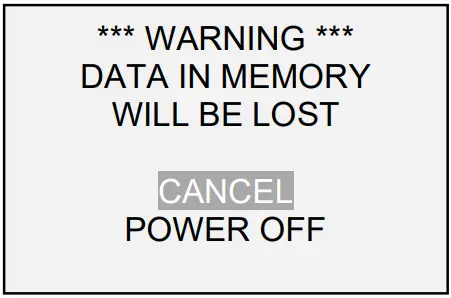
If no option is selected, this screen will be displayed continuously until battery power has been depleted.
The Automatic Shutoff setting is ignored if there is data in the memory.
COMMUNICATIONS AND OUTPUTS
Communication with Series E gauges is achieved through the micro USB port, as shown in the illustration in the Power section. Communication is possible only when the gauge is in the main operating screen (i.e. not in a menu or configuration area).
8.1 USB Settings
To configure USB settings, select USB Settings from the menu. The display appears as follows:
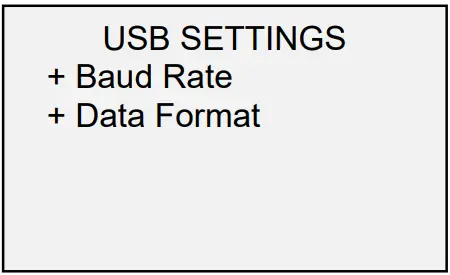
Communication settings are permanently set to the following:
| Data Bits: | 8 |
| Stop Bits: | 1 |
| Parity: | None |
Other settings are configured as follows:
8.1.1 Baud Rate
Select the baud rate as required for the application. It must be set to the same value as the receiving device.
8.1.2 Data Format
Select the desired data format. The display appears as follows:
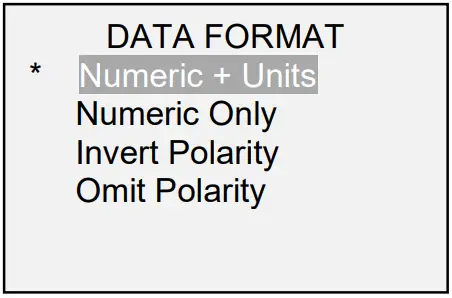
| Selection | Description |
| Numeric + Units | Output format includes the value and unit of measure. |
| Numeric Only | Output format includes the value only. |
| Invert Polarity | Compression values have negative polarity, tension values have positive polarity. May be selected in addition to the Numeric + Units / Numeric Only selection. |
| Omit Polarity | Both directions are formatted with positive polarity. May be selected in addition to the Numeric + Units / Numeric Only selection. |
8.1.3 Data Communication
Individual data points may be transmitted by pressing DATA. Individual data points and continuous data may be requested from Mark-10 MESURTM Lite and MESURTM
gauge software.
The gauge may also be controlled by an external device. The following is a list of supported commands and their explanations. All commands must be terminated by a CR (Carriage Return) character, 0x0D, or a CR-LF (Carriage Return – Line Feed) pair, where the Line Feed, 0x0A, is ignored.
| ? | Request the displayed reading |
| MEM | Transmit all stored readings |
| STA | Transmit statistics |
| CLRMEM | Delete all stored readings from memory |
8.1.4 Command Responses
In response to the reading request command ‘?’ the tester will return a string with the load data, followed by a space, then the load unit (if enabled, as described above). It will be terminated by a CR-LF pair.
Example return strings:
| -18.78 lbF<CR><LF> | 18.78 lbF of tension force |
| 172.40 N<CR><LF> | 172.40 N of compression force |
The number of digits after the decimal point is dependent of the gauge’s resolution.
Any detected errors are reported back by means of error code *10 (illegal command).
8.2 DATA Key Functions
The DATA key can be configured to perform two functions when pressed. To configure the DATA key, select DATA Key from the menu. The display appears as follows:
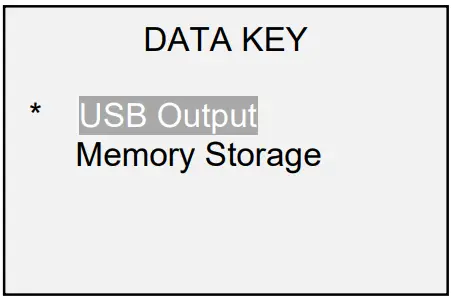
| Selection | Function when pressing DATA |
| USB Output | Outputs the current displayed value via the USB port |
| Memory Storage | Stores a reading to memory (refer to the Memory section for details) |
CALIBRATION
9.1 Initial Physical Setup
The gauge should be mounted vertically to a test stand or fixture rugged enough to withstand a load equal to the full capacity of the instrument. Certified deadweights or master load cells should be used, along with appropriate mounting brackets and fixtures. Caution should be taken while handling such equipment.
9.2 Calibration Procedure
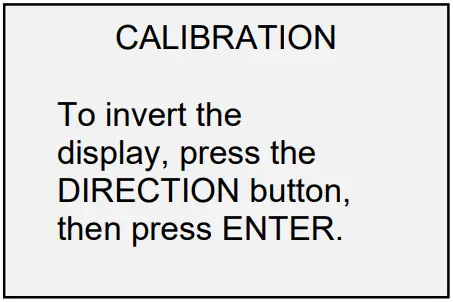
- Select Calibration from the menu. The display appears as follows:

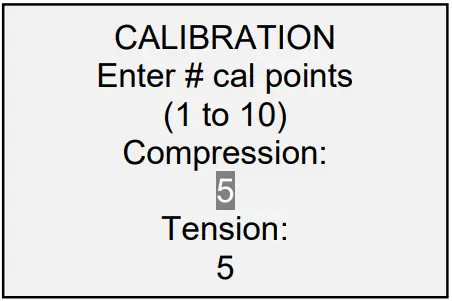
- Press DIRECTION to invert the display, if desired. ENTER to continue. The display appears as follows:
 The gauge can be calibrated at up to 10 points in each direction. Enter the number of calibration points for each direction (compression and tension). At least one point must be selected for each direction.
Note: To achieve the accuracy specification of ±0.2%, it is recommended to calibrate the gauge at 5 or more even increments in both tension and compression directions. For example, a gauge with capacity of 100 lb should be calibrated at 20, 40, 60, 80, and 100 lb loads in each direction. - To escape the Calibration menu at any time, press ESCAPE. The display appears as follows:
 Selecting Cancel will revert back to the Calibration setup. Selecting Exit w/o saving will return to the menu without saving changes.
 - After the number of calibration points has been entered, press ENTER. The display appears as follows:

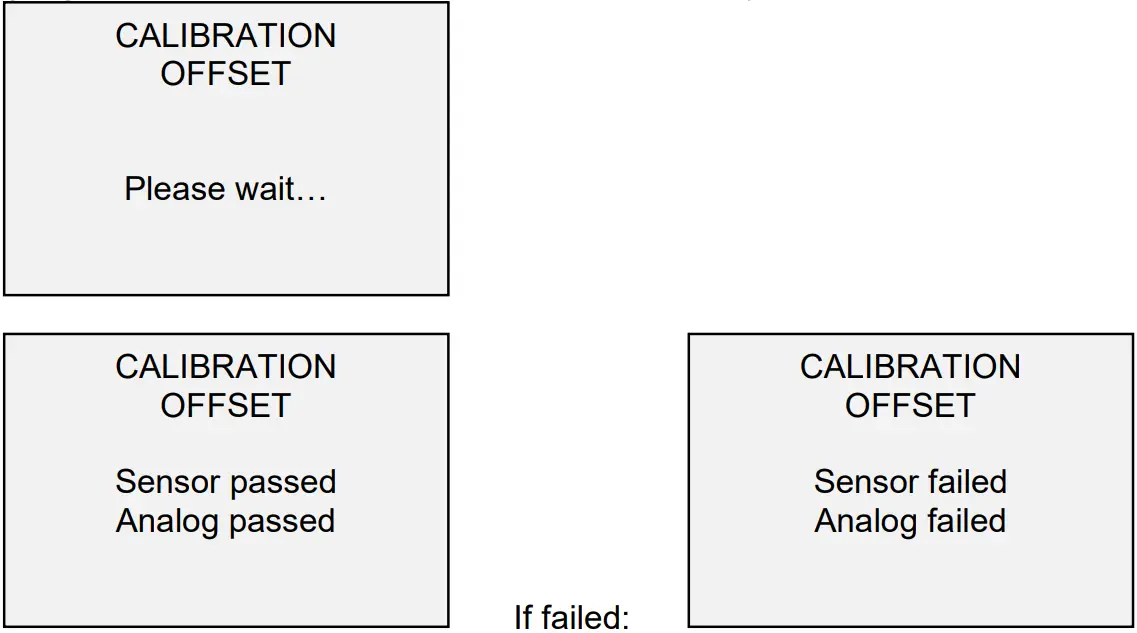
- Place the force gauge horizontally on a level surface free from vibration, then press ZERO. The gauge will calculate internal offsets, and the display appears as follows:

- The following screen appears after the offsets have been calculated:
 Attach weight fixtures (brackets, hooks, etc), as required. Do not yet attach any weights or apply any calibration loads. Press ENTER.
 - The display appears as follows:
 Optionally exercise the load cell shaft several times (at full scale, if possible), then press ENTER.
 - The display appears as follows:
 Apply a weight equal to the full scale of the instrument, then press ENTER.
 - After displaying “Please wait…” the display appears as follows:
 Remove the load applied in Step 8, leave the fixtures in place, then press ZERO.
 - The display appears as follows:Use the
 and
and keys to adjust the load value as required. The load values default to even increments, as indicated by the previously entered number of data points (even increments are recommended for best results). For example, if a 100 lb capacity gauge is calibrated, and 5 data points were selected, the load values will default to 20, 40, 60, 80, and 100 lb. Apply the calibration load. Then press ENTER.
Repeat the above step for the number of data points selected. - After all the compression calibration points have been completed, the display appears as follows:
 Press ENTER.
 - The display appears as follows:Reverse the orientation of the load cell shaft by rotating the gauge 180 degrees. Press DIRECTION to invert the display. Then attach weight fixtures. The following screens will step through the same procedure as with the compression direction. Proceed in the same manner.
- At the completion of the tension calibration, the display appears as follows:To save the calibration information, select “Save & exit”. To exit without saving the data select “Exit without saving”.
- Any errors are reported by the following screens:
 Displayed at the start of calibration if a disallowed unit is selected.
 Ensure that the load is not swinging, oscillating, or vibrating in any manner. Then try again.The calibration weight does not match the set value.
 The entered calibration point is too close to the previous point.
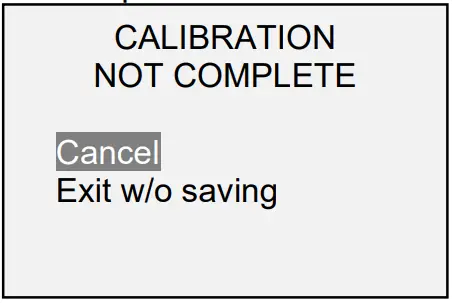 Selecting Cancel will revert back to the Calibration setup. Selecting Exit w/o saving will return to the menu without saving changes.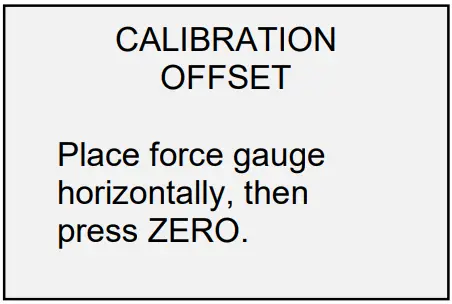
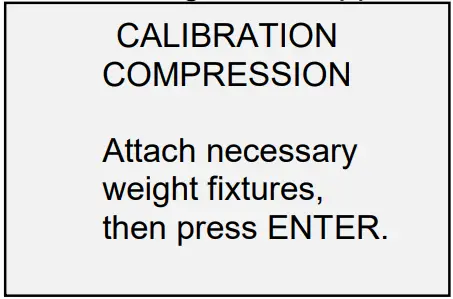 Attach weight fixtures (brackets, hooks, etc), as required. Do not yet attach any weights or apply any calibration loads. Press ENTER.
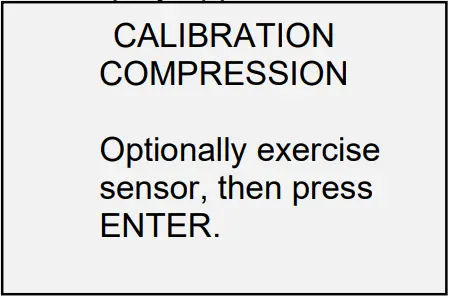 Optionally exercise the load cell shaft several times (at full scale, if possible), then press ENTER.
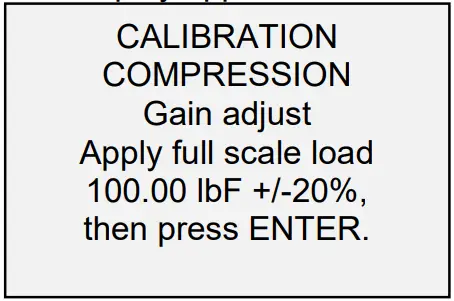 Apply a weight equal to the full scale of the instrument, then press ENTER.
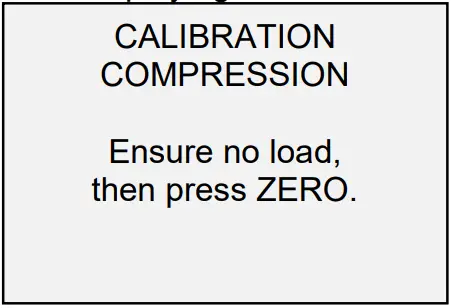 Remove the load applied in Step 8, leave the fixtures in place, then press ZERO.
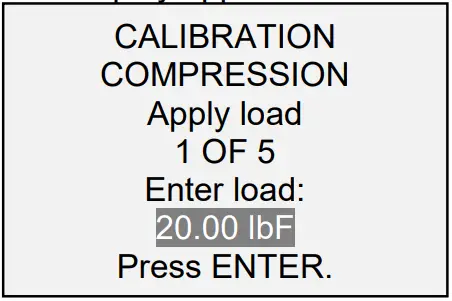 Use the
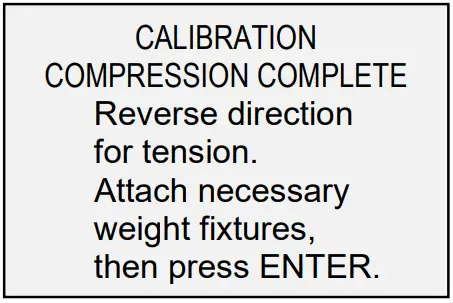 Press ENTER.
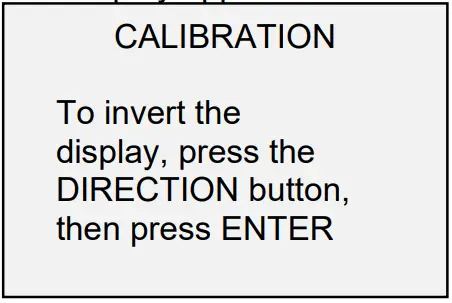 Reverse the orientation of the load cell shaft by rotating the gauge 180 degrees. Press DIRECTION to invert the display. Then attach weight fixtures. The following screens will step through the same procedure as with the compression direction. Proceed in the same manner.
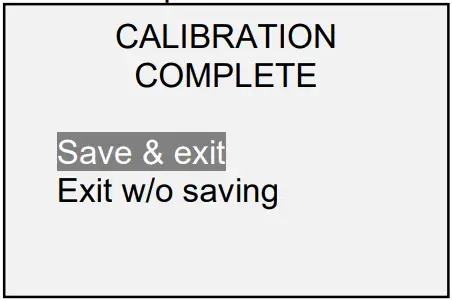 To save the calibration information, select “Save & exit”. To exit without saving the data select “Exit without saving”.
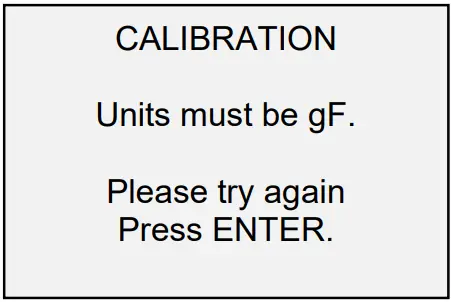 Displayed at the start of calibration if a disallowed unit is selected.
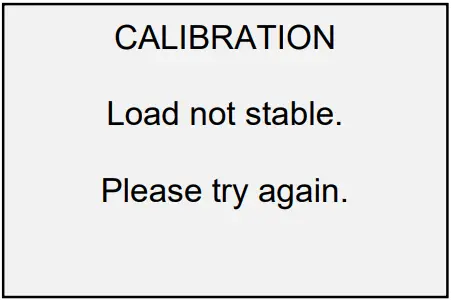 Ensure that the load is not swinging, oscillating, or vibrating in any manner. Then try again.
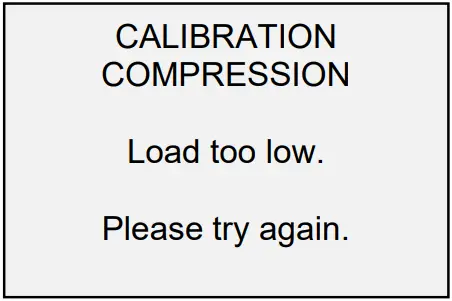 The calibration weight does not match the set value.
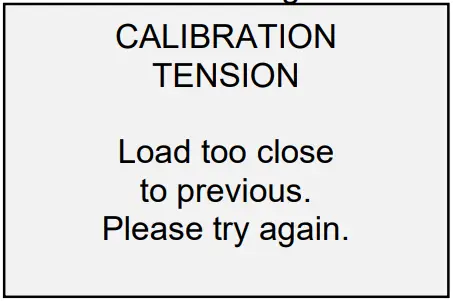 The entered calibration point is too close to the previous point.
PASSWORDS
Two separate passwords may be set to control access to the Calibration section and to the menu and other keys. To access the passwords setup screen, select Passwords from the menu. The display appears as follows:
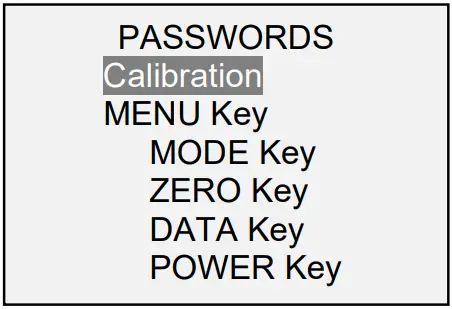
10.1 Calibration Password
Select Calibration from the sub-menu. The display appears as follows:
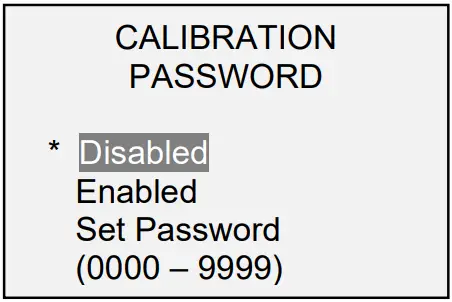
To set the password, select Enabled , then Set Password. Use the and keys to increment and decrement the value, from 0 to 9999. When the desired value has been selected, press ENTER, then ESCAPE to exit the sub-menu.
10.2 MENU Key Password
If enabled, every time the MENU key is selected, a password must be provided. Select Menu Key from the sub-menu. Follow the same procedure as described above.
10.3 Locking Out Other Keys
Other keys may be locked out individually. Pressing a locked key will prompt the message “KEY PROTECTED” and then revert to the previous screen.
10.4 Password Prompts
If passwords have been enabled, the following will be displayed when pressing the MENU key or accessing the Calibration section:
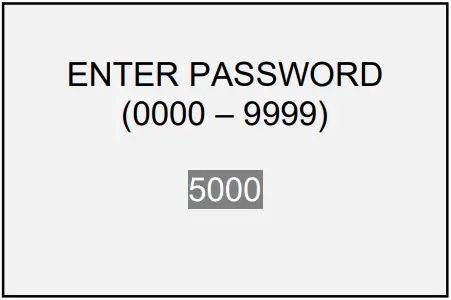
Use the and keys to select the correct password, then press ENTER to continue.
If the incorrect password has been entered, the display appears as follows: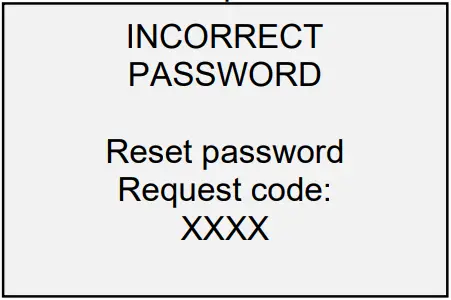
To re-enter the password, press ESCAPE to exit to the home screen. Then, access the desired function and enter the password again when prompted.
If the password has been misplaced, it can be reset. Press ENTER to generate a request code. The request code must be supplied to Mark-10 or a distributor, who will then provide a corresponding authorization code. Enter the activation code to disable the password.
OTHER SETTINGS
11.1 Automatic Shutoff
The gauge may be configured to automatically power off following a period of inactivity while on battery power. Inactivity is defined as the absence of any key presses or load changes of 100 counts or less. To access these settings, select Automatic Shutoff from the menu. The display appears as follows:
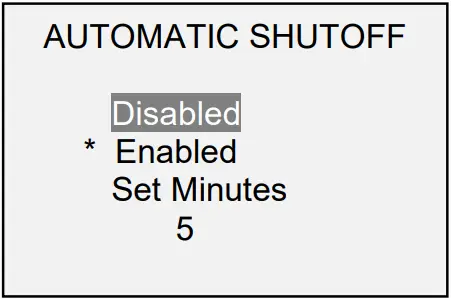
| Selection | Description |
| Disabled | Disable automatic shutoff. |
| Enabled | Enable automatic shutoff. |
| Set Minutes | The length of time of inactivity. Available settings: 5-30, in 5 minute increments. |
Note: If the AC adapter is plugged in, the gauge will ignore these settings and remain powered on until the POWER key is pressed.
11.2 Backlight
Although the backlight may be turned on and off at any time by pressing the BACKLIGHT key, there are several available initial settings (applicable upon powering on the gauge). To access these settings, select Backlight from the menu. The display appears as follows:
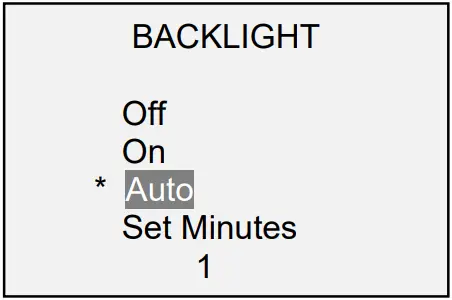
| Selection | Description |
| Off | Backlight to be off upon powering on the gauge. |
| On | Backlight to be on upon powering on the gauge. |
| Auto | Backlight to be on upon powering gauge, but will shut off after a period of inactivity (as defined in the Automatic Shutoff sub-section). The backlight will turn on again when activity resumes. The length of time of inactivity is programmed in minutes via the Set Minutes parameter. Available settings: 1-10, in 1 minute increments. |
Note: If the AC adapter is plugged in, the gauge will ignore these settings and keep the backlight on.
11.3 LCD Contrast
The contrast of the display may be adjusted. Select LCD Contrast from the menu. The screen appears as follows:
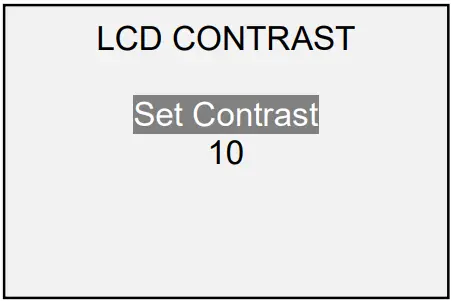
Press ENTER to modify the contrast. Select a value from 0 to 25, 25 producing the most contrast.
11.4 Tones
Audible tones can be enabled for all key presses and alerts, such as overload, set point value reached, etc. The Set Point alert can be configured to be either a momentary tone or a continuous tone (until the load is restored to a value between the set points). To configure the functions for which audible tones will apply, select Tones from the menu. The screen appears as follows:
11.5 Initial settings
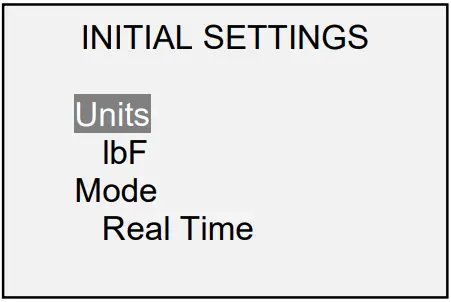
This section is used to configure the initial settings upon powering on the gauge. The initial units of measurement and the primary reading measurement mode may be configured. To access these settings, select Initial Settings from the menu. The screen appears as follows:
11.6 Restore Default Settings
Default factory settings can be restored by selecting Restore Defaults from the menu. The settings may be found in the Specifications section. The screen appears as follows: 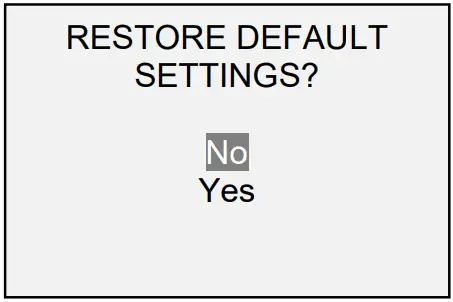
11.7 Information / Welcome Screen
The following screen is displayed at power-up and can be accessed at any time by selecting Information from the menu: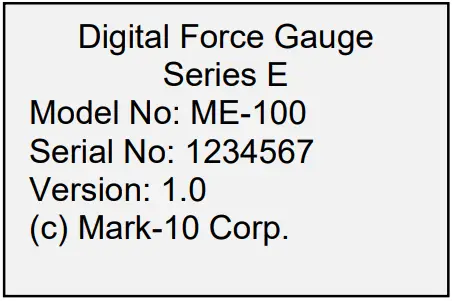
SPECIFICATIONS
12.1 General
| Accuracy: | ±0.2% of full scale |
| Sampling rate: | 7,000 Hz |
| Power: | AC or rechargeable battery. Low battery indicator appears when battery level is low, and gauge powers off automatically when power reaches critical stage. |
| Battery life: | Backlight on: up to 7 hours of continuous use Backlight off: up to 24 hours of continuous use |
| Measurement units: | lb, of, gaff, kegs, N, know (depending on model) |
| USB output: | Configurable up to 115,200 baud |
| Safe overload: | 200% of full scale (display shows “OVER” at 110% and above) |
| Weight: | 1.7 lb [0.8 kg] |
| Environmental requirements: | 40 – 100°F, max. 93% humidity, non-condensing |
| Warranty: | 3 years (see individual statement for further details) |
| Literature & Software: | Download at: www.mark-10.com/downloads |
12.2 Factory Default Settings
| Parameter | Setting |
| Set points | |
| Upper | Disabled (defaults to 80% of full scale, compression, when enabled) |
| Lower | Disabled (defaults to 40% of full scale, compression, when enabled) |
| Average mode | Disabled |
| Initial Delay | 0 |
| Trigger Force | 10% of full scale |
| Averaging Time (sec.) | 5.0 |
| DATA Key Functions | |
| USB Output | Enabled |
| Memory Storage | Enabled |
| USB Settings | |
| Baud Rate | 115,200 |
| Data Format | Numeric + Units |
| Data Capture | Disabled |
| Period | 00:00:01:00000 |
| Start Condition | Start force of 10% of full scale |
| Stop Condition | Stop force of 20% of full scale |
| Auto Settings | All disabled |
| Tones | |
| Keys | Enabled |
| Alerts | Enabled |
| Set Points | Momentary |
| Automatic Shutoff | Enabled |
| Set Minutes | 5 |
| Backlight | Auto |
| Set Minutes | 1 |
| Initial Settings | |
| Units | lf |
| Mode | Real Time |
| Passwords | All disabled |
12.3 Capacity x Resolution
| Model | lb | of | kgs | gF | N | ken |
| ME-100 | 100 x 0.05 | 1600 x 1 | 50 x 0.02 | 50000 x 20 | 500 x 0.2 | – |
| ME-200 | 200 x 0.05 | 3200 x 1 | 100 x 0.02 | – | 1000 x 0.2 | 1 x 0.0002 |
| ME-500 | 500 x 0.1 | 8000 x 2 | 250 x 0.05 | – | 2500 x 0.5 | 2.5 x 0.0005 |
12.4 Dimensions
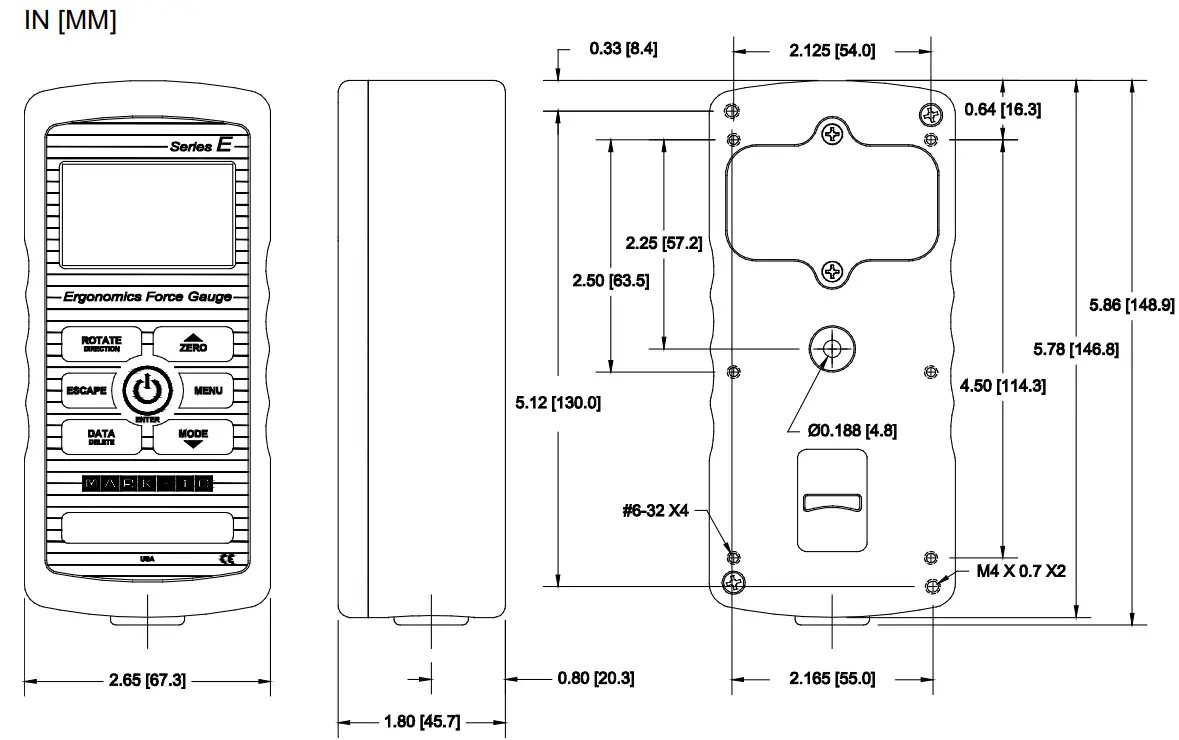

Mark-10 Corporation has been an innovator in the force and torque measurement fields since 1979. We strive to achieve 100% customer satisfaction through excellence in product design, manufacturing and customer support. In addition to our standard line of products we can provide modifications and custom designs for OEM applications. Our engineering team is eager to satisfy any special requirements. Please contact us for further information or suggestions for improvement.
Force and torque measurement engineered better
Mark-10 Corporation
11 Dixon Avenue
Copiague, NY 11726 USA
1-888-MARK-TEN
Tel: 631-842-9200
Fax: 631-842-9201
Internet: www.mark-10.com
E-mail: [email protected]
 Mark-10 Force and Torque Measurement