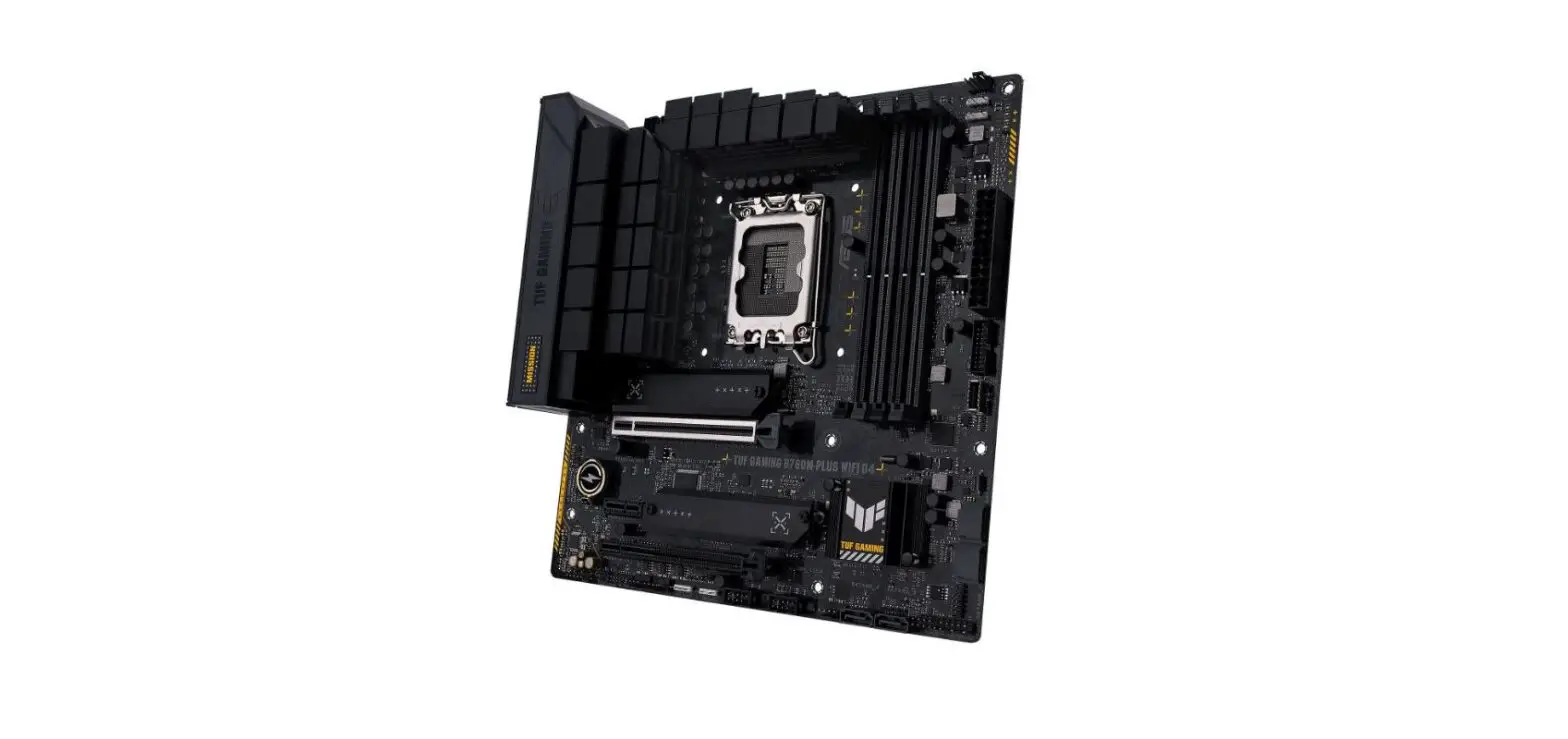
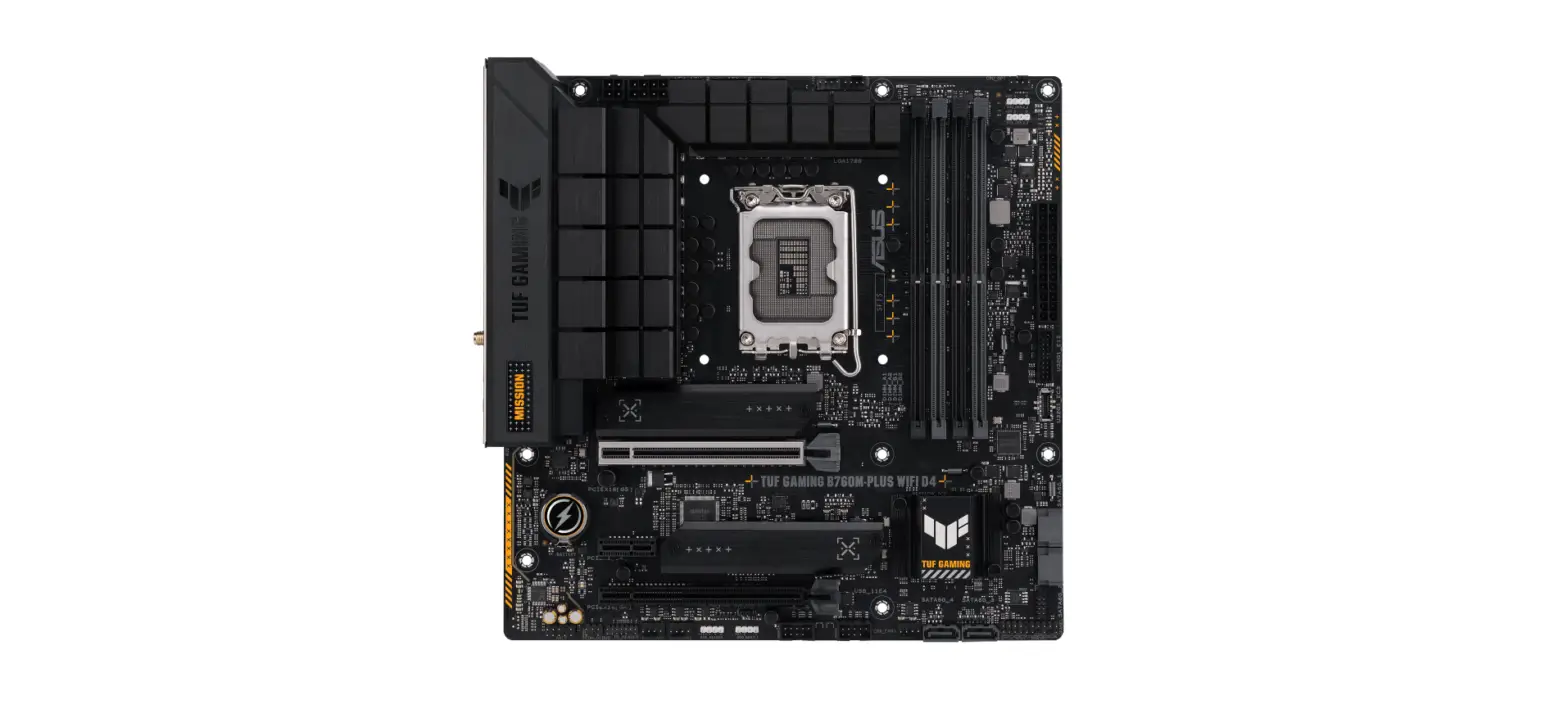
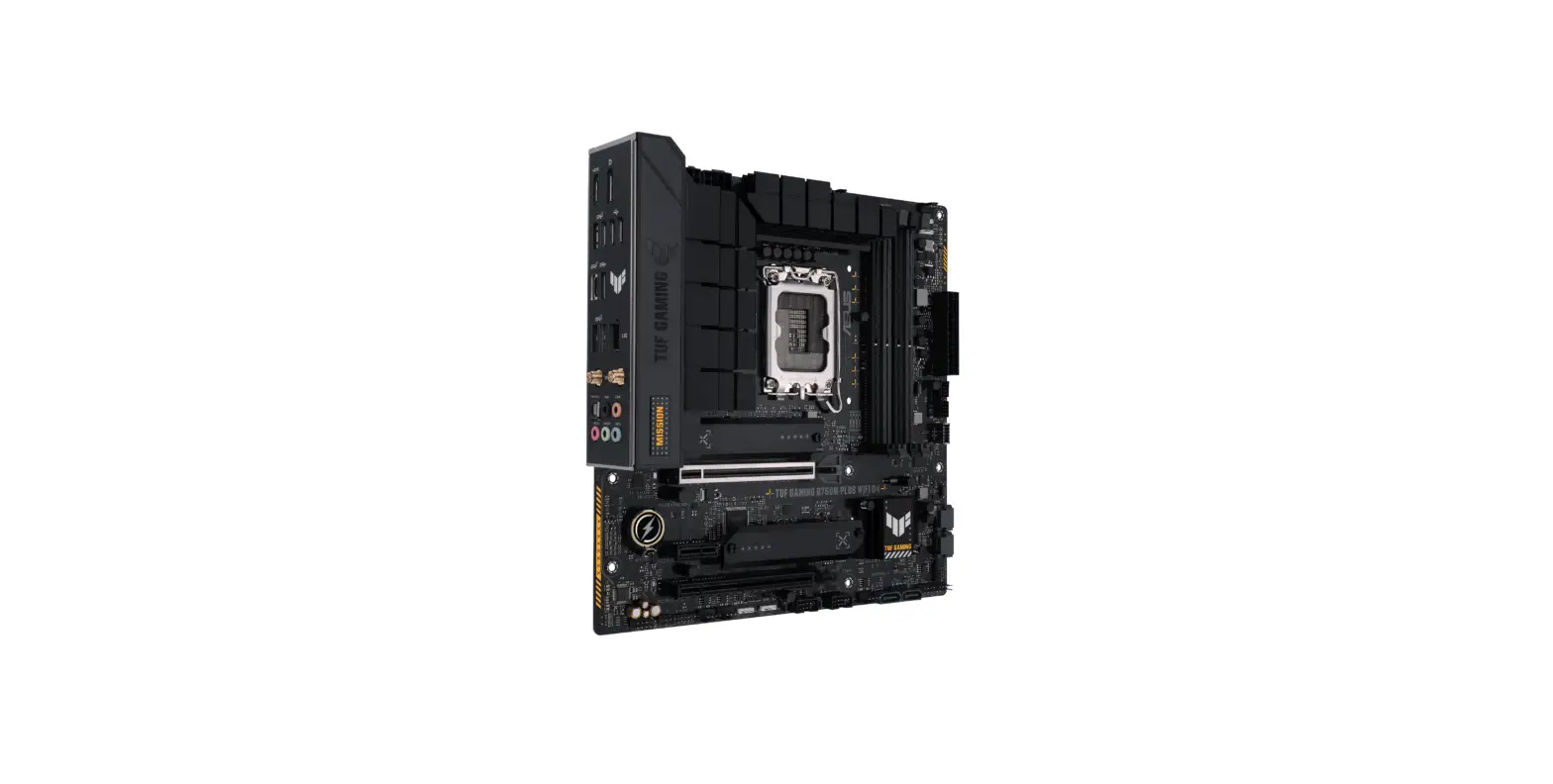
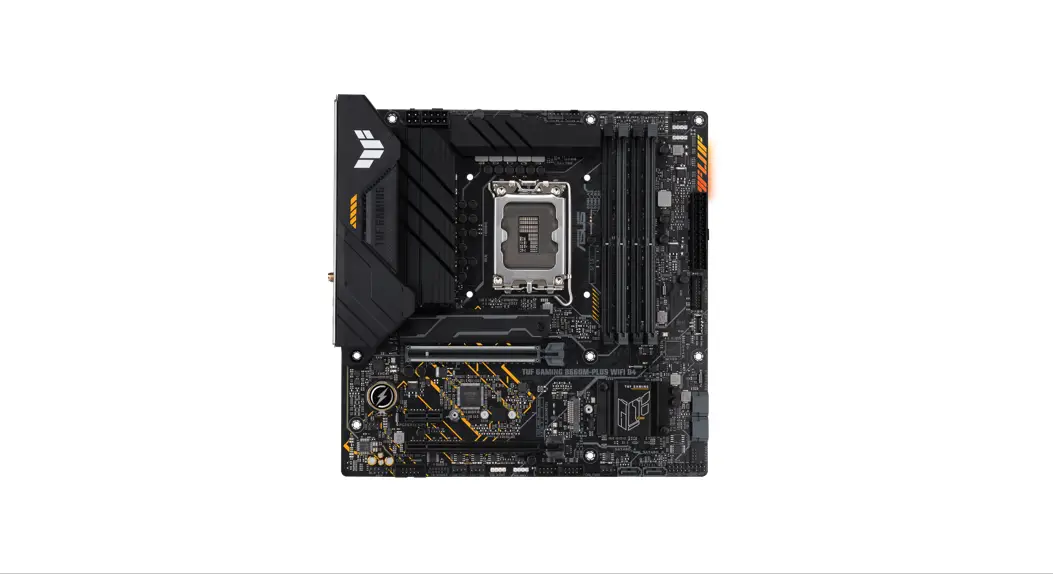
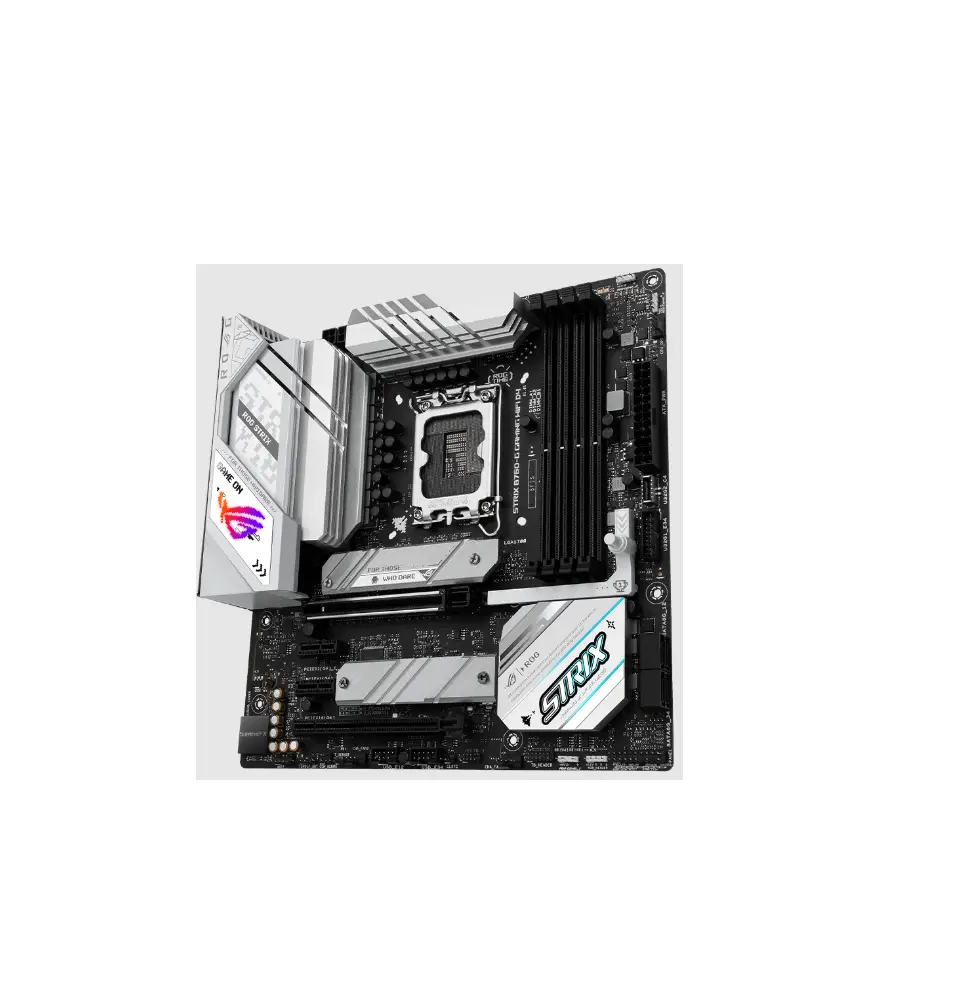
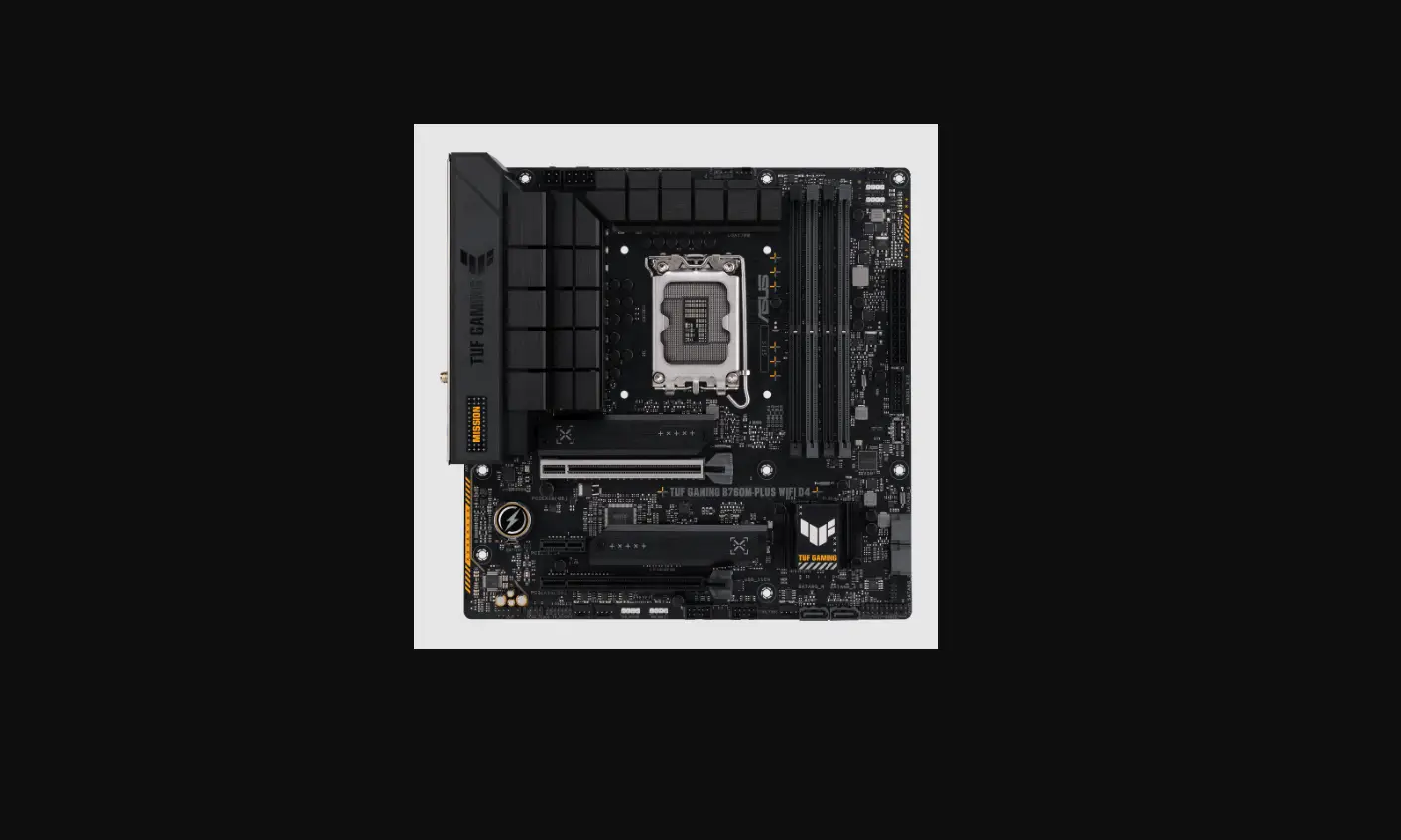
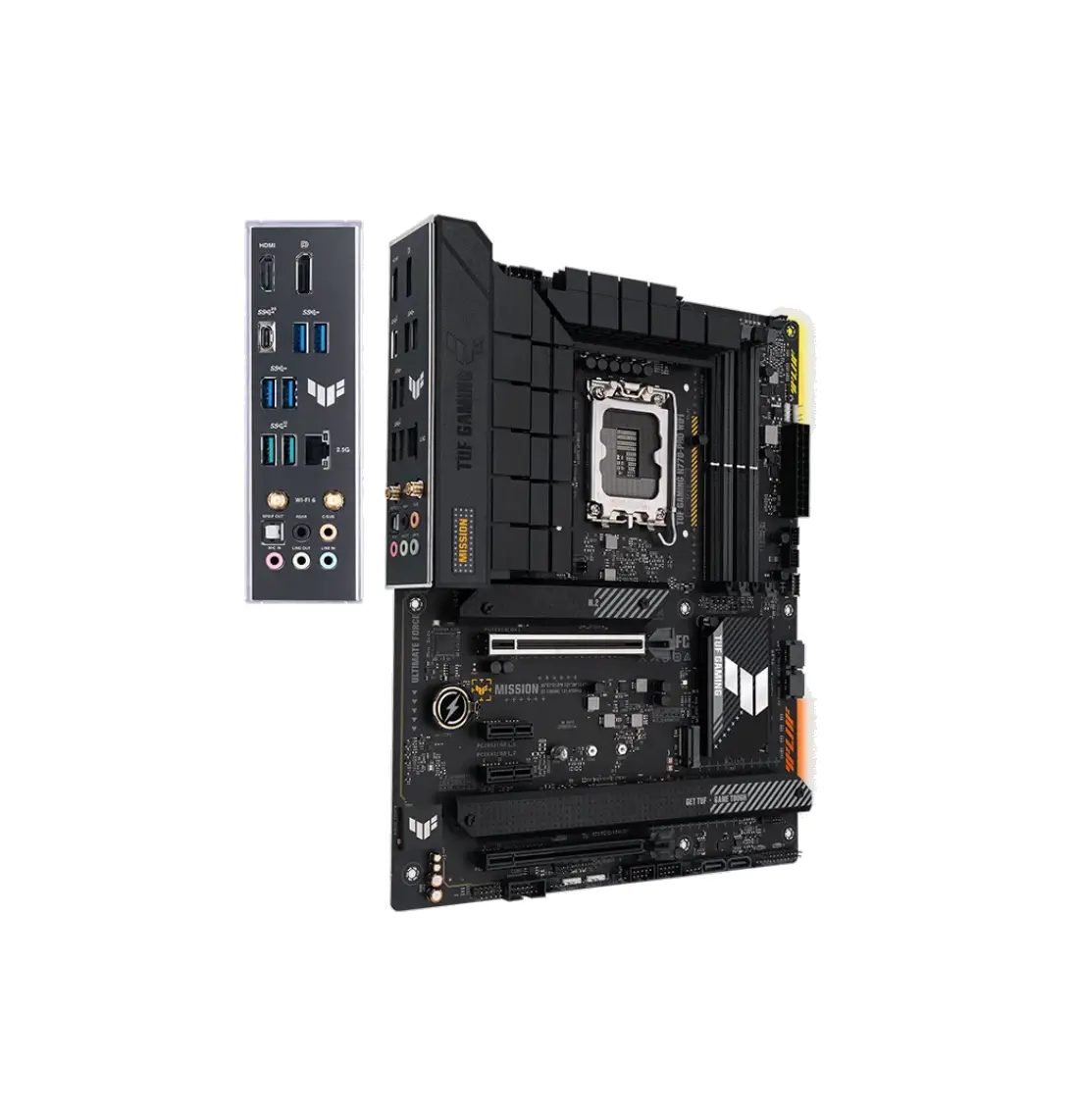
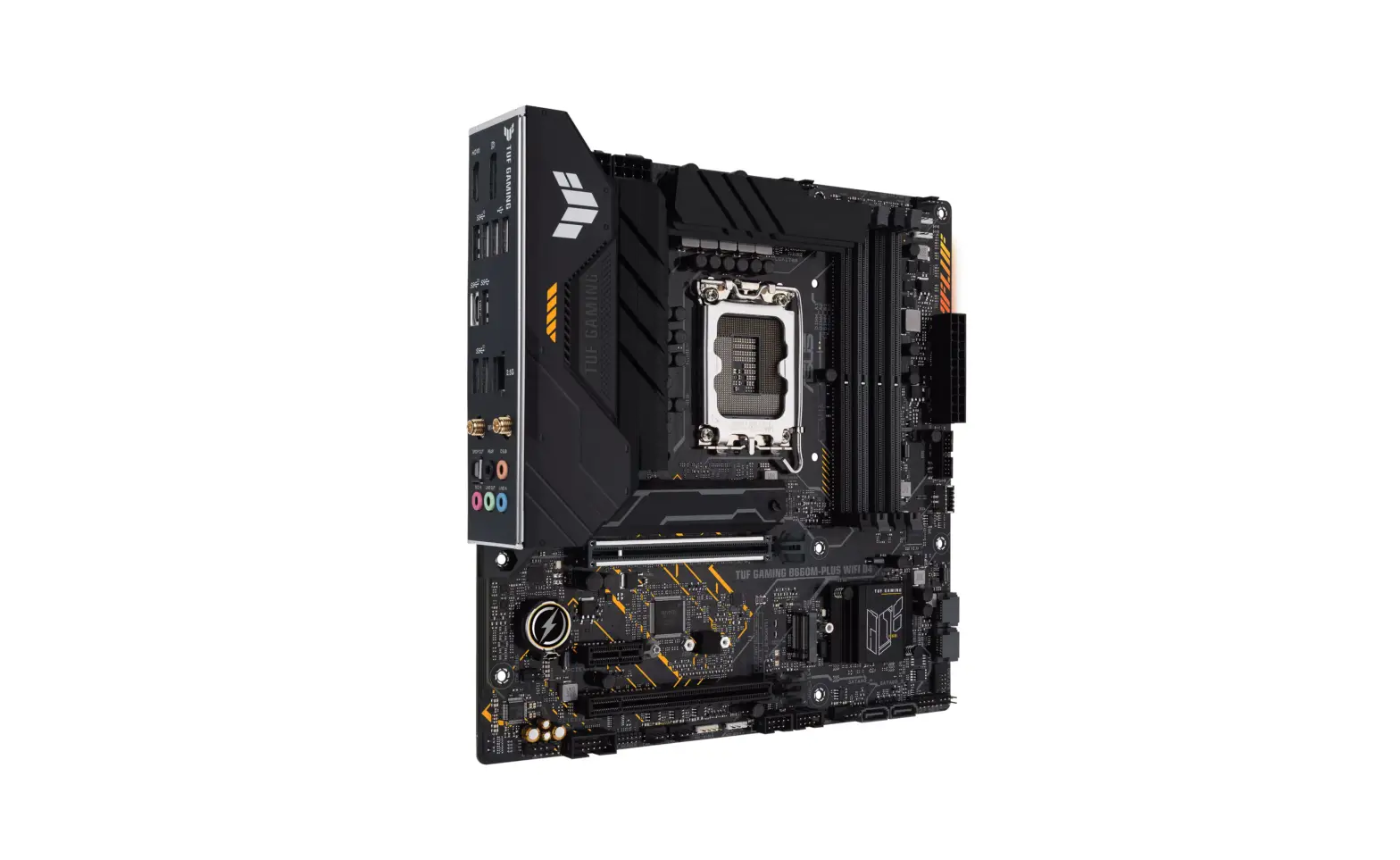
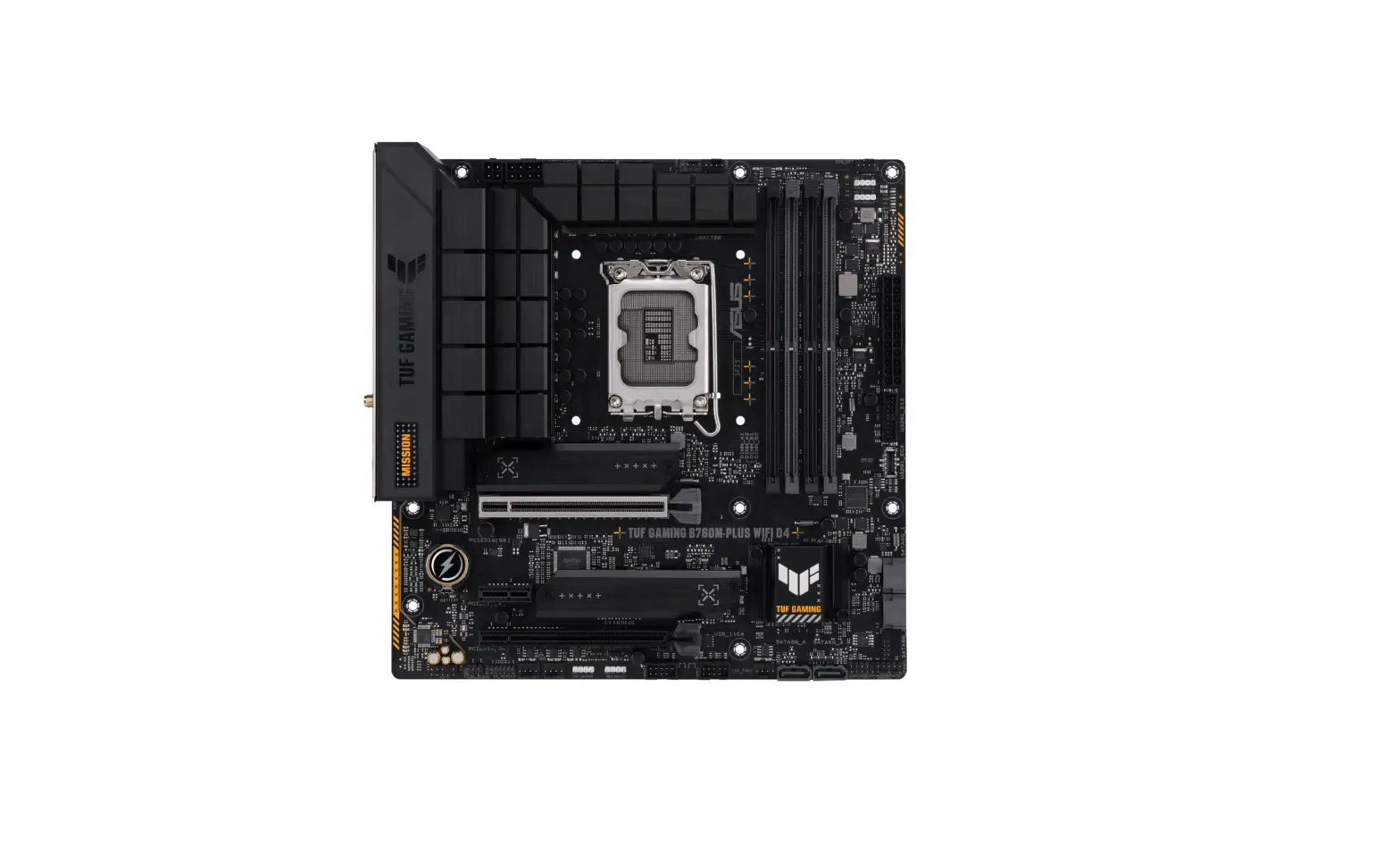
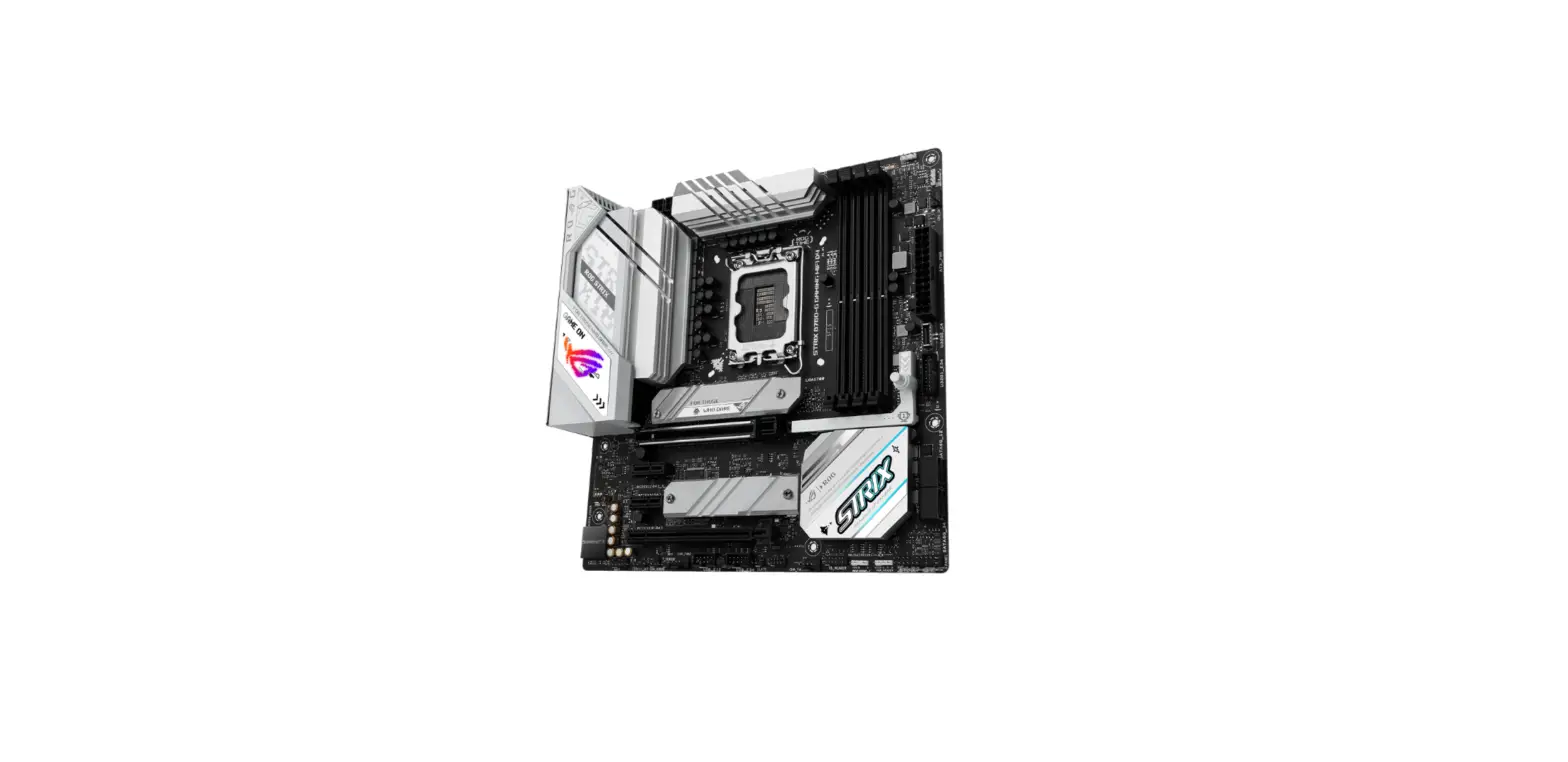
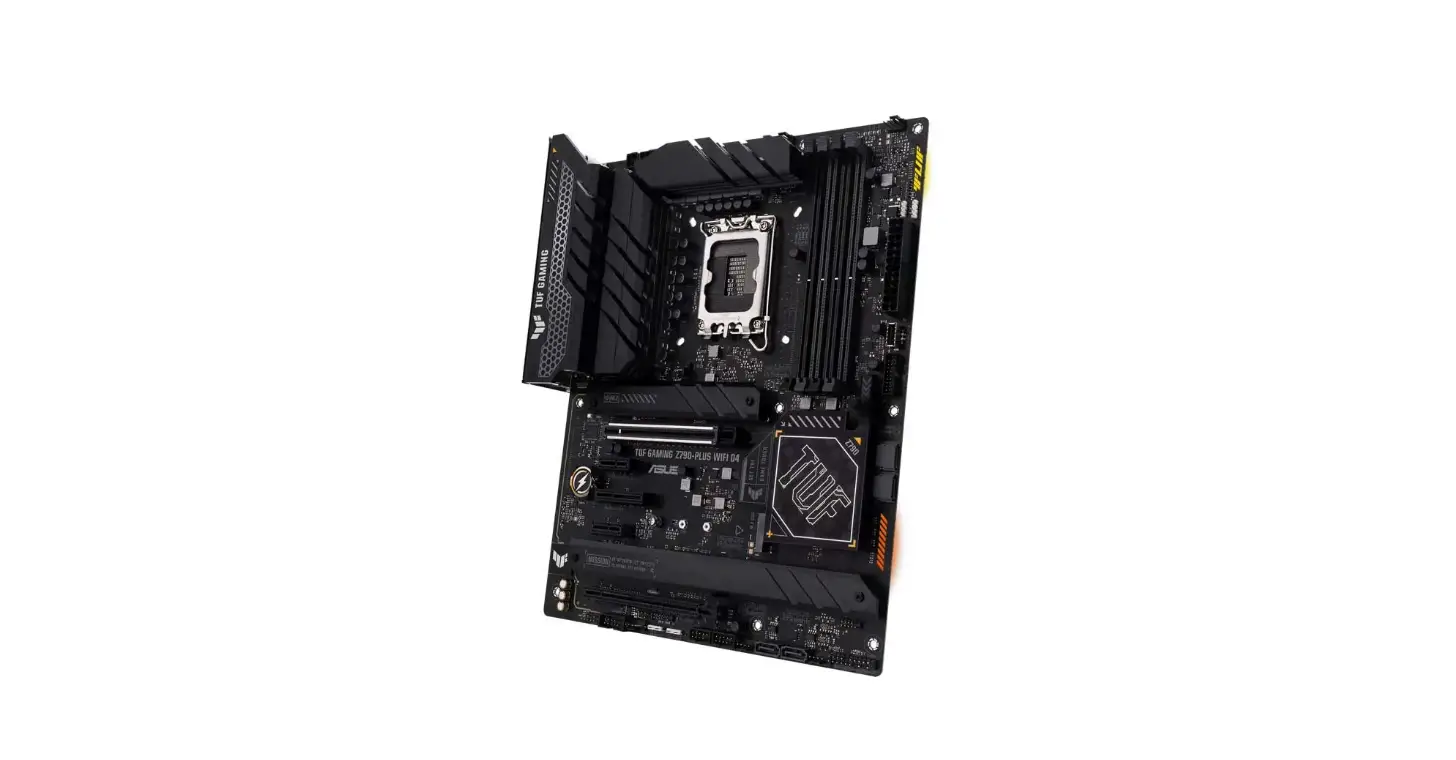
B760M-BTF WIFI D4 TUF Gaming Motherboard
Product Information:
The TUF GAMING B760M-BTF WIFI D4 is a motherboard designed for
gaming enthusiasts. It supports the installation of a central
processing unit (CPU) and CPU fan. The motherboard layout includes
various connectors and slots for expansion and connectivity.
Product Usage Instructions:
Step 1: Install the CPU
- Ensure that the motherboard is powered off and disconnected
from the power source. - Locate the CPU socket on the motherboard.
- Refer to the user manual specific to your CPU model for
detailed instructions on how to install the CPU. - Gently align the CPU with the socket, ensuring that the
alignment markers match. - Slowly lower the CPU into the socket, taking care not to bend
any pins. - Once properly aligned, gently press down on the CPU to secure
it in place.
Step 2: Install the CPU Fan
- Locate the CPU fan connector on the motherboard.
- Align the fan’s connector with the CPU fan connector on the
motherboard. - Gently push the connector into place, ensuring a secure
connection. - Position the CPU fan over the CPU socket, aligning the screw
holes with the mounting points on the motherboard. - Secure the CPU fan in place using the provided screws or
mounting mechanism.
Note: For detailed instructions on how to install storage
devices, refer to the user manual specific to your M.2 or other
storage device.
For any further assistance or troubleshooting, please refer to
the complete user manual or contact our customer support.
Step 1
A
Install the CPU
Installer sentralprosessoren (CPU)
Instale a CPU
Instalace procesoru
Instalacja procesora
Installer CPU’en
TUF GAMING B760M-BTF WIFI D4 De CPU installeren Paigaldage CPU
Instalai CPU-ul Instalar la CPU
B
C
Installez le processeur
Instalirajte CPU
Asenna suoritin
Instalácia centrálneho procesora
Quick start guide
Hurtigstartsveiledning
Installieren der CPU
Installera CPU
1
Guia de consulta rápida
CPU
CPU
Helyezze be a CPU-t
CPU’yu takin
Strucná pírucka
Instrukcja szybkiej instalacji
Installare la CPU
Lp CPU
Quick Start-vejledning
Pasang CPU CPU
Instalacija procesora
Snelstartgids
Ghid de pornire rapid
CPU
Namestitev CPE-ja
2
Lühijuhend
Guía de inicio rápida
CPU Sumontuokite centrin procesori
Guide de démarrage rapide Pikakäynnistysopas
Vodic za brzo korisenje Strucný návod na spustenie
Uzstdiet centrlo procesoru
D
2
E
Schnellstartanleitung
Snabbstartsguide
Step 2
Install the CPU fan
Installera CPU-fläkten
Beüzemelési útmutató
Hizli Balatma Kilavuzu
CPU
3
Guida Rapida
Instalace ventilátoru procesoru
Höôùng daãn khôûi ñoäng nhanh Installer CPU-blæseren
CPU fanini takin Lp qut CPU
Panduan Ringkas
Vodic za brzi pocetak rada
De CPU-ventilator installeren
Instalacija ventilatora procesora
2
Paigaldage CPU ventilaator
1
Installez le ventilateur du processeur
Namestitev ventilatorja CPE-ja
Vodnik za hitri zacetek
Asenna suorittimen tuuletin Installieren des CPU-Lüfters CPU
Greitos darbo pradzios vadovas sa pamcba
Szerelje be a CPU ventillátort Installare la ventola della CPU Pasang kipas CPU
A
1
Motherboard Layout
CPU
CPU ii CPU Sumontuokite centrinio procesoriaus ventiliatori
2
B
2
Uzstdiet centrl procesora ventilatoru
1
24.4cm(9.6in)
Installer CPU-viften
HDMI_DP CLRTC
DIGI+ VRM
Instale a ventoinha de CPU Instalacja wentylatora procesora
DDR4 DIMM_A1 (64bit, 288-pin module) DDR4 DIMM_A2 (64bit, 288-pin module) DDR4 DIMM_B1 (64bit, 288-pin module) DDR4 DIMM_B2 (64bit, 288-pin module) 24.4cm(9.6in)
USB_E5678
Step 1
U32G2X2_C1 U32G1_E3
U32G1_C9 U32G1_E4
Step 3
Instalai ventilatorul CPU-ului Instalar el ventilador de la CPU
U32G2_EC6 LAN_U32G2_E5
M.2(WIFI)
LGA1700
Instalirajte CPU ventilator Instalácia ventilátora centrálneho procesora
M.2_1(SOCKET3)
AUDIO
Step 4
2242
2260 PCIE SATA 4.0 X4 X
M.2_1(SOCKET3)
2280
PCIEX16(G5)
1st
Step 5 Step 7
ADD_GEN 2_3
Ethernet
BATTERY
Super I/O
PCIEX1(G4)
2280
2260
AURA M.2_2(SOCKET3) PCIE SATA 4.0 X4 X
2242
Audio CODEC
PCIEX16(G4)
M.2_2(SOCKET3)
Intel® B760
128Mb BIOS
ADD_GEN 2_2 AIO_PUMP
CPU DRAM VGA BOOT
24.4cm(9.6in)
CPU_OPT
CPU_FAN
ATX_12V_2 ATX_12V_1
ATX_PWR
U32G2_C3
U32G1_E12
M.2_3(SOCKET3)
SATA6G_2 SATA6G_1
Step 4 Step 6
SATA6G_3 SATA6G_4
F_PANEL
CHA_FAN3
M.2_3(SOCKET3)
PCIE SATA 4.0 X4 X
2280
COM_DEBUG
USB_78
TB(USB4)_HEADER
USB_56 ADD_GEN 2_1 CHA_FAN2 CHA_FAN1
COM
RGB_HEADER
AAFP
Step 4
Step 7 Step 2
Step 3
Install memory modules Instalace pamových modul Installer hukommelsesmodulerne Geheugenmodules installeren Paigaldage mälumoodulid Installez les modules de mémoire Asenna muistimoduulit Installieren der Speichermodule Helyezze be a memória modulokat Installare i moduli di memoria Pasang modul memori i Sumontuokite atminties modulius Uzstdiet atmias moduus
Installer minnemoduler Instale módulos de memória Instalacja modulów pamici Instalai modulele de memorie Instalar los módulos de memoria Instalirajte module memorije Instalácia pamäových modulov Installera minnesmoduler
Bellek modüllerini takin
Lp các thanh nh Instalacija memorijskih modula ‘ Namestitev pomnilniskih modulov
DIMM_A2
DIMM_A2 DIMM_B2
DIMM_A1 DIMM_A2 DIMM_B1 DIMM_B2
1 2
3 1
Australia Statement Notice
From 1 January 2012 updated warranties apply to all ASUS products, consistent with the Australian Consumer Law. For the latest product warranty details please visit https://www.asus.com/support/. Our goods come with guarantees that cannot be excluded under the Australian Consumer Law. You are entitled to a replacement or refund for a major failure and compensation for any other reasonably foreseeable loss or damage. You are also entitled to have the goods repaired or replaced if the goods fail to be of acceptable quality and the failure does not amount to a major failure. If you require assistance please call ASUS Customer Service 1300 2787 88 or visit us at https://www.asus.com/support/.
India RoHS
This product complies with the “India E-Waste (Management) Rules, 2016” and prohibits use of lead, mercury, hexavalent chromium, polybrominated biphenyls (PBBs) and polybrominated diphenyl ethers (PBDEs) in concentrations exceeding 0.1% by weight in homogenous materials and 0.01 % by weight in homogenous materials for cadmium, except for the exemptions listed in Schedule II of the Rule.
Türkiye RoHS
AEEE Yönetmeliine Uygundur
HDMI Trademark Notice
The terms HDMI, HDMI High-Definition Multimedia Interface, HDMI Trade dress, and the HDMI Logo are trademarks or registered trademarks of HDMI Licensing Administrator, Inc.
Q21632 First Edition February 2023 Copyright © ASUSTeK Computer Inc. All Rights Reserved
IMPRESSO NA CHINA
15060-24XR0000
Step 4
Install storage devices. To install M.2, refer to user guide. . M.2, . Instalování pamových zaízení. Pokyny pro instalaci M.2 najdete v uzivatelské pírucky. Installering af lagerenheder. Se brugsvejledningen for oplysninger om installation af M.2. Opslagapparaten installeren. Raadpleeg de gebruiksaanwijzing voor het installeren van M.2. Installige salvestid. M.2 installimisel juhinduge kasutusjuhendist. Installez les périphériques de stockage. Pour installer un module M.2, consultez le guide de l’utilisateur. Tallennuslaitteiden asentaminen. Katso M.2:n asennusohjeet käyttöoppaasta. Installieren der Speichergeräte. Zur Installation von M.2-Geräten schauen Sie bitte im Benutzerhandbuch. . M.2, . Tárolóeszközök telepítése. Az M.2 telepítését illeten lásd a felhasználói útmutatót. Installare dispositivi di archiviazione. Per installare M.2, fare riferimento alla guida per l’utente. Memasang perangkat penyimpanan. Untuk memasang M2, lihat panduan pengguna. M.2 SSD . M.2 . . M.2 .
diegti saugojimo renginius. Kaip montuoti M.2, zr. naudojimo instrukcij. Instaljiet atmias ierces. Lai instaltu M.2, skatiet lietotja rokasgrmatu.
Montere lagringsenheter. Se bruksanvisningen for installasjon av M.2. Instalar dispositivos de armazenamento. Consulte o guia do utilizador para instalar o M.2. Instalacja urzdze pamici. W celu instalacji M.2 naley zapozna si z podrcznikiem uytkownika. . M.2 . Instalarea dispozitivelor de stocare. Consultai manualul de utilizare pentru detalii despre instalarea M.2. Instalar dispositivos de almacenamiento. Para instalar M.2, consulte la guía del usuario. Instalirajte ureaje za skladistenje. Pogledajte uputstvo za korisenje da biste instalirali M.2. Istalácia pamäových zariadení. Postup instalácie M.2 si pozrite v prírucke pre pouzívatea. Installera lagringsenheter. För att installera M.2, se bruksanvisningen.
M.2 Depolama aygitlarinizi takma. M.2’yi kurmak için kullanim kilavuzuna bakin.
lp t các thit b lu tr. lp t M.2, hãy tham kho s hng dn s dng. Instalirajte ureaje za pohranjivanje. Pogledajte korisnicki prirucnik za ugradnju M.2. ‘. .2, . . Namestitev naprav za shranjevanje. Za namestitev M.2 glejte navodila za uporabo.
Step 5
Install expansion card(s) ( ) Instalace pídavné karty (karet) Installer udvidelseskortene Uitbreidingskaart(en) installeren Paigaldage laienduskaart(-kaardid) Installez les cartes d’extension Asenna laajennuskortti/kortit Installieren der Erweiterungskarte(n) Helyezze be a bvítkártyá(ka)t Installare le schede di espansione Pasang kartu ekspansi () Sumontuokite ispltimo plokst (-es) Uzstdiet izvrses karti(-es) Installer utvidelseskort Instale placas de expansão Instalacja kart(y) rozszerzenia Instalai cardul/cardurile de extensie Instalar tarjetas de expansión Instalirajte ekspanzionu/e karticu/e Instalácia rozsirujúcich kariet Installera expansionskort Geniletme kartlarini takin Lp (các) th m rng Instalacija kartica za prosirenje Namestitev razsiritvenih kartic
Step 6
Install the system panel connector Nainstalujte konektor pro panel systému Tilslut stikket til systempanelet Installeer de connectors van het systeempaneel Ühendage süsteemi paneeli liitmik Installer le connecteur de panneau système Asenna järjestelmäpaneelin liitäntä Installieren des Systembereich-Anschlusses Telepítse a rendszerpanell csatlakozót Installa il connettore del pannello di sistema Pasang konektor panel sistem
Sumontuokite sistemos valdymo ploksts jungt Sistmas panea savienotja instalsana Installer systempanelkontakten Instalar o conector do painel do sistema Zainstaluj zlcze panelu systemowego Instalai Conector pentru placa de baz Instalar el conector del panel del sistema Instalirajte prikljucak za sistemsku plocu Instalácia konektora systémového panela Sätt i systempanelens kontakt Sistem paneli konnektörünü takin Lp u ni bng iu khin h thng Instalacija konektora ploce sustava ‘ Namestitev Konektor maticne plosce
Step 7
Install ATX power connectors ATX Instalace konektor napájení ATX Installer ATX-strømtilslutningerne ATX-voedingsaansluitingen installeren Paigaldage ATX-i toitekonnektorid Installez les connecteurs d’alimentation ATX Asenna ATX-virtaliittimet Installieren der ATX-Stromanschlüsse ATX Csatlakoztassa az ATX tápcsatlakozókat Installare i connettori di alimentazione ATX Pasang konektor daya ATX ATX ATX Sumontuokite ATX maitinimo jungtis Uzstdiet ATX strvas savienotjus Installer kontakter for ATX-strøm Instale os conectores de alimentação ATX Instalacja zlczy zasilacza ATX ATX Instalai pinii conectori ATX Instalar conectores de alimentación ATX Instalirajte ATX elektricne prikljucke Instalácia napájacích konektorov ATX Installera ATX strömkontakter ATX ATX güç konnektörlerini takin Lp các u ni ngun ATX Instalacija konektora ATX napajanja ATX Namestitev prikljuckov za napajanje ATX
A
B
OR
AND
Step 8
Connect input/output devices I/O Pipojení vstupních/výstupních zaízení Tilslut input-/outputudstyr I/O-apparaten aansluiten Ühendage sisend -/väljundseadmed Connectez les périphériques d’entrée/sortie Liitä tulo/lähtölaitteita Eingabe-/Ausgabe-Geräte verbinden / Bemeneti/kimeneti eszközök csatlakoztatása Collegate i dispositivi di input/output Sambungkan perangkat input/output ii/ / Prijunkite vesties / isvesties renginius Pievienot ievades/izvades ierces
Koble til inngang/utgangsenheter Ligar dispositivos de entrada/saída Podlczenie urzdze wejcia/wyjcia / Conectare dispozitive de intrare/ieire Conectar dispositivos de entrada y salida Povezite ulazne/izlazne ureaje Pripojenie vstupných/výstupných zariadení Anslut ingående/utgående enheter
/ Giri/çiki aygitlarina balan
Kt ni các thit b u vào/u ra Spajanje ulaznih/izlaznih ureaja ‘ / Prikljucitev vhodnih/izhodnih naprav
Step 9
Power on the system and install operating system and drivers Zapnutí napájení systému a instalace operacního systému a ovladac Tænd for systemet, og installer operativsystemet og de tilhørende drivere Het systeem inschakelen en het besturingssysteem en de stuurprogramma’s installeren Lülitage süsteemi toide sisse ning installige operatsioonisüsteem ja draiverid Démarrez le système et installez le système d’exploitation et les pilotes Käynnistä järjestelmä ja asenna käyttöjärjestelmä ja ohjaimet Einschalten des Systems und Installieren des Betriebssystems und der Treiber Kapcsolja be a rendszert és telepítse az operációs rendszert és illesztprogramokat Accendere il sistema e installare il sistema operativo e i driver Hidupkan sistem, lalu instal sistem operasi dan driver OS , junkite sistem ir diekite operacin sistem ir tvarkykles Iesldziet sistmu un instaljiet opertjsistmu un draiverus Slå på systemet og installer operativsystem og drivere Ligue o sistema e instale o sistema operativo e os controladores Wlcz zasilanie i zainstaluj system operacyjny oraz sterowniki Pornii sistemul i instalai sistemul de operare i driverele Proporcionar alimentación al sistema e instalar el sistema operativo y los controladores Ukljucite sistem i instalirajte operativni sistem i drajvere Zapnutie systému a instalácia operacného systému a ovládacov Slå på systemet och installera operativsystem och drivrutiner Sistemi açip iletim sistemini ve sürücüleri yükleyin Bt ngun h thng và cài t h iu hành cng nh các driver Ukljucivanje sustava i instaliranje operativnih sustava i upravljackih programa Vklop sistema ter namestitev operacijskega sistema in gonilnikov
 Official Support | ASUS Global