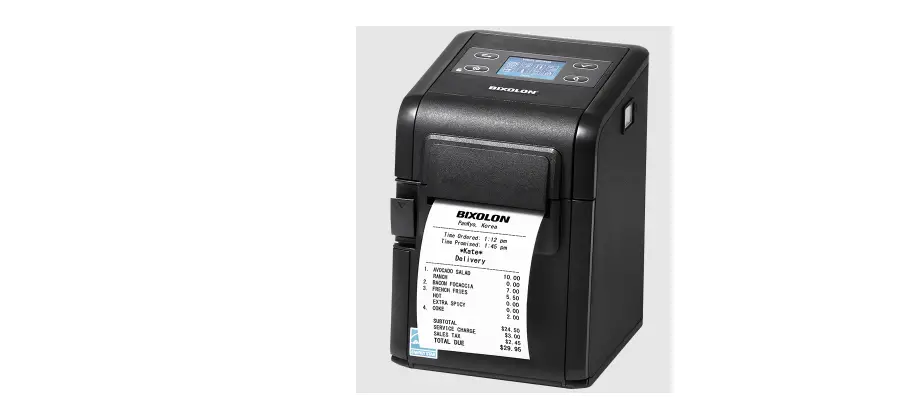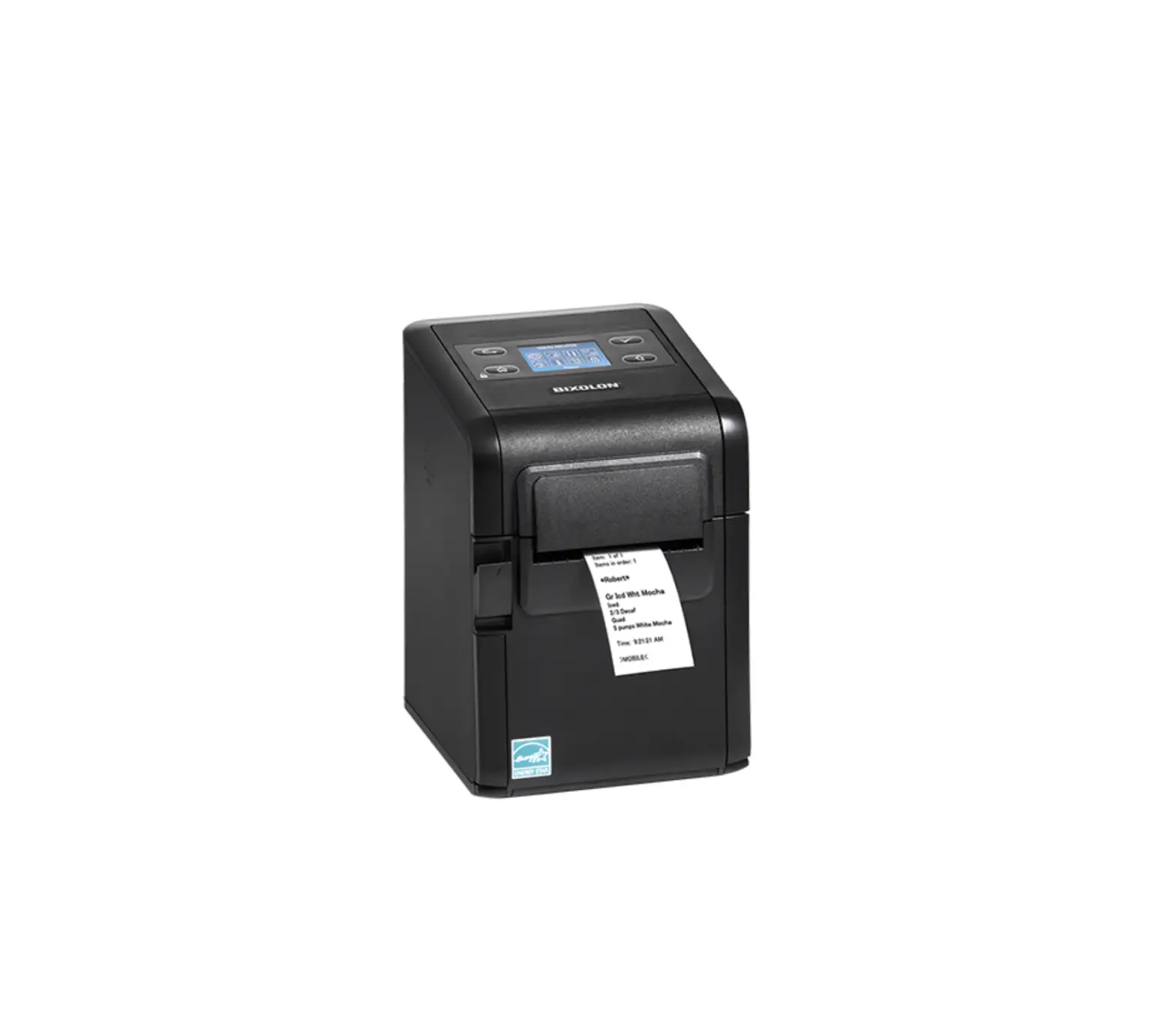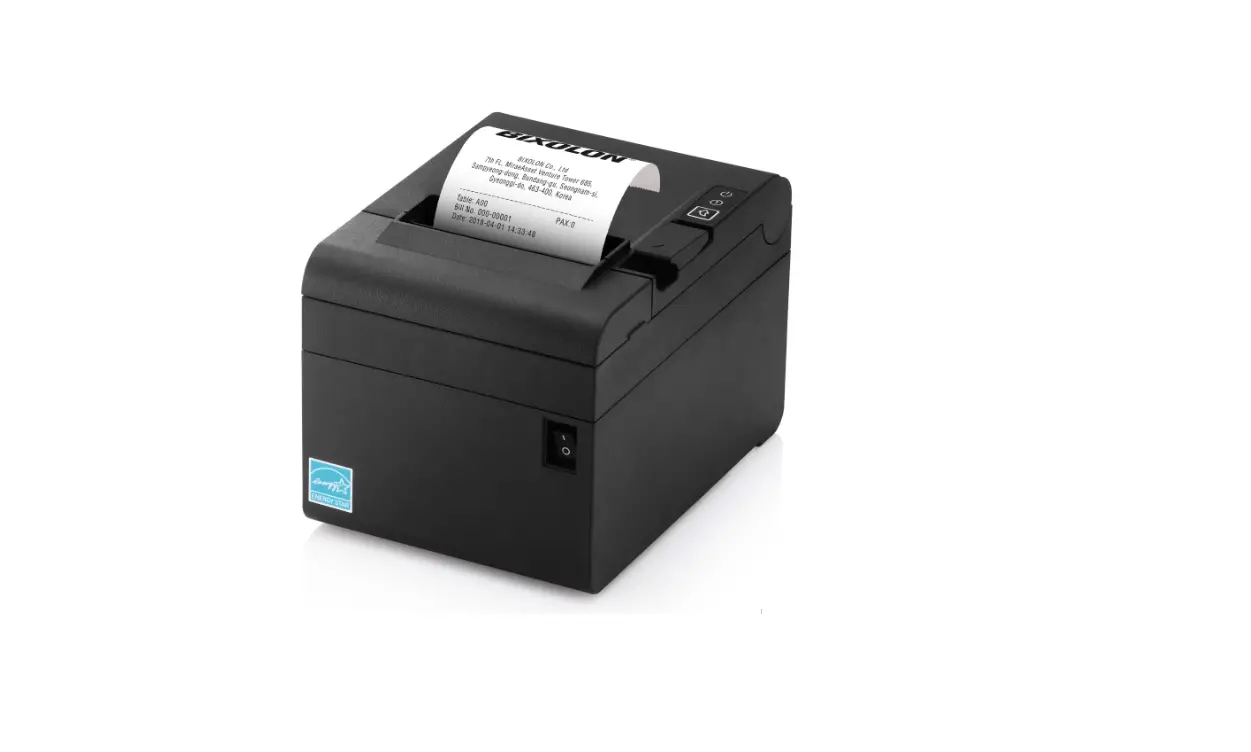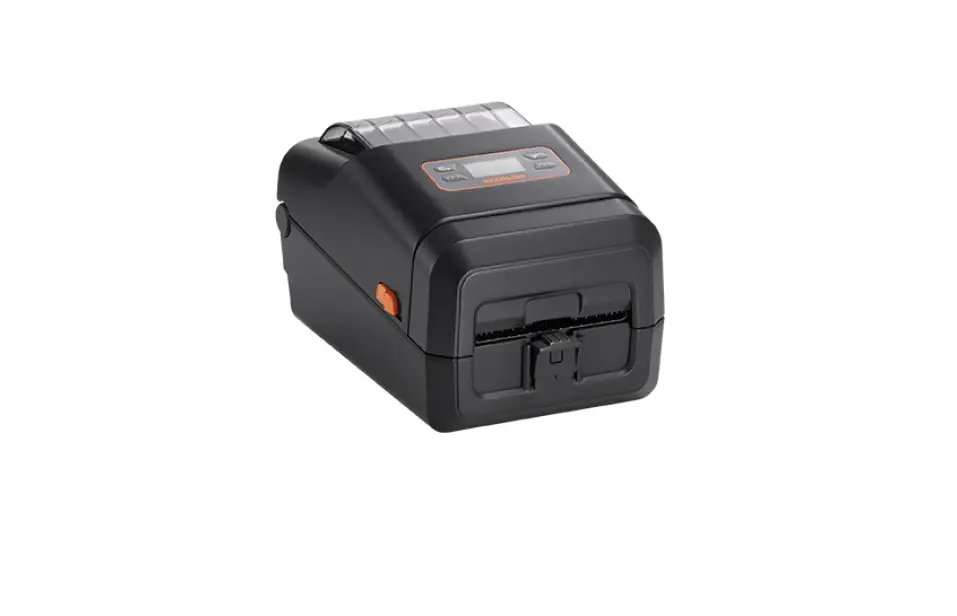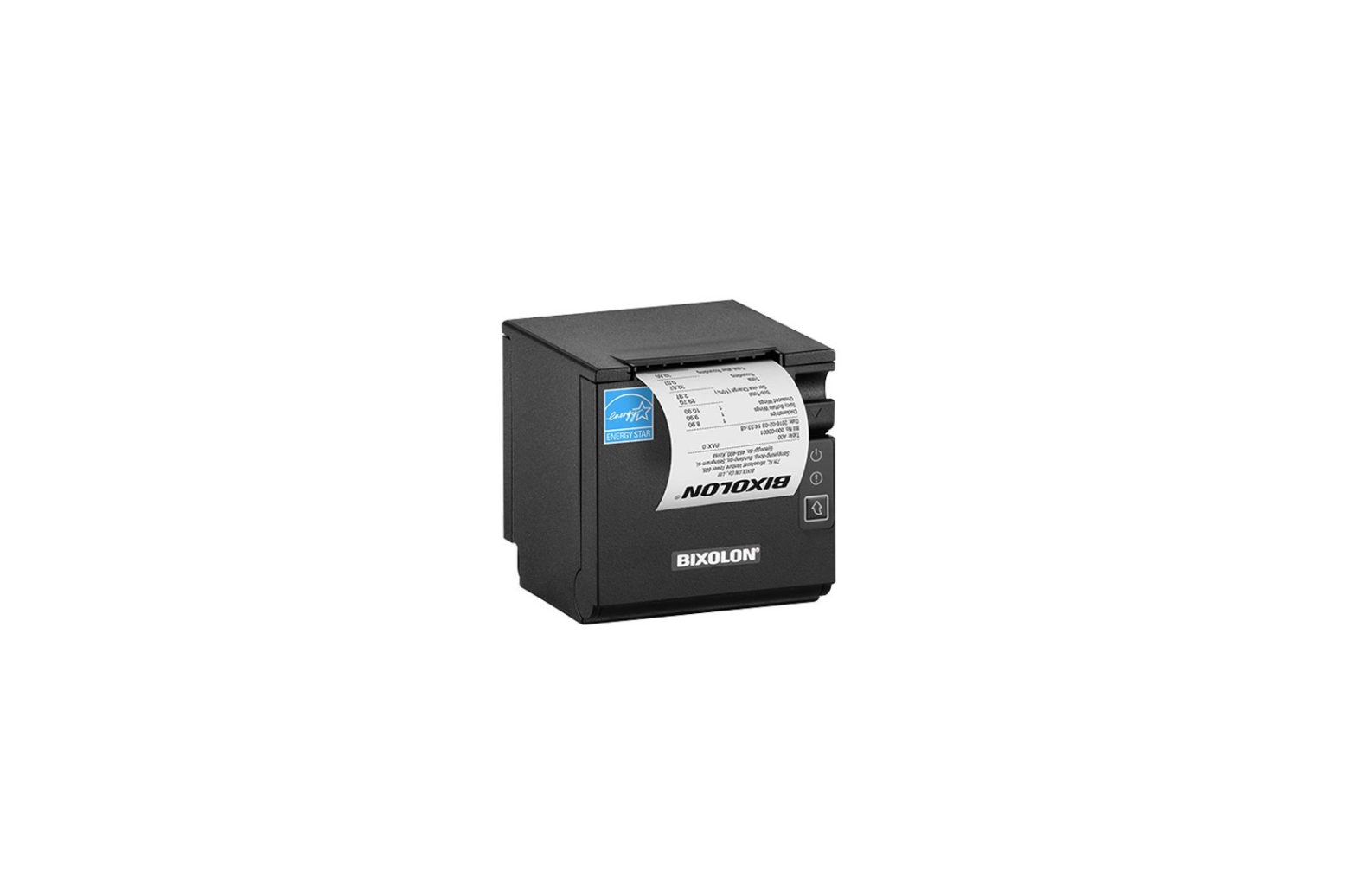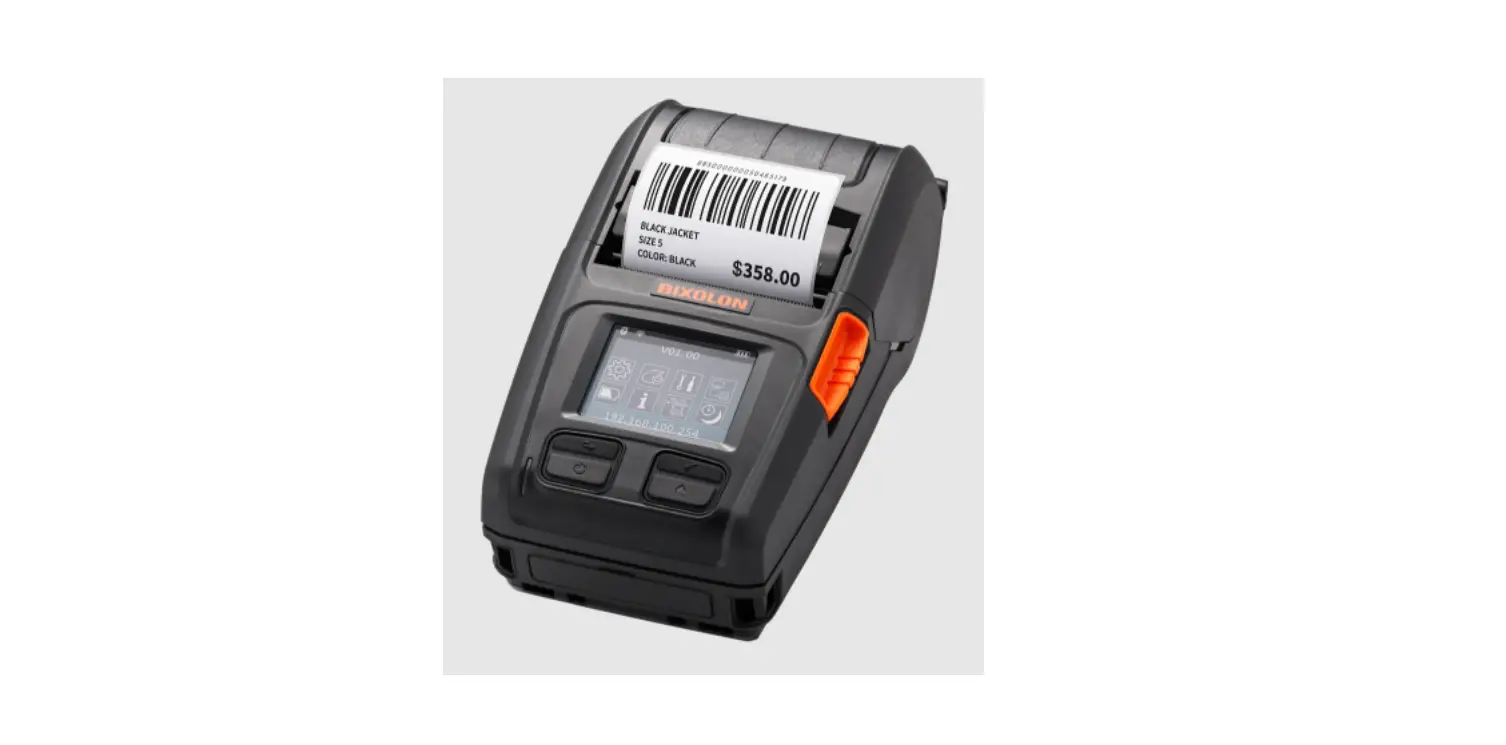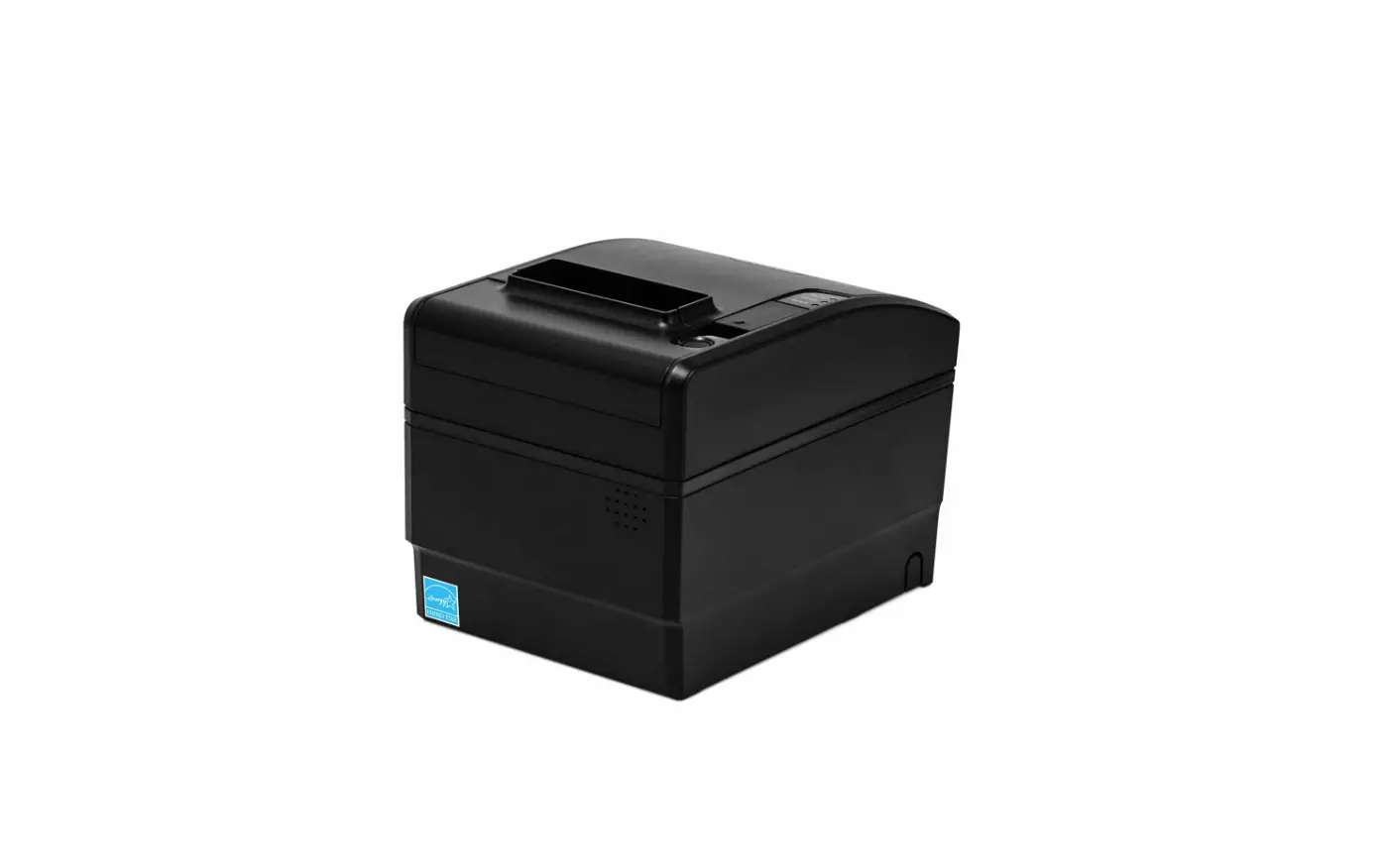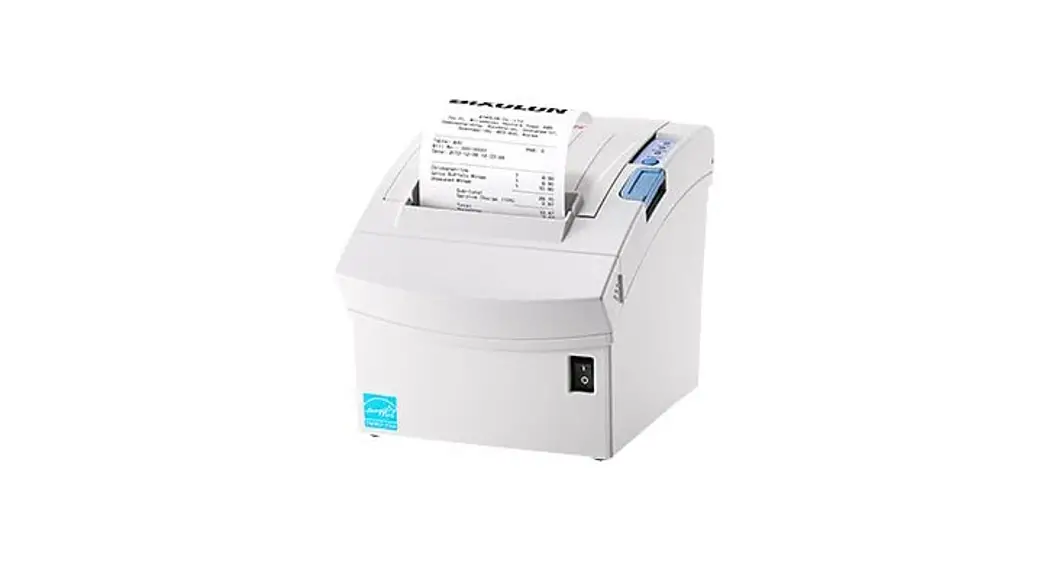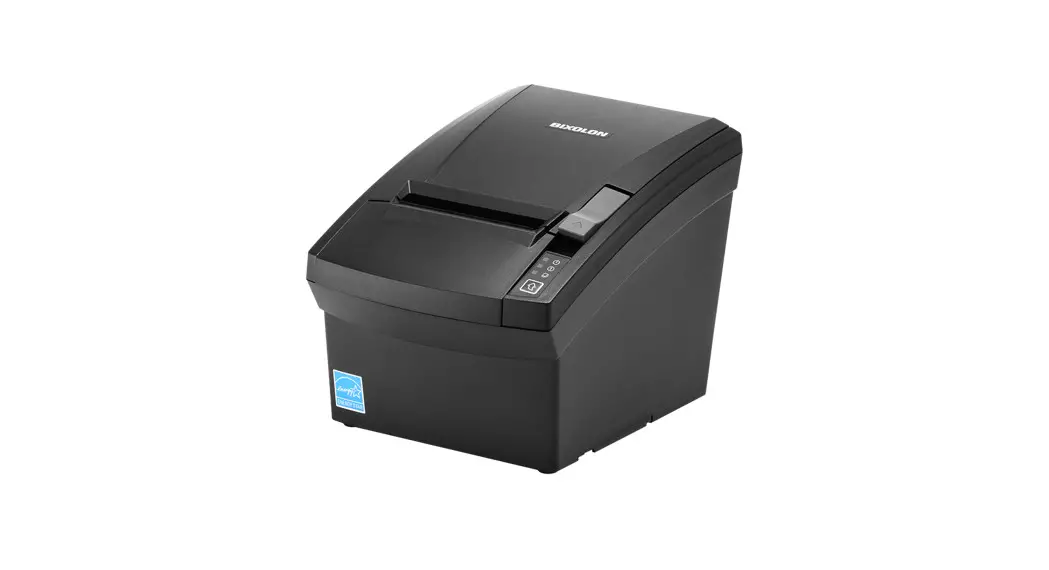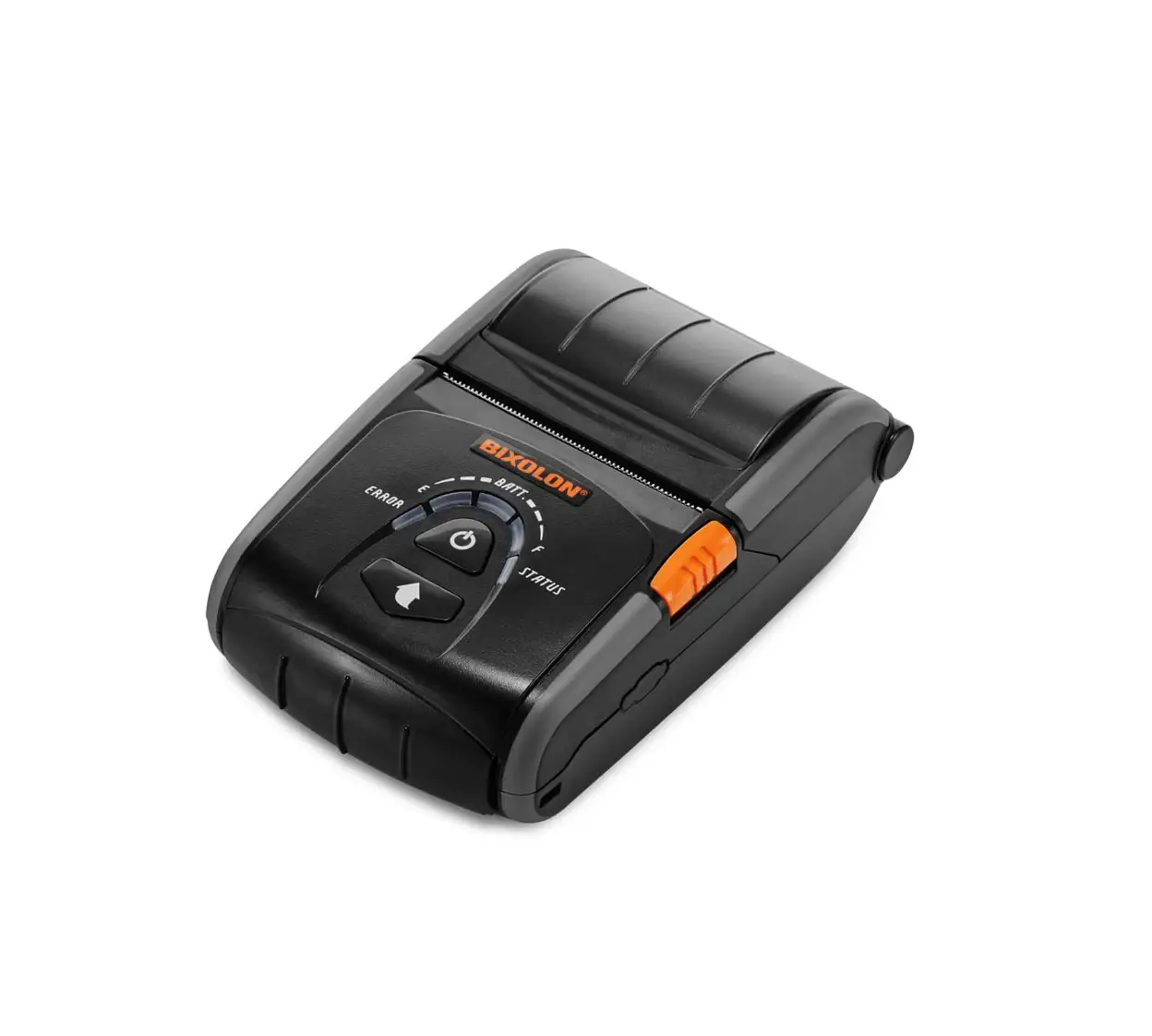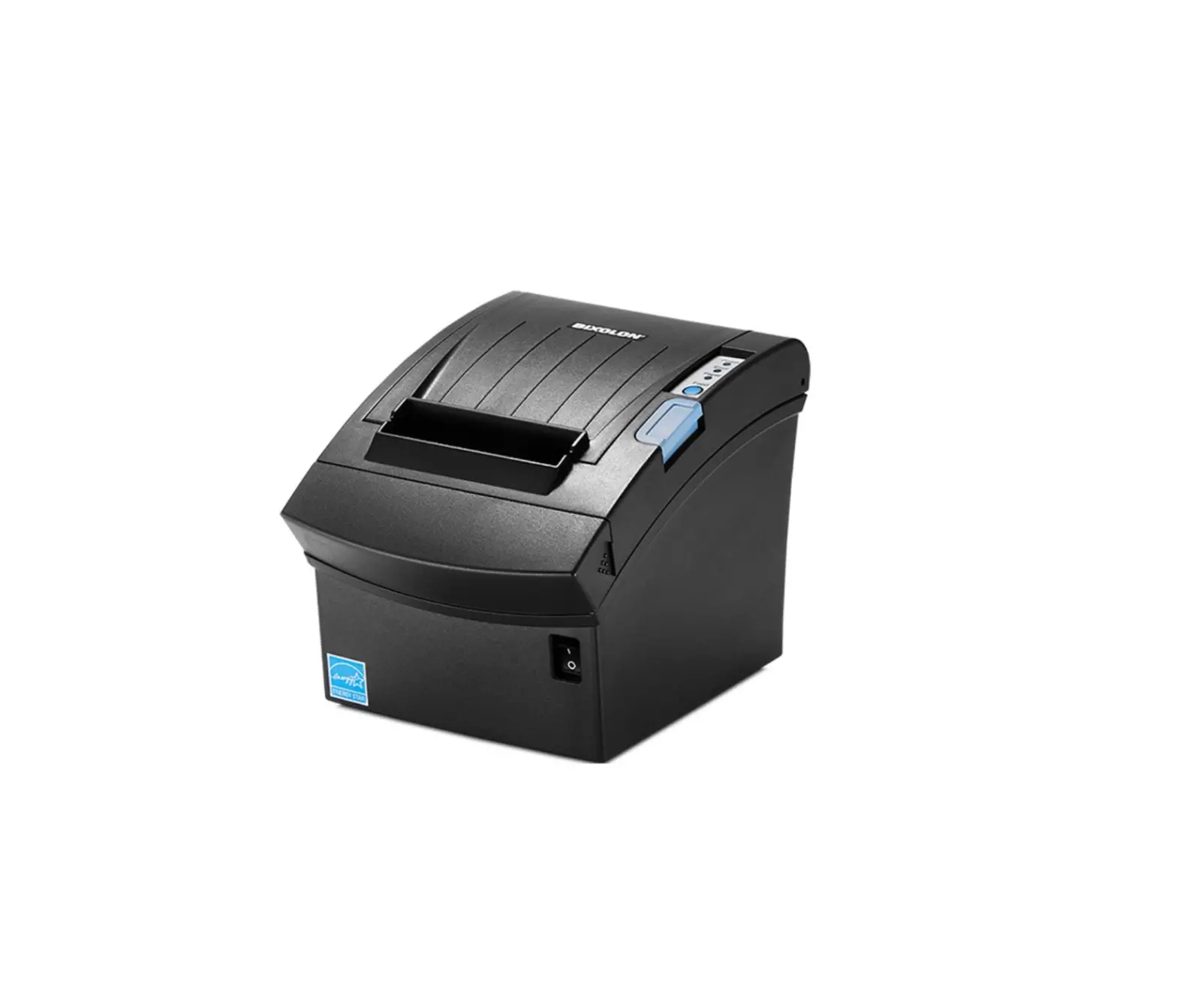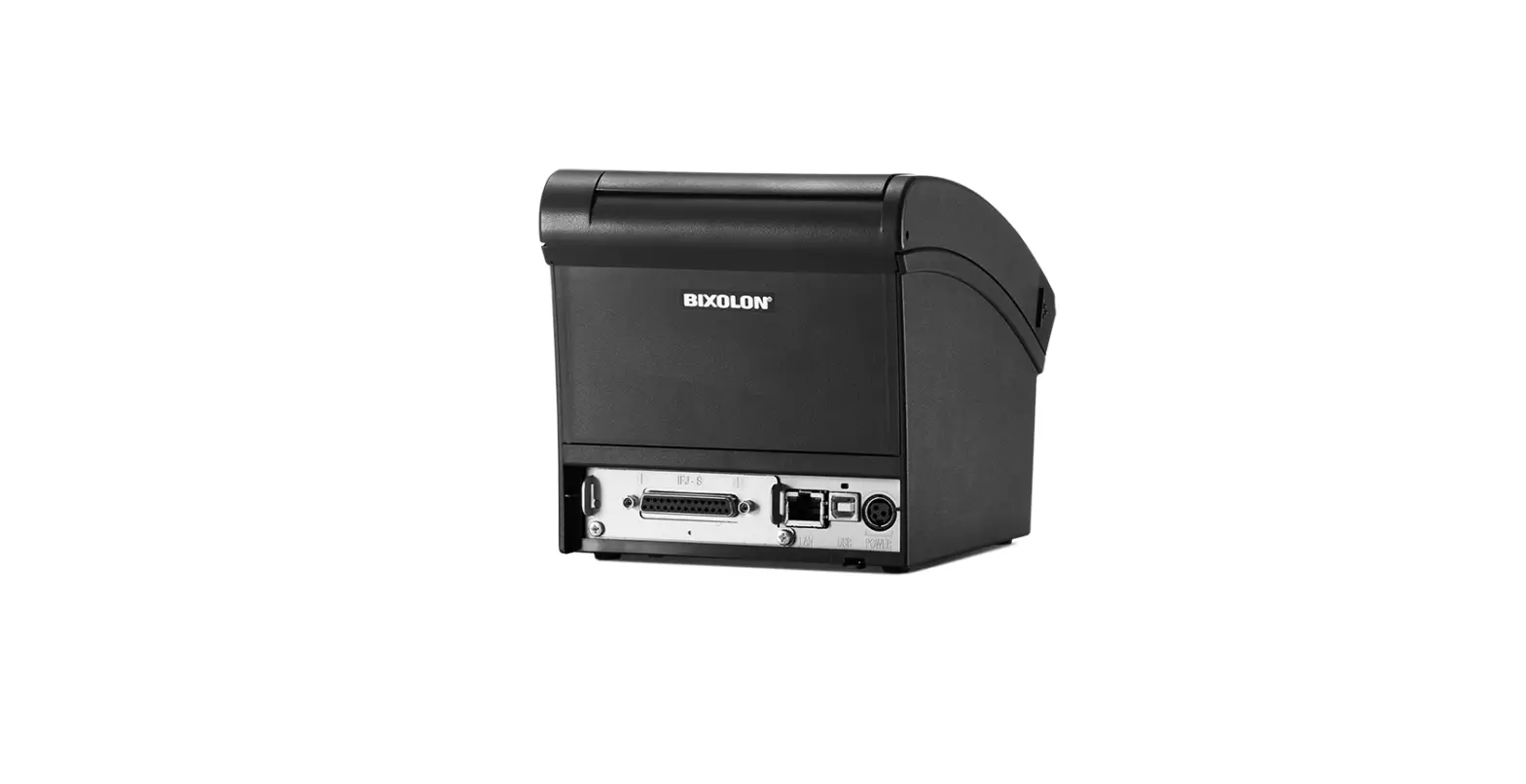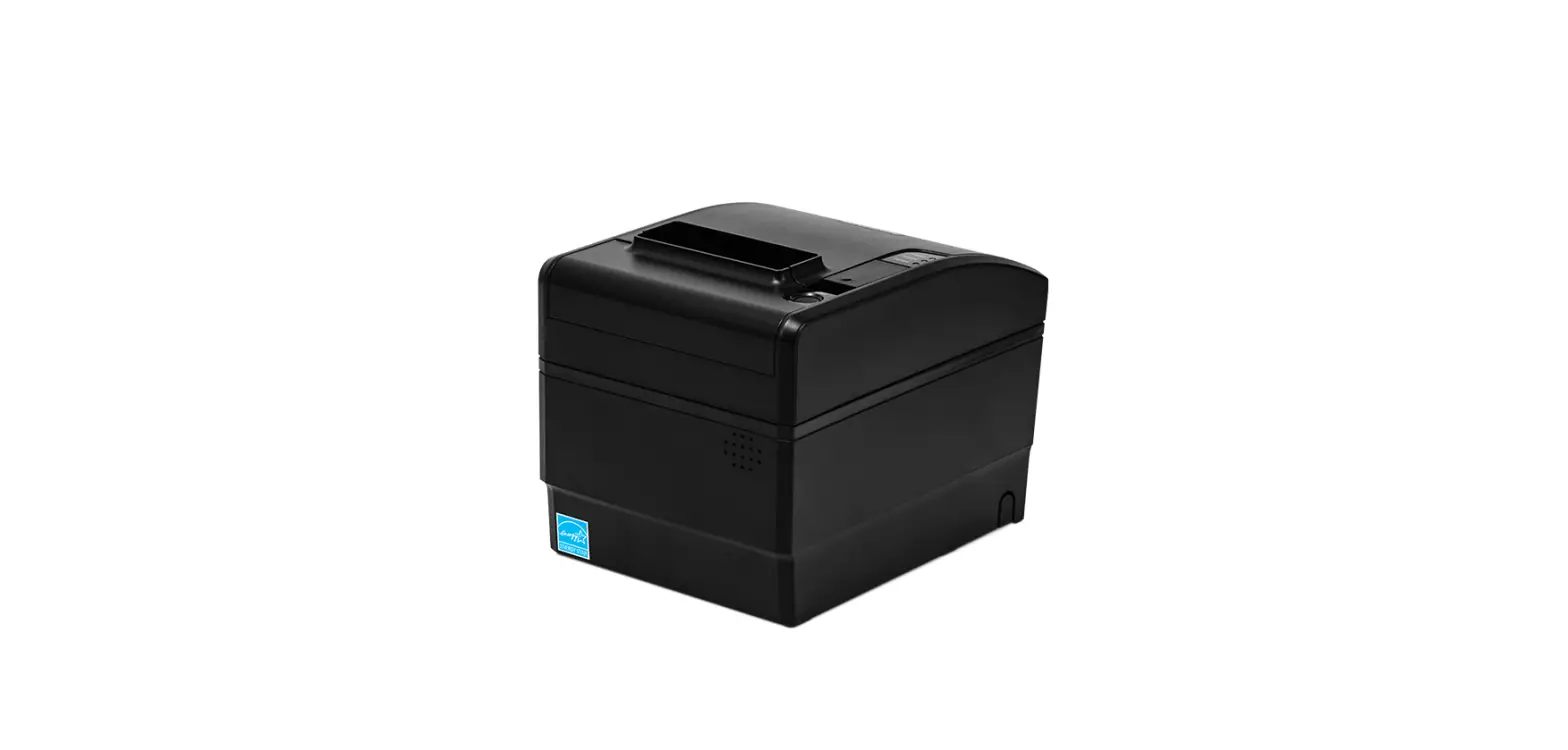

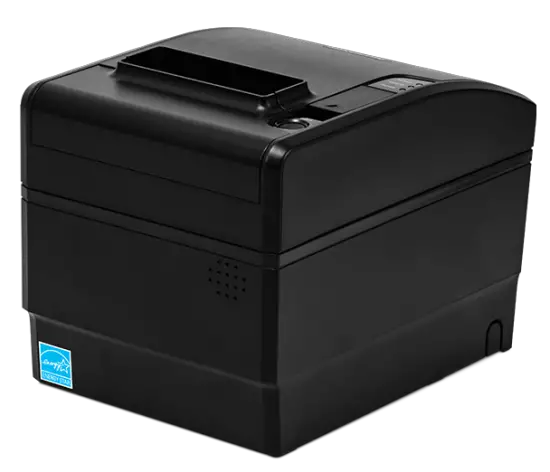
BIXOLON SRP-S200 Linerless Printer Instruction
Manual Information
This manual provides information on the connection of wireless network with the printer. This document contains proprietary information of BIXOLON and its affiliates. You may utilize the information solely for the purpose of facilitating authorized sales and service of, or developing software and similar products for authorized use with, BIXOLON products, provided that such proprietary information may not be used, reproduced, or dis-closed to any other parties for any other purpose without the prior written permission of BIXOLON. BIXOLON has no liability for loss or damage arising from or relating to your use of the information in the document.
© BIXOLON Co., Ltd. All rights reserved. We at BIXOLON maintain ongoing efforts to enhance and upgrade the functions and quality of all our products. In following, product specifications and/or user manual content may be changed without prior notice.
Specifications
| CATEGORIES | FEATURE | IMPLEMENTATION |
| LAN Specification | Interface | 10/100 Base-T All in one(Auto detection) |
| Protocol | DHCP Client, HTTP, ARP, ICMP, IPv4, TCP, UDP |
How to Connect
LAN can be configured through the printer’s LAN interface.
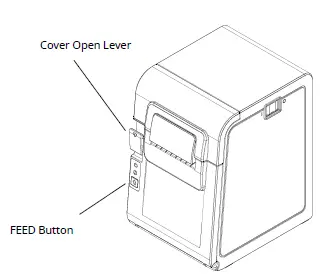
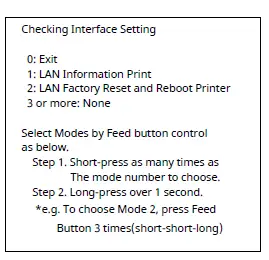
Checking Network Setting
3-1-2 LAN Setting Values
| Classification | Item | Description | Input Range |
|
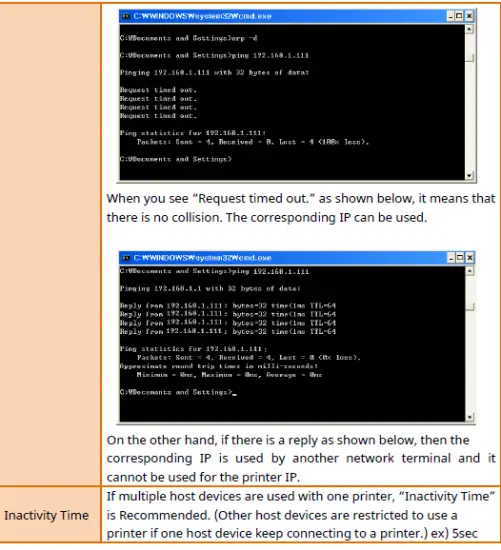
Network | Inactivity Time | TCP connection hold time | 0~3600 integer |
| IP Assignment Method | IP Assignment Method | DHCP/Manual | |
| IP Address | Printer IP | IP Address | |
| Subnet Mask | Subnet mask | IP Address | |
| Gateway | Default Gateway | IP Address |
Note For changing network setting values using Net configuration tool, Refer to ‘Net configuration tool manual’.
Ethernet Test by using Windows Test Page
You can use the Windows printer driver as shown below when there is no test program. Operating systems that allow you to use the Windows printer driver are Windows, XP, Server 2003, VISTA, 2008 Server, 7, 8, 10.
- Double-click the Windows Driver installation file.
- Click Install.
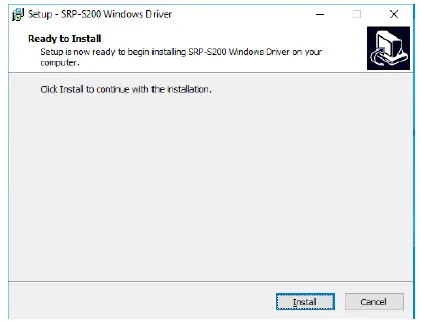
Select Installation and click Next..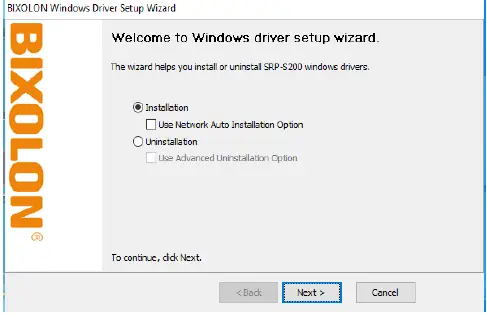
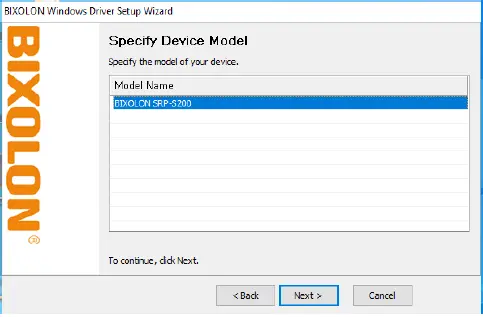
Select Model Name and click Next.
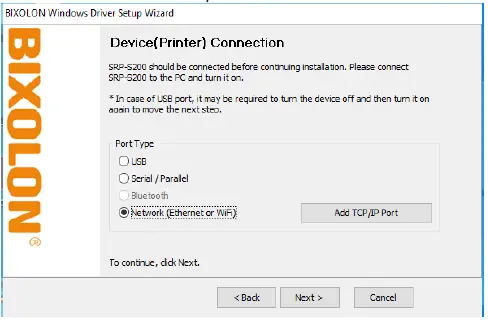
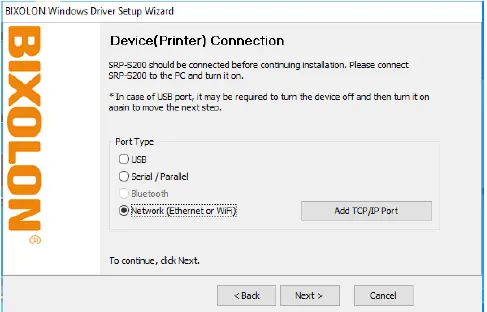
Select Ethernet and click Add TCP/IP Port.
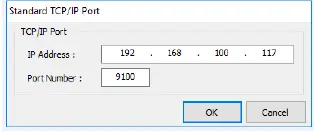
Enter the IP address and port number, and then click Next.
Click Next.
Click Next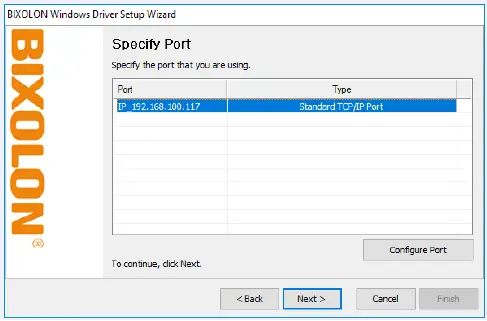
Click Next.
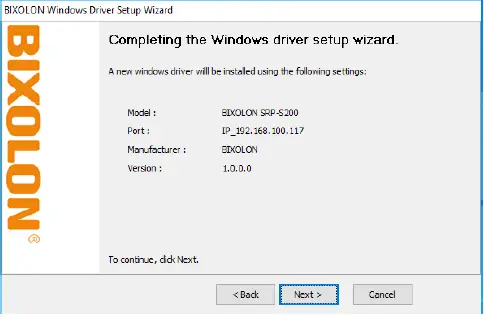
Click Finish.
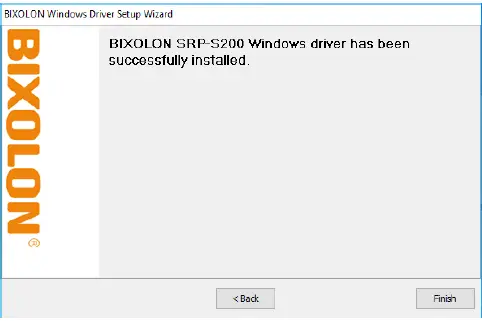
- Open the printer properties window in the Windows OS.
(1) Installing on Windows XP / Server 2003
※ Control Panel – Printers and Faxes. - Installing on Windows VISTA / Server 2008 / 7 / 8 / Server 2012 / 10
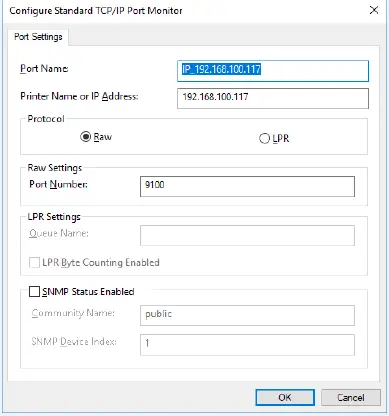
※ Control Panel – Hardware and Sound – Device and Printers. - In the Ports tab, click Configure Port.
- Match the communication settings to those of the printer.
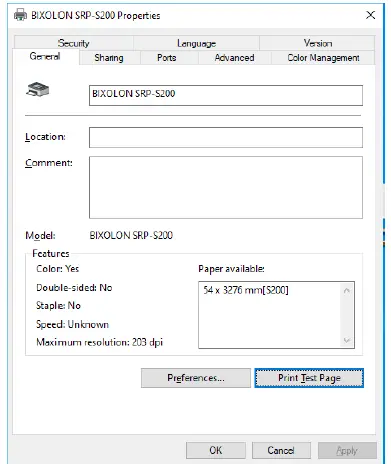
Click Print Test Page and check printing status. Proper installation of the driver is indicated if the test page is printed normally.
Troubleshooting

Copyright
© BIXOLON Co., Ltd. All rights reserved.
This user manual and all property of the product are protected under copyright law. It is strictly prohibited to copy, store, and transmit the whole or any part of the manual
and any property of the product without the prior written approval of BIXOLON Co., Ltd.
The information contained herein is designed only for use with this BIXOLON product. BIXOLON is not responsible for any direct or indirect damages, arising from or related to use of this information.
- The BIXOLON logo is the registered trademark of BIXOLON Co., Ltd.
- All other brand or product names are trademarks of their respective companies or organizations.
BIXOLON maintains ongoing efforts to enhance and upgrade the functions and quality of all our products.
In the following, product specifications and/or user manual content may be changed without prior notice.
Caution
Some semiconductor devices are easily damaged by static electricity. You should turn the printer “OFF”, before you connect or remove the cables on the rear side, in order to guard the printer against the static electricity. If the printer is damaged by the static electricity, you should turn the printer “OFF”.