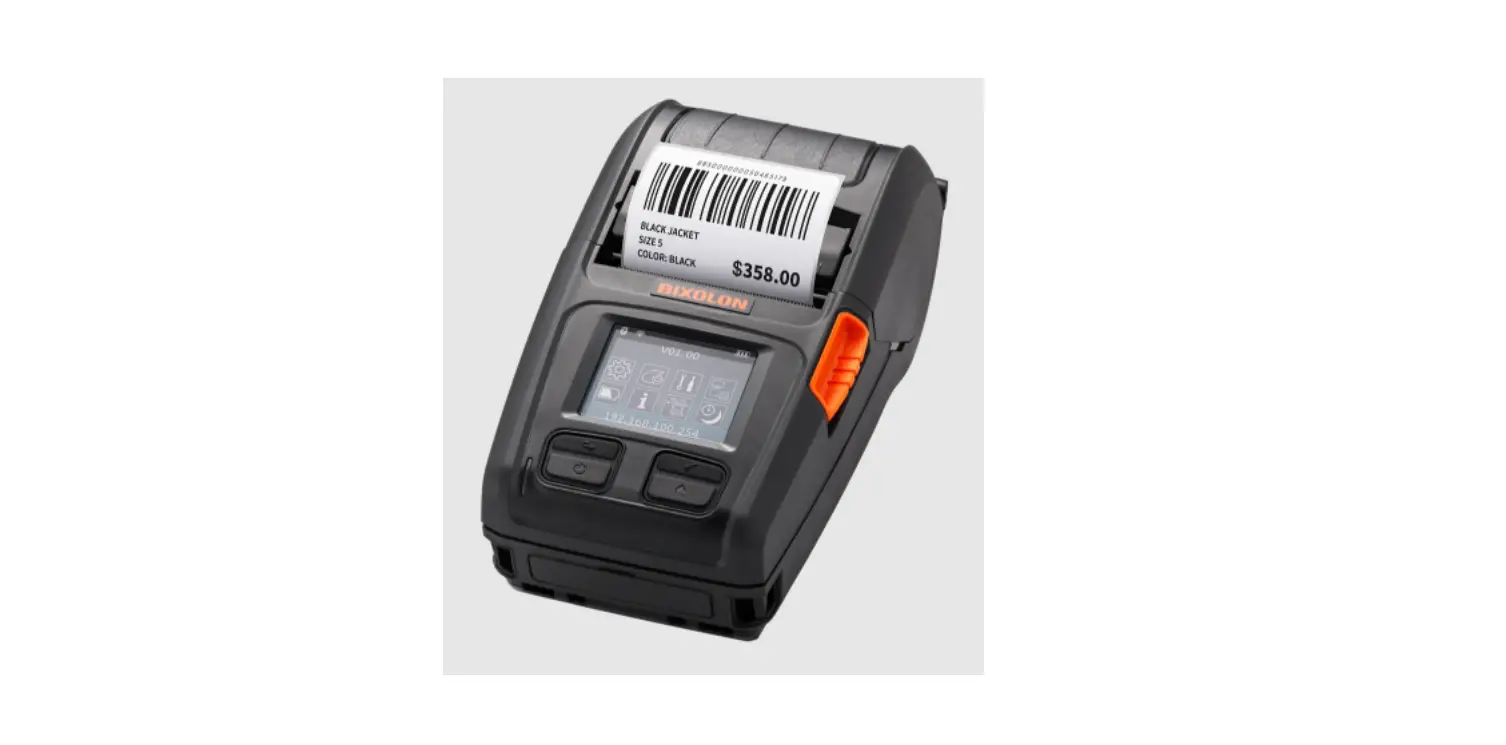
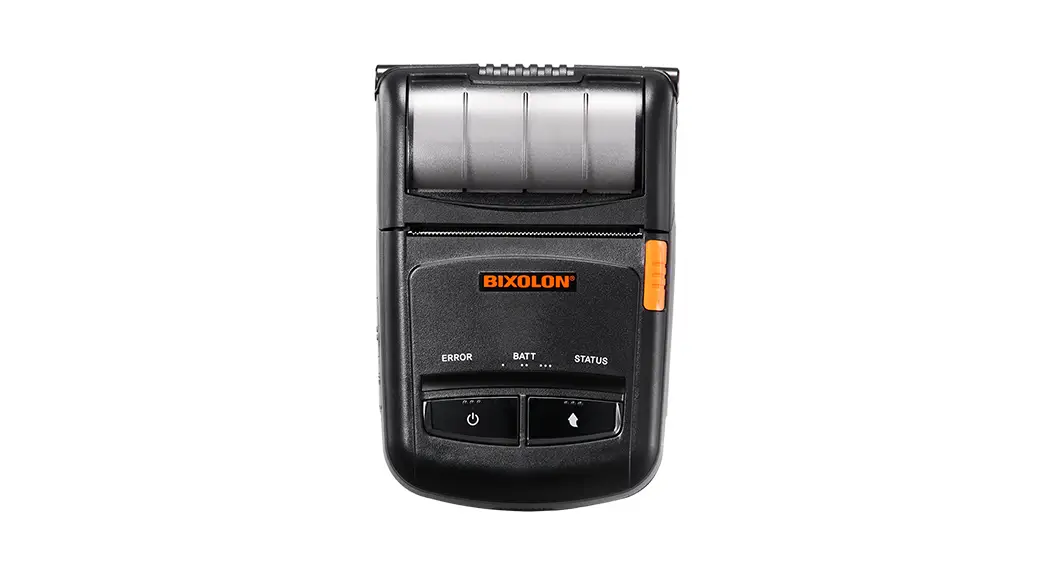
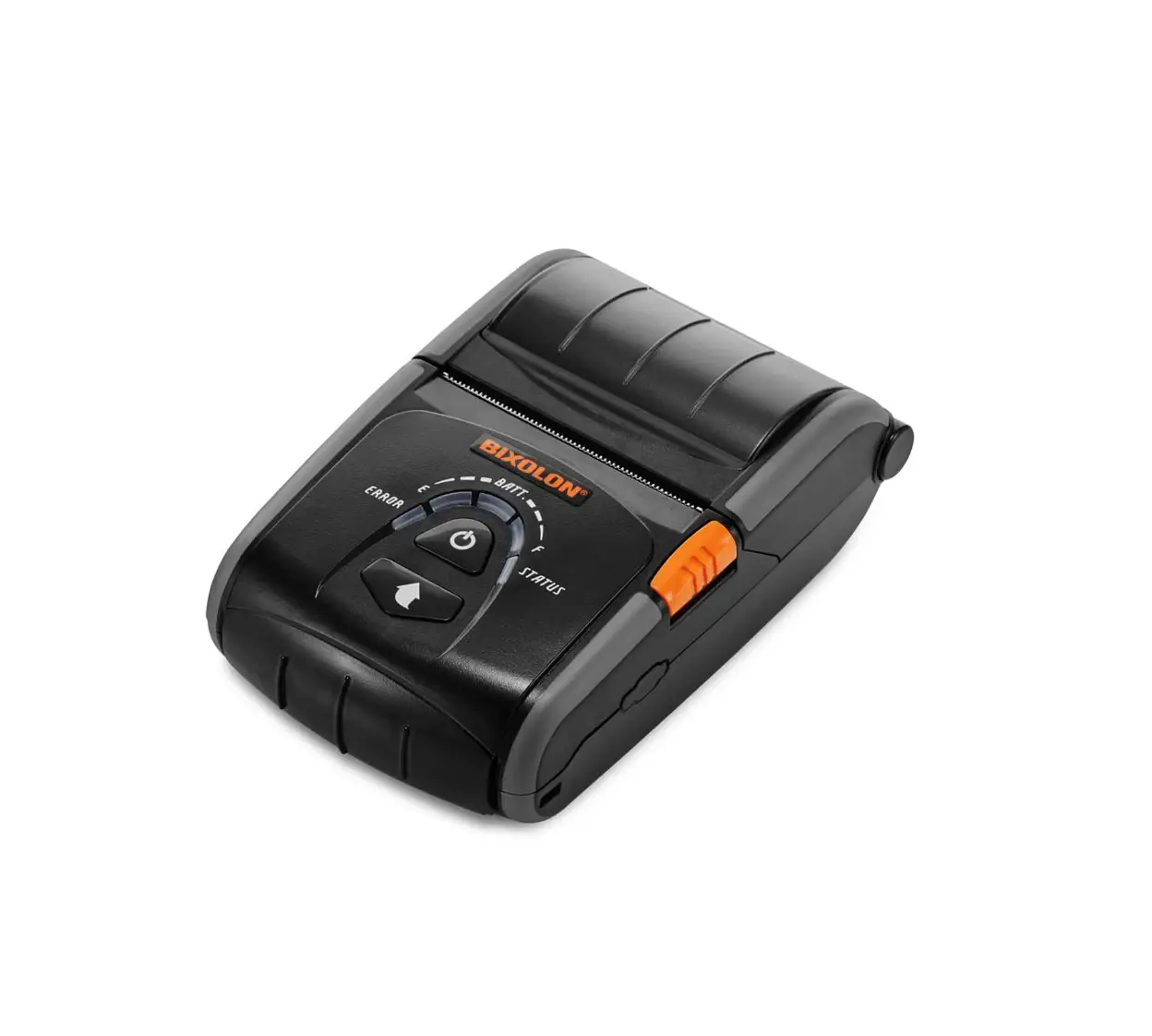
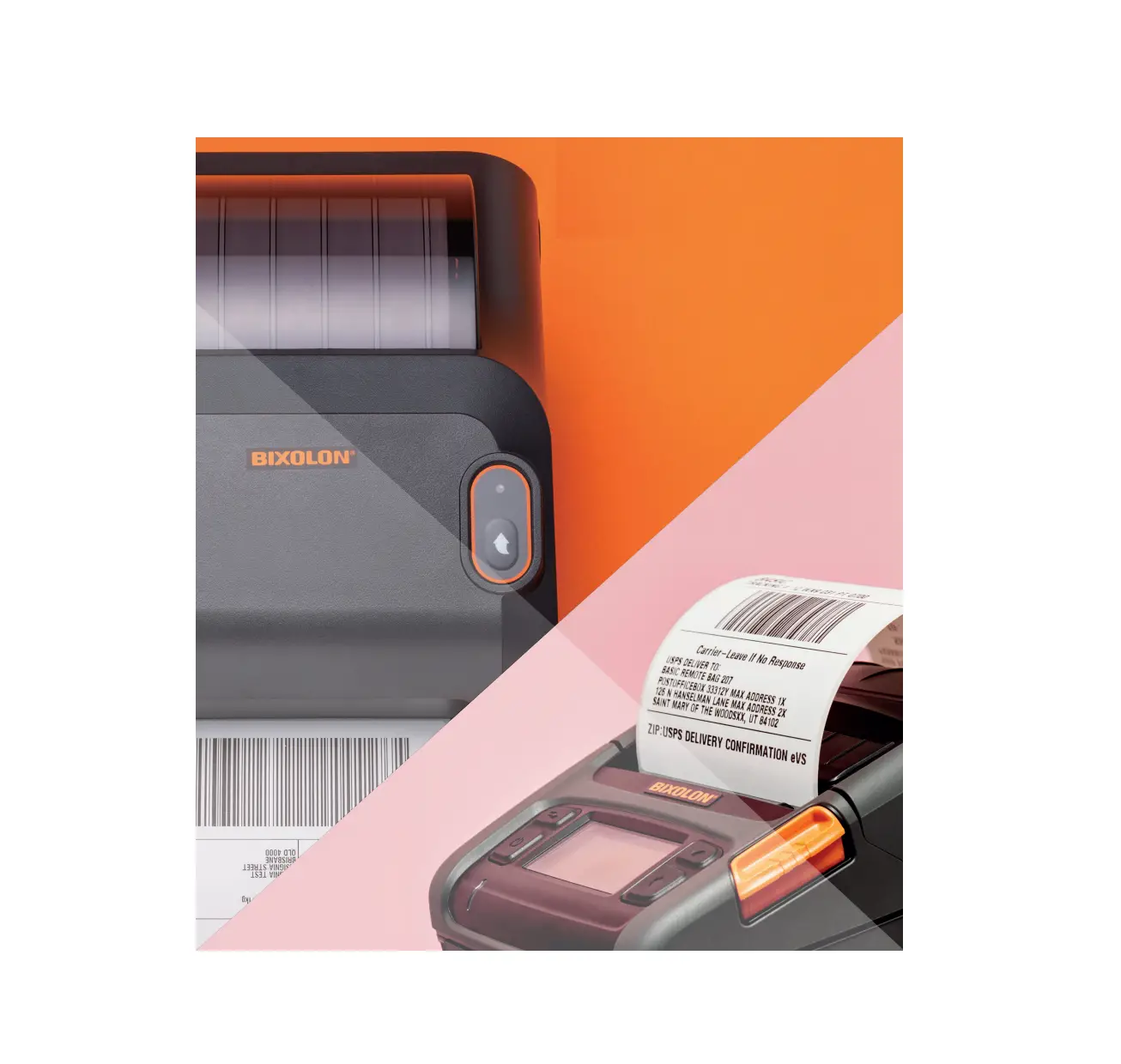
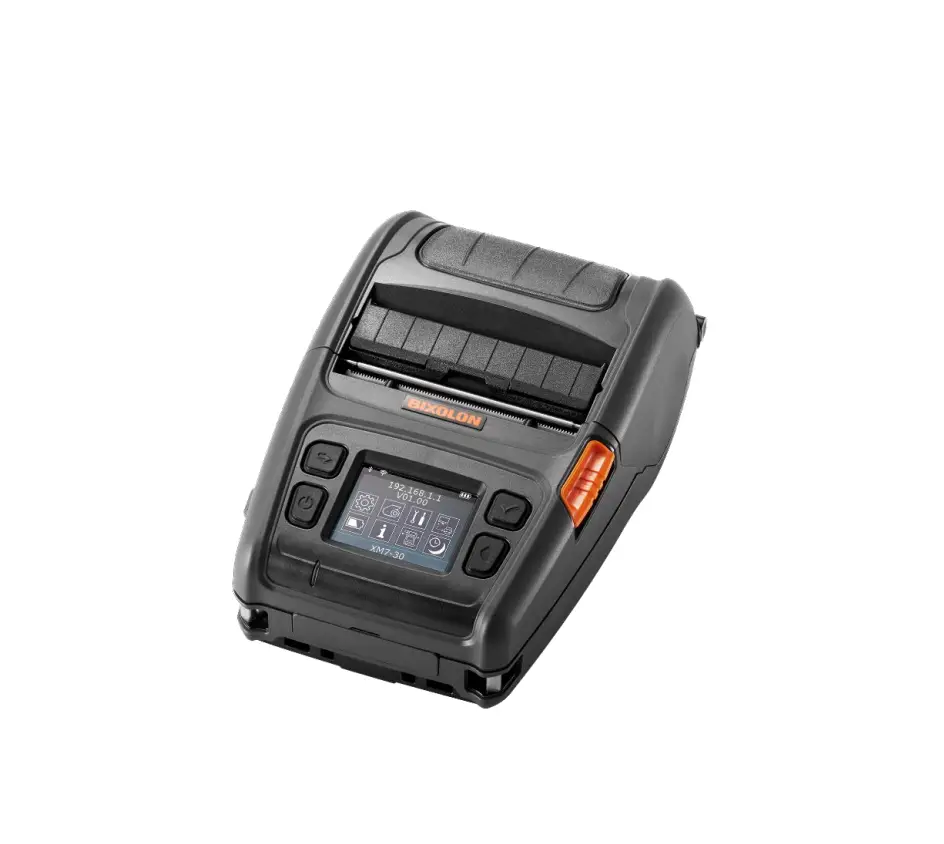
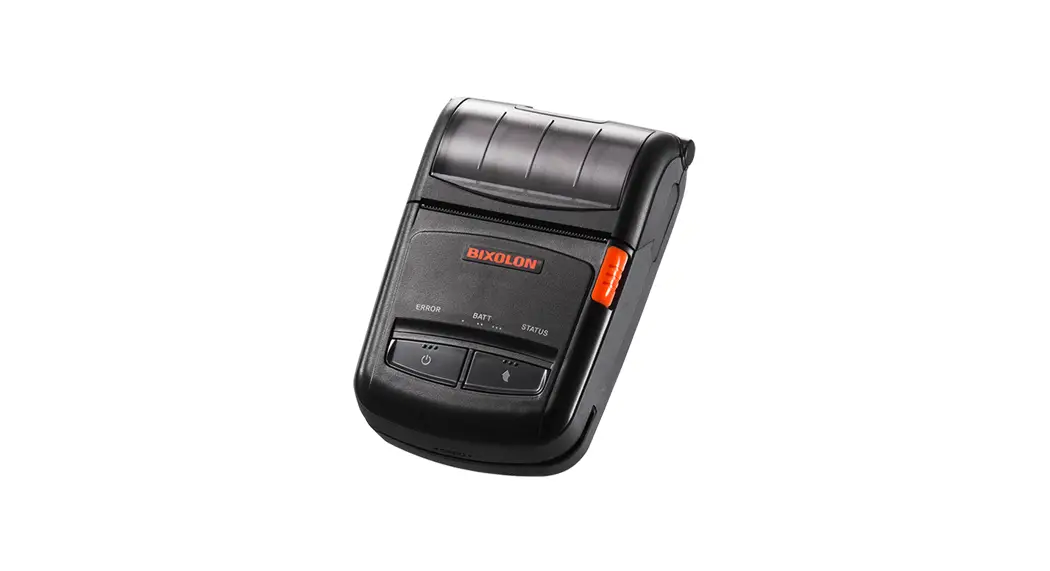
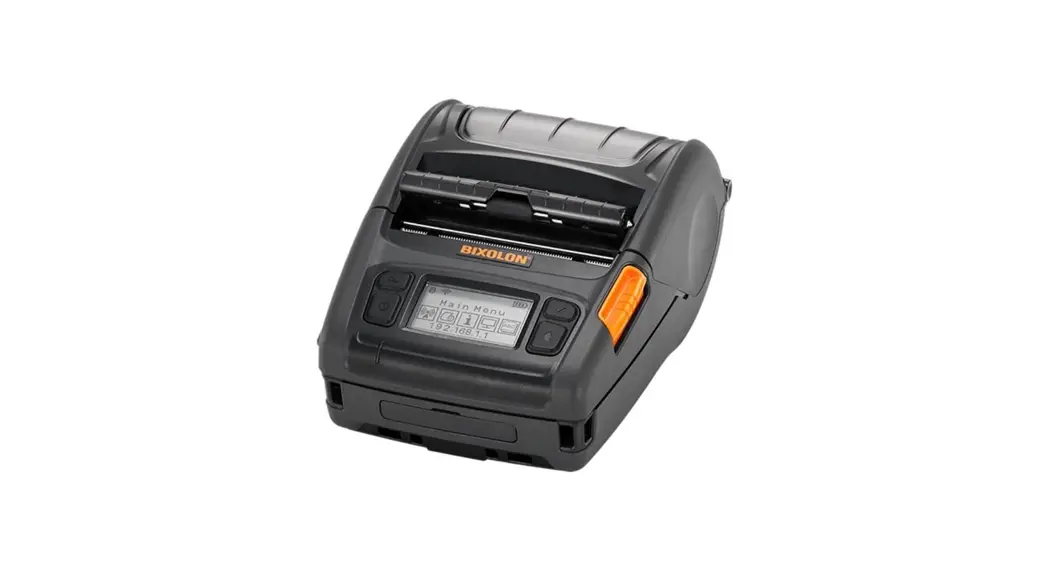
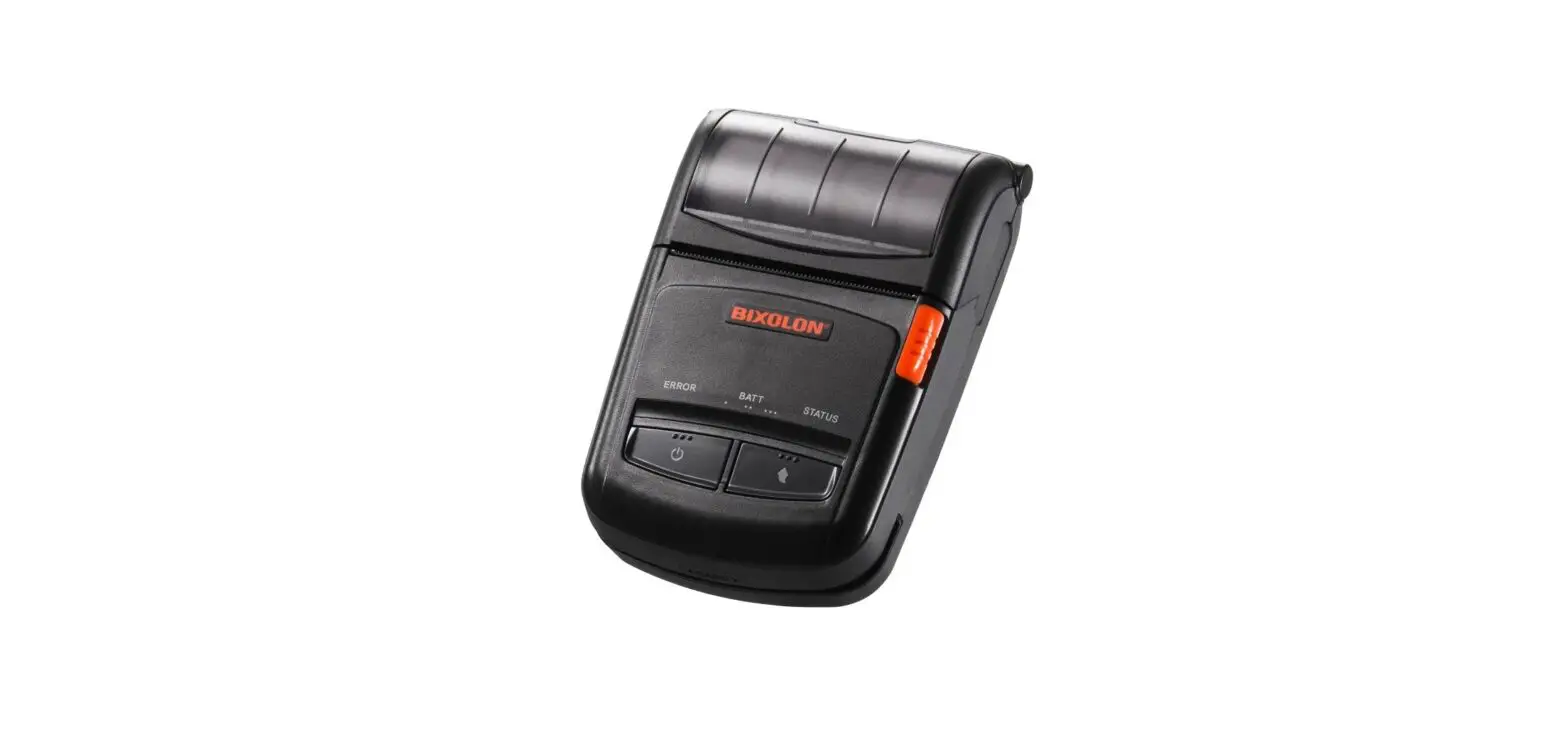
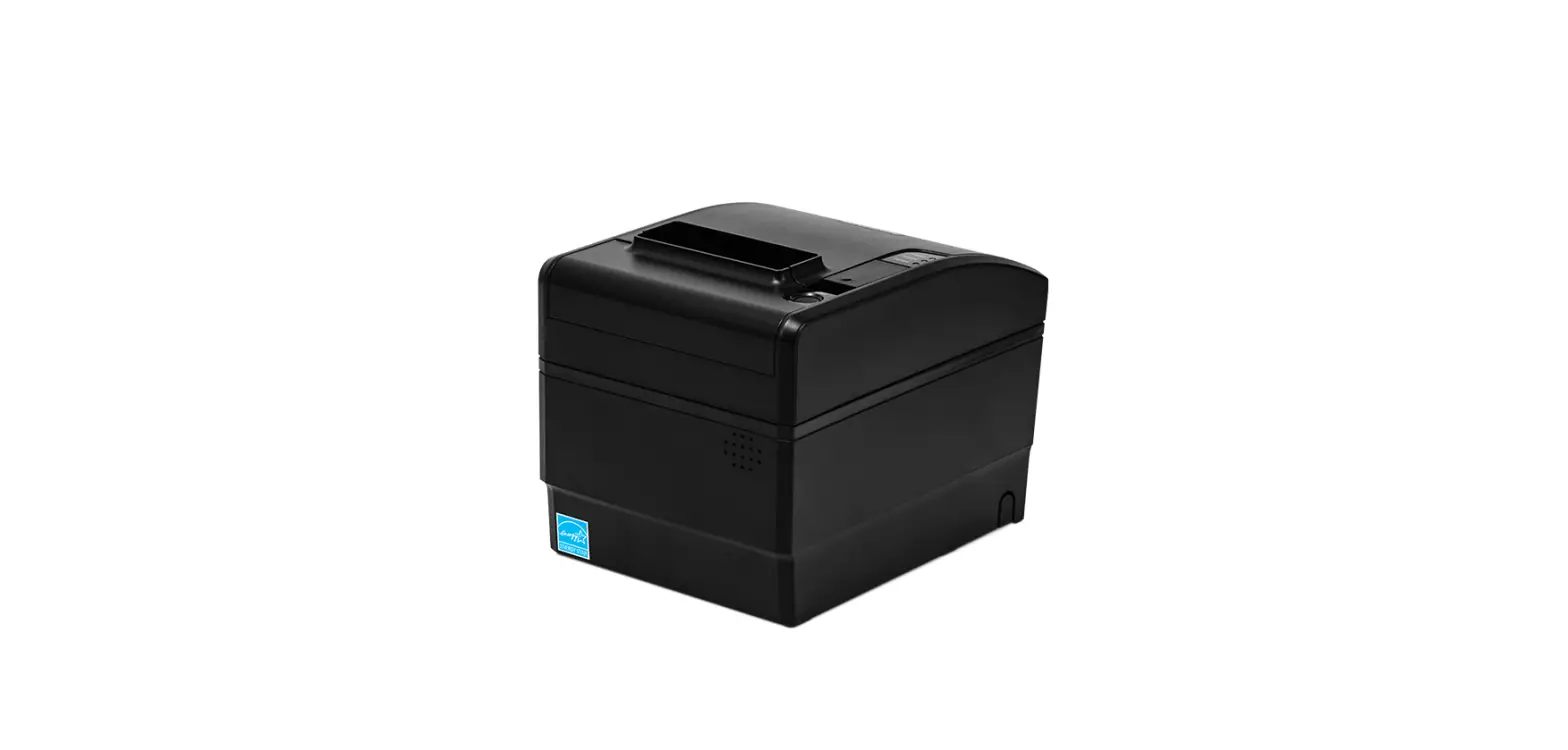
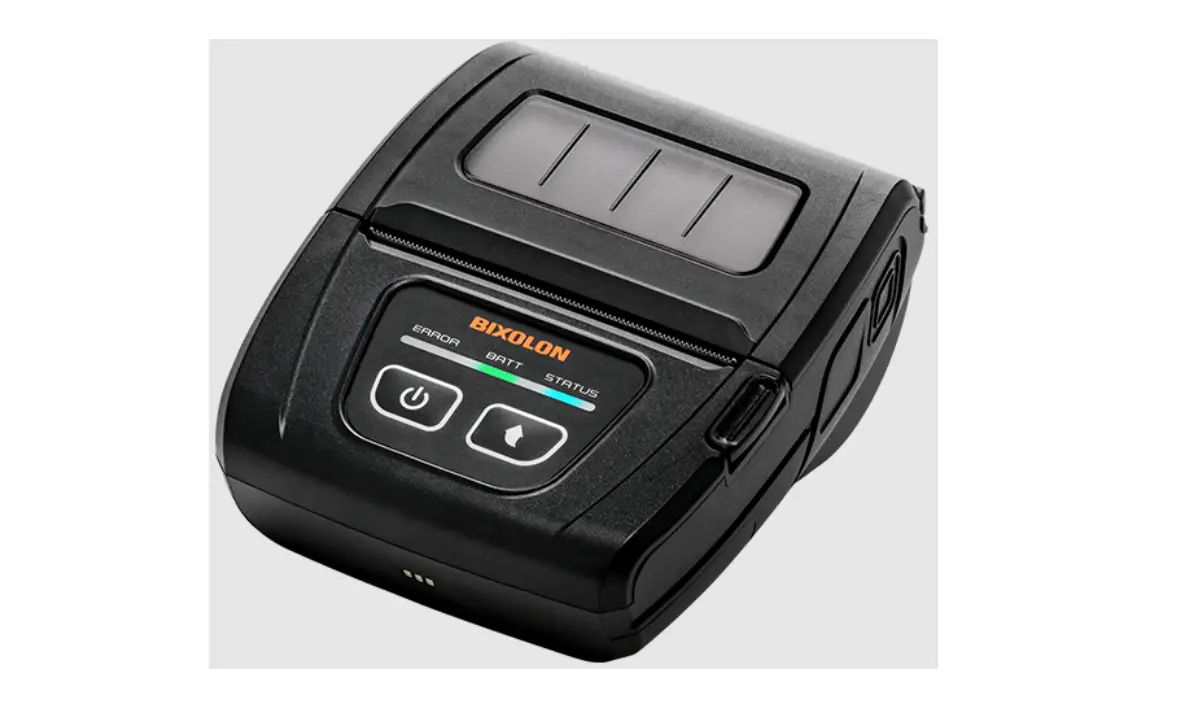
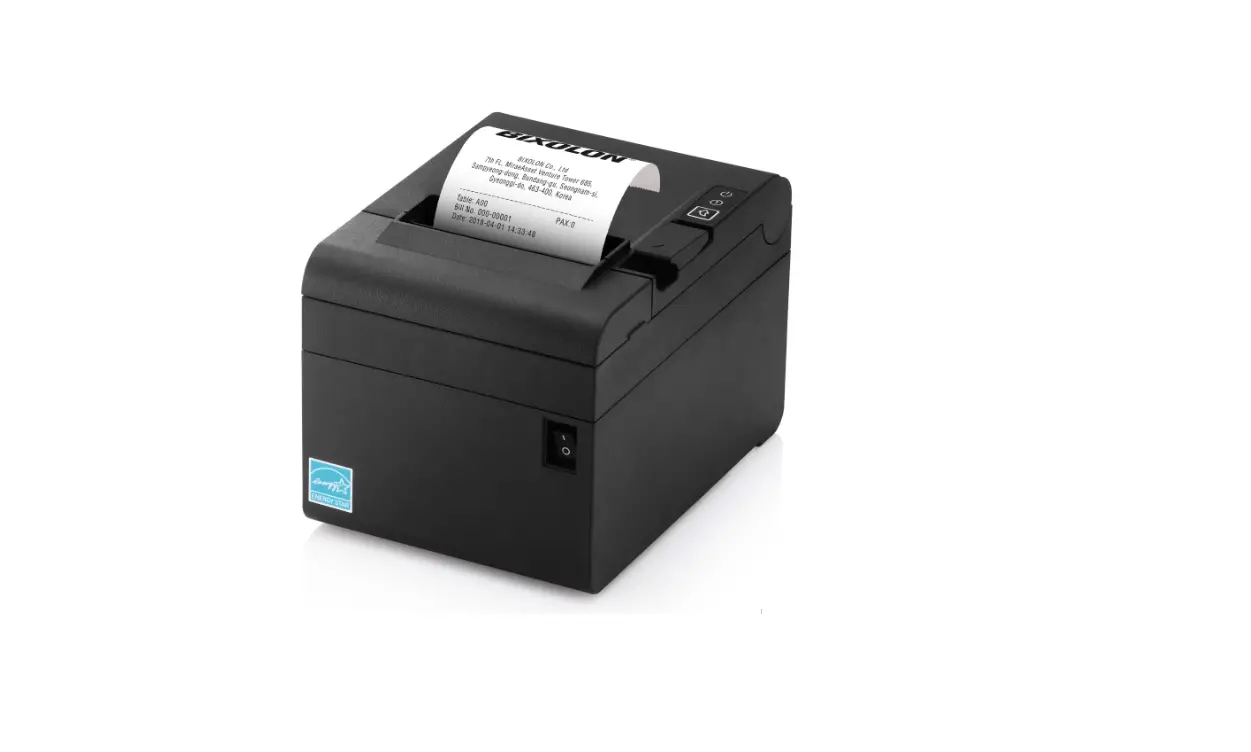
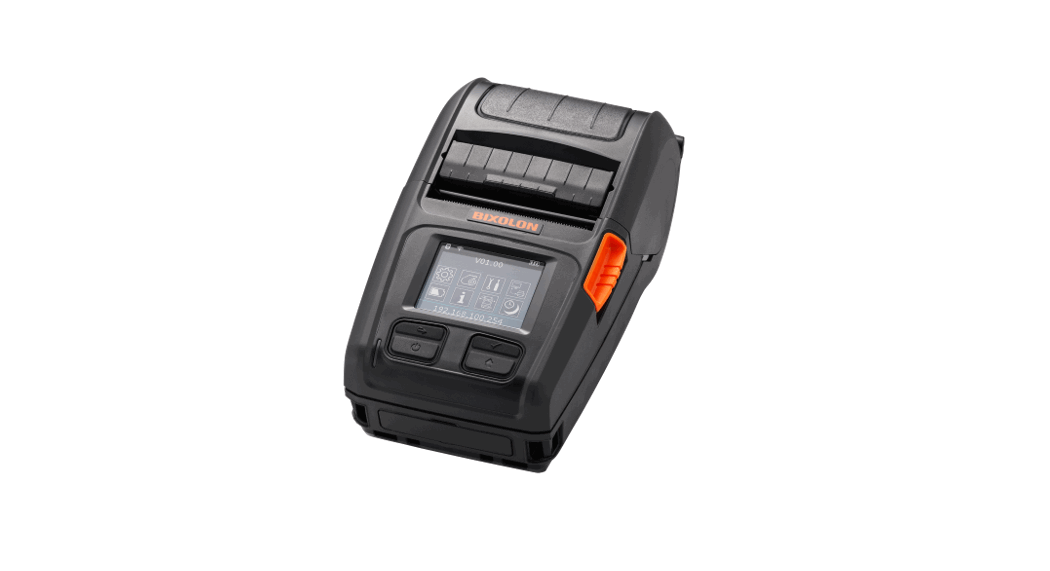
SPP-R220 Mobile Printer
SPP-R220 Mobile Printer
The SPP-R220 is a mobile printer that provides convenience for
printing on-the-go. This user manual contains basic information for
product usage as well as for emergency measures that may be
required.
Manual Information & Usage Precautions
- This user’s manual contains basic information for product usage
as well as for emergency measures that may be required. - The following separate manuals provide more detailed content on
various technological issues and areas:
- Commands Manual – This manual provides information on the
protocol and functions of the control commands that can be used
with this product. - Code Pages Manual – This manual provides information on each
character code page that can be used with this product.
the functions and quality of all our products. In following,
product specifications and/or user manual content may be changed
without prior notice.
Safety Precautions
Please keep the following safety regulations in order to prevent
any hazard or material damage:
- Do not plug several products in one multi-outlet.
- Use ONLY SUPPLIED ADAPTER.
- Do not pull the cable to unplug.
- Do not bend the cable by force or leave it under any heavy
object. - If you observe a strange smoke, odor or noise from the printer,
unplug it before taking following measures or repair it. - Install the printer on the stable surface.
- Use only approved accessories and do not try to disassemble,
repair or remodel it for yourself. - Do not let water or other foreign objects in the printer.
- Do not use the printer when it is out of order. This can cause
a fire or an electrocution.
Battery Safety Precautions
Neglecting to heed the following instructions can result in
battery overheating, combustion, explosion, damage and/or decline
in performance and product life:
- Do not allow water, seawater or moisture to enter or leak into
the battery. If the safety mechanism within the battery becomes
oxidized, the battery may overcharge with abnormal electrical
current and/or voltage so that it may overheat, ignite and/or
explode. - Do not place the battery near open flames or heating devices,
such as stoves. Exposure to excessive heat may cause damage to the
resin case and/or insulating materials, thus causing a short
circuit within the battery that may result in battery overheating,
combustion, and/or explosion. - Charge the battery only with the exclusive charger specified
(optionally provided) by BIXOLON. The use of an incorrect charger
may result in overheating, combustion and/or explosion of the
battery. - Charging the battery with a modified charger may result in
overheating, combustion and/or explosion of the battery by abnormal
chemical reaction caused by incorrect polarity.
Product Usage Instructions
Before using the SPP-R220 mobile printer, please review the user
manual carefully and keep in mind the following instructions:
- Use ONLY SUPPLIED ADAPTER for plugging in the printer.
- Do not pull or bend the cable by force.
- Install the printer on a stable surface.
- Use only approved accessories specified by BIXOLON.
- Do not let water or other foreign objects in the printer.
- Make sure to charge the battery only with the exclusive charger
specified by BIXOLON.
User’s Manual
SPP-R220
MOBILE PRINTER Rev. 1.02
http://www.bixolon.com
Table of Contents
SPP-R220
Manual Information & Usage Precautions ························································ 3 1. Content Confirmation··················································································· 10 2. Product Part Names ····················································································· 11 3. Installation & Usage ····················································································· 12
3-1 Battery Installation ··············································································· 12 3-2 Battery Charging·················································································· 12
3-2-1 Using Battery Charger ····································································· 12 3-2-2 Using Single Battery Cradle (Optional) ················································ 13 3-2-3 Using Vehicle Charger (Optional) ······················································· 13 3-2-4 Using Single Docking Cradle (Optional) ·············································· 14 3-2-5 Using Quad Battery Charger / Quad Docking Cradle (Optional) ··············· 14 3-3 Paper Installation ················································································· 16 3-4 Using Belt Clip····················································································· 17 3-5 Using Belt Strap (Optional) ···································································· 18 3-6 Using Case (Optional)··········································································· 19 3-7 Using Control Panel ············································································· 20 3-8 Using MSR ························································································· 21 3-9 Recommended Papers ········································································· 21 4. Self-Test ····································································································· 22 5. Label Printing Function ················································································ 25 5-1 Label Function Setting ·········································································· 25 5-2 Auto Calibration Function ······································································ 25 6. Peripherals Connection ················································································ 26 6-1 Bluetooth & Wireless LAN Connection ····················································· 26 6-2 Interface Cable Connection···································································· 27 7. Printer Cleaning ·························································································· 28 8. Appendix ···································································································· 29 8-1 Specifications······················································································ 29 8-2 Certification ························································································ 31 8-3 Label Types ························································································ 32
Rev. 1.02
– 2 –
SPP-R220
Manual Information
Manual Information & Usage Precautions
This user’s manual contains basic information for product usage as well as for emergency measures that may be required.
The following separate manuals provide more detailed content on various technological issues and areas.
1. Software Manual This manuals provide information for development. Please refer to each manual for more information. · Windows Driver Manual · OPOS Driver Manual – OPOS Installation manual – OPOS Setup Utility guide manual – OPOS Application programming guide manual · JPOS Driver Manual – JPOS Installation and Configuration Utility guide manual – JPOS Application programming guide manual · Windows SDK Manual · Android SDK Manual · iOS SDK Manual · Unified Mobile Utility Manual · Android Utility Manual · Net Configuration Tool Manual
2. Bluetooth & Wireless Manual · Bluetooth : This manual describes how to connect terminals (PDAs, PCs, etc.) with Bluetooth functionality. · Wireless LAN : This manual describes how to connect wireless LAN in infrastructure or ad-hoc mode.
3. Commands Manual This manual provides information on the protocol and functions of the control commands that can be used with this product.
4. Code Pages Manual This manual provides information on each character code page that can be used with this product.
We at BIXOLON maintain ongoing efforts to enhance and upgrade the functions and quality of all our products. In following, product specifications and/or user manual content may be changed without prior notice.
Rev. 1.02
– 3 –
SPP-R220 Safety Precautions
In using the present appliance, please keep the following safety regulations in order to prevent any hazard or material damage.
WARNING
Violating following instructions can cause serious injury or death.
Do not plug several products in one multi-outlet.
· This can provoke over-heating and a fire. · If the plug is wet or dirty, dry or wipe it before usage. · If the plug does not fit perfectly with the outlet, do not plug in. · Be sure to use only standardized multi-outlets.
You must use only the supplied adapter. · It is dangerous to use other adapters.
ONLY SUPPLIED ADAPTER
PROHIBIT
PROHIBIT
Do not pull the cable to unplug.
· This can damage the cable, which is the origin of a fire or a breakdown of the printer.
Keep the plastic bag out of children’s reach. · If not, a child may put the bag on his head.
PROHIBIT
PROHIBIT
Do not plug in or unplug with your hands wet. · You can be electrocuted.
Do not bend the cable by force or leave it under any heavy object.
· A damaged cable can cause a fire.
PROHIBIT
PROHIBIT
Rev. 1.02
– 4 –
SPP-R220 CAUTION
Violating following instructions can cause slight wound or damage the appliance.
If you observe a strange smoke, odor or noise from the printer, unplug it before taking following measures.
· Switch off the printer and unplug the set from the mains. · After the disappearance of the smoke, call your dealer to
repair it.
Keep the desiccant out of children’s reach. · If not, they may eat it.
TO UNPLUG
PRINTER
PROHIBIT
Install the printer on the stable surface.
· If the printer falls down, it can be broken and you can hurt yourself.
Use only approved accessories and do not try to disassemble, repair or remodel it for yourself.
· Call your dealer when you need these services. · Do not touch the blade of auto cutter.
PROHIBIT
PRINTER
DISASSEMBLING PROHIBITED
PRINTER
Do not let water or other foreign objects in the printer.
· If this happened, switch off and unplug the printer before calling your dealer.
Do not use the printer when it is out of order. This can cause a fire or an electrocution.
· Switch off and unplug the printer before calling your dealer.
PROHIBIT
PRINTER
TO UNPLUG
PRINTER DEALER
Rev. 1.02
– 5 –
Battery Safety Precautions
SPP-R220
Make sure to review the user manual carefully prior to product use. Neglecting to heed the following instructions can result in battery overheating, combustion, explosion, damage and/or decline in performance and product life.
Danger
1. Do not allow water, seawater or moisture to enter or leak into the battery. If the safety mechanism within the battery becomes oxidized, the battery may overcharge with abnormal electrical current and/or voltage so that it may overheat, ignite and/or explode.
2. Do not place the battery near open flames or heating devices, such as stoves. Exposure to excessive heat may cause damage to the resin case and/or insulating materials, thus causing a short circuit within the battery that may result in battery overheating, combustion, and/or explosion.
3. Charge the battery only with the exclusive charger specified (optionally provided) by BIXOLON. The use of an incorrect charger may result in overheating, combustion and/or explosion of the battery.
4. Charging the battery with a modified charger may result in overheating, combustion and/or explosion of the battery by abnormal chemical reaction caused by incorrect polarity.
5. Do not directly connect the battery to an electrical power outlet not specified by BIXOLON or an automobile’s cigarette lighter jack. Doing so may result in overheating, combustion and/or explosion of the battery by over-current and/or over-voltage.
6. Do not heat the battery or place it near a fire. Doing so may melt insulation materials, damage the safety mechanism/equipment, and/or ignite the electrolytic solution. There is a potential risk of battery overheating, combustion, and/or explosion.
7. Do not reverse the connection of (+) and (-) electrodes of the battery. Charging the battery in reverse polarity may produce an undesired chemical reaction inside the battery cell, causing unexpected behavior during discharging such as overheating, explosion, or fire.
8. Do not allow the battery’s (+) or (-) pole to come into contact with any metal. In addition, do not carry or store the battery with metallic items, such as necklaces and hairpins. Doing so may cause a short circuit of the battery generating an over-current. There is the potential risk to overheat, ignite and/or explode the battery or overheat the metallic items, such as necklaces, hair pins etc.
9. Do not throw the battery or subject it to strong shock. If the safety mechanism in the battery is damaged, the battery may be overcharged and, consequently, an adverse chemical reaction may be generated in the battery. There is a potential risk of battery overheating, combustion, and/or explosion.
Rev. 1.02
– 6 –
SPP-R220
10. Do not pierce the battery with a pointed object, such as nail or awl, or strike with a heavy object, such as a hammer, and take care not to step on the battery. There is a potential risk of battery overheating, combustion, and/or explosion caused by an internal short circuit.
11. Do not solder the battery directly. Doing so may melt the insulating materials and/or damage the safety mechanism or safety equipment, resulting in battery overheating, combustion, and/or explosion.
12. Do not disassemble and/or modify the battery. The battery contains safety equipment and a safety mechanism to prevent danger. There is a potential risk of overheating, combustion, and/or explosion caused by disassembly.
13. Do not charge the battery near open flames and/or under direct sunlight. Because exposure to high temperatures triggers the operation of the safety mechanism, the battery may not charge or may overcharge due to destruction of the safety mechanism. There is a potential risk of overheating, combustion, and/or explosion.
14. Do not expose the battery to high temperatures over 60 oC, and do not use or store it in a hot or humid place.
15. Do not use the battery if it is damaged or the exterior is deformed due to external shock or if it is swollen.
Warning
1. Do not place the battery within the reach of small children to prevent any swallowing accidents. If a small child has swallowed the battery, consult a physician immediately.
2. Do not place the battery in a microwave oven and/or high voltage appliance. Doing so can cause rapid overheating and/or destruction of the sealing, resulting in battery overheating, combustion, and/or explosion.
3. Do not combine and use any battery of different capacity and/or type with the primary battery. Doing so can cause excessive electrical discharge during use or excessive charging during charging, resulting in an abnormal chemical reaction within the battery that can cause battery overheating, combustion, and/or explosion.
4. If during battery usage, storage, or charging, a strange odor or conditions differing from the normal, such as overheating, color changes, warping, etc., are detected, remove the battery from the product or charger and discontinue use. Continued use may cause battery overheating, combustion, and/or explosion.
5. When recharging, if the battery is not charged after the normal fixed charging time, discontinue charging. Continued charging can result in battery overheating, combustion, and/or explosion.
6. If the battery appears to be coated with condensation or emits a strange odor, immediately place it far away from any heat source. The condensation may be caused by a leak of electrolytic solution that can ignite to cause battery combustion and/or explosion.
7. If the battery is leaking electrolytic solution and any of the solution enters the eyes, immediately wash out with clean water, and then consult a physician to receive treatment. Neglecting to do so can cause permanent eye injuries.
Rev. 1.02
– 7 –
Caution
SPP-R220
1. Do not use or leave the battery in a location exposed to high temperatures or intense direct sunlight, such as within an automobile. Doing so can cause battery overheating and/or combustion. In addition, battery performance and product life may be reduced.
2. The battery contains a safety mechanism to prevent danger. Do not use the battery in a location that is prone to static electricity (above the amount covered by the manufacturer’s product warranty) that can cause damage to this safety mechanism. Damage to the safety mechanism can result in battery overheating, combustion, and/or explosion.
3. The temperature ranges for battery usage are as follows. Any usage outside of these ranges can result in battery overheating and/or damage. In addition, battery performa nce and product life may be reduced. – Charging: 0 ~ 40 oC – Product Usage: -20 ~ 60 oC – Storage: -20 ~ 60 oC (30 days) – Long-Term Storage: -20 ~ 40 oC (90 days)
4. Please review the exclusive charger manual carefully for charging instructions. 5. If you observe any abnormal symptom, such as strange smell and overheating, on first
use after purchasing the product, contact your local dealer immediately.
6. If a child must use the battery, the child’s parent or legal guardian should clearly explain the instructions from the user manual prior to use. In addition, the parent or legal guardian should periodically confirm that usage is being conducted in accordance with user manual instruction during use.
7. Store the battery in a location that is out of the reach of small children. During usage, make sure to also place the charger and/or product out of the reach of small children.
8. If the battery is leaking electrolytic solution, and the solution comes in contact with the skin or clothing, immediately wash thoroughly with clean water. Contact with skin can result in skin disorders.
9. Make sure to review the user manual and precautions carefully prior to use. In addition, after carefully reviewing the user manual and precautions, place them in a secure location for future reference when needed.
10. There is a risk of explosion when replacing with an incorrect battery. Only exchange it for another one of the same or equivalent model specified by BIXOLON. Insulate the used battery by attaching insulation tape to its port, and then dispose of the battery according to local regulations.
11. If using the printed side of preprinted paper, this may cause malfunction.
Rev. 1.02
– 8 –
SPP-R220
Recommended
1. Review the user manual for instructions concerning insertion/removal of batteries into/from the product.
2. The battery shipped with the product is partially charged, and it is good for checking the operation of the equipment. Charge the battery first with the supplied charger if the equipment does not work or long hours of operation are required.
3. To avoid improper use of the battery, review the product user manual carefully. 4. Do not charge the battery for long times in excess of the normal charging time indicated
in the user manual. 5. If the battery is not to be used for a long period of time, remove it from the product and
store in a location with low humidity. If the battery is stored while still inserted in the product in a highly humid location, oxidization may occur along with a decline in battery performance. 6. Turn off the power after using the equipment. Otherwise the performance of the battery will be degraded over time. 7. The battery may fail to charge if it is not used for a long period of time. Charge the battery with the supplied charger at least once every six months if the equipment is not used for a long time. Leaving the battery for a long time without charging may degrade the performance of the battery or cause system trouble. 8. If the battery terminal is contaminated, clean the contact with a dry cloth before using it. Using the battery with contaminated contacts may cause problems when supplying power to the equipment or charging due to irregular electric contact. 9. Each battery has a life cycle. If the usage time of the produce is shortened, replace with a new battery. Insulate the used battery by attaching insulation tape to its port, and then dispose of the battery according to local regulations.
Other Precautions
The copyright for this user manual and various other manuals is property of the BIXOLON Co., Ltd. Any copying or conversion into electronic firm and saving of this material without the express written permission of BIXOLON Co., Ltd. is strictly prohibited. Use of the information contained in this manual is not subject to any patent liability. This manual has been prepared with utmost care and attention to detail but may contain certain errors and/or omissions. BIXOLON Co., Ltd. is not legally liable for any damages resulting from the use of the information in this manual. BIXOLON Co., Ltd. and its affiliates are not legally liable for any damages, loss, costs, and/or expenses that result from the breakdown, malfunction, and/or misuse of the product due to violation or neglect of the operation and maintenance information and instructions provided by the BIXOLON Co., Ltd., as well as from the unauthorized alteration, repair, and/or modification of the product by the user and/or third party. BIXOLON Co., Ltd. is not legally liable for any damages and/or issues resulting from the use of options and/or parts that are not authentic BIXOLON products or authorized products.
Rev. 1.02
– 9 –
SPP-R220 1. Content Confirmation
The following items should all be contained in the printer package. Contact the dealer from which the purchase was made if any item is damaged and/or missing. Basic items
SPP-R220
Battery Pack
Battery Charger
Paper
Power Cord
Optional items
Belt Clip
CD
Manual Quick
Belt Strap
Vehicle Charger
Interface Cable
Single Battery Cradle
Shoulder Strap
Case
Cleaning Pen
Battery Pack_V2 (with outer contacts)
Single Docking Cradle
Rev. 1.02
Quad Docking Cradle
Quad Battery Charger
Wall Mount (RWM-350) (for Quad Battery Charger)
– 10 –
2. Product Part Names
· Front
Paper Cover Power Button
SPP-R220
Open button Paper Feed Button
· Rear
Hole for mounting belt strap / belt clip
Battery
Interface Cap
Cable Connection
Power Connection
Rev. 1.02
– 11 –
3. Installation & Usage
3-1 Battery Installation
SPP-R220
1) Insert the battery on the rear side of the printer, aligning the battery hook properly.
2) Push the battery into the slot until a snapping sound is heard. NOTE
As the battery is not charged at the time of purchase, charge the battery prior to product use. (Use the battery charger)
3-2 Battery Charging
3-2-1 Using Battery Charger
1) Turn off the printer power. 2) Connect the power cord to the battery
charger , and then connect AC power.
3) Open the external interface cap in the direction of .
4) Connect the battery charger to the power connector.
CAUTION The printer may incur serious damage if the battery charger provided by BIXOLON is not used. BIXOLON is not legally liable for any such damages. (The voltage and electrical current specifications of the printer and battery charger must match.)
WARNING Turn off the power before charging the battery for the printer.
Rev. 1.02
– 12 –
SPP-R220
3-2-2 Using Single Battery Cradle (Optional)
1) Connect the power cord to the battery
charger .
2) Connect the battery charger to the
power connector of the single battery
cradle .
3) Plug the power cord into an electrical outlet.
4) Insert the battery into the single
battery cradle until a snapping sound is heard.
3-2-3 Using Vehicle Charger (Optional)
1) Turn off the power to the printer.
2) Connect the vehicle charger to your car’s cigarette lighter jack.
3) Open the external interface protection cap in the direction of .
4) Connect the vehicle charger to the power connector.
CAUTION The printer may be seriously damaged if a battery charger not provided by BIXOLON is used. BIXOLON is not liable for such damage.
WARNING Turn off the power before charging the battery for the printer.
Rev. 1.02
– 13 –
3-2-4 Using Single Docking Cradle (Optional)
SPP-R220
1) Turn the printer off. 2) Slide the printer in the single docking
cradle as shown in the picture. 3) Push the printer in until a clicking sound
is heard. 4) Charging will begin when the printer is
installed.
5) Pull out the printer to separate it.
CAUTION Please be sure to use the battery with external power contacts. 3-2-5 Using Quad Battery Charger / Quad Docking Cradle (Optional)
3-2-5-1 Connecting the cables
1) Connect the power cord to the adaptor, and Connect the adaptor to the power connector of the quad battery charger / quad docking cradle.
2) Plug the power cord into a power Outlet. Input power is 100 ~ 240VAC, 50/60Hz, 1.0A.
3) When the power is supplied, the yellow, green and red lamps are on for three seconds and do the self-test.
WARNING Use only designated AC/DC adaptor. (12VDC, 3A)
Rev. 1.02
– 14 –
3-2-5-2 Charging Battery (Printer)
SPP-R220
1) Fasten batteries via the battery hooks into the quad battery charger as shown above.
2) Push the battery in until a snapping sound is emitted.
3) Charging begins as soon as the battery is completely inserted. (Batteries are charged to 8.4VDC, 0.8A.)
4) Push the hook and pull up to extract the battery.
1) Turn the printer off. 2) Slide the printer in the quad docking
cradle as shown in the picture. 3) Push the printer in until a clicking
sound is heard. 4) Charging will begin when the printer is
installed. 5) When charging complete, Pull out the
printer to separate it.
CAUTION Please be sure to use the battery with external power contacts.
NOTE Battery charging status descriptions are as follows.
Lamp Red Lamp On
Charge Status Charging
Green Lamp Blinking
Over 80% Charged
Green Lamp On Red Lamp Blinking
Fully Charged Error Replace or Reinstall Battery
Charge Time 2.5 hours
CAUTION 1. If the red lamp of the charger blinks, install the battery again. 2. If the red lamp continues to blink despite several attempts (4 ~ 5 times) to
install the battery, contact your local dealer. 3. The charging time may vary depending on the type of the charger or ambient temperature.
Rev. 1.02
– 15 –
3-3 Paper Installation
SPP-R220
1) Press the Open button to open the paper cover.
Rev. 1.02
2) Insert the paper as shown in the image. (Remove any remaining core of a fully used paper roll.)
3) Take care to align the paper correctly. 4) Pull the paper out as shown in the image
and close the paper cover. 5) Tear off any excess paper in the direction
of the side of the printer. – 16 –
3-4 Using Belt Clip
SPP-R220
1) Insert the screw of the belt clip to the belt clip mounting hole.
Coin Belt Clip
2) Fasten the screw of the belt clip with an object like a coin as shown in the picture. (Be careful to fasten in the correct direction.)
3) Insert the clip to the belt.
Belt
Rev. 1.02
– 17 –
3-5 Using Belt Strap (Optional)
Belt Strap
SPP-R220
1) Insert the belt strap screw into the belt strap hole.
Coin
2) Use a coin to tighten the belt strap screw
as shown in the image.
Belt
3) Undo the belt strap Velcro.
4) Fasten the belt strap to a belt.
5) Close the Velcro as shown in the image.
Belt
Rev. 1.02
– 18 –
3-6 Using Case (Optional)
SPP-R220
1) Open its top cover.
2) Insert the printer in the case in the direction shown in the picture.
3) Close the Velcro.
4) Attach it to the belt using the clip on the back of the case.
Belt
Note The clip of the protective case can be rotated in two steps of 30° for each step (up to 60°)
Rev. 1.02
– 19 –
3-7 Using Control Panel
SPP-R220
· Power Button
This button is used to turn the printer on and off. 1) When the printer is off, press this button for approximately 2
seconds to turn on the power. 2) When the printer is on, press this button for approximately 2
seconds to turn off the power.
· Paper Feed Button
To feed paper manually, press this button. In addition, self-testing and Hexadecimal Dumping can be done. 1) Refer to “4. Self-Test” for self-test information. 2) Refer to the service manual regarding Hexadecimal Dumping. · Battery Status LED (Blue or Red) 1) If the blue LED is lit, the battery is fully charged. 2) If the blue LED is blinked, the battery is half charged. 3) If the red LED is blinked, the battery must be charged
or replaced.
· Error LED (Left-sided) 1) If the red LED is lit, the paper cover is open. 2) If the red LED is blinking, either the paper has been fully used or the print head is overheated. (Replace the roll of paper or turn off the printer for at least 10 minutes.) 3) If the red LED continues to blink, it may indicate a more serious problem with the product. Call your authorized service dealer.
· Bluetooth & Wireless LAN LED (Right LED) 1) When using Bluetooth If the printer is ready for wireless communication with any Bluetooth, the green LED as well as the battery status LED is turned on. 2) When using wireless LAN The right indicator shows the signal strength from wireless LAN. The green LED blinks for acceptable signal strength while the green LED blinks for weak signal strength. In power save mode, only the Status LED is lit.
NOTE The power saving mode is activated after the first communication, with the default time interval being 10 seconds.
Rev. 1.02
– 20 –
3-8 Using MSR
SPP-R220
1) Insert the card as shown in the image and swipe in the direction of the arrow. (can be done in both directions) NOTE
If the card does not register, first check to see if it is properly aligned. When swiping the card, the recommended swiping speed is 100 ~ 1200 mm/sec.
3-9 Recommended Papers
· Receipt paper – TF50KS-E (Paper Thickness: 65m): Nippon Paper Industries Co., Ltd. – PD 150R (Paper Thickness: 75m): New Oji Paper Mfg. Co., Ltd. – PD 160R (Paper Thickness: 75m): New Oji Paper Mfg. Co., Ltd. – P350 (Paper Thickness: 62m): Kansaki Specialty Paper, Inc. (USA) – P220AG (Paper Thickness: 65m): Mitsubishi Paper Mills Limited – P220A (Paper Thickness: 65m): Mitsubishi Paper Mills Limited – F5041 (Paper Thickness: 65m): Mitsubishi HitecPaper Flensburg Gmbh
· Linerless paper: T6087 (Paper Thickness 76m), Blumberg GmbH & Co. KG
Rev. 1.02
– 21 –
4. Self-Test
SPP-R220
Run the self-test when first setting the printer or when encountering a problem, and check the following.
– Control Circuit, Mechanisms, Print Quality, ROM Version, and Memory Switch Settings If no issue is found with the printer after running the self-test, examine the other devices or peripherals and software. This function is independent of such other devices and software.
· Self-Test Instructions 1) Turn the printer power off and close the printer paper cover. 2) Press and hold the paper feed button and power button simultaneously to turn on the printer. 3) After printing begins, release the two buttons. 4) To view a printout of the ASCII pattern, press the paper feed button once more. 5) After the ASCII pattern is printed out, the self-test is automatically terminated.
Rev. 1.02
– 22 –
· Self-Test Sample (For Bluetooth)
Firmware version : V01.00 STOBa 010117
Butter Capacity : 256K Bytes USB 2.0 Interface Print Density : 100% Default Codepage : PC437 Print Speed : Max. 100mm/s Double byte character mode:Off Font : 12 x 24 Paper out Bell : Off Low Battery Buzzer : On Black mark : Off Power off time : 15 Min Idle mode time : 10 Sec MSR data including sentinel Character mode : None MSR read mode : Auto TRACK1/2/3 BATT NTC : OK
Memory switch setup status
Memory S/W1
1 2 3 4 5 6 7 8
ON
OFF
Memory S/W2 1 2 3 4 5 6 7 8
ON OFF
Memory S/W3
1 2 3 4 5 6 7 8
ON
OFF
Memory S/W4 1 2 3 4 5 6 7 8
ON OFF
Memory S/W5
1 2 3 4 5 6 7 8
ON
OFF
Memory S/W6 1 2 3 4 5 6 7 8
ON OFF
Memory S/W7
1 2 3 4 5 6 7 8
ON
OFF
Memory S/W8 1 2 3 4 5 6 7 8
ON OFF
RF Interface Bluetooth Firmware version :
2.0.0 Bluetooth BD address :
– Auth. & Encry. are enable – Connection Mode = 2 Not available WLAN
SPP-R220
If you want to continue SELF-TEST printing, Please press FEED button. ASCII !”#$%&'()*+,-./0123456789:;<=>?@ “#$%&'()*+,-./0123456789:;<=>?@A #$%&'()*+,-./0123456789:;<=>?@AB $%&'()*+,-./0123456789:;<=>?@ABC %&'()*+,-./0123456789:;<=>?@ABCD &'()*+,-./0123456789:;<=>?@ABCDE ‘()*+,-./0123456789:;<=>?@ABCDEF ()*+,-./0123456789:;<=>?@ABCDEFG )*+,-./0123456789:;<=>?@ABCDEFGH *+,-./0123456789:;<=>?@ABCDEFGHI +,-./0123456789:;<=>?@ABCDEFGHIJ ,-./0123456789:;<=>?@ABCDEFGHIJK -./0123456789:;<=>?@ABCDEFGHIJKL ./0123456789:;<=>?@ABCDEFGHIJKLM /0123456789:;<=>?@ABCDEFGHIJKLMN 0123456789:;<=>?@ABCDEFGHIJKLMNO 123456789:;<=>?@ABCDEFGHIJKLMNOP 23456789:;<=>?@ABCDEFGHIJKLMNOPQ 3456789:;<=>?@ABCDEFGHIJKLMNOPQR 456789:;<=>?@ABCDEFGHIJKLMNOPQRS 56789:;<=>?@ABCDEFGHIJKLMNOPQRST 6789:;<=>?@ABCDEFGHIJKLMNOPQRSTU 789:;<=>?@ABCDEFGHIJKLMNOPQRSTUV 89:;<=>?@ABCDEFGHIJKLMNOPQRSTUVW 9:;<=>?@ABCDEFGHIJKLMNOPQRSTUVWX PC437 Ç ü é â ä à å ç ê ë è ï î ì Ä Å É æ Æ ô ö ò û ù ÿÖ Ü ¢ £ ¥ P t ü é â ä à å ç ê ë è ï î ì Ä Å É æ Æ ô ö ò û ù ÿÖ Ü ¢ £ ¥ P t á é â ä à å ç ê ë è ï î ì Ä Å É æ Æ ô ö ò û ù ÿÖ Ü ¢ £ ¥ P t á í â ä à å ç ê ë è ï î ì Ä Å É æ Æ ô ö ò û ù ÿÖ Ü ¢ £ ¥ P t á í ó ä à å ç ê ë è ï î ì Ä Å É æ Æ ô ö ò û ù ÿÖ Ü ¢ £ ¥ P t á í ó ú à å ç ê ë è ï î ì Ä Å É æ Æ ô ö ò û ù ÿÖ Ü ¢ £ ¥ P t á í ó ú ñ å ç ê ë è ï î ì Ä Å É æ Æ ô ö ò û ù ÿÖ Ü ¢ £ ¥ P t á í ó ú ñ Ñ ç ê ë è ï î ì Ä Å É æ Æ ô ö ò û ù ÿÖ Ü ¢ £ ¥ P t á í ó ú ñ Ñ ª ê ë è ï î ì Ä Å É æ Æ ô ö ò û ù ÿÖ Ü ¢ £ ¥ P t á í ó ú ñ Ñ ª º ë è ï î ì Ä Å É æ Æ ô ö ò û ù ÿÖ Ü ¢ £ ¥ P t á í ó ú ñ Ñ ª º ¿ è ï î ì Ä Å É æ Æ ô ö ò û ù ÿÖ Ü ¢ £ ¥ P t á í ó ú ñ Ñ ª º ¿ ï î ì Ä Å É æ Æ ô ö ò û ù ÿÖ Ü ¢ £ ¥ P t á í ó ú ñ Ñ ª º ¿ î ì ÄÅÉæÆôöòûùÿÖÜ ¢£¥ P táí ó úñÑ ªº¿ ½ ìÄÅÉæÆôöòûùÿÖÜ¢£¥ PtáíóúñѪº¿ ½¼ ÄÅÉæÆôöòûùÿÖÜ¢£¥ PtáíóúñѪº¿ ½¼¡ ÅÉæÆôöòûùÿÖÜ¢£¥ PtáíóúñѪº¿ ½¼¡« ÉæÆôöòûùÿÖÜ¢£¥ PtáíóúñÑ ªº¿ ½¼¡«» æÆôöòûùÿÖÜ¢£¥ PtáíóúñÑ ªº¿ ½¼¡«» ÆôöòûùÿÖÜ ¢£¥PtáíóúñÑ ªº¿ ½¼ ¡«» ôöòûùÿÖÜ ¢£¥ P táí óúñÑ ª º¿ ½ ¼ ¡«» öòûùÿÖÜ¢£¥ Ptáí óúñѪº¿ ½¼¡«» òûùÿÖÜ¢£¥ PtáíóúñѪº¿ ½¼¡«» ûùÿÖÜ¢£¥ PtáíóúñѪº¿ ½¼¡«» ùÿÖÜ ¢£¥PtáíóúñѪº¿ ½¼¡«» ÿÖÜ¢£¥ PtáíóúñÑ ªº¿½¼¡«»
*** Completed ***
Rev. 1.02
– 23 –
· Self-Test Sample (For Wireless LAN)
Firmware version : V01.00 STOBa 010117
Butter Capacity : 256K Bytes USB 2.0 Interface Print Density : 100% Default Codepage : PC437 Print Speed : Max. 100mm/s Double byte character mode:Off Font : 12 x 24 Paper out Bell : Off Low Battery Buzzer : On Black mark : Off Power off time : 15 Min Idle mode time : 10 Sec MSR data including sentinel Character mode : None MSR read mode : Auto TRACK1/2/3 BATT NTC : OK
Memory switch setup status
Memory S/W1
1 2 3 4 5 6 7 8
ON
OFF
Memory S/W2 1 2 3 4 5 6 7 8
ON OFF
Memory S/W3 1 2 3 4 5 6 7 8
ON
OFF
Memory S/W4 1 2 3 4 5 6 7 8
ON OFF
Memory S/W5
1 2 3 4 5 6 7 8
ON
OFF
Memory S/W6 1 2 3 4 5 6 7 8
ON OFF
Memory S/W7
1 2 3 4 5 6 7 8
ON
OFF
Memory S/W8 1 2 3 4 5 6 7 8 ON OFF
RF Interface Not available Bluetooth WLAN F/W version : 02.00(3930)
System Name : SPP-R220 Network Mode : Soft AP Frequency : (Priority)2.4GHz / 5GHz Authentication : Open Encryption : None ESSID : PRINTER_B01A93 DHCP : Enable IP Address : 192.168.1.1 Subnet Mask : 255.255.255.0 Gateway : 192.168.1.2 Port : 9100 Inactivity Time: 10 WLAN MAC address :
SPP-R220
If you want to continue SELF-TEST printing, Please press FEED button. ASCII !”#$%&'()*+,-./0123456789:;<=>?@ “#$%&'()*+,-./0123456789:;<=>?@A #$%&'()*+,-./0123456789:;<=>?@AB $%&'()*+,-./0123456789:;<=>?@ABC %&'()*+,-./0123456789:;<=>?@ABCD &'()*+,-./0123456789:;<=>?@ABCDE ‘()*+,-./0123456789:;<=>?@ABCDEF ()*+,-./0123456789:;<=>?@ABCDEFG )*+,-./0123456789:;<=>?@ABCDEFGH *+,-./0123456789:;<=>?@ABCDEFGHI +,-./0123456789:;<=>?@ABCDEFGHIJ ,-./0123456789:;<=>?@ABCDEFGHIJK -./0123456789:;<=>?@ABCDEFGHIJKL ./0123456789:;<=>?@ABCDEFGHIJKLM /0123456789:;<=>?@ABCDEFGHIJKLMN 0123456789:;<=>?@ABCDEFGHIJKLMNO 123456789:;<=>?@ABCDEFGHIJKLMNOP 23456789:;<=>?@ABCDEFGHIJKLMNOPQ 3456789:;<=>?@ABCDEFGHIJKLMNOPQR 456789:;<=>?@ABCDEFGHIJKLMNOPQRS 56789:;<=>?@ABCDEFGHIJKLMNOPQRST 6789:;<=>?@ABCDEFGHIJKLMNOPQRSTU 789:;<=>?@ABCDEFGHIJKLMNOPQRSTUV 89:;<=>?@ABCDEFGHIJKLMNOPQRSTUVW 9:;<=>?@ABCDEFGHIJKLMNOPQRSTUVWX PC437 Ç ü é â ä à å ç ê ë è ï î ì Ä Å É æ Æ ô ö ò û ù ÿÖ Ü ¢ £ ¥ P t ü é â ä à å ç ê ë è ï î ì Ä Å É æ Æ ô ö ò û ù ÿÖ Ü ¢ £ ¥ P t á é â ä à å ç ê ë è ï î ì Ä Å É æ Æ ô ö ò û ù ÿÖ Ü ¢ £ ¥ P t á í â ä à å ç ê ë è ï î ì Ä Å É æ Æ ô ö ò û ù ÿÖ Ü ¢ £ ¥ P t á í ó ä à å ç ê ë è ï î ì Ä Å É æ Æ ô ö ò û ù ÿÖ Ü ¢ £ ¥ P t á í ó ú à å ç ê ë è ï î ì Ä Å É æ Æ ô ö ò û ù ÿÖ Ü ¢ £ ¥ P t á í ó ú ñ å ç ê ë è ï î ì Ä Å É æ Æ ô ö ò û ù ÿÖ Ü ¢ £ ¥ P t á í ó ú ñ Ñ ç ê ë è ï î ì Ä Å É æ Æ ô ö ò û ù ÿÖ Ü ¢ £ ¥ P t á í ó ú ñ Ñ ª ê ë è ï î ì Ä Å É æ Æ ô ö ò û ù ÿÖ Ü ¢ £ ¥ P t á í ó ú ñ Ñ ª º ë è ï î ì Ä Å É æ Æ ô ö ò û ù ÿÖ Ü ¢ £ ¥ P t á í ó ú ñ Ñ ª º ¿ è ï î ì Ä Å É æ Æ ô ö ò û ù ÿÖ Ü ¢ £ ¥ P t á í ó ú ñ Ñ ª º ¿ ï î ì Ä Å É æ Æ ô ö ò û ù ÿÖ Ü ¢ £ ¥ P t á í ó ú ñ Ñ ª º ¿ î ì ÄÅÉæÆôöòûùÿÖÜ ¢£¥ P táí ó úñÑ ªº¿ ½ ìÄÅÉæÆôöòûùÿÖÜ¢£¥ PtáíóúñѪº¿ ½¼ ÄÅÉæÆôöòûùÿÖÜ¢£¥ PtáíóúñѪº¿ ½¼¡ ÅÉæÆôöòûùÿÖÜ¢£¥ PtáíóúñѪº¿ ½¼¡« ÉæÆôöòûùÿÖÜ¢£¥ PtáíóúñÑ ªº¿ ½¼¡«» æÆôöòûùÿÖÜ¢£¥ PtáíóúñÑ ªº¿ ½¼¡«» ÆôöòûùÿÖÜ ¢£¥PtáíóúñÑ ªº¿ ½¼ ¡«» ôöòûùÿÖÜ ¢£¥ P táí óúñÑ ª º¿ ½ ¼ ¡«» öòûùÿÖÜ¢£¥ Ptáí óúñѪº¿ ½¼¡«» òûùÿÖÜ¢£¥ PtáíóúñѪº¿ ½¼¡«» ûùÿÖÜ¢£¥ PtáíóúñѪº¿ ½¼¡«» ùÿÖÜ ¢£¥PtáíóúñѪº¿ ½¼¡«» ÿÖÜ¢£¥ PtáíóúñÑ ªº¿½¼¡«»
*** Completed ***
Rev. 1.02
– 24 –
5. Label Printing Function
SPP-R220
5-1 Label Function Setting
Label paper and black mark paper available at the label mode.
· Setting Operations 1) Turn on the printer power. 2) Open the paper cover and press and hold down the paper feed button for longer than two seconds. 3) After the buzzer tone is emitted, insert paper and close the cover. 4) Repeat the steps above to return to receipt mode.
· Setting Via Memory Switch – Please refer to the memory switch changing section of the Commands Manual.
5-2 Auto Calibration Function
The label printing function requires the recognition of label paper gaps and black mark paper black bar in order to print. If label paper gaps are not properly recognized, use the auto calibration function.
· Auto Calibration Instructions 1) Turn the printer power off while in label print mode. 2) Press and hold down the paper feed button and then press the power button. 3) After the following printout is outputted, press the power button to perform auto calibration. Select the mode Auto Calibration: Power Button Self Test: Feed Button 4) One page of label paper is outputted when performing auto calibration.
Rev. 1.02
– 25 –
6. Peripherals Connection
SPP-R220
This product can communicate with other devices via wireless communication and cable.
6-1 Bluetooth & Wireless LAN Connection
1) The printer can be connected to devices equipped with Bluetooth communication capacity (PDAs, PCs, etc.).
2) Use the Bluetooth connection function supported by the device to connect to the printer. The NFC tag built into the printer enables automatic pairing with devices.
NOTE Tap your host device to logo on the side of the printer for NFC auto pairing
NOTE The device must support NFC Auto Pairing. It may display a message that the device cannot be connected as NFC Auto Pairing is supported up to the B/T pairing and the devices must be connected manually, but this is normal. 3) The printer can be connected to other
stations, such as PDAs and PCs supporting wireless LAN communication in Ad-hoc mode, Soft AP mode and AP in Infrastructure mode. NOTE Refer to the Bluetooth Wireless LAN Manual for detailed information on its connection. You can check the bluetooth environment (authentication, encryption, connection mode) and the wireless LAN environment (IP, SSID, authentication, encryption) via the self-test page.
Rev. 1.02
– 26 –
6-2 Interface Cable Connection
SPP-R220
1) Open the Interface Cap . 2) Connect the interface cable (optional)
to the cable connector of the printer. NOTE Use only the cables (optional) provided by BIXOLON. (USB) 3) Connect the interface cable to the USB port of the device (PDAs, PCs, etc.). NOTE The interface cable that can be connected with the printer is available in USB type. Refer to the service manual for detailed interface cable specifications.
Rev. 1.02
– 27 –
7. Printer Cleaning
If the interior of the printer is dusty, print quality can decline. In such a case, follow the instructions below to clean the printer.
SPP-R220
B Sensor
A Head
1) Open the paper cover and remove the paper, if present. 2) Clean the printhead (A) using the cloth or cotton swab soaked in alcohol for medical. 3) Using the cloth or cotton swab soaked in alcohol for medical, remove the paper dust
from the black mark sensor (B). (Sensor could be located in the middle or on left or on right) 4) Do not use the printer for one to two minutes after cleaning until the alcohol for medical has completely evaporated and dried. 5) Insert the paper and close the paper cover.
Caution · Make sure the printer power is turned off before cleaning. · Wait for two to three minutes after power-off before head cleaning because the head part may
become very hot during printer operation.
· Take care not to touch the heating region of the head with your hand while cleaning the head part. The printer head may be damaged by static electricity.
· Take care to avoid scratching the head. · Clean the printer head periodically if linerless paper is used. Recommended cleaning period is
after consuming ten rolls of linerless paper (100 meters), or more than once a week. Printing quality may be degraded or printer life may be shortened if the head is not cleaned periodically.
Warning · Use only the linerless paper that is provided by BIXOLON. Use of other paper voids product warranty.
Rev. 1.02
– 28 –
SPP-R220
8. Appendix
8-1 Specifications
Item Printing Method Printing Speed Resolution
Paper Supply Mode Character Size Characters Per Line
Character Set
Printing
Paper Reliability Communications
Battery Charger Battery
Barcode
Emulation Windows Driver OPOS/JPOS Driver
Linux Driver Windows SDK Android SDK
iOS SDK Utility Sensor
Cutter Type Language Paper Shape Paper Type Outer Diameter of Paper Roll
Width Thickness
Printer Battery
Interface
Input Output Type Output Charging Time
Usage Conditions
Dimensions Weight
Temperature
Humidity Printer Printer
Accessories
Basic Package
Description Thermal printing 100 mm/sec (Receipt Paper), 80 mm/sec (Linerless Paper) 203 DPI Easy paper loading Font A: 12 × 24 Font B: 9 × 17 Font C: 9 × 24
Font A: 32
Font B/C: 42
English: 95
Expanded Graphics: 128 × 33 pages
International: 32
1 Dimension: UPC A, UPC E, CODE 39, CODE 93, Code 128,
EAN 8, EAN 13, ITF, Codabar
2 Dimension: PDF417, DATAMATRIX, MAXI, QR Code,
GS1 DataBar, Aztec
BXL/POS
Windows XP SP3(32bit) / SP1(64bit) / 2003 Server(32/64bit) /
VISTA(32/64bit) / 2008 Server(32/64bit) / 7(32/64bit) /
8(32/64bit) / 10(32/64bit)
Kernel 2.6.32 and later
Windows XP / 2003 Server / VISTA / 2008 Server /
7 / 8 / 10 / CE 5.0 and later
Android 4.0 and later
iOS 8.0 and later
Unified Mobile Utility, Net Configuration Tool, Android Utility, iOS
Utility
Paper End Sensor, Paper Cover Open Sensor,
Black Mark Sensor (Option)
Tear-Bar
User language supported
Receipt
Linerless
Thermal Paper
Thermal Paper
Max. ø40 mm (1.57″)
Max. ø39 mm (1.54″)
57.5 ± 0.5 mm (2.26″ ± 0.2″) 57.5 ± 0.5 mm (2.26″ ± 0.2”)
0.07 ± 0.003 mm
0.08 ± 0.008mm
50 km (Receipt Paper), 10 km (Linerless Paper)
Rechargeable up to 500 times
USB, Bluetooth V4.1(Classic / LE), NFC Auto paring
Wireless LAN 802.11 a/b/g/n
* Wireless communication is enabled only for devices
with Bluetooth or Wireless LAN function.
Voltage: 100 ~ 250 VAC Current: 0.5A (Max. at 110VA)
Voltage: 8.4 VDC Current: 0.8A
* Charging current and charging time may depend on the type
(option) of the charger.
Lithium-ion
Voltage: 7.4 VDC (Available 8.4 ~ 6.8VDC)
Capacity: 1200 mAh
2.5 hours
Printer: -15~50 (5~122)
Battery: 0~40 (32~104)
Battery discharge: -20~60 (-4~140) Printer: 10~80% RH (No condensation) Battery: 20~70% RH(Non-condensing, refer to the tempera ture conditions on page 8) 79.6mm × 114.2mm × 44.3mm (3.13 × 4.5 × 1.74) Printer : 160g (0.35lbs) Printer + Battery : 215g (0.47lbs) Printer + Battery + Paper : 250g (0.55lbs) Package: approx. 720g (1.59lbs) Battery Pack, Battery Charger, Belt Clip, Paper, Power Cord, CD, Manual Quick
Rev. 1.02
– 29 –
Sold Separately
SPP-R220
Belt Strap, Vehicle Charger, Interface Cable, Single Battery Cradle, Shoulder Strap, Case,Cleaning Pen, Battery Pack_V2 (with outer contacts), Single Docking Cradle, Quad Docking Cradle, Quad Battery Charger, Wall Mount(for Quad Battery Charger)
Rev. 1.02
– 30 –
8-2 Certification
SPP-R220
1) WEEE (Waste Electrical and Electric Equipment) This mark shown on the product or its literature indicates that the corresponding item should not be discarded at the end of its working life with other household waste. To prevent possible harm to the environment or human health from uncontrolled waste disposal, please separate marked items from other types of waste and recycle them responsibly to promote the
sustained reuse of material resources. Household users should contact either the retailer where they purchased this product, or their local government office for details of where and how they can conduct environmentally safe recycling of such items. Commercial users should contact their suppliers and check the terms and conditions of purchase contracts. This product should not be combined with other commercial waste for disposal.
2) Rating Label Symbol Information
DC (Direct current)
3) This equipment is indooruse and all the communication hiring are limited to inside of the building.
4) The switch is the disconnecting device. Turn off switch from any hazard.
Warning
Lithium-ion Battery pack
<Warning> The battery has the potential risk of overheating, fire and/or explosion. To avoid such risks, observe the following instructions:
· A visibly swollen battery may be dangerous. Contact BIXOLON or your local dealer. · Only use an eligible charger. · Keep away from open flames. (Do not place in a microwave.) · Do not leave the battery pack inside a vehicle in summertime. · Do not store or use in a hot and humid place like a sauna with sleeping rooms. · Do not place the battery pack on a quilt, an electric blanket or a carpet for a long time. · Do not store the battery pack switched on in an enclosed place for a long time. · Do not allow the battery port to touch metal items, such as necklace, coin, key or clock etc. · Use the lithium secondary cell guaranteed by mobile phone manufacturer or BIXOLON. · Do not disassemble, compress or pierce the battery pack. · Do not drop the battery pack from a high place or subject it to strong shock. · Do not expose the battery to high temperatures over 60oC. · Do not expose to humidity.
Disposal Directions
· Do not dispose of used battery packs carelessly. · Do not burn or throw in a fire to dispose of the battery pack.
There is a risk of fire and/or explosion. · Dispose of battery packs according to the methods defined by your country or region.
Recommendation for Charging
· Charge your battery pack according to the instruction manual to avoid risks of fire or explosion.
Rev. 1.02
– 31 –
SPP-R220
FCC compliance Information
This device complies with part 15 of FCC Rules. Operation is subject to the following two conditions: (1) This device may not cause harmful interference, and (2) This device must accept any interference received, including interference that may cause undesired operation.
Information to the user
NOTE: This equipment has been tested and found to comply with the limits for a Class B digital device, pursuant to part 15 of the FCC Rules. These limits are designed to provide reasonable protection against harmful interference in a residential installation. This equipment generates, uses and can radiate radio frequency energy and, if not installed and used in accordance with the instructions, may cause harmful interference to radio communications. However, there is no guarantee that interference will not occur in a particular installation. If this equipment does cause harmful interference to radio or television reception, which can be determined by turning the equipment off and on, the user is encouraged to try to correct the interference by one or more of the following measures:
· Reorient or relocate the receiving antenna. · Increase the separation between the equipment and receiver. · Connect the equipment to an outlet different from that to which the receiver is
connected. · Consult the dealer or an experienced radio/TV technician for help.
WARNING: Exposure to Radio Frequency radiation. To conform to FCC RF exposure requirements this device shall be used in accordance with the operating conditions and instructions listed in this manual. Note that there are several radio options available with this printer. Additional regulatory information is contained in later sections devoted to each radio individually.
8-3 Label Types
The labels used on this product are composed of the following materials; · BIXOLON logo label: PC · Rating Label: PP · Other labels: PET
Rev. 1.02
– 32 –
 BIXOLON | pos printer, mobile printer, label printer