Motion 5In1 User Manual
(NAS-PD07Z1U)
| Version | Written By | Date | Change List |
| 1.0 | Yongqi | 20200330 | Initial |
| 1.1 | Yongqi | 20200529 | Change Some Errors. |
NOTE: This equipment has been tested and found to comply with the limits for a Class B digital device, pursuant to part 15 of the FCC Rules. These limits are designed to provide reasonable protection against harmful interference in a residential installation. This equipment generates uses and can radiate radio frequency energy and, if not installed and used in accordance with the instructions, may cause harmful interference to radio communications. However, there is no guarantee that interference will not occur in a particular installation. If this equipment does cause harmful interference to radio or television reception, which can be determined by turning the equipment off and on, the user is encouraged to try to correct the interference by one or more of the following measures:
– Reorient or relocate the receiving antenna.
– Increase the separation between the equipment and receiver.
-Connect the equipment into an outlet on a circuit different from that to which the receiver is connected.
-Consult the dealer or an experienced radio/TV technician for help
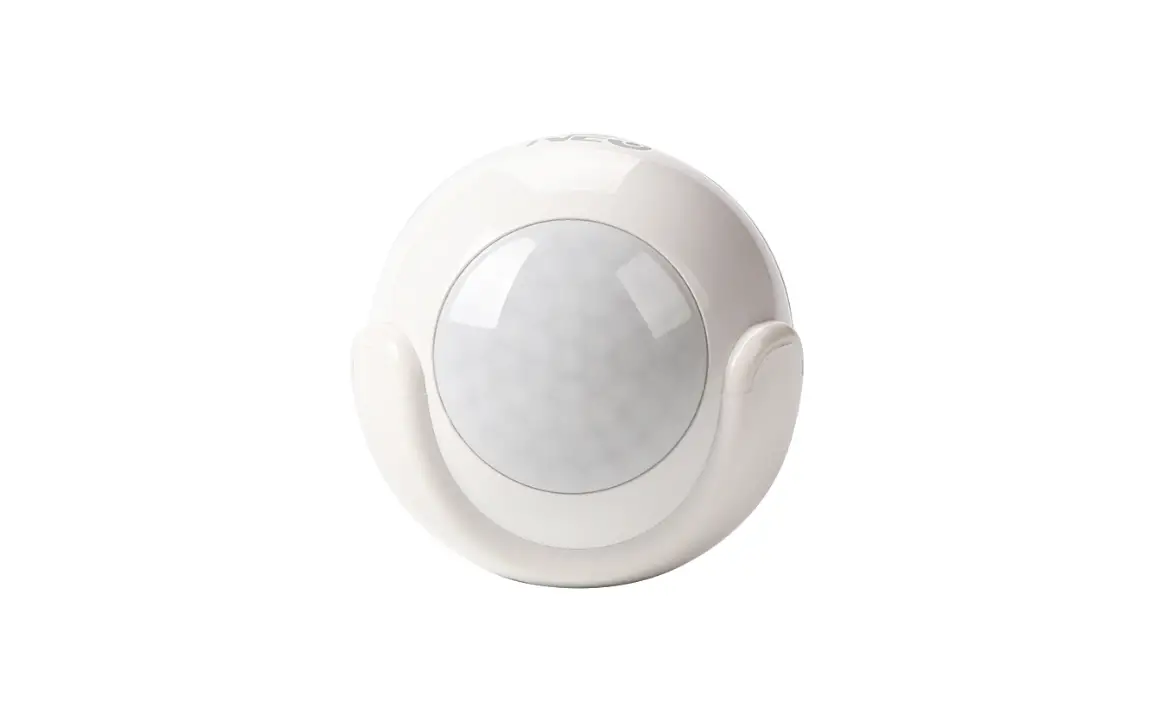
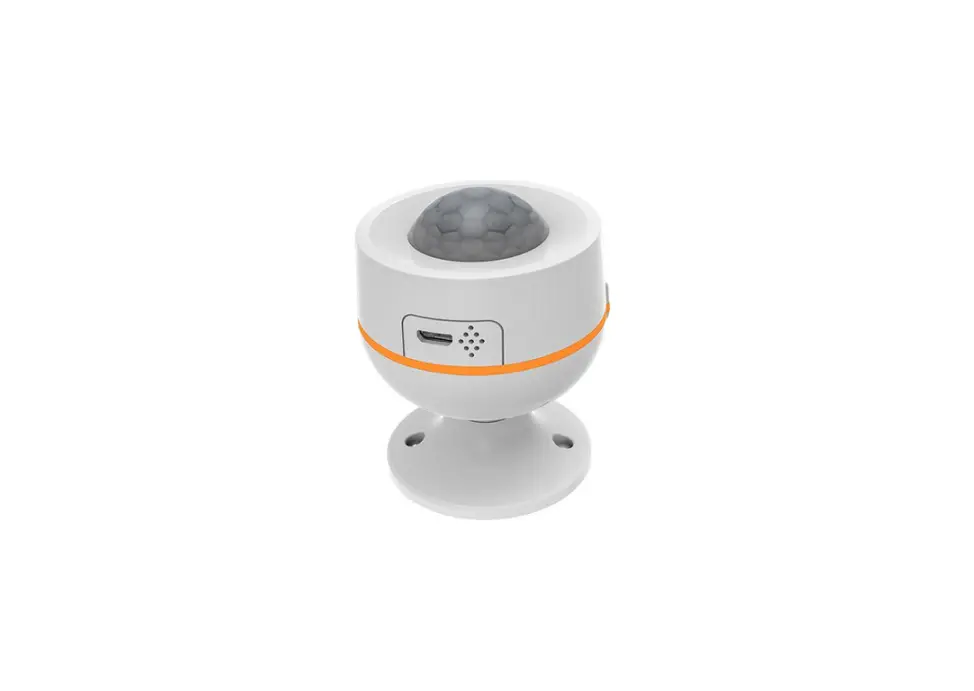
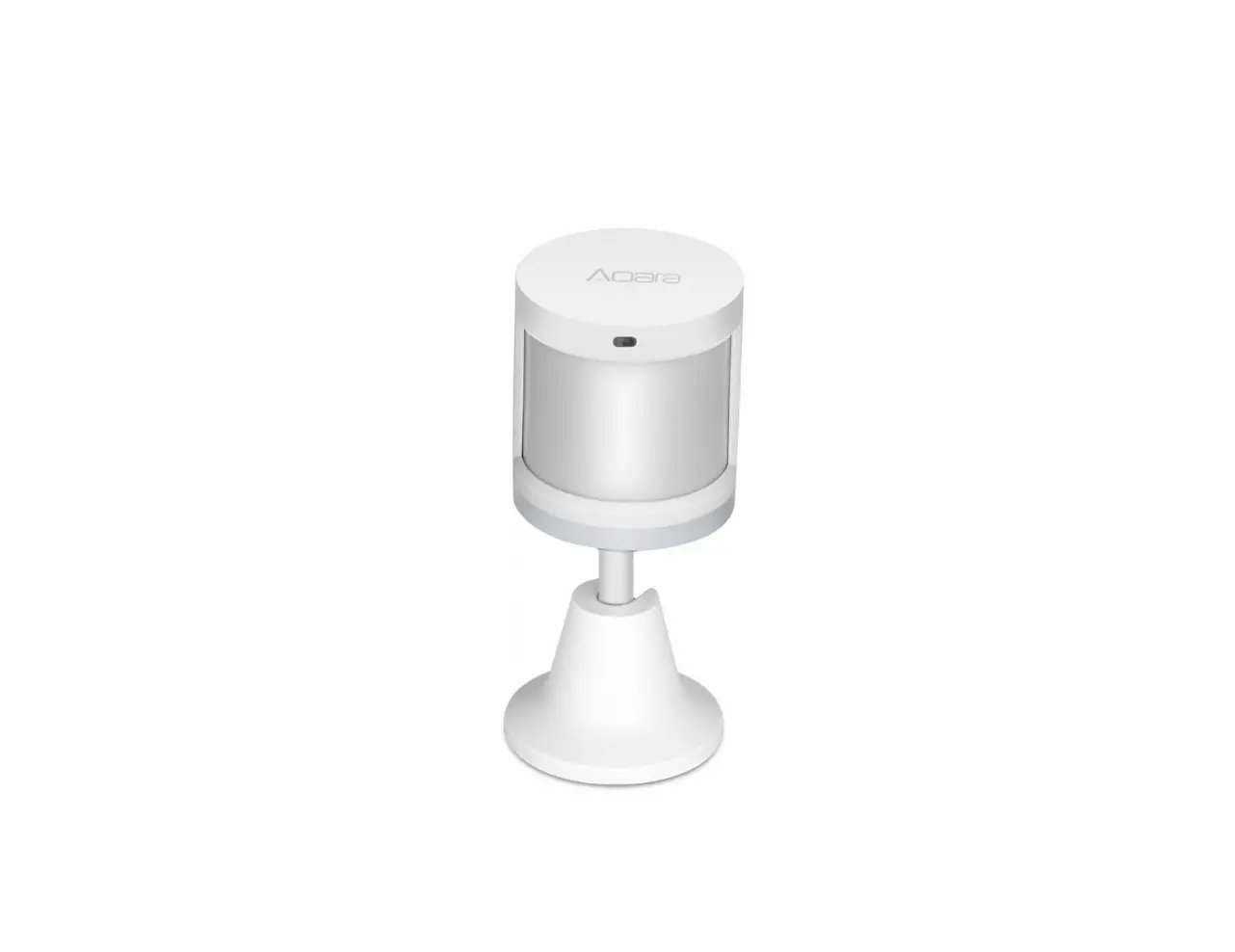
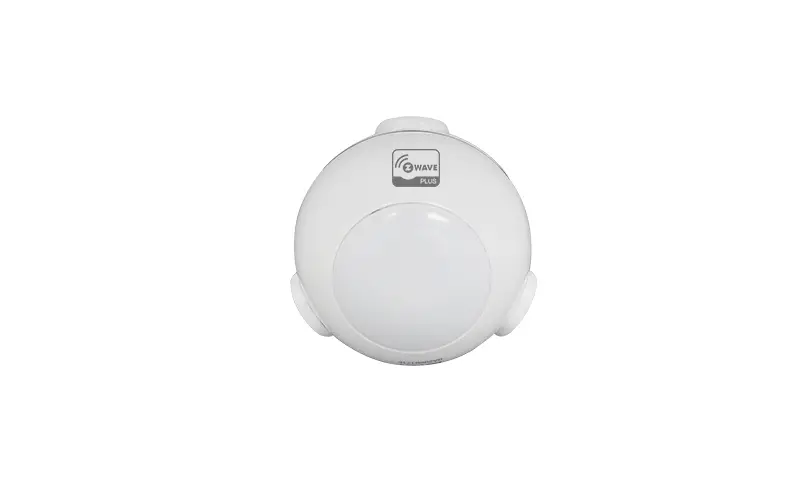
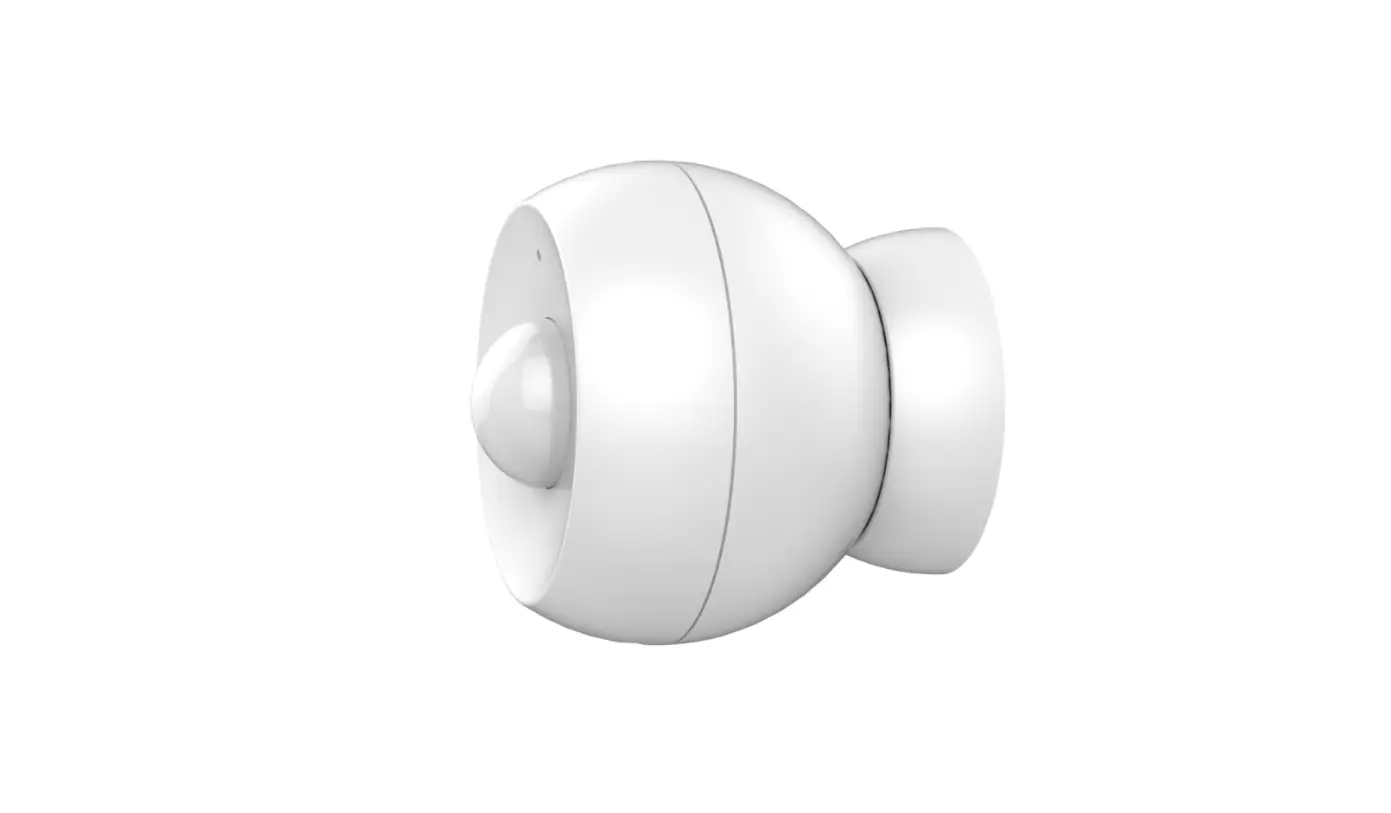
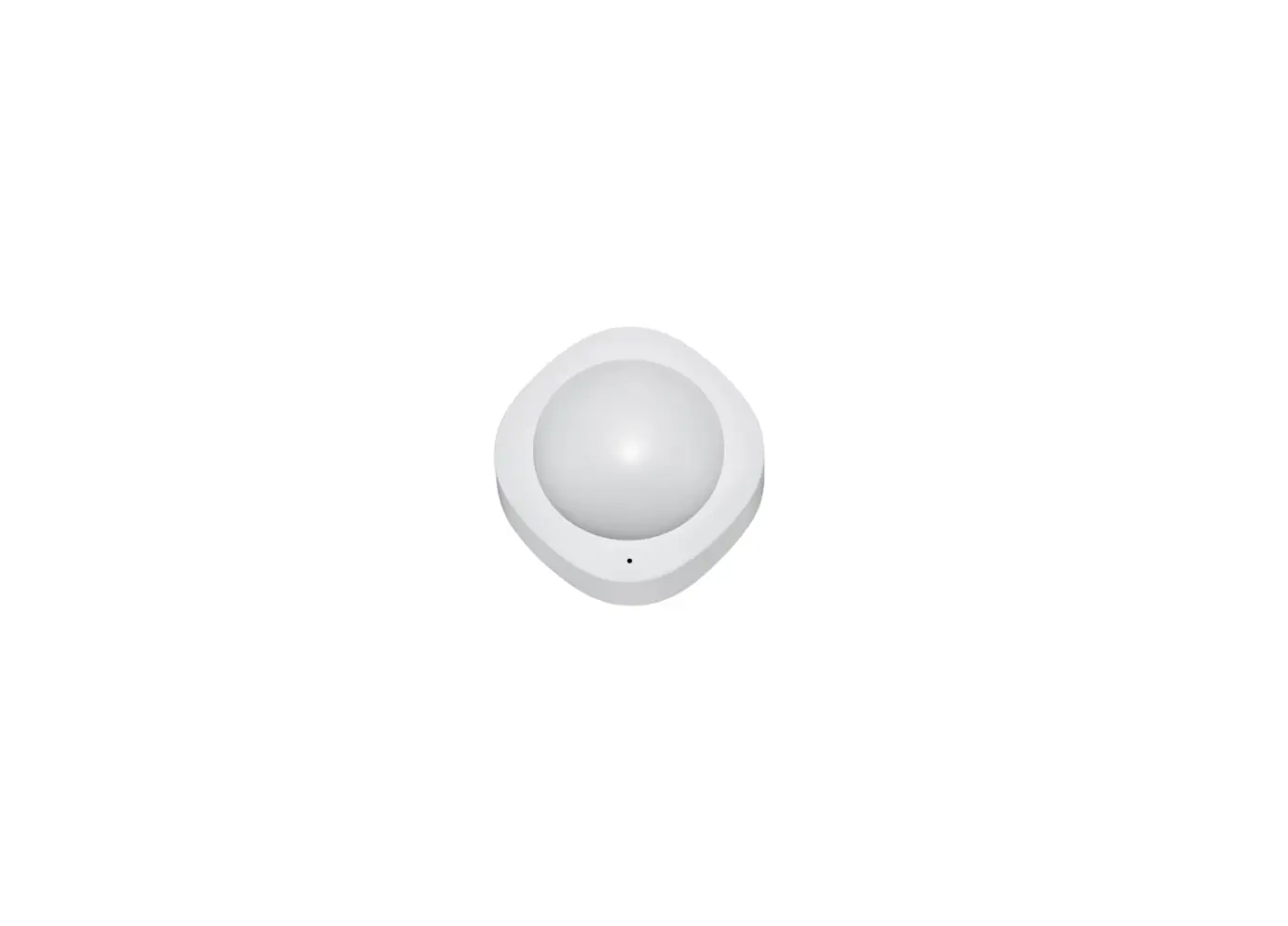
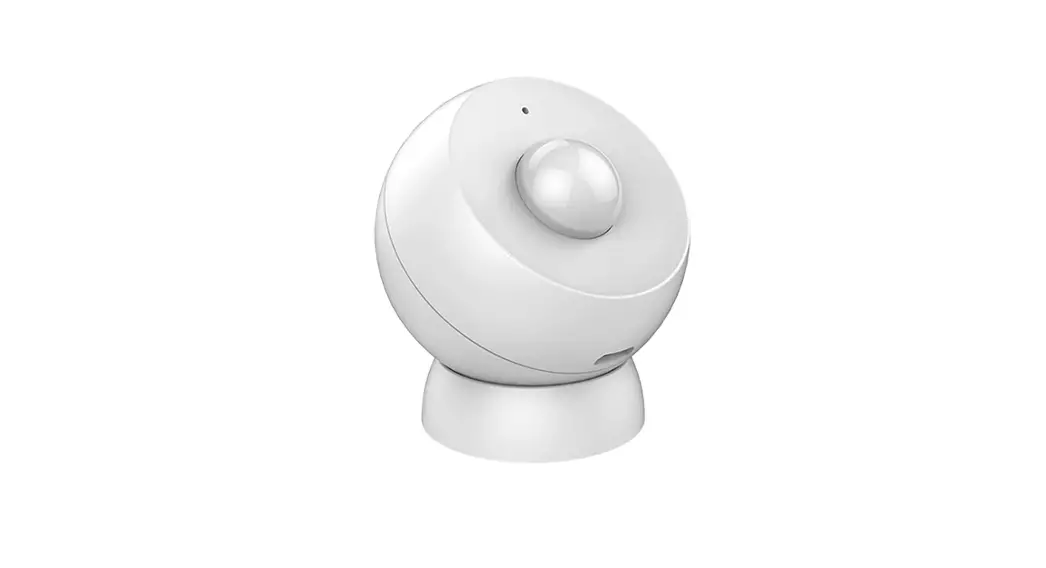
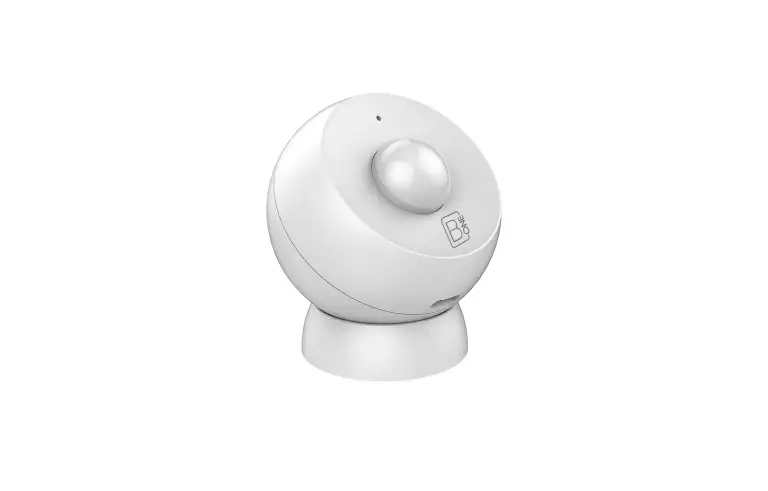
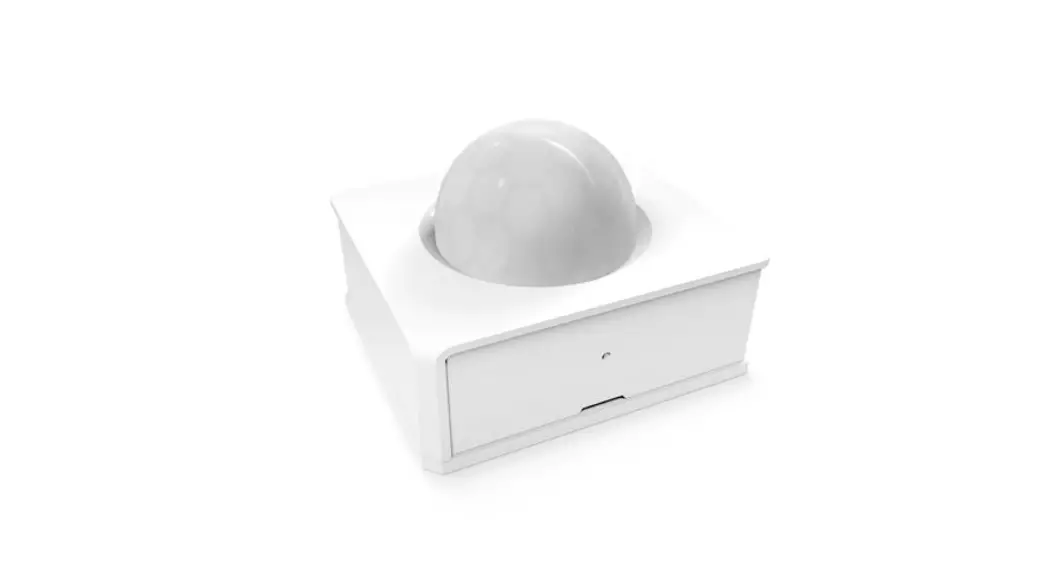
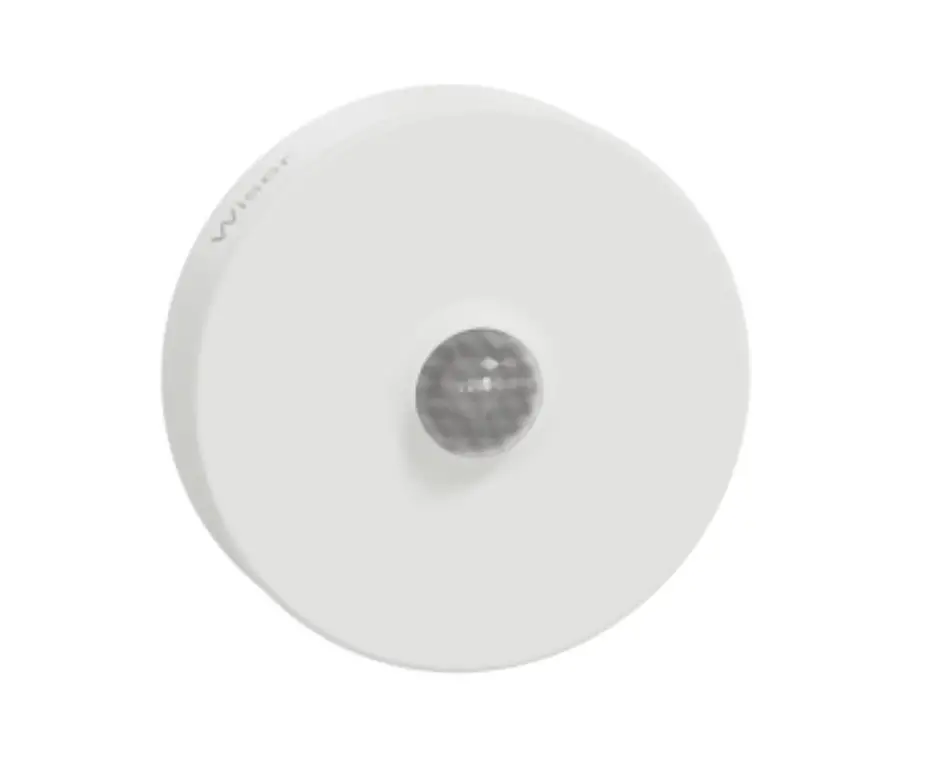
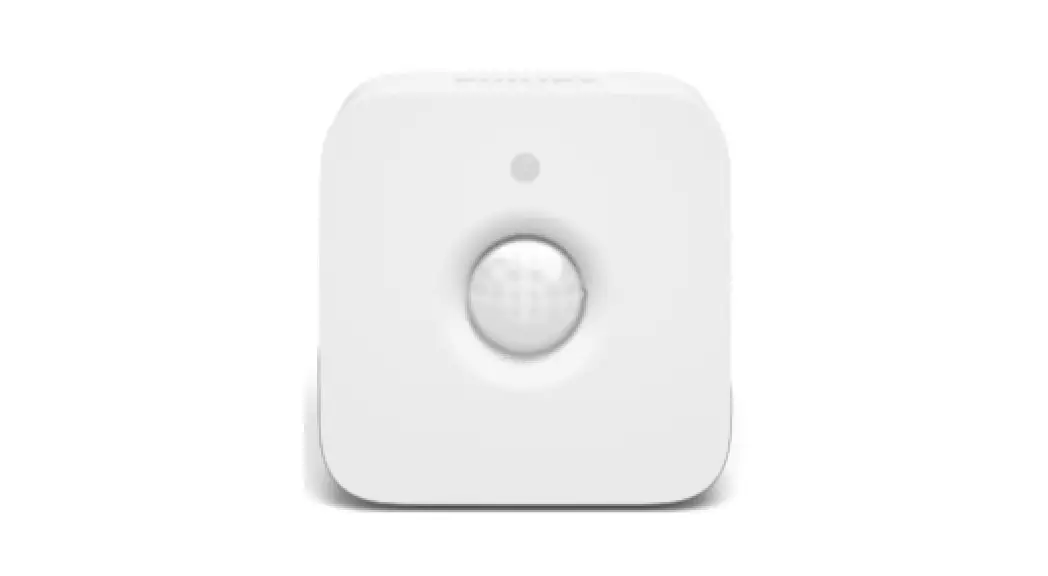
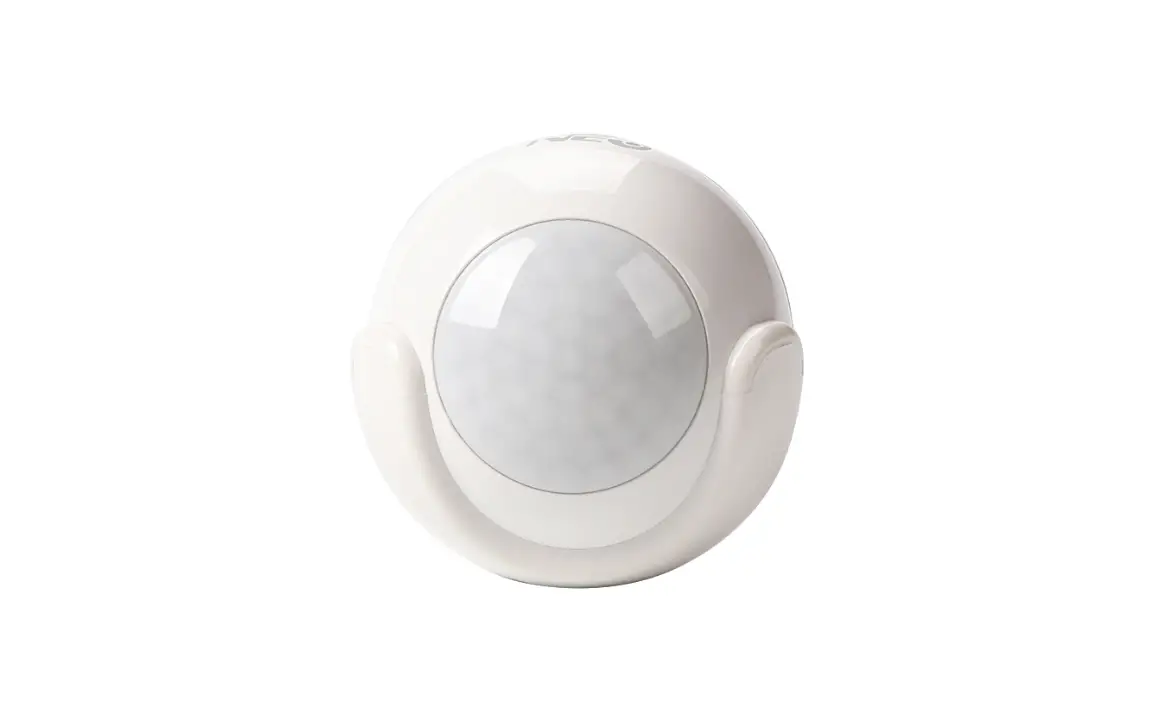
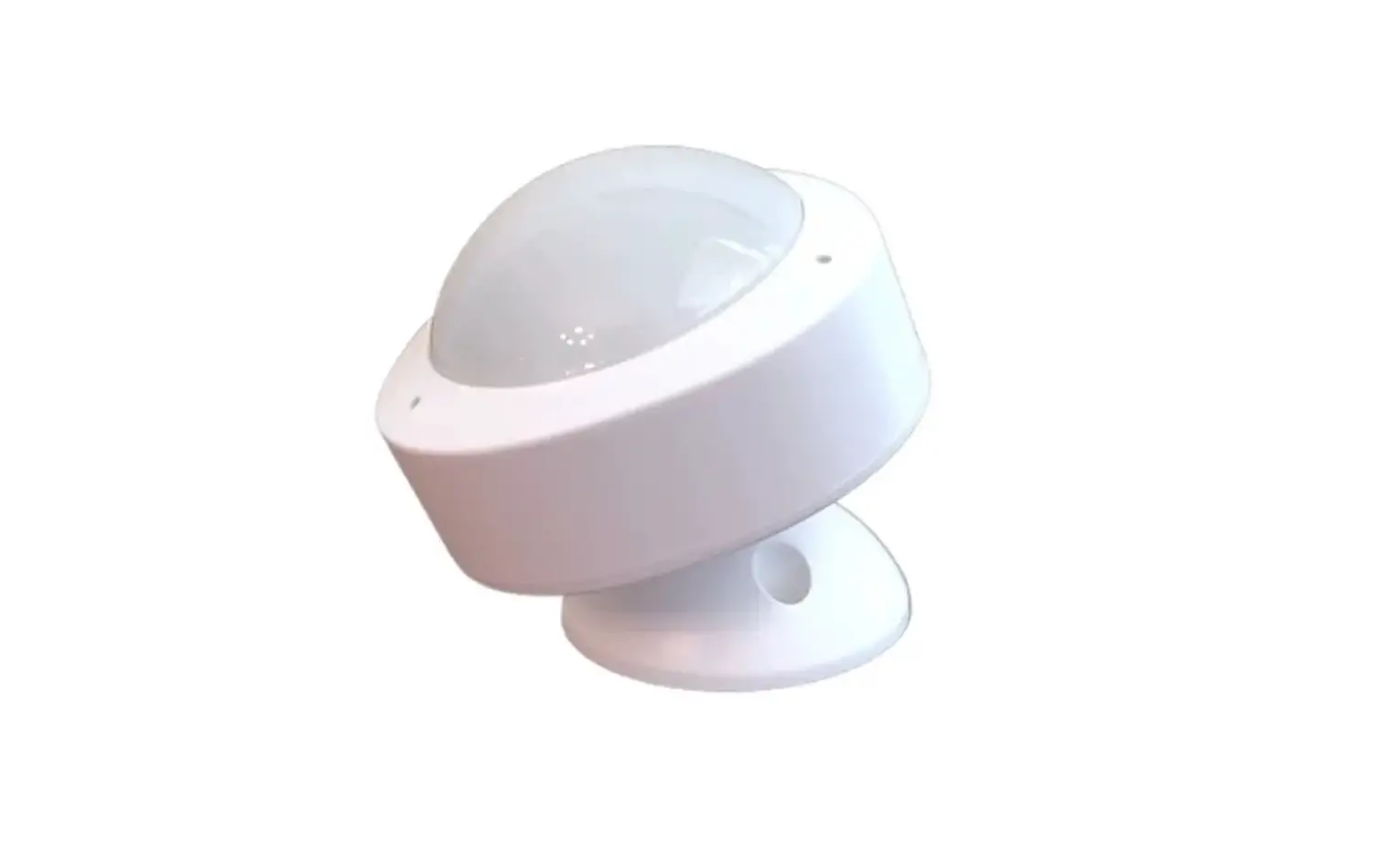
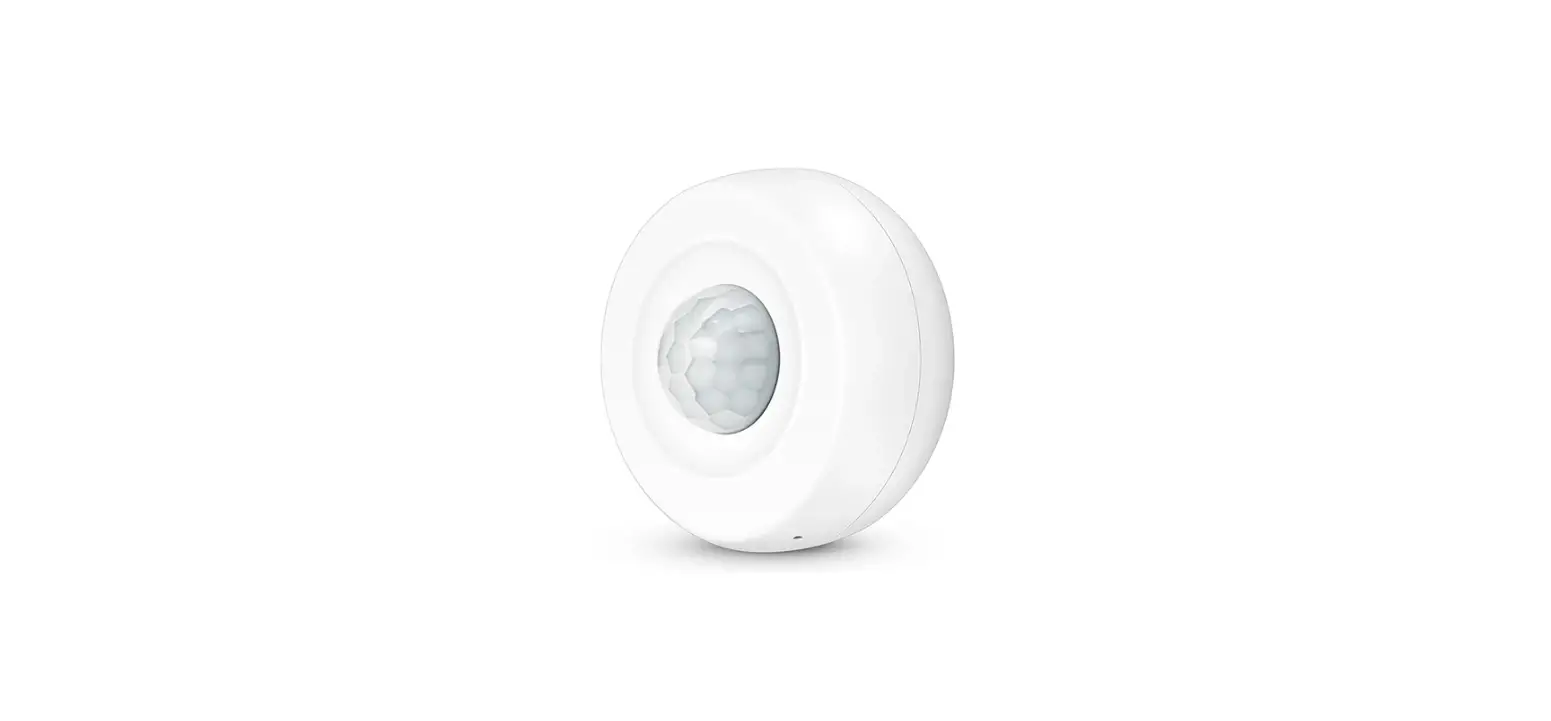
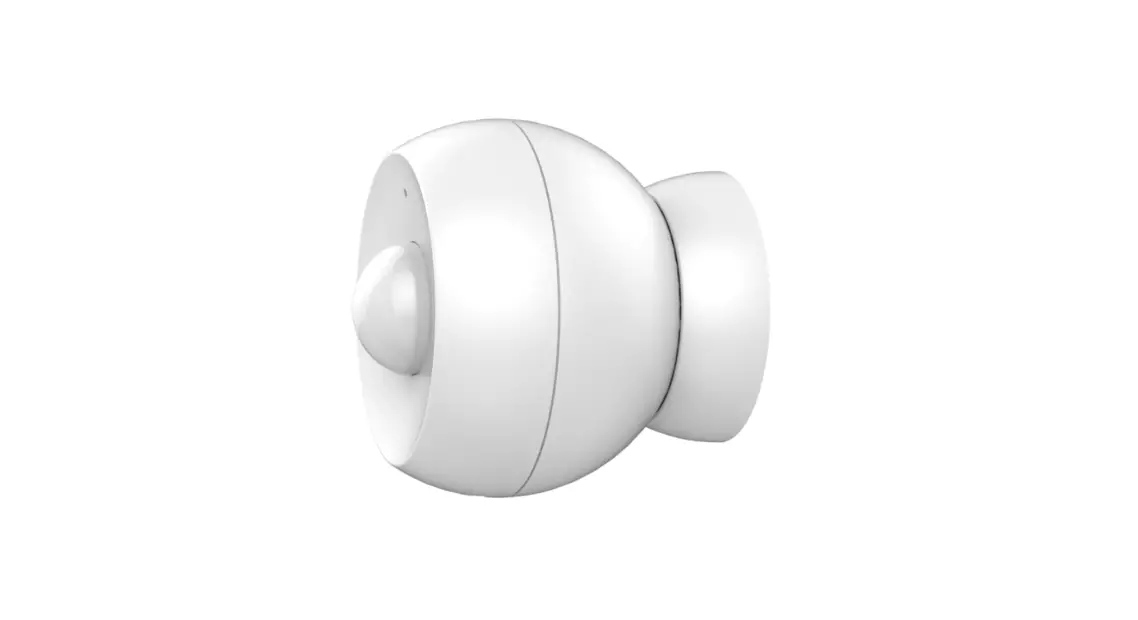
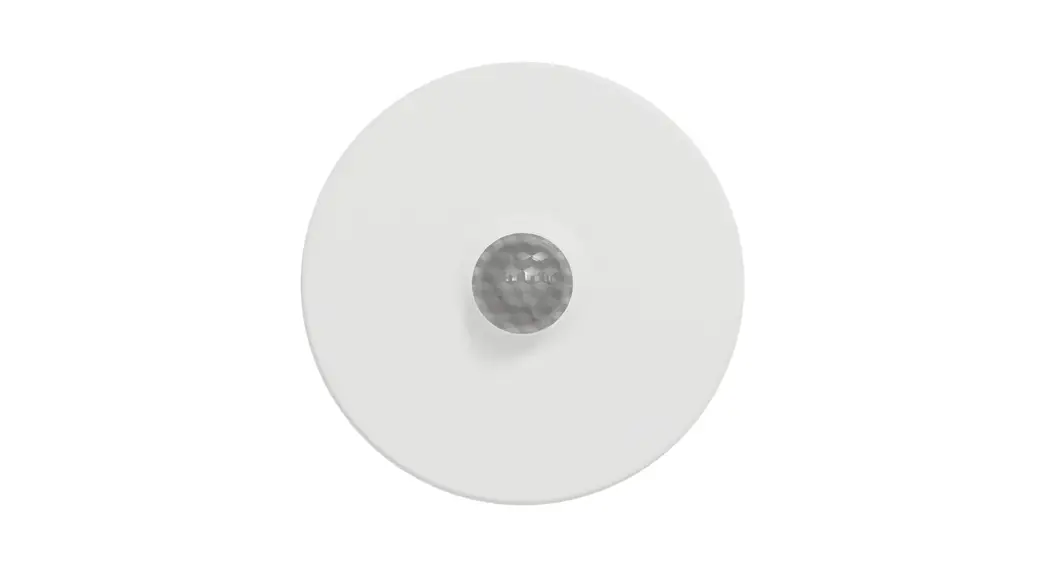
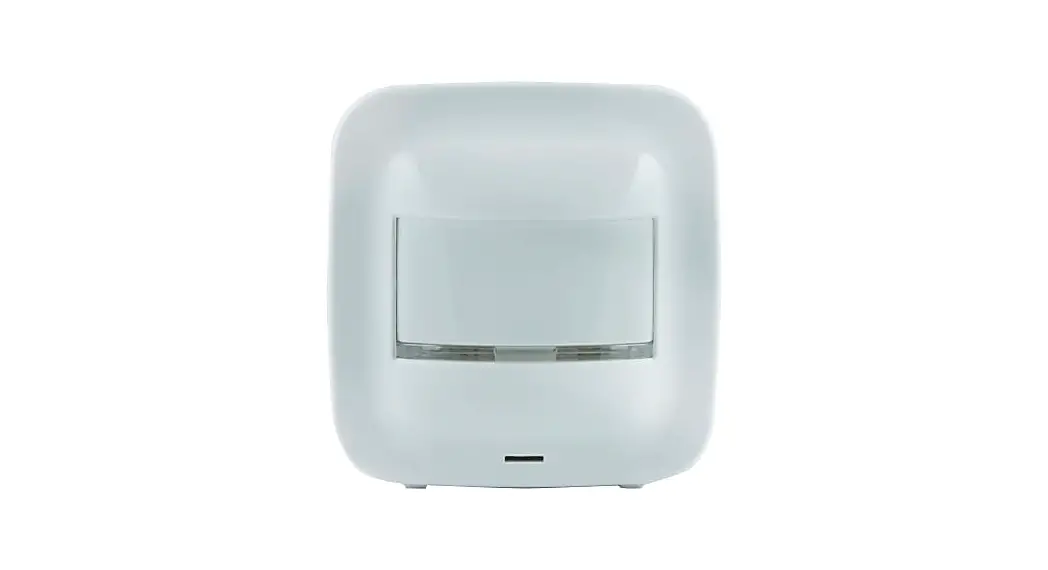
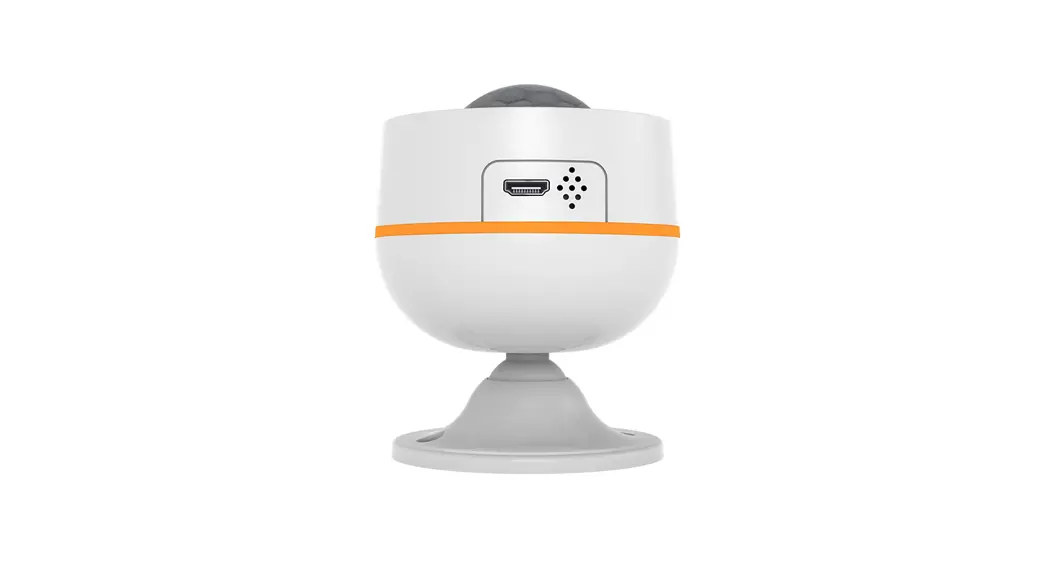
This sensor has a motion detector, light intensity sensor, and ambient temperature/humidity sensors which is based on Z-WaveTM Plus technology.
This product can be included and operated in any Z-WaveTM network with other Z-WaveTM certified devices from other manufacturers and/or other applications. All non-battery-operated nodes within the network will act as repeaters regardless of vendor to increase the reliability of the network.
Z-Wave™ Network Inclusion/Exclusion/Reset
There is one button on the backside of the sensor, it can be executed inclusion, exclusion, and reset from the Z-Wave™ network.
| Add’ | 1, Power up the device. 2, Set Z-WaveTM Controller into inclusion mode 3, Press and hold the button for Ss until white led lights are on, then release the button before the lead turns off. | Blue led will blink with is interval until inclusion successful. |
| Remove | 1, Power up the device. 2. Set 2-Wave” Controller into exclusion mode 3, Press and hold the button for Ss until white led lights is on, then release the button before the lead turns off. | Blue led will blink with 0.5s interval until exclusion successful. |
| Factory Reset² | 1, Power up the device. 2, Press and hold the button for Los until pink led lights is on, then release the button before the lead turns off. | |
| Product Test Mode | 1, Press and hold the button. 2, Power on the device, the device will enter into factory product test mode with white light blink one time. | |
| Send NIF3 | Press and hold the button for Ss until white led lights are on, then release the button before led turns off. |
Notice 1: When the device enters into inclusion mode, the device all functionality will be useless. The inclusion mode will be timeout after the 30s, the user can implement step 3 to terminate inclusion mode.
Notice 2: Factory Reset will clear the device all Z-WaveTM Network data (include home id, node id, etc…) saved in memory, and restore all configuration parameters to factory default. Please use this procedure only when the network primary controller is missing or otherwise inoperable.
Association
The device supports 2 association groups, and each group supports max 5 associated nodes.
Group 1 is the lifeline group; all nodes associated in this group will receive the messages sent by the device through the lifeline.
Group 2 is the controlling group, all nodes associated in this group will be controlled through the BASIC_SET command by the device when the device detects a movement event.
The Command Class supported by each association group is shown in the table below:
| Group | Command Class | Event |
| 1 (Lifeline) | COMMAND_CLASS_NOTIFICATION COMMAND_CLASS_SENSOR_BINARY COMMAND_CLASS_SENSOR_MULTILEVEL COMMAND_CIASS_BATTE RV, COMMAND_CLASS_DEVICE_RESET_LOCALLY | NOTIFICATION_REPORT SENSOR_BINARY_REPORT SENSOR_MULTILEVEL_REPORT BATTERY_REPORTI DEVICE_RESET_LOCALLY_NOTIFICATION |
| 2 (Control) | COMMAND_CLASS_BASIC | BASIC_SET |
Notice 1: (COMMAND CLASS _BATTERY, BATTERY_REPORT}ls valid only when Included with LPM. Please see Page 10 for detail.
Z-Wave™ Message Report
Once the device detects a movement, it will report the event to the controller and the current light intensity value will be followed.
In default, the device will use COMMAND_CLASS_NOTIFICATION to represent the motion event. Users can also enable the COMMAND_CLASS_SENSOR_BINARY report by setting the “Configuration No. 5” to
Notification Report
Motion Detector
When the device detects a motion event, it will automatically send the notification report to nodes associated with a lifeline.
| Command Class | COMMAND_CLASS_NOTIFICATION | |
| Command | NOTIFICATION_REPORT | |
| Type | HOME SECURITY (Oxen | |
| EveM | Motion Detected | HOME_SECURITY_MOTION_DETECTION_UNKNOWN_LOCATION (0x08) |
| Motion Cleared | HOME_SECURITY_NO_EVENT (0x00) | |
Cover Removed Detector
When device detects a cover removed event, it will automatically send the notification report to nodes associated in lifeline.
| Command Class | COMMAND_CLASS_NOTIFICATION | |
| Command | NOTIFICATION REPORT | |
| Type | HOME SECURITY (0x07) | |
| Event | Cover Removed | TAMPERING_COVERING_REMOVED(Ox08) |
| Cover Closed | HOmE_SECunrrv_NO_EvENT (0x00) | |
Multilevel Sensor Report
This device embeds in a digital light sensor and a digital temperature sensor. The device measures the ambient light intensity and temperature with a certain time interval that decides by Configuration No. 17.
Light Sensor
When the ambient light intensity differential over SOlux (in default, and decided by Configuration No. 11), the device will unsolicited to send a “SENSOR_MULTILEVEL_REPORT” to nodes which associated in a lifeline.
| Command Class | COMMAND_CLASS_SENSOR_MULTILEVEL |
| Command | SENSOR_MULTILEVEL REPORT |
| Type | Luminance |
| Scale | Lux |
Temperature Sensor
When the ambient temperature differential over it (In default, and decides by Configuration No.
the device will unsolicited to send a “SENSOR_MULTILEVEL REPORT ‘ to nodes whkh associated with a lifeline.
| Command Class | COMMAND_CLASS_SENSOR_MULTILEVEL |
| Command | SENSOR_MULTILEVEL_REPORT |
| Type | Air Temperature |
| Scale | Fahrenheit(US) / Celsius(Other Region) |
Humidity Sensor
When the ambient humidity differential is over 2RH% (in default, and decides by Configuration No.
the device will unsolicited send a “SENSOR_MULTILEVEL_REPORT” to nodes associated in a lifeline.
| Command Class | COMMAND_CLASS_SENSOR_MULTILEVEL |
| Command | SENSOR _MULTILEVEL REPORT |
| Type | Humidity |
| Scale | RH% |
Command Class Configuration
The device supports the controller to configure parameters of the device through Configuration Command Class, and the device has 18 parameters available for users to set according to their different needs:
- Led Indicator Enable
This parameter is configured the Led light on disable or enable.
‘1’ — Enable Led Blink when the device detects a motion event.
‘0’ — Disable led blink. This configuration is not affected inclusion, exclusion, and reset.Parameter Number Size (Byte) Available Settings Default value 1 1 0,1 1 - Motion EnableThis parameter has configured the motion detected if enable or not. ‘0’ — Motion detected disable.
‘1’ — Motion detected enable.
Parameter Number Size (Byte) Available Settings Default value 2 1 0, 1 I - Motion Alarm Once EnableThis Parameter is configured the motion detected event report one time before the motion event cleared. `0′ — Motion event alarm will be reported when motion event is detected every time.
`I’ — Motion event alarm report only once before motion event cleared.
Parameter Number Size (Byte) Available Settings Default value 3 1 0, 1 1 - Luminance Associated Enable‘1’ — Enable current light intensity to associate the motion event, if there has a motion event detected and the current light intensity is less than the settings in Configuration No.16, the device will send a BASIC_SET to nodes associated in Group 2. And if the current light intensity is larger than the settings in Configuration No. 16, the device will not send BASIC_SET to nodes associated in Group 2.
‘0’ — Light intensity is not associated with motion events.
Parameter Number Size (Byte) Available Settings Default value 4 1 0,1 0 - Binary Sensor Report Enable‘1’ — Enable sensor binary report when the device detects a motion event. ‘0’ — Disable sensor binary report when the device detects a motion event.
Parameter Number Size (Byte) Available Settings Default value 5 1 0,1 0 - Motion Sensitivity
This parameter has configured the sensitivity that motion detects. This value is larger, the sensitivity is lower, and the distance for motion detecting is closer.Parameter Number Size (Byte) Available Settings Default value 6 1 0∼ 15 , - Temperature Offset ValueThe current measuring temperature value can be added and minus a value by this setting. Temperature Offset Value = [Value] X 0.1 Degree Celsius / Fahrenheit (US).
Parameter Number Size (Byte) Available Settings Default value 7 1 -120∼120 0 - Humidity Offset ValueThe current measuring humidity value can be added and minus a value by this setting. Humidity Offset Value = [Value] X 0.1 RH%.
Parameter Number Size (Byte) Available Settings Default value 8 1 -120∼ 120 0 - Temperature D-Value SettingThis configuration sets the changed value of the temperature. When the difference from the last report exceeds this setting value, the device will report the current temperature value to Z-Wave Hubs. The D Value = [Value] X 0.1 Degree Celsius / Fahrenheit (US).
Parameter Number Size (Byte) Available Settings Default value 9 1 0 ∼100 10 - Humidity D-Value SettingThis configuration sets the changed value of the humidity. When the difference from the last report exceeds this setting value, the device will report the current humidity value to Z-Wave Hubs.
The D- Value = [Value] X 0.1 RH%.
Parameter Number Size (Byte) Available Settings Default value 10 1 0 ∼100 20 - Luminance D-Value SettingThis configuration sets the changed value of the luminance. When the difference from the last report exceeds this setting value, the device will report the current luminance value to Z-Wave Hubs. Unit: Lux.
Parameter Number Size (Byte) Available Settings Default value 11 1 0 ∼120 50 - Basic Set LevelThis parameter has configured the value that BASIC_SET for nodes that associated in Group 2. ‘100’ — BASIC_SET = OxFF (ON).
‘0’ — BASIC_SET = Ox00 (OFF).
Parameter Number Size (Byte) Available Settings Default value 12 1 0- 100 100 - Motion Blind Time
This parameter is configured the time interval between two motion events triggered, during this period the motion detector will not be triggered even there have someone moves in front of the motion detector. Unit: Second.Parameter Number Size (Byte) Available Settings Default value 13 1 1 – 8 8 - Basic Set Off Delay TimeThis Parameter is configured the time delay for the device sending BASIC_SET = Ox00 to nodes that associated in Group 2 when the device detects a motion event.
[0] – Not Send BASIC_SET = Ox00 Command.
[1 … 30000] – Time delay count. Unit: Second.
Parameter Number Size (Byte) Available Settings Default value 14 2 0 – 30000 30 - Motion Clear TimeThis parameter is configured the time to clear motion event after a motion event is detected. Time to motion clear, the device will send a clear event report to the controller. Unit: Second.
Parameter Number Size (Byte) Available Settings Default value 15 2 1 – 30000 30 - Luminance Threshold for AssociatedThis parameter is configured as the light intensity threshold. When Ambient light intensity is less than this setting, the device will consider the current environment is insufficient light. If “Configuration No. 3” is set ‘1’ and a motion event is detected, the device will send a BASIC_SET to the nodes associated in Group 2. Unit: lux.
Parameter Number Size (Byte) Available Settings Default value 16 2 0- 1000 50 - Sensor Measuring IntervalThis parameter is configured as the time interval for the light sensor, temperature, and humidity sensor measuring. This value is larger, the battery life is longer. And the sensor’s values changes are not obvious. 0 – All sensors are disabled. Unit: Second
Parameter Number Size (Byte) Available Settings Default value 17 2 0 – 30000 180 (Included with LPM Mode) 10 (Included with AOS Mode) - Light Intensity Offset CalibrationThis parameter defines the calibrated scale for ambient light intensity. Because the method and position that the sensor mounted and the cover of the sensor will bring measurement error, the user can get more real light intensity by this parameter setting. The user should run the steps as blows for calibrating
- Set this parameter value to default (Assumes the sensor has been added in a Z-WaveNetwork).
- Place a digital lux meter close to the sensor and keep the same direction, monitor the light intensity value (Vm) which reports to the controller, and record it. At the same time, user should record the value (Vs) of the lux meter.
- The scale calibration formula: k = Vm /
- The value of k is then multiplied by 1000 and rounded to the nearest whole number.
- Set the value getting in 5) to this parameter, calibrate finished.
For example, I’m = 300, Vs = 2000, then
k = 300 / 2600 = 0.11538
k = 0.11538 * 1000 = 115.38 ≈115
The parameter should be set to 115.
| Parameter Number | Size (Byte) | Available Settings | Default value |
| 99 | 2 | 1-32767 | 5320 |
Wakeup Command Class
The device stays in sleep status for the majority of the time in order to conserve battery life. The minimum wakeup interval is 20s
The maximum wakeup interval is 86400s (24 Hours)
The allowable min step among each wakeup interval is 10 seconds, such as the 1860s, 1870s,1880s… Note: The default value is 8 hours with factory default. This value is greater, the battery life is longer.
Battery Command Class
The users can also enquire about the battery status of the device by sending the BATTERY_GET command. Once the device receives the command, it will return the BATTERY_REPORT command.
The device will send BATTERY_LEVEL = OxFF command to the Z-Wave'” Controller to inform that the device is in dead battery status, otherwise BATTERY_LEVEL value range is 0% to 100%.
Command Class Basic
The COMMAND_CLASS_BASIC is realized to control the devices associated in Group 2 in this motion detector.
When the device detects a motion event that occurred, it will send a “BASIC_SET = [Value]” command to control the devices in Group 2.
And it will send a “BASIC_SET = Ox00” command to control the devices in Group 2 after the motion event is cleared.
The [Value] is set by configuration No.12.
SmartStart
SmartStart enabled products can be added into a Z-Wave network by scanning the Z-Wave QR Code present on the product with a controller providing SmartStart inclusion. No further action is required and the SmartStart product will be added automatically within 10 minutes of being switched on in the network vicinity.
This device supports the SmartStart function. QR codes printed by laser can be found on the surface of the product and the outside of the packing box. And the full DSK code is printed can be found on the packing box.
The device will enter SmartStart if the device is not included in the network after power-up. And if the device is not included successfully for 10 seconds, it will enter sleep mode. And then
2nd SmartStart time delay approximately 16s
3rd SmartStart time delay approximately 32s
4th SmartStart time delay approximately 64s
5th SmartStart time delay approximately 128s
6th SmartStart time delay approximately 256s
7thSmartStart time delay approximately 512s
Afterward, the Smartstart mode will be auto running at 512-second intervals until the device is included successfully or the battery is run down.
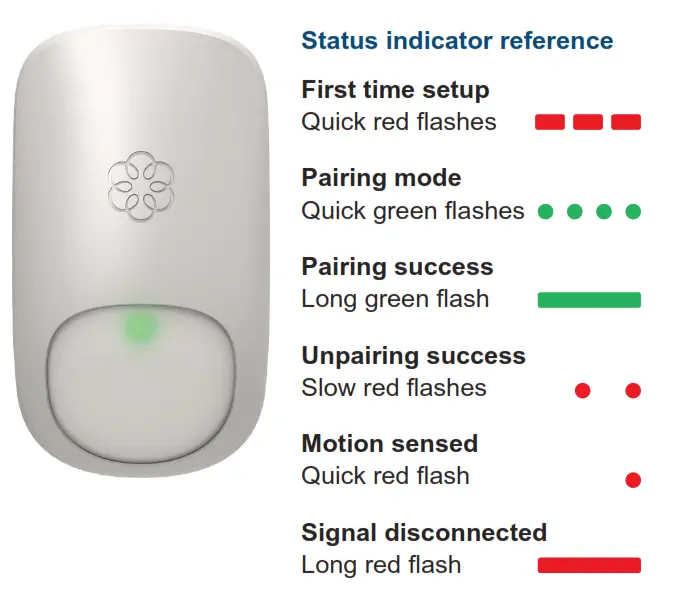
Led Action Indicator
| Led Color | Action | Description |
| Red | Light On is When Power On | Not Add in Z-Wave Network |
| Fast Blinks | Cover is Removed | |
| Pink | Light On 2s | Press And Hold Button 10s, Off at 12′h Second |
| Blink One Time | Motion is Detected | |
| Green | Light On is When Power On | Add in Z-Wave in Network Already |
| White | Light On 2s | Press And Hold Button 5s, Off at 7t Second |
| Cyan | Blink One Time | Cover is Closed |
| Blue | Blink with is Interval | Add to Z-Wave Network |
| Blink with 500ms Interval | Remove from Z-Wave Network | |
| Yellow | Blink with 500ms Interval | OTA is Running |
| Light On Always | Button Pressed and Held Time Large Than 12s. |
Security Network
The device supports the security function with S2 encrypted communication. The device will auto switch to the security mode when the device is included with a security controller. In the security mode, the following commands must use security and security_2 command class wrapped to communicate, otherwise, the device will not respond to any commands.
Security Keys
This device supports the security levels are listed in below table:
| Security Levels | Support (Yes/No) |
| SECURITY_KEY_SO | Yes |
| SECURITY_KEY_S2_UNAUTHENTICATED | Yes |
| SECURITY_KEY_S2_AUTHENTICATED | Yes |
| SECURITY_KEY_S2_ACCESS | No |
All Supports Command Class
This device supports 2 role type: AOS(Always On Slave) and LPM(Low Power Mode). Which role type is valid decided by which power (Battery or DC Power) is supplied when to include.
The role type is AOS only if DC power supply first.
The role type is LPM only if battery supply first.
When the device is included with AOS, it also can make a repeater role.
Command-List When LPM Included
| Command Class | Version | Not Included | Non-secure Included | SO Included | S2 Included | ||
| Non-Secure | Secure | Non-Secure | Secure | ||||
| COMMAND CLASS ZWAVEPLUS_INFO | 2 | • | • | • | • | ||
| COMMAND_CLASS_SECURITY | 1 | • | • | • | • | ||
| COMMANDSLASS_SECURITY_2 | 1 | • | • | • | • | ||
| COMMAND_CLASS_TRANSPORT_SERVICE | 2 | • | • | • | • | ||
| COMMAND_CLASS_VERSION | 3 | • | • | • | • | ||
| COMMANDSLASS_POWERLEVEL | 1 | • | • | • | • | ||
| COMMAND_CLASS_ASSOCIATION | 2 | • | • | • | • | ||
| COMMAND_CLASS_MULD_CHANNEL_ASSOCIATION | 3 | • | • | • | • | ||
| COMMANDSLASS_ASSOCIATION GRP_INFO | 1 | • | • | • | • | ||
| COMMANDSLASS_MANUFACTURER_SPECIFIC | 2 | • | • | • | • | ||
| COMMANDSLASS_DEVICE_RESET_LOCALLY | 1 | • | • | • | • | ||
| COMMANDSLASS_BA1TERY | 1 | • | • | • | • | ||
| COMMANDSLASS_WAKEUP | 2 | • | • | • | • | ||
| COMMANDSLASS_NCRIFICATION | 8 | • | • | • | • | ||
| COMMANDSLASS_SENSOR_MULTILEVEL | 11 | • | • | • | • | ||
| COMMANDSLASS_SENSOR_BINARY | 2 | • | • | • | • | ||
| COMMANDSLASS_INDICATOR | 3 | • | • | • | • | ||
| COMMANDSLASS_CONFIGURATION | 4 | • | • | • | • | ||
| COMMANDSLASS_SUPERVISKIN | 1 | • | • | • | • | ||
| COMMANDSLASS_FIRMWARE_UPDATE_MO | 5 | • | • | • | • | ||
Command-List When AOS Included
| Command aass | Version | Not Included | Non-secure Included | SO Included | S2 Included | ||
| Non-Secure | Secure | Non-Secure | Secure | ||||
| COMMAND_CLASS_ZWAVEPLUS_INFO | 2 | • | • | • | • | ||
| COMMAND_CLASS_SECURITT | 1 | • | • | • | • | ||
| COMMAND_CLASS_SECURITY_2 | 1 | • | • | • | • | ||
| COMMAND_CLASS_TRANSPORT_SERVICE | 2 | • | • | • | • | ||
| COMMAND_CLASS_VERSION | 3 | • | • | • | • | ||
| COMMAND_CLASS_POWERLEVEL | 1 | • | • | • | • | ||
| COMMAND_CLASS_ASSOCIAT1ON | 2 | • | • | • | • | ||
| COMMAND_CLASS_MULTI_CHANNEL_ASSOCIA710N | 3 | • | • | • | • | ||
| COMMAND_CLASS_ASSOCIATION GRP_INFO | 1 | • | • | • | • | ||
| COMMAND_CLASS_MANUFACTURER_SPECIFIC | 2 | • | • | • | • | ||
| COMMAND_CLASS_DEVICE_RESET_LOCALLY | 1 | • | • | • | • | ||
| COMMAND_CLASS_NOTIFICATION | 8 | • | • | • | • | ||
| COMMAND_CLASS_SENSOR_MULTILEVEL | 11 | • | • | • | • | ||
| COMMAND_CLASS_SENSOR_BINARY | 2 | • | • | • | • | ||
| COMMAND_CLASS_INDICATOR | 3 | • | • | • | • | ||
| COMMAND_CLASS_CONFIGURAT1ON | 4 | • | • | • | • | ||
| COMMAND_CLASS_SUPERVISION | 1 | • | • | • | • | ||
| COMMAND_CLASS FIRMWARE_UPDATE_MD | 5 | • | • | • | • | ||
Specifications
| Power Supply | CRI23A x 2 |
| Standby Current | 38uA |
| Work Current(RF Tx) | Up to 15mA |
| Operational Temperature | 0 – 70t |
| Communication frequency | 868.40MHz, 869.85MHz (EU) 908.40MHz, 916.00MHz(US) |
| Range | Up to 45m indoors (depending on the building structure), and 80m for outdoor open fields. Up to 60m outdoors. |
FCC STATEMENT :
This device complies with Part 15 of the FCC Rules. Operation is subject to the following two conditions: This device may not cause harmful interference, and This device must accept any interference received, including interference that may cause undesired operation.
Warning: Changes or modifications not expressly approved by the party responsible for compliance could void the user’s authority to operate the equipment.
NOTE: This equipment has been tested and found to comply with the limits for a Class B digital device, pursuant to Part 15 of the FCC Rules. These limits are designed to provide reasonable protection against harmful interference in a residential installation. This equipment generates uses and can radiate radio frequency energy and, if not installed and used in accordance with the instructions, may cause harmful interference to radio communications. However, there is no guarantee that interference will not occur in a particular installation. If this equipment does cause harmful interference to radio or television reception, which can be determined by turning the equipment off and on, the user is encouraged to try to correct the interference by one or more of the following measures:
Reorient or relocate the receiving antenna.
Increase the separation between the equipment and receiver.
Connect the equipment into an outlet on a circuit different from that to which the receiver is connected. Consult the dealer or an experienced radio/TV technician for help.
FCC Radiation Exposure Statement:
This equipment complies with FCC radiation exposure limits set forth for an uncontrolled environment.