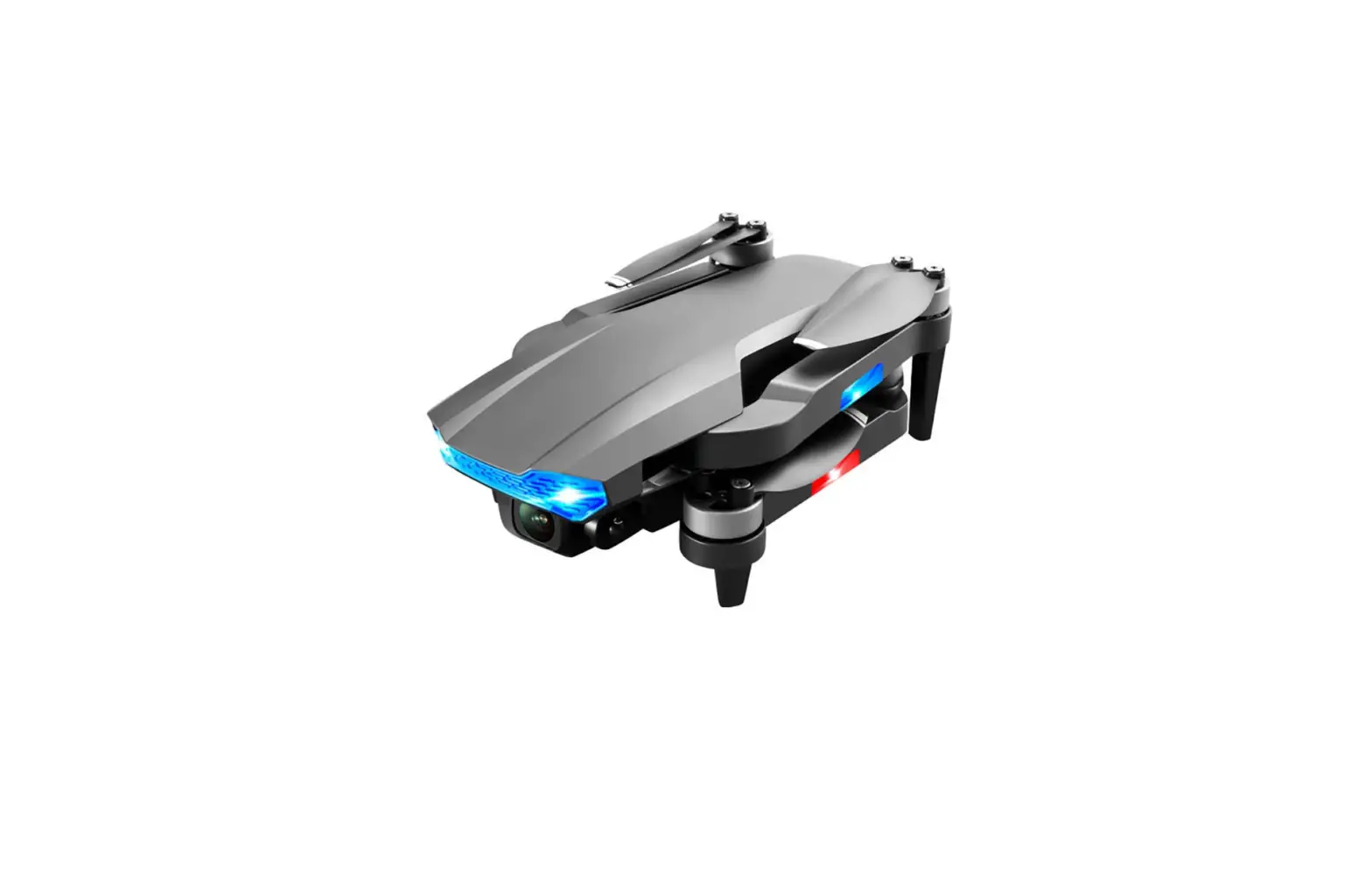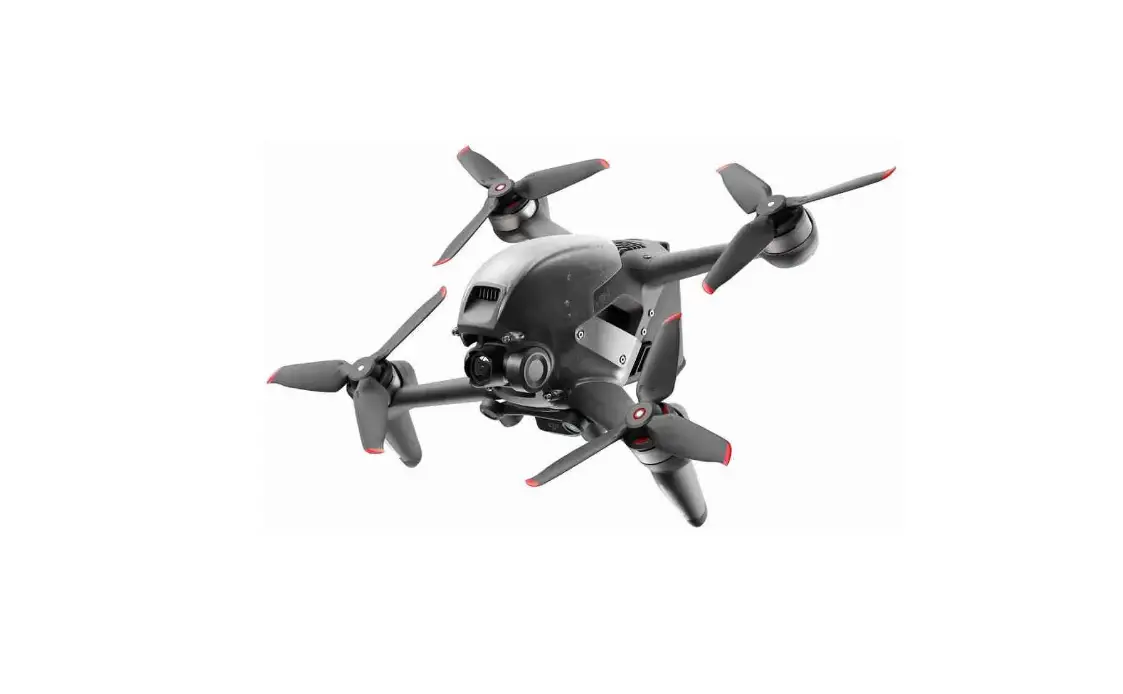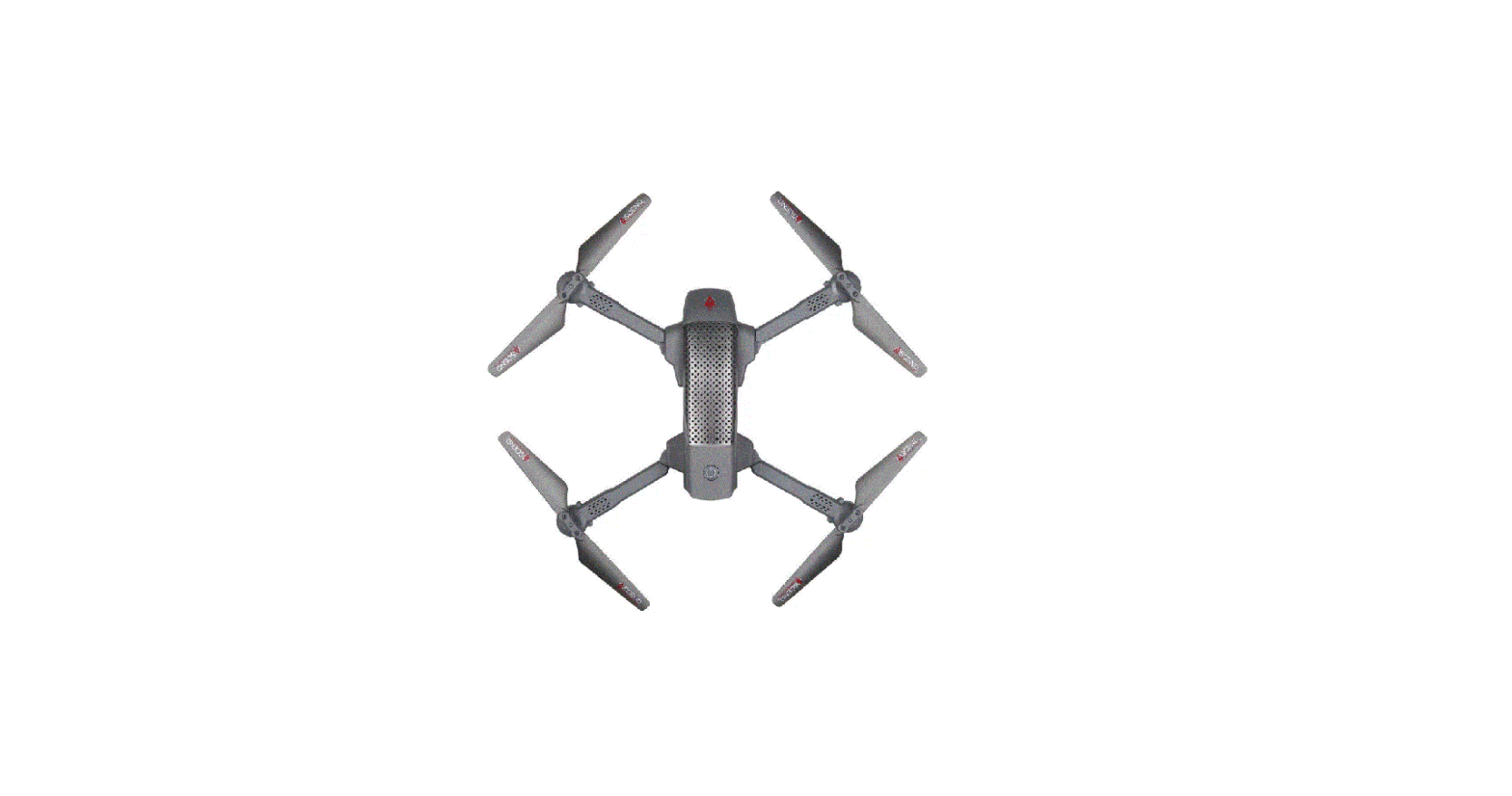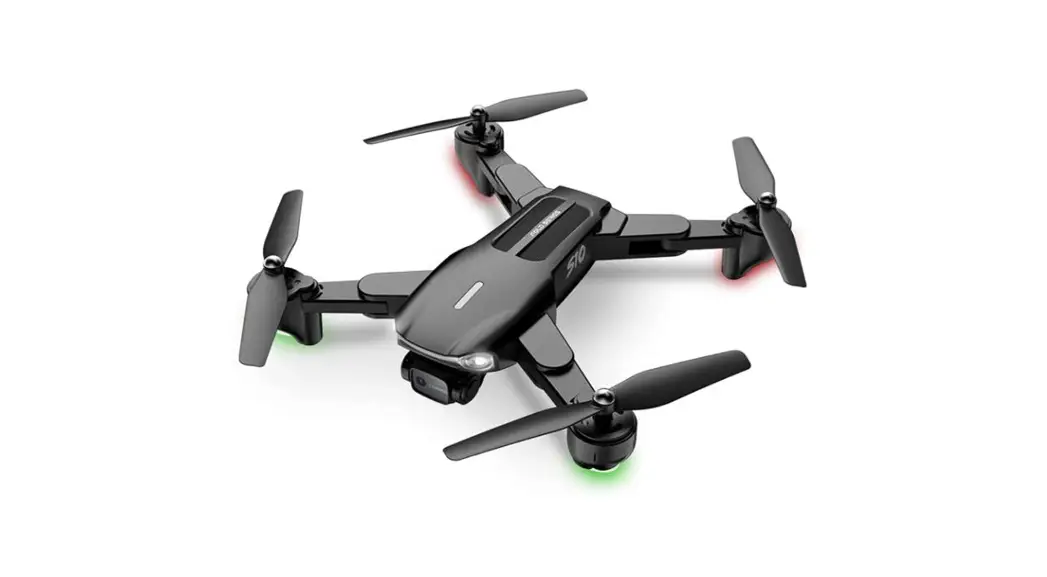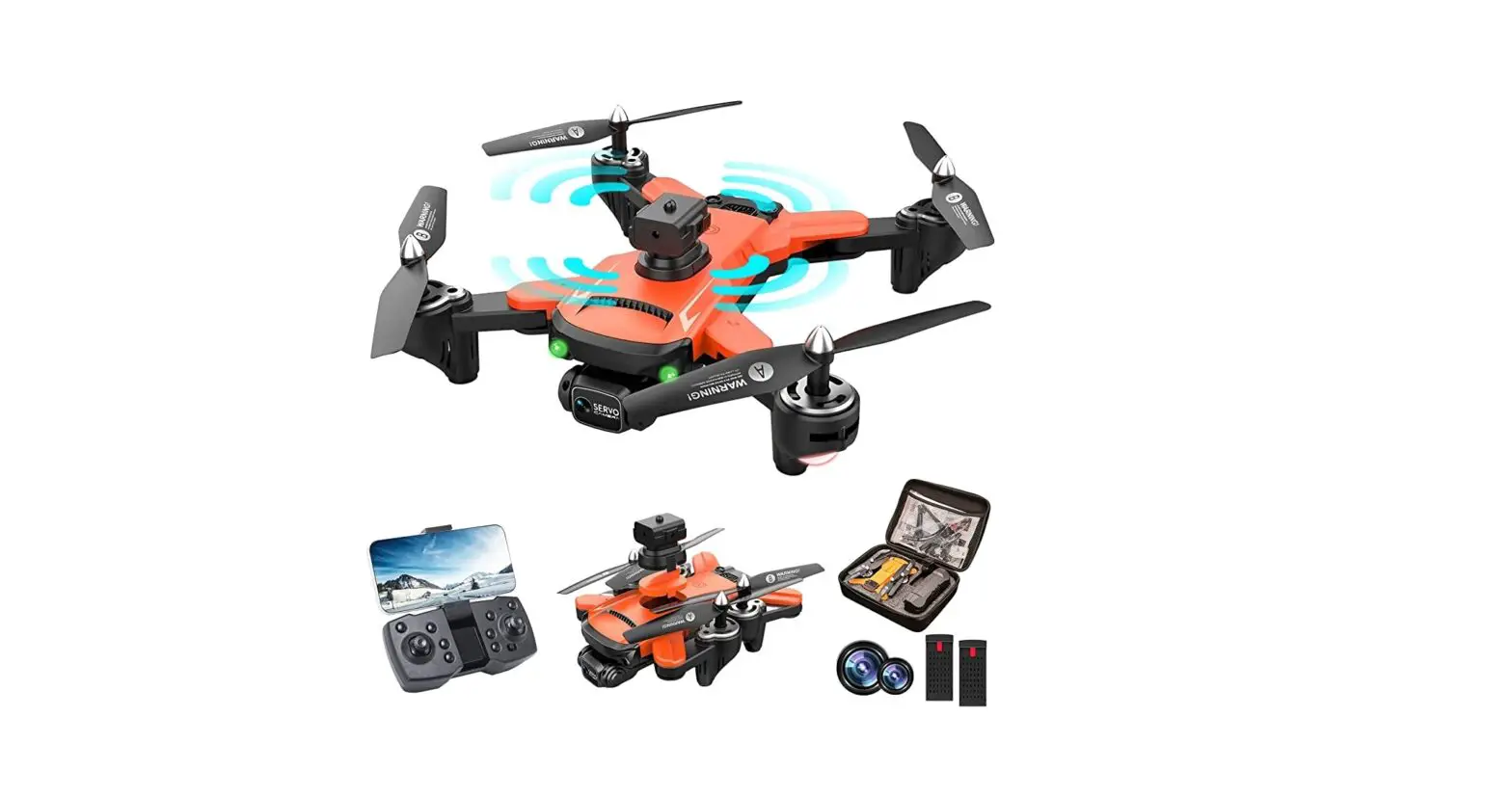
RiskOrb XS011 2023 Upgrade Drone with 1080P Dual ESC Camera User Guide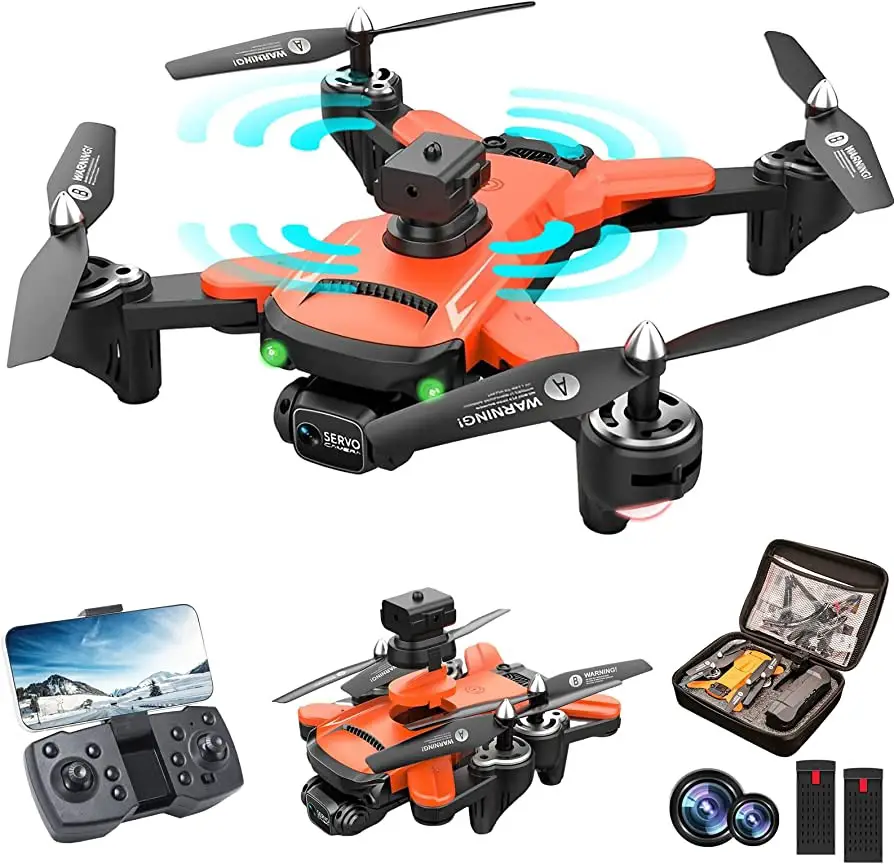
APP DOWNLOAD
- Download the correct APP.
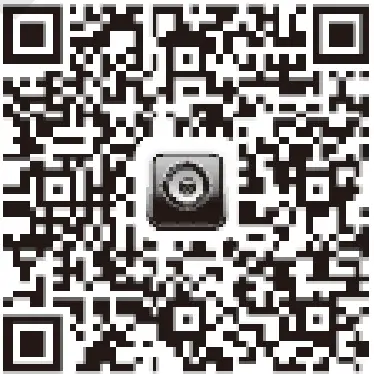
Please scan the corresponding QR code to the APP “WiFi UAV”
IOS
- Google Play

Stand By android - APP installation reminder
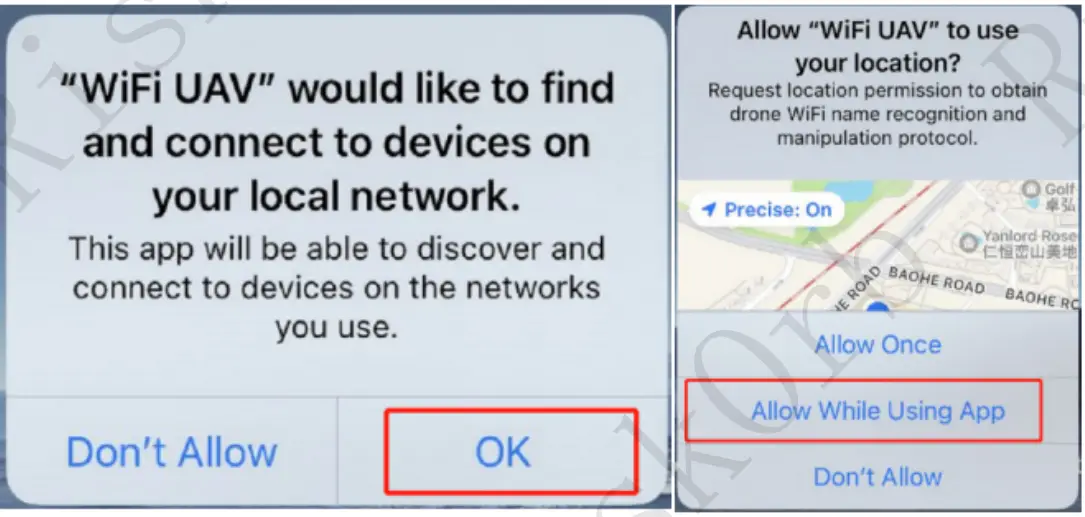
- select “OK” when prompted to connect to devices on your local network.
- Select “Allow While Using App” when reminding to use your location.


Remote control connected to the drone
- Put batteries in the remote control (3 M batteries, purchased by yourself)
- Install the obstacle avoidance device.
- Press the power button of the UAV and open the UAV
- Turn on the remote control
- The left lever pushes up, then push down. When the lights don’t flash, that means the connection is successful.
Connect to the drone’s wifi and APP
- Open the will list on your phone. Connect your phone to drone will starting with “Flow_” (no password required)
- Open the installed APP “WiFi UAV” and click Start
Start operation
- Press the “correction” button for one-key calibration
- Press the” rise up” button for a one-key takeoff
- Press the” descend” button for a one-key landing
- Left rocker, up
 , down
  ., left rotation
 , right rotation
 . Right rocker, front flying “P, back flying left flying, right flying
 - Long press the obstacle avoidance button to start the obstacle avoidance mode (only available in low speed mode)
 , down
  ., left rotation
RlskOrb Risking On Your Orb!
Note:
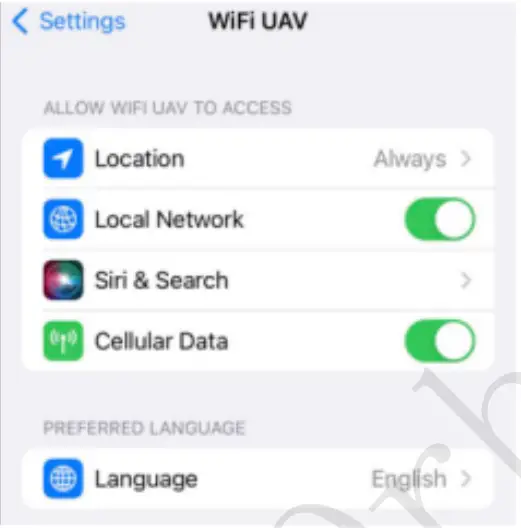
- APP Setting: Turn on the local network & cellular data; The location must be available too; the setting can refer to the picture below. If it doesn’t work, just reinstall the app.
- You can scan the QR code to see the instructions video on Amazon for more details:

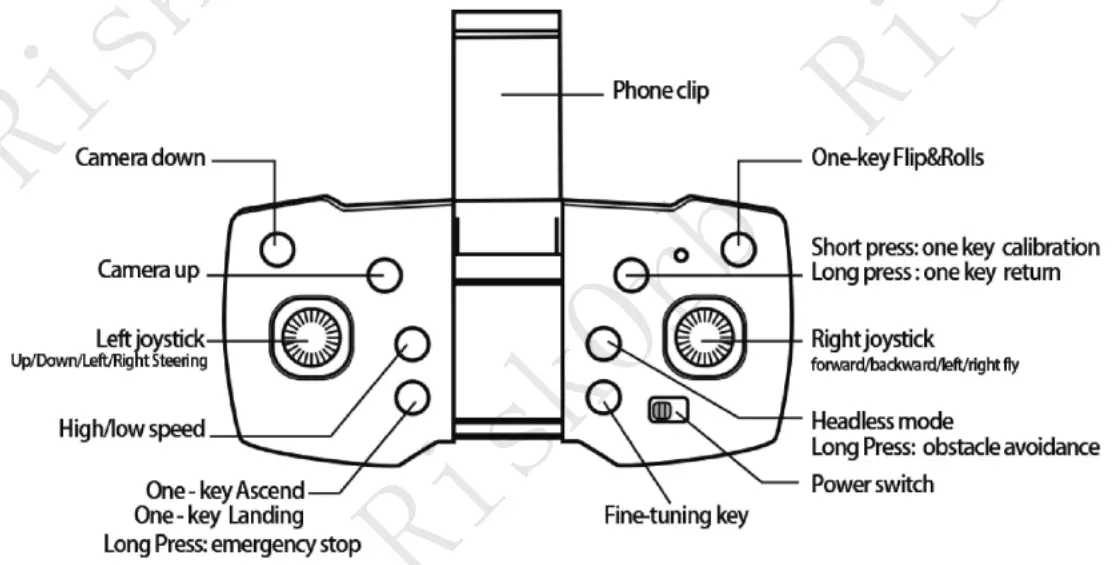
- Description of the remote control operation button.

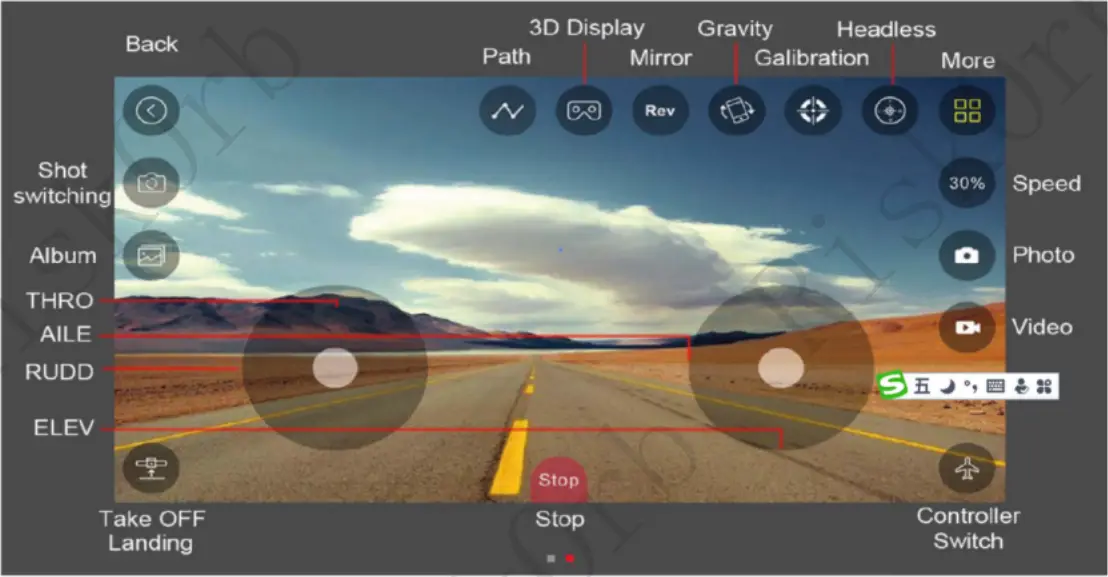
- Description of the APP operation button: