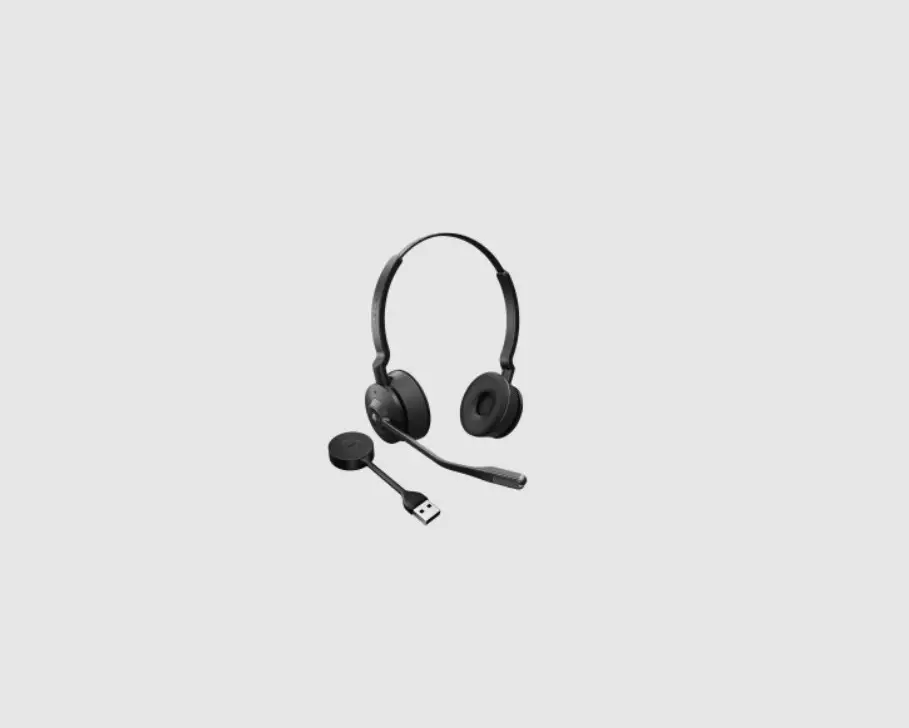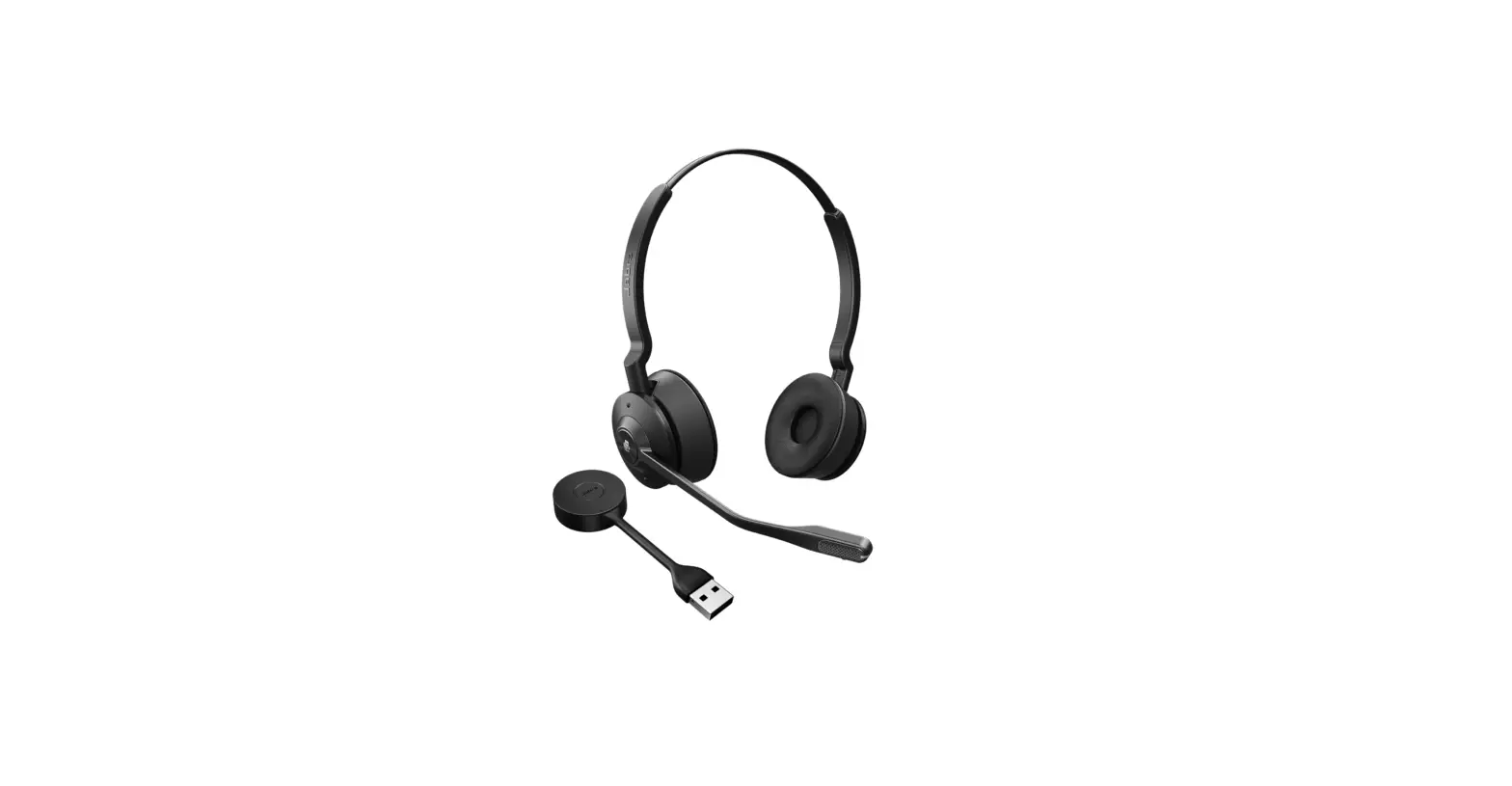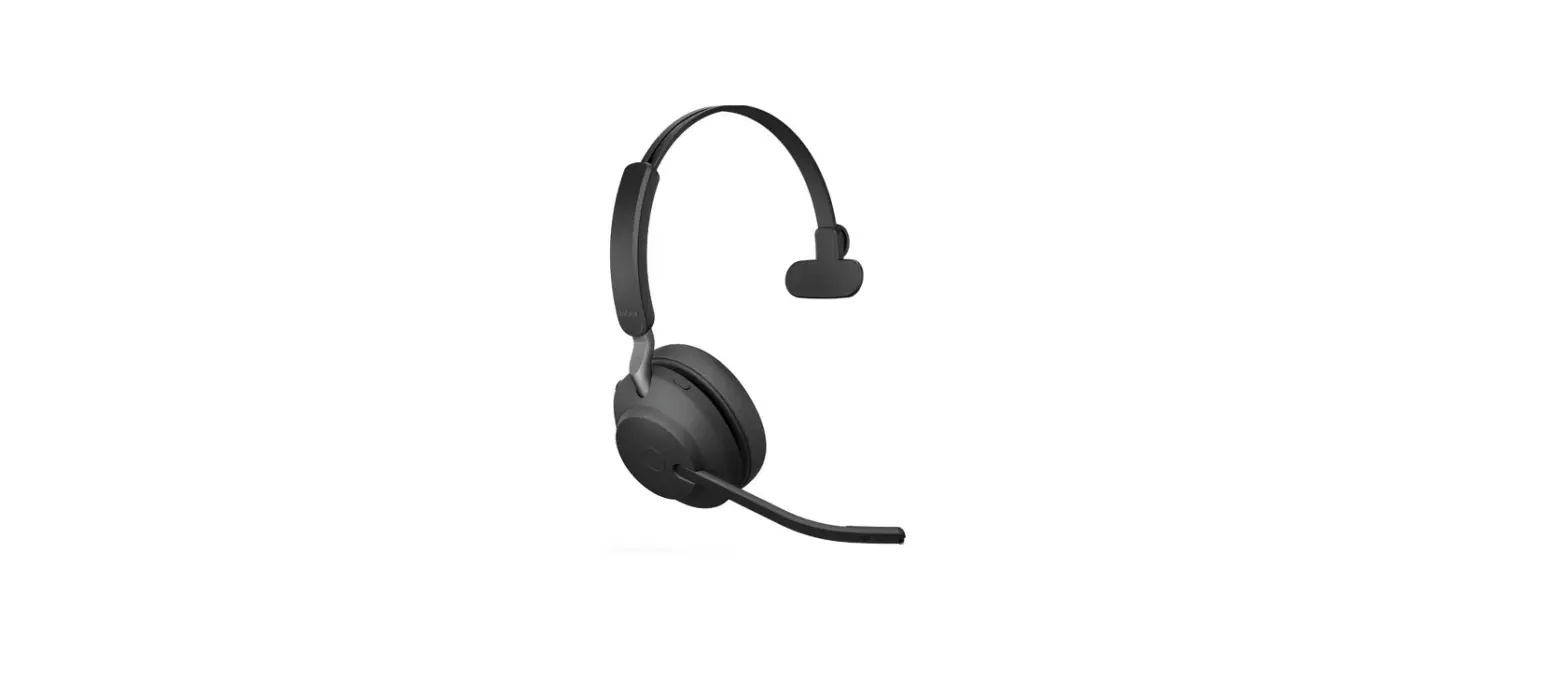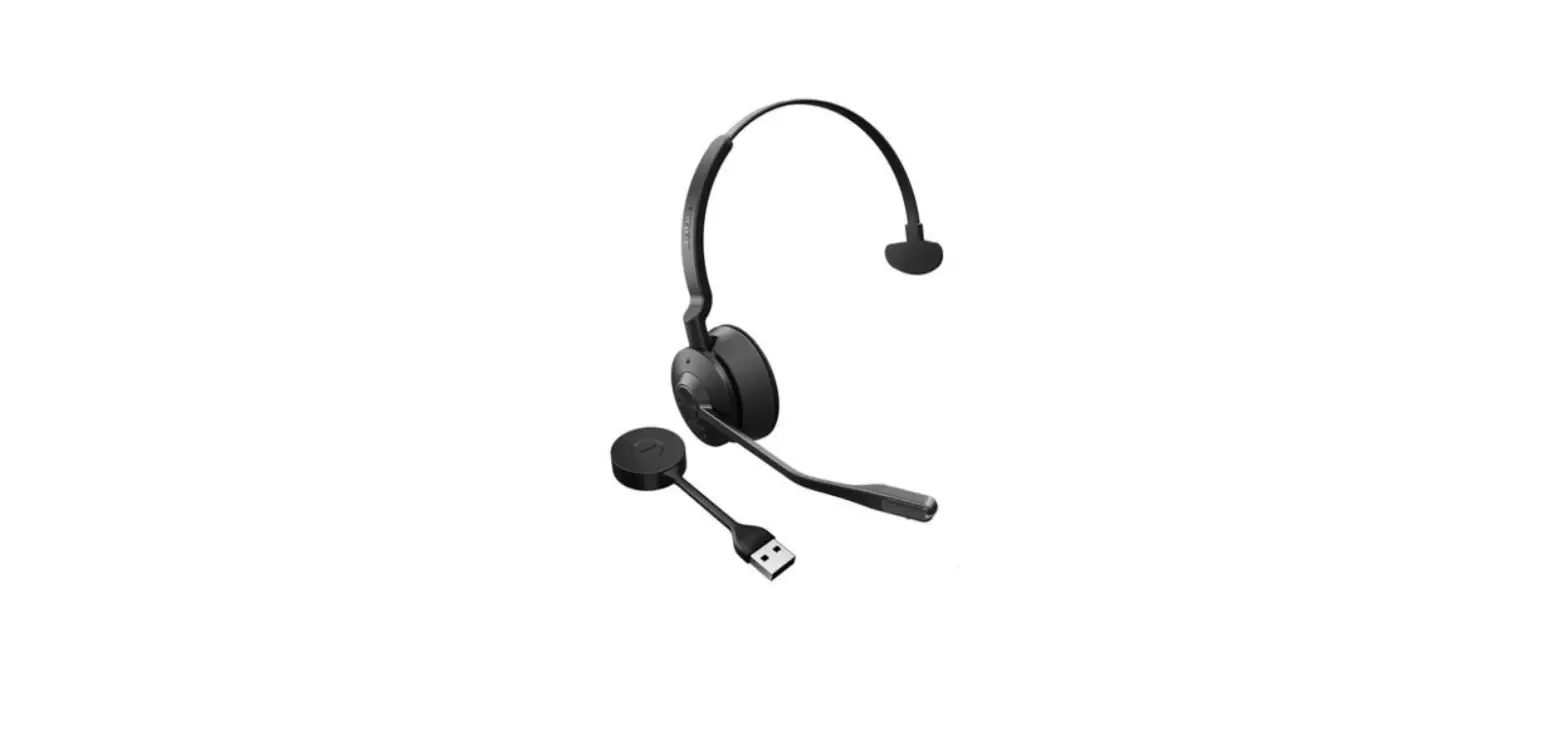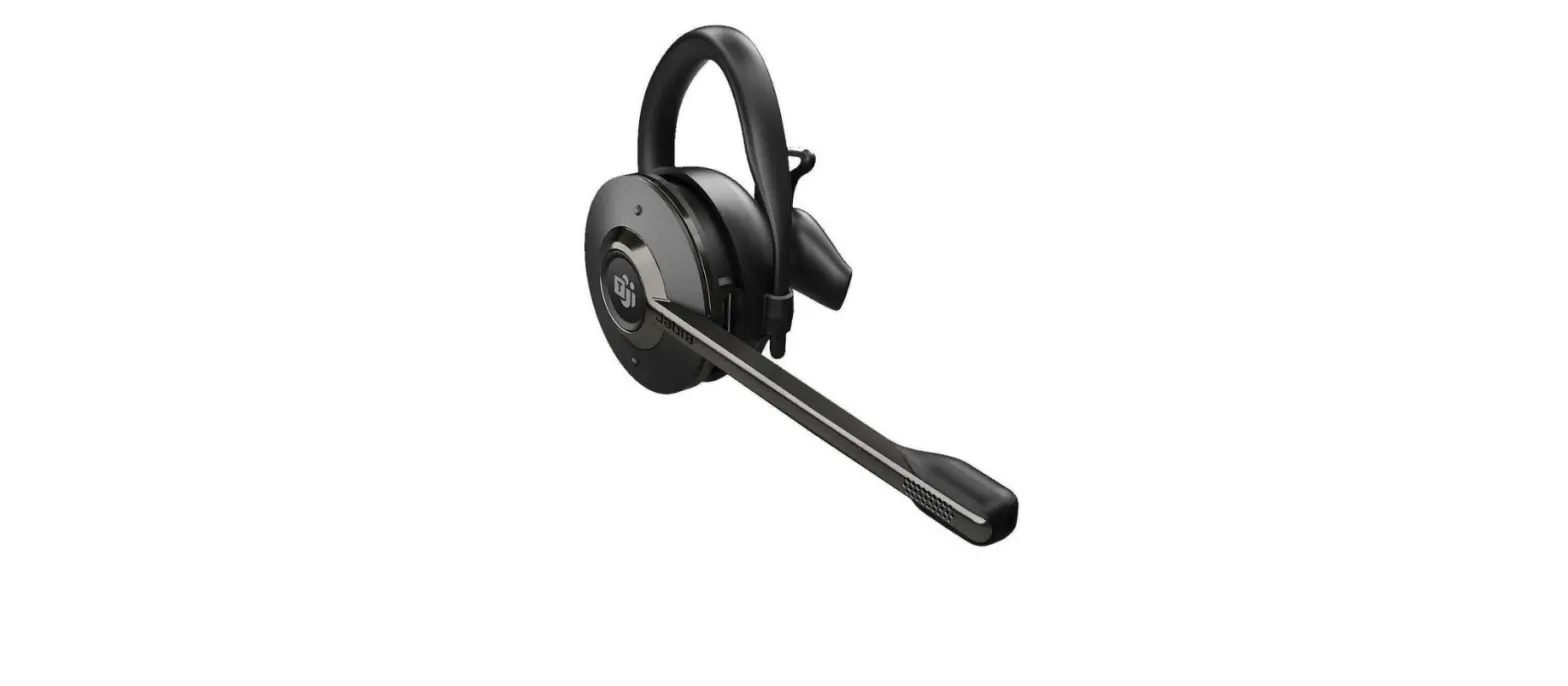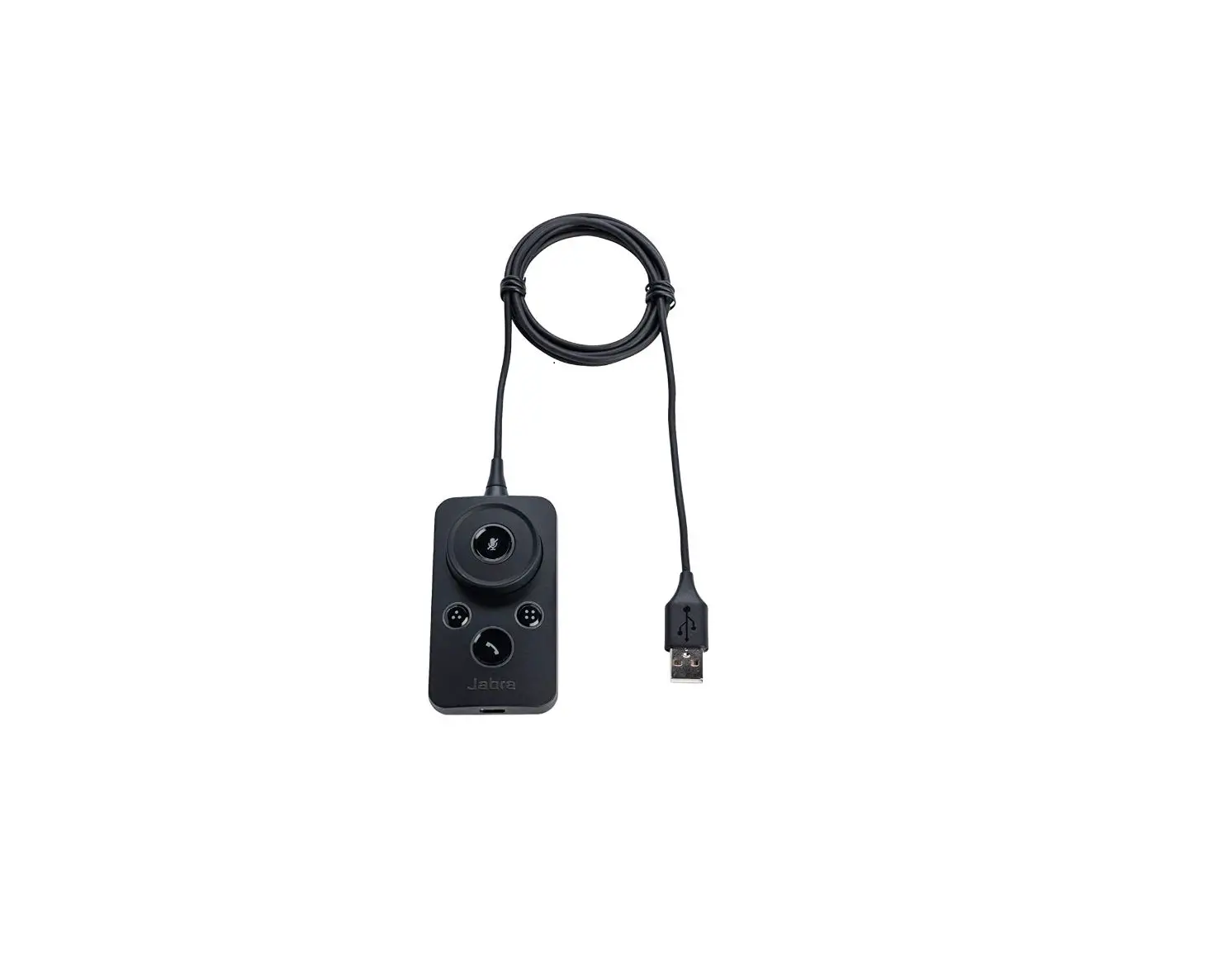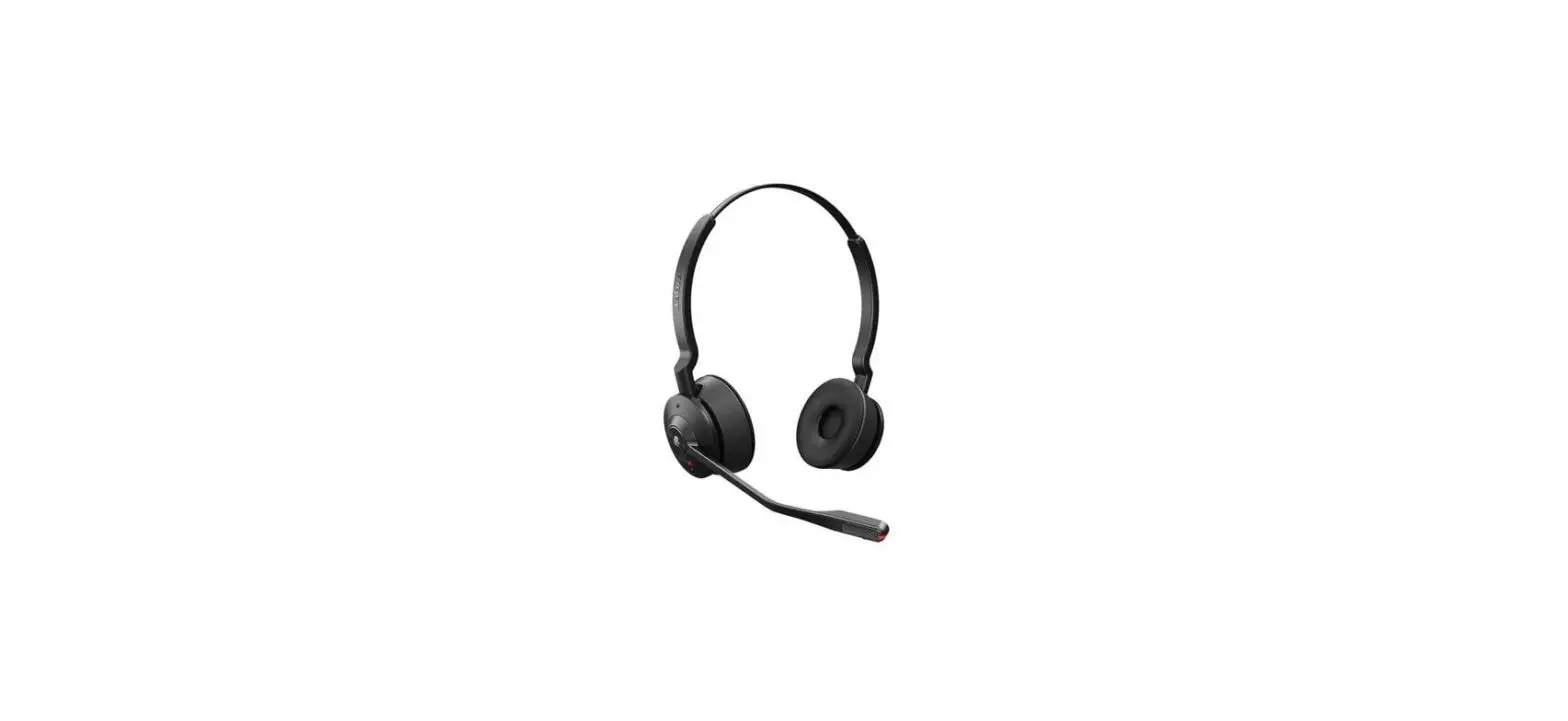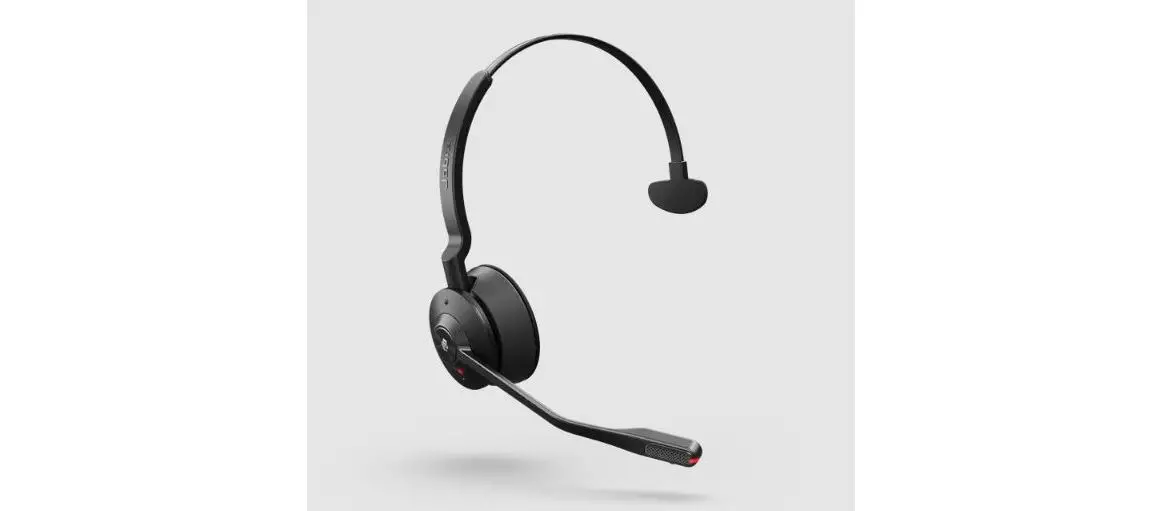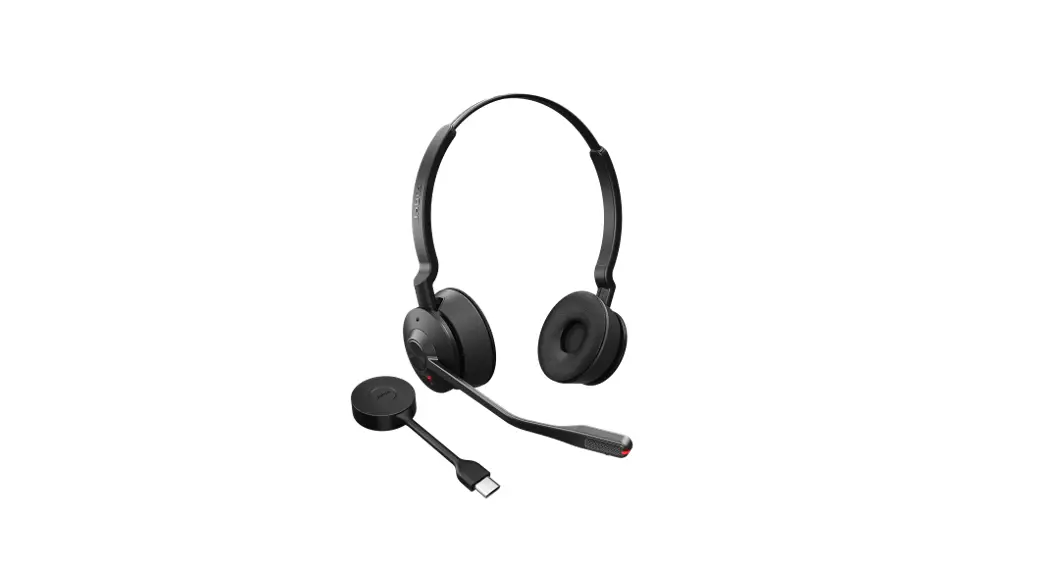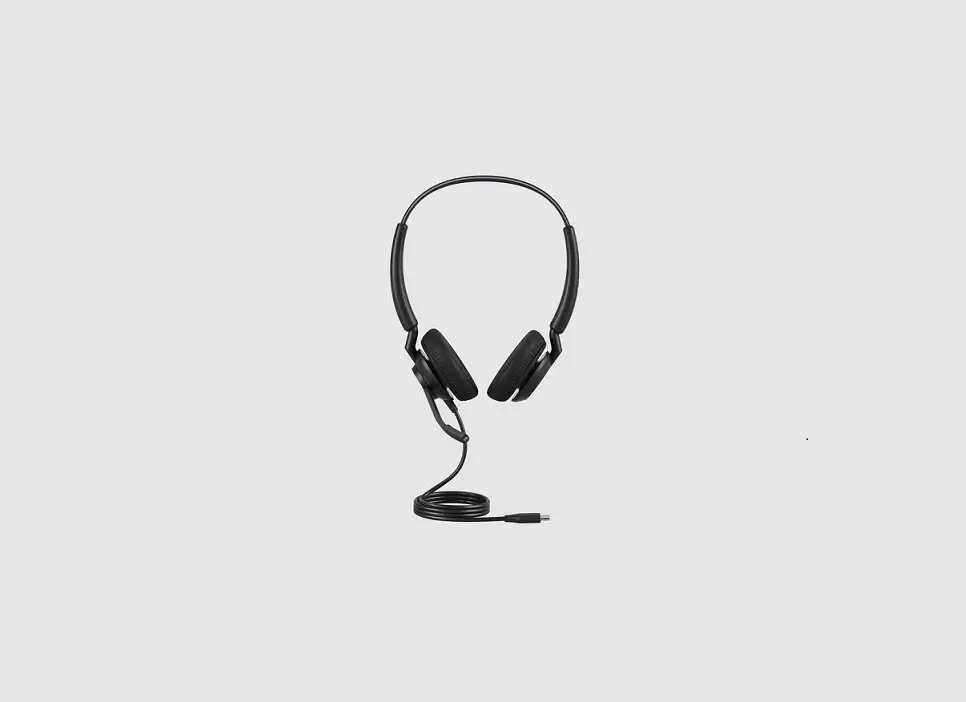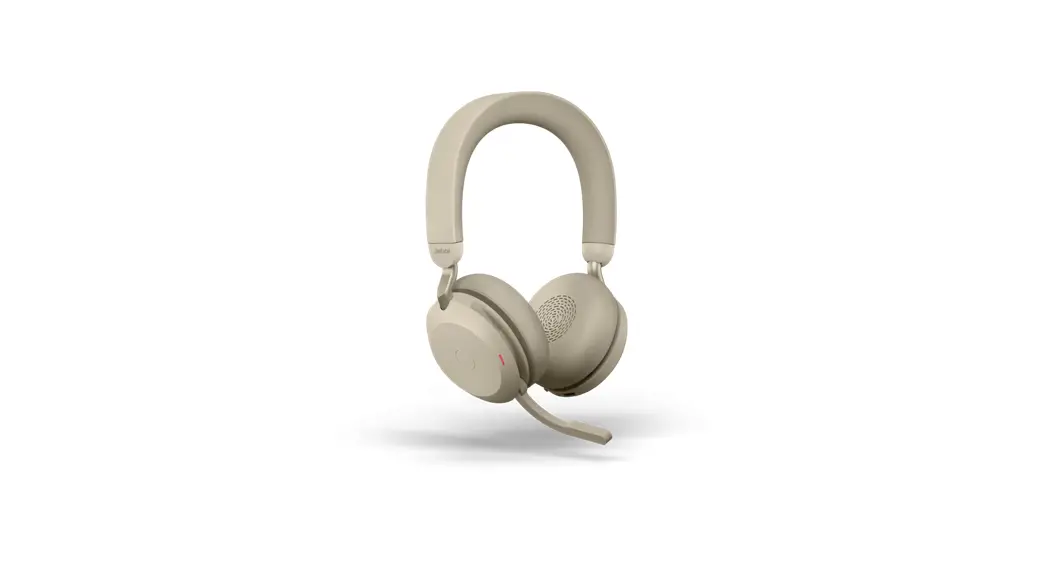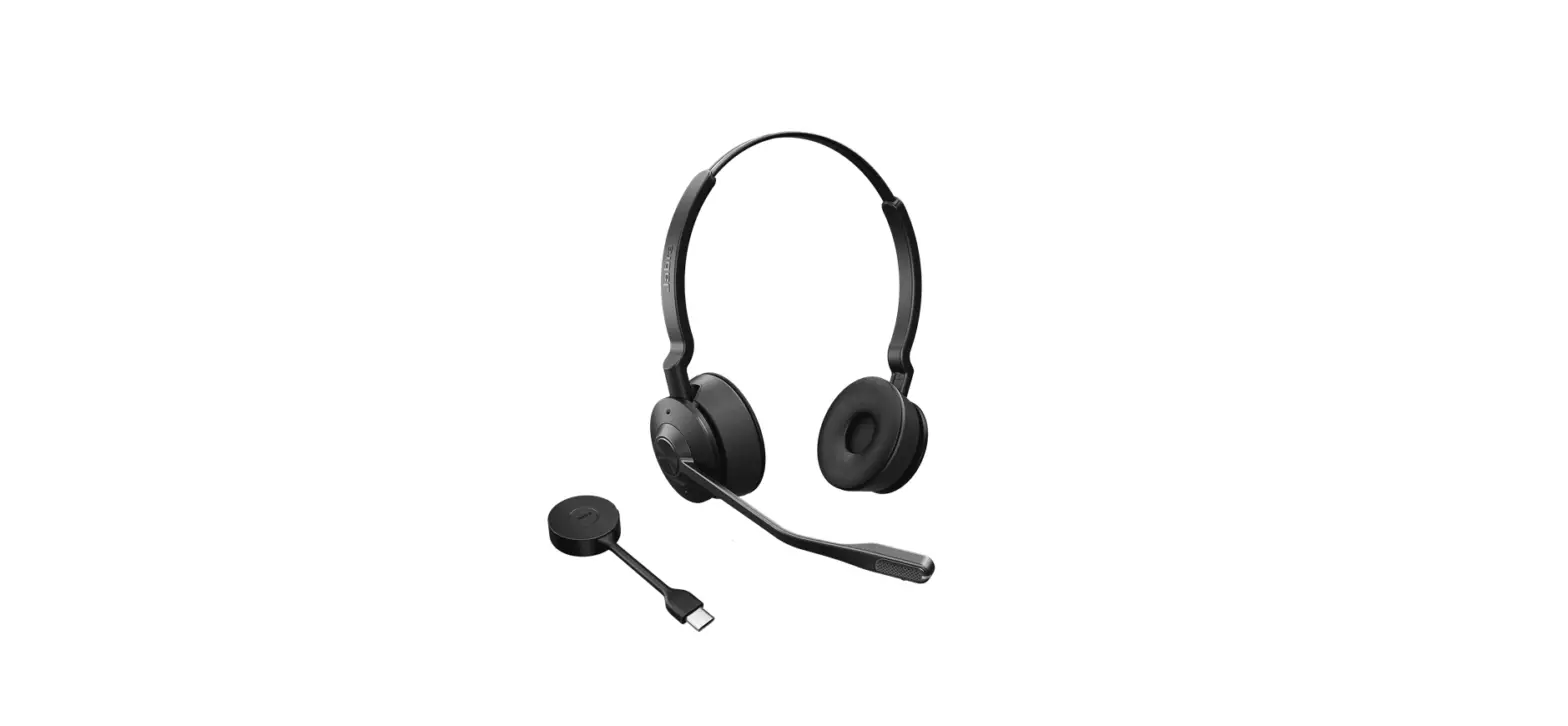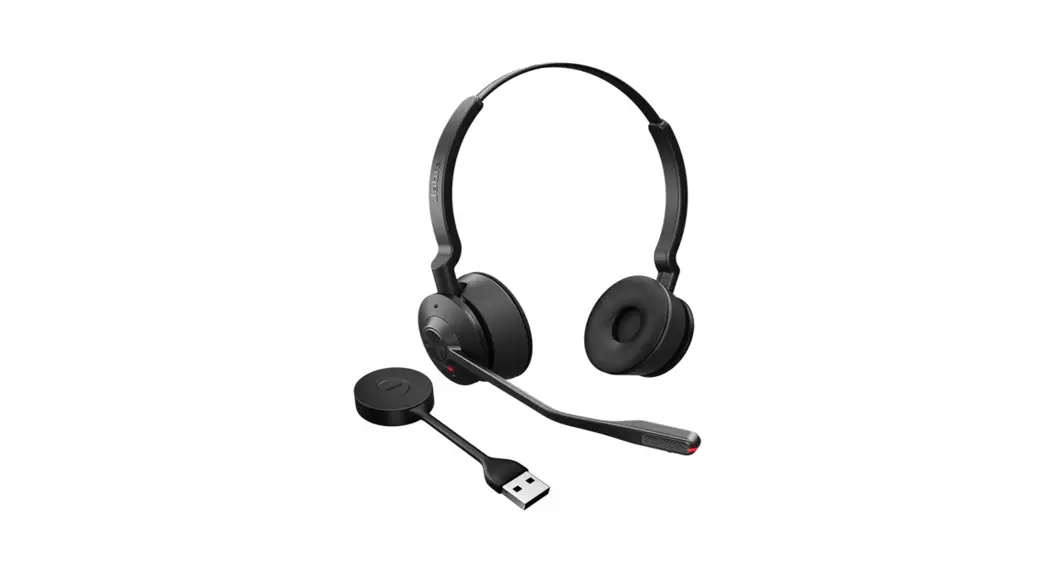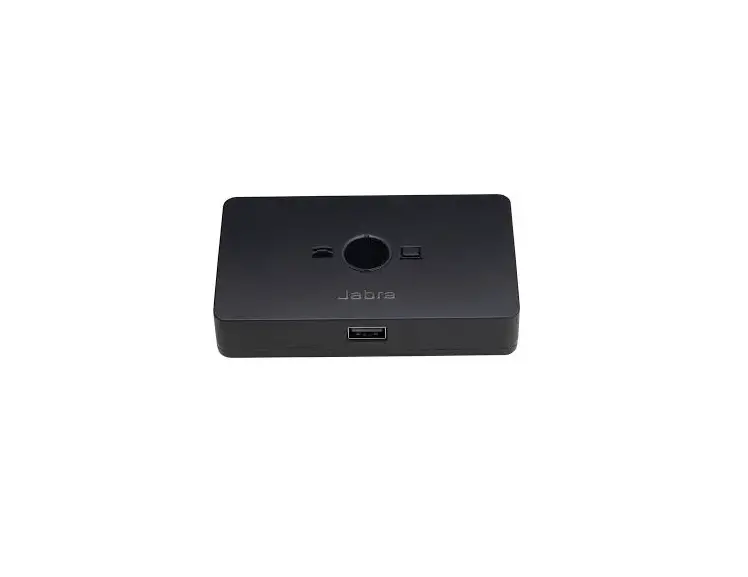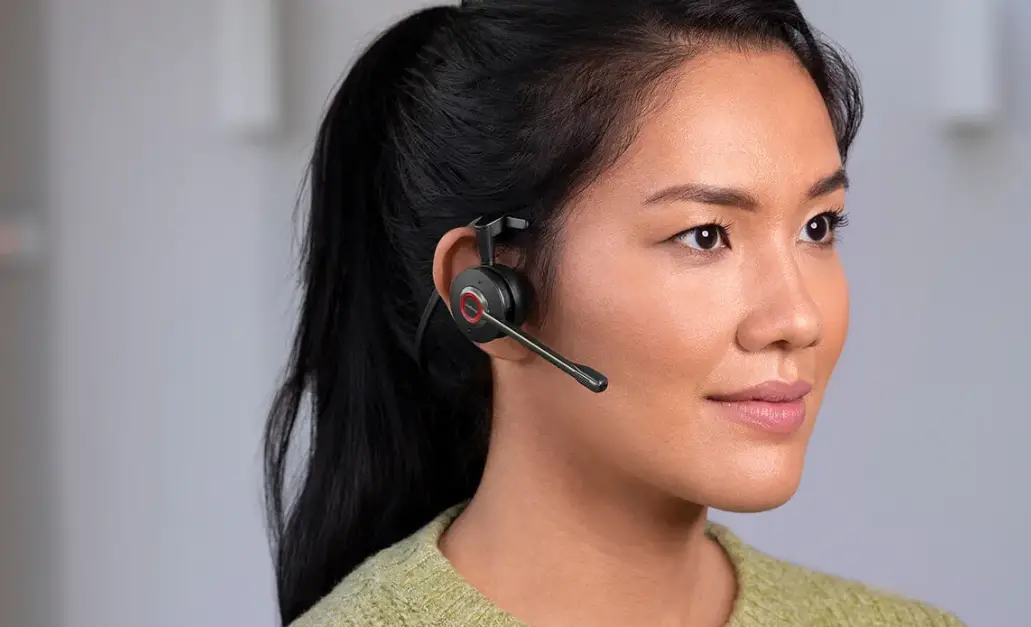

Jabra Engage 55 USB-C UC Mono
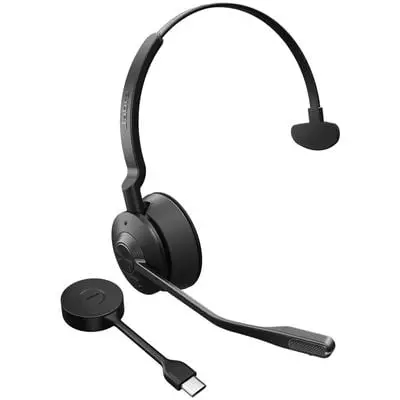
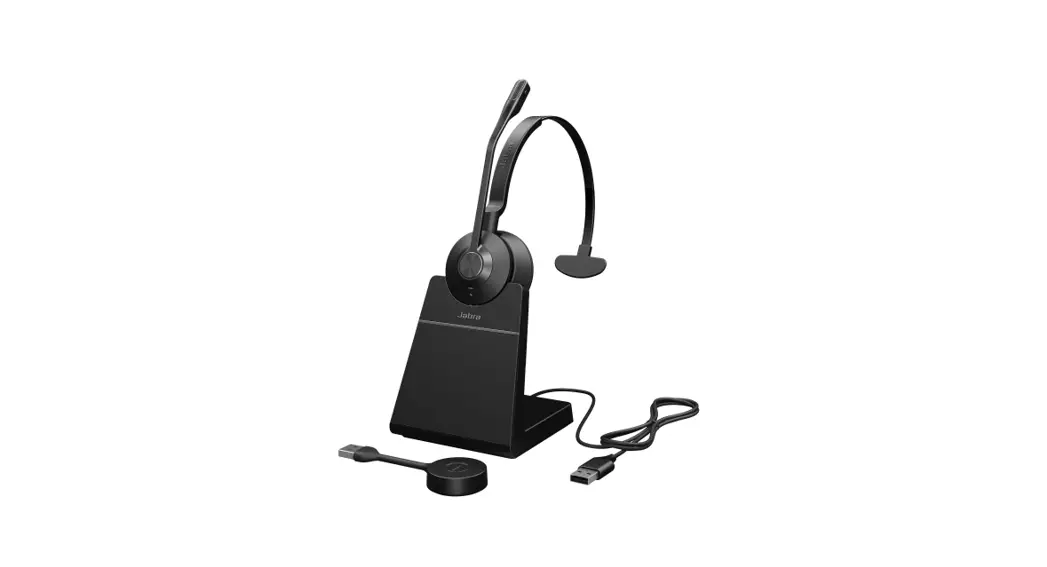
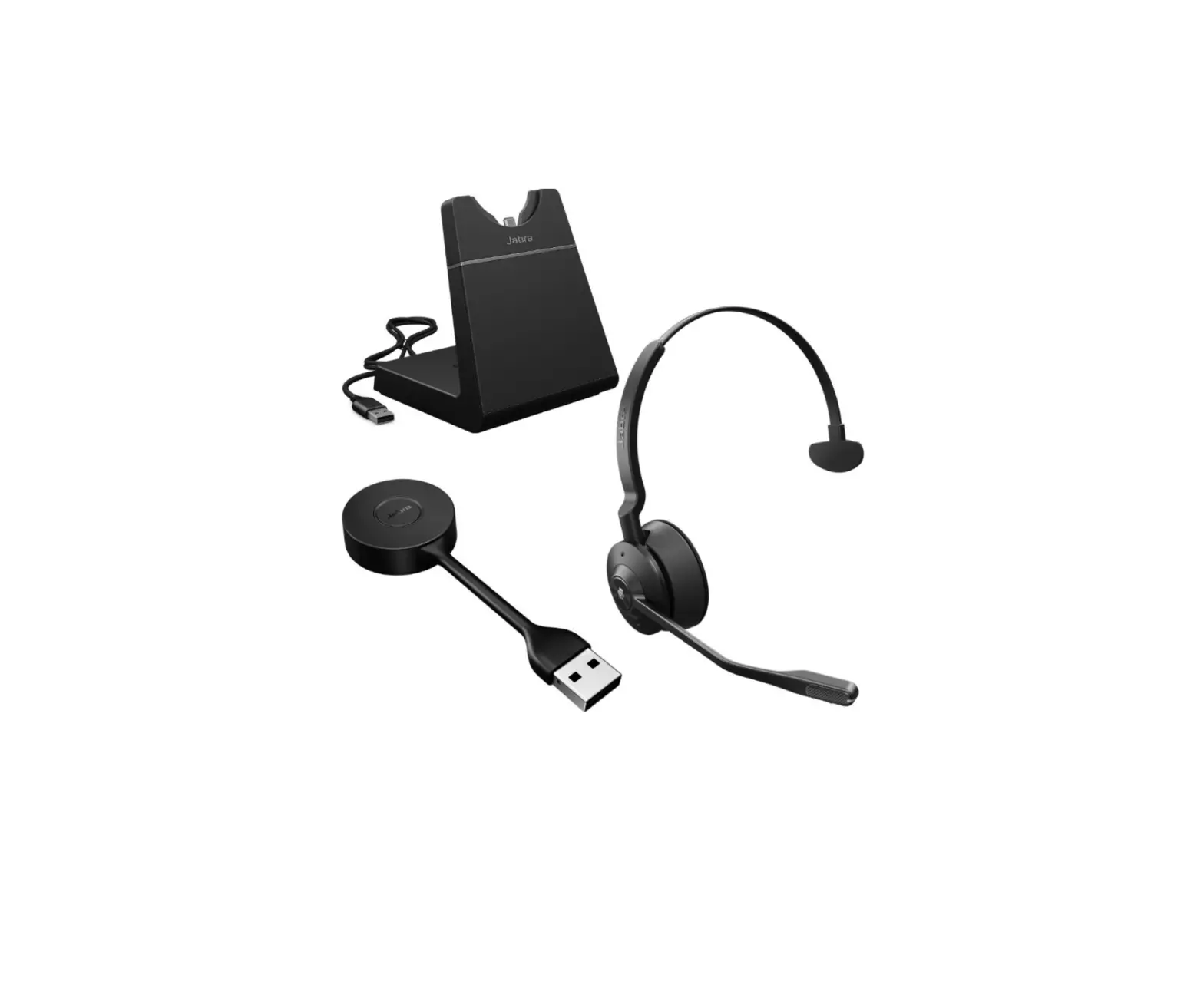
Jabra Engage 55 – USB-C UC Mono with Charging Stand
How do I set my Jabra device as the default audio device on my Windows computer?
To manually set your Jabra device as the default audio device, follow these steps.
- Open the Sound settings on your computer. For example, in the taskbar, right-click the Sound icon, and then click Open Sound settings.

- taskbar, right-click the Sound icon, and then click Open Sound settings. drop-down lists.
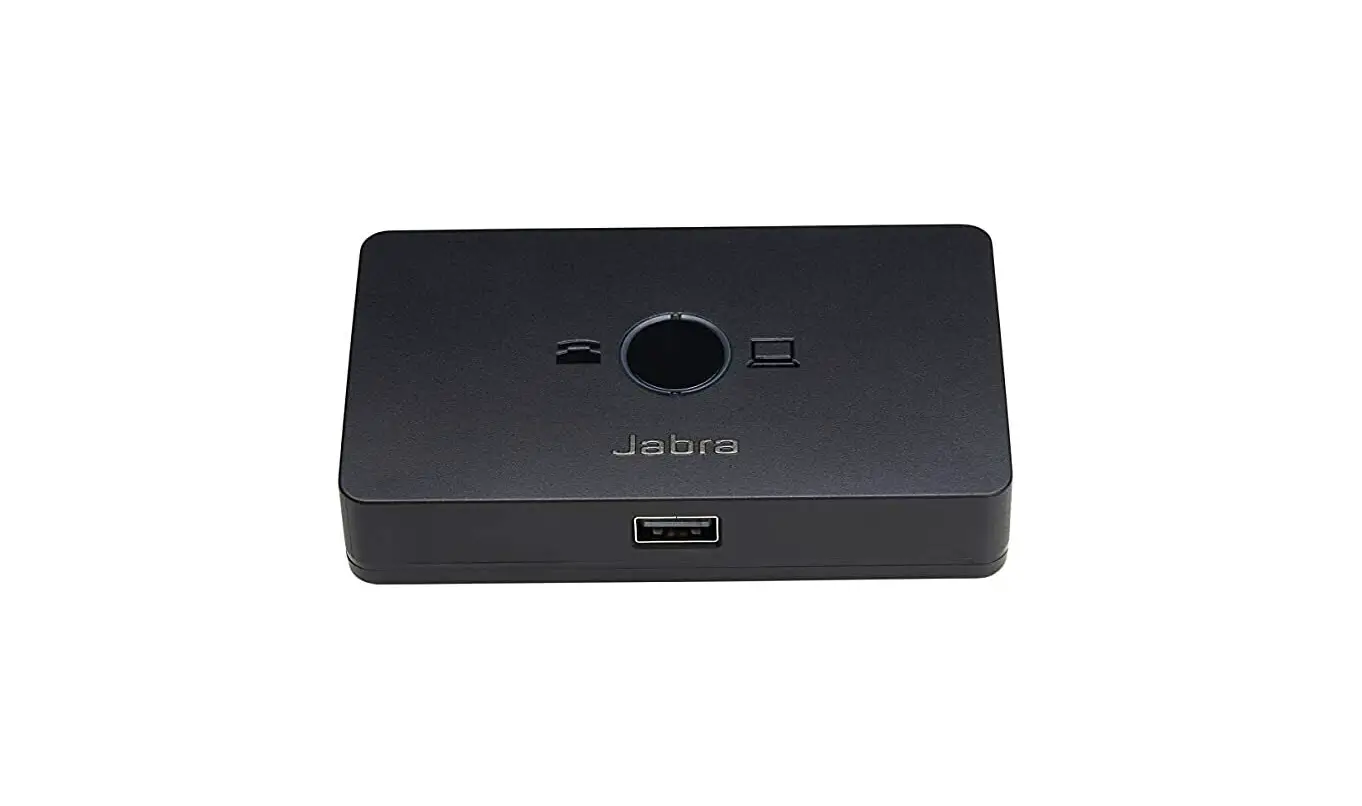
If you are using a Jabra wireless device, select the connected Bluetooth adapter, such as the Jabra Link 380.

References
 [FAQTitle] | Jabra Engage 55 - USB-C UC Mono | FAQ | Jabra Support
-
What do the LEDs on the Jabra Link 400 mean? | Jabra Engage 55 - USB-C UC Mono | FAQ | Jabra Support
-
[FAQTitle] | Jabra Engage 55 - USB-C UC Mono with Charging Stand | FAQ | Jabra Support
-
How do I set my Jabra device as the default audio device on my Windows computer? | Jabra Engage 55 - USB-C UC Mono with Charging Stand | FAQ | Jabra Support
 [FAQTitle] | Jabra Engage 55 - USB-C UC Mono | FAQ | Jabra Support
 [FAQTitle] | Jabra Engage 55 - USB-C UC Mono with Charging Stand | FAQ | Jabra Support