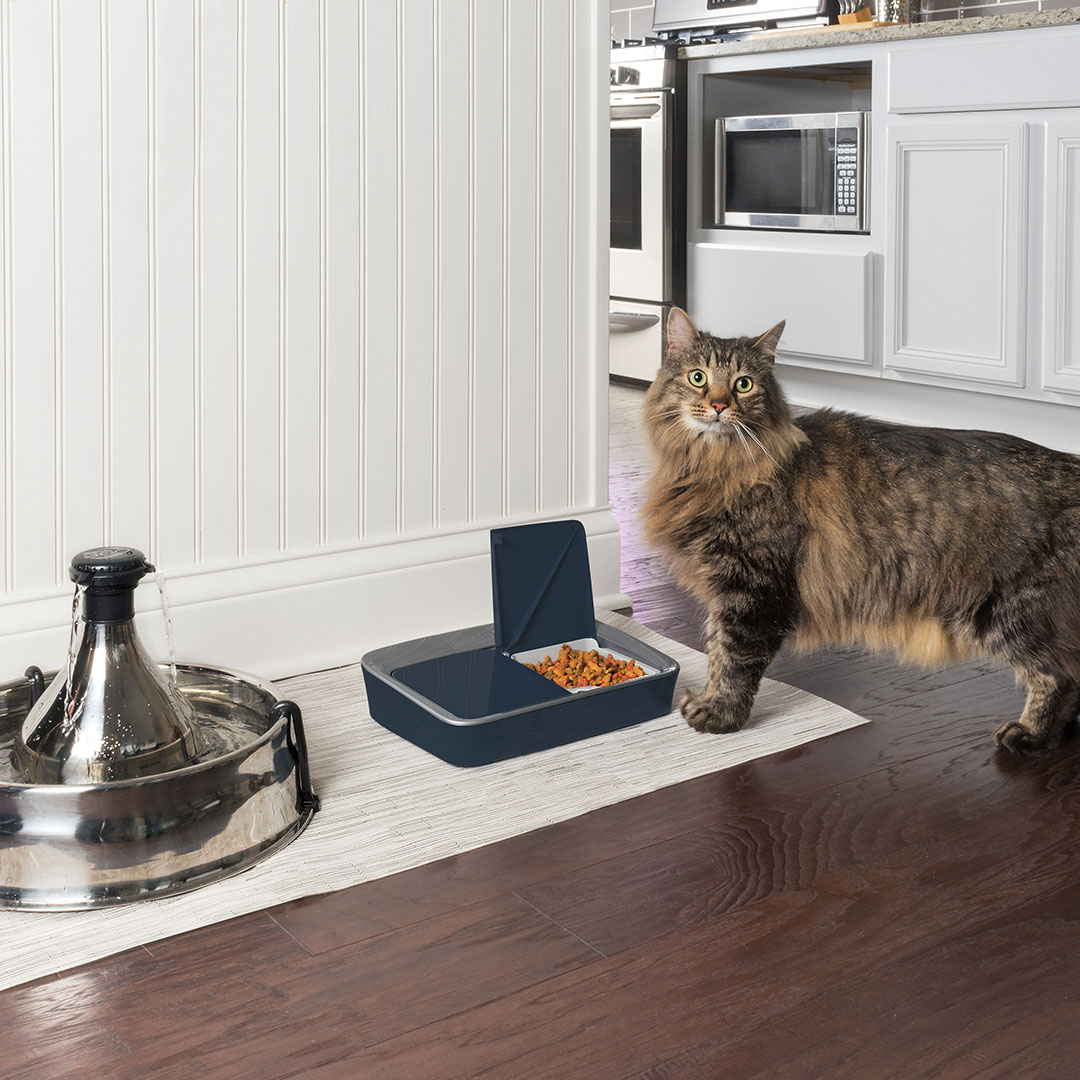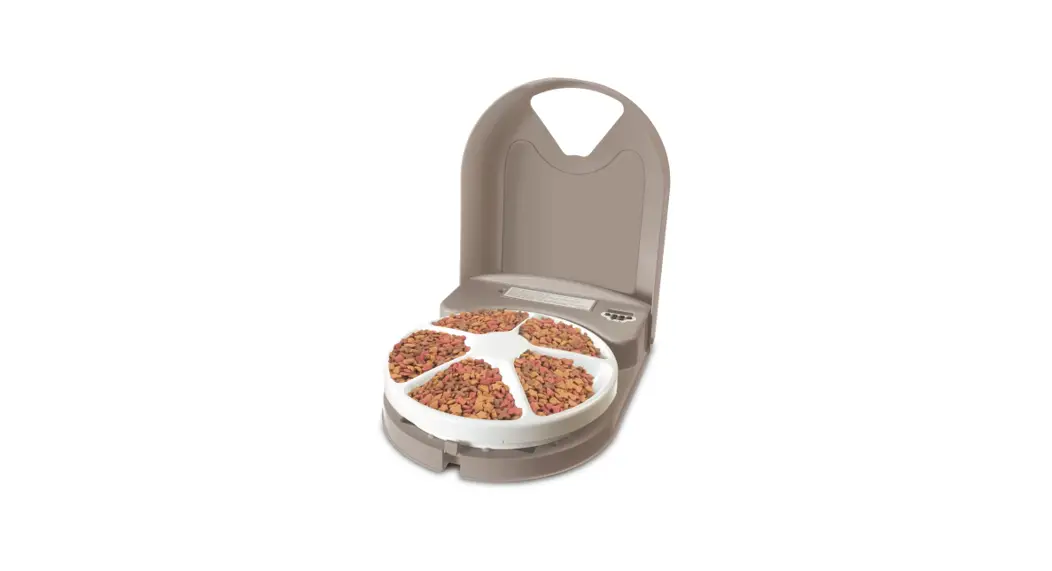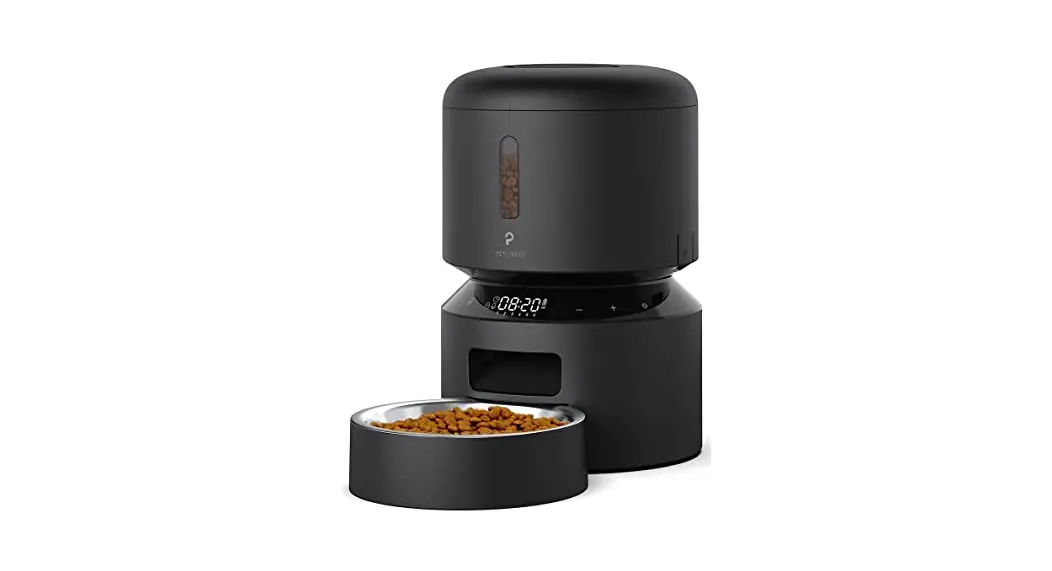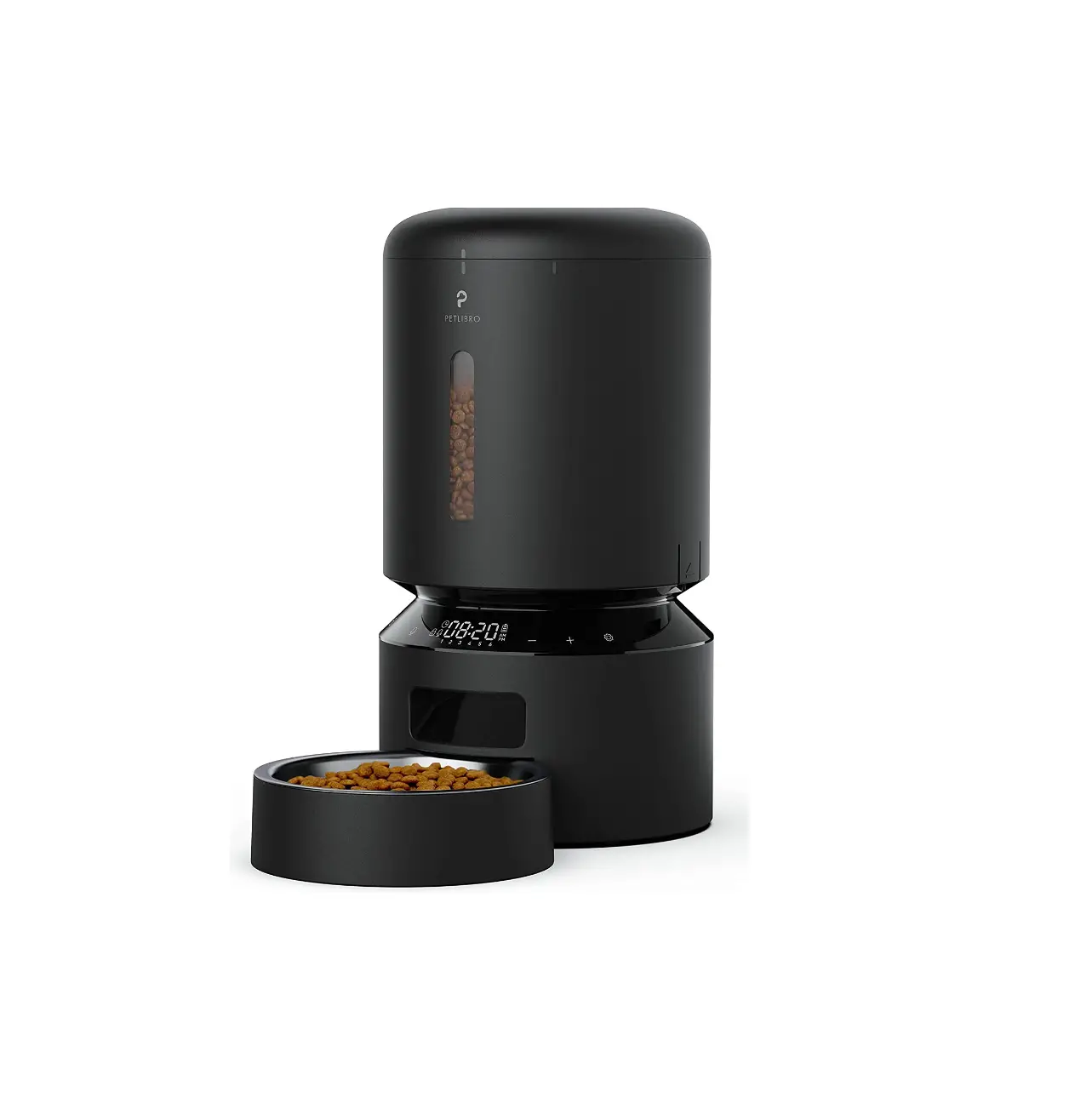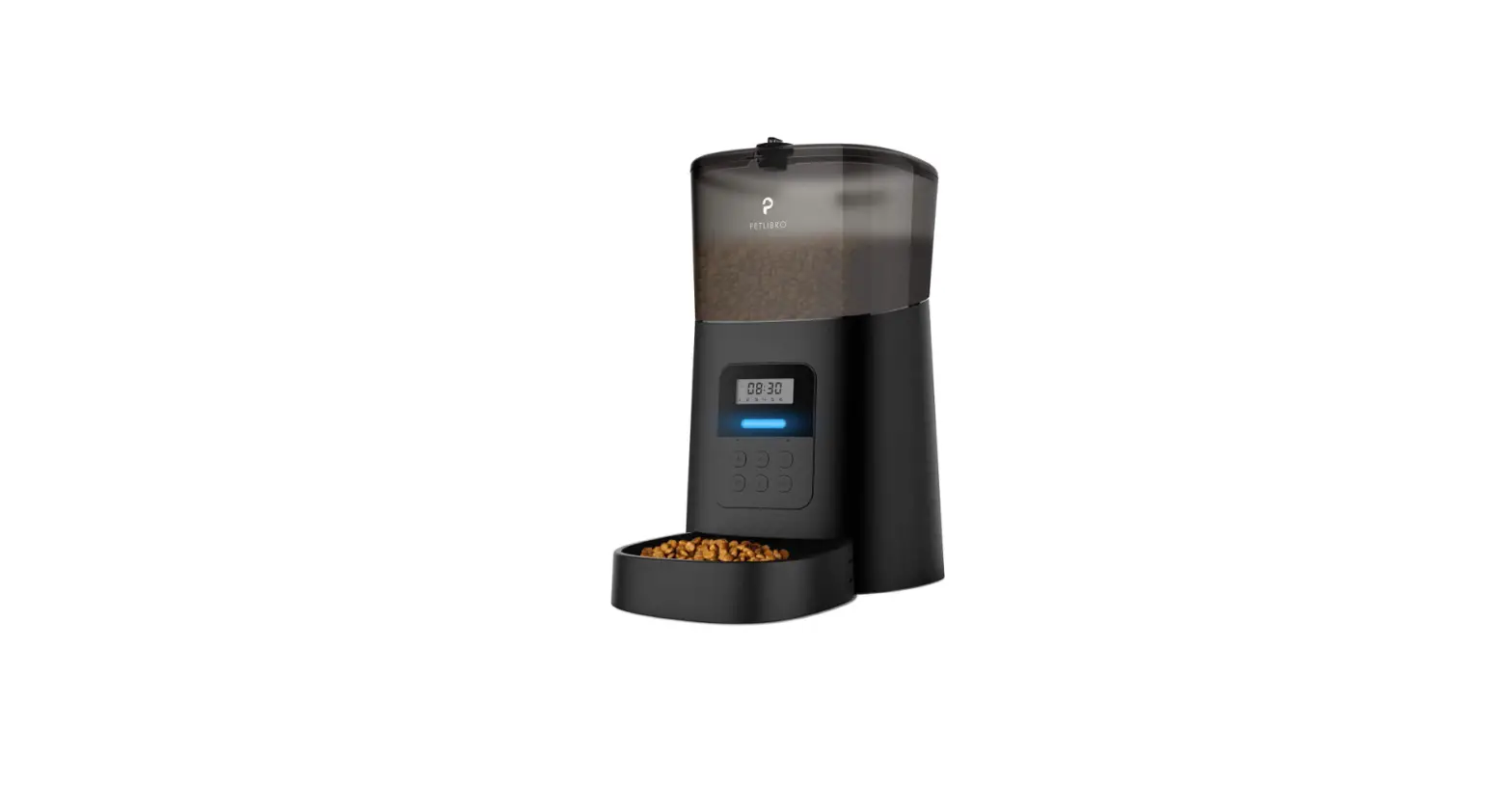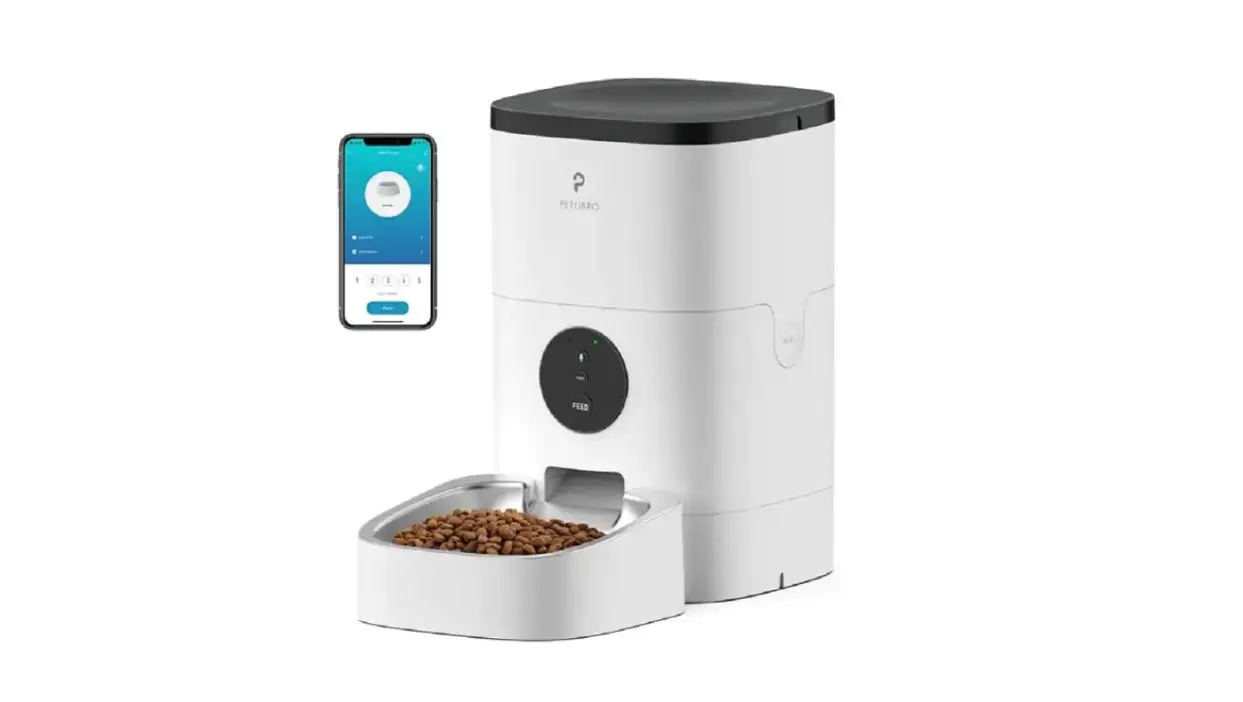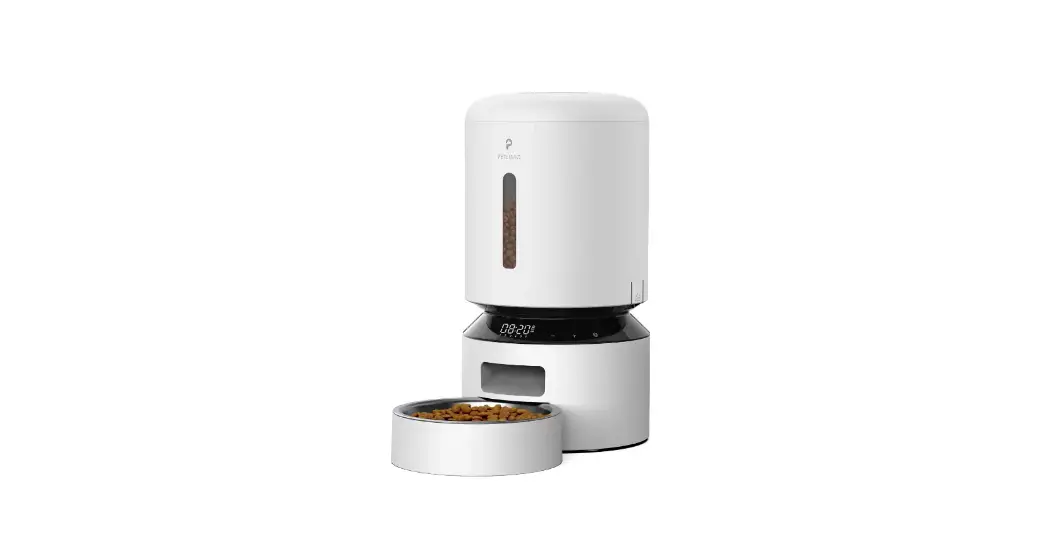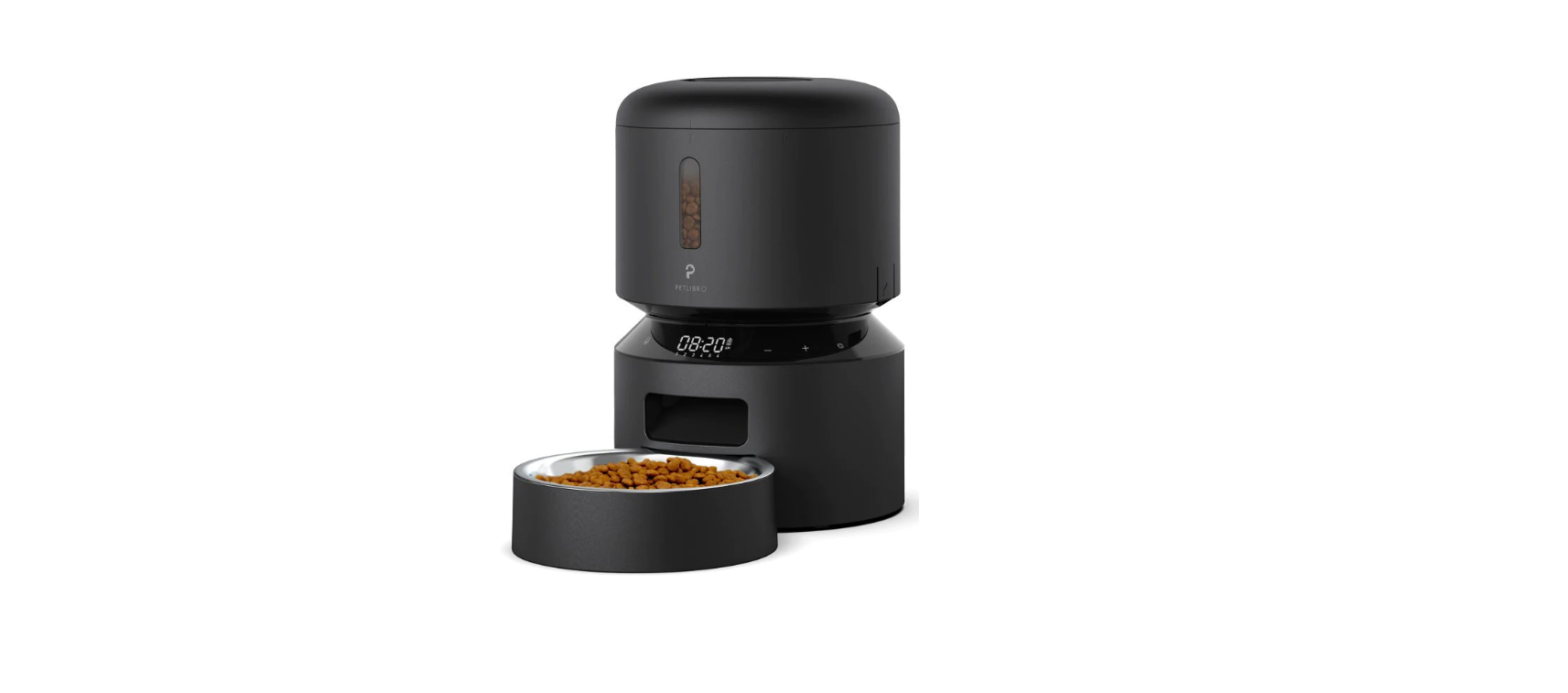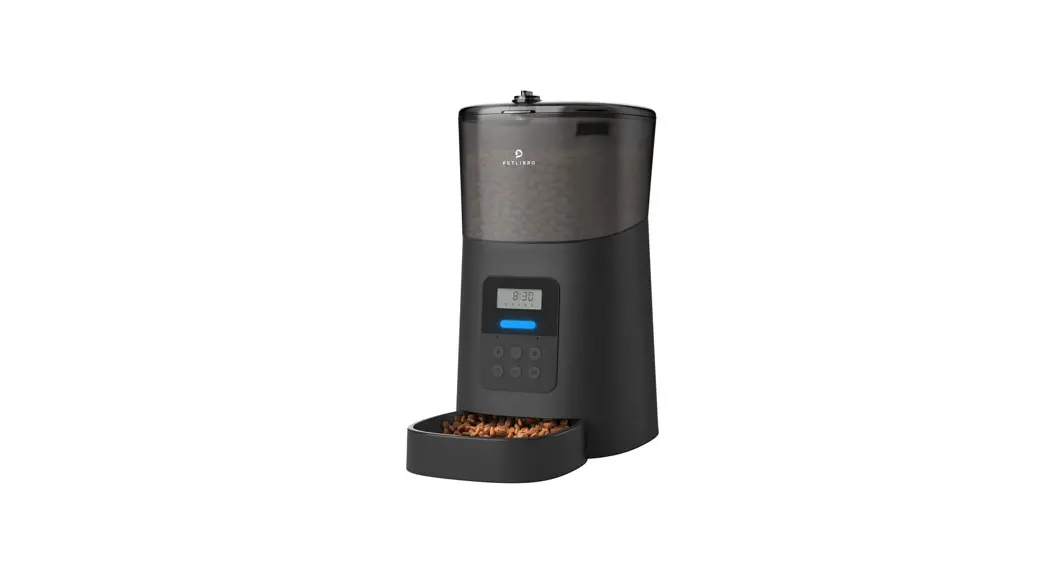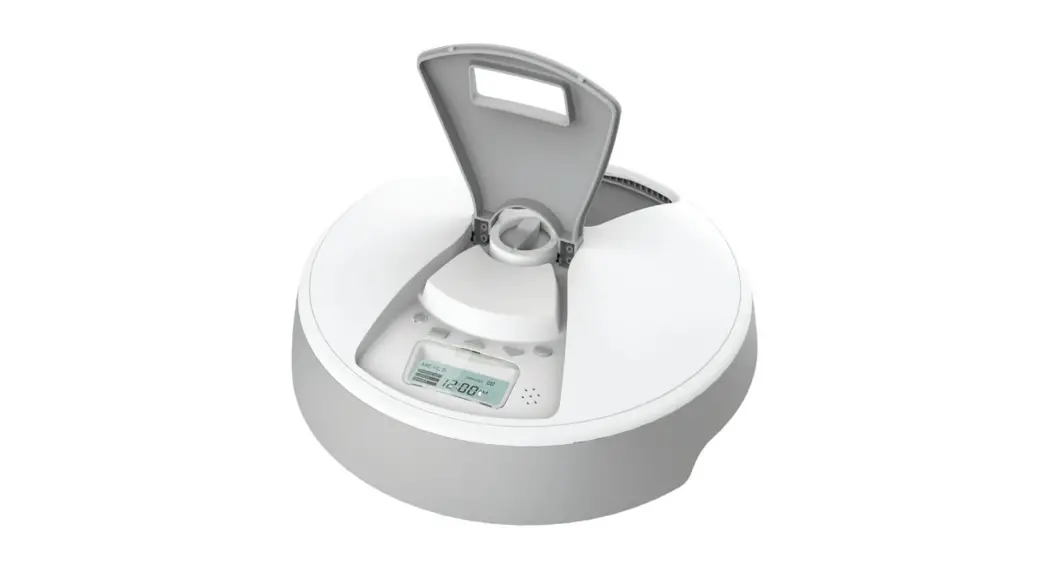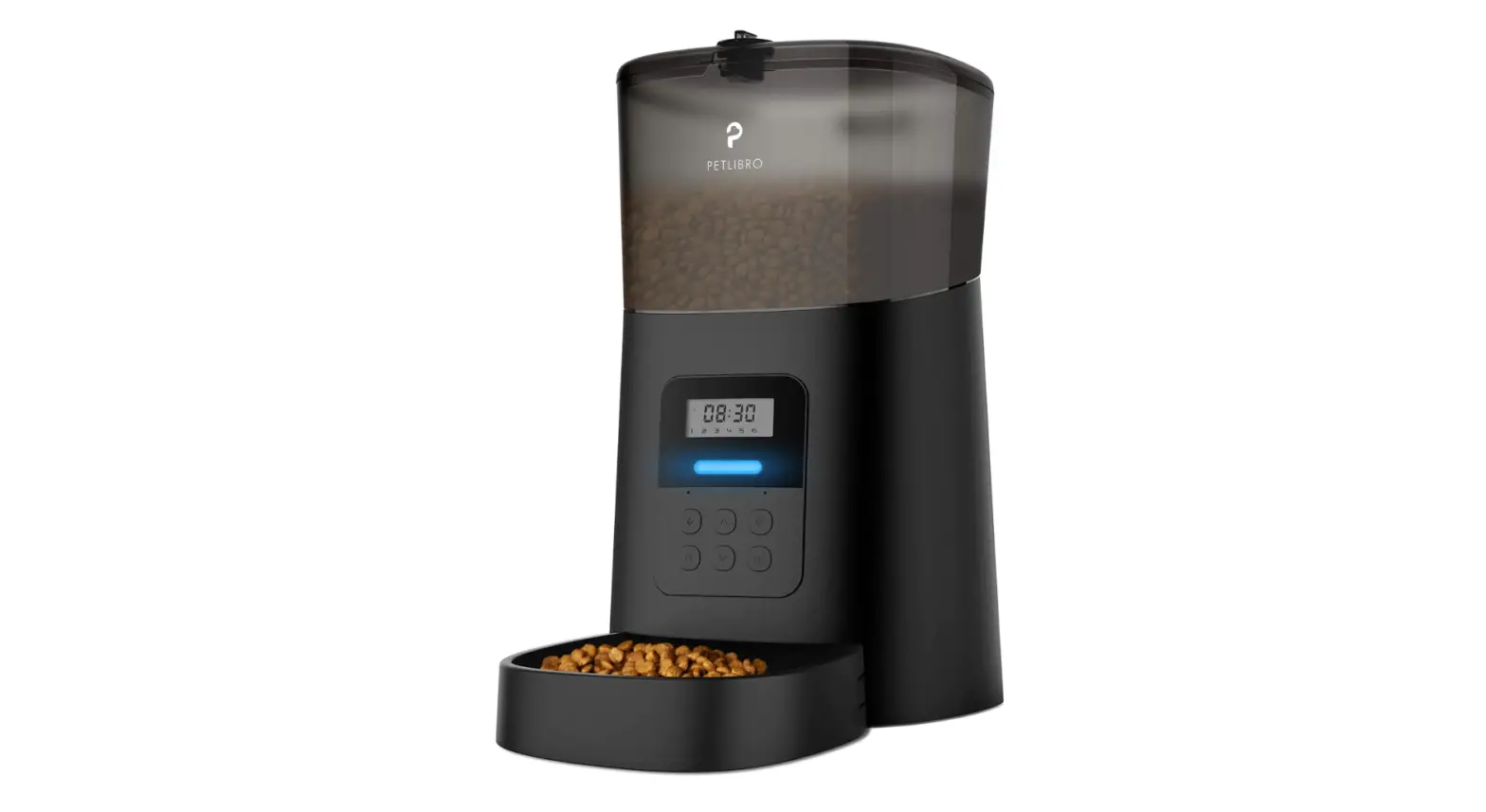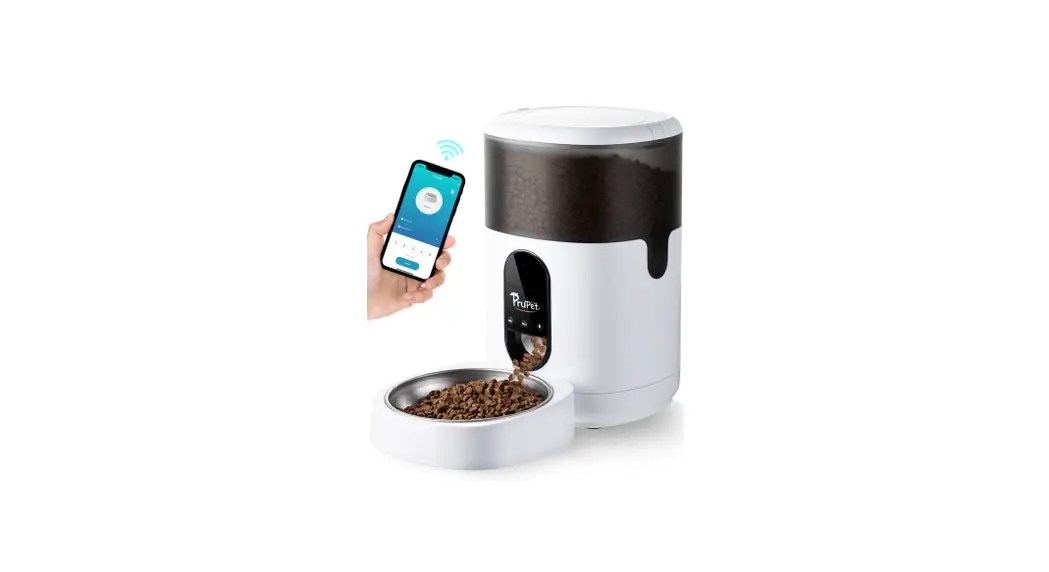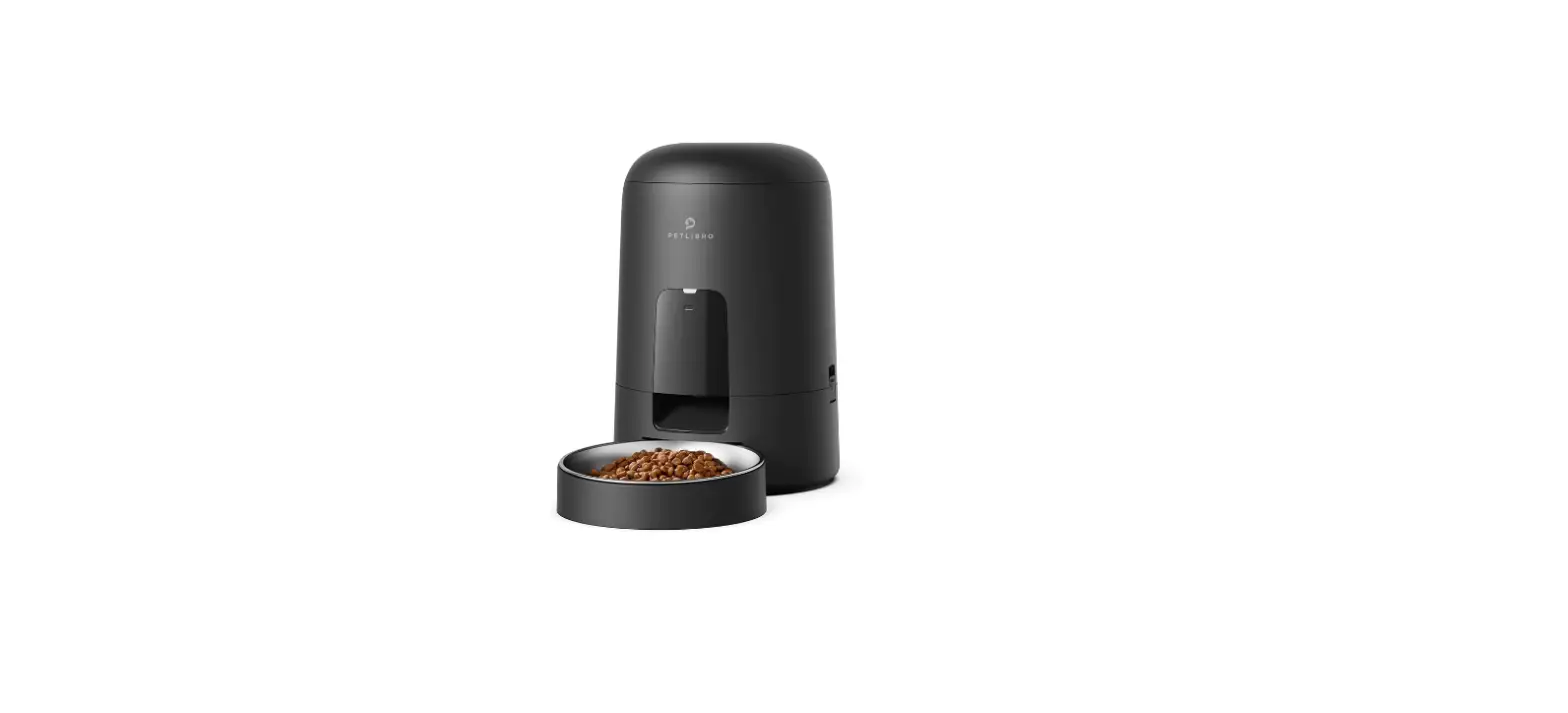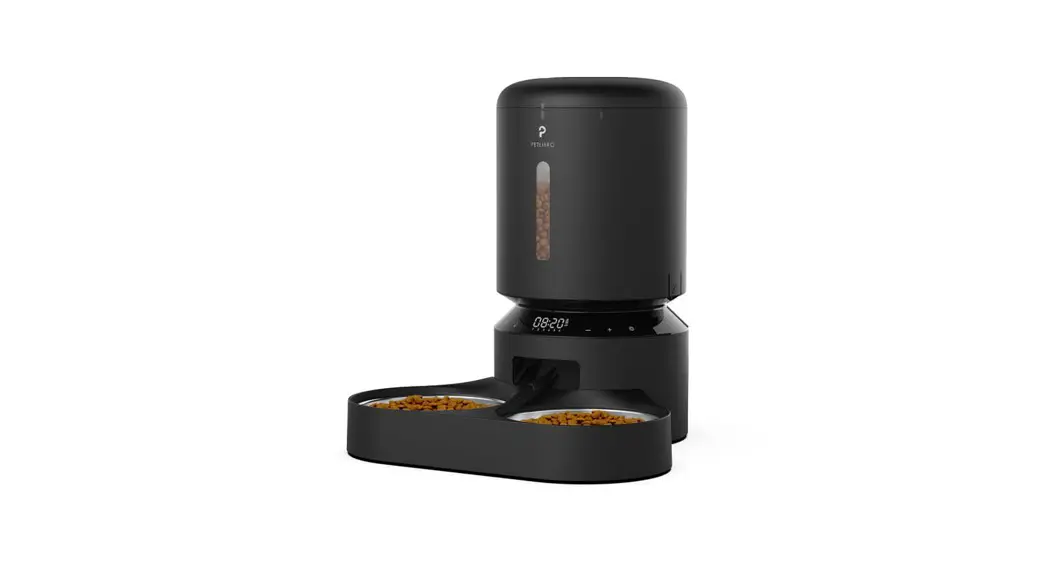
 Granary Automatic Pet Feeder
User Manual
Model: PLAF006
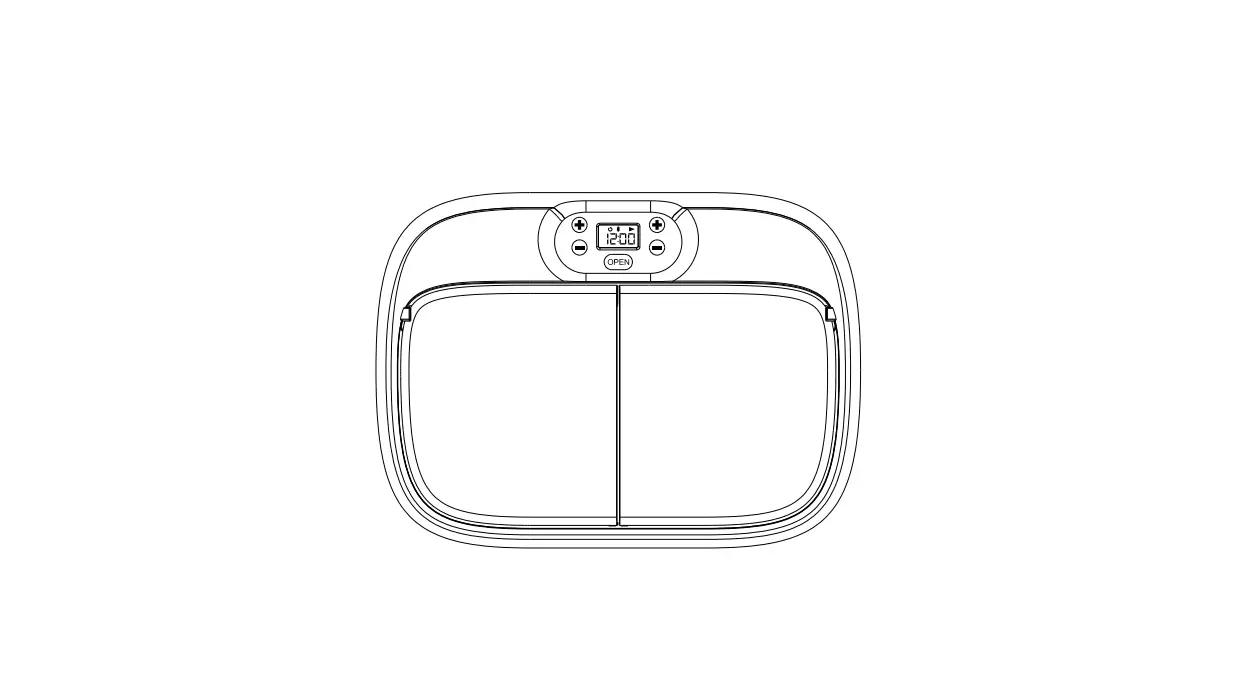
PLAF006 Double Food Tray
This user manual only applies to PETLIBRO Granary Automatic Pet Feeder with double food tray.
Read and save the manual.
SAFETY GUIDELINES
 WARNING
- Dispose of all packaging materials properly. Some items may be packed in plastic bags; these bags could cause suffocation; keep away from children and pets.
- Do NOT allow small children to play with, in or around the pet feeder.
- To reduce the risk of injury, please keep close supervision when an appliance is used near children.
- Do NOT use the feeder with pets not able to reach the food tray or with any physical disability.
- Do NOT immerse the base part in water at any time as it may damage electronic components like the control panel.
- Do NOT place any foreign object in the pet feeder.
- Do NOT use outdoors. Check operation frequently to be sure the unit is dispensing properly.
- Do NOT use wet, canned or moist food.
- Do NOT disassemble the unit other than as instructed in this User Guide.
- Do NOT use the feeder for anything other than its intended use.
- Only use attachments recommended or sold by the manufacturer. The use of attachments not recommended or sold by the manufacturer may cause an unsafe condition. Do not modify the pet feeder.
- Do not operate any appliance if the unit is malfunctioning or has been damaged. Do not attempt repairs on the pet feeder yourself. Contact our customer service immediately for further instructions.
- Always unplug when not in use and before cleaning.
- Never pull on the electrical power cord to remove the plug from the wall outlet.
- If the plug of this device gets wet, turn on electricity to that wall outlet. Do not attempt to unplug.
- Examine the feeder after installation. Do not plug in if there is water on the power cord or plug.
- To avoid tripping, always position power cord out of the way of foot traffic.
CAUTION
- Do NOT allow pets to chew on or swallow any parts. If you are concerned about the power cord, purchase a cord conduit (a hard-plastic protector) at any hardware store to protect the power cord.
- If an extension cord is necessary, one unit with a proper rating should be used.
- Do NOT install or store the pet feeder where it will be exposed to weather or temperatures below 4°C / 40°F.
- Use alkaline D batteries to power. Do NOT use recharge-able batteries.
- Check the batteries regularly. Before leaving for extended time, always replace batteries with new ones.
- Do NOT lift the pet feeder by lid, food tank, or food tray. Lift and carry it using both hands and the base, while keeping the unit in an upright position.
- Suitable for dry food ONLY, with kibble size ranging from 2-15mm / 0.07-0.6in in diameter. Larger kibble may get stuck at the food outlet.
- Do not put your fingers into the food outlet or let your fingers touch the rotor.
- Read and observe all important notices listed on the pet feeder and in the packaging.
WARRANTY
- 1-year warranty
- Lifetime support For guidance on product use and warranty extension, please contact our brand after-sales staff via email: [email protected].
If any questions related to orders, please contact the seller through the shopping platform.
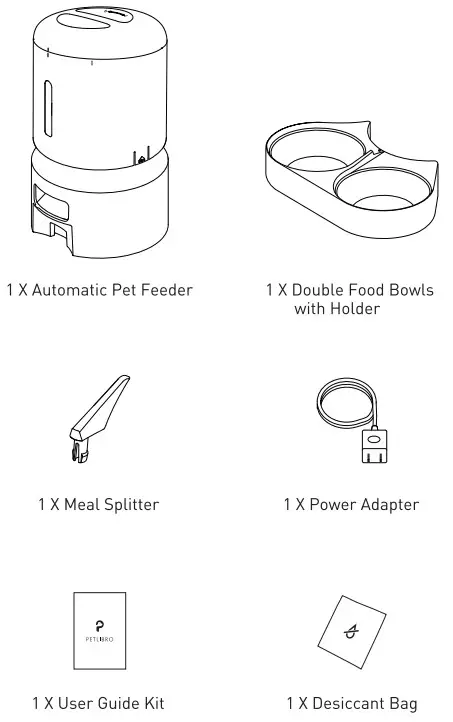
IN THE BOX
PRODUCT OVERVIEW
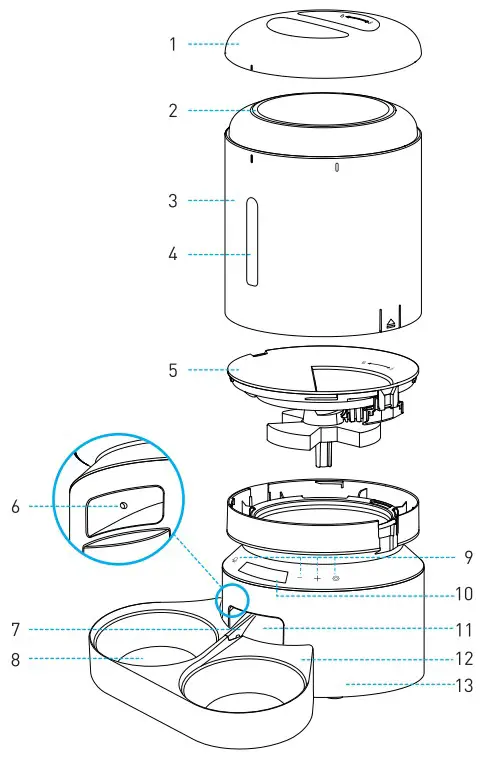
| 1: Lid 2: Seal Strip 3: Food Tank 4: Transparent Window 5: Tank Base 6: Anti-Clog Detector 7: Meal Splitter | 8: Stainless Steel Bowls 9: Control Panel 10: Display Panel 11: Food Outlet 12: Bowl Holder 13: Feeder Base |
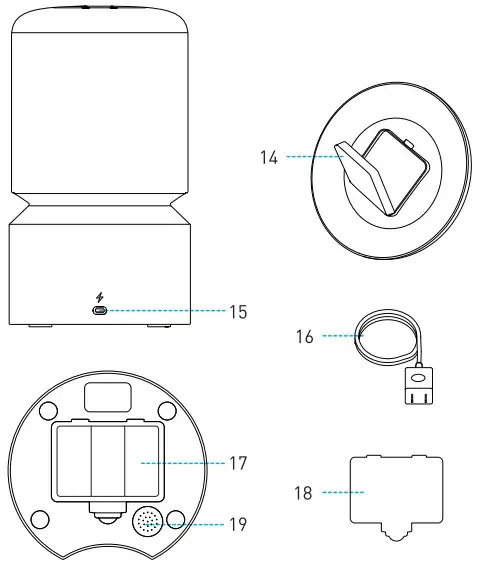
| 14: Desiccant Box 15: Power Jack 16: Power Adaptor | 17: Battery Compartment 18: Compartment Lid 19: Speaker |
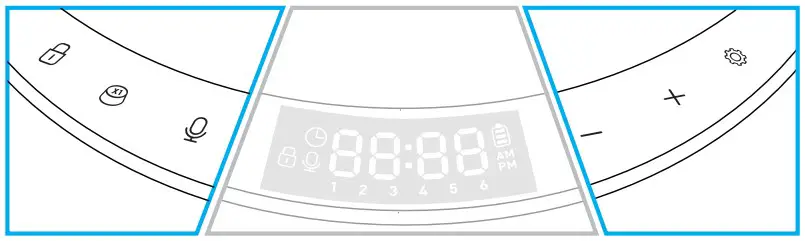
 Unlocked Button
Press and hold for 3s to unlock other buttons and screen. Manual Feeding Button
Press 1-5 times to dispense 1-5 portions of food. Record Button
Press once and a beep is heard, record your message (max 10s), then press again to save and a double beep is heard. Number Decrease Button
(Unlocked Status)-Press to switch between meal number. (Setting Status)Press to decrease number . Number Increase Button
(Unlocked Status)-Press to switch between meal number. (Setting Status)Press to increase number. Setting Button
(Setting Status)Press to confirm and enter next step. Press and hold for 3s to return to the locked interface.
HOW TO USE
Assembly and Prepare for Setting
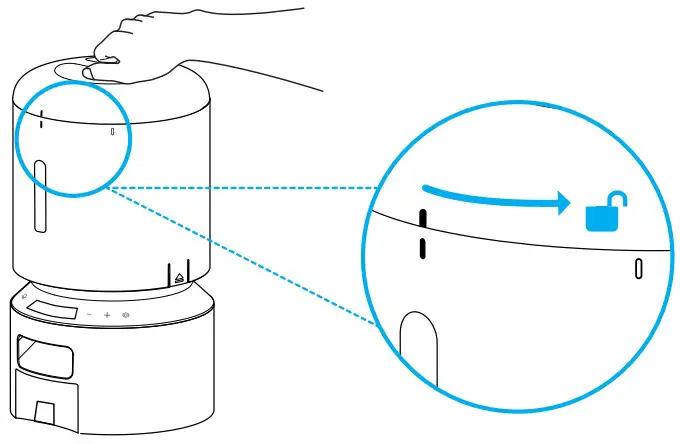
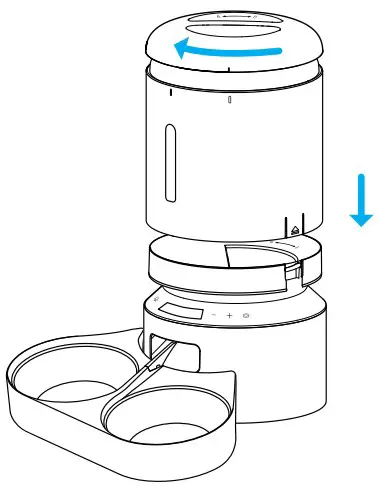
- Twist anticlockwise to open the lid.

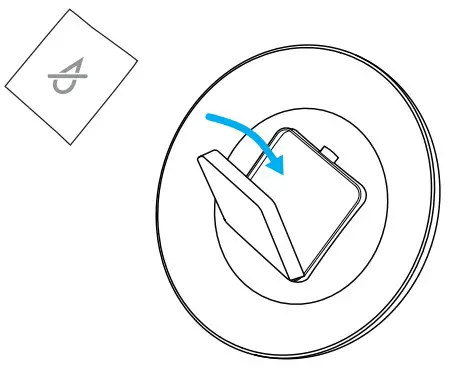
- Place the desiccant bag into the inner box under the lid.
Notes:
– It is recommended to change the desiccant bag every 15 days to prevent mold growth.
– Remove the desiccant bag before cleaning the lid.
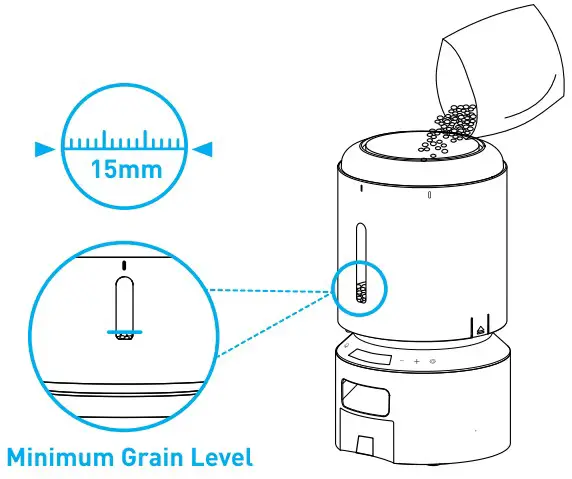
- Add dry pet food to the food tank.
Notes:
– To prevent uneven food dispensing, please add enough pet food to the visible level.
– Recommended kibble size: 2-15mm/0.07-0.6 inch in diameter.
– Do not use canned, wet, or moist food.
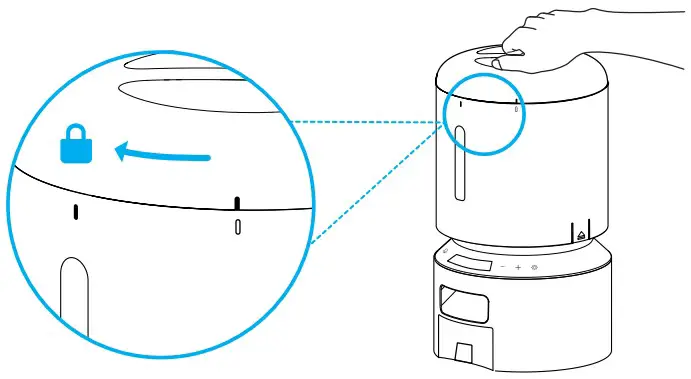
- Put the lid back on.
To snap into place, turn the lid clockwise from the right rotating sign to the left rotating sign.
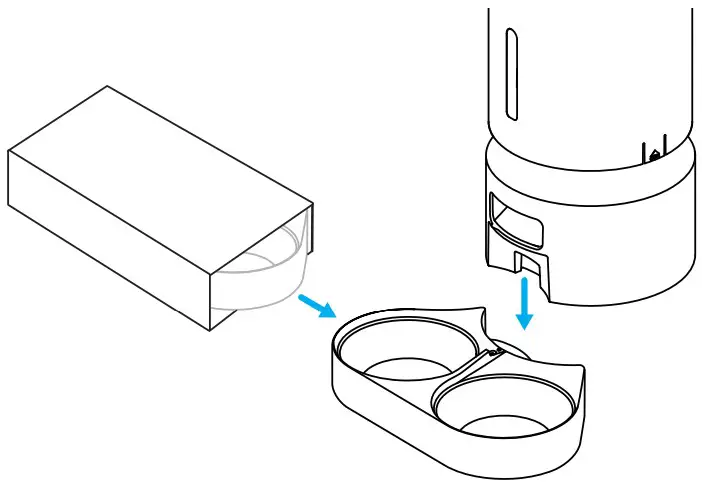
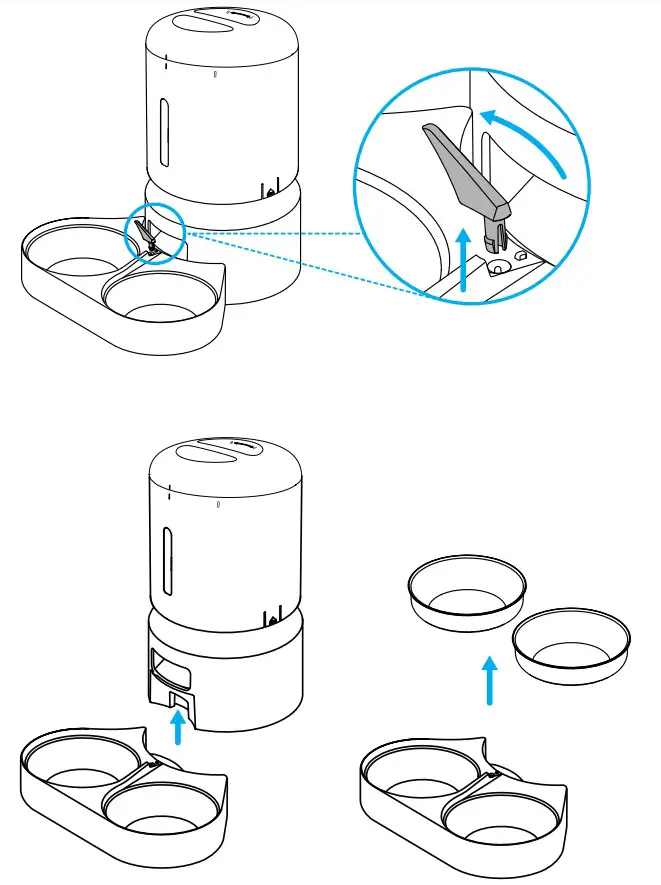
- Take out and install the double food tray.
Attach the double food tray to the notch underneath the feeder base.
- Install the meal splitter by aligning it with the round hole.
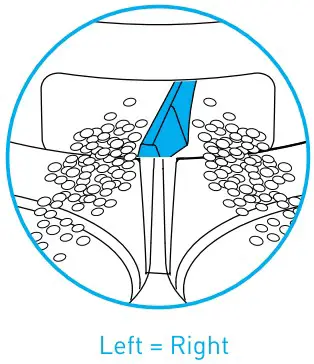
 1. To get equal amount of food, move the splitter to the right until it can’t move.
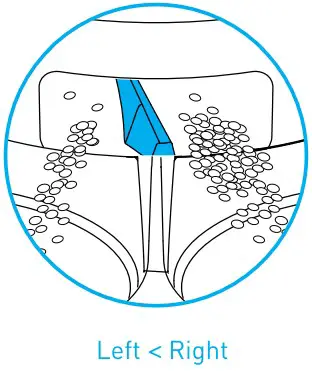
 2. To get uneven amount of food, move the splitter to the left, more food will be dispensed to the right bowl.
 Note: To remove the bowl holder from the feeder base, move the meal splitter away from the food outlet.
 If there is grain in the food bowl, handle it gently to avoid Spilling. Hold the base instead of any other parts when lifting the feeder.
 - Connect Power
1) Plug the 5V power adapter into a power socket and the USB cable into the USB port on the back of the feeder.
2) The LED display will light up automatically to indicate the feeder is on.
3) Open the battery compartment at the bottom of the feeder. Install three alkaline D batteries (not included) in case of a power outage. Make sure the batteries match the positive and negative poles with the markings in the compartment.
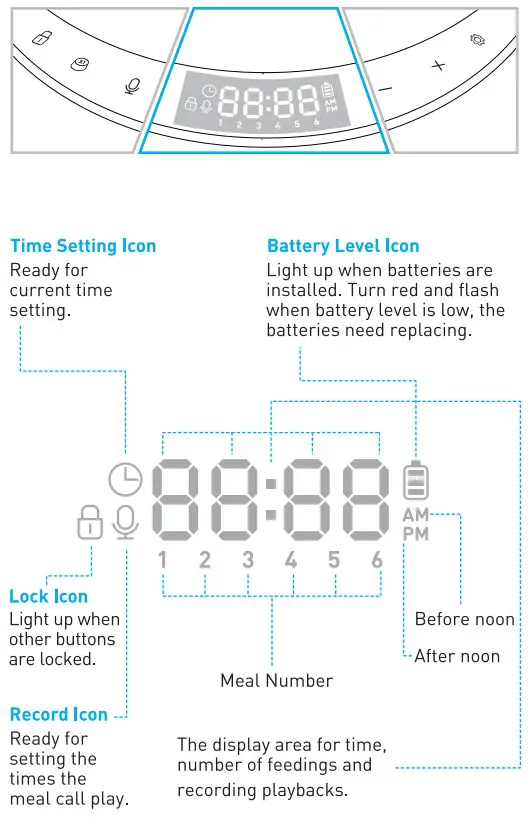
4) After the batteries are installed, the battery icon will light up on the screen; when the icon turns red and flashes, it means the battery level is low and the batteries need replacing.
Notes:
• Batteries are not included.
• To avoid sudden power outage and the feeding of your pet is affected, do not use the batteries as the only source to power the feeder, the batteries can only be used as an emergency plan.
• To avoid battery leakage, remove the batteries if you won’t be using the device for some time.
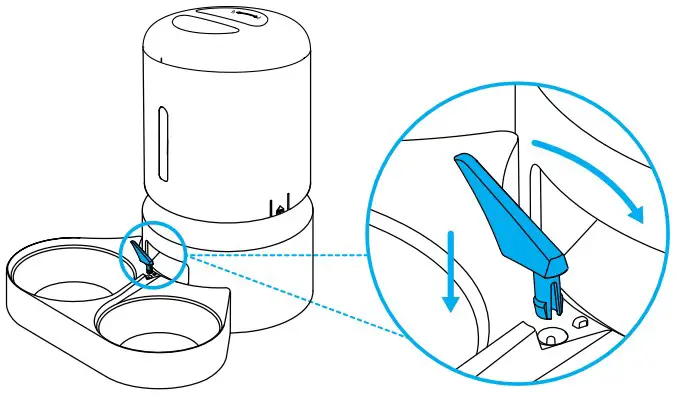 1. To get equal amount of food, move the splitter to the right until it can’t move.
 2. To get uneven amount of food, move the splitter to the left, more food will be dispensed to the right bowl.
 Note: To remove the bowl holder from the feeder base, move the meal splitter away from the food outlet.
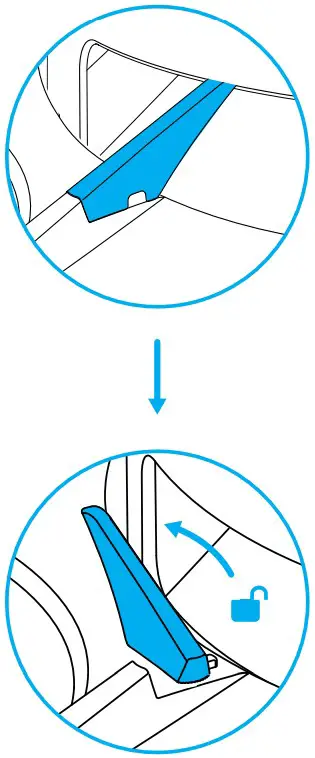 If there is grain in the food bowl, handle it gently to avoid Spilling. Hold the base instead of any other parts when lifting the feeder.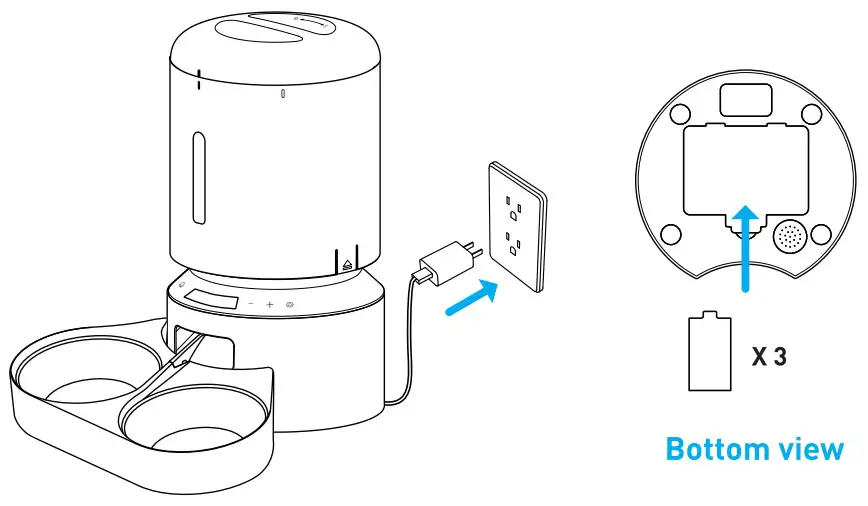
Program Setting
1. Set the Current Time
Please pay attention to the 12-hour AM/PM format. Time will change from AM to PM automatically according to your setting.
The Time Chart of 12-hour Format
| 1:00 AM | 1:00 PM |
| 2:00 AM | 2:00 PM |
| 3:00 AM | 3:00 PM |
| 4:00 AM | 4:00 PM |
| 5:00 AM | 5:00 PM |
| 6:00 AM | 6:00 PM |
| 7:00 AM | 7:00 PM |
| 8:00 AM | 8:00 PM |
| 9:00 AM | 9:00 PM |
| 10:00 AM | 10:00 PM |
| 11:00 AM | 11:00 PM |
| 12:00 AM | 12:00 PM |
- Press and hold the Unlocked Button
 a for 3s to unlock other buttons and screen, the Current Time Setting Icon on the screen flashes, it indicates it enters setting mode.
- Press the Setting Button
 , the hour digits flash.
- Use the Increase/Decrease button
 to set the current hour, and then press the Setting Button to save and move to the minutes setting.
 - The tens digits of minute flashes, press the Increase/De-crease button to set the tens digit first and press the Setting Button to save, then set the single digit and press the Setting Button to save. The current time setting is complete.
 Note: The control buttons and the screen will be locked automatically after 1 minute of standby.
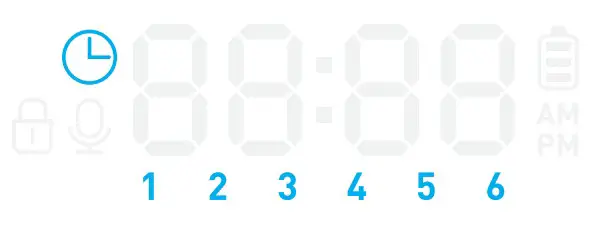
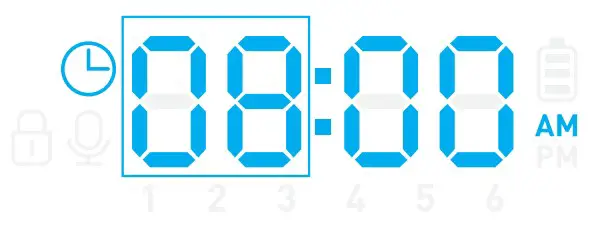
 Note: The control buttons and the screen will be locked automatically after 1 minute of standby.
2. Set the Time and Portion of Meals
Set the time of the first meat
- After the current time is set, the feeder enters feeding plan setting mode. The icon 1 will flash, indicating it’s ready for settings of the first meal.

- Press the Setting Button to set the feeding time of the first meal. The hour digits will flash.

- Press the Increase/Decrease button to set the hour. And press the Setting Button to save and move to minutes setting.
The tens digits of minute flashes, press the Increase/De-crease button to set the tens digit first and press the Setting Button to save, then set the single digit and press the Setting Button to save.
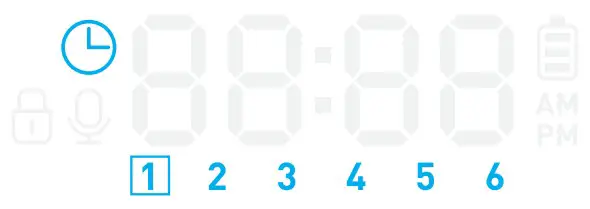
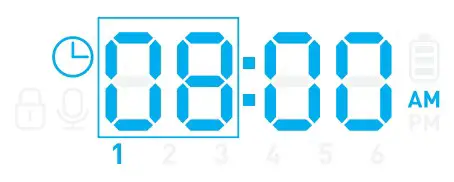

Set the portion of the first meal
Once the first meal time is set and saved, the feeder enters portion setting mode. The screen will display P-XX, standing for portions.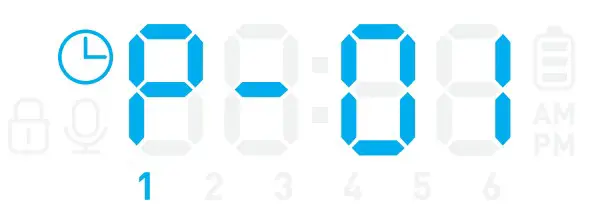
- Press the Increase/Decrease button to set the portions (Max 50) , set the tens digit first and press the Setting Button to save, then set the single digit and press the Setting Button to save.

- Repeat the steps above to set the time and portion of other meals if needed. the feeder supports up to 6 scheduled meals per day.


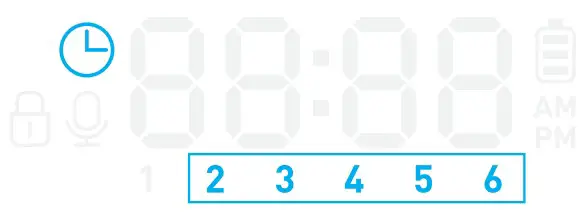
Note: The default feeding time of the first four meals is 6:00 AM, 12:00 PM, 6:00 PM, 12:00 AM, and the time of the fifth and sixth meal time is 1:00 AM; The default portion is 0. You can change the presetting.
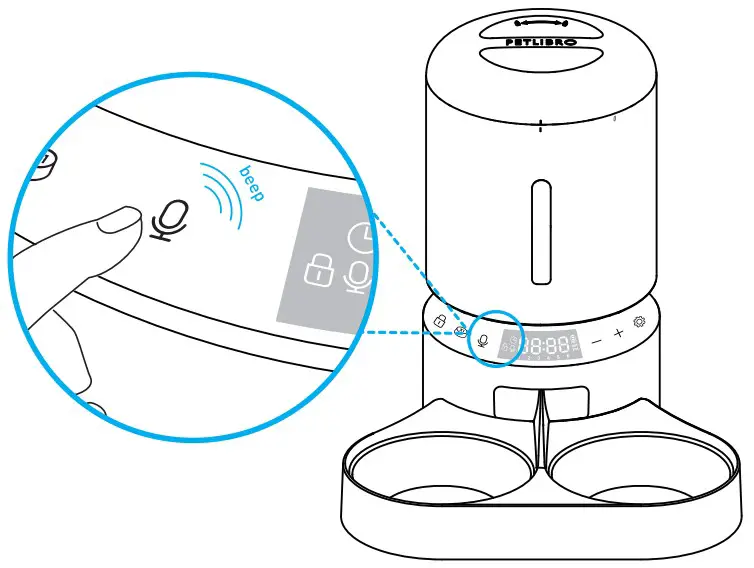
3. Record a Meal Call
- In the unlocked state, press the Record Button
 once, a beep is heard.
 - Speak and record your message (The maximum record time is 10 seconds). Press the Record Button), again to end, two beeps will be heard indicating the recording is saved.
- The recording will automatically play once for you to check the voice you just recorded.
Notes:
- The default of the meal call playback is 2 times, and the meal call will play when feeding time is up.
- The meal call does not play during manual feeding, only play at each designated meal.
4. Set the Times the Meal Call Play
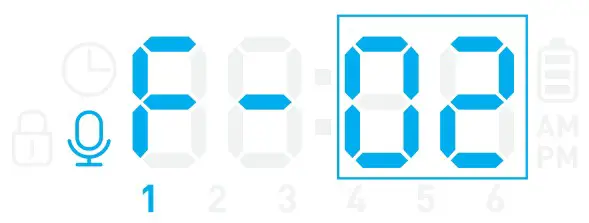
The times the meal call play can be set from 0-5. If the time is set as zero, the meal call will not play at the corresponding meal.
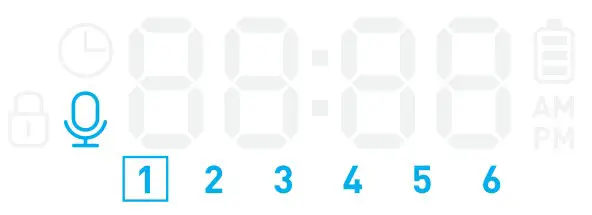
- In the unlocked state, press and hold the Record Button for 3s, the record icon is on and the meal icon 1 keeps flashing.
- Press the Increase/Decrease button to choose the number of meal you want to set, then press the Setting Button once to save.

- The screen will display F-XX, standing for playback times. Press the Increase/Decrease button to set the times the meal call play, then press the Setting Button to save.

- Repeat the steps above to set the number of times the meal call play for other meals.
Note: After all settings are complete, press and hold the setting button for 3 seconds to return to the locked interface.
5. Manually Feeding Your Pet
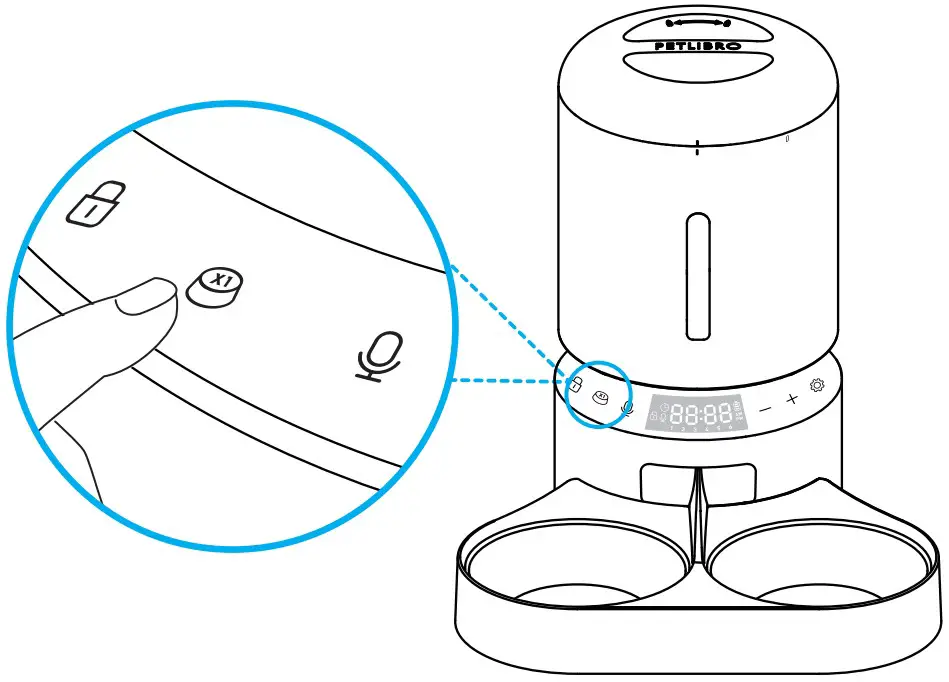
In the unlocked state, press the manual feeding button once, the feeder dispenses one portion of food. You can press the manual feeding button at most 5 times, and the feeder will dispense 5 portions of food.
Note: The normal schedule and portion is not affected.
6. Clear All Settings
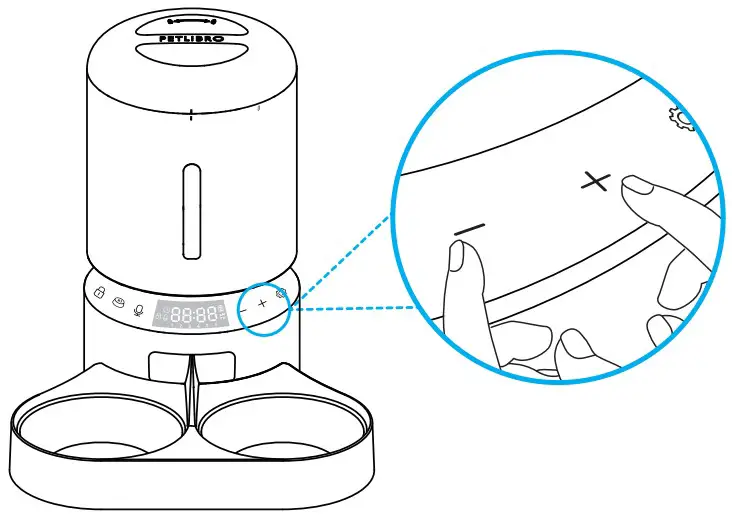
Press and hold the Increase/Decrease buttons simultaneously for 6 seconds until the machine emits three beeps, all icons on the screen light up, indicating the resetting is complete.
CLEAN AND CARE
It’s recommended to clean the feeder regularly for the health of pets.
The washable parts are as follows: lid, food tank, tank base, stainless steel bowl, and bowl holder.
Clean other parts with a dry cloth.
Clean the tank lid, food tank, tank base
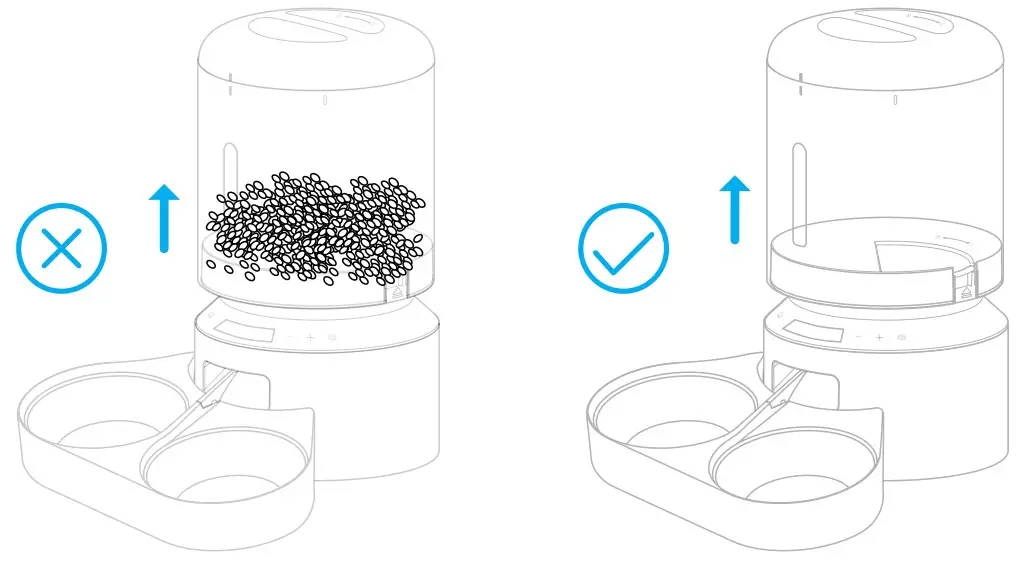
Before removing the food tank, be sure the food tank is empty in case of food spilling all over.
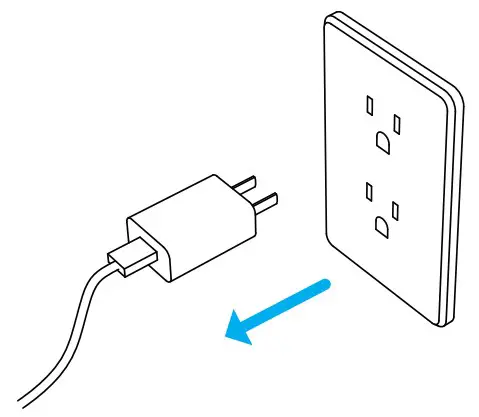
- Disconnect power before cleaning.

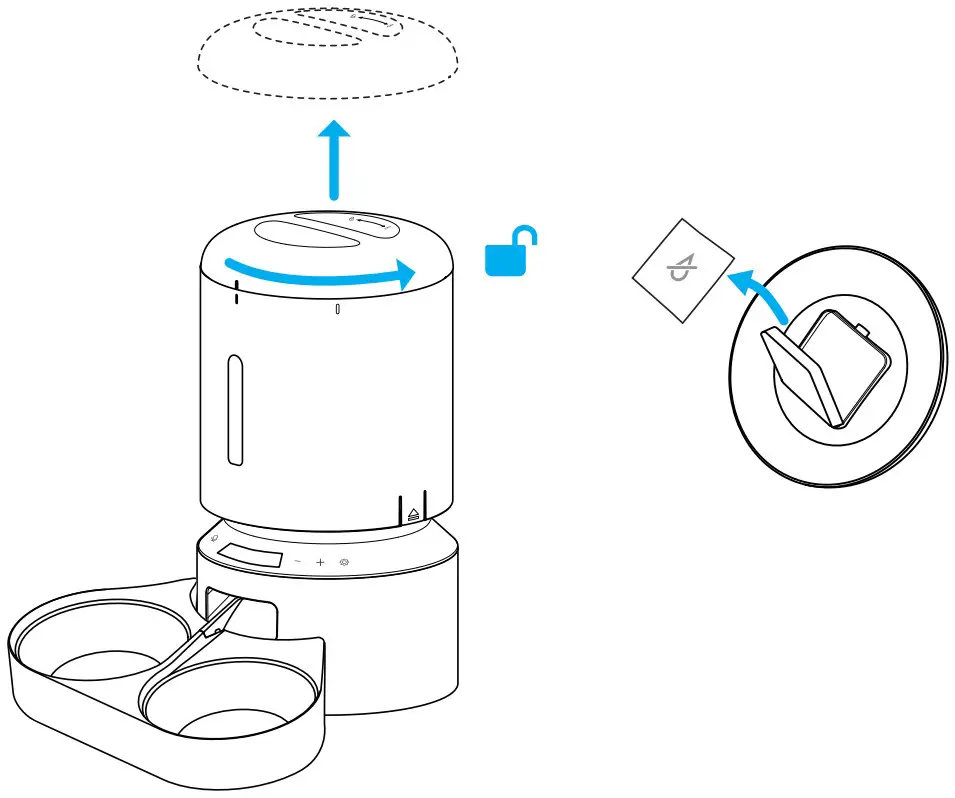
- Twist anticlockwise to remove the lid and take out the desiccant bag from the inner box under the lid.

- Pull up along the notches to remove the tank.

- Twist anticlockwise to remove the tank base.

- Thoroughly rinse and air dry the lid, tank and tank base .

- Refit them to the machine. Turn the tank base clockwise until it snaps into place

- Then install the tank and lid.

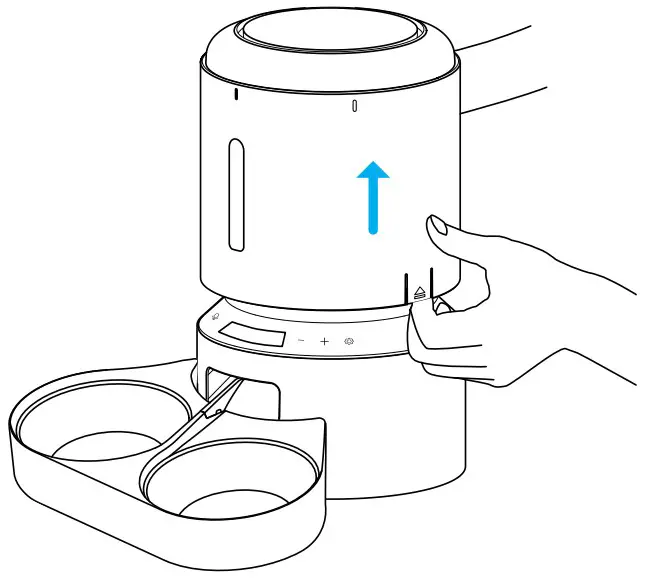
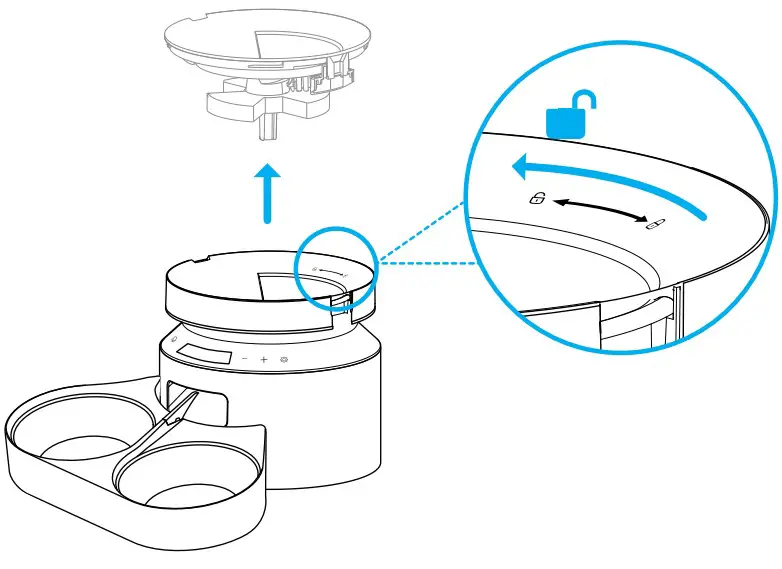
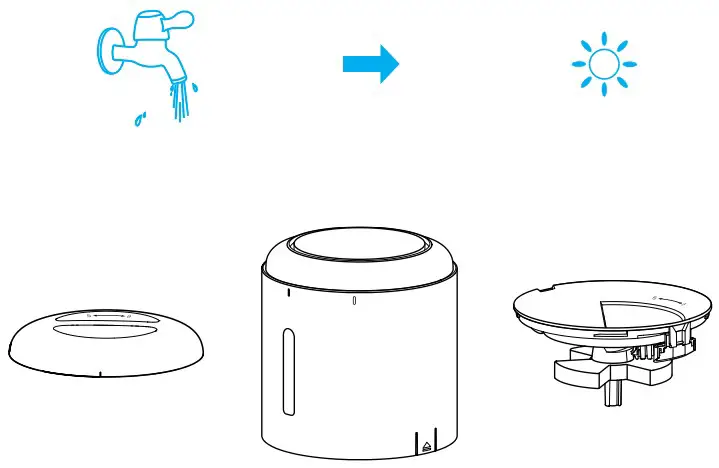
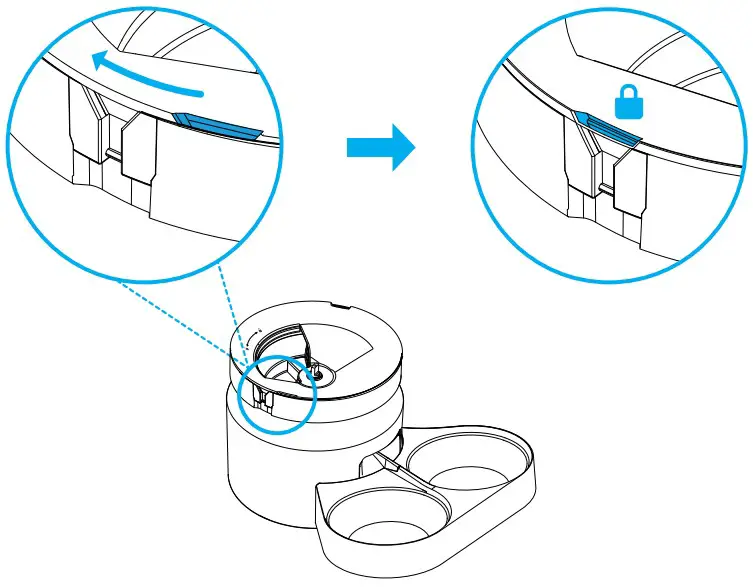
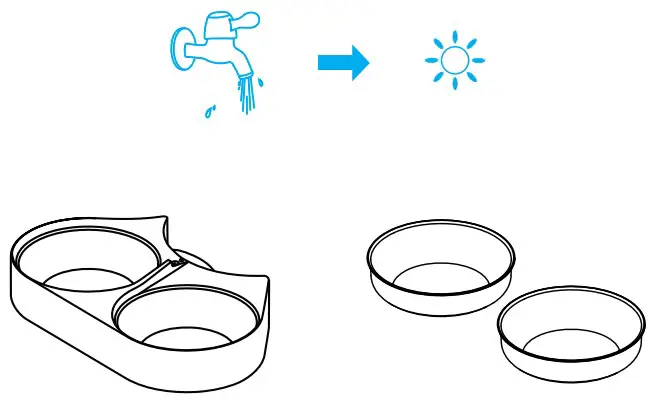
Clean the Bowls and Holder
- Remove the bowl holder from the feeder base.

- Rinse the stainless steel bowls and holder, and air dry them thoroughly before refitting them to the machine.

SPECIFICATIONS
| Model | PLAF006 |
| Capacity | 5 liters |
| Screen | LED screen |
| Power | DC 5V power adapter; 3 x alkaline D batteries (not included) |
| Power Adapter | AC100-240V Input, DC 5V output |
| Operating Temperature | 0°C – 55°C / 32°F – 131°F |
| Dimensions | 34.6 x 19 x 19 cm / 13.6 x 7.5 x 7.5 in |
| Net Weight | 2 kg / 4.4lbs |
TROUBLESHOOTING
The answers to these questions should help you solve most problems you may have with the pet feeder. If they do not, please contact our Customer Care Center via [email protected].
| Problem | Solution |
| “El” shows on the screen and flashes. | 1)Remove the blockages at the food outlet. 2)The anti-dog detector needs dean. |
| I press the buttons but they don’t work. | Press and hold the Unlocked Button for 3s to enter the setting mode. |
| I forget the meal settings. | 1)The number of the meals that have been set will show on the locked interface. (Not show if not set) 2)In the unlocked state, press the Increase/Decrease button to choose the meal number you want to check, then press the setting button to check the settings. |
| The food won’t come out. | 1)Please make sure the food in the tank is dry, and food size is within 2-15 mm / 0.07-0.6 inches in diameter. 2)Remove the food tank and tank base, check if the chute inside is blocked. 3)Check if the anti-clog detector at the food outlet is dirty or blocked. 4)Check whether the battery level is low, whether the power adapter is connected, whether power outage occurs when the power adapter is connected and batteries are not installed. |
| Problem | Solution | |
| LED display is off. | 1)Press and hold the Unlocked Button for 3s to unlock the screen. 2)Check whether the power adapter is connected. 3)Contact the support team at [email protected] if the display still won’t light up when the appliance is well connected to power. | |
| I can’t remove the food tank. | Please pull upwards along the notches on either side to remove the food tank. | |
| The food amount of each portion is not the same. | The first few portions may vary, but it doesn’t mean it’s faulty. After about 6 feedings, it should be almost even. | |
This device complies with Part 15 of the FCC Rules. Operation is subject to the following two conditions: (1) this device may not cause harmful interference, and (2) this device must accept any interference received, including interference that may cause undesired operation.
 Scan for more details www.petlibro.com
PETLIBRO Granary Automatic Pet Feeder
Model: PLAF006
©Libro Corp. All Rights Reserved.
Manufacturer: Shenzhen Libro Technology Co., Ltd.
Address: Building 3, Cloud Park, Shenzhen, China, 518129
Made in China
PLAFO06_V1.1