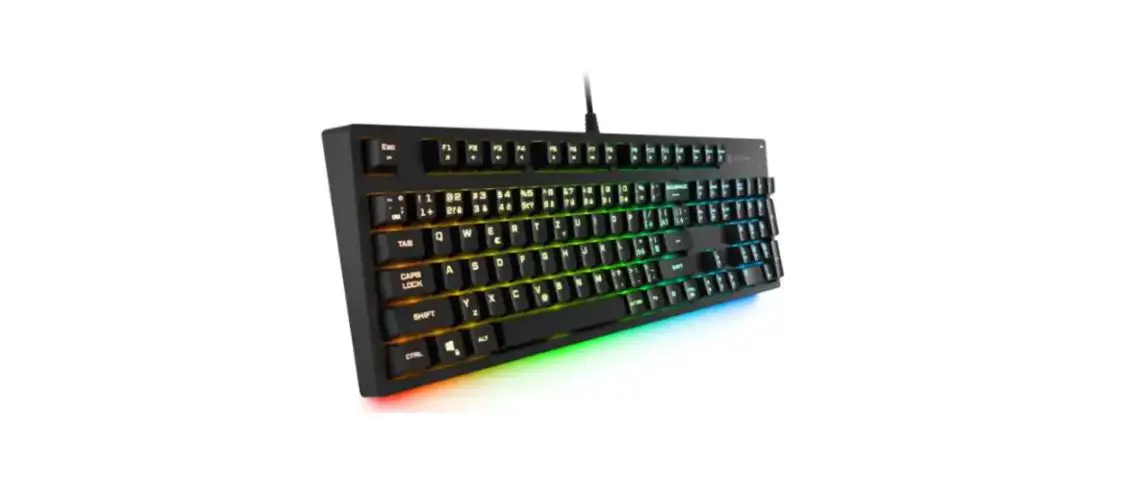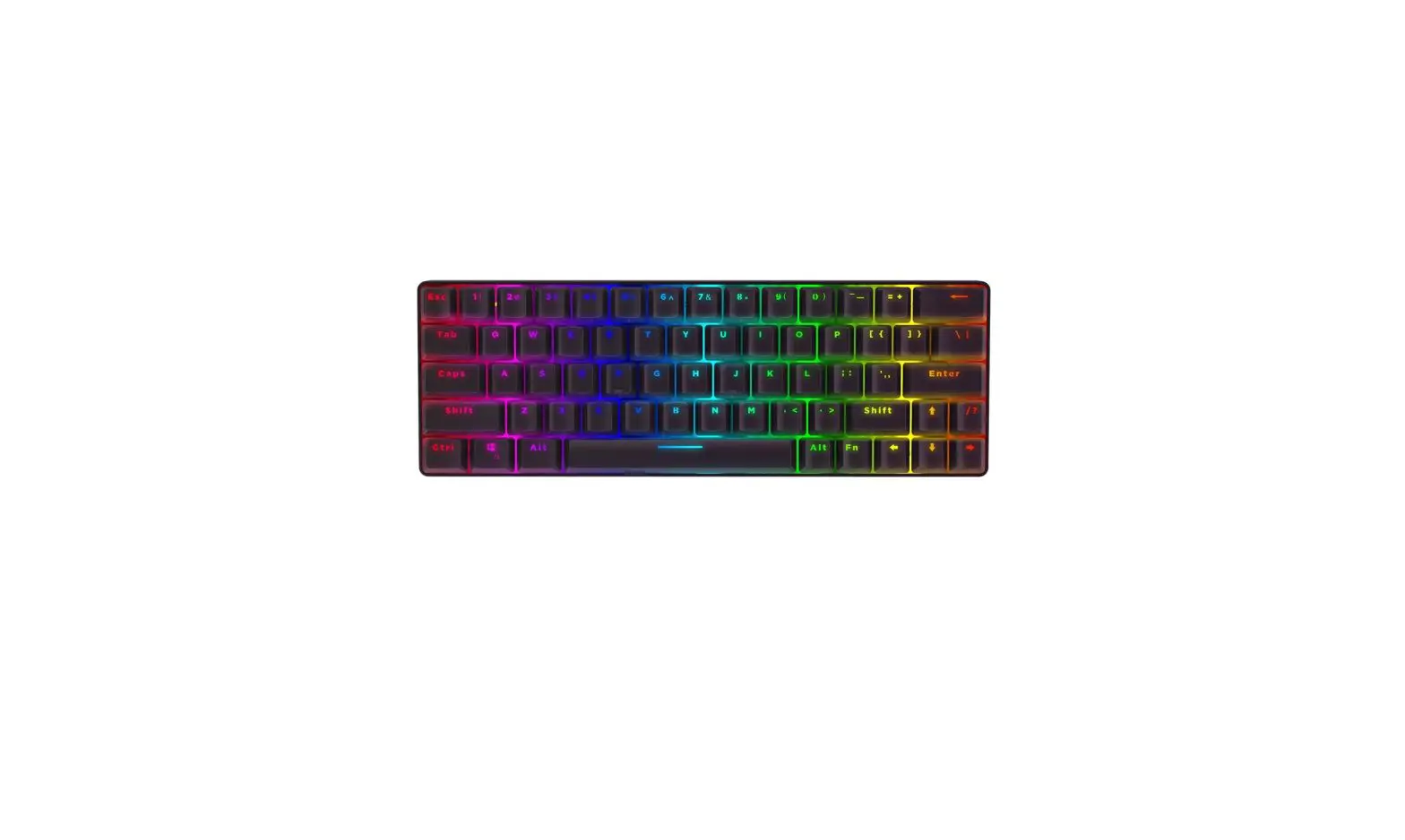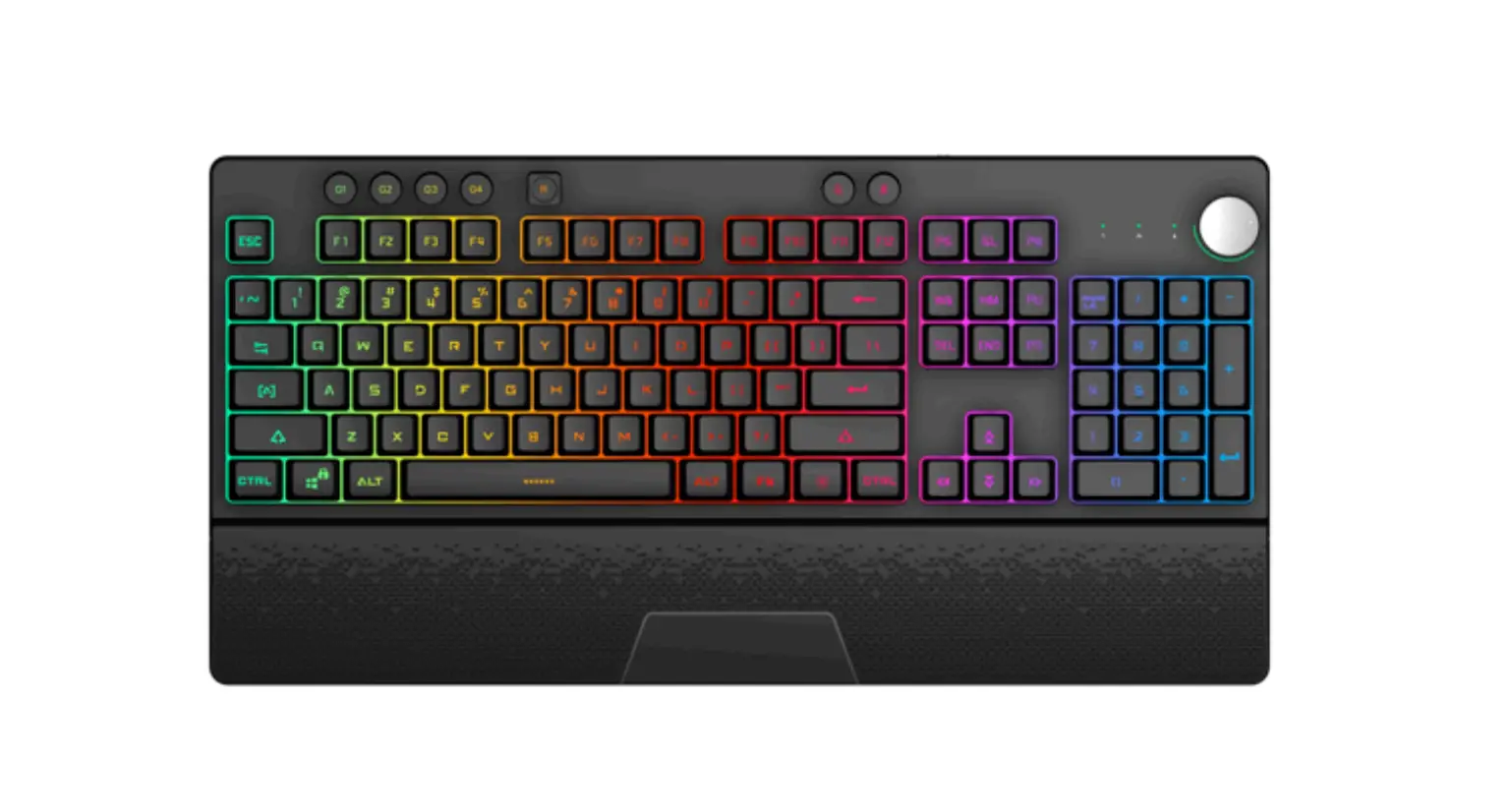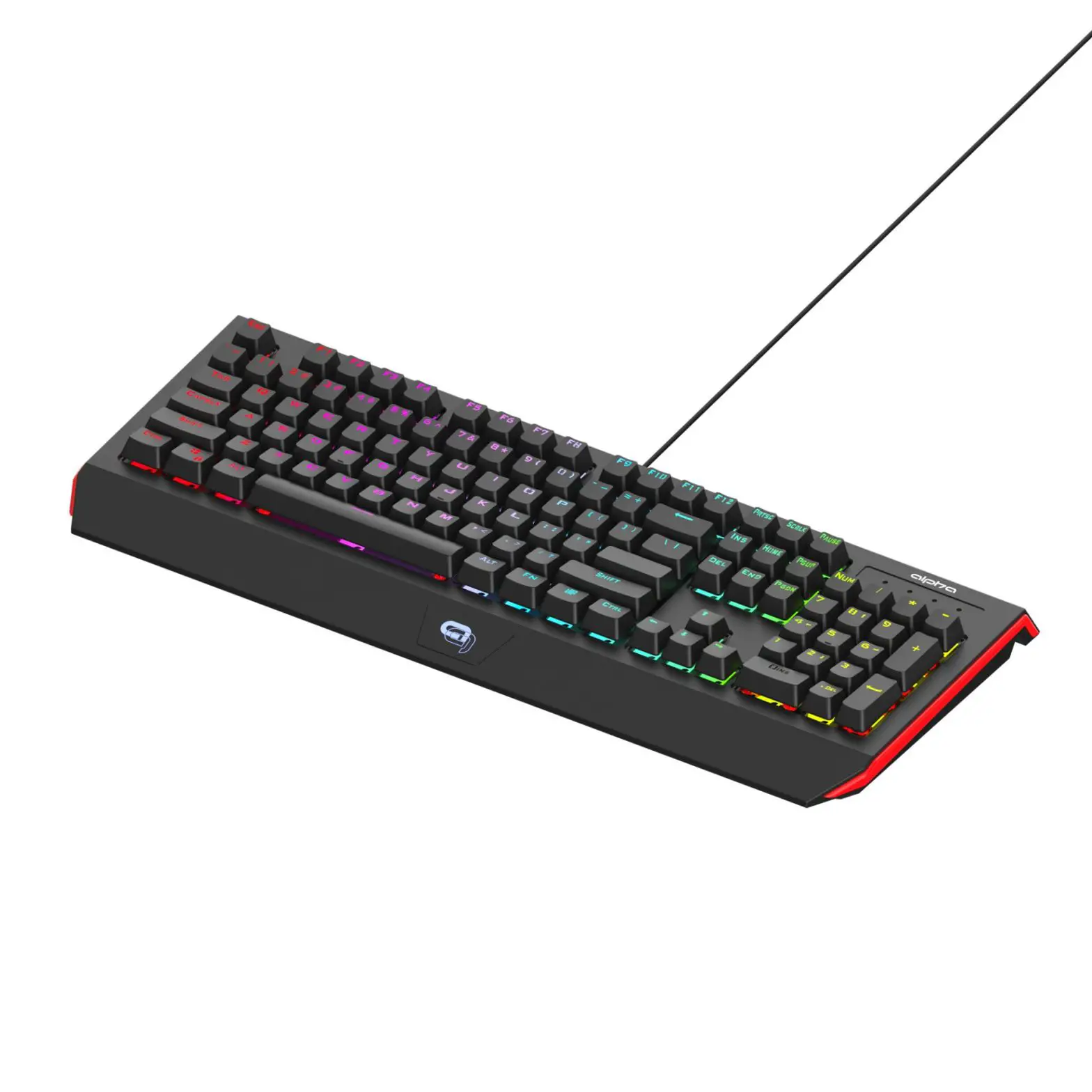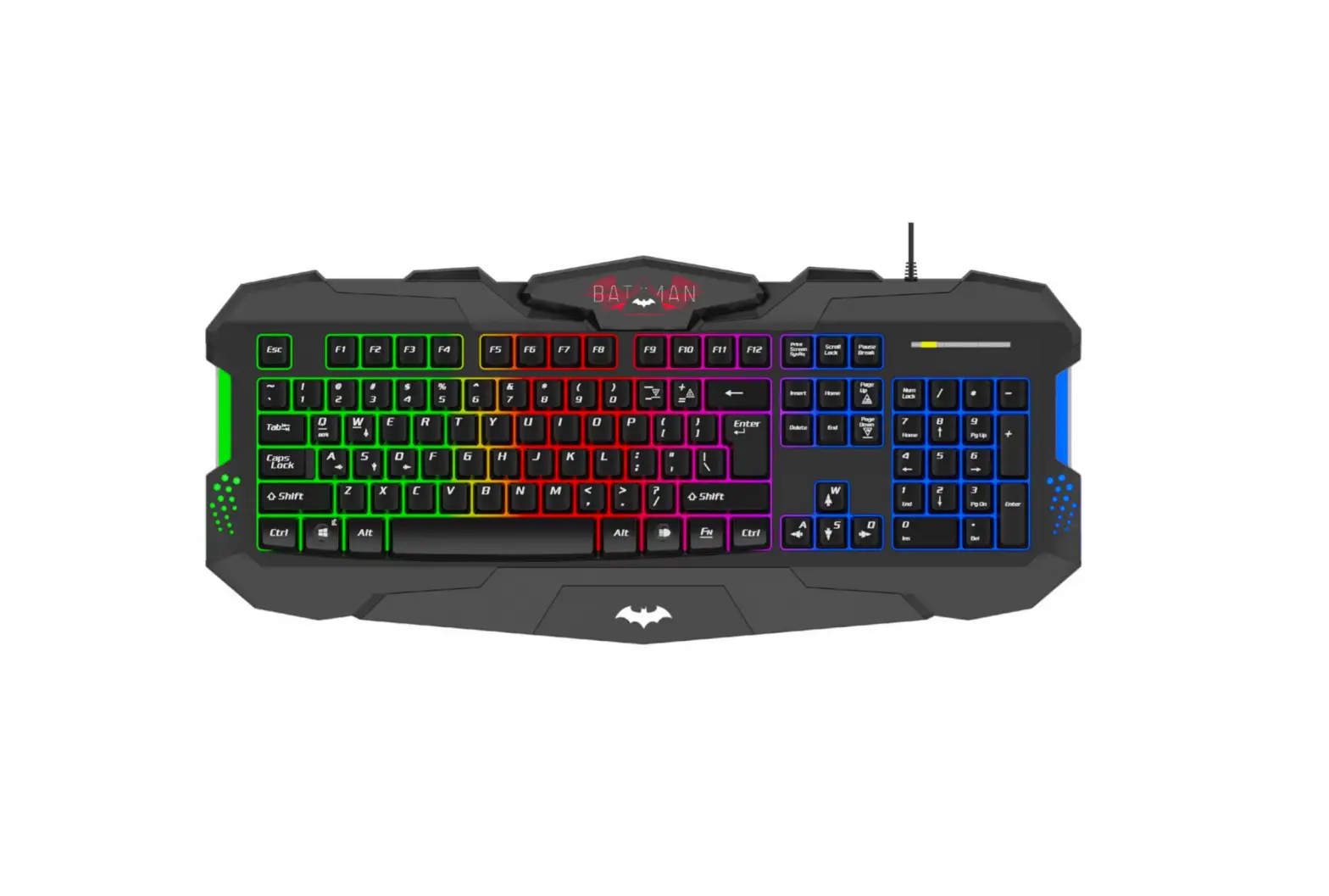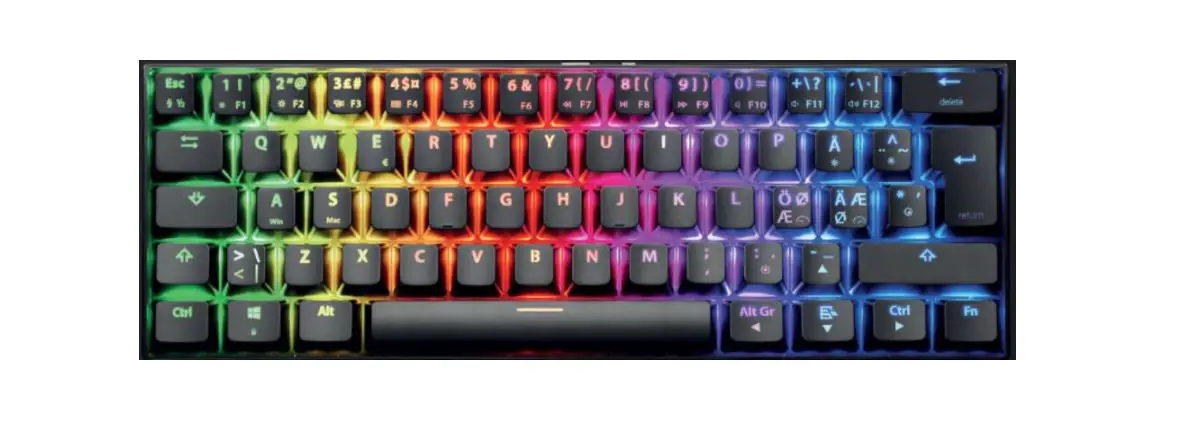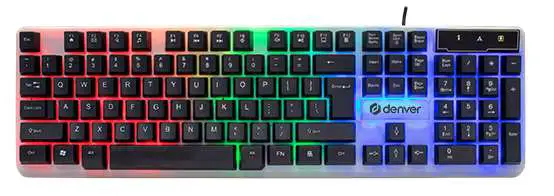
RAPTURE X-RAY Outemu Red Gaming Keyboard User Manual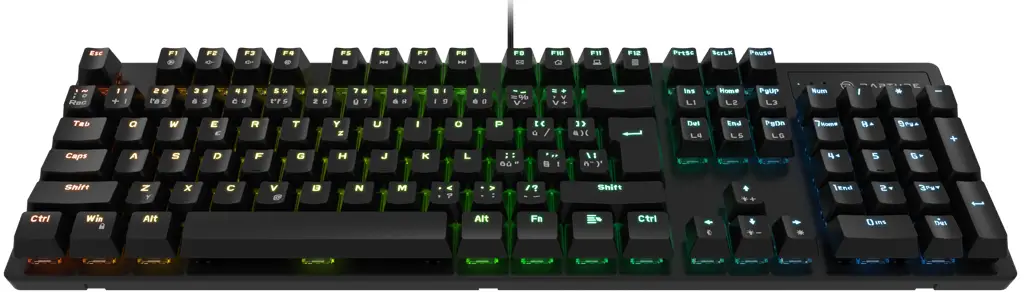
THANK YOU FOR CHOOSING US!
We value your trust. We hope that you will be happy with our product, and as excited about it as we are. We try to offer products of the highest quality that satisfy even the most demanding requirements. If you are satisfied, it would make us very happy if you choose us again the next time you make a purchase.
SAFETY INFORMATION
- Use the keyboard only according to instructions in this manual.
- Keep out of the reach of children.
- Do not place any heavy objects on the keyboard.
- Do not disassemble the keyboard. It does not contain any parts serviceable by the user. Have all repairs carried out by an authorized service center.
- Protect the keyboard from moisture, dust, falls, and shocks.
- Do not expose the keyboard to dripping or splashing water. Do not immerse the keyboard in water or any other liquid. Do not place containers filled with water, such as vases, on the keyboard.
- Do not place the keyboard near an open flame, such as candles, heaters, or other heat sources.
- If you experience unusual keyboard overheating or other signs of malfunction, stop using it and con-tact an authorized service center.
- Keep the keyboard clean. Use only cleaners designed for cleaning and maintaining this type of electronics and accessories to clean the keyboard.
- Do not insert any objects into the keyboard inputs.
- Do not force the USB cable connector into the key-board input.
- The original version is in Czech language.
TECHNICAL PARAMETERS
| Connection | USB cable |
| Keyboard type | Mechanical gaming keyboard |
| Keys functions | 104 keysCombined FN keyAll n-key rollover keys |
| Response speed | 1000 Hz |
| Input | 5 V dir. current / 0.18 A (USB) |
| LED keyboard | RGB LED |
| Mechanical life span of keys | 50 million cycles |
| Lengthof the USB cable | 1.8 m |
| Compatibility with Operation Systems | Win XP, Win 2000, Win ME, Vista, Win 7, 8, 10 and higher |
| Dimensions | 439.4 x 134.1 x 37.8 mm |
| Weight | 802 g t 20 g |
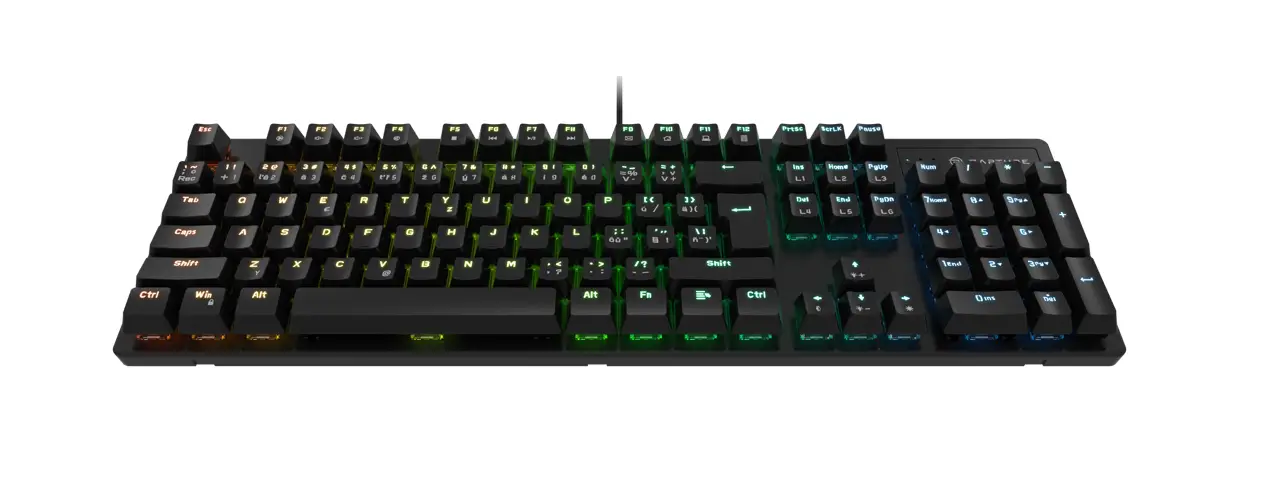
OVERVIEW
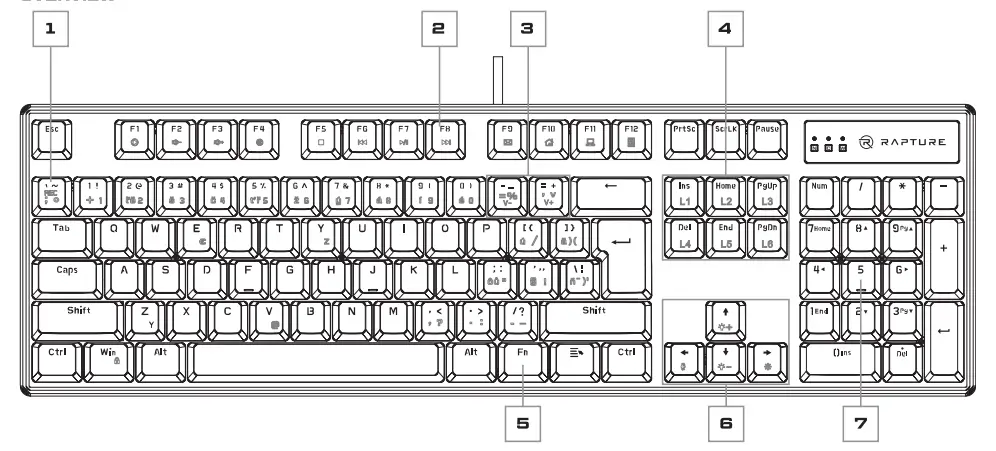
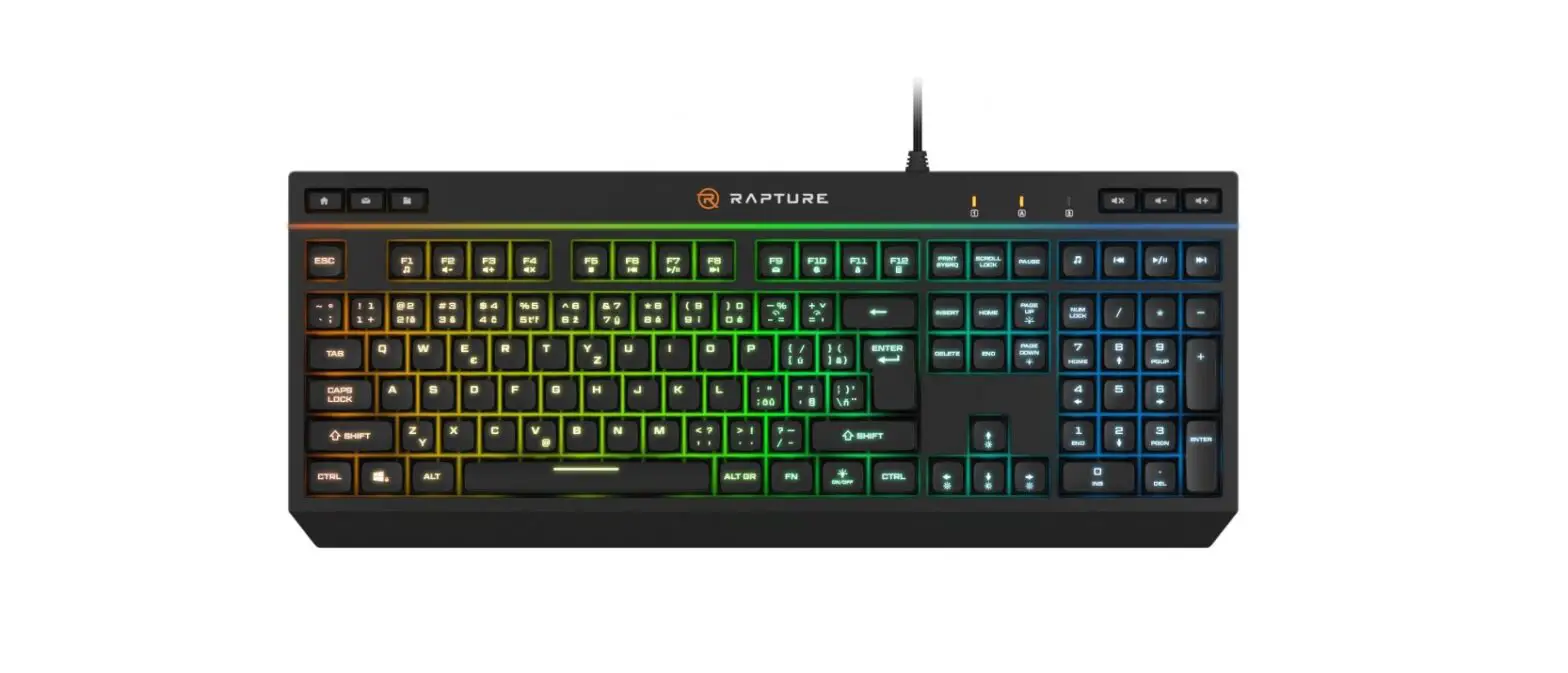
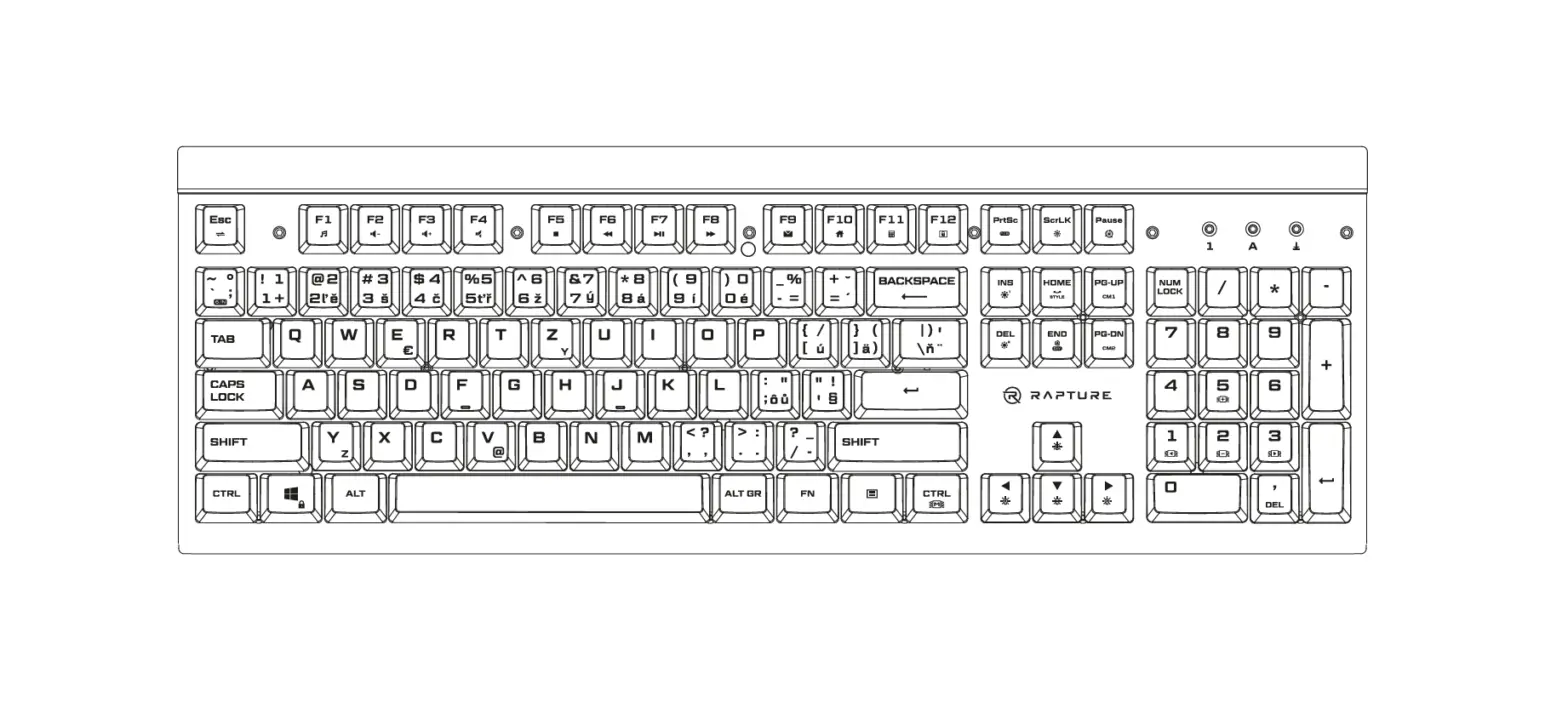
- REC function key (after pressing the FN key): used to set and save custom backlight
- Function (F1 – F12) and media keys (after pressing the FN key)
- V + / V- function keys (after pressing the FN key): used to adjust the speed
- Function keys Ll to L6 (after pressing the FN key): used to select the backlight effect
- FN key (to use as media and function keys)
- Function keys to adjust brightness, adjust direction or select backlight color 7. Numeric keypad
INSTRUCTIONS
Plug the USB cable connector into a free USB port on your computer.
The system will automatically install the drivers and the keyboard will be ready to use.
BACKLIGHT:
The Rapture X-RAY keyboard has a total of 1B different key backlight effects. The backlight effects are selected by pressing the FN and Ll to LB keys.
- FN + Ll (Ins): Press FN + Ll repeatedly to select one of the three backlight effects:
- The effect of blending individual colors; to change speed, press FN + V-
 (decrease speed) or FN + V + (increase speed); to change direction, press FN
 - Gradual switching on and off of the backlight (“breathing” effect); to change the backlight color, press FN + .
 ; to change speed, press FN + V- (decrease speed) or FN + V + (increase speed).
 - Permanent backlight, to change the backlight color press FN +
- The effect of blending individual colors; to change speed, press FN + V-
- FN + L2 (HOME): Press FN + L2 repeatedly to se-lect one of the three backlight effects:
- The effect of a drop of water falling on the sur-face; to change the backlight color, press FN + ; to change speed, press FN + V- (decrease speed) or FN + V + (increase speed).
- the Backlight effect of the pressed key, press FN to change the backlight color +; to change speed, press FN + V- (decrease speed) or EN + V + (increase speed).
- The backlight effect of a number of keys from the pressed key; to change the backlight color, press FN + ; to change speed, press FN + V-(decrease speed) or FN + V + (increase speed).
- The effect of a drop of water falling on the sur-face; to change the backlight color, press FN +
- FN + L3 (PgUp): Press FN + L3 repeatedly to select one of the three backlight effects:
- Wave effect; to change the backlight color press FN + ; to change speed, press FN + V-(decrease speed) or FN + V + (increase speed).
- Big bang effect; to change backlight color press FN + ; to change speed, press FN + V-(decrease speed) or FN + V + (increase speed).
- Falling stars effect; to change backlight color press + ; to change speed, press FN + V-(decrease speed) or FN + V + (increase speed).
- Wave effect; to change the backlight color press FN +
- FN + L4 (Del): Press FN + L4 repeatedly to select one of the three backlight effects:
- Breeze effect; to change backlight color press FN + 4; to change speed, press FN + V-(decrease speed) or FN + V + (increase speed); to change direction, press FN +
- Current effect; to change the backlight color press FN + 4; to change speed, press FN + V-(decrease speed) or FN + V + (increase speed); to change direction, press FN +
- Tornado effect; to change the backlight color press FN + 4; to change speed, press FN + V-(decrease speed) or FN + V + (increase speed); to change direction, press FN +
- Breeze effect; to change backlight color press FN + 4; to change speed, press FN + V-(decrease speed) or FN + V + (increase speed); to change direction, press FN +
- FN + L5 (End): Press FN + L5 repeatedly to select one of the three backlight effects:
- Blending of all colors
- Effect of dots falling down; to change the backlight color press FN + ; to change speed, press FN + V- (decrease speed) or FN + V + (increase speed).
- Flowing color effect; to change color of the backlight press FN + ; to change speed, press FN + V- (decrease speed) or FN + V + (increase speed).
- FN + L6 (PgDn): Press FN + L6 repeatedly to select one of the three backlight effects:
- Ping – pong effect; to change the backlight color press FN + ; to change speed, press FN + V- (decrease speed) or FN + V + (increa-se speed).
- Increases or decreases the backlight color saturation, depending on how often you press the keys; to change the backlight color, press FN .
- Backlight effect from center to edges; to change direction, press FN .
- Ping – pong effect; to change the backlight color press FN +
 (decrease speed) or FN + V + (increase speed); to change direction, press FN
 ; to change speed, press FN + V- (decrease speed) or FN + V + (increase speed).
| Keyboard shortcut | Meaning | |
| FN a F1 | Launch the music player | |
| FN • F2 | Lower the volume | |
| FN • F3 | Increase the volume | |
| FN + F4 | Mute sound | |
| FN + F5 | Stop playback | |
| FN + F6 | Skip to previous track | |
| FN • F7 | Start playback / pause playback | |
| FN • FB | Sklp to next track | |
| FN • FI3 | Launch the e-mall application | |
| FS! + F10 | Launch home page | |
| FN + F11 | Launch the ‘My Computer’ semen. | |
| FN + F 12 | Launch the calculator application | |
| FN + | 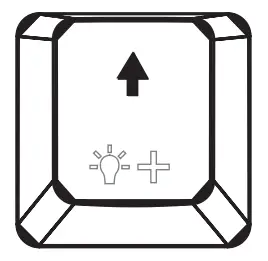 | Press repeatedly to increase the backlight brightness:0 % – 20 % – 40% – 60 %-130 % – 100 %.When you reach maximum brightness, all LEDs flash three times. |
| FN | 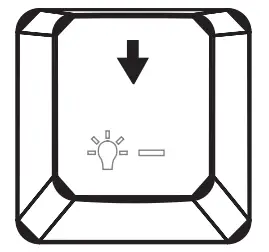 | Press repeatedly to decrease the backlight brightness:100 % – SO % – 60% – 40 % – 20 % – 0 %.When you roach the minimum brightness. all LEDs flash three times. |
| FN + | 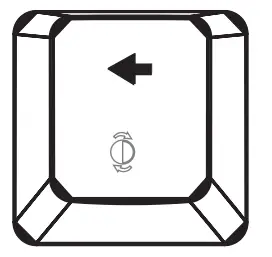 | Press to change the backlight direction. |
| FN ♦ | 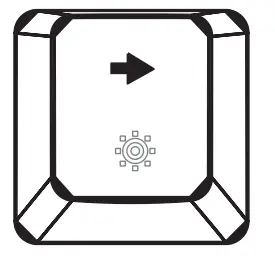 | Press to change the backlight color. |
| FN + V+/V- | Press to change speed; press FN + V + to increase speed: press FN + V- to decrease speed. | |
| FN +
| 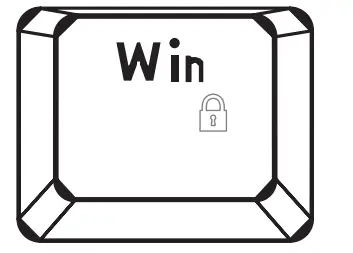 | /Unlock Windows |

The use of the WEEE Symbol indicates that this product should not be treated as household waste. By ensuring this product is disposed of correctly, you will help protect the environment. For more detailed information about the recycling of this product, please contact your local authority, your household waste disposal service provider, or the shop where you purchased the item.
This product meets all of the related basic EU regulation requirements. The EU declaration of conformity is available on www. alzashop.com/doc. This product sold in the European Union meet the requirements of Directive 2011/65/EU on the restriction of the use of certain hazardous substances in electrical and electronic equipment (RoHS).
WARRANTY & SUPPORT
Your new product is protected by our 24-month warranty. or extended warranty (if stated), which you can apply at any of our points of sale. For inquiries. you can use the contact form or one of our international call centres.
QR Code:

Customer Support
Co. Reg. No. 27082440 Alza.cz as., Jankovcova 1522/53, 170 00 Prague 7, Czech Republic C) 2023 Alza.cz a.s. All Rights Reserved.