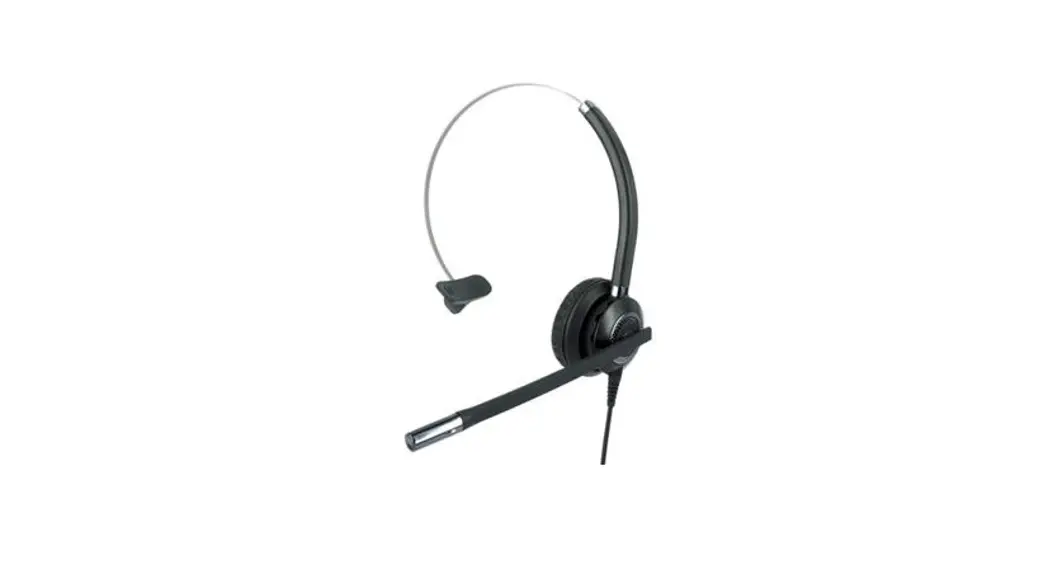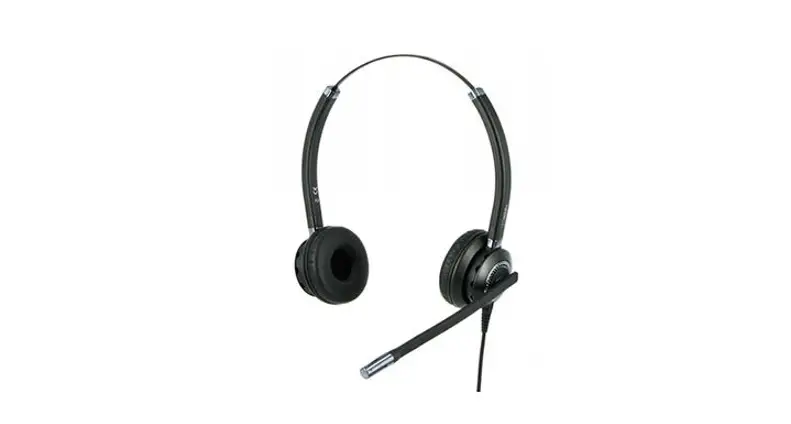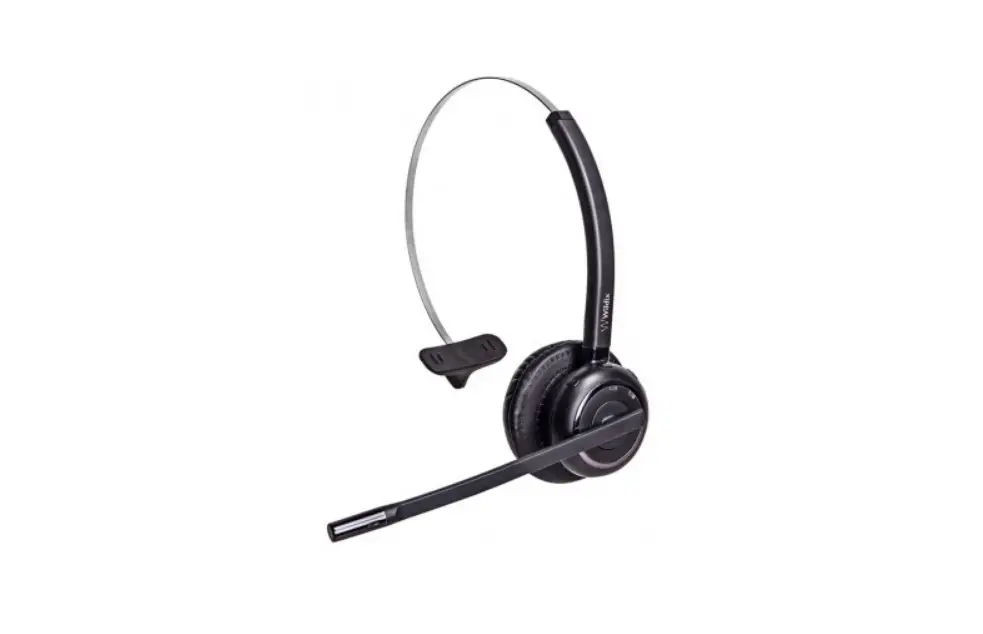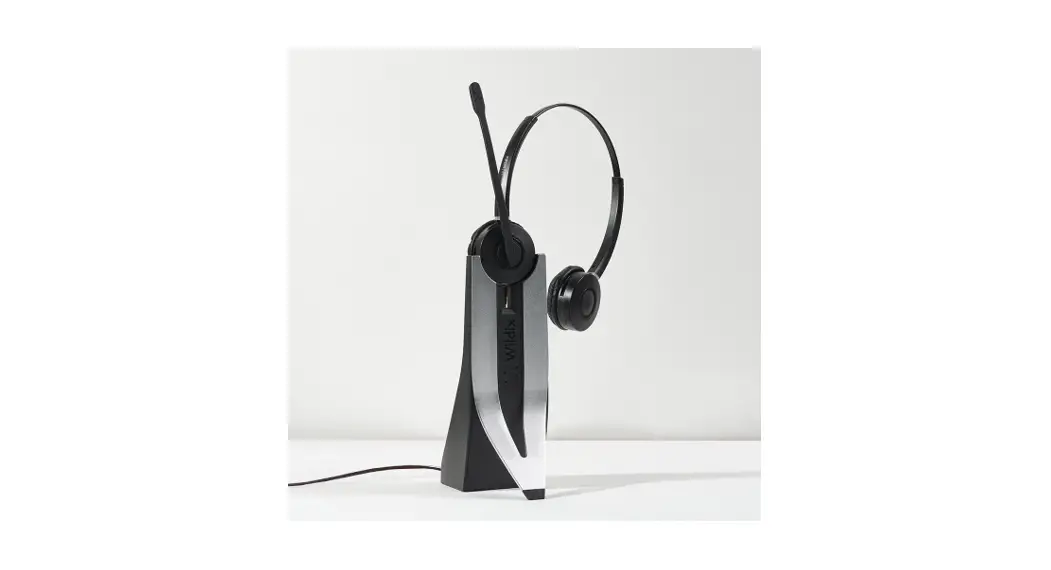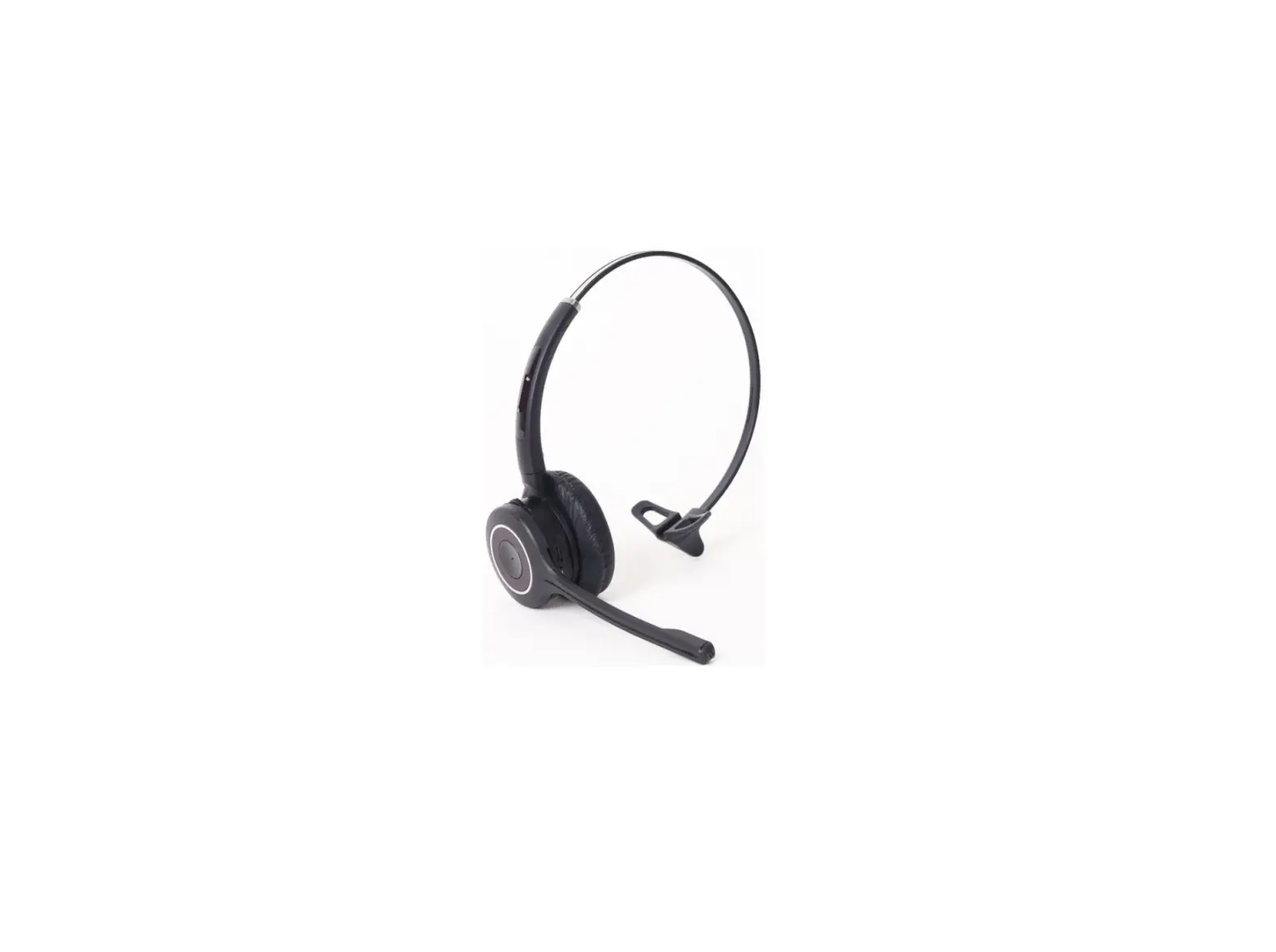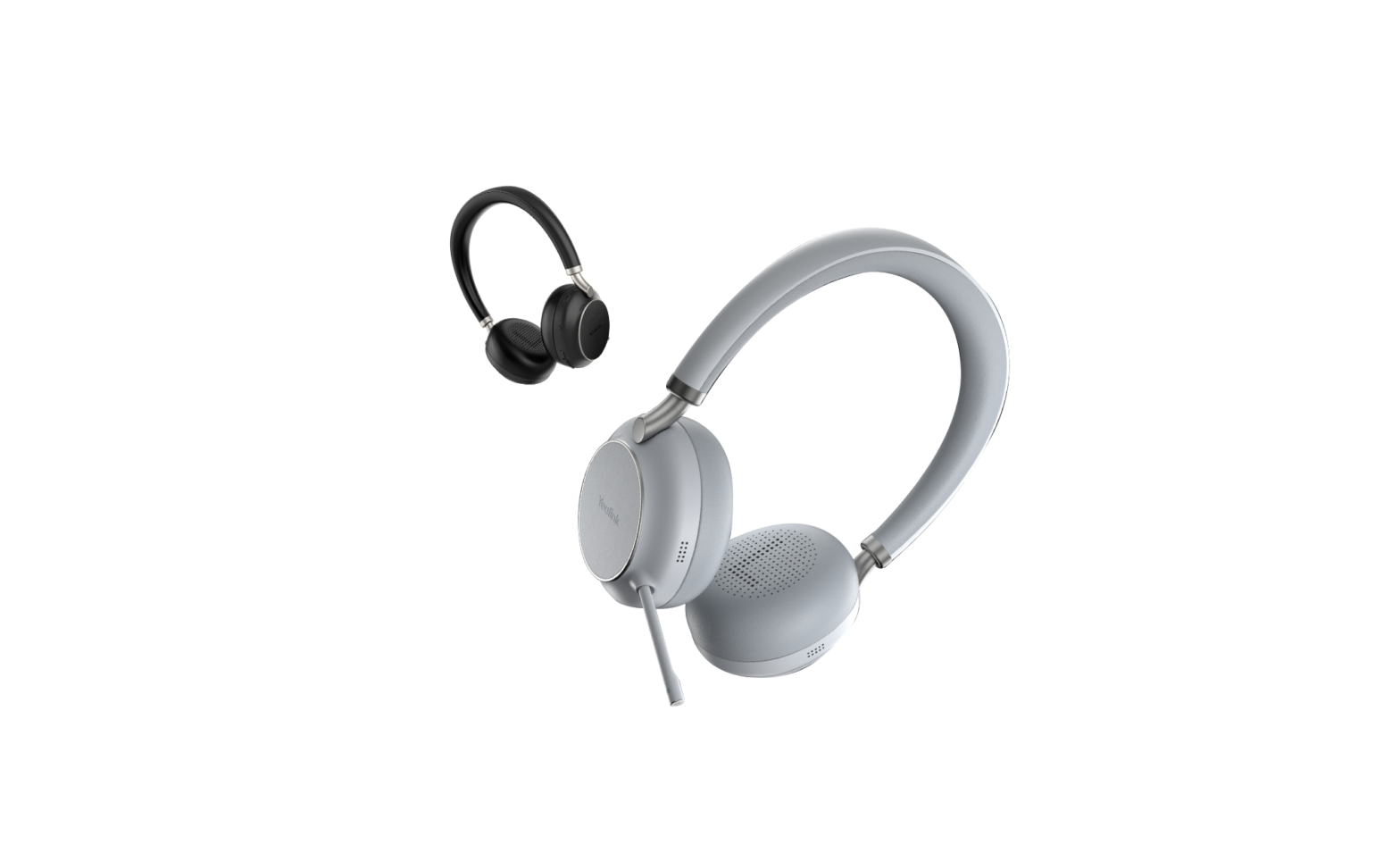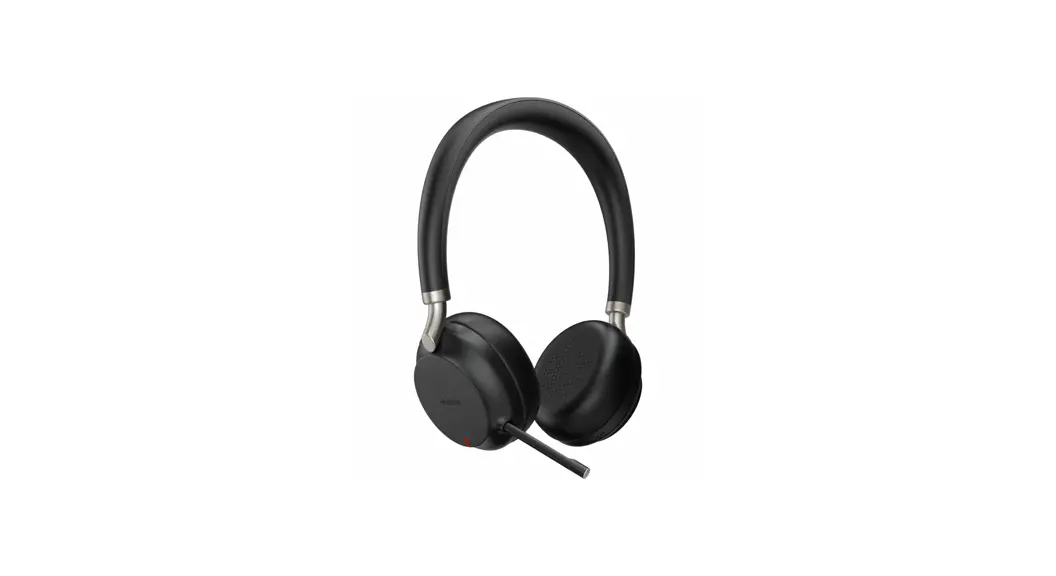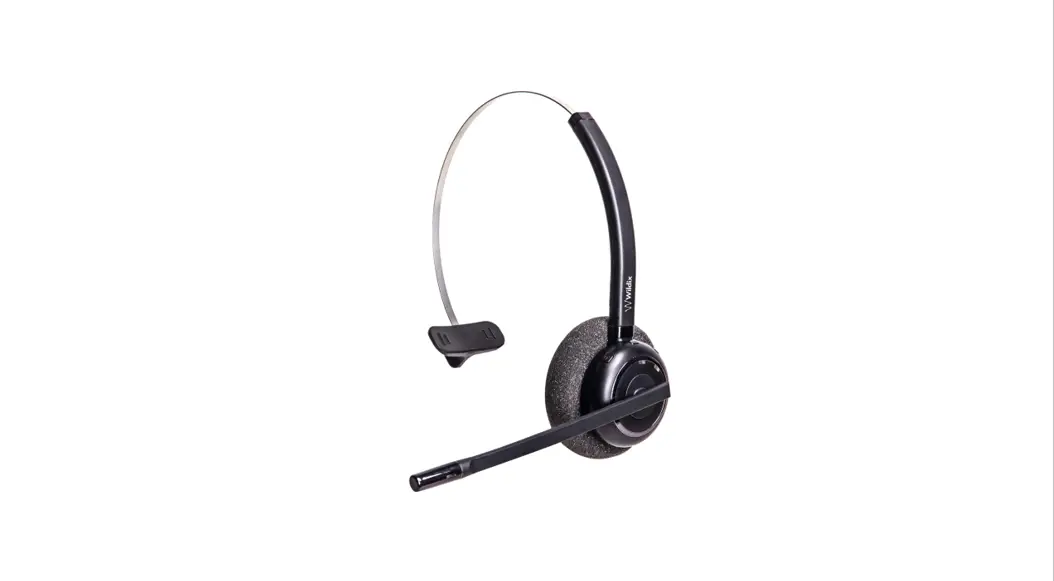

MONOLED-BT/ DUO LED-BT HEADSET USER GUIDE
PACKING LIST
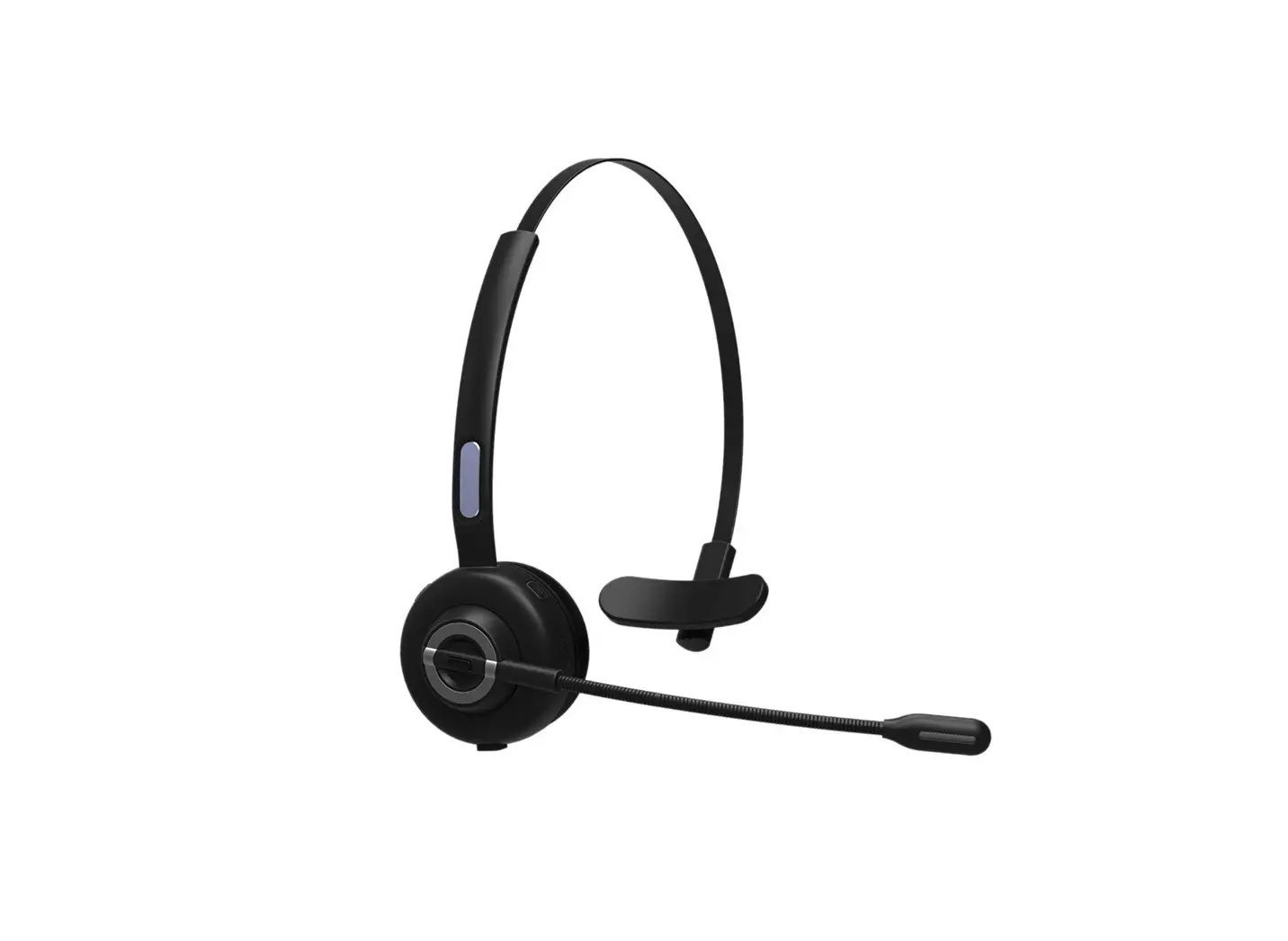
1 x MonoLED-BT/ DuoLED-BT Headset
1 x Base Station
1 x USB Type-C to Type-C cable
1 x USB Type-A to Type-C adapter
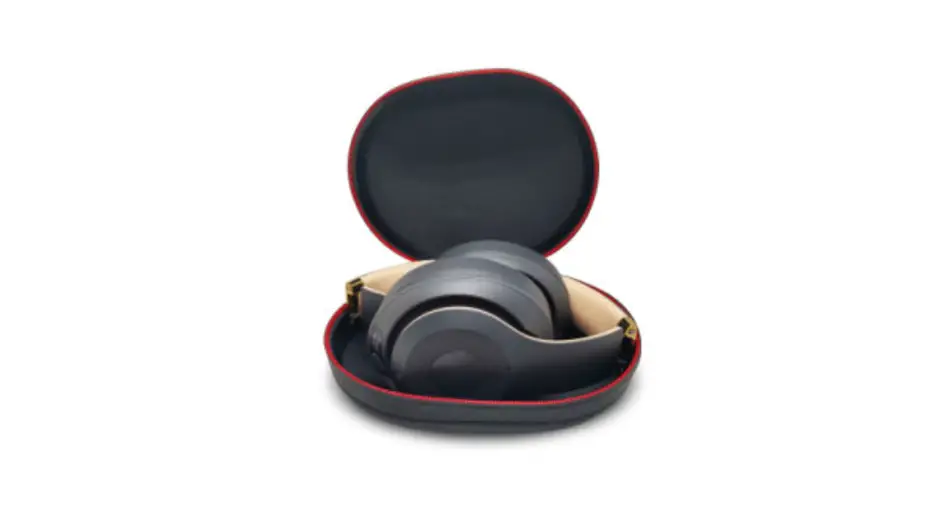
1 x portable case
Notes:
- It is required to install WIServiceIlaboratkin -> Settings -> Extensions) to use MonoLED-BT/ DuoLED-BT.
- MonoLED-BT headset is available only as HWaaS.
SAFETY INFORMATION
https://www.wildix.com/safety-information/
COMPATIBILITY
The Headset supports a dual (multipoint) wireless connection, which means it can be connected to two devices
simultaneously:
- Via Base Station. Such connection provides full support of LED user and call statuses and is compatible with:
- Apple Mac, Windows PC
- WorkForce
- WelcomeConsole Temporary limitation:
- Are!_____ headset cannot be connected to Vision/ SuperVision via
Base Station, the support will be available later
- Via Bluetooth module embedded in the Headset itself. Such connection doesn’t provide LED statutes support and is compatible with:
- Android, OS apps
- Vision/ SuperVision
- W-AIR LifeSaver
- W-AIR Med
- W-AIR Office
POWER ON/ POWER OFF
Press the Multi-function button for 3 seconds.
HEADSET AND BASE STATION OVERVIEW
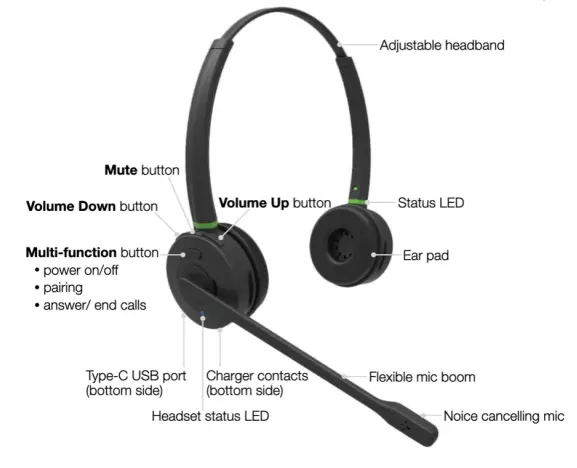
CHARGING
- Connect the USB cable to the Base Station
- Plug the cable into a device USB port (use Type-A adapter if needed)
- Place MonoLED-BT/ DuoLED-BT into the Base Station
- When charging, the Headset status LED turns red
- When charged, Headset status LED turns blue Battery charging time
- Less than 60 minutes to charge 20%
- Less than 90 minutes to charge 50%
- Fully charged in less than 3,5 hours
CONNECT VIA THE BASE STATION
- Connect the USB cable to the Base Station
- Plug the cable into a device USB port (use Type-A to Type-C adapter ft needed)
- Tum the Headset on
- The Headset Status LED starts blinking and the voice prompt announces “Your Headset is connected”
- For Collaboration, set “Wild ix MonoLED-BT”/ DuoLED-BT” as audio device in Collaboration -> Settings -> Web phone
Note: Are Headset and the Base Station are paired by default. If you accidentally unpair them, proceed with the Mowing steps to pair them back
- Press and hats Pairing button on the Base Station for 3 seconds the Pairing LED imitator starts blinking with fast blue and red blinks
- Make sure the Headset is powered off Press and hold the Multifunction button for 3 seconds until you hear “Paver on”. Keep pressing for 3 seconds more until you hear “Pairing”
- The Headset Status LED starts blinking and the voice prompt announces War I headset is connected”
CONNECT VIA BLUETOOTH EMBEDDED IN THE HEADSET
- Unplug the Base Station and turn the Headset off
- Activate Bluetooth on a device you want to connect the Headset to
- Press and hold the Multi-function button for 3 seconds until you hear “Power on”. Keep pressing for 3 seconds more until you hear “Pairing”
- Search for MonoLED-BT/ DuoLED-BT in the Bluetooth devices list on your device and select it for pairing
- The Headset Status LED starts blinking and the voice prompt announces “Your Headset is connected”
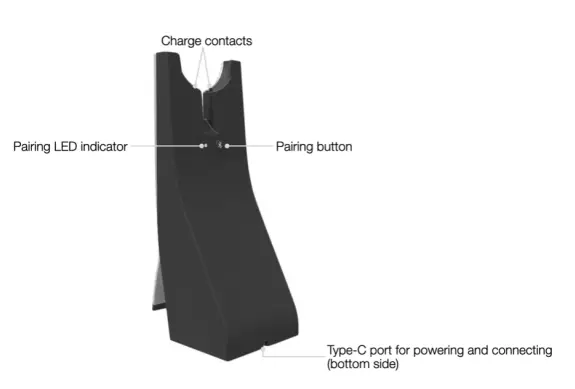
LED INDICATORS
Status LED
| User/ call status | LED indication | Color |
| Available | Steady on | Green |
| Away | Yellow | |
| DND/ in conference | Violet | |
| Outgoing call/ In call | Red | |
| Hold | Fast short blinks | Status color + red |
| Missed call | Long blinks followed by fast short blink | Status color + red |
| Incoming call | Fast short blinks | Red |
Headset status LED
| Headset status | LED indication | Color |
| Power on | One blink | Blue |
| Power off | Red | |
| Pairing mode | Fast short blinks | Blue |
| Pairing successfully | Long blinks | Blue |
| Answer a call | ||
| Charging | Steady on | Red |
| Fully charged | Blue |
Base Station pairing LED
- Successful connection – long blue blinks
- Pairing – fast blue and red blinks
CHECK THE BATTERY LEVEL
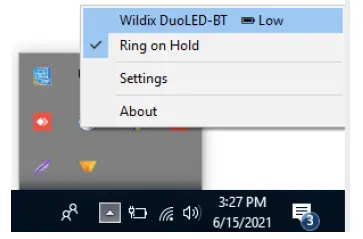
- On Windows, go to Quick Launch Toolbar -> right-click on Wildix Integration Service icon and check the level of battery (Low, Medium, High):

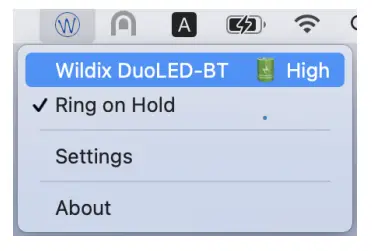
- On macOS, go to Menu Bar -> click on the service icon and check the level of battery (Low, Medium, High):

ANSWER A CALL
Press the Multi-function button to answer a call.
ADJUST VOLUME DURING A CALL/ RINGER VOLUME
Press Volume Up to increase the volume.
Press Volume Down to decrease the volume.
MUTE A MIC
Press the Mute button during a call to put a call on hold/resume.
PUT ON PAUSE/ RESUME A CALL
Press the Multi-function button for 2 seconds during a call to put a call on hold/resume.
END A CALL
Press the Multi-function button to finish a call.
Full guide online

Version 01/2022
 Wildix PBX | VoIP Solutions | Unified Communications | WebRTC