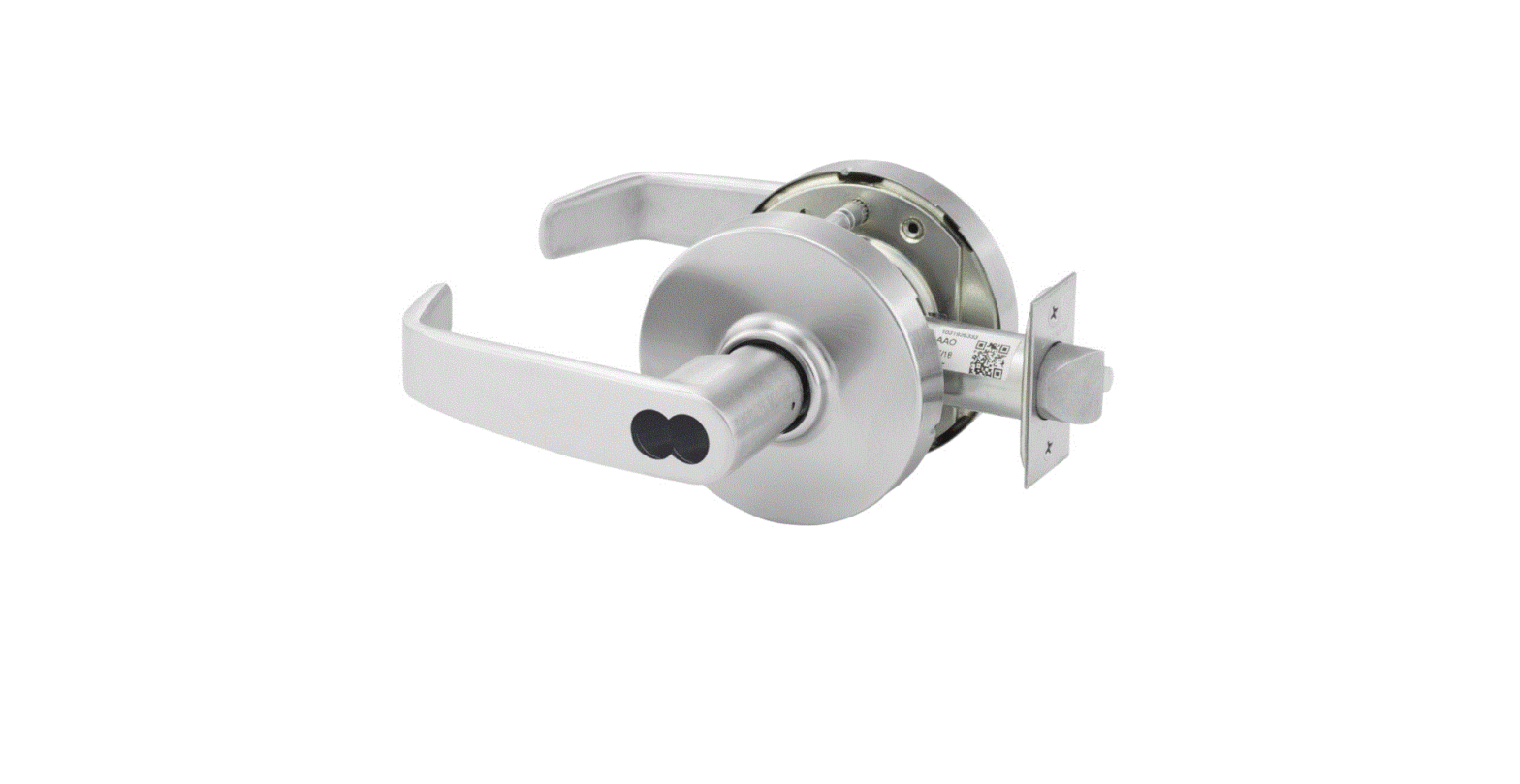
Digital Time Lock
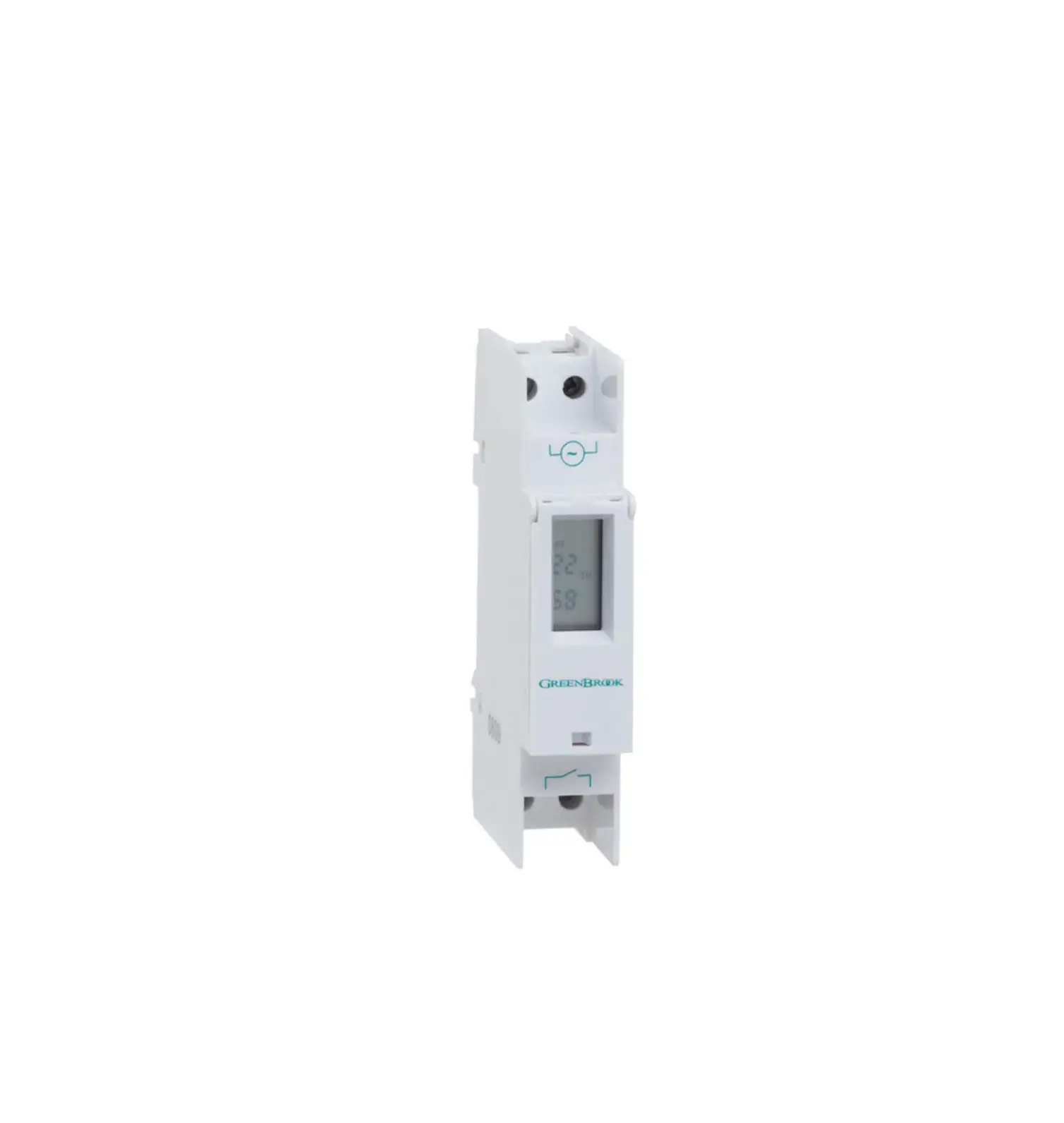
Sargent and Greenleaf Digital Time Lock
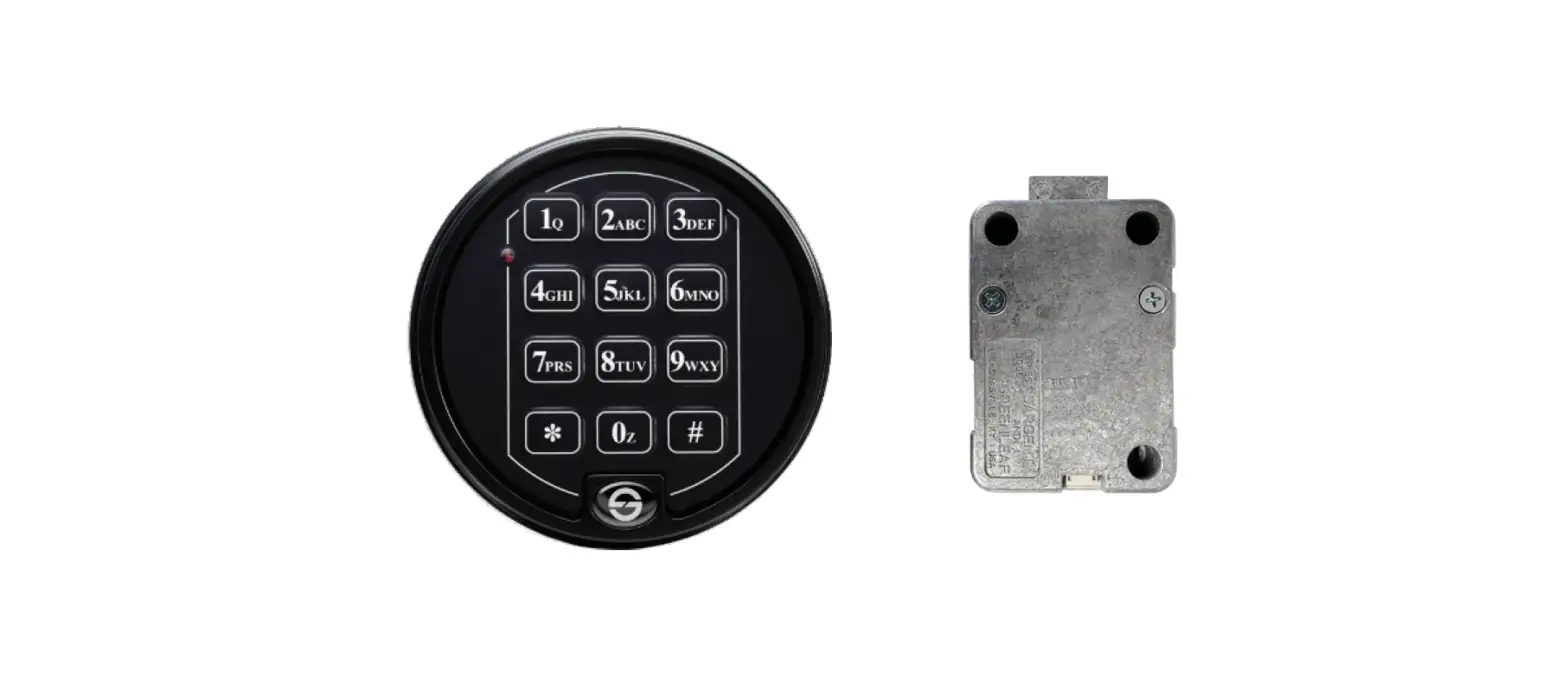
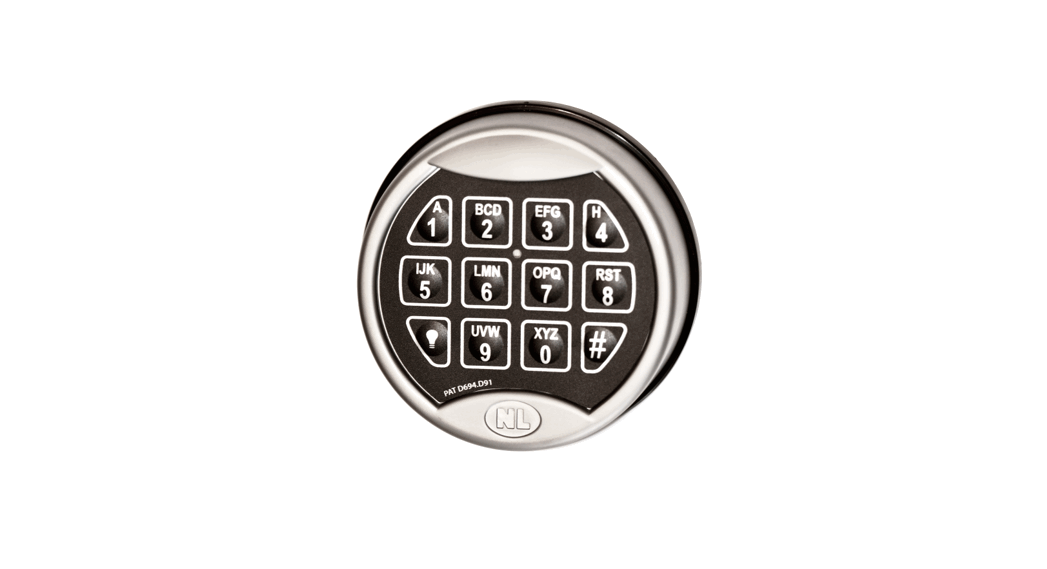
The Sargent and Greenleaf Digital Time Lock is built on the
Audit Lock 2.0 platform. This lock is designed to provide advanced
security features and functionality. The Digital Time Lock has all
the features and functionality of the Audit Lock 2.0 except user
modes Day Night Mode 1 and Mode 2. A USB flash drive is required to
upload the Time Lock file to the lock.
Product Usage Instructions
Create and Load a Time Schedule
- Visit
https://sargentandgreenleaf.com/time-lock-configuration/ - Configure your schedules.
- Configure your holidays.
- Enter company, contact, and email information.
- Click the Email File button. This will email to you a Time Lock
file called sgtimelock.sgt. - Copy the Time Lock file (sgtimelock.sgt) to an approved flash
drive. - Load schedule using the 72* command (ex: 72* Programmer Code +
#). - Insert flash drive into the Digital Time Lock.
Review Loaded Schedule
- Enter 85* Programmer Code + #
- Enter 2# (View)
- Enter 1# (Schedule)
- Enter the schedule you want to review (1-4) #
- Review schedule using # key.
View Holidays
- Enter 85* Programmer Code + #
- Enter 2# (View)
- Enter 2# (Holidays)
- Review schedule using # key.
View Vacations
- Enter 85* Programmer Code + #
- Enter 2# (View)
- Enter 3# (Vacation)
- Review schedule using # key.
View PIN Schedule Assignment
- Enter 85* Programmer Code + #
- Enter 2# (View)
- Enter 4# (User)
- Enter the user PIN position (ex: 10#)
Add Vacation
- Enter 85* Programmer Code + #
- Enter 1# (Manage)
- Enter 1# (Vacation)
- Enter Start Date (DD/MM/YY)
- Confirm Start Date (DD/MM/YY)
- (DD/MM/YY)
- Enter End Date (DD/MM/YY)
- Confirm End Date (DD/MM/YY)
If you want to lock down or set a vacation for that day, press
the # key during the Set End and Confirm End screens. This will set
the vacation for the date you entered in the Set Start and Confirm
Start screens.
Manage User Access Schedule
- Enter 85* Programmer Code + #
- Enter 1# (Manage)
- Enter 2# (User)
- Enter User PIN #
- Confirm User PIN #
- Enter the Access Schedule you want to add the user in
(1-4) - Confirm Access Schedule
If you receive a BRAP (a lock beep) after entering the schedule
number, then that schedule does not exist.
Delete Vacation
- Enter 85* Programmer Code + #
- Enter 1# (Manage)
- Enter 2# (User)
- Enter 1# (Add)
- Enter PIN #
- Enter Start Date (DD/MM/YY)
- Confirm Start Date (DD/MM/YY)
- (DD/MM/YY)
- Enter End Date (DD/MM/YY)
- Confirm End date (DD/MM/YY)
The vacation time you are removing must match with the vacation
dates set up in the system.
Reset a Lost Time/Date
The 71* command will allow you to set the date in the lock in
the event it has lost its time/date setting. Using this command,
the lock will set the date to the value entered during the 71*
command sequence. The lock will then set the start hour to noon
that day. At that point, the lock will not allow access for the
next 12 hours (00:00 the next day). After that, the lock settings
will become available, and any changes to the time/date can be made
using the normal commands.
GENERAL NOTES
The Sargent and Greenleaf Digital Time Lock is built on the Audit Lock 2.0 platform. The Digital Time Lock has all the features and functionality of the Audit Lock 2.0 except user modes Day Night Mode 1 and Mode 2. A USB flash drive is required to upload the Time Lock file to the lock.
sgtimelock.sgt – A file that contains Schedules and Holidays that will be loaded to the lock.
Schedule There are 4 (1-4) available Schedules in the sgtimelock.sgt file. Open Windows – Opening windows consist of a start and end time. There are 4 opening windows per Schedule. Holidays – There are 30 holidays that can be loaded to the lock. The holidays consist of Floating and Static.
Floating Holidays are days of the year that will fall on different dates (ex: Easter, Thanksgiving). Static Holidays are days of the year that fall on the same date (ex: Fourth of July, Canada Day, Bastille Day). Vacation Days There are 31 vacation days that can be configured via the keypad. The lock does not allow any access. The Programmer PIN Code (00) remains outside of any loaded schedule unless allocated to a schedule. PIN Codes (01-99) are allocated to Schedule 1 when a schedule is loaded.
Create and Load a Time Schedule
1. Go to https://sargentandgreenleaf.com/time-lock-configuration/ 2. Configure your Schedules.
3. Configure your holidays.
4. Enter company, contact, and email information. 5. Click the “Email File” button. This will email to you a
Time Lock file called “sgtimelock.sgt.”
6. Copy the Time Lock file (sgtimelock.sgt) to an approved flash drive. 7. Load schedule using the 72* command (ex: 72* Programmer Code + #). 8. Insert flash drive into the Digital Time Lock.
Review Loaded Schedule
1. Enter 85* Programmer Code + # 2. Enter 2# (View) 3. Enter 1# (Schedule) 4. Enter the schedule you
want to review (1-4) # 5. Review schedule using # key.
Document 630-930 Revised 05/22/2023
1 | Page
View Holidays
1. Enter 85* Programmer Code + # 2. Enter 2# (View) 3. Enter 2# (Holidays) 4. Review schedule using # key.
View Vacations
1. Enter 85* Programmer Code + # 2. Enter 2# (View) 3. Enter 3# (Vacation) 4. Review schedule using # key.
View PIN Schedule Assignment
1. Enter 85* Programmer Code + # 2. Enter 2# (View) 3. Enter 4# (User) 4. Enter the user PIN position
EX: 10#
Add Vacation
1. Enter 85* Programmer Code + # 2. Enter 1# (Manage) 3. Enter 1# (Vacation) 4. Enter 1# (Add) 5. Enter Start Date
(DD/MM/YY) 6. Confirm Start Date 7. (DD/MM/YY) 8. Enter End Date
(DD/MM/YY) 9. Confirm End Date
(DD/MM/YY)
If you want to lock down or set a vacation for that day, press the # key during the Set End and Confirm End screens. This will set the vacation for the date you entered in the Set Start and Confirm Start screens.
2 | Page
Manage User Access Schedule
1. Enter 85* Programmer Code + # 2. Enter 1# (Manage) 3. Enter 2# (User) 4. Enter User PIN # 5. Confirm User PIN # 6. Enter the Access Schedule
you want to add the user in (1-4) 7. Confirm Access Schedule
If you receive a BRAP (a lock beep) after entering the schedule number, then that schedule does not exist.
Delete Vacation
1. Enter 85* Programmer Code + # 2. Enter 1# (Manage) 3. Enter 2# (User) 4. Enter 1# (Add) 5. Enter PIN # 6. Enter Start Date
(DD/MM/YY) 7. Confirm Start Date 8. (DD/MM/YY) 9. Enter End Date
(DD/MM/YY) 10. Confirm End date
(DD/MM/YY)
The vacation time you are removing must match with the vacation dates set up in the system.
Reset a Lost Time/Date
The 71* command will allow you to set the date in the lock in the event it has lost its time/date setting. Using this command, the lock will set the date to the value entered during the 71* command sequence. The lock will then set the start hour to noon that day. At that point, the lock will not allow access for the next 12 hours (00:00 the next day). After that, the lock settings will become available, and any changes to the time/date can be made using the normal commands.
3 | Page
Here is an example of a Time Lock Schedule: 1. Schedule 1 is open all day Sunday Saturday.
2. For Schedule 2, Sunday is closed Monday Friday lock is open from 00:00-12:00 and 13:00-18:00 Saturday lock is open from 06:00-12:00
3. Schedule 3 and 4 are not loaded. 4. There are 30 holiday configurations.
January 1 (fixed)
The first Monday of September every year (floating)
4 | Page
 Time Lock