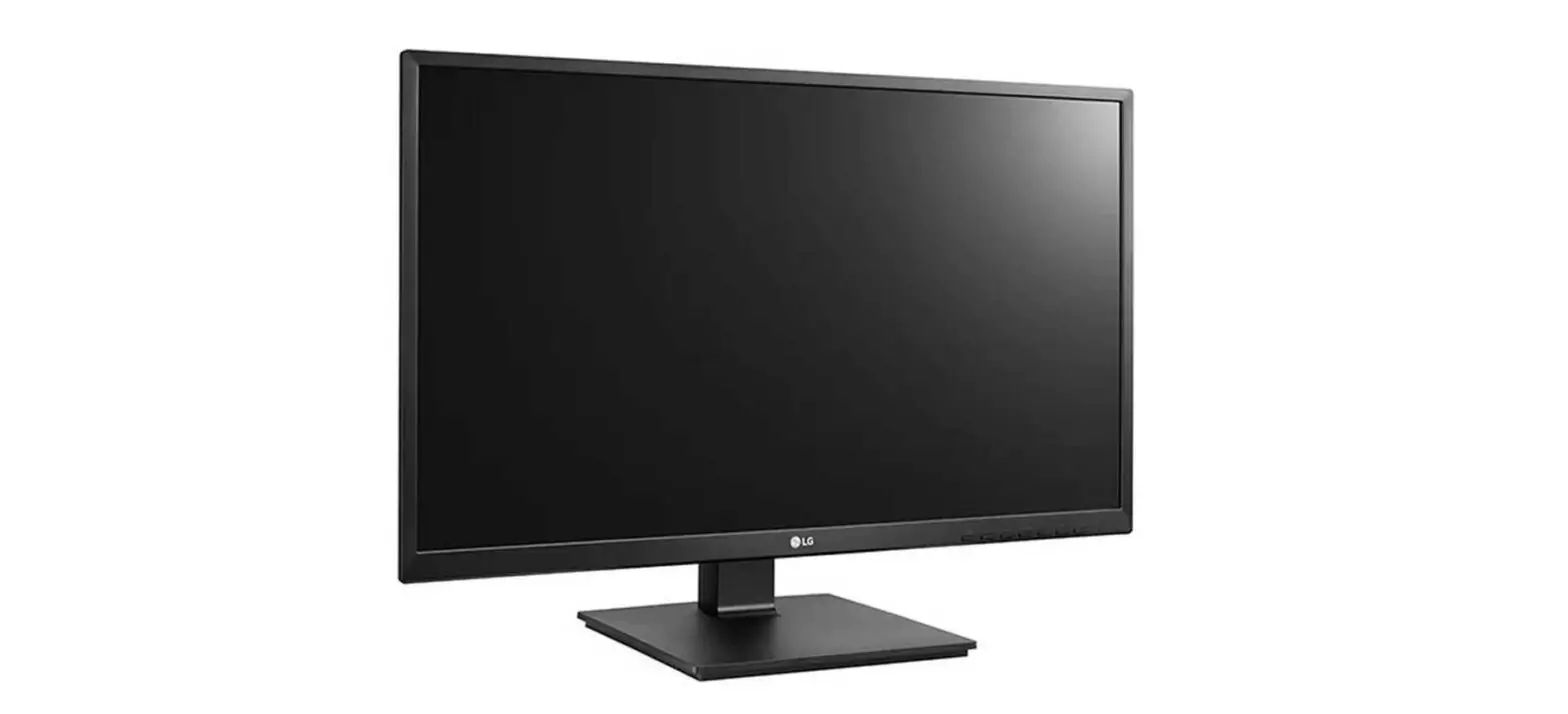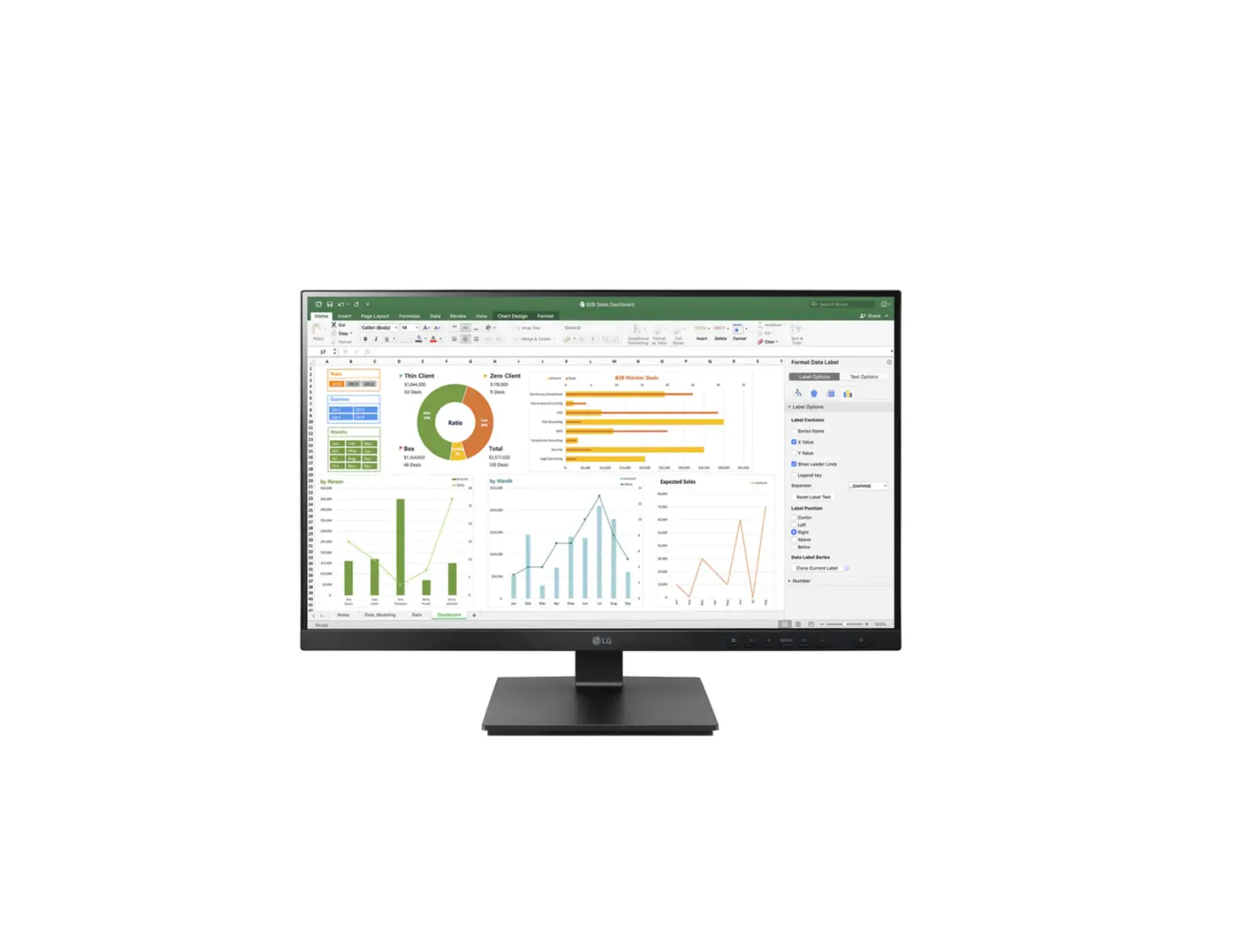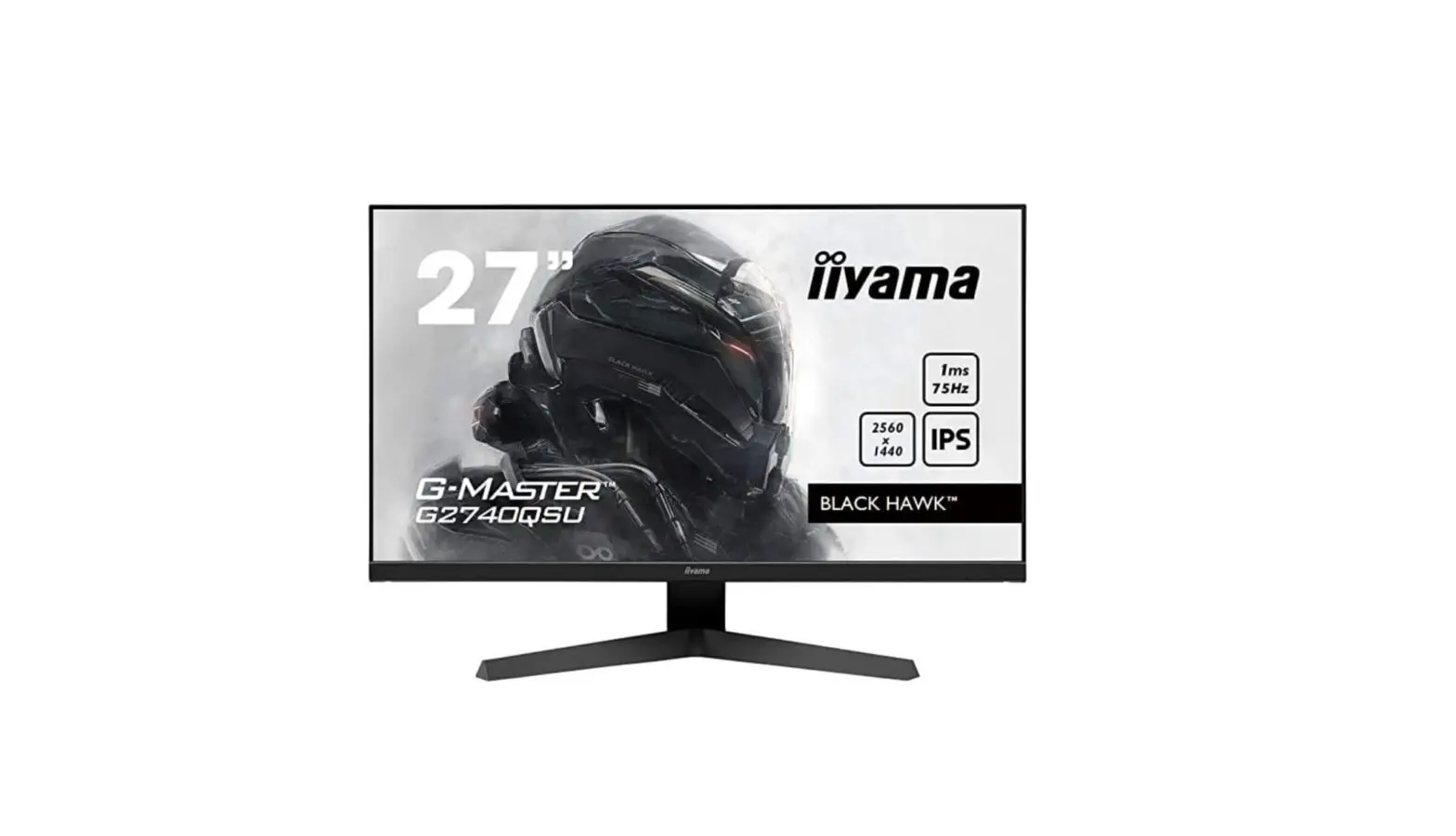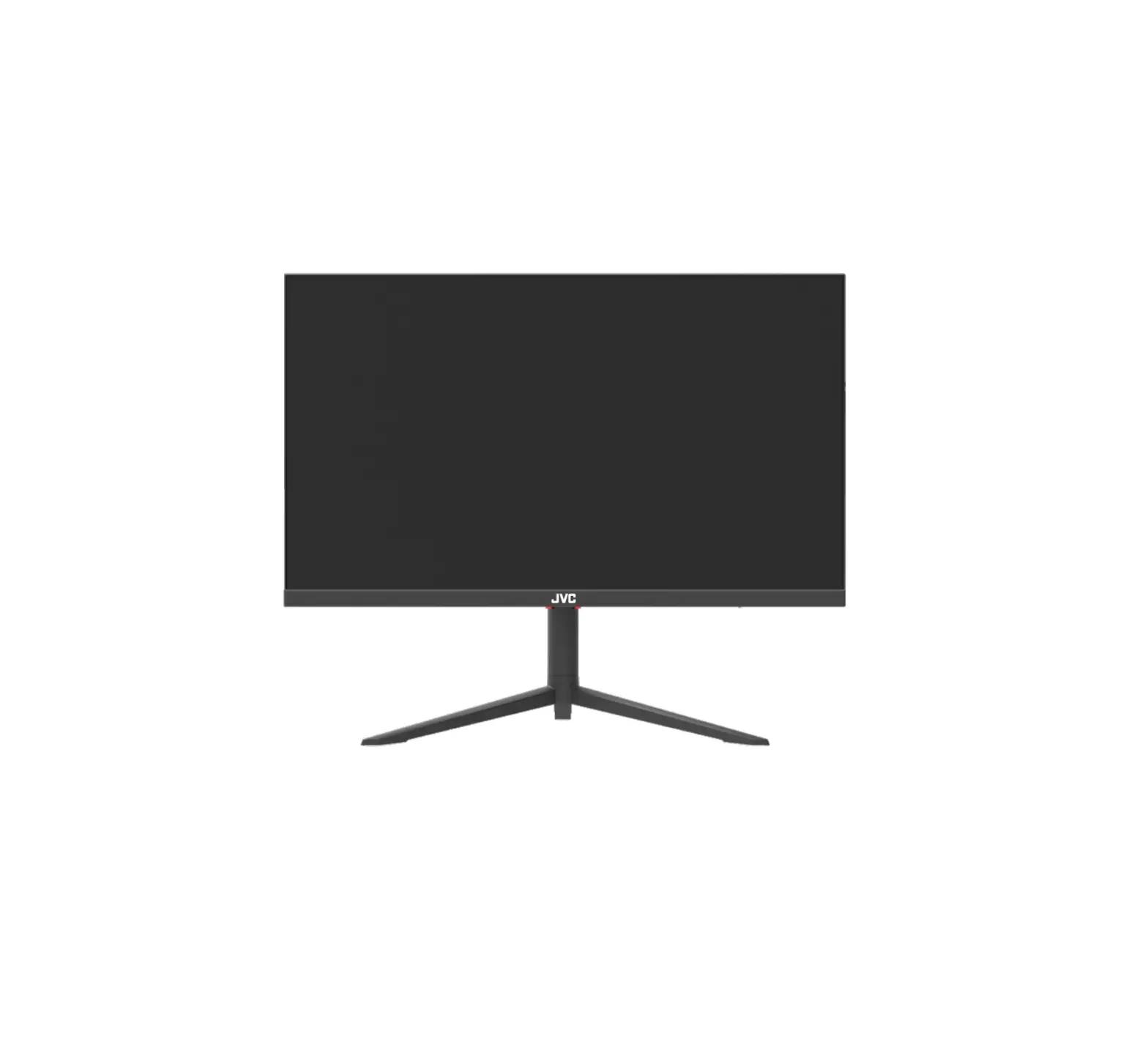
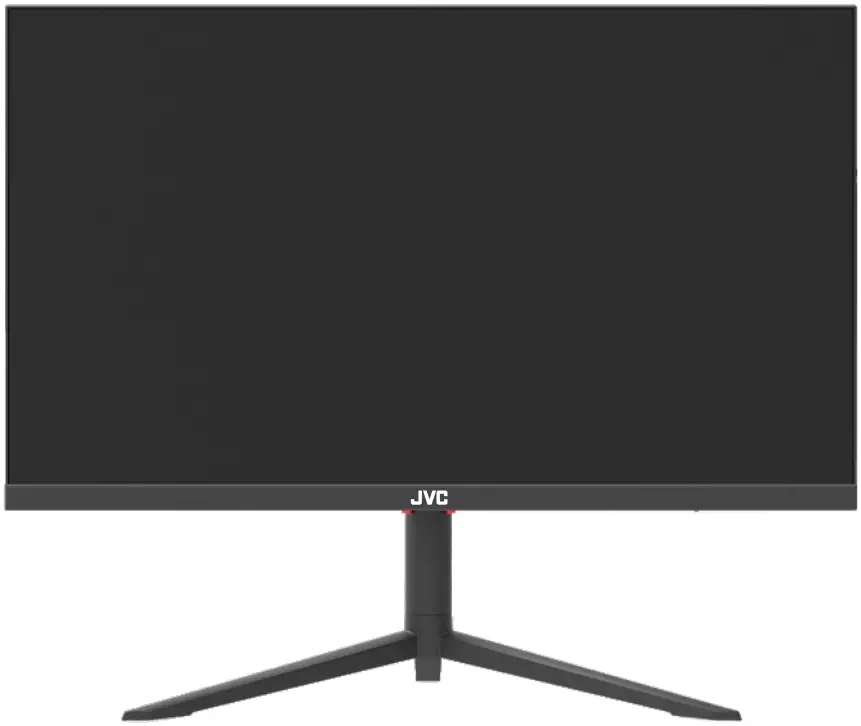
JVC LT-GN27425A LCD Monitor
Warning and Precautions
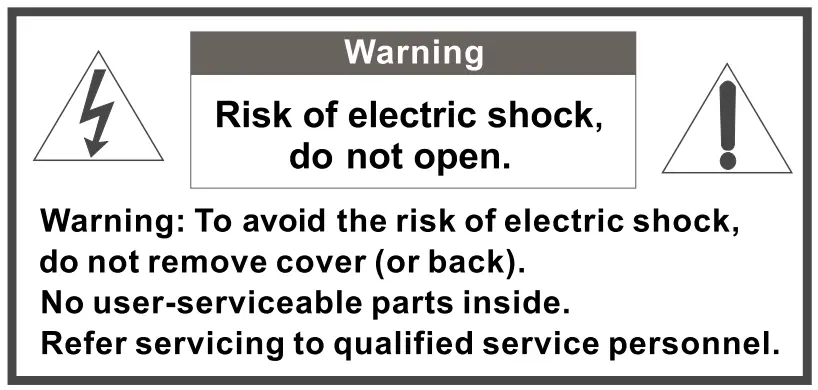
 The lightning flash with arrowhead symbol, within an equilateral triangle is intended to alert the user to the presence of uninsulated “dangerous voltage” within the product’s enclosure that may be of sufficient magnitude to const~ute a risk of electric shock to a person.
 The exclamation point within an equilateral triangle is intended to alert the user to the presence of important operating and maintenance (servicing) instructions in the literature accompanying the appliance.
WARNING: TO PREVENT FIRE OR SHOCK HAZARDS, DO NOT EXPOSE THIS APPARATUS TO RAIN OR MOISTURE.
CAUTION: TO ENSURE PERSONAL SAFETY, OBSERVE THE FOLLOWING RULES REGARDING THE USE OF THIS UNIT.
- Operate only from the power source specified on the unit.
- Avoid damaging the AC plug and power cord.
- Avoid improper installation and never position the unit where good ventilation is unattainable.
- Do not allow objects or liquid to fall into the cabinet openings.
- In the event of mechanical damage, unplug the unit and call a service technician. Do not attempt to repair it yourself or remove the rear cover.
Changes or modifications not approved by JVC could void the warranty.
* When you don’t use this monitor for a long period of time, be sure to disconnect the power plug from the AC outlet for your safety.
* To prevent electric shock do not use this power plug with an extension cord, receptacle or other outlet unless the blades can be fully inserted to prevent blade exposure.
Do not attempt to service the product yourself
Caution
To prevent electrical shock, do not open the monitor casing.
There are no user serviceable parts inside.
Please refer to qualified service personnel for repairs.
WARNINGS
- Ensure at least a 10 cm gap around the product for ventilation. An internal temperature rise may cause a fire and damage the product.
- The ventilation should not be impeded by covering the ventilation openings with items such as newspapers, cloths, curtains, etc.
- When installing the product on a cabinet or shelf, make sure that the bottom edge of the front of the product is not protruding.
- Do not install the product within the reach of young children.
- Do not place objects containing liquid (vases, pots, bottles, etc.) or metallic objects on top of the product.
- If the product falls or the exterior is damaged, power off the product, remove the power cord, and contact Customer Service.
- Do not place the power cord or product near heat sources such as direct sunlight, heat, or a hot object such as a stove.
- The monitor must not be exposed to dripping or splashing and no objects filled with liquids, such as vases, shall be placed on the unit.
- Always handle the monitor with care when moving it. Don’t put any pressure on the screen as it is fragile.
- Do not install the product in a vehicle or a place exposed to dust, moisture (water drips, etc.), oil or smoke.
- Installing the product in an unusual place (a place exposed to a lot of fine dust, chemical substances, extreme temperatures or a significant presence of moisture, or a place where the product will operate continuously for an extended period of time) may seriously affect its performance.
- If the product generates a strange noise, a burning smell or smoke, remove the power cord immediately and contact Customer Service.
- Looking at the screen too close for an extended period of time can deteriorate your eyesight.
- Rest your eyes for at least 5 minutes for every 1 hour of product use.
- Disconnect the power cord from the power socket if you do not plan on using the product for an extended period of time (vacation, etc.).
- To move the product, first disconnect all the cables from it, including the power cable.
Base Installation Instructions
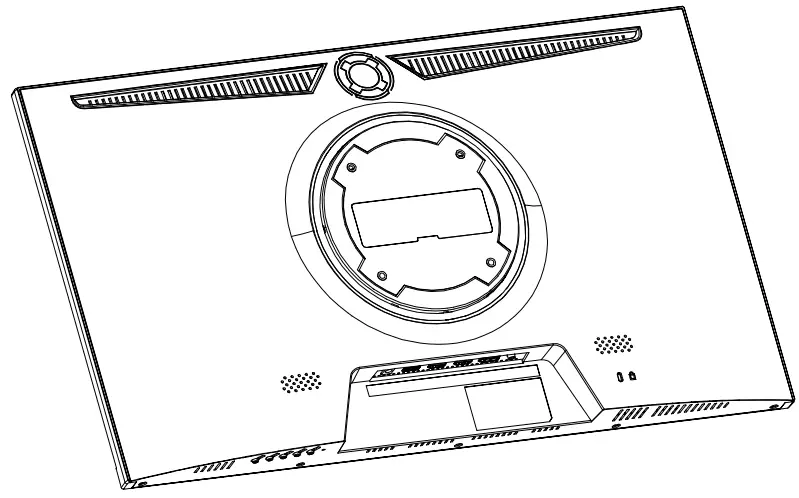
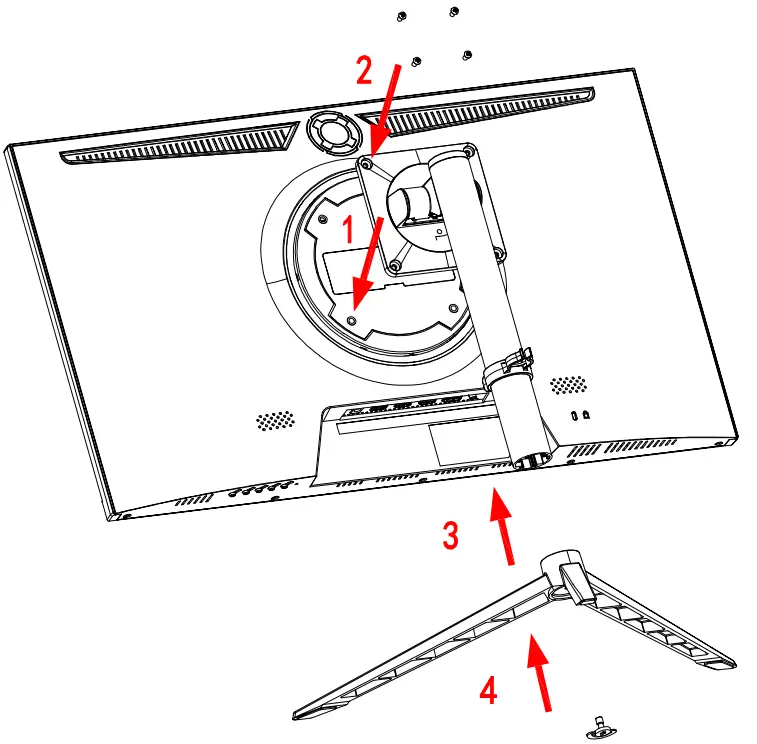
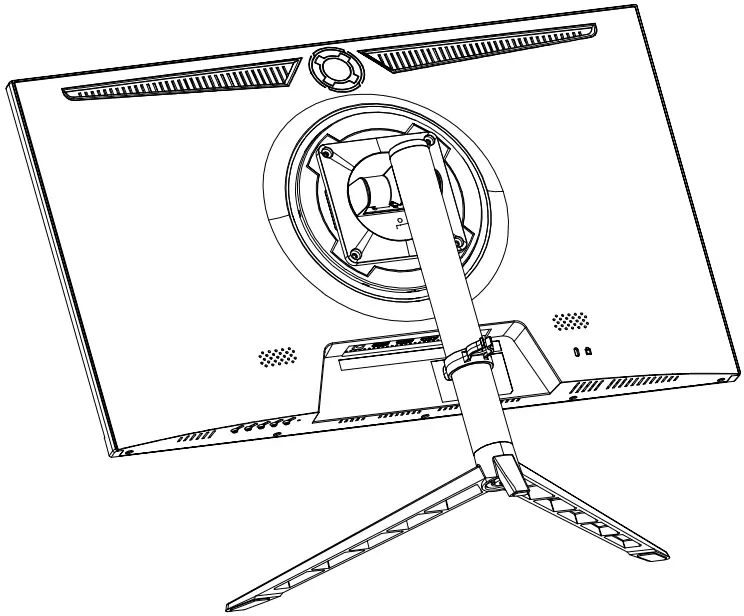
The Stand Base must be securely installed as shown below, unless using an external mount. VESA100 x100mm ,M4 Screw.
Place the monitor face down on a flat surface, onto a towel or blanket to avoid damaging the screen

- Align the screw holes on the back of the monitor with the ones on the Support Pole and use the screws (4 pieces PM4x12mm) to attach the Pole to the monitor.
Now align the Support Pole with the base and fix it with the screws on the base.
- Assembly is complete .
Monitor can now be placed on a stable, flat surface.
Accessories
- Monitor x1
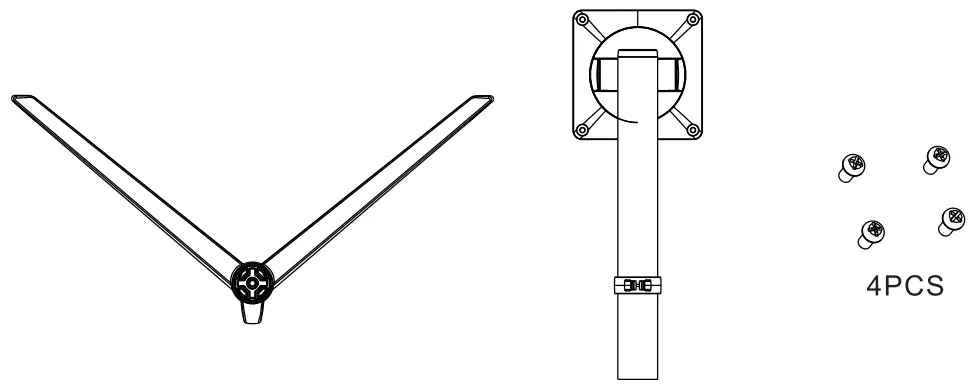
- Stands (1x Support Pole, 1x Base) x2
- Screws x4
- User Manual x 1
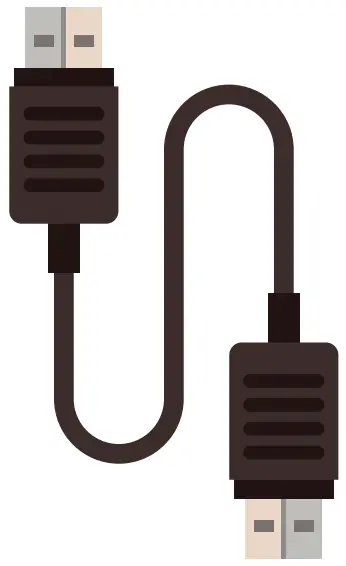
- DP Cable x 1
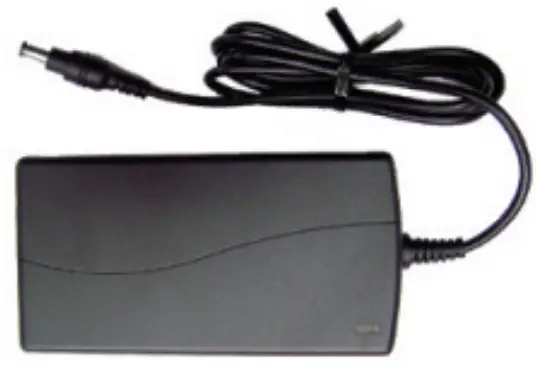
- Power Adaptor x 1
 | |
 |  |
 |  |
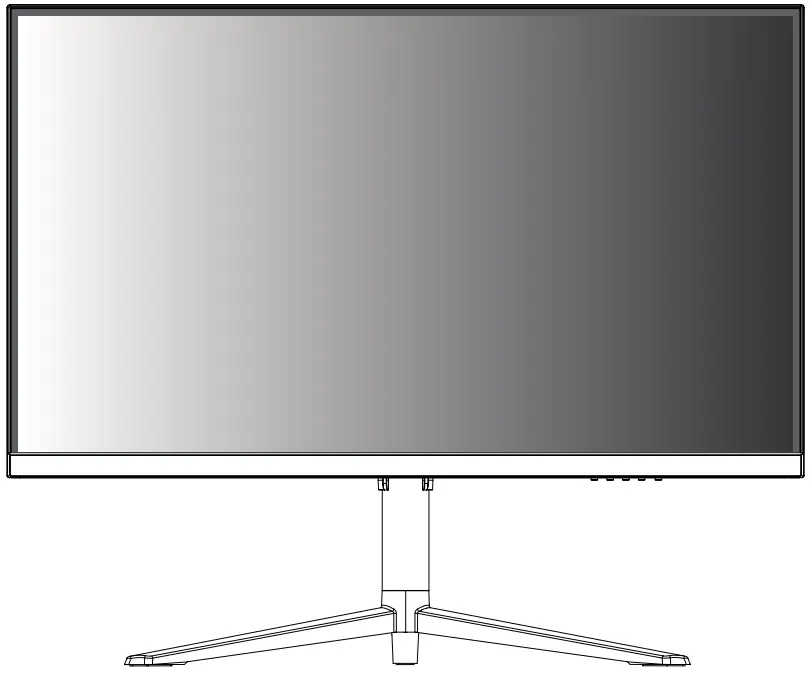
Product Overview
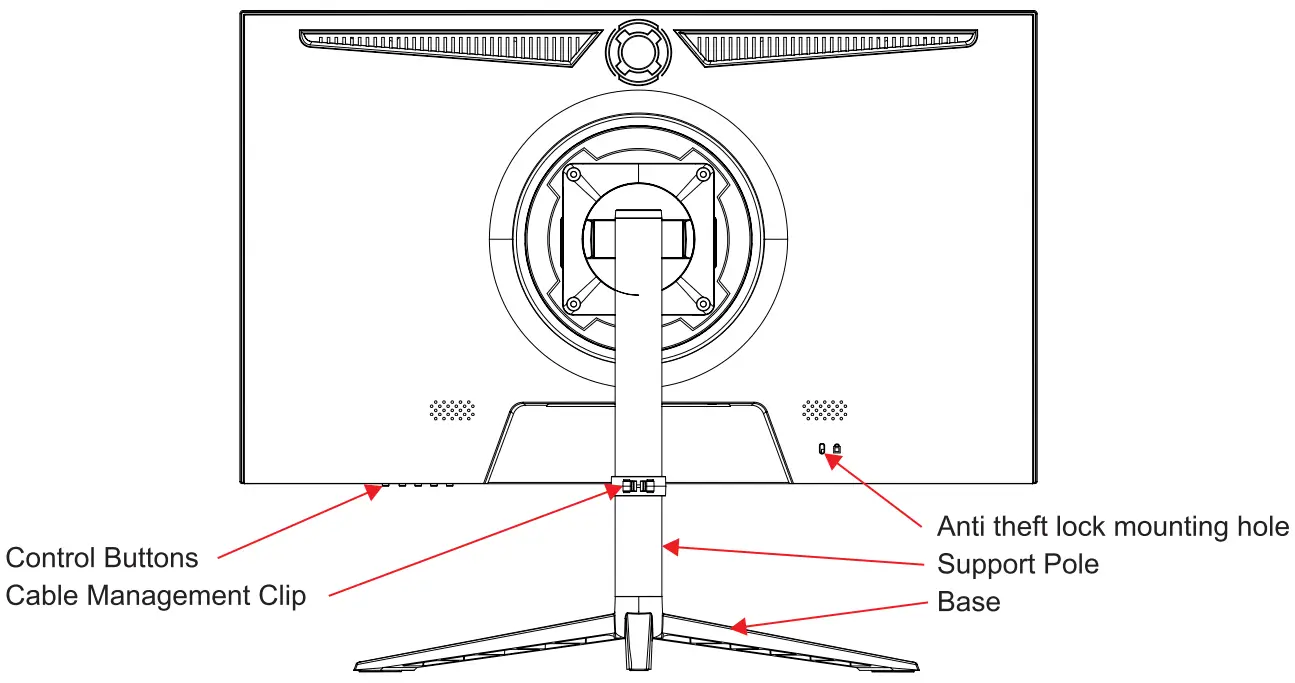
Ports
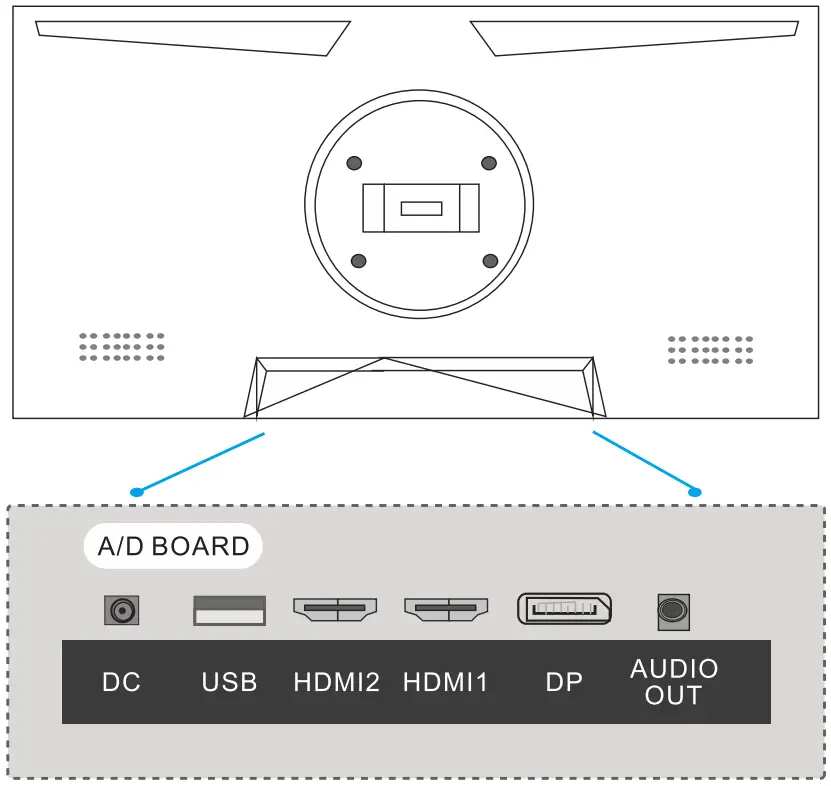
| DC 12V/4A | Connect to the AC/DC adapter. |
| USB | DC 5V, 1 A power output for charging devices |
| HDMI 1/2 | Connect to a device using an HDMI cable. |
| DP(DISPLAY PORT) | Connect to a PC or other source device using the provided Display Cable. |
| AUDIO OUT | Connect to an audio output device such as headphones or earphones. |
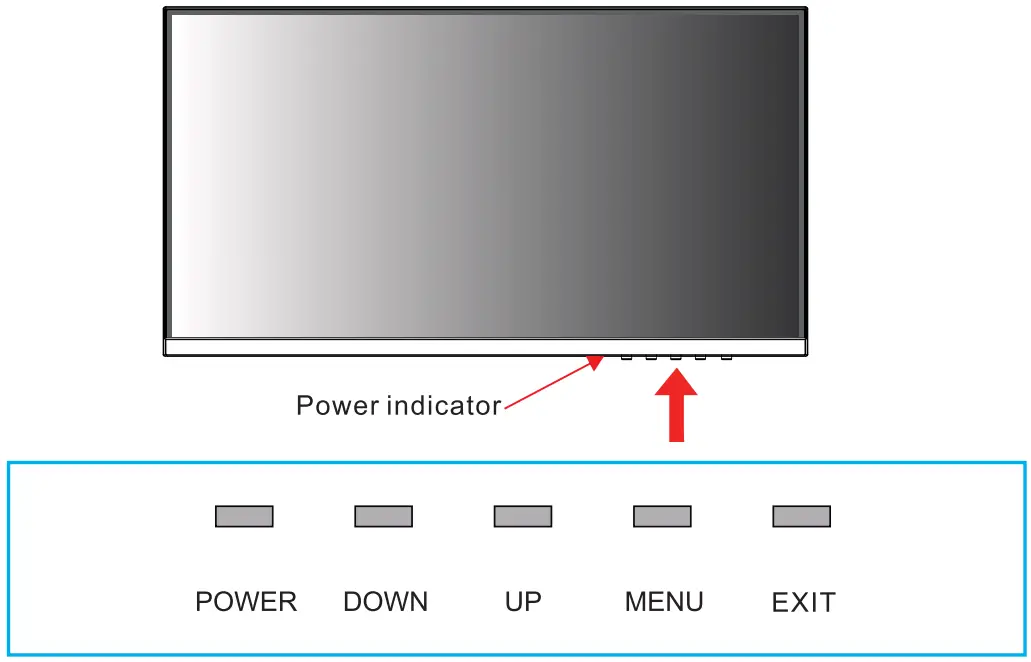
(1) Power
Press to turn the monitor on or to switch it to shutdown status.
(2) Power Indicator
When the monitor is on.the indicator light will be blue.When the monitor is in Standby mode.the indicator light will be red and when the monitor is off.the indicator light will be off.
(3) EXIT
Press to select input sources or to exit the current menu .
(4) DOWN
Select and adjust the OSD items ( Decrease the value).
(5)Menu
Press to bring up the OSD menu .
(6) UP
Select and adjust the OSD items ( Increase the value).
- Press the Menu button to access the Main Menu .
- Press “UP” or “DOWN” to scroll through the main function options.
- Press Menu button again to enter the selected sub menu . Use UP or DOWN buttons to adjust to the desired options.
- Press EXIT to return to the Main Menu .
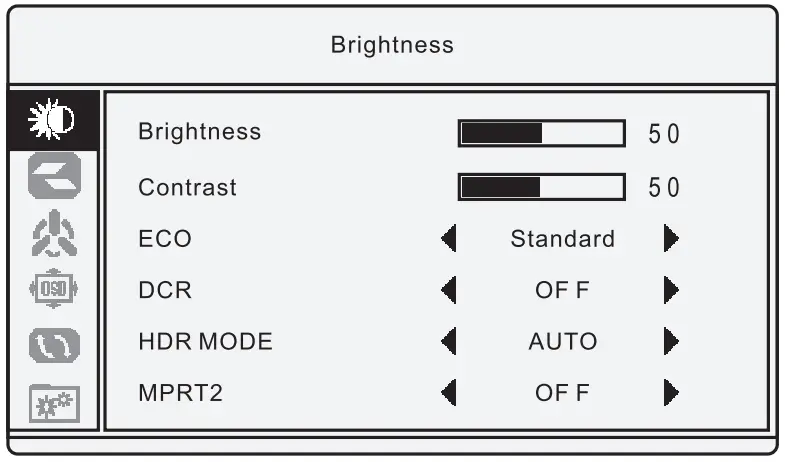
| Main Menu | Sub-Menu | Option | Description |
| Brightness | Brightness | 0-100 | Adjust display brightness |
| Contrast | 0-100 | Adjust display contrast | |
| ECO | Standard ,RTS,FPS , TE XT,Movie ,Game | Set ve rtical mode | |
| OCR | On/Off | Turn OCR (Dynamic Contrast Ratio) function On/Off | |
| HOR Mode | AUTO ,OFF,2084 | Turn HOR function auto /off /2048 | |
| MPRT2 | On/Off | Turn MPRT2 fun ction On/Off | |
| Image.Setup | H.Position | 0-100 | Adjust the horiz ontal postilion |
| V.Position | 0-100 | Adjust the vertical postilion | |
| Clock | 0-100 | Adjust the clock setting | |
| Phase | 0- 100 | Adjust the clock phase setting | |
| Aspect | 16:9,4:3 | Set aspect ratio | |
| Low Blue Light | 0-100 | Adjust the Low Blue Light setting | |
| Color Setup | ColorTermp | Warm ,Cool ,User | Adjust color temperature |
| Red | 0-100 | Customize RGB components | |
| Green | 0-100 | ||
| Blue | 0-100 | ||
| OSD Setup | Language | Engli sh,Fr anc;:ais , DEUTSCH,fll’jpt,;;<j:, >1:, I taliano ,ESPA NOLO ,PORTUGU ES,TURKCE ,POL SKl , NEDERL AN Ds , B $¼ . | Set OSD language |
| OSD H.Positon | 0-100 | Adjust the horizontal postilion | |
| OSD V.Positon | 0-100 | Adjust the vertical postilion | |
| OSDTIMEOUT | 0-60 | Set how long the OSD remains | |
| TRANSPARENCY | 0-100 | Adjust the OSD transparency value | |
| RESET | RESET | N/A | Reset OSD settings to factory default ; press Menu button to confirm |
| LED Eff ect | On I Off / Flicker | Set the back cover LED lights to On, Off or Flicker mode | |
| Other Setup | Signal Source | DP/HDMI | Set input source |
| MUTE | On/Off | Turn MUTE function On/Off | |
| Volume | 0-100 | Adjust Volume | |
| Freesync | On/Off | Turn Freesync On/Off. Press menu to confirm | |
| OD | On/Off | Turn Over Drive function On/Off |
Standard Signal Mode Table
| Synchronization | Horizontal Frequency | 30-81kHz |
| Vertical Frequency | 50-75Hz | |
| Resolution | Optimum Resolution | v1920 x 1080@60 Hz |
| Maximum Resolution | 1920 X 1080@60 Hz |
If a signal that belongs to the following standard signal modes is transmitted from your PC, the screen will automatically be adjusted. If the signal transmitted from the PC does not belong to the standard signal modes, the screen may be blank even though the power
LED turns on. In such a case, change the settings according to the following table by referring to the graphics card user manual.
| Resolution | Horizontal Frequency (kHz) | Vertical Frequency (Hz) | Pixel Clock (MHz) | Sync Polarity (HIV) |
| IBM , 720 x 400 | 31.469 | 70.087 | 28.322 | -/+ |
| VESA, 640 x 480 | 31.469 | 59 .940 | 25.175 | -/- |
| MAC, 640 x 480 | 35.000 | 66.667 | 30.240 | -/ – |
| VESA, 640 x 480 | 37.861 | 72.809 | 31.500 | -/- |
| VESA, 640 x 480 | 37.500 | 75.000 | 31.500 | -/- |
| VESA, 800 x 600 | 35 .156 | 56 .250 | 36.000 | +/+ |
| VESA, 800 x 600 | 37.879 | 60.317 | 40.000 | +/+ |
| VESA, 800 x 600 | 48.077 | 72.188 | 50.000 | +/+ |
| VESA, 800 x 600 | 46.875 | 75.000 | 49.500 | +/+ |
| MAC , 832 x 624 | 49.726 | 74.551 | 57.284 | -/ – |
| VESA, 1024 x 768 | 48.363 | 60.004 | 65.000 | -/- |
| VESA, 1024 x 768 | 56.476 | 70.069 | 75.000 | -/- |
| VESA, 1024 x 768 | 60.023 | 75.029 | 78.750 | +/+ |
| VESA, 1152 x 864 | 67.500 | 75.000 | 108.000 | +/+ |
| MAC, 1152 x 870 | 68.681 | 75.062 | 100.000 | -/- |
| VESA, 1280 x 720 | 45.000 | 60.000 | 74.250 | +/+ |
| VESA, 1280 x 800 | 49.702 | 59.810 | 83.500 | -/+ |
| VESA , 1280 x 1024 | 63.981 | 60.020 | 108.000 | +/+ |
| VESA, 1280 x 1024 | 79.976 | 75.025 | 135.000 | +/+ |
| VESA , 1440 x 900 | 55.935 | 59.887 | 106.500 | -/+ |
| VESA, 1600 x 900 | 60.000 | 60.000 | 108.000 | +/+ |
| VESA , 1680 x 1050 | 65.290 | 59.954 | 146.250 | -/+ |
| VESA, 1920 x 1080 | 67.500 | 60.000 | 148.500 | +/+ |
| VESA 2560X1440 | 88.8 | 60 | 241.6 | +/+ |
| VESA 2560X1440 | 177.7 | 120 | 483.3 | +/+ |
| VESA2560X1440 | 213.2 | 144 | 580.1 | +/+ |
| VESA 2560X1440 | 244.3 | 165 | 666.5 | +/+ |
- Horizontal Frequency
The time required to scan a single line from the left to the right side of the screen is called a horizontal cycle. The reciprocal number of a horizontal cycle is called horizontal frequency. Horizontal frequency is measured in kHz. - Vertical Frequency
Repeating the same picture dozens of times per second allows you to view natural pictures. The repeat frequency is called “vertical frequency” or “refresh rate” and is indicated in Hz. - This product can be set to only one resolution for each screen size to obtain the optimum picture quality due to the nature of the panel. Using a resolution other than the specified resolution may degrade the picture quality.
To avoid this, it is recommended that you select the optimum resolution specified for your product. - Some resolutions listed in the table above may not be available depending on graphics card specifications.
Technical Features
| Display | 68.5 cm (27″) |
| Aspect Ratio | 16:9 |
| Resolution | DP 2560X1440@165Hz HDMI 2560X1440@144Hz |
| Brightness | 250 cd/m2 |
| Contrast | 3000:1 Dynamic Contrast |
| Viewing Angle | 178 °(H); 178 °(V) |
| Menu OSD | Multi-Language |
| Input Terminals | DC USB HDMl2 HDMl1 DP AUDIO-OUT |
| Power | DC 12V/ 4.2A |
| Consumption | S48W |
| Unit Size(incl.stand) | 51 0x208x615mm |
| Net Weight | 5.2kg |
| VESA | 100x100mm |
Troubleshooting
| Failures | Possible solutions |
| The power indicator does not work. |
|
| The plug-and-play function does not work. |
|
| Dim image. |
|
| Unsteady image or picture ruffling. |
|
| The indicator lamp of the power works (flickers )but there is no image on the display. |
|
| Colour loss (red, green,blue) |
|
| Chromatic aberration in t he picture (the white colour doesn’t look white) |
|