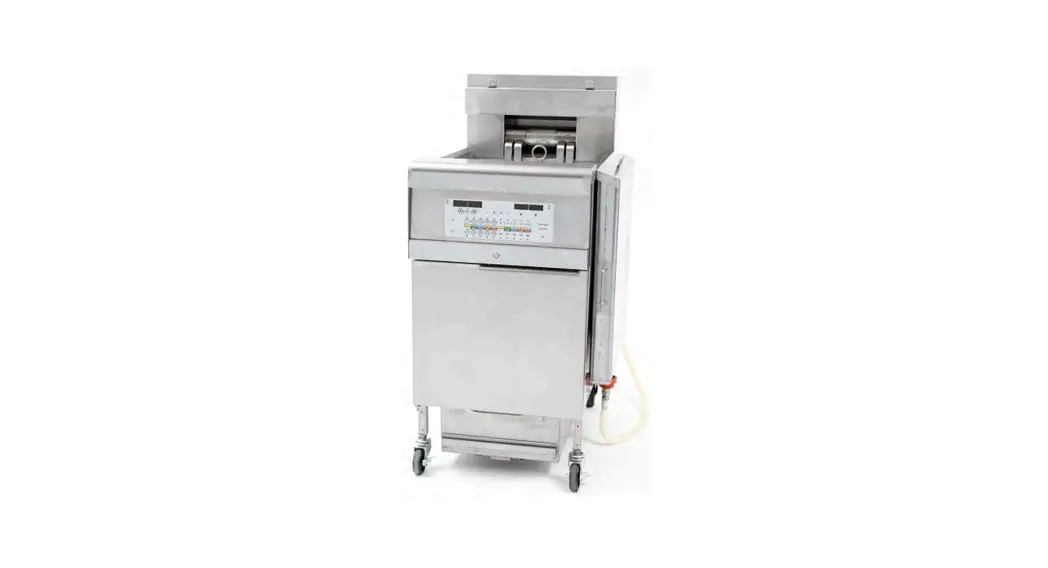
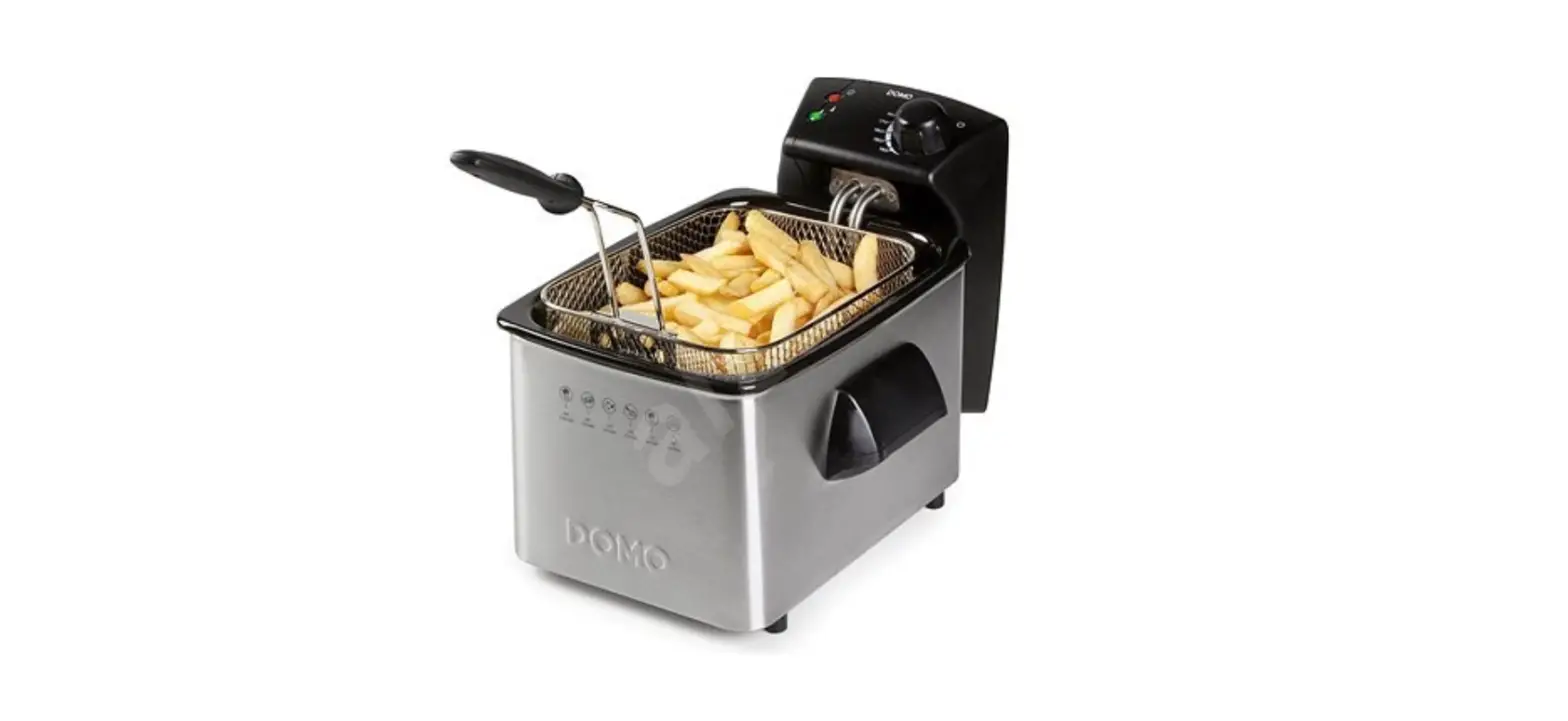
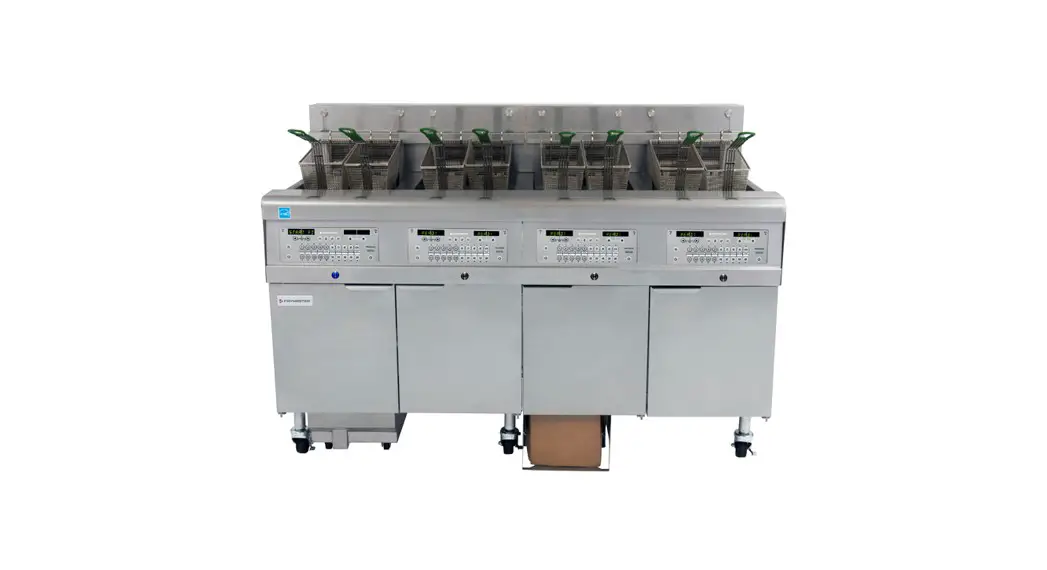
LOV OCF and FilterQuick Fryers
Product Information:
The Datalink Remote Communication Dashboard is a feature
available on the LOV, OCF, and FilterQuick Fryers manufactured by
Frymaster. It allows users to remotely monitor and manage the
fryers through a web-based interface.
The dashboard provides access to various data and statistics
related to the fryers, including error logs, software upgrades,
cooking information, filter information, and energy use
information.
Product Usage Instructions:
- Ensure that the computer is connected to the same Wi-Fi network
as the fryers. - Open the Google Chrome browser (recommended) and make sure the
store-based router allows access to web pages. - Type the address of the fryer (e.g., http://fryer.local) in the
internet browser, including the “http://” before the address. - The Remote Communication Dashboard will be displayed.
- Click on “Home” in the top-left corner.
- Enter a date range for viewing and click on “Get Info” to
display the data. It may take up to ten seconds for the data to
appear. - To download error logs in .csv format, click on “Download Error
Log,” then choose “Save As” and save the file. The file can be
viewed in MS Excel. - To view the last 20 states of a particular vat, open the
“ErrorLog.csv” file. - To upgrade the software of the dashboard or firmware, click on
“Communication SW (software) Upgrade.” - Click on “Choose File” to select the software update file with
the .tar.gz extension. - Once the file is displayed, click “Submit” to load the
software. - Wait for three minutes for the communication board to reboot,
then click on “Home.” - To download statistics from the fryer for a selected date
range, click on “Download Statistics.” - Select the desired date range and click on “Get Info.”
- A successfully created .tar.gz file will be displayed. Click on
“Click to Download” to download the statistics file. - To view the downloaded statistics, click on “Open.”
- To ensure the correct software version, click on “Home” and
check the software version. - Under the “Fryer Details” heading in the top-right corner,
click on “Cooking Information (Vat)” to view Total Cooks, Average
Cooks Per Day, and Average Cooks Per Filter. - Clicking on “Cooking Information (Product)” displays the amount
of cooks per product per vat. - Clicking on “Filter Information” displays the Filters Completed
and Filters Bypassed per vat. - Clicking on “Energy Use Information” displays the Total Fryer
On Time, Average Fryer On Time, Total Heat On Time, Total Idle
Time, and Average Idle Time per vat.
Instruction Sheet
FRYMASTER 8700 LINE AVENUE, SHREVEPORT, LA 71106
318-865-1711 800-551-8633 WWW.FRYMASTER.COM EMAIL: [email protected]
Subject: Datalink Remote Communication Dashboard Operation Instructions
Models affected: LOV, OCF and FilterQuick Fryers
Follow these instructions to operate the Remote Communication Dashboard.
1. Ensure the computer is connected to the same Wi-Fi
network that the fryers are connected to (see Figure 1).
2. Open the Google Chrome
browser. It is recommended to use Google Chrome.
Ensure the store based router allows access to the web
page. 3. Type in the address of the
fryer (ex. http://fryer.local) in the internet browser (see Figure 2) ensuring that
Figure 1
http:// is typed before the address.
4. The dashboard is displayed (see Figure 3).
Figure 4
5. Click on Home in top left corner. Enter a date
range to view (see Figure 4) and click on Get Info. It may take up to ten (10) seconds for the
data to display. In the bottom left the date, time and software version is displayed (see Figure 3).
6. Error logs are downloadable in .csv format, that can be viewed in MS Excel by clicking on Download Error Log, Save As and Save (see Figures 5 and 6).
Figure 5
7. Opening the ErrorLog.csv file displays the last
20 states of a particular vat (see Figure 7). 8. Clicking on the Communication SW
(software) Upgrade upgrades the
software of the Dashboard or Firmware (see Figure 8).
9. Click on Choose File to update software (see Figure 9).
10. Choose file that ends in .tar.gz (see
Figure 9
Figure 2
Figure 3 Figure 6
Figure 7 Figure 10
Figure 8
1 of 2 Document Number: FRY_INST_8197364 11/2022
Subject: Datalink Remote Communication Dashboard Operation Instructions
Figure 10) and click Open.
11. Once the file is displayed click
Submit (see Figure 11) to load the
software.
12. Once the file is loaded Uploaded
Successfully is displayed (see Figure 12).
Figure 11
13. Wait three (3) minutes for the
communication board to reboot and click Home
(see Figure 12).
14. Clicking on the Download Statistics downloads the
statistics from the fryer to a file for a selected date
range (see Figure 13). 15. Select the date range for the desired statistics and Figure 13
click on Get Info (see Figure 14).
16. Successfully created tar.gz file is displayed. Click on
“Click to Download” to download the stats file (see
Figure 15). 17. Click on Open to view the statistics (see Figure 16).
Figure 15
18. Click on Home and ensure software version is correct (see
Figure 17).
19. Under the Fryer Details heading at the top right corner of
the screen click on Cooking Information (Vat) (see Figure
18). This displays the Total Cooks, Average Cooks Per Day and Average Cooks Per Filter.
Figure 17
20. Clicking on Cooking Information (Product) displays the
amount of cooks per product per vat (see Figure 19).
21. Clicking on Filter Information displays the Filters
Completed and Filters Bypassed per vat (see Figure 20).
22. Clicking on Energy Use Information displays the Total
Fryer On Time, Average Fryer On Time, Total Heat On Time, Total Idle Time and Average Idle Time per vat (see
Figure 19
Figure 21).
23. Clicking on Oil Information displays amount of Disposes,
Cooks Per Dispose, Cooks Per lbs of Oil, lbs of oil per
Dispose, lbs of oil used per day, Average Days Per Dispose
(see Figure 22). Click on Choose Dispose Event pull down
to show statistics based off after 1 dispose or more. 24. Clicking on Fryer Performance Information displays Initial
Figure 21
Heat up Recovery Time and Average Heat up Recovery
Time per vat (see Figure 23).
25. Clicking on TPM (Total Polar Materials) displays the amount
of total polar materials present in the oil. This is used to
identify the quality of the oil to determine disposals per vat
Figure 12 Figure 14
Figure 16
Figure 18 Figure 20 Figure 22
Figure 23
Figure 24
(see Figure 24). Click on Choose Dispose Event pull down to show statistics based off after 1 dispose or more. TPM needs an initial dispose to start logging statistics. 26. Clicking on Menu Upgrade (see Figure 25) allows custom menus created in MenuConnect (see 8197362 MenuConnect operating instructions) to be uploaded to the fryer.
Figure 25
2 of 2 Document Number: FRY_INST_8197364 11/2022
Subject: Datalink Remote Communication Dashboard Operation Instructions
27. Ensure that all the vats are in the OFF state prior to loading or updating the new menus.
3 of 2 Document Number: FRY_INST_8197364 11/2022
 Frymaster - Home