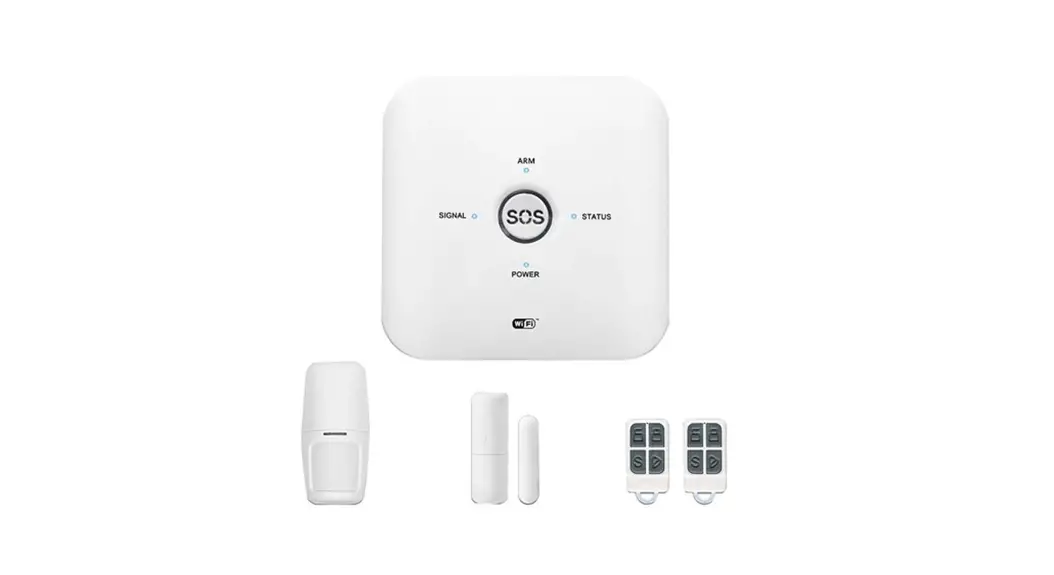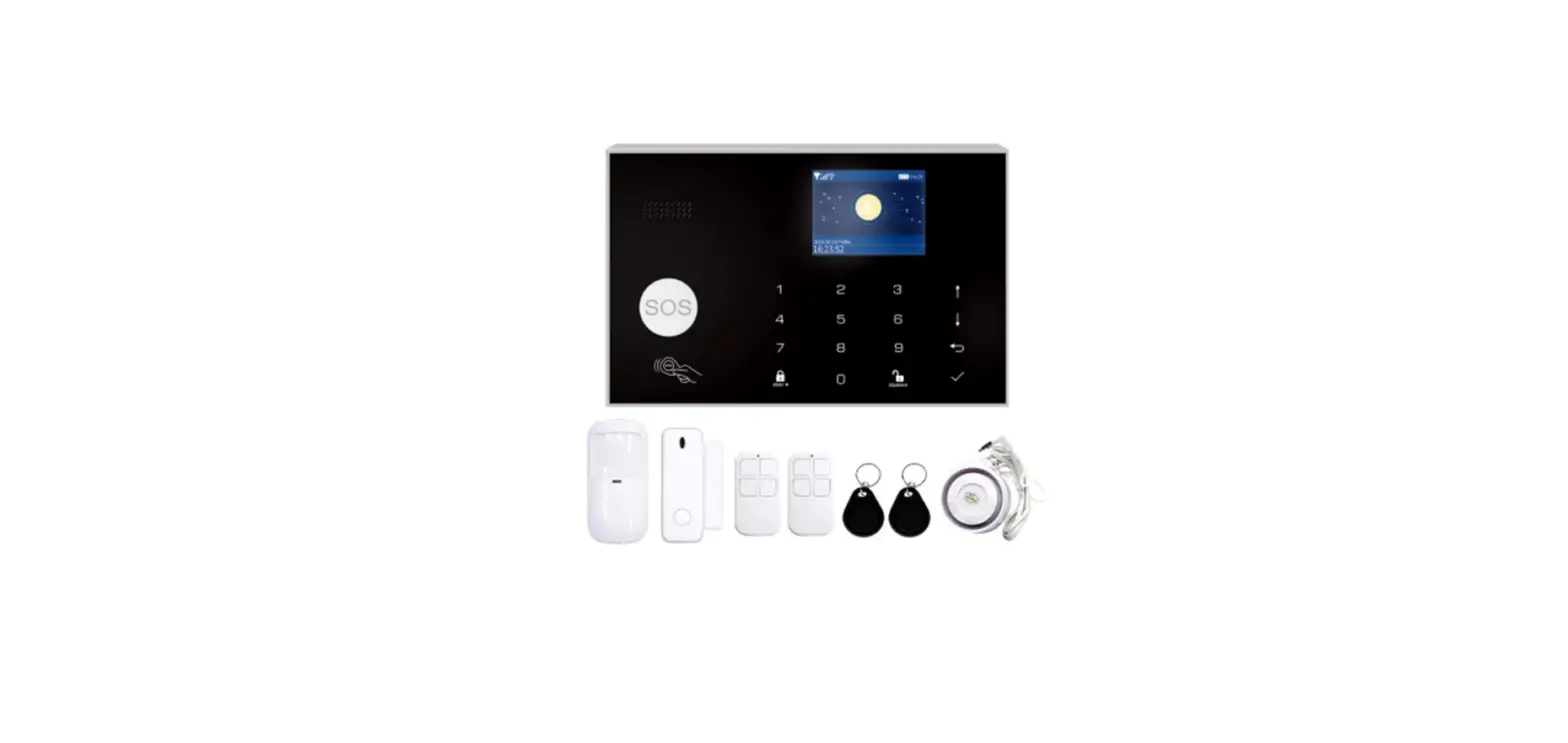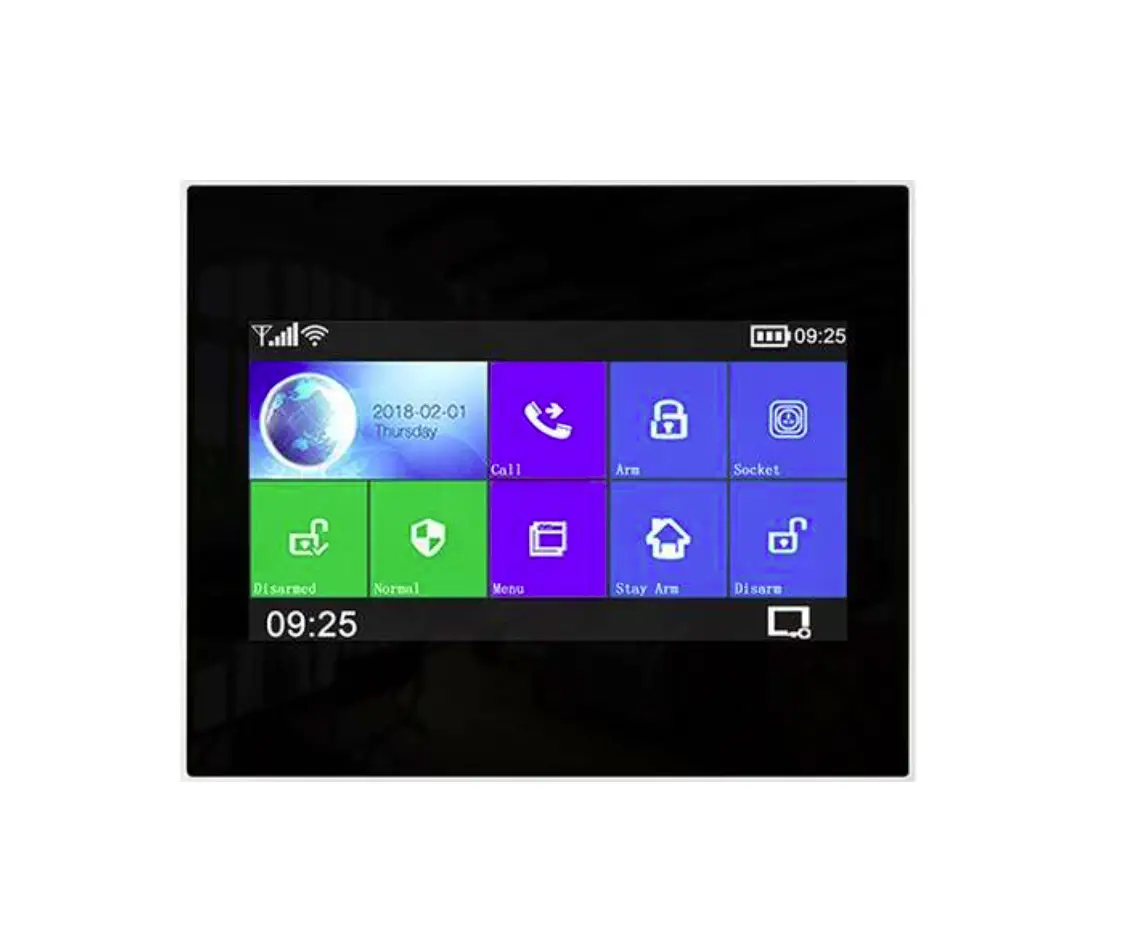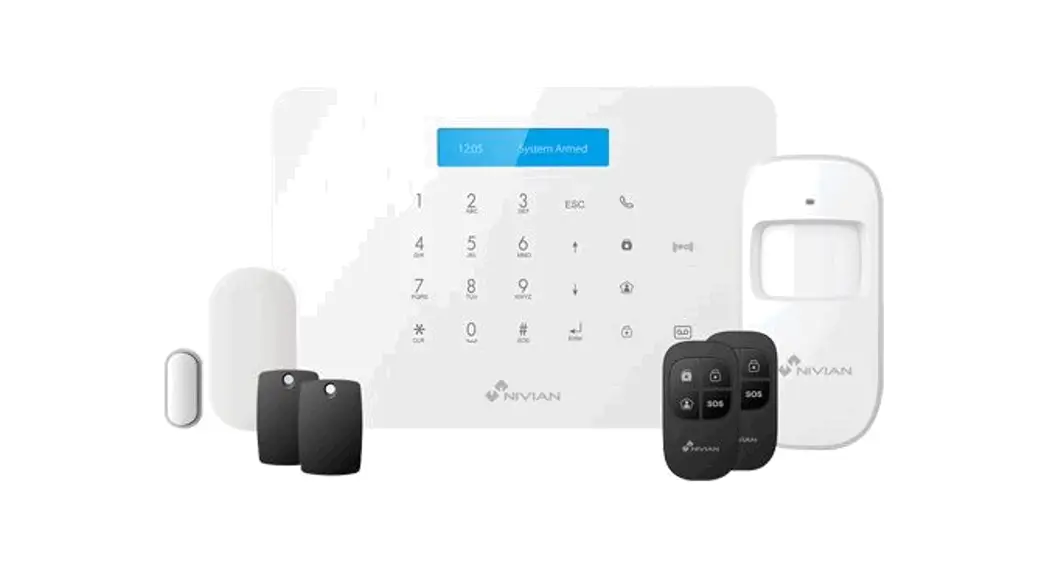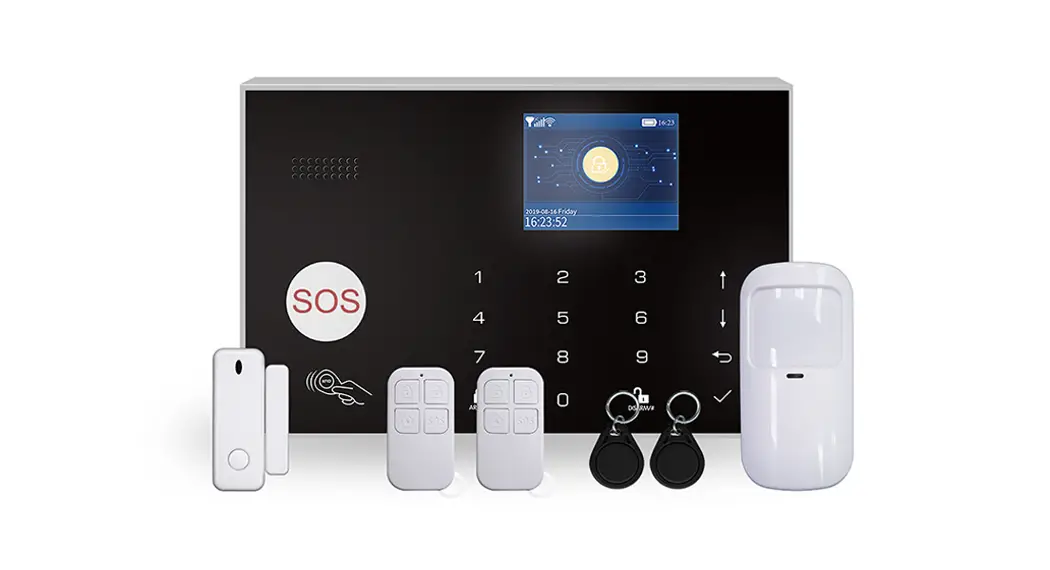
E3 WIFI GSM Alarm System
 Smart Security System
User Guide
WIFI+GSM+GPRS
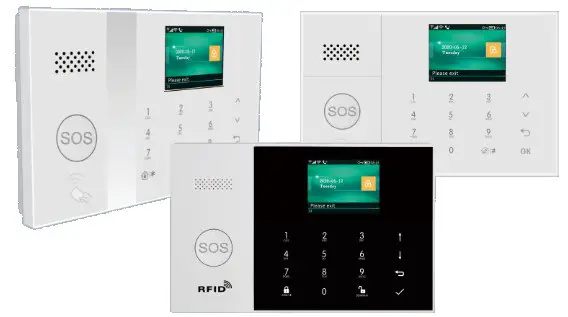
About Your Security System
General,
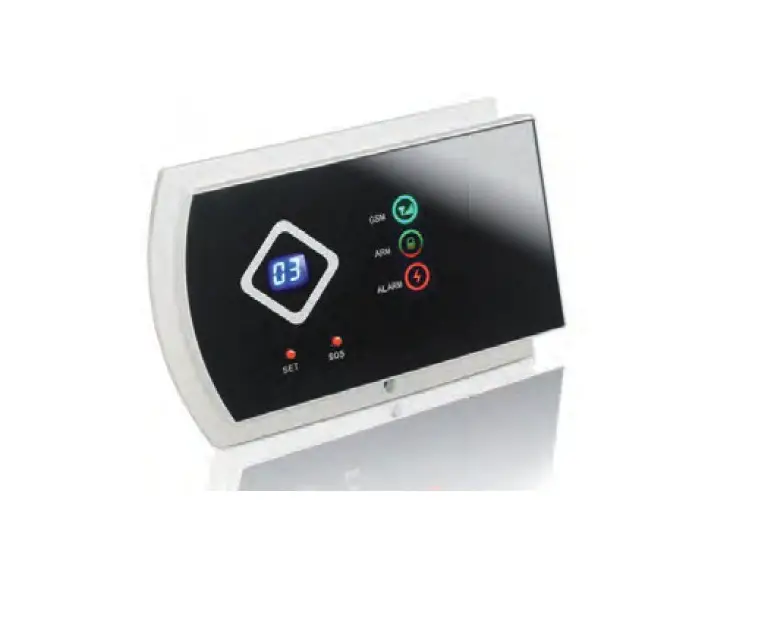
This system offers you three forms of protection: burglary, fire, and emergency, depending on the configuration of your system. The system consists of a touch panel control for system operation, various sensors that provide perimeter and interior burglary protection, and optional smoke, combustion or carbon monoxide detectors to provide early fire or dangerous environment warning. In addition, wireless keys or optional RFID tags allow you to control the system away from the touch panel control.
Features
- 2.4-inch TFT Color Display with a simplistic human-machine interaction interface.
- Device status bar, clock & date display.
- Capacitive touch keys, onboard SOS button.
- Embedded CPU with 32-bit Cortex M3 kernel.
- Multi-task-based OS design with an excellent user operating experience.
- Wi-Fi/GSM/GPRS networking alarm system with multiple notification methods including APP push„ SMS, voice monitoring, and CMS networking alarm, to ensure stability and reliability.
- Voice arm/disarm, SMS arm/disarm/parameter settings. -Support up to 90 remote controls and wireless detectors, 10 RFID tags
- 3 EOLR wired defense zones.
- Rename defense zones like doors, living room, SOS, bedroom, windows, balcony, perimeter, smoke, gas, carbon monoxide, water leakage, etc.
- Alarm for main power failure, backup battery low power, tamper.
- Alarm for low voltage on wireless detectors, and tampers on them.
- Door/windows opening alert when the device is armed.
- Multiple defense modes for setting: Stay arm, Out arm, 24 Hours, Doorbell, etc.,
- Up to 5 alarm phone numbers can be set, SMS/call feature can be set separately.
- Wired siren port, 1 channel external wireless siren, 1 channel wireless socket with alarm synchronization.
- Remote control of home appliances through multiple wireless sockets. Timed on/off.
- Timed arm/disarm. -Storage and query daily operation logs and alarm logs.
- Auto sync of time via GSM/WiFi.
- Menu and voice prompt in multiple languages.
- Alarm SMS setting.
- Record up to 20-second voice messages as alarm notifications.
- Phone function.
- 5 phone numbers can be set for alarm auto-dialing.
- 5 phone numbers can be set for alarm auto-dialing.
- APP operation with great ease.
- APP push for arm/disarm, alarm, and device status.
- APP arm/disarm.
- GPRS real-time online for device status. Auto alarm when offline.
- GPRS TCP/UDP protocol channel is reserved for multiple CMS networking alarms.
- CMS remote operation.
General Information
Burglary Protection
Your system provides two modes of burglary protection: STAY and AWAY. STAY mode protects the perimeter only, allowing you to freely move inside the premises. AWAY mode protects the entire system. Both modes provide an entry delay time that allows you to reenter the premises without setting off an alarm.,
Zone
Have your system’s sensing devices been assigned to various *zones? For example, the sensing device on your entry/exit door may have been assigned to zone 01, sensing devices on windows in the master bedroom to zone 02, and so on. These numbers appear on the display when an alarm or trouble condition occurs.
Exit/Entry
Delays Your security system has been programmed with delay times that allow you to exit the premises after arming and disarming the system upon entry before an alarm occurs. If you leave the premises too late when exiting, or disarm too late when arriving home, it will cause a false alarm. If an alarm occurs, you should disarm the system immediately.
Exit Alarms:
The security system will generate a Door/Window Open alarm, and display
- “Door/Window Open” when you leave the premises and forget to close the door or window after the exit delay expires. Alarms When an alarm occurs, both the built-in and external sounders will sound until the system is disarmed or until alarm bell timeout occurs, and a message on the display will identify the zone(s) causing the alarm.
Your system may also have been programmed to automatically send alarm messages and voice via the cellular/GSM/GPRS/3G network, and push alarm notifications to your mobile app. In addition, if your system is connected to a central monitoring station, an alarm message will be sent. To stop the alarm from sounding, you simply disarm the system.
SYSTEM OVERVIEW
- About the Panel

| Index | Item | Description | |
| 1 | Display Window | 2.4″ TFT Display screen. Displays system status icons and information, time, zone(s) alarm information, and user menus. | |
| 2 | Speaker | Alarms and confirmation sounds. | |
| 3 | Panic Key | Press to generate a Panic Alarm in case of fire or personal emergency. | |
| 4 | Away/Stay Arm Button | Press to arm the entire burglary system, perimeter, and interior. Press twice to arm the perimeter portion programmed for ‘Stay Arm Active of burglary system only. Interior protection is not armed,which allows movement within premises without causing alarm. | |
| S | Disarm Button | Press to disarm the system and to clear the alarm. Press twice to clear the trouble display of accessories. | |
| 6 | Menu Buttons | Scroll Up/Function/ Page Up Button | Scroll up to the desired function or menu. |
| 7 | Scroll Down/Backspace/ Page Down Button | Scroll down to the desired function or menu. | |
| 8 | Cancel/Back Button | Return to the previous screen. | |
| 9 | Enter Button | Select option or enter to the next screen. | |
- About the Backlight Indicators of Panic Key
| WHAT YOU SEE | WHAT IT MEANS |
| Blinking alternately | The system is in the Alarm |
| Pulse | System is Armed |
| Steady | System is Disarmed |
- Wiring Overview
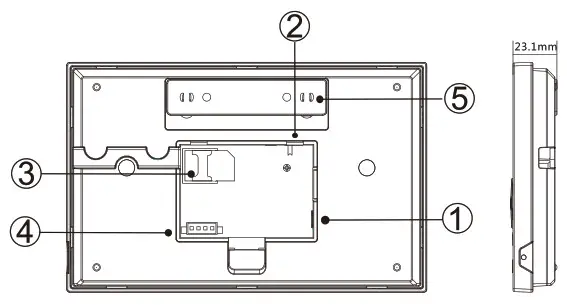
| Index | Description |
| 1 | Power Supply Receptacle |
| 2 | Backup Battery Switch |
| 3 | SIM card Receptacle |
| 4 | EOLR Hardwired Zones Connections, refer to section 2.3 and the Hardwired Zones Connections diagram |
| 5 | Tamper Switch |
- Hardwired Zone Connections Zone 1, Zone 2, and Zone 3 are the EOLR-supervised zones that support both open circuit and closed circuit devices and has a response time of 300msec. Maximum zone resistance: 11000 ohms, plus EOLR Connect closed circuit devices in series in the high (+) side of the loop. The EOL resistor must be connected in series with the devices, following the last device.
Connect open circuit devices in parallel across the loop. The 10000-ohm EOLR must be connected across the loop at the last device. Refer to the Hardwired Zones Connections diagram. the Hardwired Zones Connections Diagram
 EOL(End of Line Resistor): If the EOLR is not at the end of the loop, the zone will not be properly supervised, and the system may not respond to an open circuit on the zone.
 - Home Screen
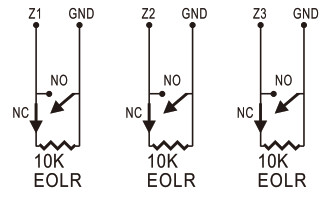 the Hardwired Zones Connections Diagram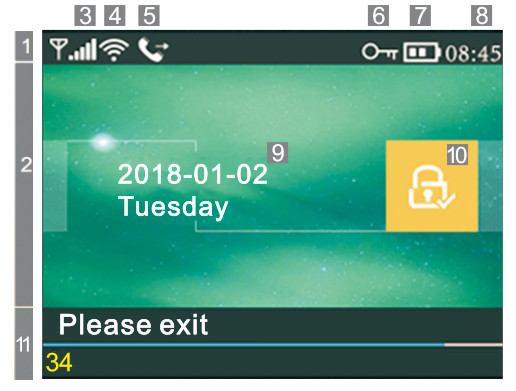
- About the Home Screen Display
| 1 Top Status Bar | 3 | GSM Status |  | No SIM card present or SIM card faulty | |||
 | Connected to server | ||||||
 | RSSI level signal strength is displayed by a series of 1 to 5 bars ( weak to strong), and bars are gray if not registered with the cell network | ||||||
| 4 | Wi-Fi Status |  | Indicates that the system is connected to a WiFi source and signal strength. | ||||
 | Indicates that the system is connected to the server if a dot is displayed. | ||||||
| 5 | GRIMM |  | SMS Sending | ||||
 | Calling | ||||||
| 6 | ellitttittg |  | Keypad Locked | ||||
| 7 | Power Status |  | AC Powered | ||||
 | Displayed when the system has lost AC power The icon is red when the system’s backup battery power is low. | ||||||
| 8 | Clock | 08:4S | Real-time Clock | ||||
| 2 Status Area Arm/Disarm | 9 | Date, time, and week | |||||
| 10 | Arm/Disarm Status |  | The system is Armed Away | ||||
 | The system is Armed Stay. | ||||||
 | The system is Disarmed. | ||||||
| 11 System Status Display Area | Ready | 8:45 | Clock | ||||
| Countdown | “Please exit” Countdown Bar | Exit Delay You now have xx seconds to leave the premises before the exit delay expires. When the exit delay is completed, the alarm system is armed. | |||||
| “Please disarm- Countdown Bar | Delay Entry You must disarm the system before the entry delay expires, or an alarm will occur. | ||||||
| “Synchronizing” Countdown Bar | Sniffer Mode You must activate the wireless transmitter before the sniffer delay expires. | ||||||
| Alarming | “Alarm” is displayed upper the red bar, and the Zone “Alarm- is displayed in a red status bar along the red bar. An alarm (bell) icon along with “Alarm” is displayed alternately with the Zone that has caused the alarm. | ||||||
Quick View of Menu Functions
| Icon and Caption | Description | Default Factory | |||
 Main Menu Main Menu |  Settings Settings |  Delay Delay |  Exit Delay Exit Delay | Used to set Exit Delay 0-65535, unit: second | 40 seconds |
 Entry Delay Entry Delay | Used to set Entry Delay 0-65535, unit: second | 30 seconds | |||
 Siren Duration Siren Duration | Used to set Siren Duration 0-65535, unit: minute | 3 minutes | |||
 Switch Switch |  Arm Beep Arm Beep | Enable/Disable Arm and Disarm Beep” | Enable | ||
 Siren Siren | Enable/Disable the Alarm Continuous Siren when an alarm occurs | Enable | |||
 Arm SMS Arm SMS | Enable/Disable SMS notification when an arm or disarm | Disable | |||
 Keypad Lock Lock Keypad Lock Lock | Enable/Disable Keypad | Disable | |||
 Backlight Backlight | Enable/Disable Keypad Backlight | Enable | |||
| Keypad Tone | Enable/Disable the operation chime | Enable | |||
| Delay Tick | Enable/Disable entry and exit chime | Enable | |||
 Door/Window Door/WindowOpen Warning | Enable/Disable Exit Alarm Warning (4) | Enable | |||
 Human Voice Human Voice | Enable/disable voice prompts | Enable | |||
| Password |  System System | Change System Code(51 4 digits | 6666 | ||
 User User | Change User Code(6)4 digits | 1234 | |||
 Language Language | *Pt it 5C | Language Selection(7) | English | ||
| English | |||||
| Deutsch | |||||
| PYCCKl/121 | |||||
| Espanol | |||||
| Polski | |||||
| Italia no | |||||
| Francais | |||||
| Portugues | |||||
| EMuivith | |||||
| Romans | |||||
 Initialization Initialization | Loading Factory Defaults(8) | ||||
 Reset Reset | Reset | ||||
 Phone Phone | 1st Phone | Used to set the first Phone Number, Enable /Disable Dialling and Enable/Disable SMS | Null | |
| 2nd Phone | Used to set the second Phone Number, Enable /Disable Dialling and Enable/Disable SMS | |||
| 3rd Phone | Used to set the third Phone Number, Enable /Disable Dialling and Enable/Disable SMS | |||
| 4rd Phone | Used to set the fourth Phone Number, Enable /Disable Dialling and Enable/Disable SMS | |||
| 5th Phone | Used to set the fifth Phone Number, Enable /Disable Dialling and Enable/Disable SMS | |||
 IP IP | central monitoring station IP address | |||
| Main Menu |  Log Log |  Alarm Log Alarm Log | Used to view system alarm events. | |
 Arm Log Arm Log | Used to view system arm/disarm events. | |||
 Parts Parts |  Remote Remote | Pairing, Deleting, or Delete All the wireless keys | ||
 Detector Detector | Pairing, Edit, Delete, or Delete All the wireless sensors | |||
 RFID RFID | Pairing, Delete, or Delete All the RFID tags | |||
| Siren Learn | Used to send a transmission signal to the wireless siren to be paired. | |||
 EOL Zone EOL Zone | Used to set the Zone(EOLR) Name, Type | |||
 Alarm Socket Alarm Socket | Pairing with the wireless switch | |||
 Socket Socket | Pairing with the wireless switch | |||
 Decoder Decoder | retrieve the accessory’s ID code | |||
 Wi-Fi Wi-Fi | Airlink | WiFi configuration (Requires the mobile APP). | ||
 Unbind Unbind | Unbind the Panel link from the server | |||
| MAC/IP | Used to display the MAC and IP addresses of the WiFi module | |||
| SoftAP Configure | WiFi connection via hotspot | |||
 Record Record | Record | Message Recording and Playback | ||
 Play Play | Used to listen to the recorded message | |||
 Delete Delete | Used to delete the recorded message | |||
 Duration Duration | Used to set Record Duration ( unit: second, 1-20 is available ) | 20seconds | ||
| Timer |  Arm Timer Arm Timer | Used to set a daily time to arm automatically, and Enable/Disable automation | ||
 Disarm Timer Disarm Timer | Used to set a daily time to disarm automatically and Enable/Disable automation | |||
 Disarm Timer Disarm Timer | reserved | +08:00 | ||
| Date&Time | Set the time and date | |||
 Wi-Fi Sync Wi-Fi Sync | Enable/Disable using the WiFi network-provided time | Enable | ||
 2G/4G Sync 2G/4G Sync | Enable/Disable using the cellular network-provided time | Enable | ||
 Version Version | Used to display the firmware and IMEI | firmware and MAC address of the WiFi module, of the GSM module, and the Serial Number of the panel |
Description
- Arm Beep: When enabled, the system will announce the system status when armed or disarmed.
- Keypad Lock: The system will lock the keypad if no operation for 30 seconds on Home Screen. To enable the keypad, you must enter a valid User Password.
- Backlight: If disabled, the display backlight turn off after 30 seconds if no operation on Home Screen.
- Door/Window Open Warnings: If enabled, the system will generate an Exit Alarm Warning notification when you leave a door or window open after the exit delay expires.
- System Password: used for keypad unlocking and SMS remote settings.
- User Password: user for keypad unlocking, SMS Remote Control, and Alarm text notification prefix Setting.
- Language: Voice announcements, Displaying, and SMS notifications will be in the selected language. After selecting the desired language, the panel will reset.
- Initialization: If the factory default configuration is loaded, any data that has already been programmed into the system will be changed into the Factory Default Configuration!
The First Usage
– Setup With the built-in WiFi Communications module, if your system is equipped to report alarms and Remote Access via Mobile APP over the internet, your router must remain powered on at all times, and a WiFi internet connection is required.
With the built-in GSM Communications module, if your system is equipped to report alarms and Remote control via SMS or Voice Dialling, ensure the SIM card is installed (refer to the diagram below ) and the panel must be connected to the GSM Cellular or to the Internet.
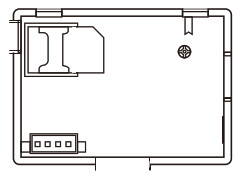
AC Power Connections – Connect the Power Supply to the receptacle, and push the backup battery switch to “ON”.
Setting Phone Numbers
Up to 5 User Phone Numbers are used to receive the Alarm SMS notification and Audio Alarm Verification. Select: “Main Menu→Phone
 Phone, 2nd Phone, r Phone, 4th Phone or 5th Phone”, the system displays the Phone programming screen. Use
 Eno scroll to
 , then use the digits keypad to enter the Phone Number (up to 18 digits). Users scroll to
 , then use
 to toggle between “off” and “on”. When “on” is selected, the Voice Dialing Alarm will be active. Use Eno scroll tol
 , then used to toggle between “off” and “on”. When “on” is selected, the SMS Text Notification Alarm will be active. Press
 to save your new settings.
Wireless Keys
Pairing a New Wireless Key Select” Main Menu-→ Parts→Remote-→Add” . “Synchronizing” is displayed, and the system goes into sniffer mode and counts down the pairing time remaining. Press one button of the wireless key to send a transmission signal to the panel. As the serial number of the wireless key is added to the panel, “Leaning OK” will be displayed. The system will display “Device code has been learned” if the serial number of the wireless key has been learned.
Delete Select ” Main Menu 4 Parts-> Remote 4 Delete” Use the buttons to scroll to the serial number to be deleted. Press is to delete the selected serial number.
Delete All Select” Main Menu → Parts→Remote→ Delete All” . The total number of serial numbers learned is displayed.To delete all the serial numbers, press.
Wireless Sensors
Pairing a New Sensor Select” Main Menu→Parts→Detector →Add”. Use to scroll to , then use Ito to scroll to the desired Zone Name. Use to scroll to
 , then use 1to scroll to the desired Zone Mode(Type). You must assign a Zone Type to each zone(sensor), which defines the way in which the system responds to faults in that zone.
“Stay Arm Active” is usually assigned to sensors or contacts on entry and exit doors, exterior doors and windows, and perimeter. Active when armed in AWAY or STAY mode.
“Out Arm Active” is usually assigned to an interior area (i.e.: foyer, lobby, or room). Bypassed automatically when armed in STAY mode. “24 Hours Active” is usually assigned to a zone containing an Emergency Button, Smoke Sensor, CO, Water Leakage, and Gas Sensor. To use it as a doorbell, select “Doorbell”. To disable the zone, select “Close”.Use to scroll to, then use the digits keypad to enter the Zone Number (0-89 are available). The Zone Number should be unique.Press “Synchronizing” is displayed, and the system goes into the sniffer mode and counts down the pairing time remaining. Active wireless sensor to send a transmission signal to the panel. As the serial number of the wireless sensor is added to the panel, “Leaning OK” will be displayed.
The system will display “Device code has been learned” if a serial number of the wireless sensor have been learned, and the Zone Name/Mode/Number will be refreshed.
Edit/Delete Select” Main Menu Parts Detector Edit”. Use the buttons to scroll to the serial number to be edited.To edit the Name/Mode/Number of the displayed zone, pressTo delete the selected serial number, press.
Delete All Select ” Main Menu Parts Detector Delete All” .The total number of serial numbers learned is displayed.To delete all the serial numbers, press.
RFID Tags
Pairing a New RFID Tag Select” Main Menu PartsRFID Add” .“Synchronizing” is displayed, and the system goes into sniffer mode and counts down the pairing time remaining. Put the tag close to the RFID area of the panel.As the serial number of the tag is added to the panel, “Leaning OK” will be displayed. The system will display “Device code has been learned” if a serial number of the tag have been learned..
Delete Select ” Main Menu Parts RFIDDelete”. Use the buttons to scroll to the serial number to be deleted.Pressto deletes the selected serial number.
Delete All Select ” Main Menu PartsRFIDDelete All”.The total number of serial numbers learned is displayed..To delete all the serial numbers, press
Pairing with Wireless Siren
Operating the Wireless Strobe Siren to go into the Sniffer mode( refer to the user guide of strobe siren ) . Select “Main Menu PartsSiren Learn” .The panel displays ” Learn Signal Sent” and sends a transmission signal to the Strobe Siren. The Strobe Siren gives a successful indication.
Alarm Syncing with Wireless Switch
Pairing with Wireless Switch Select “Main Menu PartsAlarm Socket”, and the system displays the Alarm Socket pairing screen. Operating the Wireless Switch to go into the Sniffer mode( refer to the user guide of the wireless switch ). Press the “on” button Hand the “off” button, in turn, The panel displays Learn Signal Sent” and sends a transmission signal twice to the Wireless Switch.
The Wireless Switch gives a successful indication. To test if the pairing ok, press “on” and “off” to check if the wireless can be opened and closed. When a sound alarm occurs, the Wireless Switch will be opened until the system is disarmed or an alarm sounder timeout occurs.
Home Automation (If equipped)
Pairing with Wireless Switch To pair with the wireless switch (up to 8 switches), refer to the previous section “Pairing with Wireless Switch”.To test if the pairing ok, press “on” and “off” to check if the wireless can be opened and closed. You can open or close the wireless switch via the control panel.
Message Recording
Message Recording and Playback
Your system can Record/Playback/Delete a brief message(up to 20 seconds) that can be played back later. The message will be played to the remote when an alarm call is connected.Select “Main Menu 4Record 4Record” , the system displays the Record screen.Ready to record when “Recording” is displayed in the title box and the system display will count down the recording time remaining.Speak into the microphone and the recording automatically stops after the time expires.The system plays back the message automatically.Press PI button to save the message.
Arm/Disarm Automatically
The feature can be used to program the system to arm or disarm the system automatically at a daily time.
Arm ScheduleSelect “Main Menu4Timer÷Arm Timer”, and the system displays the Arm Timer programming screen.Use to scroll  then use the digits keypad to enter the Daily Arm time (in 24-hr).Use to scroll to, then use
  to select “on” .Press to save your new settings.
Disarm ScheduleSelect “Main Menu -Timer 4Disarm Timer”, and the system displays the Disarm Timer programming screen.Use the Elto scroll to then use the digits keypad to enter the Daily Disarm time (in 24-hr).
USPscroll off, then use to select “on” .Preston saves your new settings.
Mobile phone APP
Please refer to the attachment
Smart Life APP Quick Use Guide APP Download
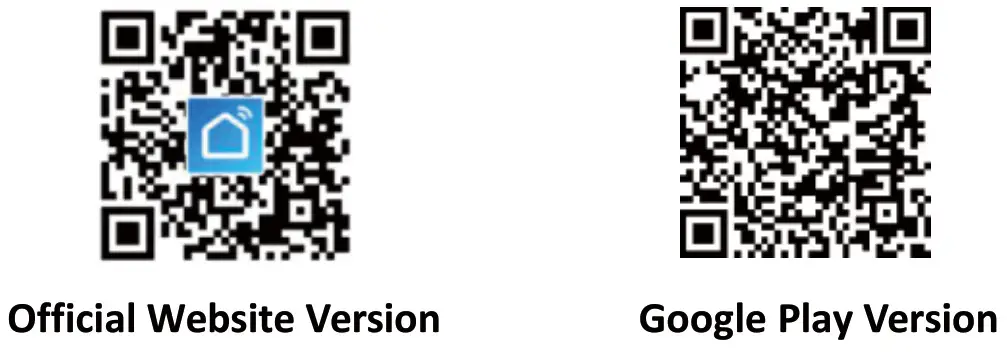
“‘Smart Life” APP has been released to the major global application stores, you can download it by searching “Smart Life” in the application store or by scanning the QR code below.
IOS App: Please search ” Smart Life” in Apple store to download . Note: IOS app has no QR code , have to download it in Apple store by searching ” Smart Life”
Android App: Please search ” Smart Life” in Google Play to download or scan the following QR code to download.
Notes:
- Mainland China users can scan the Official Website Version and download it.
- Non-Mainland China users just scan the Google Play Version .
- Both the Official Website Version and the Google Play Version are the same app, just only the download channels are different.
 | |
| http://e.tuya.com/smartlife | https://play.google.com/store/apps/details?id=com.tuya.smartlife |
Account Registration and Login
When using a mobile phone number to register and log in, you need to select the corresponding country/region when registering and logging in, and replace the “+xx” country code at the beginning of the mobile phone number account with the code corresponding to the country to which the mobile phone number belongs.
Device Network Configuration
The default network configuration mode isAirlink Configure, and it can also be switched to “SoftAP Configure” by “Other Mode”. When configuring the network for the device, the mobile phone needs to be connected to the WiFi network that the device needs to configure (only 2.4 GHz WIFI network is supported when configuring the network for the device).
Airlink Configure
- Use Smart LifeAPP to click the “+” in the upper right corner of the main interface -> Next select “Security & Sensor” -> Next select Alarm” Wi-Fi” and click OK to enter the Wi-Fi interface.
- Enter the correct WiFi password, click “Next”, enter the device configuration preparation interface, and wait for the device to enter the Airlink Configure mode. According to the instructions, the device enters the WIFI Airlink Configure mode. Back to the “Smart Life APP”, click “Continue” to configure the network, and wait patiently for the network configuration to be completed.
SoftAP Configure
- Use Smart LifeAPP to click the “+” in the upper right corner of the main interface -> Next select “Security & Sensor” -> Next select Alarm”Wi-Fi” -> Next select “Other mode” -> Next Select “SoftAP Configure”and click OK to enter the Wi-Fi interface. Enter the correct WiFi password, click “Next”, enter the device configuration preparation interface, and wait for the device to enter the SoftAP mode. According to the instructions, the device enters the WIFI SoftAP mode. Back to the “Smart Life APP”, click “Continue” to configure the network, and wait patiently for the network configuration to be completed.
Remote SMS
How to set the parameters via SMS
, editing the setting text message as below, then send it to the SIM number installed in the panel. Your mobile will receive an acknowledgment SMS if the setting ok.
| *I System Password | *Command | *Parameter | Command2 | Parameter2 * |
Note: The command must be 2 digits( e.g.,01,90, etc. ), and the header, separator and ending character must be “
| Command | Function | Description | Factory Defaults |
| 51 | 1″ Phone Number | refer to note 1 | Null |
| 52 | 2″ Phone Number | refer to note 1 | Null |
| 53 | 3’4 Phone Number | refer to note 1 | Null |
| 54 | 4th Phone Number | refer to note 1 | Null |
| 55 | 5th Phone Number | refer to note 1 | Null |
| 90 | the server IP address and Port | Only used for connection to server, refer to note 2 | Null |
| 92 | the GPRS APN | Only used for GPRS network, refer to note 3 | CMNET |
Note: The examples uses the default system password d 6666.
- The Phone Number setting format of remote text message: xxxxxxxxxx.A.B In this sting, “xxxxxxxxxxx” is the phone number( up to 18 digits ), “A” used to Enable(1) or Disable(0) the Alarm Voice Dialling and “B” used to Enable(1) or Disable(0)the Alarm SMS notification. For example: To set the 1st Phone Number as “13912345678” and enable the SMS notification only, and to set the 2nd Phone Number as T75512345678″ and enable Voice Dialling only, then the remote SMS is *6666*5113912345678.0.1*52075512345678.1.0*.
- The server IP address and Port are used for connection to the alarm monitoring company. The server IP and Port setting format of the remote text message: aaa.BBB.ccc.ddd.xxxxx In this string, “aaa,BBB,ccc,ddd” is the IP and “xxxxx” is Port. For example: To set the IP and Port as “116.62.42.223:200r, then the remote SMS is *6666*90116 62 47 223 2001*.
- Setting the operator Access Point Name For example: To set the APN as “internet.beeline.kz” , then the remote SMS is *6666*92 internet.beeline.kz*.
The alarm SMS notification prefix
The panel can be named after a customized text via remote SMS. The name is used for the alarm SMS notification prefix. The alarm notification prefix setting format: 1234@XXX building. In this string, “1234” is the User Password,” 0″ is a command flag, and “XXX building ” is the customized text.
Get the settings via remote SMS
Query the system settings Format is *6666*62*, and the panel echoes as follows.
SYSTEM set:
| SN: | Serial Number of the panel |
| LANGUAGE: | Language |
| ENGINEER PASSWORD: | System Password |
| USER PASSWORD: | User Password |
| GSM CSQ: | GSM RSSI |
| WIFI RSSI: | Wifi RSSI |
Query the second page of the system settings
The format is *6666.’90* and the panel echoes as follow.
SYSTEM set2:
| APN: | GPRS Access Point Name |
| GPRS IP: | Server IP address and Port |
| NTP: | reserved |
| TIME ZONE: | reserved |
| SERVER: | reserved |
Query the Phone Number Settings
The format is *6666*51* and the panel echoes as follows.
| PHONE set: 1: 2: 3: 4: 5: REDIAL COUNTER: | The 1st Phone Number, Voice Dialling, and SMS switches The 2nd Phone Number, Voice Dialling, and SMS switches The 3rd Phone Number, Voice Dialling, and SMS switches The 4th Phone Number, Voice Dialling, and SMS switches The 5th Phone Number, Voice Dialling, and SMS switches Redial Counter for Voice Dialling |
How to make a call via the panel
On the home screen, you can make a call via the digit keypad.
Press II to view the list of the dialed numbers, then press to redial it. The call will be canceled if the GSM network is not registered, the system is armed or in voice alarming.
Securing the premises Arming the System
To arm the system, you can operate as below:
By Wireless Key: Press the key.
By Panel: Press the button when the home screen is displayed.
By RFID tag: Put the RFID tag close to the RFID area when the system is disarmed.
By APP: Press the “arm” button, the host return to the “arm” state, APP shows the host is in “arm” status.
By remote SMS: Send a message 1234#1 ( “1234” is User Password) to the panel, then an acknowledgment SMS will be returned if armed.
The system will announce “System Armed”. The home screen will display the “Armed” icon and the countdown bar. You must leave the premises before the Exit Delay expires. If the “Arm SMS” is enabled, you will receive an SMS notification. All burglary zones, interior & perimeter, are armed.
Arming in Stay Mode
This mode is used when you are staying home.
To arm the system in stay mode, you can operate as below:
By Wireless Key: Press the key.
By Panel: Press the fa button twice when the home screen is displayed.
By APP: Press the” stay arm” or “home arm” button, host return to “stay arm”, app will show the “stay arm” status.
By remote SMS: Send a message 1234#3 ( “1234” is User Password) to the panel, then an acknowledgment SMS will be returned if armed.
The system will announce “System Armed”.
The home screen will display the “Stay Armed” icon. If the “Arm SMS” is enabled, you will receive an SMS notification. Perimeter burglary zones ( Zone Type programmed as Stay Arm Active ), such as windows and doors are armed.
Disarm the System
To disarm the system, silence the alarm, to clear trouble displays, and to cancel the alarm that is in progress, you can operate as below:
By Wireless Key: Press the key.
key.
By Panel: Press the button when the home screen is displayed.
By RFID tag: Put the RFID tag close to the RFID area when the system is armed.
By APP: Press the “disarm” button, the host return to the “disarm” state, APP shows the host in “disarm” status.
By remote SMS: Send a message 1234#2 ( “1234” is User Password) to the panel, then an acknowledgment SMS will be returned if armed.
The system will announce “System Disarmed”. The home screen will display the “Disarmed” icon. If the “Arm SMS” is enabled, you will receive an SMS notification.
SOS
To manually activate the panic function, you can operate as below:
By Wireless Key: Press the SOS key.
By Panel: Press the SOS key on the panel.
By APP: Press °panic” or “SOS”, the system will alarm.
The home screen displays “Panic Alarm”. A Panic Alarm will be generated. A Panic Alarm sends a text notification to your mobile and sounds a loud, steady alarm on your panel.
Multi-Mode Alarm Feature SYSTEM TROUBLES:
Loss of AC Power: If the building and/or neighborhood have lost electrical power, the system will continue to operate on battery for several hours.
System Low Battery: “Low Battery” is displayed when the system’s backup battery power is low.
Sensor Low Battery: Each wireless sensor in your system has an internal battery. The system detects low battery conditions in wireless sensors and displays a “Sensor Low Battery” message on the home screen, means that battery replacement in the indicated sensor(s) is due within 7 days.
AC Power Normal.
Tamper: when a cover tamper has been detected to generate a Tamper Alarm.
SMS Notification Feature
When an alarm or system trouble occurs, an SMS notification will be sent to the Phone Number that has been programmed in your system.
Two-Way Voice Feature
Voice Dialog
When an alarm occurs, the system will dial to your Phone Number that has been programmed in your system. After the call is connected, you can hear the voice message that has been recorded and what the alarm occurs, then the system will announce “Press 1 to arm, press 2 to disarm, press 3 to monitor, press 4 to talk”. Press 3 or 4 to listen to the violated premises and voice dialog between an operator and an individual at the premises. If a false alarm is ensured, press 1 to cancel the alarm that is in progress.
The Phone Programmed Call the Panel
When the phone that has been programmed in the system calls the panel, the two-way voice is connected automatically. Allows operators to listen, talk to or conduct two-way conversations with individuals on the premises.
Specifications
- Primary Power: Plug-in Power Supply, micro USB 110/220VAC to 5VDC, 1A output
- Backup battery: 3.7V/1000Ah Lithium battery
- Consumption: <150mA@normal
- Siren Output: <300mA
- Radio Frequency: 315/433/868/915Mhz (optional)
- RF Code: eV1527
- GSM: 850/900/1800/1900MHz
- WI-Fi: IEEE802.11b/g/n
- Operation Temperature: -10-55°C