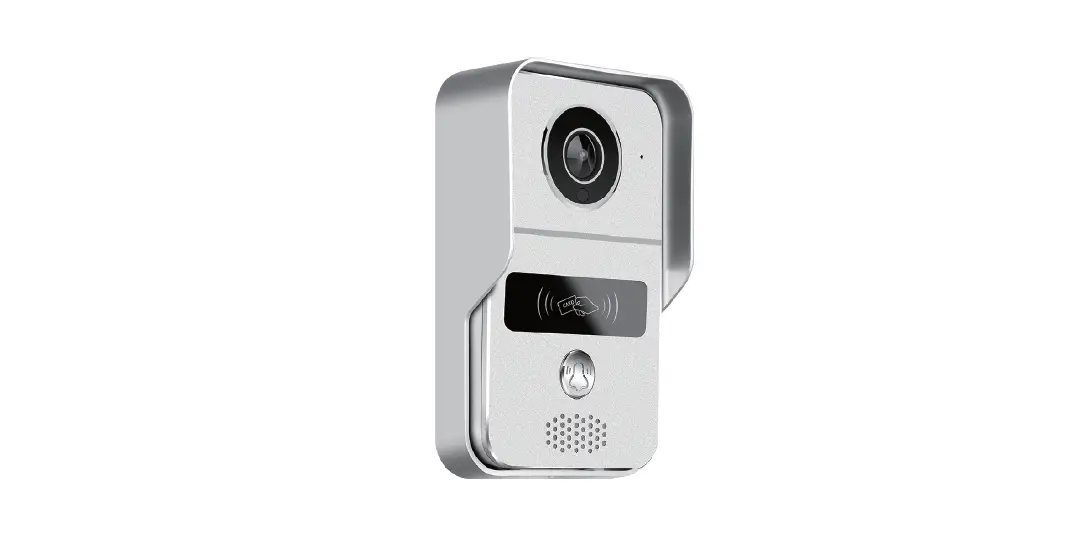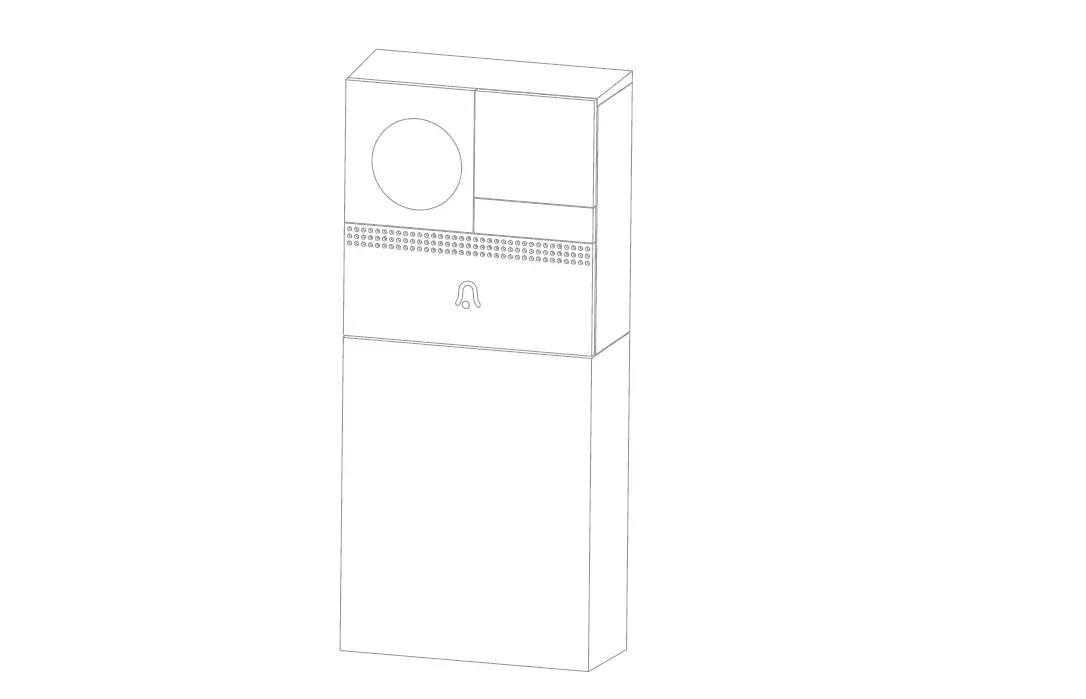

Digital High-definition WiFi Doorbell
Operation Instructionsll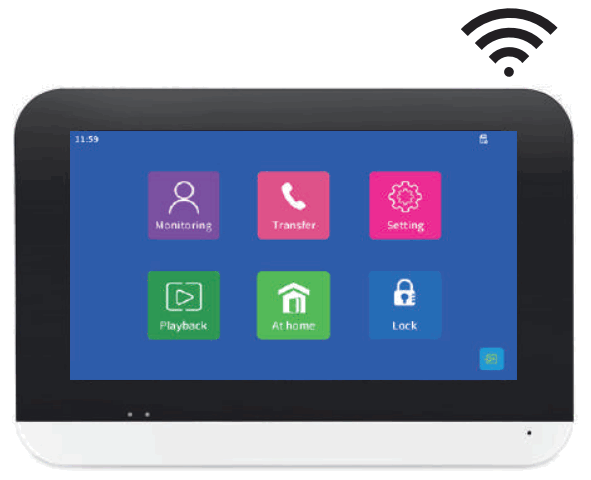
Digital High Definition WiFi Doorbell
 Due to the upgrading of mobile phone system, Tuya App will also continue to upgrade.If the product operation is inconsistent with this Manual, please contact the seller to obtain the latest version of the Manual.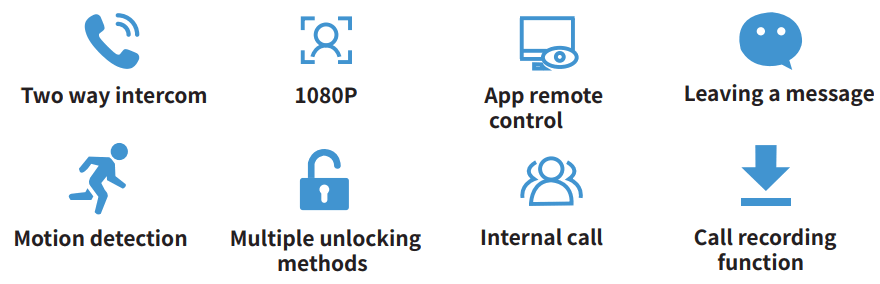
Please read this Instructions carefully before use to ensure the correct use of this product
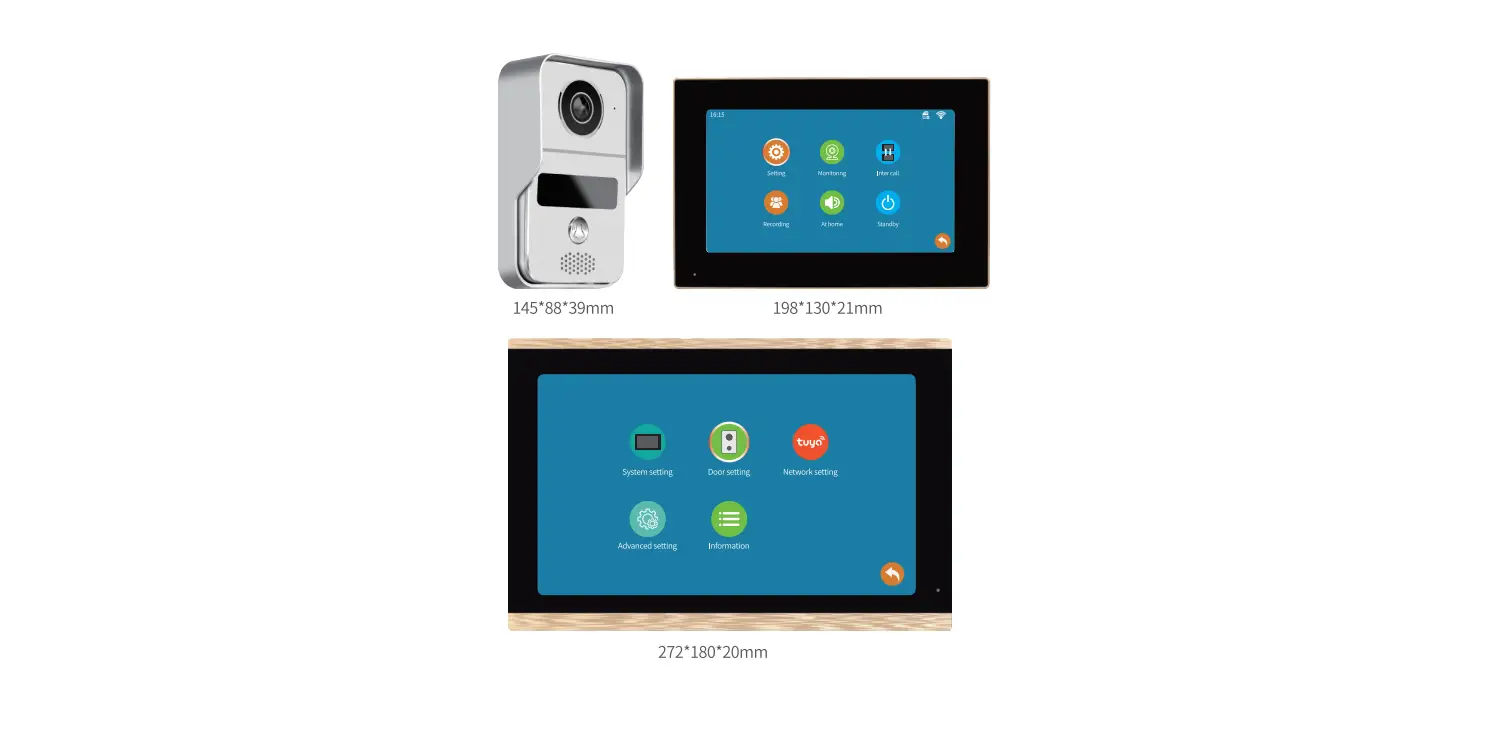
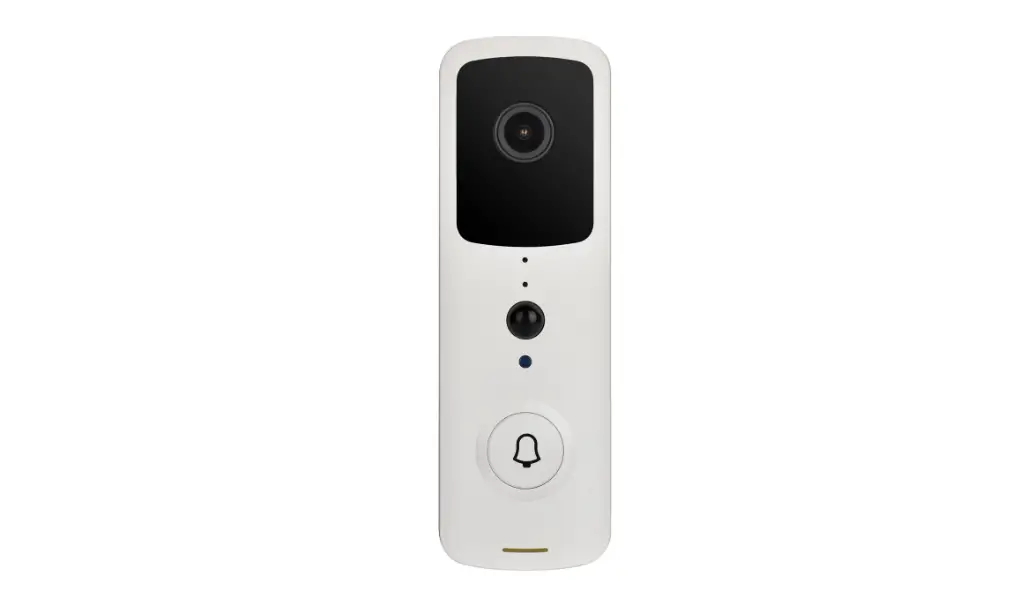
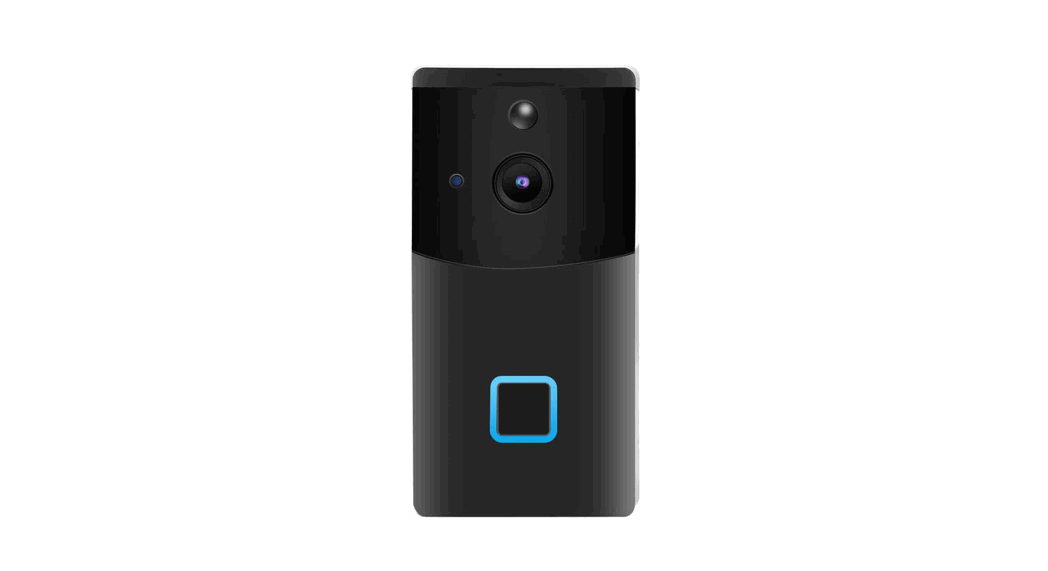
This product, high-definition WiFi visual intercom doorbell for villas, is installed in high-end villas, apartments and office buildings as a visual access control intercom system, which has the functions of local and mobile phone remote call, visual intercom, monitoring and unlocking, etc. The function of local and remote real-time video recording allows visitors to take pictures and leaving messages. The product has the features of touch screen with simple and friendly interface and simple operation,1080p HD color image,10m ultra-long night vision, infrared vision at night, 120° wide-angle lens, 12x digital zoom-in with excellent pictures. The connection between indoor unit and door unit adopts international standard network cable (CAT5e), and the power supply of the system adopts the unified power supply through the indoor unit, and the door unit does not need power supply. When multiple door and indoor device networking installation is required, a switch with POE function is used for easy networking. With different door units and different electric control locks, remote and local easy unlocking can be realized. May our products build a safe and convenient front line of security defense for your home! Thank you!
A.Indoor unit
I.Introduction to product appearance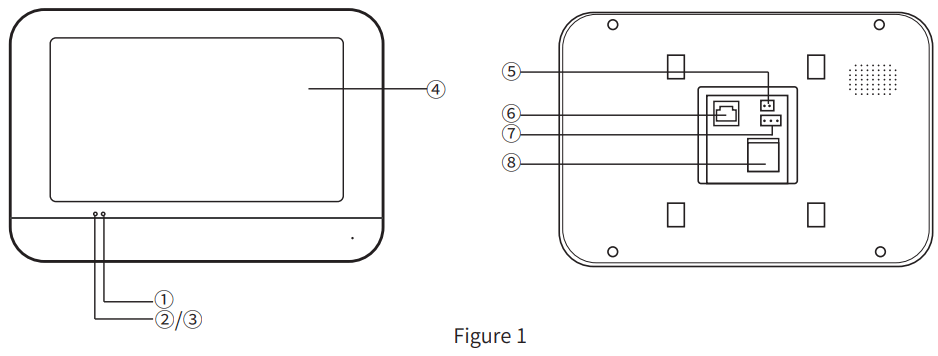
- The red power status indicator is always on
- Green movement detection status indicator
- Blue WiFi status indicator (always on, successful distribution)
- TFT-LCD 7-inch display screen
- DC15V 1.2A power supply
- Network cable port
- Unlock signal output NO/NC port
- TF card slot (maximum 64G)
Wiring diagram of the product
a.Direct connection diagram of indoor unit and door unit
15V power supply
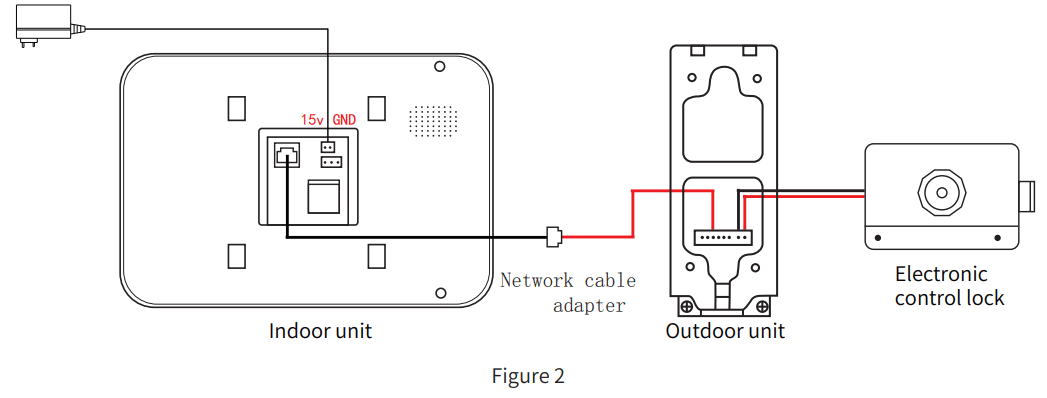
b.Wiring diagram of indoor unit, magnetic lock / electric bolt lock / electric control lock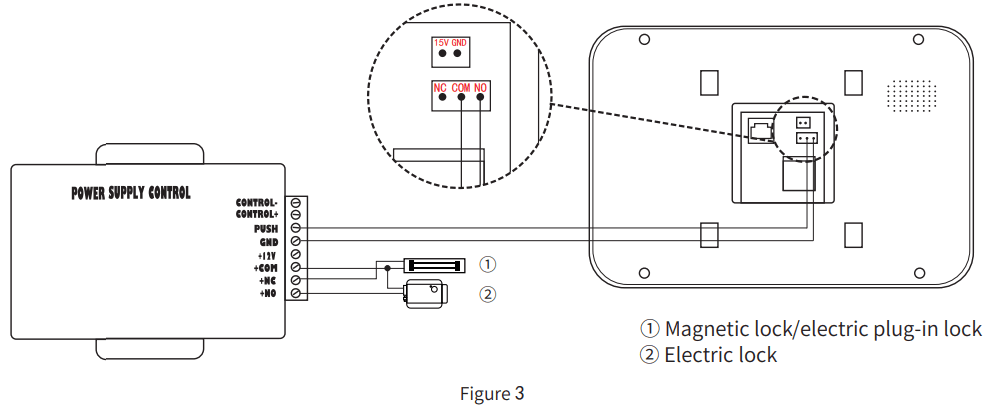
c.Network diagram with switch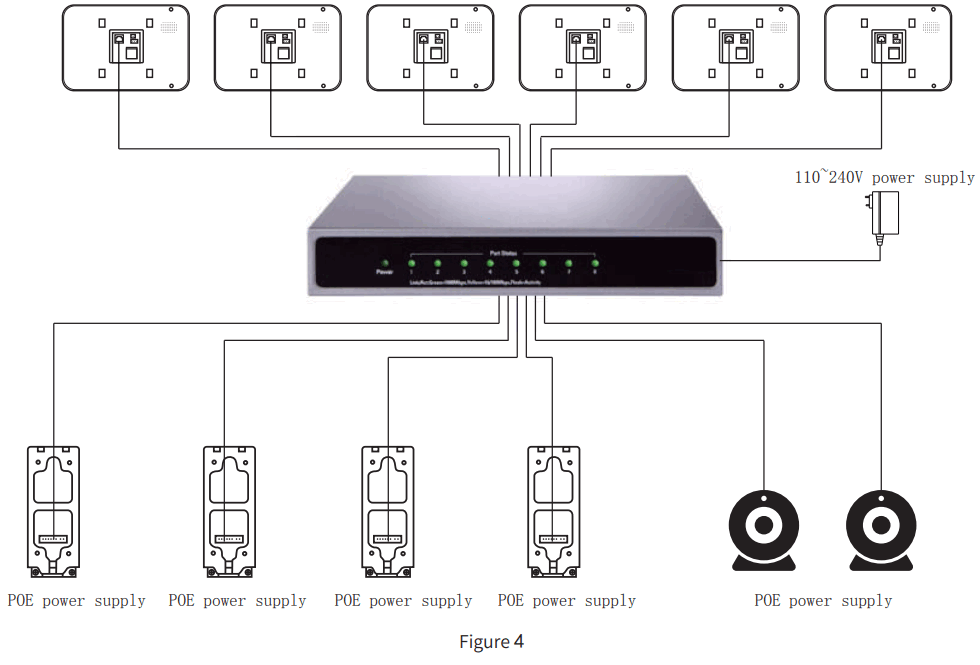
Note: the maximum number of indoor units connected is 6, and the maximum number of door units plus cameras is also 6, because the APP can only manage 6 devices at a time. As shown in P2 (Figure 4). (if multiple indoor units are connected, the indoor unit number needs to be set in turn, and the host number is 1, see Figure 11a in P5)
Preparation before installation
a.Tools required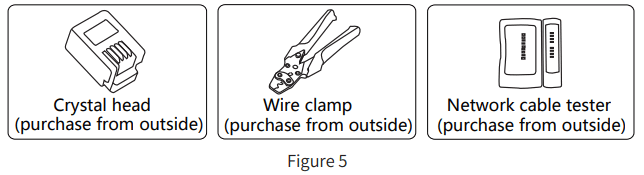
b.Making connectors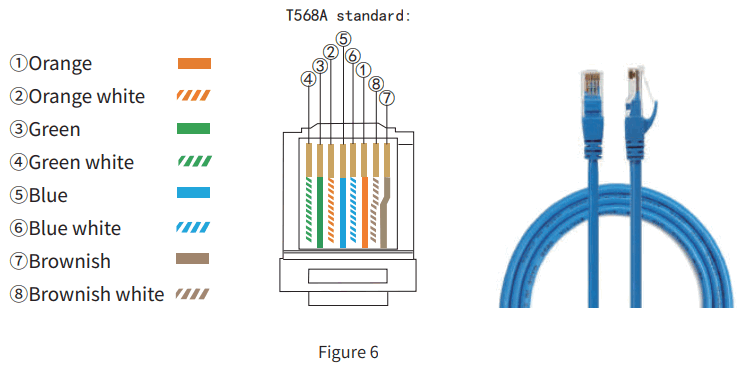
Note: see (see Figure 6 in P3) for the making and wiring mode of network cable. The wiring at both ends must be consistent.
IV.Installation instructions
Indoor unit installation
a.Installation steps:
(a). Fix the hanging plate: first, determine the two positions of the hanging hole with the hanging plate coming along, then fix the rubber plug on the wall, screw the long screw on the rubber plug, leave the length of the hanging hole, connect the wire and hang it properly.
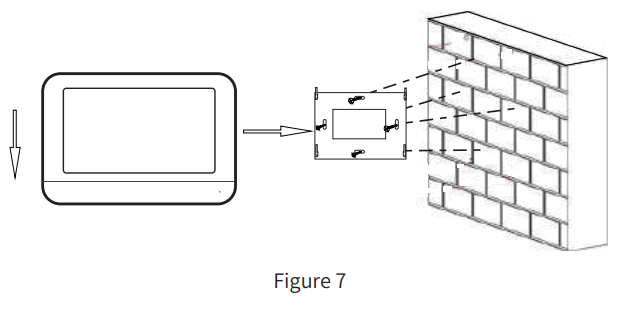
(b). Hang the indoor unit: gently move the indoor unit down and hang it on the hanging board fixed on the wall, as shown in Figure 7 in P4.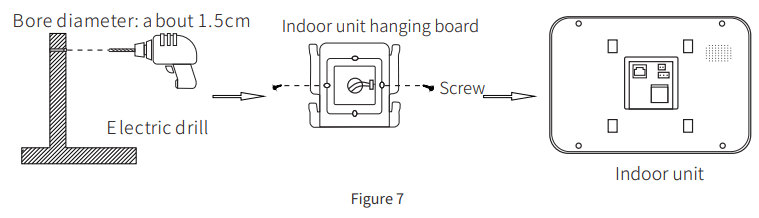
b.Notes for installation:
(a).Do not install it where the sun shines directly, so as not to affect the monitoring effect.
(b).Do not install in water- dripping or humid, high or low temperature environment.
(c).Do not install in places with serious electromagnetic interference (such as next to motors).
(d).The standard installation height of indoor unit is 145 ~ 160cm from the center of display screen to the ground.
Preparation before use
a.Startup test (plug in to start)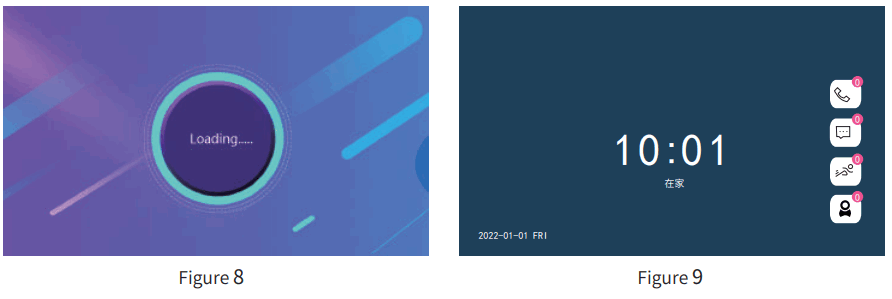
(Figure 8) Machine Startup Loading
(Figure 9) Start successful jump to standby interface
Note: the startup time of the indoor unit is 10 seconds. Before the Internet is connected,the blue indicatorlight of the indoor unit flashes, and the blue indicator light of the card swiping area of the door unit flashes.
b.Introduction to Main menu functions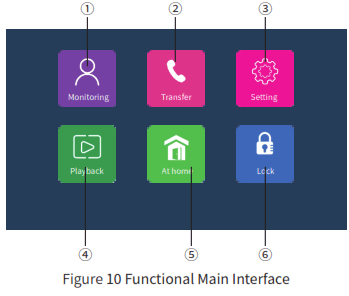
- Monitoring:Outdoor unit monitoring and camera monitoring.
- Internal call:transfer calls outdoor unit and total call.
- Settings:System settings/outdoor unit settings /Camera settings/Network settings.
- Playback:Playback call record/message/record /mobile detection record/camera record.
- At home:Three scenario modes, at home/away /hibernate.
- Lock: Open the lock of the indoor unit
Preparatio
A.Set indoor unit and door unit number (and understand the contents of setting options)
Note:see Figure 11a in P5 for details of indoor unit number setting see Figure 12a in P6 for details of door unit number setting .
a.System settings
Main menu → Settings → System settings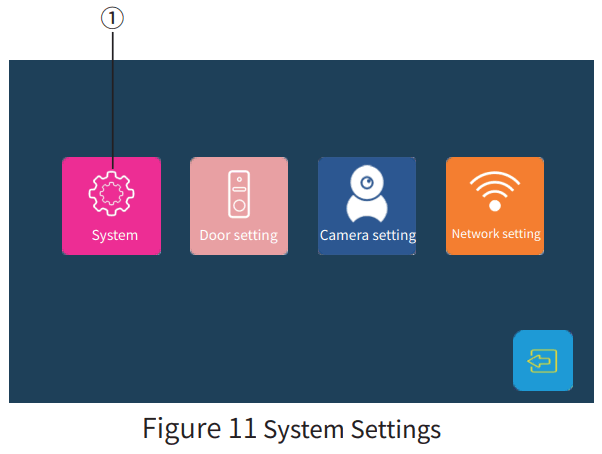
① System Settings:
a.Device_id
b.Language
c.Idle mode
d.Date format
e.Time
f.About
g.TF remaining space
h.Softare version
a. Device_id: the number of the corresponding indoor unit.
b. Language setting: three languages optional.
c. Idle mode: automatic standby or manual standby optional.
d. Date format: manually change the arrangement order of mm / DD / yy.
e. Time: manually change the date and time.
f. About: upgrade the system, factory settings, restart the system, format the TF card.
g. TF remaining space: insert a TF card to view the remaining space. Files such as video messages are stored in the TF card.
h. Software version: the name of the current software version.
Note: Device number(first, the indoor unit number needs to be arranged. When there are multiple devices, it needs to be arranged in order. For example, from 1 to 6. The host number is 1. If there is only one device, it does not need to be set)
b.Door unit setting
Main menu → Setting → Door unit setting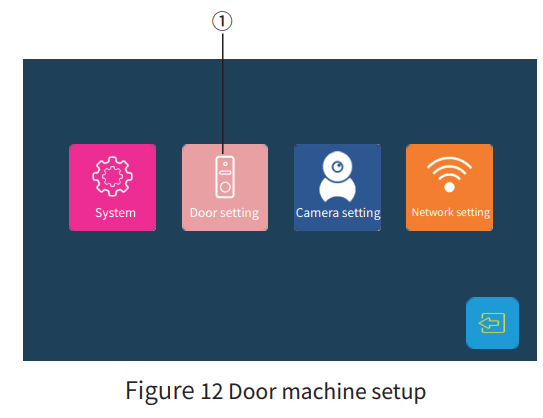
①Outdoor unit setup:
a.Door ID number
b.Unlocking delay time
c. Message
d.Motion detection
e.MD preview switch
f .Ring selet
g.Ring volume
h.Ringback
a. Door ID number: the number of the corresponding door unit.
b. Unlocking delay time: increase or decrease the unlocking time.
c. Message: when the message function is enabled, select the Out mode (see Figure 25 in P14) to start video message. (Note: TF card is required)
d.Motion detection: Turn on or off motion defection (Note: TF card is required)
e.MD preview switch: turn on the motion detection preview. When there is an object moving, the indoor unit pops up a video recording screen.(Note: TF card is required)
f.Ring selet: 10 ringtones optional.
g.Ring volume: adjust the volume of indoor unit.
h.Ringback: the door unit will respond with the ring after it is turned on.
Note: Device number (first, the indoor unit number needs to be arranged. When there are multiple devices, it needs to be arranged in order. For example, from 1 to 4. The host number is 1. If there is only one device, it does not need to be set)
Motion detection setting
Open the door unit setting → select the door unit 1 (if there are multiple devices, it can only be operated on the device numbered 1) → open motion detection → open the mobile detection preview → open the message.When the motion detection is turned on, the green motion detection indicator is always on → when an object motion is detected, the indoor unit will automatically record the picture for 20 seconds.
To view the video, see Figure 22 in P15 (Note: TF card is required)
B. App download, WiFi connection and instructions for use
Note: scan the QR code (see Figure 13 in P 6) with a smart phone to download the APP or search for “TuYaZhiNeng” in major APP markets, download and
register, and complete the network connection of indoor and door units according to the guidance video. The detailed steps are as follows:
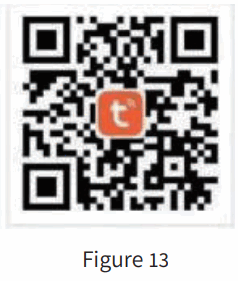 http://smart.tuya.com/download
a.Main menu → Setting → Network setting → Connection
When connecting WiFi: click “Settings” on the Home page→ “Network settings” → select (hot-spot connection) in connection mode (as shown in Figure 14 inP7 ①) → restart the system(Note: the system must be restarted.)
If you click the return key (as shown in Figure 14 in P7 ⑥) and the system restart does not pop up, you can select “About” in the system settings (as shown in Figure 15 in P7①) to restart the system, and click “Restart the system”, in case the network cannot find the device ID.)
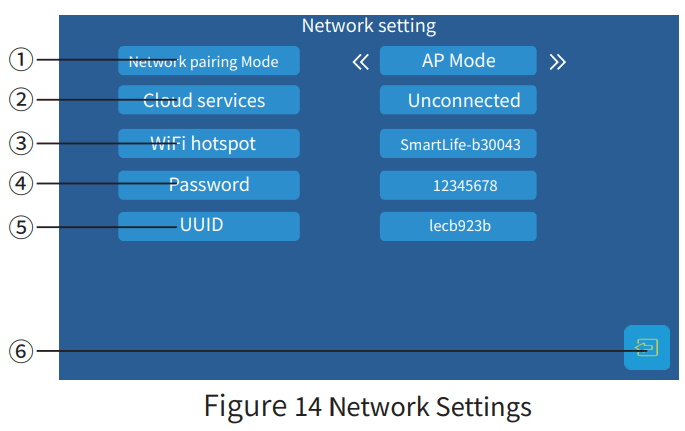
- Network pairing Mode
- Cloud services
- WiFi hotspot
- Fassword
- UUID
- Return key
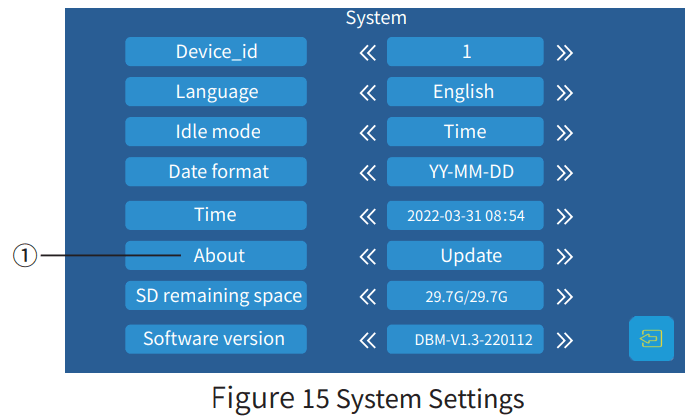
- About:Upgrade system, factory settings, restart system, format TF card.
b.Mobile phone APP connection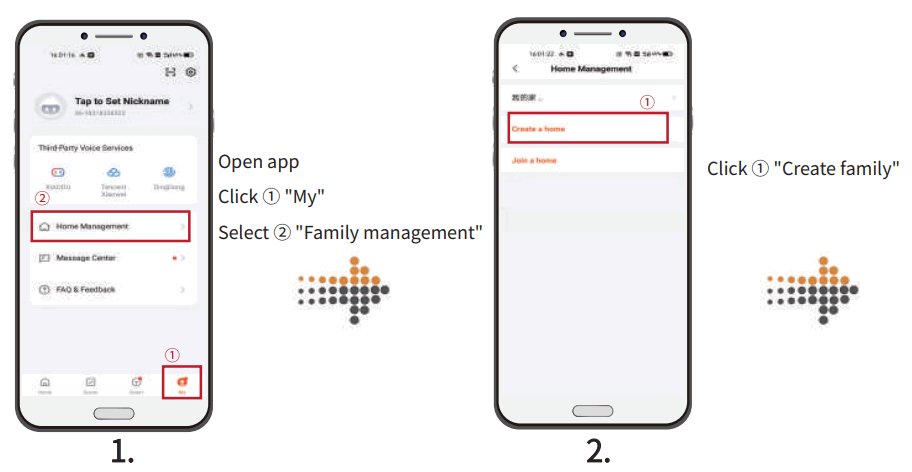
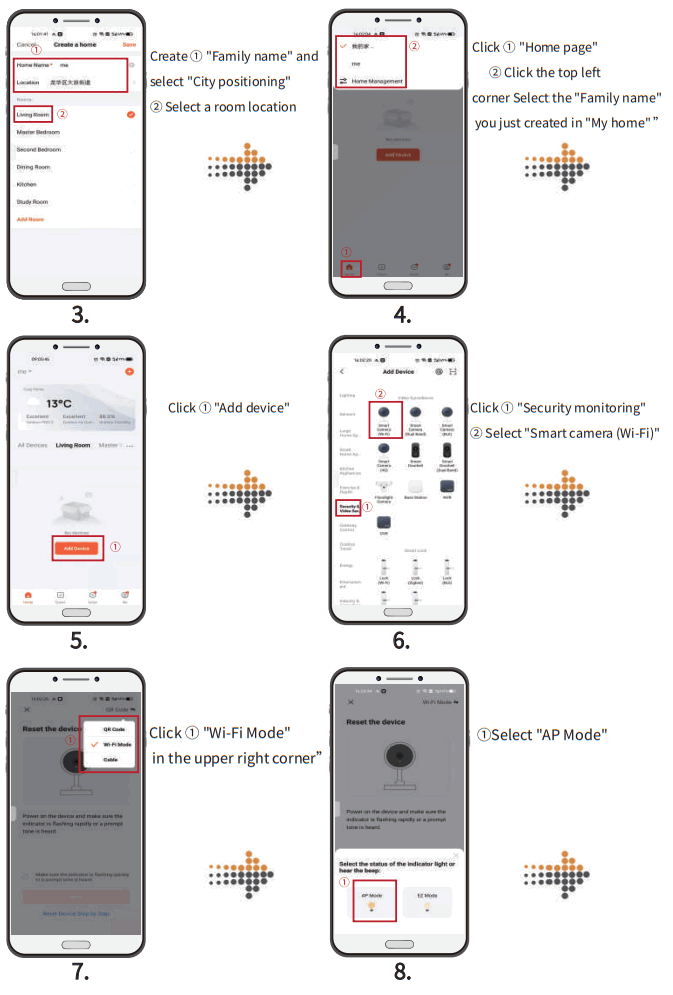 | 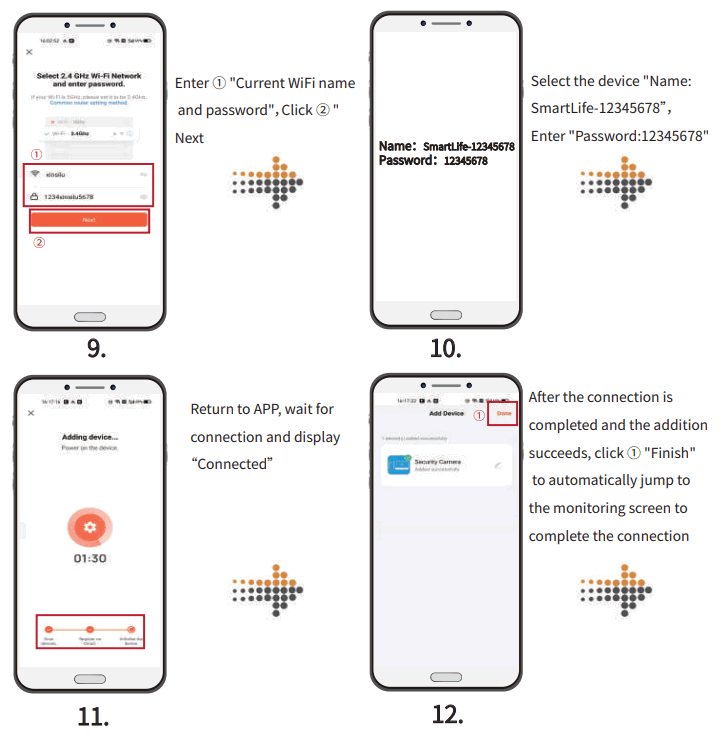 |
(Note: only one account can be bound to one indoor unit. If it is bound by other users, the device must be removed first and then be bound, otherwise adding device will fail.)
c.Add members
(a).Take out the mobile phone bound with the device, enter the APP, click “Me” in the lower right corner → select “Family management” → select the created family group → “Add members” → invite members to join through “WeChat”, and click on the members you want to invite to “Share” the invitation code.
(b).The invited members shall also download the “TuYaZhiNeng” APP and log in (without binding the device)→ click “Me” in the lower right corner → select “Family management” → join a family → open We Chat to view the invitation code → return to the APP and enter the invitation code.
(c).On the bound mobile phone, click “Family management” → select family → view the newly added family members → the number marked with “Family owner” is the main number → you can click family members for editing → there are functions of “Family role” / “Remove from family”, etc.
d.Newly added members shall click the “Home page” → click “My home” on the upper left corner to select “Home name” to keep the home on top.
e.Multi device monitoring and intercom: call the door unit, monitor after the mobile phone receives the push, and turn on the microphone. When one device finishes the intercom, the microphone shall be turned off so that other devices can continue intercom.
f.If the mobile phone has not received the push after calling the door unit, please confirm that all notification permissions of the APP are turned on. The push delay of the mobile phone is a network problem, please check the network and try again.
C.Add cameras
Note: complete the detailed steps of camera network connection in accordance with the tutorial. Main menu → Settings → Camera settings → Connect camera
a. Operation method of fixed camera IP address: turn on the switch, prepare two network cables and plug in available ports on the switch respectively.Then plug one end in the computer port and see if the indicator flashes, and plug the other end in the network port of the network camera and see if that the camera interface indicator and switch network cable indicator flash.
Step 1: Install the SADP software downloaded from the official website. After running the software, the SADP software will automatically search all the online devices in the LAN, and the list will show the device type, IP address, activation status, device serial number and other information.
Step 2: Check the devices that need to be activated, set the device password at “Activate device”, and click “Activate”. (As shown in Figure 16 in P10)
(a). Parameter setting 1: IP address: network segment configured as 192.168.250.xxx (range: 1-125, cannot be greater than 125)
(b). Parameter setting 2: port: 8000
(c) .Subnet mask: 255.255.255.0
(d). Gateway: configured as 192.168.250.1
Administrator password setting: any two digits or more numbers/letters, spaces/symbols are allowed (up to 16 digits). Click Modify after configuration, and if “Modify network parameters successfully” appears, the fixed IP address is set successful.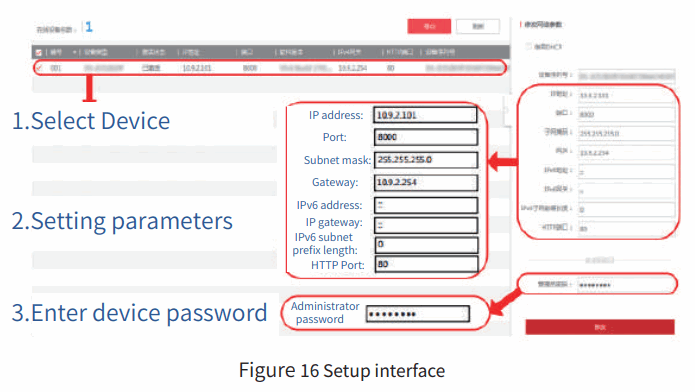
b.Connection of indoor unit and camera
Accessories: network camera x 1, indoor unit x 1, switch x 1, 15V1.2A power able x 1, network cable x 2.
(a). Connect as shown in the diagram: after the switch is connected to a socket, plug one end of two network cables into available ports on the switch respectively, and the other end into the network camera end. When it’s done, turn the switch on.
(b).2. Open the indoor unit camera settings → search → confirm  the device found → enter the user name: admin →: password 123456 → confirm ( ) → login succeeds and return → open the monitoring picture to see whether the camera is connected successfully (turn from red dot to green dot) → click (green dot machine) to monitor, and click the camera pattern on the upper right corner to switch door units and cameras.
(c). Multiple cameras are connected in the same way. Open the camera search, click on the IP found.
Note: remember the IP number selected! Select Camera 1, enter the user name (admin) and password (123456) → confirm, login succeeds and return, then click the monitor pattern to see if the camera is connected successfully. If there is a (green dot), the connection of the camera succeeds, and then continue to open the camera search. Continue to search for IP, connect the IP number not yet connected. (Note: camera number shall be edited in the order of 1-4. If the one set already is No. 1, then the next one should be set as No. 2 to connect, and so on)
Operation of indoor unit and APP answering function
A. Door unit call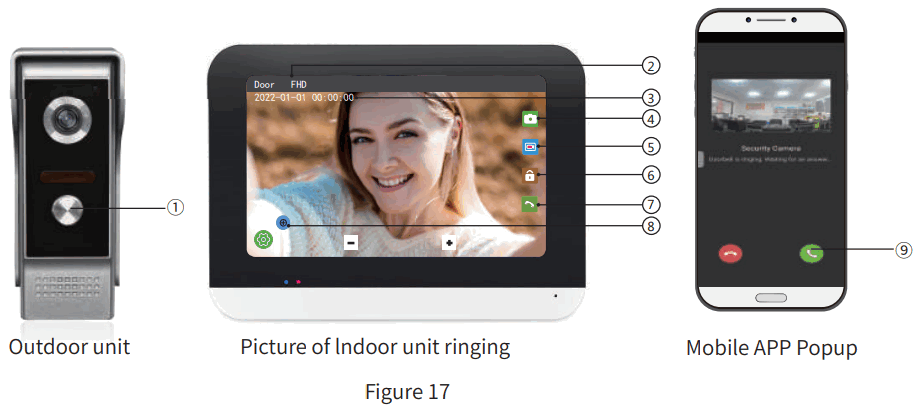
| 1. Door machine call button 2. Call the current outdoor unit 3. Photo function button 4 . Display current time 5. Video recording function button | 6.Unlock button 7.Answer hangup button 8.Zoom View Button 9. Handset hook/hang up button |
Note: when the door unit calls, both the indoor unit and the mobile phone the push at the same time.
When the mobile phone is monitoring, the door unit cannot be called. Function introduction is shown in Figure 17 in P11.
B.Answering function of indoor unit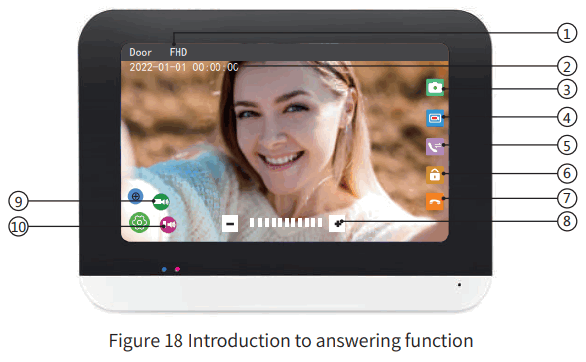
- Call the current outdoor unit
- Display current time
- Photo function button
- Video recording function button
- Indoor unit transfer button
- Unlock button
- Answer and end button
- Modulation
- Door machine volume adjustment
- Volume adjustment of indoor unit
C.Answering function of mobile phone APP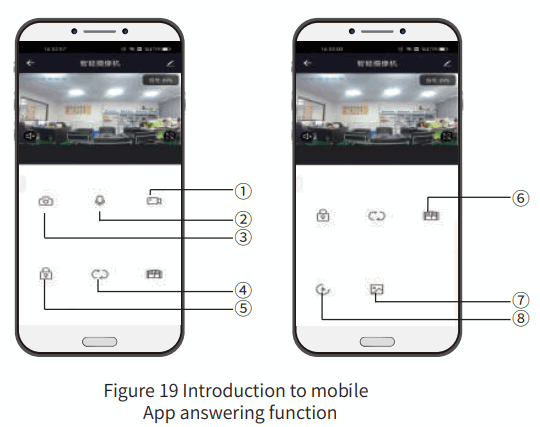
- Remote video recording function
- Remote call function
- Photographing function
- Switch between other doorway machines and cameras
- Mobile phone remote unlock
- Indoor unit transfer button
- Photo and Video Storage Function
- All Call Record Viewing Functions
Note: ④ to switch the door unit and camera channel, the intercom sound andspeaker must be turned off
before switching.
Operation of other functions
a.Monitor
Main menu → Monitoring → Door/ Camera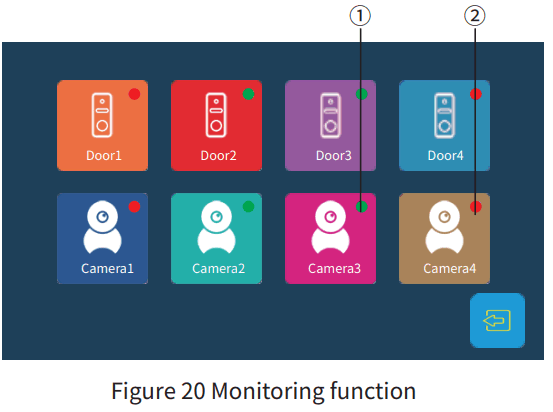
- Green dot: indicates that the door unit or camera is successfully connected.
- Red dot: indicates that the door unit is not connected or the connection fails.
Note: ① monitor the situation outside the door through the connected door unit or camera.
Door unit switching
Open the monitor pattern on the Main menu and find the online door unit with green dot → click on Monitor → click the camera pattern in the upper right corner to switch the door units.
b.Call – Transit call
Main menu → Internal call → Call extension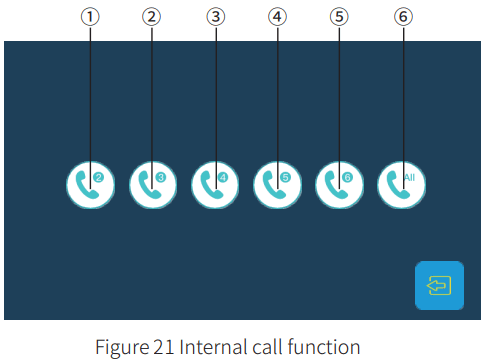
- -⑤ refers to any extension of indoor unit ⑥It is the general call and calls all bound indoor units
Indoor unit transfer function and internal call / General call
Call transfer is available when there are more than two indoor units. After a call to the door unit is answered, click the purple pattern of transfer function in the upper right corner to transfer the call to any indoor unit. Internal call and general call function → open the internal call function on the Main menu → select the indoor unit to call or call all indoor units (general call).
c. Playback
Main menu → Playback → (call records / message records / motion detection / camera recording)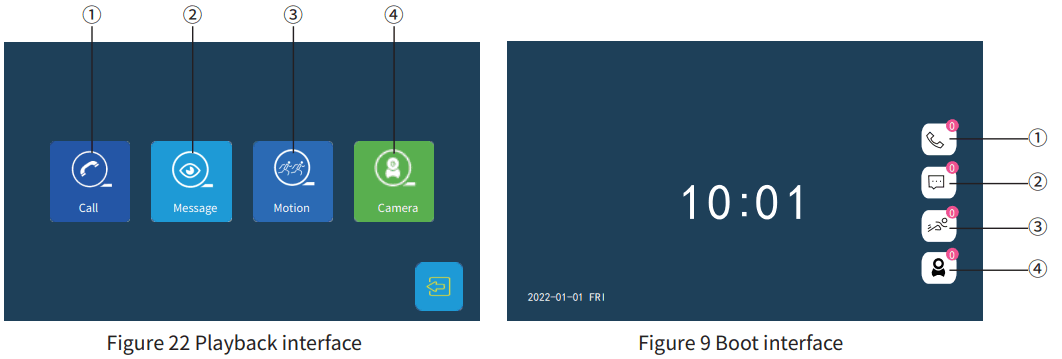
- Call recording: unified visitor records of each call.
- Message recording: when no one is at home, turn on the Out mode and the message function is automatically turned on. When calling the door unit, the message will be recorded. See Figure 12c in P6 for the settings.
- Motion detection: turn on motion detection, capture moving objects and record. See Figure 12d in P2 for the settings.
- Camera recording: Connect the camera, use the camera to monitor, and click the video button to record video. See Figure 16 in P10 for the settings.
Note: a TF card is required for recording.
View recorded video
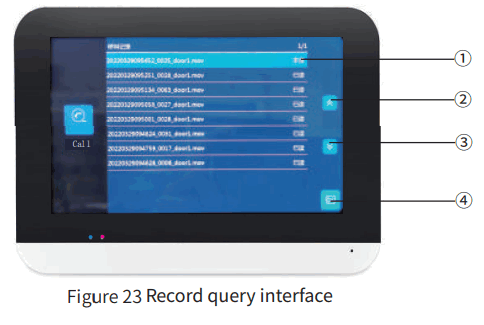
- Record data viewing
- page up
- Down
- Return button
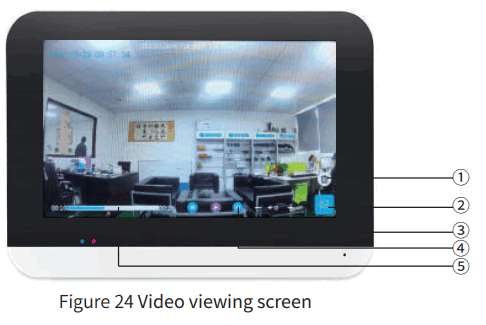
- Delete video
- Return button
- Video volume
- page up/down/stop playing
- Video duration
d.Mode – Scenario modes
Main menu → At home → In mode/Out mode/Sleep mode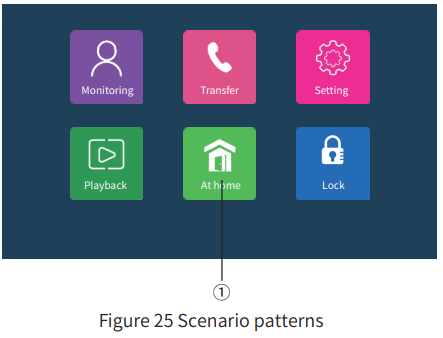
- At home: there are three scenario modes. In mode (ring the doorbell, the indoor unit and the door unit ring at the same time)/Out mode (ring the doorbell, there is a voice prompt tone of “No one answers, please leave a message”)/Sleep mode (the indoor unit is mute)
Note: (if multiple devices are connected, it is only effective to operate on the device with indoor unit No. 1, and only the indoor unit can activate the “In mode”).
Scenario modes setting
Set host device number as 1 → turn on the message recording of the door unit with “green dot”, select out mode → there will be a voice prompt once there is an incoming call.
There are three modes of In / Out / Sleep: no matter in which mode, make sure the number of device to be tested is set as 1. Then check the door units and select the number of door unit with green dot to set the items to be turned on. After checking, ring the doorbell. (Note: TF card is required).
e.Unlock – Unlock module
Main menu → Unlock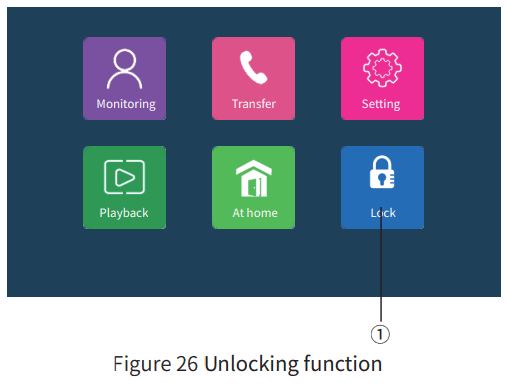
- Lock: Open the lock of the indoor unit (as shown in Figure 3 in P2)
Note: ① The unlocking button,the default is off.
Product parameters
| Parameter Monitor | |
| Monitor | IPS HD touch screen |
| Resolution | 1024*600 |
| Power supply | 15V1.2A(support POE power supply) |
| Power | Standby: ≤1W Operating: ≤10W |
| Connection Wire | CAT5E (100M) |
| Ringtones | 10 |
| Language | Russian /English /Chinese |
| Monitoring time | 60s |
| Intercom time | 120s |
| Installation | Wall mount |
| Material | Tempered glass panel+ABS plastic |
| Size | 195cm*132cm*18cm |
B.Outdoor unit
Outdoor unit I
I.Product structure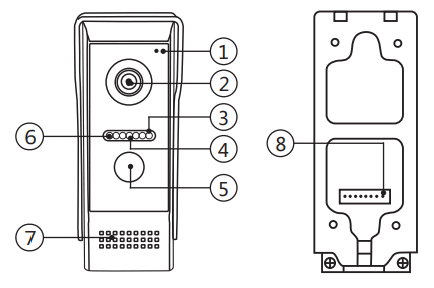
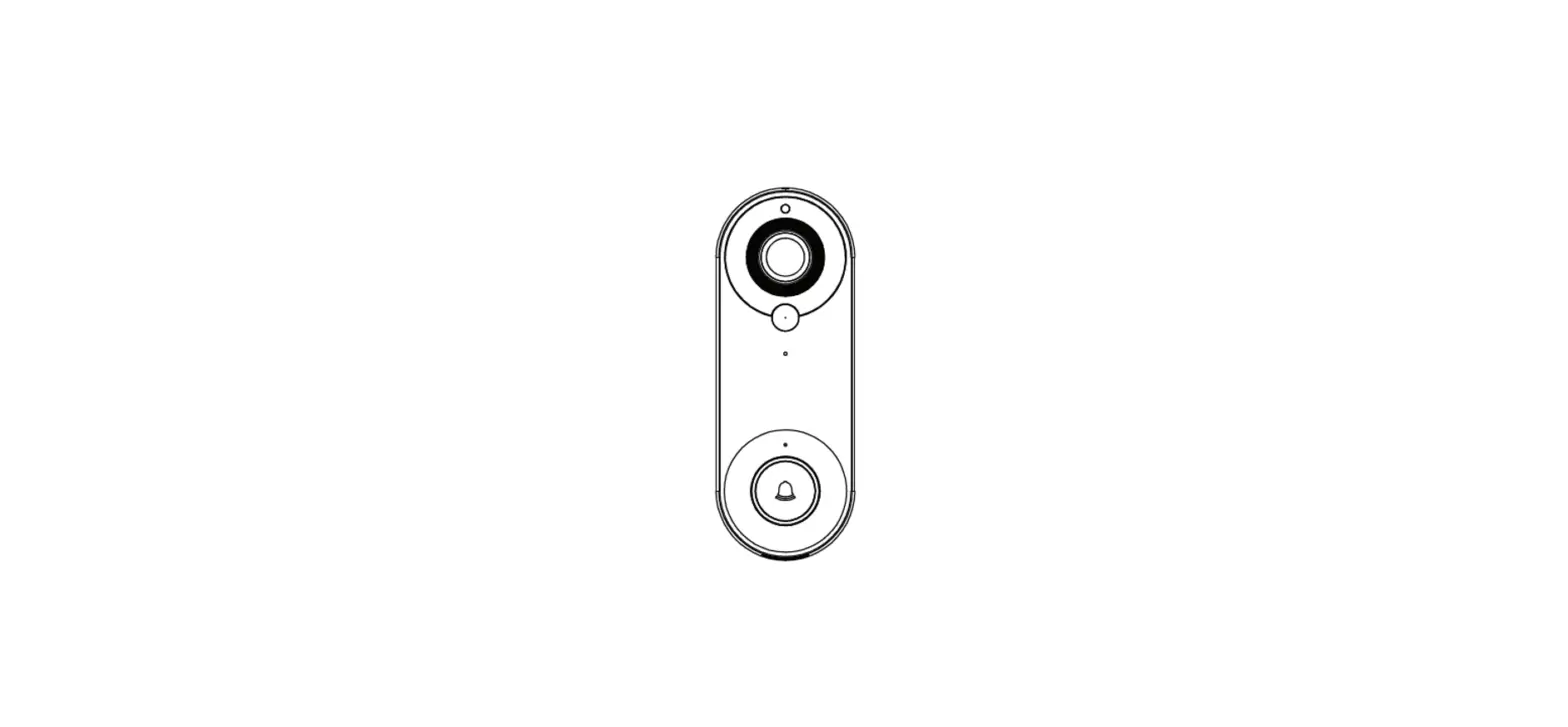
- Microphone
- Camera
- Blue status indicator light ( light is always on,mean with indoor unit is successfully connected )
- Infrared night vision lamp
- Call button
- Red indicator light ( press indoor unit unlock button that indicator light will flash ) 6
- Speaker
- Network interface transfer line
II.Product parameters
| Parameter Outdoor Unit | |
| Resolution | 2.0mp |
| Night vision | Infrared night vision led |
| Power supply | 15V1.2A(support POE power supply) |
| Power | Standby,..2W Operating,..5W |
| Connection wire | Network cable adapter |
| View Angle | 120° |
| Night vision sensitivity | 0001 Lux |
| Night vision distance | 10M IR night vision |
| Operating temperature | -30°C-60°C |
| Installation | Surface rnount |
| Material | Aluminum alloy |
| Size | 125cm°50cm.45crn |
Installation Instructions
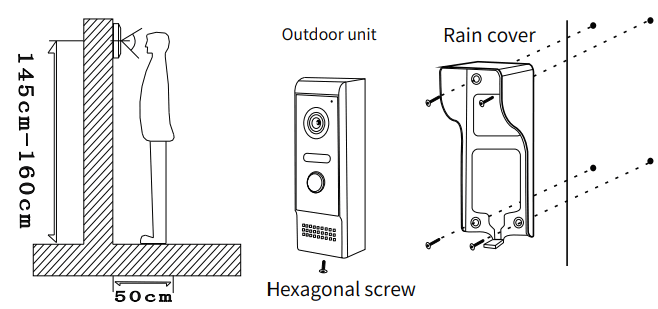
(a).It’s required to avoid installing the outdoor unit at any place with strong direct sunlight.
(b).At first, determine the location and height for installing the outdoor unit; the reference height is 145-160cm from the outdoor unit center to ground.
(c). Unscrew the screw at the bottom of the door unit and separate the rain cover from the door unit body.
(d). Fix the rain cover on the wall with screws.
(e). put the door unit body into the rain cover,and fix it to the fixing hole at the bottom of the rain cover with screws.
Wiring diagram
1 outdoor unit connects with 1 indoor units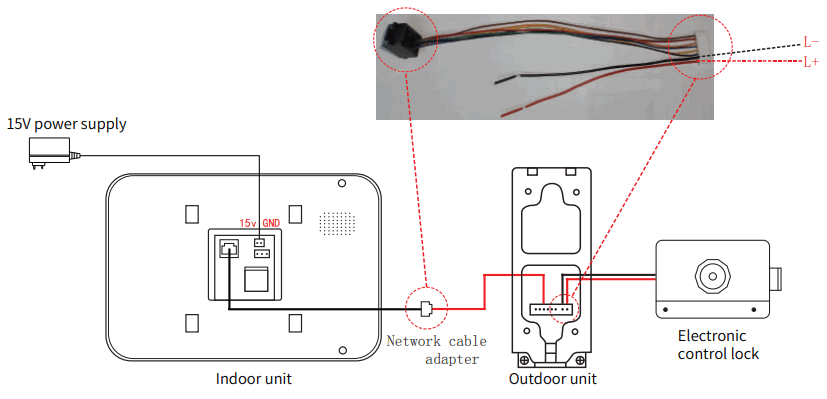
Note:
- the maximum number of indoor units connected is 6, and the maximum number of door units plus cameras is also 6, because the APP can only manage 6 devices at a time.
- Connecting an outdoor unit → powering the outdoor unit → waiting for the outdoor unit to automatically connect the indoor unit. ( Please ensure that the network line can work normally )
- When connecting multiple outdoor unit → Powering the outdoor unit → Waiting for the outdoor unit to automatically connect indoor unit → After the connection is successful → Matching the next outdoor unit ( the same operation ) → Automatic allocation number of the outdoor unit. If there is no automatic allocation number, it is necessary to restore the factory settings for allocation number.
Note : Restore factory setting : long press call button → outdoor unit on power→ blue indicator from flash to lights out then release button → door indicator lights restart again to restore factory setting success.
Outdoor unit II
I.Product structure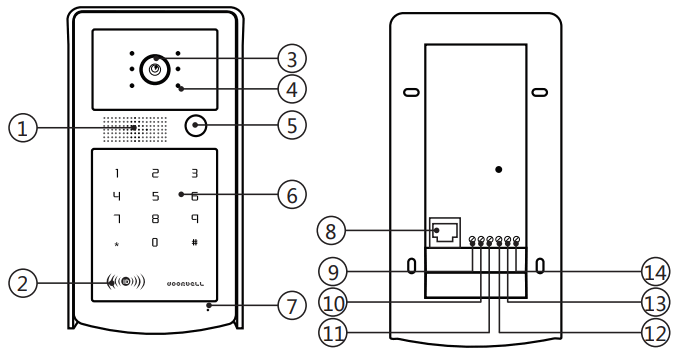
| 1. Rain cover 2. Ir detector 3. Camera 4. Speaker 5. Call button 6. Card brushing/standby status indicator 7. ID card swipe area 8.Microphone | 9.Network port 10.NC 11.COM 12.NO 13. L+ 14.L- 15.Blank |
II.Product parameters
| Parameter Outdoor Unit | |||
| Reslution | 2.0mp | Unlock type | IDcard |
| Night vision | Infrared night vision led | ne quantity of ID card | 500pieces |
| Power supply | 15V1.2A(support POE power supply) | Reading distance | 20-50mm |
| Power | Standby: ..,..2W Operating: -<..5W | Time of read card | <15 |
| Connection wire | Network cable connection | Card reading current | <50mA |
| View Angle | 120° | Store swipe card data | Maximum 500 series |
| Night vision sensitivity | 0.001 Lux | ||
| Night vision distance | 10M | ||
| Operating temperature | -30°C-60°C | ||
| Installation | Surface mount | ||
| Material | Aluminum alloy cover+ABS plastic | ||
| Size | 180cm.98cm.45cm | ||
III.Installation Instructions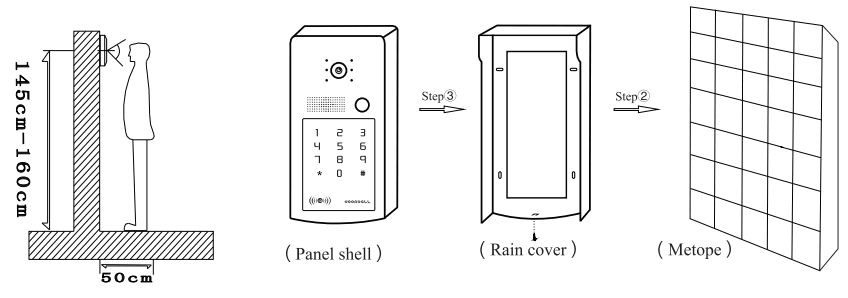
(a).It’s required to avoid installing the outdoor unit at any place with strong direct sunlight.
(b).At first, determine the location and height for installing the outdoor unit; the reference height is 145-160cm from the outdoor unit center to ground.
(c). Unscrew the screw at the bottom of the door unit and separate the rain cover from the door unit body.
(d). Fix the rain cover on the wall with screws.
(e). put the door unit body into the rain cover,and fix it to the fixing hole at the bottom of the rain cover with screws.
IV. Set the outdoor unit management card
a. Set the management card: press and hold the call button of the outdoor unit, while plugging in the Internet cable to get power on (buzzer “dee” once, green light blinking) — release the outdoor unit button — swipe the first card default to increase the card (red light blinking) — swipe the second card default to delete the card (red light off) — unplug the network cable, power off (management card settings complete)
Note: The outdoor unit is powered by the indoor unit
b. Increase the user card: first swipe the green addition management card (buzzer “dee” once, green light is always on) — then swipe the blank card (buzzer “dee” once, if you add more than one user card at the same time, you can continuously slot the blank card) — finally swipe the green addition management card and end (buzzer “dee” 2 twice, the green light is off indicates that the addition is complete)
c. Delete the user card: first swipe the red deletion management card (buzzer “dee” once, red light is always on) — then slot the user card to be deleted (red light flashes rapidly, buzzer “dee” once, red light is always on) — finally swipe the red deletion management card and end ( The buzzer “dee” twice, the red light is off indicates that the deletion is complete)
Note: If there is no operation for a long time in the process of adding or deleting, the system will automatically exit after “dee” twice.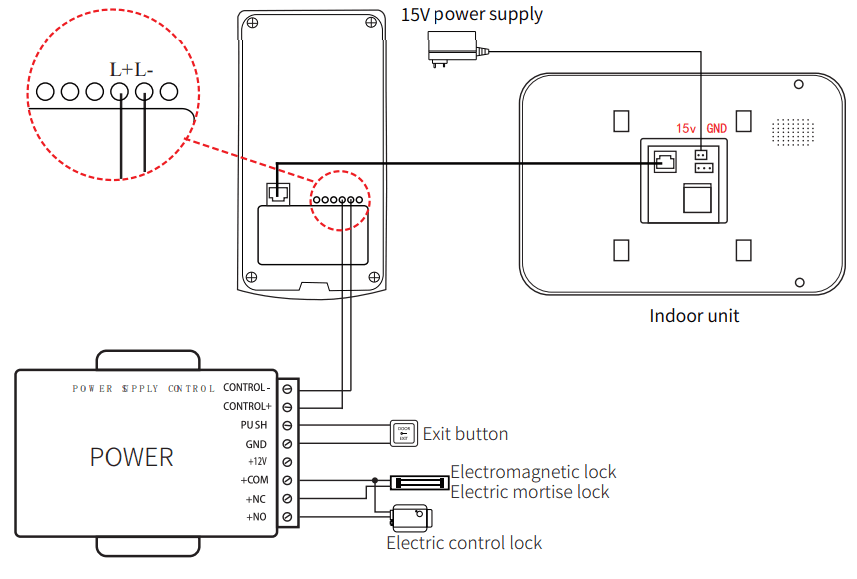
Operating mode
a.If cooperate with common indoor monitor,vision host must powered by 12V power supply separately to work.
b.If cooperate with specialized indoor monitor,vision host without need a separate power supply can work normally.
(Collocated with specialized indoor monitor,only support one to one.)
Outdoor unit III
I.Product structure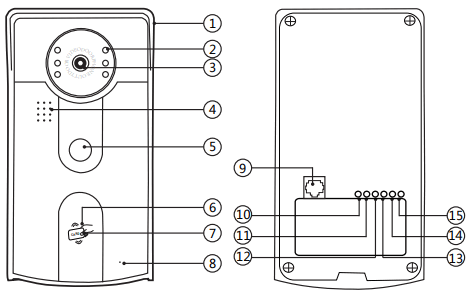
- Speaker
- Card zone
- HD camera
- Infrared night vision lamp
- Call button
- Code keypad
- Microphone
- Network port
- NC(Relay normally close)
- COM(Relay common)
- NO(Relay normally open)
- L+
- L-
- Blank
II.Product parameters
| Parameter Outdoor Unit | |||
| Reslution | 2.0mp | Unlock type | Password + RFID card |
| Night vision | Infrared night vision led | The quantity of ID card | 500pieces |
| Power supply | 15V1.2A(support POE power supply) | Reading distance | 20-50mm |
| Power | Standby: -,..2W Operating: 05W | Time of read card | <1S |
| Connection wire | Network cable connection | Card reading current | <50mA |
| View Angle | 120° | Store swipe card data | Maximum 500 series |
| Night vision sensitivity | 0.001 Lux | Password quantity | Common a Set |
| Night vision distance | 10M | Password Length | 4-digit number |
| Operating temperature | -30°C-60C | Password Setting | Any combination of Digita |
| Installation | Surface mount | ||
| Material | Aluminum alloy cover+ABS plastic | ||
| Size | 180cm*98cm*45cm | ||
III.Installation Instructions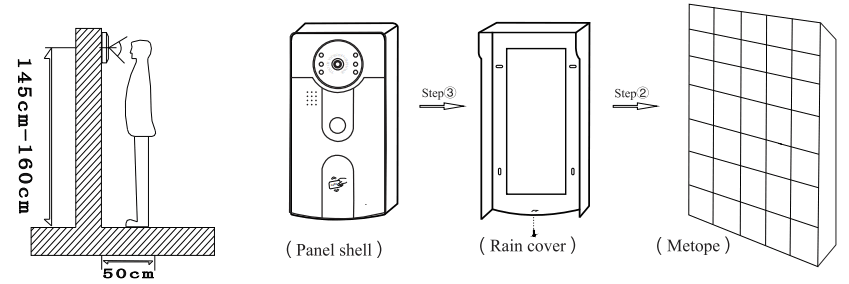
(a).It’s required to avoid installing the outdoor unit at any place with strong direct sunlight.
(b).At first, determine the location and height for installing the outdoor unit; the reference height is 145-160cm from the outdoor unit center to ground.
(c). Unscrew the screw at the bottom of the door unit and separate the rain cover from the door unit body.
(d). Fix the rain cover on the wall with screws.
(e). put the door unit body into the rain cover,and fix it to the fixing hole at the bottom of the rain cover with screws.
IV.Operating Instructions
a.ID card instructions
Function setting and modification:
Note: non professionals are not allowed to open the cabinet without authorization. If you forget the management password, you can directly enter the super password “20090806#” for recovery operation, and the factory will be responsible for the maintenance.
The management password is “1234” by default, and the unlocking password is “5678#” by default ( Programming operation input time please pay attention to continuity, do not pause in the middle, otherwise the operation will be lostFail, need to operate again)
The super password is used to recover the administrative password. The management password is used to modify the user’s unlock password.
b.To modify the unlock password
Press “## (buzzer ringing) continuously to input the management password 1234 # (buzzer ringing) and then input the 4-digit new password.Unlock password “XXXX” (buzzer “didi “, that is, the unlock password is modified successfully) (1234 is the initial management password, and XXXX represents the new 4-digit password)
c.Modify the management password
Long press “#” for 5 seconds (buzzer sounds) to enter the management password 1234 # (buzzer sounds) and then enter 4 digits for new management.Password “XXXX” (buzzer “didi “, that is, the management password is modified successfully)
d.Modify super password
Long press “*” for 5 seconds (buzzer sounds) to input super password 20090806 # (buzzer sounds) to input modification password”XXXXXXXX#” (buzzer “didi “, that is, the super password has been modified successfully)
Note: if you forget the super password, you can only change the main control IC chip of the motherboard, but cannot decrypt it.
e.Restore the initial management password
Directly input the 8-digit super password “20090806#” (the buzzer sound prompts “didi” for a long time and a short time), that is, restore the management password Code success)
f.Make the management card
(a).Set the management card: press and hold the call button of the outdoor unit, while plugging in the Internet cable to get power on (buzzer “dee” once, green light blinking) — release the outdoor unit button
— tap the first card default to increase the card (red light blinking) — tap the second card default to delete the card (red light off) — unplug the network cable, power off (management card settings complete)
Note: The outdoor unit is powered by the indoor unit
(b).Increase the user card: first tap the green addition management card (buzzer “dee” once, green light is always on) — then tap the blank card (buzzer “dee” once, if you add more than one user card at the same time, you can continuously slot the blank card) — finally tap the green addition management card and end (buzzer “dee” 2 twice, the green light is off indicates that the addition is complete)
(c).Delete the user card: first tap the red deletion management card (buzzer “dee” once, red light is always on) — then slot the user card to be deleted (red light flashes rapidly, buzzer “dee” once, red light is always on) — finally tap the red deletion management card and end ( The buzzer “dee” twice, the red light is off indicates that the deletion is complete)
Note: If there is no operation for a long time in the process of adding or deleting, the system will automatically exit after “dee” twice.
V.Product Wiring Diagram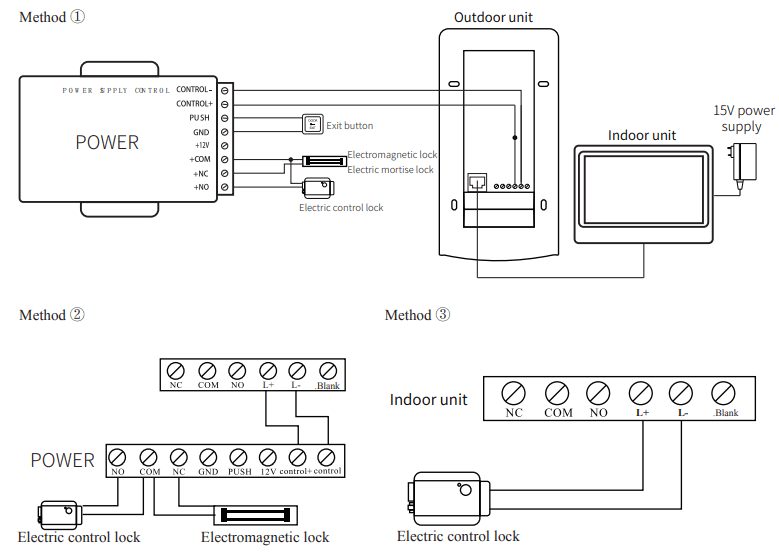
The unlocking of the electronic control lock is power on unlocking, and the unlocking end of the host does not need to add intermediate equipment, so it can be directly connected with the electronic control lock; When the power is on, the lock opens.
X.Instructions
a.Test before installation
Open the package, check whether the accessories are complete, use the original test cable for the outdoor unit and indoor unit, whether it work normally, and then install.
Note: The wiring must be strictly in accordance with the connection diagram of the manual, otherwise the function not be used normally, or even damage the equipment; please refer to the purchased access control power supply manual for the use of the access control power supply, which is not included in the set.
b.Maintenance
I.The device shall be installed at a secure place with good ventilation, dry air and without direct sunlight, high-intensity magnetic field or dust;
II.Don’t use it with any product not produced by our company;
III.Don’t dismantle it without authorization. Please contact your local distributor or our technical department in case it has any failure;
IV.Users shall follow the user manual strictly to install and test the product.Please call our company for technical support if you have any question;
Special Announcement
I.Please read this Instructions carefully before installation. For special and difficult problems, please contact the technical support center of the company for consultation.
II.The diagrams and screen interfaces used in this Instructions are to explain the operation of this product in a more detailed and direct way. Due to version upgrades and different production batches, they may be slightly different from the machine you have in hand. If the contents of this Instructions are inconsistent with your machine, take your machine as the standard!
III.The ownership and power of interpretation of all contents of this Instructions, including accessories and software, belong to the company, and shall not be copied or translated without the authorization and permission of the company.