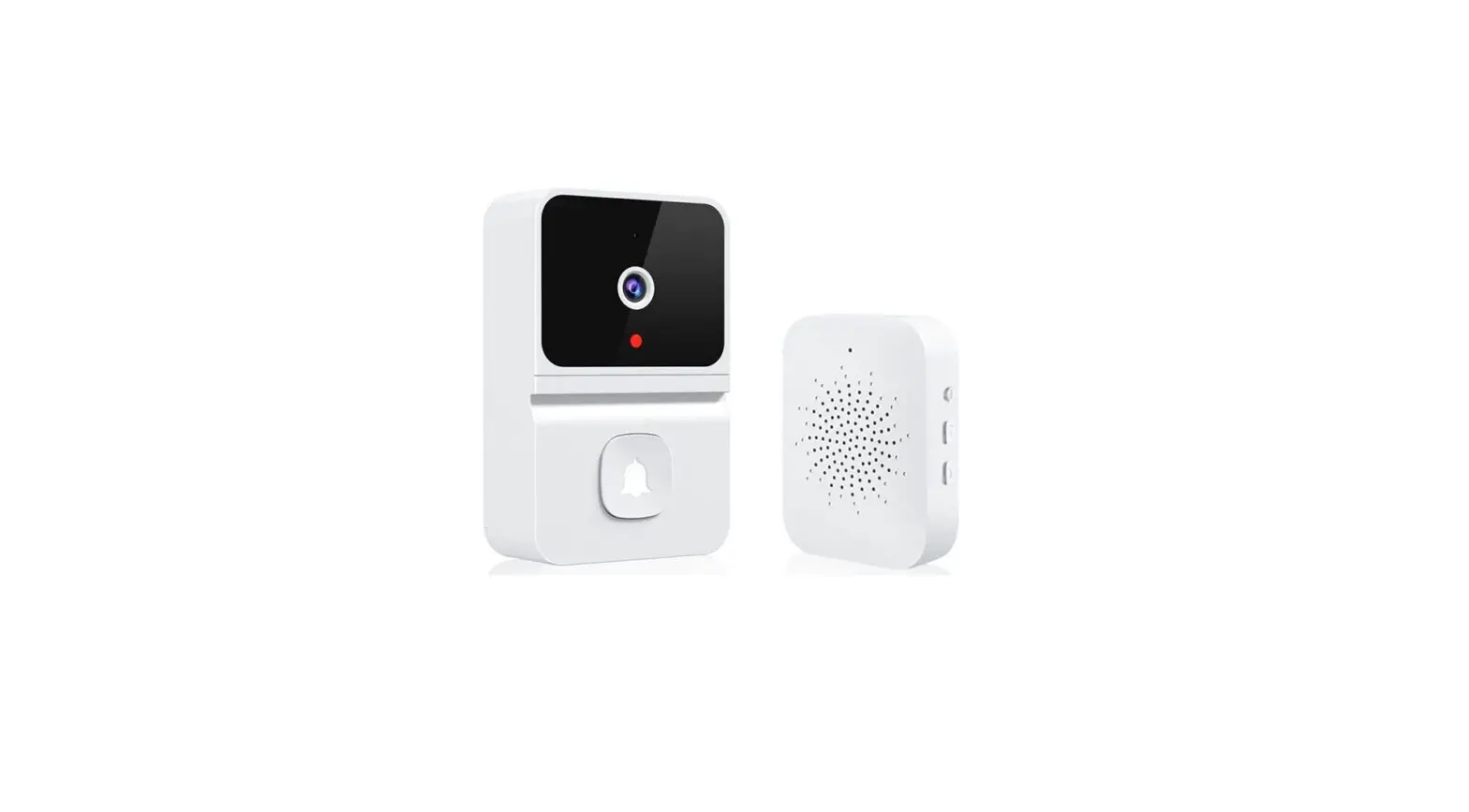
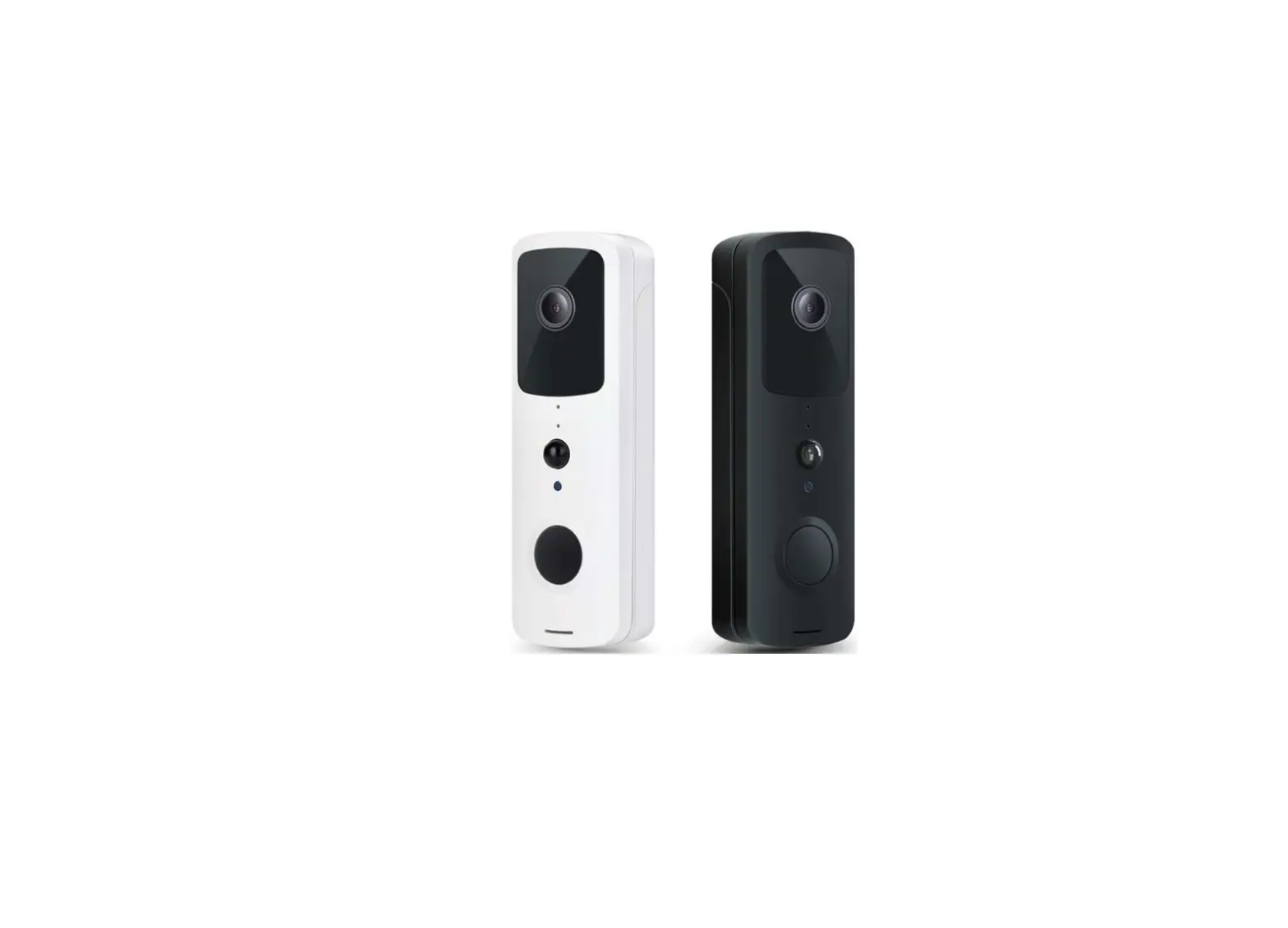
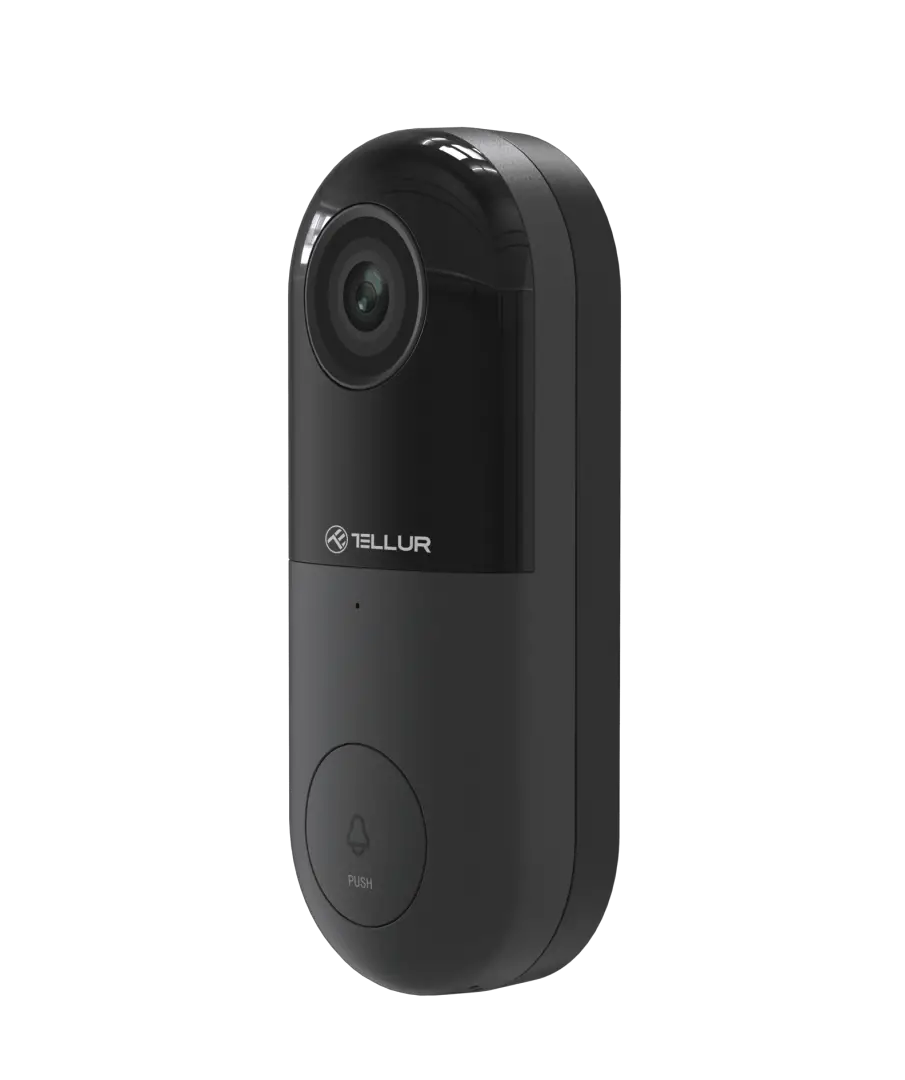
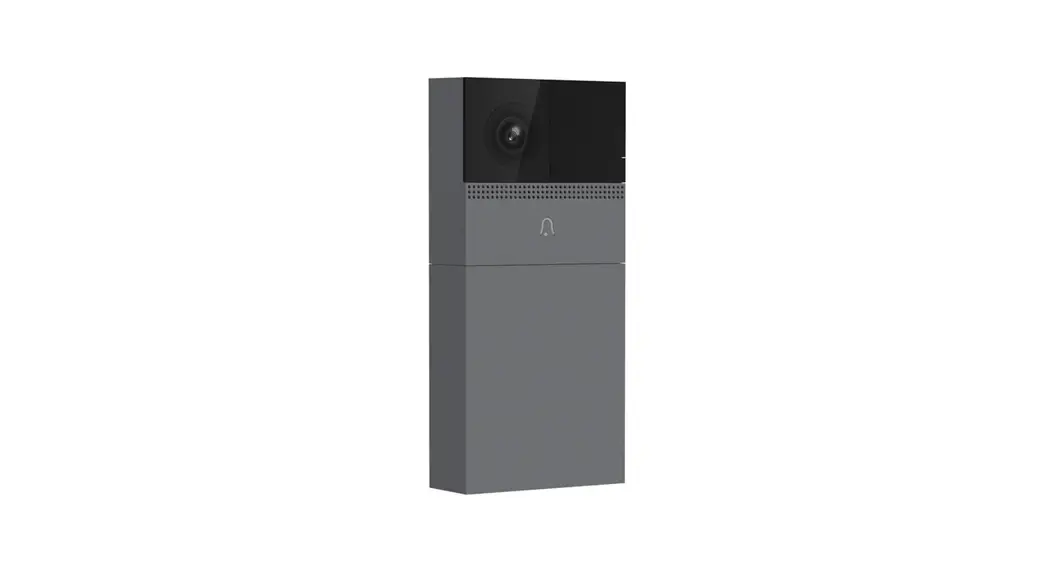
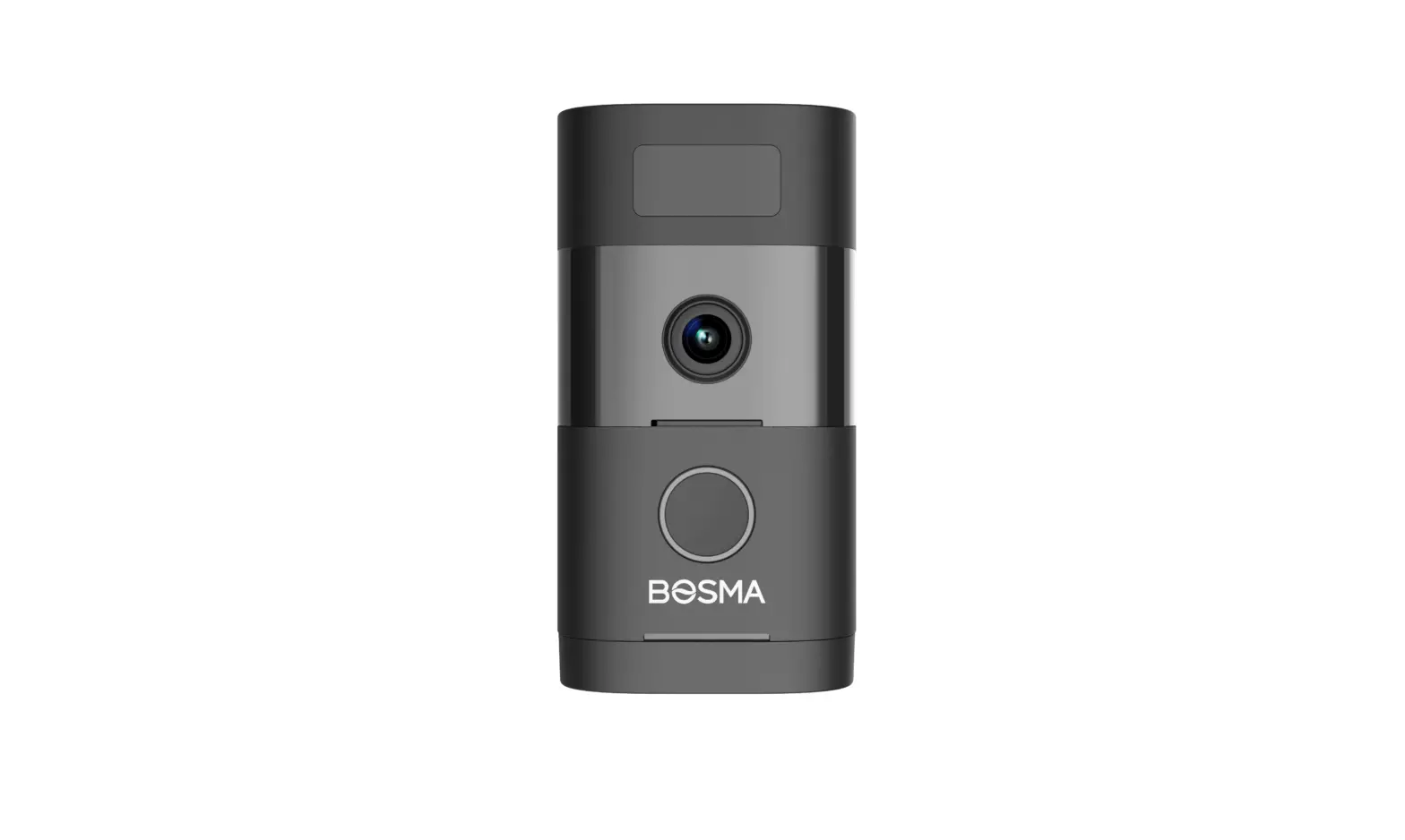
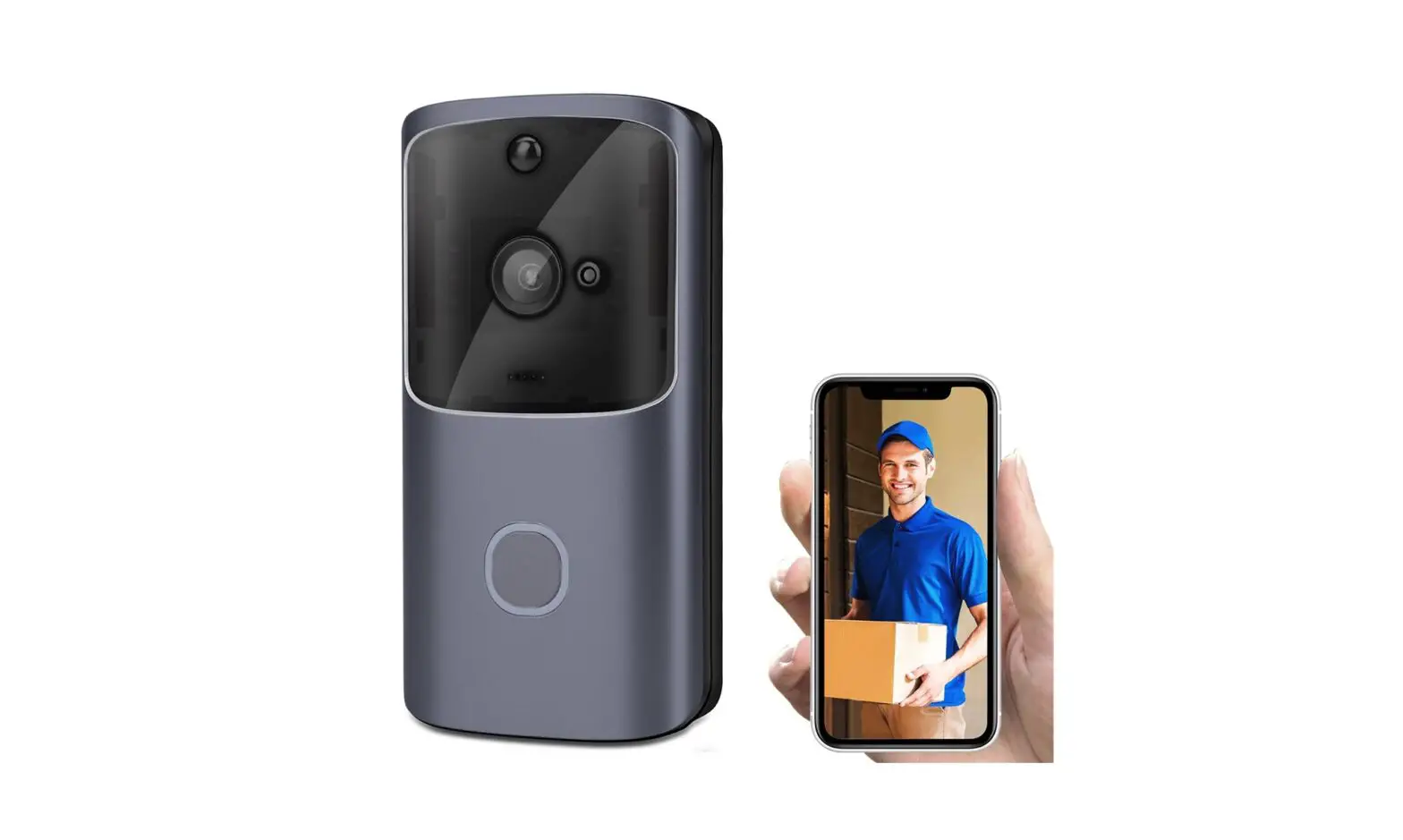
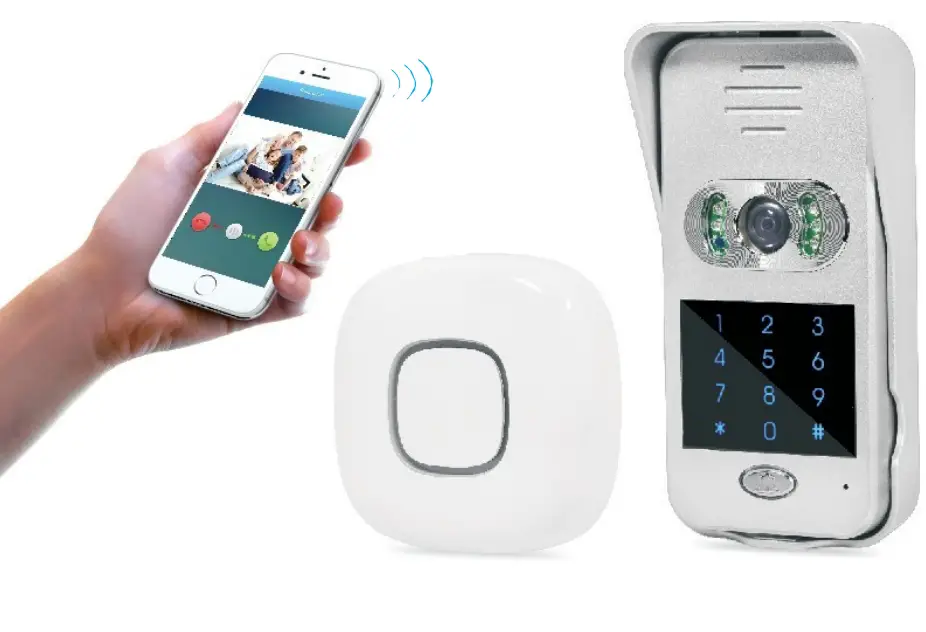
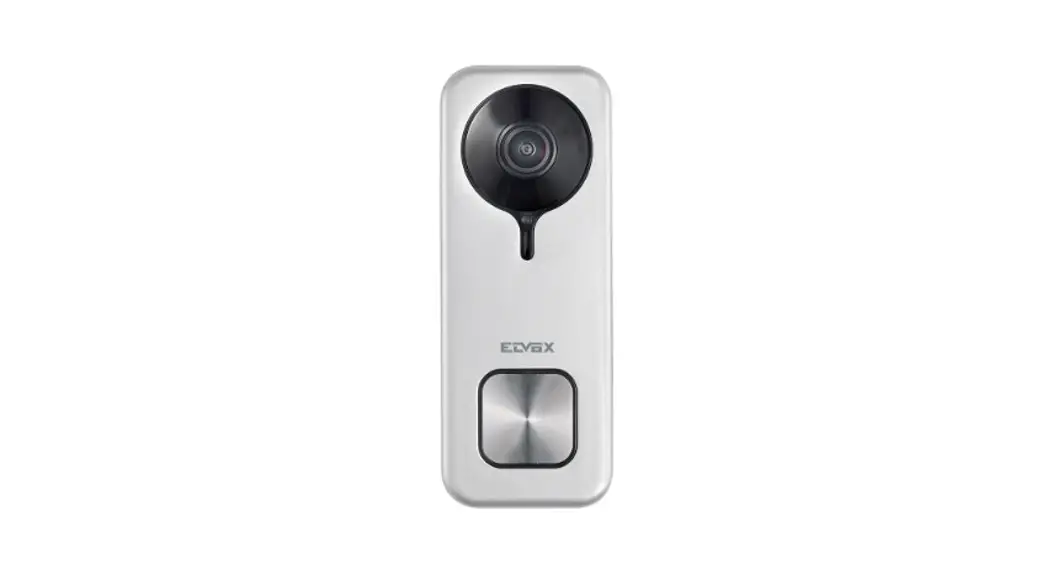
M3 WiFi Video Doorbell
Product Information:
The Doorbell is a smart device that allows you to monitor and
communicate with visitors at your door. It comes with various
features and components:
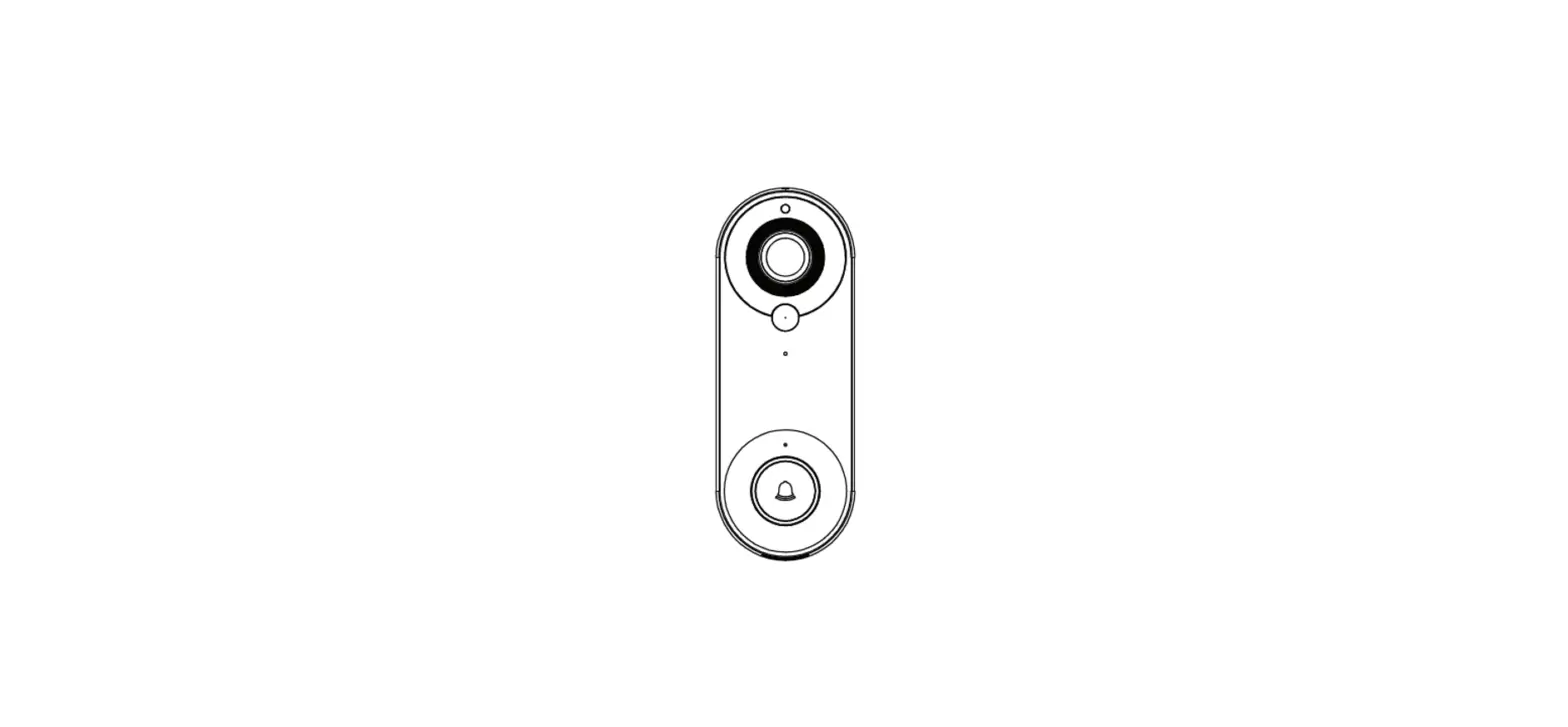
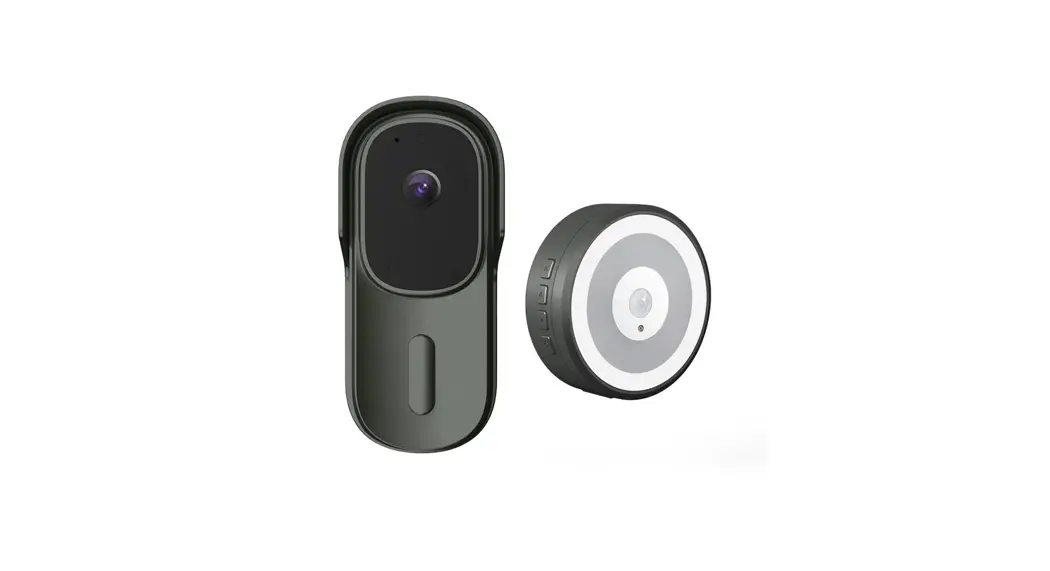
- Doorbell: The main unit of the device.
- Mic: Captures audio.
- Lens: Captures video.
- Light sensitive: Detects light levels.
- Doorbell key: Button to ring the bell.
- Indicator light: Provides visual notifications.
- Reset: Button to reset the device.
- Speaker: Plays audio.
- Charging port: Port to charge the device.
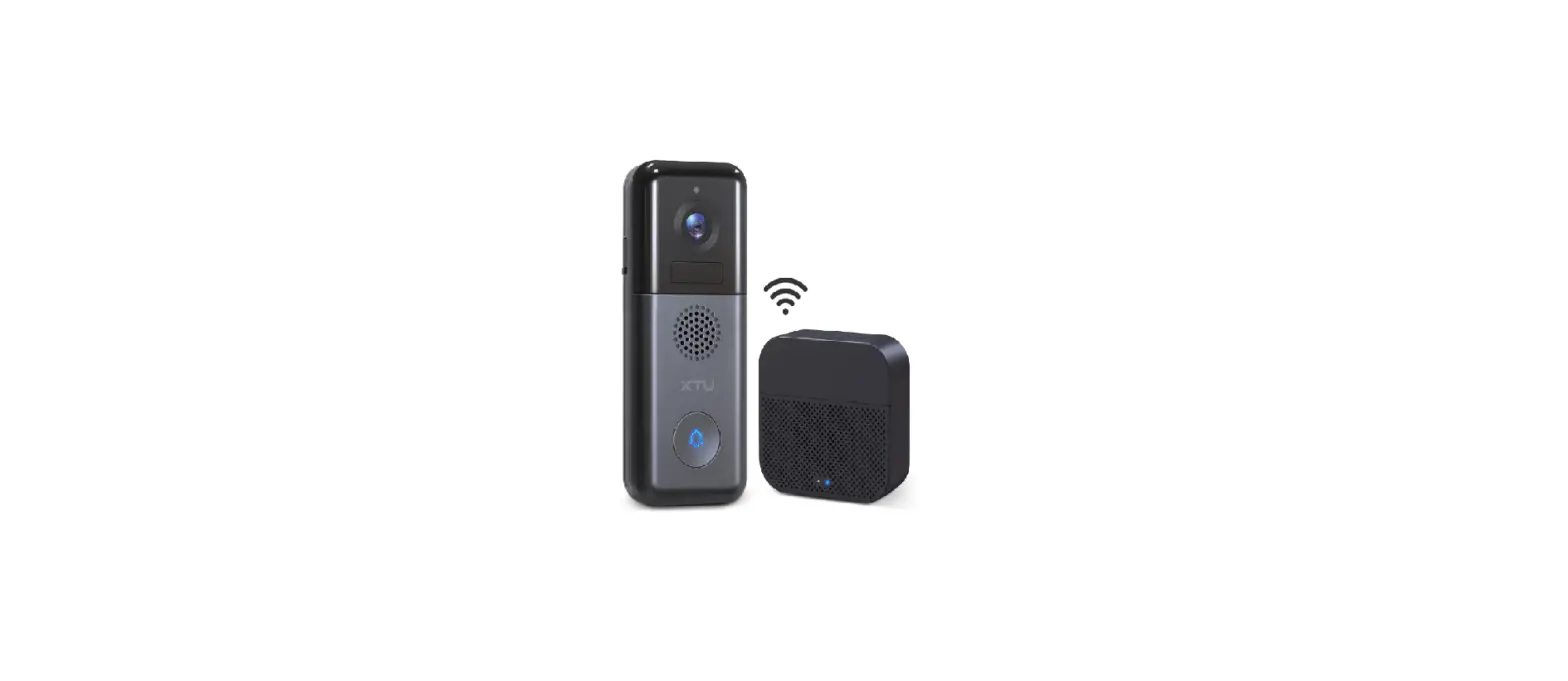
- Ding dong: Additional unit for sound output.
- Pairing key: Button for pairing with the doorbell.
- Music toggle: Controls the sound output.
- Volume size: Adjusts the volume level.
- USB Charging Port: Port to charge the ding dong unit.
Product Usage Instructions:
Download the APP:
To use the Doorbell, you need to download the TUYA Smart app on
your smartphone. Follow the instructions below based on your
phone’s operating system:
- For Android phones, download the app from your app market or
search for “TUYA Smart” in the App Treasure Search. - For iOS phones, search for “TUYA Smart” in the App Store to
download the app.
Note: Make sure you have the latest version of the app (4.3.0
and above) for optimal functionality.
APP Registration:
Follow the steps below to register and log in to the TUYA Smart
app:
- On first use, click on “Register”. If you already have an
account, click on “Login”. - If registering, read the Privacy Policy and click “Agree”.
Enter a valid mobile phone number or email address, and click
“Continue”. Enter the verification code to log in to the app.
(Note: Using “Try Now” login may restrict adding doorbell devices
normally, so it’s recommended to register and log in.) - When prompted with app permissions, such as message push,
access geographical location, and connect peripheral devices, make
sure to set them to “Allow”.
Adding a Device:
Follow the steps below to add the Doorbell device to the
app:
- Turn on the Bluetooth and location permission functions on your
mobile phone. - Press the doorbell button to start the device. The work
indicator will blink, indicating that the device is in network
mode. - Open the TUYA Smart app and go to the Home page. Click on the
“+” icon in the upper right corner of the page. The app will
automatically scan and discover the device. Click “Add” to add
it.Note:
- If the device is not automatically searched, click on “Turn on
Bluetooth” and set “Allow” device permissions near this
application. - Enable WLAN, Bluetooth, and nearby devices in the access
permission management settings, and select “Always Allow”.
account and password, and click “Next”. Keep your router, mobile
phone, and doorbell as close as possible during the connection
process. Once connected, click “Finish”. (Note: If the connection
is not successful, try resetting the device and reconnecting.)
effective range of your WiFi signal. The smart doorbell is now
successfully added.
Doorbell and Ding Dong Matching:
To match the Doorbell with the Ding Dong unit, follow these
steps:
- Power on the Ding Dong machine (left unit).
- Long press the pairing button of the Ding Dong machine for 3
seconds (as shown in the picture), and the indicator will
blink. - Press the doorbell button (right unit), and the Ding Dong
machine will ring, indicating a successful match.
Mobile Message Push:
To receive mobile push notifications for doorbell events, follow
the instructions below:
- On your mobile phone, go to Settings > Notification and
Status Bar > Application Notification Management. - Open APP notification permission and enable notifications,
suspension, lock screen, sound reminder, and other notification
functions. (Note: The operation interface and options may vary
depending on your phone model.)
Function Introduction:
The Doorbell provides several functions:
- Message Push: When visitors ring the doorbell, your mobile
phone will receive an app push message. Click on the push
notification to enter the video call.
Doorbell
Instruction manual V1.1
Please read it carefully before use and keep it for future reference
IAppearance introduction:
Doorbell: 1) Mic 2) Lens 3) Light sensitive 4) Doorbell key 5) Indicator light 6) Reset 7) Speaker 8) Charging port Ding dong: 9) Indicator light 10) Speaker 11) Pairing key 12) Music toggle 13) Volume size 14) USB Charging Port
IIDownload mode of APP:
For Android phones, it can be downloaded from its own app market or App Treasure Search [TUYA Smart].For IOS phones, search for “TUYA Smart” in the APP Store to download.
Note: The function of this doorbell is only supported on APP 4.3.0 and above, for a better user experience, please update or download the latest version.
IIIAPP registration:
1. For the first download and use, please click “Register”;If you have an account, click “Login”.
2. Click “Register”, read “Privacy Policy”, and click “Agree”.Enter a valid mobile phone number or email address and click Continue.Then enter the verification code to log in to the APP.(“Try Now” login can not add doorbell devices normally, please register and log in.)
3.APP permissions pop-up prompts, such as message push, access geographical location, connect peripheral devices, etc., please set to “Allow”.
IVAdding a device:
1. Turn on the bluetooth and location permission functions of the mobile phone. 2. Press the doorbell button to start the device, and the work indicator blinks.
The device enters the network mode. 3. Open the APP, enter the “Home page”, click “+” on the upper right corner
of the page, the APP will automatically scan and discover the device, click “Add”.
Note: a. If the device is not automatically searched, please click “Turn on Bluetooth” in the picture below and set “Allow device permissions near this application”.
b. Access permission management, enable WLAN, Bluetooth, and nearby devices, and select Always Allow.
4. After adding a doorbell, enter your 2.4ghz wireless network account and password and click “Next”. When connecting, keep your router, mobile phone and doorbell as close as possible. After adding a doorbell, click “Finish”. (Note: If the connection is not successful, please reset the device and reconnect)
5. Fully charge the device and install it within the stable and effective range of WiFi signal. The smart doorbell host is successfully added.
VDoorbell and ding Dong matching:
1. Power on the ding Dong machine (left); 2. Long press the pairing button of ding Dong machine for 3 seconds (as shown in the picture), and the indicator blinks. 3. Press the doorbell button (right), ding Dong machine rings, that is, the match is successful.
VIMobile message push
Enter mobile phone – Settings – notification and status bar – Application notification management, open APP notification permission, enable notification, suspension, lock screen, sound reminder and other notification functions.
(Note: Due to different mobile phone models, the operation interface and options are different, please choose independently)
VIIFunction introduction:
1. Message push: When visitors ring the doorbell, the mobile phone will receive the APP push message, click the push popup to enter the video call.
2. Video call: Hold down the microphone key to talk to each other, open the speaker to listen.
3. Doorbell sharing: Enter the real-time interface of APP, click Settings Share device – Add Share – enter the registered account
4. Low battery reminder: When the battery is low, the APP will push low battery
reminder, please charge in time.
VIIIMatters needing attention
The device is a low-power doorbell. When no one rings the doorbell, the device goes into hibernation and goes offline, which is normal.
The push Settings vary according to mobile phone models. Set the Settings as required.
Only 2.4g WiFi is supported, but 5G or WiFi with special symbols is not supported.
Do not install the device on a metal wall because it may interfere with WIFI signals.
The device supports TF card video storage. Do not insert or remove the memory card when it is powered on to avoid loss.
Do not use the doorbell while charging.
FCC WARNING This device complies with part 15 of the FCC Rules. Operation is subject to the following two conditions: (1) this device may not cause harmful interference, and (2) this device must accept any interference received, including interference that may cause undesired operation. Any changes or modifications not expressly approved by the party responsible for compliance could void the user’s authority to operate the equipment. NOTE: This equipment has been tested and found to comply with the limits for a Class B digital device, pursuant to Part 15 of the FCC Rules. These limits are designed to provide reasonable protection against harmful interference in a residential installation. This equipment generates, uses and can radiate radio frequency energy and, if not installed and used in accordance with the instructions, may cause harmful interference to radio communications. However, there is no guarantee that interference will not occur in a particular installation. If this equipment does cause harmful interference to radio or television reception, which can be determined by turning the equipment off and on, the user is encouraged to try to correct the interference by one or more of the following measures: — Reorient or relocate the receiving antenna. — Increase the separation between the equipment and receiver. — Connect the equipment into an outlet on a circuit different
from that to which the receiver is connected. — Consult the dealer or an experienced radio/TV technician for help. To maintain compliance with FCC’s RF Exposure guidelines, This equipment should be installed and operated with minimum distance between 20cm the radiator your body: Use only the supplied antenna.