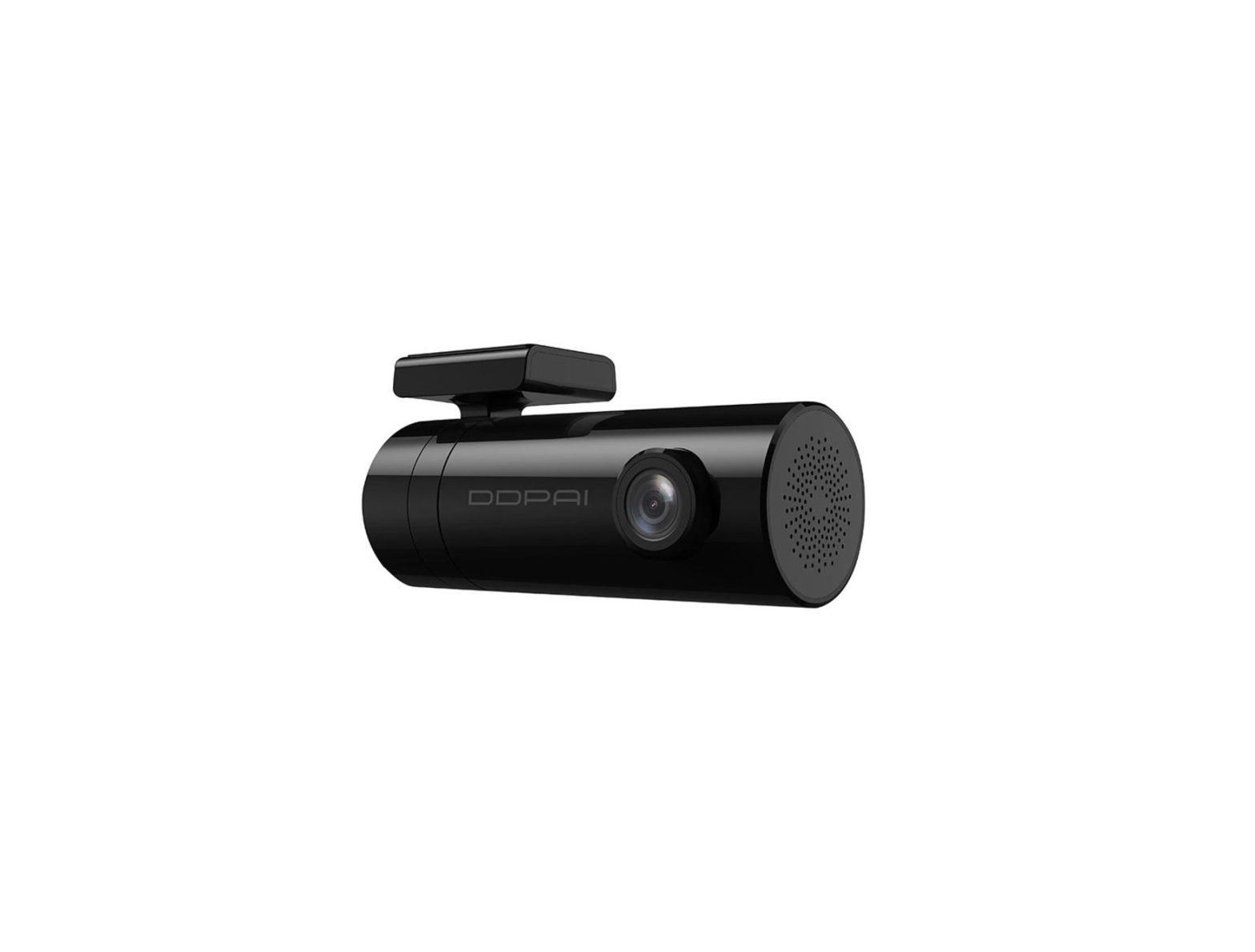
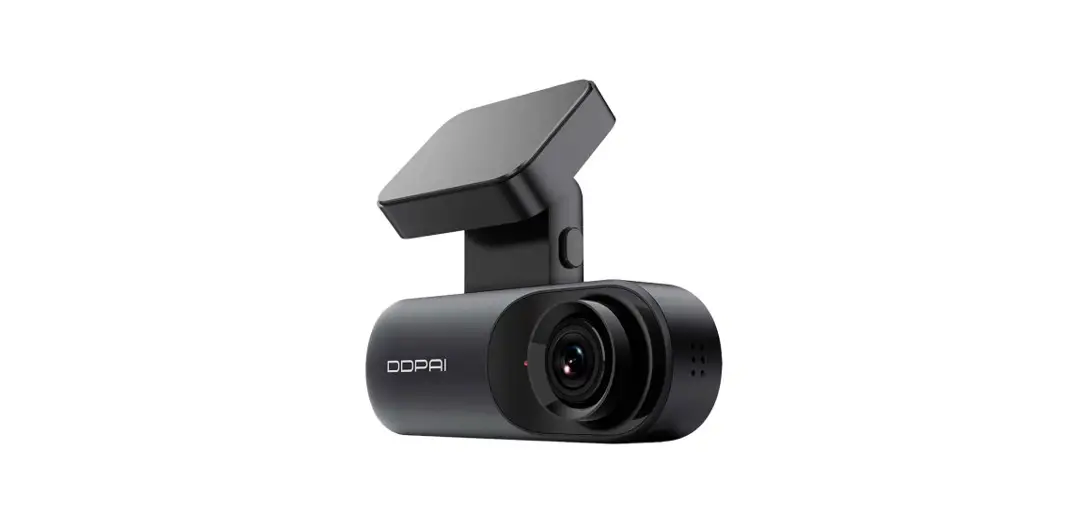
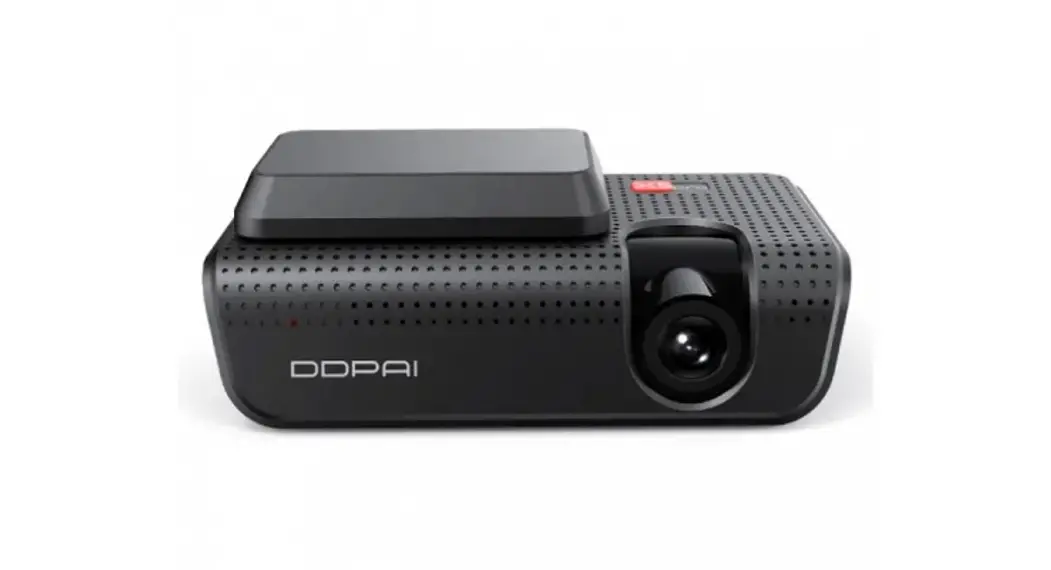
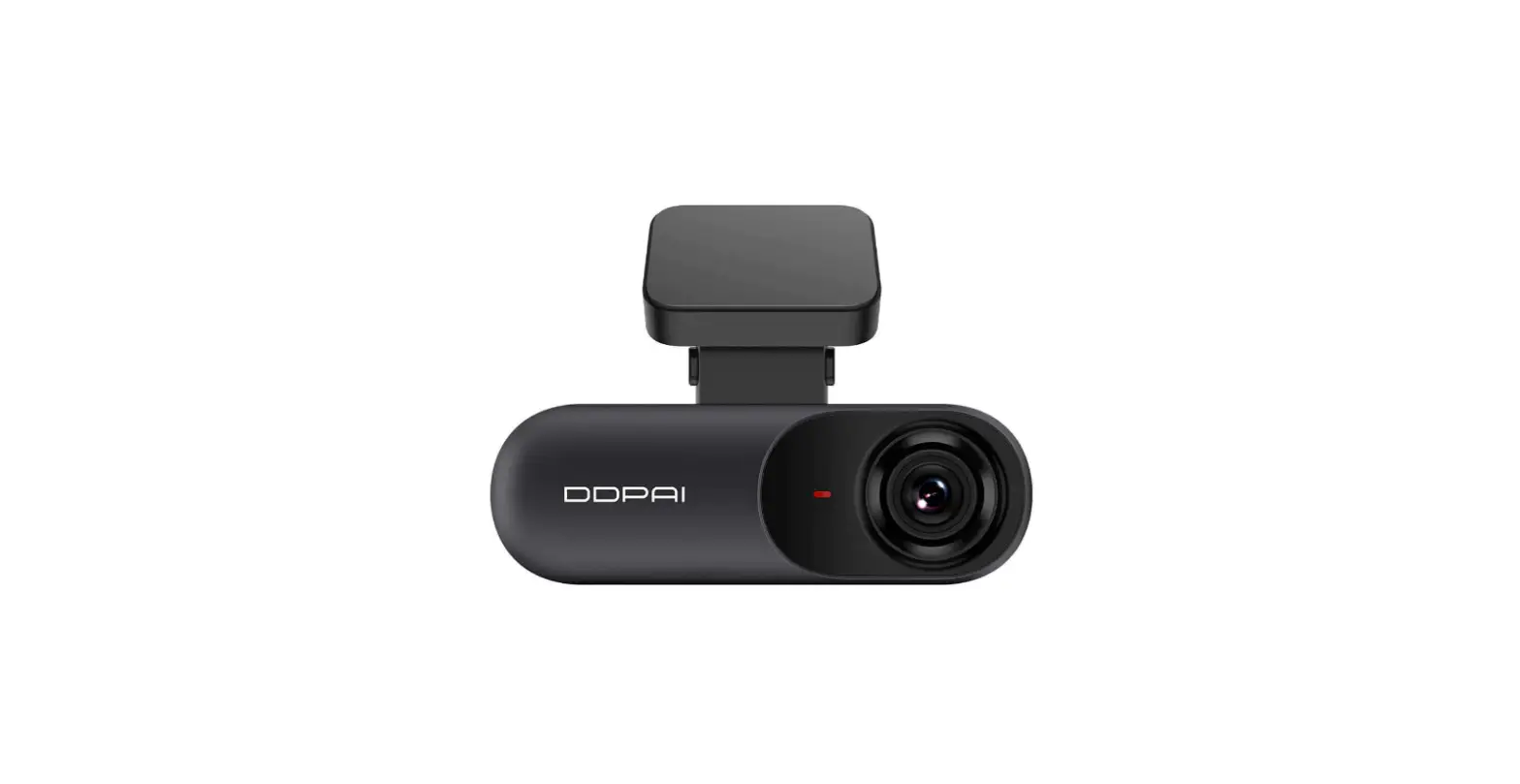
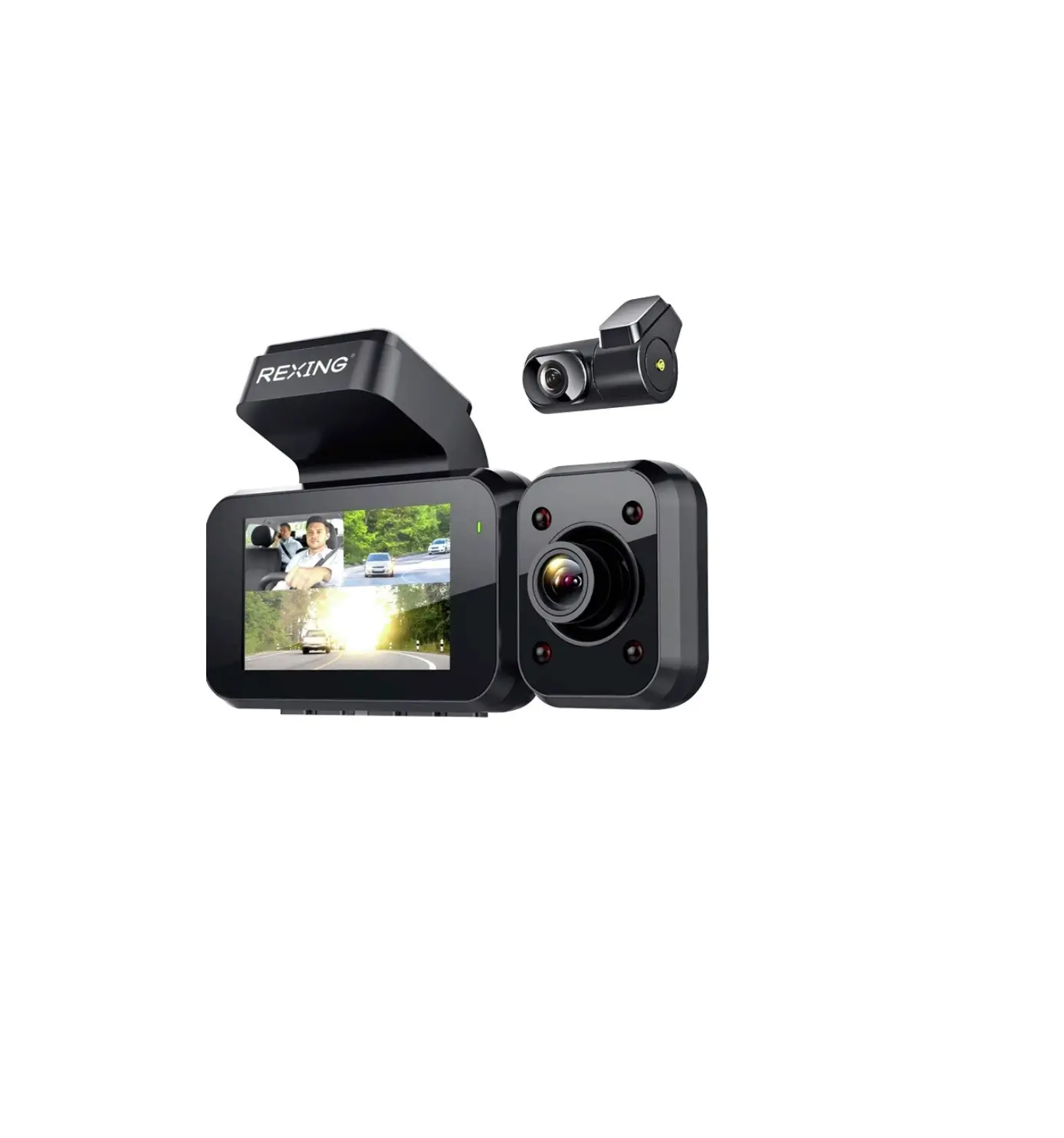
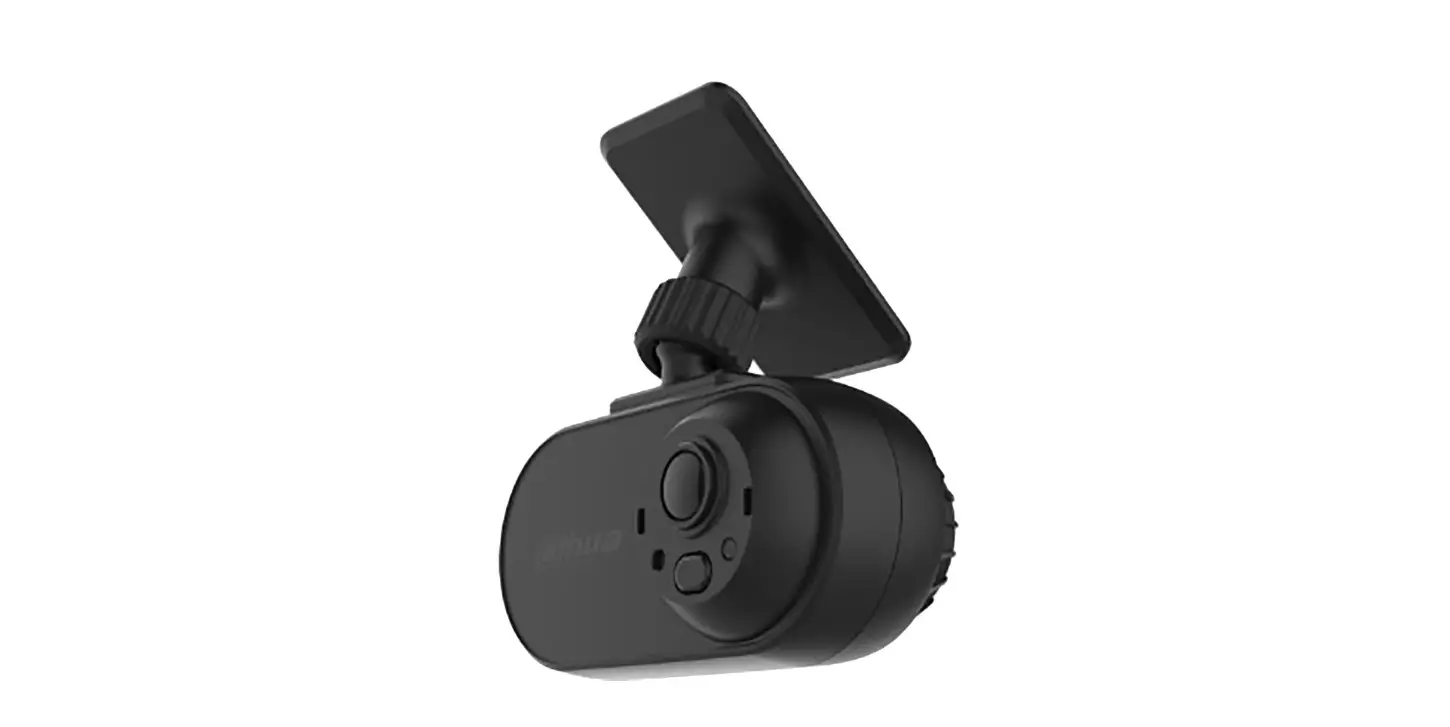
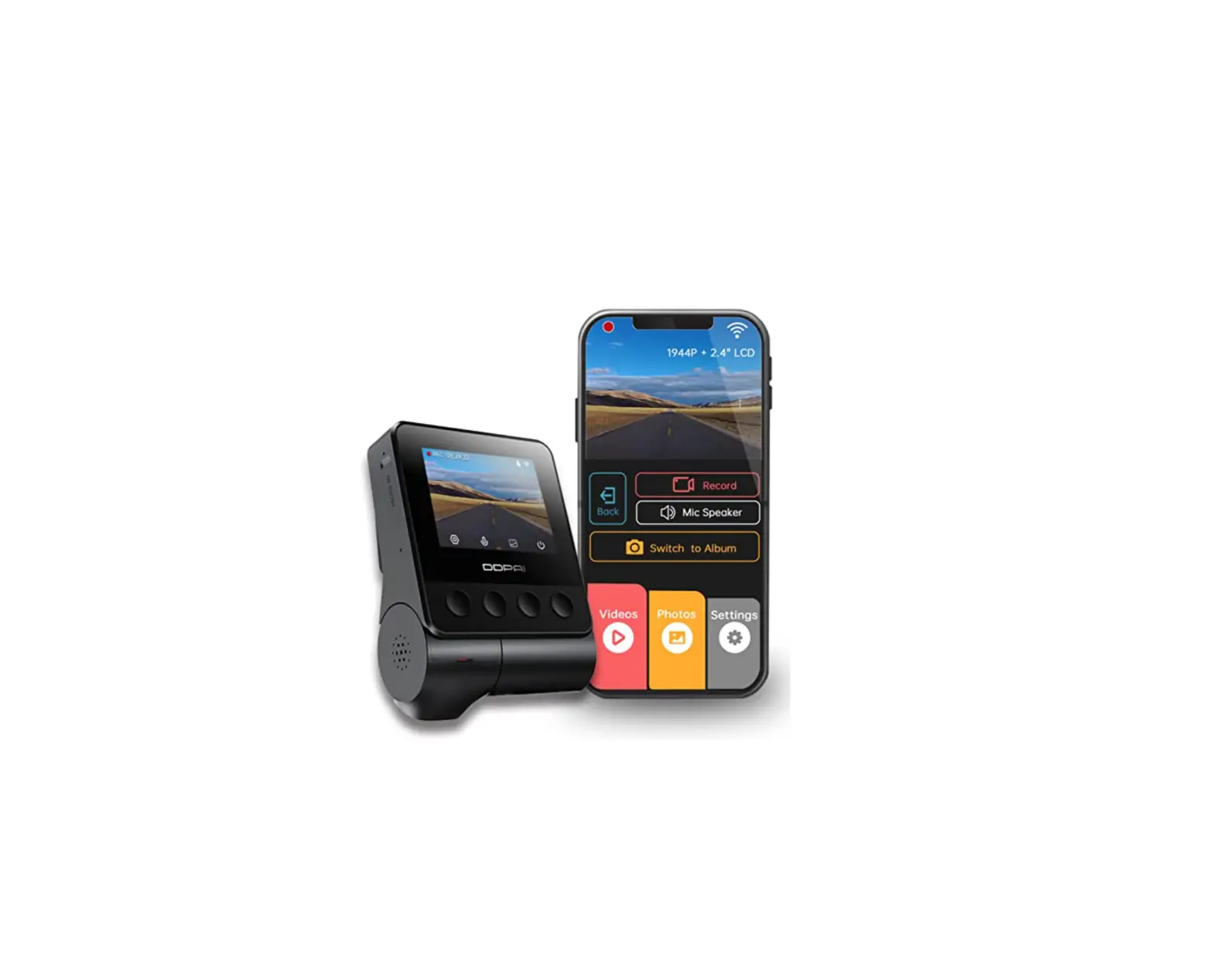
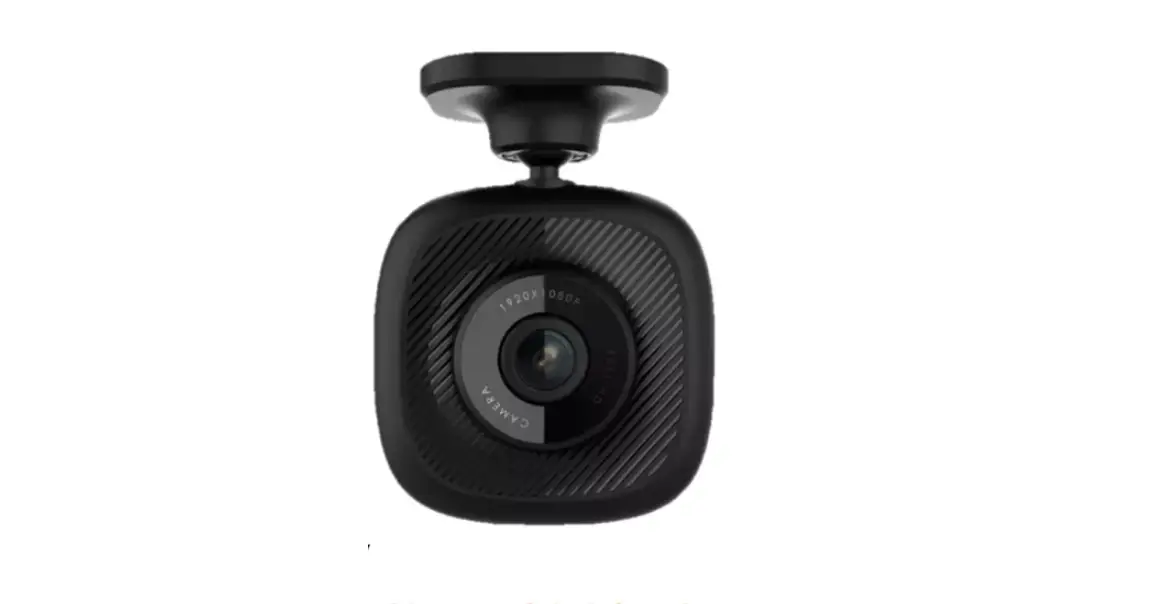
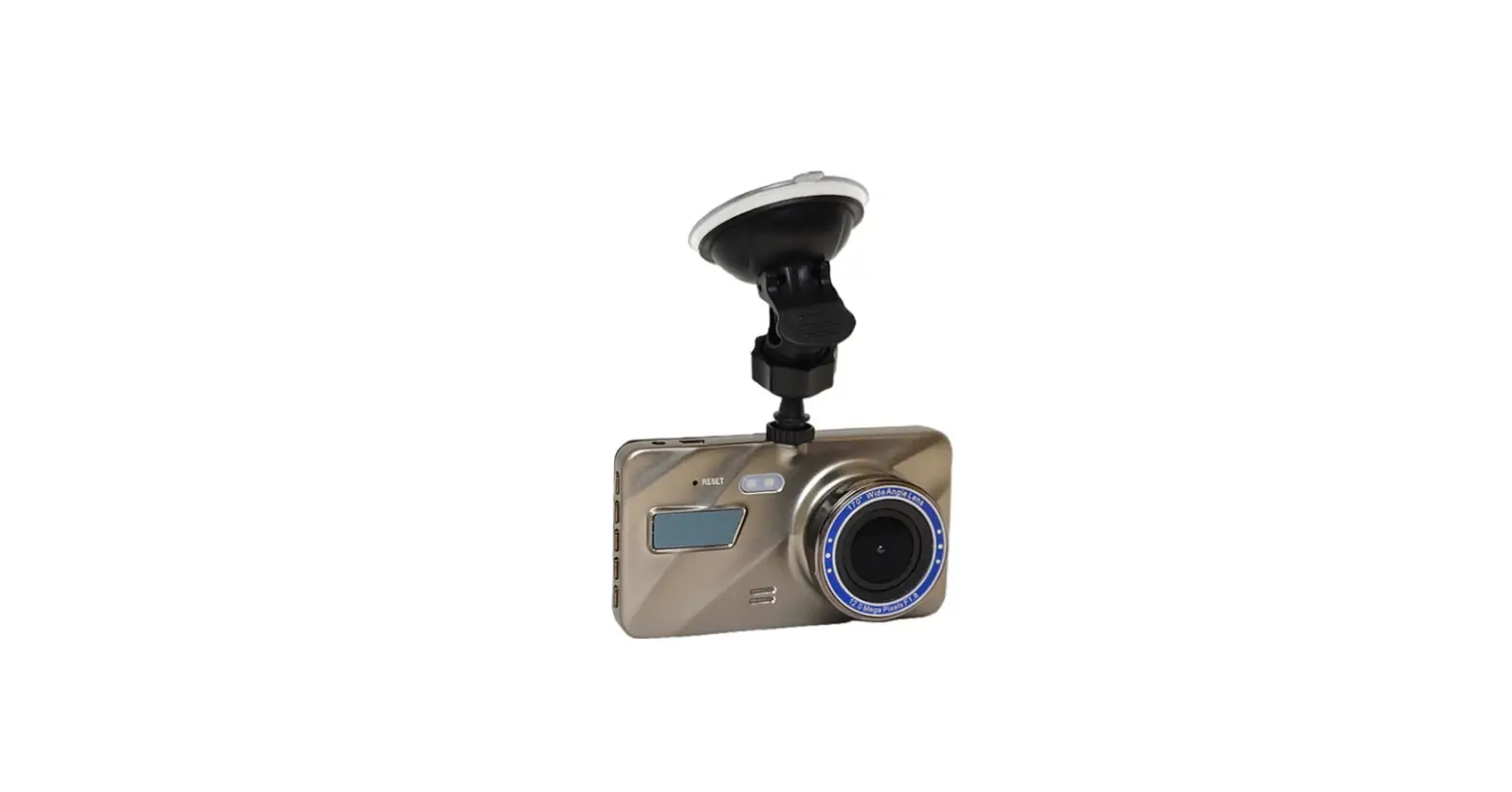
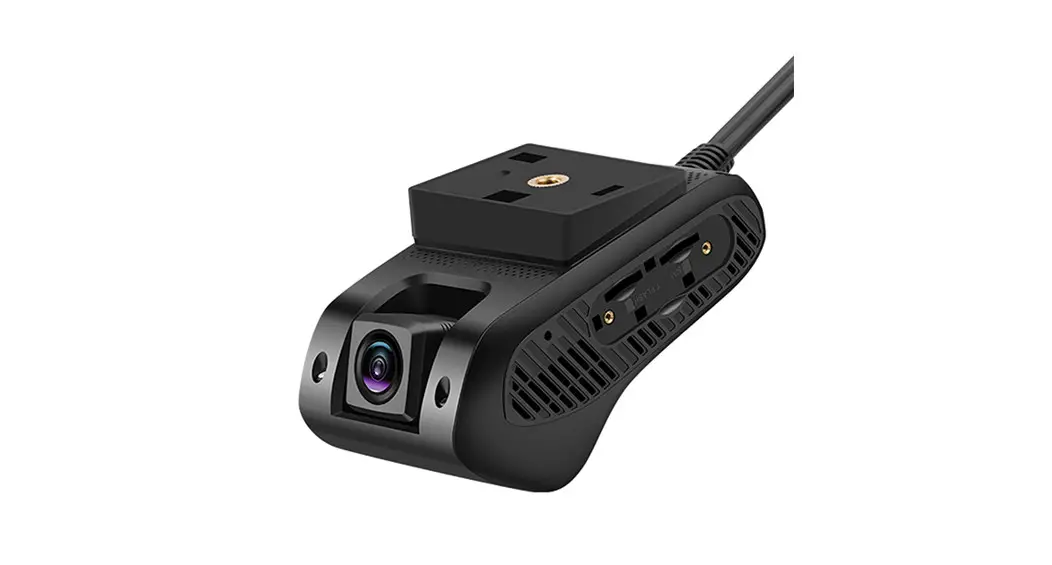
9 EagLes A2 Dash Cam
Product Information
Specifications:
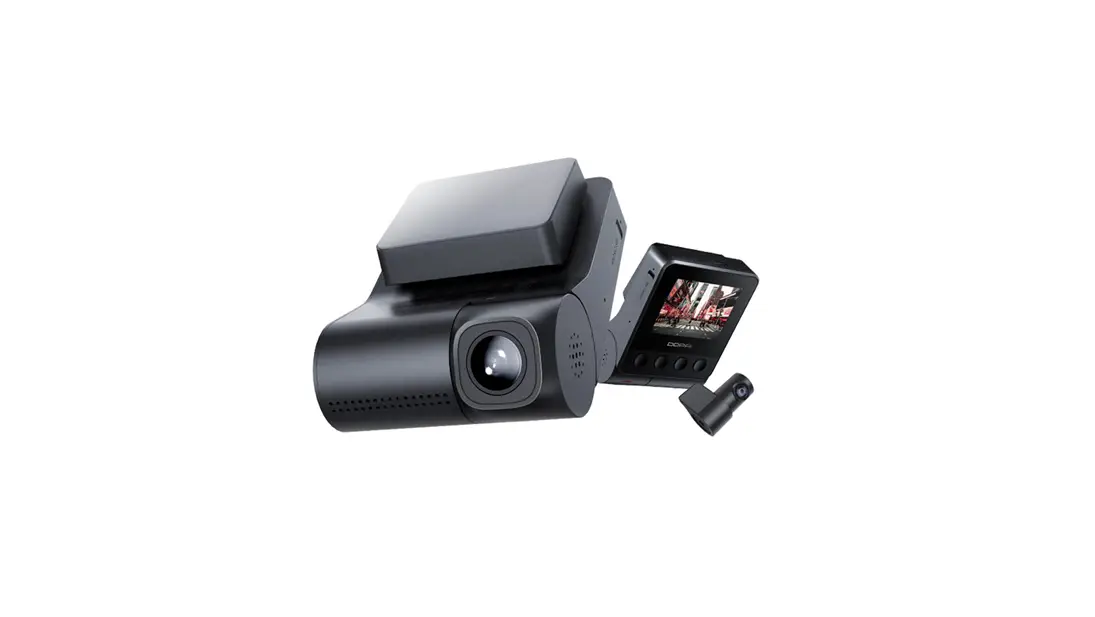
- Front Camera
- Rear Camera
- 3M Adhesive for Dash Cam
- User Guide
- GND VCC ACC to dash cam Power Cable
Package Contents:
- Parking Monitoring Indicator
- TF Card Port
- Reset Button
- MIC
- Power Port
- Mounting Port
- Speaker
- Working Indicator
LED Indicator Instruction:
| Name | Description |
|---|---|
| Working indicator (Blue light) | Flashes slowly indicating the dash cam is working normally. Flashes quickly indicating the storage area of the dash cam is abnormal. A constant light indicates the dash cam is upgrading or working abnormally. |
| Parking monitoring indicator (Red light) | Flashes slowly indicates the dash cam is in parking mode. |
Installation:
- Clean an area on the windshield where you wish the Dash Cam to
be installed, this assists in adhesion. - Align the mounting bracket with the mounting Port of the dash
cam, and slide it forward until it clicks into place. - Remove the protective film from the back of the bracket, attach
the adhesive side of the bracket on the windshield where it has an
unobstructed view of the road but does not interfere with the
driver’s view. - Use the installation tool to lift the edges of the
windshield/molding and tuck in the power cable. Connect the power
cable to the fuse box. - Turn on the Dash Cam after installation, you will hear a sound
indicating that the Dash Cam is powering up and will start
recording. The LED indicator will blink slowly in normal mode.
App Instruction:
To use the DDPAI App:
- Install the DDPAI App by scanning the QR code provided.
- iOS: Pair your smartphone to the Dash Cam by
keeping them within 2.5 meters. Launch the DDPAI App and tap on
Device > Connect new devices. Choose your DDPAI Dash Cam from
the network list (turn on WLAN from Settings -> WLAN). The Dash
Cam’s default SSID (or Wi-Fi name) is DDPAI_A2_XXXX. Enter the
default password `1234567890′. - Android: Pair your smartphone to the Dash Cam
by keeping them within 2.5 meters. Launch the DDPAI App and tap on
Device > Connect new devices. The App will automatically search
for the Dash Cam network. Choose your DDPAI Dash Cam from the list
and enter the default password `1234567890′. - Once connected, you can preview and control the Dash Cam
through the App. Rotate your smartphone or press expand to view the
preview screen in landscape mode. - To download video files, tap and drag the timeline bar to
select the desired recording. Tap on the thumbnail or wait for
buffering, then enter the download start screen. After the video
has finished downloading, click Complete.
User Guide
1SPECIFICATIONS
· Product Name: Dash Cam · Product Model: A2 · Size: 92*33*25.5mm · Input: 12V 0.5A · Storage: Class 10 TF card up to 128 GB, loop recording
2PACKAGE CONTENTS
Front Camera
Rear Camera
3M Adhesive for Dash Cam
User Guide
GND VCC ACC
to dash cam Power Cable
3 PRODUCT OVERVIEW
1
2 3 4
5
7
6
8
1 Parking Monitoring Indicator 5 Power Port
2 TF Card Port
6 Mounting Port
3 Reset Button
7 Speaker
4 MIC
8 Working Indicator
4 LED INDICATOR INSTRUCTION
Name
Description
Flashes slowly indicating the dash cam is working normally.
Working indicator Flashes quickly indicating the storage
(Blue light)
area of the dash cam is abnormal.
A constant light indicates the dash cam is upgrading or working abnormally.
Parking monitoring Flashes slowly indicates the dash cam indicator (Red light) is in parking mode.
5 INSTALLATION
1.Clean an area on the windshield where you wish the Dash Cam to be installed, this assists in adhesion.
2.Align the mounting bracket with the mounting Port of the dash cam, and slide it forward until it clicks into place.
3.Remove the protective film from the back of the bracket, attach the adhesive side of the bracket on the windshield where it has an unobstructed view of the road but does not interfere with the driver’s view. As shown below.
Fuse Box
Note: Most vehicles have a fuse box underneath the dashboard on the driver’s or passenger’s side.
5.Turn on the Dash Cam after installation, your will hear “Hello, ding ding pai”, the Dash Cam is powering up and will start recording, meanwhile. LED indicator blinks slowly in normal mode.
4.Use the installation tool to lift the edges of the windshield/molding and tuck in the power cable. Connect the power cable to the fuse box.
6.Loosen the studs on the bracket and adjust the camera angle. We recommend pointing the lens slightly downwards (10° below horizontal), to ensure that the camera view is parallel to the ground. Recommendation: The ground/sky ratio is approximately 6:4. It is recommended to adjust the Dash Cam position while looking at the screen to select the best viewing angle. After adjustment, tighten the studs on the bracket.
6 APP INSTRUCTION
Install DDPAI APP Scan the QR code to download the “DDPai” APP.
iOS Pair Smart Phone to Dash Cam
Android
1.Keep the Dash Cam and mobile phone within 2.5meters.
2.Launch DDPAI App, tap on “Device > Connect new devices”.
3.Choose your DDPAI Dash Cam from the network list(For Android system, App will start to search Dash Cam network automatically. For iOS phone: turn on WLAN from “Settings ->WLAN”). The Dash Cam’s default SSID (or Wi-Fi name) is DDPAI_A2_XXXX.
4.Enter the password (the default password is `1234567890′).
5.Enter DDPAI App, wait a few seconds until the preview screen show.
Preview
1.Open the DDPAI App, and add your Dash Cam. 2.Select “Device > Entering” tab, this will bring you to the preview page.
…
+
<
+
. Now&back
Capture
Emergency
Entering
Playback
Tap and left/right drag timeline bar at the screen bottom to create the starting point of the recording you wish to preview, then tap on thumbnail when you have made your selection, or wait for 5 sec for buffering, now you can watch the history recording.
< . Now&back
Capture
+
Emergency
thumbnail
Timeline bar
Device
On The Road
Me
Rotate your smart phone or press expand the preview screen to landscape mode.
icon, turn
Download Video Files
1.Tap and left/right drag timeline bar at the screen bottom to create the starting point of the recording you wish to download, then tap on thumbnail when you have made your selection, or wait for 5 sec for buffering, to enter the download start screen.
2.Tap on interface.
from preview screen to enter the download
3.After the video has finished downloading, click “Complete”.
CONTACT
en.ddpai.com [email protected] DDPAI Technology Co., Ltd Floor 12, Yihua finance building, Software park, Yuehai Sub district, Nanshan district, Shenzhen
For more information and FAQs, Please scan the QR code:
 DDPAI-Keep Changing DDPAI Dash Cam | DDPAI