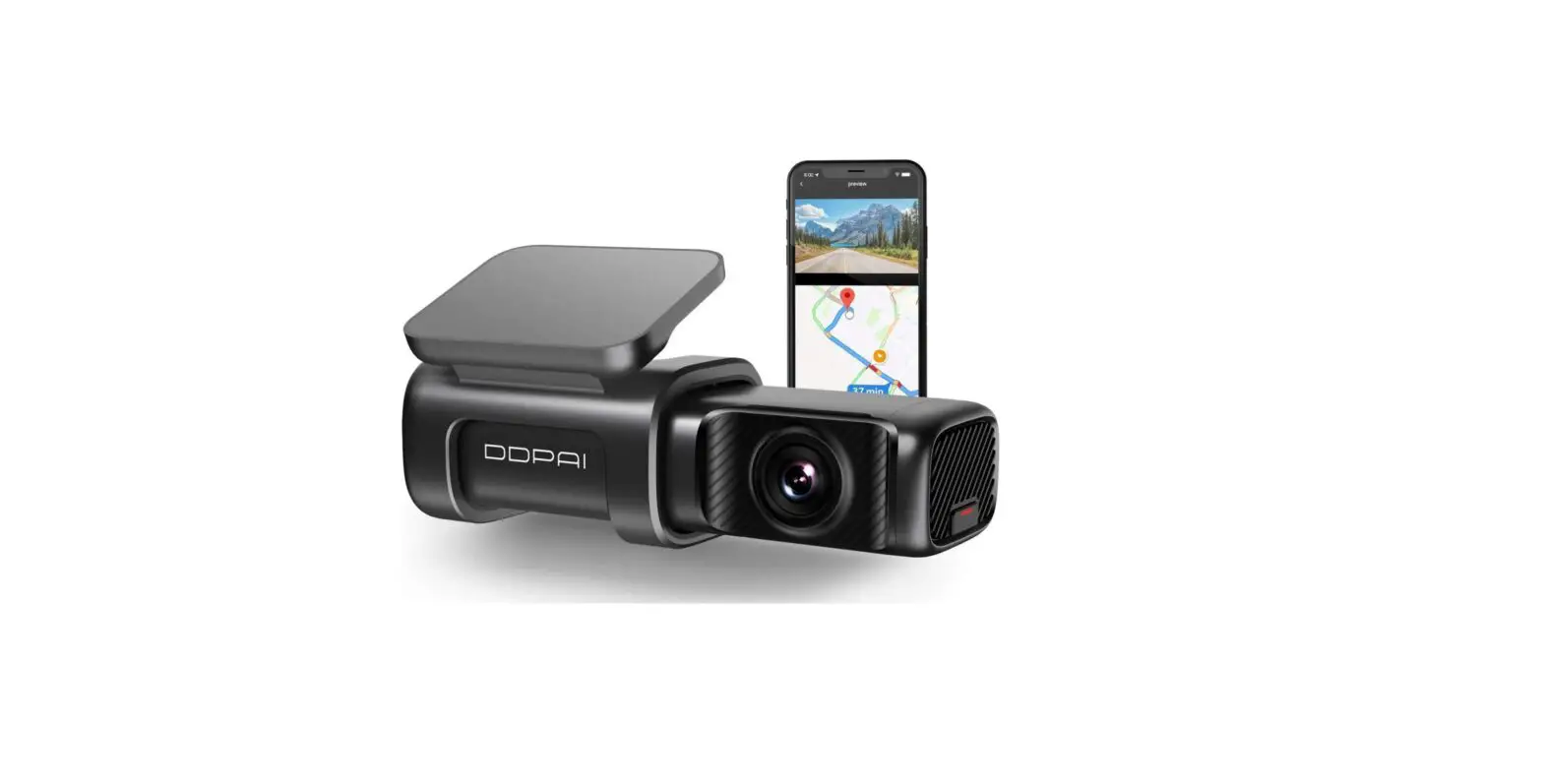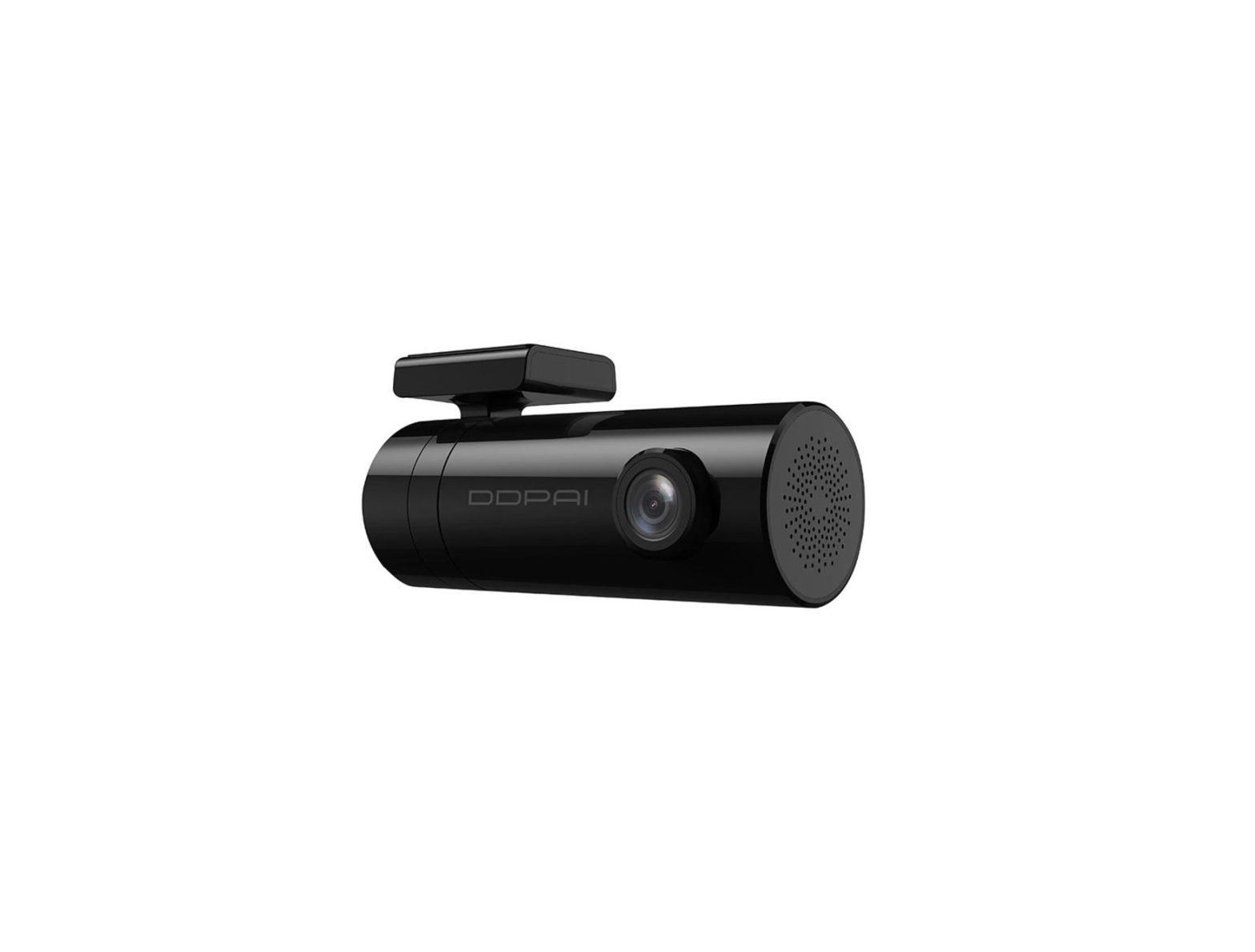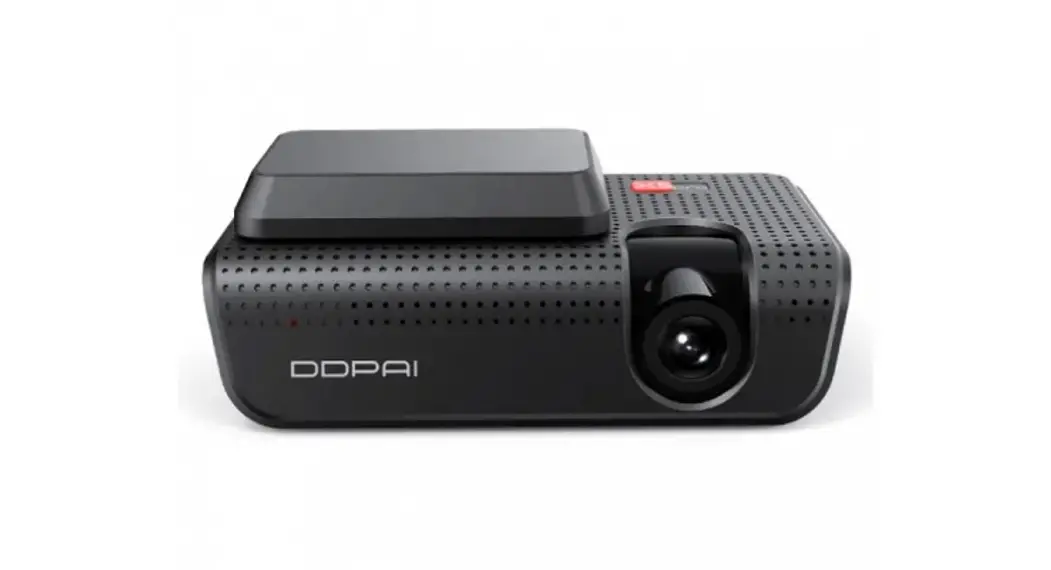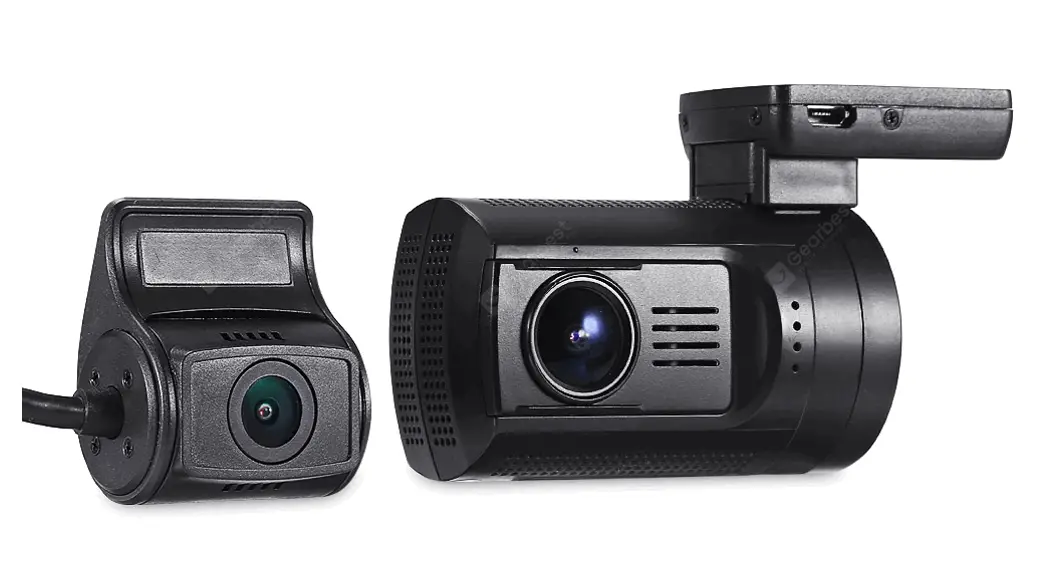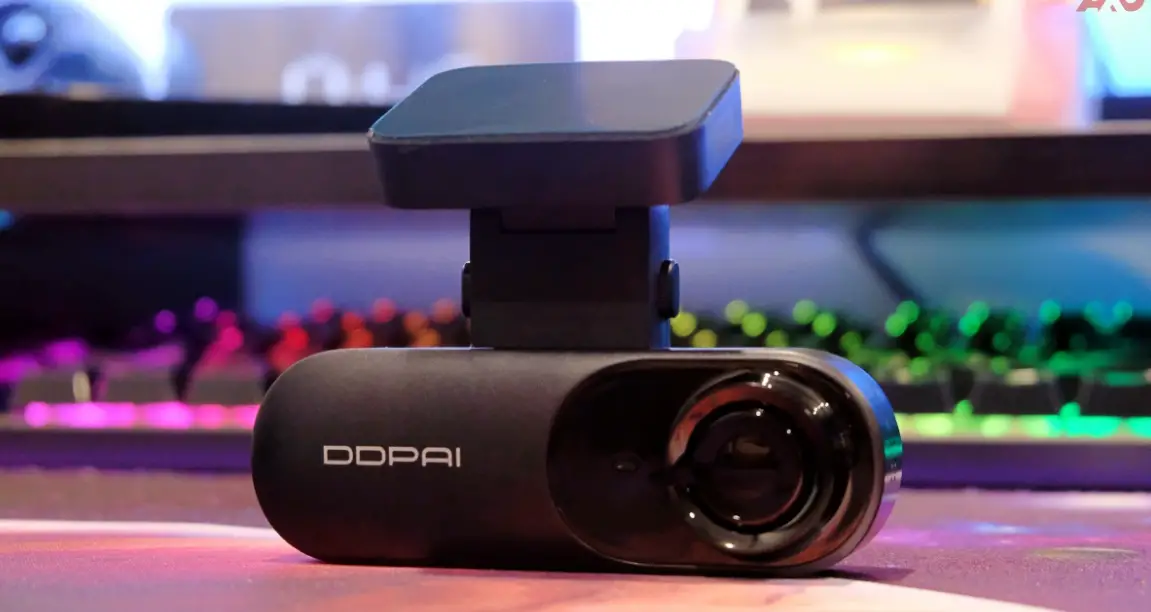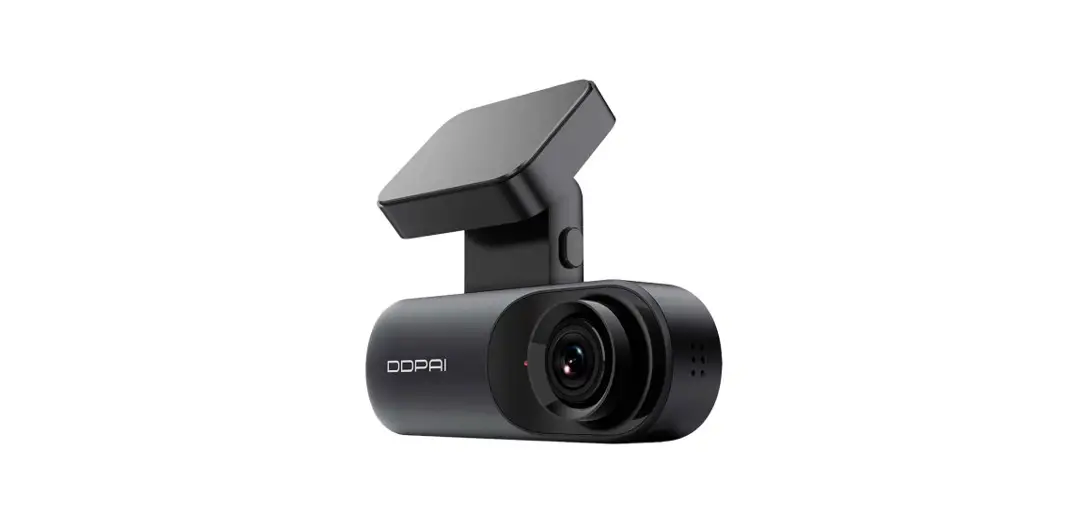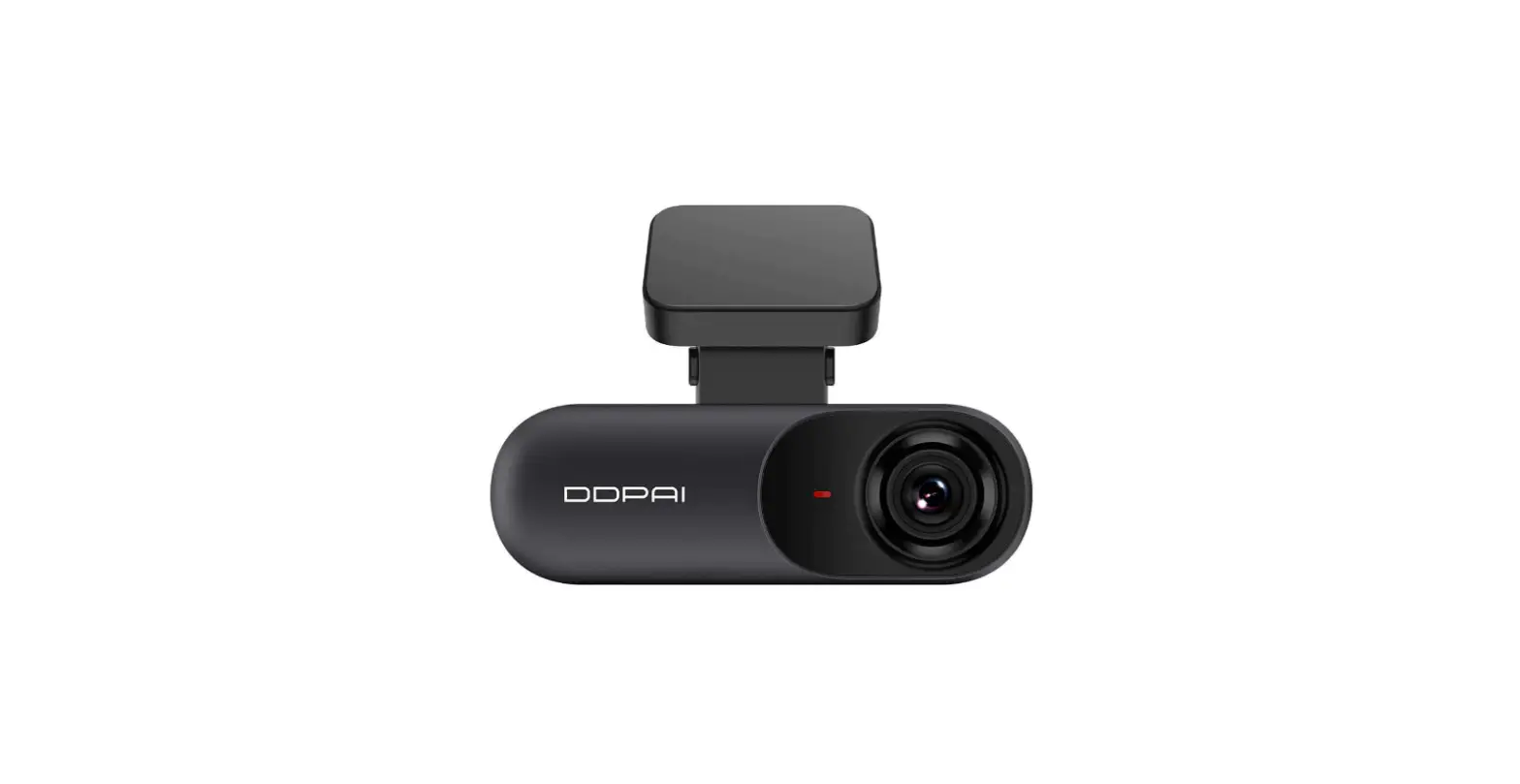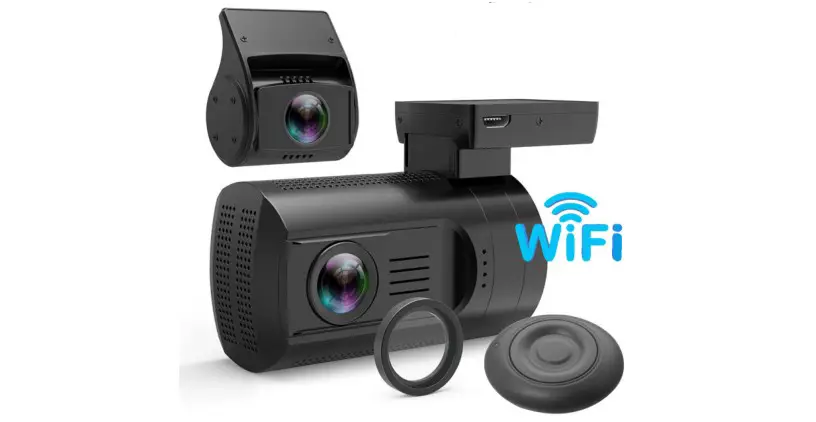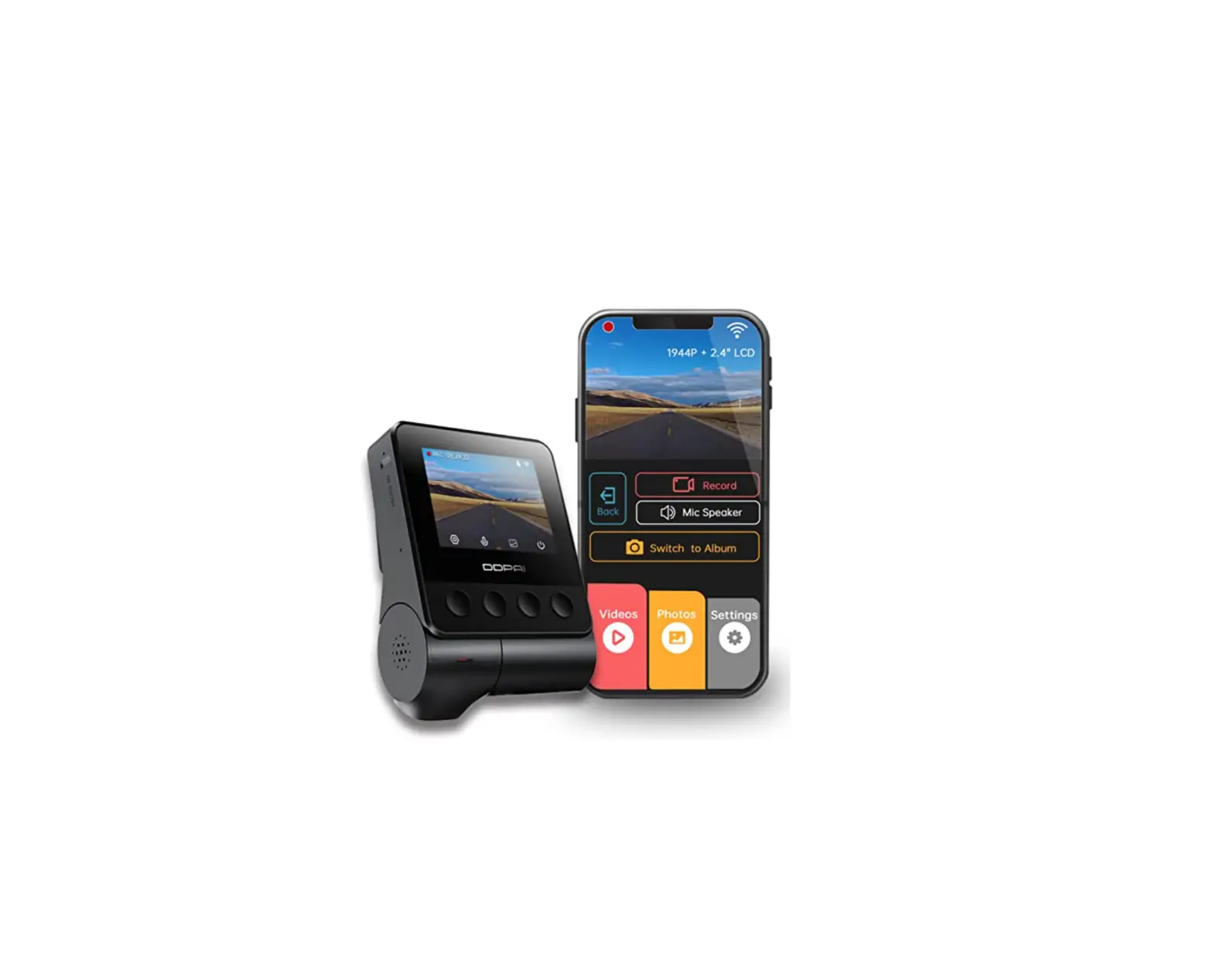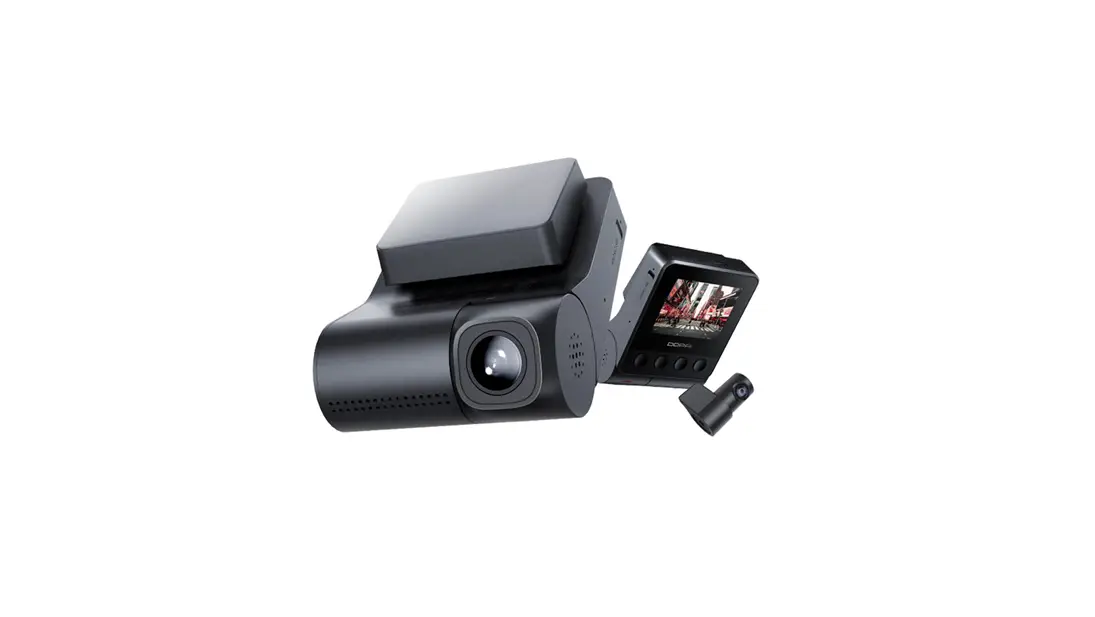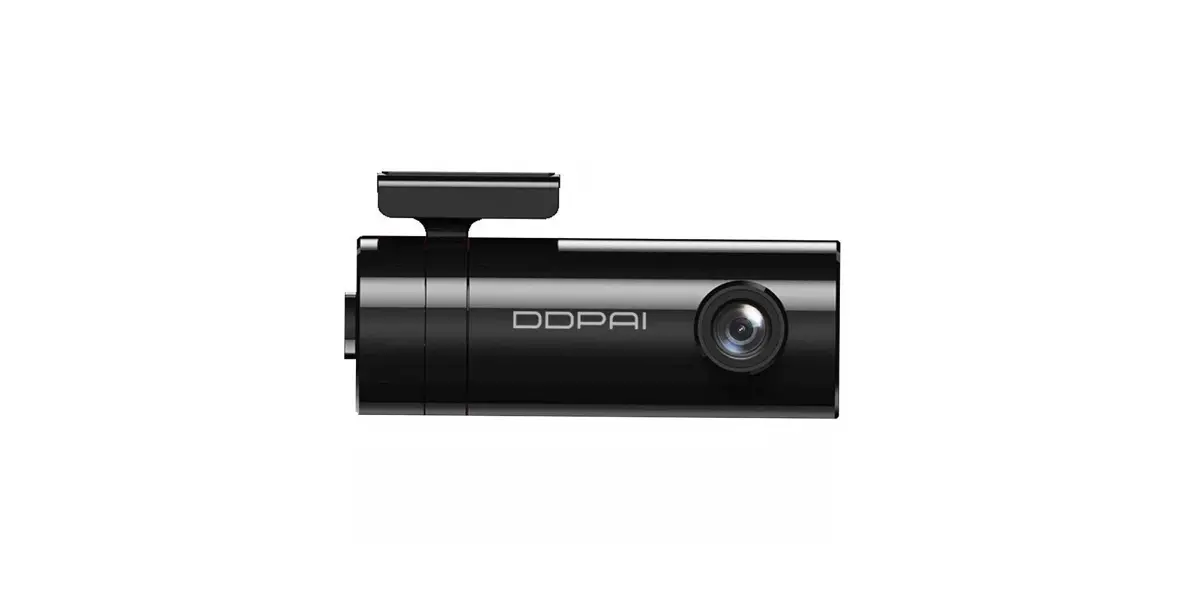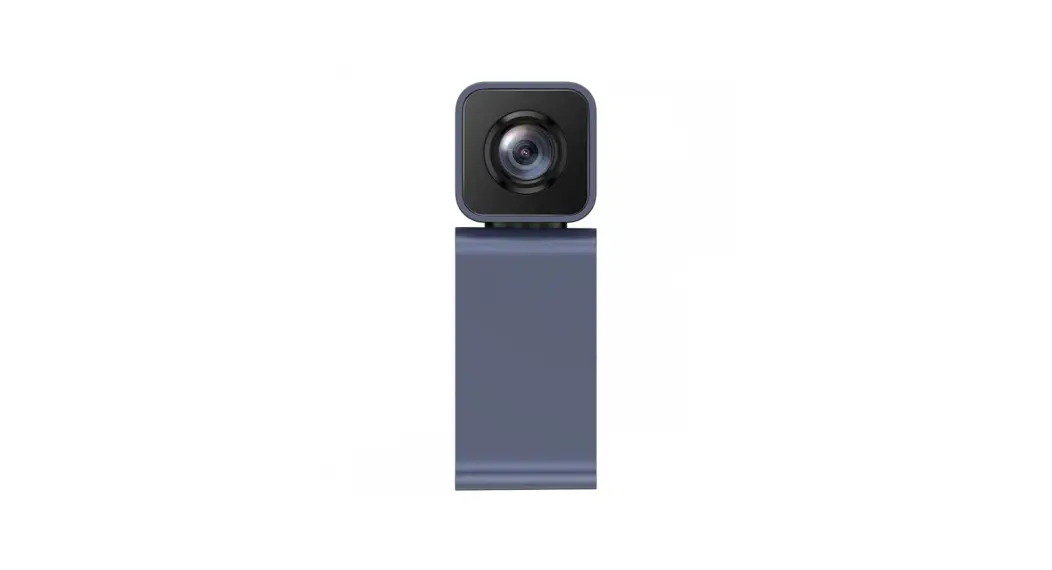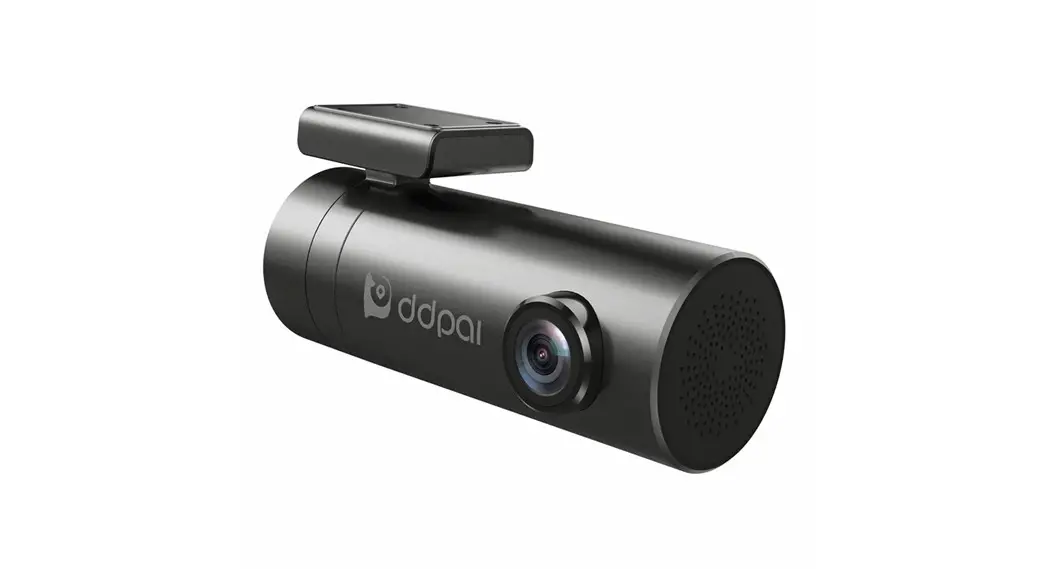
 Mini Pro Car Dash Camera
User Guide
SPECIFICATIONS
Product Name: Dash Cam
Product Model: mini Pro
Input:5V 1A
1A
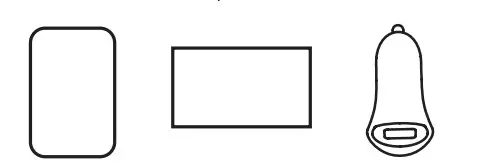
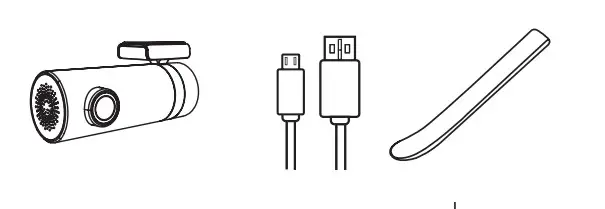
PACKAGE CONTENTS
| 3M Adhesive | User Guide | USB Charger |
| Dash Cam | Power Cable | Installation Tool |
PRODUCT OVERVIEW
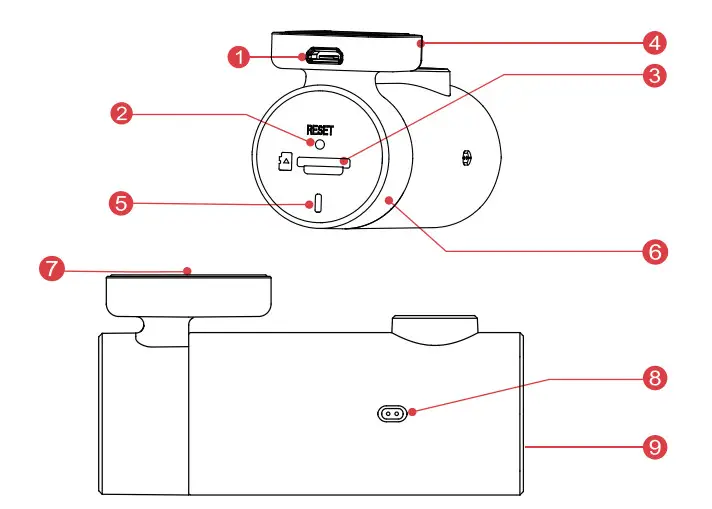
| 1 micro USB Port | 6 Rotating Shaft |
| 2 Reset Button | 7 3M Adhsive Pad |
| 3 SD Card Slot | 8 MIC |
| 4 Mounting Bracket | 9 Speaker |
| 5 LED Indicator |
LED INDICATOR INSTRUCTION
| Name | Description |
| Power on instantly | Blue light is always on |
| Working fine | Blue light flashes slowly |
| Parking monitoring | Red light flashes slowly |
| Abnormal storage | Purple light flashes quickly |
| Upgrading | Purple light is always on |
INSTALL ATION
- Clean an area on the windshield where you wish the Dash Cam to be installed, this assists in adhesion.
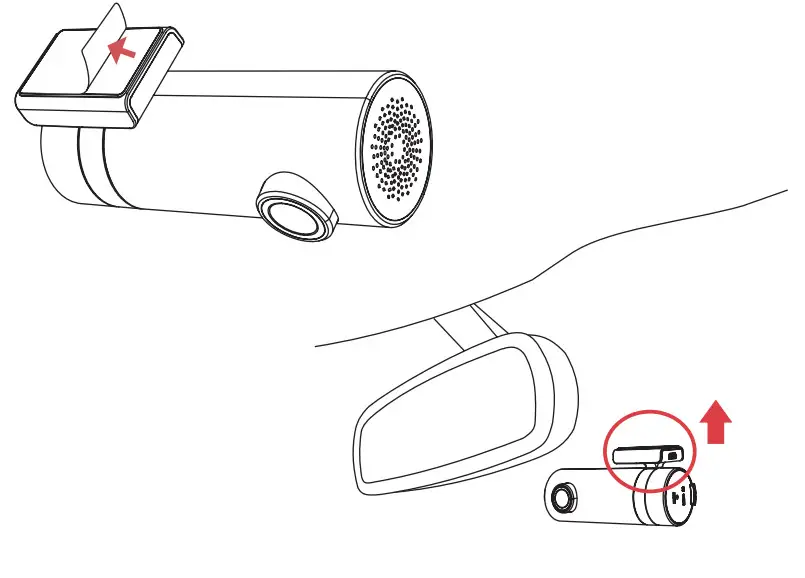
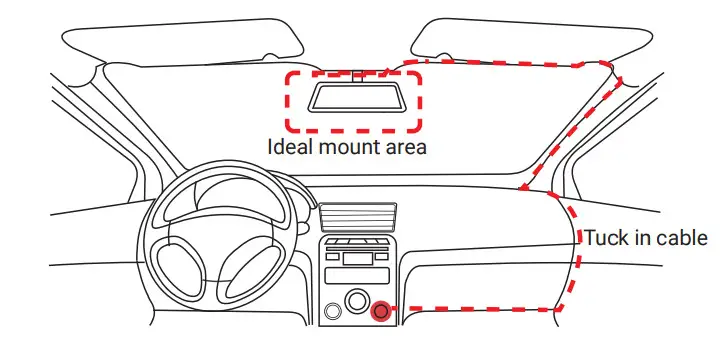
- Remove the protective film from the back of the bracket, attach the adhesive side of the mount on the windshield where it has an unobstructed view of the road but does not interfere with the driver’ s view. As shown below.

- Use the installation tool to lift the edges of the windshield/molding and tuck in the power cable. Connect the Dash Cam to the car charger (plugged into cigarette lighter socket) and power cable.

- Turn on the engine after installation, you will hear a boot tone, the Dash Cam powers up and starts recording, meanwhile, an LED indicator will blink slowly in normal mode.
- Adjust the angle of the lens by rotating the Dash Cam. We recommend pointing the lens slightly down wards (≈10° below horizontal), so as to record video with a 6:4 road to background ratio. It is recommended to adjust the Dash Cam position while looking at the screen to select the best viewing angle.
APP INSTRUCTION
Install DDPAI APP
Scan the QR code to download the “DDPai” APP .
 http://cloud.ddpai.com/download?product=hwddp
Pair Smart Phone to Dash Cam
- Keep the Dash Cam and mobile phone within 2.5meters.
- Launch DDPAI App, tap on “Device > Connect new devices”.
- Choose your DDPAI Dash Cam from the network list(For Android system, App will start to sear ch Dash Cam network automatically. For iOS phone: turn on WLAN from “Settings ->WLAN”). The Dash Cam’s default SSID (or Wi-Fi name) is DDP AI_mini_ XXXX.
- Enter the password (the default password is ‘1234567890’).
- Enter DDPAI App, wait a few seconds until the preview screen show.
Preview
- Open the DDPAI App, and add your Dash Cam.
- Select “Device > Entering” tab, this will bring you to the preview page.
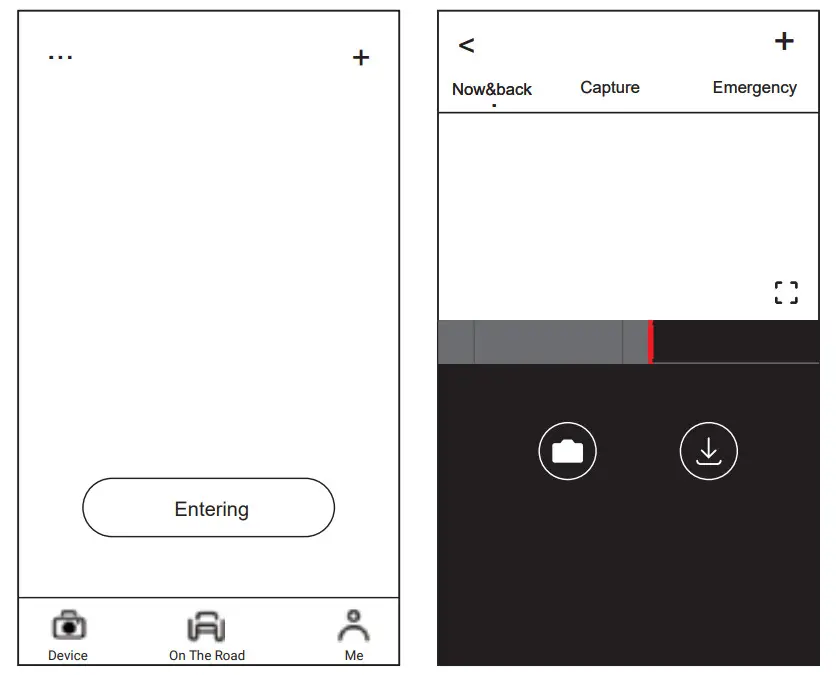
Rotate your smart phone or press expand icon, turn the preview screen to landscape mode.
Playback
Tap and left/right drag timeline bar at the screen bottom to create the starting point of the Recording you wish to preview, then tap on thumbnail when you have made your
selection, or wait for 5 sec for buffering, now you can watch the history recording.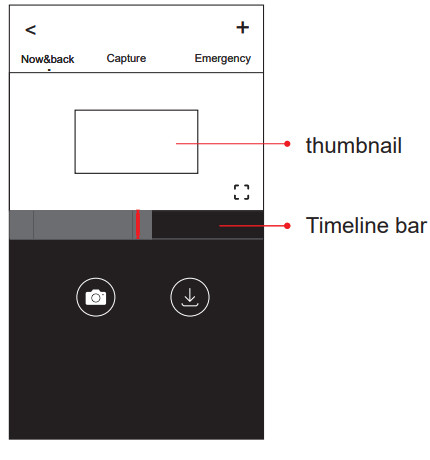
Download Video Files
- Tap and left/right drag timeline bar at the screen bottom to create the starting point of the r ecording you wish to download, then tap on thumb nail when you have made your selection, or wait for 5 sec for buffering, to enter the download start screen.
- Tap on
 from preview screen to enter the download interface.
 - After the video has finished downloading, click “Complete”.
 from preview screen to enter the download interface.
FCC Statement
This equipment has been tested and found to comply with the limits for a Class B digital device, pursuant to Part 15 of the FCC Rules. These limits are designed to provide reasonable protection against harmful interference in a residential installation. This equipment generates uses and can radiate radio frequency energy and, if not installed and used in accordance with the instructions, may cause harmful interference to radio communications. However, there is no guarantee that interference will not occur in a particular installation. If this equipment does cause harmful interference to radio or television reception, which can be determined by turning the equipment off and on, the user is encouraged to try to correct the interference by one or more of the following measures:
— Reorient or relocate the receiving antenna.
— Increase the separation between the equipment and receiver.
— Connect the equipment into an outlet on a circuit different from that to which the receiver is connected.
— Consult the dealer or an experienced radio/TV technician for help.
This device complies with part 15 of the FCC Rules. Operation is subject to the following two conditions:
(1) This device may not cause harmful interference, and (2) this device must accept any interference received, including interference that may cause undesired operation.
Changes or modifications not expressly approved by the party responsible for compliance could void the user’s authority to operate the equipment. The distance between user and products should be no less than 20cm.
CONTACT en.ddpai.com
 [email protected]
 DDPAI Technology Co., Ltd
 Floor 12, Yihua finance building, Software park, Yuehai Sub district, Nanshan district, Shenzhen
For more information and FAQs, Please scan the QR code:
http://cloud.ddpai.com/download?product=hwddp
 DDPAI-Keep Changing DDPAI Dash Cam | DDPAI