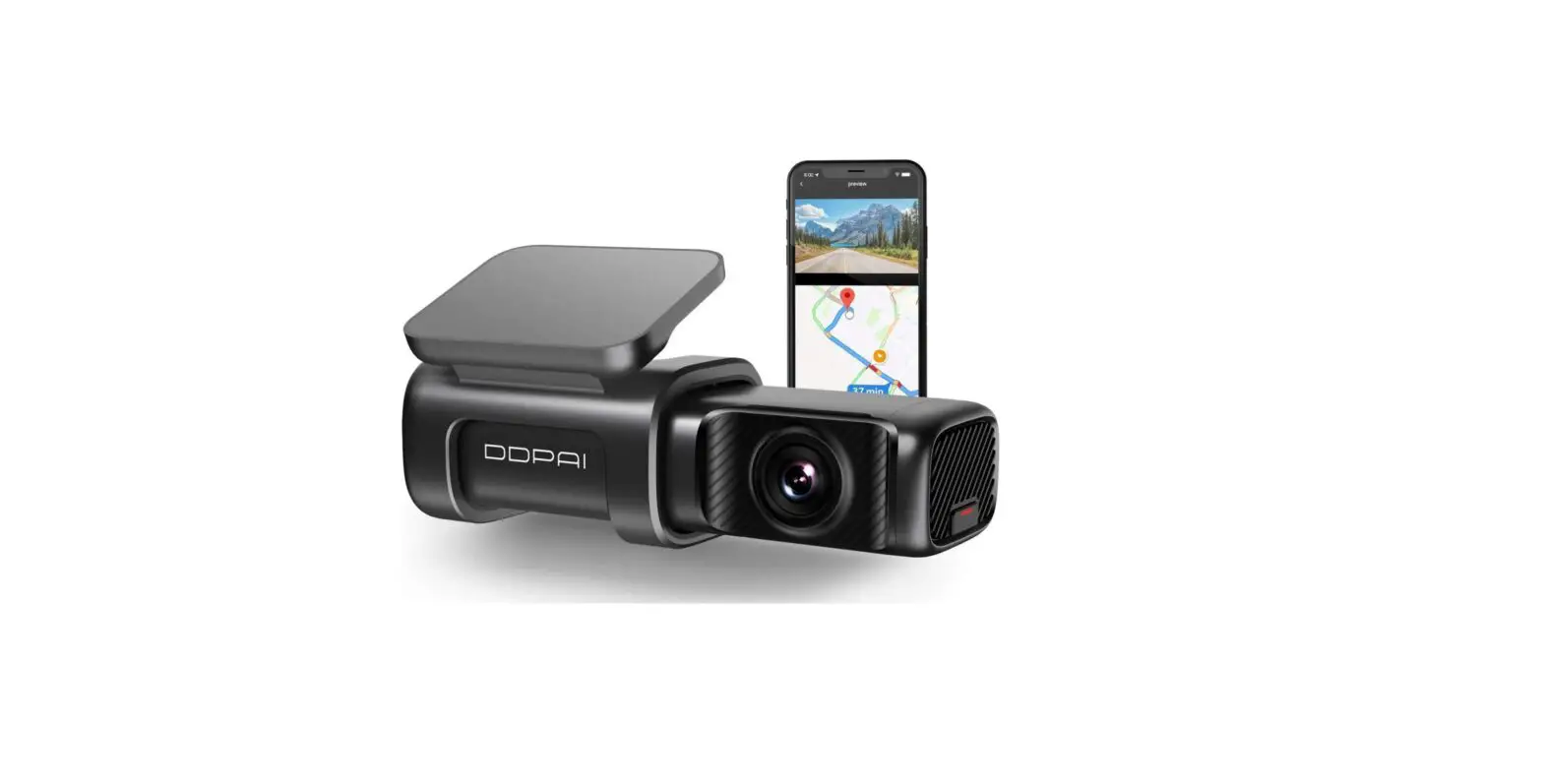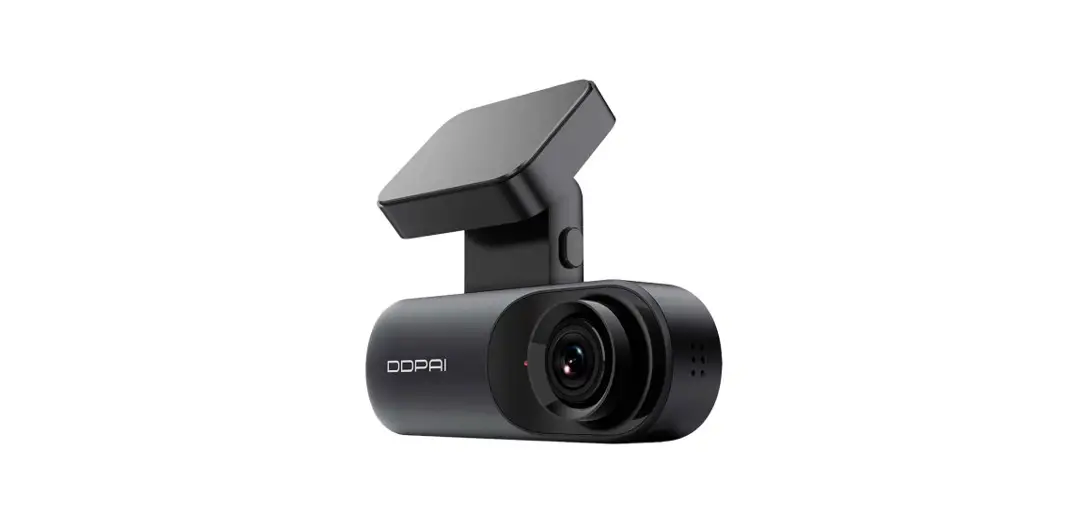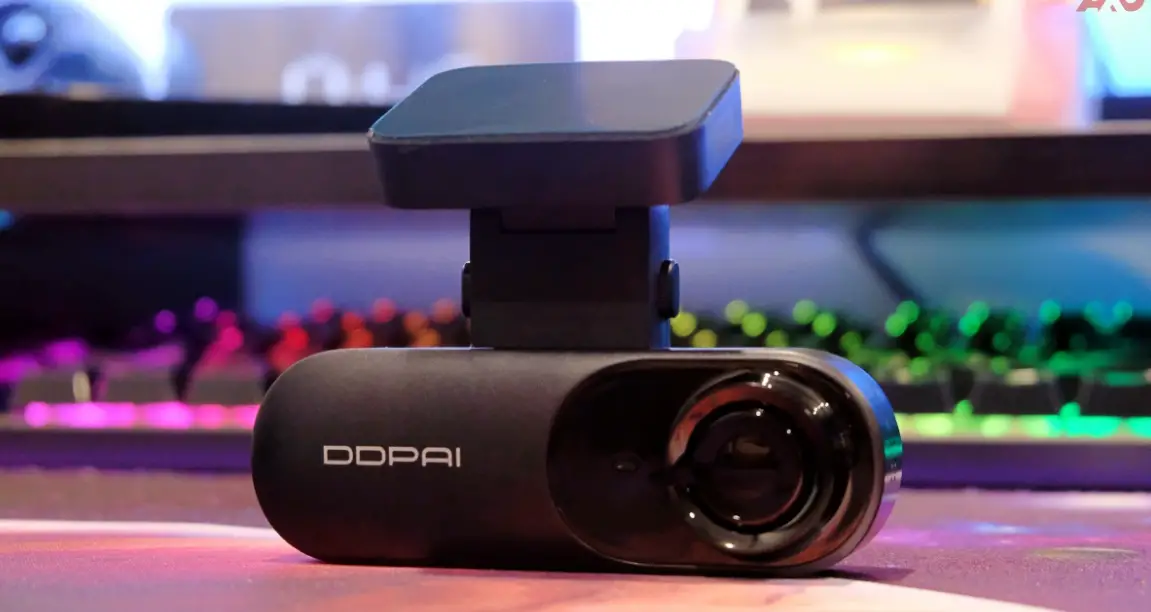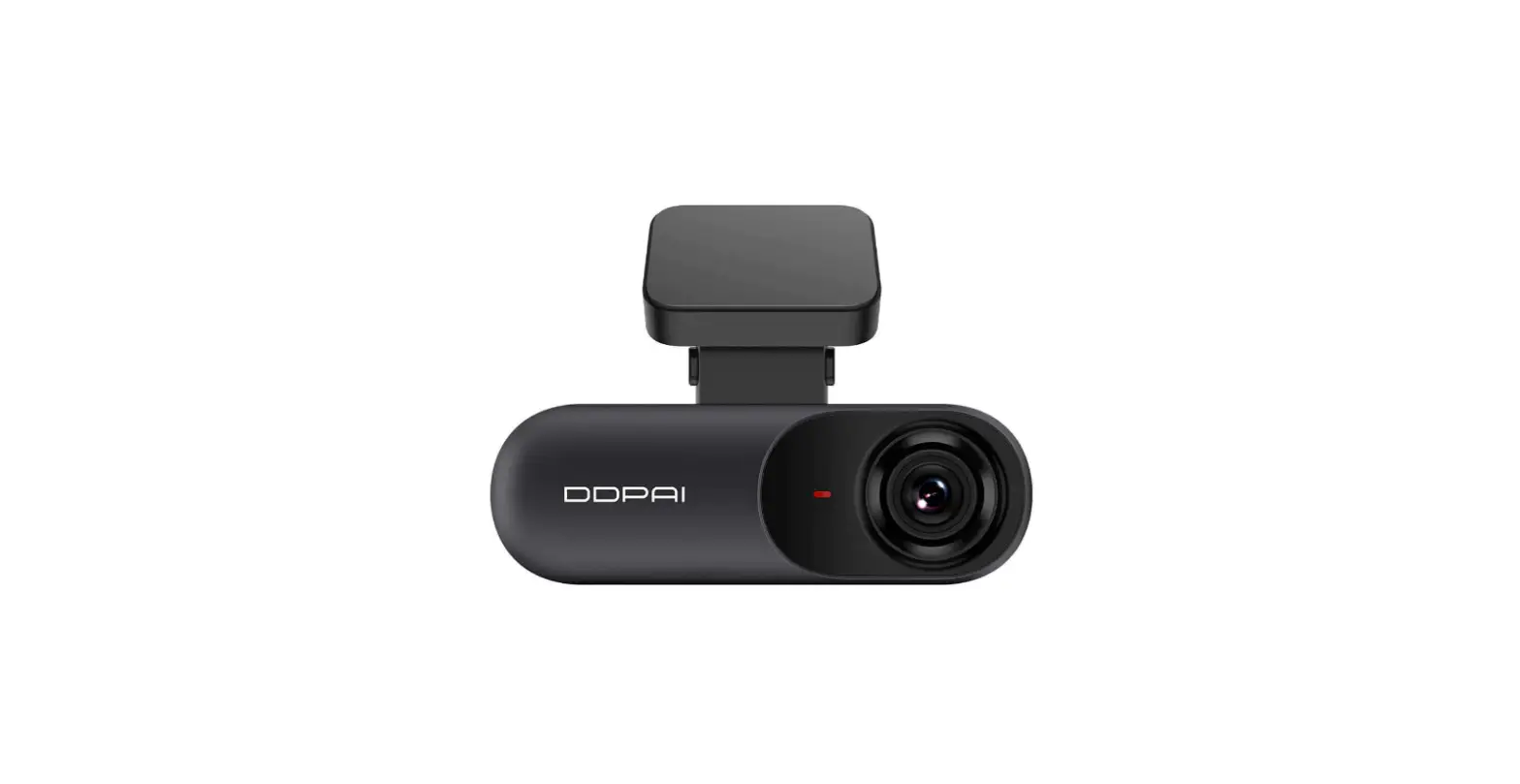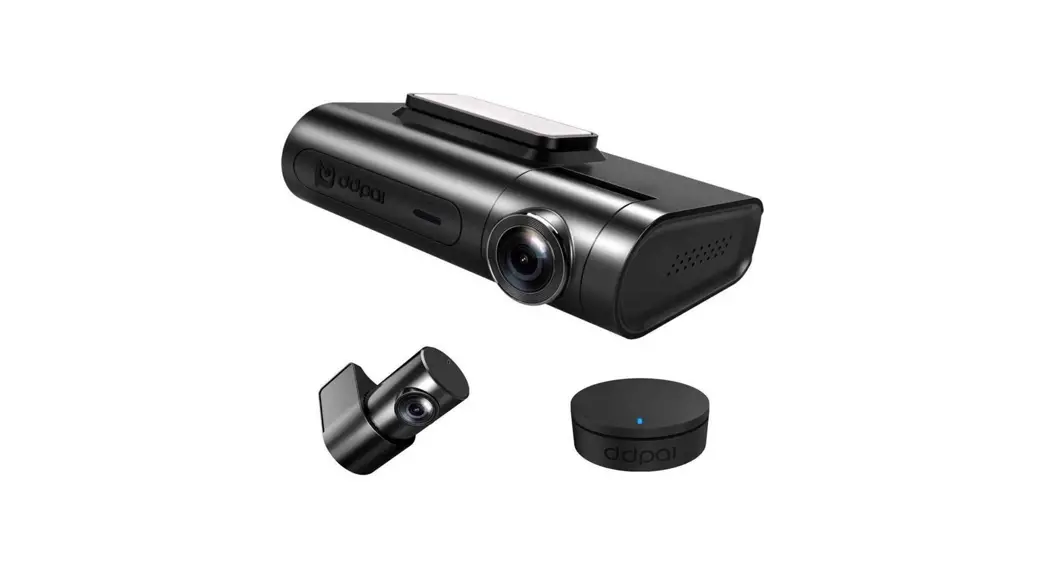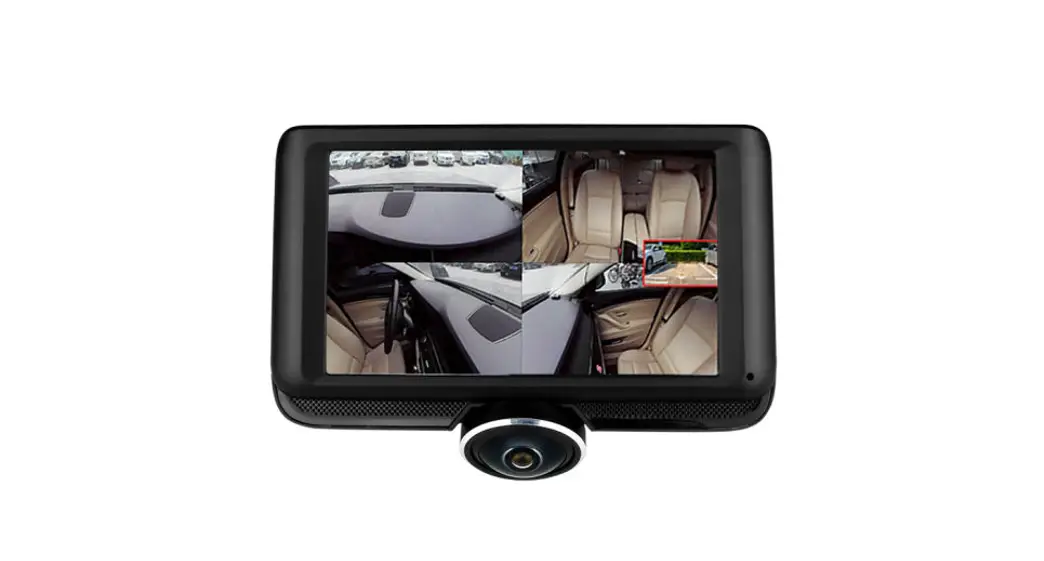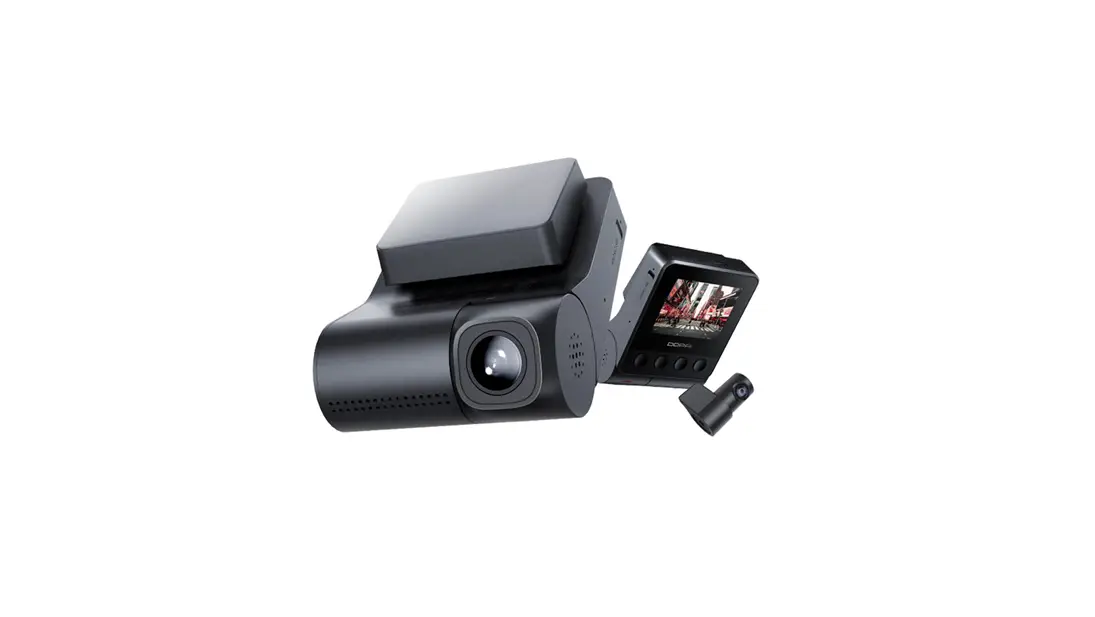

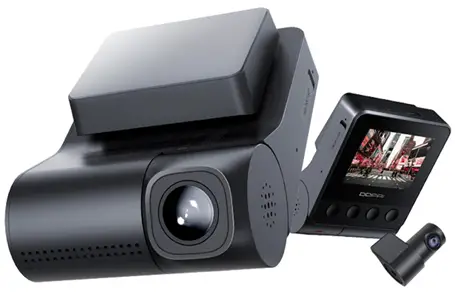
DDPAI Z40 Dash Cam
Dear customer
Thank you for purchasing our product. Please read the following instructions carefully before first use and keep this user manual for future reference. Pay particular attention to the safety instructions. If you have any questions or comments about the device, please contact the customer line.
✉ www.alza.co.uk/kontakt
✆ +44 (0)203 514 4411
Importer Alza.cz a.s., Jankovcova 1522/53, Holešovice, 170 00 Praha 7, www.alza.cz
Specifications
| Product type | Dash cam |
| Model | Z40 |
| Size | 81×61×33 mm |
| Input | 5V 2A |
| Features | TF card storage (128 GB) Recording in loop |
| Wi-Fi | 2.4 GHz |
| G-Sensor | Built-in 3 gyro sensor, motion locking, adjustable sensitivity via app |
| RAM | 2 GB |
Package Contents
Product Overview
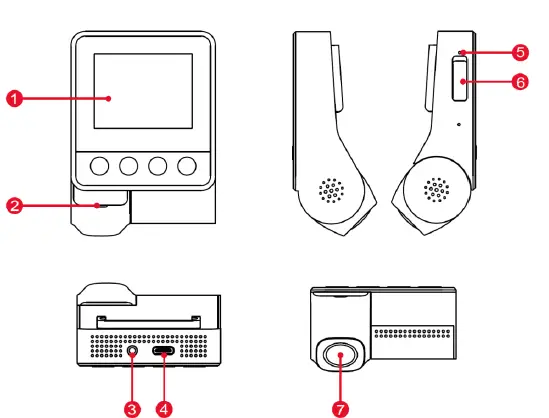
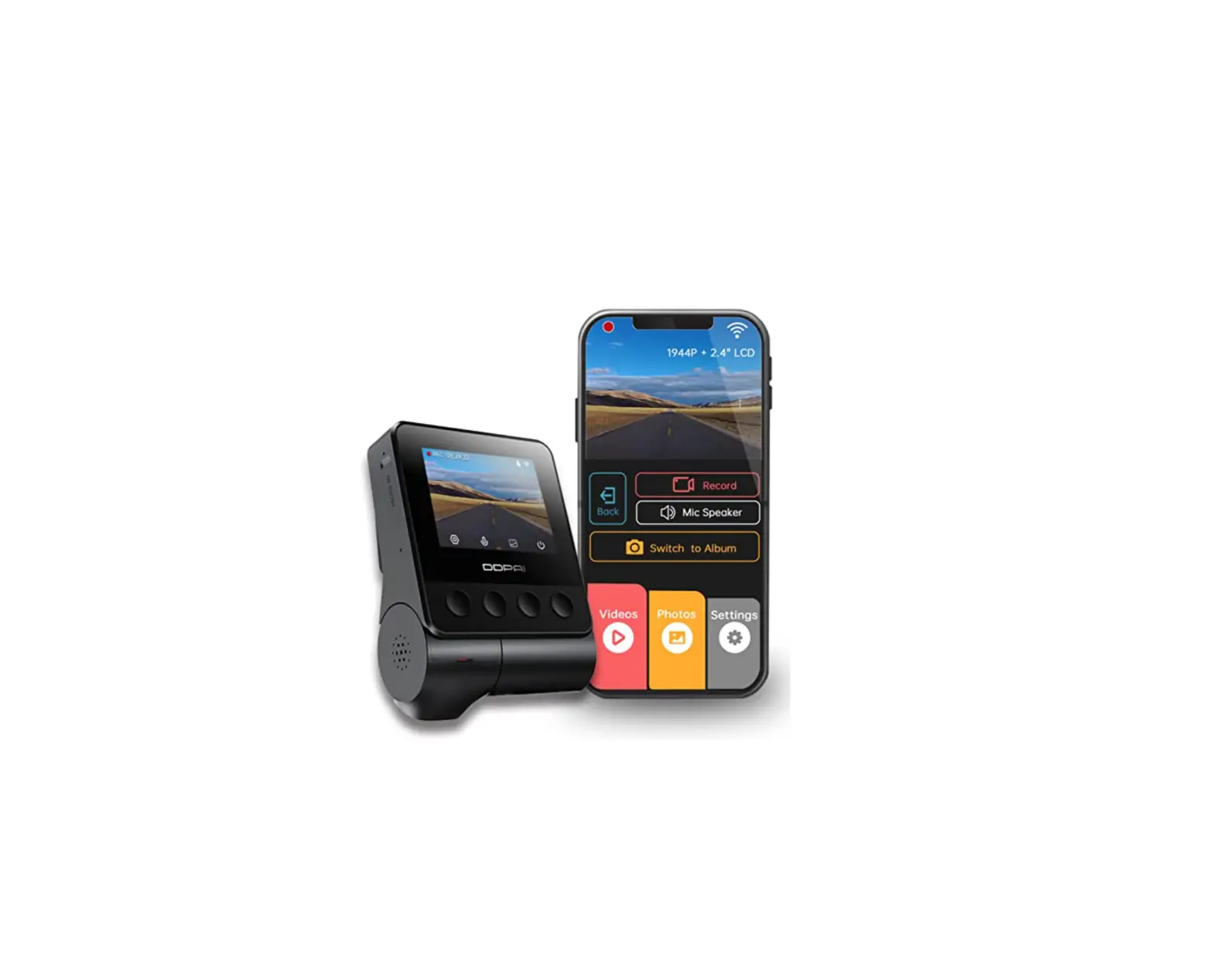
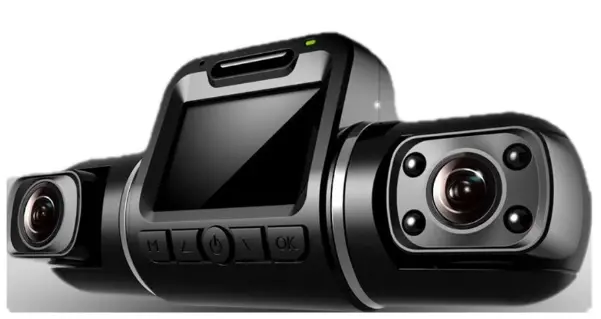
- Dash cam screen
- Status indicator
- AV interface
- Type-C power interface
- Microphone
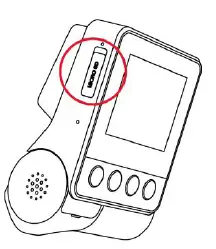
- TF card slot
- Lens
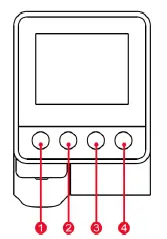
- Set. Click the button to enter the settings selection.
- Sound recording. Click the button to turn sound recording on or off.
- Album. Click the button to open the album.
- Lock. Click the button to turn the screen on or off. Long pressing the button will result in device reset.
LED Indicator Instruction
| Name | Description |
| Normal | Blue light is always on. |
| Incident video / emergency video / Photo | Purple light flashes quickly. |
| Abnormal status / updating | Red light flashes quickly. |
| USB data transmission mode | Green light is always on. |
| Test pattern | White light is always on. |
| Parking monitoring | Red light is always on. |
Installation
- Clean an area of the windshield where you wish the dash cam to be installed. This assists in adhesion.
- Open the protection cover of the TF card slot, insert the memory card into the slot. Pay attention to the front and back sides, and close the protection cover after completion.

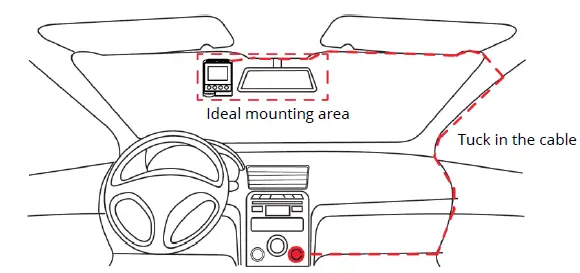
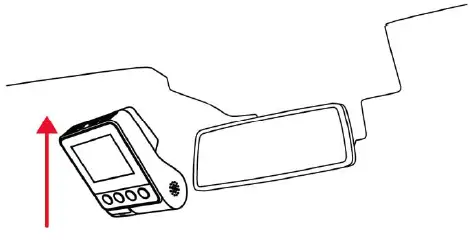
- Remove the protective film from the back of the bracket, attach the adhesive side of the mount on the windshield where it has an unobscured view of the road, but does not interfere with driver’s view as shown below.

- Use the installation tool to lift the edges of the windshield/moulding and turn in the power cable. Connect the dash cam to the car charger (plugged into a cigarette lighter socket).

- After the car starts, the dash cam powers up and starts recording.
App Instructions
Install DDPai app
Scan the QR code to download the DDPai app.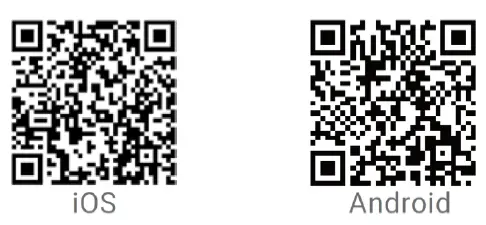
Pair the smart phone with the dash cam
- Keep the dash cam and mobile phone within 2.5 metres.
- Launch the DDPai app, tap on “Device” -> “Connect new devices”.
- Choose your DDPai dash cam from the network list.
- Android: App will start to search dash cam network automatically.
- iOS: Turn on the WLAN from “Settings” -> “WLAN”.
The dash cam’s default SSID (or Wi-Fi name) is DDPAI_Z40_XXXX.
- Enter the password. Default password is “1234567890”.
- Enter the DDPai app, wait for a few seconds until the preview screen shows.
Preview
- Open the DDPai app and add your dash cam.
- Select “Device” -> “Entering” tab, this will bring you to the preview page.

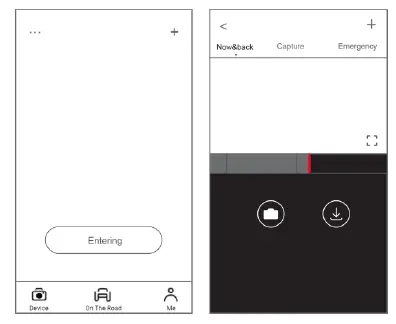
Rotate your smart phone or press the expand icon to turn the preview screen to landscape mode.
Playback
Tap and drag the timeline bar at the bottom of the screen to create the starting point of the recording you wish to preview, then tap on the thumbnail when you have made your selection or wait for five seconds for buffering. Now you can watch the recording.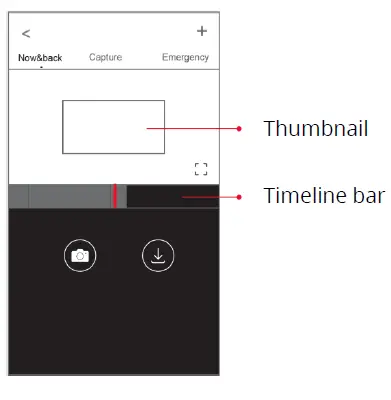
Download video files
- Tap and drag the timeline bar at the bottom of the screen to create the starting point of the recording you wish to download, then tap on the thumbnail when you have made your selection or wait for five seconds for buffering to enter the download start screen.
- Tap on the download icon from the preview screen to enter the download interface.
- After the video has finished the downloading, click “Complete”.
Warranty Conditions
A new product purchased in the Alza.cz sales network is guaranteed for 2 years. If you need repair or other services during the warranty period, contact the product seller directly, you must provide the original proof of purchase with the date of purchase.
The following are considered to be a conflict with the warranty conditions, for which the claimed claim may not be recognized:
- Using the product for any purpose other than that for which the product is intended or failing to follow the instructions for maintenance, operation, and service of the product.
- Damage to the product by a natural disaster, the intervention of an unauthorized person or mechanically through the fault of the buyer (e.g., during transport, cleaning by inappropriate means, etc.).
- Natural wear and aging of consumables or components during use (such as batteries, etc.).
- Exposure to adverse external influences, such as sunlight and other radiation or electromagnetic fields, fluid intrusion, object intrusion, mains overvoltage, electrostatic discharge voltage (including lightning), faulty supply or input voltage and inappropriate polarity of this voltage, chemical processes such as used power supplies, etc.
- If anyone has made modifications, modifications, alterations to the design or adaptation to change or extend the functions of the product compared to the purchased design or use of non-original components.
EU Declaration of Conformity
Identification data of the manufacturer’s / importer’s authorized representative: Importer: Alza.cz a.s.
Registered office: Jankovcova 1522/53, Holešovice, 170 00 Prague 7
CIN: 27082440
Subject of the declaration:
- Title: Dashcam
- Model / Type: Z40
The above product has been tested in accordance with the standard(s) used to demonstrate compliance with the essential requirements laid down in the Directive(s):
Directive No. 2014/53/EU
Directive No. 2011/65/EU as amended 2015/863/EU
Prague, 30.6.2022
WEEE
This product must not be disposed of as normal household waste in accordance with the EU Directive on Waste Electrical and Electronic Equipment (WEEE – 2012/19 / EU). Instead, it shall be returned to the place of purchase or handed over to a public collection point for the recyclable waste. By ensuring this product is disposed of correctly, you will help prevent potential negative consequences for the environment and human health, which could otherwise be caused by inappropriate waste handling of this product. Contact your local authority or the nearest collection point for further details. Improper disposal of this type of waste may result in fines in accordance with national regulations.
 Alza.sk – rýchly a pohodlný nákup odkiaľkoľvek | alza.sk
 alza.at
 alza.co.uk
 alza.de
 alza.hu
 alza.sk