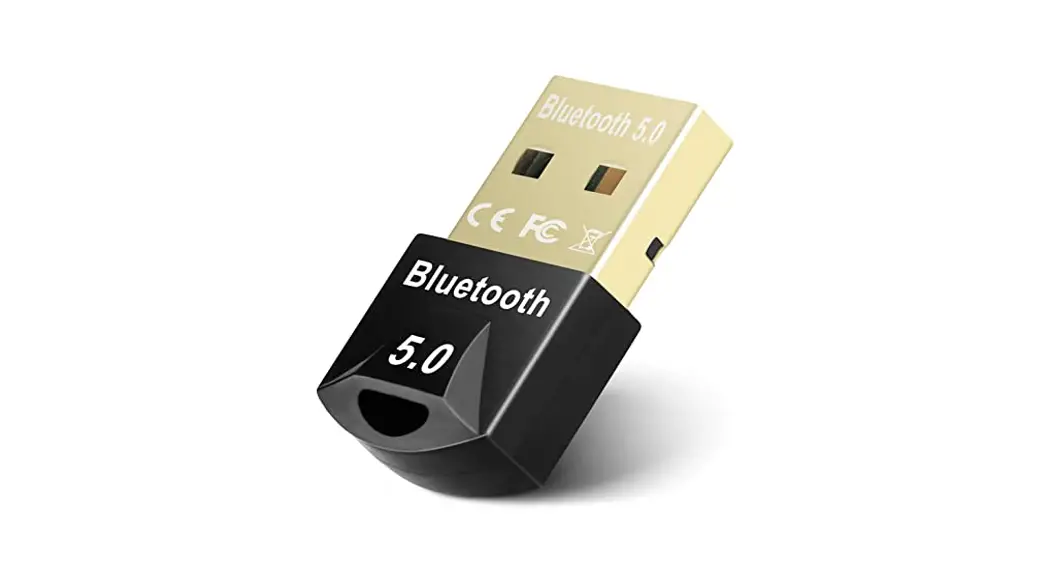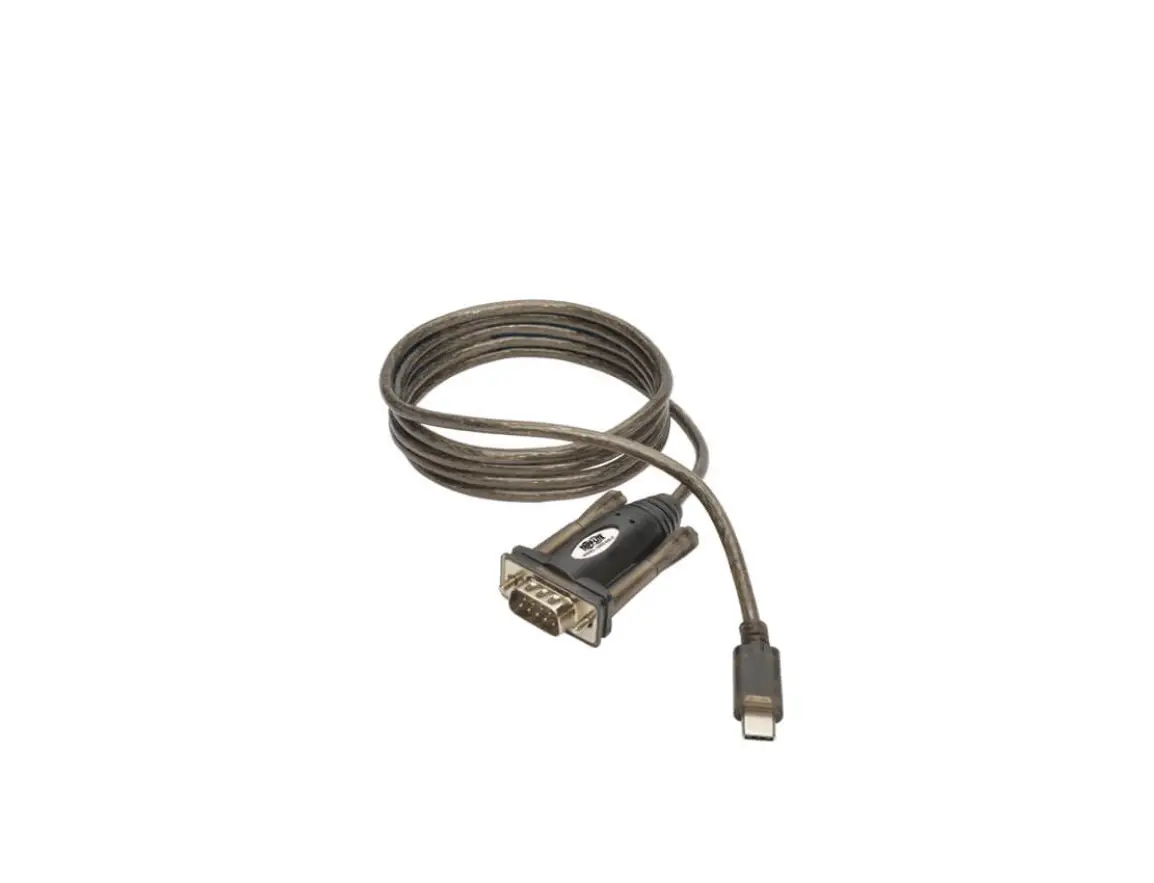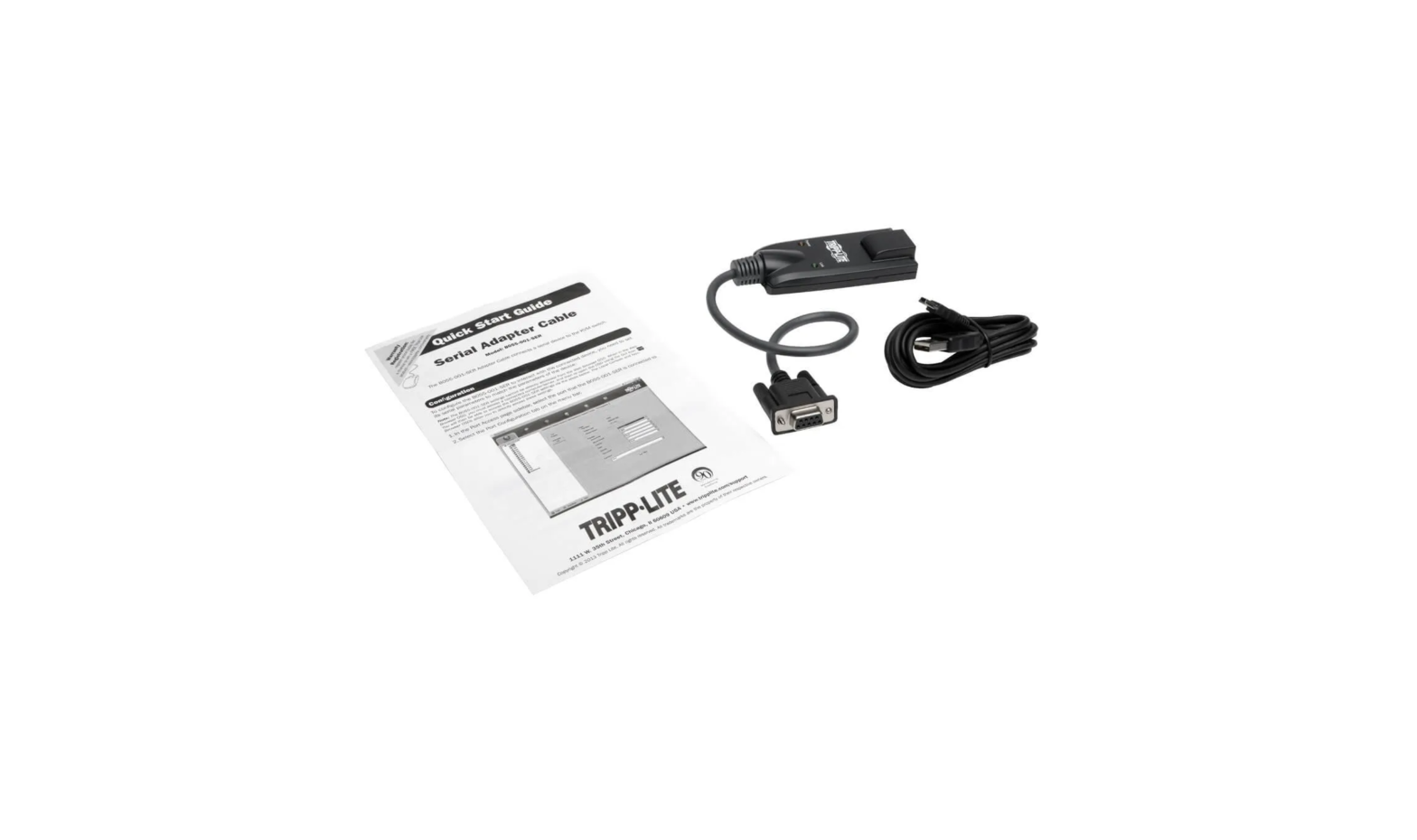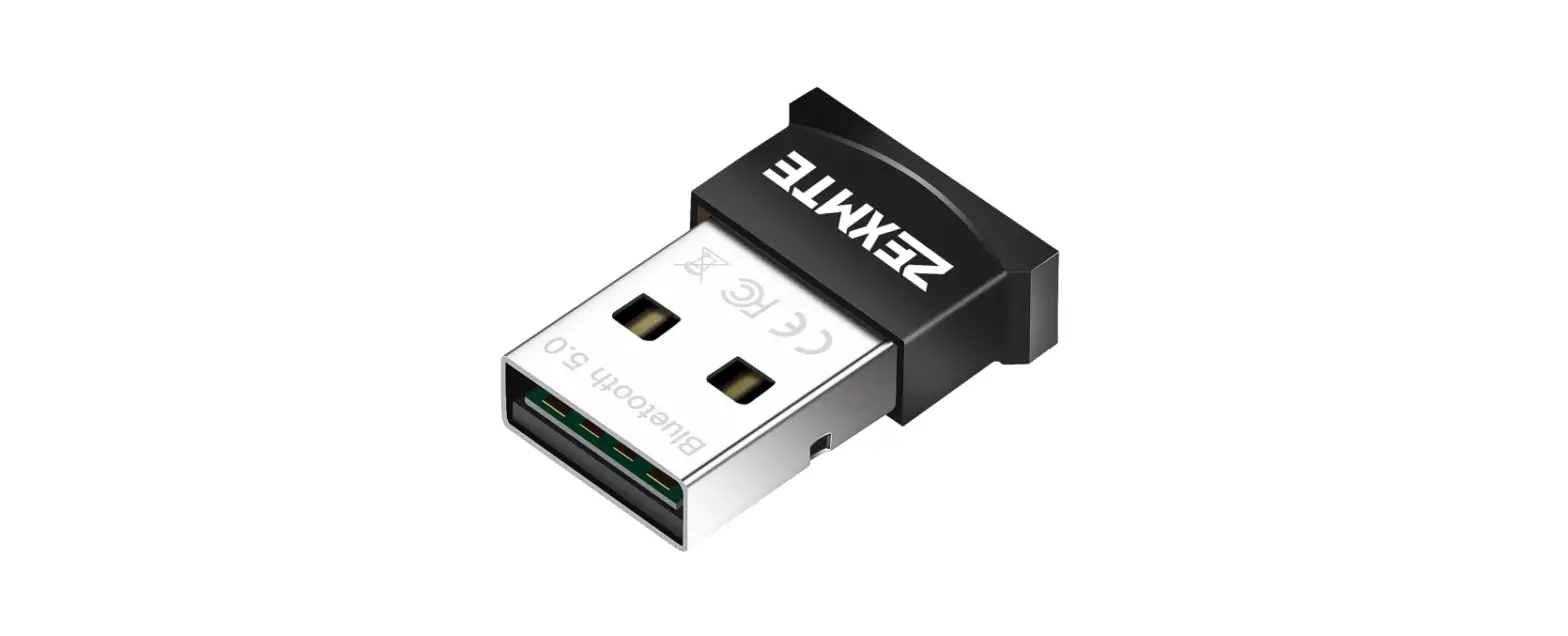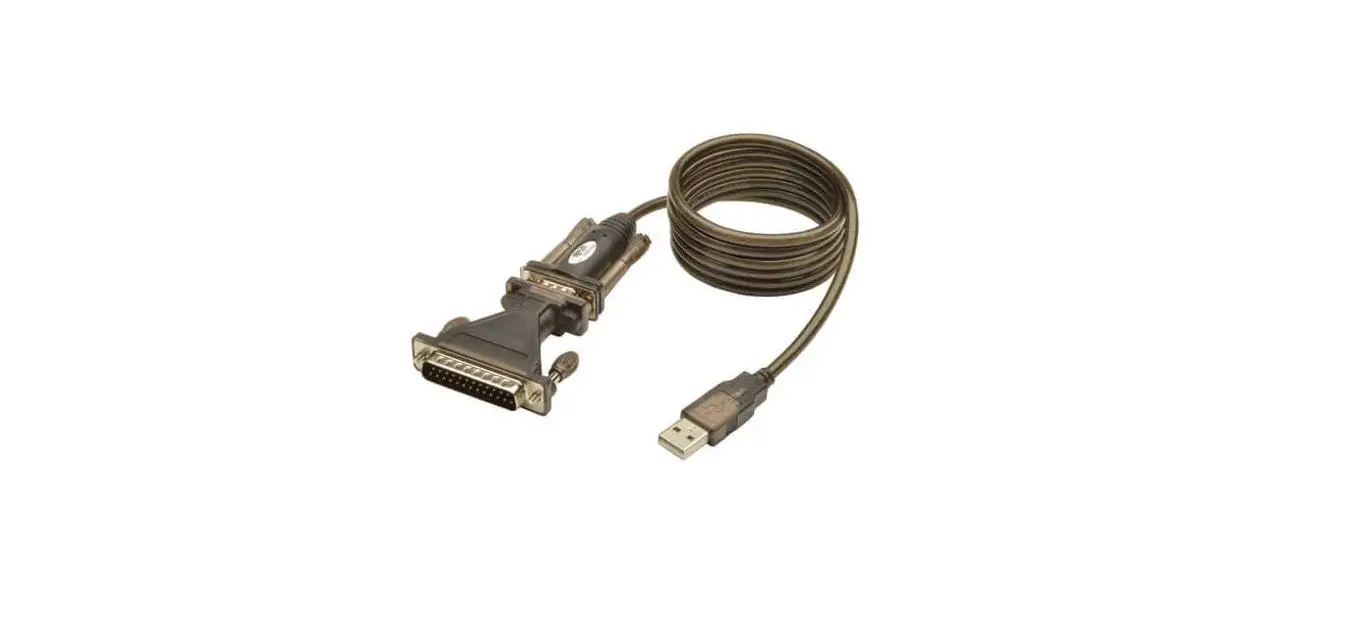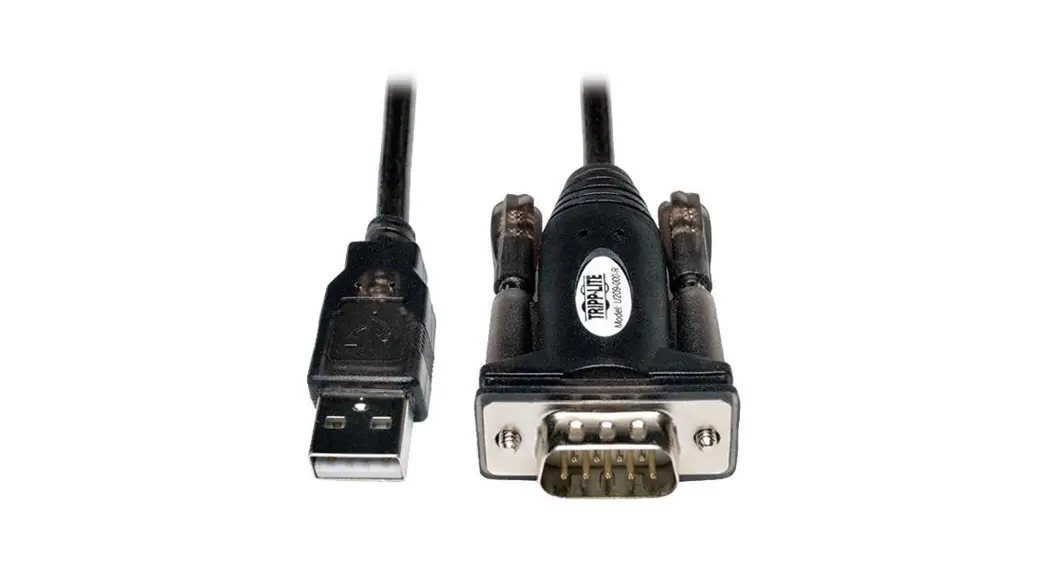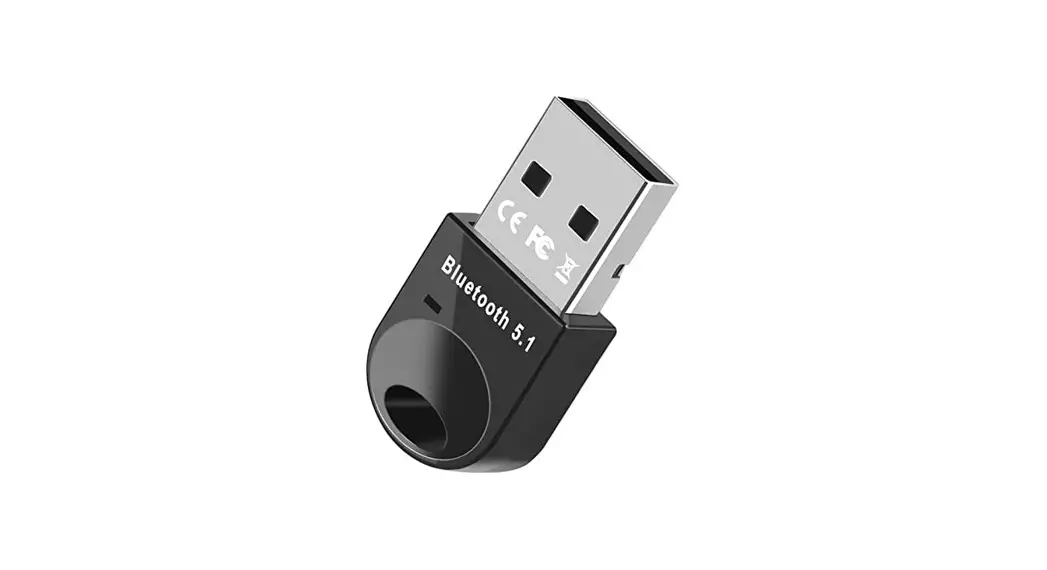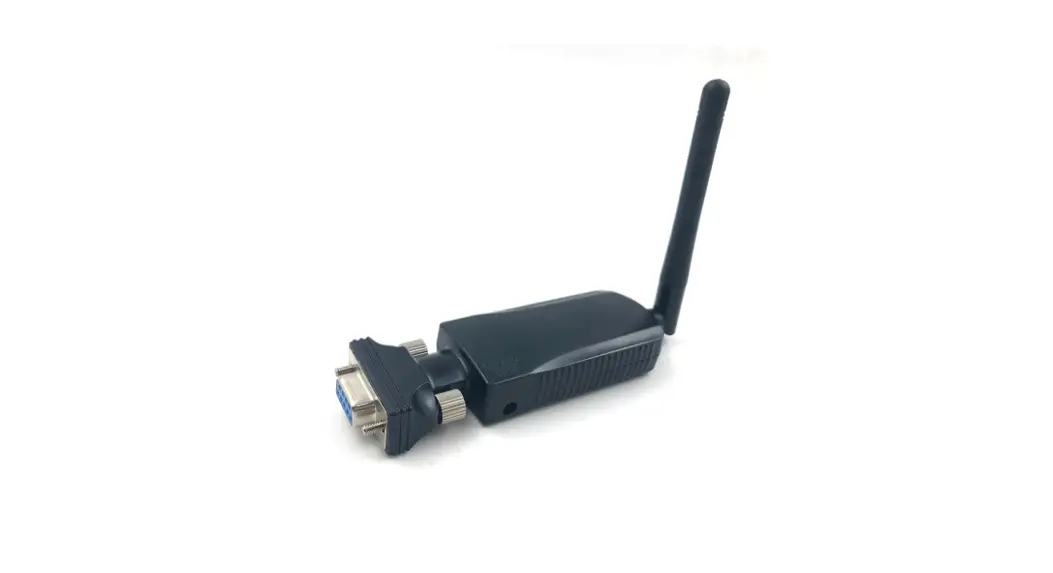

BLE5.0 Serial Adapter
User Manual 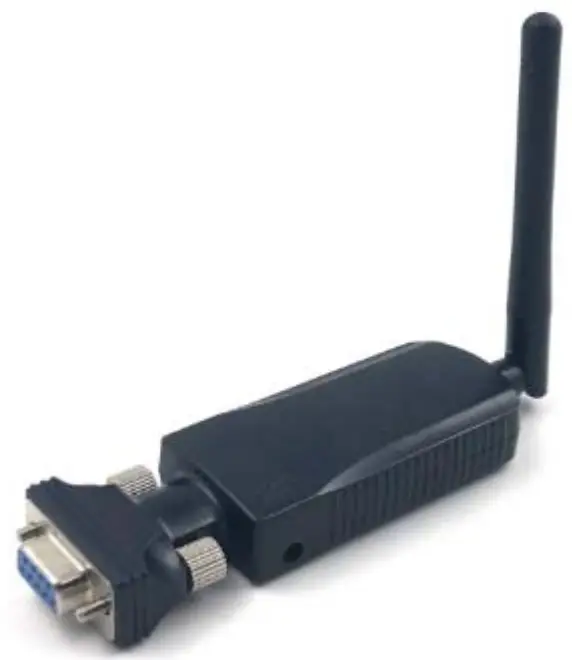
Chongqing Jinou Science & Technology Development Co.. Ltd.
Revision History
Revision | Revised Contents | Reviser |
| V1.0_20180821 | Initial version | MR |
| V1.0_20190505 | Add filter and lasting time in the AT+INQ command. | MR |
Overview
Jinou serial port adapter is an intelligent wireless data transmission product developed by our company. It supports the latest Bluetooth 5.0 protocol specification, and the overall performance is more optimized.
Determined by the nature of low power consumption, BLE is mainly applied in the transmission of a small amount of data, different from BR/EDR (traditional Bluetooth) characterized by voice transmission, or Bluetooth 3.0 characterized by high-speed data transmission. In order to ensure its low power consumption, BLE simplifies handshake protocol and reduces wake-up time, which is quite suitable for transmission of short-time and small data.
In order to ensure low power consumption, low power consumption simplifies handshake protocol and reduces wake-up time. In this type of data transmission, the power consumption of the low-power Bluetooth is only one-tenth of that of the traditional Bluetooth, while in the long – time and large – data transmission, the handshake protocol and the wake-up time account for a lower proportion in the data amount of the entire task and the total duration, and the advantage of low power consumption is greatly reduced.
JINOU serial adapter adopts the low-power Bluetooth scheme of TI company and supports the BLE mode. Can be used in applications sensitive to power consumption, such as consumer health care, mobile accessories, sports, and health applications.
The device implements the function of data transmission through the RS232 interface and remote low-power Bluetooth, and the device contains two different working states of data mode and configuration mode.
Communication mode: The device can be connected to the remote BLE or searched connected by the remote BLE. After the connection is finished, it can transmit data with the remote BLE bidirectional data.
Configuration mode: the user can configure parameters such as device name, baud rate, etc. In this state, the device cannot be found connected.
Parameters
| Name | BLE5.0 Serial Adapter |
| Specification | BLE 5.0 |
| Working band | ISM Working band 2.402~2.480GHz |
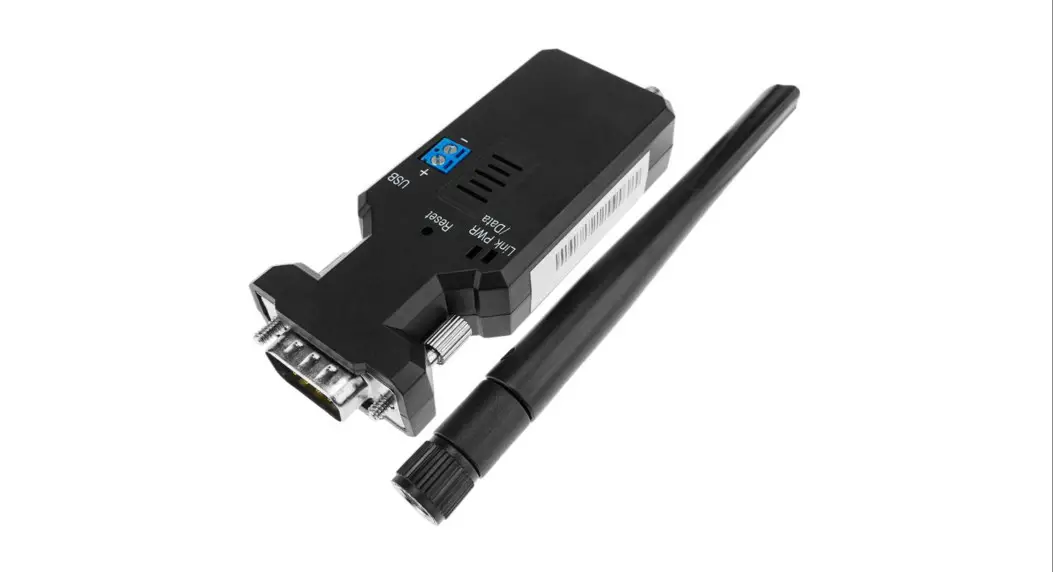
| Antenna | External antenna |
| Effective distance | 150m in the open air |
| Implementation protocol | LL, SMP, L2CAP, ATT, GAP, GATT | |
| Communication interface | Standard RS232 five-wire mode | |
| Connector | DB9 | |
| Signal pin | RxD, TxD, RTS, CTS, GND | |
| Energy saving | Auto Saving Mode to Support Low Power Mode | |
| Maximum transmission rate note1 | 20Kbytes/Sec | |
| Support Baud Rate | 1200, 2400, 4800, 9600, 19200, 38400, 57600, 115200, 230400bps | |
| Power consumption | Unconnected (the slave device) | 3.1mA |
| Unconnected (master device) | 21mA | |
| Connected (no data transmission) | 3.6mA | |
| Connected(data transmission)note2 | 9.8mA | |
| Work environment | Operating temperature | 0℃~+70℃ |
| Storage temperature | -10℃~+70℃ | |
| Humidity | 5% ~ 90% no condensation | |
| Size | 99(L)×34(W)×17(H)mm | |
Note1: Here refer to that data – to – transmission rate between the two adapters, which relate to connection parameters, such as different phone and adapter data, the rate may be different. If need it up to maximum transmission rate, please set the baud rate to 230400.
Note1: The data transmission power consumption is the power consumption data continuously transmitted at a 9600 baud rate within the effective range of 10m.
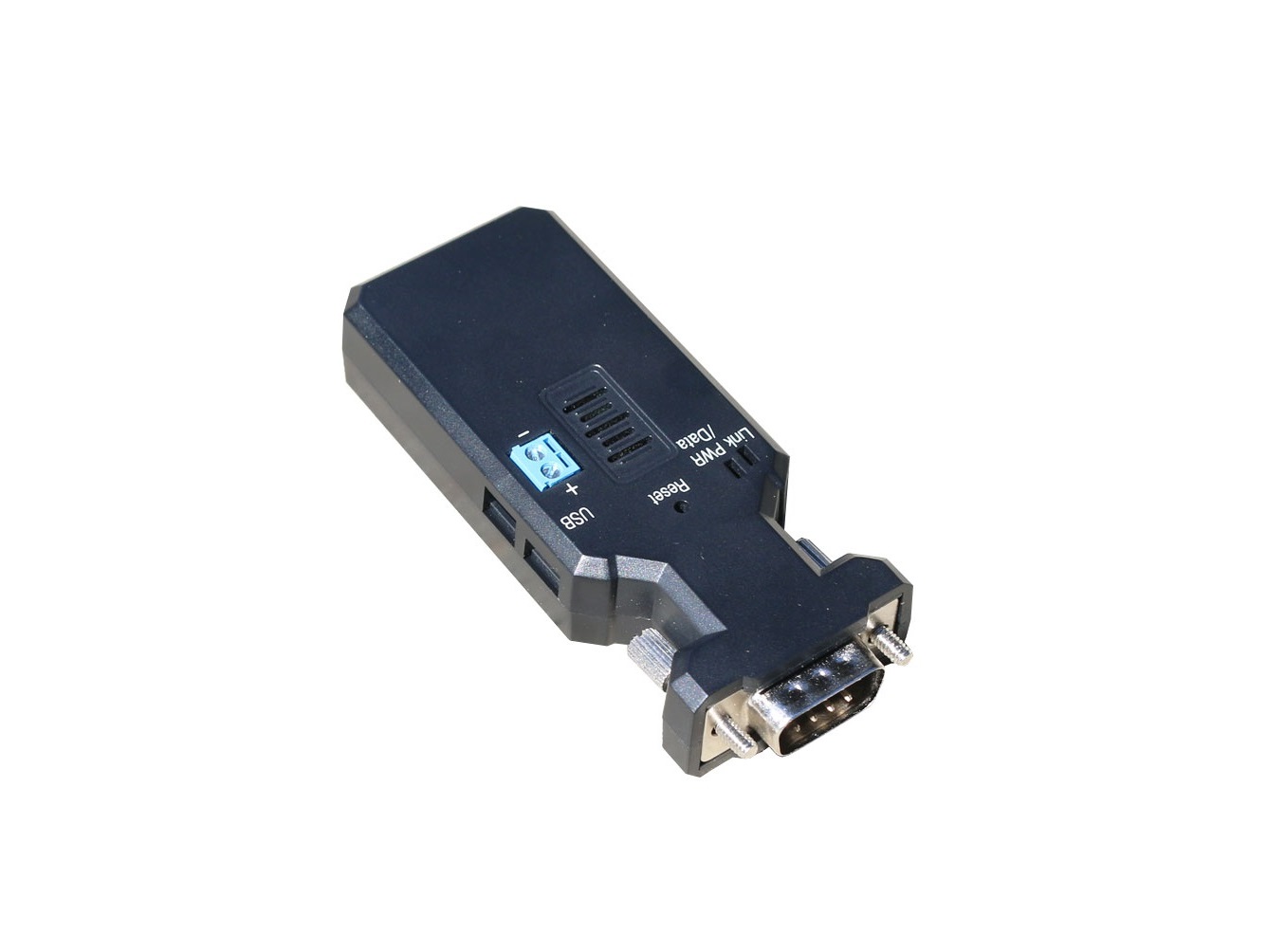
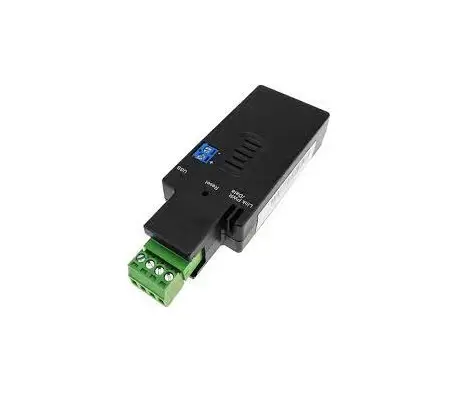
The BLE serial adapter has three LED lights to indicate the operating status of the device and a mode switch button.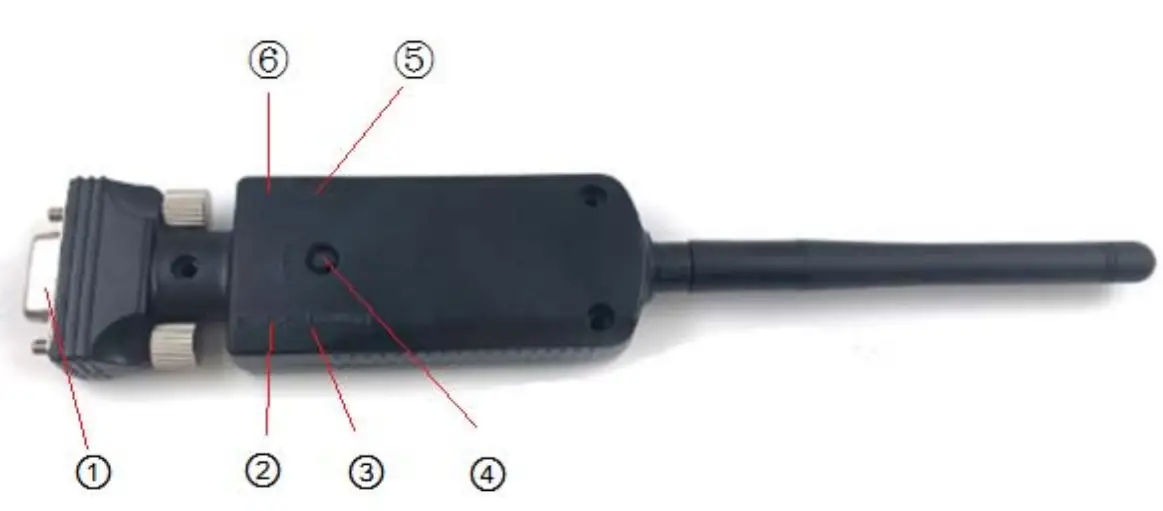
| ①RS232 interface |
| ② Status indicator (green) |
| ③ Operation indicator (red) |
| ④ Mode switch button (CM D button) |
| ⑤ Power indicator (red) |
| ⑥ Power interface |
RS232 port:
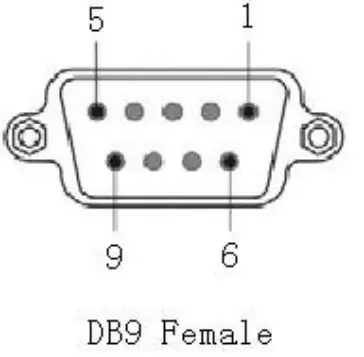 | Pin No | Signal |
| 1 | VCC | |
| 2 | TXD | |
| 3 | RDX | |
| 4 | Nc | |
| 5 | GND | |
| 6 | Nc | |
| 7 | CTS | |
| 8 | RTS | |
| 9 | VCC |
The BLE serial adapter provides a standard RS – 232 interfaces and supports multiple serial port modes.
The equipment RS – 232 DB9 pins is capable of power supply and can be used for user-developed equipment. 1. pin 9 is VCC, pin 5 is GND, 6 ~ 9VDC, 100mA rated current.
Power Interface:
6 VDC, 200mA rated current; internal positive and external negative. The positive and negative poles of the power supply cannot be reversed or the products will be burnt out.
Indicator:
| Name | Description | |
| Status Indicator | Configuration Mode | Off |
| No connection | Blink every 1 second | |
| Connected | Off | |
| Operation Indicator | Configuration Mode | Off |
| The Slave Device | Blink once every 2 seconds | |
| The Master Device | Blink once every 5 seconds | |
In the parameter setting state, press the CMD button again, and the device exits the parameter setting status and enters the network working state.
Indicator:
The adapter has three indicator lights, the power indicator (red), the main/slave mode indicator (red), and the connection indicator (green).
When the BLE adapter is powered on, the power indicator (red light) will always be on.
If the master/slave mode indicator (red light) flashes every few seconds, the adapter is working properly. The time interval between the flashing lights can be used to determine whether the device is the master device or the slave device. If it flashes once every 2 seconds, it is the slave device. If it flashes once every 5seconds, it is the main device.
If the connection indicator (green light) is off, it means that a connection has been established with other Bluetooth devices. If it flashes once every 1 second, it means no connection has been established.
When the BLE adapter is working in parameter setting mode, the master/slave mode indicator light and connection status indicator light are extinguished.
After power on, BLE adapter is in data mode, master/slave mode indicator light and connection status indicator light flash, press the switch button of mode, the device enters the parameter setting state, master/slave mode indicator light and connection status indicator light extinguished, and output “+OPEN” from the serial port. In the parameter setting state, the serial port parameter remains 9600bps, 8-n-1. The device stops the network part and turns off the wireless signal. At this time, only the device parameters can be set.
Operation Instruction
The default setting of this device is 9600bps baud rate, 8-n-1 communication mode, no flow control, the slave device, and the matching code is 000000.
If need to change parameters, the user should press the mode switch button to enable the adapter to enter the parameter setting state. The two previously blinking indicator lights are off and relevant parameters are set through the “AT command”, such as the parameters of master/slave device, baud rate, remote address, etc.
If 2pcs adapters need to communicate, the user must set one as a master device and another as salve device. Users can tell roles from the operation indicator light.
Note: the parameters are stored in FLASH, so the values of the parameters will remain the same even after the power is cut, and will not be lost.
After parameter modification, short press the mode switch button again to enable the adapter to enter data mode.
The adapter should be in data mode when powered on. For the master device, if the address has been memorized, the master device is directly connected to the memory device, which can be cleared by the “AT+CLEARADDR” instruction.
For slave devices, wait to be queried and connected by other devices.
If the two adapters are connected successfully, the connection status indicator (green light) is off and the master/slave mode indicator (red light) remains to flash. At this point, the user device is just like a serial port connection, sending and receiving data directly.
Once the device is connected, our serial port adapter will not be automatically disconnected unless the signal is poor or the other party’s Bluetooth is actively disconnected, and the connection will remain.
Note: the following frequently asked questions section gives an important supplement to the use of the equipment and solutions to the problems that customers usually encounter. Please read this section carefully before using it.
Description of the authentication mode
The BLE serial port adapter only stores the matching information of one master device at most. Therefore, when the authentication function is enabled and matched with the master device (such as IOS, Android phone, or tablet), the matching connection with the new master device will first clear the previous host matching information. Therefore, a rematch is required when the previous master device connects to the BLE serial adapter again.
However, when some master devices (such as IOS Ipad) are connected again because the matching information of the BLE serial port adapter is saved before, the master device does not re-initiate the match after receiving the BLE serial port adapter re-matching request, which will result in authentication failure and thus disconnection. In the case of disconnection, first, delete the BLE serial port adapter matching information in the Bluetooth option of the master device’s system settings, and reconnect it again.
Parameter configuration
In parameters setting mode, the default parameter is 9600bps, 8-N–1, no CTS RTS flow control. The following < CR >, < LF > in tables represent ASCII code of the “Enter” and “line feed”.
Every AT command send to the module needs to end up with the two codes. Otherwise, the AT commands can not be recognized. As for < >, it is used for convenient reading. In fact there is no < > in command.
Testing Command
| Command | Answer | Parameter |
| AT<CR><LF> | <CR><LF>OK<CR><LF> | None |
Parameter Setting Mode Indicate
| Command | Answer | Parameter |
| None | <CR><LF>+OPEN:<status><CR ><LF> | Status: Remote address status 0: no remote address is configured 1: Remote address configured If the adapt is a master device and configure a remote address, once powered on, the adapter will connect the slave device of the address. |
Inquire/Set Device Name
| Command | Answer | Parameter |
| AT+NAME=<name><CR><LF > | <CR><LF>OK<CR><LF> | name: Device name Default: BLE0405C1P |
| AT+NAME?<CR><LF> | <CR><LF>OK<CR><LF> <CR><LF>+NAME:<name><CR><LF > |
Inquire Local Bluetooth Address
| Command | Answer | Parameter |
| AT+LADDR?<CR><LF> | <CR><LF>OK<CR><LF> <CR><LF>+LADDR:<bdaddr><CR><L F> | bdaddr: Device address |
Inquire/Set Remote Bluetooth Address
| Command | Answer | Parameter |
| AT+RADDR?<CR><LF> | <CR><LF>OK<CR><LF> <CR><LF>+RADDR:<bdaddr>,<addrty pe><CR><LF> | bdaddr: Device address when work as master device, if the address is set, the adapter actively connects the slave device of the Address addrtype: Device address type 0 Public 1 Random static 2 Random private resolvable 3 Random private non- resolvable |
| AT+RADDR=<bdaddr>,<addrtyp e><CR><LF> | <CR><LF>OK<CR><LF> |
Clear Remote Bluetooth Address
| Command | Answer | Parameter |
| AT+CLEARADDR<CR><LF> | <CR><LF>OK<CR><LF> | None |
Inquire Software Version
| Command | Answer | Parameter |
| AT+VERSION?<CR><LF> | <CR><LF>OK<CR><LF> <CR><LF>+VERSION:<ver><CR><LF > | ver: software version |
Inquire/Set Device Role
| Command | Answer | Parameter |
| AT+ROLE?<CR><LF> | <CR><LF>OK<CR><LF> <CR><LF>+ROLE:<role><CR><LF> | role: device type 0: Slave 1: Master Default: 0 |
| AT+ROLE=<role><CR><LF> | <CR><LF>OK<CR><LF> |
Set/Inquire Baud Rate
| Command | Answer | Parameter |
| AT+BAUD=<rate><CR><LF> | <CR><LF>OK<CR><LF> | rate: Baud rate(1200, |
| 2400, 4800, 9600, 19200, 38400, 57600, 115200, 230400) | ||
| AT+BAUD?<CR><LF> | <CR><LF>OK<CR><LF> <CR><LF>+BAUD:<rate><CR><LF> | |
| Default:9600 |
Set/Inquire Flow Control Mode
| Command | Answer | Parameter |
| AT+FLOWCONTROL=<enable><CR> <LF> | <CR><LF>OK<CR><LF> | <enable>: 0:No flow control 1:Adopting ardware flow control Default: 0 |
| AT+FLOWCONTROL?<CR><LF> | <CR><LF>OK<CR><LF> <CR><LF>+FLOWCONTROL : <enable><CR><LF> |
For applications with large data volumes, it is strongly recommended to use hardware flow control, otherwise, data loss will occur.
Set/Inquire Authentication Mode
| Command | Answer | Parameter |
| AT+AUTH=<enable><CR>< LF> | <CR><LF>OK<CR><LF> | <enable>: 0:No authentication 1: authentication Default:0 |
| AT+AUTH?<CR><LF> | <CR><LF>OK<CR><LF> <CR><LF>+AUTH:<enable><CR><LF> |
Set/Inquire Password
| Command | Answer | Parameter |
| AT+PASSWORD=<password><CR>< LF> | <CR><LF>OK<CR><LF> | <password>: range 000000~999999 Default: 000000 |
| AT+PASSWORD?<CR><LF> | <CR><LF>OK<CR><LF> <CR><LF>+PASSWORD:<passwo rd><CR><LF> |
Scan Around BLE Device
| Command | Answer | Parameter |
| AT+INQ=<filter>,<time> <CR><LF> | <CR><LF>OK<CR><LF> <CR><LF> +INQRESULT:<addr>,<ad drtype>,<name>,<bctype>,<bc data>,<rssi> <CR><LF> | filter: 1 in the current scan process, only feedback 1 time the same broadcasting of one device. 0 in current scan process, feedback all broadcasting it scanned. time: lasting time of current scan process, unit: Second. If the set value to 0, it means scan time duration is unlimited. addr: mac address add type: Address type 0 Public 1 Random static 2 Random private resolvable 3 Random private non- resolvable name: Device name, possibly empty type: Broadcast type. Please refer to section 7.7.65.2 of Bluetooth technical regulation core_4.4.2 [Vol 2] PartE for the meaning of the specific broadcast type. 0 ADV_IND 1ADV_DIRECT_IND 2 ADV_SCAN_IND 3ADV_NONCONN_IND 4 SACN_RSP bcdata: Broadcast data. Please refer to section 11 of [Vol 3] in the Bluetooth technical specification core_4.4.2 for the format of specific broadcast data. RSSI: Signal strength |
| <CR><LF>INQCOMP<CR><LF> | End of scan |
Stop Scanning
| Command | Answer | Parameter |
| AT+CANCEL<CR><LF> | <CR><LF>OK<CR><LF> | None |
Inquire/Set Parameters of Connection-control
| Command | Answer | Parameter |
| AT+BLECONNPARAM=<max>, <min>,<latency>,<timeout><CR> <LF> | <CR><LF>OK<CR><LF> | Min: minimum connection interval (6- 3200, 1.25ms) Max: Maximum connection interval (6 – 3200 , unit 1. 25mS) Latency : slave device delay (0 – 499) Timeout : Connection time – timeout (10 – 3200, unit 10mS) Default: 6, 16, 0, 400 |
| AT+BLECONNPARAM? <CR><L F> | <CR><LF>OK<CR><LF> <CR> <LF>+BLECONNPARAM: <min>,<max>,<latency>, <timeout> <CR><LF> |
The parameters of Max, min, and lcy will affect the power consumption in the equipment connection state and transmit the delay of receiving data.
In addition, Max shall not be less than min, timeout must be greater than the effective connection interval, that is, connection gap * (1+latency); If the device is a slave device and enable is set, whether the parameters can be updated successfully depends on the master device. For example, for IOS devices, Apple has some parameter range limits. If the limit is exceeded, the update will be rejected by IOS devices. Please refer to the apple document for details.
Set/Inquire Scan Parameter
| Command | Answer | Parameter |
| AT+SCANTIME=<window>,<inter val><CR><LF> | <CR><LF>OK<CR><LF> | < window>: Turn – on time of scan <interval >: Scanning nterval time Unit: 0. 625 ms, Default: 80,160 |
| AT+ SCANTIME? <CR><LF> | <CR><LF>OK<CR><LF> <CR><LF>+SCANTIME: <window>,<int erval><CR><LF> |
This parameter affects the power and scan sensitivity of the master, which is invalid for slave devices
Set/Inquire Broadcasting Interval
| Command | Answer | Parameter |
| AT+ADVINT=<interval_time><CR ><LF> | <CR><LF>OK<CR><LF> | <interval_time>: Slave device broadcasting interval Range of value: 160 – 4800 Unit: 0. 625 ms, Default: 1600 |
| AT+ADVINT? <CR><LF> | <CR><LF>OK<CR><LF> <CR> <LF>+ADVINT:<interval_ti me><CR><LF> |
This parameter affects the power consumption of the slave device and is invalid for the master device. If this parameter is set large, the slave device will not be able to be found and connected. Please note.
Set/Inquire Transmit Power
| Command | Answer | Parameter |
| AT+TXPOWER=<power> <CR><LF> | <CR><LF>OK<CR><LF> | <power>: Default:8 Range of value: 0~8 0: -40dBm 1: -20 dBm 2: -16 dBm 3: -12 dBm 4: -8 dBm 5: -4 dBm 6:0 dBm 7:3 dBm 8:4 dBm |
| AT+TXPOWER? <CR><LF> | <CR><LF>OK<CR><LF> <CR><LF>+TXPOWER:<power> <CR><LF> |
Set/Inquire BLE Data Communication Service UUID
| Command | Answer | Parameter |
| AT+BLESPPSERVICE=<uuid> <CR><LF> | <CR><LF>OK<CR><LF> | <uuid>:support 128bit or 16bit UUID |
| AT+BLESPPSERVICE? <CR><LF> | <CR><LF>+BLESPPSERVICE:<uuid ><CR> <LF> <CR><LF> OK<CR><LF> |
Set/Inquire BLE Data Communication Characteristic TXD UUID
| Command | Answer | Parameter |
| AT+BLECHARACTERTXD=< uuid ><CR><LF> | <CR><LF>OK<CR><LF> | <uuid>:support 128bit or 16bit UUID |
| AT+BLECHARACTERTXD? | <CR><LF>+BLECHARACTERTXD: <uuid> <CR><LF> <CR><LF> OK<CR><LF> |
Default value: 0000 b351d6d8c7ecbdf0eab1bfc6bcbc
This channel is used by the adapter to send data to the opposing BLE Bluetooth device.
Set/Inquire BLE Data Communication Characteristic RXD UUID
| Command | Answer | Parameter |
| AT+BLECHARACTERRXD=<u uid ><CR><LF> | <CR><LF>OK<CR><LF> | <uuid>:support 128bit or 16bit UUID |
| AT+BLECHARACTERRXD? | <CR><LF>+BLECHARACTERRXD:< uuid ><CR><LF> <CR><LF>OK<CR><LF> |
Default value: 0000 b352d6d8c7ecbdf0eab1bfc6bcbc
This channel is used by the adapter to receive data from the other BLE Bluetooth device.
Reset to Factory Default
| Command | Answer | Parameter |
| AT+RESET<CR><LF> | <CR><LF>OK<CR><LF> | None |
Restart the adapter
| Command | Answer | Parameter |
| AT+RESTART<CR><LF> | <CR><LF>OK<CR><LF> | None |
OTA instructions
The module supports the air upgrade function, and you can use the APP nRF Connect provided by the Nordic company to complete the firmware upgrade.
Application examples
We used nRF Connect, an APP provided by the Nordic company, to test the sending and receiving of data between mobile phones and BLE serial port adapters.
- The BLE serial port adapter keeps the factory default parameters and connects to PC through the serial Power on and enable it in the data communication mode.
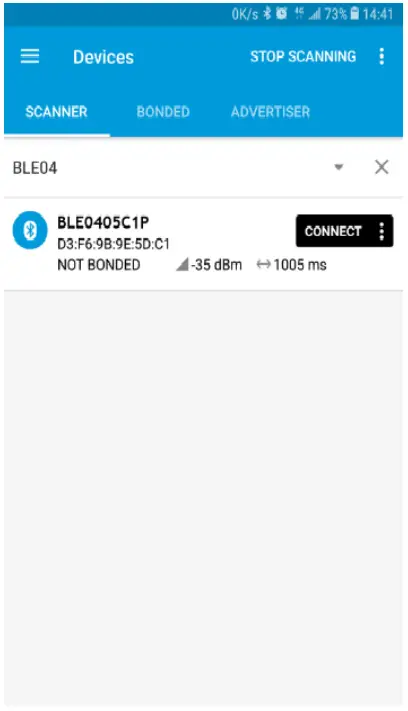
- Open the “nRF Connect” software and the phone will search the BLE Bluetooth devices nearby. The device name “BLE0405C1P” will be shown, which is the default name of the BLE serial port.

- Click “CONNECT”, and the interface will display the list of services included in the adapter after successful connection, and the connection status indicator will be extinguished.

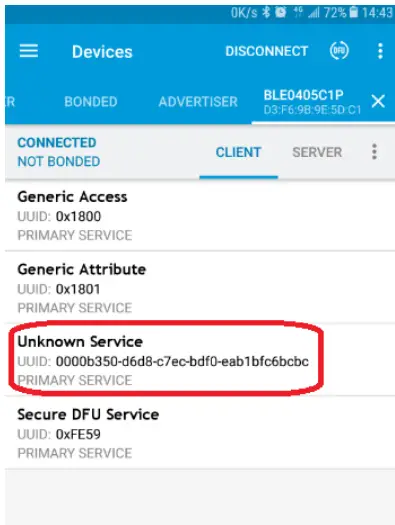
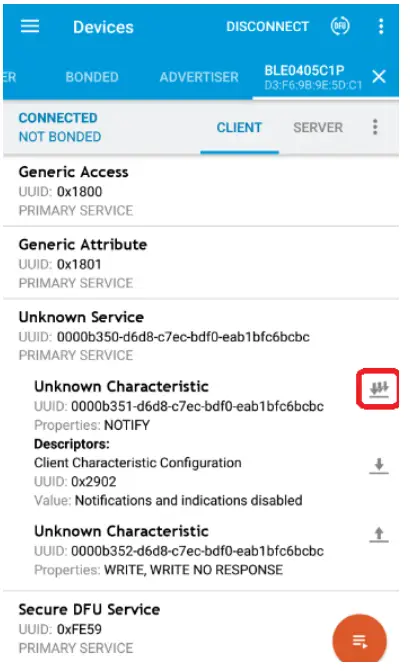 The default service UUID of the module is 0x0000b350-d6d8-c7ec-bdf0-eab1bfc6bcbc; The default TXD characteristic value UUID is 0x0000b351-d6d8-c7ec-bdf0-eab1bfc6bcbc, which is the channel that the adapter sends to the master device.
The default RXD feature value UUID is 0x0000b352-d6d8-c7ec-bdf0-eab1bfc6bcbc, which is the channel that the master device sends to the adapter.
4.Click the NOTIFY button to the right of the TXD feature value to enable the PC serial port to send the data “Hello World” to the serial port of the adapter, and the mobile terminal will receive the data and display it in hexadecimal
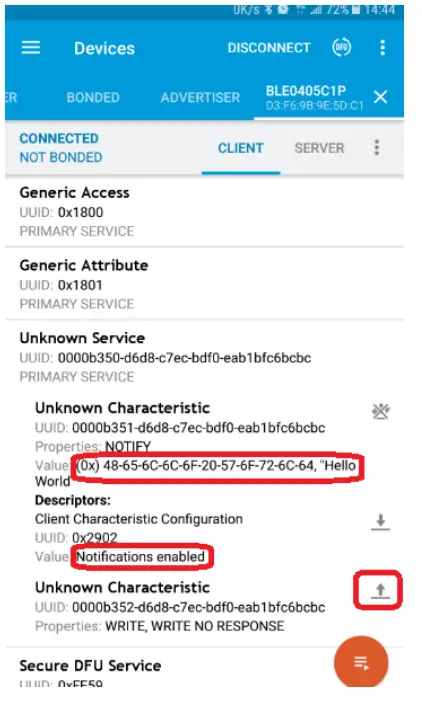
5. Click the Send button on the right of the RXD characteristic value to enter the sending interface, and switch the sending data format to TEXT Enter “Hello World” and click “Send”.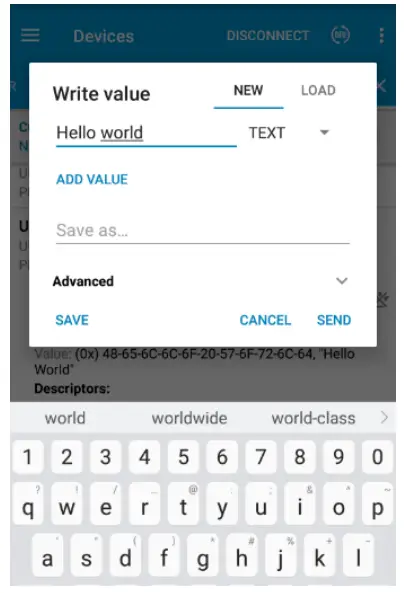
Common Questions
How to send AT command?
The steps are as follows:
Select a serial port communication software (such as super terminal or serial debugging assistant) to open the connected serial port. The serial port parameters in the parameter setting state are always configured as 9600bps, 8-n-1, and are independent of the serial port parameters of data communication set by AT command.
Press the switch button to enable the device to enter the parameter setting state. The flashing indicator light is off. The serial port should receive “+OPEN: x\r\n”, x is the number of devices remembered. At this time, the instruction can be sent. It should be noted that all the instructions end with the carriage return line character “\r\n”. All instructions will return “\r\nOK\ n” after being sent and received correctly. If “\r\ ror \r\n” is returned, please check if it is sent correctly. For example: send test instruction AT\r\n, should send the 4 bytes of ‘A’ ‘T’ ‘\n’. Return to “\r\nOK\ n” after receiving bluetooth correctly.
How to connect the target Bluetooth device when there are multiple Bluetooth devices around?
Enter parameter setting mode and send AT+INQ instruction to get information of all Bluetooth devices around.
Finds the specified Bluetooth address bdaddr through the device name in INQRESULT;
Send AT+RADDR=bdaddr,addrtype to record this device information. The addrtype here needs to be consistent with INQRESULT, which is generally 0 (Public type).
Send AT+BIND=1 instruction to BIND this device; Send AT+ROLE=1 to set the master device;
After exiting the parameter setting mode, the serial port adapter will actively connect to the specified Bluetooth device
2pcs BLE adapters can not connect.
Enter the parameter setting status Inquire to confirm whether the two devices are a setting master device, a setting as slave device, and whether the master device has memorized the address of other Bluetooth devices. If the master has memorized the addresses of other devices, clear them and resend AT+RADDR to record the current address from the device.
FCC Statement
§ 15.19 Labeling requirements.
This device complies with part 15 of the FCC Rules. Operation is subject to the following two conditions: (1) This device may not cause harmful interference, and (2) this device must accept any interference received, including interference that may cause undesired operation.
§ 15.21 Information to user.
Any Changes or modifications not expressly approved by the party responsible for compliance could void the user’s authority to operate the equipment.
§ 15.105 Information to the user.
Note: This equipment has been tested and found to comply with the limits for a Class B digital device, pursuant to part 15 of the FCC Rules. These limits are designed to provide reasonable protection against harmful interference in a residential installation. This equipment generates uses and can radiate radio frequency energy and, if not installed and used in accordance with the instructions, may cause harmful interference to radio communications. However, there is no guarantee that interference will not occur in a particular installation. If this equipment does cause harmful interference to radio or television reception, which can be determined turning the equipment off and on, the user is encouraged to try to correct the interference by one or more of the following measures:
-Reorient or relocate the receiving antenna.
-Increase the separation between the equipment and receiver.
-Connect the equipment into an outlet on a circuit different from that to which the receiver is connected.
-Consult the dealer or an experienced radio/TV technician for help.
RF Exposure Statement:
This equipment complies with FCC radiation exposure limits set forth for an uncontrolled environment. This equipment should be installed and operated with minimum distance 20cm between the radiator & your body.
Manufacturer:
Chongqing Jinou Science & Technology Development Co., Ltd.
Add: D1‐802, Overseas Students Pioneer Park No.71 Kecheng Rd, Jiulongpo District, Chongqing, China
Telephone: 86-23-86501296 Email: [email protected]
Web: www.oemblue.com