
4260195391291 Eve Weather 2nd Generation
Get started
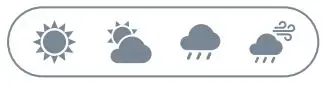
Weather Trend
12-hour weather trend based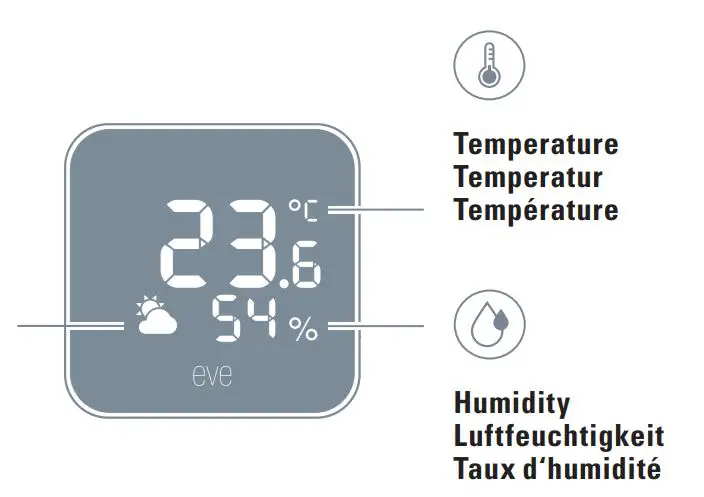
Eve Weather works wonders when simply placed on any surface, or mounted on a wall. Thanks to IPX4 water resistance, even outdoor locations exposed to a little rain are suitable.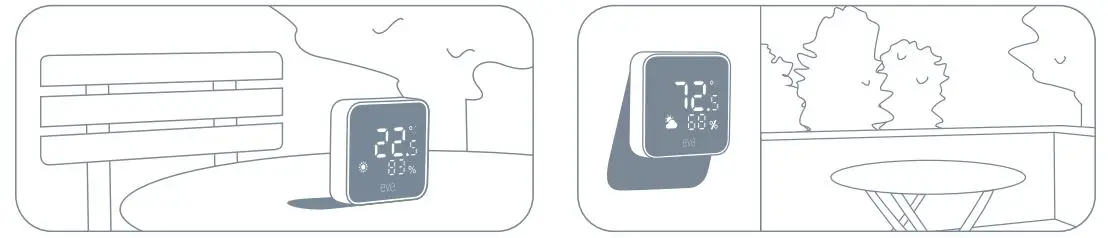
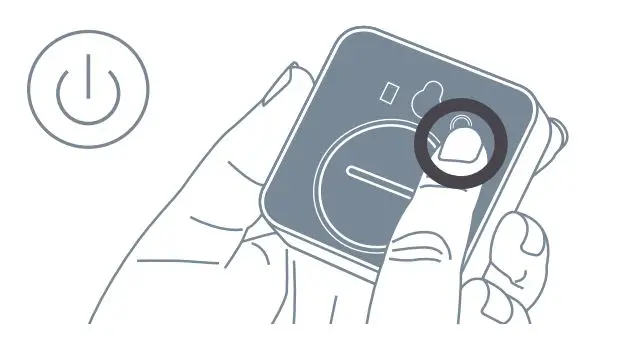
- Press the button once to activate Eve Weather.

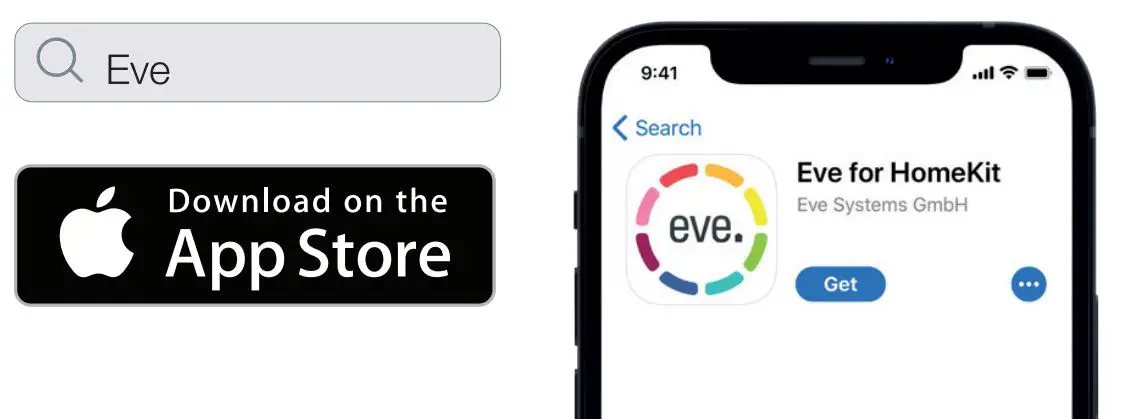
- Download the Eve app from the App Store.

- Open the Eve app and tap Add Accessory. Eve will now guide you through the setup process.


If you have already set up another accessory, go to Settings in Eve to add
Eve Weather to your home.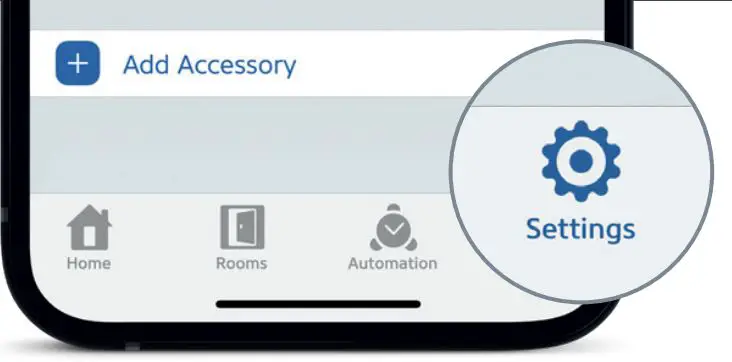
Enjoy
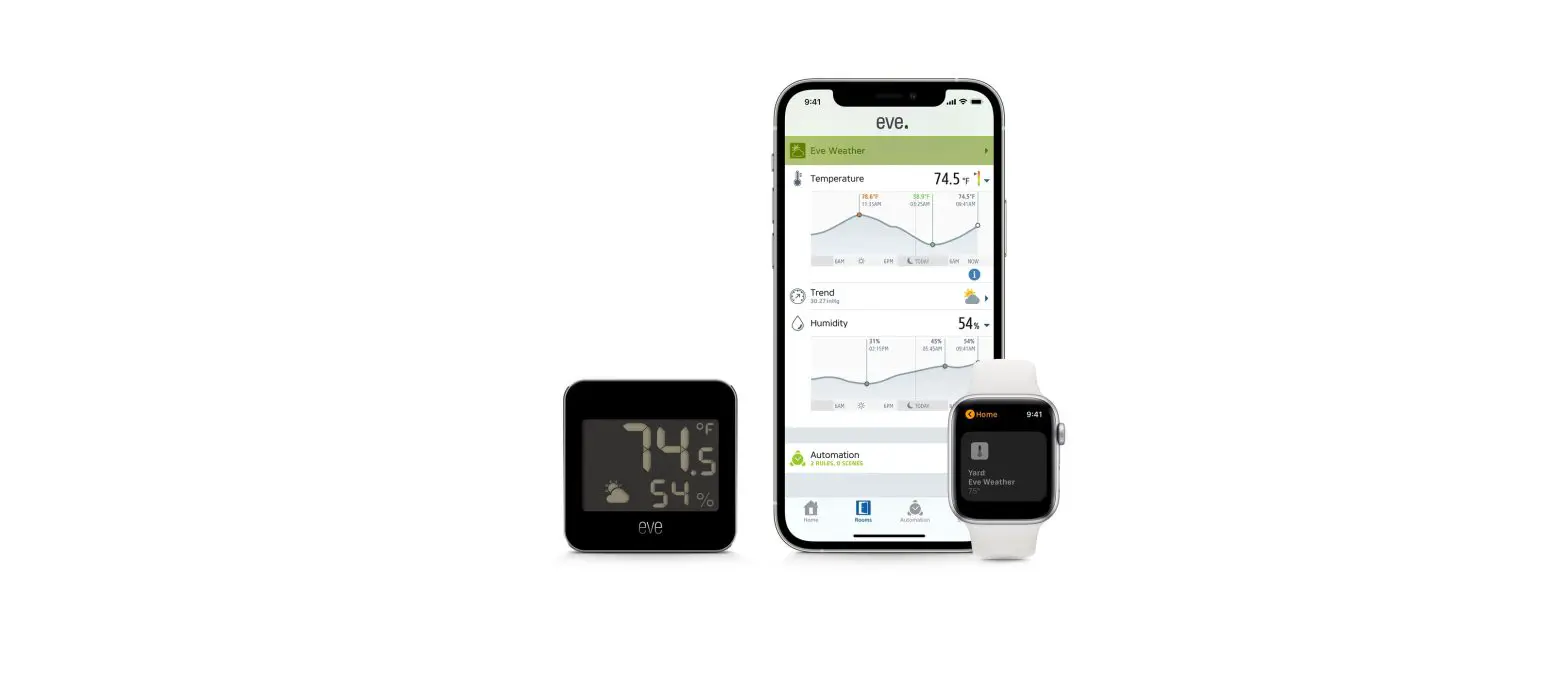
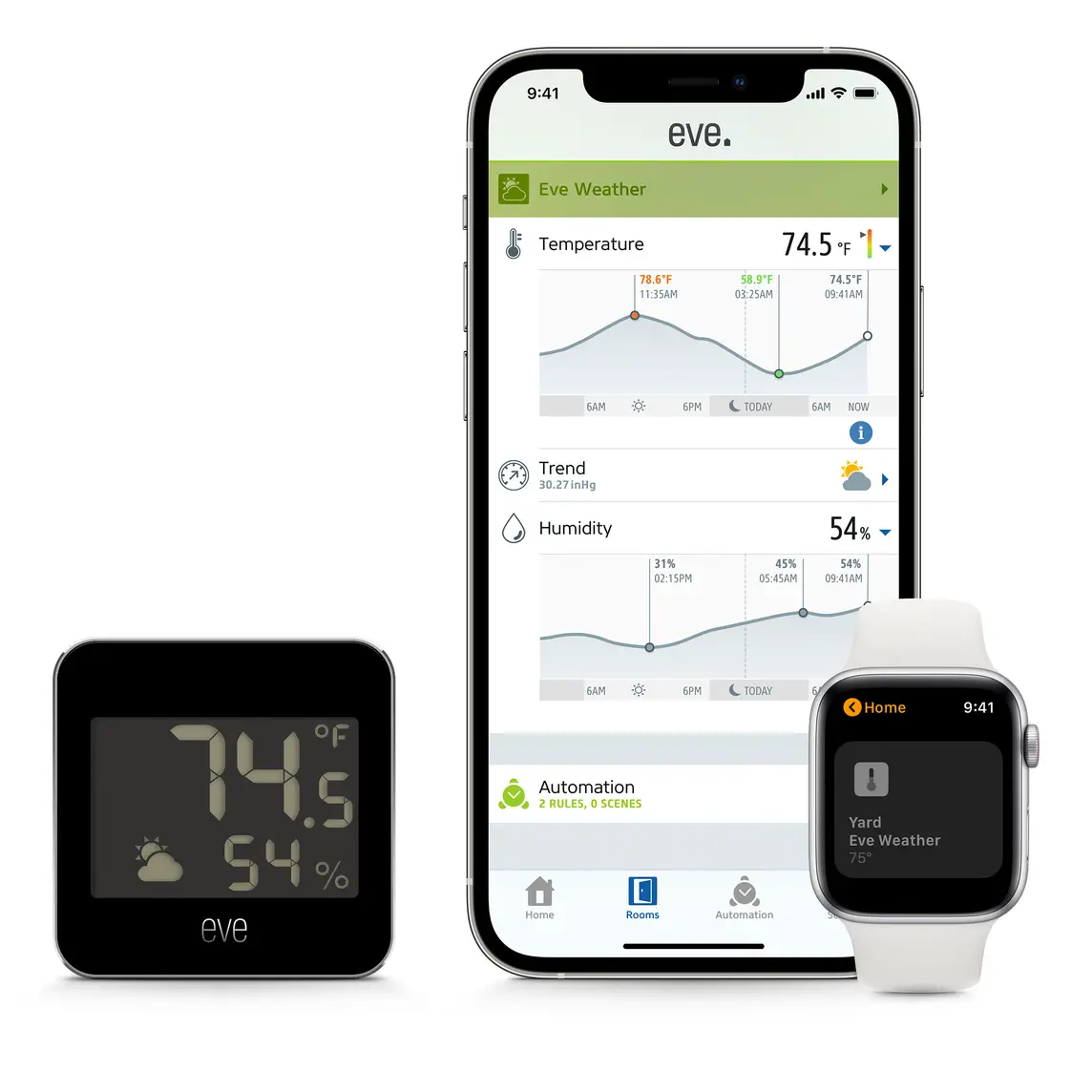
Access Eve Weather using the Eve app, the Home app, and Siri.
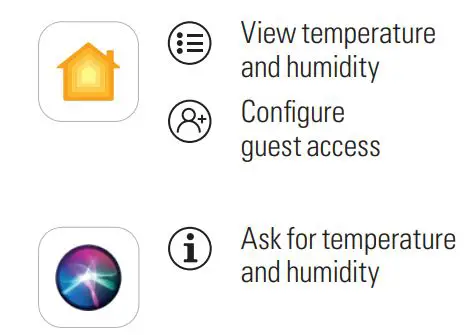
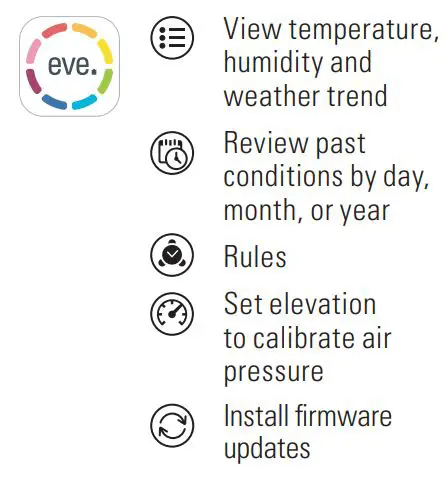
Securely access Eve Weather while you’re away from home and set up powerful automations. Any Apple TV HD, Apple TV 4K or HomePod using the same iCloud account as your iPhone will automatically serve as a home hub, no further setup required.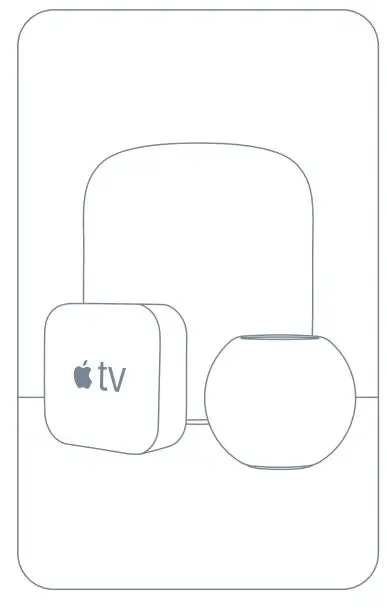
Eve is designed to safeguard your personal data. All data is fully encrypted and only transferred directly between your Eve Weather and iPhone, iPad or home hub. Learn more at evehome.com/privacy
Legal Information
This device complies with part 15 of the FCC Rules and Industry Canada licence-exempt RSS standard(s). Operation is subject to the following two conditions: (1) This device may not cause interference, and
(2) this device must accept any interference received, including interference that may cause undesired operation.
This equipment has been tested and found to comply with the limits for a Class B digital device, pursuant to part 15 of the FCC Rules. These limits are designed to provide reasonable protection against harmful interference in a residential installation. This equipment generates, uses and can radiate radio frequency energy and, if not installed and used in accordance with the instructions, may cause harmful interference to radio communications. However, there is no guarantee that interference will not occur in a particular in-stallation. If this equipment does cause harmful interference to radio or television reception, which can be determined by turning the equipment off and on, you are encouraged to try to correct the interference by one or more of the following measures: reorient or relocate the receiving antenna; increase the separation between the equipment and receiver; consult the dealer or an experienced radio/TV technician for help. This Class B digital apparatus complies with Canadian ICES-003.
This equipment complies with FCC RF, IC RSS-102 and CE radiation exposure limits set forth for an uncontrolled environment. This equipment should be installed and operated with a minimum distance of 20 centimeters between the radiator and your body. This transmitter must not be co-located or operating in conjunction with any other antenna or transmitter.
Changes or modifications not expressly approved by Eve Systems could void your authority to operate this device. Purpose of control: operating control; construction of control: plug-in operating control; type 1 action, operating time: continuous.
Frequency range: 2402 – 2480 MHz (BLE) / 2405 – 2480 MHz (Thread); max. EIRP: 10 dBm Product: 10EBS9901
• Model: 20EBS9901
• Part: 51EBS9902
• FCC ID: SNE-WEATH-002
• IC: 11192A-WEATH002
Battery & Reset
When replacing the battery, use a coin to open the enclosure. Insert a new CR2450 battery with the positive (+) side up, and push gently while closing the cover. Press and hold the button for 10 seconds to reset Eve Weather.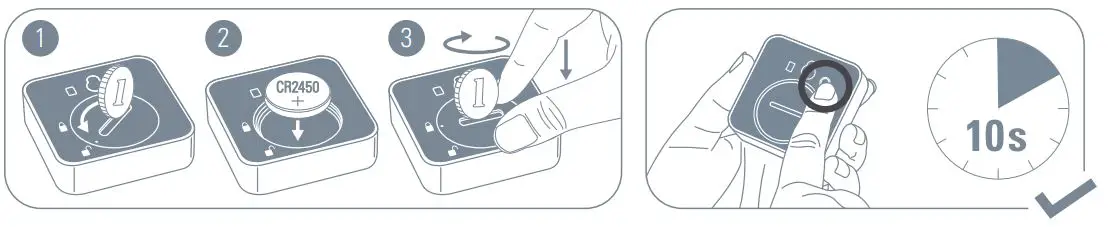
Please keep your HomeKit setup code in a safe place. You need it to securely add Eve to your home, and nobody but you has a copy.