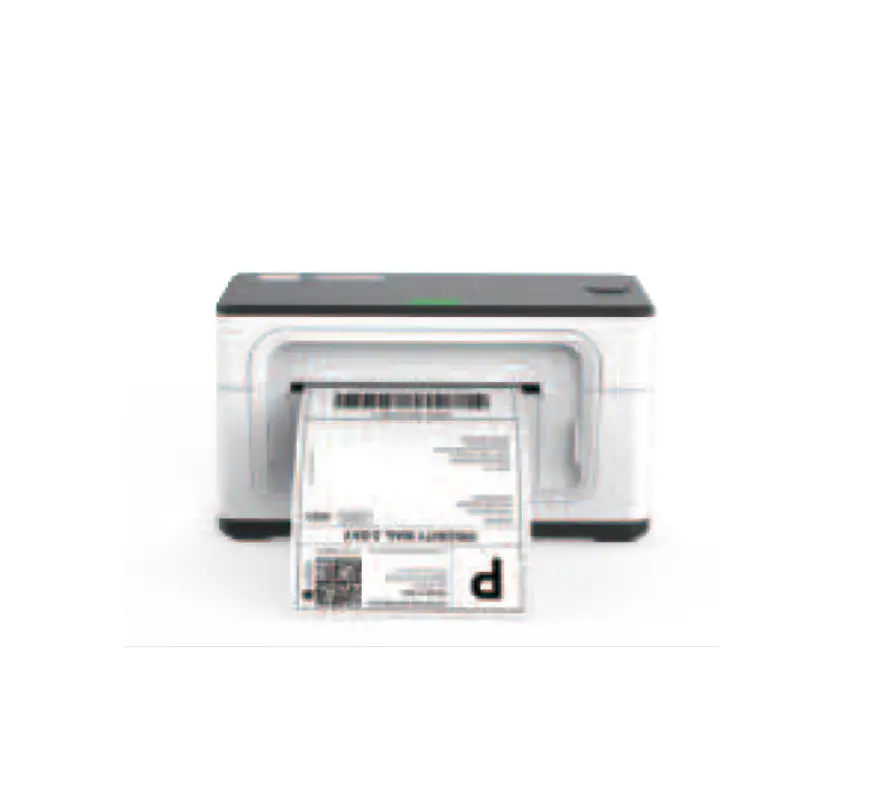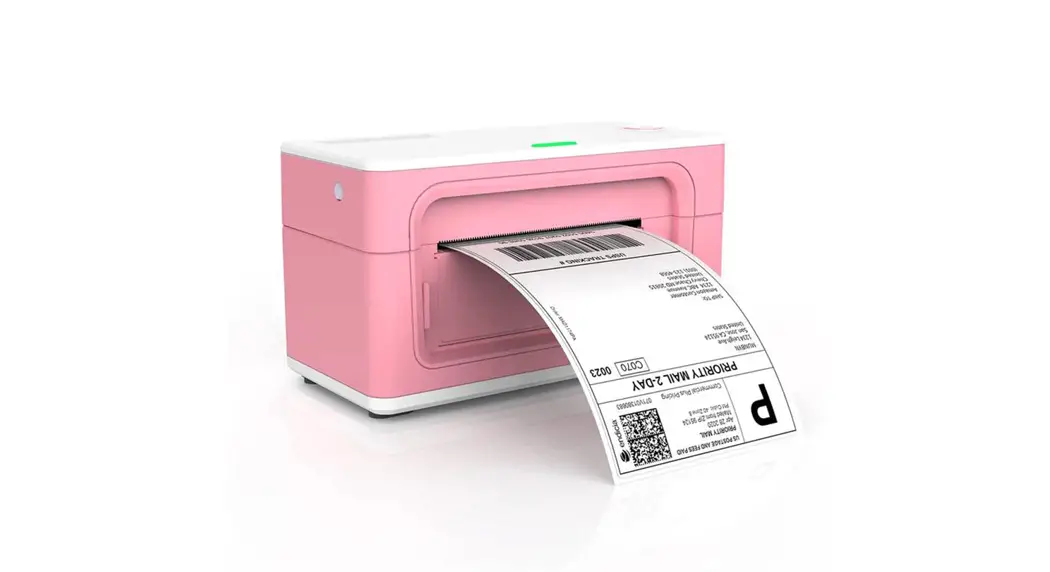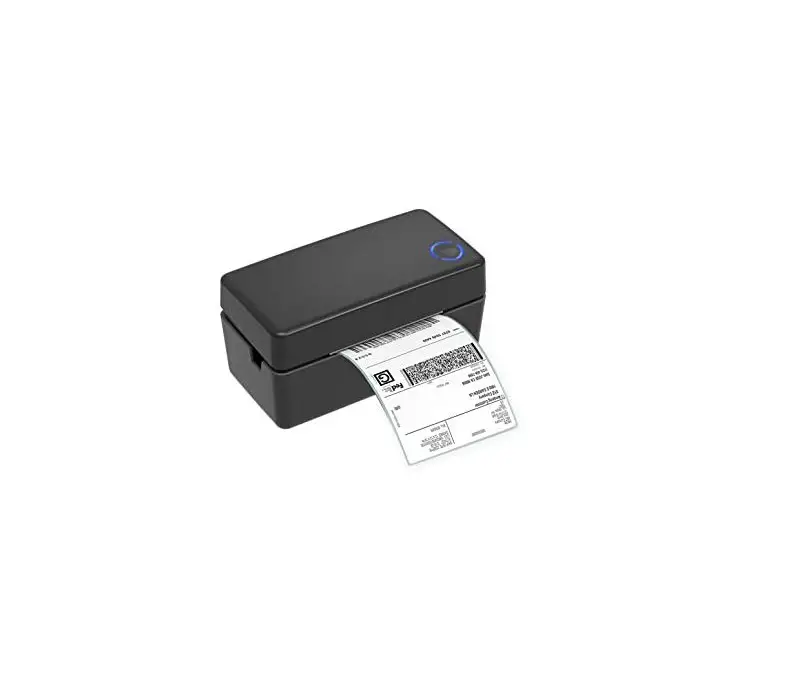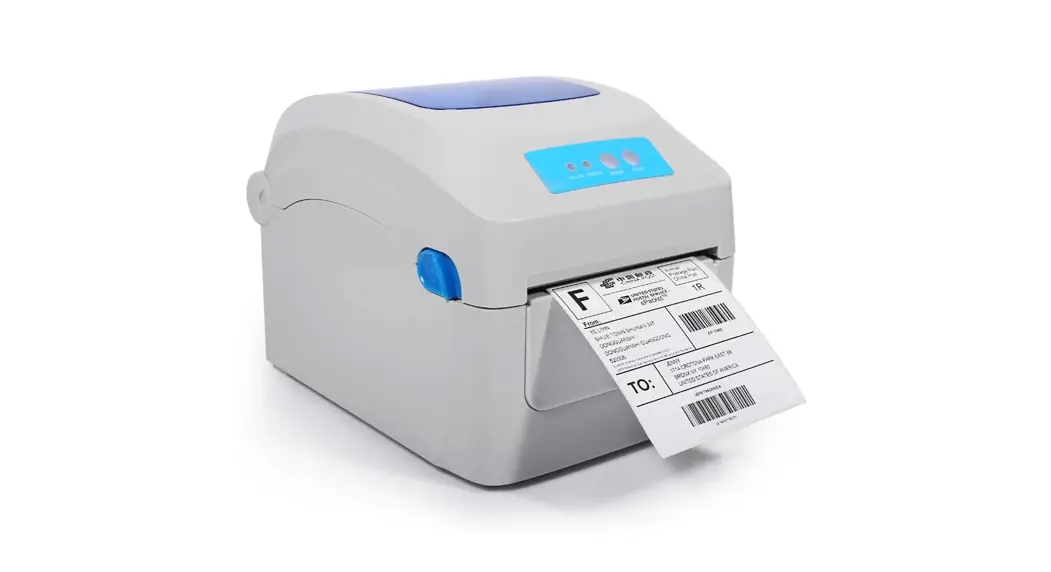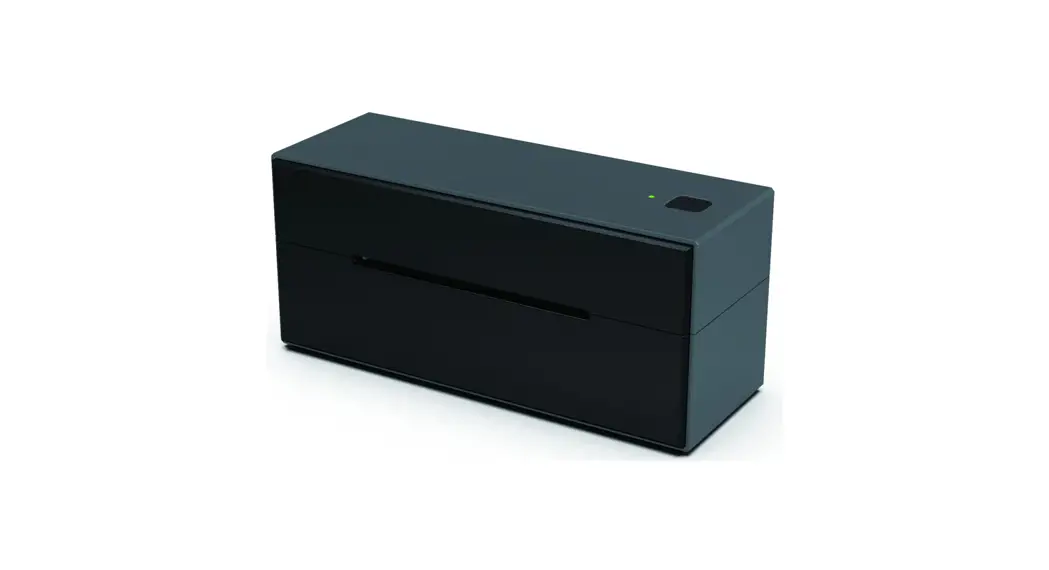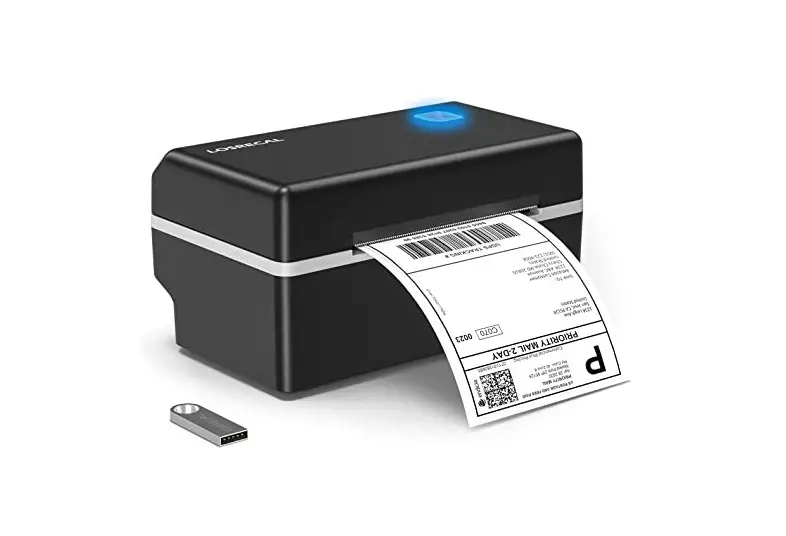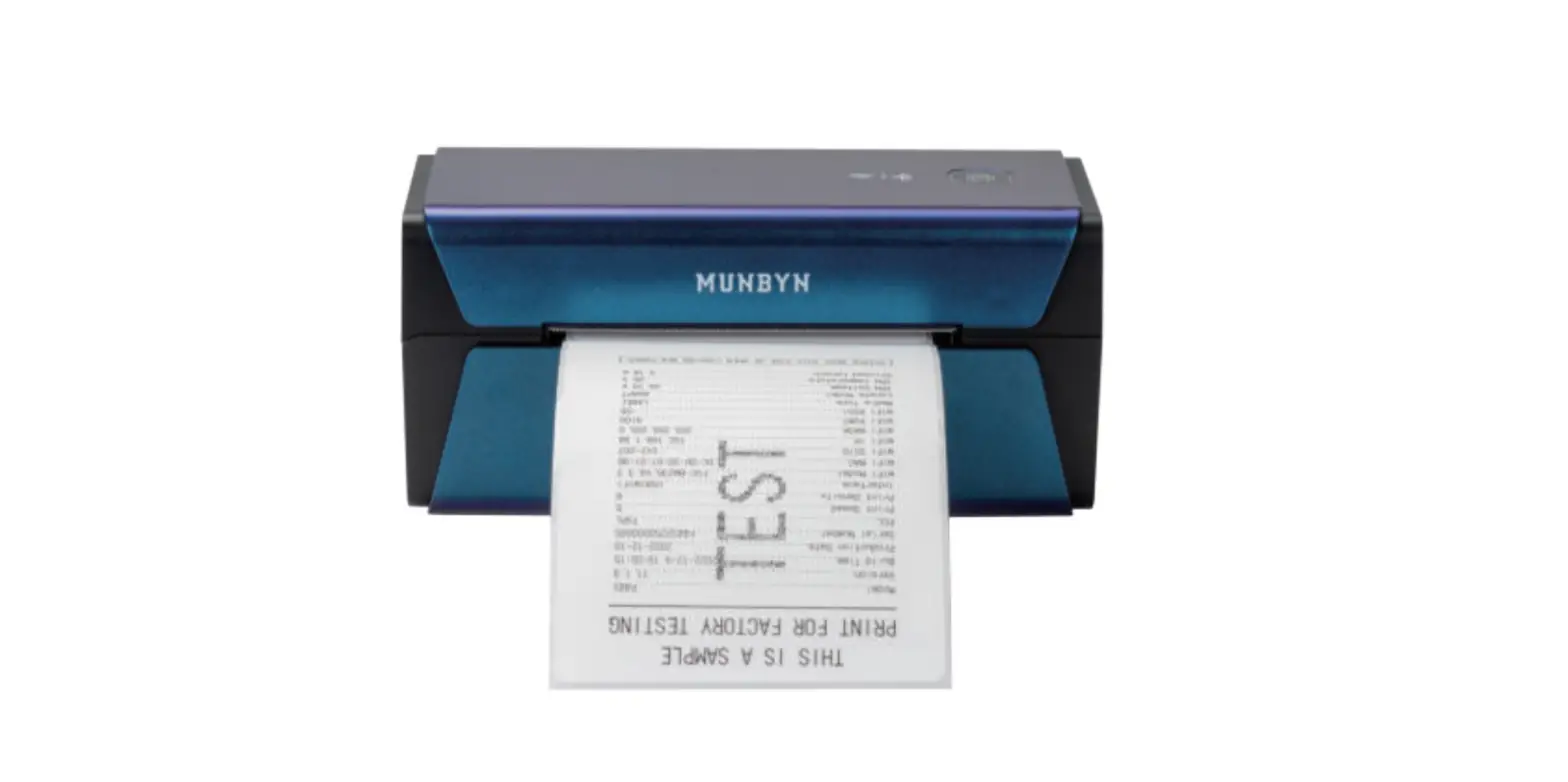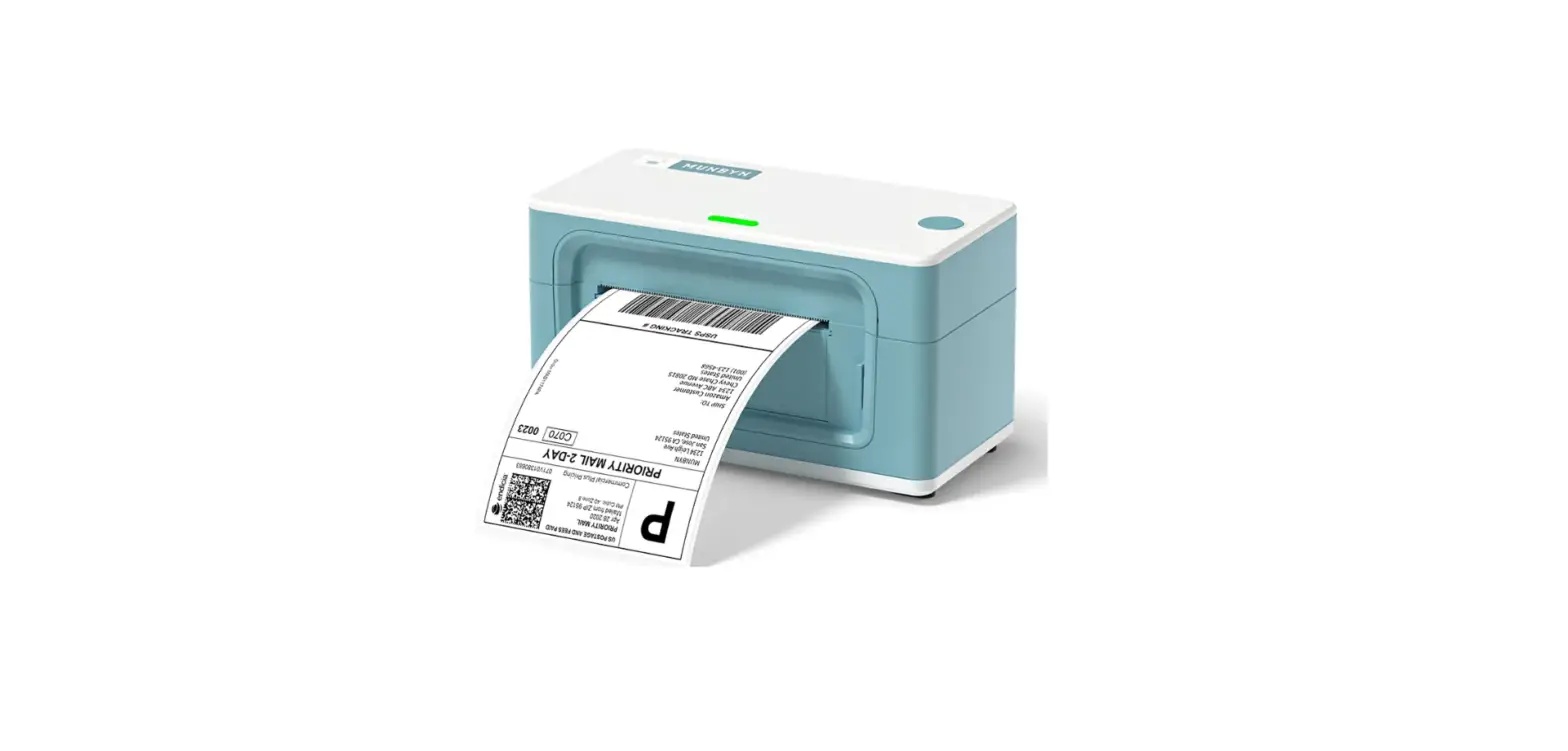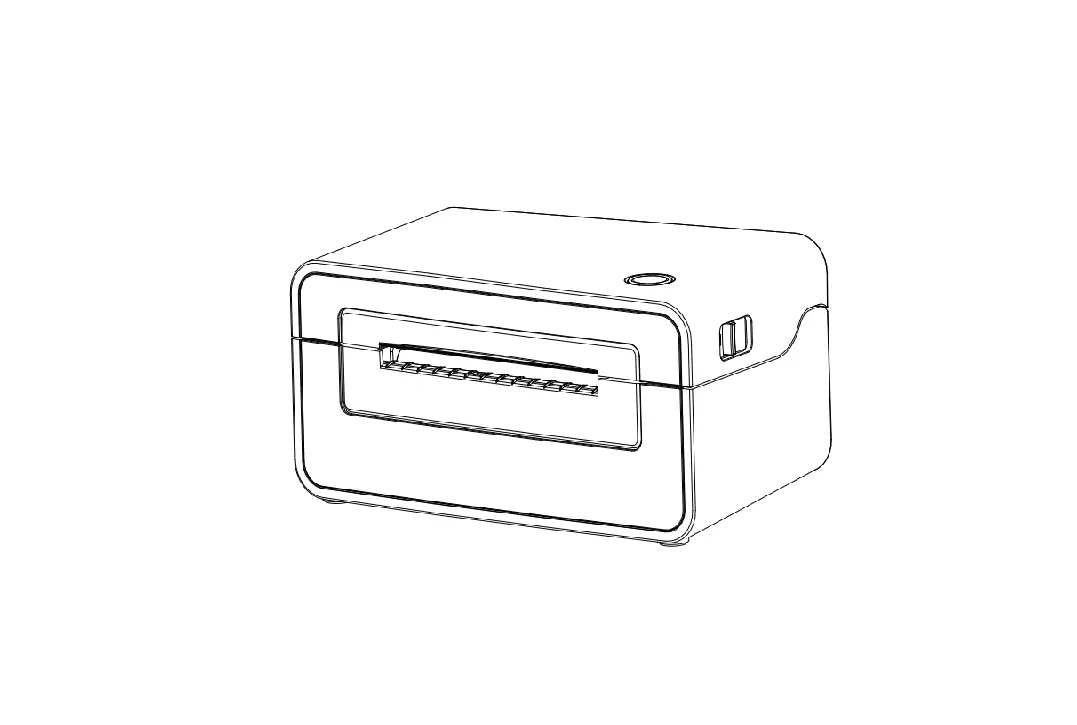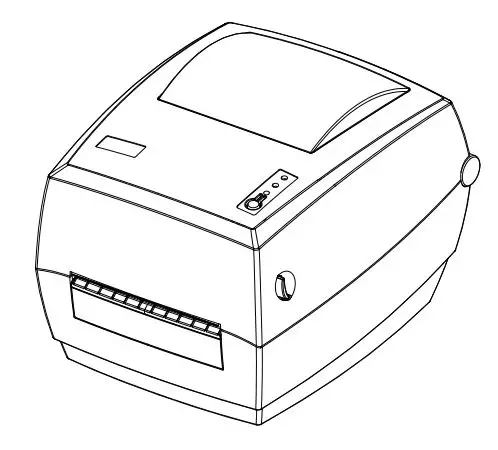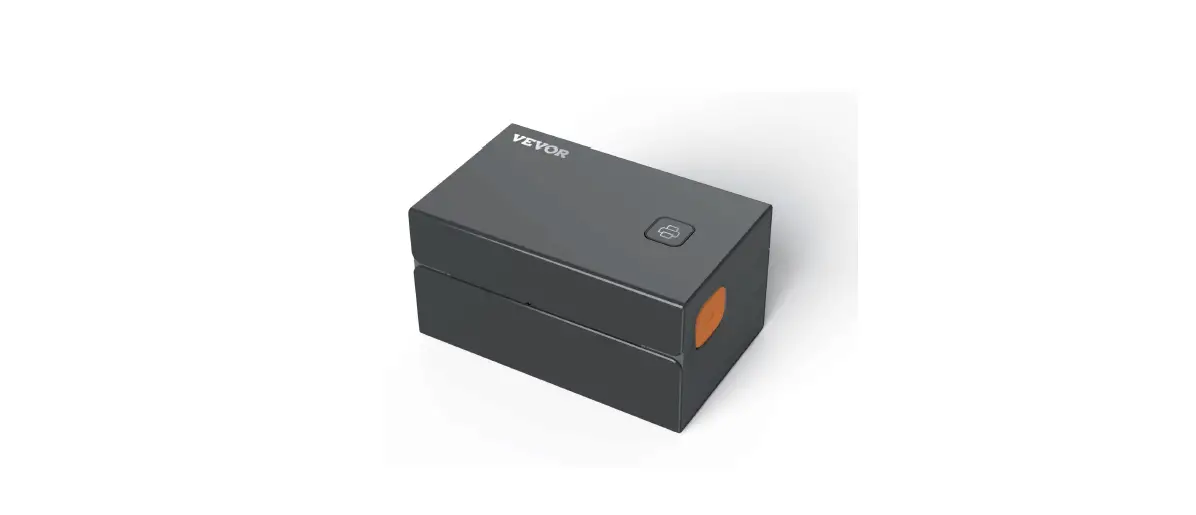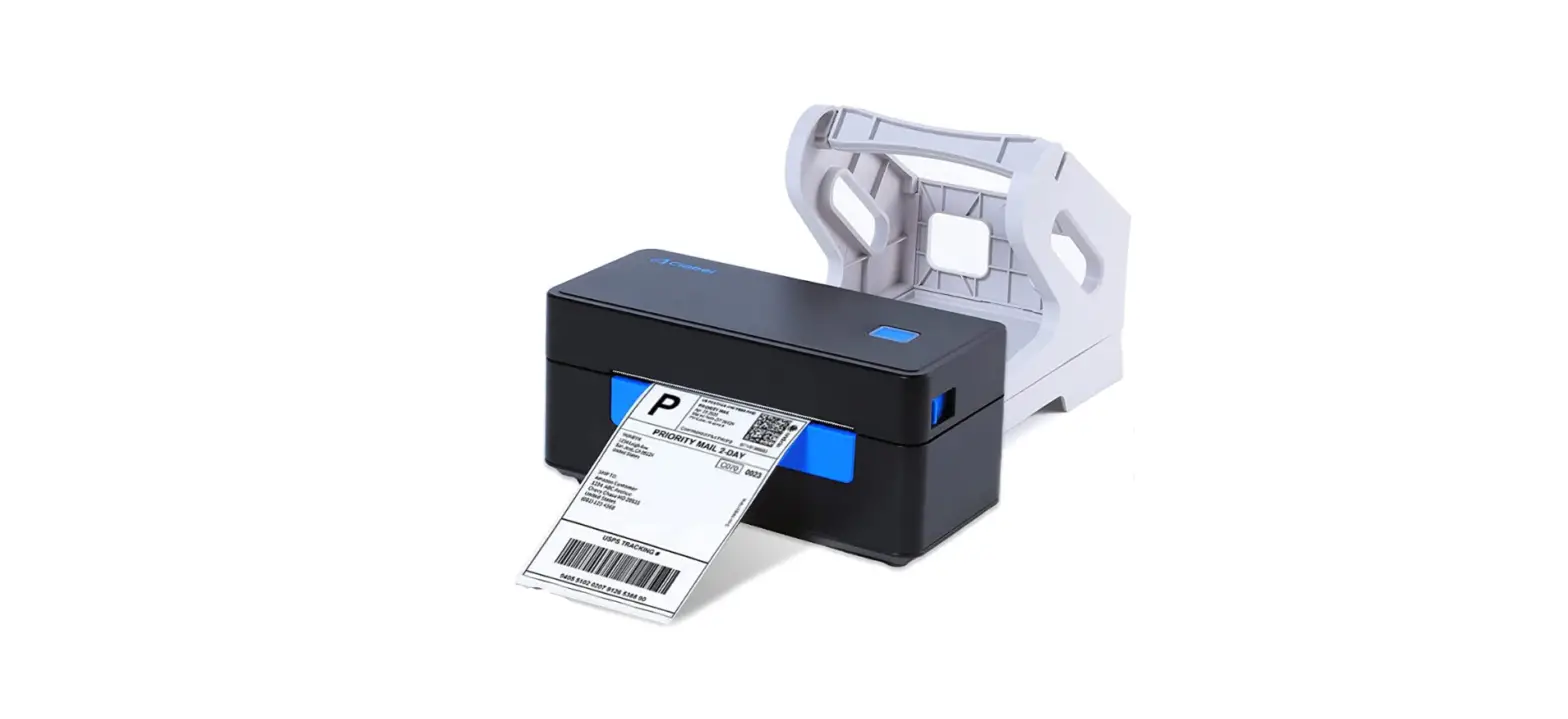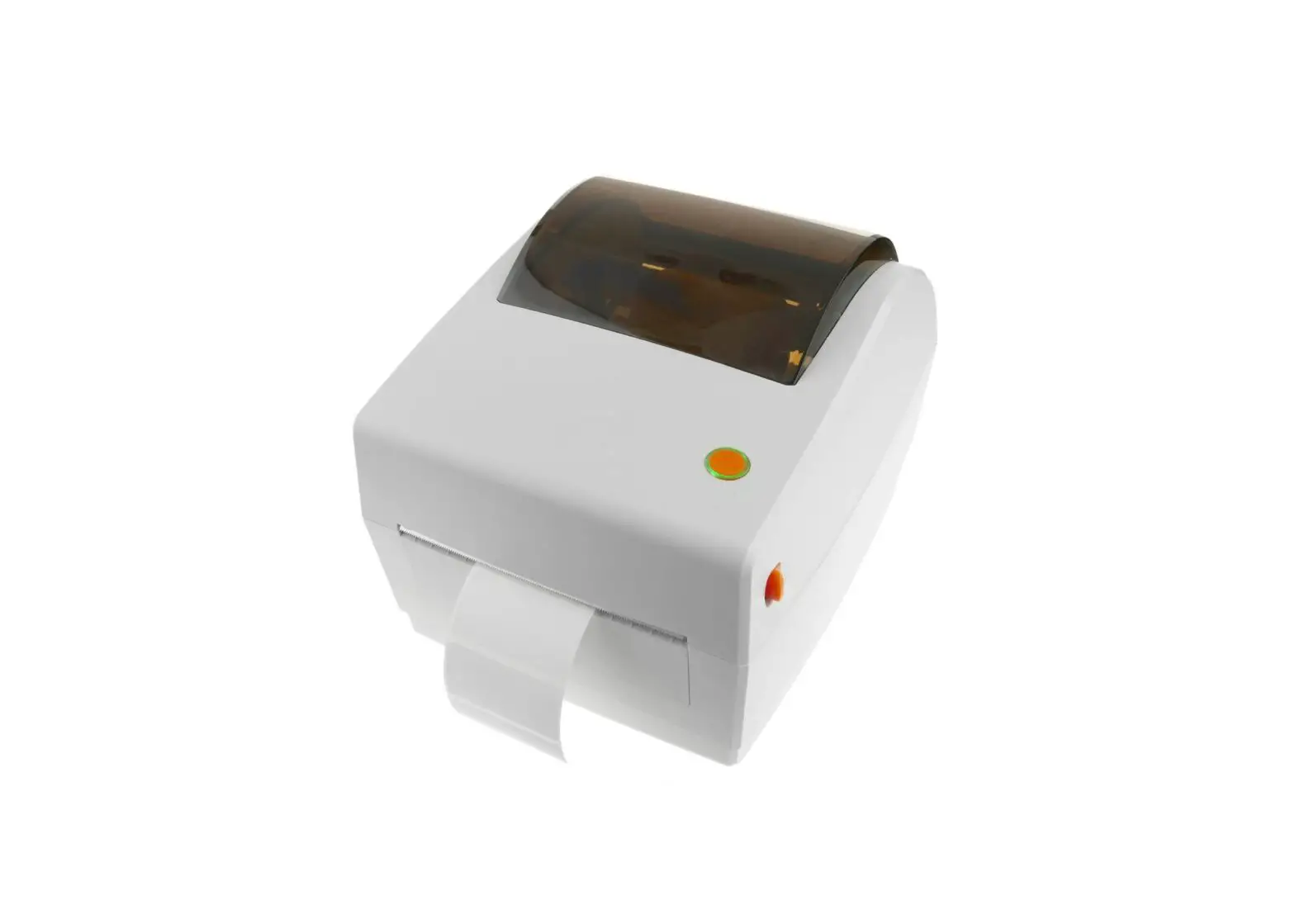
 ITPP941 Logistics Label Printer
User Guide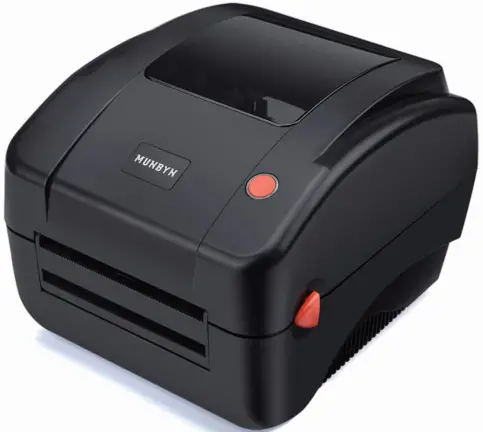
PRODUCT INTRODUCTION
What’s in the box?
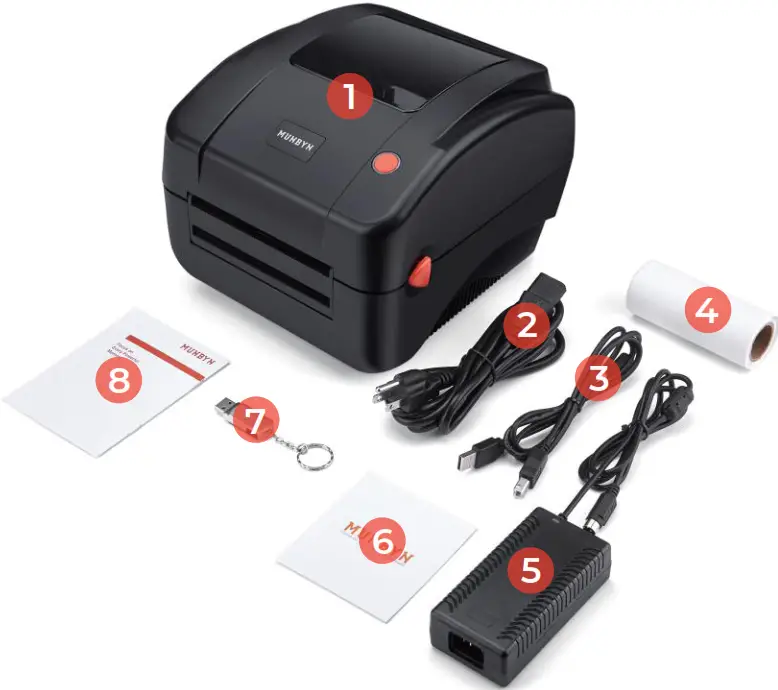
- Printer
- Power Cable
- USB Cable
- Labels
- Power Adapter
- After-sale card
- U flash Drive
- User Manual
QUICK PRINTER INSTALLATION
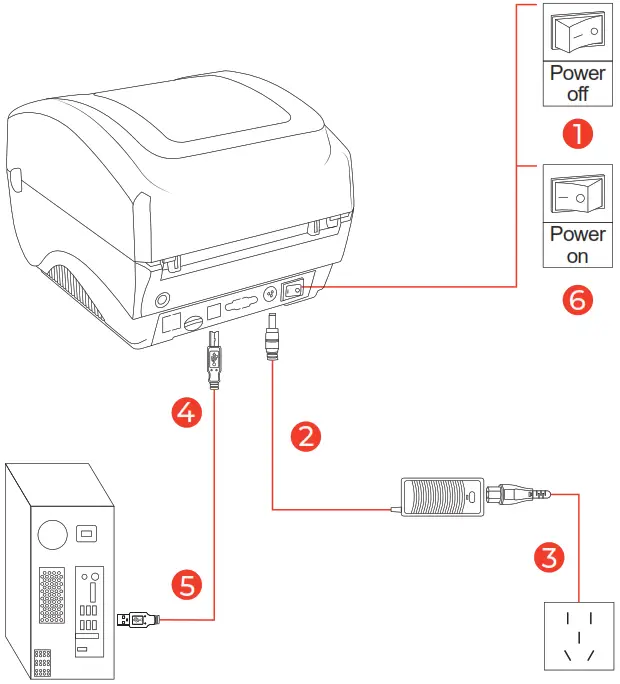
Note: Please use the power adapter provided by MUNBYN.
LABEL SETUP
- Facing the front of the printer, press the cover open button to open the top cover.
- Install the label paper with the holders on both sides.
- Finish the label paper installation, and then close the cover.
- For new label paper, do the label size calibration again.
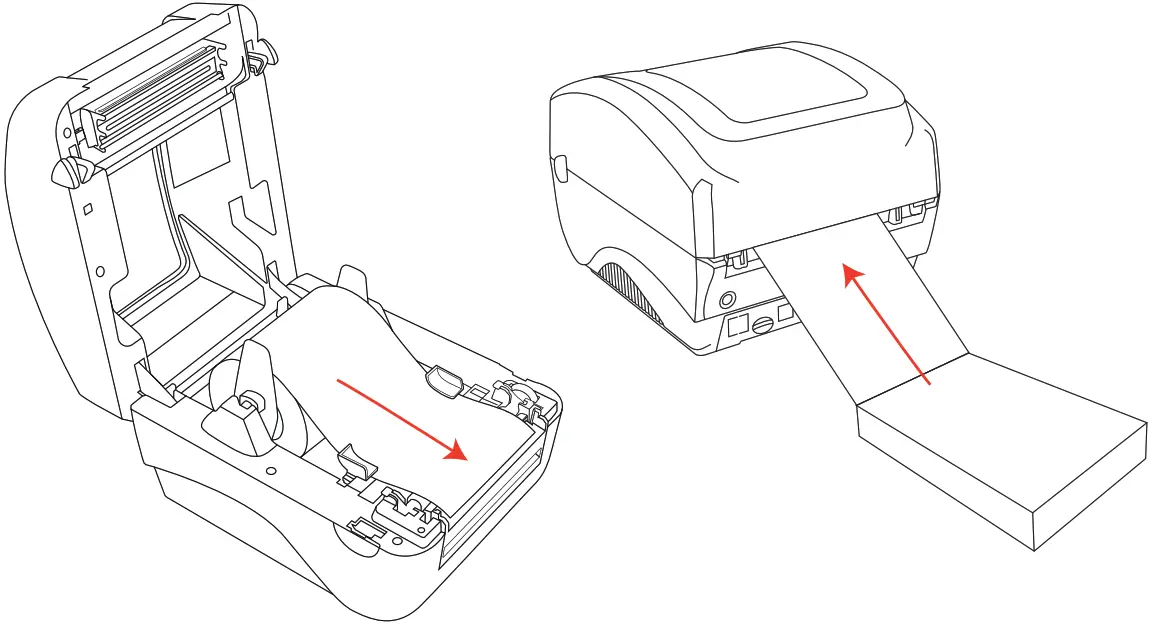
Note: Before using the printer to print labels, please calibrate the paper size.
Label size calibration:
- Turn on the printer.
- Press the FEED button and hold on.
- Release the button when you hear one beep sound.
- Then, the printer will calibrate the label size.
DRIVER INSTALLATION
Support downloading driver files via USB flash drive or download link.
Printer driver download link: https://munbyn.biz/988d
Warning
The printer head (TPH) will be very hot after printing, Please do not touch the printer head or parts around it.
WINDOWS DRIVER INSTALLATION
Note: Please connect to the computer first and then turn on the printer.
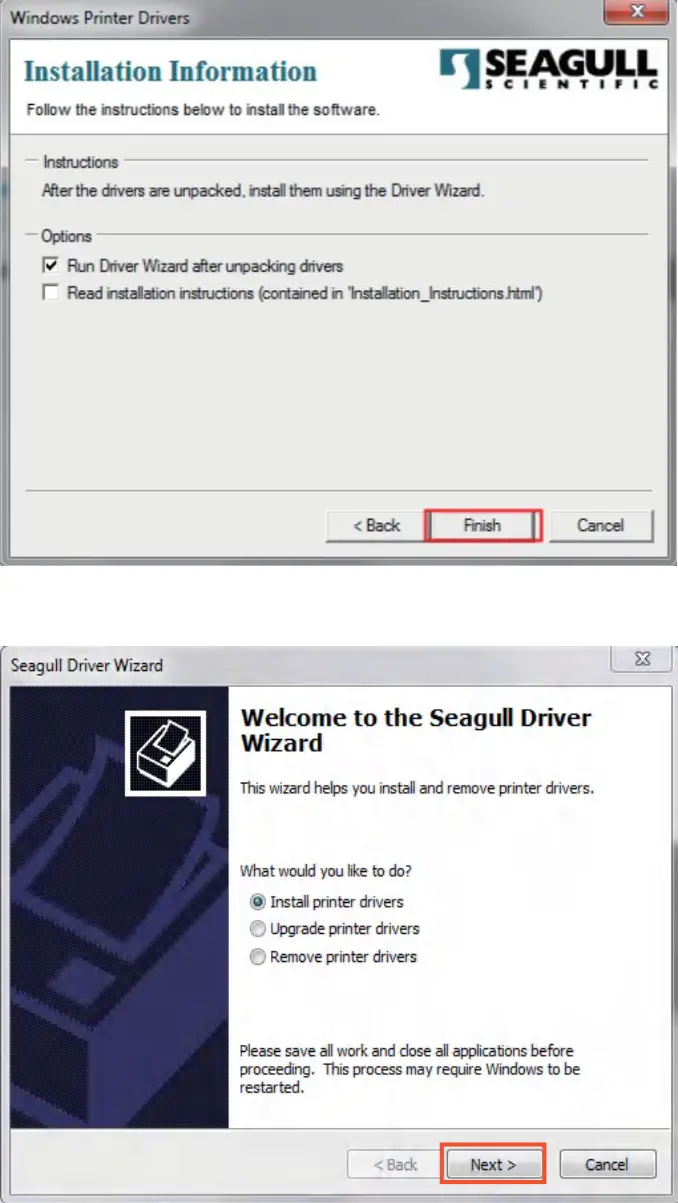
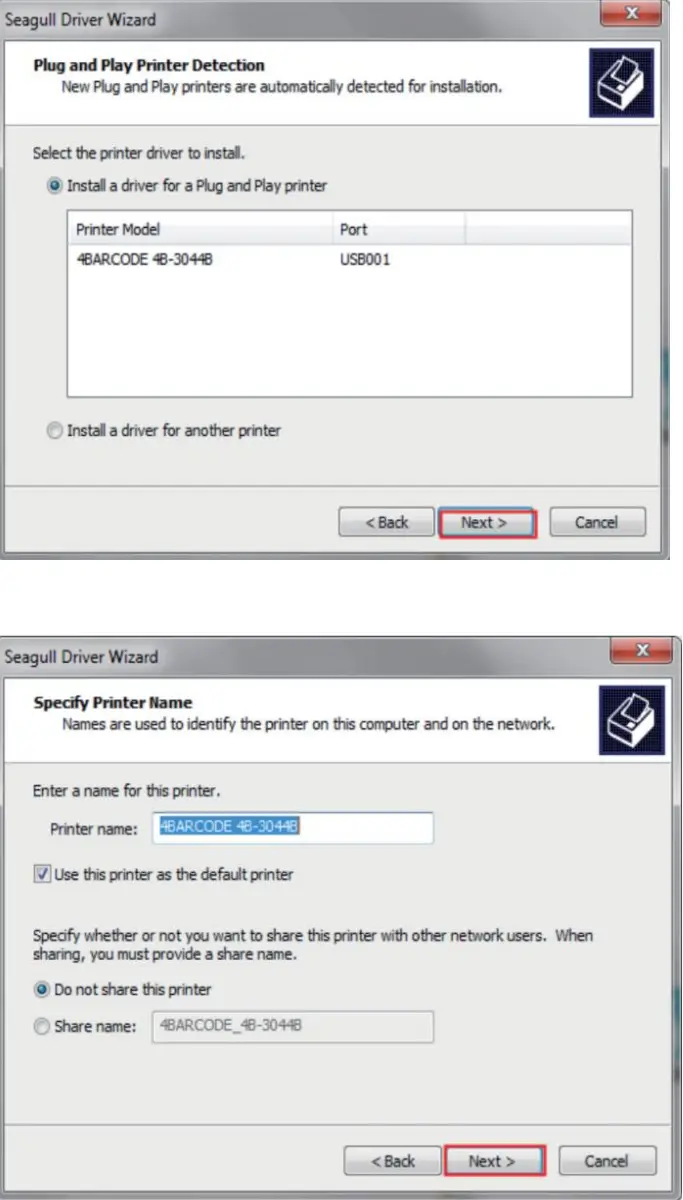
- Open the driver file you downloaded.

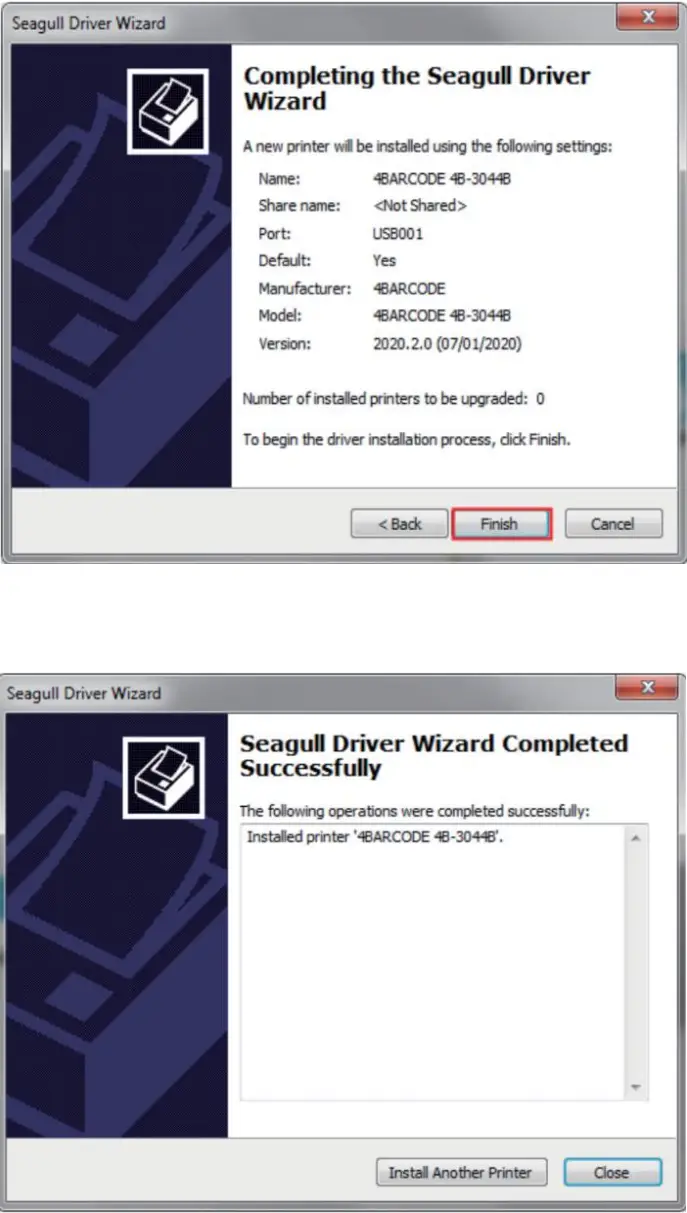
- Follow the instruction to install the driver.


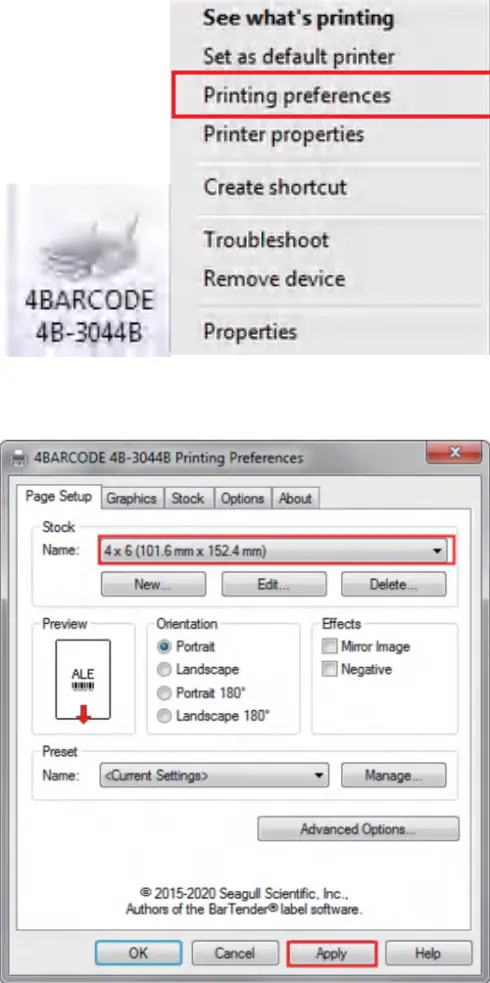
- Check the printer Page Setup (4 in×6 in ) in Printing preferences


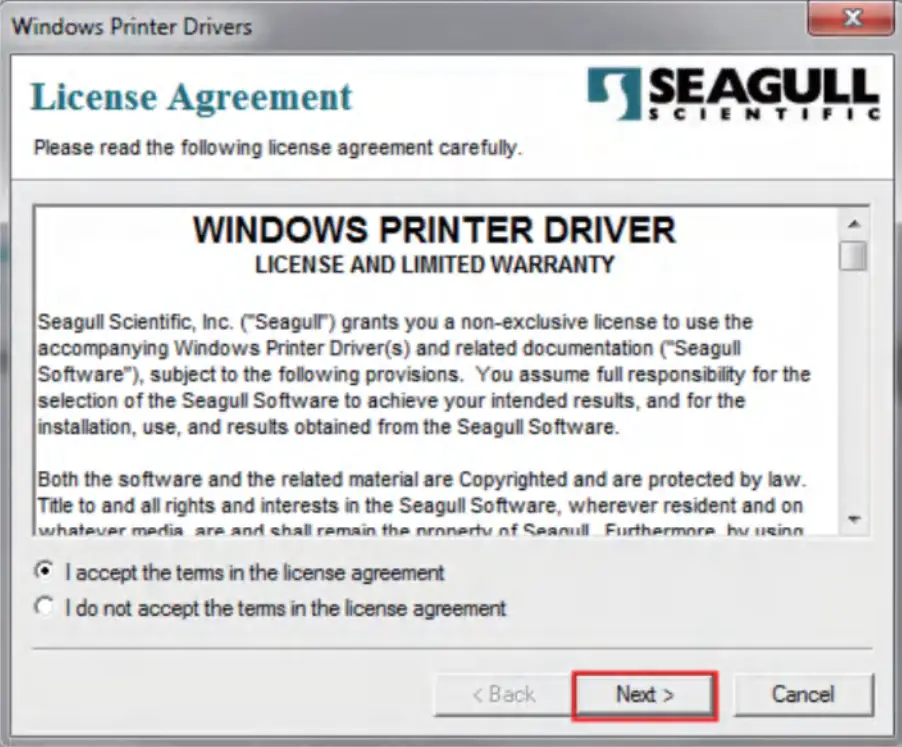
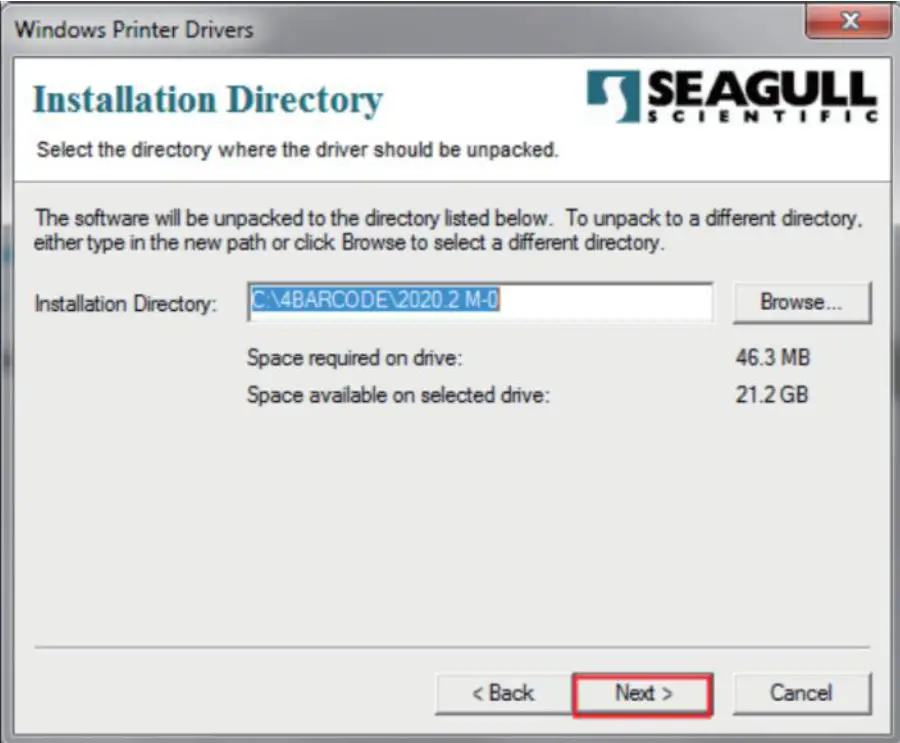
Note: If the USB interface cannot be recognized during the installation process, please restart the printer.
MAC DRIVER INSTALLATION
Note: Please connect to the computer first and then turn on the printer.
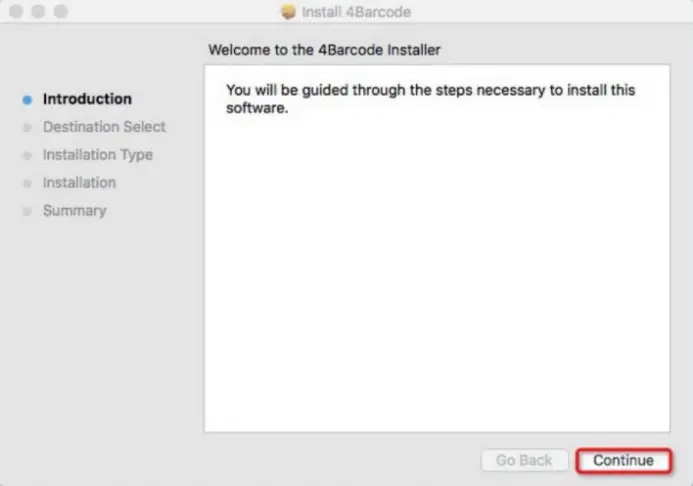
- Open the driver software you downloaded.

- Start installation.

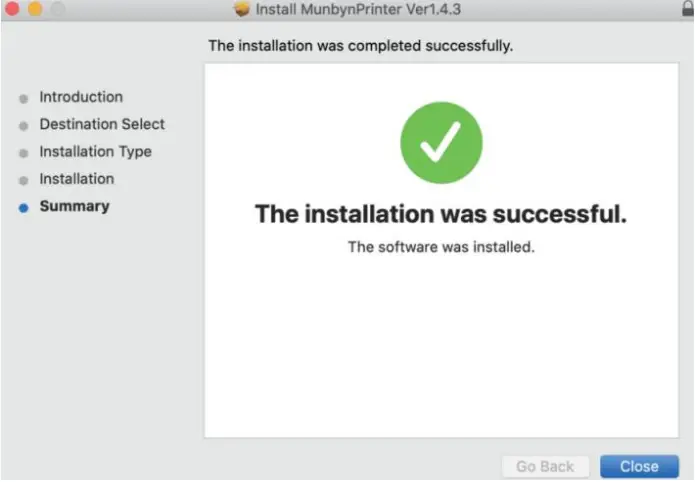
- Follow the guideline to install until “The installation was successful” appears.

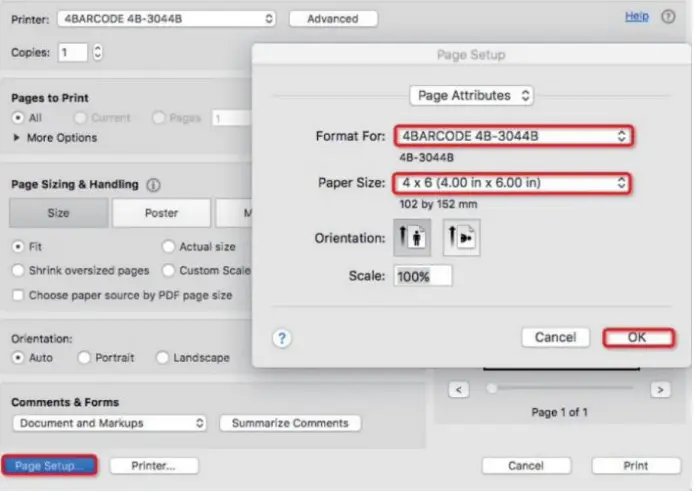
- Page Setup, choose 4×6” (100×150 mm), then we can open the document and select the printer to print shipping labels.


| Printer status | Operation of FEED | Function |
| Standby | Short press the button(light) | Feed in a blank paper |
| Standby | Long press the button(light) until beeps once | Automatically calibrate the paper size |
| Standby | Long press the button(light) until beeps twice | Print out the Self-test page |
| Stand by | Long press the button(light) until beeps five times | Reset printer |
LED STATUS
| Description | LED indicator |
| Power on, waiting for printing instructions | Blue light |
| The printer is downloading data or paused | Blue light flashing |
| The printer is clearing data | Purple light |
| The cover is open | Red light |
| Printing errors, such as: out of paper, paper jam, memory error, etc. | Red light flashing |
FAQ
Q1: When the printing is too faint, how to adjust the density and printing speed?
A1: For Windows: Printer Preferences → Options → Setting; For Mac OS: Can be set in the drop-down menu under ‘Printer Features’
Q2: What can I do if the paper is jammed or there are white spots in my print?
A2: Turn off the printer, and allow the printer head to cool down. Use the pad with alcohol to wipe the printer head clean.
Q3: Why does the printer print extra blank labels after the one successful print?
A3: Please check if the paper size setting of the printer is correct, and adjust the scale and margins in the preview page or page setup when you are printing from the browser. Q4: Why I am printing blank labels?
A4: Make sure your labels are ‘Direct Thermal’ labels and the label that you peel off should be facing the ceiling when it comes out of the printer. If it still does not work, reinstall the driver
Q5: How can we print the label that is not in standard 4*6 size, such as the USPS?
A5: You can use the adobe reader software to open the file, click on “edit”, choose “take a snapshot” and then click on “print”.
Q6: How to print self-test labels?
A6: The self-test label can be used to determine whether the machine is malfunctioning and whether the printing performance is good. You can print the self-test label as follows.
- Turn on the printer.
- Press the FEED button and hold on.
- Release the button when you hear two beep sounds.
SPECIFICATIONS
| Method | Direct Thermal |
| Resolution | 300 DPI |
| Max Printing Speed | 106mm/s |
| Paper Width | 104mm |
| Paper Thickness | 0.06-0.25mm |
| Power Adapter | 24V/2.5A |
| Printing Life | TPH 30 Km |
| Connection | USB |
SUPPORT
Need Tech Support, contact us by:
 https://wa.me/qr/5R2RRPLNUBYNH1
 https://www.facebook.com/munbyn/
E-mail: [email protected]
Whatsapp: +8617817881067
Skype: munbyn
Support time: Monday to Friday 24 hours.
Focus on Every Powerful Moment
 Warning! | There might be a problem with the requested link