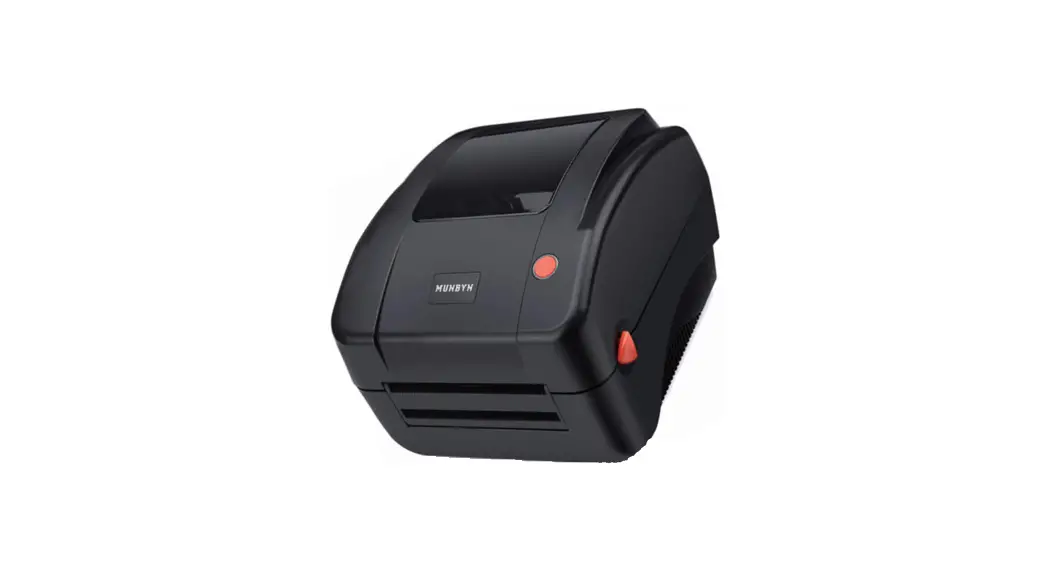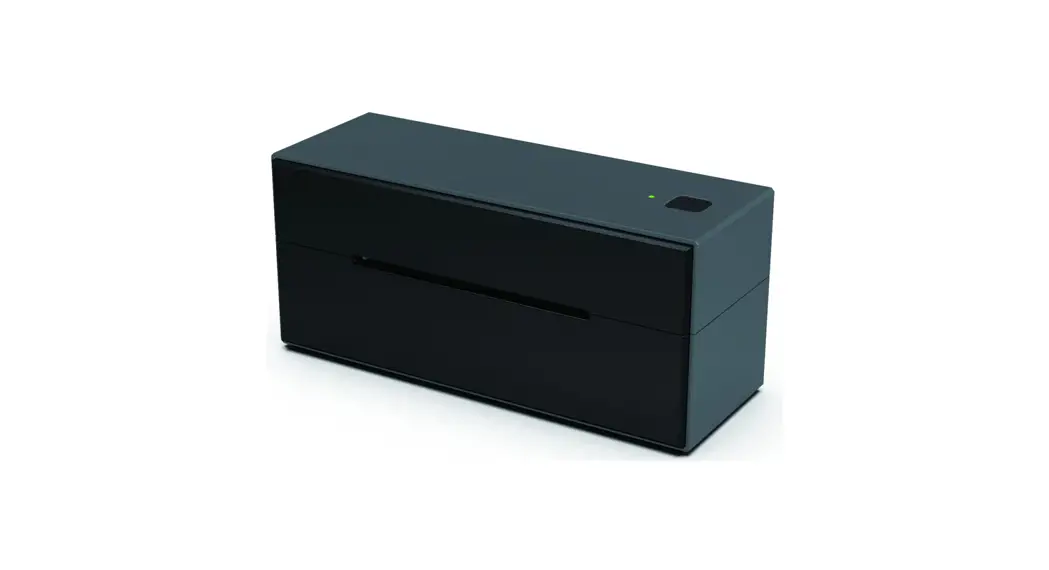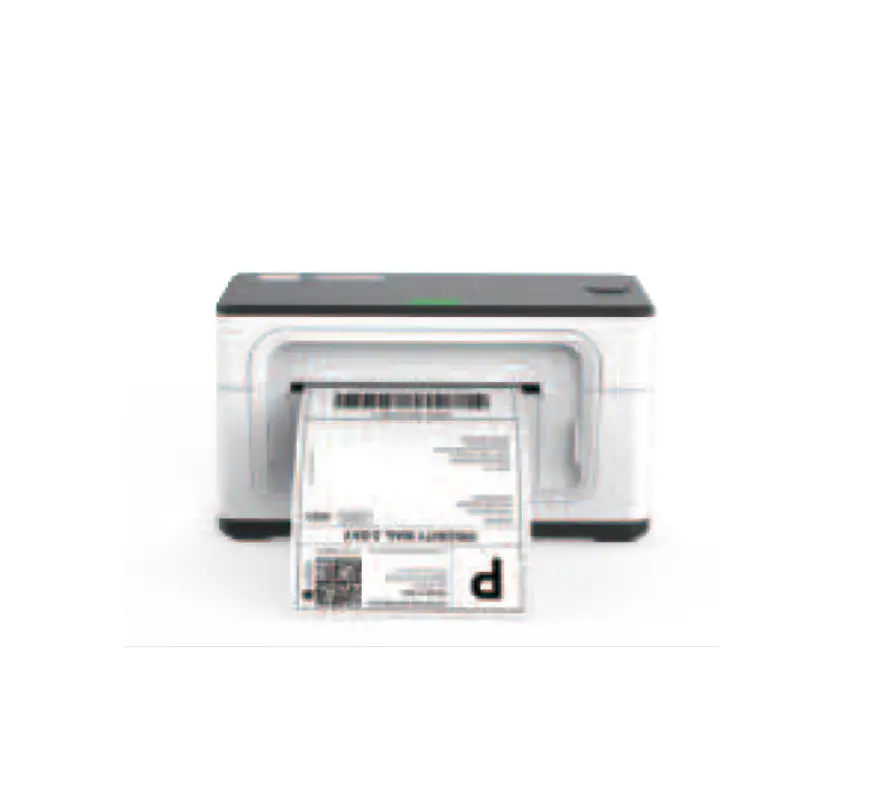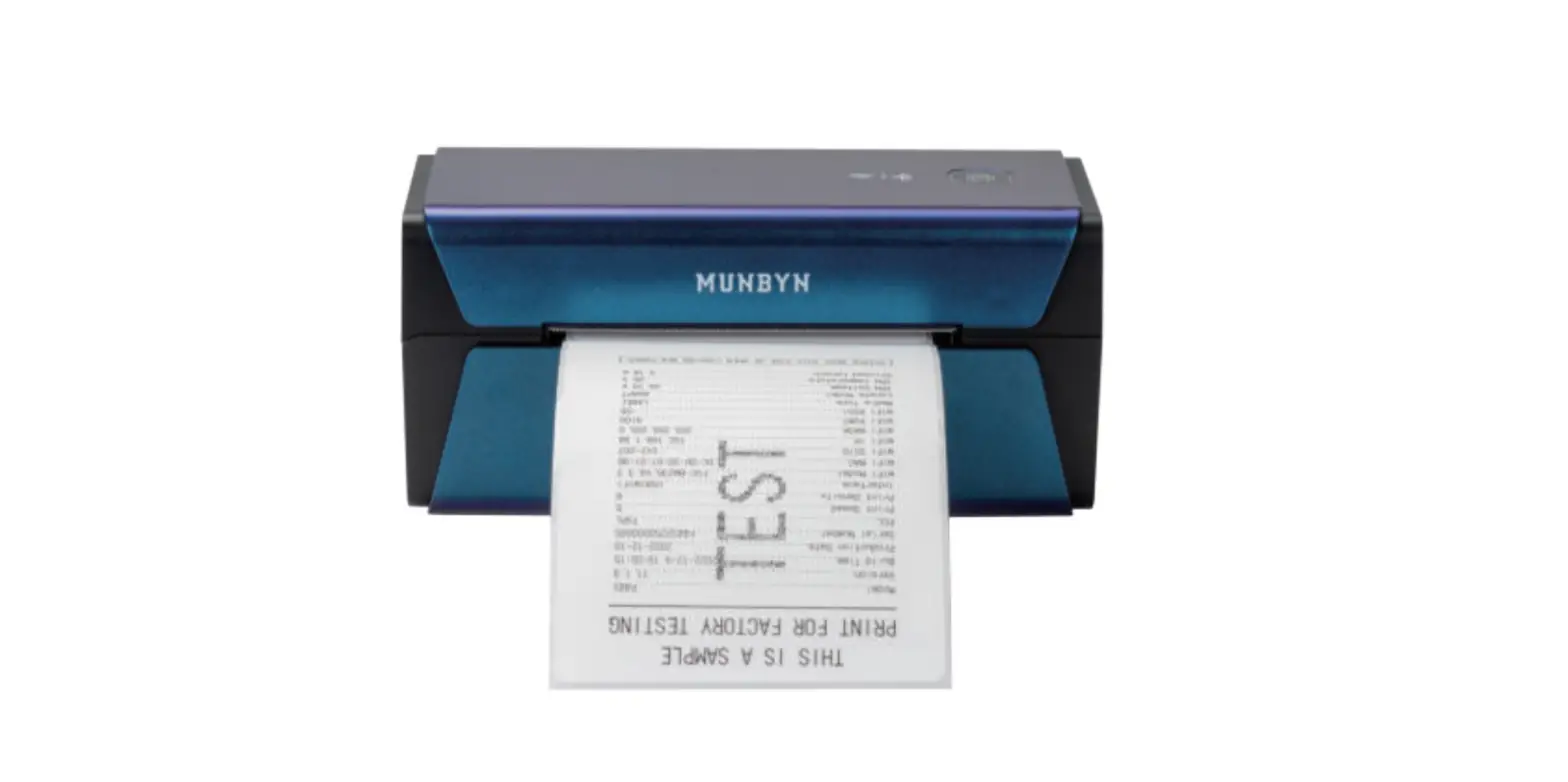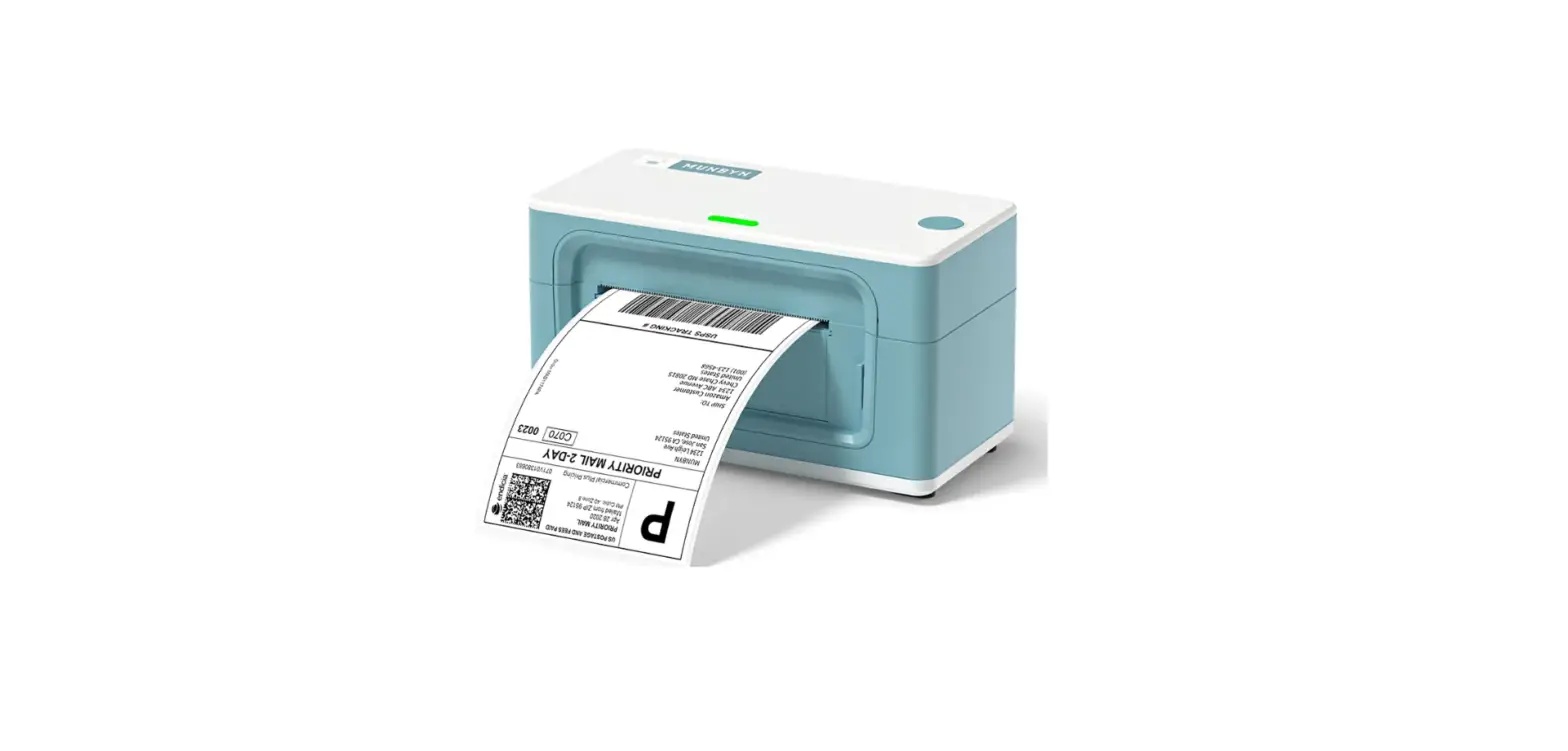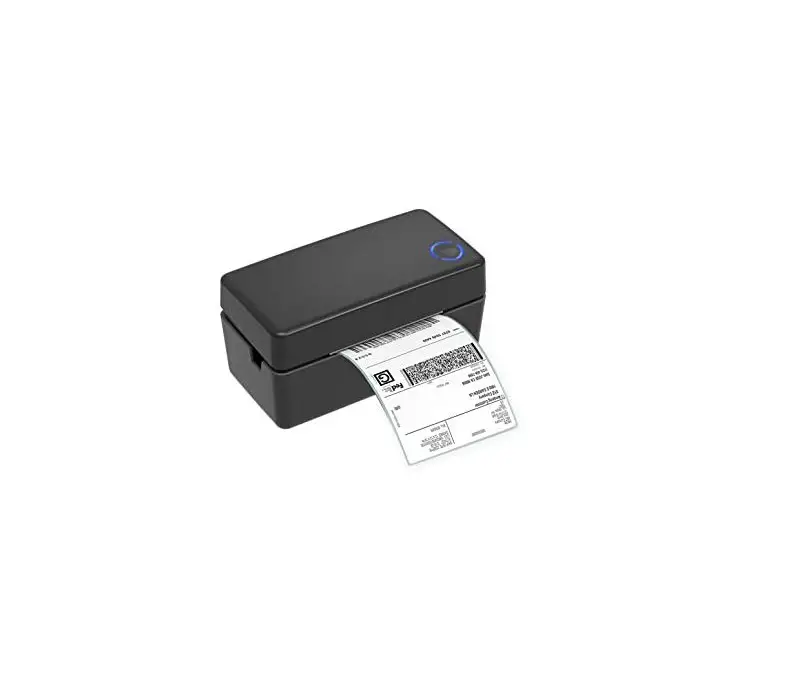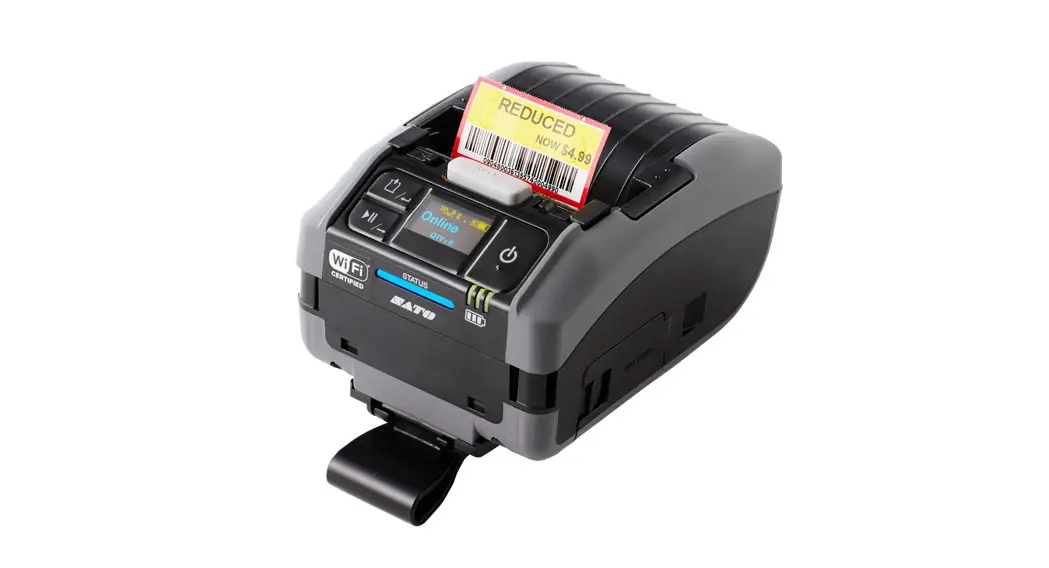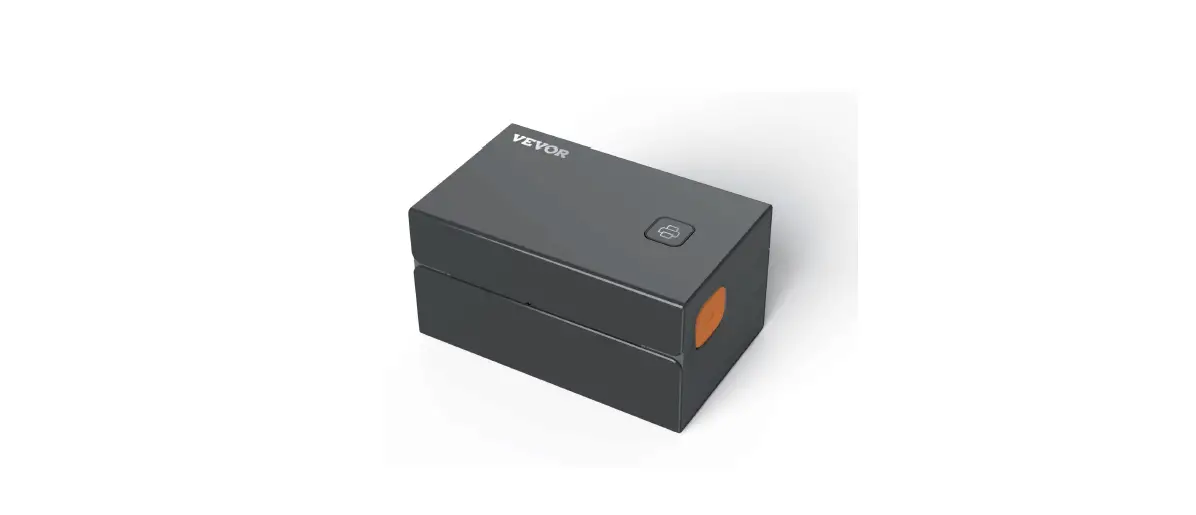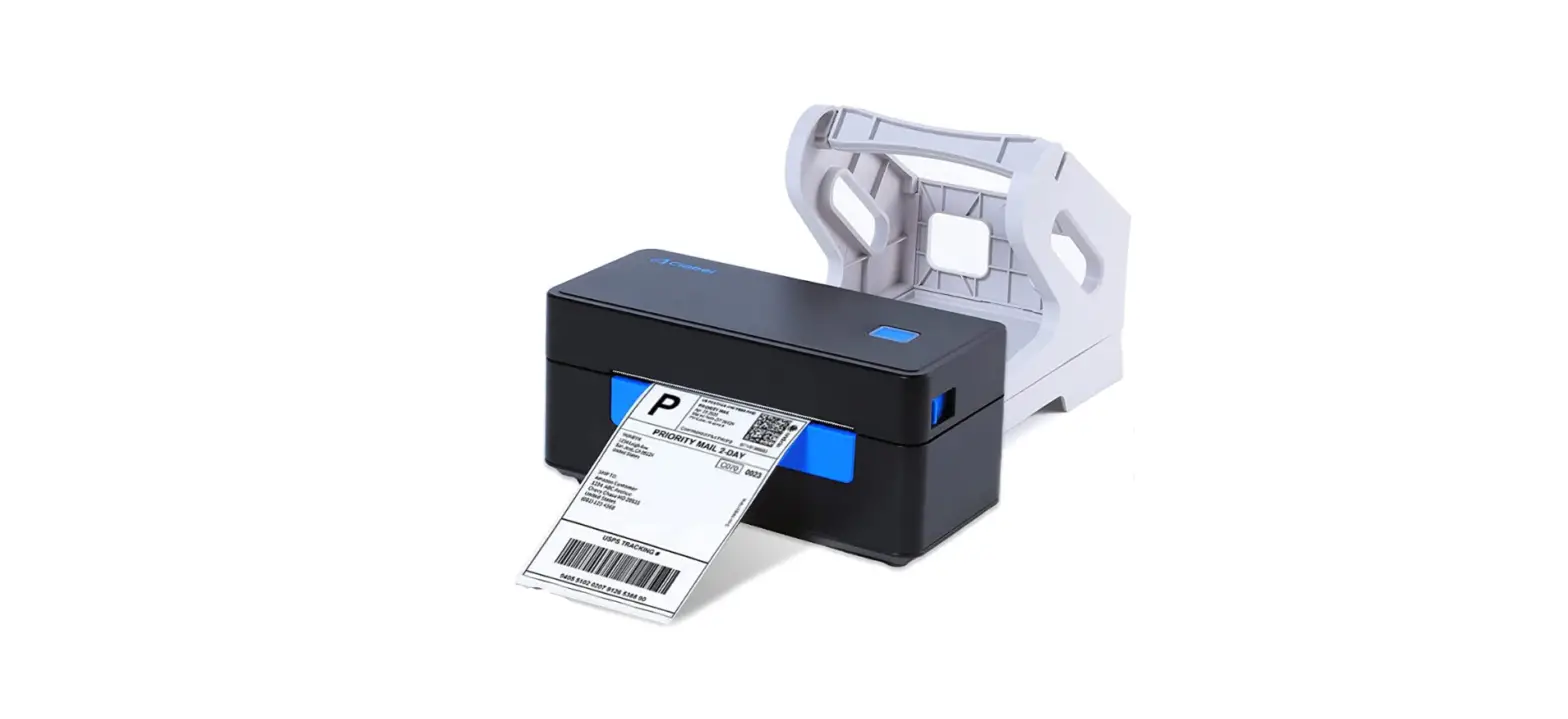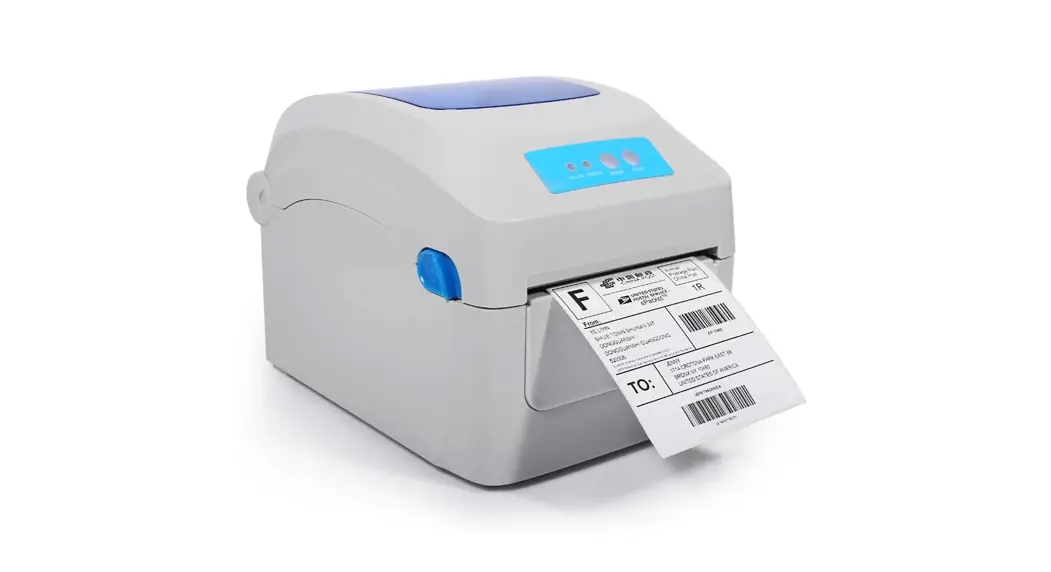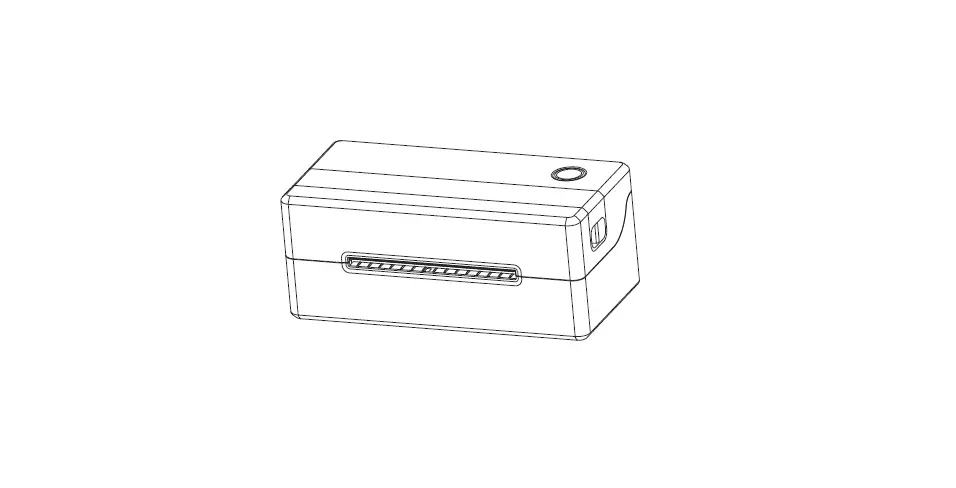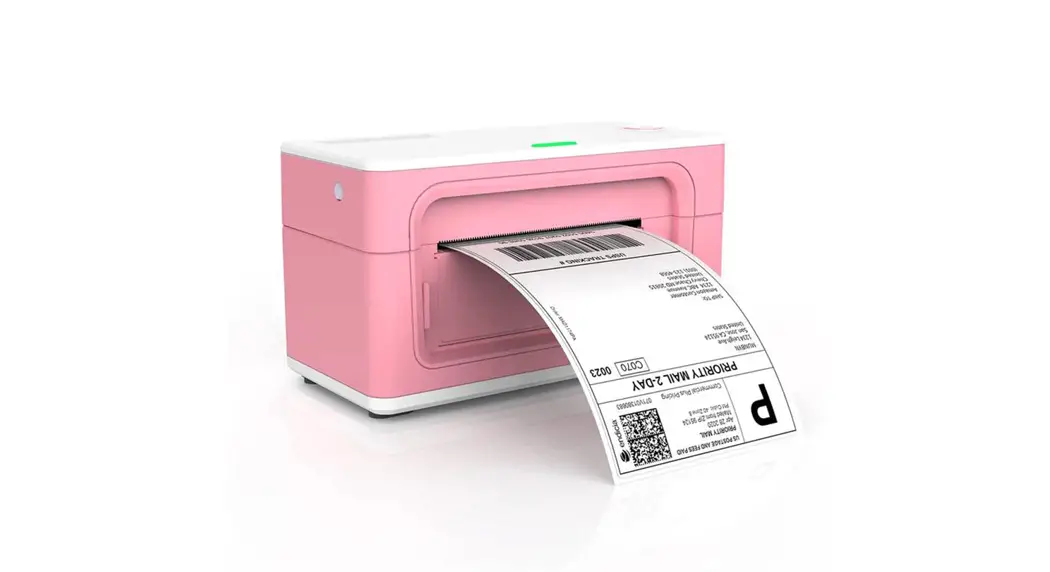

Logistics Label Printer
USER GUIDE 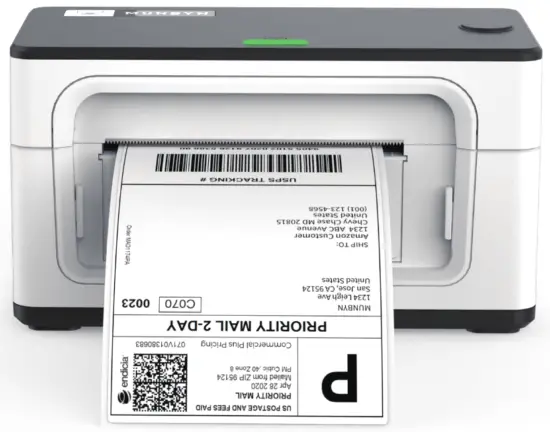

PRODUCT INTRODUCTION
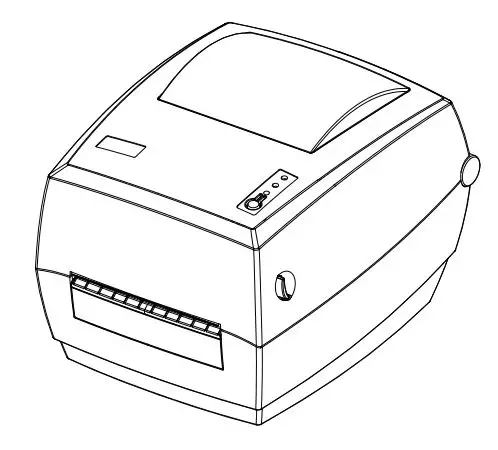
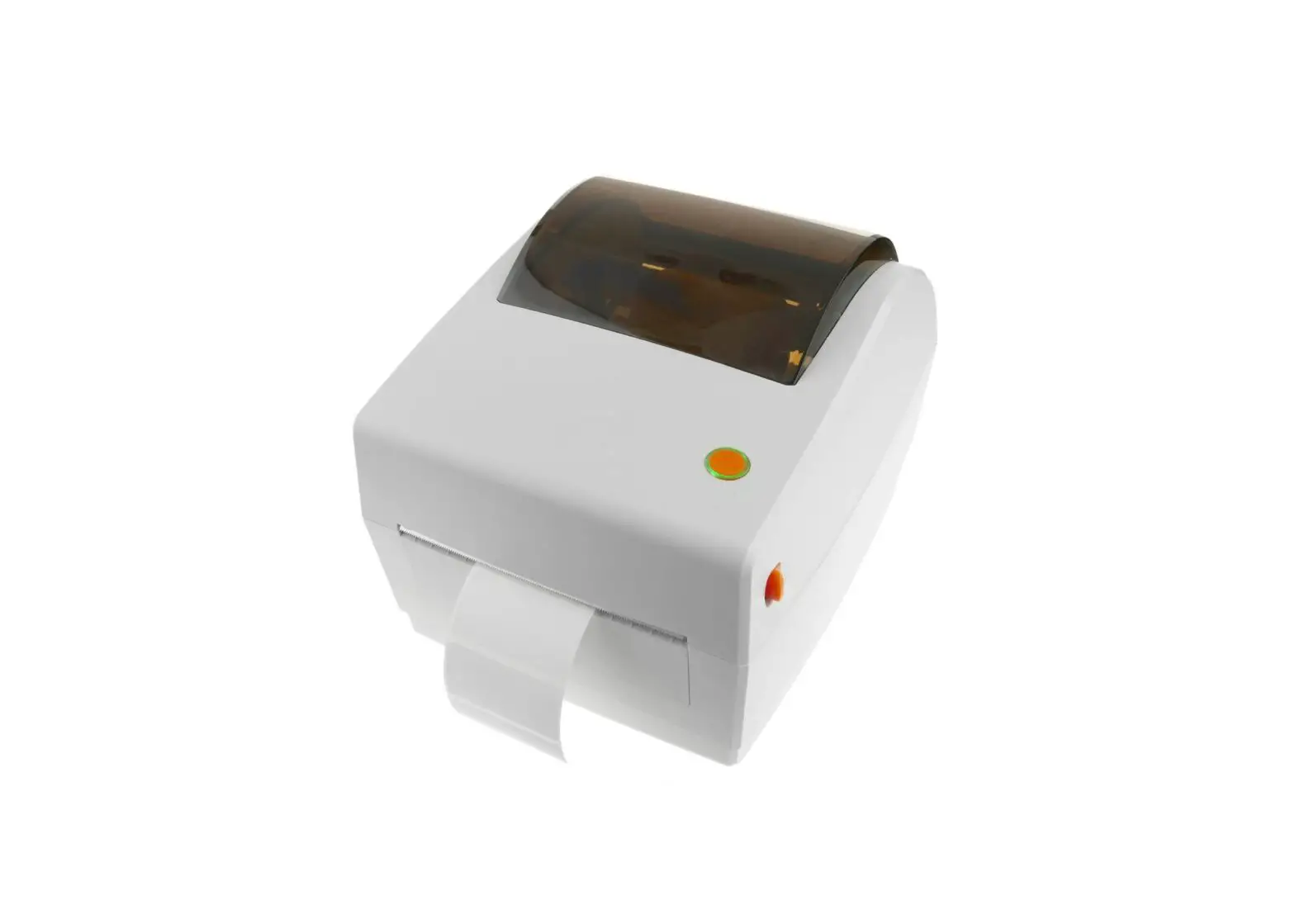
What’s in the box?
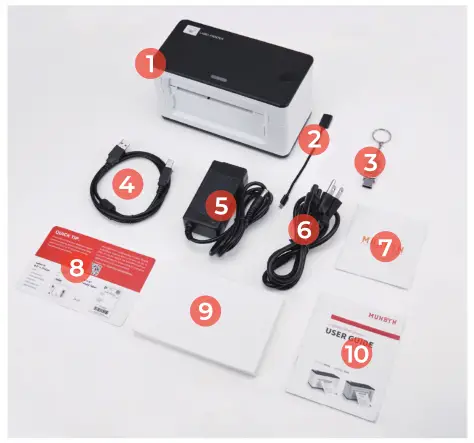
| 1. Printer | 6. Power Cable |
| 2. USB to USB-C | 7. After-sale Card |
| 3. USB – Flash Drive | 8. Card |
| 4. USB Cable | 9. Labels |
| 5. Adapter | 10. User Manual |
QUICK PRINTER INSTALLATION
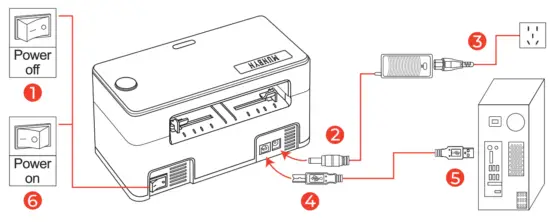
Note: Please use the power adapter provided by MUNBYN.
LABEL SETUP
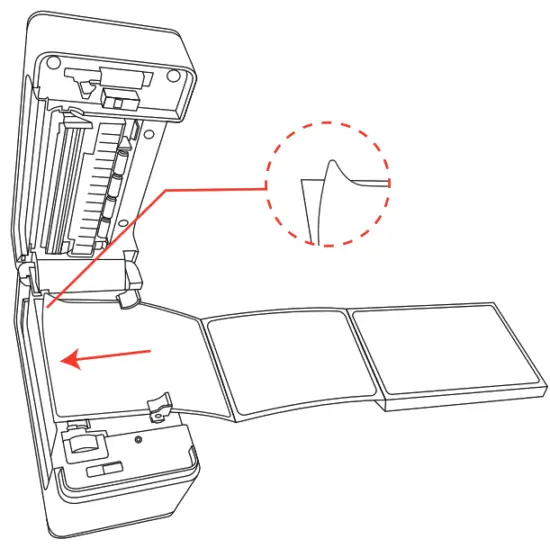
- Facing the front of the printer, press the cover open button to open the top cover.
- Install the label paper with the holders on both sides €1 Finish the label paper installation and then close the cover.
- For new label paper, do the label size calibration again.
Note: Before using the printer to print labels, please calibrate the paper size.
Label size calibration:
- Turn on the printer.
- Press FEED button and hold on.
- Release the button when you hear one ‘Di’ sound.
- Then, the printer will calibrate the label size.
DRIVER INSTALLATION
Support downloading driver files via USB flash drive or down-load link.
Printer driver download link: https://munbyn.biz/941d
Tutorial video: For Windows: https://munbyn.biz/941win
For Mac OS: https://munbyn.biz/941mac
Warning: The print head (TPH) will be extremely hot after printing Do not touch it or any parts around it.
WINDOWS DRIVER INSTALLATION
Note: Please connect to the computer first and then turn on the printer.
- Open the driver software you downloaded.

- Click on “Install” to start installing the driver.

- Follow the guideline to install until “Finish” appears, then we can use our printer to print shipping labels.

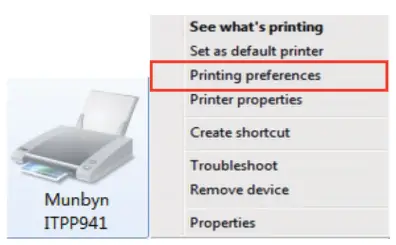
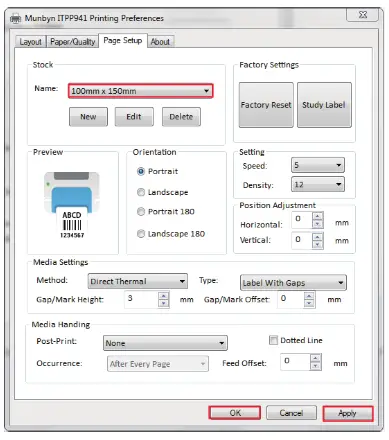
- Set the printer paper size.

- Choose100x150mm(4×6″) label size and apply, then we can use our printer to print shipping labels.


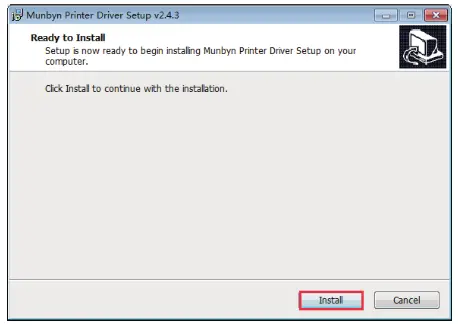
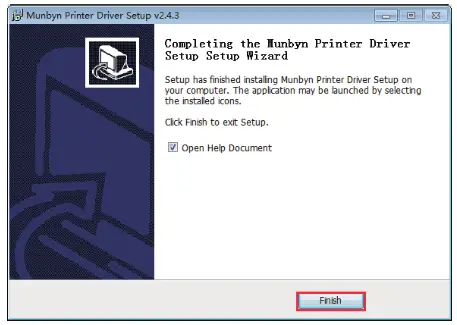
MAC DRIVER INSTALLATION
Note: Please connect to the computer first and then turn on the printer.
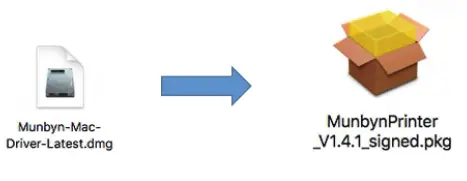
- Open the driver software you downloaded.

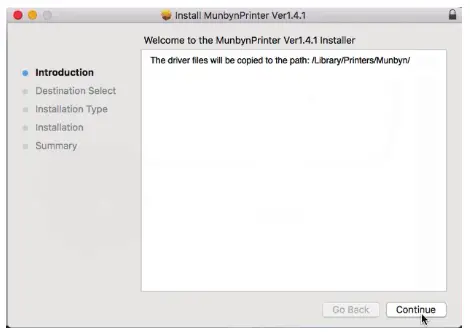
- Start installation.

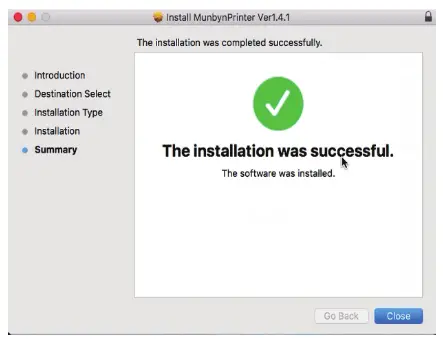
- Follow the guideline to install until ‘The installation was successful” appears, complete.

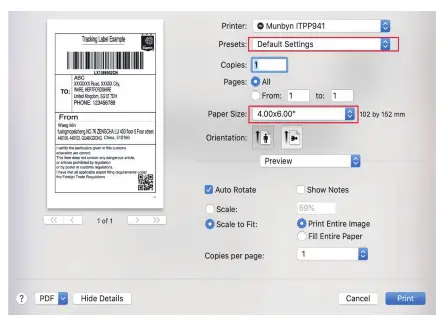
- Page Setup, choose 4×6″ (100×150 mm), then click Presets to save the setting.
| Printer status | Operation of FEED | Function |
| Standby | Short press the button(light) | n a blank Feed ipaper |
| Standby | Long press the button(light) beep once | Automatically calibrate paper size |
| Standby | Long press the button(light) beep twice | Print out Self-test page |
| Standby | Long press the button(light) beep five times | Reset printer |
LED STATUS
| Description | Greenlight | Red light |
| Normal status | No | OFF |
| Printer head is overheated | Flashing (everyl second) | Flashing (every 1 second) |
| Paper shortage | OFF | Flashing 1 second) |
| Cover is not closed | OFF | Flashing (every 1 second) |
| Paper recognition error | OFF | Flashing Red |
| Wrong cable connected or power off | OFF | OFF |
FAQ
Ql: When the printing is too faint, how to adjust the density and printing speed?
Al: For Windows: Printer Preferences 4 Page Setup 4 Setting For Mac OS: Can be set in the drop-down menu under ‘Printer Features’ Tutorial vedio : https://munbvn.biz/941dsv
Q1 What can I do if paper is jammed or there are white spots in my print?
A2: Turn the printer off, and let the printer cool down naturally. Use the pad with alcohol to wipe the printer head clean. Tutorial vedio : https://munbvn.biz/941piv
Q3: Why the printer is skipping labels or continuously feeding?
A3: Make sure your computer does not send a print command to ITPP941, disconnect the USB cable, and then run the automatic label identification function.
Tutorial video : https://munbvn.biz/941cfv
Q4: Why the printer print extra blank labels after the one successful print?
A4: Please check if the paper size setting of the printer is correct and adjust the scale and margins in the preview page or page setup when you are printing from the browser. Tutorial video : https://munbvn.biz/941obv
QS: Why I am printing blank labels?
AS: Make sure your labels are ‘Direct Thermal’ labels and the label that you peel off should be facing the ceiling when it comes out of the printer. Tutorial video : https://munbyn.biz/941pbv
Q6: How can we print the label that is not in standard 4% inch, such as the USPS?
A6: You can use the screenshot to print the label in correct size. Tutorial video : https://munbyn.biz/941ary
Q7: How to print self-test label?
A7: The self-test label can be used to determine whether the machine is malfunctioning and whether the printing performance is good. You can print self-test label as follows.
- Turn on the printer.
- Press FEED button and hold on.
- Release the button when you hear two ‘Di’ sound.
FAQ download link : https://munbyn.biz/941faq
SPECIFICATIONS
| Method | Direct Thermal |
| Resolution | 203 DPI |
| Max Printing Speed | 150mm/s |
| Paper Width | 40-110mm |
| Paper Thickness | 0.06-0.254mm |
| Power Adapter | 24V/2A |
| Printing Life | TPH 30 Km |
| Connection | USB |
PLATFORM (ONUNE STORE) SETUP
- Shopify, https://munbyn.biz/shogify
- UPS, https://munbyn.biz/uos
SUPPORT
Need Tech Support, contact us by
E-mail: [email protected]
Whatsapp: +8617817881067
Skype: munbyn
Support time:
Monday to Friday 24 hours. 
| https://www.facebook.com/munbyn/ | https://wa.me/qr/5R2RRPLNUBYNH1 |
Focus on Every Powerful Moment
Version:2.0.4