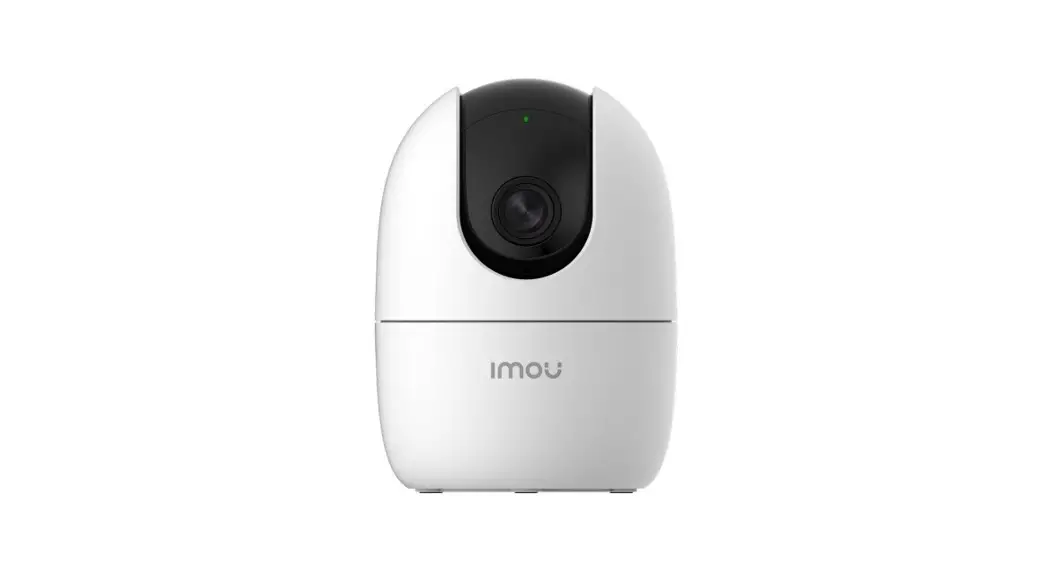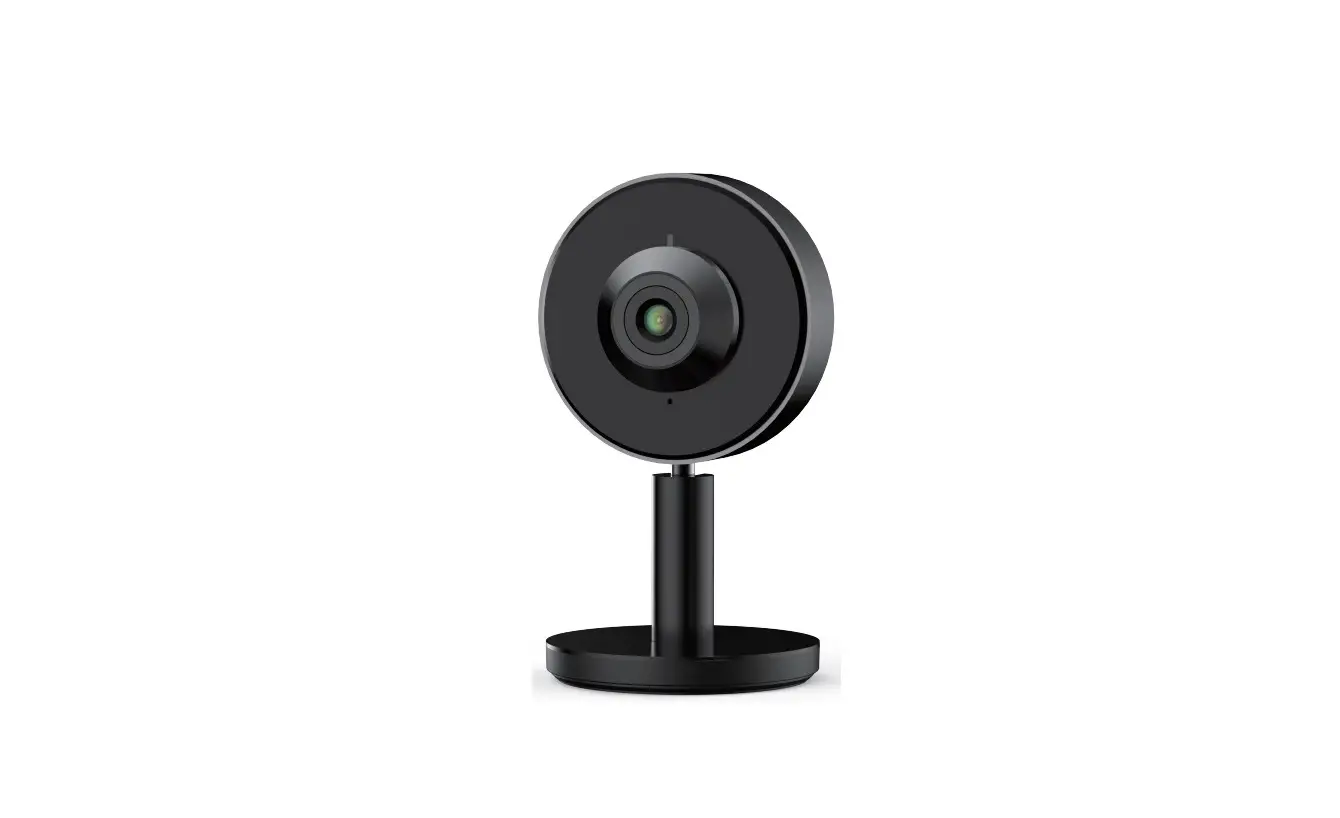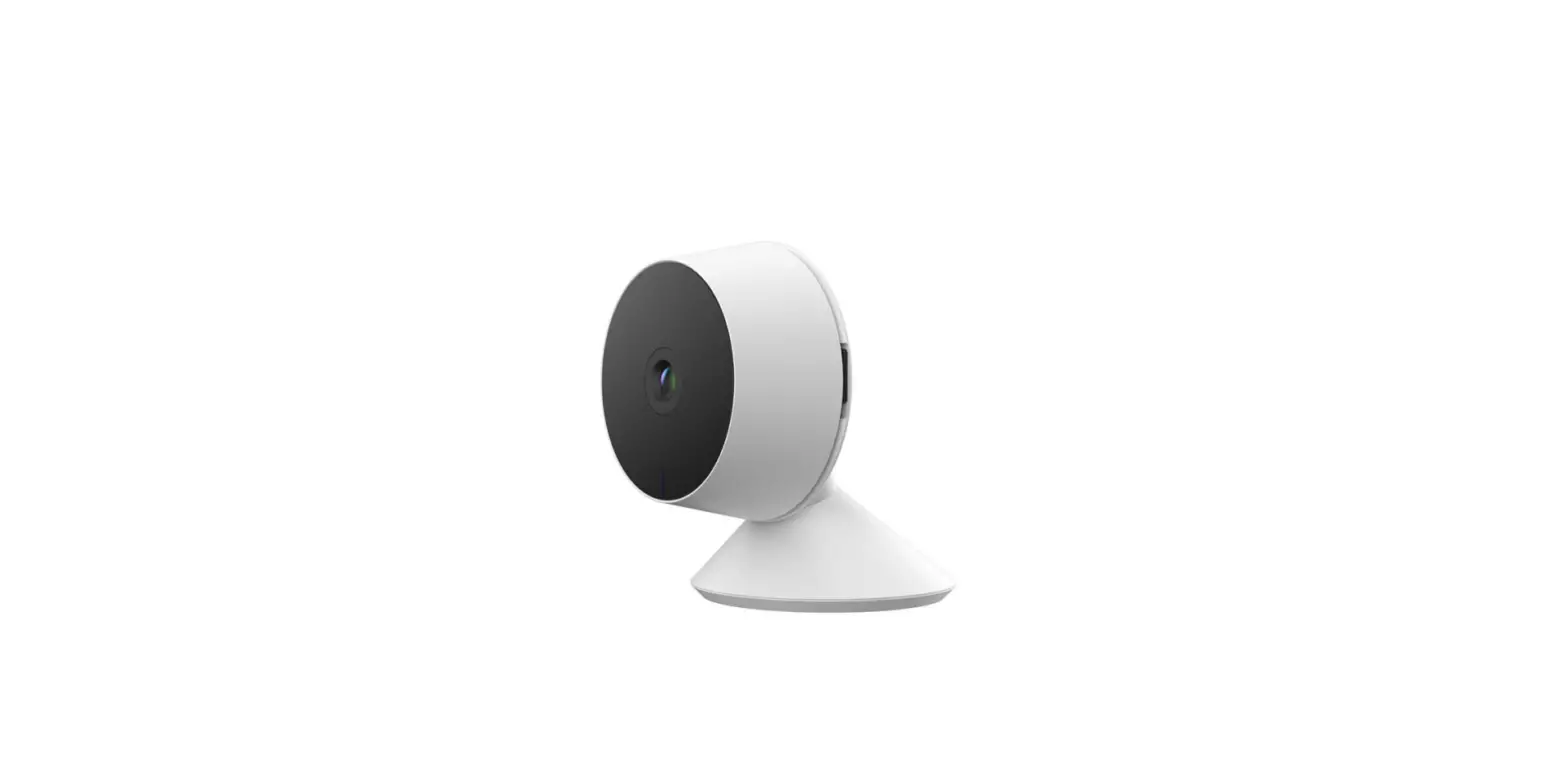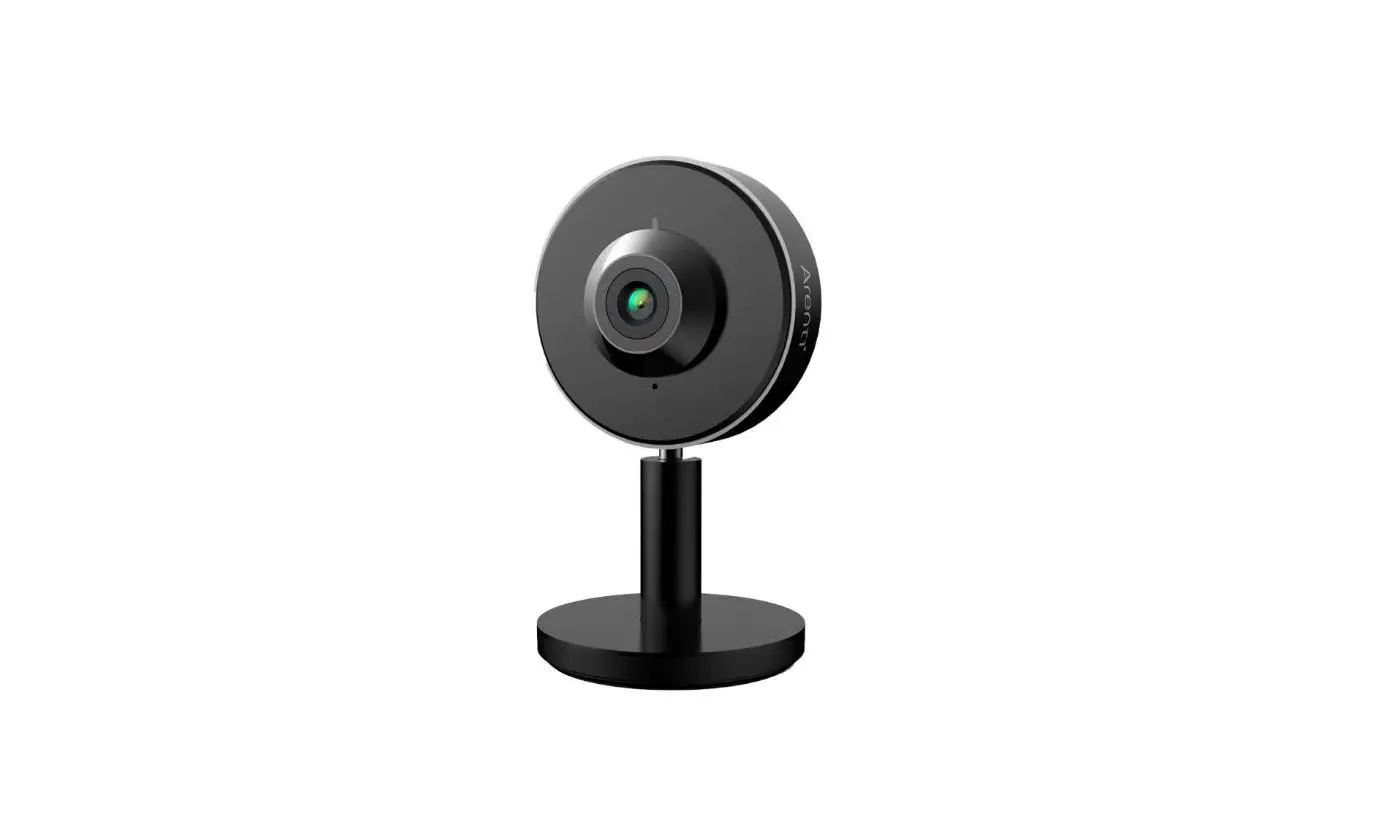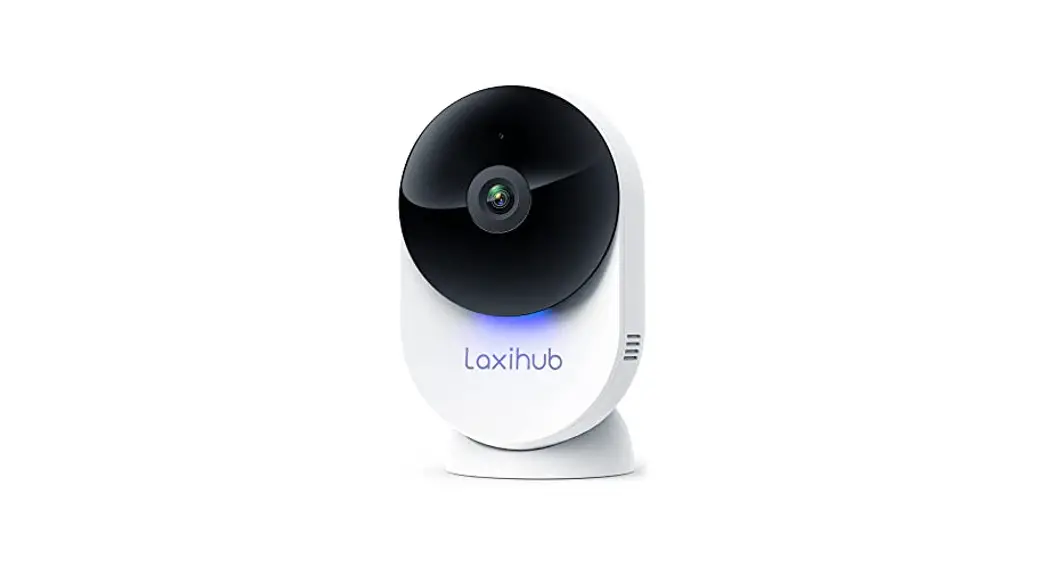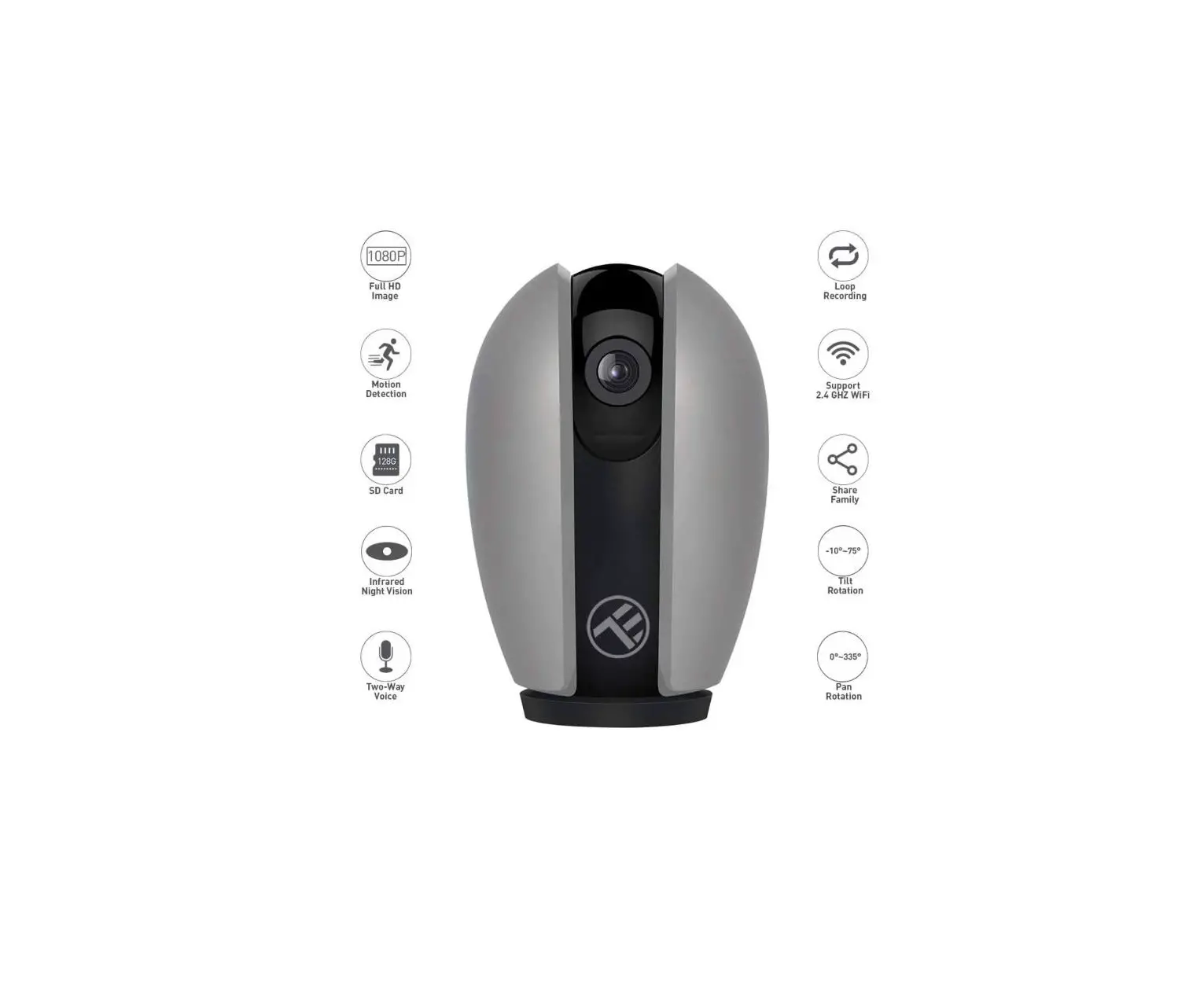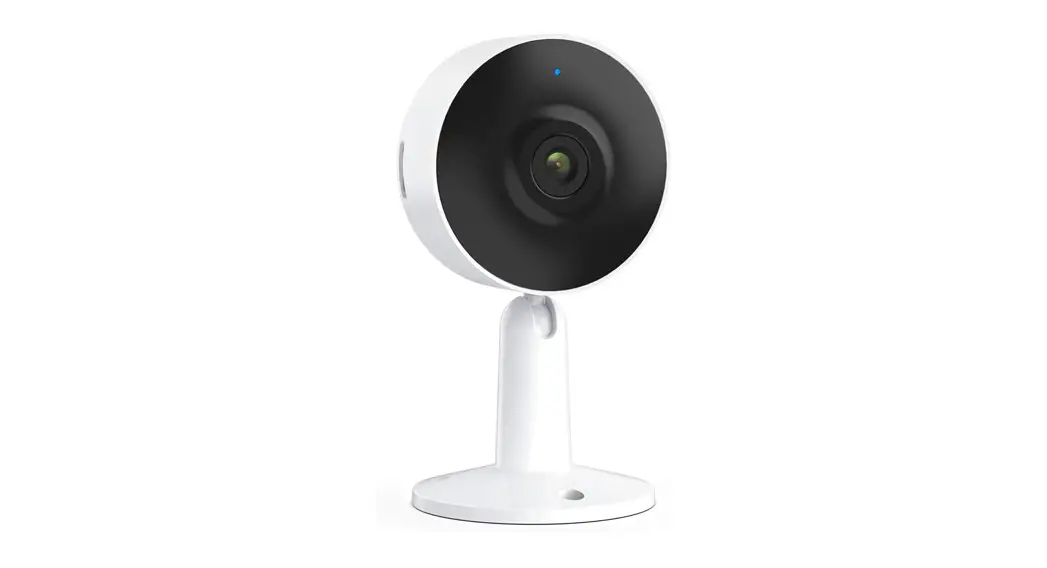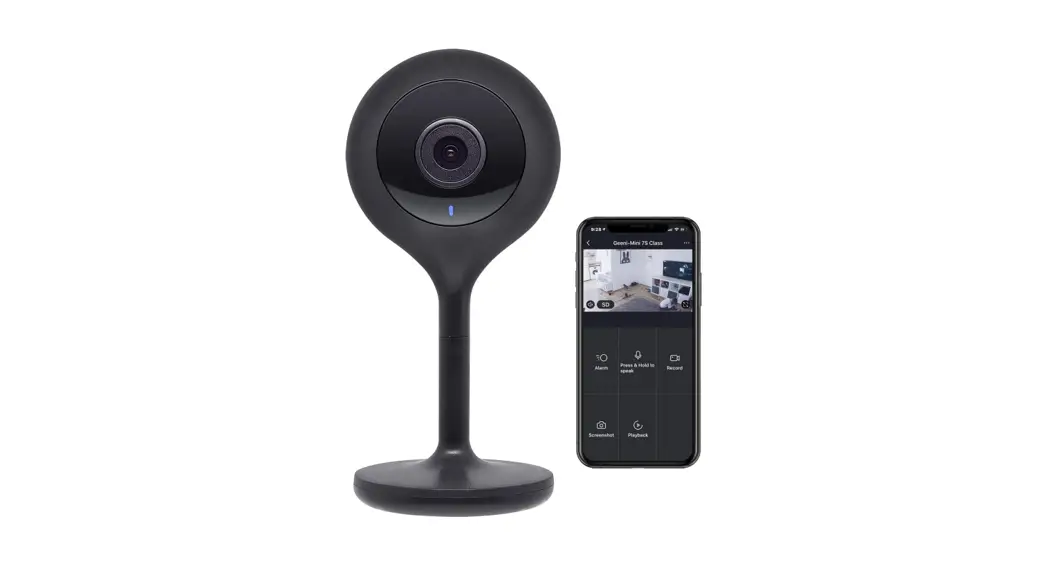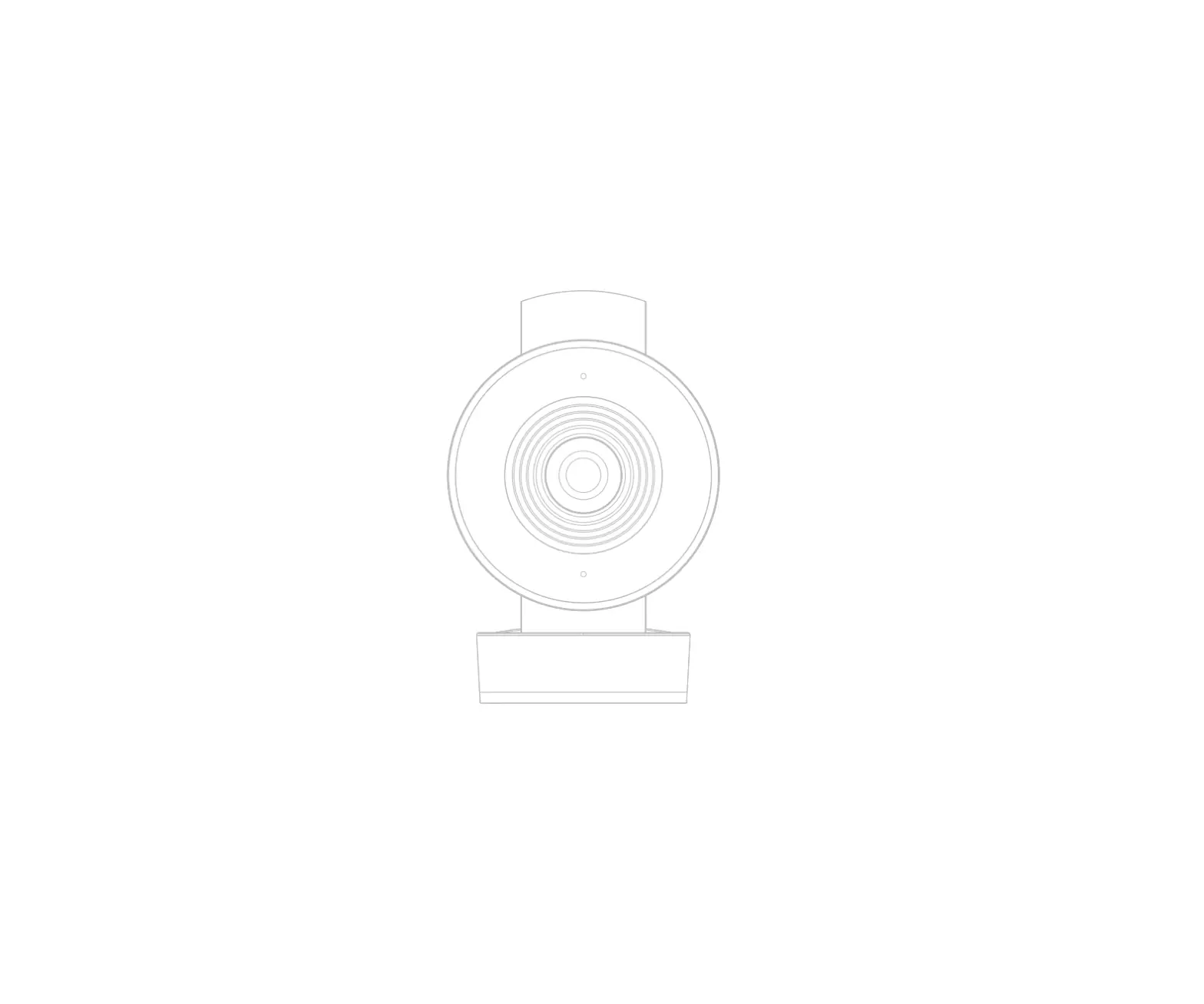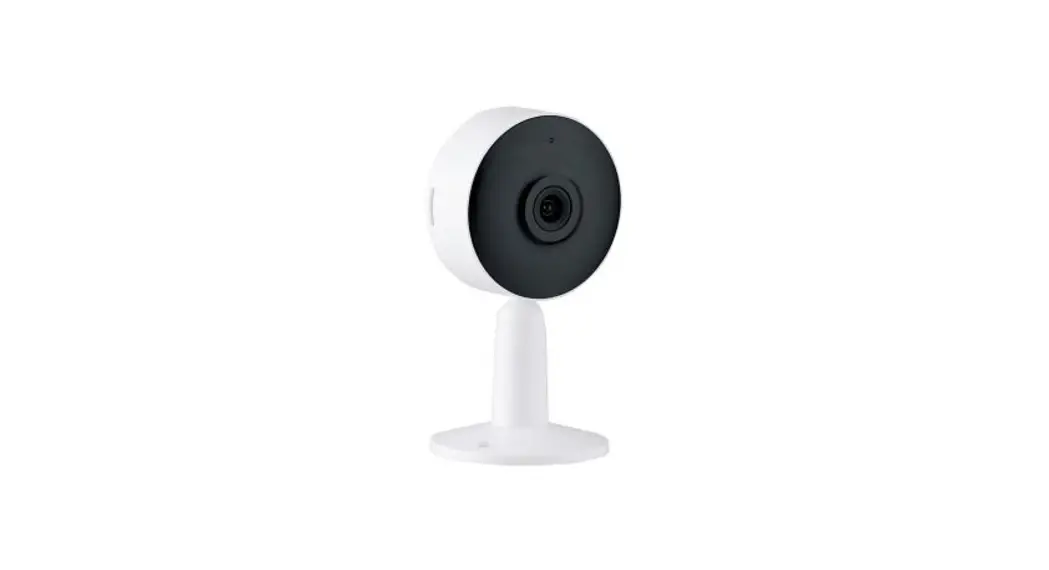
 SMART SECURITY CAMERA
QUICK START GUIDE
Introduction
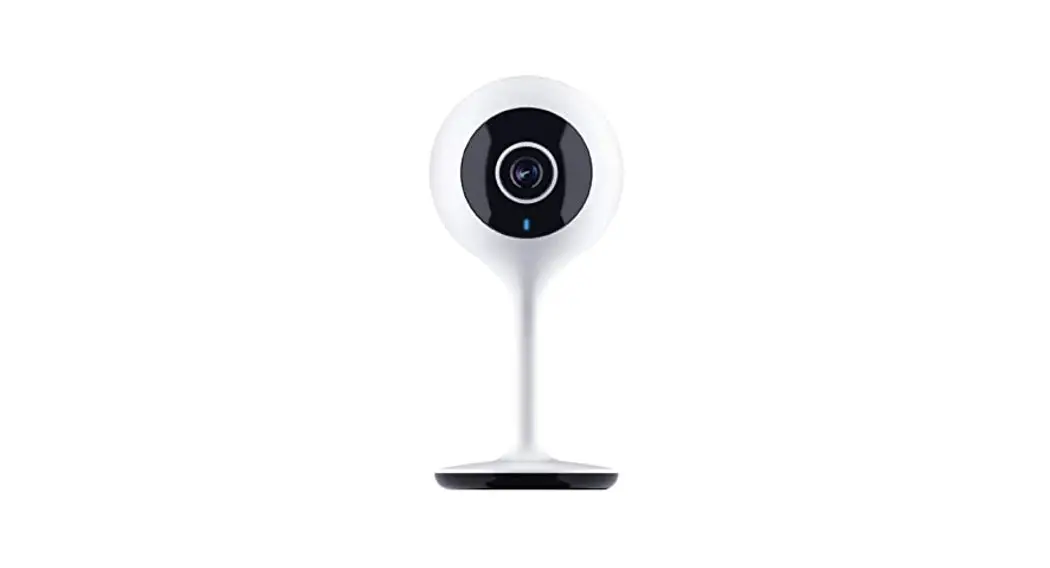
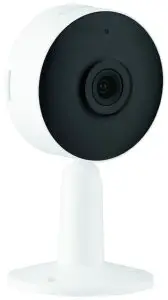
This smart security camera is designed for use in homes, apartments, offices, garages, and sheds. It’s easy to set up and operate, giving you and your family the security and peace of mind that you deserve. You can monitor your camera remotely through the Mercator Ikuü app, which can be downloaded for free from the Apple App Store and Google Play Store.
Contents
1 x Smart Indoor Security Camera
1 x Power Adaptor
3 x Mounting Screws and Wall Plugs
1 x USB Cable
1 x L Shape Screw Driver
1 x Soft Adhesive Pad
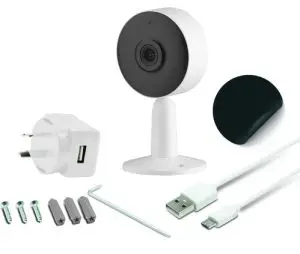 Micro SD Card 16GB
Class 10 required (Max. 128GB card supported)
Identification
Set Up the App
- Download the Mercator Ikuü app.
- Tap ‘create new account’ or ‘log in to account’.
- Follow the in-app prompts and tap ‘OK’.
Connect Your Camera to the App
- Log in to the Mercator Ikuü app.
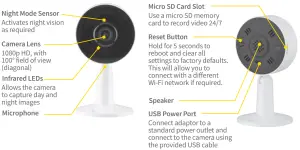
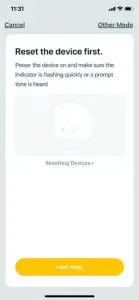
Note: Ensure your camera is in pairing mode. The LED should be flashing red. If it isn’t, press and hold the reset button on the back of the unit for 5 seconds and wait for the camera to restart.
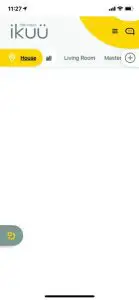
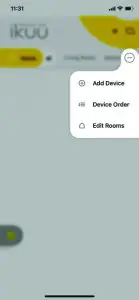
- Tap the icon and select ‘Add Device’.
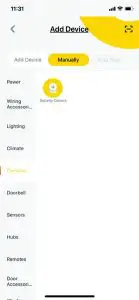
- Select ‘Cameras’from the sidebar, and then tap the Security Camera icon.
- When the prompt appears, tap ‘next step’.
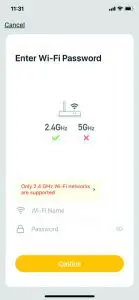
- Enter your Wi-Fi name and password, then tap ‘Confirm’.
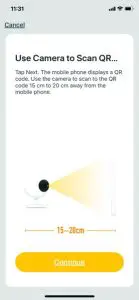
- When the prompt appears, tap ‘Continue’.
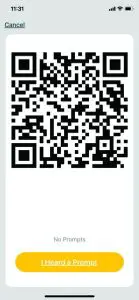
- Place the camera eye over the QR code to scan (holding the camera 15cm away from your mobile screen). When you hear the prompt, tap ‘I Heard a Prompt’.
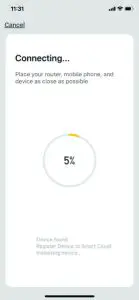
- The app will begin connecting to your security camera. When it reaches 100%, you will be taken to the product’s settings page.
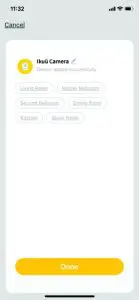
- Update the name of the device then tap ‘Done’.
- The camera feed will open, and you will be prompted to allow access to your device’s microphone. Tap ‘OK’ to continue. Your camera is now connected and ready for use.
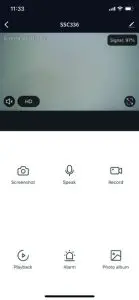
Camera Functions
 | Take a photo of the live video feed, which will be saved to the photo album. |
 | Speak through the camera speaker via your phone microphone. |
 | Take a video of the live video feed, which will be saved to the photo album. |
 | Review camera footage from the SD card (if installed). |
 | Adjust motion detection settings. |
 | View previously saved photos and video recordings. You can download these to your local mobile device. |
 | Adjust the date when reviewing playback. |
Installation Instructions
Before choosing your preferred location, check the Wi-Fi strength/coverage is adequate.
TABLE OR SHELF MOUNT
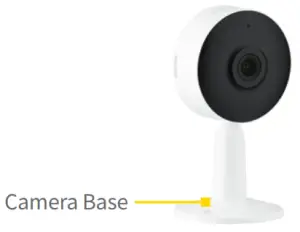
- Stick the adhesive pad at the bottom of the camera base.
- Place the camera in the desired location.
CEILING MOUNT
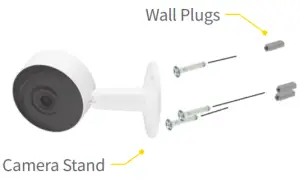
- Flip the stand to the rear as shown.
- Hold the camera stand as a template to mark the screw positions on the wall.
- Drill holes into the wall and push wall plug into the holes.
- Install the camera base using the mounting screws.
Note: To get the correct orientation for the ceiling mount, navigate to settings > basic function settings > flip screen.
App Features
Want more from your products? The Mercator Ikuü app can help you to customise your smart products any way you like. Detailed guides on these features can be found at www.ikuu.com.au.
 Rooms
Rooms
Separate your products within the app for easy control based on their location.Scenes
Control multiple products from any room at the same time.Automation
Create triggers that allow products to complete actions automatically. These triggers can be based on time, sensors, or even other products.Routines
Use Mercator Ikuü with other household products to create simple voice commands that trigger customized actions based on your daily activities.Timers
Use a range of scheduling and countdown timers that trigger actions.Alerts
Manage the kinds of alerts you receive from your products (e.g. security products).Sharing
Share access to your products with others.In-App Customer Service
Talk to our customer service team directly through the app if you have any issues.
Warranty
Mercator guarantees this product against defects of materials and workmanship for a period of 36 months from the date of purchase provided the product is used for its proper purpose, in accordance with Mercator’s recommendations and within such voltage and current limits as are specified by Mercator in relation to the product. Mercator will at its own option and cost make good, or replace this product with the same or similar product and return it to you, or provide a credit for any product manufactured or supplied by it, which proves to be defective within the limits set out above provided that no repairs, alterations or modifications to the product have been undertaken or attempted by anyone, other than Mercator or its authorized agents. Should you wish to make a claim under this guarantee, the product and proof of purchase must be returned pre-paid by you to the place of purchase.
This guarantee is in addition to and does not take away from any other rights and remedies you may have under any relevant law.
Our goods come with guarantees that cannot be excluded under the Australian Consumer Law. You are entitled to a replacement or refund for a major failure and for compensation for any other reasonably foreseeable loss or damage. You are also entitled to have the goods repaired or replaced if the goods fail to be of acceptable quality and the failure does not amount to a major failure.
Please retain your proof of purchase for all warranty claims.
For all Sales & Warranty inquiries
Mercator (ACN 005 946 958)
Building 3, 31-41 Joseph Street,
Blackburn North, Victoria, 3130
P.O. Box 1065, Blackburn North LPO
Blackburn North, 3130
For sales and product information telephone
Customer Service: 1300 552 255
RIN005227/3