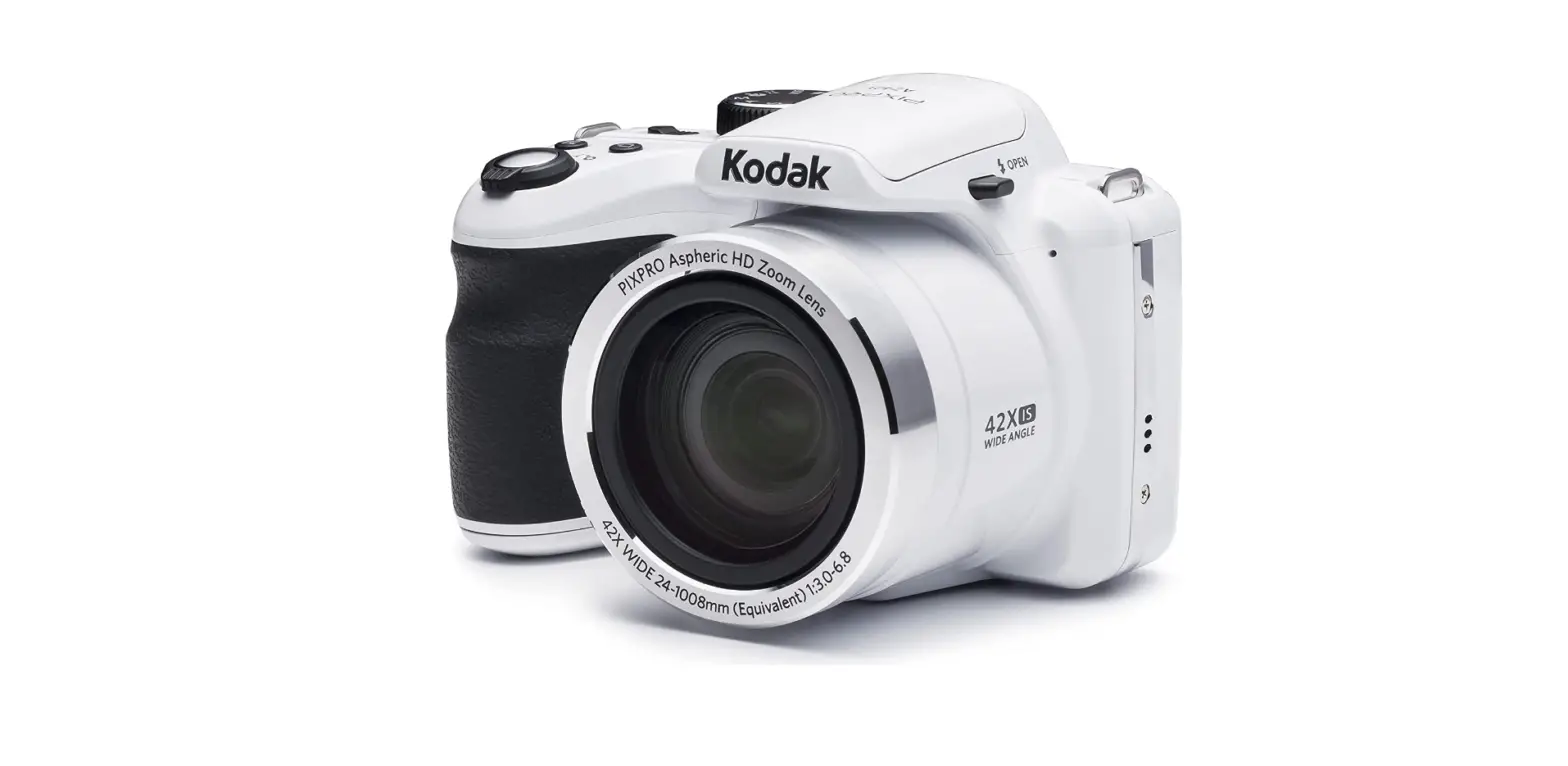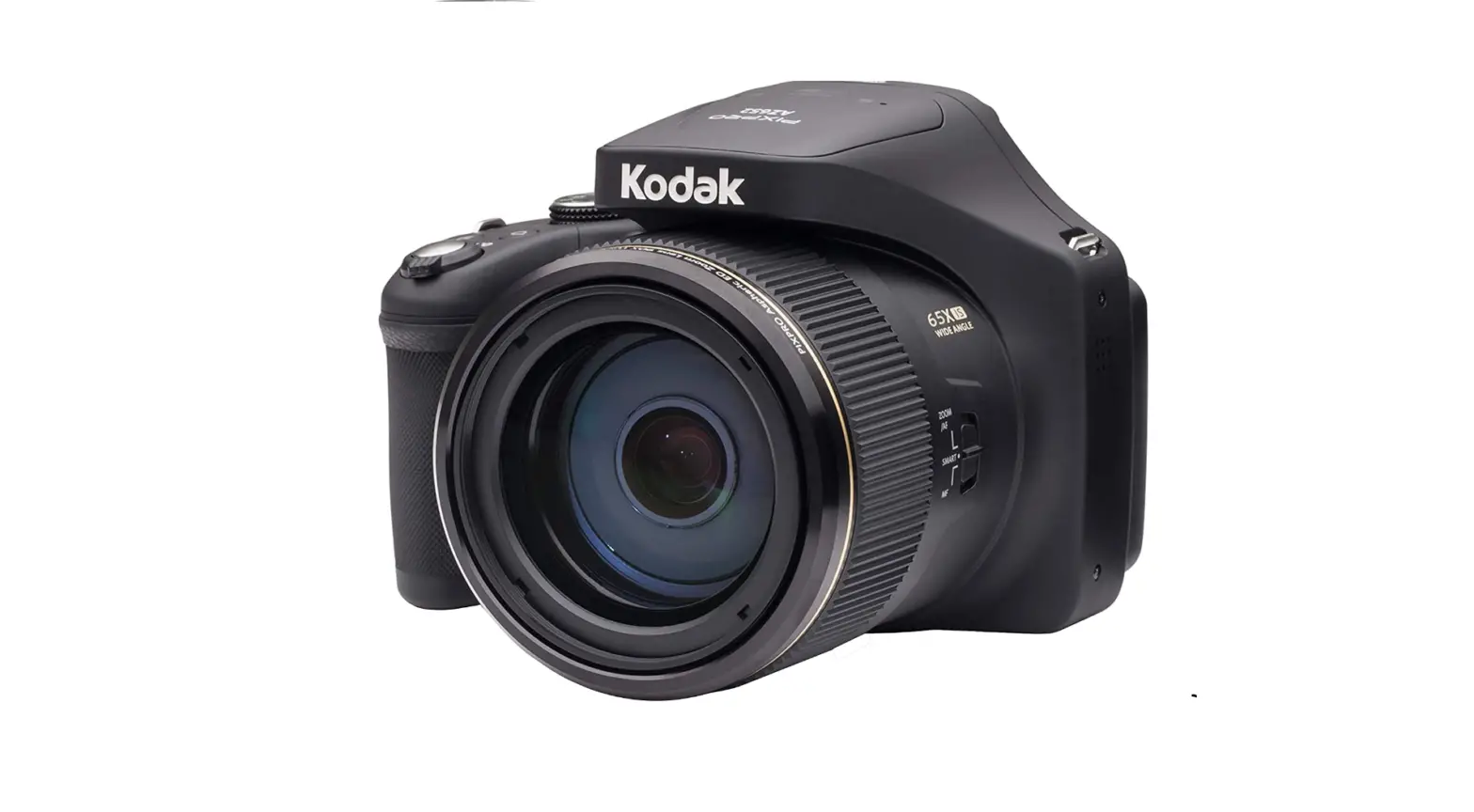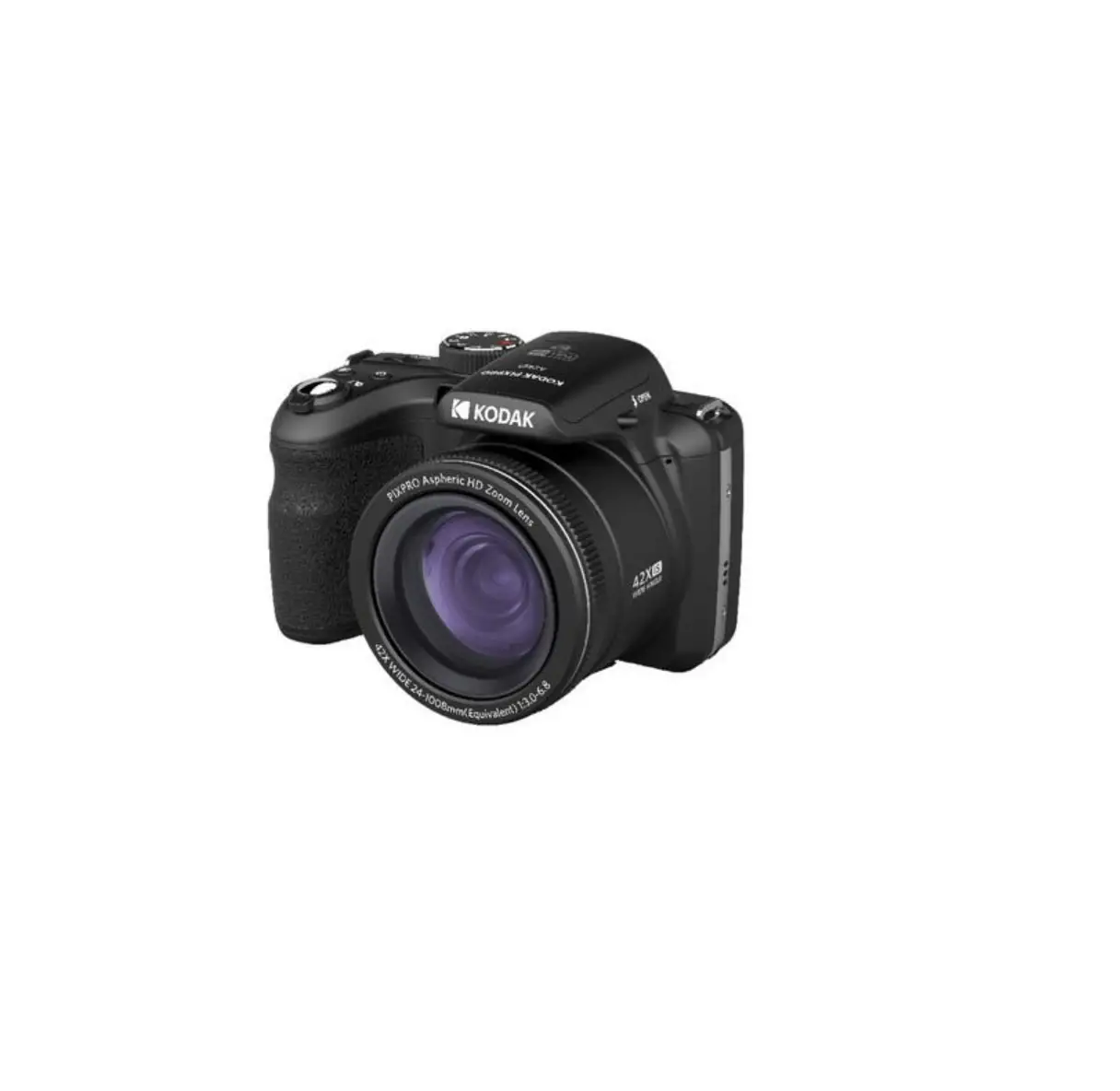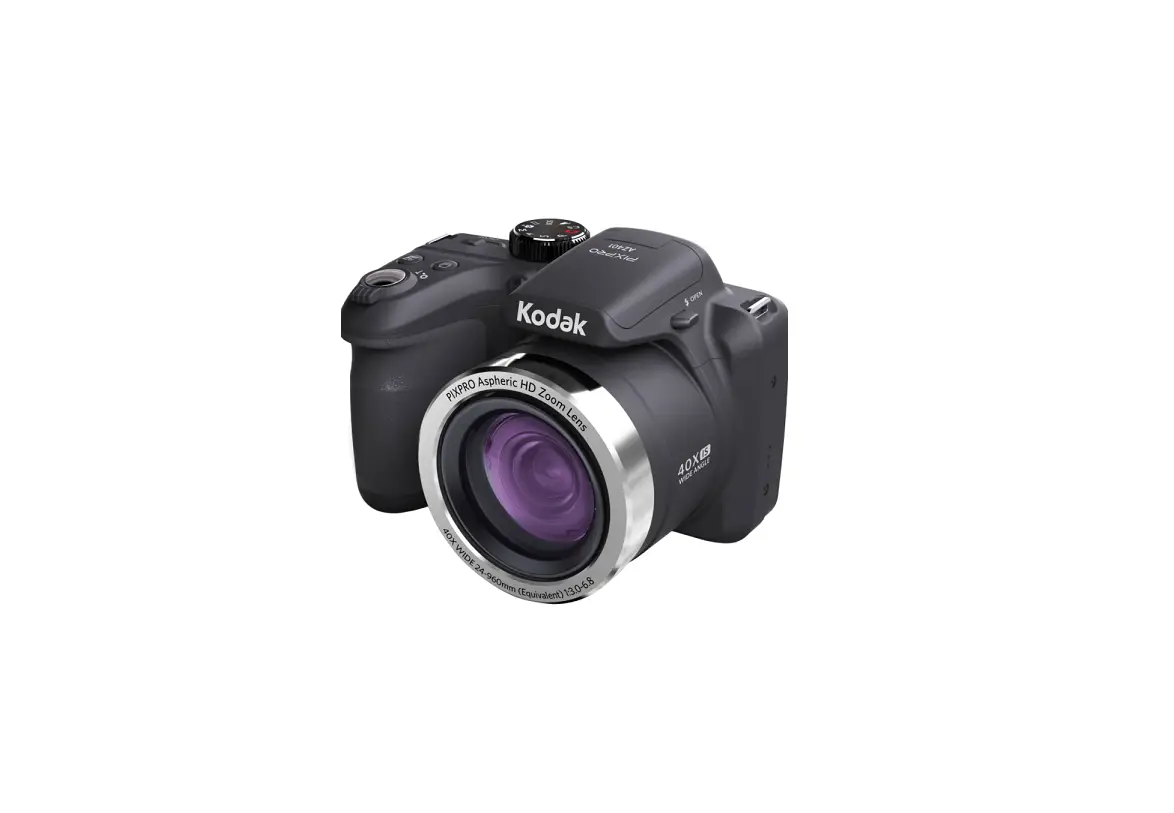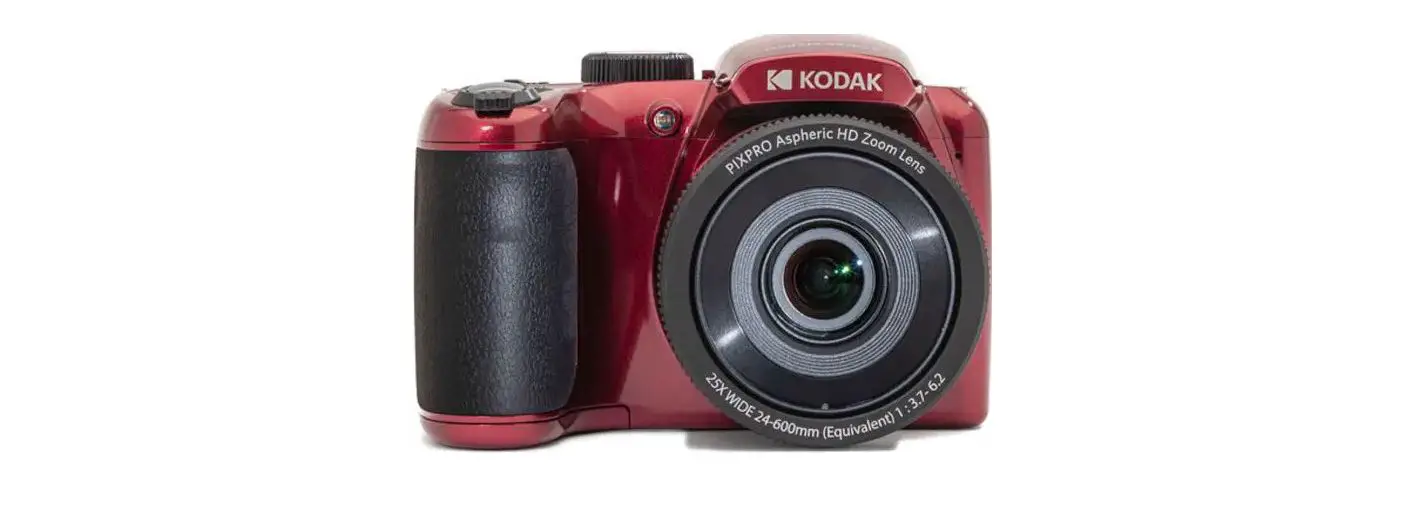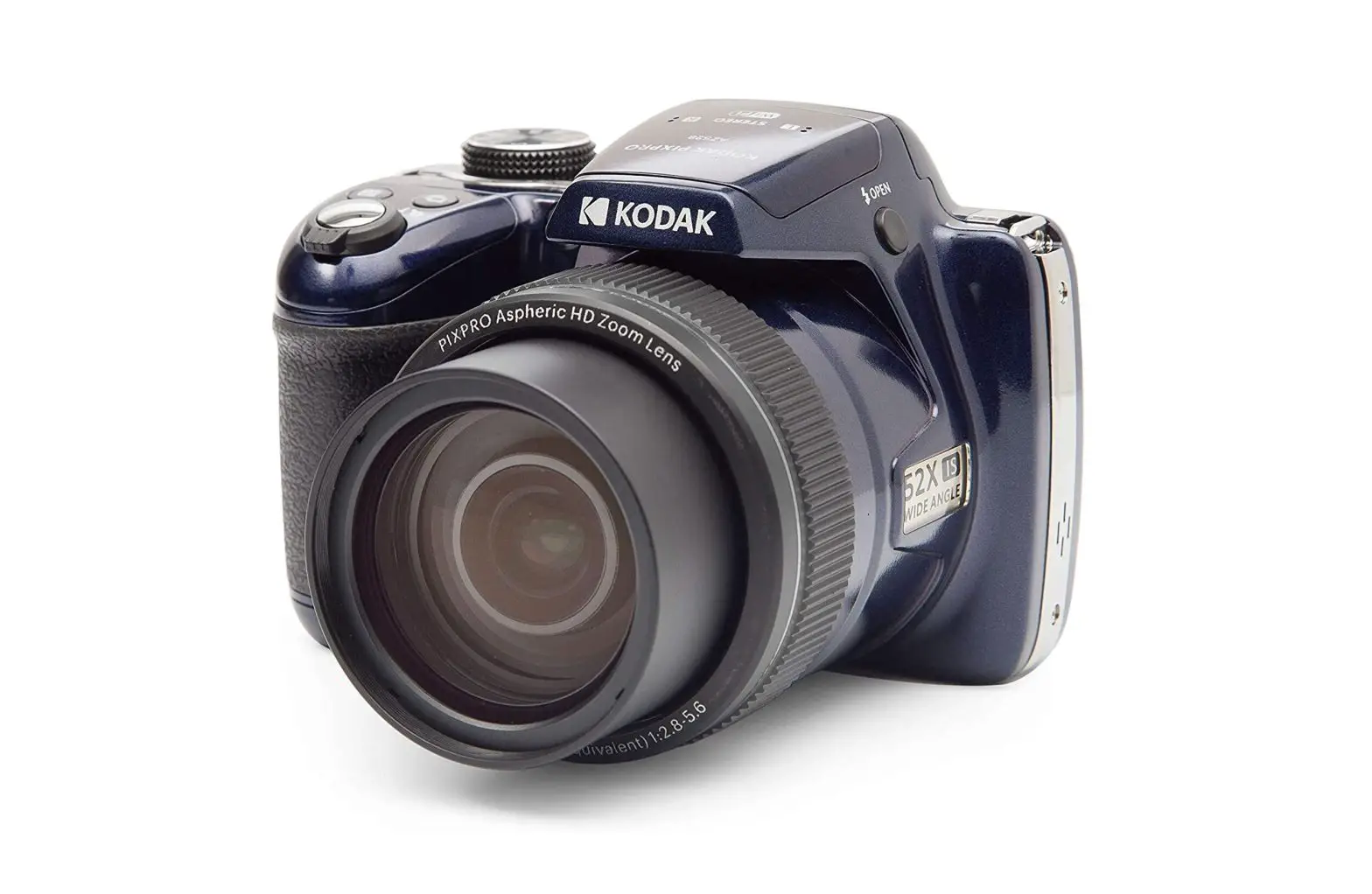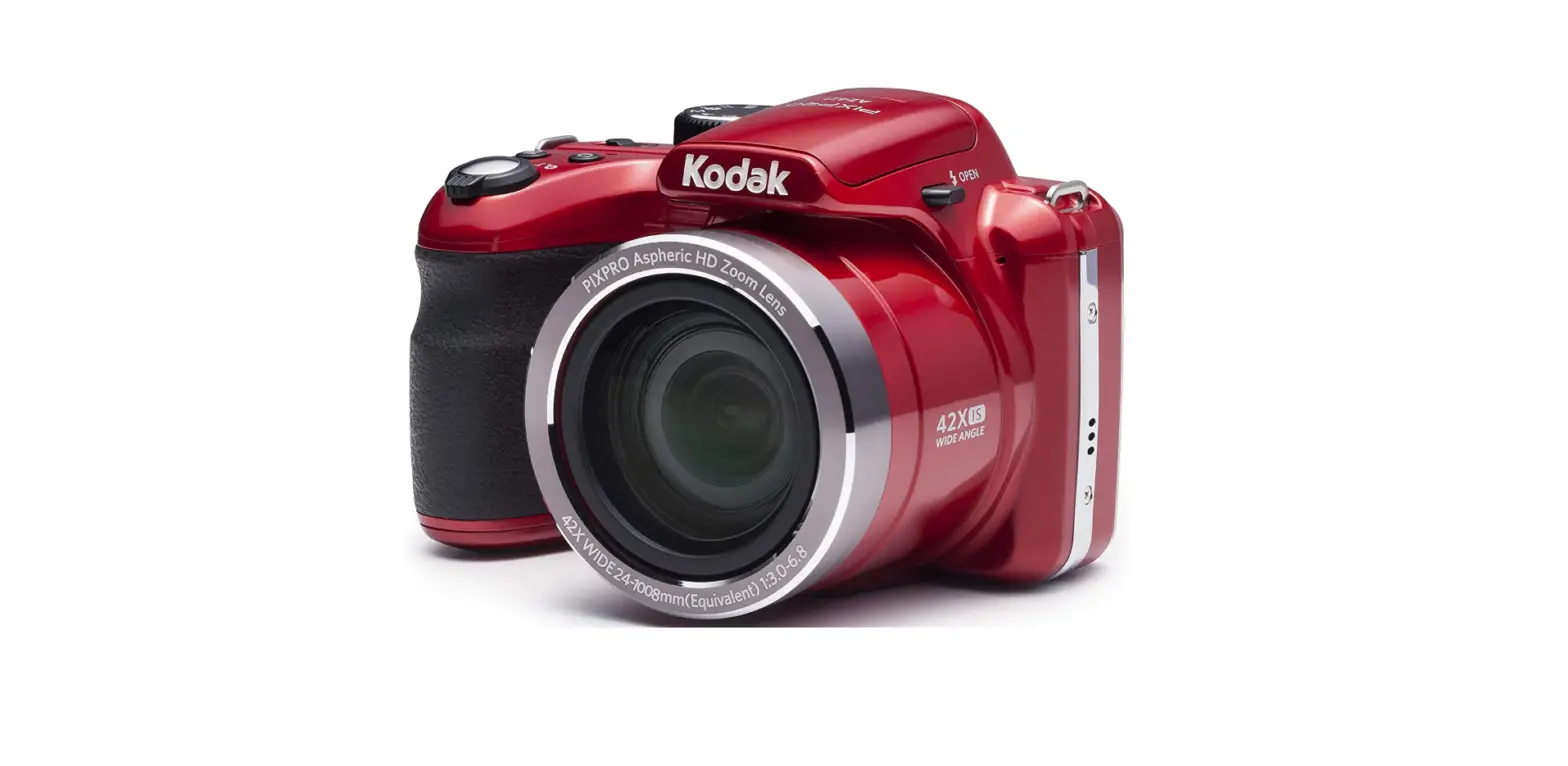

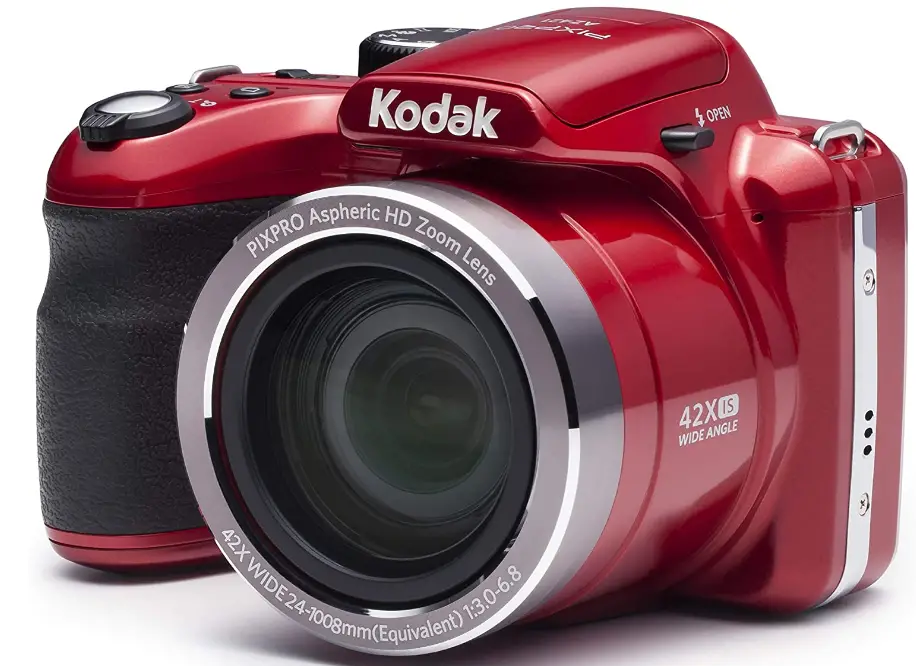
Kodak PIXPRO Astro Zoom AZ421-RD 16MP Digital Camera
Camera Views
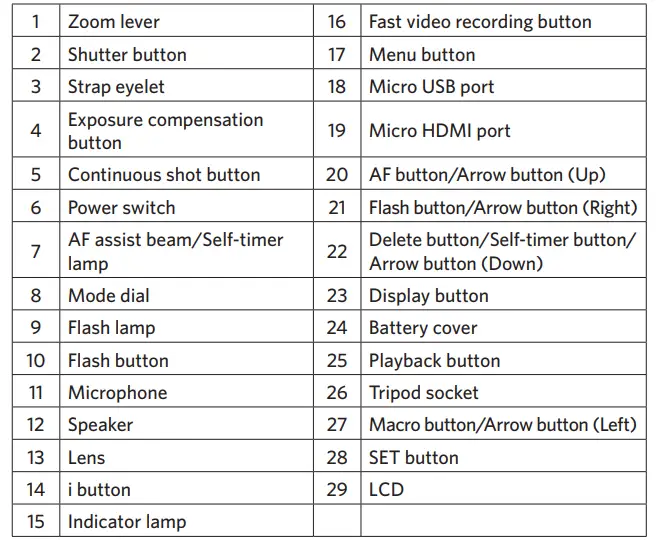
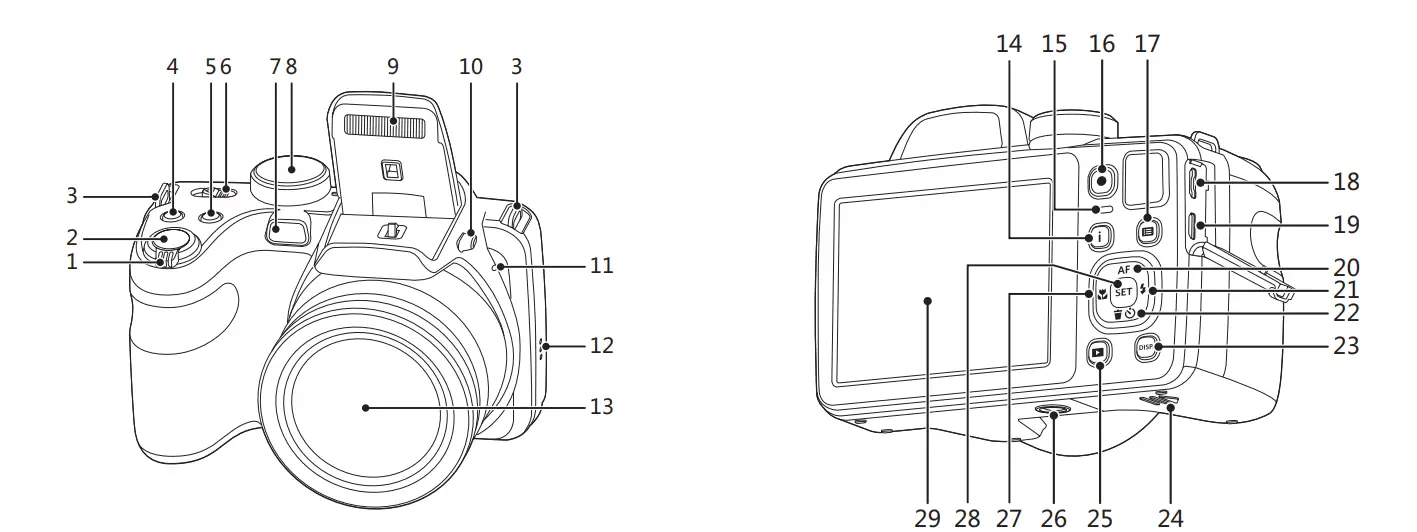
Inserting the Battery
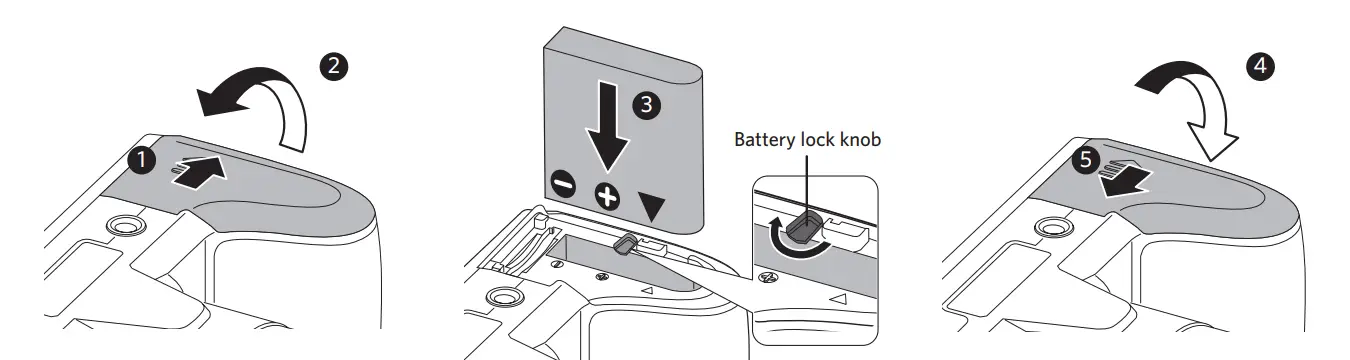
- Open the battery cover.
- Correctly insert the battery into the slot as the diagram shows.
- Close the battery cover.
Setting the Language/Date/Time
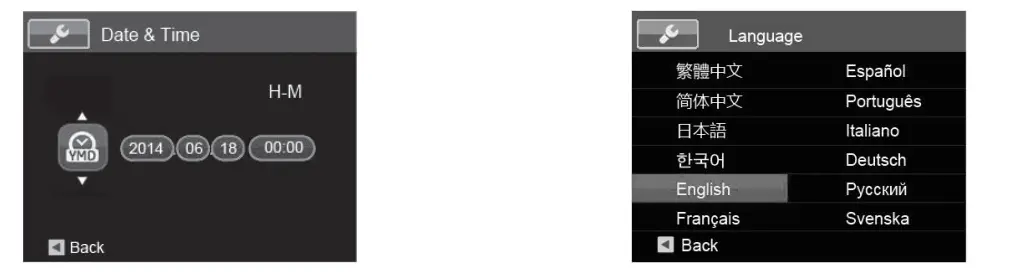
- Push the power switch to turn on the camera and the language menu will appear. Use the Up/Down/Left/Right Button to select a language, and press
 the button to confirm the language.
 - Use the Up/Down/Left/Right Button again to set the date and time, and press the button to confirm.
Taking a Picture
- Hold the camera securely.
- Use the Zoom Lever to select Tele or Wide positions to zoom in or out on your subject.
- Press the Shutter Button half way to focus on the subject. When the focus frame turns green, press the Shutter Button completely down to take the picture.
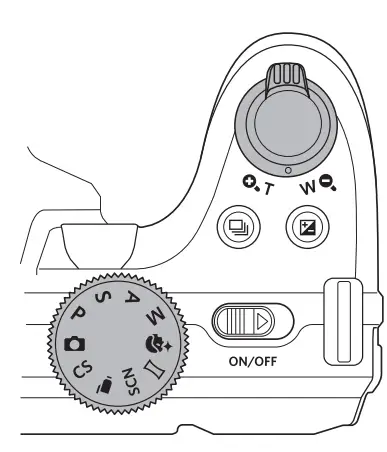
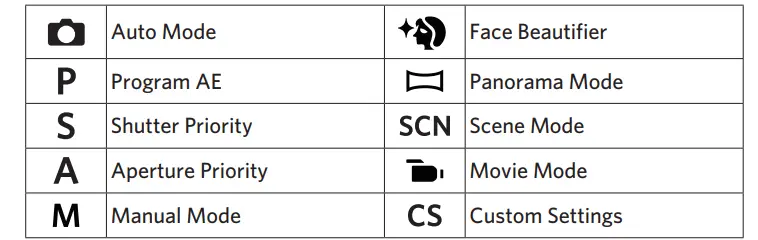
Using the Mode Dial
This camera provides a convenient mode dial that allows you to manually switch between different camera settings with ease. Available modes are listed below:

In shooting mode, press the button to begin recording a video. After recording, press the button again to stop recording. The camera will store the video and return to the shooting screen.

In each mode, press the  button to access the “Easy Menu”. Press the
  buttons to move among options, then press the
  button to make a selection. Choosing the
  within this list will provide access to the “Full Menu”:

For more detailed operating instructions, please refer to the “User Manual” located on the web.
Frequently Asked Questions
It depends on what setting you have your shots on. Mines on face beautify and portrait and its slower at taking shots because of that but regular settings are faster. 🙂 I’m a professional photographer and this camera has done well.
Video quality is excellent.
The KODAK PIXPRO AZ421 takes a Standard SDHC “SD Card” we do not recommend using “Ultra”, “Extreme”, “SDXC” or other more expensive SD cards as these are not always compatible. Sticking to no more than 32GB of storage memory is also recommended as larger cards are not to spec. A 32GB SD card will store thousands of photos and videos.
This is basically a big point-and-shoot camera with a HUGE telephoto lens, wide angle and a boatload of adjustments (shutter/aperture priority or program AE list an SLR). It has multiple focus options, but no purely manual “twist the lens” variety.
I am very pleased with this camera, it’s a bit more complicated than a “point-and-shoot” camera, but it takes great pictures and more than adequately does the job. It has plenty of options that automatically adjust to types of shots you may take for a neophyte like myself, but it also has some more manual adjustments if one desires to do some more “old school” photography (I don’t use these, personally, yet as I have no idea how to – I let the camera take care of this – portraits, night scenes, dark areas, bright outside shots, children, etc. – and it’s pretty awesome!).
It is a very easy camera to use, BUT it does not take the best pictures. My phone takes way better photos than this camera. There are other cameras for the same price that take way better pictures.
Every memory card has their own info so they can perform well. If you previously use the card, you might want to format the card assuming you’ve transferred your pic to another storage area. If this was a new card. If the camera is asking for you to format. The card may have to be formatted before you use. Usually this may occur with an inexpensive product.
Probably not great I’ve never tried taking pictures of things moving (I’m a mountain hiker and use it mostly for landscapes, etc.)
Glass as far as I can tell.
Yes it is. Just a big one with a few more features. Don’t buy bridge cameras unless you really need that telephoto (zoom) lens.
It’s not going to take amazing professional videos. I would recommend using studio lights, but if you’re not interested in high quality video, then I guess the camera is good for that.
I have been using a 16 g card. I do upload my pix to my laptop than clear camera there after.
Manual tells the best quality image contains only 5Megabytes with Exif2.3(Jpeg) format. I don’t think that it provides or present to raw file(tiff or other formats by manufacturer).