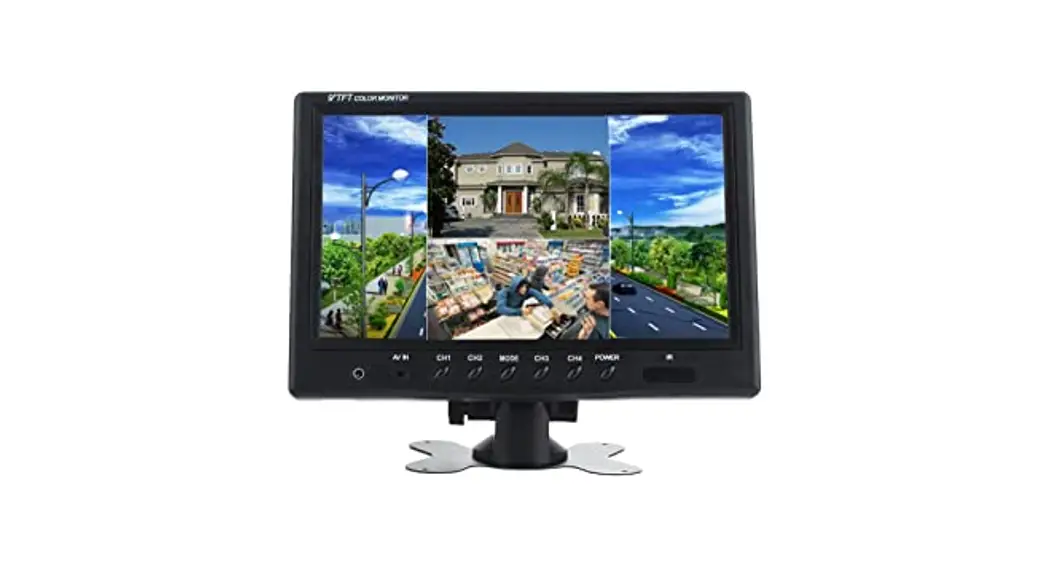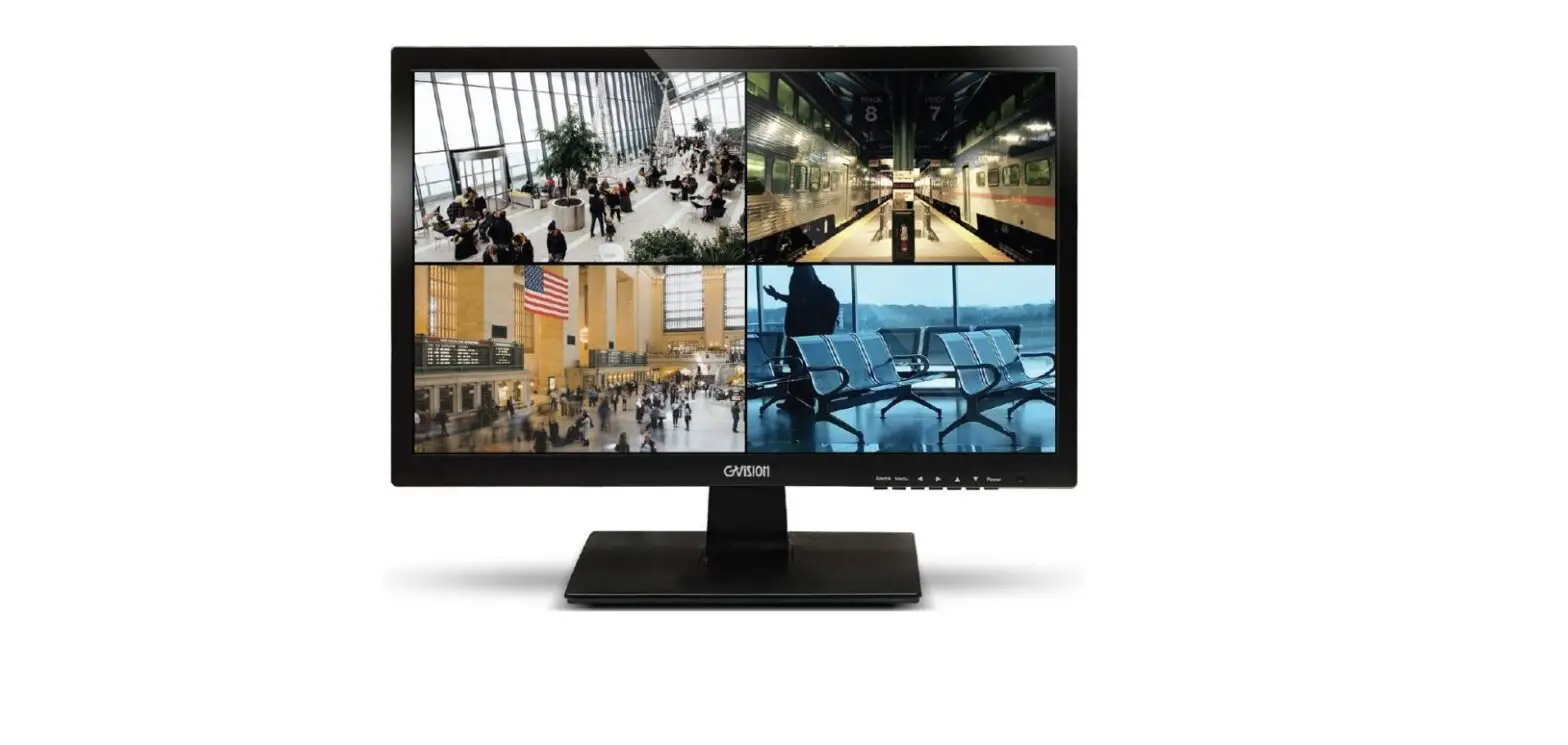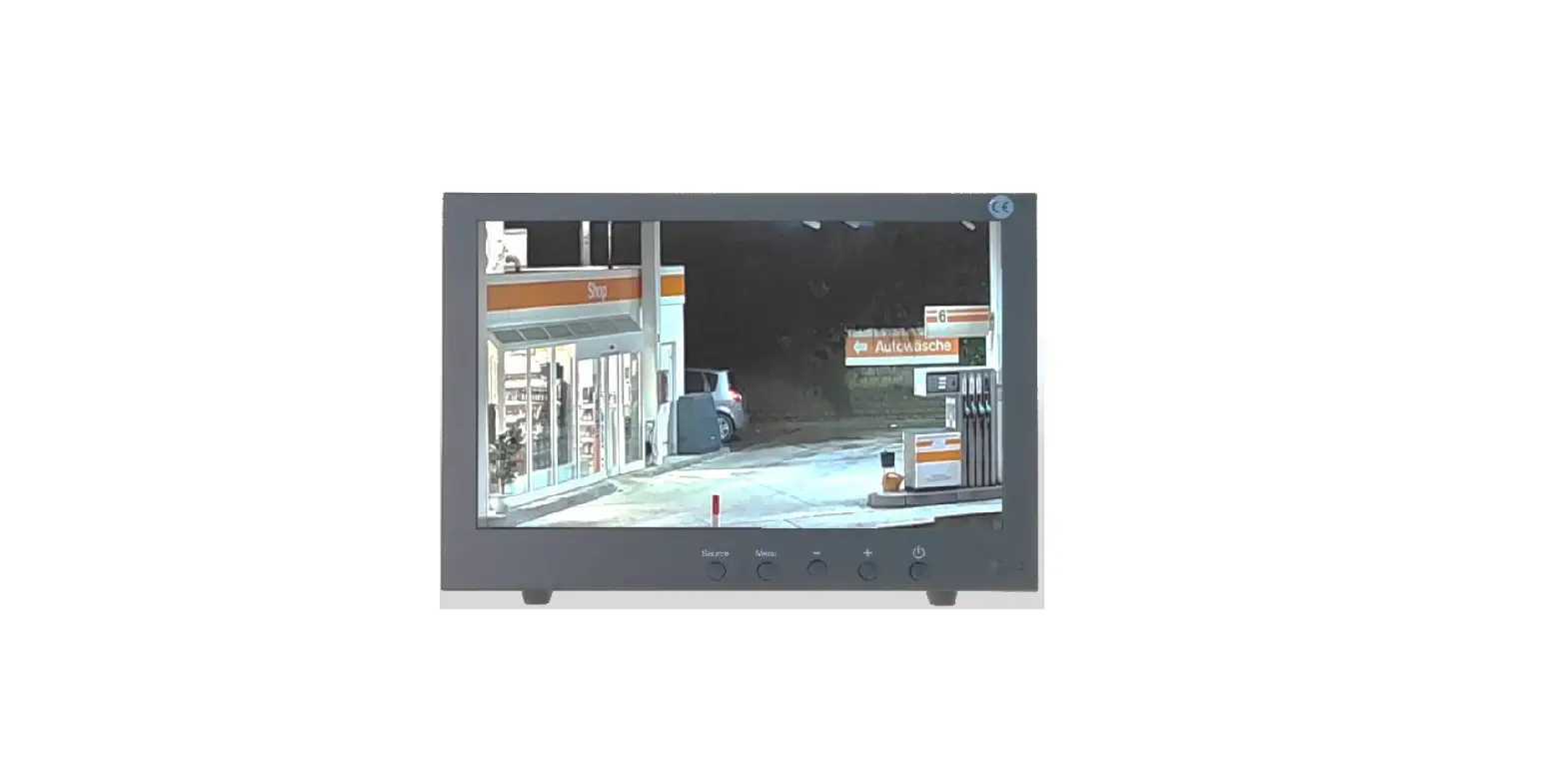

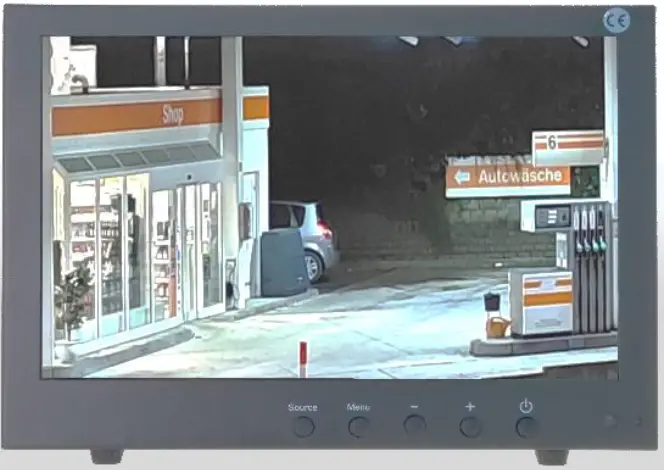
BURG WACHTER BWML-1000 10 Inch Video Surveillance Monitor
Items included in the delivery
- 1x Monitor
- 1x Set screws
- 1x table bracket
- 1x remote controller
- 1x Quick guide
Special features
- 10” Monitor
- 1280×800 Pixel (nativ)
- Metal housing
- Aspect Ratio 16:9
- Anti-reflexion display MTBF 50,000 hrs
- VESA 75×75
- Including remote control
Safty notes
The generally accepted standards for handling electrical equipment apply. If in doubt, consult your professional installer.
ENVIRONMENT
- This monitor is designed for indoor use. Do not expose it to vibration, dust or corrosive gases.
- Do not install the monitor outdoors or in an aggressive environment. Do not expose the monitor to rain or moisture. Do not place the monitor in locations exposed to extreme temperatures such as direct sunlight or near heating devices/appliances, as this may cause overheating and damage.
- Do not expose the monitor to direct sunlight to maintain a clear image. Using the monitor against a bright background and where sunlight or other light sources shine directly on the monitor may increase eye fatigue.
WALL MOUNTING
Caution: Each wall mount stand must support at least 5 times the net weight of the monitor for secure mounting. The stand must be removed first before mounting to a VESA mount.
- Disconnect all cables from the monitor
- Place the monitor face down on a clean surface. For example, use a clean cloth to protect the monitor from scratches.
- Use a suitable screwdriver to remove the screws from the four holes in the monitor base.
- Follow the instructions included with the wall mount to attach the monitor to the wall.
STORAGE
- Unplug the monitor if it will not be used for an extended period of time.
VENTILATION
- Never cover or block the ventilation slots in the monitor. A minimum clearance of at least 30 cm should be maintained around the unit to ensure adequate ventilation.
- Do not install a DVR or other equipment in close proximity to the monitor. Keep at least 30 cm away from the monitor.
WATER AND MOISTURE
- Do not expose the monitor to moisture or liquid.
- Do not use the monitor near water.
- Do not touch the monitor or cable with wet hands as this may cause electric shock or damage.
CLEANING
- Unplug the unit from the wall outlet before cleaning.
- Do not use liquid or spray cleaners. Use a dry, soft, lint-free cloth for cleaning. For stubborn dust, wipe with a slightly damp cloth.
Technical drawing
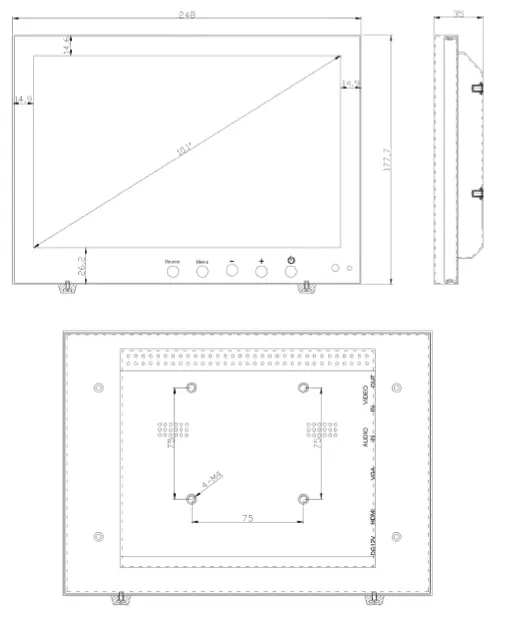
All dimensions in mm. Drawings not true to scale. We reserve the right to change technical specifications including slight variation in size and weight, technical changes, errors excepted.
Interface
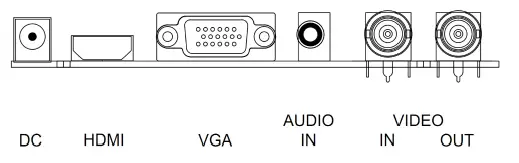
| name | description | name | description | |
| DC | =12Vdc 10W | Video In | FBAS/CVBS Input | |
| HDMI | HDMI socket for Typ A | Video Out | FBAS/CVBS Loop Output | |
| VGA | 15-pol. D-Sub Input | |||
| Audio | 3.5mm Audio-Input | |||
ON-SCREEN DISPLAY SETUP
- To access the OSD Menu press ‘MENU’.
- Use the ‘+’ or ‘-’ buttons to select the required menu item, then press the ‘SOURCE’ button to select the Sub menu.
- Continue to use the ‘SOURCE’ button to highlight the required field, then press ‘+’ or ‘-’ to adjust the setting.
- Press the ‘MENU’ button to return to previous menu.
- Press the ‘MENU’ button again to exit the OSD Menu completely.
- N.B. To Lock or Unlock OSD settings after set up. Press and hold “menu” button for 5 seconds.
Remote control
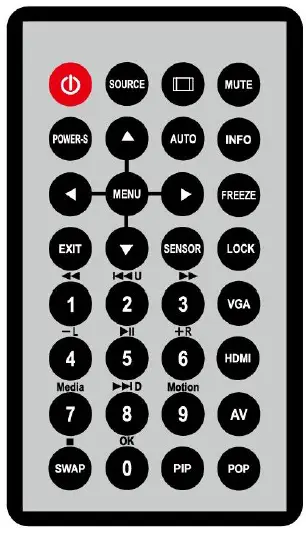
| Power | Turn On & off the monitor | ||||
| Power-s | Back light : high, mid , low | ||||
| Scale : normal, center, full | |||||
| Mute | Switches the sound on or off | ||||
| Lock | Menu lock: lock, unlock | ||||
| ∧、∨ | Move Up / down highlight icon, | ||||
| Menu | Display the main on-screen menu | ||||
| < 、> | Press them to turn up or turn down the volume | ||||
| Auto | Auto adjust (available only VGA mode) | ||||
| INFO | Press it to display information on the monitor screen | ||||
| VGA | VGA signal | ||||
| HDMI | HDMI signal | ||||
| AV | AV input signal | ||||
| Source | Press it to display and select the available video signal | ||||
| 0~9 | available only password entered | ||||
| NC | Sensor Freeze PIP POP SWAP | ||||
| EXIT | Press this button to exit the menu | ||||
The layout of the OSD will change depending on the selected input
AV – Input Configuration
Picture
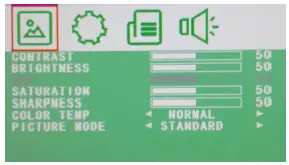
- CONTRAST: (0–100) Set the difference between the light and dark areas of the picture.
- BRIGHTNESS: (0–100) Set how bright the display is.
- HUE: -50 to +50 (only available if NTSC)
- SATURATION: (0-100)
- SHARPNESS: (0-100)
- COLOR TEMP: Select the color temperature. (Normal/Warm/Cool)
- PICTURE MODE: Select defaults or save user setting. ( User/Standard/Soft/Vivid)
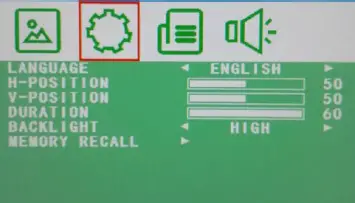
OSD
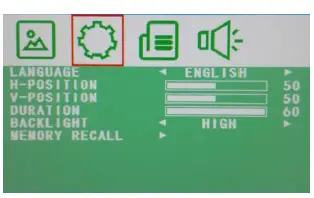
- LANGUAGE: Select preferred language for OSD. (En/Ch/Ger/Fr/Sp/It/Pt/Pl/Ru)
- H-POSITION: (0-100) Set the horizontal position of the OSD.
- V-POSITION: (0-100) Set the vertical position of the OSD.
- DURATION: (5-60) Set seconds for the OSD to automatically close.
- BACKLIGHT: Set power level in use by backlight (HIGH/MID/LOW)
- MEM-RECALL: Restore all factory defaults.
Function
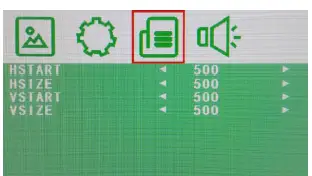
- HSTART: Set left alignment point of image.
- HSIZE: Set horizontal size of image.
- VSTART: Set lower alignment point of image.
- VSIZE: Set vertical size of image.
Audio
- BASS: (0-100)
- TREBLE: (0-100)
- BALANCE: (-50 to +50)
- SOUND MODE: Set user or preset audio configurations. (User/Standard/Movie/Music)
- AVC: (ON/OFF) Automatic Volume Control
HDMI – Input Configuration
Audio

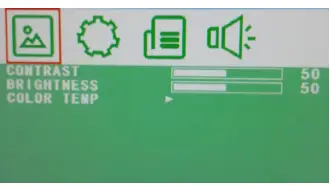
- CONTRAST: (0–100) Set the difference between the light and dark areas of the picture.
- BRIGHTNESS: (0–100) Set how bright the display is.
- COLOR TEMP: Select the color temperature Menu.
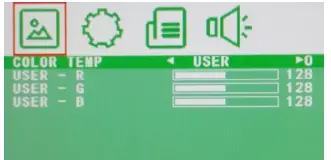
- COLOR TEMP: Select color temperature preset.
- USER – R: Set RED color level.
- USER – G: Set GREEN color level.
- USER – B: Set BLUE color level.
OSD
- LANGUAGE: Select preferred language for OSD. (En/Ch/Ger/Fr/Sp/It/Pt/Pl/Ru)
- H-POSITION: (0-100) Set the horizontal position of the OSD.
- V-POSITION: (0-100) Set the vertical position of the OSD.
- DURATION: (5-60) Set seconds for the OSD to automatically close.
- BACKLIGHT: Set power level in use by backlight (HIGH/MID/LOW)
- MEM-RECALL: Restore all factory defaults.
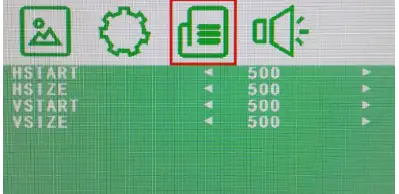
Function
- HSTART: Set left alignment point of image.
- HSIZE: Set horizontal size of image.
- VSTART: Set lower alignment point of image.
- VSIZE: Set vertical size of image.
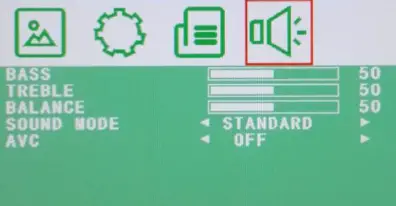
Audio
- BASS: (0-100)
- TREBLE: (0-100)
- BALANCE: (-50 to +50)
- SOUND MODE: Set user or preset audio configurations.
- (User/Standard/Movie/Music)
VGA – Input Configuration
Picture
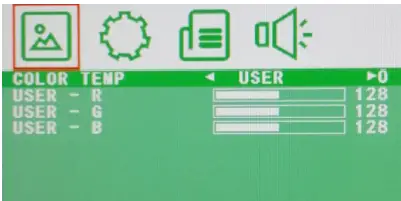
- CONTRAST: (0–100) Set the difference between the light and dark areas of the picture.
- BRIGHTNESS: (0–100) Set how bright the display is.
- COLOR TEMP: Select the color temperature Menu.
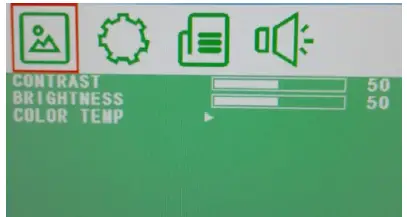
- COLOR TEMP: Select color temperature preset.
- USER – R: Set RED color level.
- USER – G: Set GREEN color level.
- USER – B: Set BLUE color level.
OSD
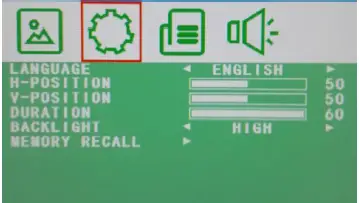
- LANGUAGE: Select preferred language for OSD. (En/Ch/Ger/Fr/Sp/It/Pt/Pl/Ru)
- H-POSITION: (0-100) Set the horizontal position of the OSD.
- V-POSITION: (0-100) Set the vertical position of the OSD.
- DURATION: (5-60) Set seconds for the OSD to automatically close.
- BACKLIGHT: Set power level in use by backlight (HIGH/MID/LOW)
- MEM-RECALL: Restore all factory defaults.
Geometry
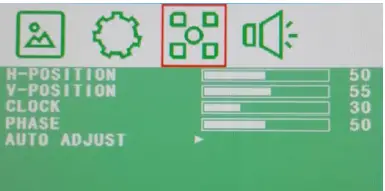
- H-POSITION: Set horizontal image position.
- V-POSITION: Set vertical image position.
- CLOCK: Manually adjust clock synchronization.
- (If the clock setting of your image is not fine-tuned, you may observe periodic vertical bars of video noise on your image. These bars of noise are usually adjusted out when an Auto Configuration is performed. If the bars of noise are still present, this setting can be used to remove them.
- PHASE: If the phase of your monitor is not fine-tuned, you may observe the image being unstable in the horizontal axis. Use this option to manually correct.
- AUTO ADJUST: Perform an automatic configuration of the Phase, Clock, vertical and horizontal position.
Audio
- BASS: (0-100)
- TREBLE: (0-100)
- BALANCE: (-50 to +50)
- SOUND MODE: Set user or preset audio configurations. (User/Standard/Movie/Music)
- AVC: (ON/OFF) Automatic Volume Control
Technical specifications
| Model | BWML-1000 |
| type | monitor |
| Installation | indoor |
| size | 10.1“ |
| supported video standards | 960H CVBS/FBAS (Analog) |
| 1280×800 (nativ); 1920×1080 960H (CVBS/FBAS) | |
| HDMI Eingang / HDMI Input | 1x HDMI 1.4 |
| VGA Eingang / VGA Input | 1x |
| CVBS Input / Loop output | 1x BNC / 1x BNC |
| Input / Output | 1x / Speaker |
| Remote controll | Buttons, remote controller |
| Gehäuse Housing | Metall |
| Front glass | Anti-glare |
| Contrast ratio | 800:1 |
| Brightness | 300cd/m² |
| Display colors | 16,7 M |
| Viewing angle | 80/80/80/80 ° |
| VESA | 75×75 |
| MTBF | 50.000h |
| Operation temperature | min. 0° max. +45° |
| dimensions | mm |
| Power Supply | 12Vdc ext. |
| Power consumption | Max. 10W |
| Weight | 1,3kg (net) 1,75kg (gross) |
| Lieferumfang | Monitor BWML-1000 Standfuß, fix |
Subject to technical changes without notice. Errors excepted.
Detailed user manual
The purpose of this quick installation guide is to start the device in an easy and convenient way. Further detailed explanations and descriptions of the various functions are available in the user manual which you can download as pdf file from our website.
Alternatively, for quick access to the user manual, you can scan the below QR-code to view the user manual on your smartphone or tablet.
Link

- Latest updates can be found on our homepage www.burg-guard.com
Notes
Please be aware that electrical and electronic equipment and batteries shall not be disposed of as household waste, but rather collected separately. Please obtain information on the collecting points for electrical waste from the responsible authority of you municipality.
BURG-GUARD GmbH hereby declares that this device complies with Directive 2014/35/EU Low Voltage, 2014/53/EU, (EMC), 2011/65/EU (RoHS). The full text of the EU Declaration of Conformity can be found on www.burg.biz. If you have technical questions about this device, please read the detailed user manual and the FAQ sheet which you will find on the following website: www.burg.biz. If, however, you still have questions, please send an e-mail to: [email protected]
Copyright
All rights reserved. This publication may not be reproduced, stored in a retrieval system or transmitted, in any form or by any means (electronic, mechanical, photocopying, recording or otherwise), without the written prior permission of BURG-GUARD GmbH. No reproduction of any part or excerpts thereof are permitted. Errors excepted. Specifications are subject to change without notice for quality improvement. All companies or products mentioned in this publication are trademarks, registered trademarks or brands of the respective company. Subject to technical changes without notice. Errors excepted. Specifications are subject to change without notice for quality improvement.
© Copyright: BURG-GUARD GmbH
Wormgermühle 58540 Meinerzhagen, Germany
www.burg-guard.com
Version 1.00cko/0622/dt-en/A5
 Professional solutions for video security / SANTEC Video Technologies >>> Videoüberwachung – Netzwerktechnik – Freilandsensorik – Dienstleistungen
 BURG-WÄCHTER