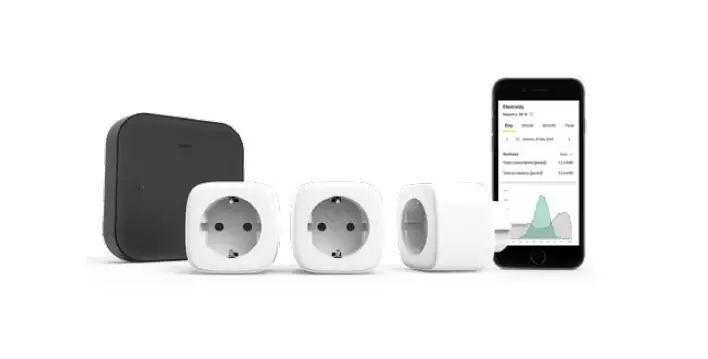
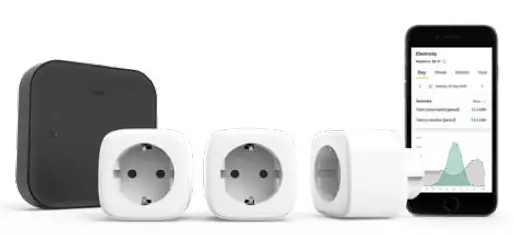
niko 552-99099 Home Control Energy Starter Kit
Register
Go to: mynikohomecontrol.niko.eu
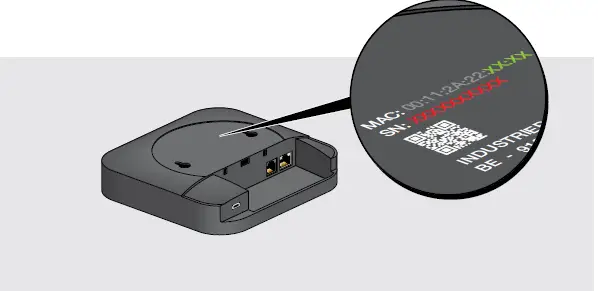
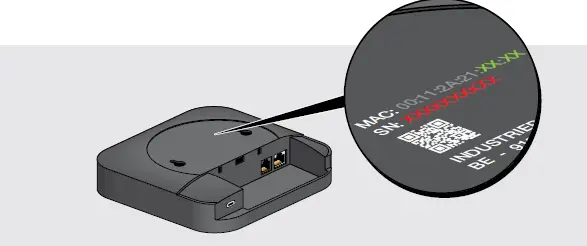
and register your new installation. Keep the serial number & MAC address of your smart hub to hand. You can find these on the bottom of the device. Please verify your e-mail address after creating your Niko Home Control account. Note: if you didn’t receive a confirmation e-mail, look at your spam folder
 Get in touch with your grid operator to activate the digital meter’s P1 port (if you live in the Netherlands or your grid operator is Sibelga, you can skip this step). Note: it could take up to 72 hours before the P1 port is activated. The P1 port is active when an arrow appears above the GP sign on the display of the digital meter
Install
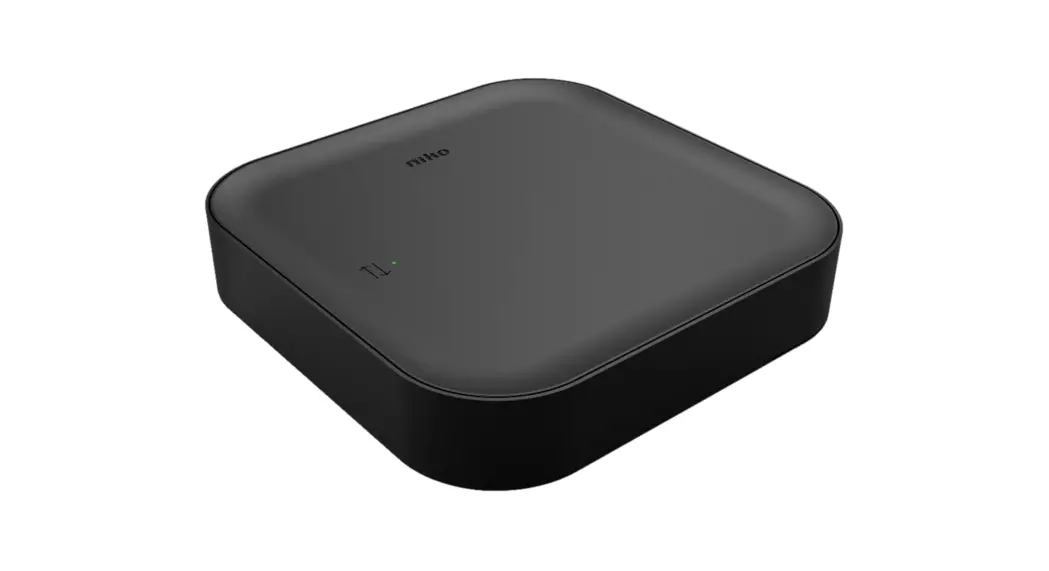
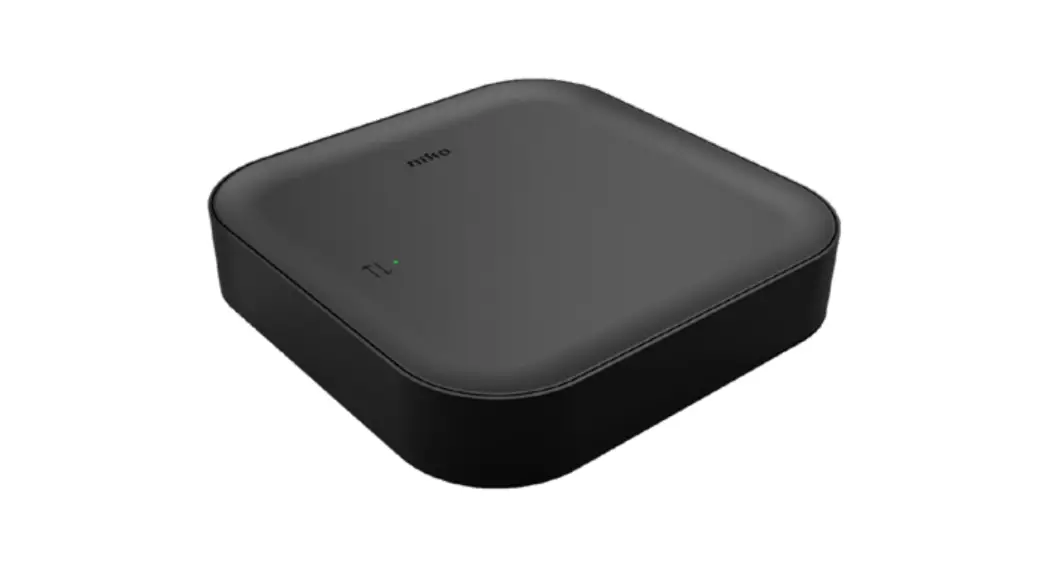
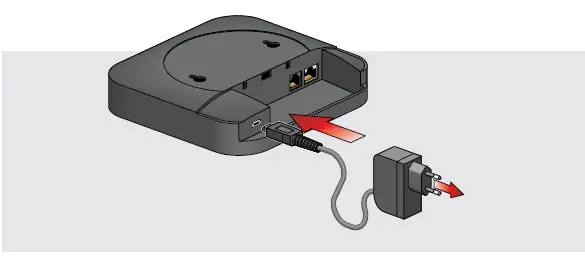
Open the lid of the smart hub and connect the power adapter
 Connect the smart hub to the P1 port of your digital (smart) meter with the supplied P1 cable
 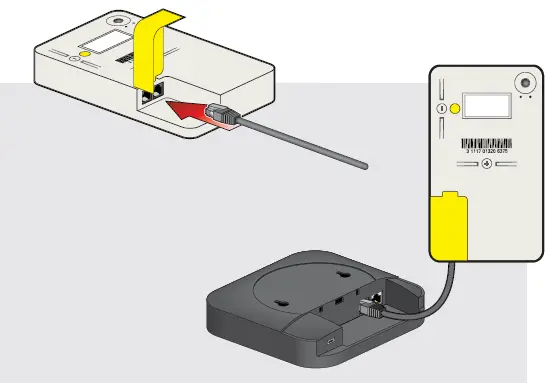 Connect the smart hub via UTP (A) or Wi-Fi (B) to your home network
 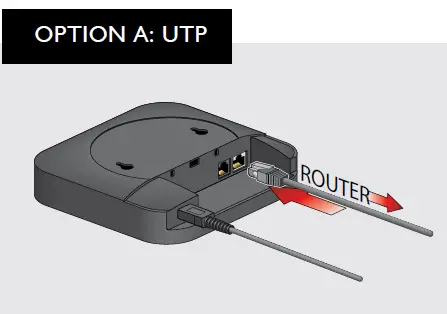 OPTION B: Wi-Fi
Connect your smartphone, tablet or PC to the Wi-Fi net- work called “Niko” followed by the last 4 characters of the smart hub’s MAC address (MAC: 00:11:2A:22:XX:XX)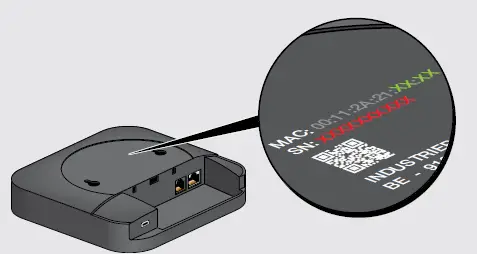 Enter the network password. The password is the serial number of the smart hub (SN:XXXXXXXXXX)
On smartphones and tablets, the smart hub’s web portal will open automatically. Or open a web browser and go to the following address: Nikoxxxx.local (XXXX is again the last 4 characters of the MAC address)
You will be asked a password.
The password is again the serial number of the smart hub (SN:XXXXXXXXXX)
Select a network of your choice for the smart hub and enter the password for this network (if applicable)
Configure
Download the Niko Home app on your smartphone
Log in with the username and password for your Niko account (that you created in step 1.1)
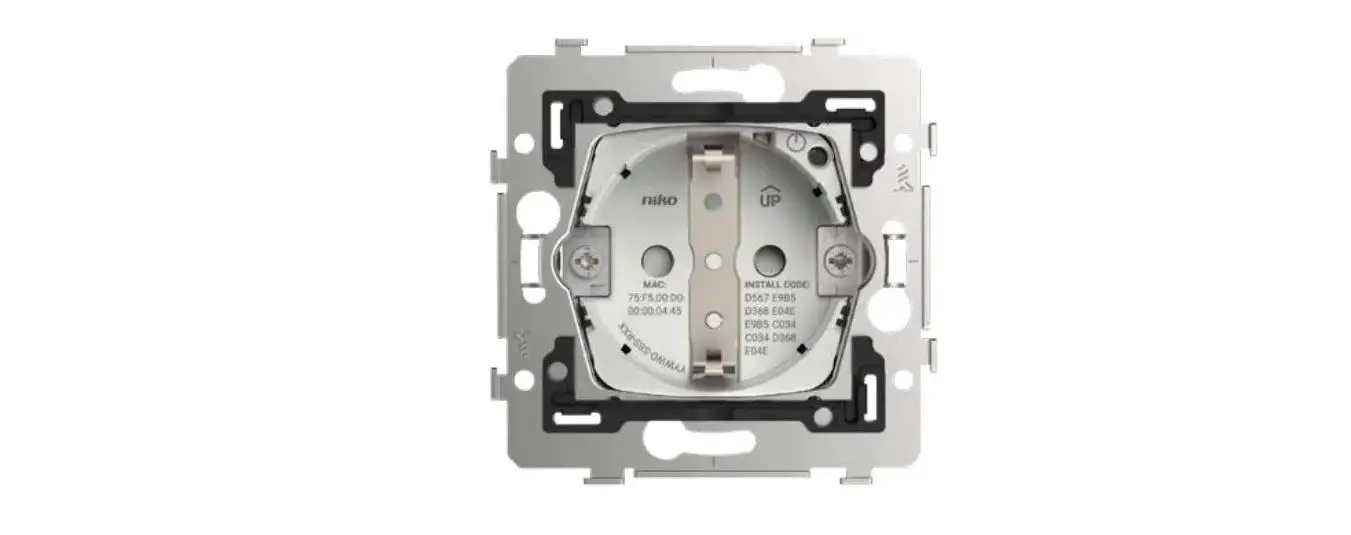
 Add the smart plugs in the app
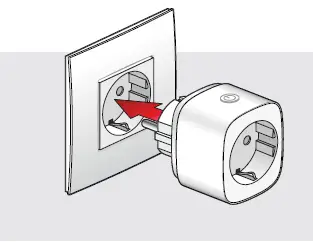
 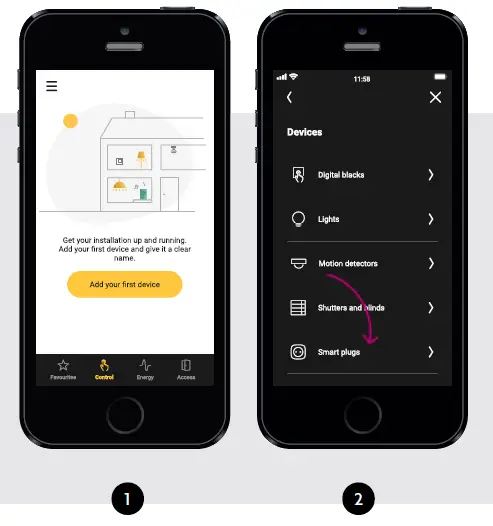 Plug the smart plugs into the socket outlet once the app asks you to
  You can now use the app to view your energy consumption and to switch your smart plugs on and off Discover even more interesting Niko
Home Control features such as an all-off, presence simulation, solar mode and schedules
Connect your SMA inverter
(optional)*
- Go to mynikohomecontrol.niko.eu
- Log in with the username and password for your Niko account (that you created in step 1.1)


*Niko Home Control is compatible with the following SMA inverters:
SMA Sunny Boy
- SB1.5-1VL-40
- SB2.0-1VL-40
- SB2.5-1VL-40
- SB6.0-1AV-41
- SB6.0-1AV-40
- SB5.0-1AV-41
- SB5.0-1AV-40
- SB4.0-1AV-41
- SB4.0-1AV-40
- SB3.6-1AV-41
- SB3.6-1AV-40
- SB3.0-1AV-41
- SB3.0-1AV-40
SMA Sunny Tripower
- STP10.0-3AV-40
- STP8.0-3AV-40
- STP6.0-3AV-40
- STP5.0-3AV-40
- STP4.0-3AV-40
- STP3.0-3AV-40
Go to “Connected services” and click on (+). Add a service. Click on the SMA logo
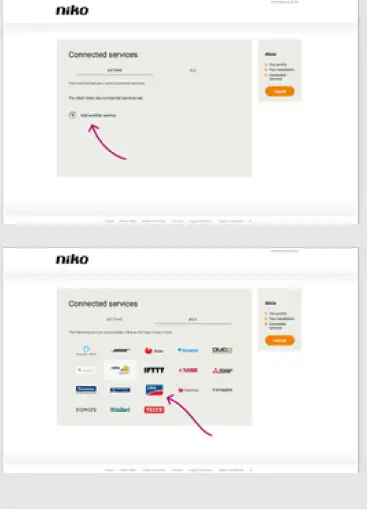 Enter the serial number for your SMA inverter (you can find this on the side of your inverter) and click on Activate At times, you might be asked for the installer password. If you do not have this, go to www.sma-benelux.com/niko-code-en to request your Niko activation code
mynikohomecontrol.niko.eu www.niko.eu
 Niko - home automation, switches, socket outlets and detector
 NIKO activation code request | SMA Solar